Seeing ESD-USB or ESD_USB in Windows 10 or 11 usually means the drive has been prepared as Windows installation media, often with Microsoft's Media Creation Tool. It may still boot a PC, but the name can be alarming if the USB previously held photos, work files, or backups. Some people also find that a large external drive now displays a much smaller usable volume.
These are two separate problems: lost files and a changed partition layout. The installation process can overwrite old data, while unallocated space may explain the missing capacity. This guide helps you identify the drive, protect recoverable files, check the actual disk size, and restore ordinary storage only when it is safe to do so.
In This Article
Part 1. What Does ESD-USB Mean on a Windows Drive?
ESD-USB is commonly a volume label used for Windows installation media, not a diagnosis of a damaged USB drive. Check the drive's purpose before assuming its name, available space, or files need to be changed.
Why Windows Installation Media May Be Named ESD-USB
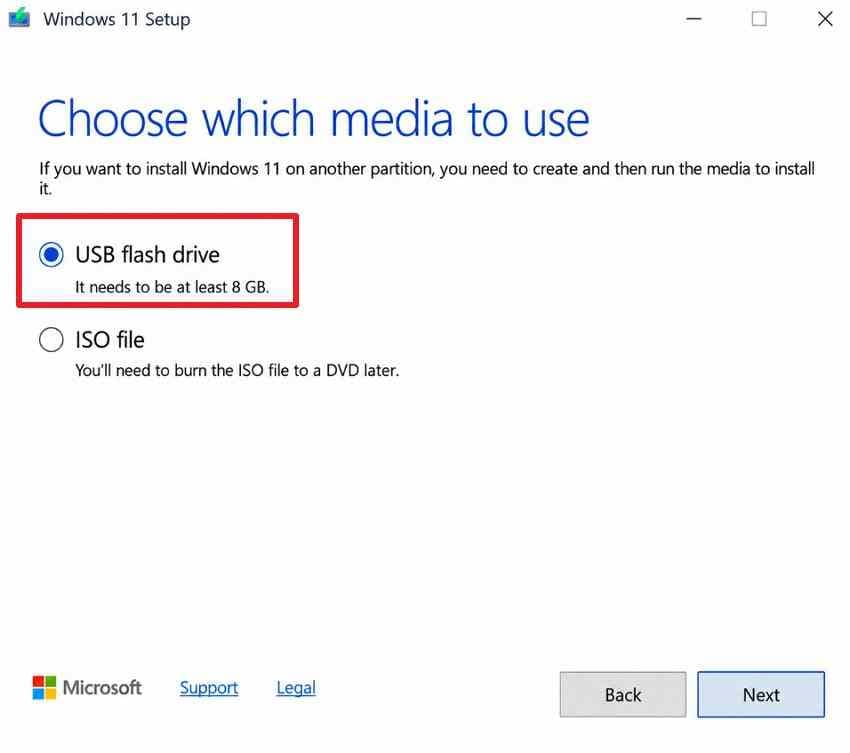
Microsoft's Windows 11 installation media instructions tell users to select a blank USB flash drive with at least 8 GB of space and warn that its existing content will be deleted. After the tool writes Windows setup files, Windows may display the drive as ESD-USB. A different drive label does not, by itself, prove malware, physical damage, or permanent loss of capacity.
The tool offers two different outputs: USB flash drive prepares the selected drive for installation, whereas ISO file downloads an image for later use. Choosing the USB option is the decision that puts the existing contents of the selected drive at risk.
How ESD-USB Differs From an ESD Image and Static Discharge
ESD-USB identifies a volume in File Explorer. An .esd file is a Windows installation image format, which may appear among setup files; it is not the same thing as the volume's name. In electronics, ESD can also mean electrostatic discharge. That hardware term does not explain why a Windows installation USB has this label.
Renaming ESD-USB in File Explorer changes only its label. It does not restore deleted files, remove hidden partitions, or establish that the drive is safe to format.
Should You Keep the ESD-USB Installer?
Keep the drive unchanged if you still need it to install, reinstall, or troubleshoot Windows. Microsoft's installation-media guide explains these uses. If the installer is no longer needed, you can reuse the device after deciding whether any earlier files need recovery.
Quick check: If the USB contains files such as setup.exe, a sources folder, and other Windows setup files, those are consistent with installation media. Do not delete them if you expect to boot from this drive again.
Part 2. Decide What You Need From the Drive
Before choosing a tool, decide whether your goal is to preserve the installer, retrieve pre-existing files, or reuse the drive at its available physical capacity. Those goals require different and sometimes incompatible actions.
Choose Between Keeping, Recovering, and Reusing
| Your Goal | Safest First Action | What Not to Do Yet |
| Keep Windows installation media | Leave the USB unchanged and store it for future use | Do not format or delete setup partitions |
| Recover files that were on the drive before conversion | Stop writing; check backups and assess whether the device is readable | Do not use DiskPart, CHKDSK repair, or another Media Creation Tool run |
| Reuse the drive for photos, documents, or backups | Confirm the old files are safe, then inspect the physical disk layout | Do not assume File Explorer shows the whole disk |
If the missing data is valuable, start with Part 3. If the USB is only needed for ordinary storage and no earlier files matter, check the disk layout in Part 4 before following the applicable Part 5 method.
Compare Visible Volume Size With Physical Disk Capacity
File Explorer shows the capacity of a mounted volume, not necessarily the full capacity of the physical USB device. For example, a drive sold as 1 TB may have a much smaller visible ESD-USB volume while Windows reports substantial unallocated space elsewhere on the disk.
Step 1. In This PC, right-click the ESD-USB volume, select Properties, and record its capacity. The example below illustrates where Windows shows a volume's reported size; it does not depict an ESD-USB volume.
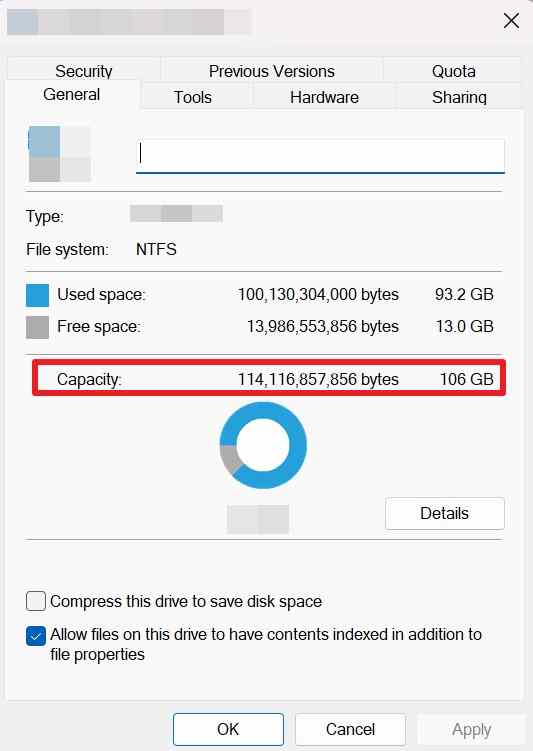
Step 2. Right-click Start, select Disk Management, and find the matching physical device using its disk number, capacity, removable connection, and volumes. Record its full reported size and any black-bar Unallocated region. Do not select Disk 0 merely because an example uses that number.
Microsoft documents these views in Disk Management in Windows. If the device does not show its expected physical size, pause before trying to rebuild partitions.
Protect Previous Files Before Any Repair
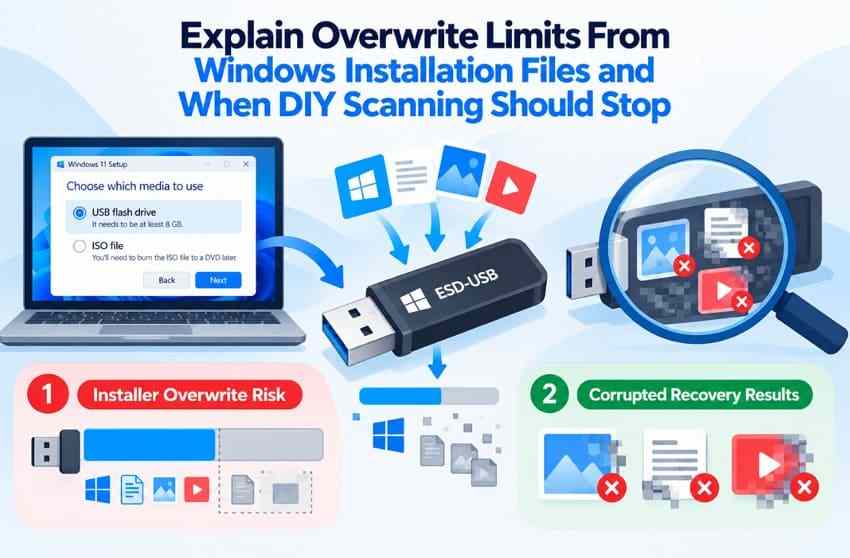
Windows installation files may have overwritten part of the drive's previous contents. Repeatedly copying files to ESD-USB, downloading another installer onto it, or formatting it can eliminate additional recoverable data. Disconnect it when you are not actively checking or recovering it. Use another disk for any recovery output.
Do not initialize, format, run DiskPart clean, or run a file-system repair while earlier data is still important. A lost drive letter, changed label, or small visible volume is not a reason to perform those actions immediately.
Part 3. Recover Previous Files Before Changing Partitions
Recovering files and restoring the original-looking USB capacity are separate tasks. For lost data, preserve the existing storage state and check what can still be read before trying to recreate the partition layout.
Check Other Copies and Confirm the Affected USB
Look for copies in OneDrive, another PC, external backups, or an original camera or phone. If the files are already safely stored elsewhere, you may not need a recovery scan at all. If they are missing, disconnect unrelated removable devices and confirm the USB's physical identity in Disk Management.
If the drive disconnects repeatedly, becomes unusually hot, reports No Media, or cannot provide readable sectors, do not keep forcing scans. A professional recovery service may be a better choice when the files are irreplaceable.
Scan a Detectable ESD-USB With Recoverit
For a stable USB that Windows exposes as readable storage, Wondershare Recoverit for Windows can search for files that remain recoverable after deletion, formatting, or partition changes. It is not a tool for reversing overwritten installation data or repairing failed flash hardware. The USB flash drive recovery guide covers this narrower file-loss scenario.
Step 1. Select the USB. Open Recoverit, enter Hard Drives and Locations, and select the confirmed USB drive or available scan location. Compare the reported size to the physical device before proceeding.

Step 2. Scan for previous files. Start a scan and, if the device remains stable, review folders, file types, and search filters. A listed filename is not proof the entire file can be recovered.

Step 3. Preview and save elsewhere. Preview representative photos, videos, and documents where supported. Select the files worth keeping and click Recover, choosing a different healthy physical disk as the destination. Open sample output files before you consider formatting ESD-USB.

Recovery decision: If the scan finds no usable earlier files, a new download or fresh setup files are not evidence of successful recovery. You may still need backups or a specialist, particularly for high-value data on an unstable device. See the official Recoverit workflow for current interface steps.
Why a Previous File May Be Unrecoverable
Media Creation Tool writes new Windows installation content to the selected drive. If those writes replace the storage locations holding an older file, ordinary recovery software cannot reconstruct the overwritten bytes. A scan may find intact items elsewhere, but it cannot guarantee a full recovery of the drive's previous folders.
Recovery results may also be incomplete if directory metadata has been replaced. That can produce files with missing names, broken previews, or incorrect folder structure. Do not treat repeated unsuccessful scans as a reason to run formatting commands.
Part 4. Diagnose a Drive That Appears Smaller Than Before
A small ESD-USB volume does not always mean a small physical disk. Use the Disk Management layout to distinguish a partitioning issue from a storage device that cannot report its actual capacity.
Read the Disk Management Layout Before Changing It
| What Disk Management Shows | What It Suggests | Safe Next Step |
| ESD-USB volume plus substantial unallocated space | Only part of the reported disk is currently allocated to the visible volume | After protecting files, plan a new full-size volume |
| Multiple partitions on the same USB disk | More than one existing or installation-related volume | Identify each partition before removing any |
| One volume, with the physical disk showing expected size | No obvious hidden capacity to reclaim | Format that volume only if ordinary storage is the goal |
| Physical disk reports zero, No Media, or inconsistent sizes | Detection or hardware problem rather than a normal partition-size issue | Stop destructive commands and diagnose the device |
A black bar denotes Unallocated capacity, but a black bar on your computer's internal drive is not an invitation to modify it. Confirm the USB's physical identity each time you open Disk Management.
Why Some Users See 32 GB After Conversion
Some users report that a larger drive appears as an ESD-USB volume of about 32 GB. Treat that as an example of a particular partition layout, not a universal Media Creation Tool limit. A Windows setup drive can have a different size depending on the tool, Windows version, and device configuration.
The useful question is whether the physical disk still reports its expected capacity. If it does and the rest is unallocated, rebuilding the layout may reclaim the space once files are safe. If it does not, don't assume repartitioning will fix it.
When 0 Bytes or No Media Means Stop
If Windows shows No Media or the physical device repeatedly reports 0 bytes, try one known-good USB port, cable or adapter (when applicable), and another trusted computer. An intermittent connection or inaccessible flash controller can prevent a useful software scan.
If the behavior persists across computers, do not keep running format utilities or DiskPart. For more detailed detection checks, read USB drive not showing in Disk Management. A professional recovery lab is the safer option when important data remains on physically unreliable hardware.
Part 5. Restore Ordinary USB Storage After Files Are Safe
Proceed only if you no longer need the bootable installer and have already backed up, recovered, or consciously given up the old files. Formatting and repartitioning change storage structures; they are not file-recovery operations.
Method 1. Format the Existing Volume in File Explorer
Use this when: Disk Management shows a healthy, writable USB volume already using the intended physical disk space. Formatting the current volume changes its file system but will not reclaim unallocated space outside it.
Step 1. Open This PC, right-click the confirmed ESD-USB volume, and select Format. Verify the drive letter and capacity again before proceeding.
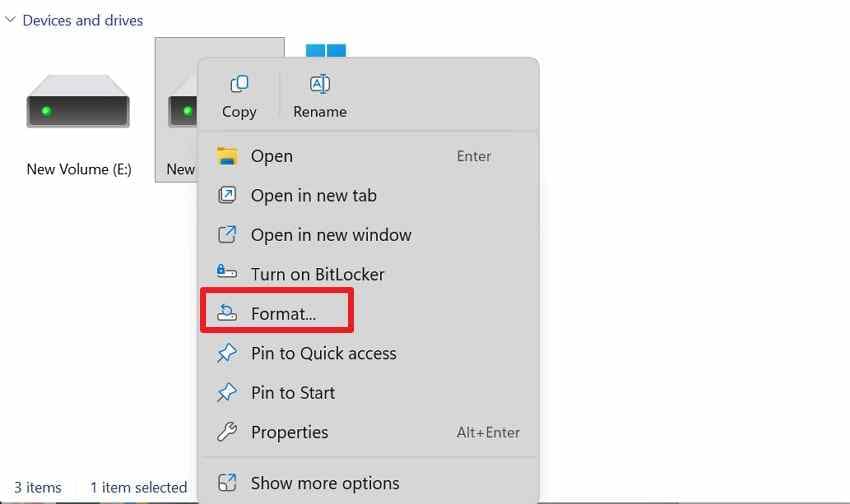
Step 2. Choose exFAT for a modern cross-platform storage drive, or another supported file system for your devices. Choose a neutral label such as USB Storage, select Quick Format when appropriate, and click Start. The original example shown below uses NTFS, so change the file system before starting if exFAT better fits your devices. Confirm the warning only when you are certain the selected volume contains nothing you still need.
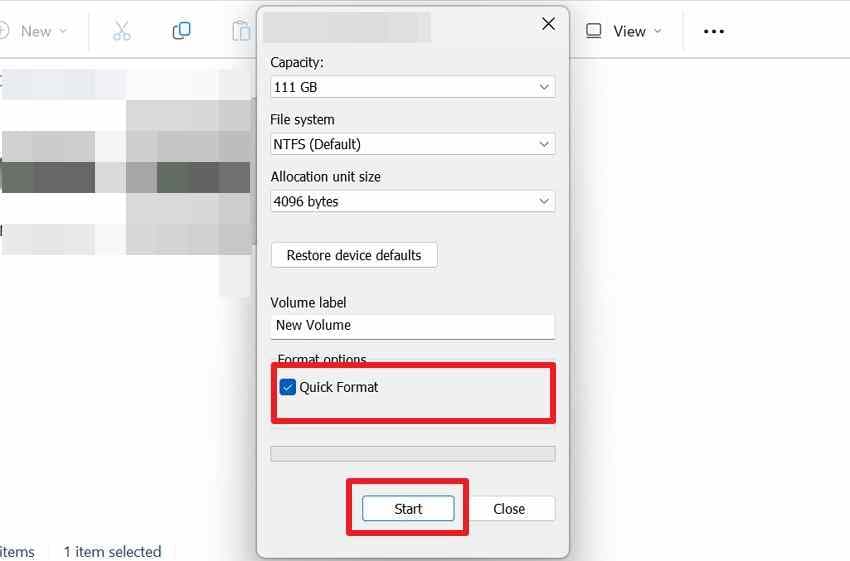
Expected result: File Explorer shows an ordinary writable volume. If the visible capacity remains much smaller than the physical disk, return to Disk Management; repeating quick format will not merge unallocated space.
Method 2. Create a Full-Size Volume in Disk Management
Use this when: the correct USB disk shows a smaller installer volume with unallocated space that you want to use as one ordinary storage volume. This can remove the USB's bootable setup content and any remaining data.
Step 1. Open Disk Management and verify the USB by disk number, capacity, and connection. Record the current layout, and make sure your backup or recovery work is complete.
Step 2. Right-click the existing installer volume on that USB disk only and choose Delete Volume if Windows permits it. Do not delete partitions on the system disk or on other attached storage. If Windows refuses to delete a protected partition, stop rather than experimenting on an unfamiliar disk.
Step 3. Once the target space is unallocated, right-click that region, choose New Simple Volume, and accept the desired size. Assign a letter and format it to a suitable file system. Microsoft describes the wizard in its official Disk Management instructions.
Expected result: The USB has a normal storage volume using the intended space. If capacity remains missing after verifying the correct layout, do not continue deleting partitions on other disks. The dedicated USB full-capacity guide covers additional storage-layout scenarios.
Method 3. Use DiskPart Clean Only on a Verified USB Disk
Use this only if: a healthy, readable USB no longer contains needed data, and Disk Management cannot rebuild its layout. DiskPart operates on physical disks; selecting the wrong disk may destroy a Windows installation or another drive's partition table.
Step 1. Disconnect unrelated external drives. Search for Command Prompt and select Run as administrator. This is the administrative console used for DiskPart.
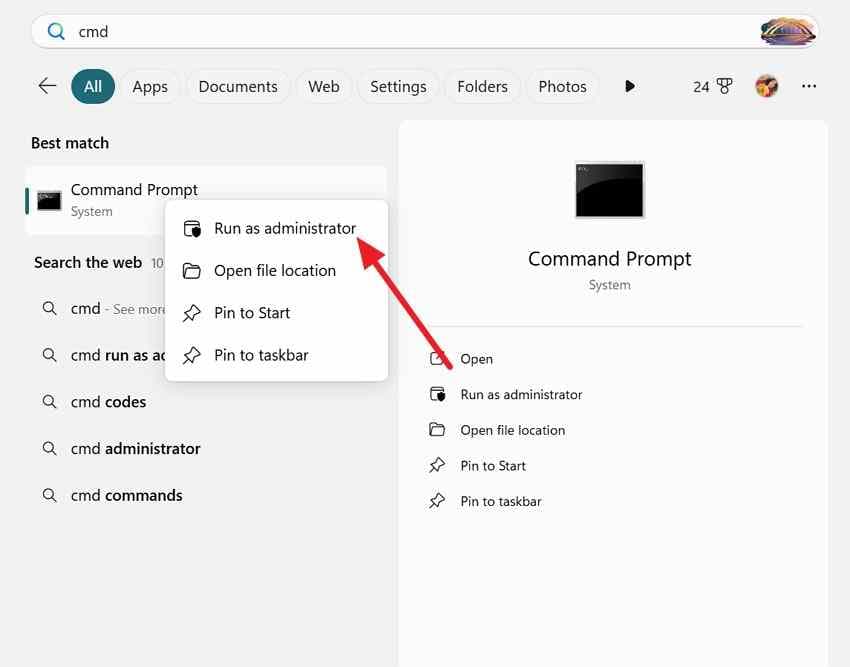
Step 2. Run diskpart and then list disk. Compare the listed disk sizes with Disk Management. Run select disk N only after replacing N with the confirmed USB disk number, then run detail disk and verify its identity again. Do not proceed when the identity is uncertain.
Step 3. After accepting that all partitions on the selected device will be removed, run the following commands one at a time: clean, create partition primary, format fs=exfat quick label=USB, assign, and exit. Do not copy a sample's disk number; yours may differ.
Important: Microsoft's DiskPart clean documentation distinguishes clean, which removes partition information, from clean all, which writes zeroes across the addressed disk. Neither should be used as an initial recovery step.
Choose the Right File System for Your Devices
| File System | Useful For | Main Limitation |
| exFAT | Modern USB storage shared between Windows, macOS, and compatible devices | Some older televisions, consoles, and embedded devices may not support it |
| FAT32 | Devices that specifically require FAT32 and older removable-media readers | Cannot store an individual file of 4 GiB or larger |
| NTFS | Primarily Windows-based storage and file permissions | Write compatibility may be limited on other systems without extra support |
Select the file system your actual devices support. Recreating an ordinary storage volume does not automatically recreate a Windows bootable installer. If you need installation media again, use Microsoft's official tool on a separate empty USB.
Part 6. Verify the Result and Know When to Stop
Successful formatting is not enough: confirm that the correct device was modified, that its usable storage is appropriate, and that ordinary reading and writing now work. A drive that continues to fail should not become the only home for important files.
Check Capacity and Read Back a Test File
Step 1. Compare the USB volume's Properties with the physical disk size in Disk Management. A modest difference between marketed GB and Windows-reported GiB is normal; a large unexplained shortfall is not.
Step 2. Copy a non-sensitive test file to the USB, safely eject it, reconnect it, and open the file. If the transfer fails, the drive disappears, or the copied file becomes unreadable, do not trust the USB for unique backups.
Keep Installation Media When You Still Need It
Do not reclaim the ESD-USB partition just to remove its name if you may soon need to reinstall Windows or access recovery tools. Store the installer safely and use another drive for normal documents. When you no longer need the installer, create a separate verified backup before reusing its media.
Stop When the Hardware Is Unstable
Stop DIY formatting and scanning when the drive shows No Media, repeatedly reports 0 bytes, overheats, drops connections, or has physical damage. A partition command cannot repair flash memory that Windows does not expose as readable sectors. Seek professional assistance for irreplaceable files, or replace the USB if the contents are no longer needed.
Conclusion
ESD-USB usually means a drive has been used for Windows installation media, not that it has developed a hardware fault. First decide whether to keep the installer, recover earlier files, or restore ordinary storage. If files were lost, stop writing and attempt recovery before changing partitions; Recoverit can scan eligible, detectable devices, but cannot restore overwritten data. After protecting your files, use File Explorer, Disk Management, or carefully verified DiskPart commands according to the drive's layout. Finally, test its capacity and stability before trusting it again.
FAQ
-
Is ESD-USB a Virus or a Normal Windows Installation Drive?
ESD-USB is commonly a volume label on Windows installation media. The label alone is not evidence of a virus, but it also cannot prove an unknown USB is safe. Do not run files from an untrusted drive; use Windows Security and verify its origin. -
Can I Delete ESD-USB After Installing Windows 11?
Yes, if you no longer need the bootable installer and have secured any files worth keeping. Reformatting or rebuilding its partitions removes installation content. You can create new installation media later with Microsoft's official tool. -
Does Converting ESD-USB Back to Normal Restore Its Original Capacity?
It can reclaim space that is unallocated or divided into unnecessary partitions when the physical USB still reports its expected capacity. It cannot fix a storage controller that reports no media, an incorrect hardware size, or a physically failing device. -
Can I Recover Files Deleted by Windows Media Creation Tool?
Sometimes. Files outside areas overwritten by Windows setup may still be recoverable on a stable, detectable drive. Stop writes, scan before formatting, and save any recovered files to another disk. Data already overwritten by installation content cannot be restored by ordinary software.



