When VALORANT won't open, the right fix depends on what happens after you click Play. The Riot Client might fail to load, the Play button might briefly change and return without launching anything, or Riot Vanguard might display a specific VAN error. Before changing Windows security settings or reinstalling the game, check the exact symptom and restart your PC once.
This guide walks you through 12 fixes for Windows 11 and 10, starting with reversible checks and moving to advanced repairs only when they apply. You'll identify the Vanguard requirement, repair game files, and collect logs if needed. If you've also lost locally saved gameplay recordings or screenshots, there's a separate recovery path for those files.
In This Article
-
- Fix 1. Close Riot Client Processes and Restart Windows
- Fix 2. Repair VALORANT Using the Riot Client
- Fix 3. Check the Riot Vanguard (vgc) Service
- Fix 4. Check TPM 2.0 and Secure Boot on Windows 11
- Fix 5. Resolve Vanguard Memory Integrity and Security Restrictions
- Fix 6. Turn Off Compatibility Mode for Riot Client and VALORANT
- Fix 7. Update Windows and Your Graphics Driver
- Fix 8. Perform a Clean Boot Without Disabling Vanguard
- Fix 9. Check Antivirus and Firewall Blocks
- Fix 10. Check DevOverrideEnable for the Specific Riot Launch Error
- Fix 11. Uninstall and Reinstall Riot Vanguard
- Fix 12. Clean Reinstall VALORANT and Riot Client
Part 1. Why Is My VALORANT Not Opening?
VALORANT can fail before the Riot Client loads, after you press Play, or while Vanguard checks your PC. These are different failures. The fastest approach is to match the symptom to the right starting point instead of changing BIOS or registry settings without an error that calls for it.
| What you see | Likely area to check | Start with |
| Riot Client won't load or closes immediately | Stuck processes, client files, or background software | Fixes 1, 2, 6, and 8 |
| Play turns gray, then returns without launching | Client-to-game handoff, Vanguard startup, or damaged files | Fixes 1, 2, and 3 |
| VAN 9001 or VAN 9003 | TPM 2.0 or Secure Boot check on Windows 11 | Fix 4 and the exact Riot error guide |
| VAN 9005 or VAN: RESTRICTION | Specific firmware, Windows build, Memory Integrity, or IOMMU requirement | Fix 5 and the precise error text |
| Game closes at splash screen or after an update | Game files, drivers, or conflicting applications | Fixes 2, 7, and 8 |
First, check Riot's official service status for your region. A login or maintenance incident cannot be fixed by reinstalling files on your computer. When the error begins with VAL or VAN, save the full code or take a screenshot and consult Riot's Vanguard error index before continuing.
Before advanced fixes: Back up any locally saved clips, screenshots, OBS recordings, or editing projects you want to keep. Riot account progress and local capture files are different: restoring a local recording does not repair your game client or recover server-side account data.
Part 2. How to Fix VALORANT Not Opening on Windows 11 and 10
Start with the first two checks if clicking Play does nothing. If you see a specific Vanguard error, skip to its matching fix rather than trying all 12 methods in order. Test the game after each relevant change.
Fix 1. Close Riot Client Processes and Restart Windows
Use this when: Riot Client remains in the background, clicking Play does nothing, or the game stopped opening after a crash. A restart is a low-risk way to clear stuck client processes.
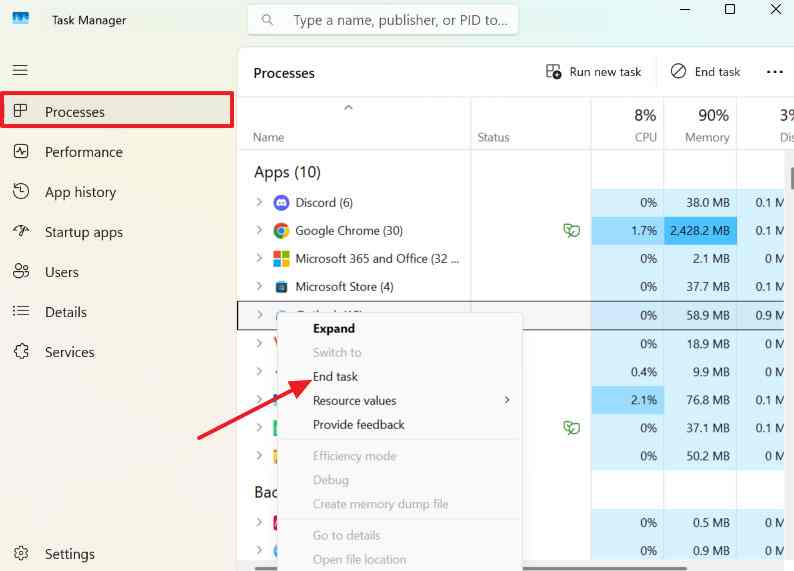
Step 1. Press Ctrl + Shift + Esc to open Task Manager. Under Processes, select unresponsive VALORANT or Riot Client processes and choose End task. Avoid terminating unrelated Windows services.
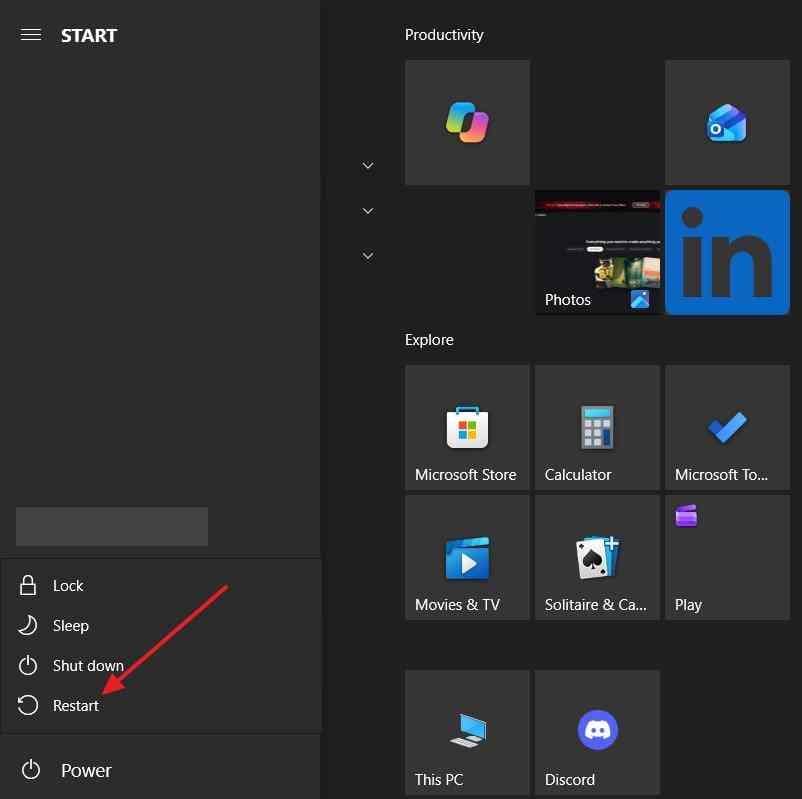
Step 2. Select Start > Power > Restart. When Windows returns, launch Riot Client once and click Play. If the same error appears, record it for the next step.
Fix 2. Repair VALORANT Using the Riot Client
Use this when: Riot Client opens, but VALORANT is missing files, fails after a patch, or stops at the initial launch. Riot includes a repair tool for checking and replacing damaged game files.
Step 1. Sign in to Riot Client, select your profile icon in the upper-right corner, and open Settings.
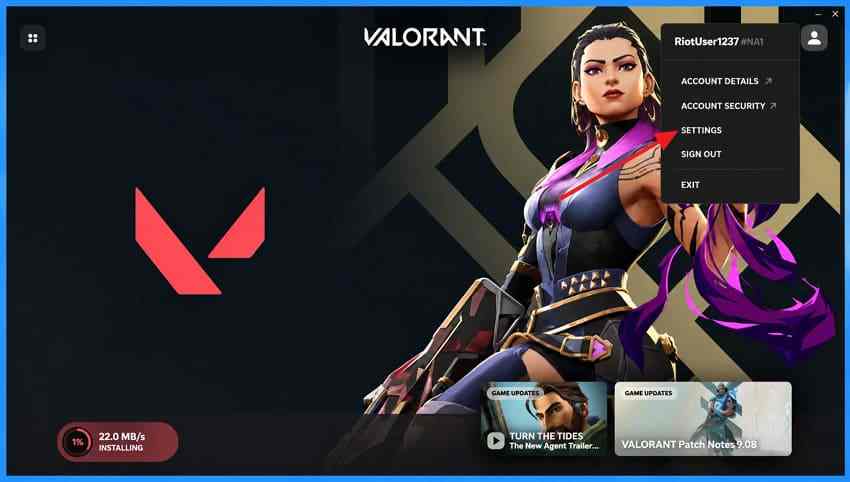
Step 2. Choose VALORANT in the game list, then select Repair if the button appears. Let the process finish, restart Riot Client, and test the game. If the client itself cannot open, skip this method and investigate the client or Vanguard instead.
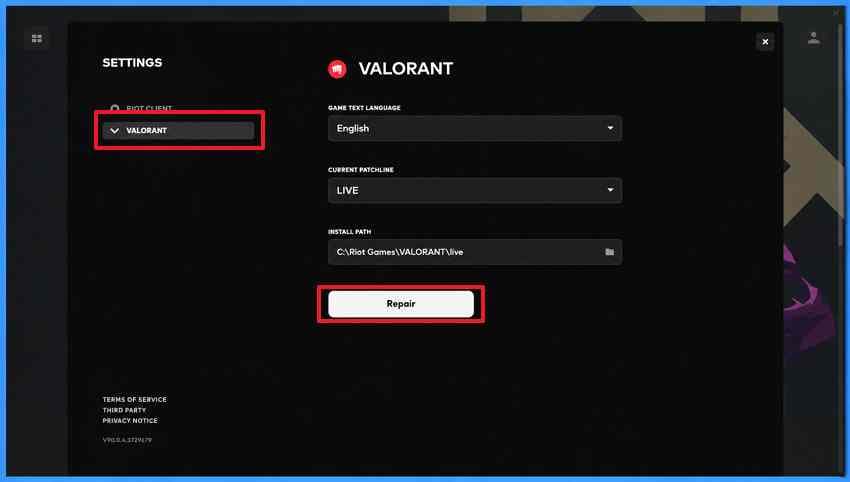
For the current menu path, see Riot's Riot Client Full Repair Tool instructions.
Fix 3. Check the Riot Vanguard (vgc) Service
Use this when: VALORANT reports a Vanguard startup error or the service fails when the game launches. On a standard Vanguard setup, the vgc service normally starts automatically. If your PC uses Riot's Vanguard Pre-Check feature, it may start on demand instead, so a stopped service before launch is not automatically a fault.
Step 1. Press Windows + R, enter services.msc, and open the properties for vgc. Check the Startup type and Service status.
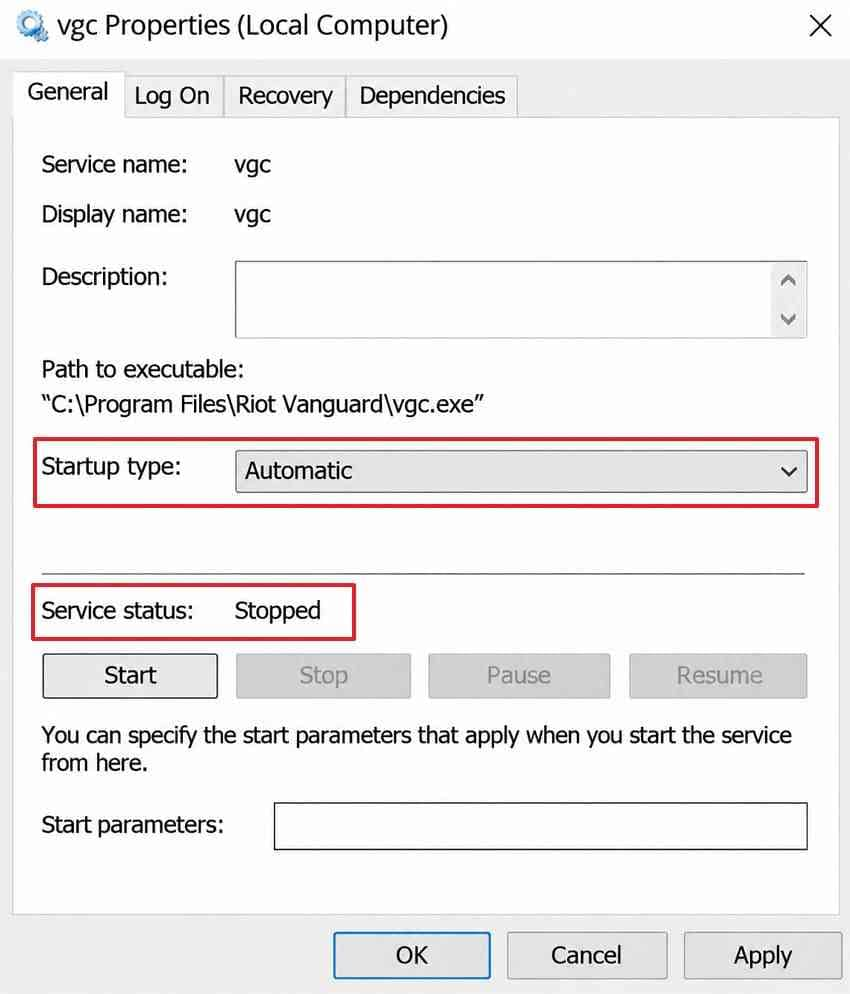
Step 2. If Riot's error-specific instructions require normal automatic startup and Vanguard Pre-Check is not in use, set Startup type to Automatic, select Apply, and use Start when available. Restart your PC and test VALORANT again. Do not force this change solely because an on-demand service is stopped while the game is closed.
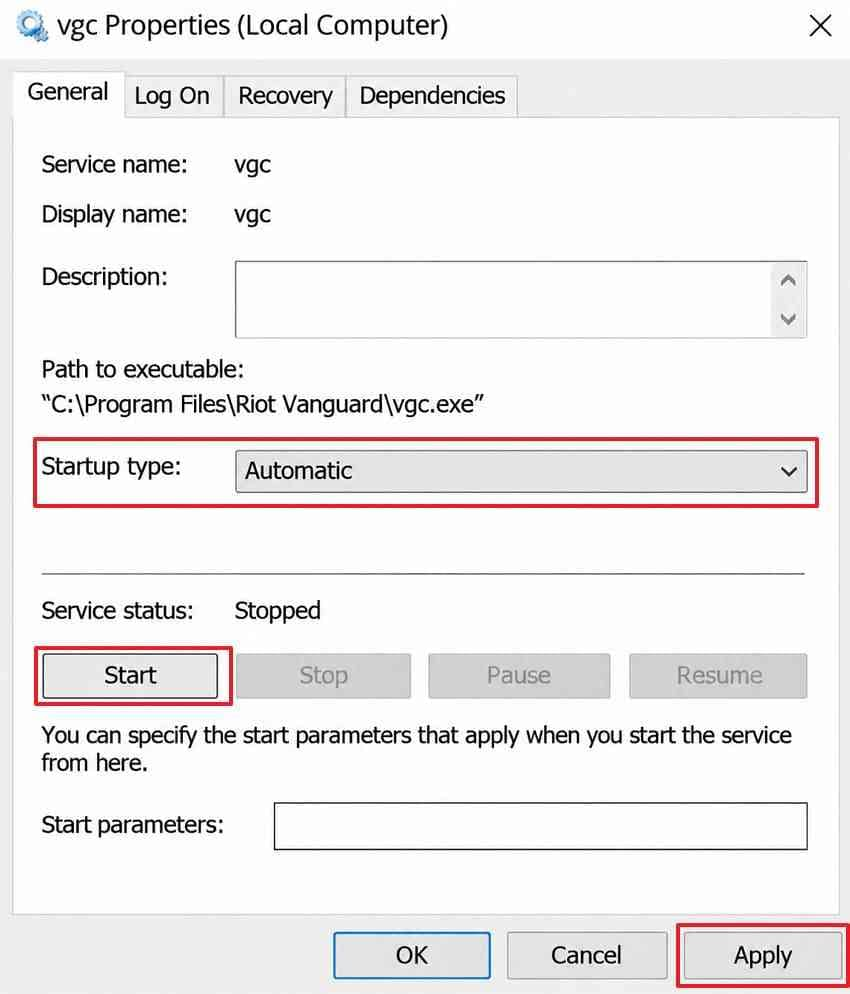
Riot's guidance for Vanguard startup errors also distinguishes standard startup from Vanguard Pre-Check.
Fix 4. Check TPM 2.0 and Secure Boot on Windows 11
Use this when: Your Windows 11 installation displays VAN 9001 (TPM) or VAN 9003 (Secure Boot), or Riot explicitly asks you to check a firmware feature. Skip BIOS changes for a generic no-response launch failure.
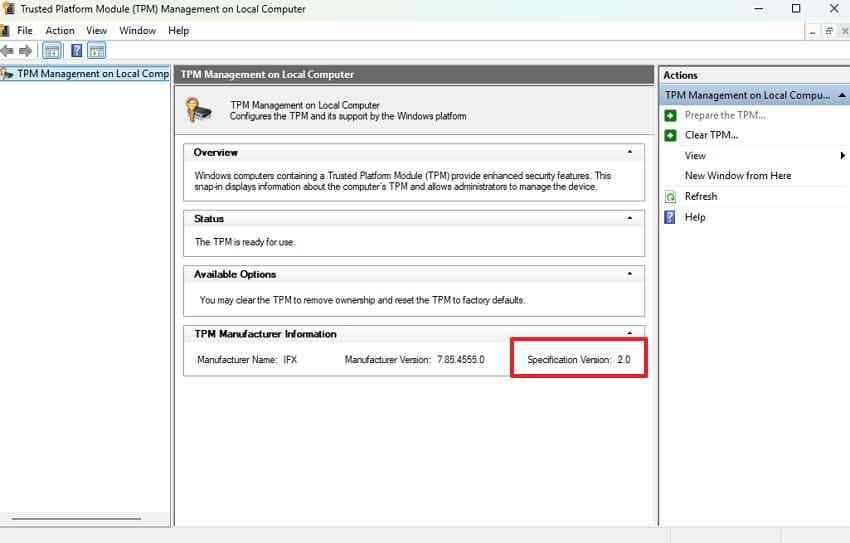
Step 1. Press Windows + R, enter tpm.msc, and check that the Trusted Platform Module is ready and reports specification version 2.0.
Step 2. Open System Information by running msinfo32. Check BIOS Mode and Secure Boot State. Riot's Secure Boot guide explains why UEFI and On matter when that requirement is enforced.
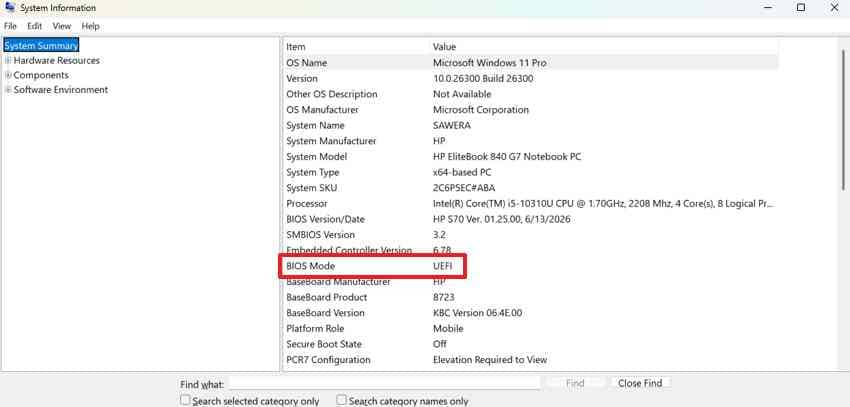
Step 3. If the reported feature is disabled, read your motherboard or PC manufacturer's documentation and Riot's Secure Boot instructions before opening UEFI settings. Do not switch a Legacy/MBR Windows installation directly to UEFI; an incorrect change can prevent Windows from booting. Back up important files and keep any BitLocker recovery key available before firmware or partition changes.
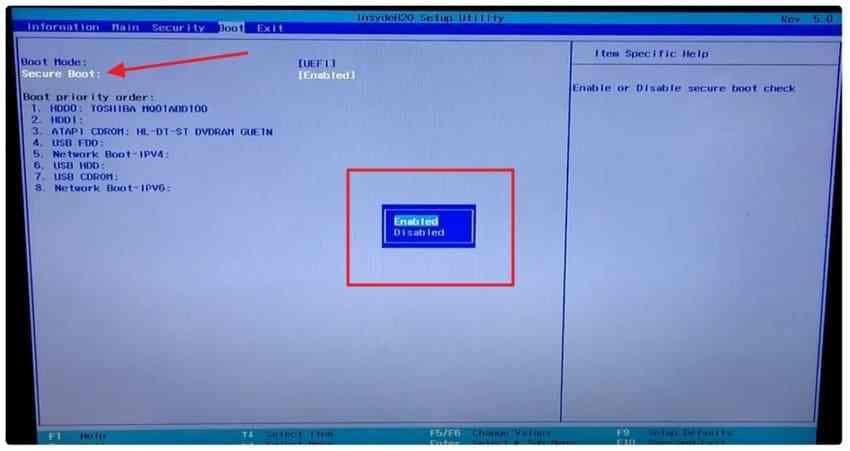
Success check: Confirm the required setting again in Windows and retry the exact VAN error. If the PC cannot meet the requirement, stop rather than applying unrelated bypass tools.
Fix 5. Resolve Vanguard Memory Integrity and Security Restrictions
Use this when: Vanguard shows VAN 9005 or a VAN: RESTRICTION notice. These are not interchangeable. A RESTRICTION message without a number has its own Riot instructions; numbered variants require their matching article.
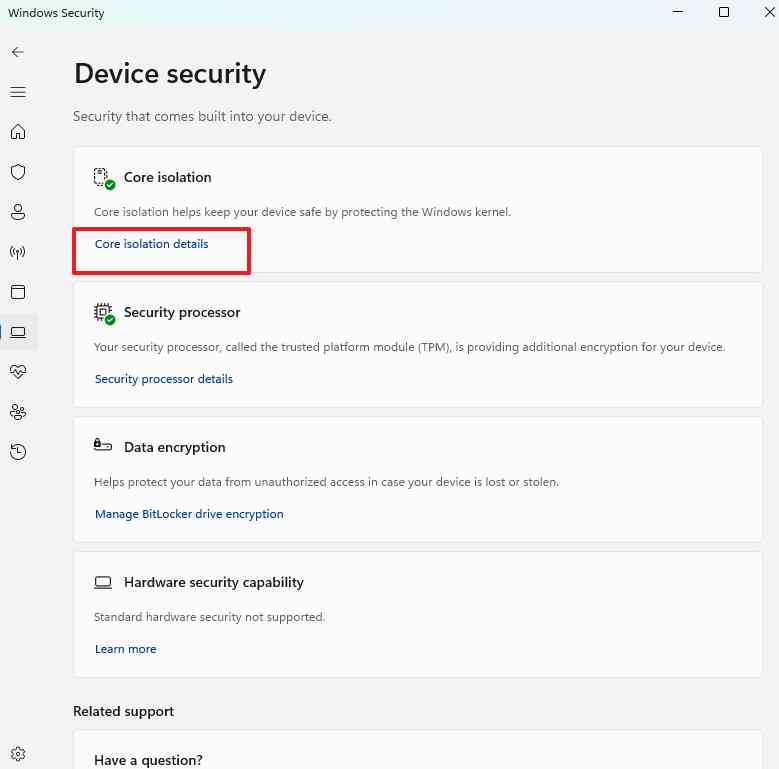
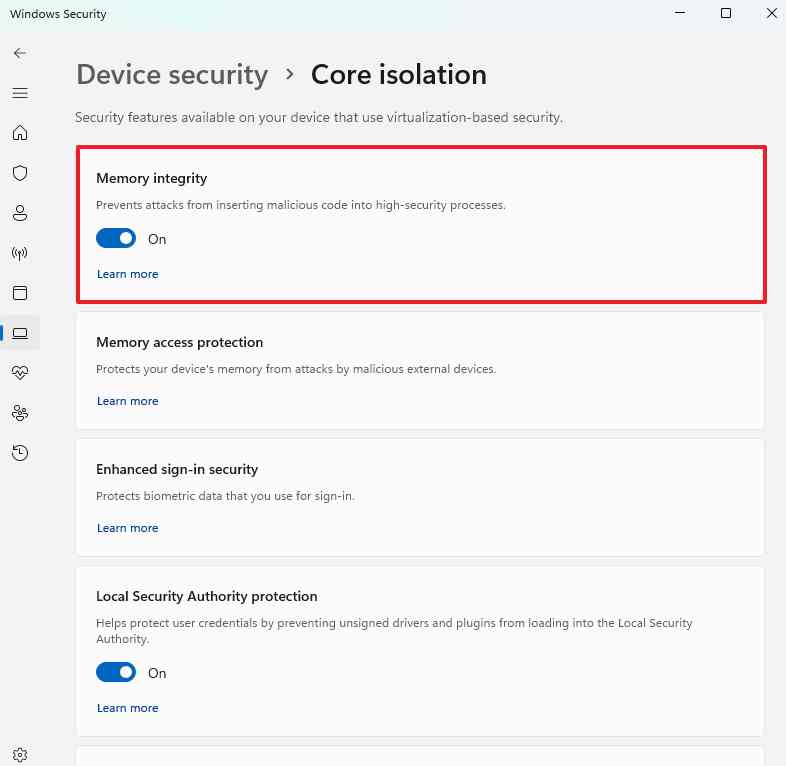
Step 1. Write down the complete error text. If Riot specifically requires Memory Integrity, open Windows Security > Device security > Core isolation and inspect its status. Do not change virtualization settings simply because VALORANT won't open.
Step 2. If Memory Integrity is the named requirement and your PC supports it, enable the setting and restart. If Windows lists incompatible drivers, address those drivers using the manufacturer's instructions instead of forcing the setting. If the message specifies IOMMU, follow Riot's restriction guide and your system vendor's firmware documentation.
Note: Riot's VAN 9005 guide focuses on TPM, UEFI, Secure Boot, and virtualization-based security. Some restriction messages instead require a particular Windows build. Apply only the requirement actually displayed.
Fix 6. Turn Off Compatibility Mode for Riot Client and VALORANT
Use this when: VALORANT began failing after a Windows compatibility setting changed or shows a Riot message such as Can't launch the game yet.
Step 1. Find RiotClientServices.exe through its installed location or shortcut. Right-click the executable, select Properties, and open Compatibility.
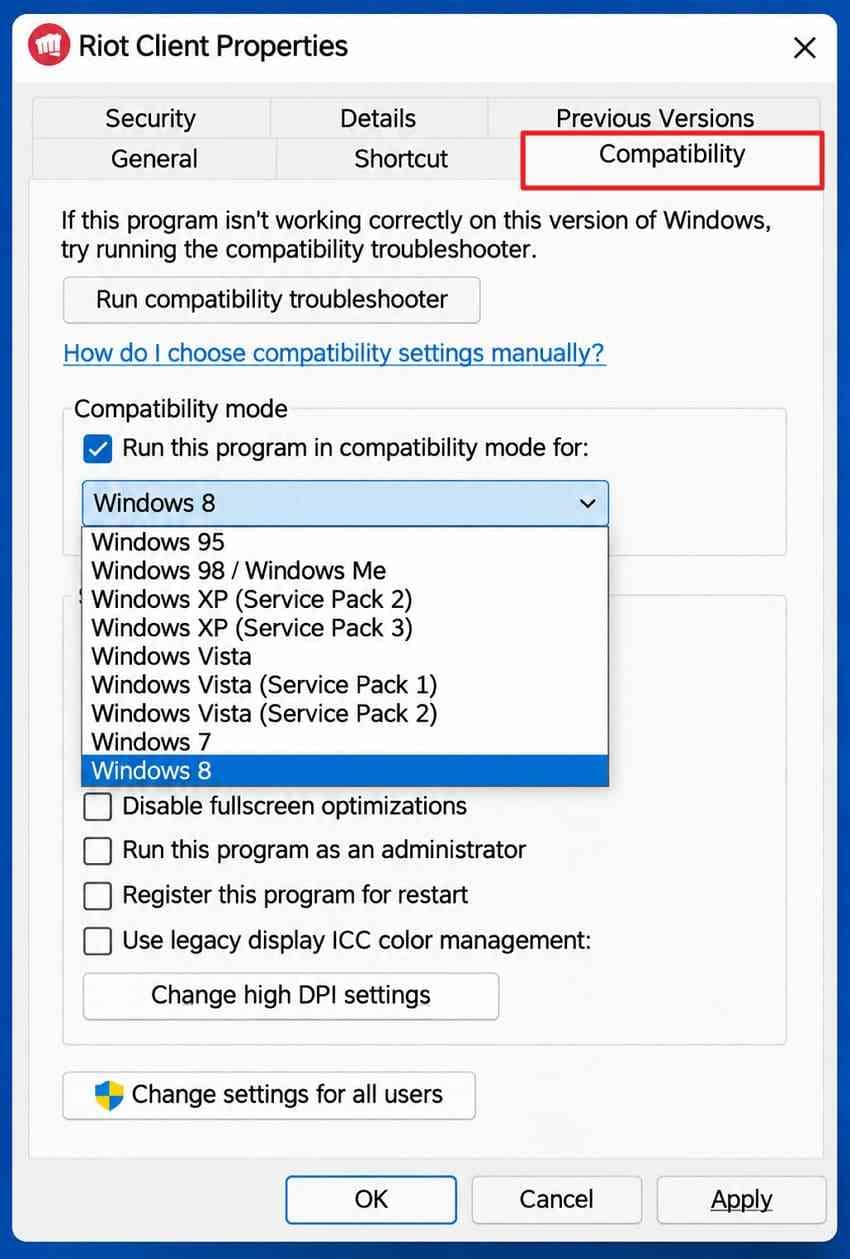
Step 2. Clear Run this program in compatibility mode for if checked, then select Apply > OK. Repeat for the VALORANT executable if applicable. Relaunch the Riot Client to test.
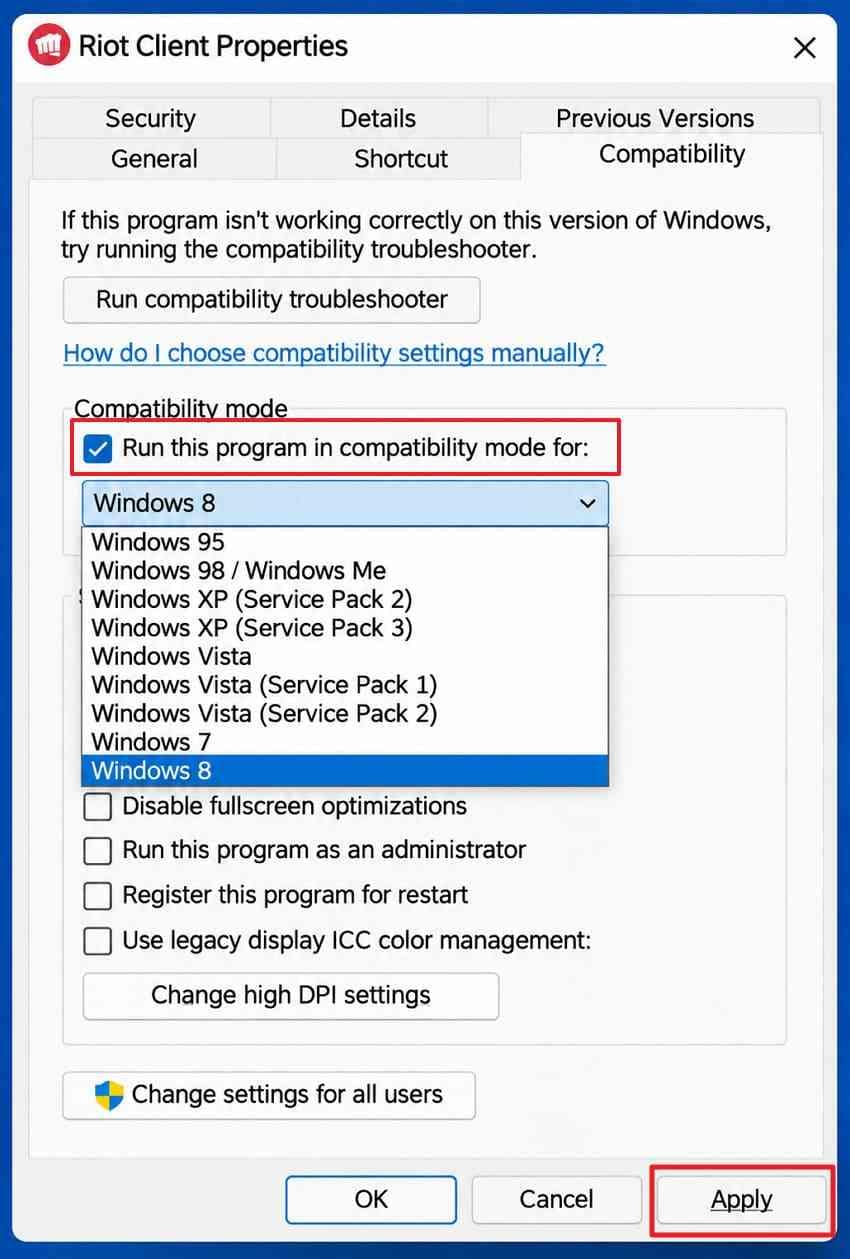
Riot recommends this change in its compatibility troubleshooting guide.
Fix 7. Update Windows and Your Graphics Driver
Use this when: VALORANT closes during startup, a driver update is overdue, or a Vanguard error explicitly requires a newer Windows build. Check the error before assuming every PC needs the same build number.
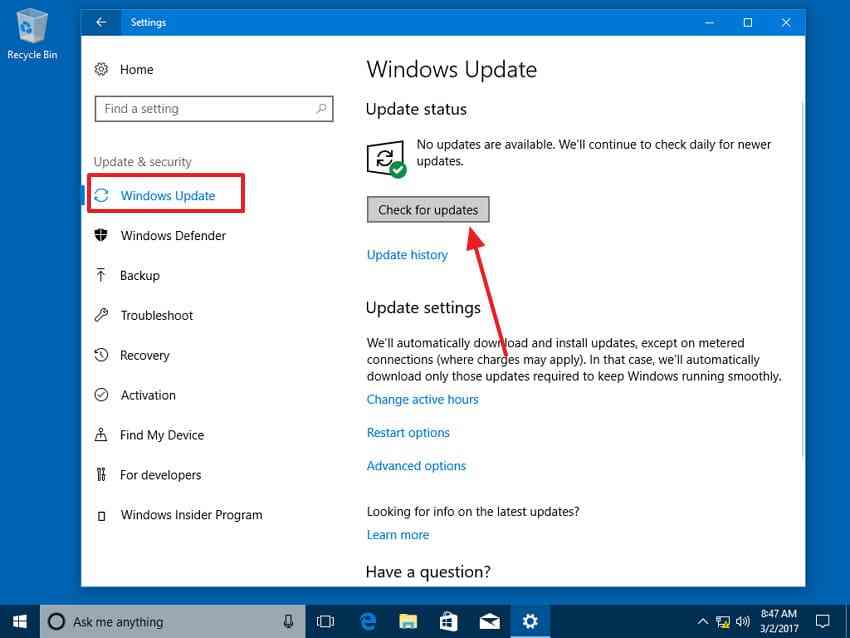
Step 1. Open Settings > Windows Update on Windows 11, or Settings > Update & Security > Windows Update on Windows 10. Install supported updates and restart. If Vanguard displays a build requirement, check your version with winver and follow that requirement.
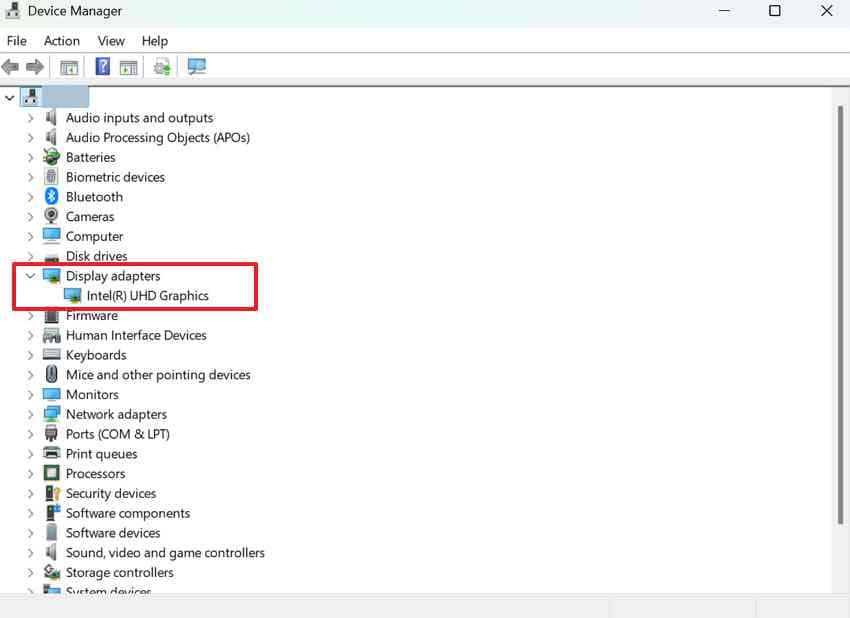
Step 2. Under Device Manager > Display adapters, identify your GPU. Install a compatible driver from the official NVIDIA, AMD, Intel, or PC manufacturer's site, restart, and launch VALORANT again. If a new driver caused the failure, review the vendor's rollback instructions instead of layering unrelated updates.
Fix 8. Perform a Clean Boot Without Disabling Vanguard
Use this when: A background overlay, capture utility, or other application may be interfering with launch. A clean boot is a temporary test, not a permanent recommendation to run Windows with all startup services disabled.
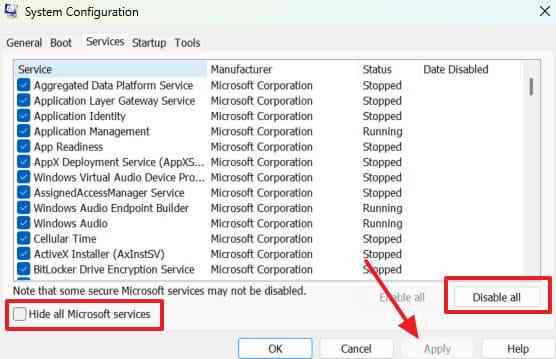
Step 1. Press Windows + R, type msconfig, and open Services. Check Hide all Microsoft services before selecting Disable all. Find vgc and check it again so Vanguard can operate during the test; then select Apply.
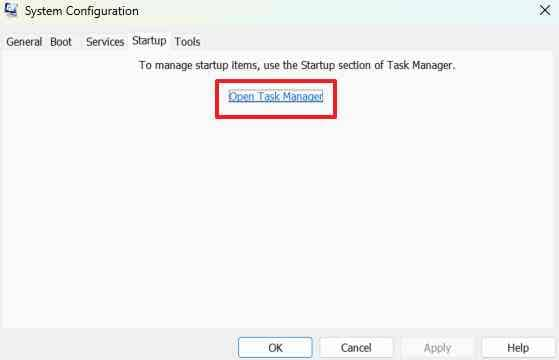
Step 2. Open Startup > Open Task Manager. Note which startup apps are enabled, temporarily disable nonessential items, and restart Windows. Test VALORANT.
Step 3. If the game starts, re-enable other services and apps in small groups to identify the conflict. Restore your normal startup configuration afterward. Riot's clean-boot instructions include the important vgc exception.
Fix 9. Check Antivirus and Firewall Blocks
Use this when: Windows Security or another trusted security tool has actually quarantined a Riot file or recorded a blocked connection. Do not disable antivirus or the firewall globally as a routine VALORANT fix.
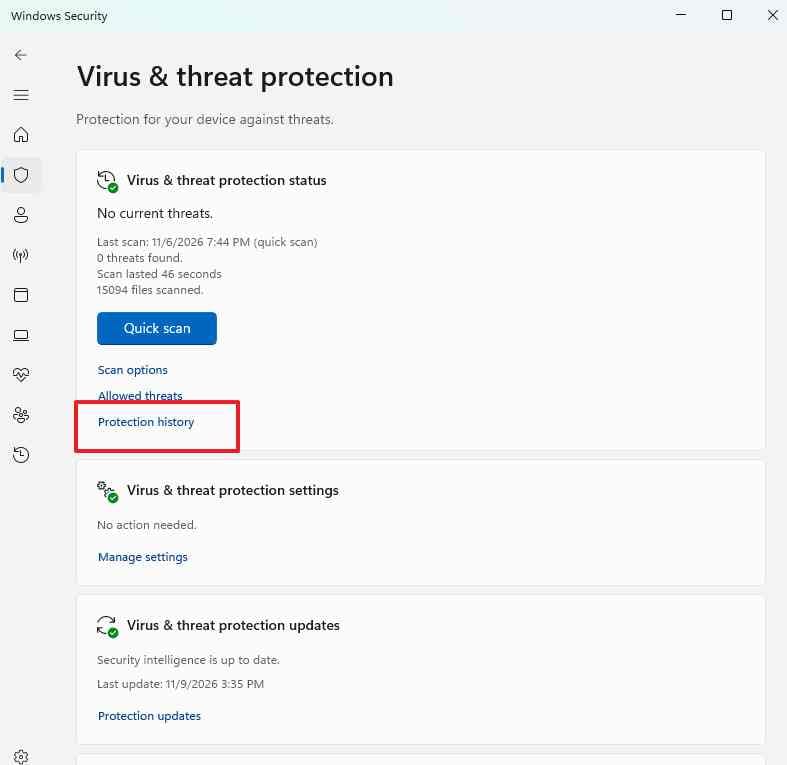
Step 1. Open Windows Security > Virus & threat protection > Protection history. Check whether a Riot executable was quarantined. Confirm the file location and digital publisher before taking action; if uncertain, consult Riot Support rather than restoring an unknown executable.
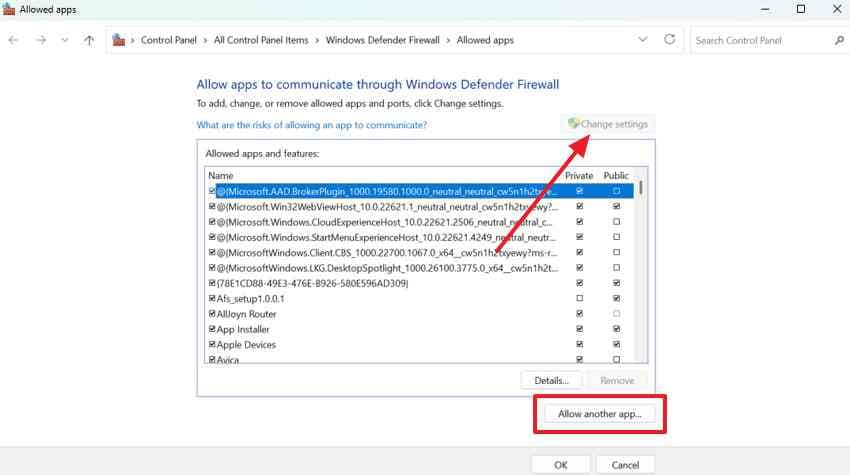
Step 2. If you have evidence that Windows Defender Firewall blocked a genuine Riot executable, open Windows Security > Firewall & network protection > Allow an app through firewall. Add only the verified affected app using the appropriate network profile. Keep firewall protection on and test the connection again.
Fix 10. Check DevOverrideEnable for the Specific Riot Launch Error
Use this when: Riot Client reports Failed to Launch: Something unusual happened, and Riot's official instructions direct you to check DevOverrideEnable. Editing the Windows Registry is an advanced step; skip it for unrelated errors.
Step 1. Open Registry Editor and go to Computer\HKEY_LOCAL_MACHINE\SOFTWARE\Microsoft\Windows NT\CurrentVersion\Image File Execution Options. Before editing, export the relevant key as a backup and confirm you have the right path.
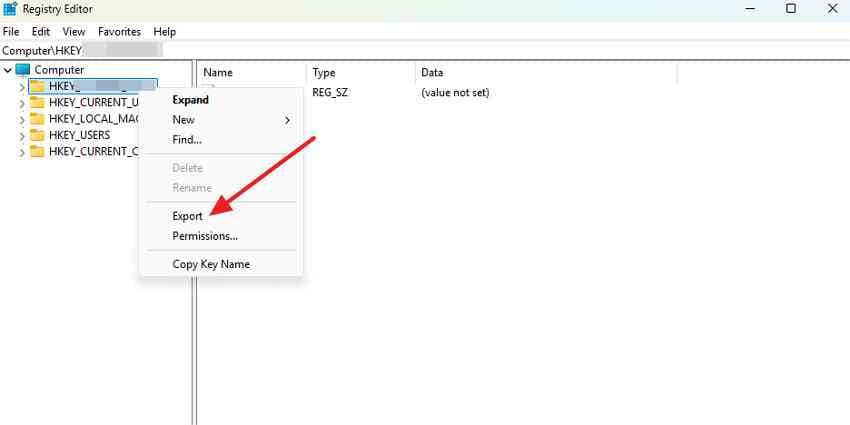
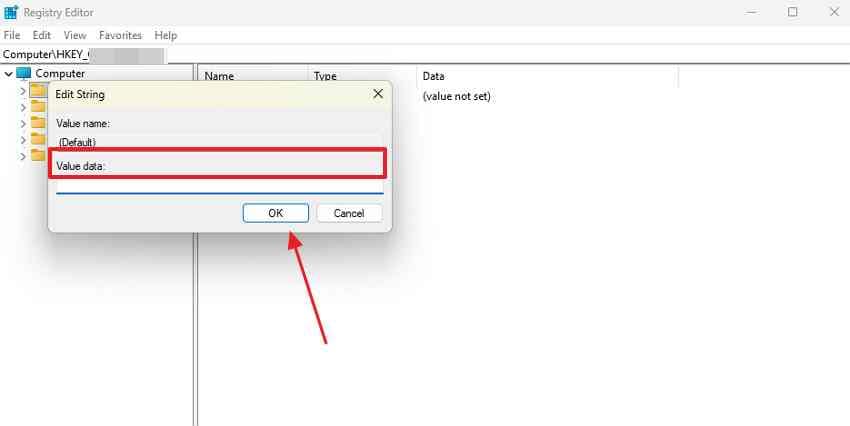
Step 2. If DevOverrideEnable exists in that location, open it, set its value data to 0 as Riot directs, then restart Windows. If the value is absent, do not create it or alter neighboring entries. Refer to Riot's registry instructions for the exact condition.
Fix 11. Uninstall and Reinstall Riot Vanguard
Use this when: The error points to corrupted or missing Vanguard components and simpler checks have failed. Reinstalling Vanguard affects the anti-cheat software used by Riot games, so expect to restart Windows.
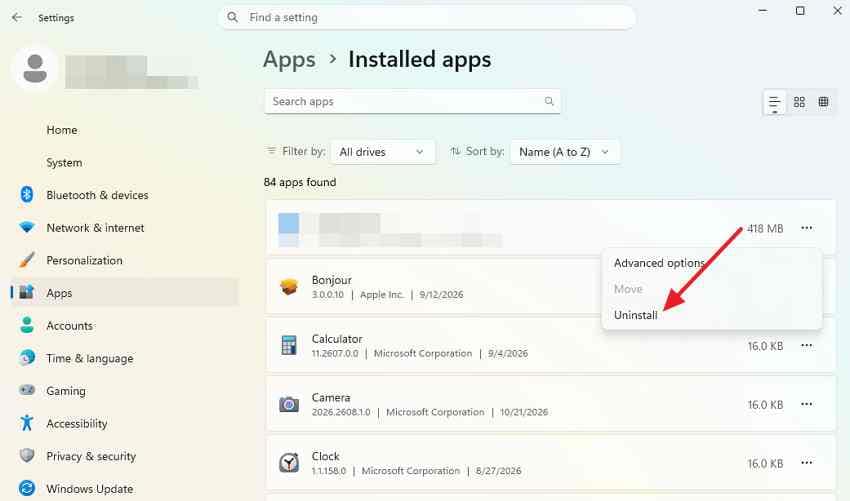
Step 1. Close Riot Client and VALORANT. Open Settings > Apps > Installed apps (or Apps & features on Windows 10), locate Riot Vanguard, and uninstall it. Restart Windows when complete.
Step 2. Open Riot Client and launch VALORANT to start the Vanguard installation process. Follow its prompts, restart again if required, and confirm the original VAN error is gone. If installation fails, review the matching Vanguard troubleshooting instructions.
Fix 12. Clean Reinstall VALORANT and Riot Client
Use this when: Client repair and targeted Vanguard troubleshooting have failed, or the game installation remains damaged. This is a last-resort local software repair, not a way to recover lost Riot account data.
Step 1. Before deleting folders, copy any personal captures, recording-project files, or custom files to a separate location. Close Riot Client and use Settings > Apps > Installed apps to uninstall VALORANT and Riot Client as applicable.
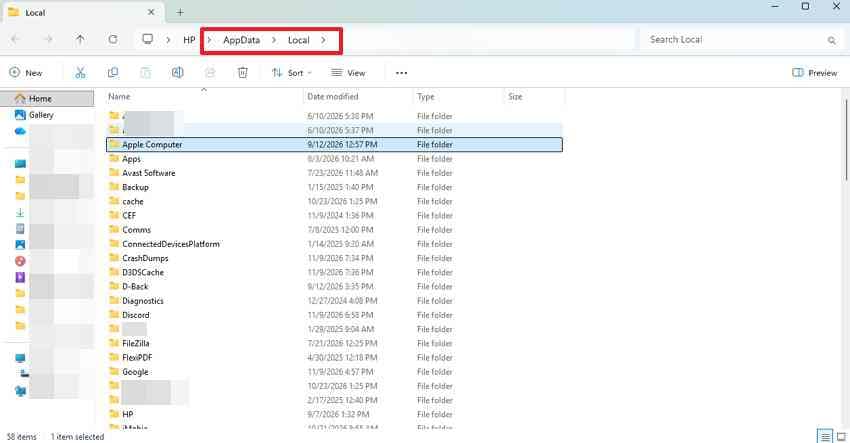
Step 2. Following Riot's clean-reinstall guide, remove the remaining VALORANT and Riot Client folders under C:\Riot Games and the related VALORANT and Riot Games folders under %localappdata% only after confirming their contents. Do not delete unrelated personal folders or wipe all of AppData. Restart Windows, download the installer from Riot's official site, and reinstall the game.
Success check: Riot Client signs in and VALORANT opens without the original failure. If the same VAN or VAL code persists, stop repeating reinstalls and collect diagnostic logs instead.
Part 3. What to Do If VALORANT Still Won't Open
If the game still fails, preserve the full error code and note exactly when it appears: before Riot Client opens, after pressing Play, or at the game splash screen. That detail helps separate client failures from Vanguard restrictions. You can also note whether the issue started after a Windows update, driver change, or new background app.
Step 1. Download the Riot Repair Tool from Riot Support. Run it as administrator on Windows, choose VALORANT, and let it collect logs.
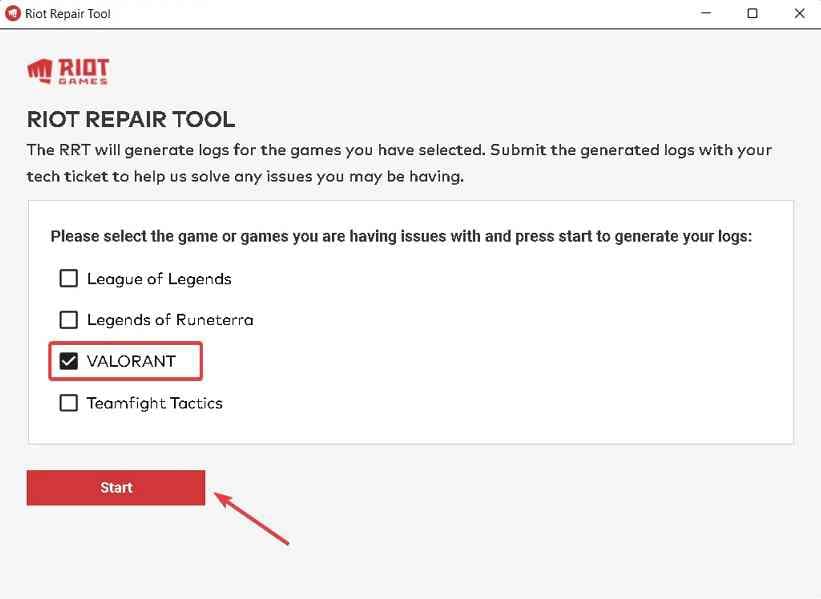
Step 2. Attach the generated diagnostic ZIP to a Riot Support ticket along with your Windows version, exact error message, and fixes already tried. Diagnostic logs can contain system details, so share them through Riot's official support channel rather than a public post.
Before more uninstall attempts: Check your local screen-recording folders and back up any clips or screenshots you still need. If the entire PC crashes, freezes, or shows storage errors outside VALORANT, investigate that separately from a game-only launch failure.
Pro Tip. Recover Deleted VALORANT Recordings and Screenshots
Reinstalling VALORANT doesn't bring back recordings or screenshots saved locally by OBS, NVIDIA software, Xbox Game Bar, or other capture tools. If you accidentally removed those files while troubleshooting, check the Recycle Bin and any File History, OneDrive, or external backups first. Stop unnecessary writes to the affected drive; SSD TRIM or later overwriting may make deleted data unrecoverable.
Wondershare Recoverit Game Data Recovery can scan eligible locally readable drives for deleted media files. It does not repair Vanguard, restore Riot's online account progress, or retrieve footage that was never saved. Recovery depends on the storage device, encryption, overwriting, and whether the data can still be found.
How to Recover Deleted Local VALORANT Files with Recoverit
Step 1. Select the capture drive. Open Recoverit and choose the Windows drive or external disk where the recording software originally saved your clips. The location may be Videos > Captures for Xbox Game Bar or a custom folder set in OBS.
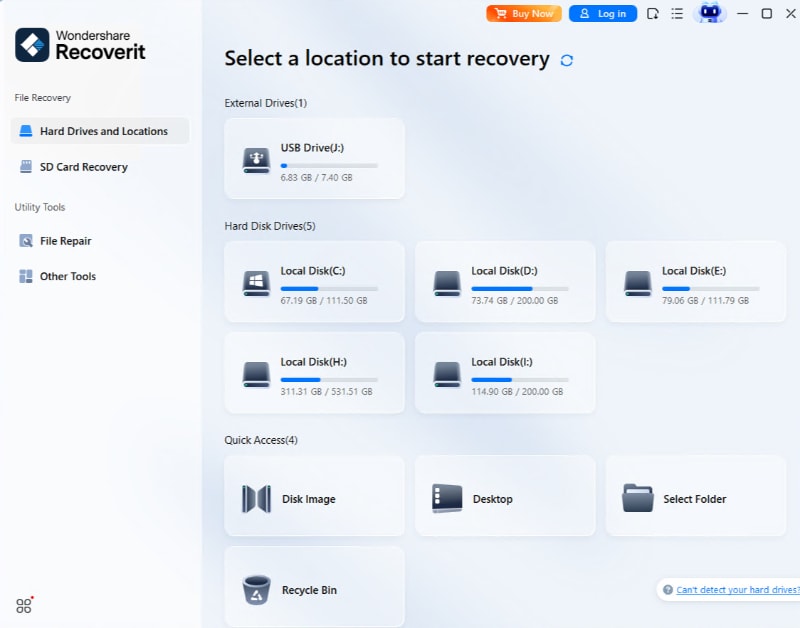
Step 2. Scan and filter the results. Scan the selected location and look for relevant formats such as MP4, MOV, or PNG. Use available file-type or filename filters rather than assuming the file will retain its original name.
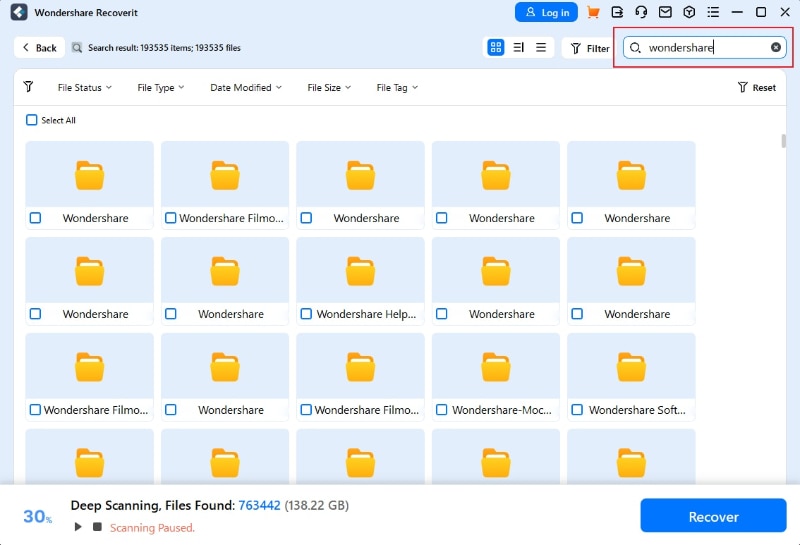
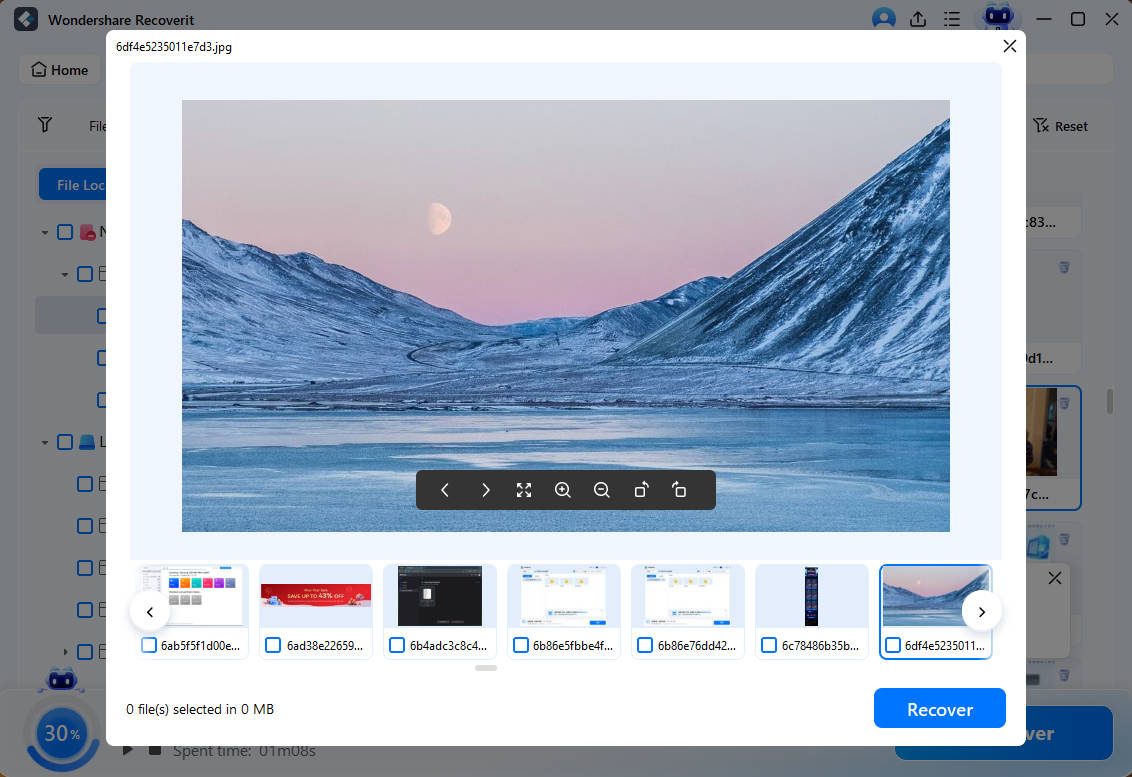
Step 3. Preview and save elsewhere. Preview a detected recording or screenshot where supported, select the files you need, and choose Recover. Save them to a different healthy drive, not the same location that lost the files. For detailed Windows workflow guidance, see the Recoverit user guide.
Conclusion
If VALORANT isn't opening, start by checking Riot's service status, restarting stuck client processes, and repairing game files. A specific VAN error tells you whether to investigate Vanguard, TPM, Secure Boot, or another security requirement. Only make BIOS or registry changes when the exact error calls for them, and leave a clean reinstall until simpler fixes fail.
If the problem continues, send Riot Support the diagnostic logs. Recoverit is a separate option only if locally saved gameplay videos or screenshots were actually deleted.
FAQ
-
Why does nothing happen when I click Play in VALORANT?
A stuck Riot Client process, incomplete game files, or a Vanguard startup problem can prevent launch without showing a message. Close Riot processes, restart Windows, use Riot Client's Repair feature if it opens, and check Vanguard only if the symptom or error points there. -
Why won't VALORANT open on Windows 11 even with Secure Boot enabled?
Secure Boot is not the only Vanguard requirement. TPM 2.0, Windows build, virtualization-based security, or a specific VAN: RESTRICTION condition may still need attention. Record the complete error and use Riot's matching support guide instead of changing every security setting. -
Why is VALORANT not opening after an update?
A partially installed patch, incompatible driver, missing restart, or changed Vanguard requirement may be involved. Restart the PC, run Riot Client Repair when available, and check Windows updates and the exact error before reinstalling VALORANT. -
Can VALORANT fail to launch because Riot Vanguard is not running?
Yes. Vanguard must initialize correctly for VALORANT to run. Most standard setups expect the vgc service to start automatically, but Riot's Vanguard Pre-Check may allow on-demand startup. A stopped service while the game is closed is not enough by itself to prove a fault.


