 TL;DR:
To fix a TV displaying HDMI video without sound, first determine whether the signal path is a direct source-to-TV connection or a TV-to-soundbar ARC/eARC return path, then verify the correct active output device is selected.
● Switch the source device's audio format to Stereo or 2-channel PCM to bypass Dolby or DTS decoding and isolate potential format mismatches before configuring Auto, Bitstream, or Pass-Through.
● If the TV is missing from Windows 11 sound outputs, open Device Manager to enable or rescan for hidden Intel, NVIDIA, or AMD display-audio devices, or roll back the display-audio driver if the failure followed a recent update.
● For ARC/eARC soundbar connections, strictly use the labeled ARC/eARC ports on both devices and verify that the TV's digital audio format is compatible with the external audio system's bandwidth limitations.
Ask AI for a summary
 ChatGPT
 Perplexity
 Gemini
 Claude
 Grok
Grok
A TV can show a perfect HDMI picture while producing no sound. When audio is not working on a TV with HDMI, the cause is usually somewhere in the audio path: the source may be sending sound to the wrong output, the TV may be using the wrong speakers, the selected audio format may be unsupported, or Windows may be missing the HDMI display-audio device. A cable or port can also fail in a way that affects audio before video.
Start by identifying whether you are sending audio from a PC, console, or streaming device to the TV, or sending TV audio back to a soundbar or receiver through ARC/eARC. Those are different signal paths and should not be troubleshot as if they were the same problem.
In this article
Part 1. Identify the HDMI Audio Path Before Troubleshooting
The fastest way to diagnose HDMI no sound on TV is to trace the direction the audio should travel. Standard HDMI input audio and ARC/eARC both use HDMI connectors, but they solve different problems.
Source-to-TV HDMI vs TV-to-Soundbar ARC or eARC
Source-to-TV HDMI: A PC, console, streaming box, Blu-ray player, or set-top box sends video and audio to a TV HDMI input. If the TV picture works but its speakers are silent, troubleshoot the source output, TV speaker selection, cable path, and audio format first.
TV-to-soundbar ARC/eARC: ARC or eARC sends TV audio in the reverse direction from a compatible TV port to a compatible soundbar or AV receiver. The HDMI Licensing Administrator eARC guide explains that eARC can return TV audio to an AVR or soundbar over HDMI and supports higher-bandwidth formats than earlier ARC implementations.
If a PC is connected directly to the TV and the TV speakers are silent, changing ARC settings is usually the wrong first move. If TV apps play normally through the TV speakers but the soundbar is silent, focus on the ARC/eARC path instead.
Match the Symptom to the Failing Audio Path
| What you observe | Most likely path | Start with |
| PC or console has picture but no TV sound | Source-to-TV HDMI audio | Parts 2, 3, and 4 |
| Only one app or game is silent | App-specific output, mute, or media format | Part 3 |
| TV apps also have no sound through TV speakers | TV volume, speaker selection, or TV-side audio fault | Part 2 and the TV manual |
| TV speakers work but soundbar is silent | ARC/eARC return path | Part 6 |
| TV is missing from Windows output devices | HDMI detection or display-audio driver | Part 5 |
A useful isolation test is to play a built-in TV app through the TV speakers. If internal TV audio works, the HDMI source path becomes more likely. If built-in TV audio is also silent, investigate the TV's own output selection, volume, speakers, or hardware before changing PC drivers.
Why Video Can Work While HDMI Audio Fails
HDMI devices exchange capability information so the source knows what the display or downstream audio system can accept. Atlona's EDID technical guidance explains that a sink device reports supported audio and video formats to the source. An intermediary such as a receiver, splitter, dock, or switch can alter or limit that information.
This is why HDMI no volume on TV can happen even when the image is stable. The source may be sending sound to another device, choosing a format the TV cannot decode, or failing to expose the HDMI audio endpoint correctly.
Part 2. Try the Fastest HDMI Sound Checks
Before changing drivers or advanced audio formats, rule out the simple causes. Test one change at a time so you know what actually fixes the problem.
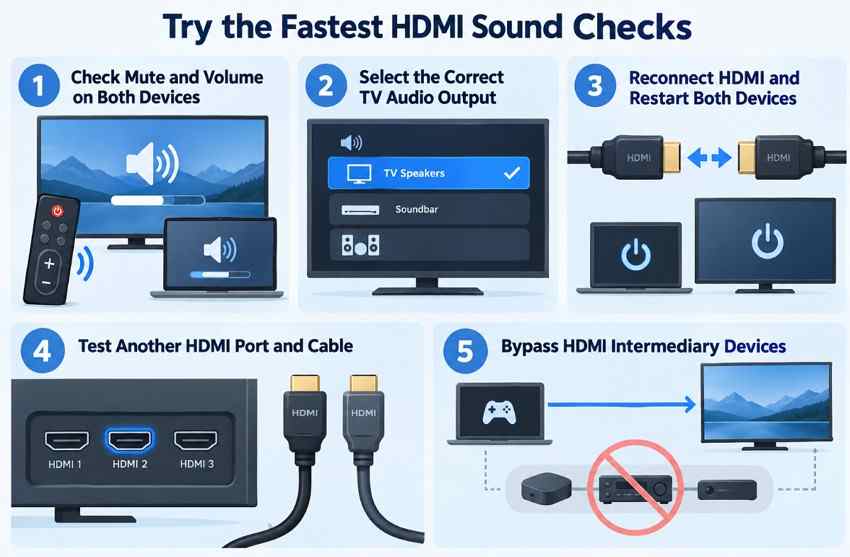
- Remove mute and raise volume on both devices: Unmute the TV and raise its volume. Also check the source device and the playback app for separate volume or mute controls.
- Select the intended TV audio output: In the TV's Sound menu, choose TV Speakers when you want the television itself to play audio, or choose the connected soundbar or receiver when that is the intended output.
- Reconnect HDMI and restart both devices: Power off the source and TV, reconnect HDMI firmly, turn on the TV on the correct input, and then restart the source. This refreshes device detection and the HDMI handshake.
- Test another HDMI port and a known-good cable: Change one variable at a time. If another port works with the same cable, the original input or its settings deserve attention. If a different cable restores sound, replace the original cable.
- Bypass docks, switches, splitters, and receivers: Connect the source directly to the TV. If sound returns, the intermediary is affecting audio negotiation, format support, or routing.
If no sound on TV through HDMI affects only one video, game, or app while other sources play normally, skip cable replacement and check that app's own audio device, language track, mute state, and format first.
Part 3. Make the Source Device Send Audio Through HDMI
Once the basic connection is stable, verify that the source is actually routing audio to HDMI. The menu path differs between Windows, macOS, consoles, and streaming devices.
Select the TV as the Audio Output on Windows 11
Windows can continue playing sound through laptop speakers, headphones, or another output even while the TV displays the picture. Microsoft recommends checking the active output device and per-app routing before deeper repair.
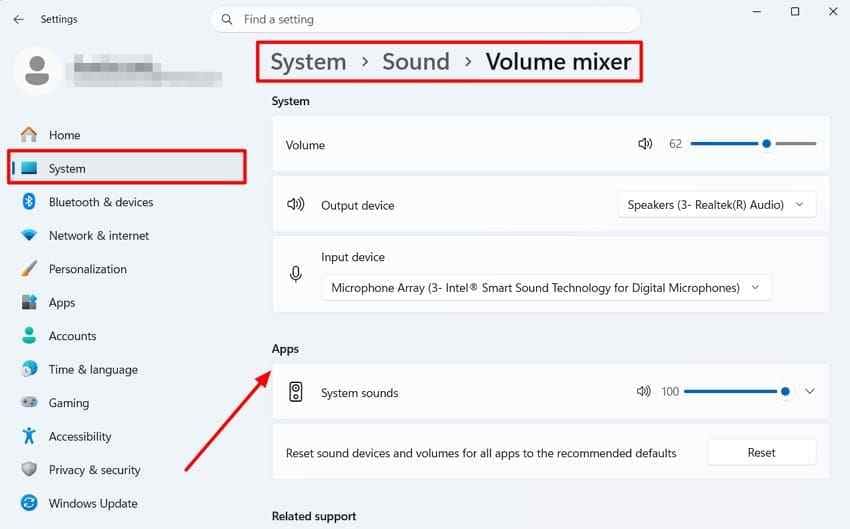
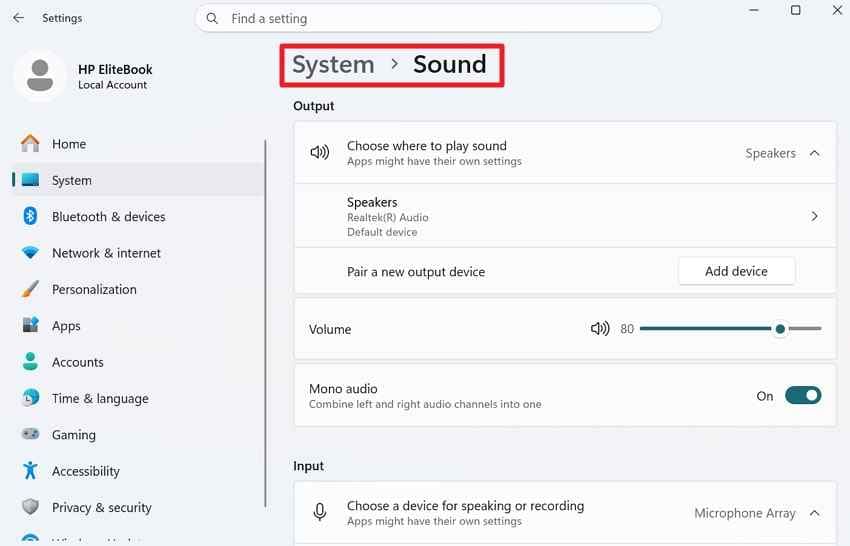
Step 1. Select the speaker icon on the taskbar and open the sound output list, or go to Settings > System > Sound.
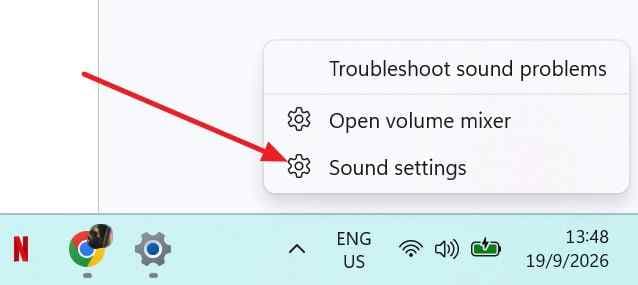
Step 2. Under Output, choose the TV, HDMI, or Intel/NVIDIA/AMD display-audio device that corresponds to the connected television. Raise the volume and test playback.
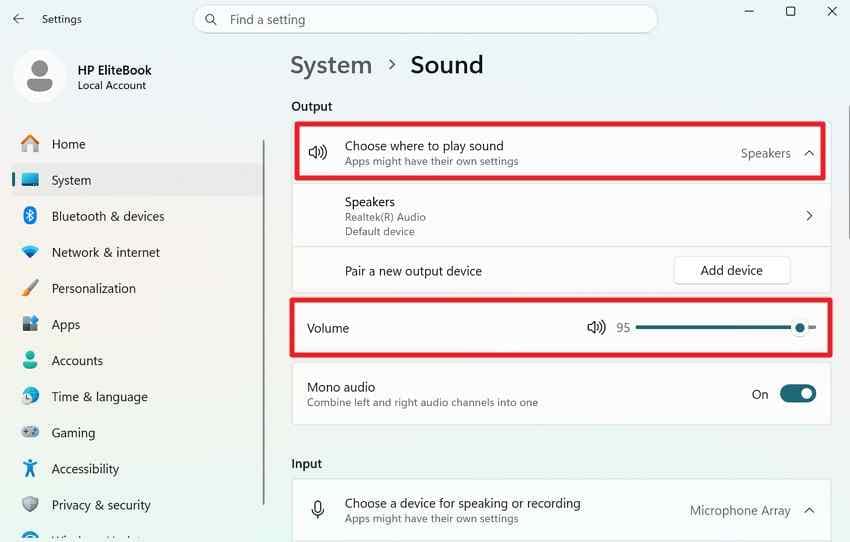
Step 3. If only one app is silent, open Settings > System > Sound > Volume mixer. Make sure the app is not muted and that it uses the intended HDMI output. Microsoft's app-specific audio troubleshooting confirms that Windows apps can use a different output device from the system default.
Select the HDMI TV Under Sound Output on Mac
A Mac can also keep sound on its internal speakers or another device while video appears on the TV. Apple's current Mac sound output guide directs users to System Settings and the Output device list.
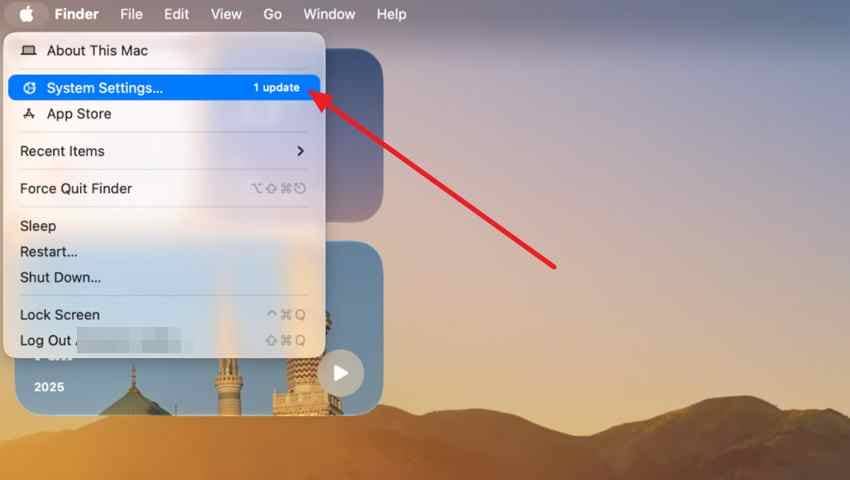
Step 1. Open Apple menu > System Settings > Sound.
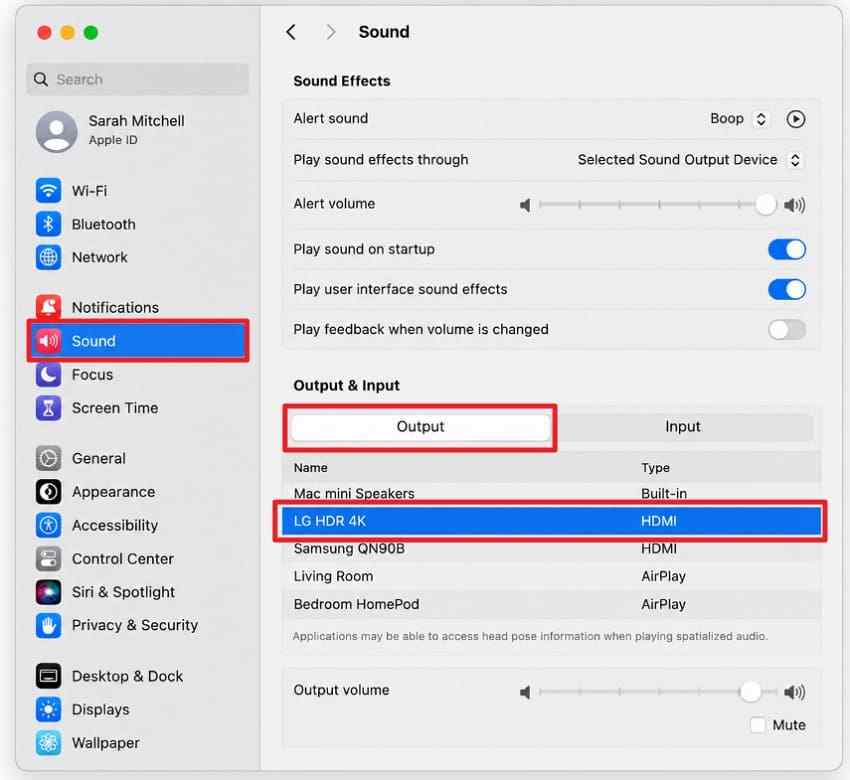
Step 2. Under Output, select the connected HDMI TV or display. If it is absent, reconnect the TV and any USB-C/Thunderbolt-to-HDMI adapter, then check whether that adapter supports audio as well as video.
Choose the Correct HDMI Audio Path on a Game Console
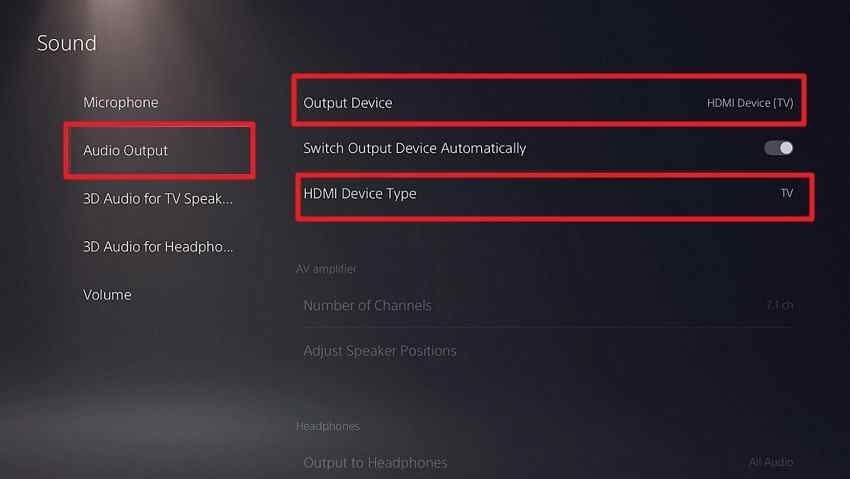
On a console, confirm that the HDMI device type matches the actual connection. For example, Sony's current PS5 audio output guide uses Settings > Sound > Audio Output and provides an HDMI Device Type setting.
Instructions. If a PS5 connects directly to the TV, select the TV-appropriate HDMI output. If it connects through an AV receiver, use the receiver/amplifier option and configure the channel layout correctly.
Xbox, Nintendo, and other consoles use different menu names, so use the same principle rather than copying a PS5-specific path: confirm the console's active HDMI audio output and choose a format supported by the TV or receiver.
Check Audio Output on a Streaming Box or Set-Top Box
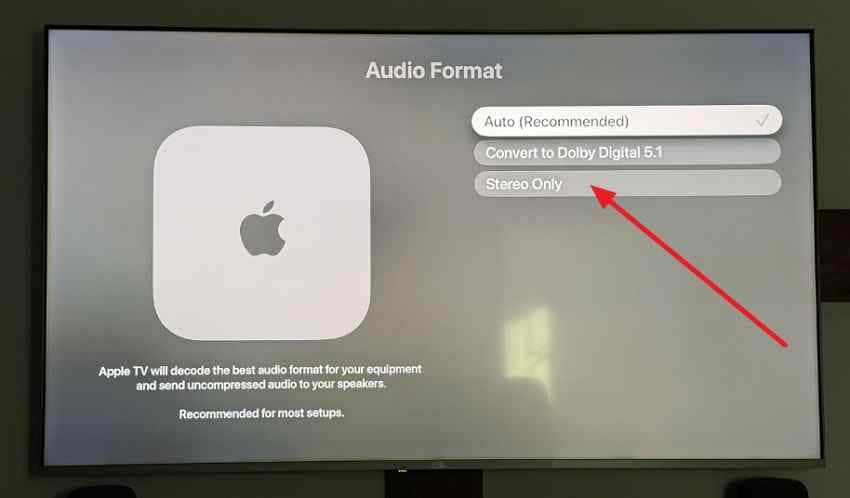
Streaming devices can also send a format that the television or receiver cannot handle. Apple TV 4K uses Settings > Video and Audio for output and audio format controls. Apple's current Apple TV audio settings guide recommends Auto for normal use and offers other formats only when the connected equipment requires them.
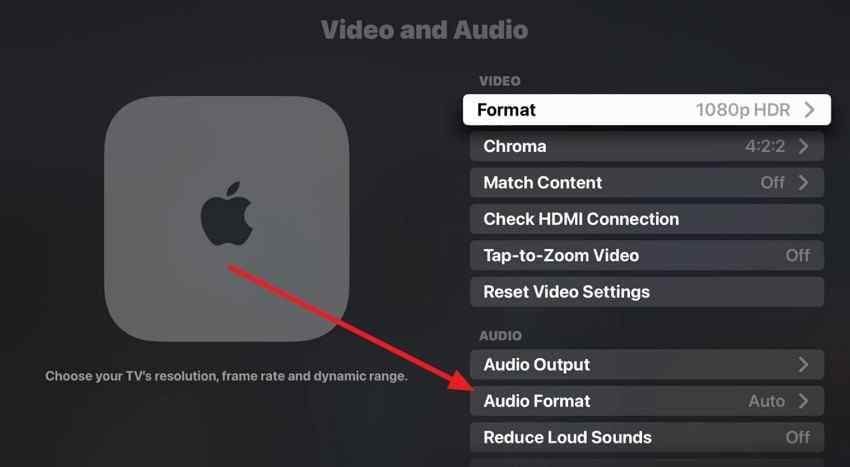
If compatibility is unclear, a stereo setting can be used as a diagnostic test. On Apple TV 4K, Stereo Only sends two-channel PCM. Do not leave a reduced format selected if the full TV/soundbar chain supports the preferred surround format and Auto works normally.
For Chromecast with Google TV and Google TV Streamer, Google's current streaming sound settings guide lists Automatic as the recommended output mode and allows supported formats to be selected manually for compatibility testing.
Part 4. Fix an HDMI Audio Format Mismatch
If the correct HDMI device is selected but HDMI sound is not working on the TV, the source may be sending an audio format that the TV or downstream sound system cannot decode. Format problems are especially common when a receiver, soundbar, switch, or older TV sits in the signal path.
| Format | What it sends | Best use |
| Stereo / 2-channel PCM | Uncompressed two-channel audio | Broad compatibility testing |
| Multichannel PCM | Uncompressed multichannel audio | HDMI chains that explicitly support it |
| Bitstream | Encoded Dolby, DTS, or another supported stream | Receiver/soundbar decoding when formats match |
| Auto | Source-selected format based on detected capabilities | Normal operation after compatibility is confirmed |
| Pass-Through | Incoming encoded audio forwarded with little or no TV decoding | Chains where every downstream device supports the format |
Test Stereo or 2-Channel PCM First
Stereo PCM is a useful compatibility test because it removes dependence on Dolby, DTS, or other surround decoding. It is not automatically the best permanent setting, but it can tell you whether the silence is caused by the selected format.
Step 1. Open the source device's audio settings and select Stereo, 2-channel PCM, or Linear PCM if that option is available.
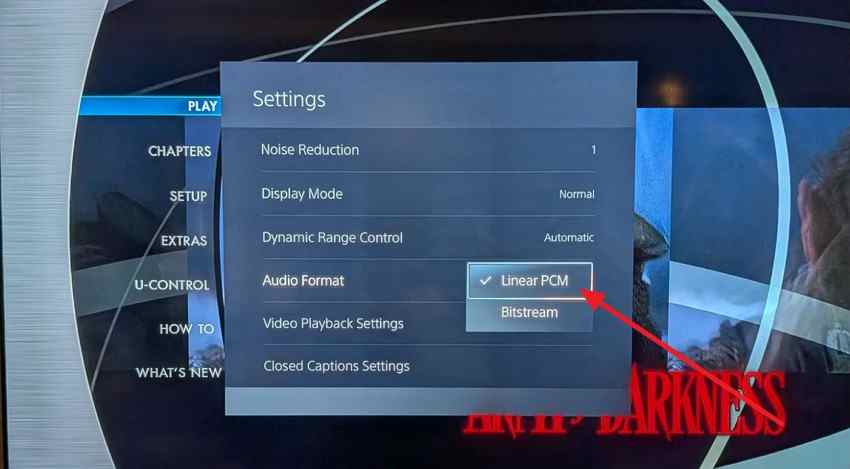
Step 2. Restart playback after changing the format. If sound returns, the previous format or a downstream decoder in the HDMI path was incompatible.
Use Auto, Bitstream, or Pass-Through Only When Supported
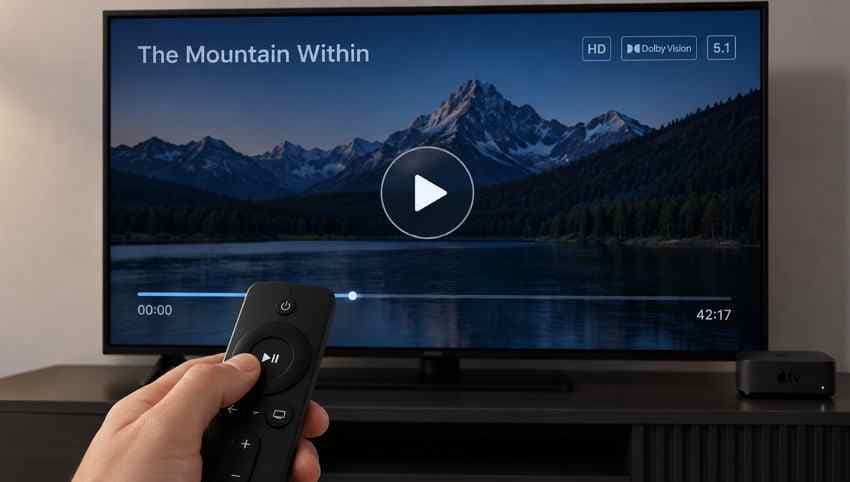
Auto is normally preferable when all devices report their capabilities correctly. Bitstream and Pass-Through are useful when a compatible receiver or soundbar should decode the audio, but every device in the route must support the format being sent.
If PCM works but a surround format does not, verify format support on the source, TV, soundbar/receiver, and the specific HDMI path. Do not assume that a setting labeled Dolby, DTS, Auto, or Pass-Through is universally compatible just because video works.
Part 5. Restore a Missing HDMI Audio Device on Windows
If the TV does not appear at all under Windows Sound outputs, focus on HDMI detection and the display-audio driver. Microsoft notes that an audio output can disappear when a required driver is missing, outdated, disabled, or not loading correctly.
Enable or Rescan the Display-Audio Device
Step 1. Open Device Manager and expand Sound, video and game controllers. Look for an Intel, NVIDIA, AMD, or other display-audio device. If it is disabled, enable it.
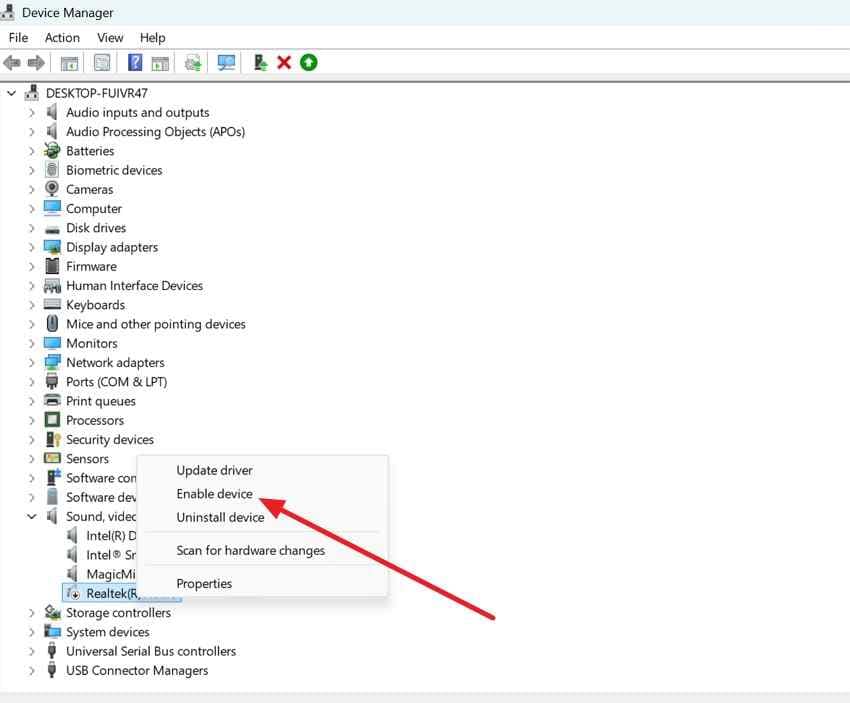
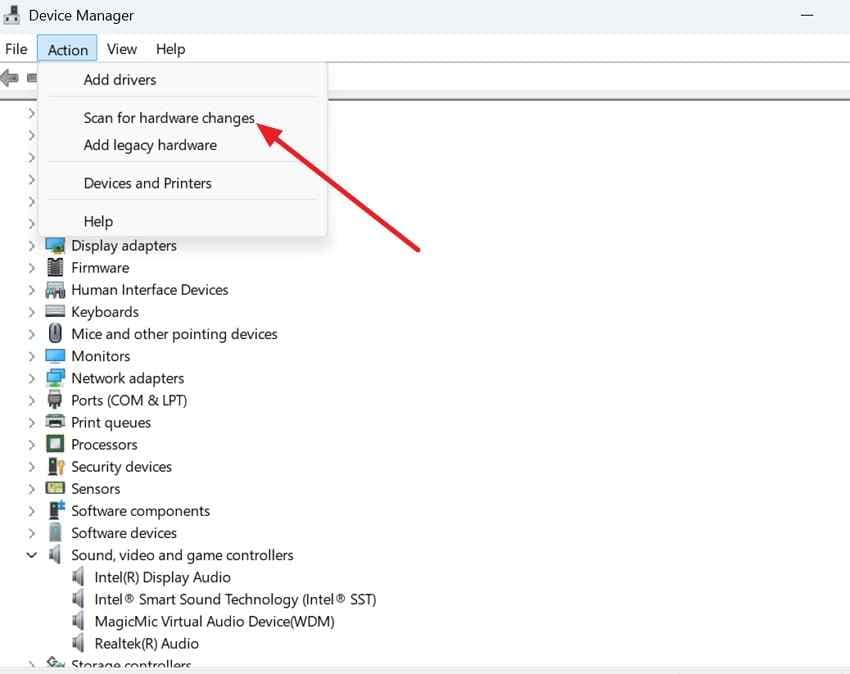
Step 2. If the device is missing, use View > Show hidden devices, then Action > Scan for hardware changes. Microsoft's current missing audio output device guide documents both checks.
Install or Roll Back the Correct Display-Audio Driver
HDMI audio is often delivered by the GPU/display stack rather than by the analog audio codec used for the PC's headphone jack. Install the compatible graphics/display-audio driver from the PC manufacturer first when it provides a validated package, or from Intel, NVIDIA, or AMD for the exact hardware when appropriate.
Step 1. After installing the driver, restart Windows and check Settings > System > Sound again.
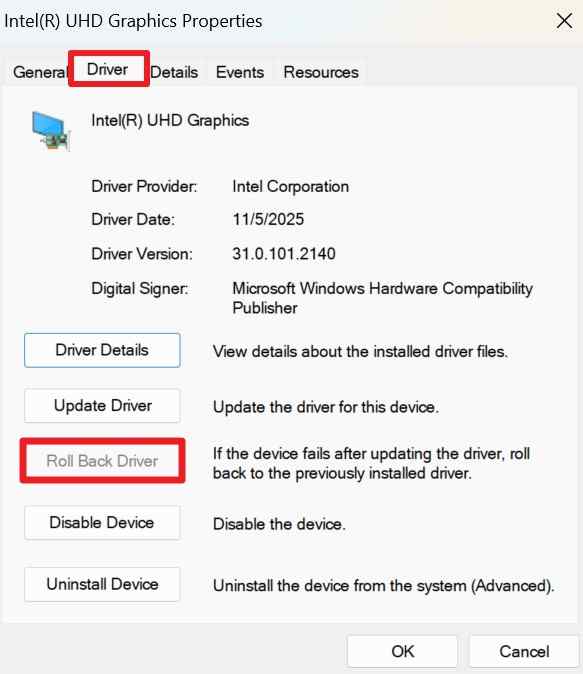
Step 2. If HDMI audio stopped immediately after a driver update and the Roll Back option is available, open the display-audio device's Properties > Driver tab and choose Roll Back Driver. Do not roll back simply because a newer driver exists; use the failure timeline as evidence.
Run the Current Windows Audio Troubleshooter
On Windows 11, Microsoft currently recommends the automated Audio troubleshooter in the Get Help app. The broader Windows sound troubleshooting guide also covers output selection, device status, and driver checks.
Use the troubleshooter after confirming the TV is powered on, connected directly where possible, and still missing or silent in Windows. A software troubleshooter cannot fix a physically failed HDMI port, TV speaker, cable, or GPU output.
Part 6. Fix HDMI ARC or eARC No Sound
ARC and eARC apply when audio must travel from the TV back to a soundbar or receiver. Do not use ARC/eARC troubleshooting for a simple PC-to-TV connection unless the TV is then returning that audio to an external audio system.
Use the Labeled ARC or eARC Ports on Both Devices
Connect the TV port labeled ARC or eARC to the matching ARC/eARC port on the soundbar or AV receiver. Select the external audio system in the TV's Sound Output menu. Enable ARC/eARC and HDMI-CEC only where your exact TV and audio system require those settings for control or return-audio operation.
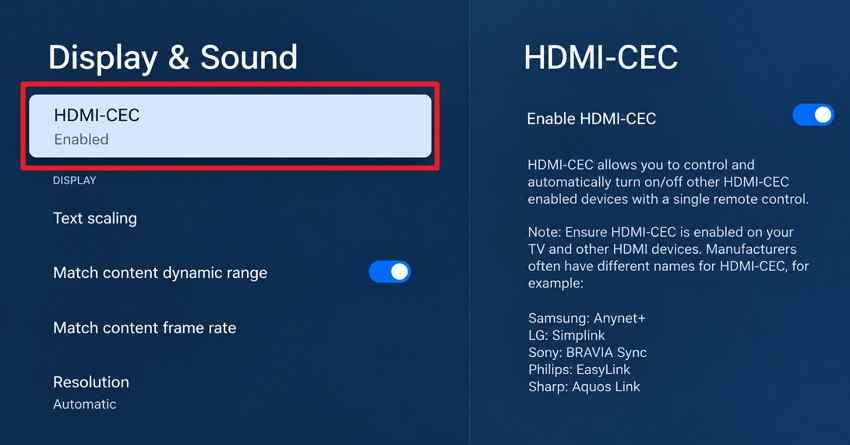
eARC supports higher-bandwidth formats than earlier ARC implementations, but the TV, audio system, HDMI ports, and content format all need compatible support. The official HDMI eARC overview lists support for high-bitrate formats such as Dolby TrueHD and DTS-HD Master Audio on compatible eARC equipment.
Match the TV Digital Audio Format to the Soundbar or Receiver
If ARC/eARC is connected correctly but the soundbar is silent, test PCM as a compatibility setting. If PCM works, the previous Dolby, DTS, Auto, or Pass-Through selection may not be supported by the full path.
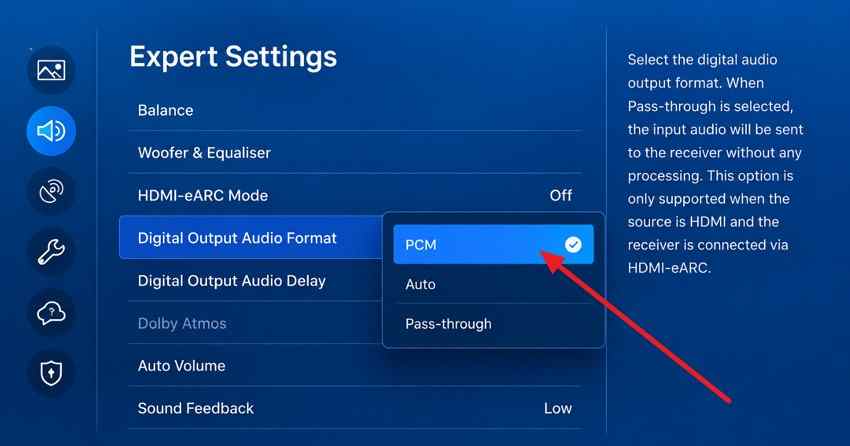
Restore the preferred surround format only after confirming support on both the TV and the soundbar/receiver. Standard ARC has less audio bandwidth than eARC, so a format that works over eARC may not be available over an older ARC-only path.
Follow the Exact Brand Menu When ARC Settings Differ
Menu names vary widely. Samsung, for example, documents brand-specific eARC and Anynet+ (HDMI-CEC) settings in its current Samsung eARC guide. Other TV brands may use different CEC names and different Digital Audio Output menus.
Follow the manual for the exact TV and soundbar model rather than copying a Samsung, LG, Sony, TCL, or Roku TV menu path onto a different brand.
Part 7. Isolate the Faulty Device or Connection
If there is still no audio from the TV with the HDMI cable, stop changing multiple settings and isolate the failing component. Cross-testing is more useful than reinstalling drivers repeatedly.
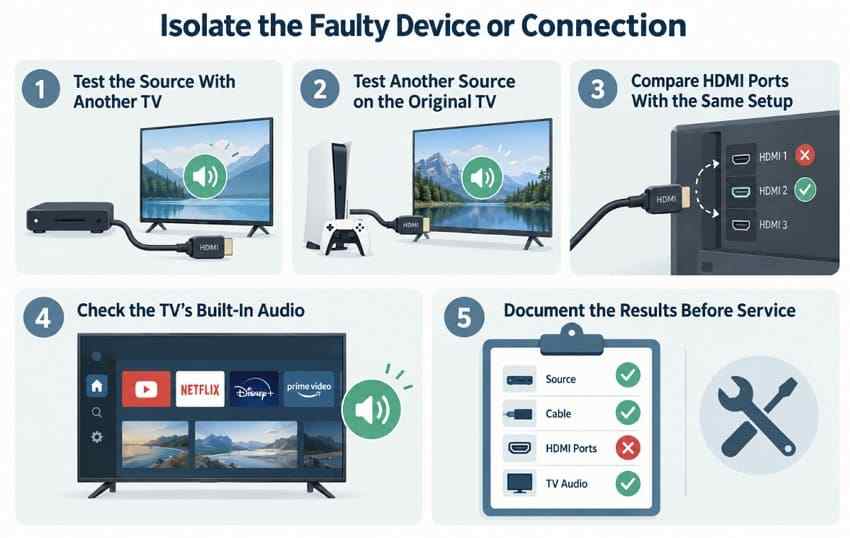
- Test the source on another TV: Use the same source and known-good cable with another audio-capable TV. If sound works, the original TV or its input path becomes more likely.
- Test another source on the original TV: Connect a known-working console, laptop, or streaming device to the same TV input. If audio works, focus on the original source.
- Compare HDMI ports with the same cable: Move the same source and cable between TV inputs. If only one port stays silent, that input or its configuration is suspect.
- Check built-in TV audio: Play a built-in app through TV speakers. If internal TV audio is also silent, investigate the TV's output setting, speaker system, or hardware rather than the HDMI source.
- Seek hardware service after the fault is isolated: Document which source, cable, and port combinations work before paying for repair. This helps avoid replacing the wrong component.
Use Cross-Testing Before Paying for Hardware Service
A TV HDMI port, cable, receiver, adapter, GPU HDMI output, or soundbar can all create similar symptoms. A single successful cross-test can narrow the problem more effectively than broad software changes. If a TV works with every other source except one PC, continue on the PC. If every source is silent on one TV input only, focus on that port or its configuration.
Separate case: missing audio files. HDMI troubleshooting is a playback problem, so Recoverit is not needed when the files themselves are present and playable elsewhere. If local MP3, WAV, FLAC, recordings, or other audio files have actually been deleted, lost, or become inaccessible on readable storage, Recoverit Audio Recovery can be considered for file recovery. It does not repair HDMI output, TV settings, drivers, ARC/eARC, cables, or hardware. For a deletion-specific workflow, see how to recover deleted audio files.
Conclusion
When there is HDMI no sound on a TV but video works, identify the signal path before changing settings. For a PC, console, or streaming box connected directly to the TV, verify the active audio output, TV speaker selection, cable path, and audio format. Test stereo PCM when format compatibility is uncertain, then restore Auto or the preferred surround format when the full device chain supports it.
For ARC/eARC, use the labeled ports on both devices and follow the exact TV and soundbar instructions. If software and format checks do not help, cross-test the source, cable, and TV ports so you can isolate the failing component before hardware service.

FAQ
-
Why does HDMI show video but no sound on my TV?
HDMI carries both video and audio, but the source can still route sound to another device or send a format the TV cannot decode. Select the TV or HDMI audio output first, confirm the TV speakers are active, then test stereo or 2-channel PCM if the picture works but sound remains silent. -
How do I get sound from my TV through HDMI?
For a PC, Mac, console, or streaming device connected directly to the TV, select the HDMI TV as the source's audio output and use the TV speakers or intended external audio system. For TV audio going to a soundbar, use the labeled ARC/eARC ports and enable the required TV audio-system settings. -
Why is my HDMI volume not working on the TV?
Check TV mute, TV volume, and the selected Sound Output first. Some HDMI sources send digital audio at a fixed level, so volume may be controlled by the TV, receiver, or soundbar rather than by the source device. Also check the app volume if only one program is affected. -
Why does HDMI ARC or eARC have no sound?
Confirm that both devices use their labeled ARC/eARC ports, select the soundbar or receiver as the TV output, and enable ARC/eARC plus HDMI-CEC where your specific devices require it. If the connection is correct but silent, test PCM to determine whether Dolby, DTS, Auto, or Pass-Through is causing a format-compatibility problem.


