
 TL;DR:
Determine whether a Samsung TV HDMI no-sound issue stems from the internal speakers, a specific source device routing error, or the ARC/eARC path by testing a built-in app before altering deeper settings or attempting a factory reset.
● Set the Sound Output menu strictly to TV Speaker to bypass hidden Bluetooth redirections, and perform a cold boot by holding the remote Power button until the Samsung logo reappears to force a fresh HDMI handshake.
● Switch the HDMI Input Audio Format to PCM under Expert Settings as a diagnostic baseline for incoming source audio, isolating it from the Digital Output Audio Format which controls outgoing sound.
● Restore missing soundbar audio by connecting to the explicitly labeled ARC or eARC ports, enabling Anynet+ (HDMI-CEC), and activating HDMI-eARC Mode exclusively when both the TV and the connected equipment natively support the standard.
Ask AI for a summary
 ChatGPT
 Perplexity
 Gemini
 Claude
 Grok
Grok
An HDMI no sound Samsung TV problem is not always a speaker failure. HDMI video and HDMI audio are negotiated separately, so a console, PC, Mac, streamer, or set-top box can keep showing a picture while the TV receives no usable audio. The fastest way to diagnose the problem is to identify which audio path is failing before changing settings.
Start by separating normal HDMI input audio from ARC/eARC. A source device sends audio into the TV through an HDMI input. ARC or eARC sends TV audio out through the labeled ARC/eARC port to a soundbar or receiver. Samsung also separates HDMI Input Audio Format from Digital Output Audio Format, so changing the wrong setting can waste time or create a second problem.
In This Article
Part 1. Confirm Where the Samsung TV Audio Fails
Do not start with a factory reset. First determine whether the problem follows the TV speakers, every HDMI source, one specific source, or only the ARC/eARC path. That distinction tells you which settings are relevant.
| What You Observe | What It Suggests | Best Next Step |
| Built-in TV apps have sound, HDMI source is silent | TV speakers work; input path, source, or input format is suspect | Parts 3, 4, and 5 |
| One HDMI source is silent, other HDMI devices work | Problem is probably source-specific | Part 5 |
| Every HDMI source is silent | Sound Output, TV settings, or common HDMI path may be involved | Parts 2 and 3 |
| Built-in apps and HDMI sources are all silent | Volume, output selection, TV speaker path, or TV hardware needs attention | Parts 1, 2, and 8 |
| TV speakers work but a soundbar is silent over ARC/eARC | Return-audio path is separate from normal HDMI input audio | Part 7 |
Run the Samsung Sound Test
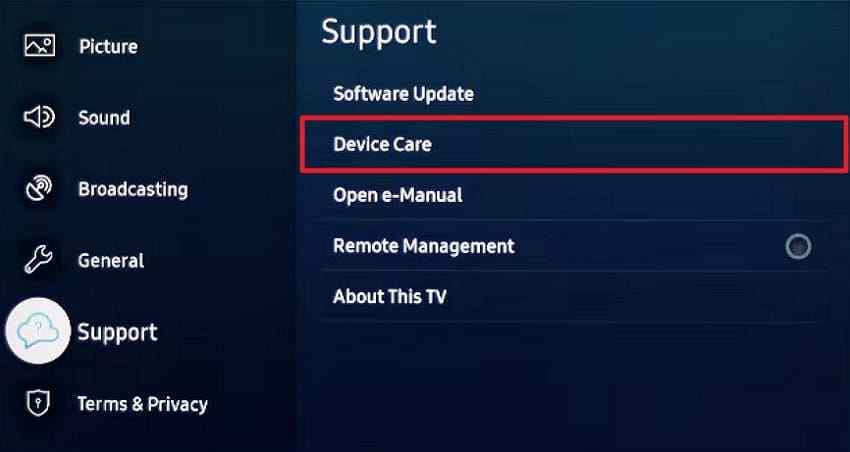
Samsung's Sound Test helps separate a TV-speaker problem from an external HDMI problem. On supported models, the test plays a melody through the TV speakers. If that melody sounds normal, the speaker hardware is less likely to be the reason your HDMI source is silent.
Step 1. Open Settings > Support > Device Care. Menu names can differ by model year and region.
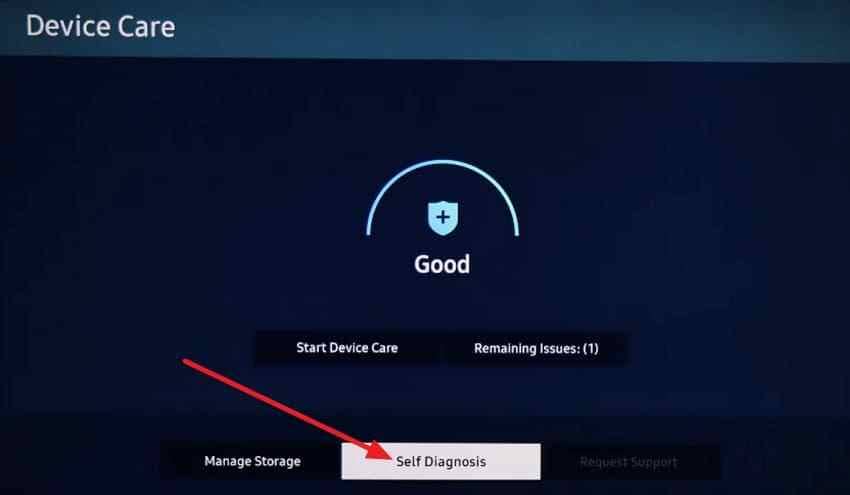
Step 2. Select Self Diagnosis.
Step 3. Select Sound Test and listen for the melody. If it plays correctly, continue with HDMI connection, input-format, and source-device checks.
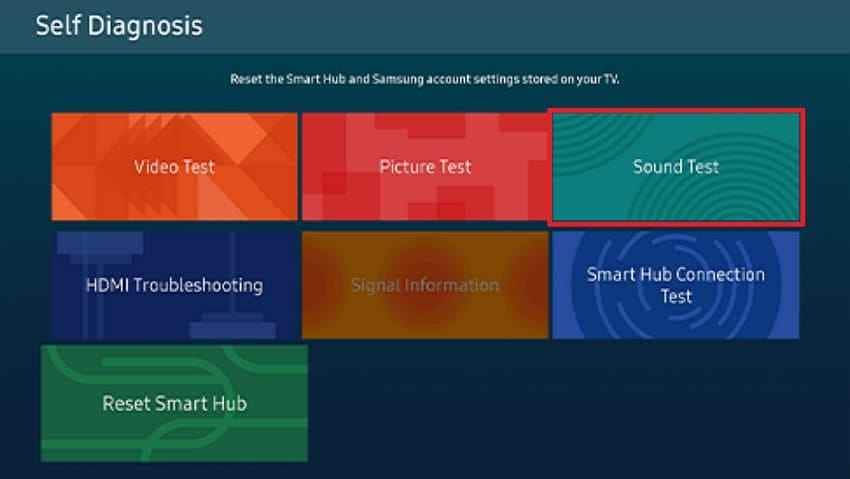
Note: On Samsung's current 2022-and-newer Self Diagnosis interface, supported models can also expose HDMI Troubleshooting and HDMI-CEC checks. Older models may offer fewer diagnostic items, so use the exact menu shown by your TV.
Compare Built-In Apps With HDMI Sources
Play a built-in Samsung TV app while Sound Output is temporarily set to TV Speaker. If the built-in app has sound but your HDMI device does not, the TV can produce audio without the HDMI input. That points toward the HDMI cable/port, the source device, or the incoming audio format rather than the TV speakers themselves.
If only one HDMI device is silent, do not reset every TV sound setting yet. First compare another source on the same HDMI port and the original source on another TV or display.
Separate HDMI Input Audio From ARC or eARC
A normal HDMI source sends audio into the TV. ARC/eARC does the reverse: it returns TV audio to a soundbar or receiver. HDMI.org's eARC overview describes that return-audio path. If your TV speakers are silent from a console, PC, or streamer, troubleshoot the HDMI input first. If a soundbar is silent while the TV itself has audio, jump to Part 7 instead.
Part 2. Check Volume and Samsung Sound Output
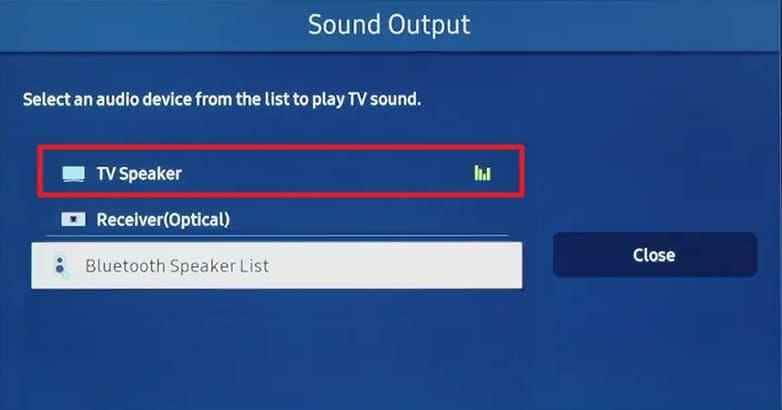
When every HDMI device is silent, make sure the TV is not simply sending audio somewhere else. Samsung TVs can keep an external Sound Output selected after a device has been disconnected, and a paired Bluetooth device can also capture TV audio.
Select TV Speaker for Direct TV Audio
First remove mute on both the TV and the HDMI source. Then open the TV's Sound Output menu. Samsung's current Sound Output guide directs users to select the audio device they actually want to hear.
Step 1. Go to Settings > All Settings > Sound > Sound Output.
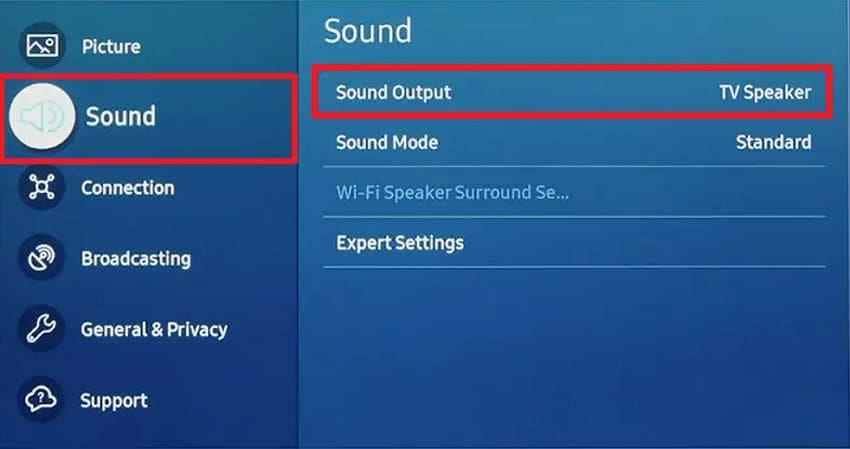
Step 2. Choose TV Speaker when you want the Samsung TV's built-in speakers. Select a soundbar or receiver only when that external device is connected and intended to play the audio.
Remove Bluetooth, Headphone, and Other Redirected Outputs
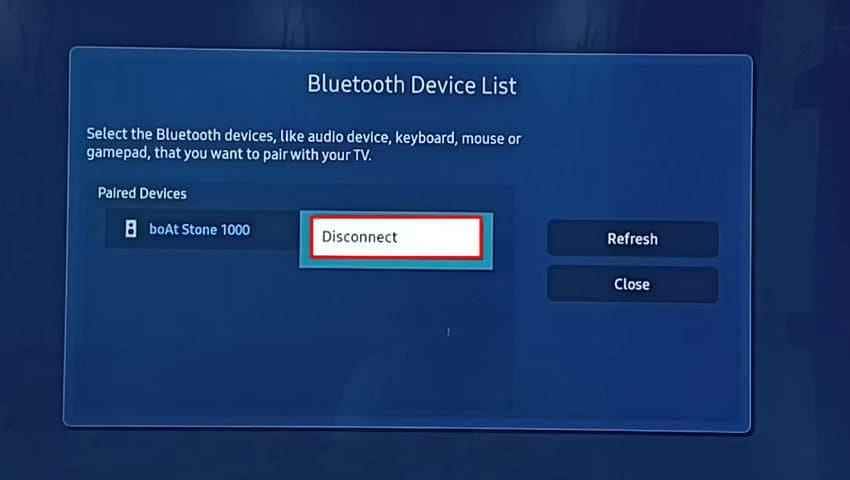
Bluetooth headphones or speakers can leave the TV apparently silent even though audio is being sent correctly to another device. Samsung's current Bluetooth speaker guide notes that most supported TVs expose these devices through the Sound Output or Bluetooth Speaker List menus.
Step 1. Open the Bluetooth audio device list for your TV model.
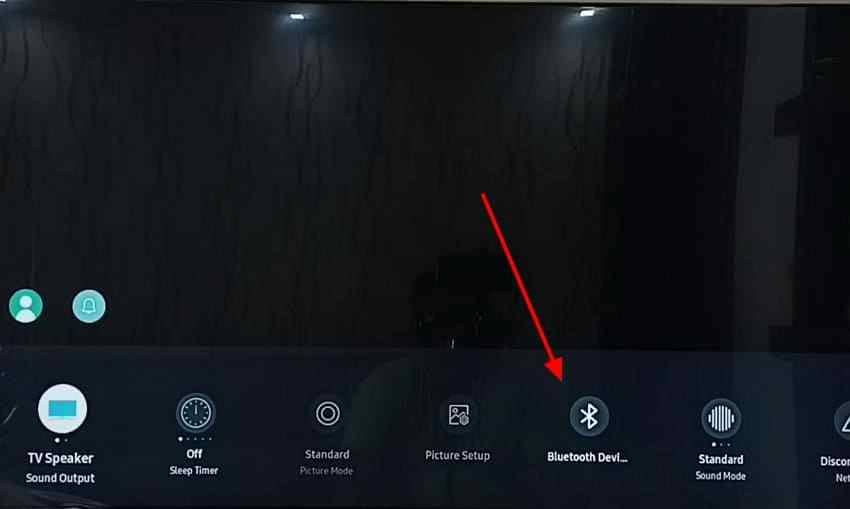
Step 2. Disconnect headphones or speakers you do not want to use, then retest the HDMI source through TV Speaker.
Part 3. Refresh the Samsung HDMI Connection
Video working does not prove that the HDMI audio negotiation is healthy. The source and TV exchange capabilities during the connection process. A cold boot, direct cable test, or Samsung HDMI diagnostic can refresh or expose that failure without changing deeper settings.
Cold Boot the Samsung TV
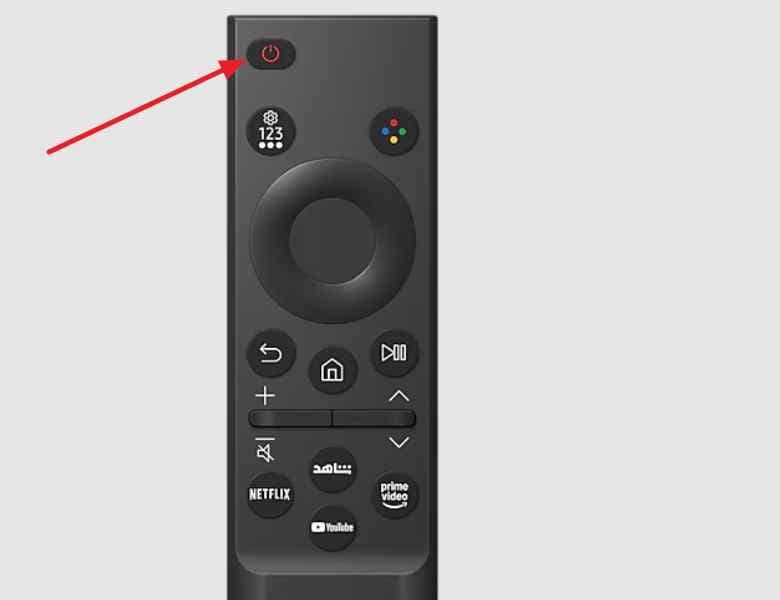
Samsung documents a cold boot as a full restart that clears the TV's temporary memory. It is more complete than simply turning the screen off and on.
Instructions. With the TV on, press and hold the remote's Power button until the TV turns off and back on. Release the button after the Samsung logo appears. Samsung's current cold boot instructions also provide a power-disconnect method when the remote method is not practical.
Reconnect HDMI, Change Ports, and Bypass Intermediaries
Turn off the source, reseat the HDMI cable at both ends, and restart the source. Then test another HDMI input and a known-good cable. If the source is connected through a dock, HDMI switch, splitter, KVM, receiver, or adapter, bypass it temporarily and connect the source directly to the Samsung TV.
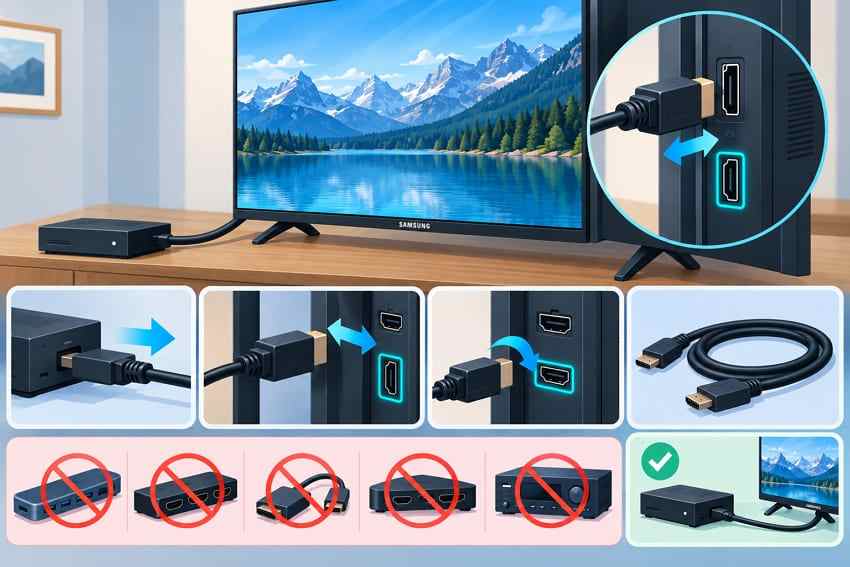
A direct connection is especially useful when the picture survives but the audio disappears. It removes extra EDID, CEC, and audio-routing variables from the test.
Run HDMI Troubleshooting on Supported Samsung TVs
Samsung's current Canadian Self Diagnosis guide states that 2022-and-newer supported TVs can include HDMI Troubleshooting, HDMI Signal, and HDMI-CEC Check. Availability varies by model and software.
Instructions. Open Settings > All Settings > Support > Device Care > Self Diagnosis. If HDMI Troubleshooting is available, choose the HDMI port you are testing and follow the on-screen prompts.
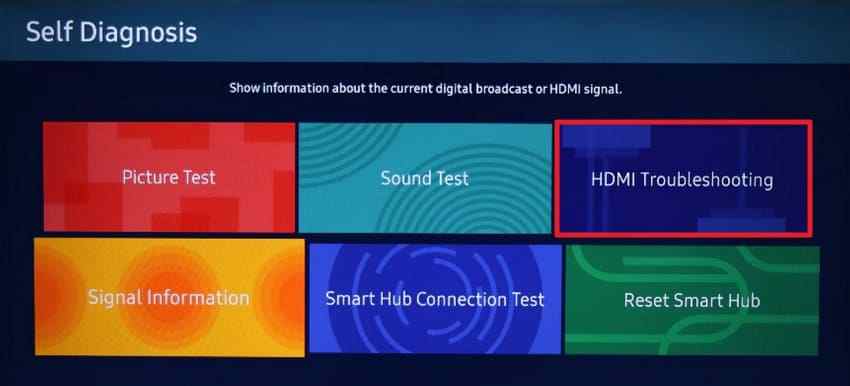
Note: Do not treat a missing HDMI diagnostic menu as a fault. Samsung explicitly limits some Self Diagnosis tools by model year and software version.
Part 4. Correct the Samsung HDMI Input Audio Format
If the TV produces sound from built-in apps but not from an HDMI device, the incoming format is the next useful variable. Samsung's current sound settings guide distinguishes HDMI Input Audio Format from Digital Output Audio Format.
Test PCM as a Compatibility Setting
On models that expose HDMI Input Audio Format, PCM is a useful diagnostic because it simplifies the incoming audio path. It is not automatically the best permanent format for every setup.
Step 1. Open Settings > All Settings > Sound > Expert Settings.
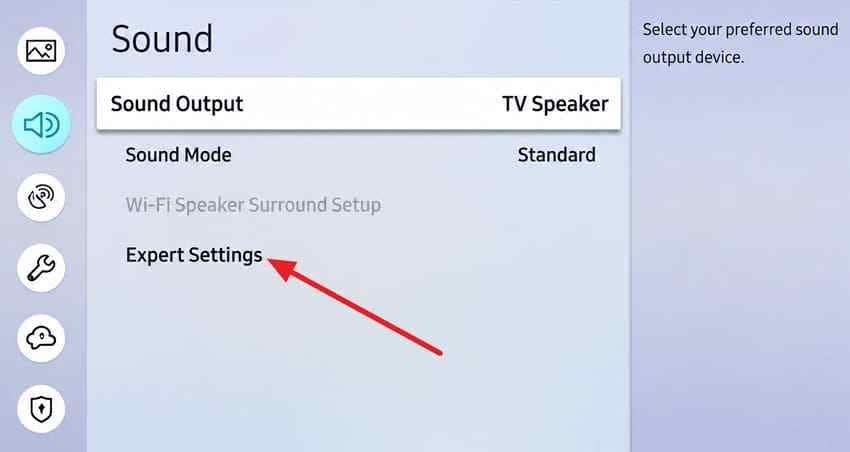
Step 2. If your TV provides HDMI Input Audio Format, choose PCM and replay the same HDMI content.
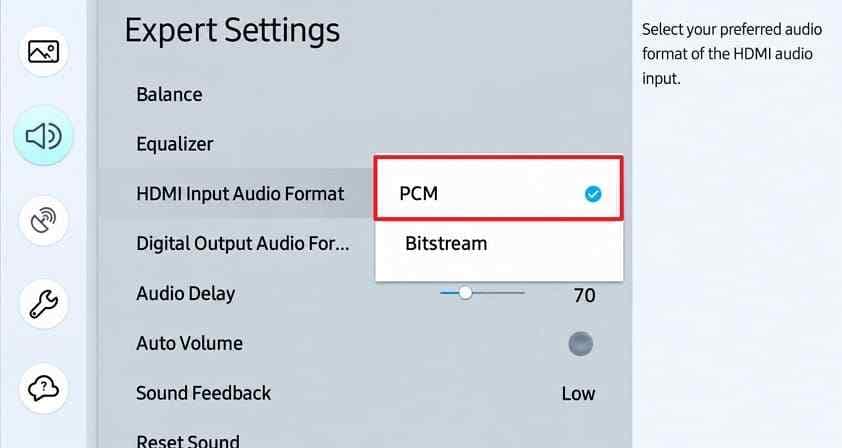
If PCM restores sound, the previous format or another device in the audio chain may not support that incoming format correctly.
Understand PCM vs Bitstream
| Setting | How It Works | When to Use It |
| PCM | Sends decoded audio that the TV can process directly | Good compatibility test when an HDMI source shows picture but no sound |
| Bitstream | Sends encoded audio for compatible downstream decoding | Use only when the TV and connected audio chain support the source's encoded format |
Do not force Bitstream simply because it sounds more advanced. The correct format depends on the source, TV, content, and any receiver or soundbar in the path.
Do Not Confuse Input and Output Audio Formats
HDMI Input Audio Format applies to sound arriving from a console, PC, streamer, or player. Digital Output Audio Format applies to audio leaving the TV for a soundbar or receiver. If you are troubleshooting the TV's own speakers with one HDMI source, start with the input side. Save Digital Output Audio Format for ARC/eARC or external-speaker troubleshooting.
Part 5. Fix the Connected HDMI Source
If one HDMI device is silent while other devices work, the source becomes the priority. A source can keep sending video over HDMI while routing sound to headphones, a controller, internal speakers, Bluetooth, or another audio device.
Select the Samsung TV as the Source Device Audio Output
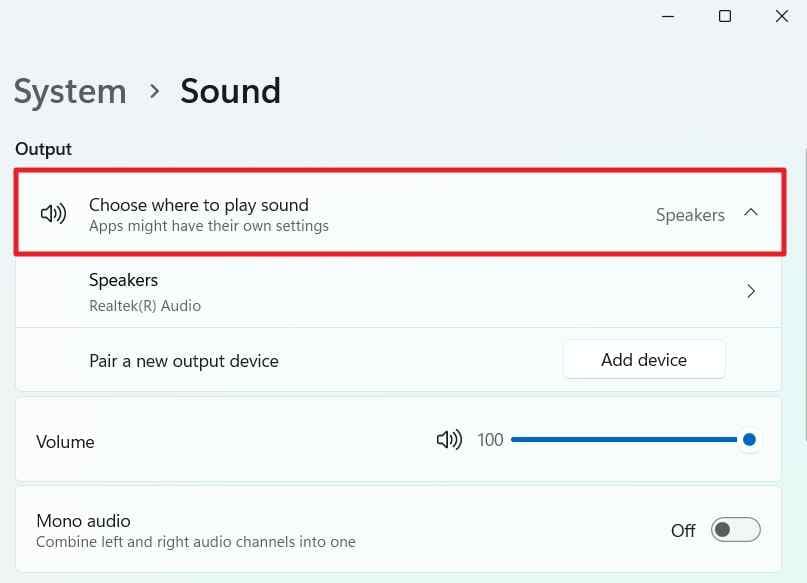
On Windows 11: Open Settings > System > Sound and choose the Samsung TV or HDMI display under Output. Microsoft's current Windows audio troubleshooting guide recommends confirming the intended output when multiple audio devices are available.
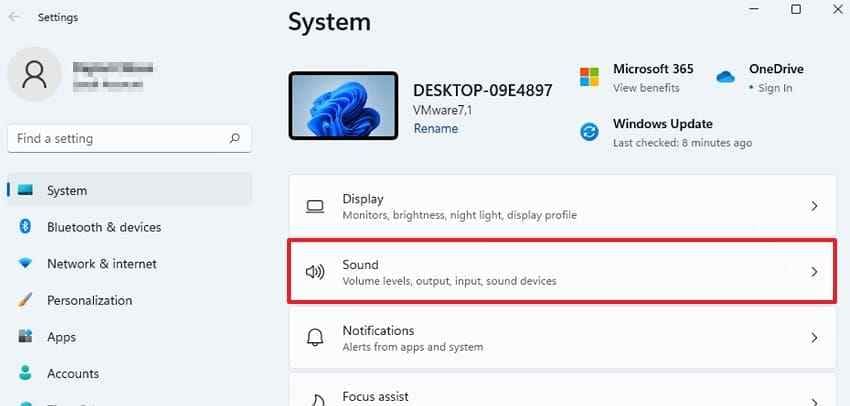
Step 2. Under Output, select the Samsung TV or HDMI audio device and retest playback.
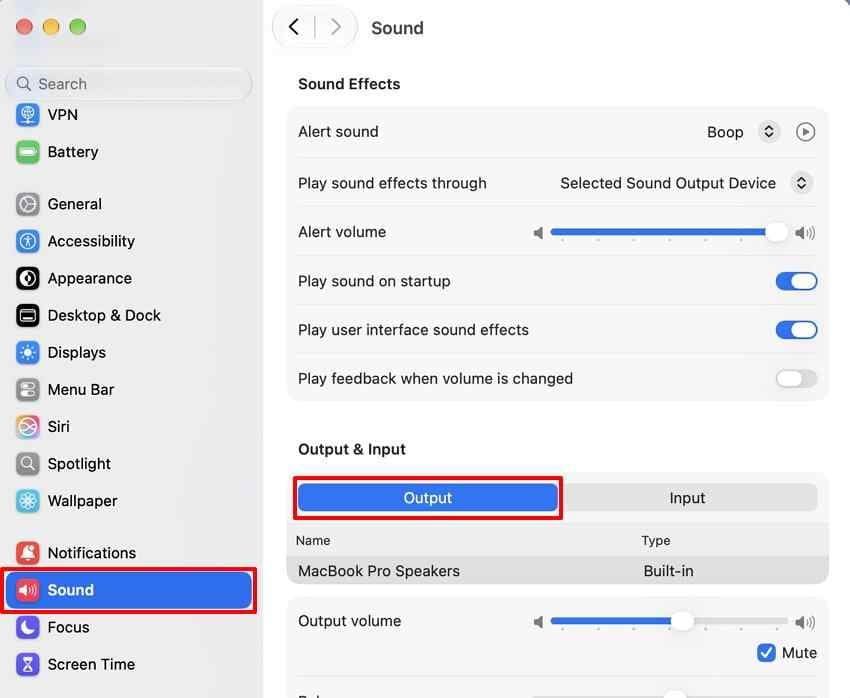
On Mac: Apple's HDMI connection guide instructs users to open System Settings > Sound and select the HDMI device under Output.
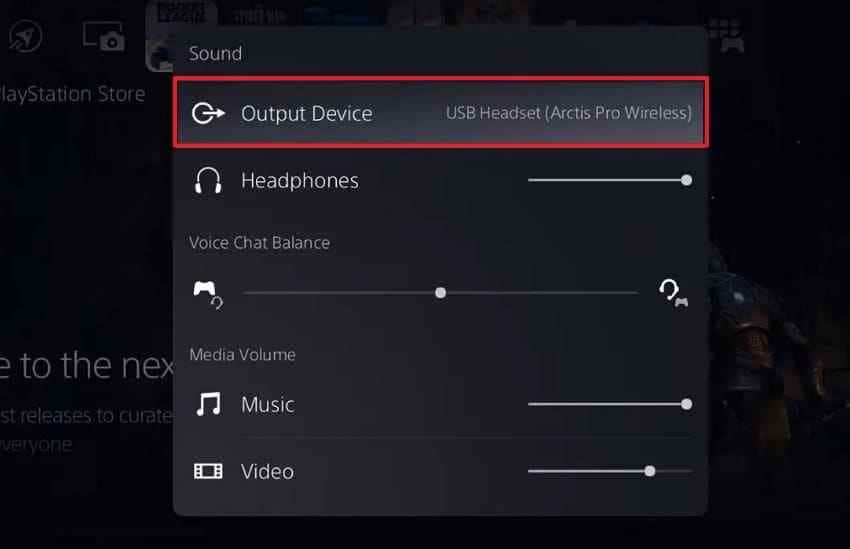
On a game console: Open the console's audio output settings and confirm that sound is going to HDMI/TV rather than a headset or USB device. For PS5, Sony's current audio output guide covers Output Device and HDMI Device Type.
Test Another App or Piece of Content
Play a different app, game, streaming title, or local file on the same source. If only one item is silent, the issue may be the app's mute/output setting, an alternate audio track, or that content's codec rather than the HDMI connection. Keep the same cable and TV input while testing so you change only one variable.
Update the TV and Source Only When the Timing Fits
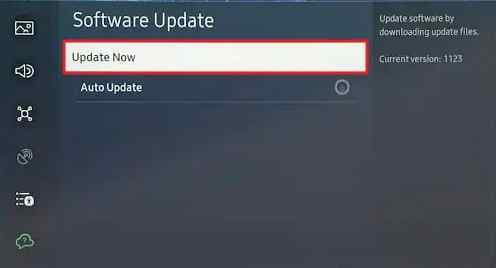
Use updates after the basic routing and format checks, especially if the no-sound issue began after a software change or if Samsung documents a relevant fix for your model. The source article's Samsung software update guide remains available, and Samsung's 2026 guidance continues to use Settings > All Settings > Support > Software Update on current models.
Instructions. Check for an available Samsung TV update, install it without interrupting power, then update the connected source through its own official update path if appropriate.
Part 6. Reset Samsung Sound Settings Only After Targeted Checks
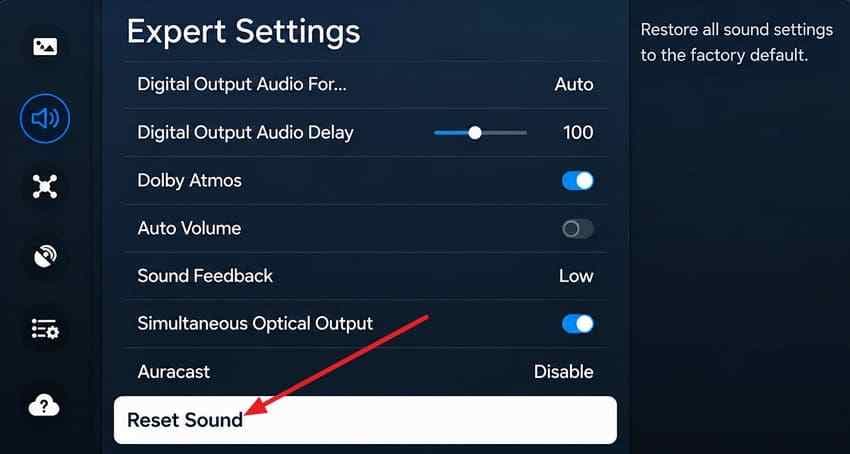
Reset Sound is much narrower than a full TV factory reset. Use it only after you have tested output selection, HDMI reconnection, source routing, and input-format compatibility. That preserves unrelated TV setup while returning the sound configuration to defaults.
Use Reset Sound Instead of a Full Factory Reset
Samsung's current Reset Sound guide confirms that Reset Sound restores sound settings to their defaults.
Instructions. Open Settings > Sound > Expert Settings, scroll to Reset Sound, and confirm the reset.
Reconfigure Sound Output and HDMI Audio Format
After the reset, select TV Speaker again if you want the TV's speakers, then retest the HDMI source. If your model exposes HDMI Input Audio Format, repeat the PCM test only if the source still has video but no sound. Do not immediately perform a full factory reset just because Reset Sound did not fix a source-specific HDMI problem.
Part 7. Handle Samsung TV ARC or eARC Separately
If the Samsung TV itself has sound but a soundbar or receiver is silent over HDMI ARC/eARC, the problem has moved to the output path. Do not keep changing HDMI Input Audio Format for this symptom.
Use the Labeled ARC or eARC Ports and Enable Anynet+
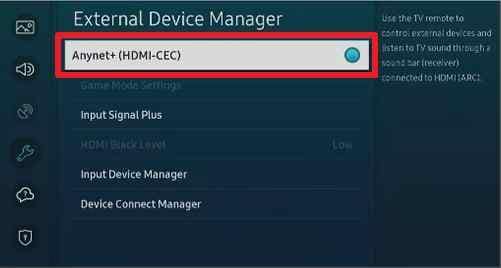
Connect the TV's port labeled ARC or eARC to the compatible ARC/eARC port on the soundbar or receiver. Then enable Anynet+ (HDMI-CEC) under the External Device Manager menu for your model.
Enable HDMI-eARC Mode Only on Supported Equipment
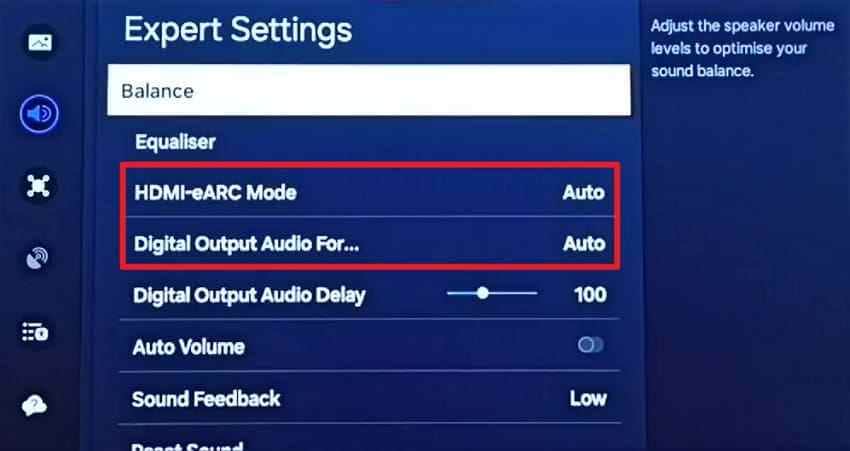
Samsung's current eARC guide requires compatible equipment and instructs users to enable Anynet+ before setting HDMI-eARC Mode to Auto. If the connected audio device supports only ARC, do not force an eARC-only workflow.
Instructions. On supported TVs, open Sound > Expert Settings, set HDMI-eARC Mode to Auto, then test the supported Digital Output Audio Format options.
| Audio Format | ARC | eARC |
| Dolby Digital | Supported on compatible devices | Supported on compatible devices |
| Dolby Digital Plus | Supported on compatible devices | Supported on compatible devices |
| Dolby TrueHD | Not carried as lossless TrueHD over standard ARC | Supported when the full chain supports it |
| Multichannel PCM | Limited compared with eARC | Supported on compatible eARC setups |
Do not assume that every Samsung TV passes every codec. Model support, source format, and soundbar/receiver support still matter even when eARC is available.
Use Dedicated Soundbar ARC Troubleshooting When Needed
If the TV speakers work but the soundbar remains silent, use a soundbar-specific ARC/eARC workflow rather than repeating normal HDMI-input fixes. The key checks are labeled ports, Anynet+, Sound Output, soundbar source, eARC compatibility, and Digital Output Audio Format.
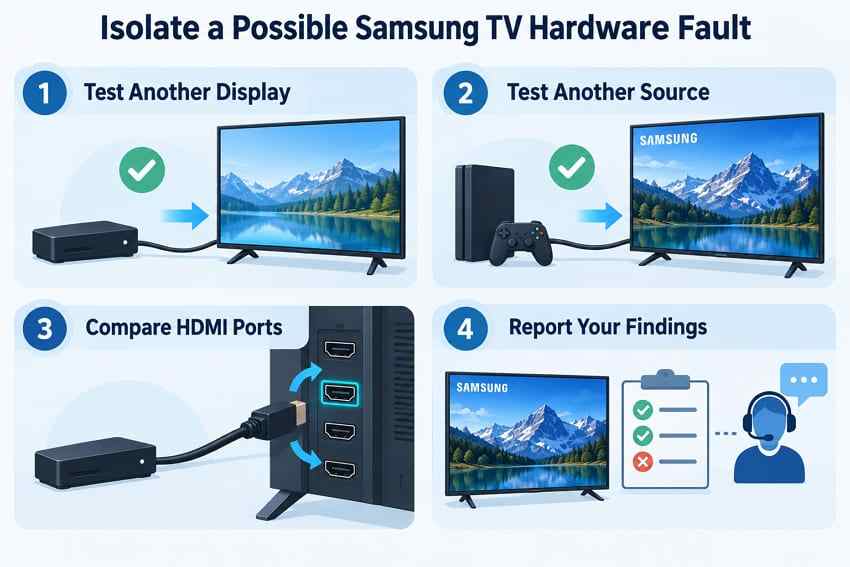
Part 8. Isolate a Possible Samsung TV Hardware Fault
Hardware service should be the result of a repeatable isolation test, not the first conclusion. Change one component at a time and keep a short record of the result.
Cross-Test the Source, Cable, and HDMI Ports
- Test the original source on another TV: If HDMI audio works there, the source is capable of outputting sound in at least one setup.
- Test another source on the Samsung TV: If the second device has sound on the same input and cable, the original source becomes the main suspect.
- Move one known-good source and cable between HDMI ports: If only one port remains silent after the same settings and reconnection checks, that port deserves closer attention.
- Repeat Sound Test and HDMI diagnostics: Record whether TV speakers pass the Sound Test and whether Samsung's HDMI diagnostic reports a connection issue.
Contact Samsung Only After the Fault Follows the TV
Contact Samsung when the same known-good HDMI source and cable work on another display but repeatedly fail on the Samsung TV, or when Samsung's own sound/HDMI diagnostics identify a TV-side issue. Provide the model code, software version, affected HDMI port, Sound Test result, and the cross-test results so support can avoid repeating basic checks.
Recoverit note: An HDMI no-sound problem does not require data recovery software. If you separately discover that a locally stored MP3, WAV, recording, or other audio file has been deleted, gone missing, or become inaccessible on a computer or removable drive, check Recycle Bin/Trash and backups first. If the file is still missing, see how to recover deleted audio files. Recoverit can scan supported storage for recoverable files, but it cannot repair a Samsung TV, HDMI port, cable, audio setting, ARC/eARC connection, or soundbar.

Conclusion
A Samsung TV HDMI no audio problem is easiest to fix when you identify the direction of the audio first. If TV apps have sound but one HDMI source does not, focus on the source, HDMI path, and HDMI Input Audio Format. If every source is silent, check Sound Output and the TV's diagnostics. If only a soundbar or receiver is silent, move to the separate ARC/eARC path instead of repeatedly changing HDMI input settings.
Use a cold boot, direct cable test, PCM compatibility check, and source-output check before resetting sound settings. Reserve firmware updates, full device isolation, and service for problems that persist after those targeted tests. That sequence keeps the diagnosis readable and avoids changing multiple Samsung settings without knowing what actually failed.
FAQ
-
Why does my Samsung TV have picture but no sound through HDMI?
HDMI can keep carrying video when the audio path is routed to another output, negotiated in an unsupported format, or not detected correctly. First test a built-in TV app, set Sound Output to TV Speaker, then check the HDMI source, cable, and HDMI Input Audio Format. -
How do I enable HDMI audio on a Samsung TV?
For the TV's built-in speakers, select TV Speaker under Sound Output and make sure the connected source is sending audio through HDMI. On supported models, PCM under HDMI Input Audio Format is a useful compatibility test when video works but sound does not. -
Which audio format should I use for HDMI on a Samsung TV?
There is no single best format for every setup. PCM is a useful troubleshooting choice because it simplifies compatibility. Bitstream is appropriate when the source, TV, and downstream audio equipment all support the encoded format. Keep HDMI Input Audio Format separate from Digital Output Audio Format. -
Why does my Samsung soundbar have no sound through HDMI ARC or eARC?
ARC/eARC is a separate return-audio path. Use the labeled ARC/eARC ports, select the soundbar under Sound Output, enable Anynet+ HDMI-CEC, and set HDMI-eARC Mode to Auto only when both the TV and soundbar support eARC. Then test a compatible Digital Output Audio Format.


