If the Recycle Bin is not showing in Windows 11 or 10, first check whether its desktop icon is hidden or the deleted files themselves are missing. For a missing icon, open Settings > Personalization > Themes > Desktop icon settings and select Recycle Bin. If the icon is visible but your files are absent, restoring the icon will not bring those files back.
You can also open the Recycle Bin without its desktop icon. Press Win + R, enter shell:RecycleBinFolder, and press Enter. If a file has really been deleted, check the correct local or cloud Recycle Bin and your backups before scanning the original drive. Avoid saving new data to a drive that may contain deleted files.
In This Article
-
- Quick Diagnosis: Is the Desktop Icon Hidden or Are Deleted Files Missing?
- Open Recycle Bin from File Explorer Before Changing Desktop Settings
- Fix 1. Enable Show Desktop Icons in Windows
- Fix 2. Restore Recycle Bin Through Desktop Icon Settings
- Fix 3. Check Group Policy Settings Hiding the Recycle Bin
-
- Before Recovery: Stop Writing to the Original Drive and Check Backups
- Method 1. Restore Deleted Files from OneDrive Recycle Bin
- Method 2. Recover Deleted Files Using File History and Previous Versions
- Method 3. Recover Permanently Deleted Files Using Wondershare Recoverit
- Check Whether the Recovered Files Open; Never Save Them to the Source Drive
- When Recovery Fails: TRIM, Overwriting, and Physically Undetectable Drives
Part 1. Restore a Missing Recycle Bin Desktop Icon on Windows 11 or 10
A missing icon is usually a visibility issue, not evidence that Windows deleted your files. Check the Recycle Bin contents first, then change only the setting that fits what you see.
Quick Diagnosis: Is the Desktop Icon Hidden or Are Deleted Files Missing?
Use the visible symptoms to choose your next step. The key difference is whether the Recycle Bin itself can open and whether the deleted file is still listed there.
| What you see | What it usually means | What to do next |
| No desktop icons appear | Windows may be hiding all desktop icons. | Use Fix 1 to turn desktop icons back on. |
| Other desktop icons are present, but Recycle Bin is missing | Its system icon may be unchecked or restricted by policy. | Open Recycle Bin using Run, then use Fix 2. |
| Recycle Bin opens and lists the file | The file has not been permanently deleted. | Right-click the file and choose Restore. |
| Recycle Bin opens but the file is missing | It may have bypassed the bin, been emptied, or been deleted from another location. | Check Part 2 before trying recovery in Part 3. |
| Recycle Bin icon remains missing after changing settings | A work/school policy or a Windows desktop setting may control visibility. | Check Fix 3; do not reset or erase the Recycle Bin. |
The basic icon settings above are also described in Microsoft's guide to finding the Recycle Bin.
Open Recycle Bin from File Explorer Before Changing Desktop Settings
Step 1. Press Win + E, click the File Explorer address bar, type Recycle Bin, and press Enter. Alternatively, press Win + R and run shell:RecycleBinFolder.
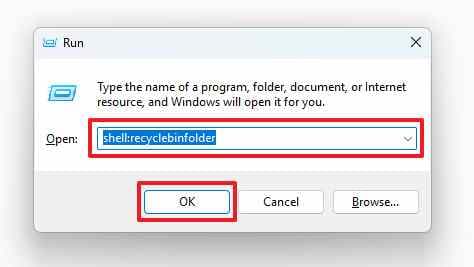
Step 2. If your deleted files appear, right-click the file you need and select Restore. Windows puts it back in its original location. If it is missing from the list, check Part 2 rather than changing desktop settings repeatedly.
You can also use Windows Search to look for Recycle Bin. In File Explorer, enabling Show all folders in the navigation pane may make the folder easier to reach. The Run command is useful when the desktop icon is unavailable.
Fix 1. Enable Show Desktop Icons in Windows
Use this fix when shortcuts, folders, and the Recycle Bin all disappeared from the desktop.
Step 1. Right-click an empty area of the desktop, open View, and make sure Show desktop icons has a check mark. If not, click it. Your desktop icons should reappear immediately.
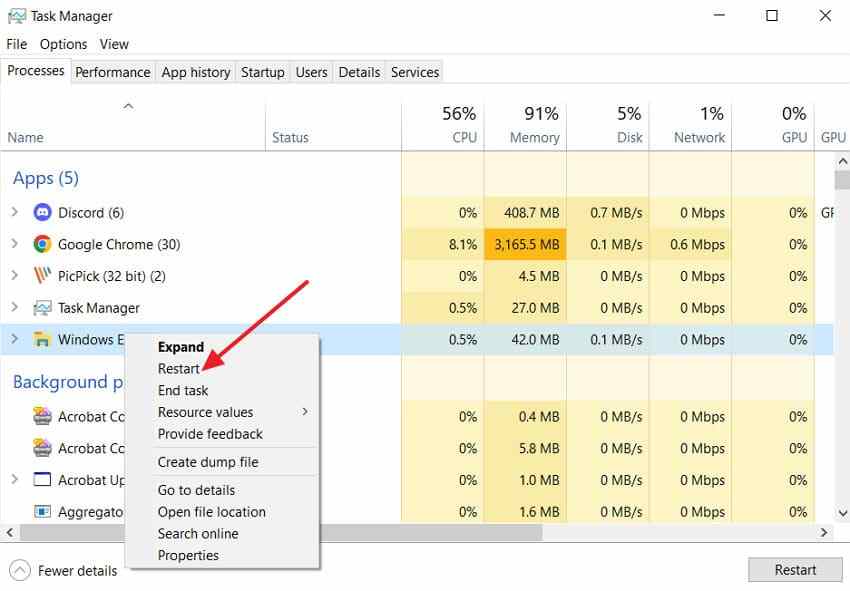
Step 2. If Show desktop icons is already enabled but the desktop does not refresh, press Ctrl + Shift + Esc to open Task Manager, find Windows Explorer under Processes, and select Restart. Your taskbar and desktop may briefly disappear and return.
If only Recycle Bin is missing: Skip to Fix 2; restarting Explorer cannot restore an icon that is unchecked in Desktop Icon Settings.
Fix 2. Restore Recycle Bin Through Desktop Icon Settings
Use this when your other desktop shortcuts are visible, but the Recycle Bin system icon is not.
Step 1. Open Settings > Personalization > Themes and select Desktop icon settings under Related settings. The labels are similar in Windows 11 and 10, although the Settings layout differs.
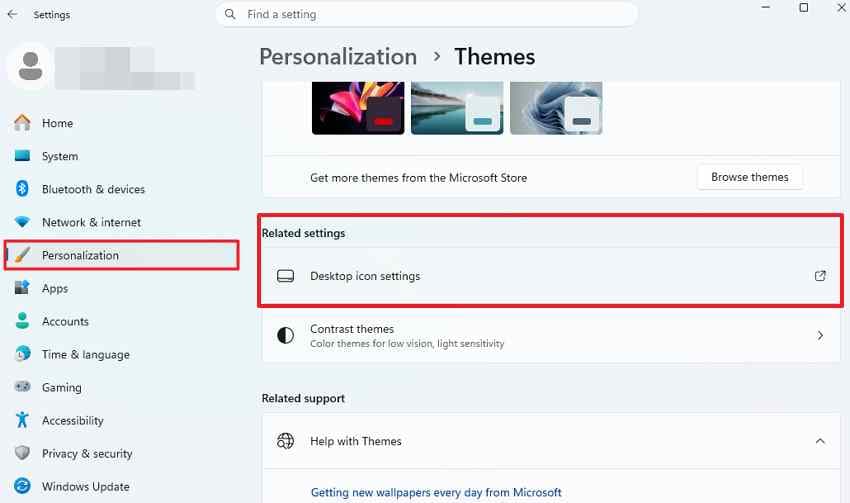
Step 2. Check Recycle Bin, select Apply, then OK. If the icon is present but its appearance is wrong, choose the Recycle Bin icon and select Restore Default.
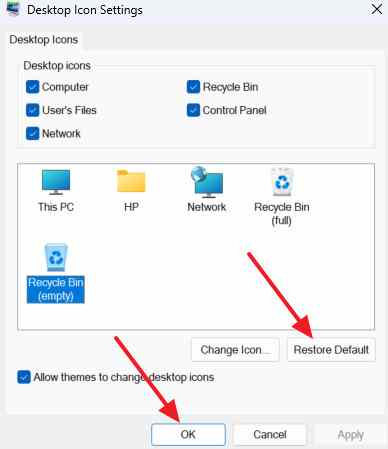
Expected result: The Recycle Bin should be visible on the desktop and open normally. Restoring the icon does not restore files that were emptied or permanently deleted. See Microsoft's desktop-icon instructions for the supported Windows settings.
Fix 3. Check Group Policy Settings Hiding the Recycle Bin
If the Recycle Bin is still hidden, a policy may be controlling its icon. This check applies to editions with the Local Group Policy Editor, such as Windows Pro, Enterprise, or Education. Windows Home normally does not include gpedit.msc.
Step 1. On a personally managed PC, press Win + R, type gpedit.msc, and open User Configuration > Administrative Templates > Desktop. Check Remove Recycle Bin icon from desktop and Hide and disable all items on the desktop.
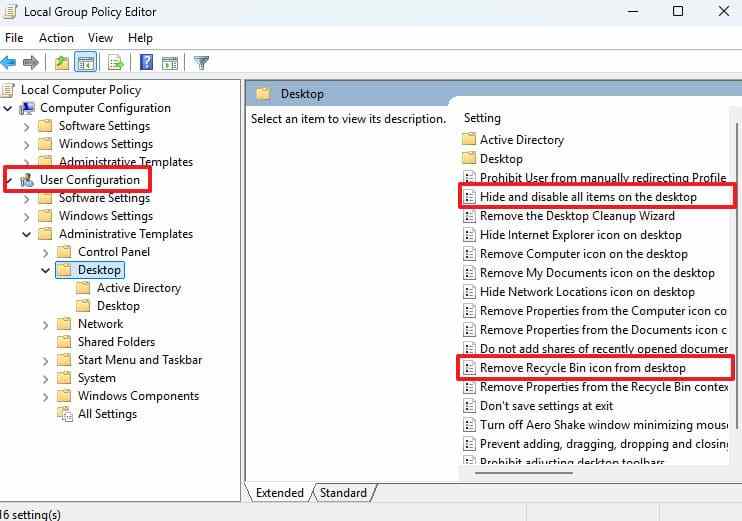
Step 2. If either policy has been enabled locally without your intention, set it to Not Configured only if you own and administer the PC. Apply the change and sign out, then sign back in. On a work or school PC, ask the administrator instead of overriding managed policies.
Note: You do not need to delete Recycle Bin folders or edit the Windows Registry to restore an ordinary hidden icon. Microsoft documents these policy settings in its desktop policy reference.
Part 2. Why Aren't Deleted Files Showing Up in Recycle Bin?
If the Recycle Bin opens but the file is not there, identify where the file was deleted and how it was deleted. The Windows desktop Recycle Bin does not act as a universal trash folder for every device, network share, or cloud account.
Where the File Was Deleted: Local Disk, External Drive, Network Share, or OneDrive
Different locations have different deletion rules. Checking the right destination avoids unnecessary recovery scans.
| Original file location | What can happen | Where to check |
| Local Windows drive (C: or D:) | A normal File Explorer deletion generally moves the file to the Windows Recycle Bin unless it is bypassed. | Windows Recycle Bin, then File History or other backups. |
| External hard drive | Recycle Bin behavior depends on how Windows identifies the device and its settings. | Windows Recycle Bin, the external drive, and backups. |
| USB flash drive or SD card | Many removable-device deletions bypass the PC's Recycle Bin. | Backups, then a scan of the original device if it is healthy and detected. |
| Network share or NAS | A deletion usually does not enter the local PC's Recycle Bin; server-side recycling may be available. | NAS Recycle Bin, snapshots, or an administrator-managed backup. |
| OneDrive synced file deleted on this PC | A locally available synced file may appear in Windows Recycle Bin; cloud recovery can also be available. | Check the local bin and OneDrive's web Recycle Bin. |
| OneDrive online-only file or file deleted on the web | A cloud-side deletion may never appear in the computer's Recycle Bin. | Sign in to the OneDrive website and open its Recycle Bin. |
Microsoft explains that files deleted from the cloud or marked online-only may not appear in the PC's Recycle Bin.
Why Shift + Delete, Large Files, and Some Locations Bypass the Bin
Files that were deleted without entering the Recycle Bin are not restored by making the desktop icon visible. Check the deletion method and Windows settings:
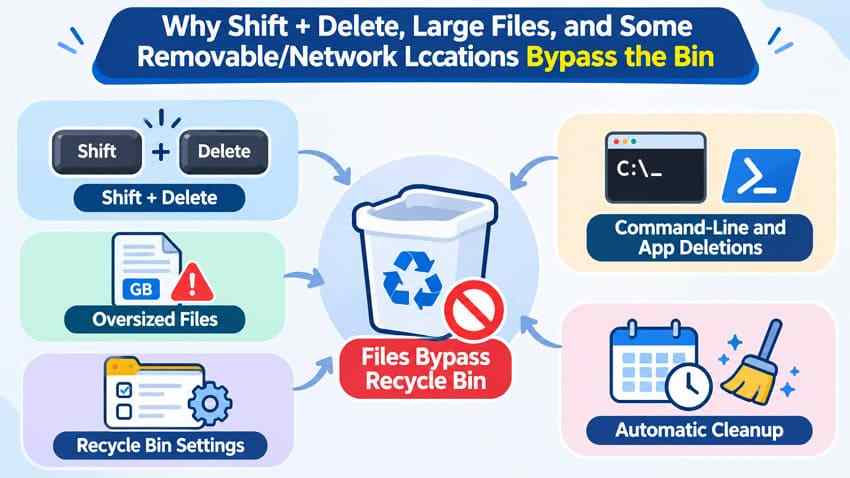
- Shift + Delete: Permanently deletes a selected file instead of moving it to Recycle Bin.
- Large files: Files exceeding the configured Recycle Bin capacity can trigger a permanent-deletion prompt.
- Recycle Bin Properties: If Do not move files to the Recycle Bin is selected for a drive, new deletions bypass it. Changing this setting affects future deletions, not old ones.
- Commands and applications: Command-line deletion or application-specific cleanup may bypass File Explorer's Recycle Bin behavior.
- Storage Sense: Windows can clear older Recycle Bin items according to the retention setting under Settings > System > Storage > Storage Sense.
- Removable, network, or cloud storage: The destination depends on the storage service and whether the deleted file had a local copy.
If you want to adjust the bin's capacity, first make sure the file you need is safe elsewhere. See files too large for Recycle Bin for more detail. Microsoft also describes Storage Sense retention settings.
Part 3. Recover Deleted Files That Are Actually Missing from Recycle Bin
Only use recovery methods when the files are genuinely missing. If the file is still listed in Recycle Bin, right-click it and choose Restore. Otherwise, check cloud copies and backups before scanning the device where the file was deleted.
Before Recovery: Stop Writing to the Original Drive and Check Backups
If an important local file was deleted permanently, minimize activity on the drive where it was stored. Avoid downloads, application installs, disk cleanup, formatting, partition changes, or CHKDSK on that source drive until you have protected the remaining data. New writes can overwrite deleted content. On SSDs, TRIM may further reduce recovery options.
Check OneDrive, other cloud accounts, File History, offline backups, and shared-folder snapshots first. If the storage device makes clicking noises, repeatedly disconnects, or cannot be detected, stop scanning and consider professional recovery. For stable, detected drives, software recovery may still be an option. Microsoft gives the same source/destination precautions in Windows File Recovery guidance.
Method 1. Restore Deleted Files from OneDrive Recycle Bin
Use this when the missing file was in OneDrive, especially when it was deleted online, on another device, or was marked online-only. Personal OneDrive accounts generally keep deleted files for 30 days; work or school accounts generally keep them for 93 days, unless an administrator changes retention. Permanently deleted cloud items may no longer be restorable through this method.
Step 1. Sign in to OneDrive on the web with the account that owned the file. Select Recycle bin in the left navigation pane.
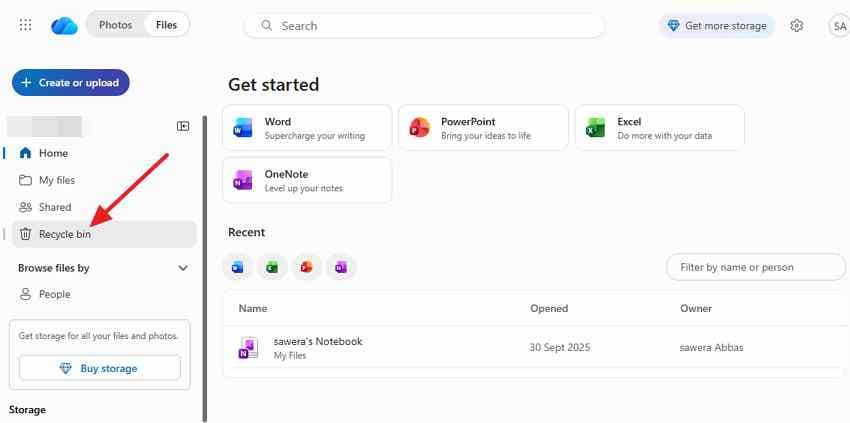
Step 2. Select the files or folders you need and click Restore. Check the original OneDrive folder after the restore finishes.
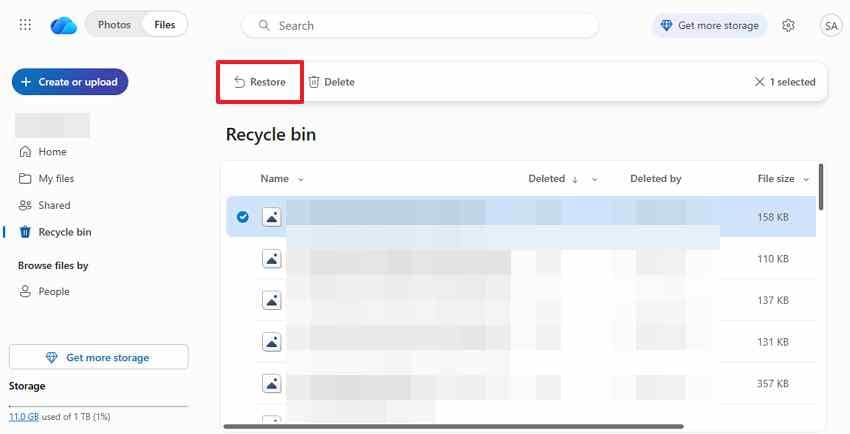
If nothing appears, confirm that you signed in to the right personal or work account. Check any applicable second-stage recycle bin through your organization if it uses SharePoint. Microsoft documents the account-specific limits in its OneDrive restoration guide.
Method 2. Recover Deleted Files Using File History and Previous Versions
Use this if File History or another compatible backup mechanism was enabled before deletion. Turning on File History after the loss does not create historical copies. Restoring to a different location protects the current folder contents.
Step 1. In File Explorer, navigate to the folder that originally contained the file. Right-click that folder, choose Properties or Restore previous versions, and open the Previous Versions tab.
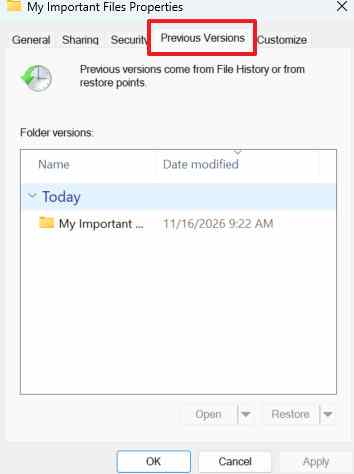
Step 2. Select a version dated before the deletion. Open it to confirm that the missing file is present. When available, expand Restore and choose Restore to... so you can save the copy to another location without replacing current files.
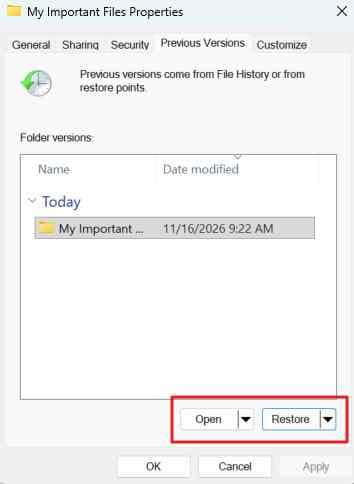
If the list is empty, there may be no saved copy for that folder. Check other backup drives and accounts. Follow Microsoft's File History instructions before using an in-place restore, which can overwrite an existing version.
Method 3. Recover Permanently Deleted Files Using Wondershare Recoverit
If your file was permanently deleted from a healthy, detectable local drive and no backup is available, Wondershare Recoverit Recycle Bin Recovery can scan for recoverable files. This is a file-recovery option, not a fix for a hidden Recycle Bin icon. Results depend on whether the data has been overwritten or made inaccessible by SSD TRIM, encryption, or drive damage.
Step 1. Choose the affected location. Use a working Windows installation, preferably with Recoverit installed on a different drive from the one containing the deleted file. Open Recoverit and choose Recycle Bin or the original disk/location, depending on the deletion scenario and your application version. Begin a scan of the original storage location.

Step 2. Review the scan results. Look for the missing filenames, file types, or recognizable content. Use the search and filter controls provided by your installed version. The interface may vary; a result listed in a scan is not proof that the file will open correctly.
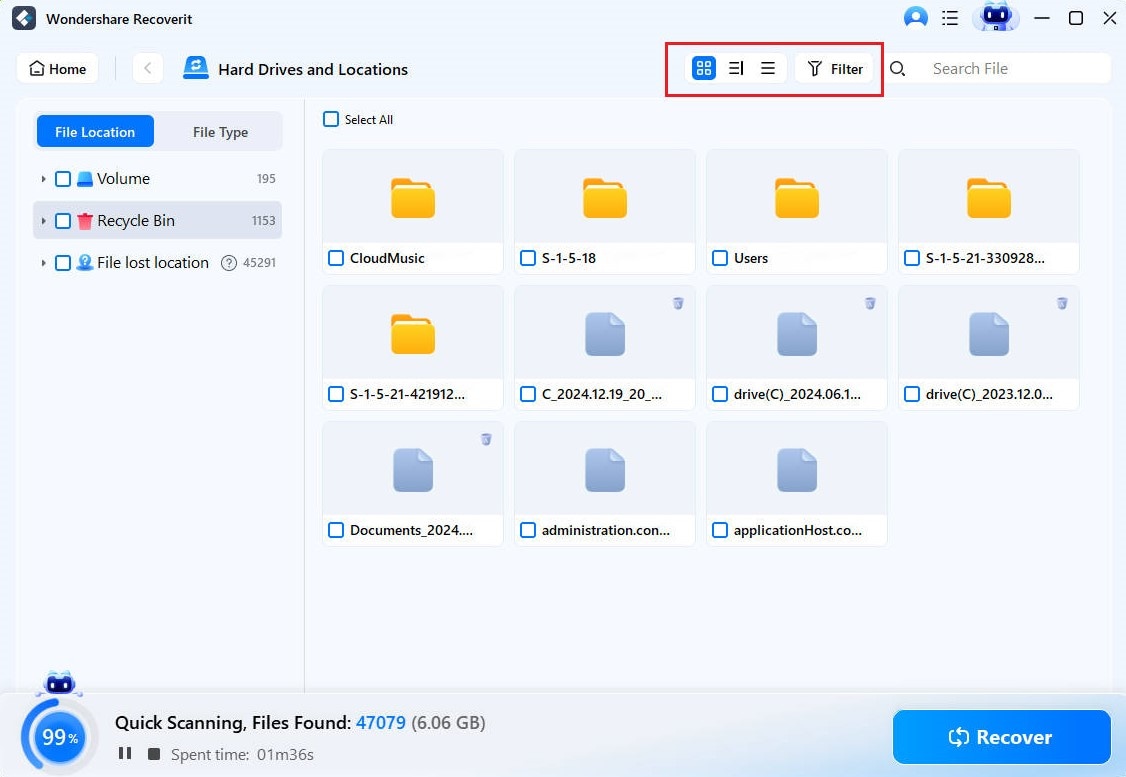
Step 3. Preview and save safely. Preview recoverable items when supported, select the files you need, and click Recover. Choose a different physical drive or another safe destination; do not save to the original affected drive.
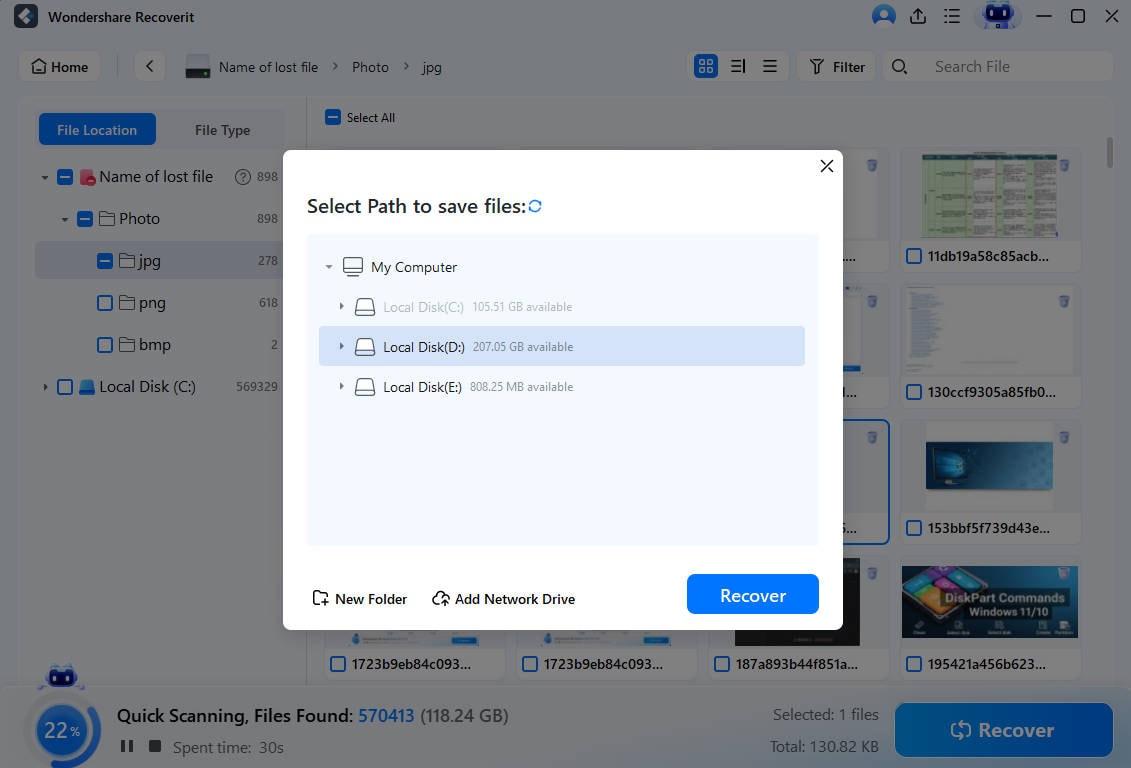
Note: Recoverit cannot make a physically undetectable drive readable, reverse overwritten sectors, or bypass BitLocker without an authorized unlock key. If the original disk is unstable or not detected, avoid additional scanning. See the official Recoverit guide for instructions matching your version.
Check Whether the Recovered Files Open; Never Save Them to the Source Drive
Open restored documents in their usual applications, view photos at full size, and play recovered videos. Check for missing pages, blank images, playback errors, and incorrect extensions. If a recovered file is damaged, keep the original recovery results and check your backups; do not write another copy to the affected storage.
Once the files are confirmed usable, save an additional backup on independent storage. A completed scan or a successful save operation alone does not prove the recovery is complete.
When Recovery Fails: TRIM, Overwriting, and Physically Undetectable Drives
Not every permanently deleted file can be recovered. These limitations matter more than how long a scan runs.
| Limitation | What it means | Safest next step |
| SSD TRIM or garbage collection | Deleted data blocks may no longer be available for software recovery. | Check other copies or backups; avoid making recovery guarantees. |
| Overwritten file contents | New disk writes can replace part or all of the deleted file data. | Stop write activity and investigate available backups. |
| Drive not detected or physically unstable | Software may not be able to access the original file data. | Avoid repeated scans or repair commands; consider a specialist. |
| Cloud-only file deleted from OneDrive | Local disk scanning cannot recover a file that never had a local copy. | Check the correct online Recycle Bin and account backups. |
If you still need help with an emptied Recycle Bin, see additional recovery methods for deleted Recycle Bin files.
Conclusion
If the Recycle Bin icon is missing but its contents still open, turn on Show desktop icons or select Recycle Bin in Desktop Icon Settings. Confirm that you can open it and see the files inside. These settings restore desktop access; they do not restore permanently deleted data.
If the deleted file is not in the local Recycle Bin, first check where it was deleted, then look in OneDrive, File History, or another backup. Only consider software recovery for genuinely missing local files on a healthy, detectable drive, and save anything recovered to a different drive. Overwriting and SSD TRIM can prevent successful recovery.
FAQ
-
How can I open Recycle Bin if its desktop icon is missing?
Press Win + R, type shell:RecycleBinFolder, and press Enter. You can also open File Explorer and enter Recycle Bin in its address bar. To restore the icon, use Settings > Personalization > Themes > Desktop icon settings and check Recycle Bin. -
Does restoring the Recycle Bin icon recover deleted files?
No. Restoring the desktop icon changes its visibility. It does not undo Shift + Delete, restore files removed by Empty Recycle Bin, or bring back deleted cloud files. Check whether the file is still in the bin, then look for backups if it is not. -
Why did a deleted file never appear in Recycle Bin?
It may have been deleted with Shift + Delete, removed from a USB drive or network share, deleted by a command or application, or bypassed because of Recycle Bin settings. If it was stored in OneDrive, check the web Recycle Bin, especially for online-only files. -
Can I recover files after the Recycle Bin was emptied?
Sometimes. Check OneDrive, File History, and other backups first. For a permanently deleted local file on a healthy, detectable drive, recovery software may find usable data if it has not been overwritten or made inaccessible by SSD TRIM. Avoid new writes to the source drive and save recovered files elsewhere.


