 TL;DR:
To resolve an LG TV showing an HDMI picture without sound, first verify that the TV Sound Out menu is set to the internal speakers and that the source device is explicitly routing audio to the HDMI display, since video and audio signals negotiate separately.
● Resolve format mismatches by temporarily setting the TV and source device to PCM or Stereo, using Auto or Pass Through only when sending audio to a receiver or soundbar capable of decoding advanced surround formats.
● To output sound to an external audio system, you must connect the devices using the specifically labeled ARC or eARC ports, select the HDMI ARC Sound Out option, and enable SIMPLINK (HDMI-CEC) to allow the required return-audio function.
● Isolate hardware faults by running the LG Sound Self-Diagnosis tool; if internal test sounds play properly, the TV speakers are functional, meaning the silence stems from the source device, cables, or using an LG monitor model that physically lacks built-in speakers.
Ask AI for a summary
 ChatGPT
 Perplexity
 Gemini
 Claude
 Grok
Grok
An LG TV can show a normal HDMI picture while producing no sound because video and audio are negotiated and routed separately. If LG TV sound is not working with HDMI, the fastest way to troubleshoot is to identify where the audio path stops: inside the TV, at the connected source, in the HDMI connection, or between the TV and a soundbar through ARC or eARC.
Start with Sound Out and source-device audio routing before changing advanced formats. Then test the cable and port, use PCM as a compatibility check, and move to ARC/eARC only when the TV is supposed to send audio back to a soundbar or receiver. LG monitor audio is a separate case because some monitor models have no built-in speakers at all.
In This Article
Part 1. Identify Where LG TV HDMI Audio Stops
Before changing settings, identify which audio path is failing. The pattern matters more than the fact that the screen still shows a picture. Use the table below to choose the right starting point.
| What You Observe | What It Suggests | Start Here |
| Every source on the TV is silent | TV Sound Out, mute, speaker selection, or a TV-side audio issue | Parts 2 and 6 |
| Only one HDMI device is silent | Source routing, source audio format, HDMI cable, or that input | Parts 2 and 3 |
| Picture arrives but sound stays on the computer | The computer is not sending audio to the LG TV | Part 4 |
| TV speakers work but the soundbar is silent | ARC/eARC port, Sound Out, SIMPLINK, or digital audio format | Part 5 |
| LG monitor shows video but no sound | The monitor may not have speakers, or the computer output is wrong | Part 1.3 and Part 4 |
Every TV Source Is Silent
Test a built-in LG app through the TV speakers. If a built-in app is also silent, the issue is not limited to one HDMI source. Check mute, volume, and LG Sound Out settings before changing the connected source.
If the TV can play its own test sound but the HDMI device remains silent, the internal speakers are capable of producing audio. Shift attention to the source device, its audio format, and the HDMI connection.
Only One HDMI Device Has No Sound
If a console, computer, or set-top box is the only silent source, do not reset the TV first. Check whether that device is sending audio over HDMI, then test the same device on another LG TV HDMI port with a known-good cable. A picture does not prove that the audio path is configured correctly.
When only one app or one video is silent, test a second app or file before changing system-wide settings. A single title can use an unsupported or differently encoded audio track while the rest of the HDMI connection works normally.
Separate TV HDMI Audio From LG Monitor Audio
An LG monitor is not the same troubleshooting target as an LG TV. Some monitor models have no built-in speakers. LG currently recommends checking the exact model specification to confirm whether it includes built-in speakers. If it does not, silence from the monitor itself is expected; use its headphone/audio-out port if supported, or route sound directly from the computer to speakers or headphones.
If the monitor does have speakers, check monitor volume, cable compatibility, and the computer's output device before treating it as a hardware fault.
Part 2. Restore Sound From an HDMI Source to the LG TV
For a typical source-to-TV connection, start with the output destination on the LG TV, then confirm the source is sending audio to HDMI. These are lower-risk checks than resetting the TV or changing advanced digital-audio settings.
Select the Correct LG Sound Out Device
LG TVs use Sound Out to choose where audio plays. Current webOS versions keep this control under the Sound menu, but the names of individual options can vary by model and connected equipment.
Step 1. Press the Settings button on the LG remote, open All Settings > Sound > Sound Out.
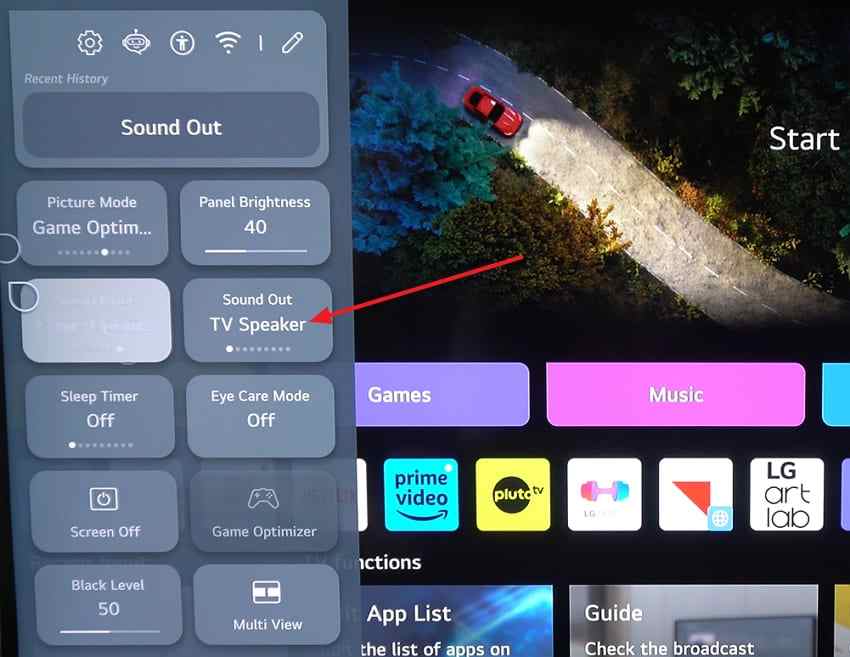
Step 2. For a direct HDMI source that should play through the TV, choose Use TV Speaker, TV Speaker, or Internal TV Speaker, depending on the model. Return to the HDMI input and test audio.
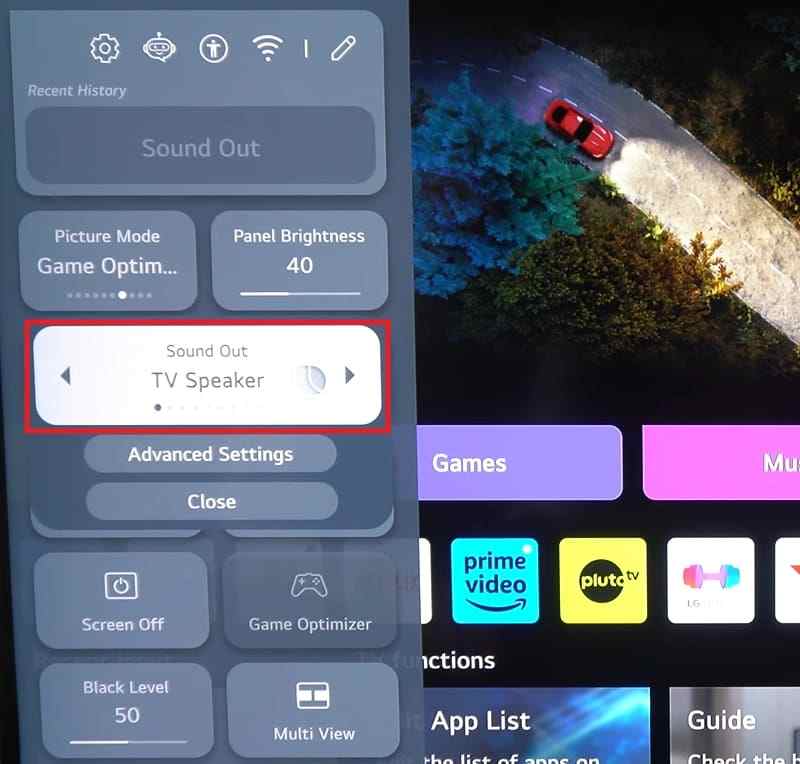
Note: If an external soundbar is the intended output, do not force TV Speaker. Use the ARC/eARC instructions in Part 5 instead.
Clear Mute and Make the Source Send Audio Through HDMI
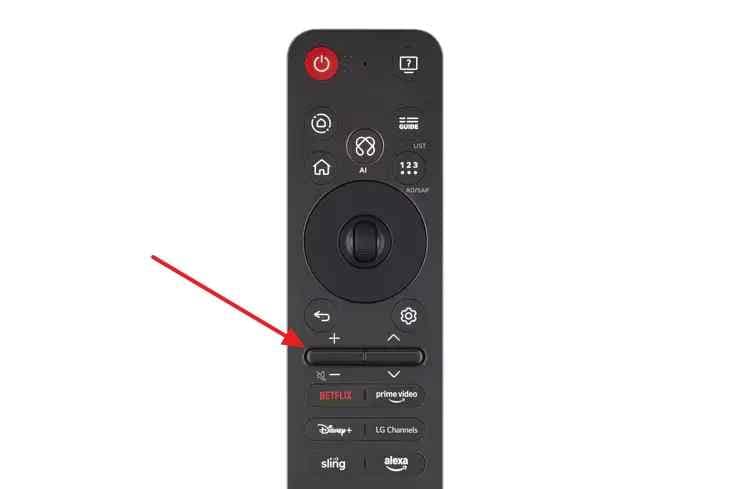
Step 1. Clear mute on the TV and raise the volume. Also check the connected source and the app playing the content for their own mute or volume controls.
Step 2. On the source device, select HDMI, LG TV, or the connected display as the sound output instead of the source device's internal speakers.
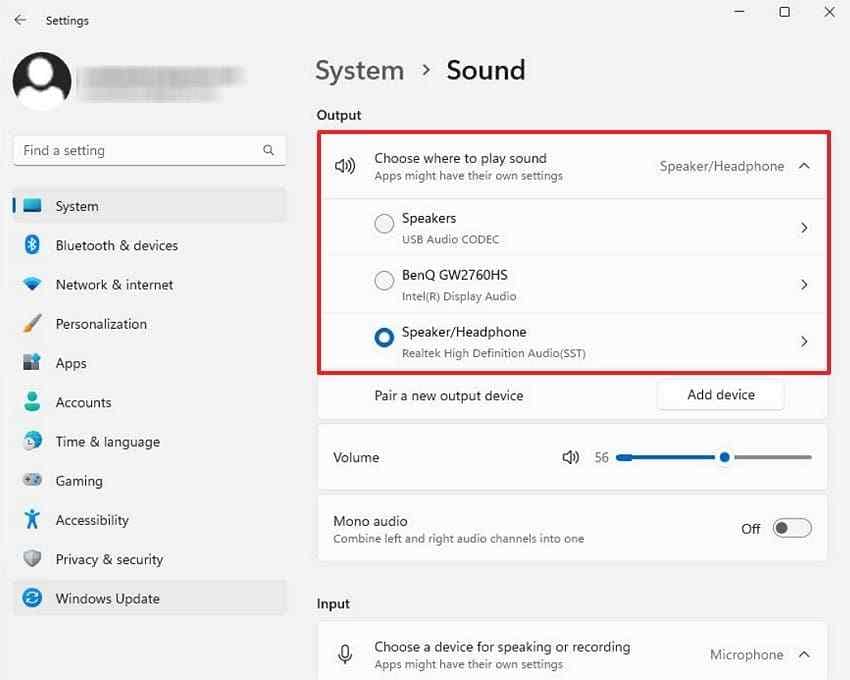
For a computer, Part 4 gives exact Windows and Mac steps. For a game console or streaming box, use the device's own audio-output settings and keep the format on an automatic or basic compatible mode until the connection works.
Reconnect HDMI and Test the Port, Cable, and Source
Step 1. Turn off the LG TV and source device. Disconnect HDMI at both ends, reconnect it firmly, then restart both devices. This refreshes the HDMI connection and capability exchange.
Step 2. If sound is still missing, move the cable to another TV HDMI input and select that input in Home Hub or the input menu. Test a different known-good HDMI cable separately so you change only one variable at a time.
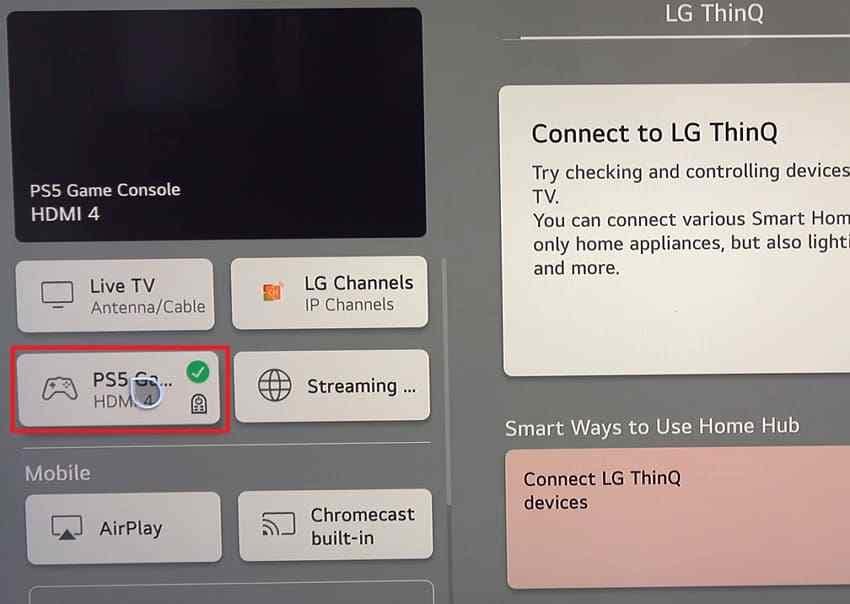
Step 3. If possible, connect a second HDMI source to the same port. If the second source plays sound normally, the first source or its audio configuration becomes more likely than the TV hardware.
Part 3. Fix an LG HDMI Audio Format Mismatch
If routing, volume, and the cable are correct, test audio-format compatibility. This is especially useful when video works, one source remains silent, or a soundbar works with some formats but not others.
Test PCM or Stereo for Compatibility
PCM or stereo is a useful diagnostic setting because it reduces dependence on downstream Dolby, DTS, or pass-through decoding. It is not automatically the best permanent format for every home-theater setup.
Step 1. On supported LG TVs, open All Settings > Sound > Advanced Settings. If your model offers Select HDMI Input Audio Format, choose the affected input and test PCM.
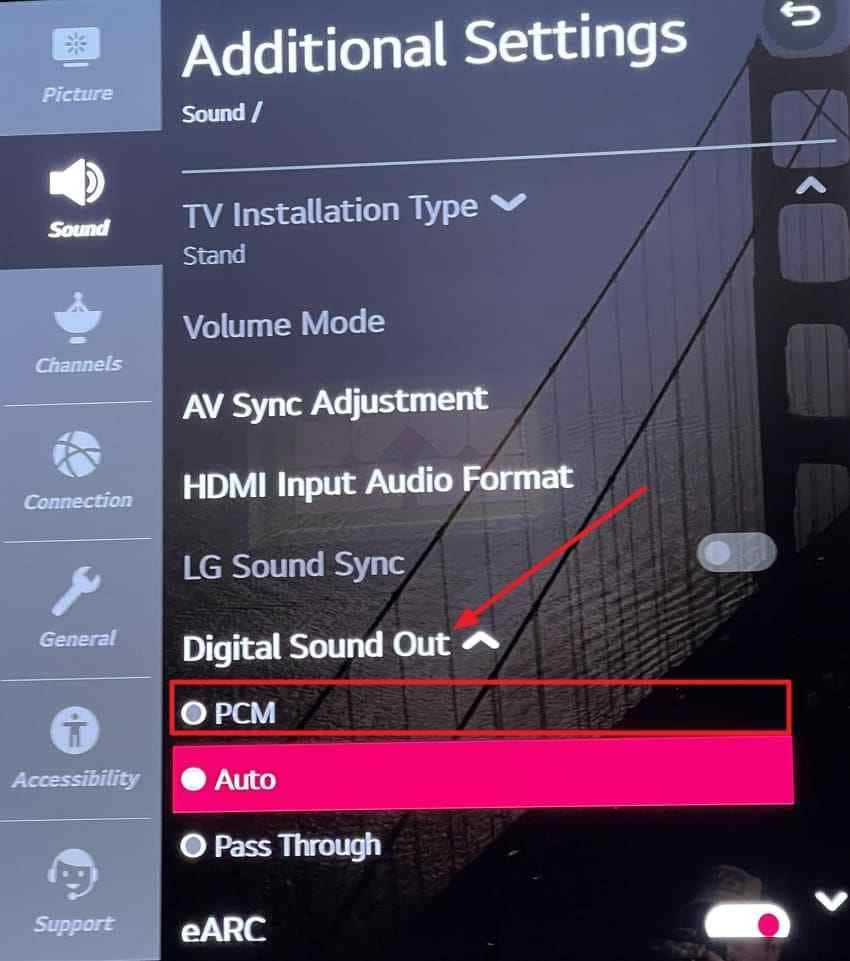
Step 2. On the source device, choose PCM, Linear PCM, or Stereo when available, then restart the content and listen again.
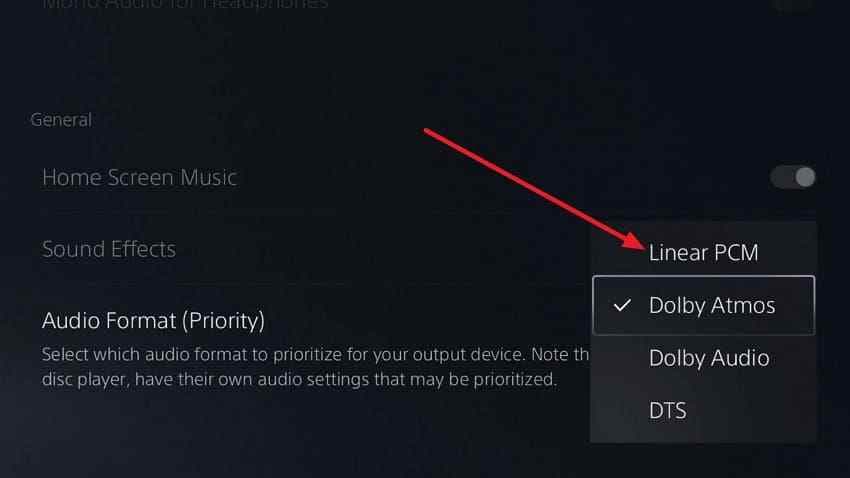
If audio returns only after the change, the original format or another device in the chain may not support that combination. Keep the test result, then decide whether to stay with PCM or re-enable a surround format that every device supports.
Use Auto or Pass Through Only With Compatible Audio Equipment
Digital Sound Output matters most when the LG TV is sending audio onward to a soundbar or receiver. Auto lets the TV choose an output based on detected capabilities. Pass Through sends supported encoded audio through the TV with minimal processing so the external device can decode it.
Instructions. Test Auto first. If a compatible receiver or soundbar is in use and you need the external device to decode the original stream, test Pass Through. If either setting causes silence, return to PCM and verify format support in the TV, source, soundbar/receiver, and HDMI connection.
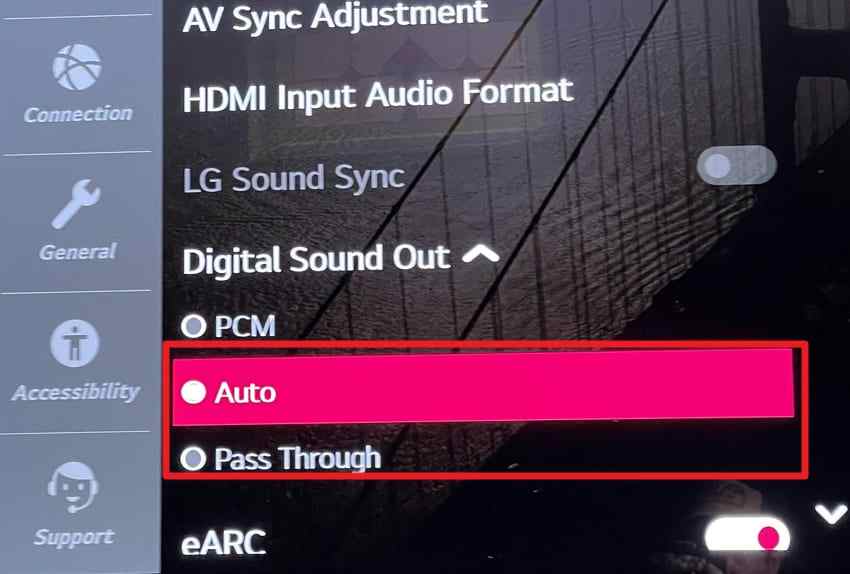
The HDMI eARC specification provides more audio bandwidth than standard ARC, but real-world format support still depends on every device in the chain. Do not assume that turning on eARC automatically makes an unsupported format work.
Part 4. Fix Computer-to-LG TV HDMI Audio
If the LG TV shows the computer desktop but sound stays on the computer, select the TV as the audio output first. Only move to drivers if the LG TV is missing from the available output devices.
Select the LG TV as the Windows 11 Sound Output
LG's current HDMI audio troubleshooting guide recommends selecting the connected LG TV as the Windows audio output and checking the HDMI connection.
Step 1. Open Settings > System > Sound.
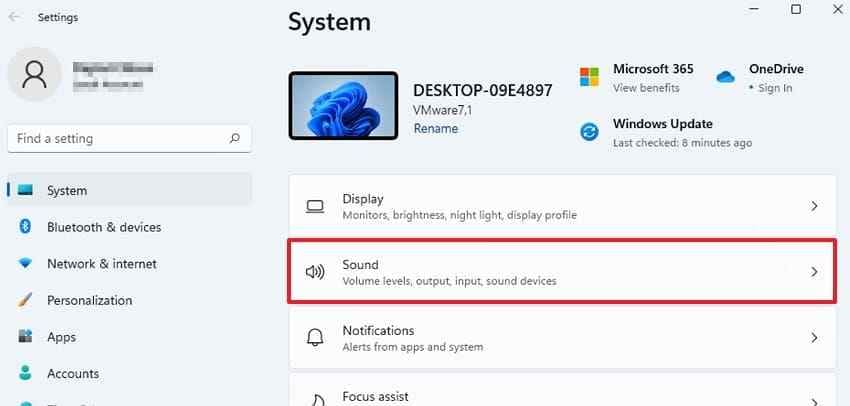
Step 2. Under Output, select the LG TV or the HDMI/display-audio device. Raise its volume and play known-good audio.
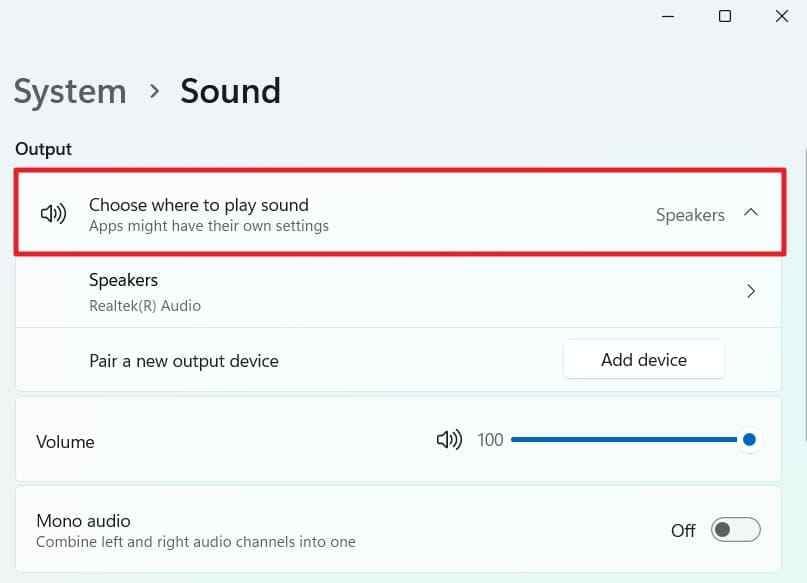
If one app remains silent while other apps work, open Settings > System > Sound > Volume mixer and check that the app is not muted or routed to another output.
Restore a Missing Windows HDMI Audio Device
If the LG TV does not appear in Windows Sound, check whether the display-audio device is disabled or missing. Microsoft currently recommends Device Manager, hardware rescanning, and the manufacturer's compatible driver for missing output devices.
- Check Device Manager: Open Sound, video and game controllers and enable the Intel, NVIDIA, AMD, or other display-audio device if it is disabled.
- Rescan hardware: Use View > Show hidden devices, then Action > Scan for hardware changes.
- Use the correct driver: Install the compatible graphics/display-audio driver from the PC or GPU manufacturer. If the problem started immediately after a driver update, use rollback only when a previous driver is available.
- Run current Windows audio diagnostics: Use the Windows Audio troubleshooter in Get Help for Windows 11 rather than relying on an older fixed Settings path.
Select the LG TV Under Sound Output on Mac
On a Mac, open System Settings > Sound and select the connected LG TV or HDMI device under Output. Apple documents HDMI audio output for compatible Mac, cable/adapter, and display combinations.
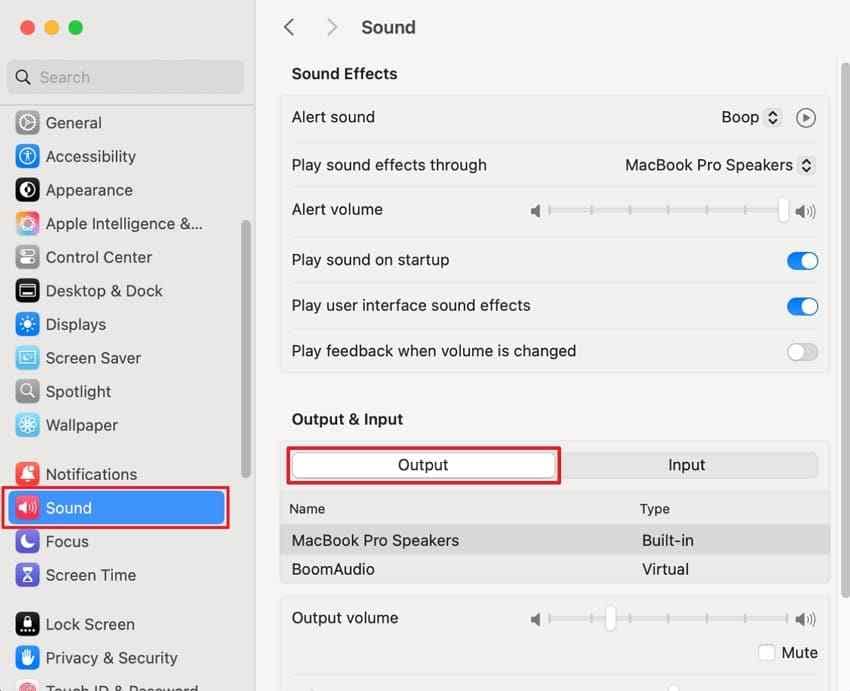
If the LG TV disappears from the Mac output list, disconnect and reconnect the HDMI adapter, dock, or cable and retest a direct connection where possible. An adapter that carries video is not automatically guaranteed to carry HDMI audio.
Part 5. Fix LG TV HDMI ARC or eARC Sound
ARC and eARC are a different path from source-to-TV HDMI audio. They send TV audio back to a compatible soundbar or receiver. If TV speakers work but the external audio system is silent, troubleshoot the return path rather than the source input.
Use the Labeled ARC or eARC Ports
Instructions. Connect the LG TV port labeled ARC or eARC/ARC to the soundbar or receiver port specifically labeled for ARC/eARC. A normal HDMI input on either device may carry video but will not necessarily provide the required return-audio function.
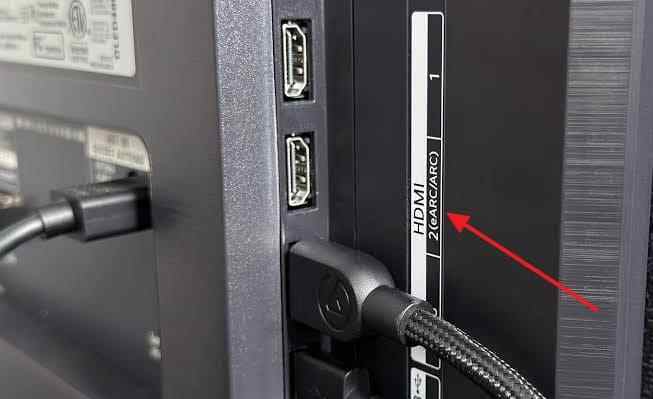
Select HDMI ARC Sound Out and Enable SIMPLINK
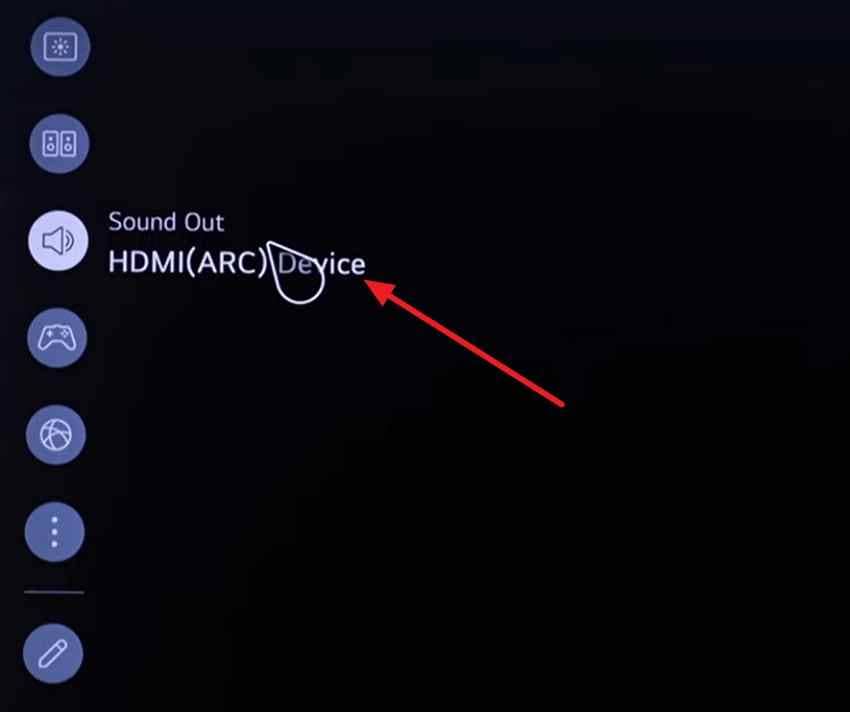
Step 1. Open Sound > Sound Out and select the wired HDMI ARC/eARC output used by the external audio system. The exact label varies by model and webOS version.
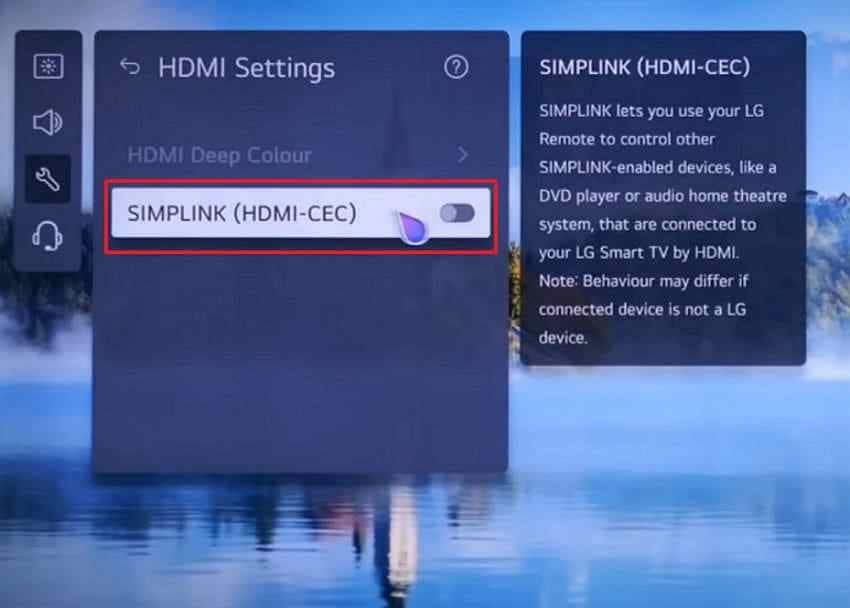
Step 2. Enable SIMPLINK (LG's HDMI-CEC setting) when your setup requires device control for ARC/eARC operation. Menu locations vary: older webOS versions place it under General or Connection, while newer versions may place it under Devices or HDMI Settings.
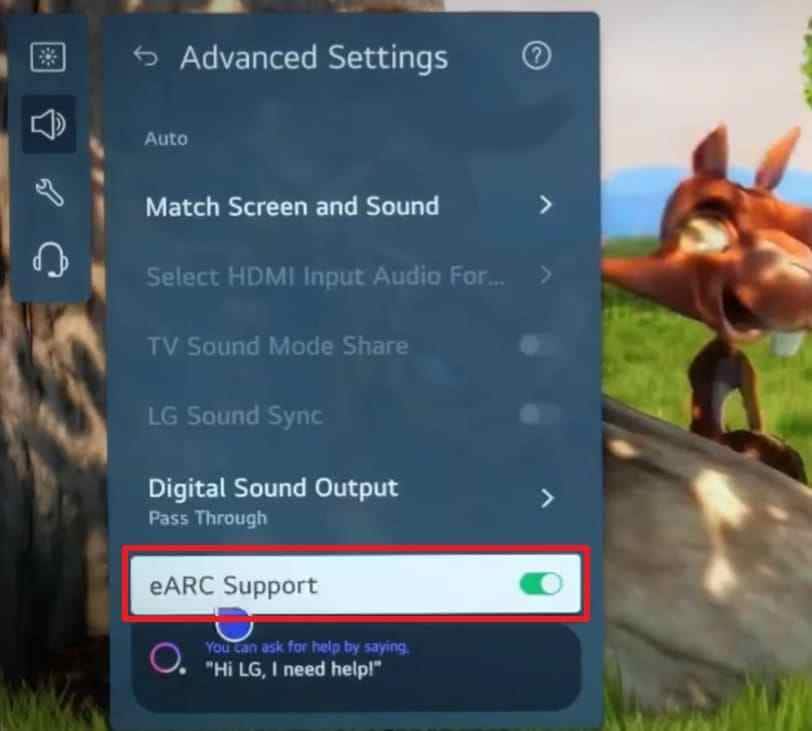
Step 3. If both the LG TV and audio system support eARC, enable eARC Support in the TV's advanced sound settings when that option is available.
Match Digital Sound Output to the Soundbar or Receiver
Confirm that the soundbar or receiver is on the TV/ARC/eARC input and is not muted. Then match the LG TV's digital output format to what that device actually supports.
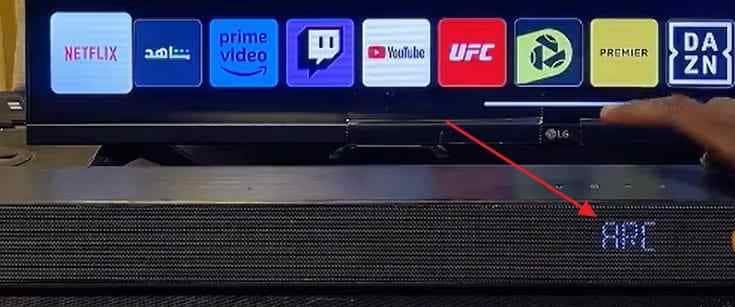
Use PCM as a compatibility test. If PCM works, re-enable Auto, Pass Through, Dolby, DTS, or another format only when the source, LG TV, soundbar/receiver, and HDMI path all support it. This avoids treating a format mismatch as a cable or hardware failure.
Part 6. Run LG Sound Self-Diagnosis and Update the Devices
Once routing and format checks are complete, test the TV itself. LG's Sound Self-Diagnosis can separate an internal TV-speaker problem from an HDMI-source problem, and software updates can address device-side compatibility or stability issues.
Use Sound Self-Diagnosis on Supported LG TVs
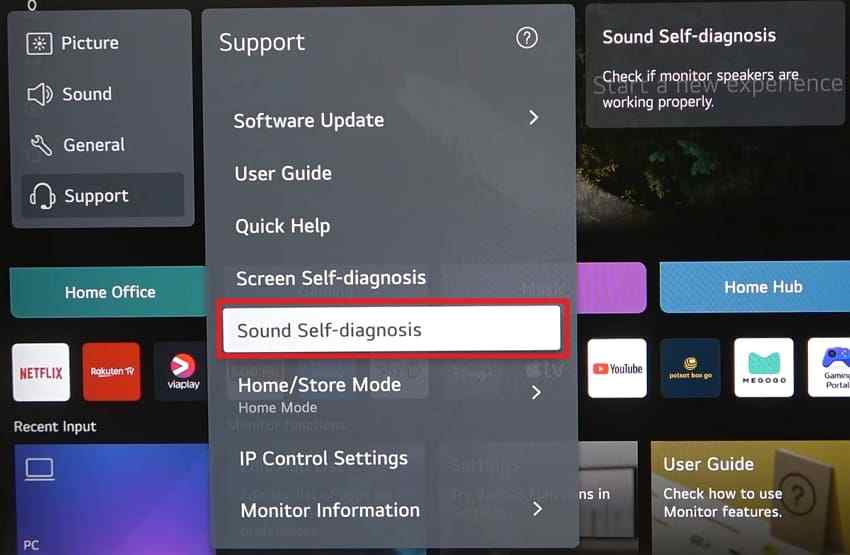
LG's current Sound Test guidance shows different menu paths by webOS generation. The exact location can vary by model, so use the path your TV exposes rather than forcing one menu sequence.
| LG TV / webOS Example | Common Sound Test Path |
| webOS 23 / 24 | Settings > Support > Sound Self-Diagnosis |
| webOS 22 and some webOS 6.0 OLED TVs | All Settings > Support > OLED Care > Device Self-Care > Sound Self-Diagnosis |
| webOS 5.0 | All Settings > Support > Additional Settings > Sound Test |
| webOS 4.5 or earlier | All Settings > Sound > Sound Test |
Instructions. Start Sound Self-Diagnosis or Sound Test and listen to the internal TV speakers. If the test audio plays normally, LG explains that the external source, signal, output settings, or connection should be checked next. If the test itself is silent or distorted, the TV may require LG support or service.
Update the LG TV and Connected HDMI Source
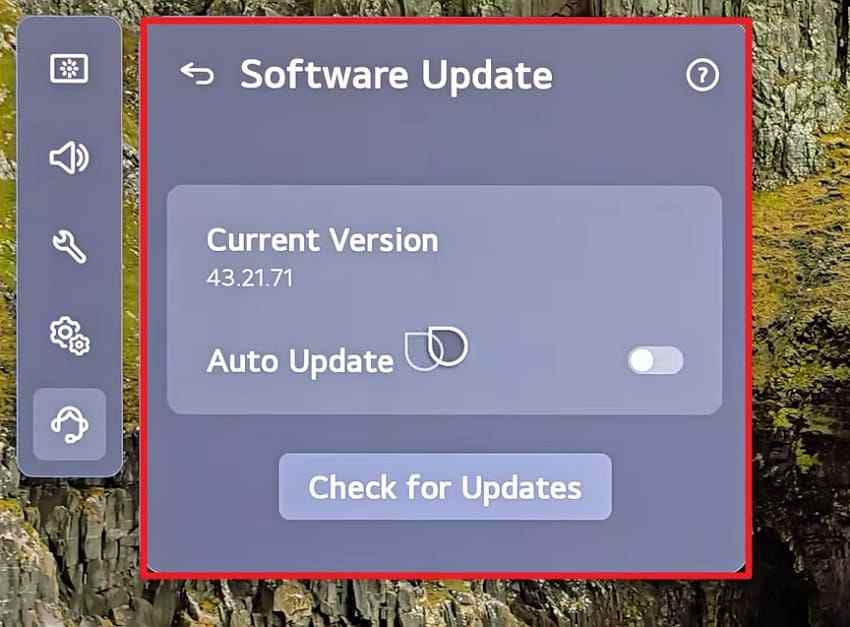
Check for current software only after confirming the basic routing and connection. LG's current TV software update guide lists All Settings > Support > Software Update > Check for Updates for 2020-and-later webOS TVs. Keep the TV powered and connected while an update installs.
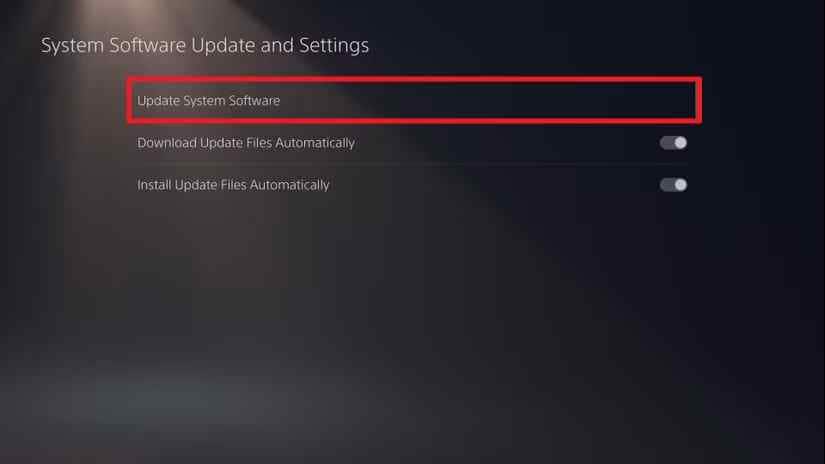
Update the HDMI source as well when the issue follows a software change or appears only with that device. For example, on PS5 use Settings > System > System Software > System Software Update and Settings, then retest the same HDMI connection.
Do not interrupt an LG TV firmware update by unplugging the TV. LG's current software-update guidance specifically warns against disconnecting power or internet while the update is in progress.
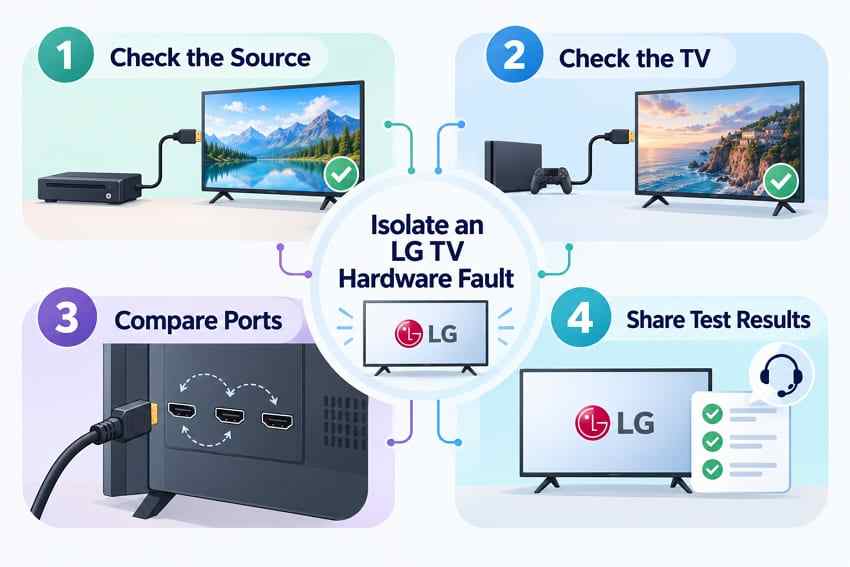
Part 7. Isolate an LG TV Hardware Fault
If the TV still has picture but no HDMI audio after output, format, connection, and software checks, isolate the failing component before requesting service. This prevents replacing the TV when the source, cable, soundbar, or one HDMI input is actually responsible.
Compare the Source, Cable, HDMI Inputs, and Internal TV Audio
- Test the original source on another TV: If the same source and cable play audio normally elsewhere, the original LG TV path becomes more likely.
- Test another source on the LG TV: If a second HDMI device plays sound through the same LG TV input, the first source is the stronger suspect.
- Compare HDMI inputs with the same working setup: If only one LG TV input stays silent, that input or its configuration may be involved.
- Check built-in TV audio: If internal LG apps are also silent through TV speakers, the problem is broader than HDMI.
- Contact LG after the fault is isolated: Share the Sound Self-Diagnosis result, tested ports, tested cables, and source devices so support can narrow the next service step.
Use Recoverit Only for Actual Audio File Loss
An HDMI sound problem does not mean your local audio files need recovery. If the files still exist and play through another output, continue HDMI troubleshooting instead. Data recovery becomes relevant only when locally stored recordings, MP3 files, WAV files, or other audio files are actually deleted, missing, or inaccessible on a detectable storage device.
Check Recycle Bin, Trash, cloud history, or an existing backup first. If the audio files are still missing, recover deleted audio files before writing more data to the affected drive. Wondershare Recoverit Audio Recovery can scan supported detectable storage for recoverable audio files, but it does not repair HDMI ports, TV speakers, ARC/eARC, Windows drivers, or LG firmware.

Conclusion
When an LG TV has HDMI video but no sound, the best fix depends on where the audio path stops. Start with Sound Out, mute and volume, and the source-device output. Then test the cable and port, use PCM or stereo as a compatibility check, and move to ARC/eARC only when audio is supposed to return from the TV to a soundbar or receiver.
If LG Sound Self-Diagnosis works normally, the TV's internal speakers can produce test audio, so continue with the source, HDMI connection, and audio format. If the sound test fails or one LG HDMI input remains faulty after cross-testing sources and cables, contact LG with the test results instead of repeatedly changing unrelated settings.
FAQ
-
Why does my LG TV have HDMI video but no sound?
HDMI carries video and audio, but the TV can still receive a valid picture while audio is routed to another device, muted, sent in an incompatible format, or lost in the HDMI connection. Check LG Sound Out and the source audio output first, then test PCM and another HDMI port or cable. -
How do I enable HDMI sound on an LG TV?
For audio through the TV speakers, open Sound > Sound Out and select the TV speaker option, then make sure the connected source is sending audio through HDMI. For a soundbar or receiver, connect the labeled ARC/eARC ports and select the corresponding HDMI ARC/eARC Sound Out option. -
Which audio output setting should I use for HDMI on an LG TV?
Use PCM or stereo as a compatibility test when HDMI audio is missing. For a compatible soundbar or receiver, Auto or Pass Through may be appropriate after you confirm that the source, TV, external audio device, and HDMI connection all support the intended format. -
Why does my LG monitor have no sound through HDMI?
Some LG monitors do not have built-in speakers. Check the exact model specifications first. If speakers are included, check monitor volume and select the LG monitor as the computer's audio output. A monitor without speakers needs headphones, powered speakers, or another audio route.


