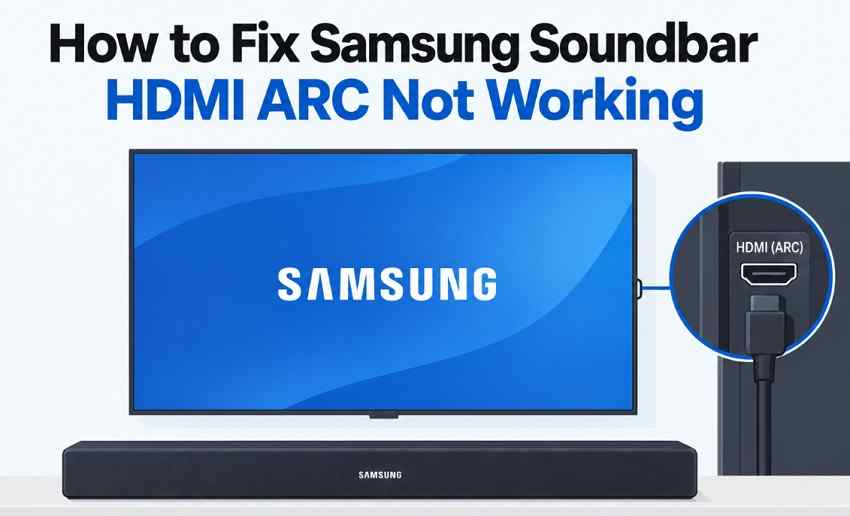
 TL;DR:
Diagnose a silent Samsung soundbar connected via HDMI ARC by checking its display: a persistent D.IN means the physical connection failed, while TV ARC or TV eARC with no sound indicates an audio format compatibility issue.
● To resolve a D.IN status, connect the HDMI cable exclusively to the labeled ARC/eARC ports, enable Anynet+ (HDMI-CEC) in the TV's External Device Manager, and select the soundbar in the Sound Output menu.
● When TV ARC or TV eARC appears but playback remains silent, change the TV's Digital Output Audio Format to PCM as a baseline compatibility test before attempting the Auto or Pass-Through settings.
● If built-in TV apps play sound but external HDMI sources do not, change the external device's output to Linear PCM, or route it through the soundbar's HDMI IN port for direct passthrough only if the soundbar supports the source's required video features.
Ask AI for a summary
 ChatGPT
 Perplexity
 Gemini
 Claude
 Grok
Grok
A Samsung soundbar HDMI ARC not working problem is easiest to diagnose from the soundbar display. If it stays on D.IN and never changes to TV ARC or TV eARC, the ARC/eARC connection has not completed. If TV ARC or TV eARC appears but there is still no sound, the link is established far enough that you should move on to Sound Output, source audio, and format compatibility instead of repeatedly changing cables.
Samsung currently recommends checking the labeled ARC/eARC ports, the soundbar source, HDMI-CEC/Anynet+, TV Sound Output, and eARC settings before service. The exact menu names can vary by TV year, region, and soundbar model, so this guide uses the observable symptom first and then applies the least disruptive fix. It also keeps direct HDMI passthrough separate from TV-to-soundbar ARC/eARC, because those are different signal paths.
In This Article
Part 1. Diagnose the Samsung Soundbar ARC Symptom
Do not treat every ARC failure as the same problem. Samsung's current soundbar no-sound troubleshooting guide uses the soundbar source and connection type to separate ARC failures from direct-HDMI and general no-sound issues. The display is therefore one of the fastest clues.
| What You See | What It Usually Means | Best First Check |
| D.IN never changes to TV ARC | ARC has not completed | ARC ports, cable, Anynet+, Sound Output |
| TV ARC or TV eARC appears, but no sound | Connection is detected but audio is not playing correctly | TV Sound Output, source audio, Digital Output Audio Format |
| TV apps work, but a console or streaming box is silent | Basic TV-to-soundbar return path is probably working | External source output and TV passthrough compatibility |
| Display flips between TV ARC and D.IN | ARC/CEC communication is unstable | Other HDMI devices, cable, power cycle, firmware |
| Display shows HDMI | A source may be connected directly to the soundbar HDMI input | Soundbar HDMI source and direct passthrough path |
Soundbar Stays on D.IN and Never Shows TV ARC
On Samsung soundbars that use D.IN for ARC, a successful ARC connection should normally switch the display from D.IN to TV ARC. Samsung notes that audio can take several seconds to begin after changing sources, so wait briefly before deciding the link failed. If the display never changes, stay focused on the physical ARC/eARC ports, Anynet+, TV Sound Output, and the HDMI cable.
TV ARC or TV eARC Appears but No Sound Plays
If TV ARC or TV eARC appears, repeatedly changing ports is less useful. First confirm the Samsung TV is actually sending sound to the soundbar, then test a simpler audio format. If built-in TV apps are also silent, troubleshoot the TV-to-soundbar path. If built-in apps work, move to the external HDMI source in Part 6.
ARC Works With TV Apps but Not an External HDMI Source
Working audio from Netflix, YouTube, or another app built into the TV is strong evidence that the basic return-audio path can function. It does not prove that every console or streaming-box format can pass through the TV. The external source can still be outputting an unsupported format, using a different audio setting, or triggering a CEC conflict.
Direct HDMI Passthrough vs TV ARC or eARC
ARC/eARC sends audio from the TV back to the soundbar. Direct HDMI passthrough is different: a console or streamer connects to the soundbar's HDMI IN, the soundbar receives audio directly, and video continues from the soundbar to the TV. Samsung's eARC setup guide explains the TV-to-soundbar eARC path, while direct HDMI requires a soundbar model with an HDMI input that supports the video features you need.
Part 2. Connect the Samsung Soundbar to the Correct Ports
When the display stays on D.IN, verify the physical connection before changing advanced audio settings. A correct ARC/eARC setup uses the TV's labeled ARC/eARC HDMI port and the soundbar port labeled HDMI OUT (TV-ARC) or HDMI TO TV (eARC/ARC), depending on the model.
Use the Labeled ARC or eARC Ports and the Correct Soundbar Source
Step 1. Power off the TV and soundbar. Connect the HDMI cable to the TV's port labeled ARC or eARC and to the soundbar's HDMI OUT/HDMI TO TV ARC or eARC port.
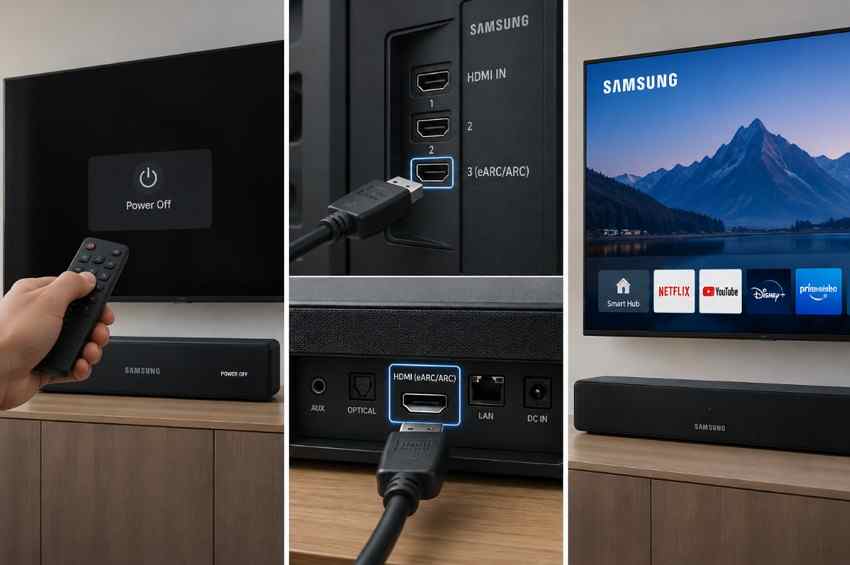
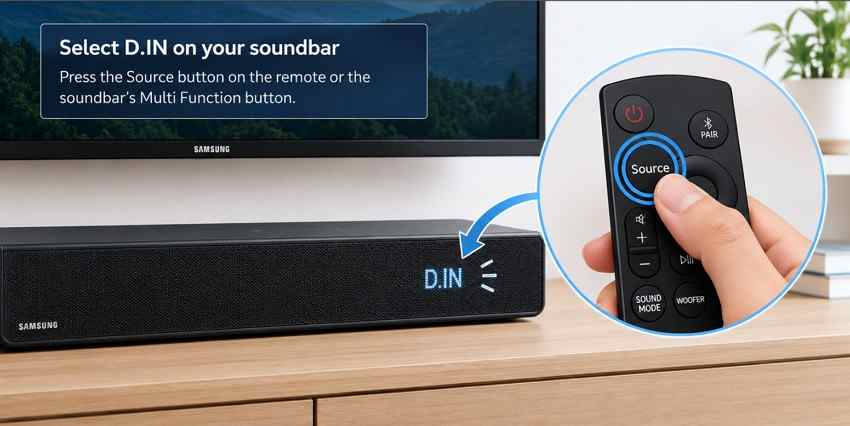
Step 2. Turn the TV and soundbar on. Press the soundbar's Source or Multi Function button and select D.IN. Wait a few seconds. On compatible models, the display should change to TV ARC or TV eARC after the link is established.
Real-world note: In the Reddit case quoted at the top of this article, the owner later reported that a refurbished unit had a mismatched shell and port labeling. That is unusual, but it is a useful reminder to verify the exact model and manual if a refurbished or repaired soundbar behaves differently from its printed labels.
Reconnect HDMI and Check the Cable
A loose or marginal HDMI connection can carry video or device-control signals inconsistently while ARC/eARC drops. Reseat both ends with the devices powered off, then try a known-good cable if the soundbar still never leaves D.IN. Samsung's current Canadian no-sound guide also recommends checking the ARC/eARC ports, HDMI-CEC, Sound Output, and replacing a defective cable.
For eARC or high-bandwidth video passthrough, use a cable that meets the requirements of the TV, soundbar, and source. Do not assume that changing to an expensive cable will fix a settings problem, and do not assume that a cable that works for ordinary ARC will support every 4K/120, HDR, VRR, or eARC combination.
Part 3. Enable Samsung TV ARC, eARC, and Anynet+ Settings
Correct ports create the physical path, but Samsung TV settings determine whether the TV actually sends audio over ARC/eARC. Menu locations vary by TV generation and region, so use the names below as a guide and check the exact model manual when a menu is different.
Select the Soundbar and Enable Anynet+ HDMI-CEC
Step 1. Open the Samsung TV's External Device Manager and enable Anynet+ (HDMI-CEC). Samsung identifies Anynet+ as its HDMI-CEC implementation; current menu paths may place it under Connection or General and Privacy depending on the model. See Samsung's Anynet+ guide for model-dependent paths.
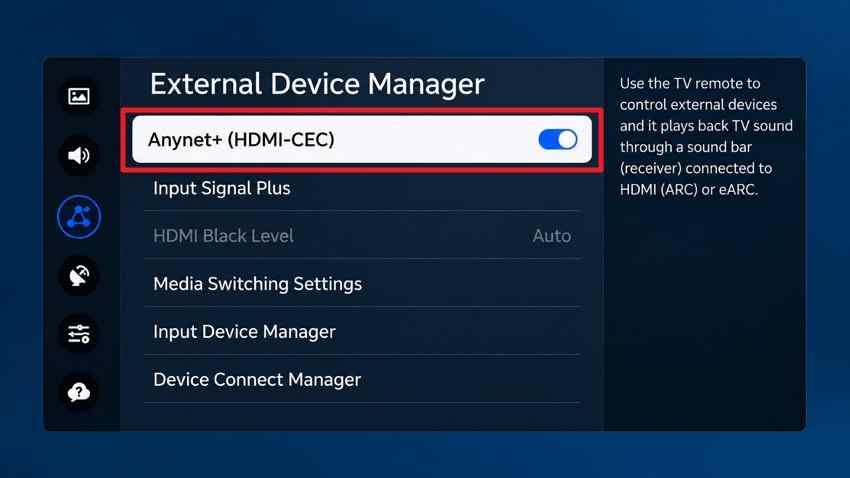
Step 2. Open Sound > Sound Output and select the connected Samsung soundbar rather than TV Speaker. If the soundbar disappears from the list, go back to Part 2 and recheck the HDMI connection before changing format settings.
Set HDMI-eARC Mode to Auto Only on Supported Devices
If both the TV and soundbar support eARC, open Sound > Expert Settings > HDMI-eARC Mode and choose Auto. Samsung's U.S. and Australian eARC setup guide both emphasize that eARC support and menu locations depend on the device.
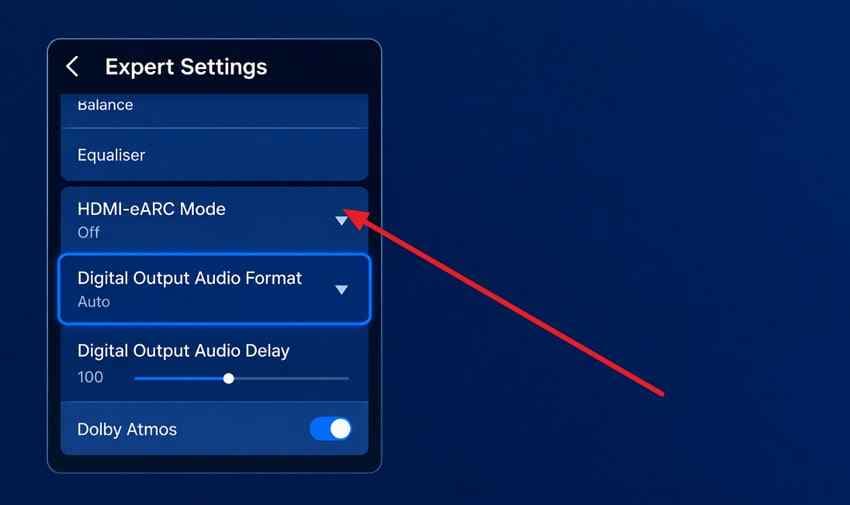
Note: If the TV or soundbar is ARC-only, an eARC menu may not exist. Do not treat a missing eARC option as a fault on hardware that does not support it.
Part 4. Fix Samsung Soundbar No Sound With Digital Audio Settings
If the soundbar now shows TV ARC or TV eARC but remains silent, test format compatibility. Samsung separates the format an HDMI source sends into the TV from the digital format the TV sends out to a soundbar. Changing the wrong setting can leave the symptom unchanged.
Test PCM as a Compatibility Check
Samsung's current audio format guide recommends PCM when a system struggles with higher audio settings. Use PCM as a diagnostic test, not as a universal best-quality setting.
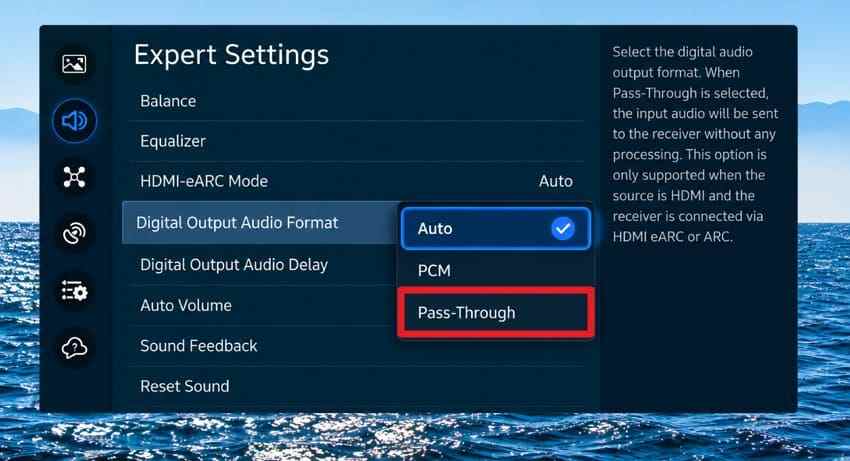
Step 1. Open Sound > Expert Settings > Digital Output Audio Format.
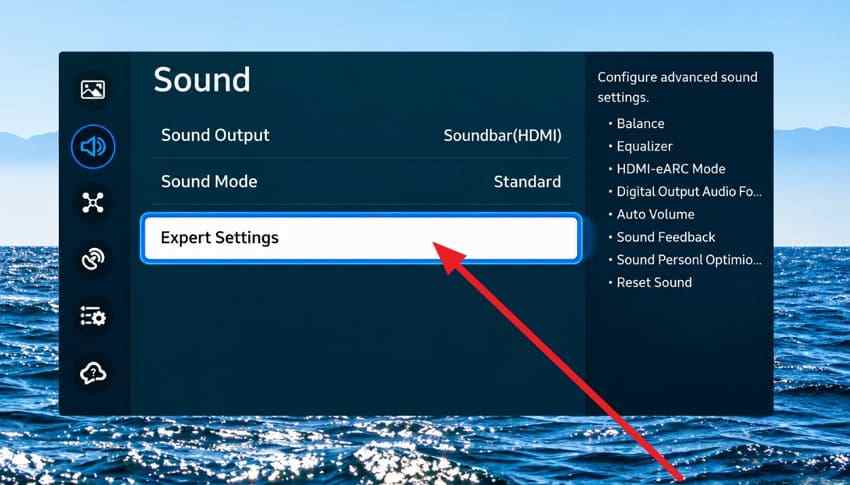
Step 2. Select PCM, then play audio from a built-in TV app. If sound returns, the previous output format or another device in the audio chain was probably the compatibility point.
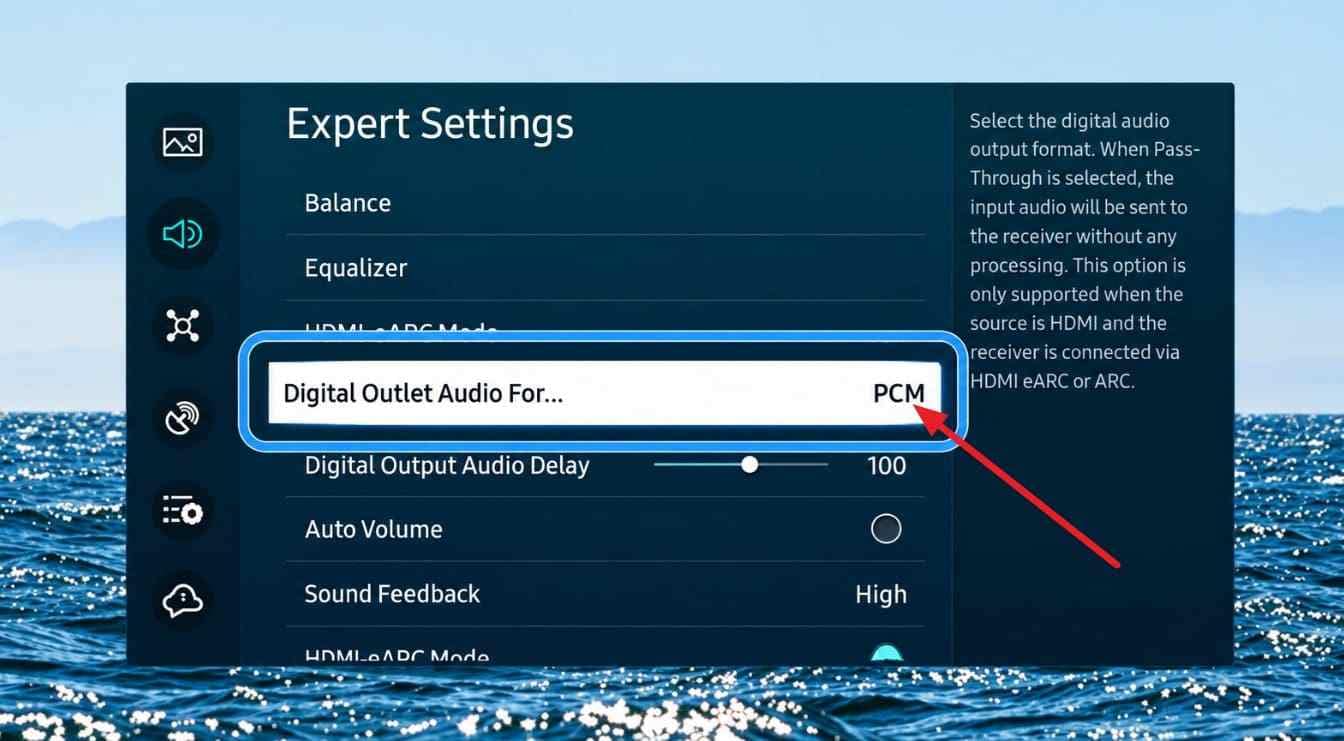
Use Auto or Pass-Through Only When the Full Chain Supports It
After PCM works, test Auto first if you want surround audio. Pass-Through can be useful when a compatible external HDMI source, TV, and soundbar all support the same format. It is not a universal fix, and it may not be available in every source or TV configuration.
Step 1. Change Digital Output Audio Format to Auto and test the same content again.
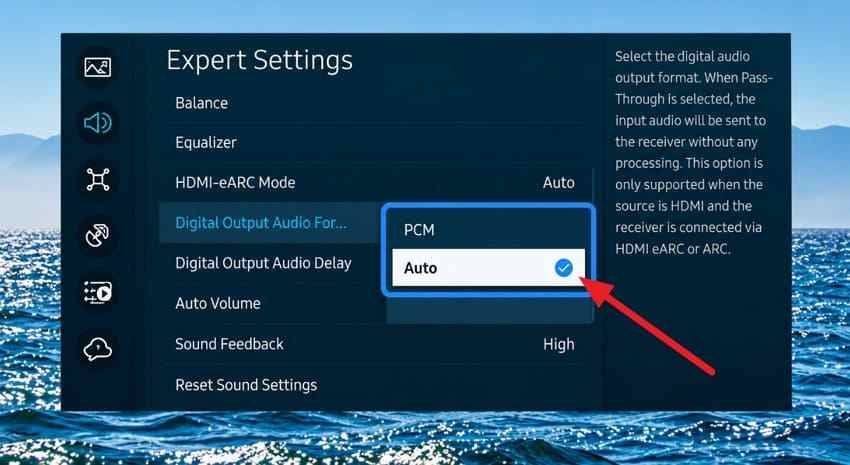
Step 2. If the source is external and the entire chain supports it, test Pass-Through.
eARC has more audio bandwidth than ARC. Samsung's eARC documentation and HDMI.org's eARC guide list high-bitrate formats such as Dolby TrueHD and DTS-HD Master Audio among eARC capabilities, but the real result still depends on the specific TV, soundbar, source, app, and codec support.
| Audio Format | ARC/eARC Note | What to Do |
| 2-channel PCM | Works as a simple compatibility signal | Use first when TV ARC/eARC is detected but silent |
| Dolby Digital 5.1 | Common compressed surround format | Use only if both TV and soundbar support it |
| Dolby Digital Plus / Atmos | Can work over ARC or eARC depending on codec and devices | Check source, TV passthrough, and soundbar support |
| Multichannel PCM | Usually requires eARC for TV return audio | Confirm exact TV and soundbar support |
| Dolby TrueHD / TrueHD-based Atmos | High-bitrate format associated with eARC | Require eARC and compatible source, TV, and soundbar |
| DTS / DTS-HD MA / DTS:X | Support varies substantially by Samsung TV model | Check the exact model before assuming passthrough is available |
Keep HDMI Input Audio Format Separate From Digital Output Audio Format
Digital Output Audio Format controls what the TV sends to the soundbar. HDMI Input Audio Format applies to compatible external HDMI sources connected to the TV. If built-in TV apps are silent, changing the HDMI input format is unlikely to solve that specific symptom because no external HDMI input is involved.
Part 5. Refresh the HDMI-CEC Handshake and Remove Conflicts
If settings look correct but the soundbar drops back to D.IN, rebuild the connection with the smallest possible HDMI chain. Samsung notes that external devices can interfere with ARC/eARC operation, so temporarily removing them is a useful isolation step.
Power Cycle With Only the Soundbar Connected
Step 1. Turn off the TV and soundbar. Disconnect consoles, streaming devices, docks, switches, and other HDMI equipment from the TV. Leave only the soundbar connected to the TV's ARC/eARC port.
Step 2. Reseat the ARC/eARC cable, then power the TV and soundbar back on. Wait for TV ARC or TV eARC to appear and test a built-in TV app.
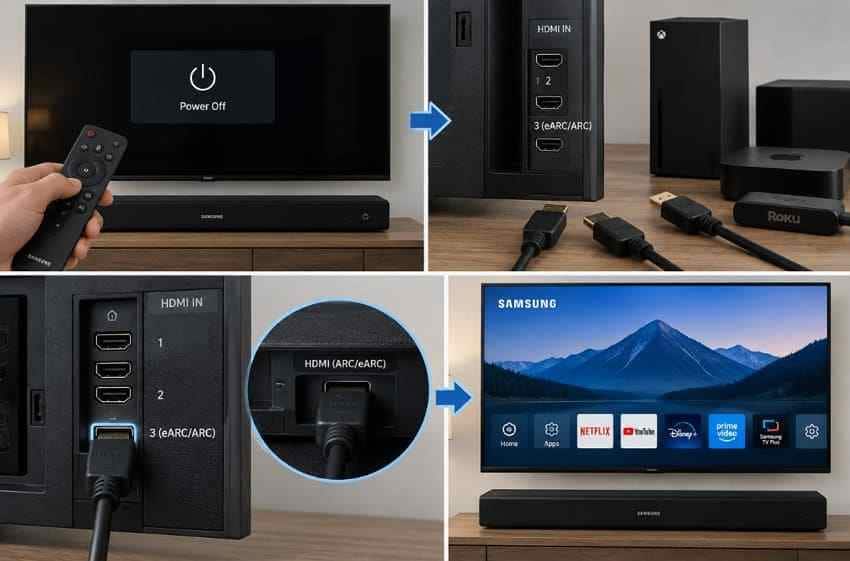
If the connection becomes stable with the other HDMI devices removed, the soundbar itself may be fine. Re-enable Anynet+ and reselect the soundbar under Sound Output before reconnecting anything else.
Reconnect External HDMI Devices One at a Time
Reconnect one device, power it on, and test both its audio and the soundbar display. Repeat one device at a time. If ARC/eARC fails immediately after a particular console, streamer, switch, or dock is reconnected, troubleshoot that device or its CEC behavior rather than resetting the soundbar again.
Part 6. Fix ARC That Works With TV Apps but Not an HDMI Source
If a TV app plays through the soundbar but a console or streaming device does not, treat the external source as the next variable. Its audio format is separate from the Samsung TV's Digital Output Audio Format, and the TV may not pass every format the source can generate.
Simplify the Console or Streaming Device Audio Output
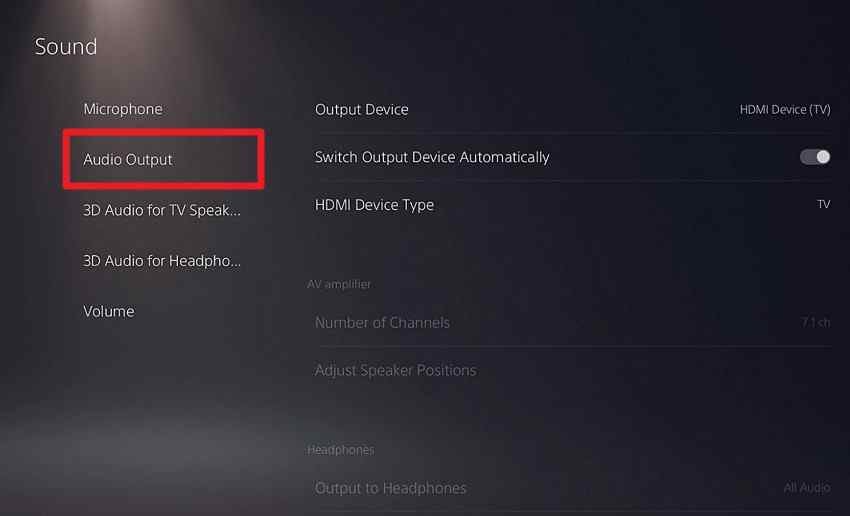
For PS5: Open Settings > Sound > Audio Output. Check the output device and HDMI Device Type, then use Audio Format (Priority) to test Linear PCM. Sony's current PS5 audio settings guide notes that available options vary with the connected equipment.
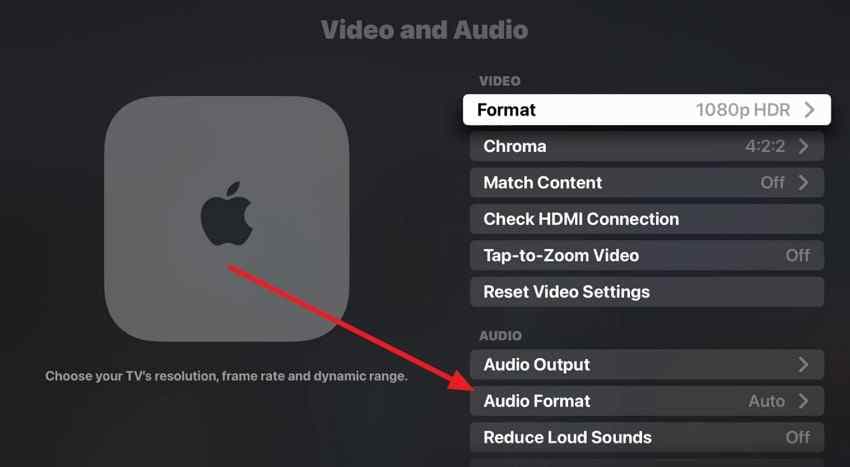
For Apple TV 4K: Apple recommends Auto for normal use because Apple TV chooses the best supported format. If you are isolating a compatibility problem, temporarily test Stereo Only under Settings > Video and Audio > Audio Format, then return to Auto after testing. See Apple's current Apple TV audio settings guide.
Use the Soundbar HDMI Input for Direct Passthrough When Appropriate
If the soundbar has an HDMI IN port, direct passthrough can bypass a TV format limitation. Connect the source's HDMI OUT to the soundbar HDMI IN, then connect the soundbar HDMI OUT/HDMI TO TV port to the TV. Select HDMI on the soundbar and test playback.
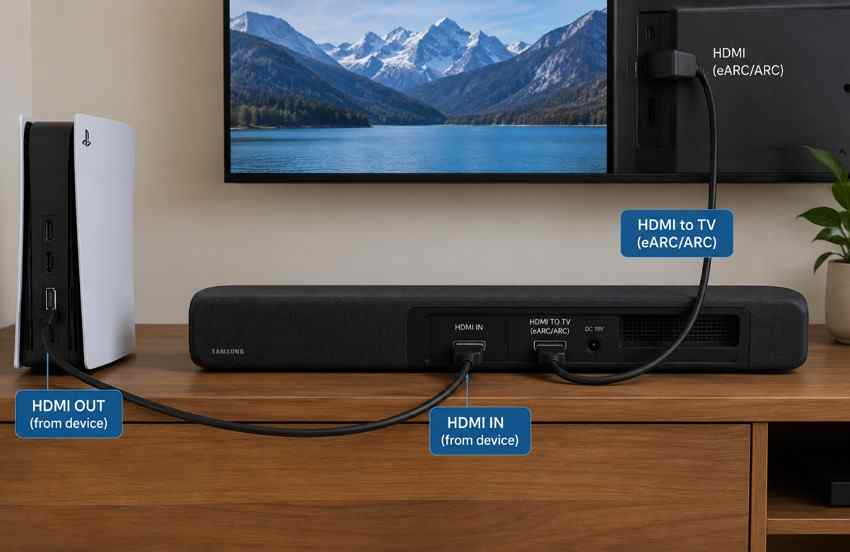
Important: Direct passthrough is useful only when the soundbar supports the source's required video and audio features. Before routing a gaming console through the soundbar, check the exact model for resolution, refresh rate, HDR, VRR, and audio-format support.
Part 7. Update, Reset, and Isolate the Faulty Device
Move to firmware, reset, and service only after ports, Anynet+, Sound Output, format compatibility, and HDMI conflicts have been tested. A reset can erase soundbar settings, and a firmware update should always use the exact TV or soundbar model.
Check TV and Soundbar Firmware for the Exact Model
Samsung documents both TV and soundbar updates, and its current soundbar firmware guide specifically notes an automatic-update issue that affected some 2023 Q-Series soundbars. Do not assume your model has the same issue; check the exact model support page and current firmware first.
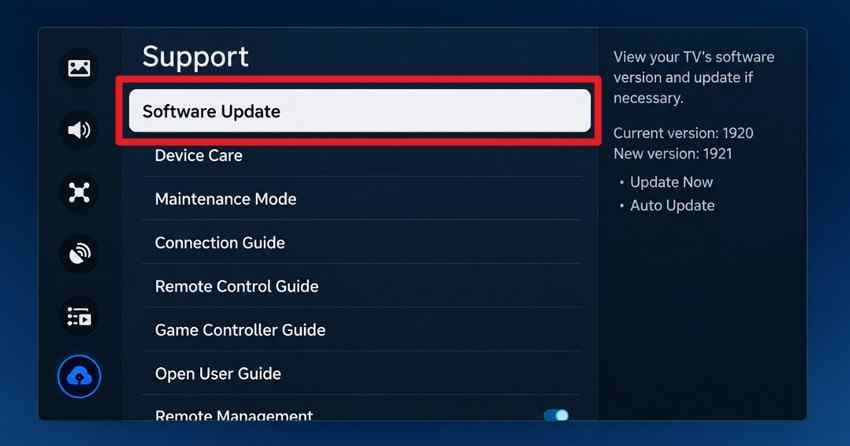
Step 1. On the Samsung TV, open Settings > All Settings > Support > Software Update > Update Now. Samsung's current TV software update guide warns not to power off the TV while an update is installing.
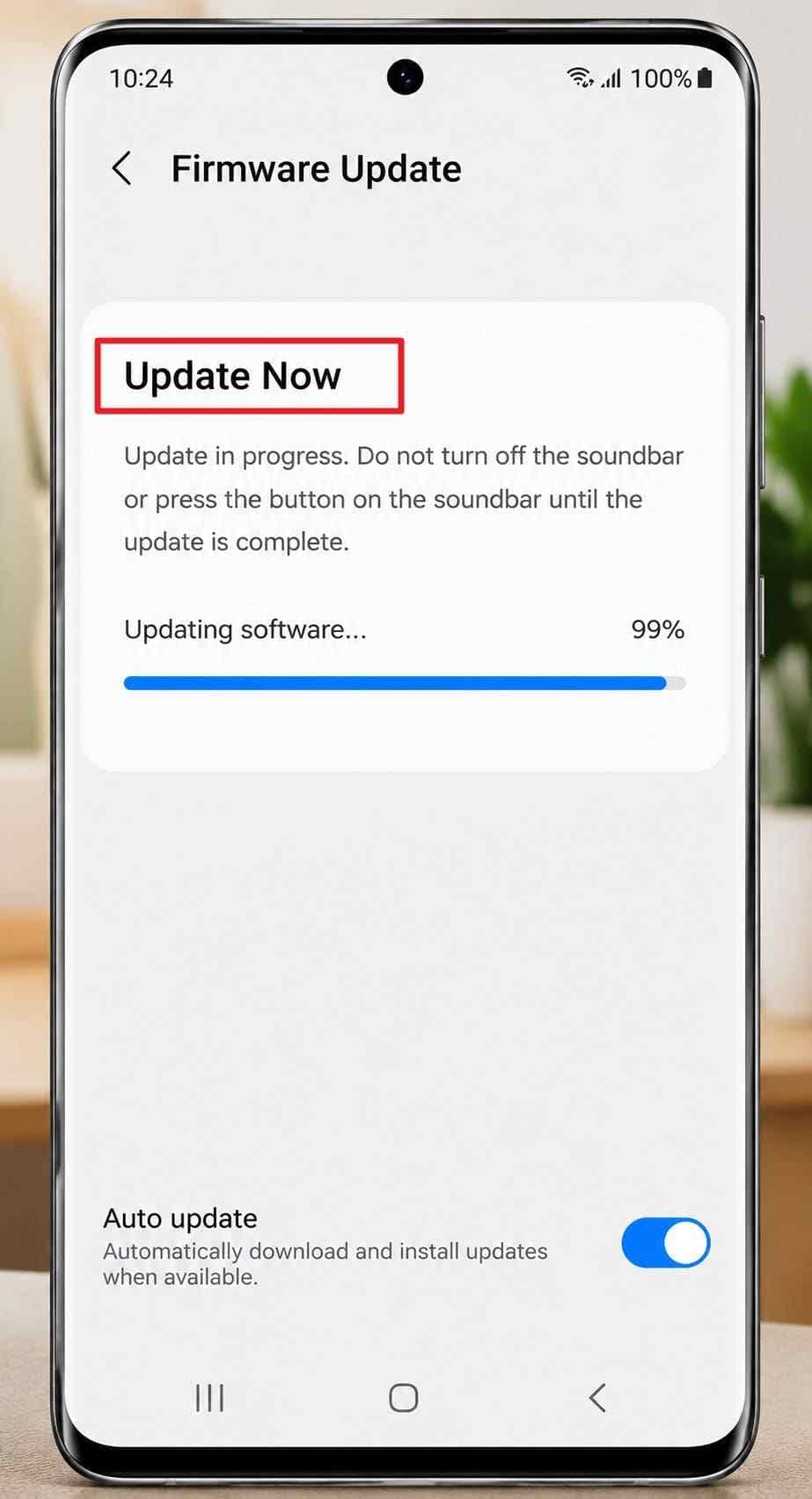
Step 2. For supported soundbars in SmartThings, open the soundbar, choose Information > Firmware Update > Update Now. Samsung also documents USB firmware updates from the exact model download page.
Use a Model-Specific Soundbar Reset Only When Documented
Samsung reset procedures vary by series. Its Singapore soundbar troubleshooting guide documents that some HW-Q***D models can be reset with the soundbar powered on by holding the Volume - and Volume + buttons together for more than five seconds until INIT appears. Other series use different indications or button combinations.
Do not copy a reset sequence from another soundbar series. Check the exact manual or Samsung support page for your model, because a reset clears settings and requires ARC/eARC, Anynet+, Sound Output, and other preferences to be configured again.
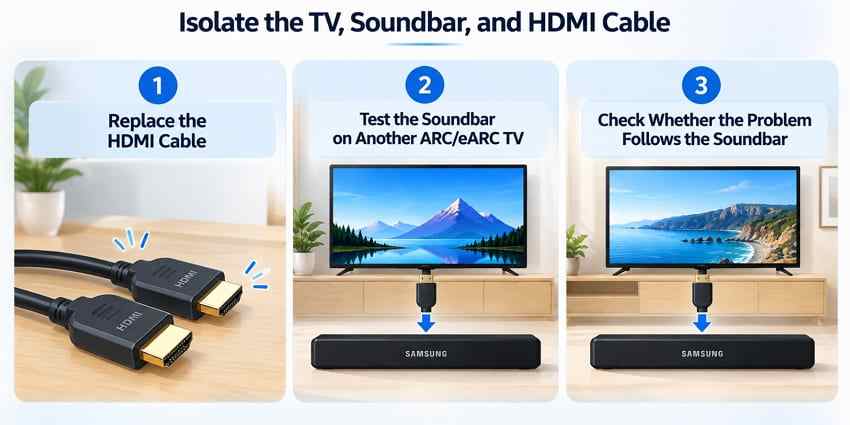
Isolate the TV, Soundbar, Cable, or HDMI Port
- Replace the HDMI cable: Use a known-good cable that is appropriate for the connection and retest D.IN to TV ARC/eARC.
- Test the soundbar on another ARC/eARC TV: If it connects and plays there, the original TV or its ARC/eARC path becomes the primary suspect.
- Test another compatible sound system on the original TV: This helps determine whether the TV can establish ARC/eARC with another device.
- Use Samsung service after isolation: If the soundbar still will not establish ARC/eARC on another compatible TV with a known-good cable, Samsung's ARC troubleshooting path points toward service rather than repeated random settings changes.
Data recovery note: HDMI ARC troubleshooting does not require data recovery software. If you separately discover that locally stored recordings, MP3 files, or other audio files were deleted or became inaccessible on a computer or removable drive, first check Recycle Bin/Trash and backups. If the files are still missing, see how to recover deleted audio files. Recoverit can scan supported storage for recoverable files, but it cannot repair HDMI ARC, Anynet+, TV firmware, soundbar hardware, or audio-format settings.

Conclusion
A Samsung soundbar ARC not working issue should be diagnosed by connection state, not by resetting everything at once. If the bar never leaves D.IN, focus on ARC/eARC ports, cable seating, Anynet+, and Sound Output. If TV ARC or TV eARC appears but sound is missing, move to PCM, Auto/Pass-Through, and the external source's audio format. When TV apps work but a console or streamer does not, troubleshoot that source or use direct HDMI passthrough only if the soundbar supports the required video and audio features.
Firmware updates and factory reset belong near the end of the process. Use exact-model Samsung documentation, then isolate the TV, soundbar, and cable before arranging service. That sequence gives each test a clear meaning and avoids turning a single ARC problem into multiple configuration changes at once.
FAQ
-
Why does my Samsung soundbar stay on D.IN instead of TV ARC?
D.IN staying on-screen usually means the TV and soundbar have not completed the ARC connection. Check that the cable is in the labeled ARC/eARC ports, enable Anynet+ HDMI-CEC, select the soundbar under Sound Output, and retry with a known-good HDMI cable if TV ARC never appears. -
Why does my Samsung soundbar show TV ARC but have no sound?
TV ARC indicates that the return-audio connection has been detected, but silence can still come from the selected TV output, the external source, or an unsupported audio format. Confirm the soundbar is selected under Sound Output and test PCM under Digital Output Audio Format before changing more hardware. -
Does Anynet+ need to be enabled for Samsung soundbar HDMI ARC?
Yes, Samsung's ARC/eARC setup relies on HDMI-CEC, which Samsung calls Anynet+. On supported eARC setups, Samsung instructs users to enable Anynet+ before setting HDMI-eARC Mode to Auto. The exact menu path can vary by TV model and software version. -
Why does Samsung soundbar ARC work with TV apps but not a console or streaming device?
Working TV-app audio suggests the basic TV-to-soundbar ARC/eARC path can function. A silent console or streaming box is more likely to involve that source's HDMI audio output, a format the TV cannot pass, or another HDMI-CEC conflict. Test PCM or stereo first, then consider direct soundbar HDMI input if the model supports the required passthrough features.


