 TL;DR:
Unless your Windows 11 version 24H2 or 25H2 PC is experiencing performance issues tied to an Intel Innovation Platform Framework (IPF) driver, you can safely skip the optional 2026-07 Update KB5121767.
● Install this out-of-band update only if your specific Dell or Intel IPF-based device was temporarily blocked from receiving the July 2026 security update KB5101650.
● To resolve persistent installation errors like 0x800f0922 or 0x80073712 on affected PCs, clear the Windows Update cache by renaming the SoftwareDistribution and catroot2 folders, then repair system files using DISM and SFC commands.
● If downloading the update directly from the Microsoft Update Catalog, you must install all provided MSU files together using DISM or in Microsoft's listed order to avoid package handling failures.
Ask AI for a summary
 ChatGPT
 Perplexity
 Gemini
 Claude
 Grok
Grok
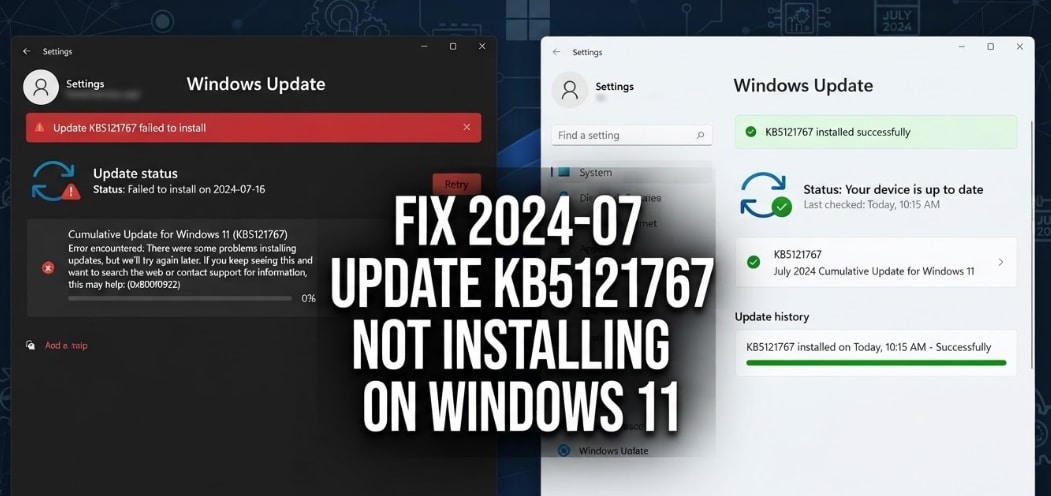
The 2026-07 Update KB5121767 is optional for most Windows 11 PCs. If it is not installing, first confirm whether your device actually needs it before resetting Windows or changing system folders.
If you need to fix 2026-07 Update KB5121767 Not Installing On Windows 11, start with the reason this update exists. KB5121767 is a July 18, 2026 out-of-band cumulative update for Windows 11 version 24H2 and Windows 11 version 25H2. Microsoft says it is mainly recommended for a limited number of devices affected by an Intel Innovation Platform Framework driver issue, including some Dell devices that were temporarily blocked from receiving the July 2026 security update KB5101650.
That means a failed KB5121767 install is not always an emergency. If your PC is not affected and Windows is stable, Microsoft says no action is required. If your device is affected, or Windows Update keeps failing with errors such as 0x800f0922, 0x80073712, 0x80248007, or 0x80070002, use the fixes below in order.
Data safety note: Windows updates normally do not delete personal files. Still, failed updates, forced shutdowns, reset attempts, disk repair, or a Windows.old cleanup can put local data at risk. Before resetting Windows, reinstalling Windows, running risky disk repair, or sending a PC for service, recover or back up important files first. Wondershare Recoverit can help recover lost files from readable drives, but it cannot fix Windows Update, repair Windows, bypass BitLocker, or recover overwritten data.
In this article
Part 1. What Is KB5121767?
KB5121767 is an out-of-band cumulative update released by Microsoft on July 18, 2026 for Windows 11 version 24H2 and Windows 11 version 25H2. It updates supported systems to OS Builds 26100.8894 and 26200.8894.
Microsoft says the extra fix in KB5121767 addresses an issue affecting a limited number of devices with an Intel Innovation Platform Framework driver. Those devices could see changes in performance, power consumption, or system behavior after recent Windows updates. Microsoft also says a limited number of Dell devices that were temporarily prevented from receiving the July 2026 security update KB5101650 can now install this out-of-band update.
| Item | Details |
|---|---|
| Update name | July 18, 2026 - KB5121767 out-of-band cumulative update |
| Applies to | Windows 11 version 24H2 and Windows 11 version 25H2 |
| Builds after install | 26100.8894 for 24H2 and 26200.8894 for 25H2 |
| Main purpose | Additional fix for limited Intel IPF driver affected devices |
| Install channel | Windows Update Optional updates, Microsoft Update Catalog, and supported business channels |
Part 2. Should You Install KB5121767?
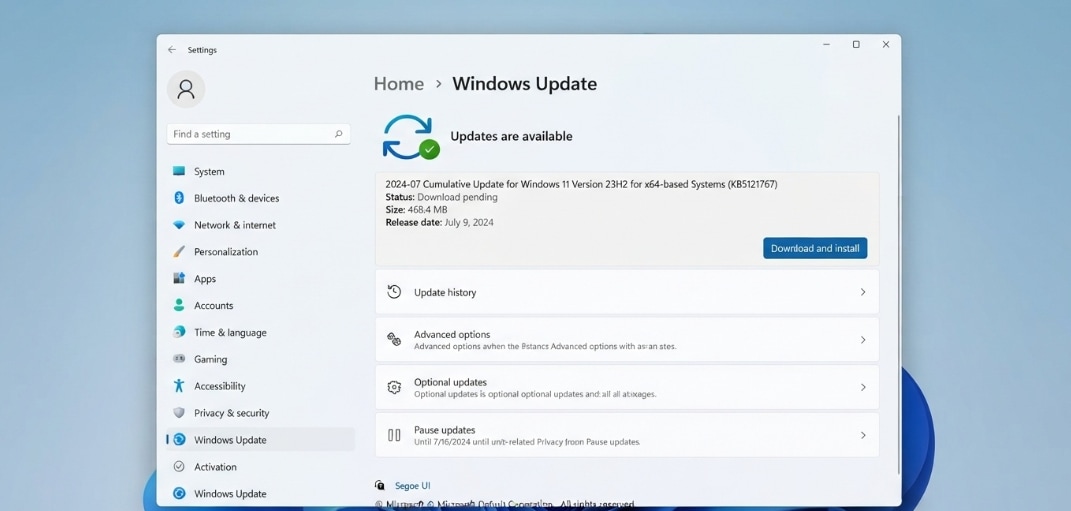
Not every Windows 11 user needs KB5121767. Microsoft says the update is only recommended for devices affected by the Intel IPF issue. If your Windows 11 PC is stable, does not match the affected device profile, and KB5121767 appears only as an optional update, you can wait for the next regular cumulative update.
You should consider installing it if:
- Your PC runs Windows 11 version 24H2 or 25H2.
- Windows Update offers KB5121767 for your device.
- You use an affected Dell or Intel IPF based device and recently had performance, power, or system behavior changes.
- Your device was blocked from receiving the July 2026 security update KB5101650 and Microsoft now offers this OOB update.
You can skip or postpone it if:
- Your device is not affected and works normally.
- Your PC is not running Windows 11 24H2 or 25H2.
- The update is not offered by Windows Update and you do not have a specific business or IT requirement.
- You are troubleshooting unrelated Windows issues and do not want to add an optional update yet.
Part 3. Why KB5121767 Is Not Installing on Windows 11
Use this diagnosis table before trying fixes. It helps separate a true update failure from a case where KB5121767 simply does not apply to your device.
| Reason | What It Means | Best Next Step |
|---|---|---|
| Unsupported Windows version | KB5121767 applies to Windows 11 24H2 and 25H2, not every Windows 11 build. | Check Settings > System > About. |
| Optional update not selected | The update may sit under Optional updates instead of installing automatically. | Open Windows Update optional updates and choose Download & install. |
| Device not affected | Microsoft recommends KB5121767 only for affected devices. | Skip it unless Windows Update or IT policy requires it. |
| Not enough disk space | Cumulative updates need free space to download, unpack, stage, and roll back if needed. | Clean temporary files and move large personal files first. |
| Broken update cache | Windows may keep reusing a damaged download package. | Reset Windows Update cache folders. |
| System file or component store corruption | Errors such as 0x80073712 often point to missing or damaged Windows files. | Run DISM, then SFC, from an elevated Command Prompt. |
| Catalog package order issue | Microsoft says this KB can contain one or more MSU files that require correct handling. | Install all MSU files together with DISM or install them in Microsoft's listed order. |
Part 4. Basic Fixes for KB5121767 Installation Failure
Start here if the 2026-07 Update KB5121767 is not installing on Windows 11 through Settings.
Fix 1. Confirm Your Windows 11 Version
If KB5121767 does not apply to your build, Windows may hide it, refuse it, or show "the update is not applicable to your computer."
- Open Settings.
- Go to System > About.
- Check Windows specifications.
- Confirm that the version is 24H2 or 25H2.
- If you are on another version, install the regular updates offered for your build instead.
Fix 2. Install KB5121767 from Optional Updates
Microsoft lists KB5121767 as an optional update in Windows Update. If the "Get the latest updates as soon as they're available" toggle is on, Windows may offer it automatically. If the toggle is off, install it manually.
- Open Settings.
- Go to Windows Update.
- Select Advanced options.
- Open Optional updates.
- Choose 2026-07 Update KB5121767 if it appears.
- Select Download & install.
- Restart when Windows asks.
Fix 3. Restart Windows and Check for Updates Again
A pending restart from another update can block KB5121767. Finish the restart cycle before changing deeper Windows Update components.
- Save your work and close open apps.
- Restart the PC from Start > Power > Restart.
- Connect to a stable network.
- Open Settings > Windows Update.
- Select Check for updates.
If the update fails again, open Windows Update > Update history and note the exact error code.
Fix 4. Free Up Disk Space
Microsoft notes that low storage can prevent Windows updates from installing. Free space on the system drive before retrying KB5121767.
- Open Settings > System > Storage.
- Open Temporary files or Cleanup recommendations.
- Remove safe temporary files.
- Empty the Recycle Bin only after confirming you do not need its contents.
- Move large videos, downloads, installers, or archives to another drive.
- Restart Windows Update.
Do not delete Windows.old if you recently upgraded and may need rollback files or old user data. Check it first.
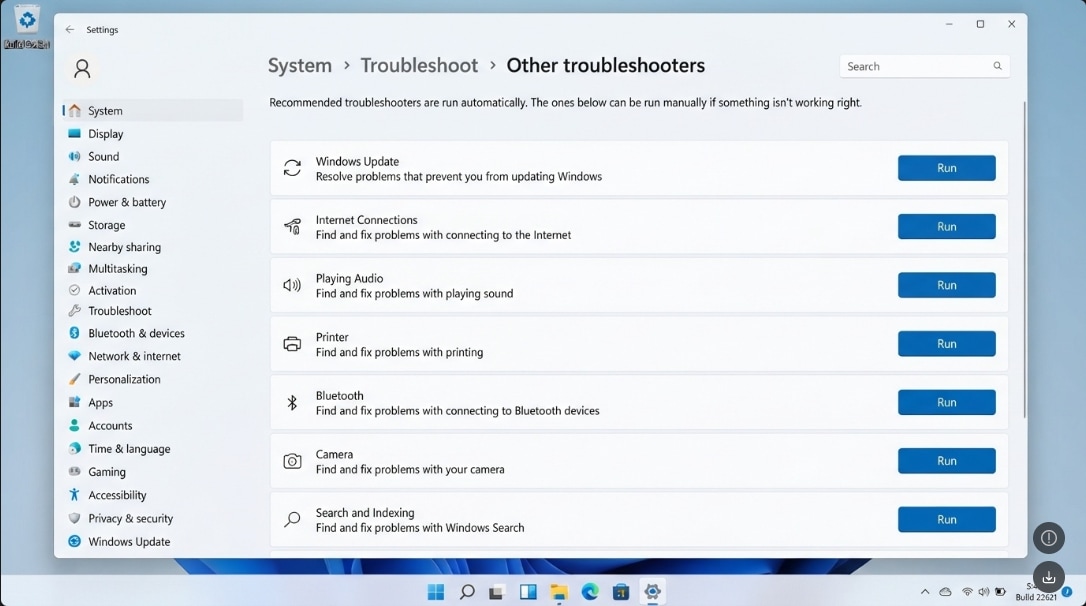
Fix 5. Run the Windows Update Troubleshooter
The built-in Windows Update troubleshooter can repair common update service, download, and configuration problems.
- Open Settings.
- Go to System > Troubleshoot > Other troubleshooters.
- Select Run next to Windows Update.
- Apply the recommended fixes.
- Restart the PC.
- Go back to Windows Update and select Check for updates.
Part 5. Advanced Fixes When KB5121767 Still Fails
Use these steps if the update keeps failing after the basic checks. If the PC shows disk errors, freezes, or fails to boot normally, back up or recover files before continuing.
Fix 6. Reset the Windows Update Cache
Resetting the update cache forces Windows to download a fresh copy of the update. This is helpful when the KB5121767 download is stuck or repeatedly fails after reaching the same percentage.
- Right-click Start and open Terminal (Admin) or Command Prompt (Admin).
- Stop Windows Update related services:
net stop wuauserv
net stop bits
net stop cryptsvc- Rename the update cache folders:
ren C:\Windows\SoftwareDistribution SoftwareDistribution.old
ren C:\Windows\System32\catroot2 catroot2.old- Restart the services:
net start wuauserv
net start bits
net start cryptsvc- Restart the PC and try Windows Update again.
If a command says the service is not running, continue with the next command. If renaming fails because files are in use, restart and try again before opening other apps.
Fix 7. Repair Windows System Files with DISM and SFC
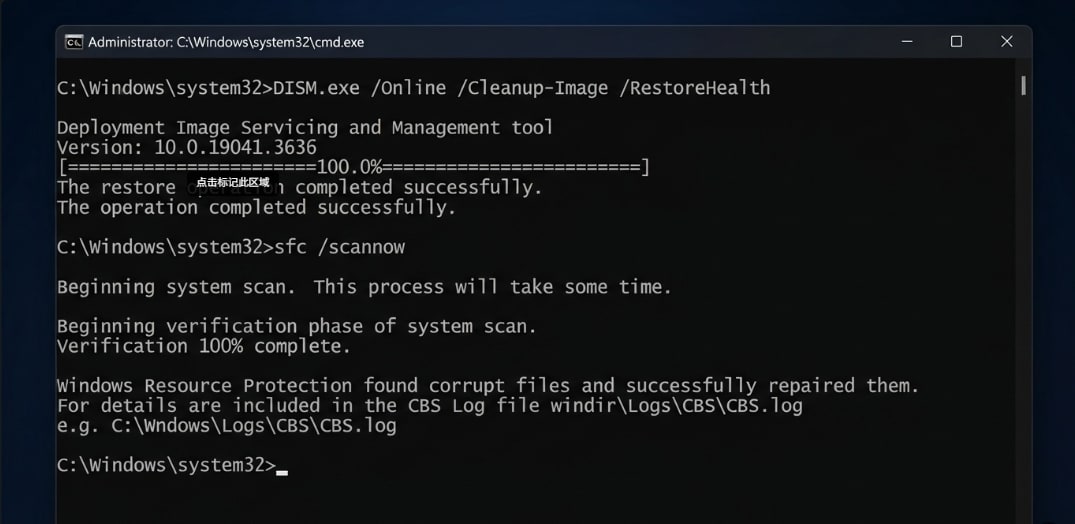
If KB5121767 fails with component or file errors, repair Windows system files. Microsoft recommends running DISM first, then System File Checker.
- Open Command Prompt as administrator.
- Run DISM:
DISM.exe /Online /Cleanup-Image /RestoreHealth- Wait for the command to finish.
- Run System File Checker:
sfc /scannow- Restart the PC.
- Try installing KB5121767 again.
Do not close the Command Prompt while SFC verification is running.
Fix 8. Install KB5121767 from Microsoft Update Catalog
If Windows Update will not install the optional update, download it from the official Microsoft Update Catalog. Avoid third-party update download websites.
- Open the Microsoft Update Catalog.
- Search for KB5121767.
- Choose the package that matches your system, such as Windows 11 24H2 x64, 24H2 arm64, 25H2 x64, or 25H2 arm64.
- Download all required MSU files for the package.
- If Microsoft provides more than one MSU file, install them together using DISM from the same folder or install them in the order listed on Microsoft's KB page.
- Restart Windows after installation.
For example, if all required MSU files are in C:\Packages, an administrator can use DISM with that folder as the package path. Follow the exact file names from Microsoft Update Catalog for your architecture.
Fix 9. Temporarily Remove Update Blockers
VPNs, proxies, third-party firewalls, antivirus tools, and old device drivers can interrupt Windows Update downloads or installation.
- Disconnect from VPN or proxy while downloading the update.
- Use a trusted home or office network.
- Temporarily pause third-party antivirus only for the update test, then turn it back on.
- Disconnect nonessential USB drives, docks, printers, scanners, and other peripherals.
- Install Dell, Intel, BIOS, chipset, and driver updates from your PC manufacturer's official support app or website if your device is affected.
Fix 10. Pause or Skip the Optional Update
If KB5121767 is optional on your PC and your system is stable, skipping it may be safer than forcing manual installation. You can wait for the next regular cumulative update.
- Open Settings > Windows Update.
- If needed, select Pause updates temporarily.
- Turn off Get the latest updates as soon as they're available if you do not want early optional updates.
- Resume updates later and install the next regular cumulative update.
Part 6. Recover Missing Files After a Failed Windows Update
A failed KB5121767 install should not normally remove personal files. But files can appear missing after forced shutdowns, failed rollback, profile loading problems, manual cleanup, Windows reset, or disk errors.
Check Windows Recovery Locations First
Before scanning with recovery software, check common locations:
- Desktop, Documents, Downloads, Pictures, and Videos
- Recycle Bin
- OneDrive local folder and OneDrive online Recycle Bin
- C:\Windows.old\Users, if a repair install or feature update created Windows.old
- Other user profiles under C:\Users, if Windows signed you into a temporary profile
If files are still missing, stop saving new data to the affected drive. Continued use may overwrite deleted files.
Use Recoverit When Local Files Are Lost
Recoverit can help recover files from readable internal drives, external drives, USB drives, SD cards, and other storage devices after deletion, formatting, system crash, failed update, or accidental reset. It is not a Windows Update repair tool.
1. Choose a Location to Recover Data
Launch Recoverit on your computer. In the main interface, locate the list of available drives and external devices, then select the card or the attached reader as the target location where you lost your files. Confirm your choice to start the recovery task.

2. Deep Scan the Location
Recoverit will automatically begin scanning the selected card.

3. Preview and Recover Your Desired Data
When the scan is complete, browse through the list of found files and use the preview function to check images, video clips, and documents before recovery.

Recovery depends on drive condition, overwriting, encryption, and detectability. If BitLocker is enabled, you need the legitimate BitLocker password or recovery key to access encrypted data.
Conclusion
To fix 2026-07 Update KB5121767 not installing on Windows 11, first confirm whether your PC is running Windows 11 24H2 or 25H2 and whether the update is actually recommended for your device. KB5121767 is an optional out-of-band update mainly for limited Intel IPF affected devices, including some Dell PCs. If you need it, install it from Optional updates first, then try restarting, freeing disk space, running the Windows Update troubleshooter, resetting the update cache, repairing system files with DISM and SFC, or installing the correct package from Microsoft Update Catalog.
If files disappear after a failed update, rollback, reset, or disk repair attempt, stop using the affected drive and recover important data before deeper troubleshooting. Recoverit may help recover local files from readable storage, but it cannot repair Windows Update or guarantee recovery from overwritten or physically failed drives.
FAQ
-
What is KB5121767 on Windows 11?
KB5121767 is a July 18, 2026 out-of-band cumulative update for Windows 11 version 24H2 and 25H2. Microsoft says it adds a fix for a limited number of devices affected by an Intel Innovation Platform Framework driver issue. -
Do I need to install KB5121767?
You may not need it. Microsoft says KB5121767 is only recommended for affected devices, and no action is required if your device is not affected. If Windows Update offers it for your PC or your device matches the Intel IPF/Dell affected scenario, consider installing it. -
Why is KB5121767 not installing on Windows 11?
Common reasons include unsupported Windows version, optional update settings, low disk space, corrupted update cache, damaged system files, VPN or security software interference, or downloading the wrong package from Microsoft Update Catalog. -
Can Recoverit fix KB5121767 installation errors?
No. Recoverit cannot fix Windows Update, repair Windows components, update drivers, or install KB5121767. It can help recover lost local files from readable storage if files go missing after a failed update, rollback, reset, or disk repair process. -
Is it safe to skip KB5121767?
It can be safe to skip KB5121767 if your Windows 11 PC is not affected and the update is only optional. Keep installing regular security updates and check Microsoft or your device manufacturer's guidance if you use an affected Dell or Intel IPF-based device.



