

If your Dell mouse scroll wheel is not working, the pointer may still move while pages refuse to scroll, jump several lines, reverse direction, or scroll intermittently. These symptoms occur on Dell wired USB mice, receiver-based wireless models, and Bluetooth mice, but their first checks are not identical.
Causes range from Windows scroll settings and app-level zoom controls to weak batteries, wireless interference, debris around the wheel, and worn internal parts. Before changing drivers, determine whether the fault appears in every application or follows the mouse to another computer. This guide walks through model-specific connection checks, safe wheel cleaning, Windows 10/11 settings, compatible Dell software, and when professional service makes sense.
In This Article
Part 1. Narrow Down the Dell Mouse Scroll Problem
A dead wheel, unexpected reverse scrolling, and a failed middle-click can look alike but need different checks. Identify the model and reproduce the behavior before changing system settings.
Identify the Model and Connection Type
Dell mice often have no Service Tag. Look at the label underneath the mouse or its package for the model, and use Dell's accessory identification instructions to find the correct manual. Note whether your mouse connects by USB cable, a USB receiver, Bluetooth, or a selectable combination.
| Connection | Example Dell models | First thing to verify |
| Wired USB | MS116, MS3220 | Cable, computer USB port, and wheel response |
| 2.4 GHz USB receiver | WM126 or compatible mouse/keyboard combos | Original receiver, batteries, and USB interference |
| Bluetooth | MS700 | Bluetooth pairing and selected device |
| Receiver and Bluetooth | MS3320W, MS5320W | The active connection channel and pairing method |
Model names and connection choices vary by revision. A mouse that works through its receiver may need a different test when switched to Bluetooth; do not assume that one connection proves the other is healthy.
Test Another App and Another Computer
Test one web page with a long scroll, then a Word document or spreadsheet. If only one app fails, inspect that app before reinstalling anything. If both fail, move the same mouse and receiver to a second computer where possible.
- Scroll one page slowly in Chrome or Edge. Watch for no movement, jumps, or reverse movement.
- Repeat in another app, without holding Ctrl or activating a zoom tool.
- Try another computer with the same mouse and its own receiver. Record whether the problem travels with the mouse.
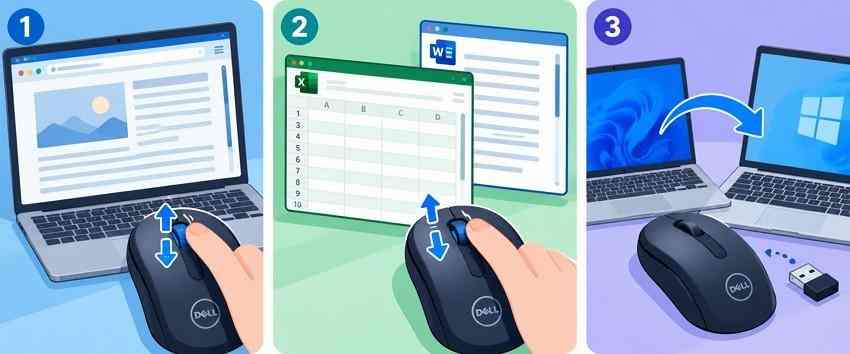
On a managed work computer, use an approved second device rather than modifying organization settings. Record whether the wheel still clicks normally, because vertical scrolling and pressing the wheel are independent controls.
Separate Scrolling, Middle-Click, and Cursor Symptoms
| What you observe | More likely area to check | Useful next test |
| Wheel turns but pages do not move | App behavior, wheel setting, debris, or wheel encoder | Try two apps and another PC |
| Wheel reverses direction consistently | Windows scrolling direction setting | Check Mouse settings before cleaning |
| Wheel jumps back and forth unpredictably | Debris, encoder wear, or unstable connection | Clean wheel and repeat on another PC |
| Middle-click fails but scrolling works | Button assignment or middle switch | Check DDPM only on a supported model |
| Pointer also freezes or stutters | Battery, receiver, Bluetooth, or sensor | Check connection and optical sensor |
For wider Windows and macOS causes unrelated to Dell models, see this general mouse scroll wheel troubleshooting guide.
Part 2. Check Power, Connection, and the Wheel
Begin with reversible checks. No reset, driver removal, or mouse disassembly is needed at this stage.
Reconnect the Mouse and Check Power
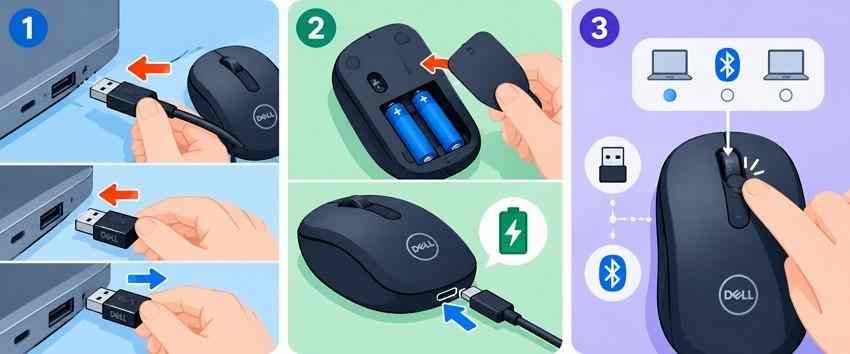
- Wired USB: Disconnect the plug, inspect it for visible damage, and reconnect it to a working port.
- USB receiver: Unplug and reinsert the receiver. Use the receiver supplied for that compatible mouse.
- Battery-powered: Turn the mouse off, replace its user-replaceable batteries, and turn it back on.
- Rechargeable: Charge the battery according to the manual; do not assume every wireless Dell mouse is rechargeable.
- Multi-device: Confirm that the mode/channel selected on the mouse matches this computer.
If the cursor works but the wheel still does not scroll, keep testing the wheel. A functioning pointer alone does not rule out a wheel mechanism fault.
Try a Direct USB Port or Reconnect Bluetooth
For a USB cable or receiver, bypass the hub or docking station once. A 2.4 GHz receiver can be affected by nearby USB 3.0 devices; moving it away using an extension cable is a useful comparison. For a Bluetooth mouse, remove the pairing in Windows only after confirming you can pair it again.
Step 1. On Windows 11, open "Settings > Bluetooth & devices > Devices." Find the Dell mouse, choose the remove-device option, and then select "Add device."
Step 2. Set the Dell mouse to its Bluetooth pairing mode according to its manual, then choose it from the Windows device list. For selectable receiver/Bluetooth models, make sure the correct channel is active.
Step 3. Scroll through the same test page again. If the direct USB connection or fresh pairing fixes it, return other accessories one at a time to identify interference.
Dell has model-specific Bluetooth and USB receiver pairing instructions for compatible MS3320W, MS5320W, and related devices. Its older Dell Pair app reached the end of support on March 26, 2026; see the Dell Pair support notice rather than installing it as a fresh fix.
Clean Around the Wheel Without Taking the Mouse Apart
Dust and oily residue can interfere with wheel movement. Dell's current mouse troubleshooting guide advises disconnecting power first, using compressed air for loose debris, and cleaning the wheel surface carefully.
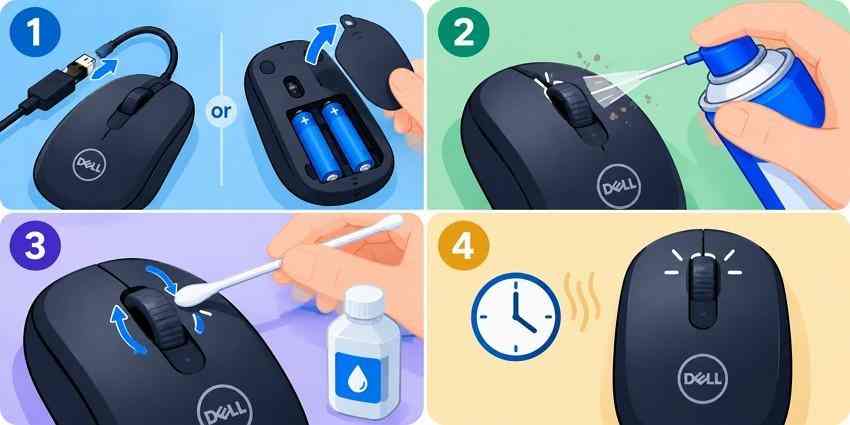
Step 1. Unplug the wired mouse or turn off a wireless mouse; remove replaceable batteries if applicable.
Step 2. Inspect the wheel edges and use short bursts of compressed air to dislodge visible dust. Keep the can in its instructed operating orientation.
Step 3. If oily residue remains, wipe only the outer wheel surface with a cotton swab lightly dampened with 70% or higher isopropyl alcohol. Do not drip liquid into the mechanism.
Step 4. Let the wheel dry completely, reconnect the mouse, and repeat the slow-scroll test in two applications.
Note: Do not pry open the mouse or spray liquid cleaner directly into it. Grinding, a loose wheel, or continued random scrolling after cleaning can indicate internal wear.
Part 3. Fix Scrolling Settings and Software Conflicts
If the mouse works on another computer or scrolling changes only in certain apps, focus on Windows and model-supported settings rather than replacing the mouse.
Review Windows Wheel Speed, Direction, and App Behavior
Use Microsoft's current mouse settings guide for the relevant Windows version. A line-count slider changes how far each wheel notch scrolls; it does not repair a physically unresponsive wheel.
Step 1. In Windows 11, open "Settings > Bluetooth & devices > Mouse." On Windows 10, use "Settings > Devices > Mouse." For the classic controls, choose "Additional mouse settings > Wheel."
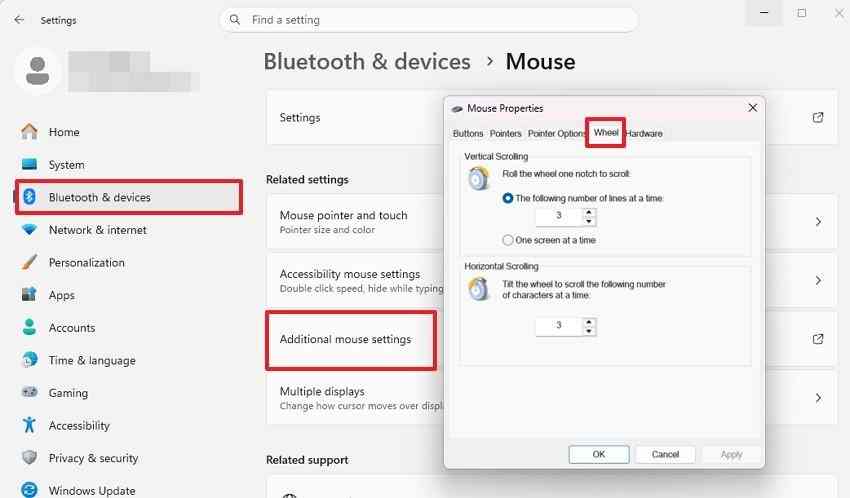
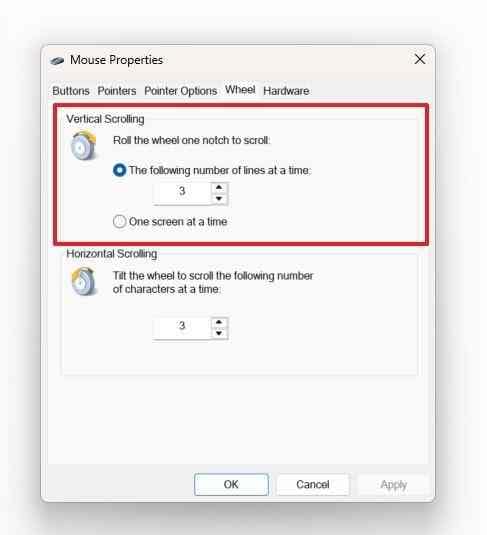
Step 2. Under vertical scrolling, select multiple lines per notch or one screen at a time. If the wheel jumps too far, lower the line count; if it barely moves, raise it.
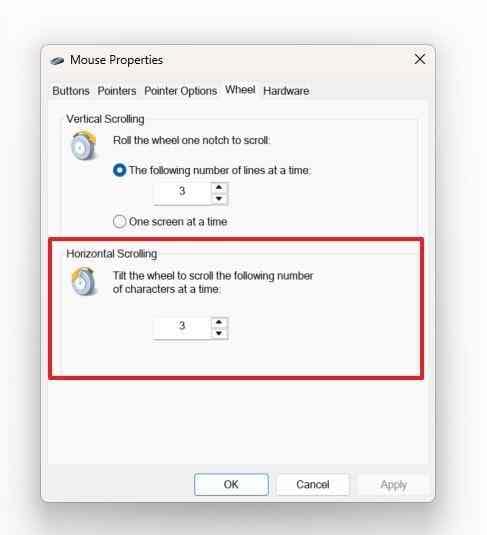
Step 3. If your model supports tilt-wheel horizontal scrolling, adjust the horizontal character count under "Wheel." This setting will not add horizontal scrolling to a mouse without that hardware feature.
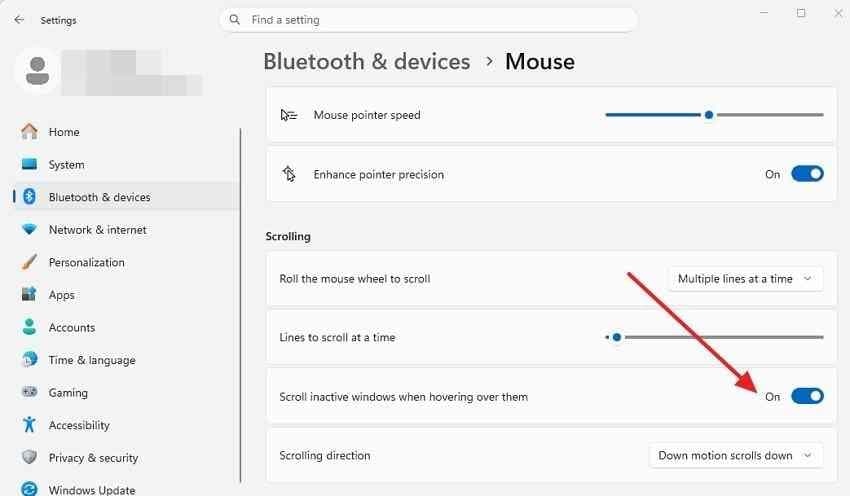
Step 4. If the wheel only fails over an unfocused window, enable "Scroll inactive windows when hovering over them" in Windows Mouse settings. Check the "Scrolling direction" selector where available if a normal wheel movement consistently goes the wrong way.
Step 5. For an app-specific problem, check whether Ctrl is held or the app interprets the wheel as zoom. In Excel, review "File > Options > Advanced > Zoom on roll with IntelliMouse" if your build offers it.
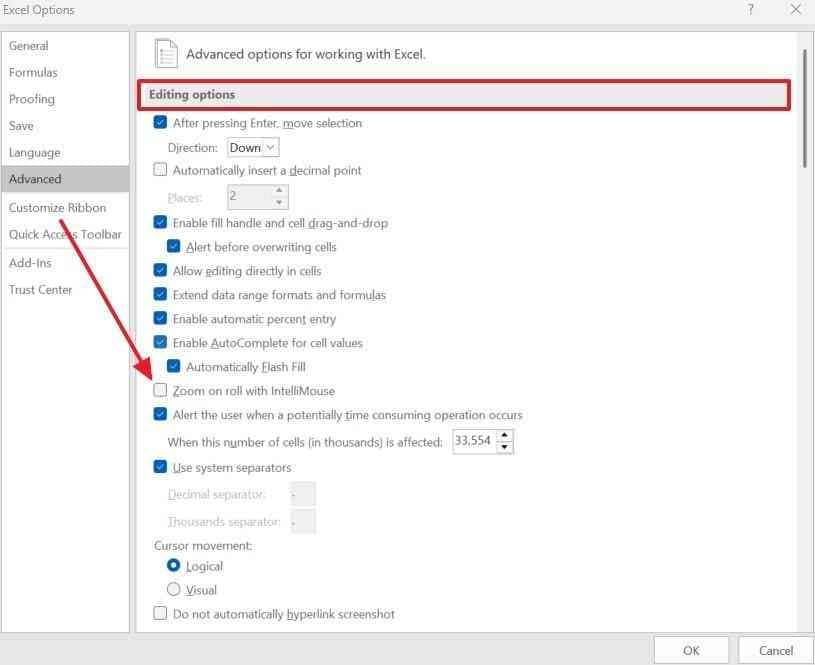
A scroll direction that changes randomly even when settings are correct is different from a permanently reversed setting; use the cross-computer result before concluding that Windows is responsible.
Use DDPM Only on Compatible Dell Mice
Dell Display and Peripheral Manager (DDPM) can manage settings and supported button assignments for listed Dell peripherals. Check the current Dell DDPM device compatibility list before installing it. Examples on Dell's list include MS3320W, MS5320W, MS7421W, and MS900; WM126 is not listed.
A supported programmable wheel click is not the same as the up/down wheel sensor. DDPM can help when middle-click actions change between applications, but it cannot physically repair an encoder that skips across computers.
Older screenshots of Dell Peripheral Manager (DPM) are not necessarily the current DDPM interface. Dell ended support for the older DPM 1.7 and earlier in May 2025; use the current Dell page and your exact model's software rather than an obsolete installer.
Restore the Affected Assignment and Update Official Software
- On a DDPM-supported model, open the program, select the mouse, and inspect the available wheel-click or button assignments.
- Check application-specific profiles if the click changes only inside one app. Restore just the changed assignment instead of resetting every profile.
- Download an update only from the current Dell support page for your model. Keep wireless devices charged and connected while a firmware update is in progress.
- Retest scrolling and middle-click separately. If only physical scrolling remains defective, stop repeatedly changing software settings.
Dell's keyboard and mouse FAQ confirms that standard Dell mice generally use built-in Windows HID drivers. DDPM is an optional feature-management application for compatible products, not a universal requirement to scroll.
Check Power Management Only for Failures After Sleep
If scrolling stops only after Windows wakes and starts working after reconnecting the device, USB or Bluetooth power management may be involved. First update Windows and test the receiver directly. If the problem remains, inspect the applicable adapter or USB input device in Device Manager.
Where a "Power Management" tab exists, document its current state and test whether temporarily changing "Allow the computer to turn off this device to save power" affects wake behavior. Restore the original setting if it has no benefit. Some Windows builds do not offer this checkbox.
Note: Do not globally disable USB selective suspend or change BIOS settings simply because a single mouse wheel misbehaves in one app.
Part 4. Confirm Whether the Mouse Needs Service
If basic checks and model-supported settings have not helped, use one final comparison before requesting repair. This avoids replacing a working mouse for a Windows-only software problem.
Check Windows Drivers After Hardware and App Tests
When the wheel fails across applications on one PC but works elsewhere, check Windows Update and Device Manager. Microsoft offers Windows mouse and keyboard driver troubleshooting guidance. Removing a device is a late step because it briefly disconnects the pointing device.
Step 1. Open "Device Manager" and expand "Mice and other pointing devices." Identify the intended mouse or HID-compliant device carefully.
Step 2. Try "Update driver" if a suitable option exists. If needed, choose "Uninstall device" only for the correct mouse, then restart Windows to allow the standard driver to reinstall.
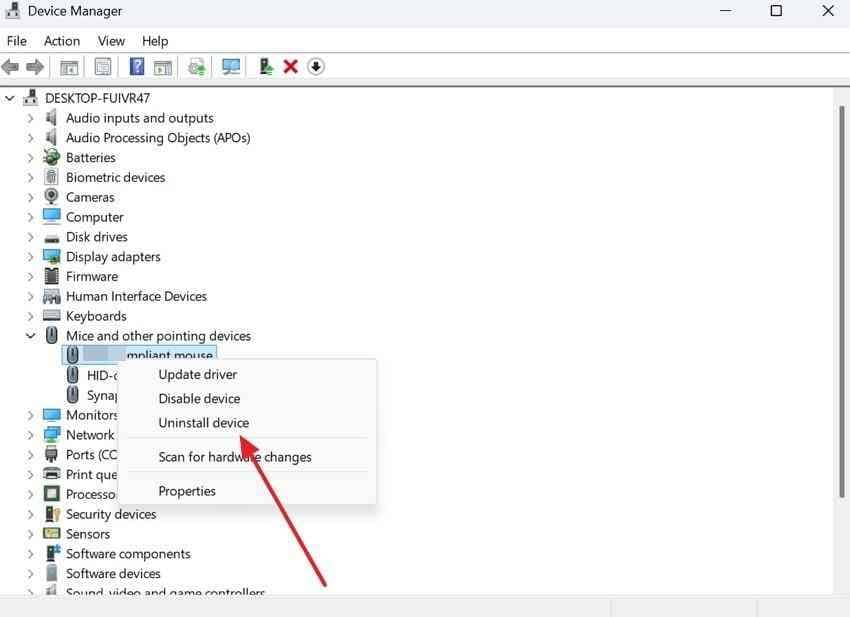
Step 3. For Bluetooth models, also check the computer manufacturer's Bluetooth adapter driver. Retest the same page after Windows recognizes the mouse.
Note: Have a touchpad, keyboard, or a second working mouse available before uninstalling an input device. A normal mouse-scroll fault does not justify resetting or reinstalling Windows.
Compare With a Known-Working Mouse
| Test result | What it suggests | What to do next |
| Another mouse scrolls normally on the same PC | The Dell mouse or its receiver needs closer attention | Retest Dell mouse on a second PC |
| Both mice fail only on one PC | A Windows/app/connection setting may be involved | Review software and port behavior |
| Dell mouse works on a second PC | First PC settings, adapter, or connection may be responsible | Keep troubleshooting that PC |
| Dell mouse fails on two PCs while another mouse works | Mouse, receiver, or wheel hardware is suspect | Check warranty and Dell service |
A Dell computer's pre-boot USB diagnostics may detect a peripheral without directly validating every scroll-wheel movement. Passing such a test does not prove the wheel encoder is healthy.
Contact Dell Support When Scrolling Fails Across Computers
Use the model label rather than a computer Service Tag when requesting accessory help. Have the purchase receipt, mouse model, connection type, and test results ready. A Dell mouse may have a PPID printed on its base or inside the battery compartment.
- Share repeatable symptoms: No scrolling, backward scrolling, jumping pages, or a wheel that feels loose.
- List completed checks: Battery, port, Bluetooth, wheel cleaning, settings, and second-computer result.
- Confirm eligibility: Warranty and replacement terms vary by product and region; do not assume every mouse receives the same coverage.
- Avoid unnecessary disassembly: Ask Dell about service if the wheel physically grinds, wobbles, or stops responding across computers.
If a separate Windows storage problem has already caused missing personal files, consider recovering files before any PC reset or major repair. Wondershare Recoverit for Windows can scan readable storage for eligible lost files; it does not fix the mouse, drivers, or wireless connection.

Conclusion
When a Dell mouse scroll wheel is not working, first identify the connection type and compare scrolling across applications and computers. Reseat the receiver or cable, check wireless power, and clean the wheel before changing Windows settings. Supported Dell mice may also need their button assignments reviewed in DDPM. Driver or power-management changes should come later and only when the symptoms justify them. If the wheel still skips or fails on a second computer, contact Dell Support about service or replacement.
FAQ
-
Why is my Dell mouse scroll wheel moving in the wrong direction?
If it always scrolls the opposite way, check Windows Mouse settings and the Scrolling direction option where available. If movement randomly alternates up and down, test another PC and inspect the wheel for debris or encoder wear; that is not the same as a configured reverse direction. -
How do I fix a Dell wireless mouse that clicks but does not scroll?
Check its battery and connection channel, reinsert the matching USB receiver or re-pair Bluetooth, and clean around the wheel. Then test two apps and another computer. Mouse movement and clicking do not guarantee that the separate wheel sensor is working. -
Can I reset my Dell mouse scroll wheel settings?
You can restore the line count, scrolling direction, and inactive-window options in Windows Mouse settings. If your exact model supports DDPM, review only its relevant programmable wheel-click or application-specific assignments. DDPM cannot repair a worn mechanical encoder. -
How do I know if my Dell mouse scroll wheel is physically damaged?
A wheel that grinds, wobbles, skips unpredictably, or fails across two computers after safe cleaning and connection checks may have hardware damage. Confirm with another working mouse and contact Dell Support for model-specific warranty or replacement options.


