

A Logitech mouse scroll wheel not working can mean that a page will not move, jumps several lines, reverses direction, or scrolls intermittently. It can affect wired and wireless Logitech mice, from office models to the G502 gaming series. The same symptom can come from a connection problem, wheel debris, operating-system settings, a Logitech software profile, or a worn wheel mechanism.
Before changing drivers or opening the mouse, test scrolling in a second application. If it works there, investigate the first application's settings; if it fails everywhere, check the connection and wheel. This guide follows that diagnosis on Windows and macOS, then explains how to check Logi Options+, Logitech G HUB, and G502 wheel modes.
In This Article
Part 1. Identify the Type of Logitech Scrolling Problem
Different scrolling symptoms call for different checks. A broken middle-click switch, for example, is not the same as a wheel that rotates but sends no scrolling input. Logitech's official scroll-wheel troubleshooting guide recommends checking the physical wheel, settings, connection, and behavior on another computer.
Compare No Scrolling, Jumping, Reverse Scrolling, and Middle-Click Failure
Use the first symptom you can reproduce, then work through its least disruptive check.
| What happens | Likely area to investigate | First action |
| The wheel turns but the page stays still | Connection, software setting, app behavior, or wheel encoder | Try a second application and then another computer. |
| The page skips, leaps, or moves inconsistently | Free-spin mode, dust, intermittent input, or application sensitivity | Check any physical wheel-mode switch; test slow scrolling. |
| Scrolling suddenly moves the opposite way | Scroll-direction setting or, if intermittent, wheel/encoder behavior | Compare the direction setting with the same wheel on another computer. |
| The wheel scrolls normally but middle click fails | Wheel-click switch or its assigned action | Check middle-click in a second app and review assignments. |
| Scrolling fails only in a game or one program | That application's input support or a device-specific profile | Test a browser, then review the affected program's profile. |
Test Another App and Another Computer
Do not assume the mouse is defective after one application stops responding. First create a repeatable test:
- Open a long webpage and scroll up and down slowly. Observe whether the page moves, skips, or changes direction.
- Repeat in a text editor, document, or file manager with enough content to scroll. If only one program fails, focus on that program.
- Test the same mouse on a second computer, using the same supported connection method. For wireless mice, bring the intended receiver along or pair by Bluetooth if the model allows it.
If every mouse fails to scroll on one computer, check Windows or macOS settings before changing Logitech software. For broader non-brand-specific causes, see Recoverit's general mouse scroll-wheel troubleshooting guide.
Check Whether the Fault Follows the Mouse
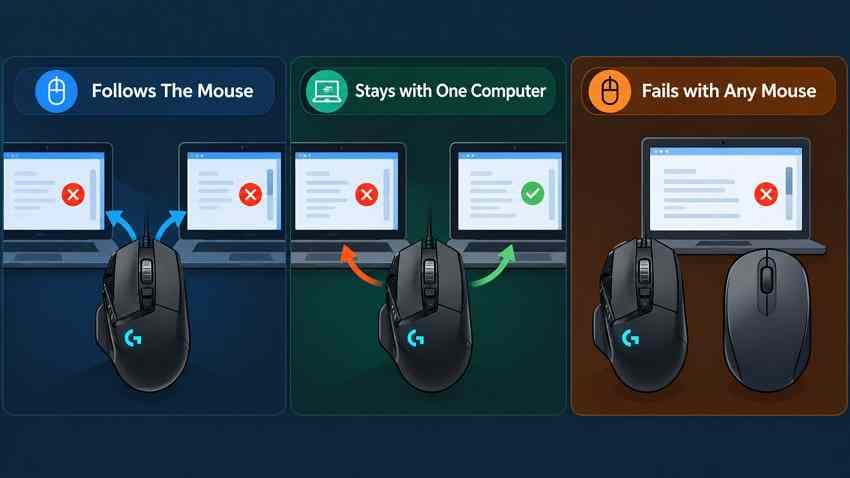
- Follows the mouse: Similar trouble on different computers points toward the mouse, its own receiver, an onboard profile, or the wheel mechanism.
- Stays on one system: Investigate that computer's scroll settings, USB/Bluetooth connection, drivers, and Logitech app settings.
- Appears with any mouse: Examine the affected application and operating-system configuration rather than replacing the Logitech mouse.
Quick answer: If the wheel fails in every app and on a second computer after safe cleaning and connection checks, a hardware fault is more likely. If it works elsewhere, start with the original computer's settings and software.
Part 2. Check the Connection and Scroll Wheel
Fix connection and power issues before resetting profiles or drivers. The exact procedure depends on whether your mouse is wired, connected through a USB receiver, or paired directly over Bluetooth.
Reconnect the Cable, Receiver, or Bluetooth Connection
Wired mouse: Unplug the cable and reconnect it directly to a known-working USB port. Avoid a dock or hub during the initial test. If another wired mouse works on that port but yours does not, inspect the cable for visible damage without bending it sharply.
Receiver-based mouse: Remove and reinsert the matching receiver. Logitech's receiver families are not interchangeable: Logi Bolt, Unifying, and Logitech G LIGHTSPEED use different pairing ecosystems. Do not try to connect a G502 LIGHTSPEED as though it were a Logi Bolt mouse.
For a supported Logi Bolt mouse whose pairing has been lost:
Step 1. Open Logi Options+, choose Add Device, and select Logi Bolt receiver. The exact button location can vary by release.
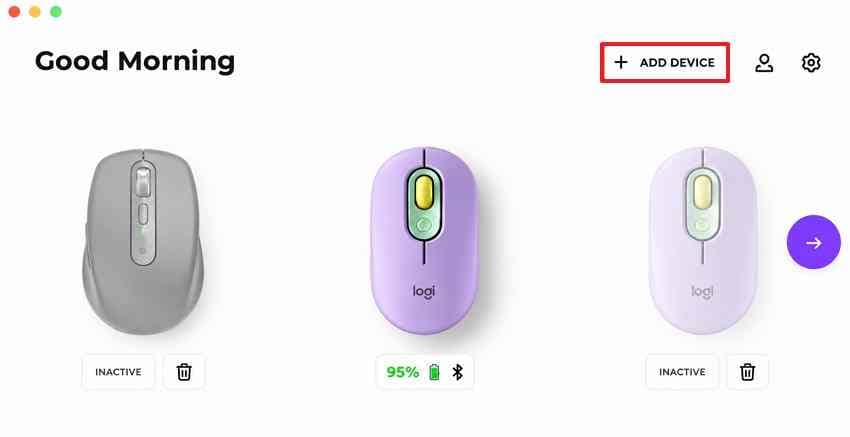
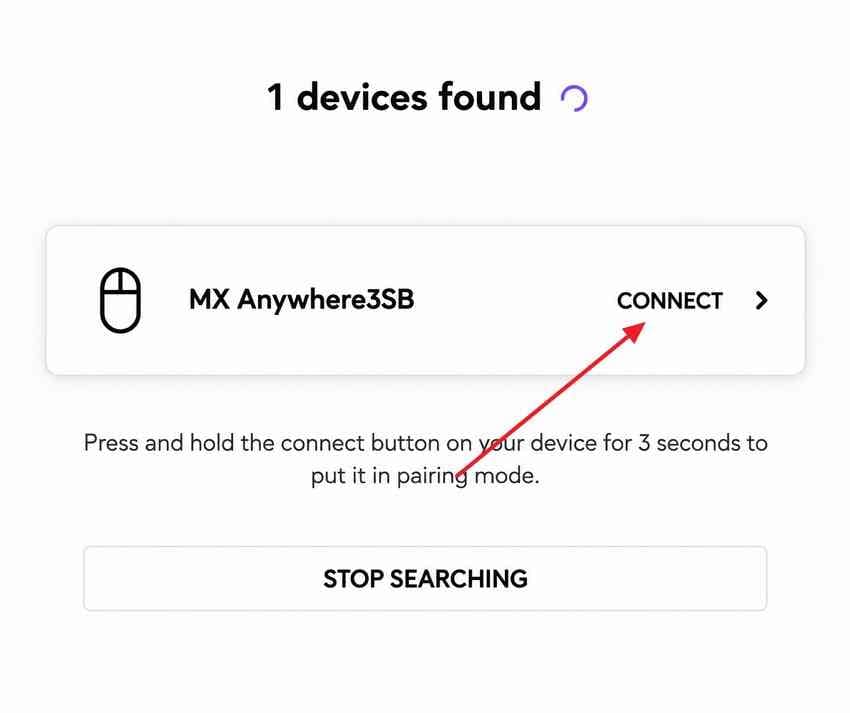
Step 2. Put the mouse in pairing mode following its model instructions, then choose Connect when it is discovered.
Bluetooth mouse: Check that the model actually supports Bluetooth. The procedure is different for Windows 11 and Windows 10, so follow Microsoft's current Bluetooth pairing instructions for your installed version.
Step 1. On Windows 11, open Settings > Bluetooth & devices > Devices. Select the existing mouse entry and remove it only if you intend to pair it again. Windows 10 uses Settings > Devices > Bluetooth & other devices.
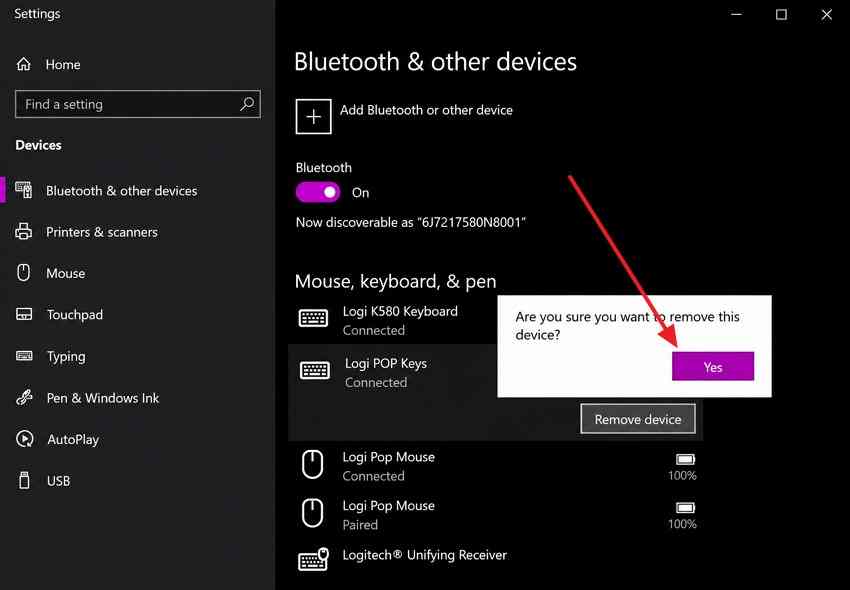
Step 2. Put the mouse in pairing mode and select Add device > Bluetooth in the Windows pairing interface. Choose the mouse from the available devices and complete pairing.
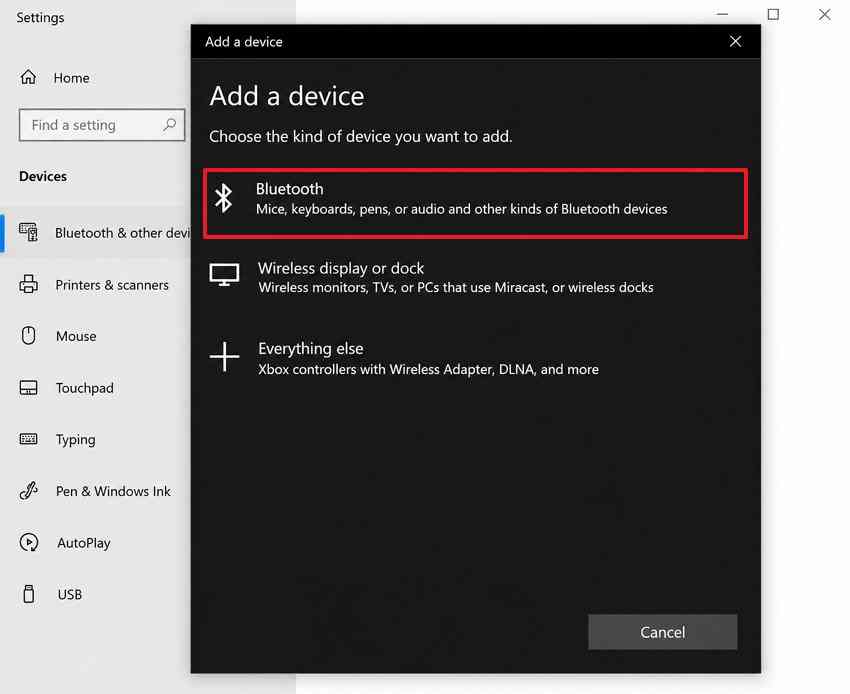
Note: The Windows screenshots above show the Windows 10 interface. On Windows 11 the current menus look different, even though the pairing process is similar.
Check Power and Use a Direct USB Connection
Low battery power, interference, or a USB hub can produce intermittent behavior. Before reinstalling any software:
- Switch the mouse off and on, and recharge or replace its battery when appropriate.
- Connect the wired cable or wireless receiver directly to a computer USB port for testing.
- For a wireless receiver, bring the mouse closer and temporarily separate it from crowded wireless devices.
- Try another known-good USB port, keeping the original receiver with its paired mouse.
If the cursor and buttons also freeze, treat the issue as a broader connection problem rather than a scroll-wheel-only failure.
Clean Around the Wheel Without Opening the Mouse
Dust and debris can interfere with wheel movement or sensing. Logitech recommends compressed-air cleaning as a first step. Avoid forcing the wheel, pouring liquid into the opening, or dismantling a mouse whose warranty you may still use.
Step 1. Switch the mouse off or disconnect the cable. Hold the mouse so loose particles can escape.
Step 2. Apply brief, controlled bursts of compressed air around both sides of the wheel. Keep the nozzle at a safe distance as indicated on the air product.
Step 3. Rotate the wheel gently several times and retest it in a browser. If the wheel catches, wobbles, or grinds, stop forcing it.
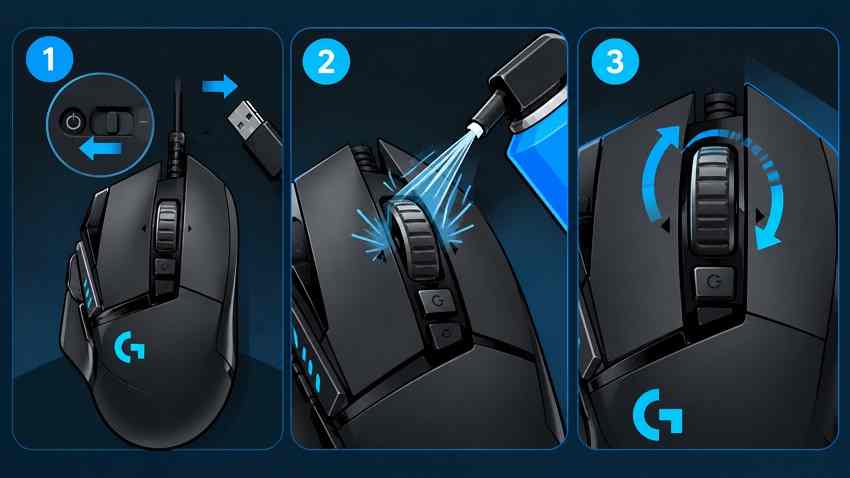
If cleaning makes no difference, move to the operating-system and Logitech settings. Do not spray lubricant into the wheel or attempt internal repair as a routine troubleshooting step.
Part 3. Check Scrolling Settings and the Correct Logitech App
Once the connection is stable, check the scrolling direction and amount. Then use the customization app intended for your exact model. Logi Options+ is not a replacement for Logitech G HUB on G502 gaming mice.
Review Scrolling Settings in Windows and macOS
Microsoft documents the relevant controls in its mouse settings guide; Apple explains mouse preferences on Mac.
| Check | Windows 11 | macOS |
| Open settings | Settings > Bluetooth & devices > Mouse | Apple menu > System Settings > Mouse |
| Direction | Use Scrolling direction if available. | Toggle Natural scrolling to match your preference. |
| Scroll speed or amount | Adjust the wheel's lines-per-scroll setting. | Check the available scrolling controls; options vary with the connected mouse and software. |
| Background window | Check Scroll inactive windows when hovering over them. | No directly equivalent built-in toggle for this Windows feature. |
On Windows 10, the main path is Settings > Devices > Mouse; the selection names differ from Windows 11. If scrolling seems reversed only on Mac, change the direction setting before suspecting a broken encoder. If it randomly flips direction despite unchanged settings, continue diagnosis.
Choose Logi Options+ or G HUB for Your Mouse
Logi Options+: For supported productivity mice such as selected MX Master, MX Anywhere, and Signature models. Confirm model compatibility and find the official download on the Logi Options+ software and supported-device page. Not every Logitech mouse has the same customizable scrolling features.
Logitech G HUB: For compatible Logitech G gaming mice, including the G502 family. Use the official Logitech G HUB software page and select the connected gaming mouse. It provides supported button assignments and profiles, but the available wheel controls differ by model.
No supported customization app: Many basic or older Logitech mice rely on operating-system controls. Do not install unrelated or unofficial driver utilities to gain features that the model does not support.
Check App Profiles and Wheel-Click Assignments
When scrolling fails only in a particular game, web browser, or application, check whether a device profile changes its behavior.
- In a supported Logitech app, select the correct mouse and review its active application or desktop profile.
- Compare its scrolling-related settings with the default profile where the app offers them. Check Middle Click and horizontal tilt separately from scrolling up and down.
- Temporarily select a known-good/default profile and retest. If it works, change only the incorrect assignment rather than resetting every profile.
Middle-click actions can be assigned differently from vertical scrolling. A functioning click does not prove the wheel encoder works, and a working vertical wheel does not prove the middle-click switch is healthy.
Review Logi Options+ Permissions on macOS
When a supported productivity mouse works at a basic level but Options+ scrolling customizations do not, review macOS permissions. Logitech's macOS permissions guide identifies Accessibility and Input Monitoring as relevant to scrolling features.
Step 1. Open System Settings > Privacy & Security > Accessibility and enable Logi Options+ if it is listed and you intend to use its features.
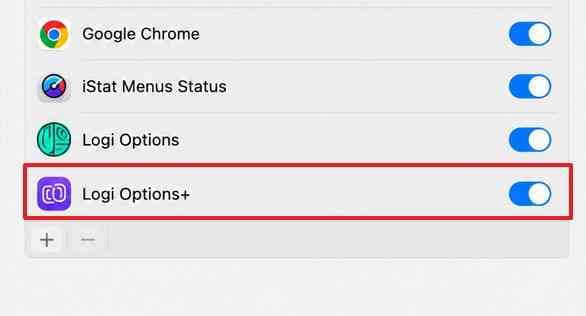
Step 2. Open Privacy & Security > Input Monitoring, enable Logi Options+, and use Quit & Reopen if macOS requests it. Then retest the affected app.
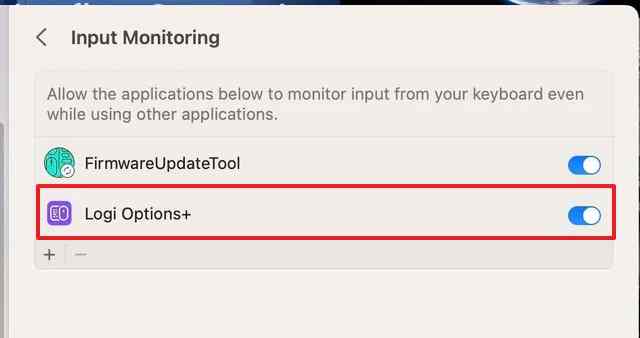
Note: Give permissions only to an app installed from Logitech. Do not grant broad system access to unknown software merely to restore scrolling.
Part 4. Troubleshoot a G502 Scroll Wheel
If your Logitech G502 scroll wheel is not working, start with its physical scroll mode, then check G HUB. Many G502 models can switch between freely spinning and notched wheel behavior. The mode changes the feel of scrolling, but it should not prevent a working wheel from sending input.
Identify the G502 Model and Test the Wheel-Mode Button
The G502 HERO and G502 X both advertise dual-mode scrolling, while their hardware, profiles, and connectivity options differ.
| Model family | Wheel behavior to check | Software/connection distinction |
| G502 HERO | Toggle between hyper-fast free scrolling and click-to-click wheel movement. | Wired USB; supported by G HUB. |
| G502 LIGHTSPEED | Check the freely spinning versus notched mode. | Wireless LIGHTSPEED receiver, not a Logi Bolt receiver. |
| G502 X / X LIGHTSPEED / X PLUS | Switch between Free Spin and Ratchet using the physical wheel-mode control. | Check the specific X variant and its G HUB support. |
Step 1. Read the model name on the bottom label or packaging. Check the button behind the wheel or the model's user guide for the wheel-mode control.
Step 2. Toggle between the notched and free-spin modes and test slow wheel movement on a long webpage. A wheel spinning freely in Free Spin mode is normal; a page failing to move in both modes is not.
Step 3. If the wheel is physically blocked or catches regardless of mode, stop forcing it and move to the hardware-service checks.
Review G HUB Profiles and Wheel Assignments
G HUB can apply different assignments for games and desktop applications. Settings saved in onboard memory may also follow the device to another PC.
Step 1. Launch G HUB and select the G502. Open the device settings and check whether On-Board Memory Mode is enabled on your model. Compare the intended profile with the current one.
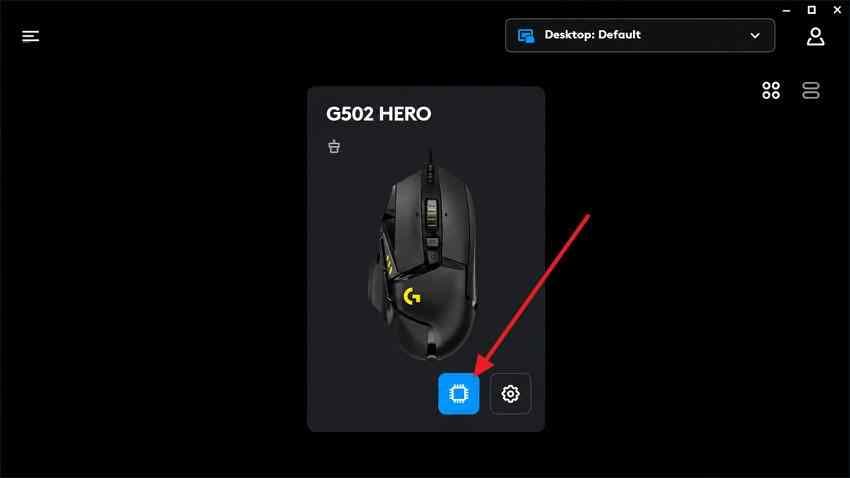
Step 2. Under Assignments, inspect any available middle-click, wheel tilt, and G-Shift assignments. Do not assume that the physical up/down scroll can be remapped in the same way on every G502 variant.
Step 3. Temporarily use a basic desktop profile, exit the affected game, and retest scrolling in a browser. If the browser works while one game does not, focus on the game's input settings or the specific G HUB profile.
Distinguish a Profile Problem From Wheel Hardware Wear
Try the G502 on another computer with a direct supported connection. Test both wheel modes with ordinary scrolling, then test the middle click separately.
- Only one profile fails: Correct the profile instead of replacing the mouse.
- Only one computer fails: Check its USB port, Windows settings, G HUB installation, and input drivers.
- Both modes fail across computers: Wheel encoder wear, switch faults, or another mouse-side hardware issue becomes more plausible.
- Wheel skips or grinds physically: Do not force repeated turns or open the mouse before checking support options.
A mode button that changes wheel resistance but never changes on-screen scrolling is not proof of a firmware problem. Test the connection, software, and physical encoder as separate possibilities.
Part 5. Decide Whether Software Repair or Hardware Service Is Needed
After the safe checks, use the cross-computer results to decide whether updates, a controlled driver check, or hardware service is appropriate. Avoid unnecessary system resets: reinstalling Windows is not a first-line fix for a Logitech scroll wheel.
Check Supported Logitech Software and Firmware Updates
Update only the application compatible with your device. G HUB provides its own update mechanism, and the publisher's current G HUB release notes document recent bug fixes. Options+ has separate updates and device support.
- Confirm basic scrolling and the physical wheel-mode setting before installing anything.
- Open the appropriate official Logitech app and review its available update controls. Apply a device firmware update only when one is offered for that exact model.
- Restart the app or computer if the update requires it, reconnect the mouse, and retest in multiple applications.
Do not obtain a firmware updater or G HUB installer from an unrelated download mirror.
Use a Controlled Windows Driver Check if Only One PC Fails
When the same mouse scrolls correctly on another computer, Windows USB or mouse drivers may be contributing. First try another port and Windows Update. If the device entry is clearly identifiable, an administrator can then consider reinstalling that specific mouse driver.
Step 1. Open Device Manager > Mice and other pointing devices. Identify the correct device cautiously; several generic HID-compliant entries may appear, and not every one represents the G502.
Step 2. If the correct entry is confirmed and the issue is isolated to this PC, choose Uninstall device, then reconnect the mouse or restart to let Windows redetect it. Keep a keyboard available in case mouse control is interrupted.
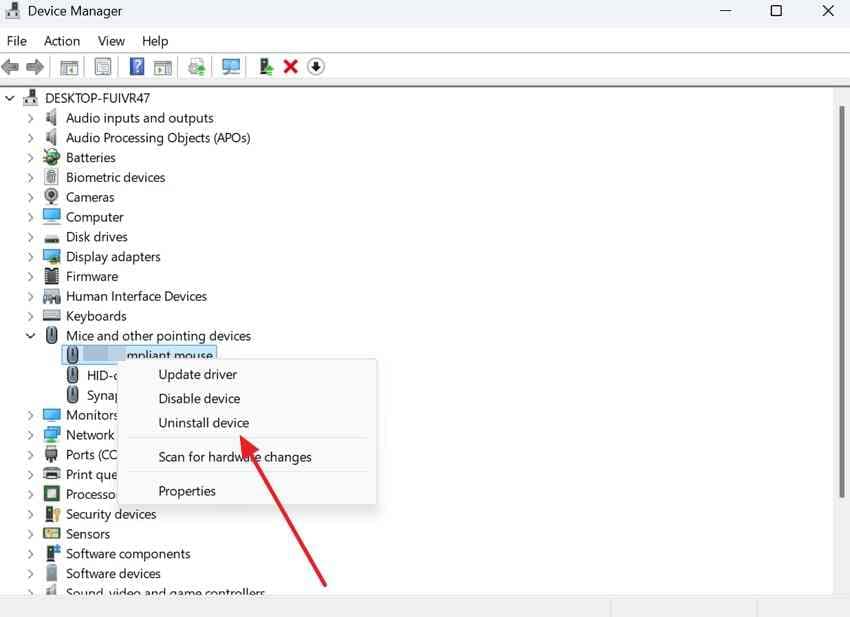
Step 3. Retest scrolling before changing further settings. If the mouse still fails on multiple computers, repeated driver reinstalls on the original PC are unlikely to help.
Contact Logitech Support for Persistent Hardware Symptoms
If scrolling still fails on different computers after connection checks, safe cleaning, and correct profiles, gather the product model, serial number, proof of purchase, and a short description of the fault. Logitech's limited hardware warranty varies by model and region and excludes specified categories such as normal wear and unauthorized disassembly damage.
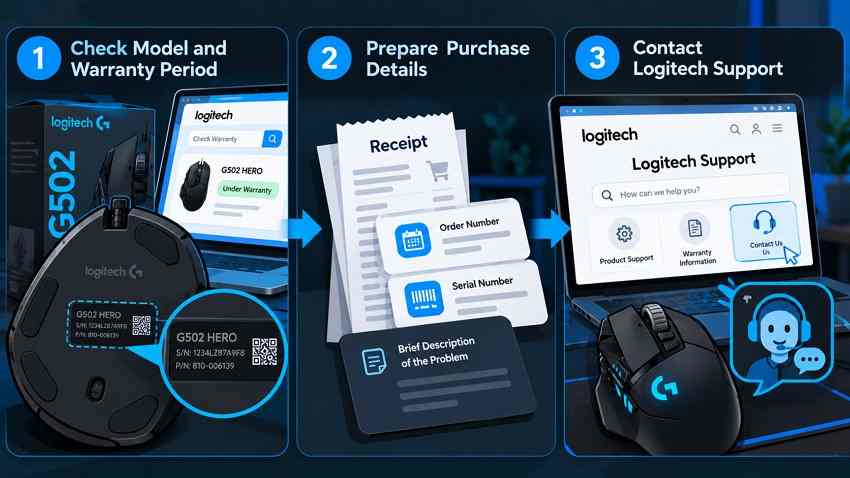
Use the official Logitech Support center to confirm model-specific instructions, warranty eligibility, and service or replacement options. A persistent wheel failure is not something a disk recovery utility can repair.
About Recoverit: A Logitech scrolling issue does not require file-recovery software. If a separate computer repair later involves disk replacement or a reset and important local files are already missing, Wondershare Recoverit may help recover files from readable storage. It cannot restore scrolling, fix drivers, or repair the mouse.

Conclusion
If your Logitech mouse wheel stops working, identify the symptom and test scrolling in more than one application before changing settings. Reconnect the mouse, check its battery or receiver, and clean the wheel gently. On Windows or macOS, review the scrolling direction and use Logi Options+ or G HUB only for supported models. G502 owners should test the physical wheel-mode control and active profile. If the fault persists across computers, contact Logitech about hardware service or replacement.
FAQ
-
Why does my Logitech mouse scroll up when I scroll down?
First check Windows scrolling direction or macOS Natural scrolling. If direction reverses unpredictably in the middle of an otherwise normal scroll, test another application and computer. Dust or wear in the wheel encoder may be involved when settings are unchanged. -
How do I fix a Logitech G502 scroll wheel that is not working?
Switch between Ratchet and Free Spin modes using the wheel-mode button, then check G HUB's active profile and wheel-related assignments. Test the correct USB or LIGHTSPEED connection and try the mouse on another computer. Persistent failure in both modes may indicate hardware trouble. -
Why is my Logitech mouse scroll wheel clicking but not scrolling?
The middle-click switch and wheel's scrolling sensor perform different functions. A working middle click does not prove the scrolling encoder is healthy. Test a second app, review the connection and scrolling settings, and clean around the wheel. Test another computer before assuming hardware failure. -
Can I fix a Logitech mouse scroll wheel without taking it apart?
Often, yes. Reconnect or pair the mouse, check its battery and settings, choose the correct Logitech software, switch wheel modes if supported, and clean externally with compressed air. If those checks fail on more than one computer, contact Logitech Support before opening the housing.


