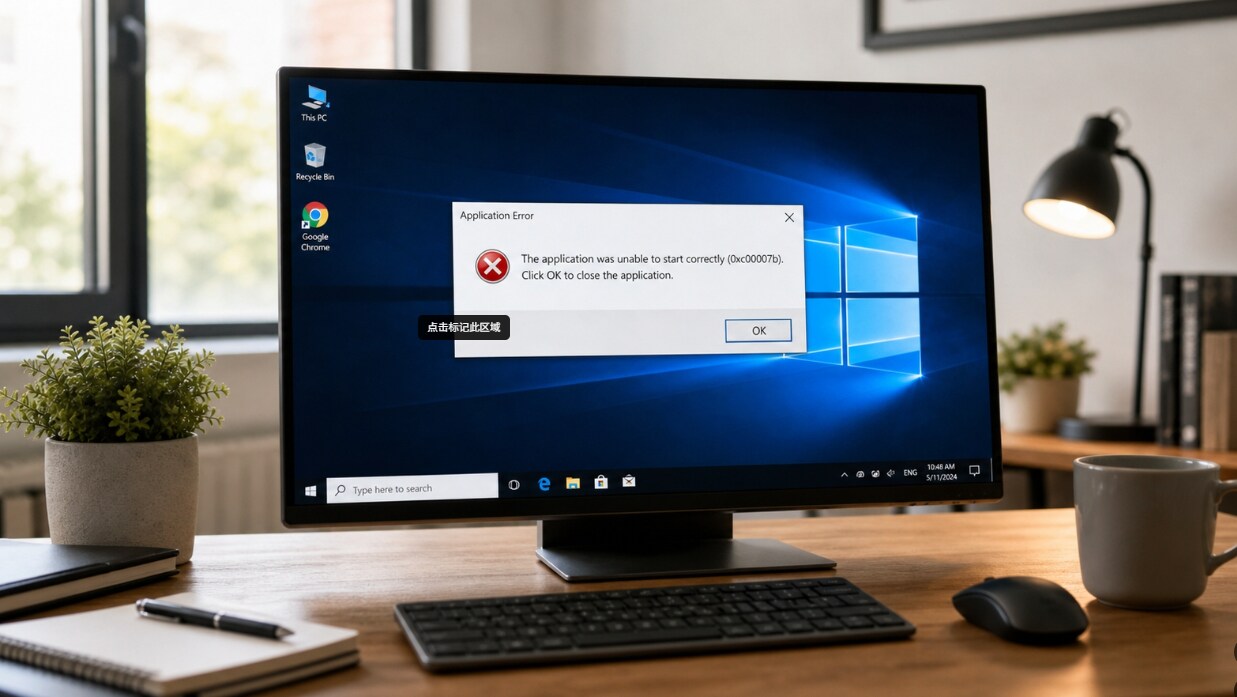
Seeing the application was unable to start correctly 0xc00007b when opening a game, Office app, design software, or another Windows program? This error usually appears when Windows cannot load the required runtime files, DLLs, system components, or the correct 32-bit/64-bit dependencies for the application.
You may also see the code written as 0xc000007b, which is the common Windows error format. Whether your screen shows 0xc00007b or 0xc000007b, the troubleshooting steps are similar. This guide explains why the error happens, how to fix it safely, and what to do if important files are lost after reinstalling apps, repairing Windows, or resetting your PC.
Try Recoverit to Recover Lost Files After 0xc00007b Fixes
 Security Verified. 3,591,664 people have downloaded it.
In this article
Part 1. What Does 0xc00007b Mean?
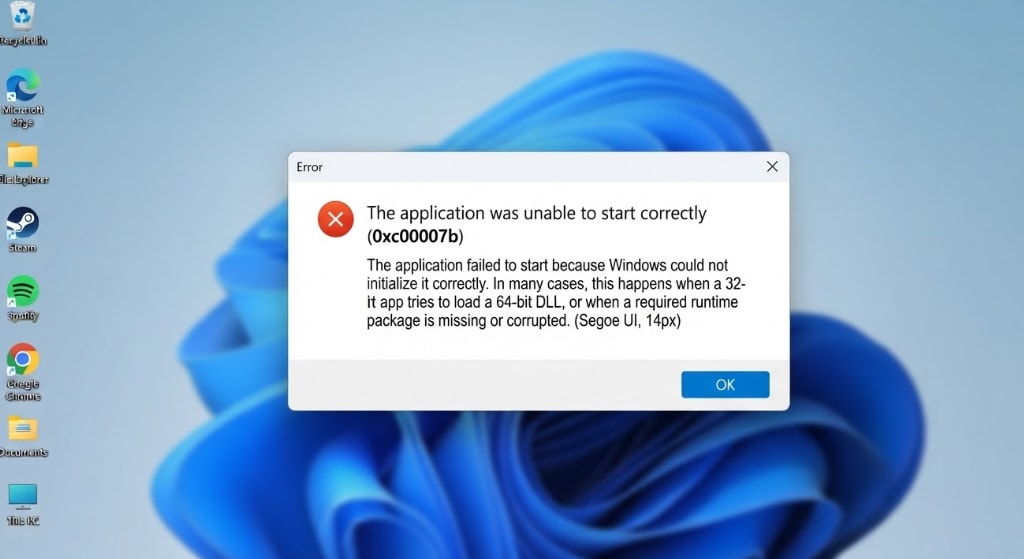
The 0xc00007b error means the application failed to start because Windows could not initialize it correctly. In many cases, this happens when a 32-bit app tries to load a 64-bit DLL, or when a required runtime package is missing or corrupted.
Common affected programs include PC games, Microsoft Office apps, Adobe apps, Steam or Epic games, launchers, engineering software, design tools, and older Windows applications.
Part 2. Why Was the Application Unable to Start Correctly 0xc00007b Happen?
Several system and application-level issues can trigger the application was unable to start correctly 0xc00007b. The table below explains the common causes:
| Reason | What It Means |
| Missing Visual C++ Redistributable | Many apps need Microsoft Visual C++ runtime files to launch correctly. |
| DirectX Component Issue | Games often fail if required DirectX files are missing or damaged. |
| 32-bit/64-bit Mismatch | The application may load DLL files with the wrong architecture. |
| Corrupted App Files | Incomplete installation or damaged program files can stop the app from starting. |
| Damaged Windows System Files | System file corruption may cause startup errors across multiple apps. |
| Outdated GPU Driver | Games and graphics-heavy software may fail with old or corrupted display drivers. |
| Disk Error | Bad sectors or file system errors can damage app files, DLLs, or personal data. |
Part 3. How to Fix 0xc00007b on Windows
Try the following methods one by one to fix 0xc00007b. Start with simple checks, then move to system repair methods if the error appears in multiple apps.
Fix 1. Restart Your PC and Relaunch the App
A temporary Windows process, locked DLL, or pending update can stop an application from launching. Close the app, restart your PC, and open the program again.
Fix 2. Run the App as Administrator
Some programs need permission to access protected folders or runtime files. Right-click the app shortcut and select Run as administrator. If it works, go to Properties > Compatibility, check Run this program as an administrator, and click Apply.
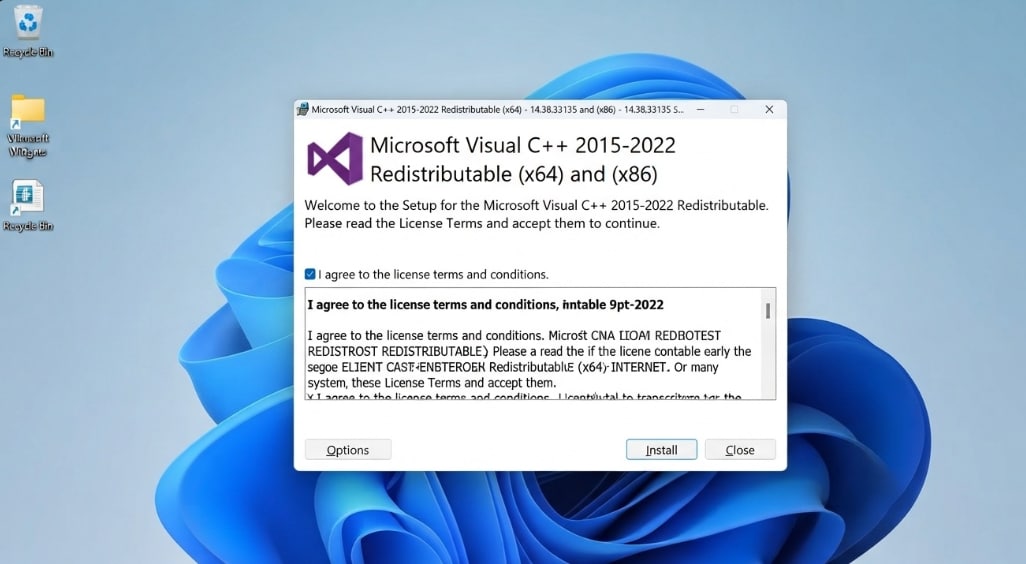
Fix 3. Reinstall Microsoft Visual C++ Redistributables
A missing or corrupted Visual C++ package is one of the most common causes of the application was unable to start correctly 0xc00007b. Download the latest supported Visual C++ Redistributable packages from Microsoft and install both x64 and x86 versions. Restart your PC afterward.
Fix 4. Install or Repair DirectX
If the error appears when launching games, DirectX may be missing or damaged. Download DirectX End-User Runtime from Microsoft, run the installer, follow the on-screen instructions, and restart your PC.
Fix 5. Enable or Repair .NET Framework
Some applications require .NET Framework to run correctly. Press Windows + R, type optionalfeatures, and press Enter. Enable .NET Framework 3.5 and .NET Framework 4.x Advanced Services if needed, then restart your PC.
Fix 6. Update Graphics Drivers
For games and GPU-heavy apps, outdated graphics drivers can trigger launch failures. Update drivers from the official NVIDIA, AMD, or Intel website and restart the PC after installation.
Fix 7. Verify or Reinstall the Problem App
If only one program shows 0xc00007b, the app installation may be corrupted. For Steam games, open Steam Library, right-click the game, select Properties > Installed Files, and click Verify integrity of game files. For other apps, use the official repair option or reinstall from the official source.

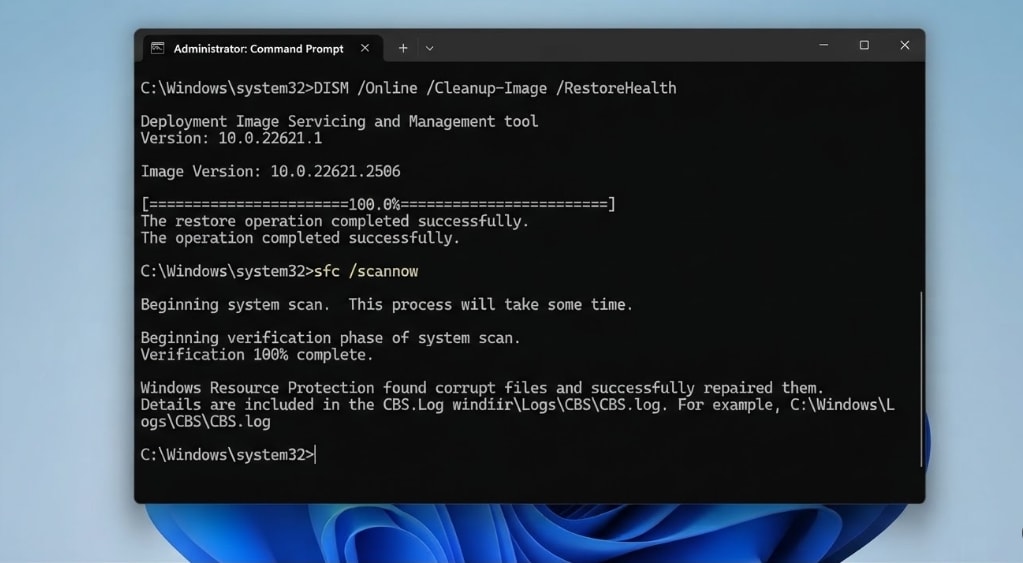
Fix 8. Run SFC to Repair Windows System Files
If multiple apps fail with the same error, Windows system files may be damaged. Open Command Prompt as administrator and run:
sfc /scannow
Wait for the scan to finish, then restart your PC.
Fix 9. Run DISM to Repair the Windows Image
If SFC cannot fix everything, use DISM to repair Windows image corruption. Open Command Prompt as administrator and run:
DISM /Online /Cleanup-Image /RestoreHealth
After it finishes, run sfc /scannow again, restart your PC, and test the app.
Fix 10. Check Disk Errors
Disk errors can damage program files and DLLs. Open Command Prompt as administrator and run:
chkdsk C: /f /r
If Windows asks to schedule the scan on restart, type Y, press Enter, and restart your PC.
Fix 11. Perform a Clean Boot
A clean boot starts Windows with minimal startup programs and services. Press Windows + R, type msconfig, go to Services, check Hide all Microsoft services, and click Disable all. Then open Task Manager > Startup apps, disable unnecessary startup items, and restart your PC.
Fix 12. Use System Restore or In-Place Repair Upgrade
If the error started after installing a driver, game, patch, or system tool, System Restore may help. Go to Control Panel > Recovery > Open System Restore and choose a restore point created before the error appeared. If the issue affects many apps, consider an in-place repair upgrade using official Windows installation media after backing up important data.
Part 4. What If Files Are Missing After Fixing 0xc00007b?
Most fixes do not delete personal files. However, data loss can happen if you uninstall apps, delete folders manually, reset Windows, reinstall the system, or run disk repairs after the 0xc00007b error.
Check these locations first:
- Desktop
- Documents
- Downloads
- Recycle Bin
- App data folders
- Game save folders
- C:\Windows.old
- External drives used during backup or reinstall
If files are missing, stop using the affected drive. New data may overwrite deleted files.
Pro Tip. Recover Lost Files After 0xc00007b Fixes or Reinstallation Using Recoverit
In many cases, learning how to fix the application was unable to start correctly 0xc00007b may require reinstalling apps, repairing runtime packages, deleting suspicious DLL files, running disk checks, or even resetting Windows. Although these methods can help resolve the startup error, they may also cause important files to disappear if handled incorrectly.
Here are a few common reasons behind data loss during 0xc00007b troubleshooting:
- Mistaken Delete: Users may delete app folders, DLL files, game folders, or project files while trying to remove corrupted components.
- Incomplete Reinstallation: Uninstalling and reinstalling games or software may remove local saves, settings, templates, or working files.
- Failed Windows Repair: System repair, rollback, or reset operations may move or delete files unexpectedly.
- Disk Errors: If the 0xc00007b error is related to drive problems, bad sectors or file system errors may also damage stored data.
- Missing Game or App Data: Some games and professional apps store saves, cache, or project files locally, which may be lost after reinstalling.
Reliable recovery becomes necessary if troubleshooting causes missing files. In this case, tools such as Recoverit can help restore valuable local data before it is permanently overwritten. Recoverit scans your storage device deeply to locate deleted, hidden, or lost files from different data loss scenarios.
Key Features
- Preview Ability: Allows you to preview recoverable documents, photos, videos, game saves, and project files before final recovery.
- Wide File Support: Supports recovery of 1000+ file formats, including documents, images, videos, archives, emails, and app-related files.
- Filter Search: Lets you filter scan results by file name, file type, size, or path to quickly find files lost during 0xc00007b troubleshooting.
Guide to Recover Lost Files After 0xc00007b Error Fixes Using Recoverit
You can follow the steps below to recover files lost after app reinstallation, Windows repair, disk errors, or accidental deletion:
Step 1. Locate the Lost Files for Recovery
Open Recoverit and go to Hard Drives and Locations. Select the drive or folder where the lost files were originally stored, such as the app folder, game save location, Desktop, Documents, or Downloads.

Step 2. Scan for Missing 0xc00007b-Related Data
After choosing the target location, Recoverit will start scanning automatically. It searches the selected drive for deleted, lost, or hidden files and displays all recoverable results.

Step 3. Save the Retrieved Files
Preview the files when available, select the data you need, and click Recover. Save the recovered files to a secure location instead of the original drive to avoid overwriting recoverable data.

Conclusion
To fix 0xc00007b or the application was unable to start correctly 0xc00007b, start by restarting your PC, running the app as administrator, reinstalling Visual C++ Redistributables, repairing DirectX, enabling .NET Framework, and updating drivers. If the issue affects multiple apps, run SFC and DISM to repair Windows system files.
If troubleshooting causes file loss, Wondershare Recoverit can help recover missing local files before they are overwritten.
FAQ
-
What does 0xc00007b mean?
0xc00007b means Windows cannot start the application correctly, often because of missing runtime files, corrupted DLLs, damaged system files, or 32-bit/64-bit dependency conflicts. -
How do I fix the application was unable to start correctly 0xc00007b?
You can reinstall Visual C++ Redistributables, repair DirectX, enable .NET Framework, update drivers, verify app files, and run SFC or DISM to repair Windows system files. -
Should I download DLL files manually to fix 0xc00007b?
No. Downloading DLL files from unknown websites can create security and stability risks. Use official runtime installers, app repair tools, or Windows system repair commands instead. -
Can Recoverit fix the 0xc00007b application error?
No. Recoverit does not repair the application startup error itself. It helps recover local files that may be lost after app reinstallation, Windows repair, reset, disk errors, or accidental deletion.
```



