PNP_DETECTED_FATAL_ERROR (0xCA) is a Windows stop error raised when the Plug and Play manager encounters a severe device-management failure, often involving a faulty or incompatible driver. Before reinstalling Windows or updating every driver, disconnect any recently added nonessential device, record recent driver or software changes, and check whether Safe Mode starts.
If the computer still boots, protect important files and roll back the driver most closely linked to the first crash. If it keeps restarting, enter Windows Recovery Environment (WinRE) to reach Safe Mode. Use crash dumps and device IDs for persistent errors, and reserve BIOS or firmware changes for situations supported by the device maker. Windows 10 and Windows 11 follow the same broad diagnosis, though some recovery features differ.
In This Article
-
- Use Safe Mode or WinRE When Windows Crashes Before Sign-in
- Fix 1. Disconnect Recently Connected Hardware and USB Devices
- Fix 2. Roll Back Recently Updated Device Drivers
- Fix 3. Uninstall and Reinstall the Problematic Device Driver
- Fix 4. Update Chipset, USB, and Other Device Controller Drivers
- Fix 5. Remove Conflicting Virtual Device and Hardware Management Software
- When a Driver Rollback Is Safer than Reinstallation
- Use Device IDs and Minidump Evidence to Narrow the Problem Driver
Part 1. What Does PNP_DETECTED_FATAL_ERROR (Stop Code 0xCA) Mean?
PNP_DETECTED_FATAL_ERROR is bug check 0xCA: the Windows Plug and Play (PnP) manager encountered a severe error, often while a driver was enumerating or managing a device. The stop code identifies a failure class, not the guilty device. Begin with the latest hardware or driver change and whether you can reach Windows or Safe Mode. For the documented violation subtypes, see Microsoft: Bug Check 0xCA PNP_DETECTED_FATAL_ERROR.
Check Stop Code 0xCA and Recent Driver Changes
Record the exact stop code and time of the first crash. Note whether a new dock, USB device, internal component, virtual device driver, or system update preceded it. The restart screen may be blue or black depending on the Windows release; the color is not diagnostic. Use the evidence below to decide what to check next.
| Evidence | Where to look | What it tells you |
| Crash screen | Stop code near bottom | Confirms 0xCA; a displayed module is only a clue |
| Event 41 / 1001 | Event Viewer > Windows Logs > System | BugcheckCode 202 in Event 41 is 0xCA; Event 1001 may include parameters |
| Recent change | Update history or installation date | Identifies the driver, device, or app worth reversing first |
| Safe Mode | WinRE > Startup Settings > 4 | Stability in Safe Mode increases suspicion of a nonessential driver; not proof |
Note: If the restart is too quick, Startup Settings includes an option to disable automatic restart after failure. If your PC boots normally, use Startup and Recovery settings instead of forcing another crash. Event ID 41 alone only confirms an unexpected shutdown; if its BugcheckCode is 202 (decimal), that corresponds to 0xCA, but a zero or missing value does not exclude a crash.
Back Up Files and Crash Logs Before Fixing Stop Code 0xCA
Before a restore, driver removal, firmware change, or reset, preserve accessible documents and crash evidence. Copy files to a different, healthy destination. If the system drive makes unusual noises, repeatedly disconnects, or is not detected, stop repeated boot attempts and seek professional help. Do not format, reinstall, or write recovered files back to the affected drive.
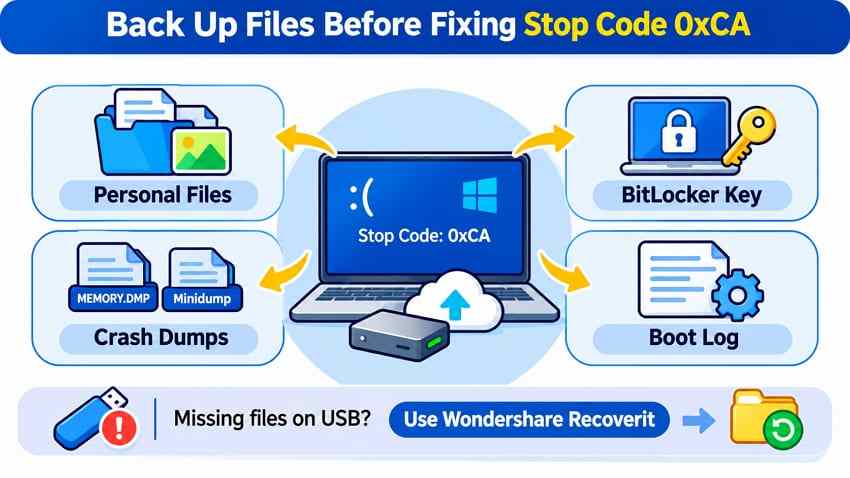
- Personal Files: Copy Desktop, Documents, and other important folders to external storage or OneDrive.
- BitLocker Key: Save your BitLocker recovery key somewhere accessible outside the affected PC.
- Crash Dumps: If available, copy C:\Windows\MEMORY.DMP and C:\Windows\Minidump for later analysis using Microsoft's debugging guidance.
- Boot Log: Enable boot logging through Startup Settings > 2 to record driver-loading information in C:\Windows\ntbtlog.txt.
If Windows cannot boot and you have important files on a still-detectable, sufficiently healthy drive, consider Recoverit Windows System Recovery to recover eligible local files before disruptive repairs. Its official Recoverit official Windows guide describes creating recovery media on another working PC. Recoverit does not correct PnP drivers, blue-screen errors, firmware, or physical drive faults. Encryption still requires legitimate access and the appropriate recovery key.
Part 2. Fix PNP_DETECTED_FATAL_ERROR Caused by Devices and Drivers
Start with the least invasive check: disconnect a recently added nonessential device or roll back an implicated driver. Use Safe Mode if normal Windows cannot start. Only reinstall drivers or change firmware when evidence points to the particular component. After each change, test the same ordinary workflow before trying the next fix.
Use Safe Mode or WinRE When Windows Crashes Before Sign-in
If normal Windows crashes before sign-in, use Windows Recovery Environment (WinRE) to enter Safe Mode. Try Shift + Restart from the sign-in screen, automatic WinRE after failed starts, or a manufacturer recovery option first. Use controlled startup interruption only if no safer route works. WinRE may request a BitLocker recovery key. The supported paths are documented in Microsoft: Windows recovery environment.
Step 1. If you can reach the sign-in screen, hold Shift while choosing Power > Restart. If startup repeatedly fails, let Windows enter Automatic Repair. As a last resort, Microsoft documents interrupting the Windows startup process twice so WinRE appears on the next boot; do not keep cycling power, especially with signs of failing storage.
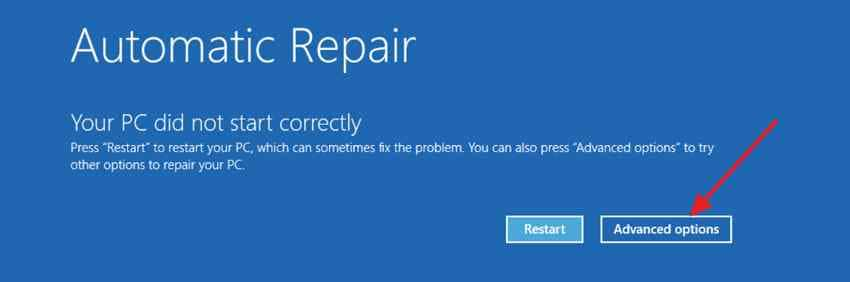
Step 2. Select Troubleshoot > Advanced options > Startup Settings > Restart. If prompted, enter the BitLocker recovery key.
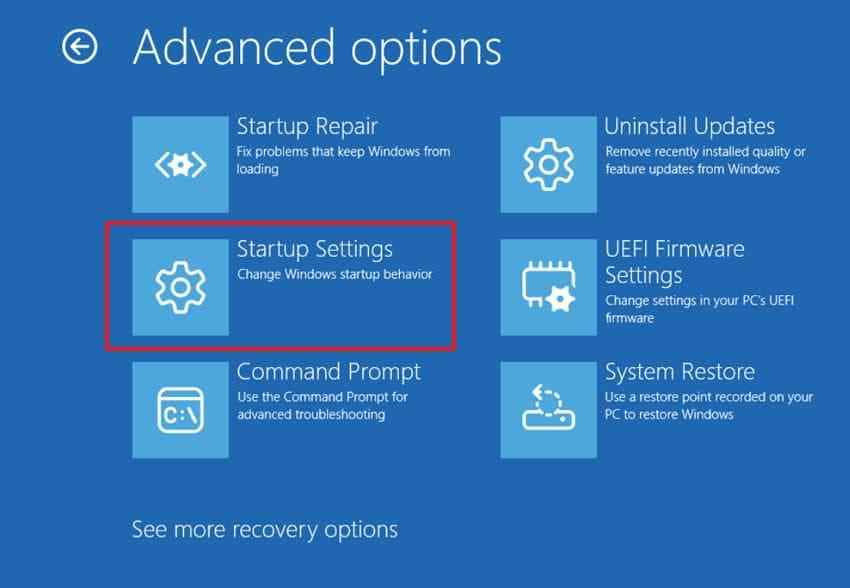
Step 3. Press 4 (or F4) for Safe Mode. Choose 5 (or F5) for Safe Mode with Networking only when network access is necessary.
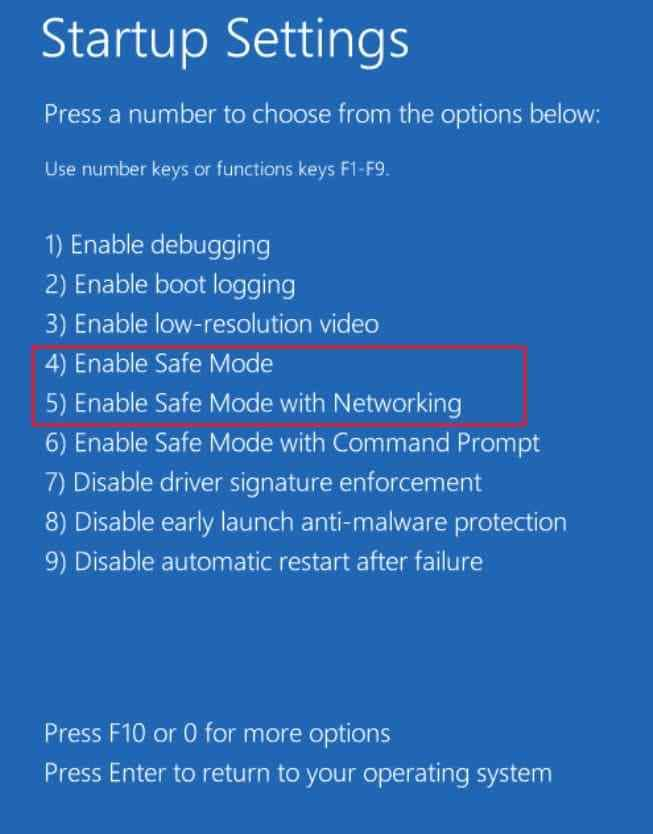
Once Safe Mode starts, apply the following fixes to identify the problematic device or driver:
Fix 1. Disconnect Recently Connected Hardware and USB Devices
If the stop code appeared just after connecting a device, first isolate it rather than changing every driver. Docks, webcams, capture cards, hubs, and virtual USB redirection devices can each involve PnP drivers, but a timing correlation alone does not prove which one failed.
Step 1. Save work and shut down the PC. Disconnect recently added, nonessential USB devices, docks, cameras, and external accessories. Never unplug storage while a file transfer is in progress; keep an essential keyboard and display connected.
Step 2. Restart normally and use the PC long enough to check whether the same crash recurs. If stable, reconnect one accessory at a time, observing the exact device that precedes a new crash. Stop and investigate that device rather than repeatedly reproducing the crash.
Fix 2. Roll Back Recently Updated Device Drivers
When the crash began after an identifiable driver update, rollback is usually less disruptive than uninstalling the device. Windows can restore the previous driver only if that version is still available. Follow the Microsoft driver rollback instructions for the supported steps.
For a confirmed model-specific example, Dell documented PNP_DETECTED_FATAL_ERROR on certain XPS 13 9350 systems following a specific Intel Innovation Platform Framework and Realtek Audio driver combination. This does not mean those drivers caused crashes on other models. See Dell's XPS support notice.
Step 1. Press "Win + R," type "devmgmt.msc," and press "Enter" to open Device Manager. Right-click the recently updated device and select "Properties."
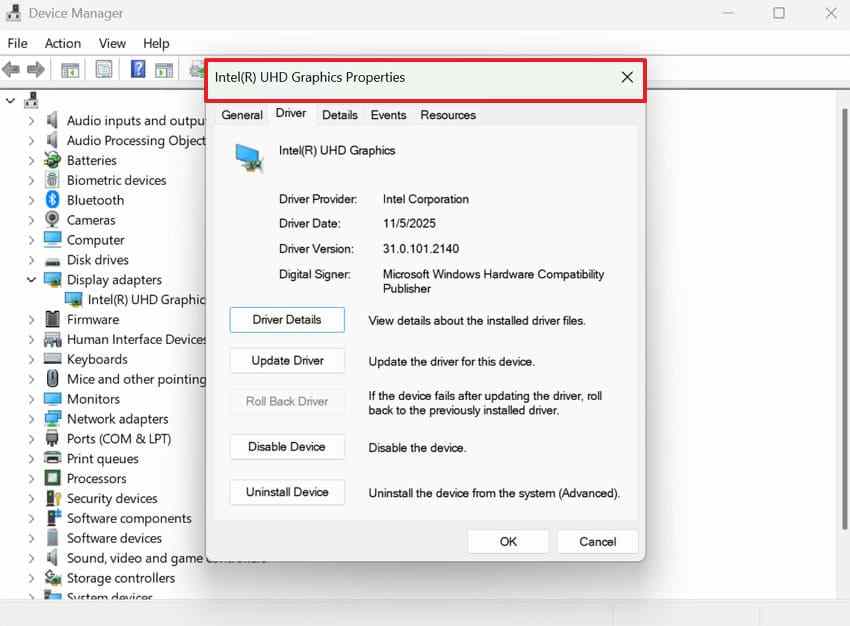
Step 2. Open the "Driver" tab and select "Roll Back Driver." Follow the on-screen instructions and restart Windows.
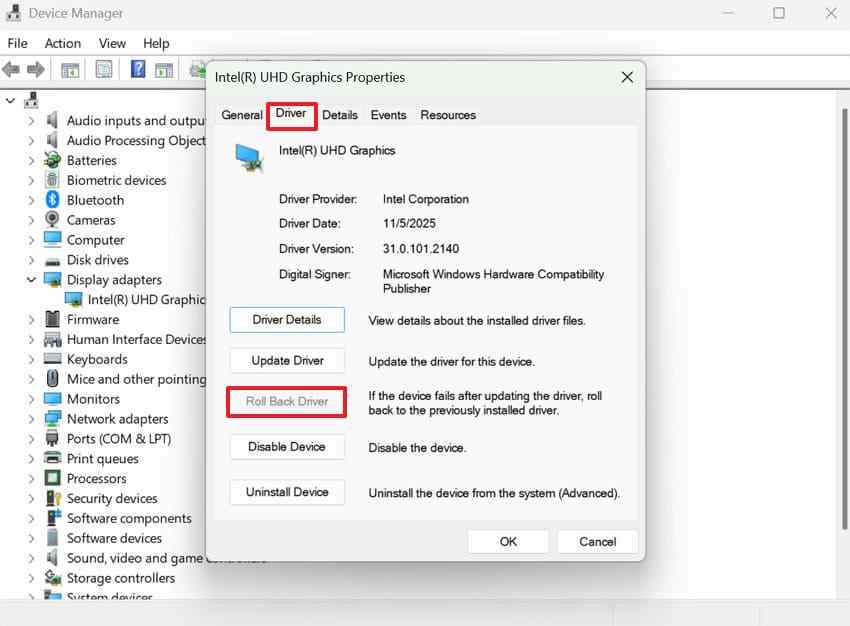
Note: If Roll Back Driver is unavailable, do not automatically remove the driver. Confirm the device and download a matching OEM replacement first. For boot-critical storage, chipset, and security drivers, prefer manufacturer support or an existing System Restore point.
Fix 3. Uninstall and Reinstall the Problematic Device Driver
Reinstall only a device driver connected to the crash evidence. Record its Device Instance Path or Hardware Ids, the current driver version, and the computer model. Download a known compatible OEM package before removing anything. Do not uninstall unrelated or boot-critical storage controllers while troubleshooting an unconfirmed 0xCA.
Keep the new driver installer available locally before you proceed, especially when the suspected device is the network adapter. On managed PCs, ask your IT administrator before removing endpoint, storage, VPN, or security device drivers.
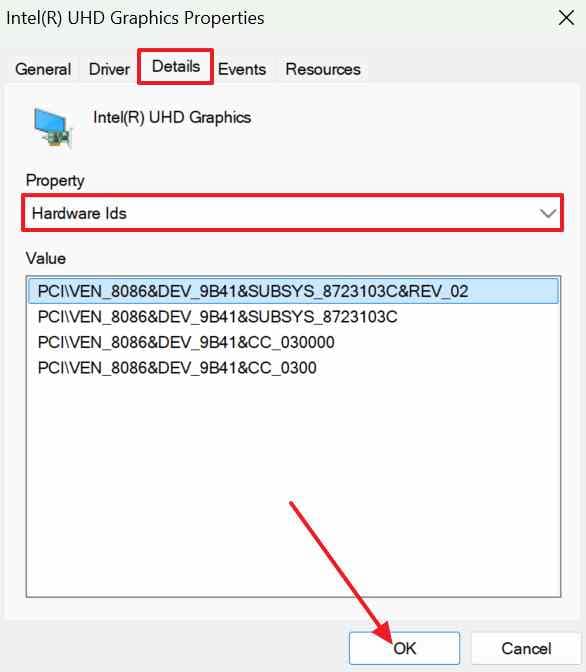
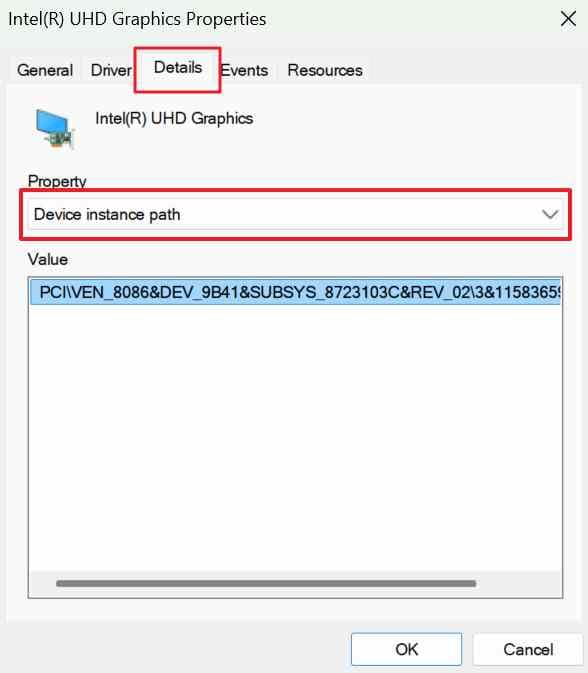
Step 1. Press "Win + X" and select "Device Manager." Right-click the suspected device and open "Properties > Details." Select "Hardware Ids" from the drop-down, record the first value, and click "OK."
Step 2. Right-click the confirmed device and select Uninstall device. Do not select any option to delete its driver package unless the OEM instructions specifically require this and a compatible replacement is ready. Restart to allow Windows to reinstall the device, if available.
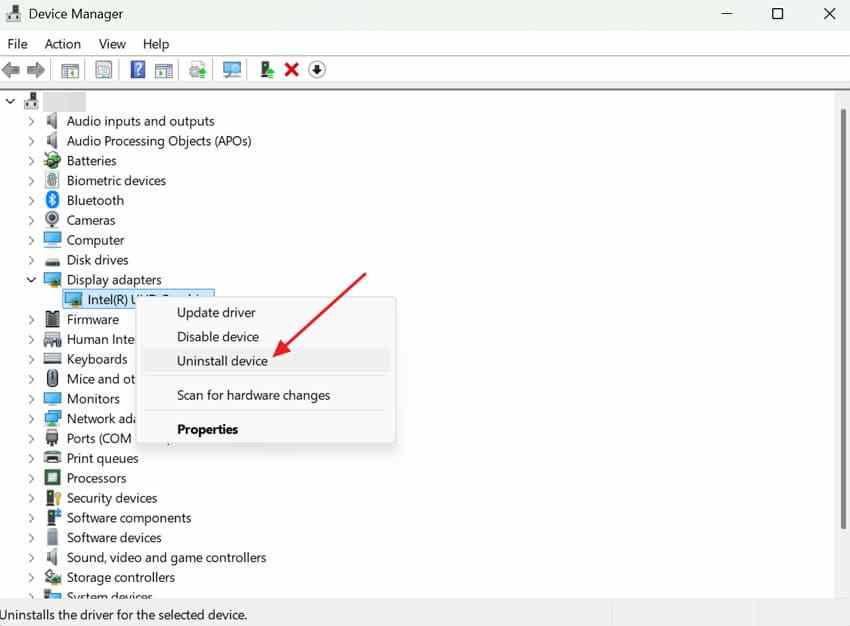
Step 3. If the device remains missing or reports an error, install the downloaded OEM driver and restart if prompted. Confirm that Device Manager recognizes the device; if the stop code returns, collect the dump rather than cycling through unrelated drivers.
Fix 4. Update Chipset, USB, and Other Device Controller Drivers
When crash timing or a dump points to a specific controller, check the OEM support page for a compatible fix. USB, PCIe, Thunderbolt, and platform components can be involved in device enumeration, but installing unrelated optional drivers can make troubleshooting harder.
Use the PC or motherboard manufacturer's driver packages for your exact model and Windows version. Intel Chipset Device Software mainly supplies device-identification INF files; it is not a universal USB-controller repair. Apply only updates that are relevant to the suspected device.
Step 1. Open your PC maker's official drivers page, identify the exact model or service tag, and review relevant chipset, USB, Thunderbolt, or device-driver release notes. Download only a driver that matches the device and operating system.
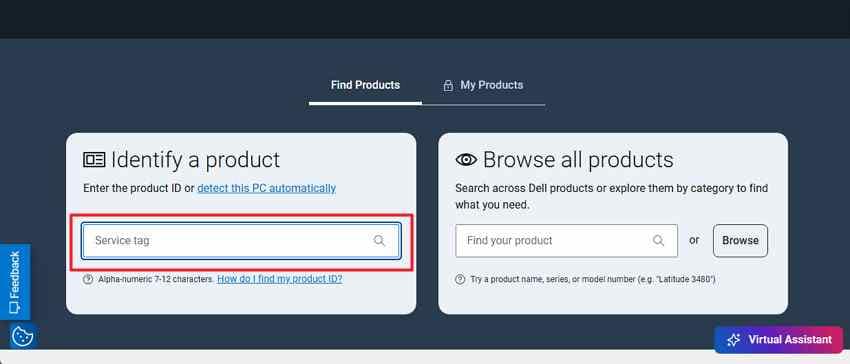
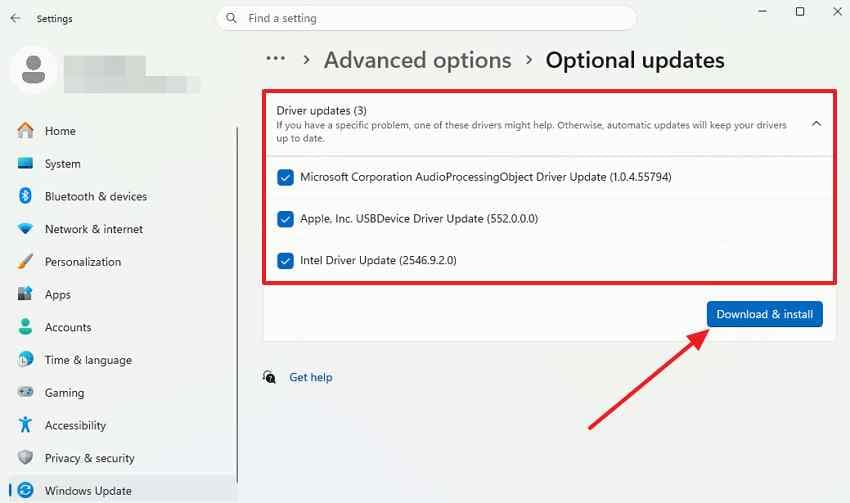
Step 2. Check Windows Update for additional driver updates:
- Windows 11: Open Settings > Windows Update > Advanced options > Optional updates > Driver updates. Choose only a relevant compatible driver and select Download and install.
- Windows 10: Open Settings > Update & Security > Windows Update. If available, select View optional updates > Driver updates; choose the relevant driver and install it.
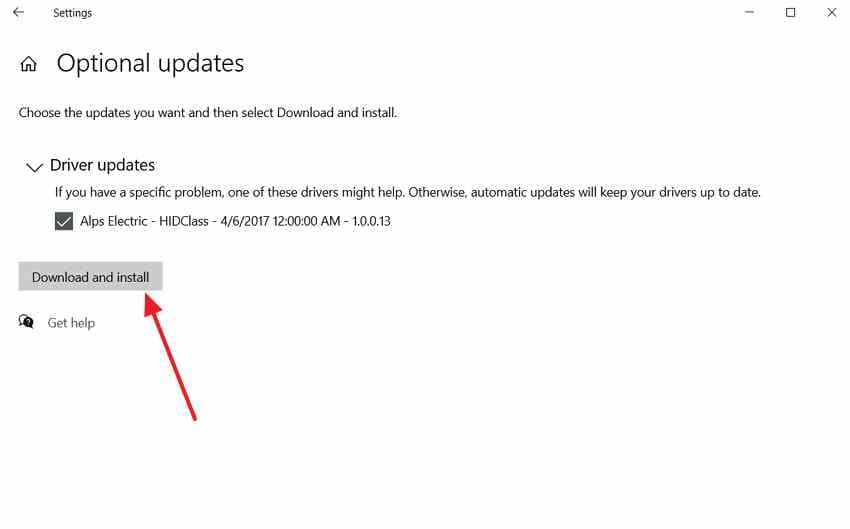
Restart after each relevant update, then check Device Manager and normal workload stability. If the issue began with a recent update, a rollback may be the better choice.
Fix 5. Remove Conflicting Virtual Device and Hardware Management Software
VPN, virtual audio, disc-emulation, hypervisor, RGB, and device-management utilities can install device drivers. Treat them as suspects only when the crash coincides with their installation or a dump identifies their device stack. Dell documents a specific PNP_DETECTED_FATAL_ERROR issue involving VMware Horizon USB redirection of an integrated infrared camera on certain Latitude and Precision laptops; the advised fix is to exclude that camera from USB redirection, not to uninstall all virtualization software. See Dell: VMware Horizon infrared-camera USB redirection issue.
First consult the app vendor's removal instructions, then remove the single suspected app or virtual device if a clear timing or diagnostic link exists. If the app is essential to work, contact IT instead of uninstalling it.
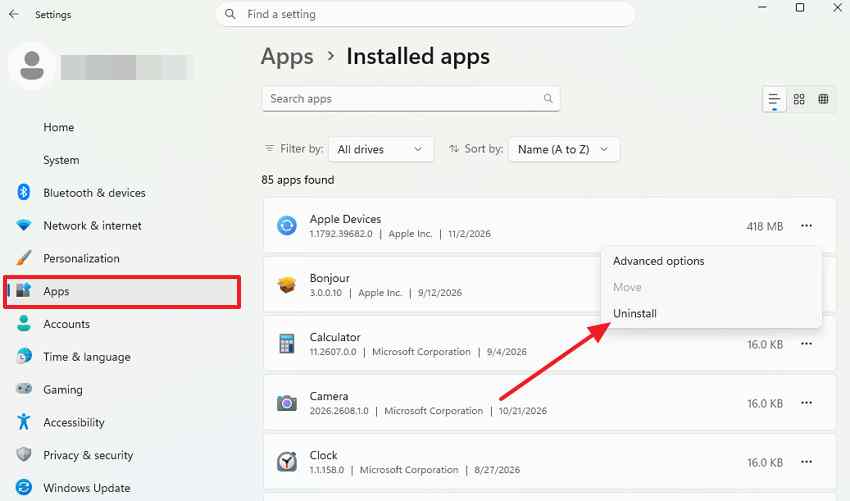
Step 1. In Windows 11, open "Settings > Apps > Installed Apps." Find the suspected application, click the "Three Dots" menu, and select "Uninstall."
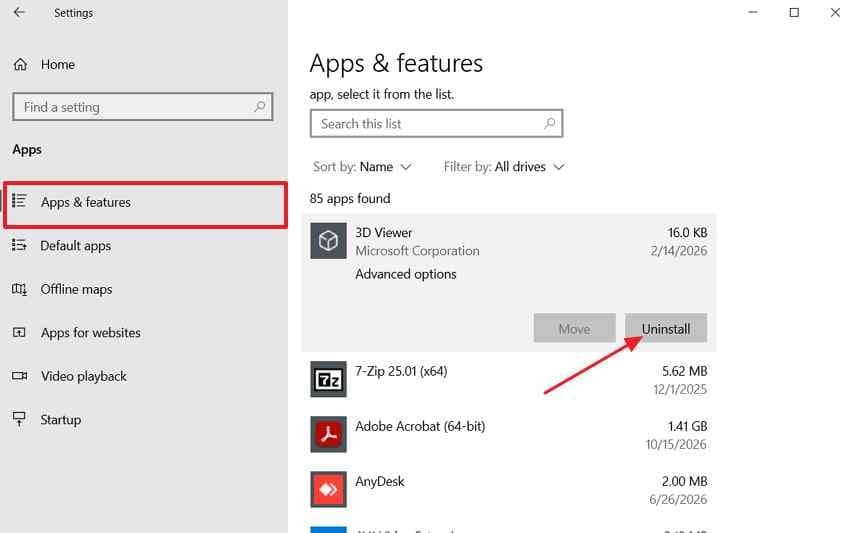
In Windows 10, navigate to "Settings > Apps > Apps & Features." Select the suspected application and click "Uninstall."
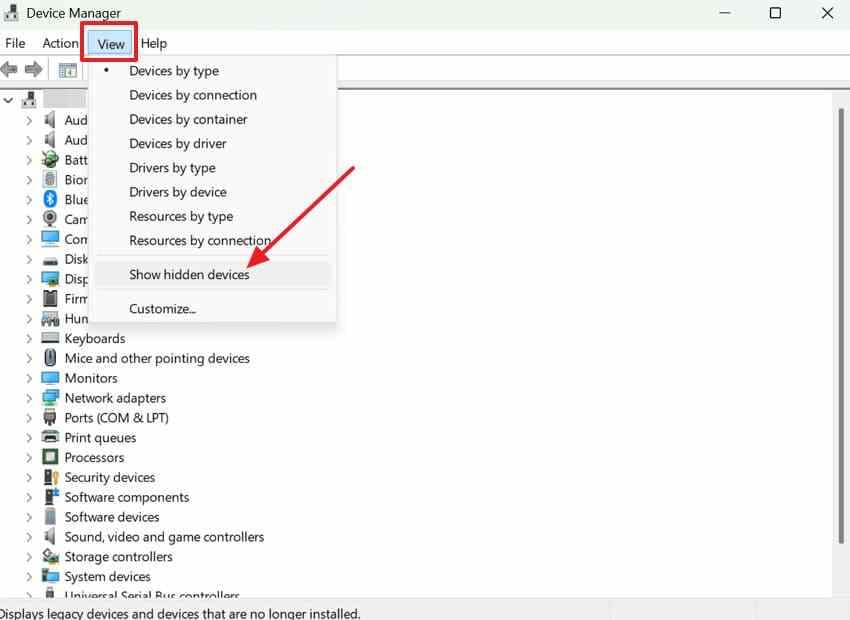
Step 2. Restart and open Device Manager > View > Show hidden devices. Check only device entries owned by the removed application. Remove confirmed leftovers if the vendor documents that step; do not delete other grayed-out or hidden entries.
Note: Grayed-out devices indicate non-present devices, not necessarily faulty ones. Avoid removing unrelated system devices or hardware drivers.
When a Driver Rollback Is Safer than Reinstallation
Prefer a rollback when crashes begin directly after a single driver update and a previous version is available. Reinstallation is a reasonable next option for a confirmed noncritical device with a known-good OEM package. For storage, chipset, and security drivers, do not perform blind removal.
Use the following table to choose the less disruptive response based on the available evidence. A disappearance of the blue screen after a change is a clue, not absolute proof of the root cause.
| Situation | Safer first choice | Why |
| Crashes began after one device-driver update | Roll back that driver | Reuses the saved previous version if available |
| Storage or boot-critical controller suspected | System Restore or OEM support | Blindly deleting the driver can prevent startup |
| Confirmed noncritical device with corrupted driver | Reinstall from known-good OEM package | Targets one device without changing unrelated drivers |
Use Device IDs and Minidump Evidence to Narrow the Problem Driver
If simple isolation and rollback do not explain the crash, a memory dump can narrow the responsible PnP operation. Microsoft's Microsoft: Bug Check 0xCA PNP_DETECTED_FATAL_ERROR documentation maps bug check 0xCA Parameter 1 to a violation subtype, but a subtype alone rarely identifies the guilty driver. This advanced branch is optional for readers who are comfortable with WinDbg.
Run WinDbg against an available dump and inspect !analyze -v. The following summary is based on Microsoft's documented values for Parameter 1. For some subtypes, Parameter 2 contains an object pointer; for others it has a different meaning.
| Parameter 1 | PnP violation | How to interpret it |
| 0x1 | Duplicate physical device object (PDO) | Two PDOs reported with duplicate device and unique IDs |
| 0x2 | Invalid PDO | An API received an invalid or uninitialized device object |
| 0x3 | Invalid device ID | Enumerator returned malformed device ID information |
| 0x4 / 0x5 | Deleted or prematurely freed PDO | Device lifetime or reference handling problem |
| 0x8 | NULL PDO in bus relations | Reported device list contains an invalid entry |
| 0x9 | Interrupt connection type mismatch | Parameter 2 is a connection type, not a PDO pointer |
| 0xA | PnP callback altered IRQL or APC state | A driver callback failed to preserve expected state |
| 0xB | Deleted PDO in removal relations | Removal relation contains an already-deleted object |
Save a copy of the dump, then work from a stable Windows computer. Never run commands that modify driver packages just because a module appears in a stack trace. A named module may be involved in the crash without being its root cause.
Step 1. On a stable PC, install Microsoft WinDbg and open the saved C:\Windows\Minidump\*.dmp file (or C:\Windows\MEMORY.DMP). In the debugger, use .symfix, .reload, then !analyze -v. Note the bug check parameters and any consistent device-driver evidence.
Step 2. Only if a parameter is documented as a device-object pointer and the dump contains the relevant object, use !devstack followed by that address. Compare the DeviceInst output with Device Manager > Properties > Details > Device instance path. If the object is unavailable, do not assume an address is safe to interpret. See Microsoft: !devstack debugger reference.
Note: The stop screen normally does not display all four bug check parameters. These details require a usable crash dump or suitable event data. If no dump exists, use the change timeline, OEM diagnostics, and safe isolation steps instead.
Part 3. Fix PNP_DETECTED_FATAL_ERROR After Windows or Firmware Changes
If the problem began after a Windows update, software change, or specific firmware revision, match that change to the crash date before deciding what to reverse. Prefer device-driver rollback or System Restore over indiscriminate updates and risky firmware changes.
Fix 1. Uninstall the Windows Update That Triggered the Error
If PNP_DETECTED_FATAL_ERROR began immediately after a specific Windows update and a driver rollback did not help, consider removing that update. Some updates cannot be removed. Removing security updates can expose the PC to known vulnerabilities, so use this only with a clear timeline and plan to reinstall a corrected update. See Microsoft: Uninstall a Windows update.
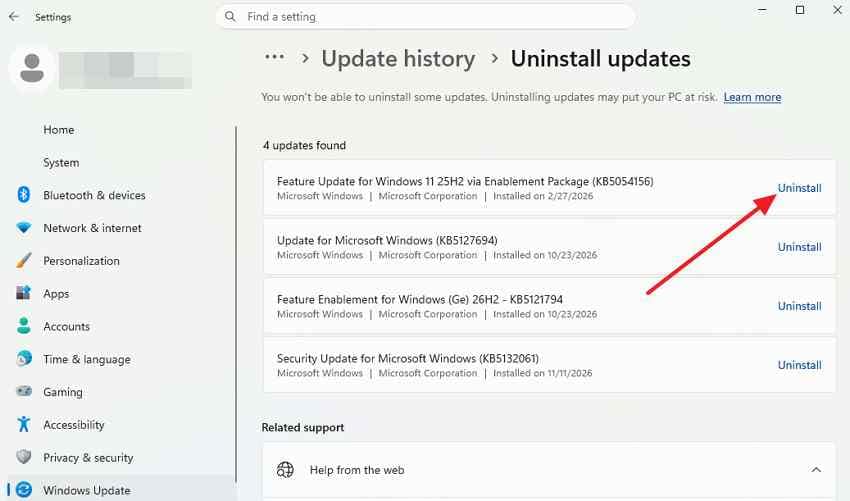
Check the installation date and KB number first. Do not remove several updates at once: change only one suspect at a time so you can judge whether it affects the crash.
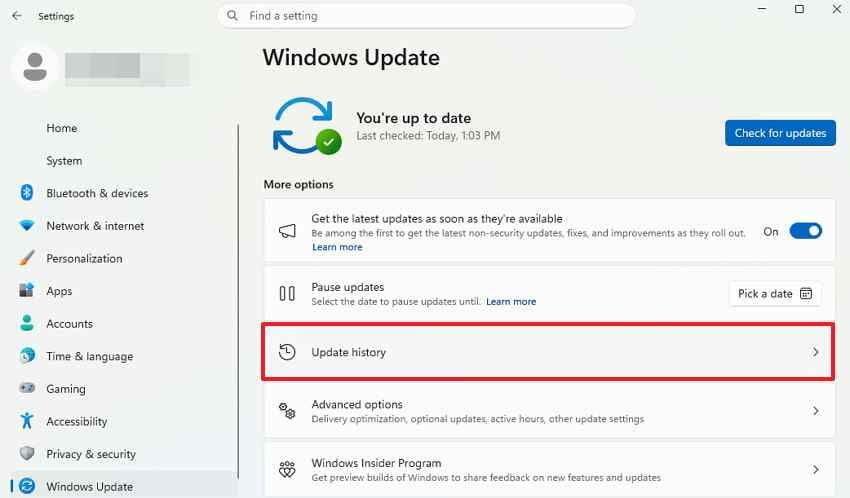
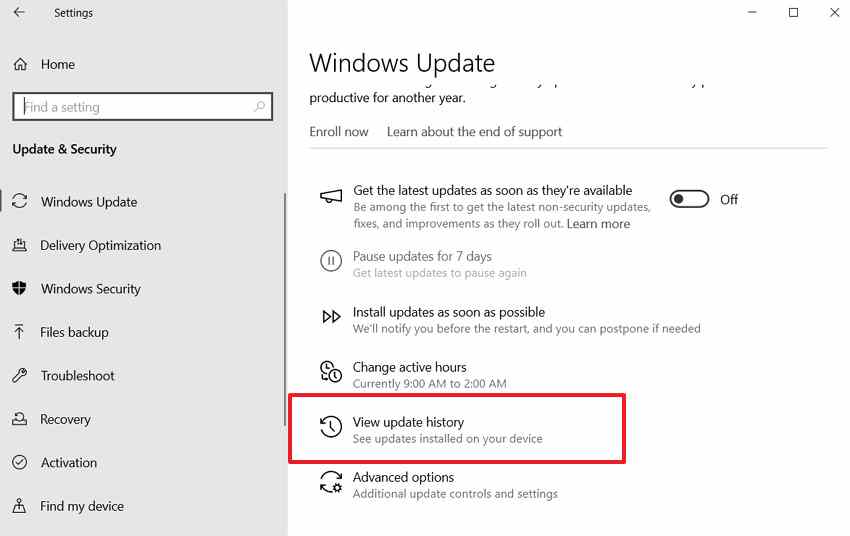
Step 1. Use these instructions to open your update history and identify the update installed shortly before the first crash:
- Windows 11: Choose "Settings > Windows Update > Update History."
- Windows 10: Go to "Settings > Update & Security > Windows Update > View Update History."
Step 2. Select "Uninstall Updates" and locate the suspected update using its KB number. Click "Uninstall" and restart your PC.
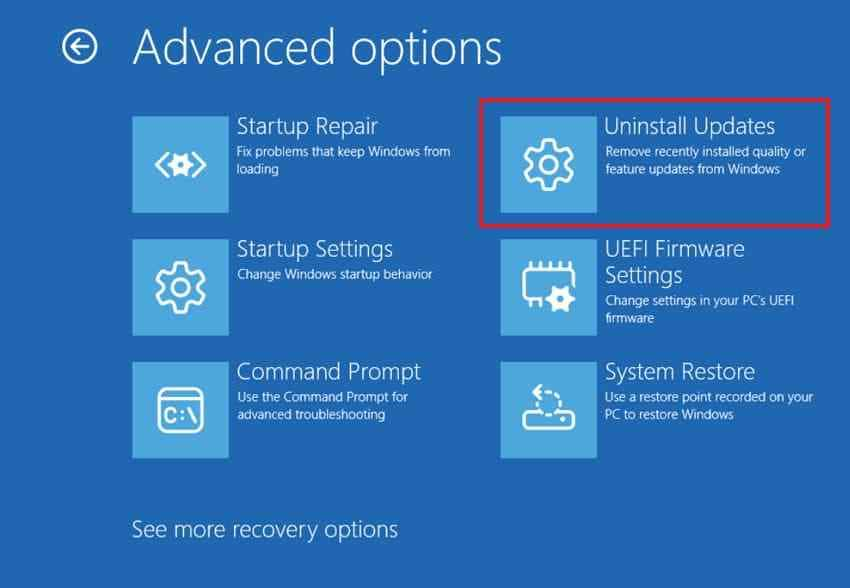
Note: If normal startup fails, WinRE > Troubleshoot > Advanced options > Uninstall Updates may offer removal of the latest quality or feature update. Options vary by build and installed update, and some packages cannot be uninstalled.
Fix 2. Restore Windows to an Earlier Working State
System Restore can revert system files, drivers, registry settings, and installed applications to an earlier restore point without intentionally removing personal files. If a restore point predates the driver conflict, it can be safer than deleting a boot-critical driver. Check affected programs before confirming. See Microsoft: Windows recovery options for official recovery options.
On supported Windows 11 devices where Point-in-time restore is available, it is a different, more disruptive option: it rolls the system drive, including local files, back to a recent snapshot. Changes made after that snapshot can be lost. Do not select it without first preserving any newer files and the BitLocker recovery key. Microsoft explains its scope in Microsoft: Point-in-time restore.
| Recovery option | What it changes | What happens to personal files | Availability |
| System Restore | Rolls back system files, drivers, settings, and installed apps | Personal files are not intentionally rolled back | Windows 10/11, if an earlier restore point exists |
| Point-in-time restore | Reverts the full Windows system drive to a recent snapshot | Changes and local files created after the snapshot may be lost | Supported Windows 11 devices when enabled and an eligible snapshot exists |
If an appropriate System Restore point is available, it is usually the first restore mechanism to assess after less-invasive driver changes. Point-in-time restore is optional, depends on feature availability, and requires separate data-risk review.
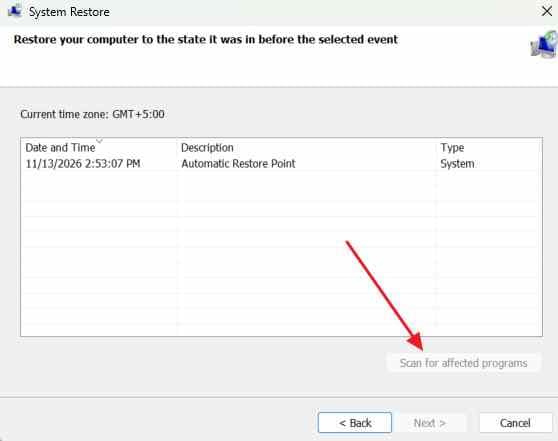
Step 1. Press "Win + R," type "rstrui.exe," and click "OK." Select a restore point created before the crashes began. Click "Scan for Affected Programs" to review changes, then complete the restoration.
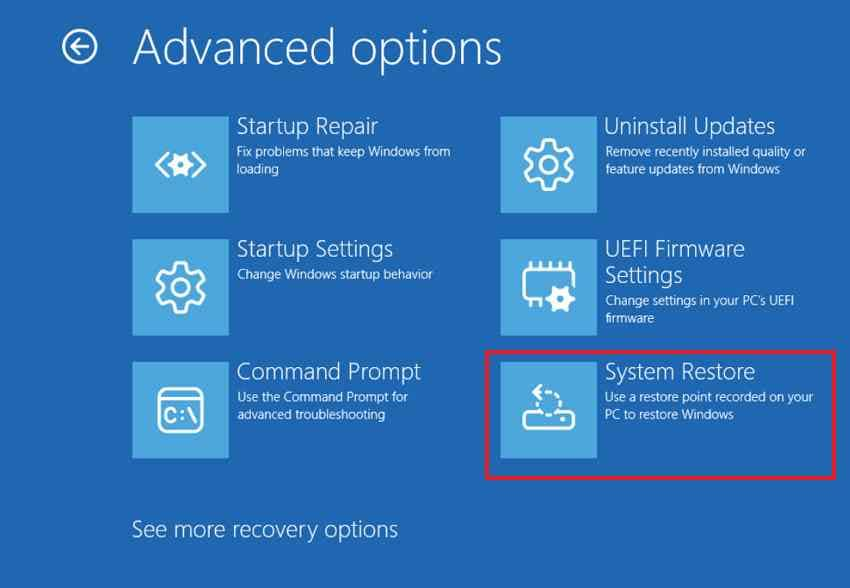
Step 2. If Windows does not start, use WinRE > Troubleshoot > Advanced options > System Restore and follow the prompts. On eligible Windows 11 devices, Point-in-time restore may appear under Troubleshoot; it is not the same feature and can roll back newer local files.
Fix 3. Update BIOS/UEFI and Relevant Device Firmware
An OEM BIOS, UEFI, or peripheral firmware release may address device enumeration or compatibility problems. However, 0xCA is not by itself a reason to flash firmware. Only consider an update when the exact model's official release notes address the affected controller or device.
Before a firmware change, preserve files, save the BitLocker recovery key, record relevant firmware settings, and ensure stable power. Avoid updating firmware on a machine with unstable power, overheating, or suspected physical damage.
Step 1. Back up accessible files and obtain the BitLocker recovery key. If the manufacturer directs you to suspend BitLocker protection for a firmware update, do so using Microsoft's documented process and confirm how protection will be resumed.
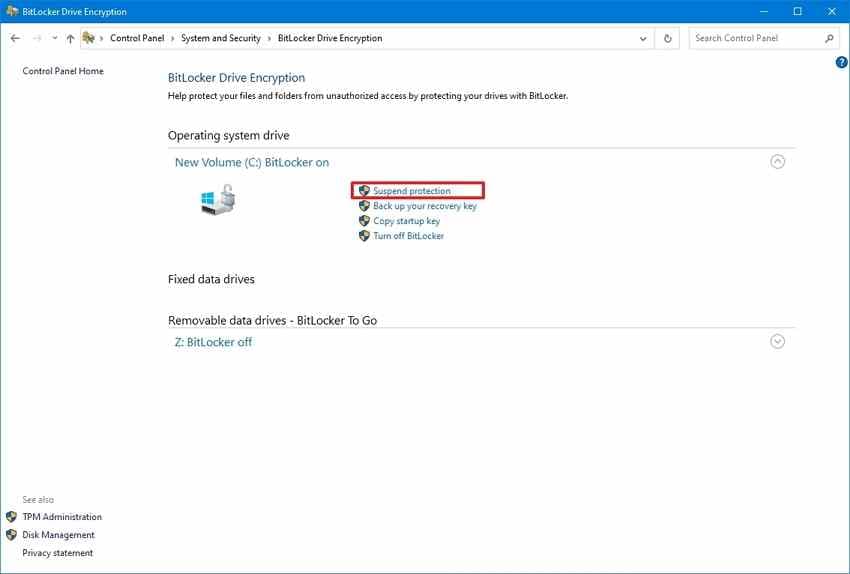
Step 2. Download the exact-model update from the manufacturer's official support page. Check the applicable release notes, connect stable AC power, follow every prerequisite, and do not interrupt the update. Confirm BitLocker protection resumes when appropriate.
Note: For SSDs, docks, and other accessories, use the manufacturer's dedicated firmware updater. Avoid firmware updates when power is unstable, or hardware faults remain unresolved.
When Are BIOS/Firmware Updates Safe, and When Should You Stop?
Updating firmware can create an unbootable PC if power is lost or the update is incompatible. A generic stop-code match does not justify the risk. Proceed only when the manufacturer documents a relevant fix, the device is stable, and important files are protected.
| Observation | Why it matters | Safer next step |
| Model-specific firmware notes address this controller | OEM documents a relevant compatibility change | Back up and follow exact-model prerequisites |
| Dump points to a third-party device stack | Firmware cause is still unproven | Rollback or contact driver vendor first |
| PC freezes in BIOS or preboot diagnostics | Instability exists outside Windows | Stop firmware changes and seek diagnostics |
| Unstable power, overheating, or physical damage | Update could fail or create an unbootable PC | Postpone update and use qualified service |
If the PC also crashes before Windows starts, shuts off during manufacturer diagnostics, or shows electrical/thermal danger signs, stop DIY firmware work. Use warranty support or a qualified technician rather than repeatedly forcing crashes.
Note: Only install firmware designed for your exact device model. Never interrupt the update process or disconnect the power supply.
Verify PnP Device Detection Without Repeated Blue Screens
After the suspected cause is corrected, check that the device is recognized and that Windows stays stable. PnPUtil can list devices with problem codes and rescan hardware; these checks do not, by themselves, prove every PnP driver is healthy. Microsoft documents the commands in Microsoft: PnPUtil command syntax.
The /enum-devices /problem option is supported beginning with Windows 10 version 1903; /scan-devices begins with Windows 10 version 2004. Both are available in Windows 11. If a command is unavailable on your Windows build, use Device Manager instead.
Step 1. Open Windows Terminal or Command Prompt as administrator. Run the following command to identify devices reporting problems:
pnputil /enum-devices /problem
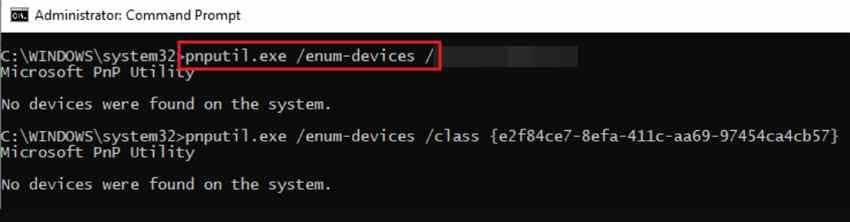
Review the results for device problem codes. Investigate entries associated with the previously affected hardware.
Step 2. Reconnect disconnected peripherals one at a time. After each connection, run the following command to rescan for hardware changes:
pnputil /scan-devices
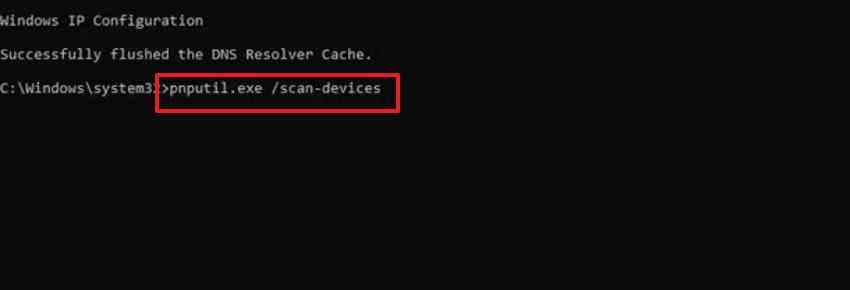
Confirm that Windows detects each device without errors. Restart your PC after testing and monitor for recurring crashes.
Note: When Event 41 contains BugcheckCode 202 (decimal), it records bug check 0xCA. Event 41 may also be generated by a non-crash shutdown and is not, on its own, proof of a particular device failure. Correlate timestamps, Event ID 1001, and available dumps. See Microsoft: Event ID 41 bug-check codes.
Conclusion
Treat PNP_DETECTED_FATAL_ERROR (0xCA) as a device or driver investigation, not an automatic hardware replacement. Isolate recent peripherals, roll back the suspected driver, and use crash evidence to narrow the responsible PnP operation if the error continues. Apply firmware changes only when an official model-specific reason exists.
Protect accessible files before any restore, reset, or firmware work, and confirm normal device detection afterward. If local data becomes inaccessible on still-readable storage, Recoverit may help with file recovery, but it cannot resolve the stop code or repair hardware. A single successful boot is not proof that an intermittent crash is fixed.
FAQ
-
What does stop code PNP_DETECTED_FATAL_ERROR (0xCA) indicate?
It means the Windows Plug and Play manager encountered a severe error, usually involving how a PnP driver identifies, creates, or removes devices. The stop code alone does not identify the faulty driver or prove hardware failure. Recent changes and a usable crash dump help narrow the cause. -
Can a newly installed USB device or virtual driver trigger this blue screen?
Yes. A newly attached device, its driver, or software that installs virtual devices can be involved. Check whether the crash began after that change and try disconnecting one nonessential device or rolling back one implicated driver. Dell has documented specific USB-redirection cases, but those fixes do not apply to every PC. -
How can I investigate PNP_DETECTED_FATAL_ERROR if Windows will not start?
Use WinRE to enter Safe Mode through Troubleshoot > Advanced options > Startup Settings > Restart, then select 4. If you cannot reach WinRE automatically, use a manufacturer recovery option or supported recovery media. Save accessible files and crash dumps before risky recovery actions, and keep the BitLocker recovery key available. -
Does this stop code prove the motherboard is damaged?
No. Bug check 0xCA records a Plug and Play manager failure and commonly requires driver or device-stack investigation. Persistent crashes, failed preboot diagnostics, or hardware that is not detected may justify professional hardware checks, but the stop code alone does not prove motherboard damage.


