 TL;DR:
Microsoft Office Error Code 0x0 on Mac is an activation failure that is officially resolved by updating your Mac to macOS 12 Monterey or later and installing the latest Office updates via Microsoft AutoUpdate or the Mac App Store.
● If the error persists after updating, use the official Microsoft Office license removal tool to clear stale activation data before signing back in with the correct account.
● Macs unable to run macOS 12 or newer cannot install the required licensing updates, requiring users to switch to Microsoft 365 on the web to temporarily regain editing and saving access.
● The 0x0 error does not delete your documents, but if specific files are missing or damaged, utilize Microsoft AutoRecovery first, as data recovery software like Recoverit can only retrieve lost files and cannot repair Office activation or internally corrupted data.
Ask AI for a summary
 ChatGPT
 Perplexity
 Gemini
 Claude
 Grok
Grok
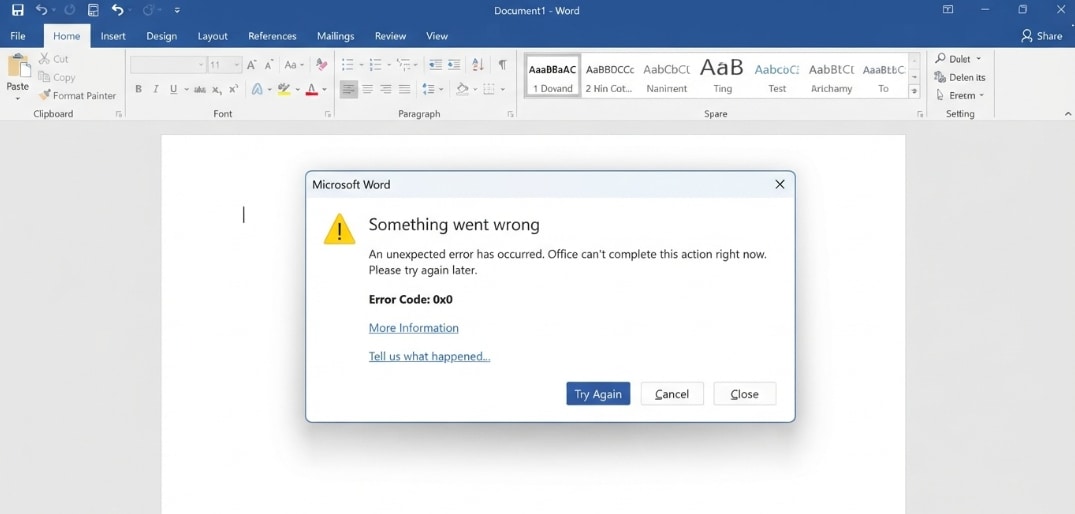
"Unknown Error. An unknown error has occurred. The error code is: 0x0" can appear when Word, Excel, PowerPoint, Outlook, or OneNote on Mac tries to activate but cannot validate the Office license.
Office Error Code 0x0 on Mac is usually an activation or licensing problem, not a damaged document problem. You may still be able to open or print files, but editing, saving, creating new files, or signing in may fail until Microsoft Office for Mac updates correctly.
As of July 22, 2026, Microsoft lists "Unknown Error 0x0 or License Not Found" in Office running on macOS as resolved. The official fix is to make sure your Mac is running macOS 12 Monterey or later, close Office apps, and update Microsoft 365 or Office through Microsoft AutoUpdate or the Mac App Store.
Data safety note: The Office 0x0 error itself does not mean your files are deleted. However, before reinstalling Office, upgrading macOS, erasing a disk, moving large document folders, or sending the Mac for service, back up important files first. Wondershare Recoverit for Mac can help recover lost or deleted local Office files from readable storage, but it cannot activate Office, repair Microsoft licensing, bypass account passwords, decrypt FileVault, or fix macOS.
Try Recoverit to Perform Data Recovery
 Security Verified. 3,591,664 people have downloaded it.
In this article
-
- Fix 1. Update Office with Microsoft AutoUpdate
- Fix 2. Update Office Apps from the Mac App Store
- Fix 3. Update macOS First, Then Update Office
- Fix 4. Quit Office and Sign In Again
- Fix 5. Remove Old Office License Files
- Fix 6. Reinstall Office from Microsoft
- Fix 7. Use Microsoft 365 on the Web Temporarily
- Fix 8. Contact Microsoft Support or Your Admin
Part 1. What Is Office Error Code 0x0 on Mac?
Office Error Code 0x0 is a Microsoft Office for Mac activation error. It often appears when you launch Word, Excel, PowerPoint, Outlook, or OneNote and the app cannot confirm your Microsoft 365, Office 2024, Office 2021, or older Office license.
You may see messages such as:
- "Unknown Error 0x0"
- "An unknown error has occurred. The error code is: 0x0"
- "License Not Found"
- "Subscription required to edit and save"
- Word or Excel stuck on "Activating..."
- Word not responding
The search intent behind Office Error Code 0x0 and An Unknown Error Has Occurred On Mac Office is clear: users need to regain access to editing and saving in Office for Mac without losing Word, Excel, PowerPoint, or Outlook files.
Part 2. Why "An Unknown Error Has Occurred" Appears in Mac Office
The 0x0 message can come from Microsoft licensing changes, local sign-in data, unsupported software versions, or an app installation mismatch. Use this table to choose the right fix.
| Cause | What It Means | Best Fix |
|---|---|---|
| Outdated Office apps | Your Office build may not include the required licensing update. | Update Office with Microsoft AutoUpdate or the Mac App Store. |
| Unsupported macOS version | Microsoft requires a supported macOS version for current Office updates. | Update macOS if your Mac supports it. |
| Old license files | Office may keep using a stale, expired, or wrong license record. | Use Microsoft's Office license removal tool, then sign in again. |
| Wrong Microsoft account | The signed-in account may not own the Microsoft 365 subscription or Office license. | Sign out and sign in with the licensed account. |
| App Store and Microsoft installer mismatch | Office apps installed from different sources can update differently. | Update from the same source you used to install, or reinstall cleanly. |
| Damaged or missing Office files | If only one document fails after Office activation is fixed, the file may be damaged or lost. | Use Office recovery options first; use Recoverit only for lost or deleted files. |
Part 3. Before You Start: Check Your Office and macOS Version
Microsoft's July 2026 Office for Mac guidance separates two problems: unsupported OS/app versions and local activation data. Check your versions first so you do not waste time reinstalling the same unsupported build.
Check macOS Version
Microsoft says the July 13, 2026 Office update path requires macOS 12 Monterey or later on Mac. To check your Mac:
- Click the Apple menu.
- Select About This Mac.
- Check the macOS name and version number.
- If your Mac supports a newer version, open System Settings > General > Software Update.
If your Mac cannot update to macOS 12 or later, the desktop Office apps may remain limited. Use Microsoft 365 on the web as a temporary option.
Check Office Version and Install Source
Open Word or Excel, then select Word > About Word or Excel > About Excel. Microsoft lists Office app version 16.83 or later as the minimum Mac app version for the July 2026 update path.
Also check where Office came from:
- If you installed Office from microsoft.com, use Microsoft AutoUpdate.
- If you installed individual apps from the Mac App Store, update them in the App Store.
- If you use a work or school account, your IT admin may control updates and licenses.
Part 4. Fix Office Error Code 0x0 on Mac
Follow the fixes in order. Start with official updates, then move to account and license cleanup only if the error continues.
Fix 1. Update Office with Microsoft AutoUpdate
This is the main fix for Office Error Code 0x0 if you installed Microsoft 365 or Office from Microsoft's website.
- Close Word, Excel, PowerPoint, Outlook, OneNote, and any other Office apps.
- Open Finder > Applications.
- Launch Microsoft AutoUpdate.
- If you do not see it, check /Library/Application Support/Microsoft/MAU2.0/.
- Select Update All, or update each Office app shown.
- After updates finish, reopen Word or Excel and sign in again.
If the 0x0 error came from outdated licensing components, this update should restore editing and saving.
Fix 2. Update Office Apps from the Mac App Store
If you installed Word, Excel, PowerPoint, Outlook, or OneNote from the Mac App Store, update those apps there instead of using a Microsoft.com installer.
- Close all Office apps.
- Open the App Store.
- Select Updates in the sidebar.
- Look for Microsoft Word, Excel, PowerPoint, Outlook, or OneNote.
- Click Update beside each app, or choose Update All.
- Open the Office app again and test activation.
Avoid mixing App Store apps and Microsoft.com installers unless you plan to uninstall Office completely and reinstall from one source.
Fix 3. Update macOS First, Then Update Office
If your Mac is below macOS 12 Monterey, Office may not be able to install the required updates. Update macOS first, then update Office again.
- Back up important files before a major macOS update.
- Click the Apple menu.
- Open System Settings > General > Software Update.
- Install available macOS updates if your Mac supports them.
- Restart the Mac.
- Run Microsoft AutoUpdate or App Store updates for Office.
If your Mac is too old for the required macOS version, use Microsoft 365 on the web, install Office on a supported device, or upgrade the Mac hardware when practical.
Fix 4. Quit Office and Sign In Again
After updating, Office 2021 for Mac or Microsoft 365 may still require a fresh sign-in.
- Quit Word or Excel completely with Command + Q.
- Open the app again.
- Go to the account or profile area.
- Sign out of the current Microsoft account.
- Sign in with the account that owns the Microsoft 365 subscription or Office license.
If this is a work or school account, make sure your organization has assigned you a valid Microsoft 365 license.
Fix 5. Remove Old Office License Files
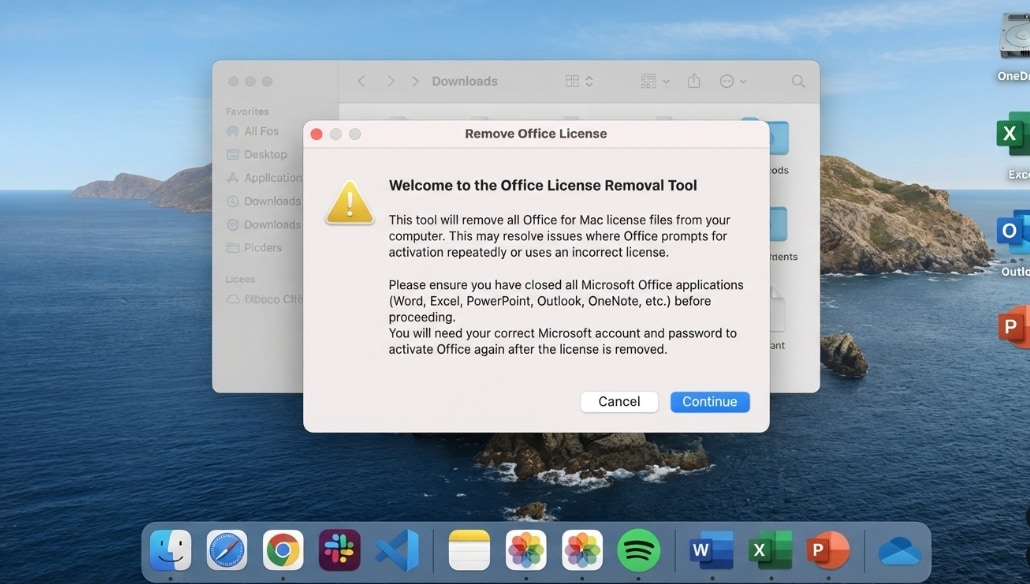
Microsoft provides an Office license removal tool for Mac. It can help when Office keeps using an old, expired, or conflicting license file.
- Confirm you know the correct Microsoft account and password for Office activation.
- Close all Office apps.
- Download the official Office license removal tool from Microsoft Support.
- Run the package and follow the prompts.
- Restart your Mac.
- Open Word or Excel and sign in with the licensed account.
Do not use random third-party "license cleaner" tools. If the Mac is managed by a company or school, ask your IT admin before removing license files or Keychain items.
Fix 6. Reinstall Office from Microsoft
If updates and license cleanup do not work, reinstall Office from the official source. This can replace damaged app files and remove mismatched installations.
Before reinstalling:
- Make sure your Mac meets Microsoft's system requirements.
- Confirm your Microsoft 365 subscription or Office license is active.
- Back up local Desktop, Documents, Downloads, and project folders.
- Export or sync important Outlook data if you store mail locally.
Then sign in at Microsoft's official Office install page, download Office for Mac, install it, and activate with the correct account.
Fix 7. Use Microsoft 365 on the Web Temporarily
If your Mac cannot update to the required macOS or Office version, Microsoft 365 on the web can keep you working in a browser while you decide on a longer-term fix.
- Go to microsoft365.com.
- Sign in with your Microsoft account.
- Open Word, Excel, or PowerPoint for the web.
- Upload or open files from OneDrive if available.
This does not repair the local Office desktop activation problem, but it helps you keep editing urgent files.
Fix 8. Contact Microsoft Support or Your Admin
Contact Microsoft Support if the same Office Error Code 0x0 appears after you update macOS, update Office, sign in again, remove license files, and reinstall Office from the official source.
For work or school accounts, contact your Microsoft 365 admin if:
- You do not see an install option after signing in.
- Your license was recently changed.
- Your organization controls Office updates.
- Conditional access, device management, or security policy may block activation.
Part 5. What If Word or Excel Files Still Will Not Open?
Office Error Code 0x0 is usually about activation. If Word or Excel starts working again but one specific file still will not open, that is a separate file recovery or file corruption problem.
Try Microsoft AutoRecovery or Open and Repair First
Use Microsoft's built-in options before third-party tools:
- For Word files after a crash, reopen Word and check whether Document Recovery or AutoRecovery appears.
- For Word on Mac, Microsoft lists an AutoRecovery folder under your user Library container for recent versions.
- For Excel workbooks on Mac, reopen the workbook from a local folder and let Excel attempt recovery automatically if it detects corruption.
- If you have access to Excel for Windows, use File > Open > Open and Repair there to try manual workbook repair.
- If Excel cannot recover the workbook, try extracting data from an earlier backup, OneDrive/iCloud version history, or another readable copy.
If the file is still present but internally corrupted, file repair is different from data recovery. Recoverit is for recovering lost or deleted files from storage; it does not repair Microsoft Office activation or guarantee that a corrupted document's contents can be rebuilt.
Recover Lost Office Files with Recoverit for Mac
Use Recoverit for Mac when the Office file is missing, deleted, lost after a crash, removed during cleanup, or stored on a readable external drive, USB drive, SD card, or Mac disk that still appears in the system.
1. Choose a Location to Recover Data
Launch Recoverit on your computer. In the main interface, locate the list of available drives and external devices, then select the card or the attached reader as the target location where you lost your files. Confirm your choice to start the recovery task.

2. Deep Scan the Location
Recoverit will automatically begin scanning the selected card.

3. Preview and Recover Your Desired Data
When the scan is complete, browse through the list of found files and use the preview function to check images, video clips, and documents before recovery.

Recovery depends on drive condition, overwriting, encryption, and whether the storage device is detectable. If FileVault is enabled, you need the legitimate password or recovery key to access encrypted data.
Conclusion
To fix Microsoft Office Error Code 0x0 on Mac, start with Microsoft's resolved guidance: run macOS 12 Monterey or later, close all Office apps, update Office through Microsoft AutoUpdate or the Mac App Store, then reopen Word or Excel and sign in again. If the error continues, remove old Office license files, reinstall Office from the official source, or contact Microsoft Support.
Use Recoverit only when Office troubleshooting creates a data recovery need, such as lost, deleted, or inaccessible local Word, Excel, PowerPoint, or PDF files. It is a recovery tool for readable storage, not an Office activation, Microsoft account, password, encryption, or macOS repair tool.
Frequently Asked Questions
FAQ
-
What does Office Error Code 0x0 mean on Mac?
Office Error Code 0x0 on Mac usually means a Microsoft Office activation or license validation problem. It can affect Word, Excel, PowerPoint, Outlook, or OneNote and may show "An unknown error has occurred" or "License Not Found." -
How do I fix "An Unknown Error Has Occurred" on Mac Office?
Close all Office apps, make sure the Mac runs macOS 12 Monterey or later, update Office with Microsoft AutoUpdate or the Mac App Store, then reopen Word or Excel and sign in with the licensed Microsoft account. If needed, use Microsoft's Office license removal tool and reinstall Office from the official source. -
Can Recoverit fix Office Error Code 0x0?
No. Recoverit cannot activate Microsoft Office, fix license files, repair Microsoft account sign-in, or update macOS. It can help recover lost or deleted local Office files from readable Mac storage before or after risky troubleshooting. -
Will updating Office delete my Word or Excel files?
Updating Office should not delete your documents. Still, back up important local files before major macOS updates, Office reinstallations, disk repairs, or device service. -
What should I do if only one Word or Excel file will not open?
If other Office files open normally, the problem may be that specific file. Try Microsoft AutoRecovery for Word or Open and Repair for Excel first. If the file was deleted or lost from local storage, Recoverit may help recover a previous file copy.



