 TL;DR:
Resolve Windows 11 update KB5101650 or KB5100998 installation failures by resetting the update cache, repairing system components with SFC and DISM commands, or performing a manual installation directly from the Microsoft Update Catalog.
● Verify the update applies to your specific Windows 11 build using the winver command, and strictly avoid downloading .msu or .cab installers from third-party websites to prevent system damage.
● If standard methods fail to clear error codes like 0x800f0922 or 0x80073712, execute an In-Place Repair Upgrade with official installation media to reinstall OS files while retaining personal apps and data.
● If local files disappear following an update rollback or reset, immediately halt drive usage to prevent overwriting and utilize Wondershare Recoverit, which can restore lost data but cannot repair the underlying Windows Update mechanism.
Ask AI for a summary
 ChatGPT
 Perplexity
 Gemini
 Claude
 Grok
Grok
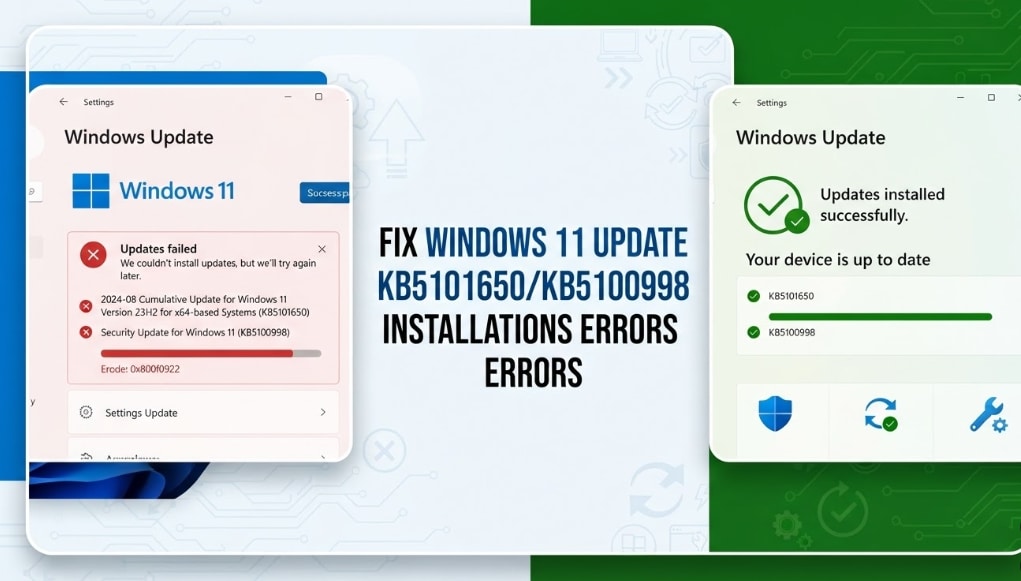
Is Fix Update KB5101650/KB5100998 Not Installing Windows 11 the issue you are trying to solve? You may see the update stuck at 0%, 25%, or 100%, fail after restart, or roll back with error codes such as 0x800f0922, 0x80073712, 0x80070002, or 0x80248007.
Windows 11 updates can fail for many reasons, including corrupted update cache, low disk space, damaged system files, unstable internet, security software conflicts, or compatibility issues with your current Windows build. This guide explains how to Fix Update KB5101650/KB5100998 Not Installing Windows 11 safely. You will also learn what to do if files go missing after a failed update, rollback, or Windows reset.
Try Recoverit to Recover Lost Files After Windows Update Issues
 Security Verified. 3,591,664 people have downloaded it.
In this article
Part 1. Why Update KB5101650/KB5100998 Is Not Installing on Windows 11
When Windows Update fails, the issue is not always caused by the update package itself. Your system may be unable to download, verify, unpack, or install the update because of local Windows Update errors. That is why the same update may install successfully on one PC but fail repeatedly on another.
Below are common reasons why users need to Fix Update KB5101650/KB5100998 Not Installing Windows 11:
| Reason | What It Means |
| Low Disk Space | Windows does not have enough space to download, unpack, and install the update files. |
| Corrupted Update Cache | Broken files in the SoftwareDistribution or catroot2 folder may cause repeated update failure. |
| Damaged System Files | Corrupted Windows files or component store errors can block update installation. |
| Network Interruption | Unstable internet, VPN, proxy, or firewall settings may interrupt the update download. |
| Pending Restart | A previous update may still be waiting for a restart before new updates can install. |
| Build Compatibility | The update may not apply to your current Windows 11 version or system architecture. |
Part 2. Before Installing KB5101650/KB5100998
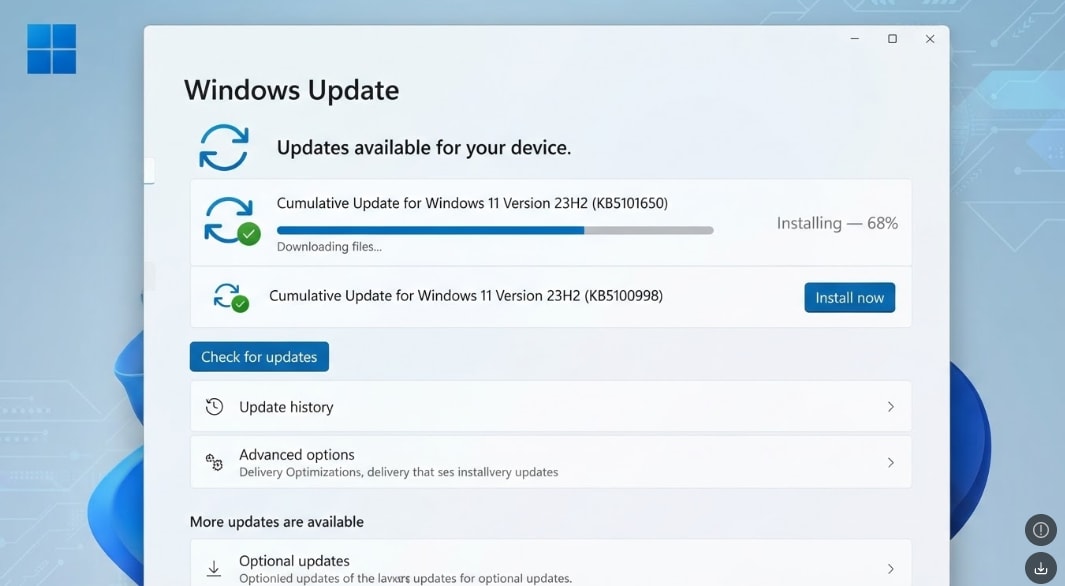
Before downloading anything manually, confirm that KB5101650 or KB5100998 appears in your Windows Update page, Update history, or Microsoft’s official update sources. If you only see these KB numbers on a third-party website, do not download unknown installers.
To check your update history, go to:
Settings > Windows Update > Update history

Part 3. How to Fix Update KB5101650/KB5100998 Not Installing Windows 11
Try the following methods in order. Start with simple checks, then move to deeper repairs if the update keeps failing.
Fix 1. Restart Your PC and Check Windows Update Again
A pending restart is one of the simplest reasons Windows Update fails. Restart your PC, plug in your laptop, connect to a stable network, and check for updates again.
Instructions. Open Settings > Windows Update and click Check for updates. If the update downloads again but fails during installation, continue with the next fix.
Fix 2. Free Up Disk Space
Windows updates need enough free space to download, extract, and install files. If your C drive is almost full, KB5101650/KB5100998 may fail or roll back.
To free space, open Settings > System > Storage, run Temporary files cleanup, empty Recycle Bin, move large files to an external drive, and uninstall apps you no longer use.
Fix 3. Run the Windows Update Troubleshooter
Windows 11 includes a built-in troubleshooter that can detect and repair common update problems. Microsoft also recommends using Windows Update troubleshooting steps when updates fail to install.
Step 1. Open Settings and go to System > Troubleshoot > Other troubleshooters.
Step 2. Find Windows Update and click Run.
Step 3. Restart your PC after the troubleshooter finishes, then check whether KB5101650/KB5100998 installs successfully.
Fix 4. Reset Windows Update Cache
A corrupted update cache can make Windows repeatedly download or install a broken package. Resetting the cache forces Windows to fetch fresh update files.
Open Command Prompt as administrator, then run these commands:
net stop wuauserv
net stop bits
net stop cryptsvc
Next, rename the update cache folders:
ren C:\Windows\SoftwareDistribution SoftwareDistribution.old
ren C:\Windows\System32\catroot2 catroot2.old
Restart the services:
net start wuauserv
net start bits
net start cryptsvc
Restart your PC and check Windows Update again.
Fix 5. Repair System Files with SFC and DISM
If Windows system files or the component store are damaged, updates may fail with errors like 0x80073712 or 0x800f081f. SFC and DISM can repair many Windows file integrity problems.
Open Command Prompt as administrator and run:
sfc /scannow
After it finishes, run:
DISM /Online /Cleanup-Image /RestoreHealth
Restart your PC and try installing the update again.
Fix 6. Disable VPN, Proxy, or Antivirus Temporarily
VPNs, proxies, firewalls, or third-party antivirus tools may interrupt Windows Update downloads. Temporarily disable them and try again from a stable home network.
Do not leave protection disabled permanently. Turn security tools back on after the update finishes.
Fix 7. Install the Update from Microsoft Update Catalog
If Windows Update still fails, you can try manual installation, but only from Microsoft’s official source.
Instructions. Visit the Microsoft Update Catalog, search for KB5101650 or KB5100998, download the correct package for your Windows 11 version and system type, run the installer, and restart your PC.
If the KB number does not appear in Microsoft Update Catalog, do not download it from random third-party websites.
Fix 8. Check Your Windows 11 Version
Some updates only apply to specific Windows 11 builds. If your device is on an unsupported or mismatched version, the update may fail.
Instructions. Press Windows + R, type winver, and press Enter. Check your Windows 11 version and build number. If needed, install available feature updates first, then retry KB5101650/KB5100998.
Fix 9. Perform a Clean Boot
A clean boot starts Windows with minimal startup programs and services. This helps identify whether background software is blocking the update.
Step 1. Press Windows + R, type msconfig, and press Enter.
Step 2. Go to Services, check Hide all Microsoft services, and click Disable all.
Step 3. Open Task Manager, disable startup apps, restart your PC, and try installing the update again.
After testing, restore normal startup settings.
Fix 10. Use In-Place Repair Upgrade
If none of the methods work, an in-place repair upgrade can reinstall Windows system files while keeping personal files and apps. This can fix deeper system corruption that blocks updates.
Download the official Windows 11 installation media from Microsoft, run setup, and choose the option to keep personal files and apps. Back up important files before starting.
Part 4. What If Files Are Missing After a Failed Windows Update?
Most Windows updates do not delete personal files. However, data loss can happen if the update fails, Windows rolls back incorrectly, the user resets the PC, or files are moved during troubleshooting.
Check these locations first:
- Desktop
- Documents
- Downloads
- Pictures
- Videos
- OneDrive local folder
- C:\Windows.old
- Recycle Bin
If files are still missing, stop using the affected drive immediately. New data may overwrite deleted files and reduce the chance of recovery.
Pro Tip. Recover Lost Files with Recoverit
If files disappear after KB5101650/KB5100998 fails to install, Windows rolls back, or a reset is performed, Wondershare Recoverit can help scan your storage device and recover lost local files.
Recoverit cannot fix Windows Update itself. Instead, it is designed to recover deleted or lost files from HDDs, SSDs, USB drives, SD cards, external drives, and other storage devices. It can help restore documents, photos, videos, archives, and other files lost during update-related problems.
Key Features
Windows File Recovery: Recoverit can recover documents, photos, videos, emails, archives, and other files lost after deletion, system errors, or Windows update issues.
Support for Multiple Devices: It scans internal drives, SSDs, external drives, USB drives, SD cards, and other common storage devices.
Preview Before Recovery: You can preview recoverable files before saving them to a safe location.
Guide to Recover Files After Windows Update Failure
Follow these steps if important files are missing after a failed update, rollback, or reset:
Step 1. Select the Location Where Files Were Lost
Launch Recoverit and go to Hard Drives and Locations. Choose the drive or folder where the missing files were originally stored.

Step 2. Scan for Missing Files
Recoverit will start scanning the selected location. During the scan, it searches for deleted, lost, or missing files and displays recoverable results.

Step 3. Preview and Recover Needed Files
Preview the discovered files when available. Select the files you need, click Recover, and save them to another safe location instead of the original drive.

Conclusion
To Fix Update KB5101650/KB5100998 Not Installing Windows 11, start with simple methods like restarting the PC, freeing disk space, running the Windows Update Troubleshooter, and checking your network. If the update still fails, reset the Windows Update cache, run SFC and DISM, disable conflicting tools, or install the package manually from Microsoft Update Catalog.
If the failed update causes missing local files, Wondershare Recoverit can help scan the affected drive and recover lost data before it is overwritten.
FAQ
-
Why is Update KB5101650/KB5100998 not installing on Windows 11?
The update may fail because of low disk space, corrupted update cache, damaged system files, unstable internet, antivirus conflict, pending restart, or Windows build compatibility issues. -
How do I Fix Update KB5101650/KB5100998 Not Installing Windows 11?
Restart your PC, free up disk space, run the Windows Update Troubleshooter, reset update cache, repair system files with SFC and DISM, and try manual installation from Microsoft Update Catalog if available. -
Should I download KB5101650 or KB5100998 from third-party websites?
No. Only download Windows update packages from official Microsoft sources such as Windows Update or Microsoft Update Catalog. Unknown update files may be unsafe. -
Can Recoverit fix Windows Update errors?
No. Recoverit does not repair Windows Update. It helps recover local files that may be lost after a failed update, rollback, Windows reset, or accidental deletion.



