TL;DR:
To fix an Acer laptop screen flickering, you must first isolate the root cause by pressing F2 on startup to see if the issue persists in the BIOS, which confirms a physical hardware or firmware failure rather than a Windows software conflict.
● Open Task Manager during a Windows session; if the utility flickers along with the screen, cleanly reinstall the display driver using your exact Acer SNID, but if it remains steady, uninstall recently added applications.
● Connect an external monitor and slowly move the laptop lid; flickering that changes with the hinge angle or a completely stable external display indicates a physical fault within the internal display cable or panel.
● Press Windows + Ctrl + Shift + B to force a quick graphics subsystem reset without removing drivers, and always locate your BitLocker recovery key before initiating BIOS updates or system resets.
Ask AI for a summary
 ChatGPT
 Perplexity
 Gemini
 Claude
 Grok
Grok
“I'm facing a frustrating issue with my Acer laptop: When I start my laptop, it shows a black screen and doesn't boot properly…”-Ok-Wrongdoer-7394
Acer laptops vary across Aspire, Swift, Nitro, Predator, and TravelMate lines, so the same flicker does not always have the same cause. A useful starting point is to note when the problem appears and what changes it. Screen flicker may appear as blinking, flashing, horizontal glitches, brief blackouts, or unstable brightness rather than constant visible flickering.
The Acer laptop flickering screen can trace back to the driver, Windows, an app, display settings, firmware, or the screen hardware. This guide narrows those causes and explains where Recoverit fits before a reset or reinstall.
In This Article
Part 1. Diagnose What Is Causing the Acer Laptop Screen to Flicker
Before changing any setting, observe when the Acer laptop screen blinking appears and what else flickers. These clues narrow the likely cause and direct you to the correct section below:
| Observation | What It Rules Out | What Remains | Continue With |
| Task Manager Flickers Too | An app conflict less likely | Display driver more likely | Part 3 |
| Task Manager Holds Steady | Display driver less likely | Incompatible app more likely | Part 4 |
| Only the Built-in Screen Fails | Windows-wide graphics problem less likely | Internal panel, display cable, connector, or internal display path more likely | Part 5 |
| Flicker Precedes Windows | Drivers and software | Firmware or hardware | Part 6 |
| Flicker Follows Lid Movement | A software cause is less likely | Display cable or hinge-area connection | Part 5 |
What Task Manager Tells You
Microsoft says flicker problems often come down to the display driver or an app that does not play well with it. Open Task Manager while the screen is flickering and compare what happens there with the rest of the display.
When Task Manager and the rest of the screen flicker together, the display driver is probably responsible. A steady Task Manager while the surrounding screen flickers points instead to an incompatible application.
Checking Before Windows Loads
Restart the Acer notebook and press F2 when the Acer logo appears to enter BIOS/UEFI, then watch the display for about 30 seconds. Acer confirms F2 as the BIOS entry key for notebooks. A laptop screen flickering Acer owners see here appears before Windows and its display drivers load, making firmware or hardware more likely.
A steady BIOS screen points more strongly toward Windows, a display driver, an application, or another software-related cause, though intermittent hardware faults can still remain. This distinction narrows the investigation before deeper driver troubleshooting.
Part 2. Try Quick Fixes for an Acer Laptop Flickering Screen
Once the BIOS check makes a Windows-side cause more likely, start with quick and reversible checks. These steps can help isolate temporary graphics, connection, display-setting, and power-related causes before you move to driver troubleshooting.

- Reset Graphics Driver: Press “Windows + Ctrl + Shift + B.” The screen may briefly turn black, and Windows may play a beep while the graphics subsystem resets. This does not reinstall or remove the display driver.
- Remove External Devices: Remove docks, display adapters, and external monitors, then restart the laptop with only its normal power connection. A faulty peripheral, cable, or dock can sometimes contribute to flickering or intermittent display problems.
- Check Refresh Rate: Go to “Settings > System > Display” and confirm the display resolution is set to the “Recommended” value. Then open “Advanced display” and select a refresh rate supported by the Acer panel. An unsupported or unstable setting can contribute to an Acer laptop's screen blinking.
- Compare AC and Battery: Test the laptop on AC power and battery separately. Flickering that appears only on one power source can point to power-management behavior, graphics power states, the adapter, or other power-related hardware.
- Check Acer Support: If the flicker changes with AC or battery operation, confirm the correct reset procedure for your exact Acer model before trying a battery or power reset. Acer’s battery-reset guidance explains that some models use a battery-reset pinhole, while others rely on a power-button procedure.
Part 3. Fix Acer Laptop Display Driver Problems Causing Flickering
When quick fixes fail, use the Task Manager result as your next clue. An Acer laptop with a flashing screen that flickers there points toward the driver, so follow the methods below:
Fix 1. Roll Back a Driver That Introduced the Flicker
Use this method when flickering begins after a recent graphics or Windows update. Microsoft recommends rolling back the display driver in this situation, provided Windows still has the previous version available. The rollback takes only a few settings changes and requires no separate download. Follow the two steps below to restore the earlier driver and test whether the flickering stops:
Step 1. Search for “Device Manager,” > expand “Display Adapters,” right-click the graphics adapter, and select “Properties.”

Step 2. Open the “Driver” tab, select “Roll Back Driver,” choose a reason, confirm the rollback, and restart the laptop.

Fix 2. Reinstall the Display Driver Cleanly
When rollback is unavailable, reinstalling the graphics driver can remove a damaged or misconfigured installation behind an Acer laptop's flickering screen. A fresh installation replaces the existing driver setup rather than reversing it. Complete the directions below, then check whether the display remains stable after Windows restarts:
Step 1. Open “Device Manager > Display Adapters,” right-click the graphics adapter, select “Uninstall Device,” and confirm the removal.

Step 2. Restart the laptop, then visit Acer Drivers and Manuals, enter your device details, and download the appropriate graphics driver for your exact model.

Fix 3. Use Acer Support for Your Exact Machine
Acer provides drivers by specific device listing, so using the serial number or SNID reduces the chance of selecting a package for a similar model with different hardware. Follow these steps to locate the correct graphics driver:
Step 1. Open Acer Drivers and Manuals and select “Download our serial number detection utility” to identify the laptop’s Serial Number and SNID automatically.

Step 2. Access the downloaded Acer utility, note the “Serial Number” or “SNID” it displays, then enter that identifier on the “Drivers and Manuals” page to open your device’s support listing.

Fix 4. Handle Two Graphics Adapters
Some Acer Nitro and Predator laptops use integrated and discrete graphics together. A blinking screen may appear on an Acer laptop when its drivers conflict or become outdated. So confirm both adapters first and update each one separately using Acer’s model-specific driver packages.
Step 1. Press Windows + X, open “Device Manager > Display Adapters,” right-click the integrated graphics adapter, and choose “Update Driver.”

Step 2. After downloading the correct driver from Acer, choose “Browse My Computer for Drivers,” install the integrated GPU driver, restart, then repeat the process for the discrete GPU.

Fix 5. Check Whether the Flicker Persists in Safe Mode
Safe Mode loads Windows with only essential drivers and services. When an Acer laptop's flickering screen becomes stable there, a normal-startup driver, service, or application becomes more likely than an always-present display fault. Use the steps below to enter Safe Mode, then compare the screen with its behavior during a normal Windows session:
Step 1. Open “Settings > System > Recovery,” select “Restart Now” beside “Advanced Startup,” then follow Microsoft’s Safe Mode startup path through “Troubleshoot > Advanced options > Startup Settings > Restart.”

Step 2. After the restart, press “4” or “F4” for “Safe Mode,” then watch the display for several minutes to see whether the flickering continues.

Part 4. How to Find Apps Causing Acer Laptop Screen Flickering
A steady Task Manager while the rest of an Acer laptop's screen continues flashing makes an incompatible application more likely. Use the methods below to isolate the software involved, starting with the least disruptive checks:
Fix 1. Sort Applications by Install Date
Windows can sort installed apps by install date, making recently added software easier to compare with when flickering began. Microsoft documents this in its Apps & features settings guidance. Try the steps below to review the newest applications first and identify likely conflicts without removing software at random:
Step 1. Locate “Settings > Apps > Installed Apps” to view the full list of software currently installed on the laptop.

Step 2. Change “Sort by to Date Installed,” compare the newest apps with when flickering began, then update, disable, or uninstall likely conflicts one at a time.

Fix 2. Update or Remove Candidates Individually
Testing apps one at a time helps identify which program is causing Acer laptop monitor flickering without removing several candidates and losing the source of the conflict. Work through the shortlist in order, checking the display after each change before moving to the next application:
Step 1. If the app came from the Microsoft Store, check “Microsoft Store > Library,” Locate the suspected app, select “Update” when available, then restart the laptop and check whether the flickering returns.

Step 2. If updating makes no difference, open "Settings > Apps > Installed Apps,” choose the app’s “More Options” menu, select “Uninstall,” then repeat the test with the next candidate.

Fix 3. Turn Off Hardware Acceleration Per Program
Browsers and other GPU-accelerated apps can develop rendering problems when hardware acceleration conflicts with the graphics driver. Google specifically recommends disabling acceleration as a Chrome troubleshooting step. Follow the steps below to disable acceleration, relaunch, and test for flickering:
Step 1. Open “Chrome > Settings > System” to access Chrome’s graphics-related options.

Step 2. Turn off “Use graphics acceleration when available,” fully close and reopen the program, then continue using it to see whether the flickering returns.

Fix 4. Run a Clean Boot for Background Conflicts
A clean boot starts Windows with only essential Microsoft services and selected startup items. When the Acer laptop monitor flickering disappears there, a background app or third-party service becomes more likely. Use the steps below to isolate background conflicts, then re-enable items gradually until the flicker returns:
Step 1. Press “Windows + R,” type msconfig, press “Enter,” open “Services,” select “Hide all Microsoft services,” then choose “Disable All > Apply.”

Step 2. Open “Task Manager > Startup apps,” disable enabled startup items, restart the laptop, then re-enable services and startup apps in groups until the flickering reappears.

Note: After testing, restore the disabled services and startup apps or choose “Normal Startup” in System Configuration.
Part 5. How to Check Acer Laptop Display Hardware and External Connections
When earlier tests point beyond software, check the hardware path behind Acer laptop monitor flickering. The points below help separate external connections, the internal display, and its cable before seeking repair:
Check 1. Reseat or Replace External Monitor Cables
A loose or damaged external video cable can cause flickering that resembles a display fault. Reseat both ends first, then test with a known-working cable before drawing conclusions about the laptop or monitor.

Check 2. Compare the Built-In Screen With a Second Monitor
Connect an external display and watch both at once. A steady external picture beside a flickering built-in screen points more strongly toward the laptop panel, internal display cable, or connection rather than a Windows-wide graphics problem.
Check 3. Check Whether Flicker Changes With Lid Angle
Move the lid slowly through different angles while watching the screen. Flickering that consistently changes with lid position can indicate an internal display cable, connector, or hinge-area connection affected by movement.
Check 4. Stop Using a Display Showing Physical Damage
If there is a burning smell, smoke, swelling, or unusual heat, shut the laptop down, disconnect external power if safe, and stop using it. Arrange professional inspection rather than continuing to flex the lid or disturb internal components.

Part 6. Use Model-Specific Acer Laptop Diagnostics and Support
Once Windows-side causes and basic hardware checks have been narrowed down, move to Acer’s model-specific resources. At this stage, an Acer laptop flickering screen may require diagnostics, firmware checks, or professional service matched to the exact device.

- Run Model-Specific Diagnostics: Use only the diagnostic tools or procedures Acer provides for your exact laptop. Acer Support lets you identify the device by Serial Number, SNID, or Part Number before opening its support resources.
- Use Acer BIOS Downloads: Visit the support page for your exact Acer model and review available BIOS or firmware updates. Install one only when Acer lists a relevant fix or improvement. Keep the AC adapter connected and do not interrupt the update process.
- Retrieve the BitLocker Key: Before making firmware or security-related changes, locate your BitLocker recovery key. Windows may request it after some BIOS, firmware, or hardware changes.
- Contact Acer Support: If flickering remains after software causes are reasonably excluded, contact Acer. Report whether the problem appears in BIOS, affects an external monitor, or changes with lid movement. These details can help Acer narrow the panel, cable, firmware, or other hardware-related cause.
Part 7. Protect Acer Laptop Data Before Resetting or Repairing Windows
An Acer laptop monitor flickering issue usually affects the display rather than the files stored on the drive. However, deeper troubleshooting such as a Windows reset, system reinstall, or hardware repair can put important data at risk. If Windows still starts normally, back up essential files to external storage before continuing.
If the flickering problem is severe enough that Windows no longer boots, Wondershare Recoverit can help access data from a readable internal drive through a bootable recovery environment. Physically failed or undetectable storage may still require professional data recovery.

Key Features
- Bootable Recovery Environment: Runs from separate bootable media, helping access recoverable data when Windows on the Acer laptop no longer starts.
- Accessible Drive Scanning: Scans readable internal storage for recoverable files without requiring the installed Windows system to boot normally.
- AI Search: Uses natural-language search with filtering options to help locate specific files more efficiently within scan results.
- Optimized Scan Preview: Provides an improved preview interface that reduces visual obstruction, making supported recovered files easier to inspect before recovery.
- Separate Recovery Destination: Saves recovered files to another connected storage device, helping avoid writing new data to the drive being scanned.
Guide to Access Storage When Windows Won’t Start Using Recoverit
When Windows no longer loads, use the steps below to create a bootable recovery environment, access the internal drive, and copy recoverable files safely:
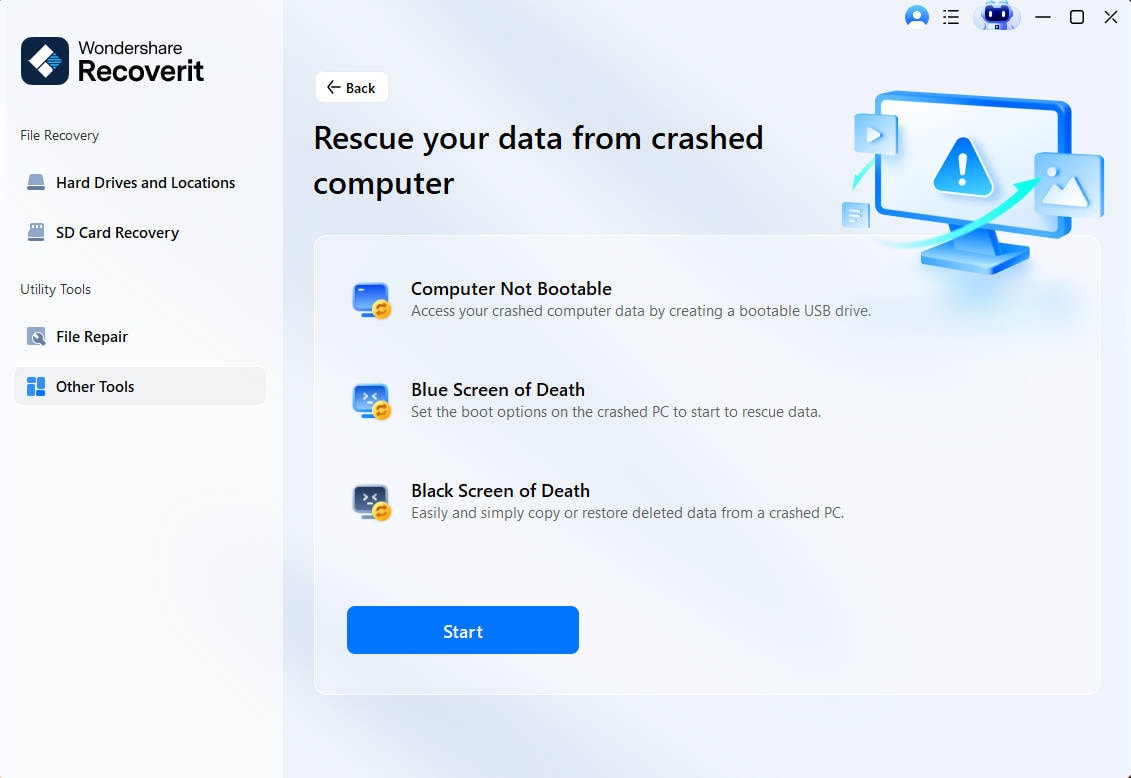
Step 1. Access the Recovery Tool
Launch Recoverit, go to “Other Tools > Computer Not Bootable,” then select “Start” to begin the bootable media process.
Step 2. Select a USB Flash Drive
Under Select a USB flash drive, connect a USB drive with more than 4 GB of space, choose it from the list, then select “Start” to create the bootable drive.
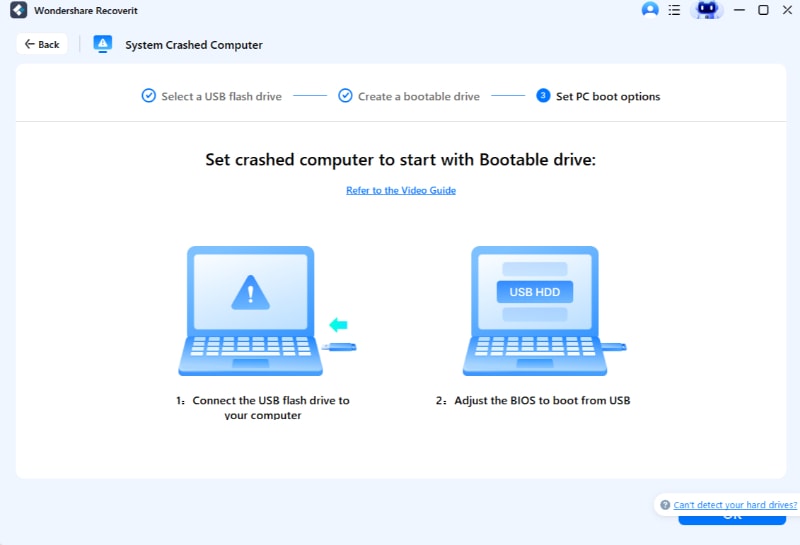
Step 3. Set PC Boot Options
Connect the bootable USB to the Acer laptop, then follow “Set PC Boot Options” to adjust the BIOS so the computer starts from the “USB HDD.”
Protect Acer Laptop Data Before Resetting or Repairing Windows
 Security Verified. Over 7,302,189 people have downloaded it.
Conclusion
To conclude, diagnose the Acer laptop flickering screen by identifying where the problem appears before changing drivers or settings. BIOS, Task Manager, external-display behavior, and lid movement can help narrow software, driver, or hardware causes. Use only model-specific Acer drivers and firmware. If Windows becomes inaccessible, protect important data with Recoverit before attempting a reset or reinstall.
FAQ
-
Why does my Acer laptop screen flicker only after Windows starts?
A Windows-only flicker makes a display driver, startup app, service, or display setting more likely. Use Task Manager and Safe Mode to narrow the software layer. -
Why does my Acer laptop screen flicker when I move the lid?
Flicker that consistently changes with lid angle strongly suggests the internal display cable, connector, or hinge-area display path. Avoid repeatedly flexing the lid and arrange inspection. -
Why does my Acer laptop screen flicker at a higher refresh rate?
Flicker that appears only at a higher refresh rate can involve the driver, display timing, cable path, or panel. Restore a supported rate and install the correct Acer graphics driver first. -
Why does my Acer laptop screen flicker while an external monitor works normally?
A stable external monitor makes a Windows-wide graphics problem less likely and points more strongly toward the built-in panel, internal display cable, connector, or internal display path.