 TL;DR:
Fix Unarc.dll or archive decompression errors on Windows 10 and 11 by verifying the installer's integrity, ensuring adequate space on both the destination and %TEMP% drives, and re-downloading corrupted files from official publishers rather than installing a random replacement DLL.
● Identify the root cause through failure patterns: crashes at the exact same file indicate a damaged download requiring SHA-256 verification or a 7-Zip test, while errors at random percentages point to unstable RAM or failing storage media.
● Resolve extraction write failures like FreeArc error -11 by confirming that both your target installation drive and the system temporary volume have adequate capacity for expanded data and unrestricted write permissions.
● Keep Windows security enabled and avoid running OS repair commands like SFC or DISM, because Unarc.dll is a third-party installer extraction component rather than a protected Windows system file.
Ask AI for a summary
 ChatGPT
 Perplexity
 Gemini
 Claude
 Grok
Grok
An Unarc.dll error during a game install or software setup usually means that the installer could not unpack, read, or write part of its compressed payload. You might see "Unarc.dll returned an error code" or "Archive data corrupted (decompression fails)." These messages can arise from an incomplete download, an incorrect archive part, insufficient disk space, access restrictions, or unstable memory.
Before attempting another install on Windows 10 or 11, check what the message actually says and whether the installation files pass an integrity test. Do not download a random Unarc.dll file or copy one into System32. The practical checks below separate damaged archives from legitimate installer, storage, and security problems, without unnecessarily changing Windows or risking important data.
In This Article
Part 1. Should You Download an Unarc DLL Separately?
A DLL filename in an error dialog is not a diagnosis. Before replacing files or running Windows repair commands, identify the precise message, the installer source, and the operation that failed.
Read the Full Error Before Trying a Fix
Write down the entire error, including its number and the line after it. Check your Windows version by pressing Windows + R, entering winver, and noting whether you use Windows 10 or 11. Then identify whether the message reports an unreadable archive, failed decomposition, failed write, or missing file.
The following mapping is based on FreeArc's documented error constants. It applies to the corresponding library behavior; a repackaged or modified installer may report errors differently.
| FreeArc code | Meaning in source | Most useful initial check |
| -1 | General compression or decompression failure | Read the accompanying text; test the archive |
| -5 | Unable to allocate required memory | Memory availability and installer requirements |
| -6 | Error reading data | Source file, storage media, or connection |
| -7 | Data cannot be decompressed | Archive integrity and all required parts |
| -11 | Error writing data | Destination and temporary free space, permissions |
| -12 | File failed CRC check | Damaged file or mismatched archive part |
| -14 | Corrupted archive headers | Incomplete, truncated, or incorrect package |
Important: A number is a starting clue, not proof that RAM, the DLL, or the hard drive is broken. For example, a -11 write failure may relate to free space or access permissions; the accompanying log and Windows storage checks decide what to do next.
Understand What an Unarc DLL Does
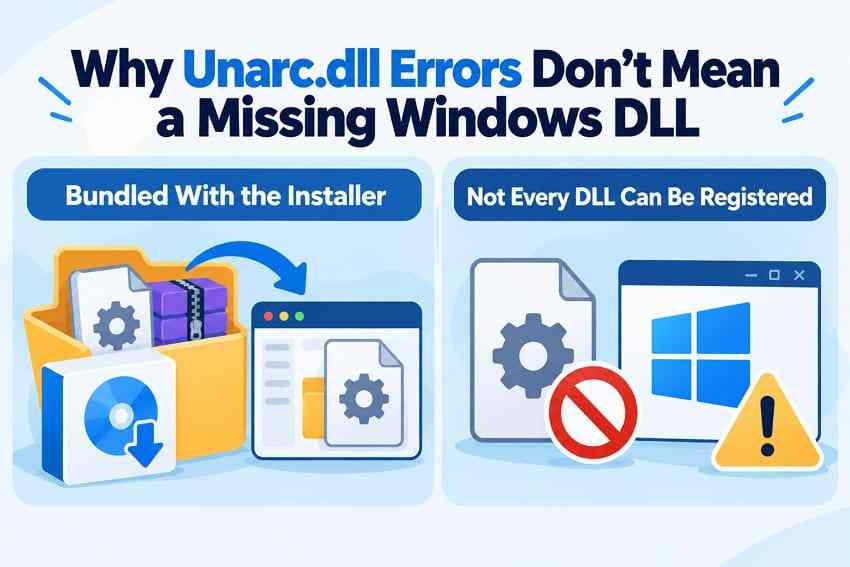
Unarc.dll is not one of the standard protected Windows system DLLs. The FreeArc Inno Setup integration describes Unarc.dll as a component used to extract FreeArc archives from certain installers. That does not mean every installer with this error uses the same DLL build or places it in the same folder.
The Windows command regsvr32 registers only DLLs that expose the required registration entry points. It is not a universal fix for extraction libraries. Similarly, copying an unrelated version into System32 does not correct bad compressed data and may introduce a security risk.
Use the Game or Software Publisher as the Source
If the installer genuinely lacks a required component, get the complete package or an authorized replacement from the original publisher. For a game managed through a store, use that store's repair or verification facility. If you have a standalone installer, obtain another copy from the developer's official distribution channel.
- Official game platform: Use its owned install and verify workflow where supported.
- Standalone application: Download its installer and all accompanying data files from the vendor.
- Disc or external media: If the source cannot be read, request an authorized replacement or test a known-good copy.
Searching for "unarc dll download 64 bit" does not establish whether the publisher bundled a 32-bit or 64-bit extractor. A matching processor architecture alone would not prove that a separately downloaded DLL is the right component.
Part 2. If the Error Says "Archive Data Corrupted" or "Decompression Fails"
A reliable integrity check is more informative than reinstalling repeatedly. Start with what you can verify on the download itself, then compare it with a trusted publisher reference if one exists.
Test a ZIP or 7z Archive for Data and CRC Errors
For ordinary ZIP or 7z downloads, a tool such as 7-Zip can test the archive without extracting the full package to its final destination. Its official archive corruption guidance explains the difference between a CRC/Data Error and a file that cannot be opened as an archive at all.
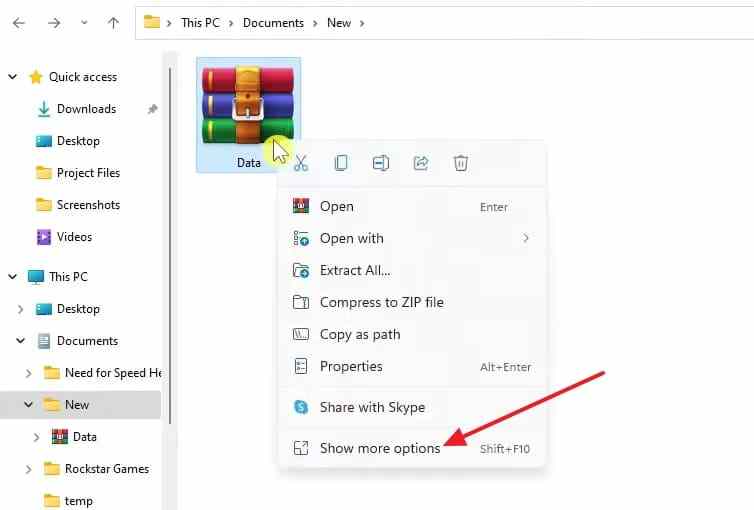
Step 1. Locate the ZIP or 7z file in File Explorer. On Windows 11, use Show more options if the classic right-click menu is hidden.
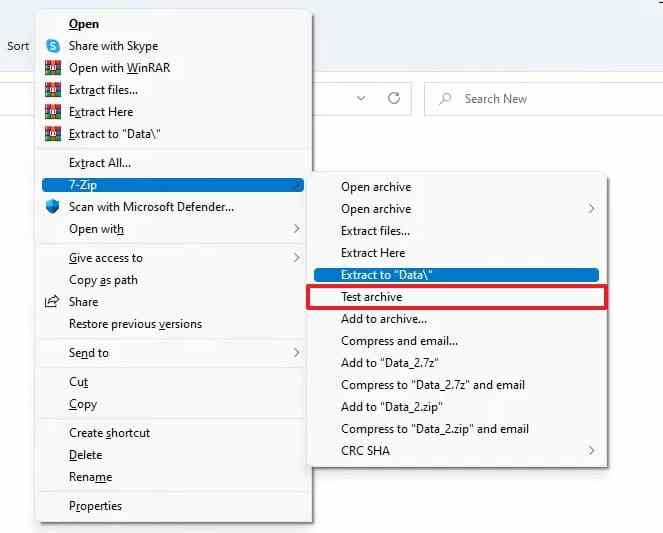
Step 2. Open the 7-Zip submenu and select Test archive (or use the Test button inside 7-Zip File Manager). Wait for the check to finish.
Step 3. Record the exact result. CRC Error, Data Error, and Cannot open as archive are different observations; save the filename of any reported broken member.
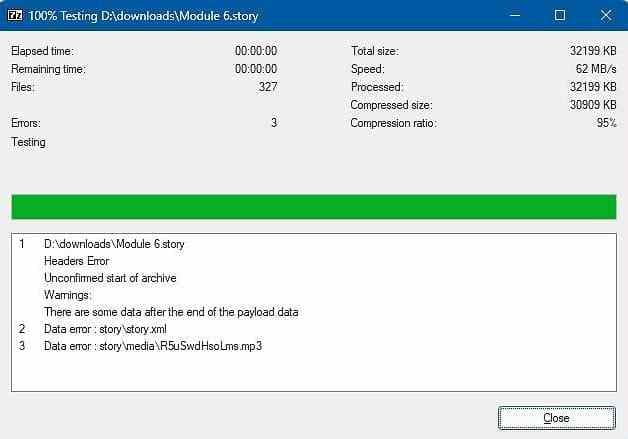
What this cannot test: Some installers combine an EXE with proprietary .bin payloads or other custom formats. If 7-Zip does not recognize those files, that does not itself mean they are corrupt. Use the publisher's validator, manifest, checksum, or reinstall workflow instead.
Compare SHA-256 Hashes and Check Every Multipart File
A file can have the expected byte size while containing incorrect data. If a publisher provides a SHA-256 checksum, calculate the same algorithm for your local file and compare the full value. Microsoft's Get-FileHash documentation describes how to compute file hashes for integrity checks.
Step 1. In Command Prompt, enter a command similar to the original Windows example below, replacing the path with the actual downloaded file:
certutil -hashfile "D:\Downloads\setup.exe" SHA256
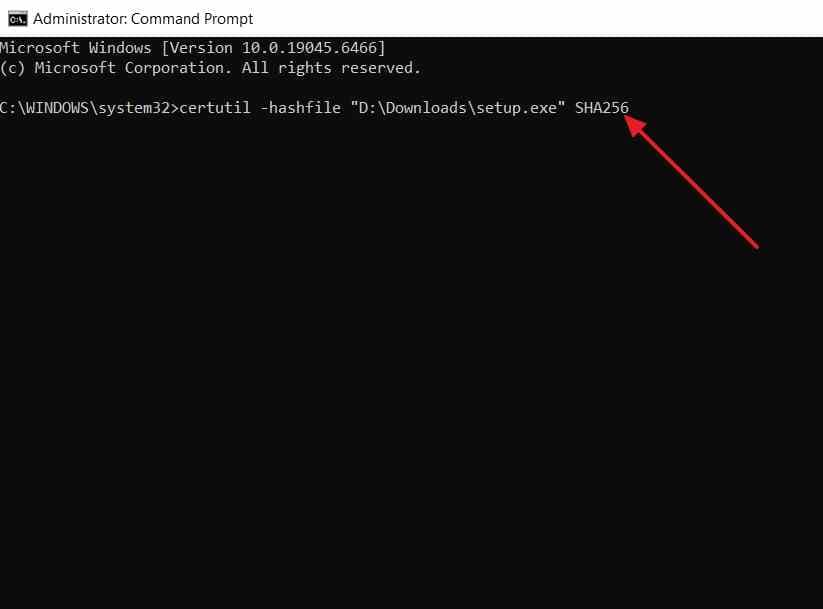
Step 2. Compare the calculated string, character for character, with the official SHA-256 supplied for that exact release. A checksum from a random mirror is not an independent trust reference.
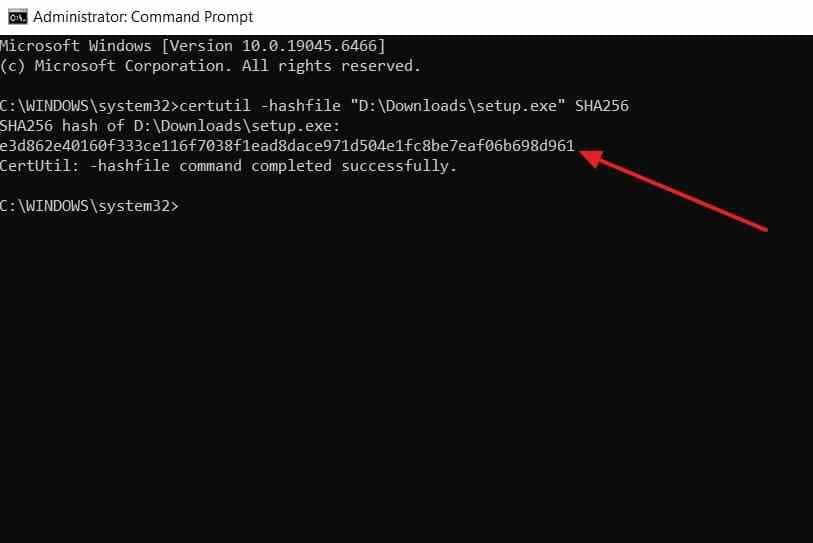
If you prefer PowerShell, use Get-FileHash -LiteralPath "D:\Downloads\setup.exe" -Algorithm SHA256. For split archives, retain their original filenames, put the required parts together, test from the first part where supported, and verify each published part hash. Do not mix files from different releases.
| Check | Can establish | Cannot establish |
| File size | Expected length | Whether bytes are correct |
| 7-Zip test | Recognized archive integrity failures | Authenticity of the distributor |
| Trusted SHA-256 match | Byte-for-byte agreement with reference | That the installer is compatible with this PC |
Replace a Failed Download, Not a Random DLL
If the archive test fails or the checksum differs, download the exact package again from the authorized distributor. For a multipart set, obtain any missing or failed part from the same release. Avoid resuming a known-bad partial transfer, and do not reuse files from other builds simply because their names match.
If the publisher checksum matches and a supported archive test passes, move to the environmental checks in Part 4. Avoid repeatedly downloading the same verified file without investigating the drive, RAM, permissions, and extraction destination.
Part 3. If a Trusted Installer Reports a Missing Component
Only use this branch when the setup package is from an identified publisher. A security alert or a missing file in an unofficial installer is not a reason to weaken Windows protection.
Verify Platform-Managed Game Files
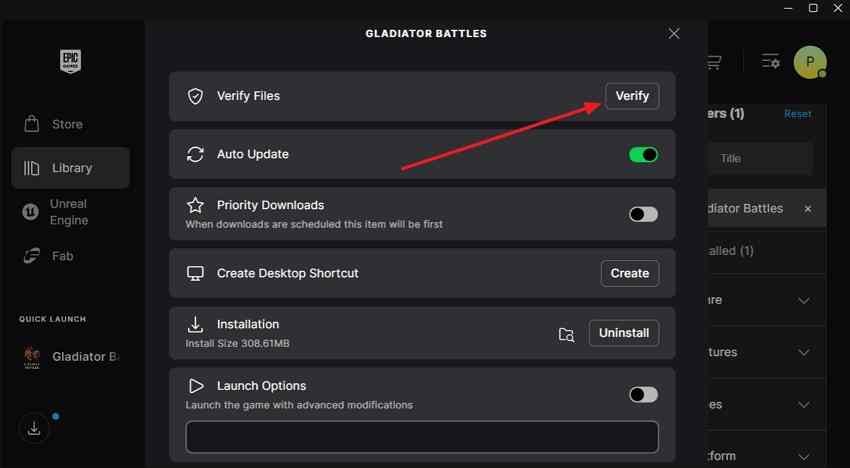
For games installed through Epic Games Launcher, the documented Verify function checks files managed by Epic and may replace damaged or missing ones. It does not verify an arbitrary standalone EXE or an unrelated compressed setup package.
Step 1. Open Epic Games Launcher and enter the Library for the installed game.
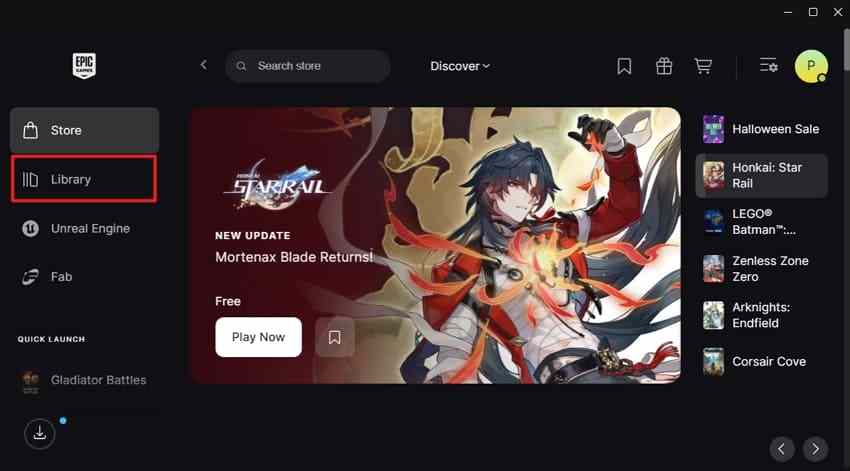
Step 2. Open the game's three-dot menu and select Manage. The launcher layout may differ between its legacy and Preview versions.
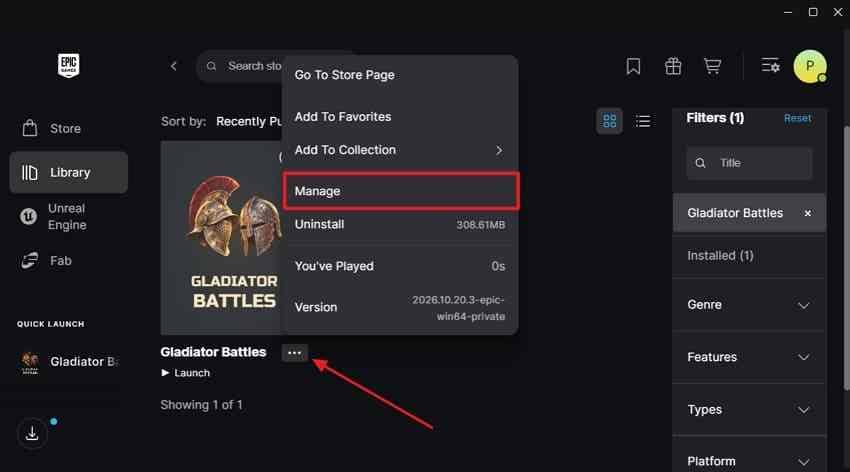
Step 3. Select Verify, allow the check to complete, and retry only after Epic confirms validation. If the problem concerns a standalone installer rather than an installed game, return to the publisher download instead.
Review Defender Protection History Without Disabling Security
Windows Security may quarantine a file because of a genuine threat or a possible false positive. Microsoft's Protection History guidance explains how to inspect actions. Review the detection name and affected path; do not automatically allow or restore a quarantined installer.
Step 1. Open Windows Security > Virus & threat protection > Protection history.
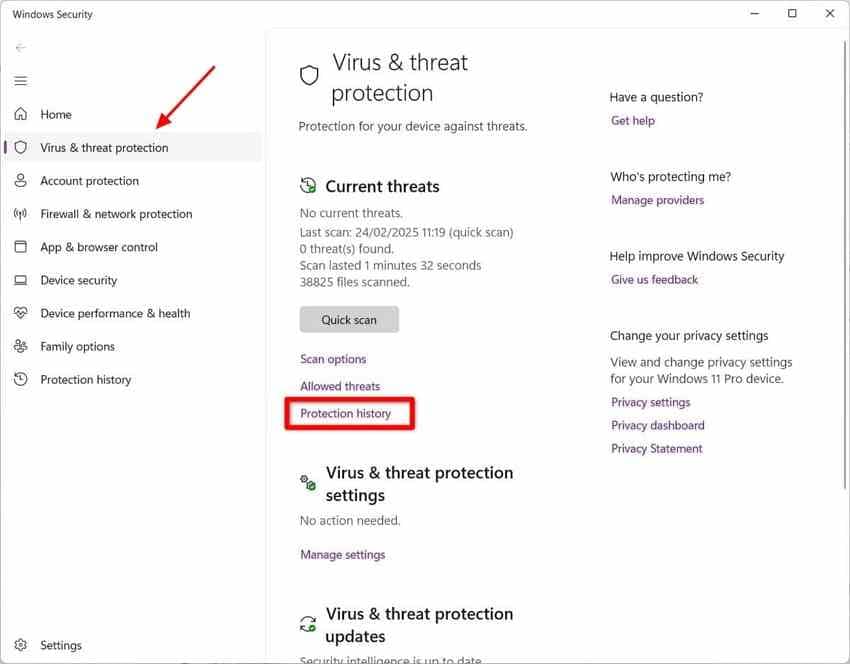
Step 2. Expand the relevant alert and compare the detected path with your installer. The example below shows how an alert appears; it is not evidence that this particular installer is safe.
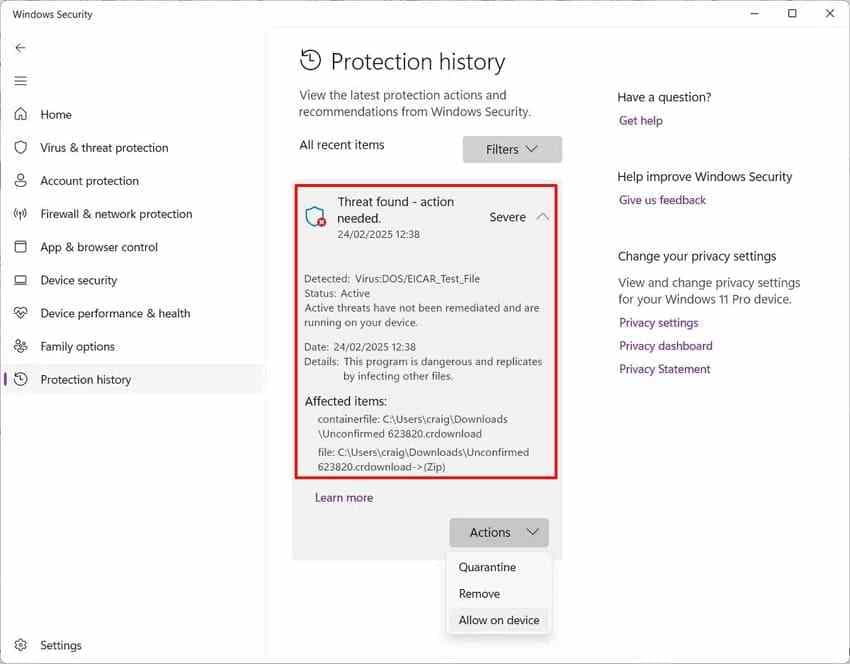
When unsure, keep the detection quarantined. Ask the publisher for a clean installer or review the publisher's security advisories. Do not disable real-time protection or Controlled Folder Access to install an unverified file.
Why Replacing 32-bit or 64-bit DLLs Is the Wrong Shortcut
Even if a replacement DLL has the expected architecture, it can export different functions or depend on incompatible files. Windows does not require an arbitrary Unarc.dll in its protected system folders for normal operation. If the trusted publisher documents a missing component, use that publisher's signed replacement package or reinstall its application rather than using a third-party DLL catalogue.
Part 4. If Verified Archives Still Fail During Extraction
Once the source package passes integrity checks, use the failure pattern as a diagnostic clue. A repeatable failure at one file suggests a different investigation from errors that move between unrelated files.
Compare the Failure Point and Collect Installer Logs
| Observation | Investigate first | What to keep |
| Same file or percentage each time | Package-specific media read, extraction path, installer logs | Filename, code, full message, checksum |
| Different files or percentages | RAM stability, storage and connection errors | Different failure times and system symptoms |
| Failure while writing extracted files | Destination and temporary space, access controls | Drive letters, free space and error logs |
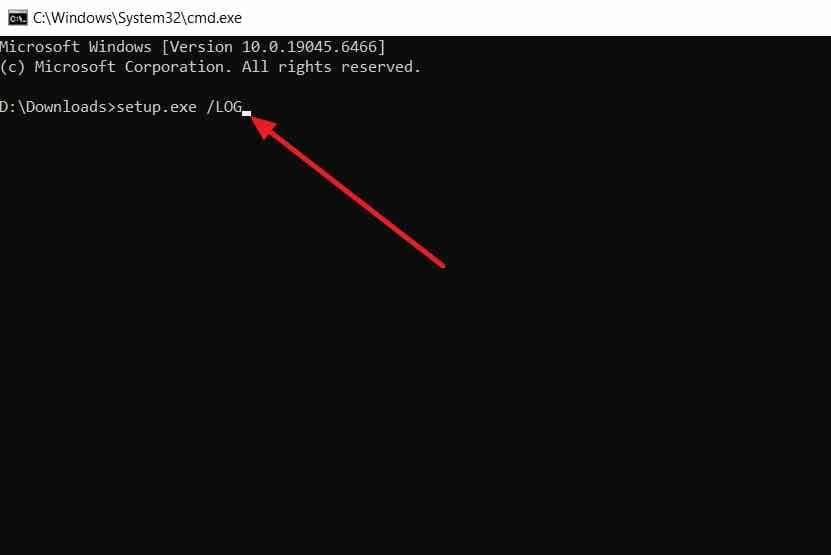
For a legitimate installer built with Inno Setup, the publisher's documented /LOG parameter writes a setup log into the user's TEMP folder. It does not apply to every installer, and it may not reveal the decompressor's full internal error.
Step 1. Open Command Prompt in the trusted installer's folder and run setup.exe /LOG, substituting its real executable filename. Do not run unverified installers simply to create a log.
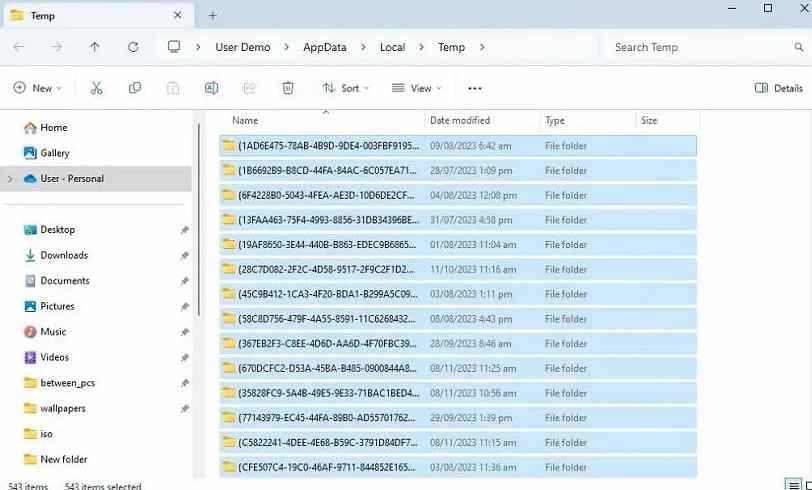
Step 2. Press Windows + R, enter %TEMP%, and examine the newest Inno Setup log if one was created. The folder view below illustrates the temporary-files location, not a confirmed successful log capture.
Record the last relevant file operation and the exact failure text. If the application uses MSI, another installer framework, or a launcher, use that publisher's supported diagnostic method instead of assuming /LOG will work.
Check RAM Stability and Source and Destination Drives
If verified packages fail at changing percentages, check whether other applications crash or the PC reports memory errors. Windows Memory Diagnostic can perform a basic check: save your work, press Windows + R, enter mdsched.exe, and choose the restart-and-test option. A normal result does not eliminate all possible RAM faults; repeated errors may warrant hardware testing or a repair technician.
Also check the source storage for disconnections or read failures, and the destination drive for I/O errors. A SMART or health warning deserves attention, but a generic "Healthy" label is not proof that every sector or controller function is sound. If the drive clicks, repeatedly disappears, overheats, or contains irreplaceable data, stop repeated heavy scans and seek specialist help.
Confirm Space on Both the Install Drive and the Temp Drive
Compressed installation data may expand substantially. Even when you choose drive D: for the game, the installer may first unpack temporary files under the Windows user profile on C:. Check This PC for free space on both destinations and compare it with the publisher's required installation and temporary-space allowance.
- Destination volume: Ensure that the final installation folder is writable and has enough free space.
- System and temporary volume: Check the volume behind
%TEMP%, which may be different from the game drive. - Access restriction: If Windows blocks a trusted installer, document the rule and ask the publisher or administrator for an approved installation location.
For a FreeArc-style -11 write error, these checks matter more than downloading an alternative DLL. Do not turn off antivirus protection to make an untrusted installer run.
Give the Publisher a Reproducible Error Report
If you still cannot install, share the complete error message, code, first failing filename, archive test outcome, published checksum comparison if available, and relevant log excerpt. Include Windows version, available space on source/temporary/destination drives, and whether failure location changes. Redact account names, product keys and other sensitive details before sending logs.

Part 5. Avoid Fixes That Do Not Address the Cause
Several widely repeated suggestions repair the wrong layer of the problem. Keep system repair, file recovery, and installer troubleshooting separate so you do not introduce a second failure while trying to fix the first.
Reserve SFC and DISM for Independent Windows Problems
Microsoft's System File Checker verifies protected Windows files. DISM can service the Windows component store. Neither replaces a broken publisher archive or repairs data inside a failed compressed download. Consider them only if Windows features, updates, or protected system files show separate corruption symptoms.
For those separate Windows problems, follow Microsoft's relevant repair guidance and keep a backup first. Do not run regsvr32, register arbitrary Unarc.dll copies, or reinstall Windows merely because an installer displays an extraction code.
Protect Important Data Before Disk Repairs
When extraction coincides with disk errors, copy readable important files to another healthy drive before attempting repairs. Microsoft's CHKDSK documentation distinguishes status checks from write-capable repair options such as /f and /r. On an unstable source, these operations can change filesystem metadata or increase I/O stress.
Do not format, initialize, or run repair commands on a suspect disk just to bypass an Unarc.dll dialog. A failing drive with irreplaceable data may need imaging or professional assessment before further reads.
Use Recoverit Only If an Installer File Was Actually Lost
If an installation archive or related personal file was deleted by mistake or lost after formatting a still-detectable drive, Wondershare Recoverit for Windows can scan eligible storage for recoverable files. Stop writing new files to the affected volume, preview any results, and save recovered files onto a different physical drive.
For a specifically deleted ZIP package, the existing ZIP file recovery guide discusses that distinct data-loss task. Recovered bytes are not guaranteed to be intact. Recoverit cannot reconstruct a download that was corrupt from the outset, repair a failed publisher checksum, fix installer permissions, or resolve an Unarc.dll decompression error.
Conclusion
Unarc.dll and archive decompression errors are best solved by identifying the failed operation, not by replacing a DLL. Start with the full error message, test supported archives, compare trusted checksums, and verify files through the original publisher or game launcher. If a verified package still fails, inspect temporary space, destination permissions, installer logs, RAM, and storage health.
Keep Windows security enabled and protect data before disk repairs. Recoverit is relevant only when an installation file was actually lost or deleted; it cannot repair corrupted archives or guarantee a successful installation.
FAQ
-
What does "Unarc.dll returned an error code -11" mean?
In FreeArc's documented error definitions, -11 means a write failure. Check the installation destination and the temporary-files drive for free space, file permissions, and storage errors. The full installer message and logs are needed to identify the actual cause; other installers may interpret codes differently. -
How do I fix ISDone.dll and Unarc.dll errors when installing games?
First confirm that the installer is from an authorized source, then test supported archives or use the publisher's file verification. Check free space on the installation and TEMP drives. If a verified package repeatedly fails at different points, investigate memory and storage stability. Avoid third-party DLL replacements. -
Can I download Unarc.dll separately for Windows 10 or 11?
Do not use arbitrary DLL download sites. Unarc.dll may be bundled with an installer rather than Windows itself. If a trusted publisher confirms a missing component, obtain the complete installation package or its official replacement from that publisher. -
Why does archive decompression fail when the downloaded file looks complete?
A file can have the expected size but still contain incorrect bytes, missing multipart files, or damaged compressed data. Use a supported archive test and compare a trusted publisher checksum when available. If both checks pass, investigate the extraction destination, RAM, and storage rather than assuming the file is corrupt.



