 TL;DR:
To fix a Chromebook black screen, first charge the device for 30 minutes, increase the screen brightness, disconnect all USB accessories, and test the video output with an external monitor to isolate hardware display failures.
● Perform a hardware reset using the Refresh and Power keys to restart internal components, but be aware that this action may delete some files stored in the local Downloads folder.
● Do not execute a Powerwash or ChromeOS Recovery Mode without verifying your critical files are already synced to Google Drive, as these procedures permanently wipe all encrypted internal user data.
● Recoverit Windows Data Recovery can restore lost files from Chromebook-used SD cards or USB flash drives connected to a Windows PC, but it cannot bypass ChromeOS encryption or retrieve internal files erased by system resets.
Ask AI for a summary
 ChatGPT
 Perplexity
 Gemini
 Claude
 Grok
Grok
A black screen on Chromebook can happen for simple reasons, such as a drained battery or brightness set too low. It can also happen after sleep, after a ChromeOS update, because of a connected USB device, or because the built-in display, backlight, battery, charging port, or mainboard has a hardware fault.
The safest fix is to start with non-destructive checks before using Powerwash or ChromeOS Recovery. This matters because Chromebook local files are not handled like normal Windows files. Files saved only in Downloads or local folders may be erased during Powerwash or full recovery, while files already synced to Google Drive are safer.
This guide explains how to diagnose an Acer Chromebook black screen, what to try before resetting ChromeOS, how to use Recovery only when needed, and how Recoverit Windows Data Recovery can help recover files from Chromebook-related external storage such as SD cards, USB drives, and external drives. Recoverit cannot repair a Chromebook screen, bypass ChromeOS encryption, restore Google Drive files, or recover files erased from encrypted Chromebook internal storage after Powerwash or Recovery.
In this article
-
- Fix 1. Check Power and Charger
- Fix 2. Charge for 30 Minutes
- Fix 3. Wake and Brighten the Screen
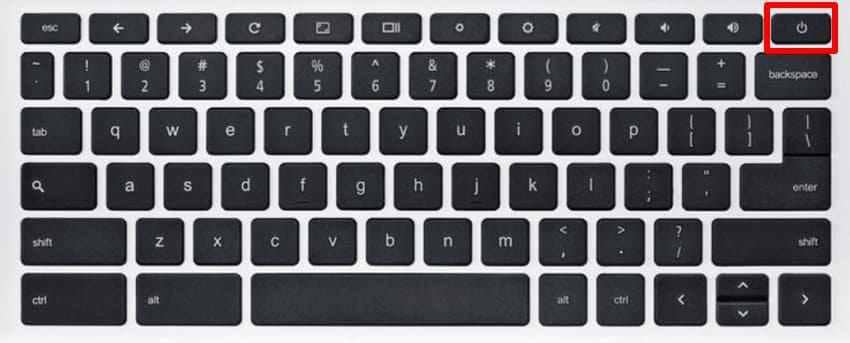
- Fix 4. Force Restart With the Power Button
- Fix 5. Perform a Hardware Reset
- Fix 6. Remove USB Devices and Accessories
- Fix 7. Test With an External Monitor
- Fix 8. Try Powerwash Only After Backup
- Fix 9. Use Chromebook Recovery Mode
- Fix 10. Use a Chromebook Recovery USB or SD Card
Part 1. What Does a Black Screen on a Chromebook Mean?
A Chromebook black screen simply means the display is not showing an image, but the reason can vary. It may be a power issue, a sleep or wake bug, a display setting, a ChromeOS startup problem, or hardware failure.
| Symptom | What It Usually Means |
| Black screen, no lights, no sound | The Chromebook may not be receiving power or charging |
| Power light on, screen dark | The device is powered on but the display or ChromeOS is not showing an image |
| Keyboard lit, screen black | The Chromebook may be awake, but the display, brightness, or graphics state is stuck |
| Black screen after Google logo | ChromeOS began loading but failed before the sign-in screen or desktop |
| Very dim image or backlight only | Brightness, backlight, display cable, or panel issue |
| External monitor works | The built-in screen, cable, hinge, or backlight may be faulty |
Acer Chromebook users often search for acer chromebook screen is black or acer chromebook blank screen, but the same basic diagnosis applies to Lenovo, HP, Samsung, ASUS, Dell, and other Chromebook models.
Part 2. Quick Diagnosis: Which Chromebook Black Screen Problem Do You Have?
Match the symptom before choosing a fix:
- No charging light: Start with charger, outlet, USB-C port, and battery checks.
- On but screen black: Try brightness, wake, force restart, and hardware reset.
- Black after Google logo: Disconnect accessories, try hardware reset, then consider Recovery if ChromeOS is damaged.
- Black after sleep: Force restart and check ChromeOS updates after the device works again.
- Very dim screen: Increase brightness and test with a flashlight or external monitor.
- External monitor works: Back up files, then service the internal display hardware.
- ChromeOS is missing or damaged: Use Recovery, but understand it can erase local data.
- School or work Chromebook: Contact the administrator before Powerwash or Recovery.
Part 3. Why Your Chromebook Has a Black Screen
| Cause | What It Means |
| Dead battery | The battery is deeply discharged or not charging correctly |
| Brightness at zero | The Chromebook is on, but the screen appears black because brightness is too low |
| Sleep or wake bug | ChromeOS fails to restore the display after closing the lid or waking from sleep |
| Failed update or ChromeOS error | ChromeOS starts but cannot finish loading normally |
| USB or device conflict | A connected USB drive, hub, card reader, or external display blocks startup |
| Overheating | Excessive heat can shut down or freeze the device |
| Hardware damage | The screen, backlight, hinge cable, charging port, battery, or mainboard may be faulty |
Part 4. Important Steps Before Fixing a Chromebook Black Screen
Do these checks before Powerwash or ChromeOS Recovery:
- Do not reset too fast: Powerwash and Recovery can erase files stored only on the Chromebook.
- Check synced files: From another device, sign in to Google Drive and confirm important files are there.
- Check local files if the screen returns: Review Downloads, local folders, and removable storage.
- Use external display if possible: If an external monitor works, copy important local files before repair.
- Do not open a managed device: School or work Chromebooks may be restricted by an administrator.
- Use Recoverit only for supported storage: Recoverit is for recoverable local files on supported drives, not for bypassing ChromeOS encryption.
Part 5. How to Fix a Black Screen on a Chromebook
Try these fixes in order. Stop before Powerwash or Recovery if you still need to save local files.
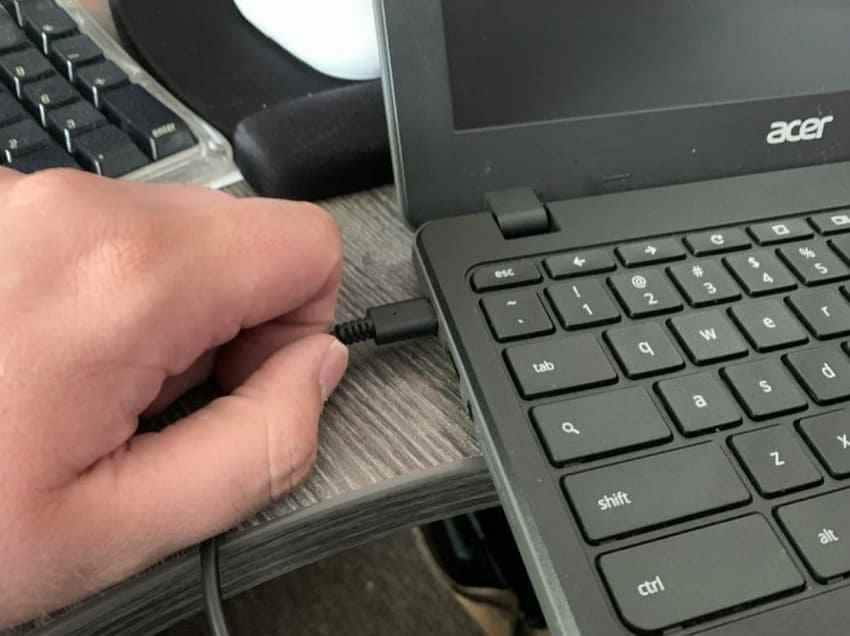
Fix 1. Check Power and Charger
Connect the charger firmly to the Chromebook and wall outlet. Check for a charging light. If there is no light, try another outlet, compatible charger, or USB-C cable if your model supports USB-C charging.
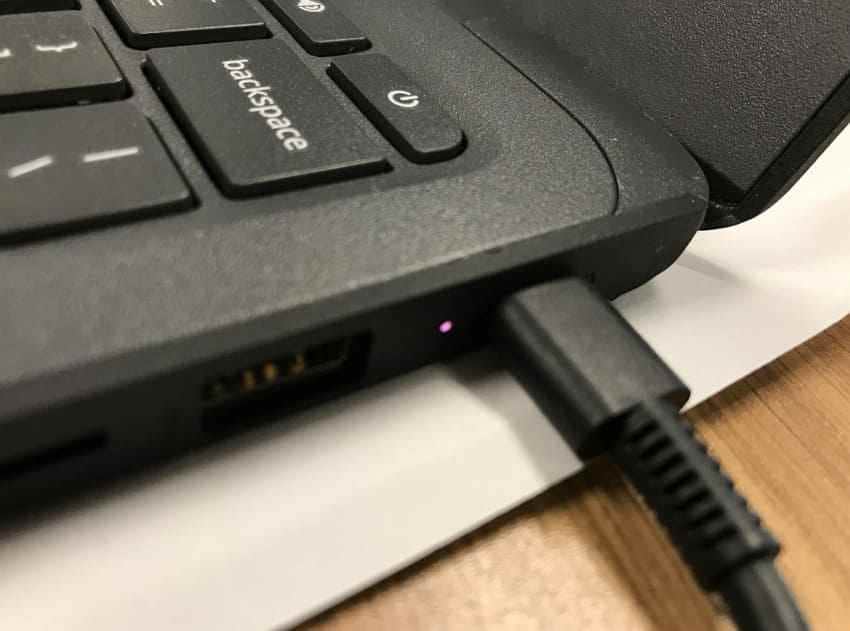
Fix 2. Charge for 30 Minutes
If the battery is deeply drained, leave the Chromebook plugged in for at least 30 minutes. Then press the power button once and wait. Do not keep pressing the power button repeatedly while it is charging.
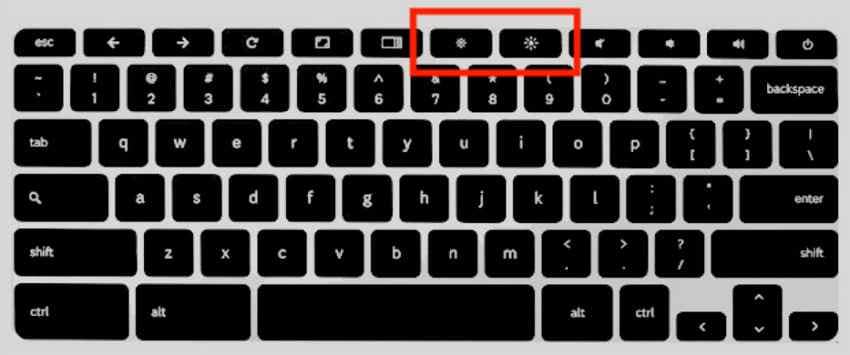
Fix 3. Wake and Brighten the Screen
Move the mouse, press a key, or tap the touchpad. Then press the Brightness up key several times. If the screen was dimmed or stuck after sleep, this may bring it back.
Fix 4. Force Restart With the Power Button
Hold the Power button for about 10 seconds until the Chromebook turns off. Wait 5 seconds, then press the power button again. Watch for the Google logo or sign-in screen.
Fix 5. Perform a Hardware Reset
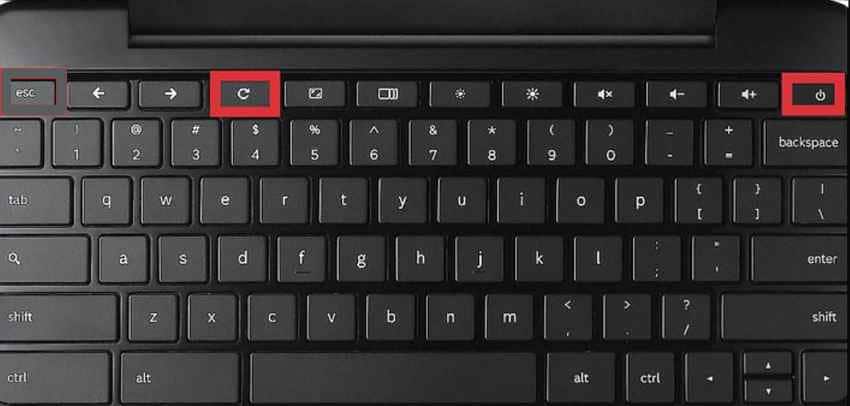
A hardware reset restarts Chromebook hardware components such as the keyboard, touchpad, and sometimes the battery controller. Google notes that a hard reset may delete some files in Downloads, so use it carefully if local files matter.
On most Chromebooks, press and hold Refresh, then tap Power. Release Refresh after the Chromebook starts.
Fix 6. Remove USB Devices and Accessories
Turn off the Chromebook. Disconnect USB drives, external monitors, hubs, SD cards, mice, keyboards, printers, HDMI cables, and other accessories. Restart with only the charger connected. If it works, reconnect accessories one at a time.
Fix 7. Test With an External Monitor
Connect the Chromebook to a TV or monitor using HDMI, USB-C, or a compatible adapter. Turn on the external display and choose the correct input. If the Chromebook desktop appears externally while the built-in screen stays black, the built-in screen, backlight, display cable, or hinge connection may need service.
Fix 8. Try Powerwash Only After Backup
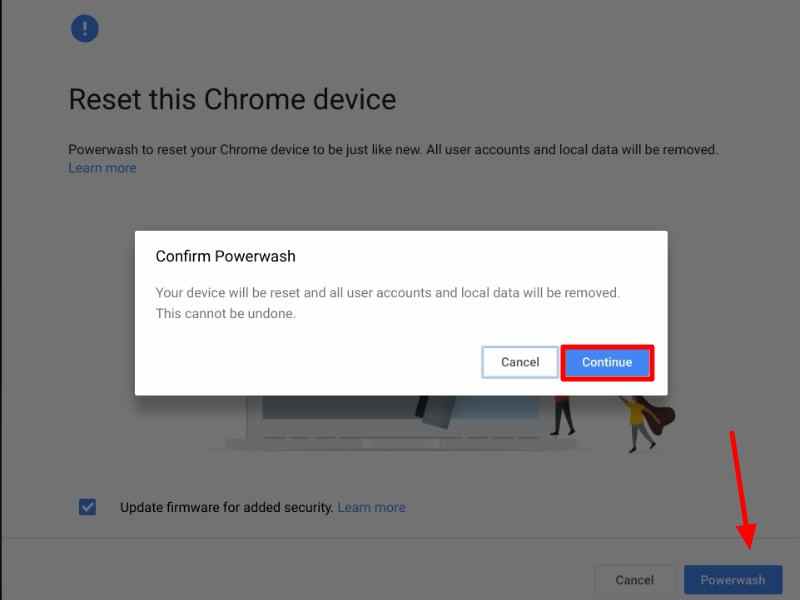
A Powerwash factory reset can fix corrupted local settings, but it removes local user data from the Chromebook. Use it only after confirming that important files are synced to Google Drive or copied elsewhere.
If you can reach the sign-in screen, press Ctrl + Alt + Shift + R, choose Restart, then select Powerwash and follow the prompts.
Fix 9. Use Chromebook Recovery Mode
Use Recovery when ChromeOS is missing, damaged, or cannot start after safer fixes. Google's Chromebook recovery guidance warns that recovery permanently erases the hard drive, including downloaded files.
Step 1. Press Esc + Refresh + Power to enter Recovery Mode.
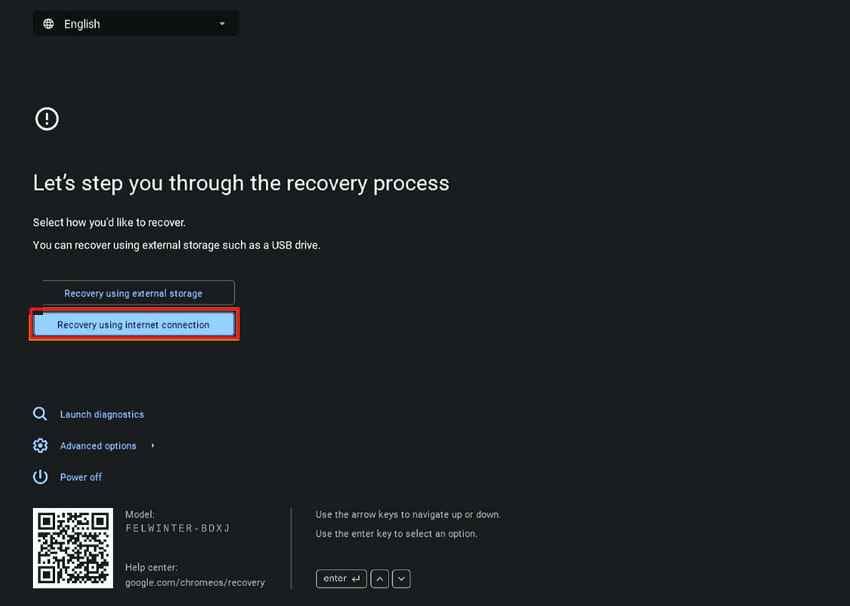
Step 2. If internet recovery is available, choose it, connect to Wi-Fi, and follow the onscreen instructions.
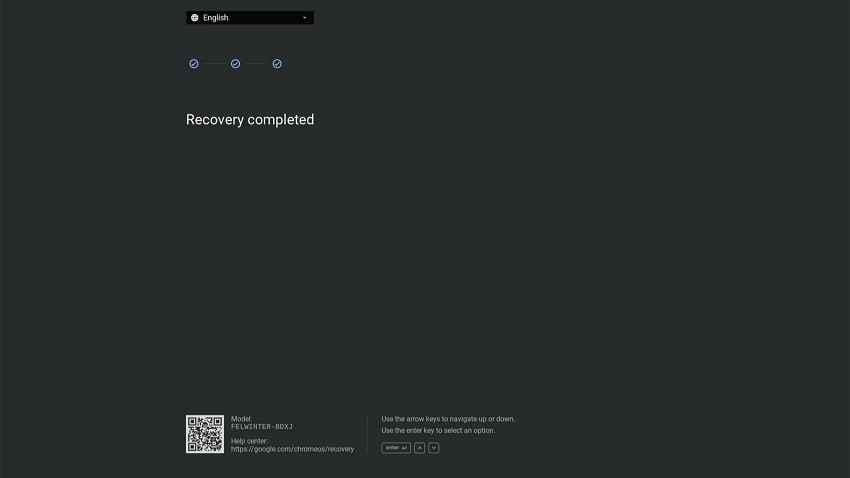
Fix 10. Use a Chromebook Recovery USB or SD Card
If internet recovery does not work, create recovery media on another computer with the Chromebook Recovery Utility. Use the exact model shown on the recovery screen. Insert the USB drive or SD card into the affected Chromebook and follow the prompts.
Recovery reinstalls ChromeOS and can erase local files, so use this after checking Google Drive, external storage, and any available backup options.
Part 6. Acer Chromebook Black Screen: What to Check First
If your Acer Chromebook screen is black, check these points before repair:
- Charging light: No light may indicate a charger, USB-C port, battery, or board issue.
- Power light with black screen: The device is on, but the display or ChromeOS startup may be stuck.
- External monitor output: External display success usually points to built-in display hardware.
- Managed device status: A school or work Acer Chromebook may need administrator help.
- Warranty status: Check Acer warranty before opening the Chromebook or replacing parts.
- Repair signs: Flickering, lines, dim image, hinge-related changes, liquid damage, or cracked glass suggest hardware repair.
Part 7. Recover or Back Up Files Before Powerwash or ChromeOS Recovery
File protection is different on Chromebooks. Many files live in Google Drive, but files saved only in Downloads or on removable storage may be at risk.
What Files Are at Risk on a Chromebook?
| Location | Risk Before Powerwash or Recovery |
| Google Drive | Usually synced online and accessible from another device |
| Downloads folder | Can be erased by Powerwash or full Chromebook Recovery |
| USB drive or SD card | Usually separate from Chromebook reset, but files can be deleted, formatted, or corrupted |
| Android app data | Depends on app sync and backup settings |
| Encrypted internal ChromeOS user data | Not normally recoverable with Windows recovery software after reset or recovery |
When Recoverit Can Help With Chromebook-Related File Loss
Recoverit Windows Data Recovery can help recover files from external storage used with a Chromebook, such as an SD card, microSD card, USB flash drive, external hard drive, or files copied from Chromebook storage to a Windows PC.
It is useful if Chromebook-related photos, videos, documents, or school files were deleted from a removable card, lost after formatting, or became inaccessible due to file-system errors on supported storage devices.
When Recoverit Cannot Help
Recoverit cannot run inside ChromeOS, fix a Chromebook black screen, recover Google Drive files, bypass a Google account, bypass school or work management, decrypt ChromeOS internal user data, or restore files erased by Chromebook Recovery from encrypted internal storage. If the screen remains black and local internal files are critical, contact the manufacturer or a professional data recovery service before Powerwash or Recovery.
How to Recover Files From an SD Card or USB Drive Used With a Chromebook
Use a working Windows computer. Do not save recovered files back to the same SD card or USB drive you are scanning.
Step 1. Connect the Storage Device
Install and open Recoverit on a Windows computer. Insert the SD card, microSD card, USB drive, or external drive used with your Chromebook. Choose the device and start scanning.

Step 2. Scan the Device
Recoverit scans the selected storage device for deleted, formatted, or inaccessible files. Use filters or search keywords to locate photos, videos, documents, or school files.

Step 3. Preview and Recover
Preview recoverable files when available, select what you need, click Recover, and save the files to a different safe drive.

Part 8. What If the Chromebook Black Screen Will Not Resolve?
If the black screen remains after charging, brightness, hard reset, accessories removal, and external monitor testing, hardware or ChromeOS recovery may be required.
- Screen or backlight failure: Flickering, lines, faint image, or display changes when moving the lid suggest display hardware.
- Battery, port, or board issue: Charging only at a certain cable angle can indicate port or board damage.
- Overheating or liquid damage: Stop using the Chromebook and contact support.
- Managed Chromebook: Contact school or workplace IT before Powerwash, Recovery, or repair.
- Auto Update Expiration: Check the Chromebook's AUE date. An unsupported device may be less worth repairing if the cost is high.
- Warranty or manufacturer support: Contact Acer or the Chromebook manufacturer before opening the device.
Part 9. How to Prevent Chromebook Black Screen Problems
| Measure | What to Follow |
| Update ChromeOS | Install ChromeOS updates while the Chromebook is still supported |
| Avoid full battery drain | Do not regularly let the battery fall to 0% |
| Restart after updates | Let ChromeOS finish update restarts completely |
| Keep vents clear | Prevent overheating by keeping vents unobstructed |
| Sync important files | Save key work to Google Drive or another backup location |
| Back up removable storage | Keep another copy of SD card, USB drive, and external drive files |
| Check AUE date | Know when the Chromebook stops receiving automatic updates |
Conclusion
A black screen on Chromebook is often fixable with safe steps: charge the device, increase brightness, force restart once, perform a hardware reset, remove accessories, and test an external monitor. Use Powerwash or Chromebook Recovery only after checking Google Drive and protecting local files because these options can erase data stored only on the Chromebook.
If data was lost from Chromebook-related external storage, Recoverit Windows Data Recovery can help recover files from SD cards, USB drives, and external drives on a Windows computer. It cannot fix ChromeOS, repair hardware, recover cloud files, or bypass Chromebook encryption, but it can help with supported removable storage before the data is overwritten.
FAQ
-
How do I know if my Chromebook screen is damaged?
Signs include cracks, flickering, lines, discoloration, a faint image under light, display changes when moving the lid, or external monitor output working while the built-in screen stays black. -
Can a Chromebook with a black screen fix itself?
Sometimes. A temporary sleep, brightness, or power glitch may clear after charging, force restart, or hardware reset. Persistent black screens need deeper troubleshooting or support. -
How long should I charge a Chromebook with a black screen?
Leave it connected to a compatible charger for at least 30 minutes, then press the power button once. Deeply drained batteries can take time to show signs of life. -
Will Powerwash delete my Chromebook files?
Powerwash removes local user data from the Chromebook. Files synced to Google Drive are usually safe online, but files stored only in Downloads or local folders can be lost. -
Can Recoverit recover files from a Chromebook black screen?
Recoverit cannot recover encrypted internal Chromebook data after Powerwash or Recovery. It can help recover files from Chromebook-related SD cards, USB drives, external drives, and supported storage connected to a Windows computer.



