 TL;DR:
Diagnosing and fixing a Windows 10 startup black screen depends on whether the system fails before the logo or gets stuck with a cursor, requiring a sequence of hardware checks, display driver resets, and WinRE rollbacks while prioritizing data recovery before deep system repairs.
● Press Windows + Ctrl + Shift + B to restart the graphics driver if the screen is completely blank, or press Ctrl + Shift + Esc to open Task Manager and run explorer.exe if only the mouse cursor is visible.
● Interrupt the system startup three times to force the PC into the Windows Recovery Environment, where you can boot into Safe Mode to disable Fast Startup, roll back a faulty display adapter, or uninstall a recent quality update.
● Use a working PC to create a bootable USB with Recoverit Windows Data Recovery to extract files from the readable internal drive before running aggressive commands like bootrec or resetting Windows, noting the software cannot repair the OS or bypass BitLocker without the key.
Ask AI for a summary
 ChatGPT
 Perplexity
 Gemini
 Claude
 Grok
Grok
A black screen on startup Windows 10 problem usually means the PC has power, but Windows or the display path cannot show the desktop. It may happen before the Windows logo, after the logo, before sign-in, after sign-in, or as a black screen with a cursor.
The fix depends on what still works. A monitor with No Signal points toward cable, input, GPU, or monitor problems. A black screen with cursor often means Windows loaded partly but Explorer or the desktop did not start. A black screen after a Windows update or graphics driver update often points to display driver, Fast Startup, system files, or update rollback.
This guide explains how to diagnose and fix Windows 10 booting to black screen safely. Windows 10 reached end of support on October 14, 2025, but the recovery logic below still applies to many Windows 10 startup black screen cases. If important files are on the PC, recover or back them up before Reset this PC, clean install, boot repair, CHKDSK, or hardware service. Recoverit Windows Data Recovery can help recover files from readable Windows drives, but it cannot repair Windows, fix a monitor, repair a GPU, bypass passwords, or decrypt BitLocker without the key.
In this article
-
- Fix 1. Check Power, Monitor, Cable, and Display Input
- Fix 2. Force Restart the Windows 10 PC Once
- Fix 3. Disconnect External Devices and Peripherals
- Fix 4. Press Windows + Ctrl + Shift + B to Restart the Graphics Driver
- Fix 5. Use Windows + P to Switch Display Output Mode
- Fix 6. Connect an External Monitor to Test the Display
- Fix 7. Open Task Manager and Restart Windows Explorer If You See a Cursor
- Fix 8. Boot Into Safe Mode to Isolate Driver or Software Conflicts
- Fix 9. Roll Back, Uninstall, or Reinstall the Display Driver
- Fix 10. Disable Fast Startup and Hibernation
- Fix 11. Uninstall a Recent Windows 10 Update From Advanced Startup
- Fix 12. Run DISM and SFC to Repair Windows System Files
- Fix 13. Use Startup Repair From Windows Recovery Environment
- Fix 14. Perform System Restore to Before the Black Screen Appeared
- Fix 15. Repair Boot Configuration From Command Prompt
- Fix 16. Reset or Reinstall Windows 10 Only After Recovering Important Files
Part 1. What Does a Black Screen on Startup Mean in Windows 10?
A Windows 10 startup black screen means Windows, the graphics driver, or the display output fails before the desktop appears. The PC may still be running, but the screen remains black, blank, stuck with a cursor, or shows no video signal.
Start by identifying where the failure happens:
- Before Windows logo: Power, monitor, cable, GPU, BIOS/UEFI, boot device, or hardware may be involved.
- After Windows logo: Windows started loading, but a display driver, update, Fast Startup, system file, or startup service may have failed.
- Black screen with cursor: Windows may have loaded partly, but Explorer, login, or the graphics shell did not start correctly.
- After sign-in: A user profile, startup app, display driver, or Explorer issue is more likely.
- No Signal message: The monitor is not receiving video. Check cable, input source, GPU, dock, or external display mode first.
Do not treat every black screen as the same problem. A desktop PC with a wrong monitor input needs a different fix from a laptop that reaches Windows but only shows a cursor.
Part 2. Quick Diagnosis: Which Windows 10 Startup Black Screen Do You Have?
Use this table to match your symptom before trying repairs.
| Symptom | Likely Meaning | Best First Step |
| Black screen before Windows logo | Monitor, cable, GPU, BIOS/UEFI, boot device, or early hardware issue | Check power, cable, display input, and external monitor |
| Windows 10 boots to blank screen after logo | Display driver, update, Fast Startup, or system file issue | Boot into Safe Mode or WinRE |
| Windows 10 boot black screen with cursor | Windows loaded partly, but Explorer or the desktop shell failed | Open Task Manager and run Explorer |
| Black screen after sign-in | User profile, startup app, driver, or Explorer conflict | Safe Mode and disable startup items |
| Black screen after Windows Update | Update or driver compatibility problem | Uninstall latest update or roll back display driver |
| Black screen after graphics driver install | Bad, incompatible, or incomplete display driver | Roll back or reinstall the graphics driver in Safe Mode |
| No signal on external monitor | Monitor input, cable, adapter, dock, GPU, or display output problem | Try another port, cable, display mode, or monitor |
| Windows 10 will not boot and files matter | Advanced repair may affect data | Recover files before reset, reinstall, CHKDSK, or hardware repair |
Part 3. Why Windows 10 Boots to a Black Screen
These are the most common reasons Windows 10 boots to a black screen:
- Wrong display output: Windows may send video to another monitor, projector, TV, dock, or disabled screen.
- Monitor, cable, or input issue: A loose cable, wrong input source, failing adapter, or bad port can look like Windows failed to boot.
- Display driver failure: A corrupted, incompatible, or recently updated graphics driver can break the display after Windows starts loading.
- Windows Explorer failure: Explorer may fail after sign-in, leaving only a black screen with cursor.
- Fast Startup or hibernation conflict: Windows may reload a bad saved state and return to the same black screen.
- Recent Windows update: A quality or feature update can change display drivers, startup files, or system settings.
- Startup app or service conflict: A third-party app, security tool, remote desktop utility, or display tool may block the desktop.
- Corrupted system files: Damaged Windows files can stop sign-in, Explorer, or startup services.
- Boot configuration problem: Damaged boot records or BCD data can stop Windows before normal startup.
- Disk or hardware failure: A failing SSD, HDD, RAM, GPU, motherboard, display, or power supply can cause repeated black screens.
Part 4. Important Steps Before Fixing Windows 10 Black Screen on Startup
Before trying advanced repair, reduce risk with these checks:
| Pre-Fix Step | Why It Matters |
| Avoid repeated force restarts | Repeated shutdowns during disk activity can worsen file system or update corruption. |
| Do not reset Windows yet | Reset or reinstall can remove apps, settings, and sometimes personal files. |
| Confirm the PC is powering on | Power lights, fan noise, keyboard lights, or disk activity help separate power failure from display failure. |
| Check whether the monitor says No Signal | No Signal usually points to cable, input, adapter, GPU, dock, or monitor issues. |
| Test an external monitor or another cable | This separates display hardware from Windows startup problems. |
| Write down recent changes | Updates, new drivers, new monitors, BIOS changes, and app installs help choose the right rollback step. |
| Recover files before risky repair | Protect important data before reset, clean install, CHKDSK, boot repair, or hardware service. |
Part 5. How to Fix Windows 10 Black Screen on Startup
Try these fixes in order. Stop when the display returns, then back up important files before attempting deeper changes.
Fix 1. Check Power, Monitor, Cable, and Display Input
Confirm the PC and monitor both have power. Check the monitor input source, power cable, HDMI, DisplayPort, VGA, USB-C adapter, dock, and GPU port. For desktops, make sure the monitor cable is connected to the active graphics output. If you have a dedicated GPU, connect the monitor to the GPU instead of the motherboard port unless your PC uses integrated graphics.
If the monitor shows No Signal, try another cable, port, or monitor before changing Windows settings.
Fix 2. Force Restart the Windows 10 PC Once
If the PC is clearly frozen, hold the Power button for about 10 seconds until it shuts down. Wait a few seconds, then turn it on again. Use this once or twice only. Repeated hard shutdowns can increase the chance of file system damage if Windows is still writing data.
Fix 3. Disconnect External Devices and Peripherals
USB drives, external hard drives, docks, printers, card readers, controllers, and old peripherals can interfere with startup. Shut down the PC, disconnect nonessential devices, and restart with only power, monitor, keyboard, and mouse connected. If Windows starts, reconnect devices one at a time to find the conflict.
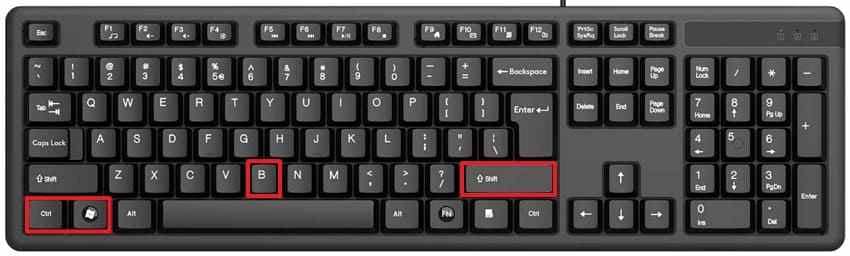
Fix 4. Press Windows + Ctrl + Shift + B to Restart the Graphics Driver
If Windows is running but the display is stuck black, restart the graphics driver. Press Windows + Ctrl + Shift + B. You may hear a beep, and the screen may flicker. Wait a few seconds to see whether the display returns.
Fix 5. Use Windows + P to Switch Display Output Mode
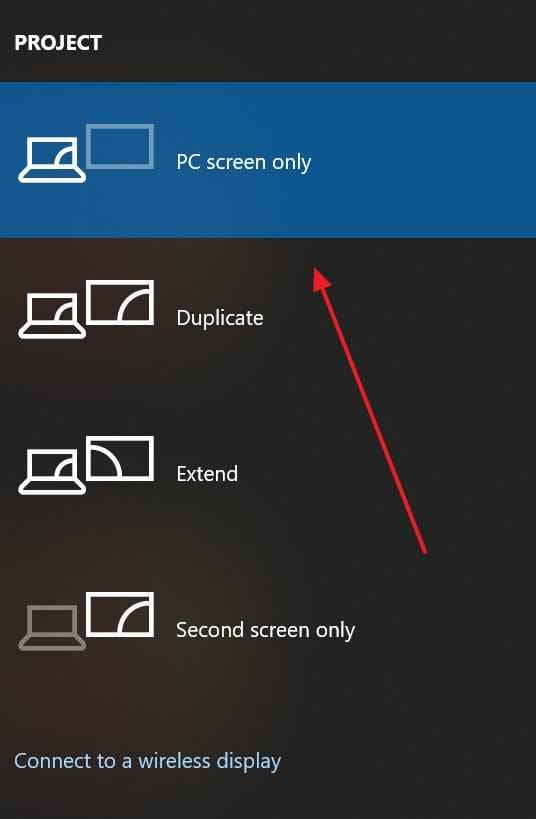
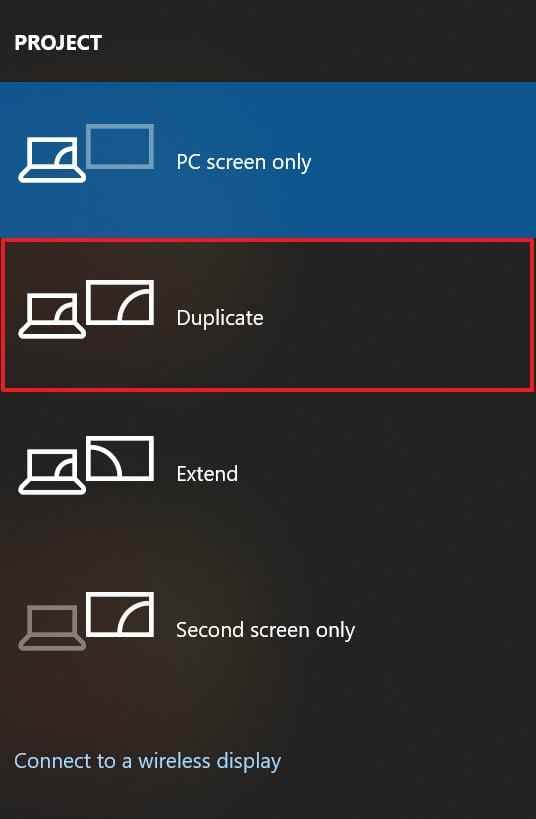
Windows may be sending output to the wrong screen, especially after using a projector, TV, dock, or external monitor. Press Windows + P, use the arrow keys to choose PC screen only or Duplicate, then press Enter.
Fix 6. Connect an External Monitor to Test the Display
Connect the PC or laptop to another monitor or TV. If the external display works, the built-in laptop screen, monitor, cable, adapter, dock, or display output may be the problem. Use the working display to back up files and update or roll back drivers.
If both screens remain black, continue with Safe Mode and Windows Recovery Environment.
Fix 7. Open Task Manager and Restart Windows Explorer If You See a Cursor
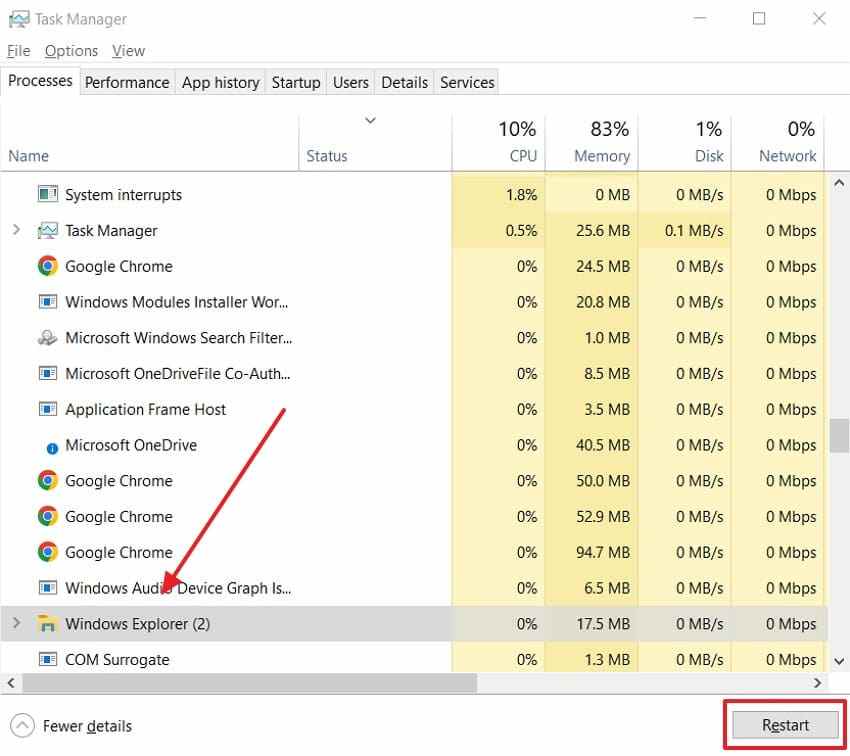
A Windows 10 startup black screen with cursor often means Windows loaded partly, but Explorer failed to show the desktop. Press Ctrl + Shift + Esc to open Task Manager. If it opens, choose File > Run new task, type explorer.exe, and press Enter. If Windows Explorer appears in the process list, right-click it and choose Restart.
Fix 8. Boot Into Safe Mode to Isolate Driver or Software Conflicts
Safe Mode starts Windows with limited drivers and services. If the screen works there, the cause is likely a driver, startup app, update, or third-party service.
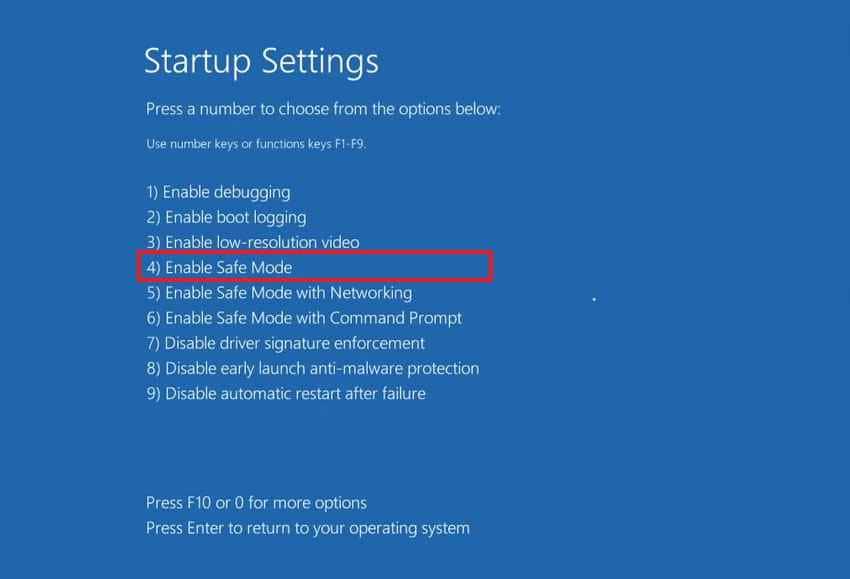
To enter Safe Mode when Windows will not boot normally, interrupt startup three times by turning the PC off during the Windows loading phase. On the next boot, Windows should open recovery options. Choose Troubleshoot > Advanced options > Startup Settings > Restart, then press 4 or F4 for Safe Mode.
Fix 9. Roll Back, Uninstall, or Reinstall the Display Driver
If the black screen started after a graphics driver update, roll it back in Safe Mode.
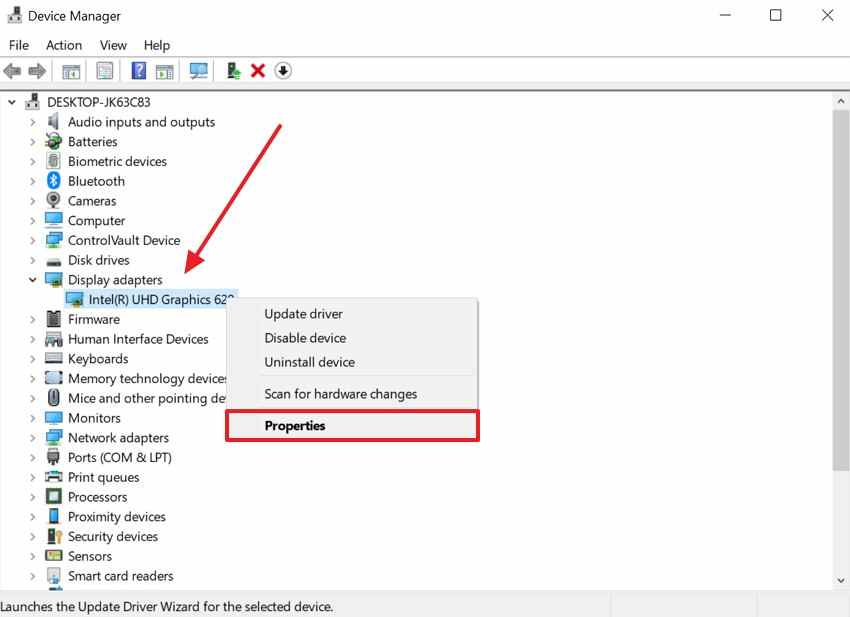
Step 1. In Safe Mode, right-click Start, open Device Manager, expand Display adapters, right-click the graphics device, and select Properties.
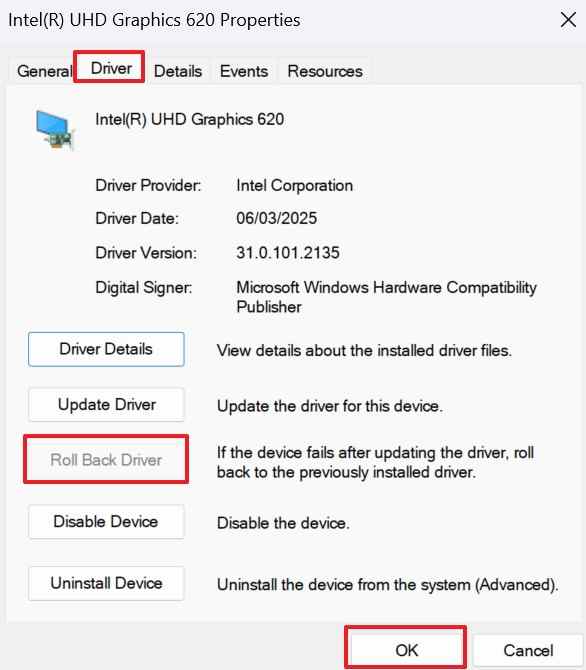
Step 2. Open the Driver tab and select Roll Back Driver if available. If rollback is unavailable, choose Uninstall device, restart, then install the correct driver through Windows Update, the PC maker, Intel, NVIDIA, or AMD.
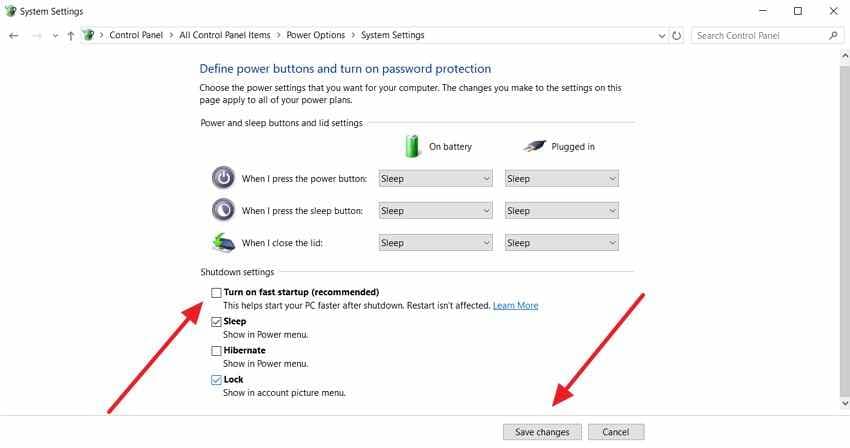
Fix 10. Disable Fast Startup and Hibernation
Fast Startup and hibernation can reload a faulty display or startup state. Disable them after you regain access to Safe Mode or Windows.
Step 1. Open Control Panel > Power Options > Choose what the power buttons do.
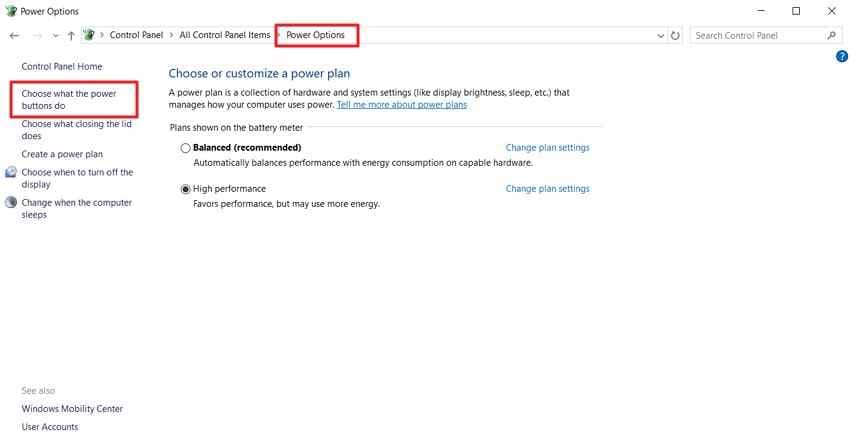
Step 2. Click Change settings that are currently unavailable, turn off Turn on fast startup, and save changes.
Step 3. Open Command Prompt as administrator and run this command to disable hibernation:
powercfg /hibernate off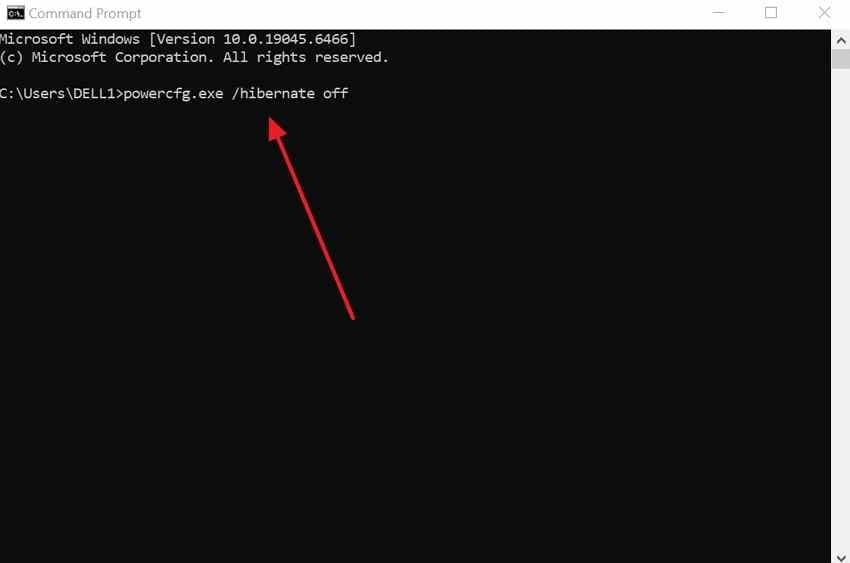
Fix 11. Uninstall a Recent Windows 10 Update From Advanced Startup
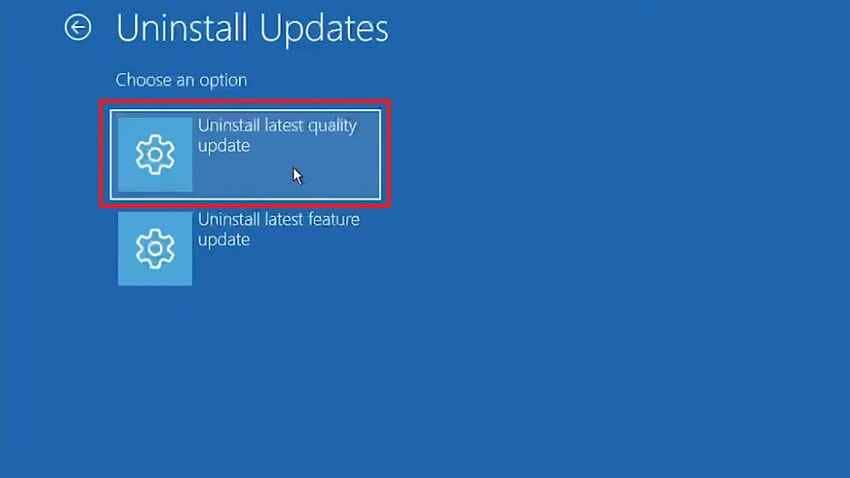
If Windows 10 started booting to a black screen immediately after an update, remove the latest update from Windows Recovery Environment.
Instructions: Open WinRE, then choose Troubleshoot > Advanced options > Uninstall Updates. Try Uninstall latest quality update first. Use feature update removal only if the problem began after a major version update.
Fix 12. Run DISM and SFC to Repair Windows System Files
Damaged system files can prevent Windows from loading the desktop. If Windows can boot into Safe Mode with Command Prompt, run DISM first, then SFC.
DISM /Online /Cleanup-Image /RestoreHealth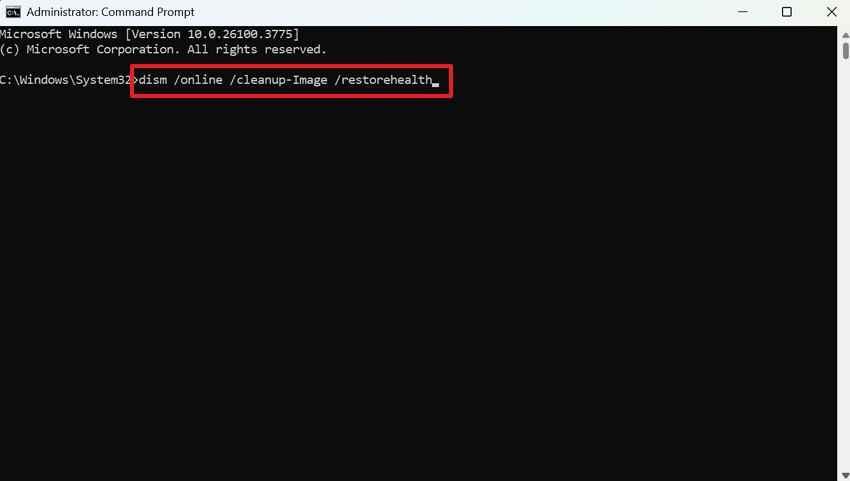
sfc /scannow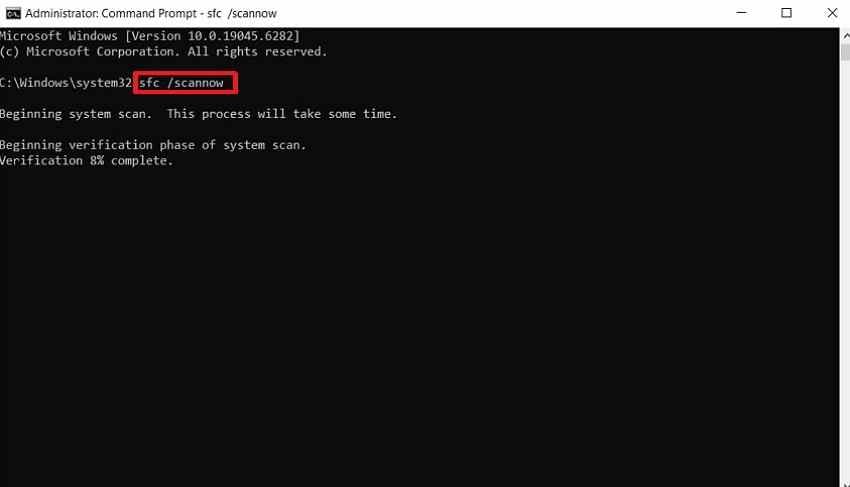
If the drive may be failing or files matter, recover important data before running aggressive disk repair commands.
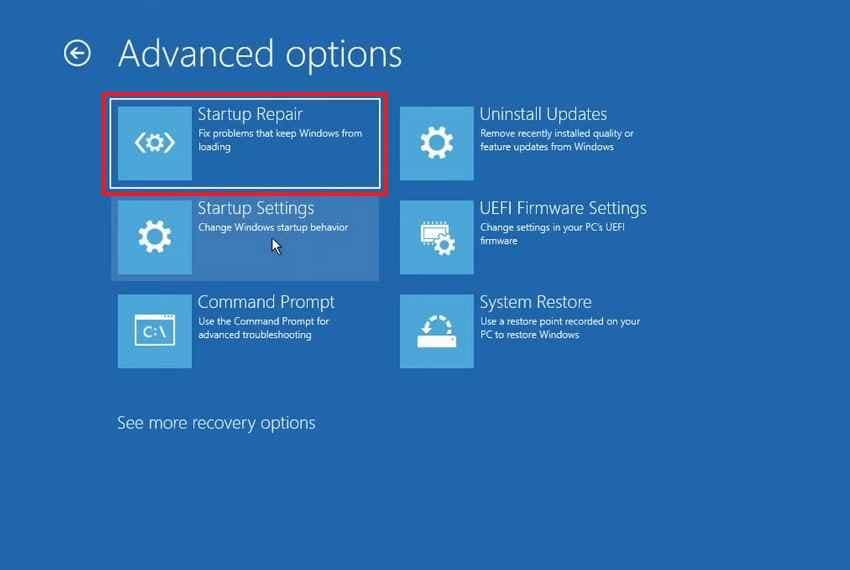
Fix 13. Use Startup Repair From Windows Recovery Environment
Startup Repair checks common startup problems automatically. It is a safer step before reset or clean installation.
Instructions: Enter Windows Recovery Environment, then choose Troubleshoot > Advanced options > Startup Repair. Select the Windows installation and let the repair run.
Fix 14. Perform System Restore to Before the Black Screen Appeared
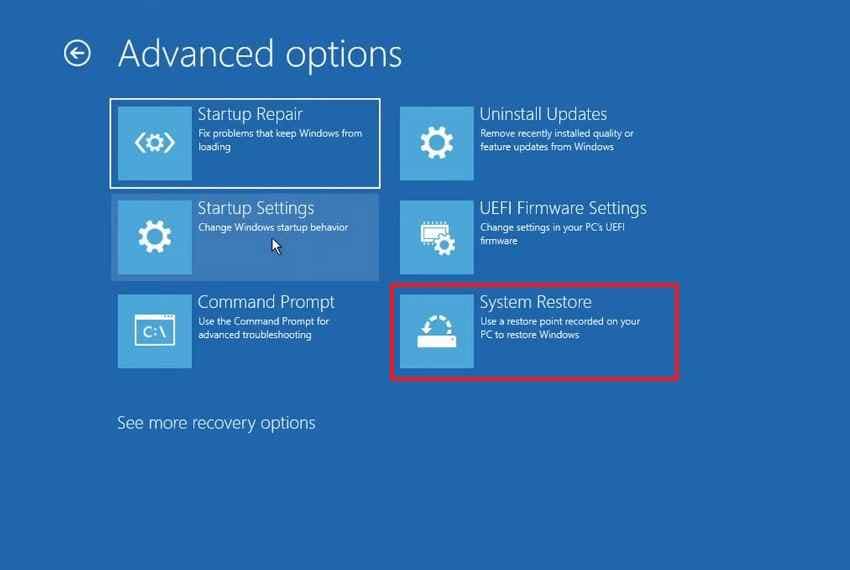
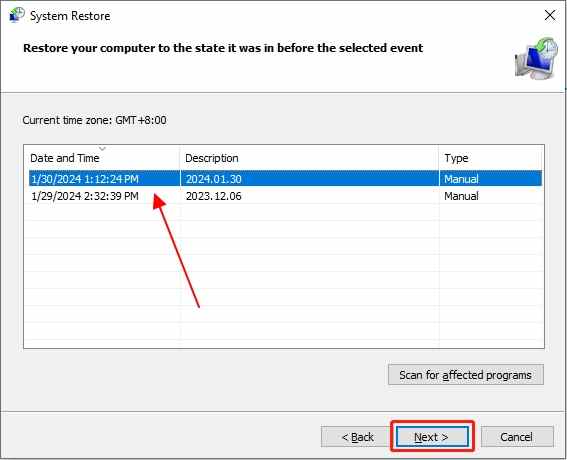
System Restore can return Windows system files, drivers, registry settings, and system configuration to a previous restore point. It does not intentionally remove personal files, but you should still recover or back up important data before using it on an unstable PC.
Step 1. In WinRE, choose Troubleshoot > Advanced options > System Restore.
Step 2. Choose a restore point created before the black screen began, then follow the onscreen instructions.
Fix 15. Repair Boot Configuration From Command Prompt
Use boot repair commands only when Windows appears to have a boot configuration issue, such as repeated startup failure before Windows loads. Recover files first if the drive may be damaged.
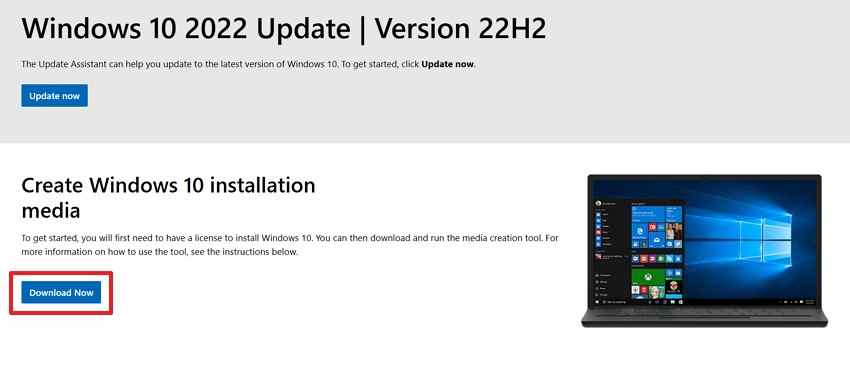
Step 1. On a working PC, create Windows 10 installation media from Microsoft's official tool.
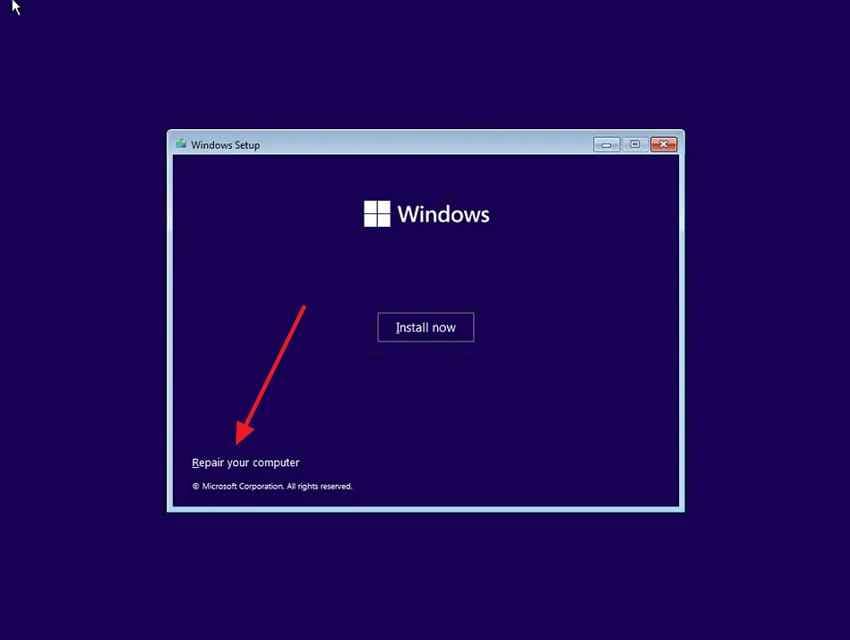
Step 2. Boot the affected PC from the installation USB, then choose Repair your computer > Troubleshoot > Advanced options > Command Prompt.
Step 3. Run these commands one at a time:
bootrec /fixmbr
bootrec /fixboot
bootrec /scanos
bootrec /rebuildbcd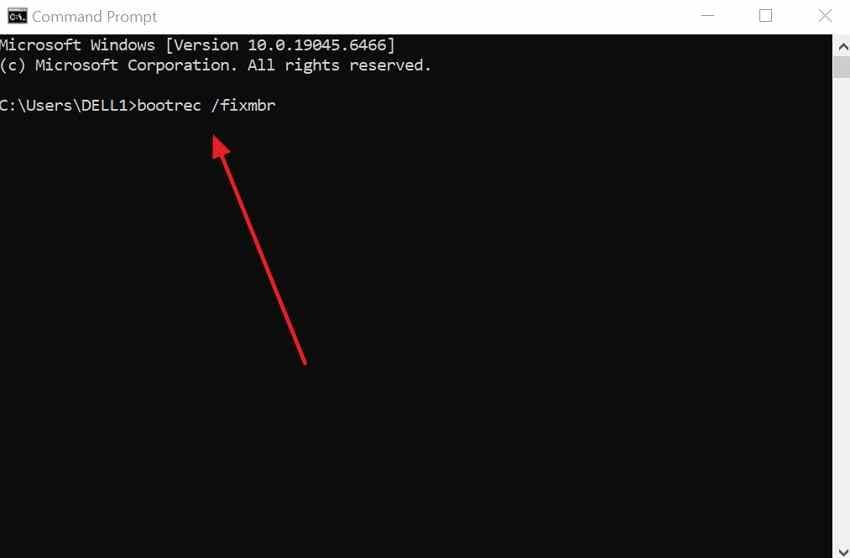
If a command returns an access or device error, stop and consider professional repair or data recovery before forcing more changes.
Fix 16. Reset or Reinstall Windows 10 Only After Recovering Important Files
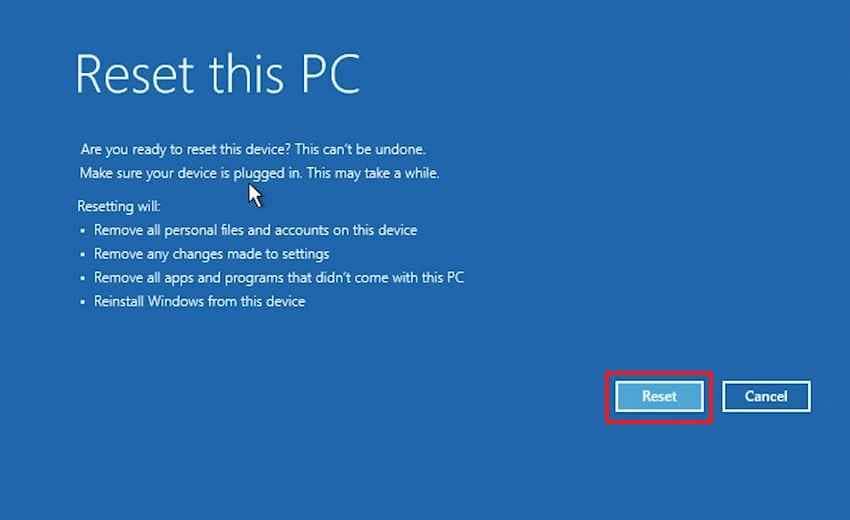
Reset or reinstall Windows only after safer fixes fail and important files are backed up or recovered. Reset options can remove apps, settings, user profiles, or personal files depending on what you choose and the condition of the drive.
Step 1. In WinRE, choose Troubleshoot > Reset this PC.
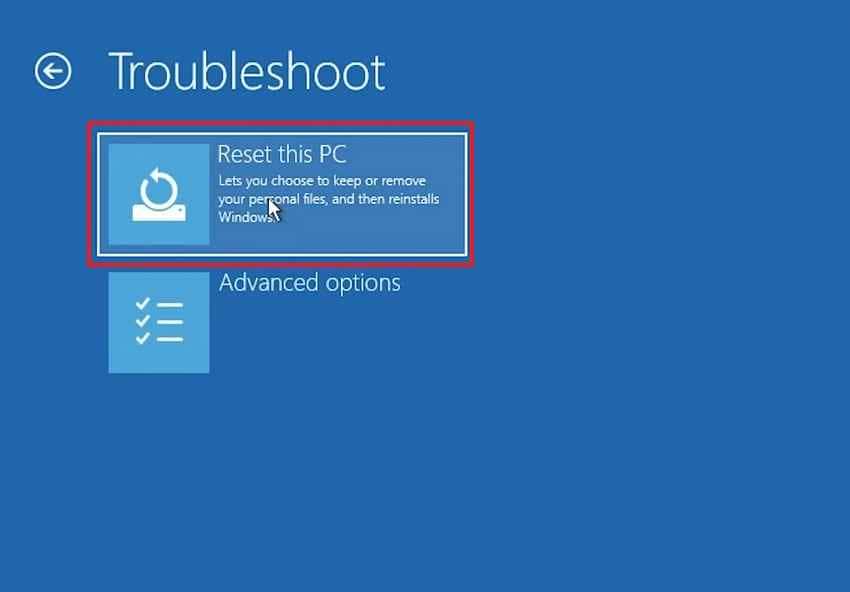
Step 2. Choose Keep my files if available. Use Remove everything or clean installation only after your files are safely recovered.
Part 6. Recover Files Before Resetting, Reinstalling, or Repairing Windows 10
When Windows 10 will not boot and a black screen blocks access to the desktop, data protection becomes the priority. Resetting Windows, reinstalling Windows, running disk repair commands, replacing the drive, or sending the PC for repair can change the data state.
Recoverit Windows Data Recovery is useful when the PC is unbootable but the internal or external storage is still readable. It can create bootable recovery media on another working Windows PC so you can recover files before advanced repairs.
When Recoverit Can Help
- Windows will not reach the desktop: The PC boots to a black screen, but the storage drive may still contain readable files.
- Files need protection before reset: Documents, photos, videos, archives, emails, and other supported files should be copied out first.
- External storage recovery: Files can be recovered from external hard drives, USB drives, SD cards, and other Windows-connected storage devices.
- Lost or deleted files: Recoverit can scan for files lost through deletion, formatting, partition issues, or system crash scenarios when the drive is accessible.
When Recoverit Cannot Help
- It cannot repair Windows startup, fix a black screen, update drivers, repair a monitor, repair a GPU, or replace hardware.
- It cannot bypass Windows passwords or decrypt BitLocker without the correct recovery key.
- It cannot guarantee recovery from overwritten files, physically failed drives, or storage devices that are no longer detected.
- It should not be installed onto the same affected drive when recovering deleted or lost files from that drive.
Detailed Guide to Recover Files From a Windows 10 PC Stuck on a Black Screen
Use another working Windows PC and an empty USB drive.
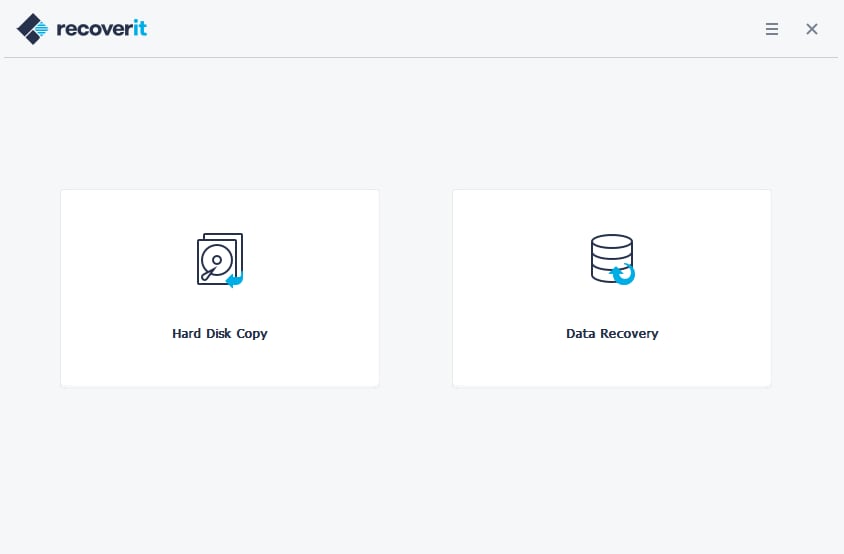
Step 1. Install and open Recoverit on the working PC. Choose System Crashed Computer and click Start.
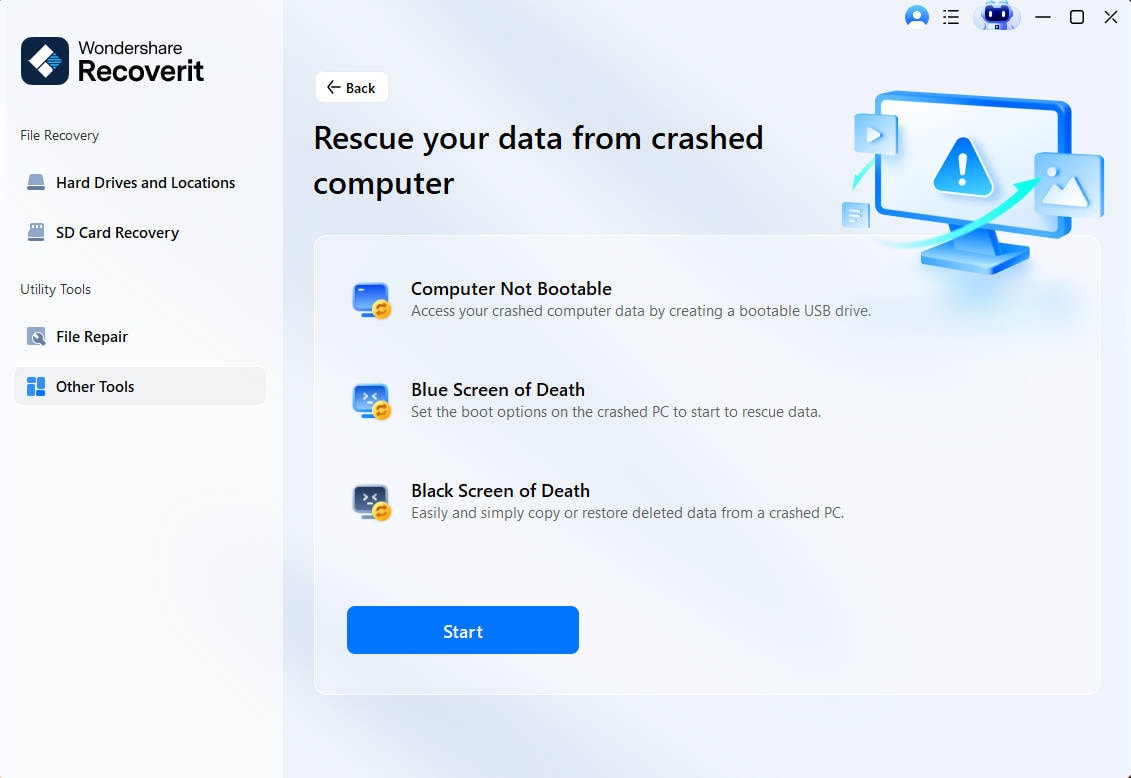
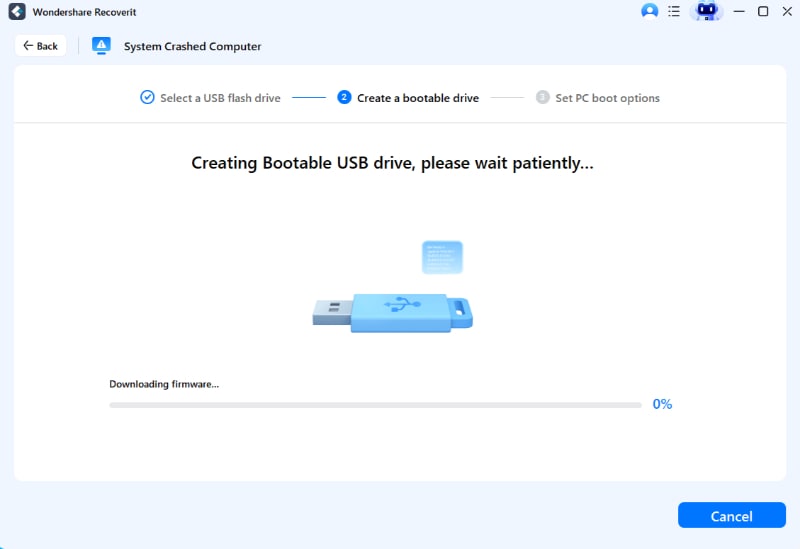
Step 2. Select the USB drive and create bootable recovery media. Back up the USB first because the process can erase it.
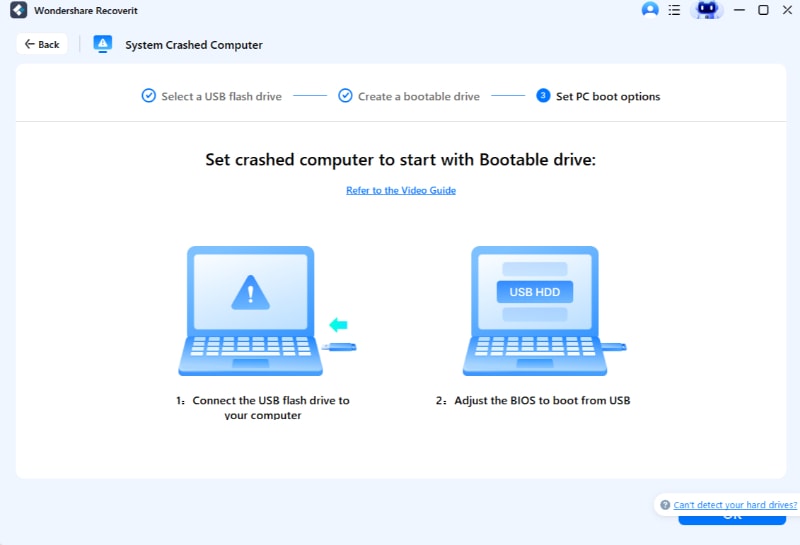
Step 3. Plug the recovery USB into the black-screen Windows 10 PC. Enter the boot menu or BIOS/UEFI and start the PC from the USB drive.
Step 4. When Recoverit loads, choose the internal drive, scan for files, preview recoverable items when available, and save them to a separate external drive.
Part 7. What If Windows 10 Still Boots to a Black Screen?
If Windows 10 still boots to a black screen after display, Safe Mode, driver, update, system file, and startup repair checks, consider hardware or storage diagnosis.
| Possible Cause | What to Check |
| Failing SSD or hard drive | Check SMART status or manufacturer diagnostics after recovering files. |
| Faulty RAM | Run Windows Memory Diagnostic or manufacturer diagnostics if the PC can boot to tools. |
| Display hardware failure | Test another monitor, cable, and port. For laptops, test an external monitor. |
| GPU problem | Try another GPU output, integrated graphics if available, or professional diagnostics. |
| Power supply or battery issue | Check unstable power, sudden shutdowns, charger, battery, or PSU behavior. |
| Motherboard or firmware issue | Seek manufacturer support if the PC cannot display BIOS/UEFI reliably. |
At this stage, avoid repeated boot repair attempts if the drive contains important files and has not been backed up. Recover data first, then continue with hardware service.
Part 8. How to Prevent Windows 10 Black Screen on Startup
Use these habits to reduce the chance of another startup black screen:
| Prevention Tip | What to Do |
| Shut down properly | Avoid cutting power while Windows updates, repairs, or disk operations are running. |
| Keep graphics drivers stable | Use drivers from Windows Update, the PC maker, Intel, NVIDIA, or AMD. |
| Create restore points | Create a restore point before major driver, Windows, or system changes. |
| Scan for malware | Malware can damage startup files, profiles, and system settings. |
| Maintain free disk space | Low space can break updates and startup repair attempts. |
| Back up files regularly | Use external drives, cloud backup, or another backup method before failures happen. |
| Monitor drive health | Replace failing SSDs or hard drives before they cause boot failure. |
Conclusion
A Windows 10 black screen on startup can come from display output, graphics drivers, Fast Startup, Windows updates, corrupted files, boot configuration, storage failure, or hardware. Start with power, monitor, cable, graphics reset, display mode, and external monitor checks. Then move to Safe Mode, driver rollback, update removal, DISM, SFC, Startup Repair, and System Restore. Use boot repair, reset, or reinstall only after recovering important files with Recoverit or another backup method.
FAQ
-
Why does Windows 10 boot to a black screen with cursor?
A black screen with cursor usually means Windows loaded partly, but Explorer, the sign-in process, or the graphics shell did not start correctly. Try opening Task Manager and running explorer.exe, then check Safe Mode and display drivers. -
Is it safe to keep restarting my PC during a Windows 10 black screen?
No. A single force restart can help if the PC is frozen, but repeated forced shutdowns can interrupt disk activity, updates, or repair processes and increase the risk of file corruption. -
Should I reset Windows 10 to fix a startup black screen?
Reset Windows only after safer fixes fail and your important files are backed up or recovered. Resetting or reinstalling can remove apps, settings, user profiles, or personal files depending on the option selected. -
Can Recoverit fix Windows 10 black screen on startup?
No. Recoverit is a data recovery tool. It can help recover files from a readable drive before reset, reinstall, or repair, but it cannot repair Windows startup, fix drivers, repair hardware, or decrypt BitLocker without the recovery key.



