
 TL;DR:
Determine whether your HP Pavilion screen flickering is a software or hardware issue by testing the display in Task Manager, the BIOS menu, and on external monitors before reinstalling drivers or attempting physical repairs.
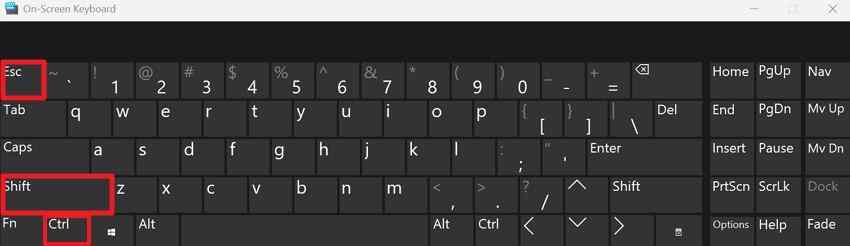
● Press Ctrl + Shift + Esc to open Task Manager; if the tool flickers along with the rest of the screen, the display driver is the likely cause, while a stable Task Manager points to an incompatible application.
● Restart the laptop and tap F10 to enter BIOS; flickering that appears here or fluctuates when moving the lid confirms a hardware fault with the firmware, panel, or display cable rather than a Windows error.
● If reinstalling drivers on a Pavilion model configured with AMD switchable graphics, you must install the integrated GPU driver before the discrete GPU driver to avoid further display conflicts.
Ask AI for a summary
 ChatGPT
 Perplexity
 Gemini
 Claude
 Grok
Grok
After setting up my stuff for my new laptop it just started flickering the screen... Is there a solution to this or do I just have to restart it every time it doesn’t turn on by flipping up the screen? - DiligentWay4473
An HP Pavilion laptop screen flickering issue can stem from graphics drivers, app conflicts, display settings, firmware, or internal display hardware. The flicker may appear as blinking, brightness pulses, black flashes, horizontal lines, or repeated refreshes. Testing Task Manager, BIOS, refresh rate, lid movement, and an external monitor helps identify the likely cause before applying software fixes or considering hardware repair.
This guide walks you through simple checks so you can see whether the issue comes from software or the hardware itself. If a fix requires a reset or reinstall, know how to back up your files first with tools like Recoverit before you start.
In This Article
Part 1. Diagnose the Cause of HP Pavilion Screen Flickering
Before you replace hardware or reinstall drivers, determine where the HP Pavilion flickering screen starts. This table shows what to observe and where to continue to fix this issue in real time:
| Where You Check | What You Observe | What It Points To | Continue With |
| Task Manager | Flickers with the rest of the screen | Graphics driver | Part 3 |
| Task Manager | Remains steady as others flicker | Incompatible application | Part 4 |
| Bios Setup | Flicker present before Windows loads | Firmware or hardware | Part 5 |
| External Display | External steady, built-in flickers | Panel or its cable | Part 5 |
| Refresh Rate | Flickers only at a higher supported rate | Driver, timing, VRR/DRR, or display-path issue | Part 2 |
Reading the Task Manager Result
Start with Task Manager to identify whether the HP Pavilion screen flickering is more likely linked to a display driver or an incompatible app. Microsoft recommends this check as an early troubleshooting step. While the flicker is visible, press “Ctrl + Shift + Esc” to open Task Manager, then compare whether it flickers with the rest of the screen.
- Task Manager Flickers: If Task Manager flickers with the rest of the screen, the display driver is likely causing the issue. Continue with the driver troubleshooting steps in Part 3.
- Task Manager Does Not Flicker: If Task Manager stays steady while the rest of the screen flickers, an incompatible app is likely responsible. Continue with Part 4 to update, remove, or isolate the affected app.
Reading the BIOS and External Display Results
If Task Manager does not provide a clear answer to HP flickering screen, check whether the flicker exists before Windows starts. Turn off your HP Pavilion completely, turn it on, and immediately tap the “F10” key repeatedly until you enter the BIOS/UEFI setup utility screen. If the flicker also appears in BIOS, Windows apps and ordinary display settings become less likely. Investigate firmware or hardware causes next.
Next, plug in an external monitor and compare the two. If the external monitor stays stable while only the built-in display flickers, the internal panel, display cable, connector, or related display path becomes more likely. HP suggests this check as a normal step in diagnosing display problems. If both screens flicker the same way, look at shared causes like the graphics driver, GPU, or firmware instead of the panel alone.
Part 2. Apply Quick Fixes Before Deeper Troubleshooting
If the earlier tests suggest that your HP Pavilion laptop screen flickering may be related to Windows, the graphics driver, or display settings, try the least disruptive fixes first. These checks can help resolve or further isolate the problem without reinstalling Windows or replacing hardware:
Fix 1. Reset the Graphics Driver
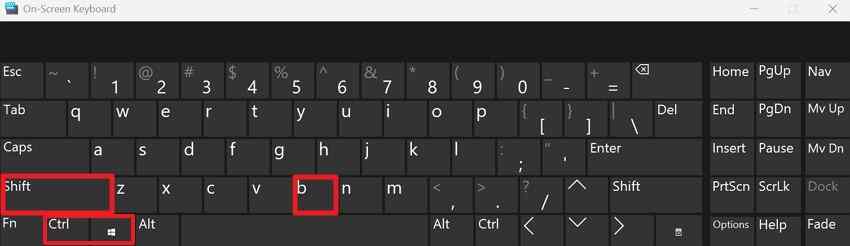
Press “Windows + Ctrl + Shift + B” together. Microsoft lists this as an early step for screen flicker, and the screen may flash or beep once as the driver resets. If the flicker stays after this, restart the laptop and try the next check.
Fix 2. Restart with External Displays and Accessories Disconnected
Disconnect monitors, docks, adapters, and other accessories, then restart the Pavilion. Add them back one at a time to see whether a particular connection triggers the flicker. Microsoft recommends this check, and HP has logged flicker issues tied to certain dock and monitor setups.
Fix 3. Compare AC and Battery Behavior
Test the display using the correct HP AC adapter, then disconnect it and test on battery power. A difference is a useful clue, but power mode, brightness, GPU, or refresh-rate changes may also explain the HP Pavilion flickering screen.
Fix 4. Check What Changed Before the Flickering Started
A recent driver update, Windows update, new app, or a changed display setting can point you to the cause. If it started right after a Windows update, here's how:
Note: Don't remove updates at random, since Microsoft warns that some carry security fixes and others can't be removed at all.
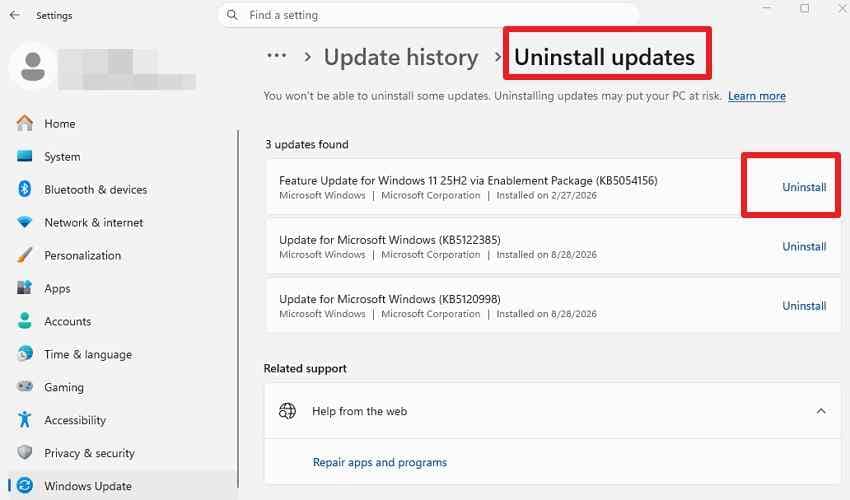
Step 1. In “Settings > Go to Windows Update > Update History.”
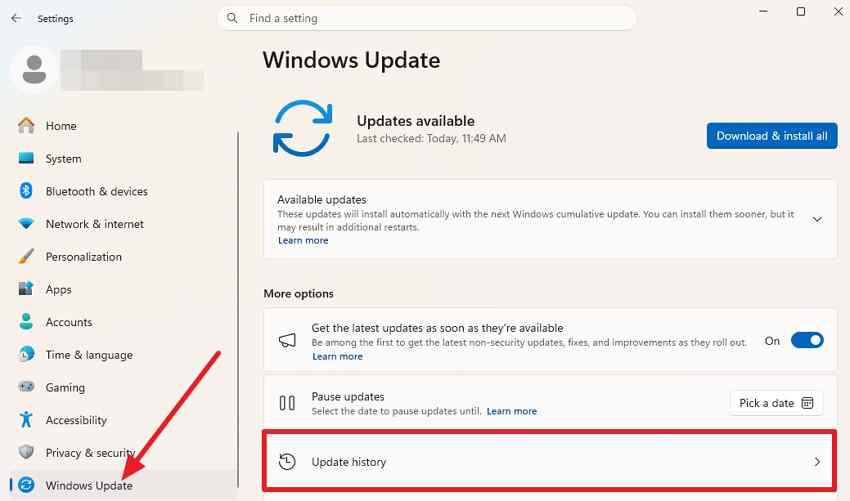
Step 2. If the flickering began immediately after a specific removable Windows update, click “Uninstall Updates > Uninstall” at the bottom of the page to revert it.
Fix 5. Test the Refresh Rate Directly
Microsoft's guide shows how to switch between the refresh rates your display supports. As for the guide for this check to fix the HP flickering screen issue, here are the steps:
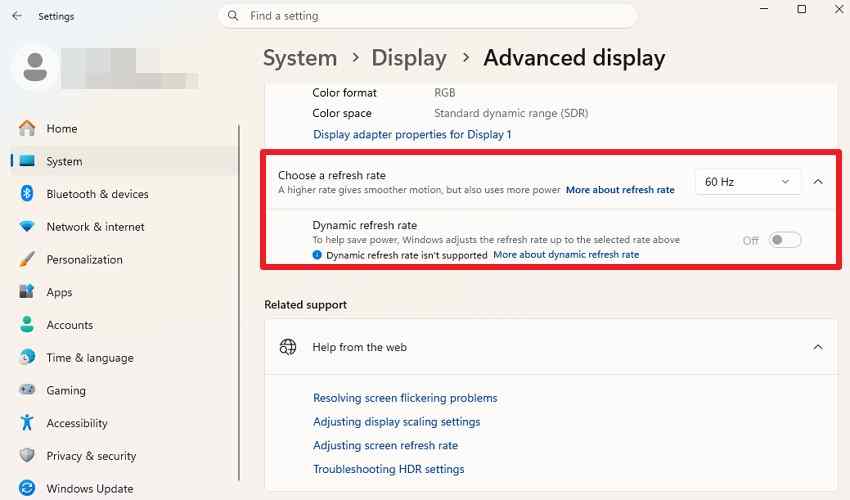
Step 1. Go to “Settings > System > Display > Advanced Display” and note the currently selected refresh rate.
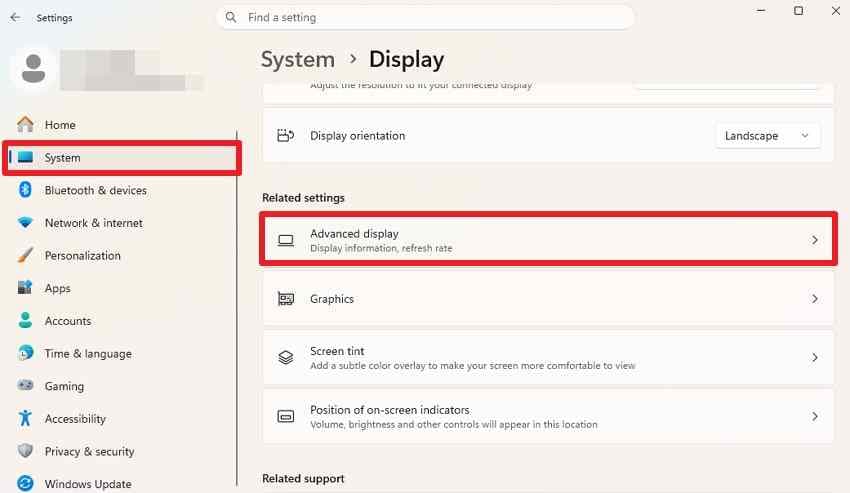
Step 2. Under “Choose a Refresh Rate,” select another rate supported by your Pavilion's display.
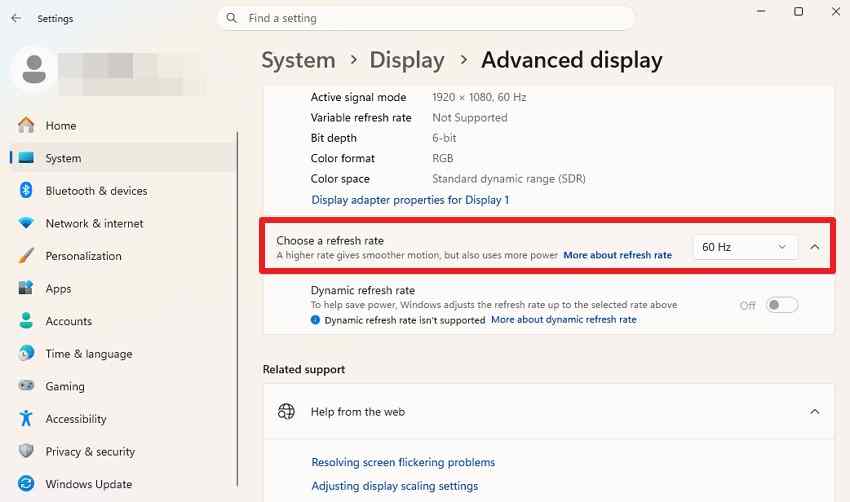
Note: Use only rates supported by the built-in display. A rate marked with an asterisk in Windows may also change the current resolution.
Part 3. Repair HP Pavilion Graphics Driver Issues
If the HP Pavilion laptop screen flickering points to a display driver problem, focus on the graphics software next. The following 5 fixes help roll back, reinstall, update, or isolate the driver-related cause.
Fix 1. Roll Back a Recently Updated Driver
Both Microsoft and HP recommend this step when a recent update causes display problems. To learn how to do this through Device Manager, follow these directions:
Step 1. In Device Manager, expand the “Display Adapters” menu and right-click your graphics adapter to choose “Properties.”
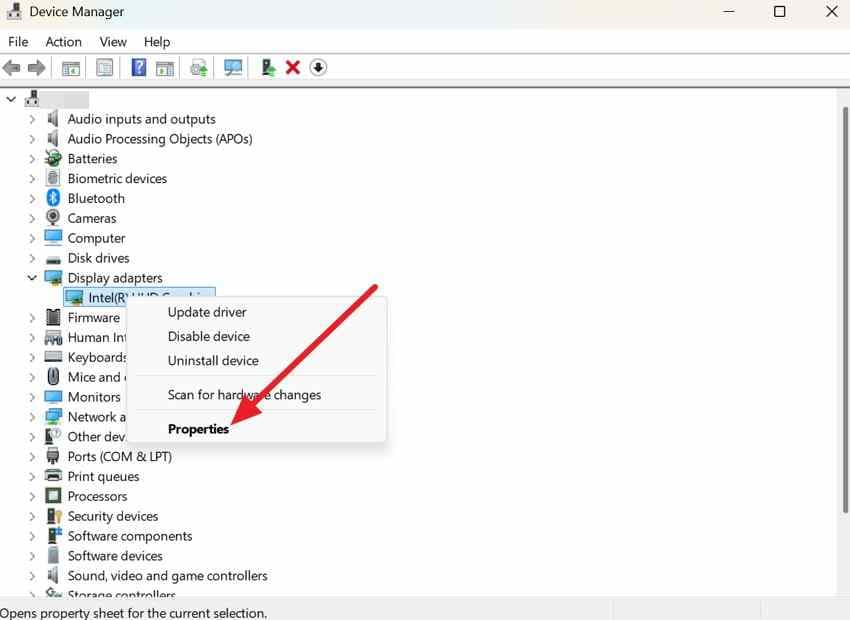
Step 2. Select the “Driver” tab and choose “Roll Back Driver.” Pick a reason when prompted, confirm the rollback, and restart the laptop.
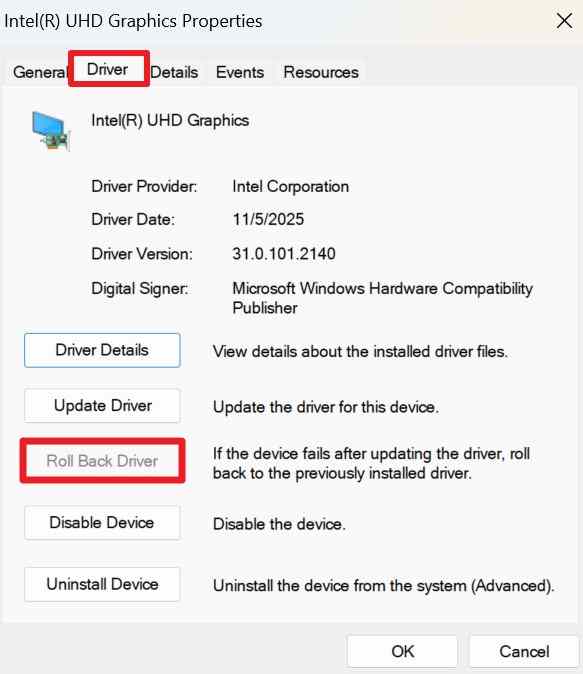
Note: If “Roll Back Driver” is unavailable, Windows does not currently have a previous driver package available for rollback.
Fix 2. Install the HP-Validated Driver
If a rollback doesn't fix the HP flickering screen, check if HP has a graphics driver made for your exact laptop model. HP says to use your specific model number when searching, since laptops in the same series can have different hardware inside.
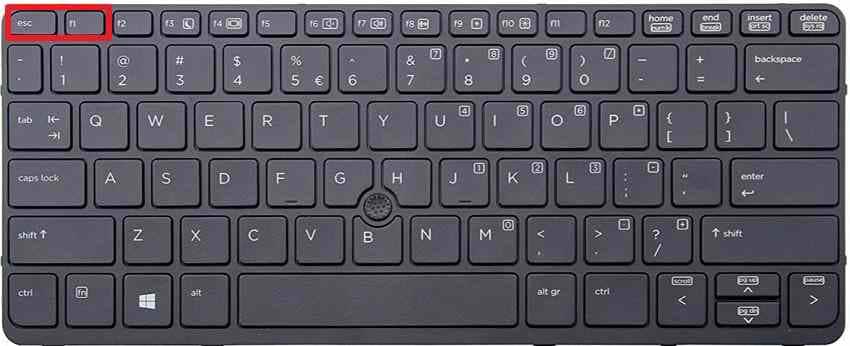
Step 1. On supported HP Pavilion models, press “Fn + Esc” to open the HP System Information window. Note your Pavilion's product number or serial number.
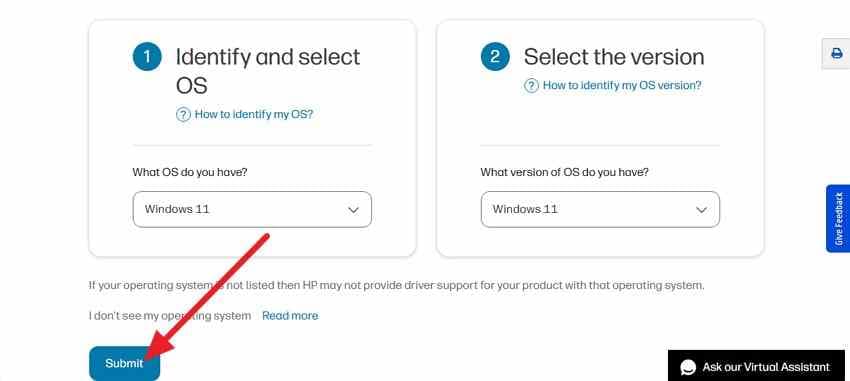
Step 2. Go to the HP Software and Driver Downloads page > Choose “Laptops” > Add Serial Number > Select OS and Version > “Submit.”
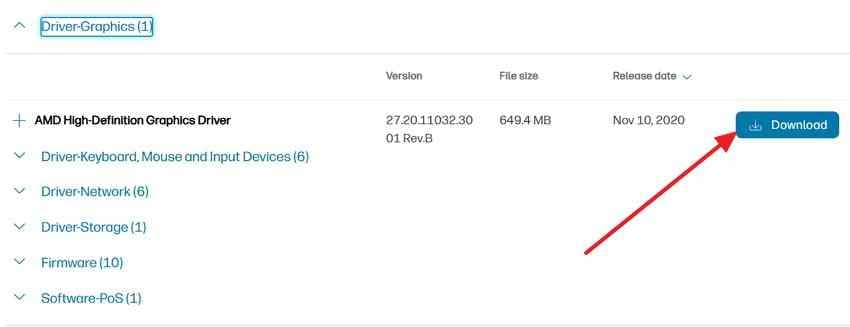
Step 3. Expand “Driver-Graphics,” select the appropriate graphics driver for your Pavilion, and click “Download.” Follow the on-screen instructions to install it, then restart the laptop if prompted.
Fix 3. Check HP Support Assistant
The tool can provide automatic driver and firmware updates, and its update feature can also find and install BIOS updates for supported Windows PCs. If you wonder how this can resolve the HP Pavilion laptop screen flickering issue, review these guidelines:
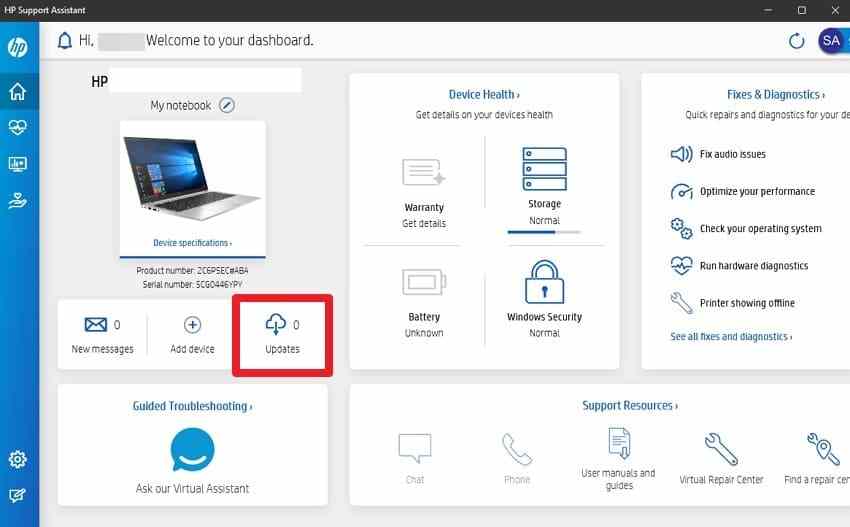
Step 1. Download and open HP Support Assistant > Go to “My Dashboard” > Locate your Pavilion and select “Updates.” Wait while HP Support Assistant analyzes the system.
Step 2. Choose the relevant graphics, driver, firmware, or BIOS updates and tap the “Download and Install” button. Restart the laptop if prompted, then check whether the flickering screen problem is resolved.
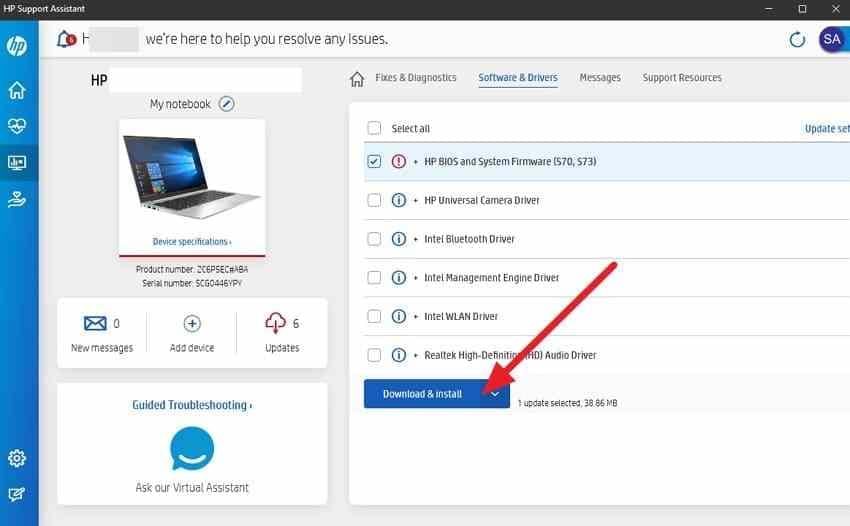
Note: Install only updates listed for the identified Pavilion. Keep the laptop connected to AC power during a BIOS update and do not interrupt the update process.
Fix 4. Update Both GPUs in Order
On Pavilion models with switchable graphics, follow HP's model-specific driver packages first. For AMD switchable-graphics configurations, AMD recommends installing the integrated GPU driver before the discrete GPU driver. Keep both drivers from the same source type, preferably HP's OEM packages when available. Here are the steps to fix the HP Pavilion flickering screen issue:
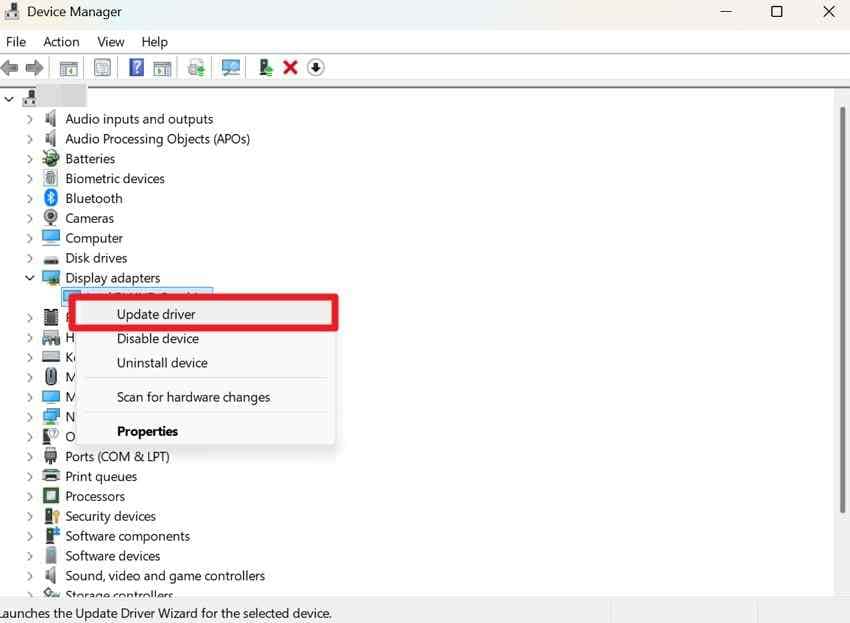
Step 1. Open “Device Manager > Display Adapters” and check whether both an integrated and a discrete GPU are listed. If the drivers need updating, install the integrated GPU driver first.
Step 2. Stay in Device Manager and find your secondary graphics adapter under “Display Adapters”. Right-click on it and select “Update Driver.”
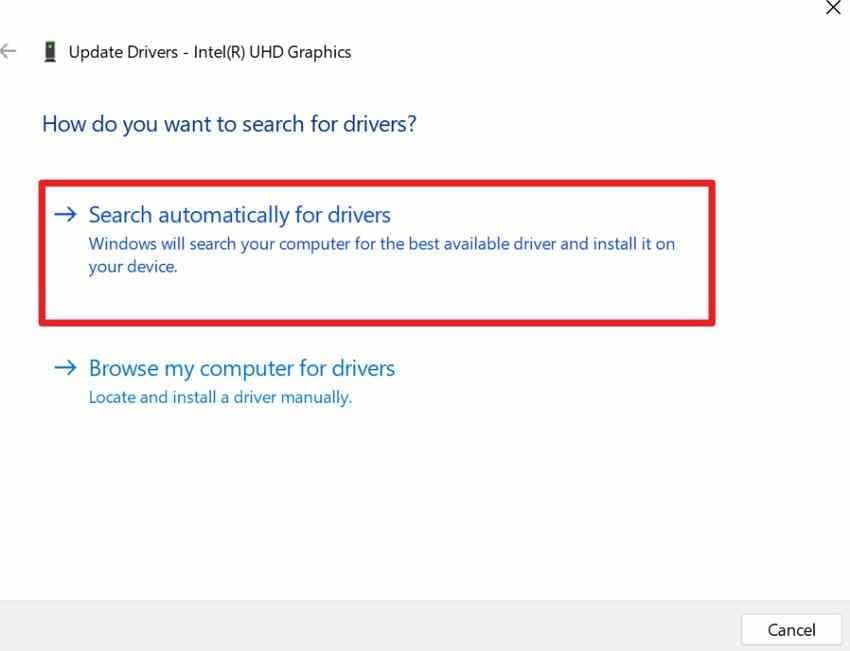
Step 3. Choose “Search Automatically for Drivers,” then restart your laptop normally into Windows once both drivers are installed.
Fix 5. Confirm the Layer in Safe Mode
If the HP Pavilion flickering screen continues, use Safe Mode to check whether normal Windows drivers, apps, or services are involved. Safe Mode starts Windows with only essential files and basic drivers, which helps isolate software-related causes. If the flicker stops in Safe Mode, a normal-mode driver, app, service, or display setting becomes more likely.
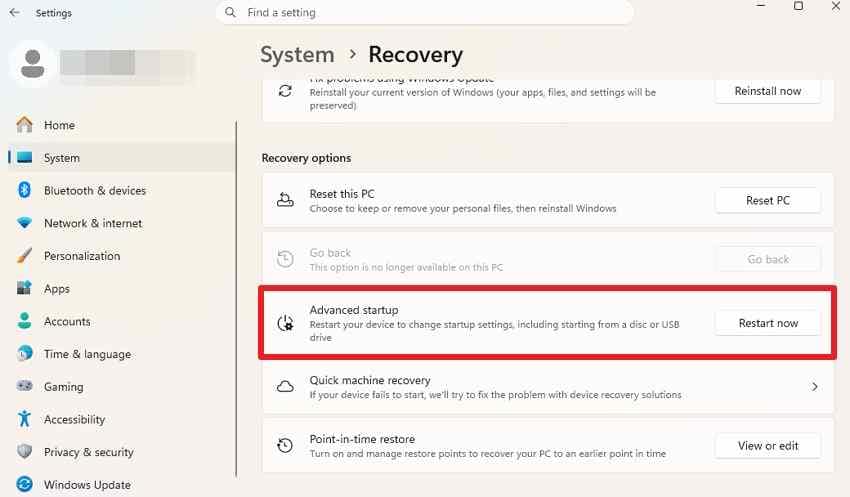
Step 1. Open “Settings > System > Recovery > Advanced Startup > Restart Now.”
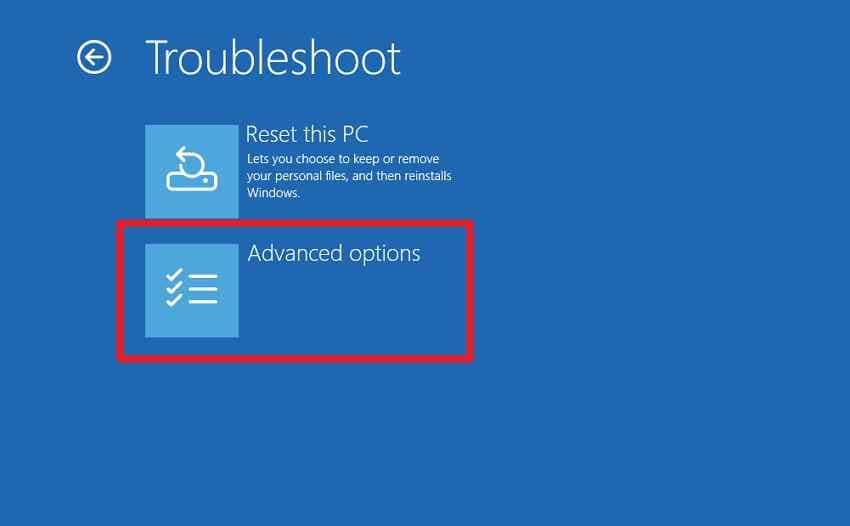
Step 2. In WinRE, select “Troubleshoot > Advanced options > Startup Settings > Restart.”
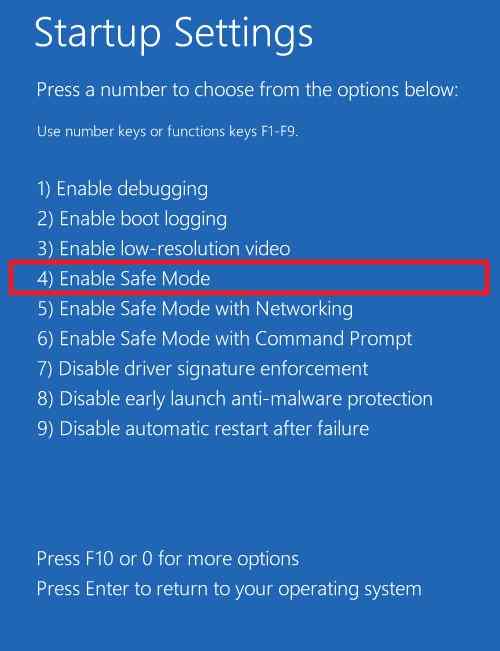
Step 3. Press “4” or “F4” for Safe Mode, then check whether the screen still flickers.
Part 4. Isolate Apps and Problematic Display Settings
If Task Manager stays stable while the rest of the screen flickers, Microsoft indicates that an incompatible app is probably causing the problem. For an HP Pavilion laptop screen flickering under these conditions, here are some solutions you can try:
Fix 1. Update or Uninstall Recently Changed Apps
Update or reinstall an incompatible app when Task Manager remains steady while the rest of the screen flickers. Test suspected apps individually so you can tell which change affects the problem. If you want to update the app, follow these steps:
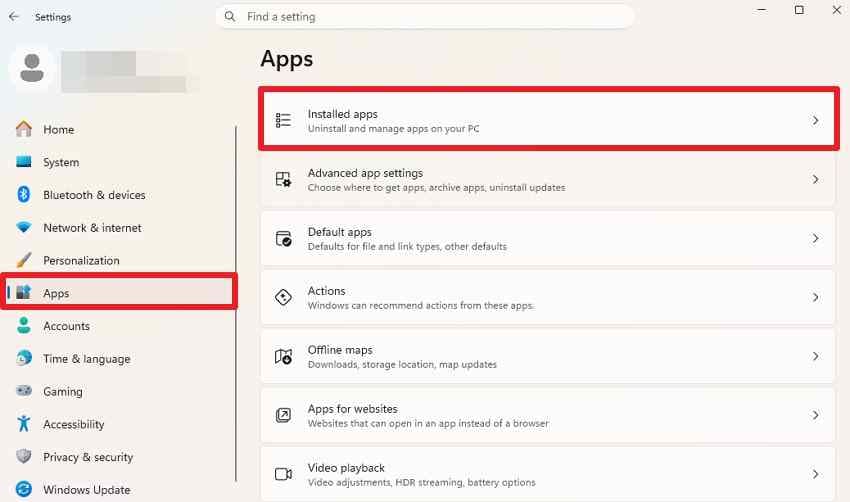
Step 1. Go to “Settings > Apps > Installed apps” and identify apps installed or updated around the time the flickering began.
Step 2. Open “Microsoft Store > Library,” select the app, and choose “Update” if available.
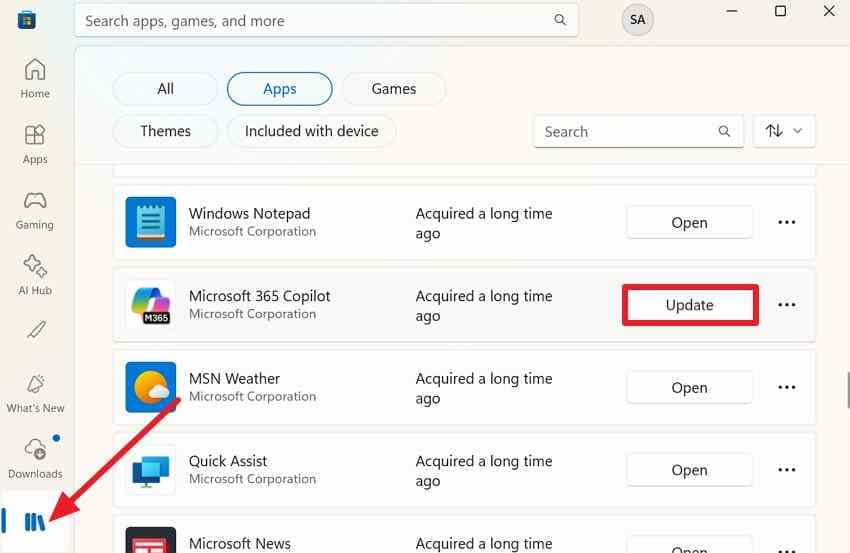
Note. If the flickering continues, uninstall the suspected app from Settings > Apps > Installed apps.
Fix 2. Test Hardware Acceleration in the Affected App
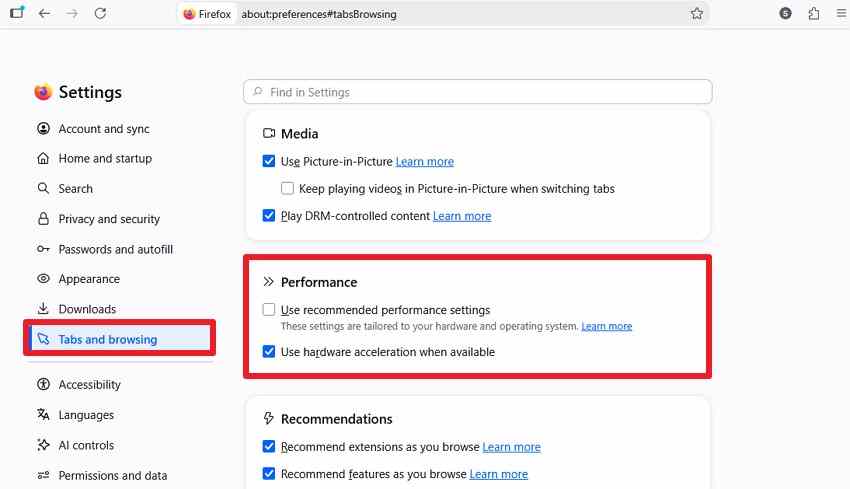
If the HP flickering screen issue happens mostly in one browser or app, try turning off hardware acceleration to see if that app's graphics rendering is the cause. Mozilla suggests testing Firefox this way when certain graphics setups cause display trouble, and the steps are given below:
Instruction. Go to Firefox “Settings > Tabs and Browsing > Performance.” Uncheck “Use Recommended Performance Settings” and “Use Hardware Acceleration When Available.” Close Firefox completely and reopen it, then use the browser normally.
Fix 3. Use a Clean Boot to Find Conflicting Software
A clean boot starts Windows with only essential drivers and startup programs, making it easier to spot app interference. Sign in with an administrator account first, and follow these steps:
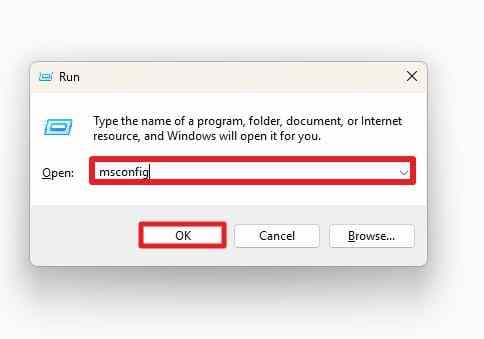
Step 1. Press “Windows + R” > Type “msconfig” > “OK.”
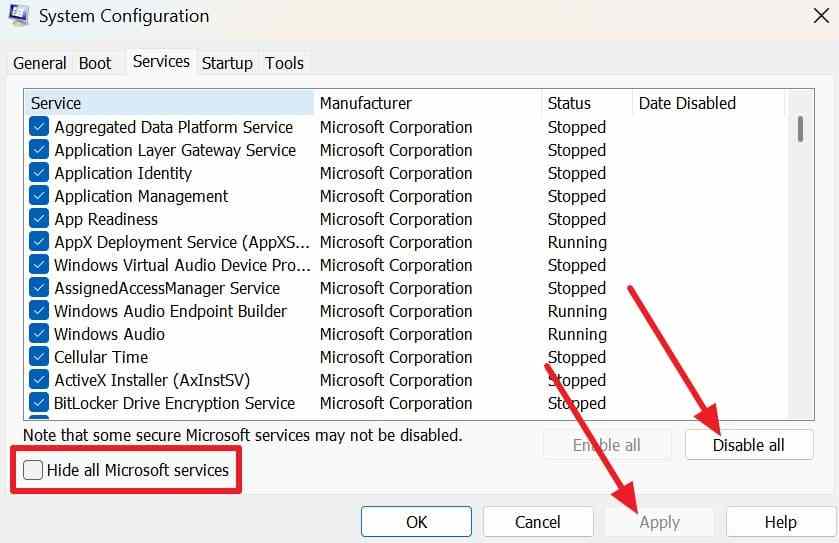
Step 2. Go to the “Services” tab > Choose “Hide all Microsoft Services > Disable all > Apply.”
Step 3. Choose “Startup” > “Open Task Manager > Startup Apps” > Disable each currently enabled startup item.
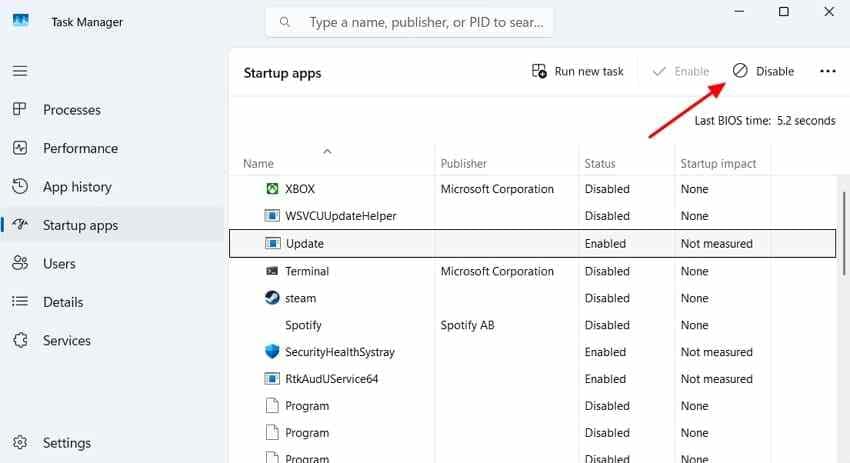
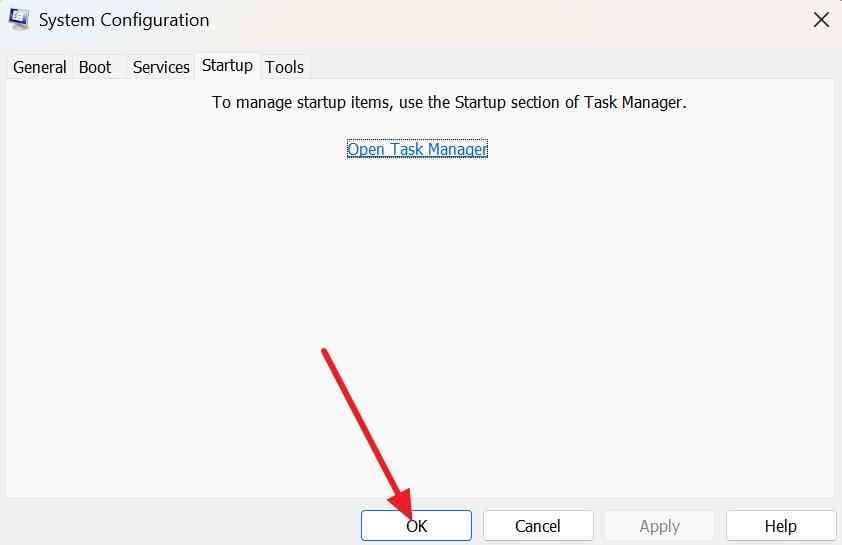
Step 4. Close Task Manager, select “OK” in System Configuration, and restart the Pavilion. After restarting, check whether the flicker remains. If it stops, re-enable services and startup items in groups until the conflicting item is identified.
Fix 4. Test HDR and Refresh Features Where Available
If the HP Pavilion laptop screen flickering continues, try turning off optional display features like HDR or Dynamic Refresh Rate to see if they're involved. Only test these if your Pavilion and screen actually support them, and here is the guide:
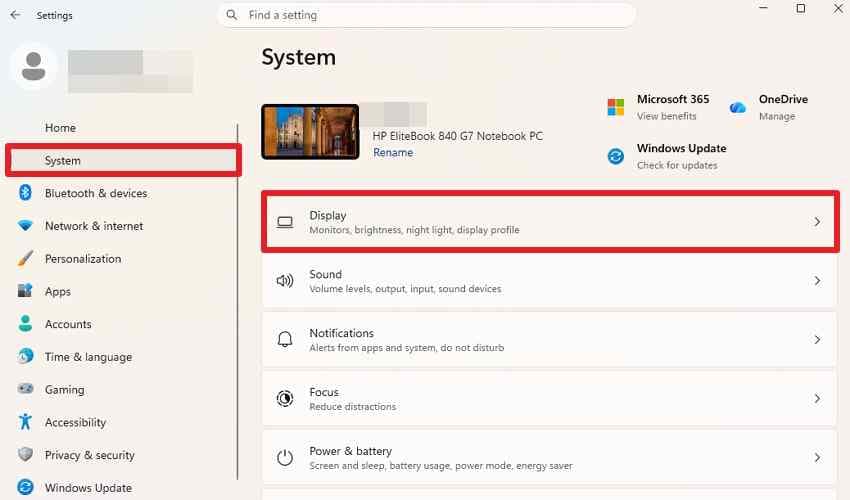
Step 1. Go to “Settings > System > Display” > Select the Pavilion's built-in display.
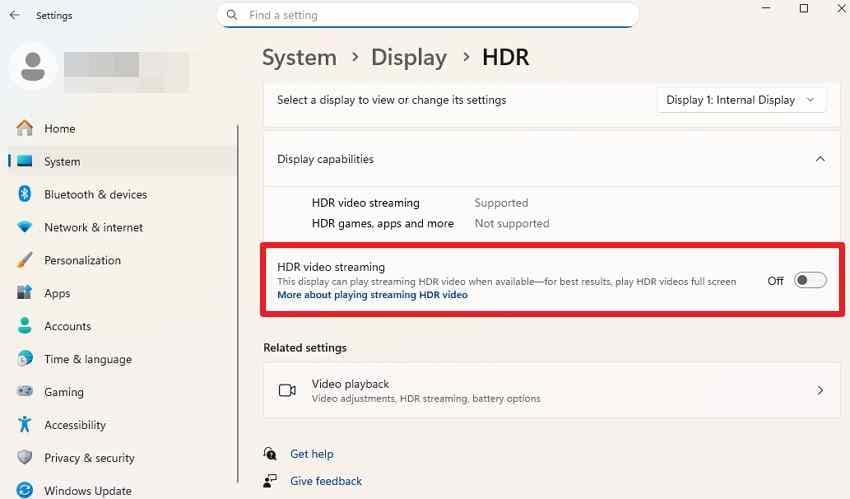
Step 2. If “HDR” is available and currently enabled, select “HDR” and temporarily turn it off.
Step 3. Choose “Settings > System > Display > Advanced Display > Choose A Refresh Rate.” If “Dynamic refresh rate” is enabled, turn it off temporarily and choose a fixed supported refresh rate.
Part 5. Use HP Diagnostics and Hardware Tests
If software troubleshooting has not resolved the HP Pavilion flickering screen, the next step is to check for hardware-level problems.
Test 1. Run HP PC Hardware Diagnostics
HP PC Hardware Diagnostics UEFI runs outside Windows and can spot hardware problems even if the OS won't start.
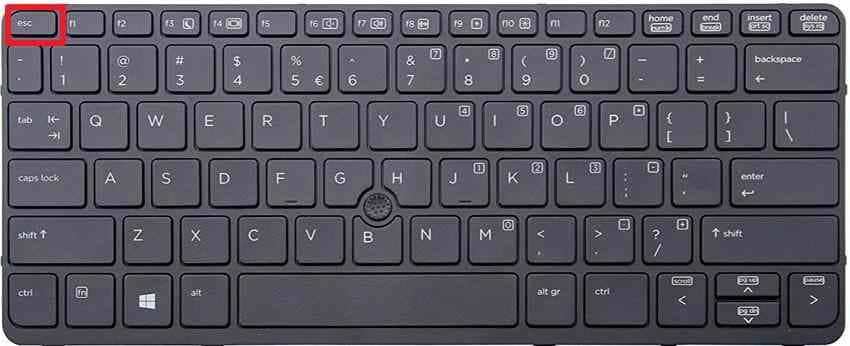
Step 1. Shut down the computer. Turn it back on and immediately press “Esc” repeatedly, about once per second. When the “Startup Menu” appears, press “F2” to open “HP PC Hardware Diagnostics UEFI.”
Step 2. In “HP PC Hardware Diagnostics UEFI,” select “Component Tests." Choose the option that best matches the storage or startup problem.
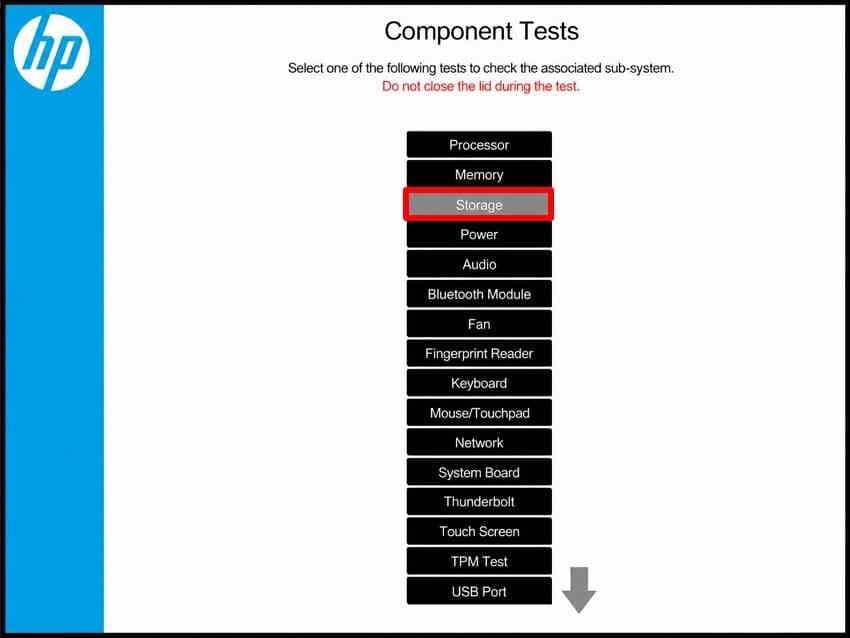
Note. The available Tests and menu names may vary by HP model and the version of HP PC Hardware Diagnostics UEFI
Test 2. Verify the Result in BIOS
Shut down the Pavilion, turn it on, and press “Esc” repeatedly until the “Startup Menu” appears. Press “F10” to open “HP Computer Setup (BIOS),” then leave the BIOS screen open for a few minutes and check whether the same flickering appears.
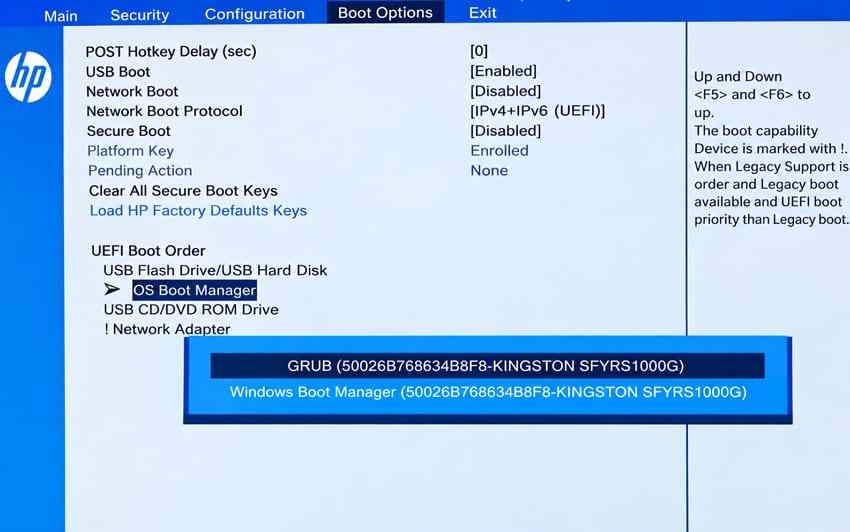
If the display flickers in BIOS as well as Windows, apps and display settings alone are unlikely to be the cause. This points more toward firmware or hardware, so it's worth checking those instead of only troubleshooting Windows software.
Test 3. Check Whether Flicker Changes With Lid Movement
Slowly move the lid and watch the screen. If the HP Pavilion flickering screen changes or comes and goes at certain angles, note it for the technician. Don't press on the panel or bezel to test this yourself.
Test 4. Stop Using a Visibly Damaged Screen
If flickering continues after driver updates, checks, and hardware tests, or if you notice physical damage, contact HP support. Keep your model number and warranty details ready before you reach out. Stop using the laptop and arrange service if the display develops persistent lines, repeated blackouts, unusual heat, burning smells, visible panel damage, or damaged hinges.
Part 6. Protect Important Files Before Major Repairs
Persistent HP Pavilion laptop screen flickering may require a Windows reset, reinstall, or hardware repair when earlier troubleshooting does not resolve the issue. Before taking any destructive step, back up important files and keep your BitLocker or Device Encryption recovery key available.
If Windows becomes inaccessible but the drive is still detectable, Wondershare Recoverit can create bootable recovery media on another PC. Use “Hard Disk Copy” to copy the drive or “Data Recovery” to retrieve selected files before proceeding.

Key Features
- Access Without Booting: Recover important files from an HP Pavilion that cannot start Windows by using bootable recovery media created on another computer.
- AI Search for Scan Results: Use natural-language search with file filters to locate specific recovered files more quickly after a scan.
- Improved File Preview: Review recovery results with an optimized preview interface that reduces screen obstruction, making files easier to inspect before recovery.
- 4K/8K Video Preview: Preview supported 4K and 8K videos at high bitrates before recovery, which helps confirm whether important video files are usable.
- Separate Recovery Destination: Save recovered files to an attached external drive instead of writing them back to the storage device being recovered.
Guide to Retrieve the Files with Recoverit
Before you reset Windows to fix the HP flickering screen issue, follow this guide to recover data:
Step 1. Create Bootable Media (On the Healthy PC)
Open Recoverit, select “Computer Not Bootable > Start,” insert the USB drive, choose it from the list, and click “Start.”

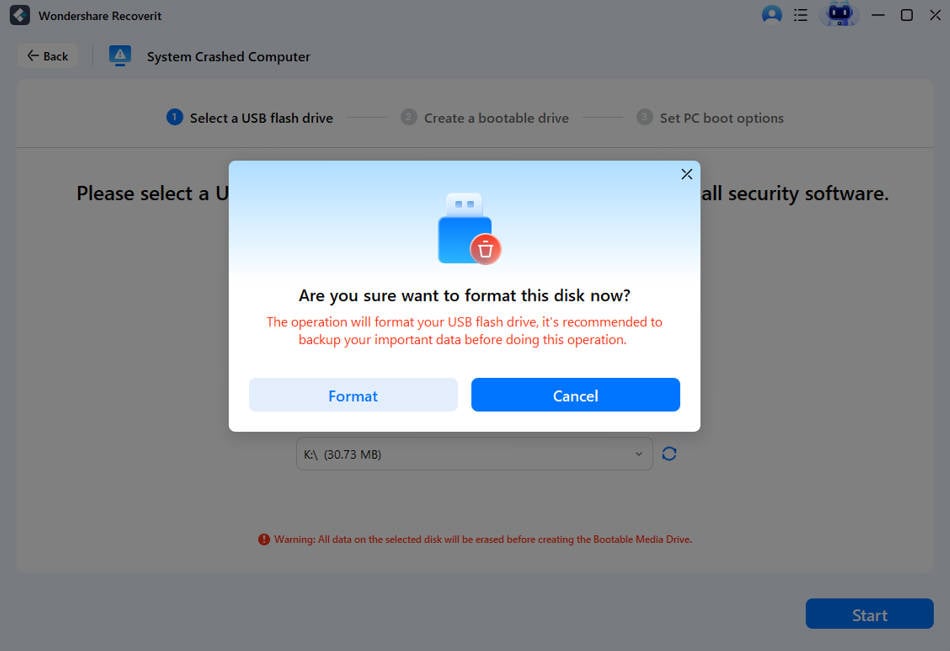
Step 2. Choose the Format Option
When the warning appears, click “Format,” then wait for Recoverit to create the bootable USB drive.
Step 3. Boot on Flickering HP Pavilion
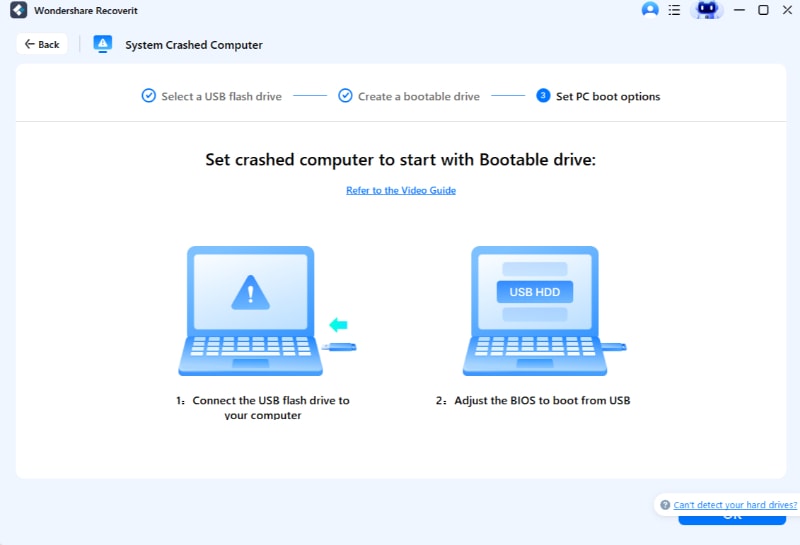
Shut down the Pavilion, connect the bootable USB and external drive, then turn it on and press “Esc” repeatedly. Press “F9” to open “Boot Device Options.”
Step 4. Copy the Data
Select the USB drive and press “Enter.” When Recoverit WinPE opens, choose “Hard Disk Copy” to copy data or “Data Recovery” to recover selected files.
Protect Important Files Before Major Repairs
 Security Verified. Over 7,302,189 people have downloaded it.
Conclusion
To fix HP Pavilion laptop screen flickering, first identify whether the problem comes from Windows, the display driver, firmware, or internal hardware. Start with non-destructive checks before considering service or a reset. Flicker that appears in BIOS or changes with lid movement points more strongly toward firmware or hardware. If a reset becomes necessary, protect important files first with a normal backup or Recoverit.
FAQ
-
Why does my HP Pavilion screen flicker only after Windows starts?
Because the cause loads alongside it. A driver, a startup application, or a display setting all fit that pattern. Task Manager separates an HP flickering screen driver fault from an app conflict. -
Why does my HP Pavilion screen flicker at 144Hz but not 60Hz?
Flickering only at 144Hz points toward refresh-rate timing, driver, VRR/DRR, or display-path instability. Update the HP graphics driver and compare supported refresh rates before assuming the panel has failed. -
Why does my HP Pavilion screen flicker when I move the lid?
Flickering that changes with lid movement strongly suggests the internal display cable, connector, panel, or hinge-area hardware. Avoid pressing the screen and have the display assembly inspected. -
Does HP Pavilion screen flickering in BIOS mean hardware failure?
Not necessarily, but it makes Windows apps and ordinary display settings less likely. Flickering in BIOS points more strongly toward firmware, the display panel, its cable, GPU hardware, or another internal component.



