 TL;DR:
Fixing a Lenovo laptop black screen requires targeting the specific point of failure: perform a 30-to-60-second power drain for completely unresponsive devices, test an external display to rule out internal hardware damage, or boot into Safe Mode to roll back display drivers if the failure occurs after the Lenovo logo.
● If the laptop powers on but the built-in display remains inactive, press Windows + Ctrl + Shift + B to force a graphics driver restart, or use Windows + P to verify the video output is not accidentally routed to a secondary monitor.
● For black screens triggering after a Windows 11 or GPU update, interrupt the boot sequence three times to enter the Windows Recovery Environment (WinRE) where you can disable Fast Startup, run DISM system checks, or uninstall the latest quality updates.
● Extract local files using a Recoverit Windows Data Recovery bootable USB before initiating a Windows reset or reinstall, keeping in mind that the software requires a readable drive and cannot repair physical screen, GPU, or motherboard failures.
Ask AI for a summary
 ChatGPT
 Perplexity
 Gemini
 Claude
 Grok
Grok
A Lenovo laptop not starting up black screen problem usually means the laptop is failing during the startup path. It may happen before the Lenovo logo, after the Lenovo logo, during Windows loading, or after a recent Windows 11 or graphics driver update.
The correct fix depends on what still works. If there are no lights or fan noise, troubleshoot power first. If the laptop powers on but the screen stays black, test brightness, display output, graphics driver state, and external monitor output. If the Lenovo logo appears but Windows does not load, use Safe Mode and Windows Recovery Environment before considering reset or reinstall.
This guide explains how to diagnose a Lenovo black screen on startup, including ThinkPad, IdeaPad, Yoga, and Legion models. It also shows how Recoverit Windows Data Recovery can help recover local files before reset, reinstall, or repair. Recoverit cannot repair a broken display, GPU, motherboard, RAM, charger, battery, BIOS, or display cable.
In this article
-
- Fix 1. Check Power, Charger, Battery, and Indicator Lights
- Fix 2. Force Restart the Lenovo Laptop
- Fix 3. Perform a Power Drain or Hard Reset
- Fix 4. Increase Brightness and Wake the Display
- Fix 5. Press Windows + Ctrl + Shift + B to Restart the Graphics Driver
- Fix 6. Use Windows + P to Switch Display Output Mode
- Fix 7. Connect an External Monitor to Test the Lenovo Screen
- Fix 8. Disconnect External Devices and Restart the Laptop
- Fix 9. Use the Novo Button or Recovery Button to Enter Startup Options
- Fix 10. Boot Into Safe Mode to Isolate Driver or Software Conflicts
- Fix 11. Launch Windows Explorer Manually If You See a Black Screen With Cursor
- Fix 12. Roll Back, Uninstall, or Reinstall the Display Driver
- Fix 13. Disable Fast Startup and Hibernation
- Fix 14. Uninstall a Recent Windows 11 Update or Problematic Driver
- Fix 15. Run DISM and SFC to Repair Windows System Files
- Fix 16. Perform Startup Repair or System Restore From WinRE
- Fix 17. Reset or Reinstall Windows Only After Recovering Important Files
Part 1. What Does Lenovo Black Screen on Startup Really Mean?
A Lenovo black screen at startup means the laptop fails to show a usable image while starting. The failure can happen before firmware loads, before Windows starts, while Windows loads drivers, or after login.
The timing matters:
- No lights or fan noise: Treat it as a power, charger, battery, or board issue.
- Lights and fan work, but no logo: Suspect display, RAM, BIOS, motherboard, or built-in screen issues.
- Lenovo logo appears, then black screen: Windows startup, update, or display driver trouble is more likely.
- Black screen with cursor: Windows may have loaded partially, but Explorer or the display driver is stuck.
- External monitor works: The internal display panel, backlight, cable, or hinge connection may need service.
ThinkPad, IdeaPad, Yoga, and Legion models share the same basic troubleshooting logic, but model-specific details differ. ThinkPad models may have diagnostic indicators or reset holes. IdeaPad models often include a Novo button. Yoga models can be affected by hinge and rotation-related display issues. Legion black screen fixes often involve graphics mode or driver rollback after GPU updates.
Part 2. Quick Diagnosis: Which Lenovo Black Screen Problem Do You Have?
| Symptom | Likely Cause | Best First Step |
| No power lights or fan noise | Battery, charger, power port, or power circuit issue | Check charger, outlet, and power indicators |
| Laptop powers on, screen stays black | Brightness, display output, graphics, or screen issue | Hard reset, brightness keys, graphics driver refresh |
| Lenovo logo or BIOS does not appear | Firmware, RAM, motherboard, or built-in display issue | External monitor test and Lenovo diagnostics |
| Black screen after Windows logo | Driver, Windows update, Fast Startup, or system file issue | Safe Mode and update or driver rollback |
| Black screen with a visible cursor | Explorer crash, sign-in issue, or graphics driver problem | Open Task Manager and restart Explorer |
| ThinkPad screen will not turn on but external monitor works | Internal display panel, backlight, or display cable fault | Back up data and service the display |
| Legion black screen after GPU update | Graphics driver conflict or display mode issue | Boot Safe Mode and roll back GPU driver |
| Reset or repair is needed | Data loss risk | Recover files first |
Part 3. Why Your Lenovo Laptop Has a Black Screen on Startup
Several causes can make a Lenovo laptop screen black on startup:
- Incorrect brightness: Brightness may be set too low, especially after sleep or display switching.
- Power delivery issue: A depleted battery, faulty charger, or bad charging port can stop proper startup.
- Display conflict: Windows may be sending video to an external monitor or dock instead of the built-in screen.
- Fast Startup or hibernation issue: Windows may reuse a corrupted startup state.
- Corrupted system files: Windows boot files or system files may be damaged after shutdowns, malware, or updates.
- Graphics driver problem: A broken Intel, AMD, or NVIDIA driver can cause black screen after logo or login.
- Hardware issue: RAM, SSD, GPU, motherboard, display cable, backlight, or panel failure can block video output.
Part 4. Important Steps Before Fixing a Lenovo Black Screen on Startup
| Step | Why It Matters |
| Avoid repeated force restarts during drive activity | Reduces the risk of file-system corruption and drive stress |
| Avoid resetting or reinstalling Windows immediately | Prevents unnecessary data loss |
| Confirm the laptop is actually powering on | Separates power failure from display failure |
| Connect an external monitor to test display output | Shows whether the built-in screen or the whole system is failing |
| Try the Novo button if available | Opens Lenovo boot, BIOS, or recovery options on supported models |
| Recover or back up files before repairs | Protects important data before reset, reinstall, service, or drive replacement |
Part 5. How to Fix a Lenovo Laptop Black Screen on Startup
Try these fixes in order. Stop before reset, reinstall, or hardware service if important files are not backed up.
Fix 1. Check Power, Charger, Battery, and Indicator Lights
Reconnect the charger, confirm the wall outlet works, and check the charging light. If the battery may be deeply drained, leave the laptop plugged in for about 30 minutes before starting it again. If possible, test with a compatible Lenovo charger.
Fix 2. Force Restart the Lenovo Laptop
Hold the Power button for 10 to 20 seconds until the laptop shuts down. Wait a few seconds, then press the power button once to start normally. Avoid repeating this many times while the drive is active.
Fix 3. Perform a Power Drain or Hard Reset
Disconnect the charger and all accessories. Remove the battery only if your Lenovo model has a user-removable battery. Hold the Power button for 30 to 60 seconds, reconnect the charger, and start the laptop again.
If your model has an emergency reset hole and the Lenovo manual instructs its use, press it with the charger disconnected.
Fix 4. Increase Brightness and Wake the Display
Press the brightness-up key several times. Depending on your Lenovo model, you may need to hold Fn while pressing the brightness key. Tap the keyboard or touchpad to wake the screen.
Fix 5. Press Windows + Ctrl + Shift + B to Restart the Graphics Driver
If Windows is running but the display driver is frozen, press Windows + Ctrl + Shift + B. The screen may flicker, and you may hear a beep while Windows refreshes the graphics driver.
Fix 6. Use Windows + P to Switch Display Output Mode
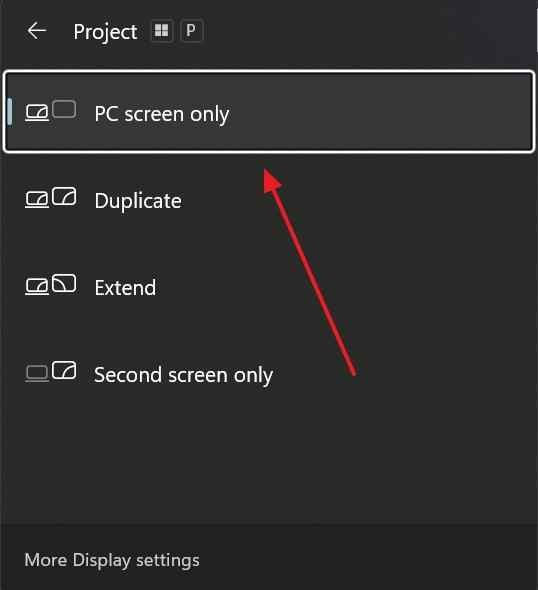
A Lenovo laptop black screen on startup can happen when Windows is set to use another display. Press Windows + P, use the arrow keys, and choose PC screen only.
Fix 7. Connect an External Monitor to Test the Lenovo Screen
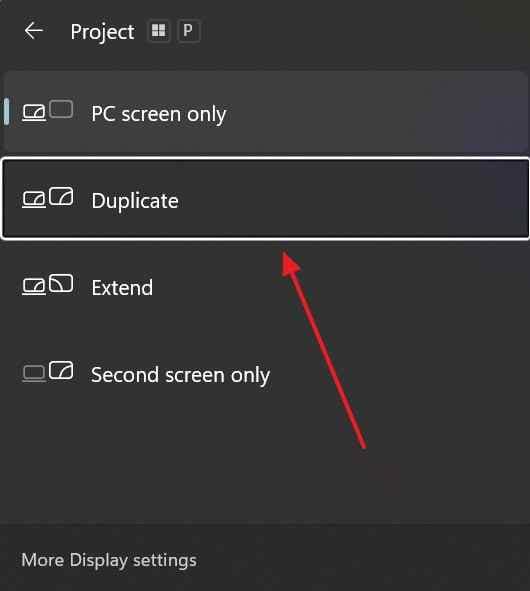
Connect an external monitor or TV with HDMI, USB-C, or a compatible adapter. Turn on the external display, choose the correct input, then press Windows + P and choose Duplicate.
If the external display works, the built-in screen, display cable, hinge cable, or backlight is likely the issue. Back up files before repair.
Fix 8. Disconnect External Devices and Restart the Laptop
Remove USB drives, memory cards, external monitors, docking stations, printers, hubs, and unnecessary peripherals. Restart the laptop with only the charger connected. Reconnect devices one by one after the laptop starts correctly.
Fix 9. Use the Novo Button or Recovery Button to Enter Startup Options
On many Lenovo IdeaPad models, the Novo button opens BIOS, Boot Menu, or System Recovery options. Shut down the laptop completely, press the Novo button with a pin tool, then choose the option needed for diagnostics or recovery.
For ThinkPad, Legion, and Yoga models, use the startup key or recovery method listed in the model manual or Lenovo Support page.
Fix 10. Boot Into Safe Mode to Isolate Driver or Software Conflicts
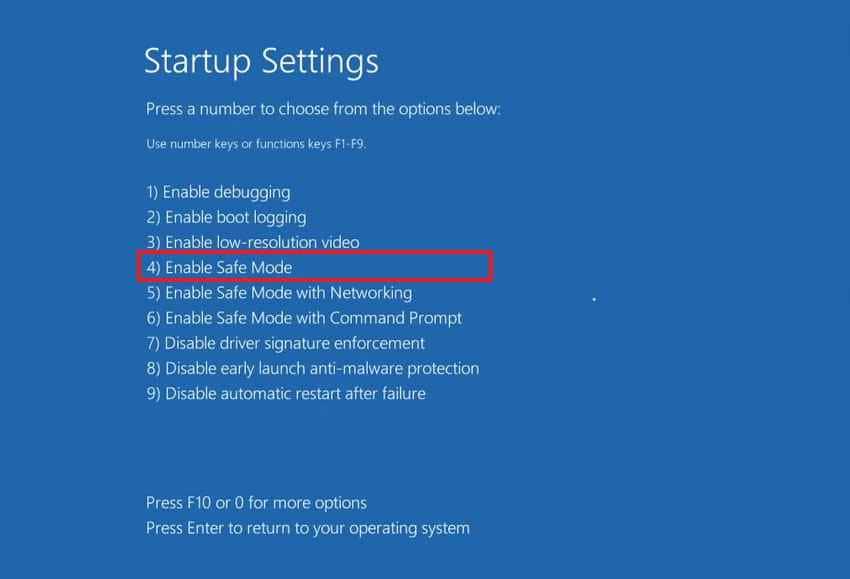
Safe Mode loads Windows with basic drivers and services. If the display works in Safe Mode, the issue is likely driver, update, startup app, or service related.
Interrupt startup three times to enter Windows Recovery Environment. Then choose Troubleshoot > Advanced options > Startup Settings > Restart and press 4 or F4 for Safe Mode.
Fix 11. Launch Windows Explorer Manually If You See a Black Screen With Cursor
If a cursor appears on a black screen, Windows may have loaded without Explorer.
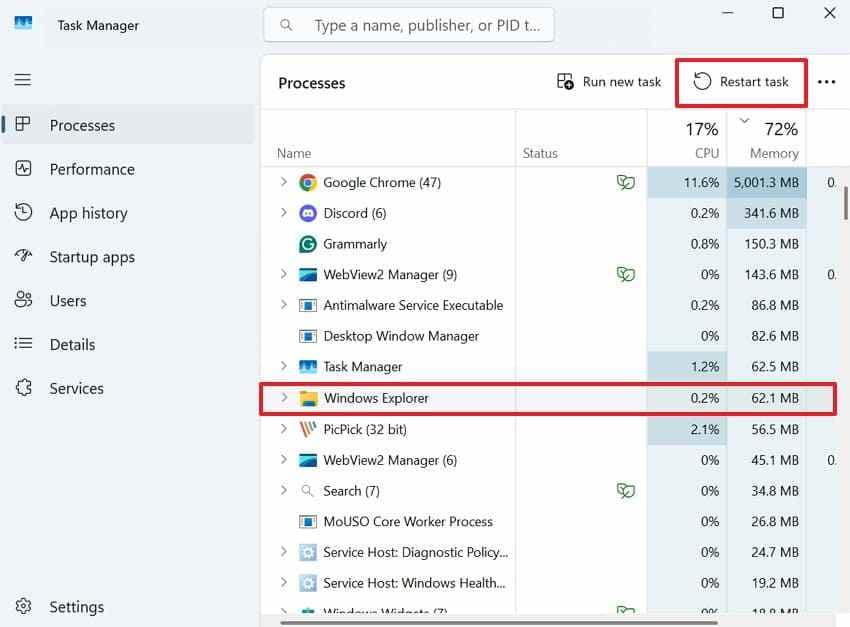
Press Ctrl + Shift + Esc to open Task Manager. If Windows Explorer appears, select it and choose Restart task. If it is missing, choose Run new task, type explorer.exe, and press Enter.
Fix 12. Roll Back, Uninstall, or Reinstall the Display Driver
A recent GPU driver update can cause a Lenovo Legion black screen, ThinkPad black screen, or Windows 11 startup black screen.
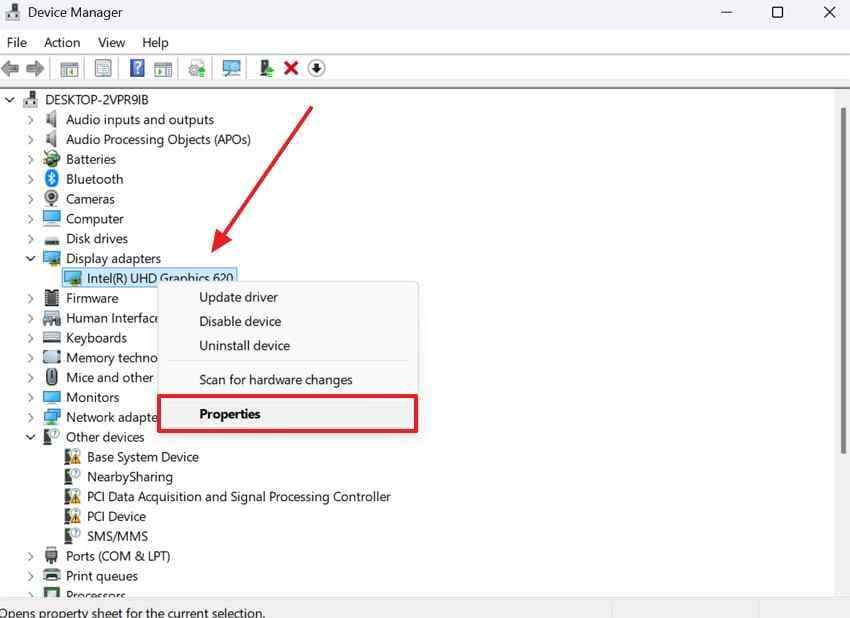
Step 1. In Safe Mode, open Device Manager, expand Display adapters, right-click the graphics driver, and choose Properties.
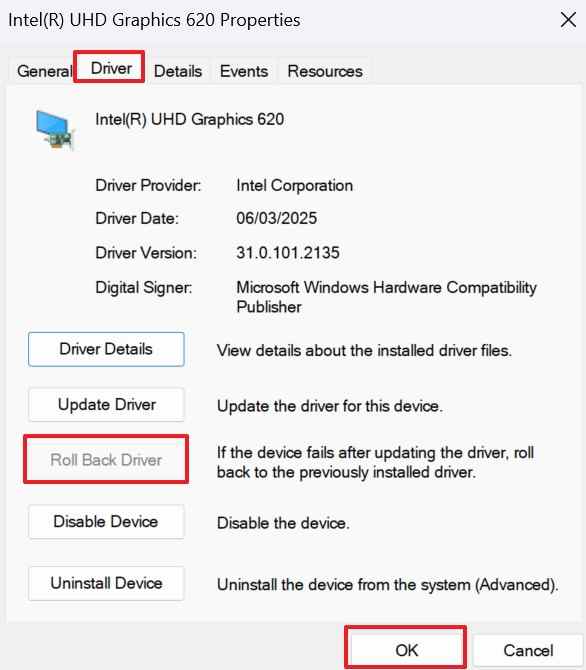
Step 2. Open the Driver tab and choose Roll Back Driver if available. If not, uninstall the driver and restart, or install the correct Lenovo, Intel, AMD, or NVIDIA driver from official sources.
Fix 13. Disable Fast Startup and Hibernation
Fast Startup and hibernation can reload a broken startup state. Disable them if the Lenovo black screen keeps returning after shutdown.
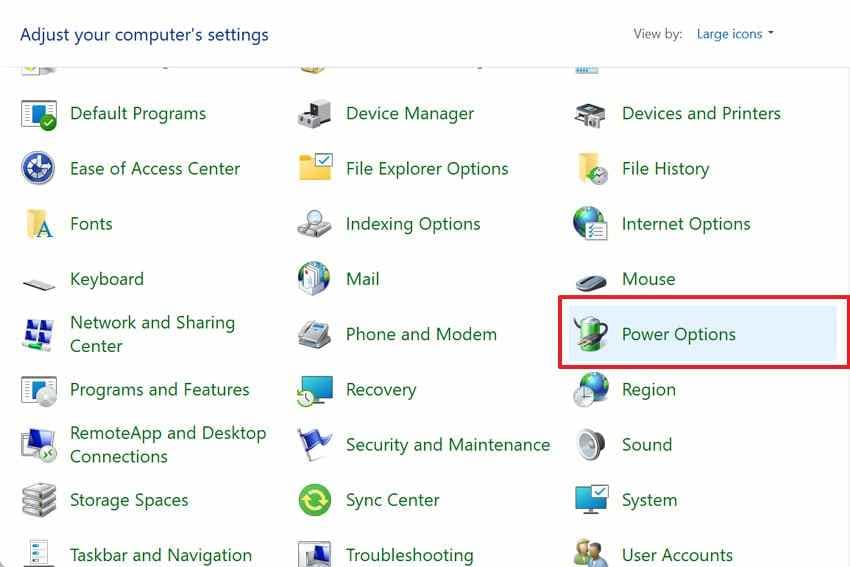
Step 1. In Safe Mode, open Control Panel > Power Options > Choose what the power buttons do.
Step 2. Click Change settings that are currently unavailable, clear Turn on fast startup, and save changes.
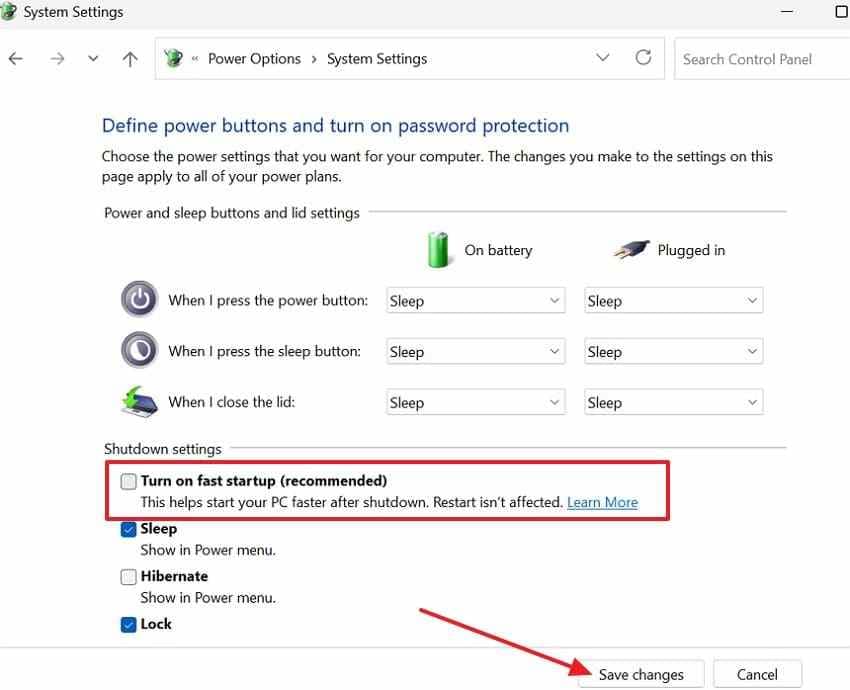
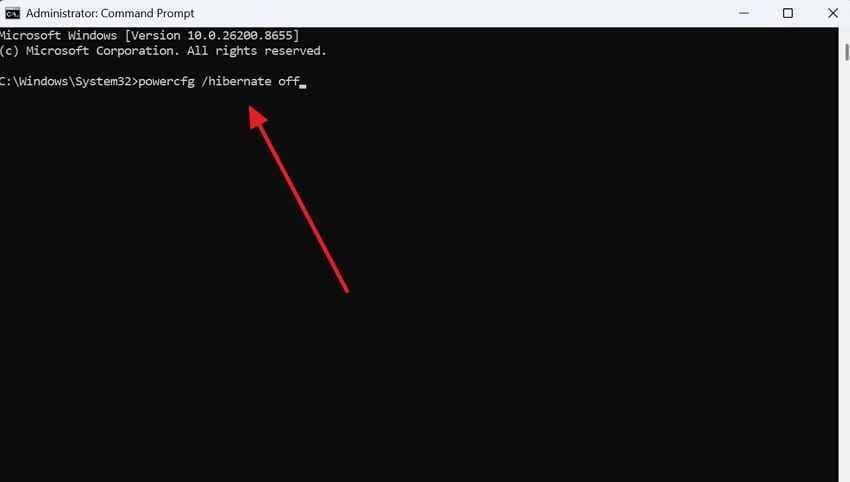
Step 3. To disable hibernation, open Command Prompt as administrator and run:
powercfg /hibernate off
Fix 14. Uninstall a Recent Windows 11 Update or Problematic Driver
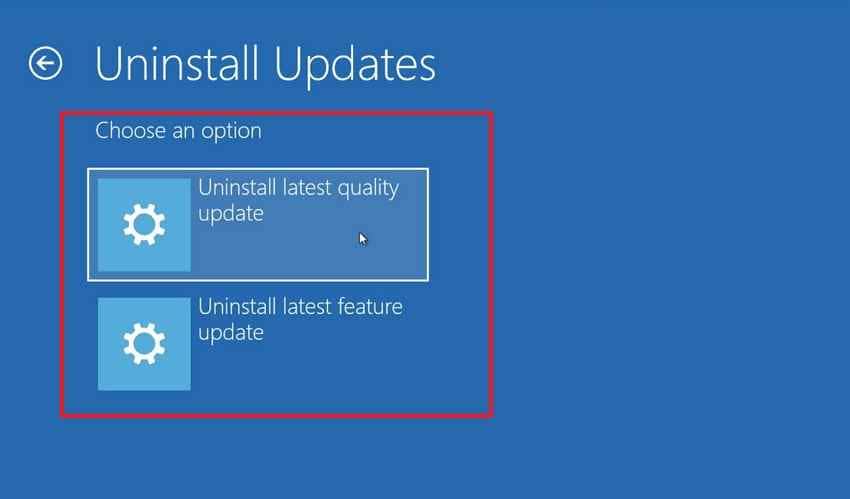
If the issue started after a Windows update, remove the latest quality update from Windows Recovery Environment.
Go to Troubleshoot > Advanced options > Uninstall Updates, then choose Uninstall latest quality update. Use the feature update option only if the black screen clearly started after a major version update.
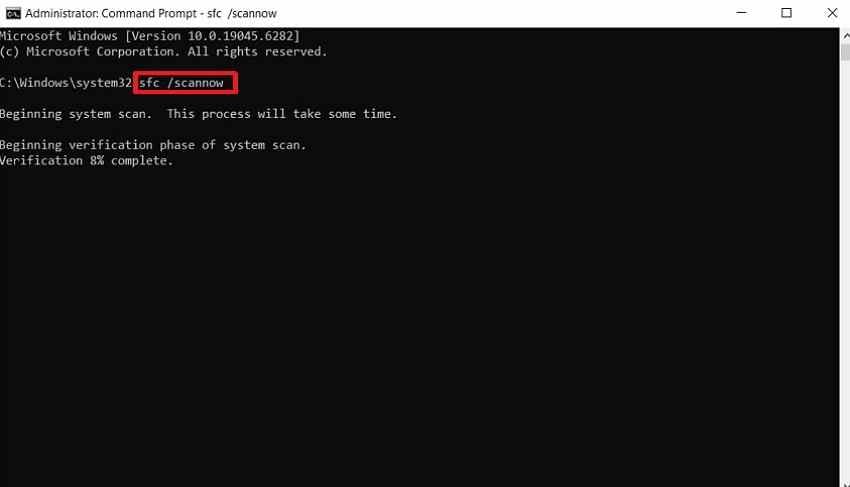
Fix 15. Run DISM and SFC to Repair Windows System Files
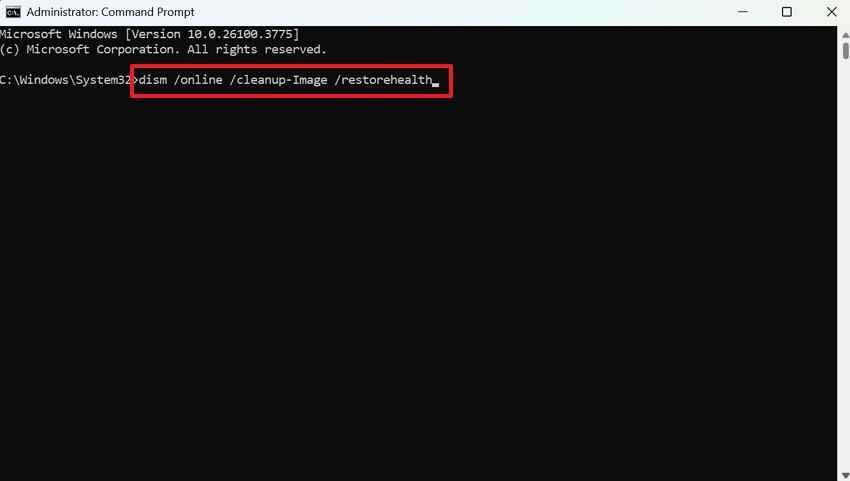
Run these commands after your important files are protected, especially if the drive may be failing. DISM repairs the Windows image, and SFC checks protected system files.
Step 1. In Safe Mode, open Command Prompt as administrator and run:
DISM /Online /Cleanup-Image /RestoreHealth
Step 2. After DISM finishes, run:
sfc /scannow
Fix 16. Perform Startup Repair or System Restore From WinRE
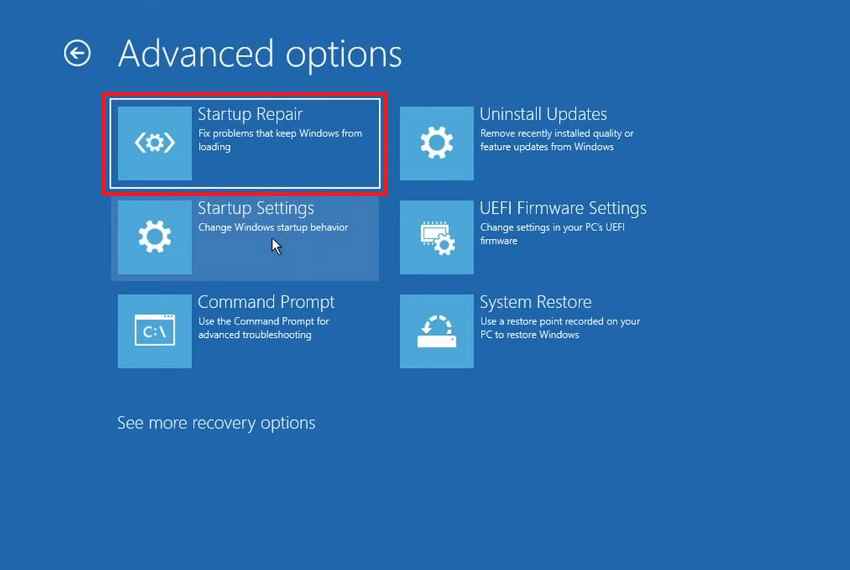
Windows Recovery Environment includes Startup Repair and System Restore. Startup Repair checks common startup files and settings. System Restore rolls system files, registry settings, drivers, and installed programs back to an earlier restore point.
From WinRE, go to Troubleshoot > Advanced options > Startup Repair. If it fails and restore points exist, return to Advanced options and use System Restore.
Fix 17. Reset or Reinstall Windows Only After Recovering Important Files
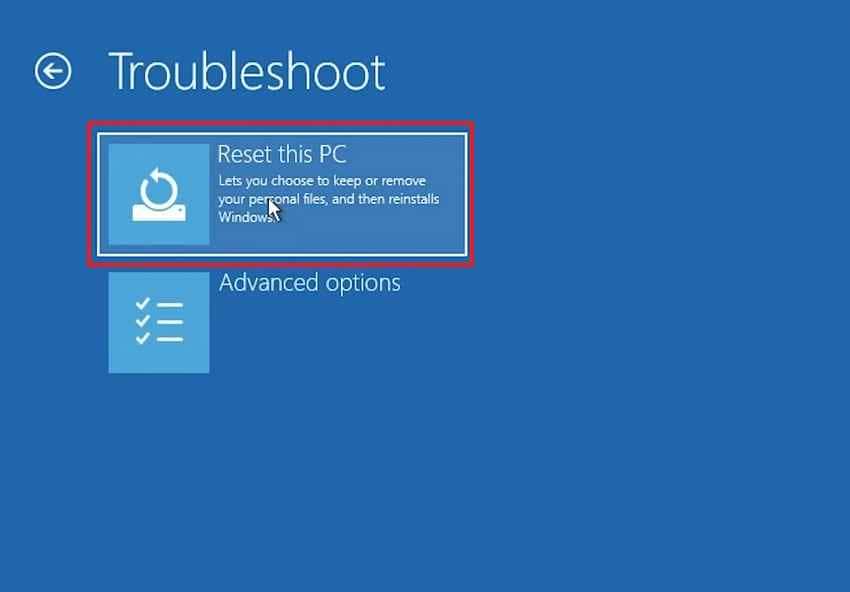
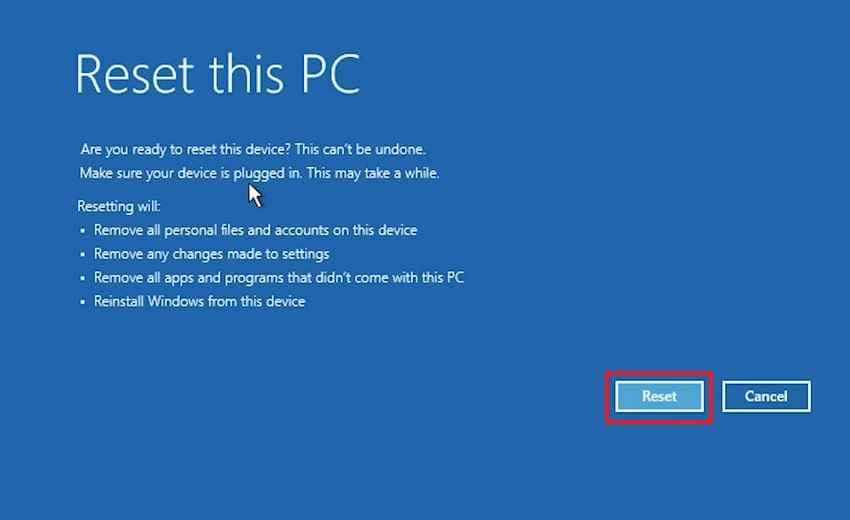
Reset or reinstall Windows only after safer fixes fail and your files are backed up or recovered. Keep my files is less destructive than Remove everything, but it can still remove apps and settings.
Step 1. In WinRE, choose Troubleshoot > Reset this PC.
Step 2. Choose Keep my files if you want to preserve personal files. Choose Remove everything only after data is safe.
Part 6. Recover Files Before Resetting, Reinstalling, or Repairing Your Lenovo Laptop
Recover files first if Windows will not load, a reset is planned, the drive may be failing, the laptop needs service, or the data has no backup. Repair attempts can change system files, overwrite storage, or make a failing drive worse.
What Recoverit Can Recover From Lenovo Laptops and Storage Devices
Recoverit Windows Data Recovery can help recover local files from readable Lenovo internal drives, external drives, USB drives, memory cards, formatted partitions, RAW partitions, and crashed Windows computers.
| File or Device Type | What Recoverit May Recover |
| Documents | DOC, DOCX, XLS, XLSX, PPT, PDF, TXT, and other supported document formats |
| Photos and videos | Common image and video formats from readable drives or external storage |
| Internal Lenovo drives | Files from HDDs, SSDs, and NVMe SSDs when the drive remains readable |
| External devices | Files from USB drives, external drives, SD cards, and memory cards |
| Lost or RAW partitions | Recoverable files if the partition is detected and data has not been overwritten |
| Crashed computers | Files accessed through bootable recovery media when Windows will not start |
| BitLocker encrypted drives | Files only after unlocking with the correct password or recovery key |
When Recoverit Cannot Help
Recoverit cannot repair a Lenovo screen, GPU, motherboard, BIOS, RAM, charger, battery, or display cable. It cannot bypass Windows passwords, decrypt BitLocker without the recovery key, guarantee recovery from a physically failing drive, or recover overwritten data.
How to Recover Files From a Lenovo Laptop Stuck on a Black Screen
Use another working Windows computer and an empty USB drive. The USB drive will be formatted while creating bootable recovery media.
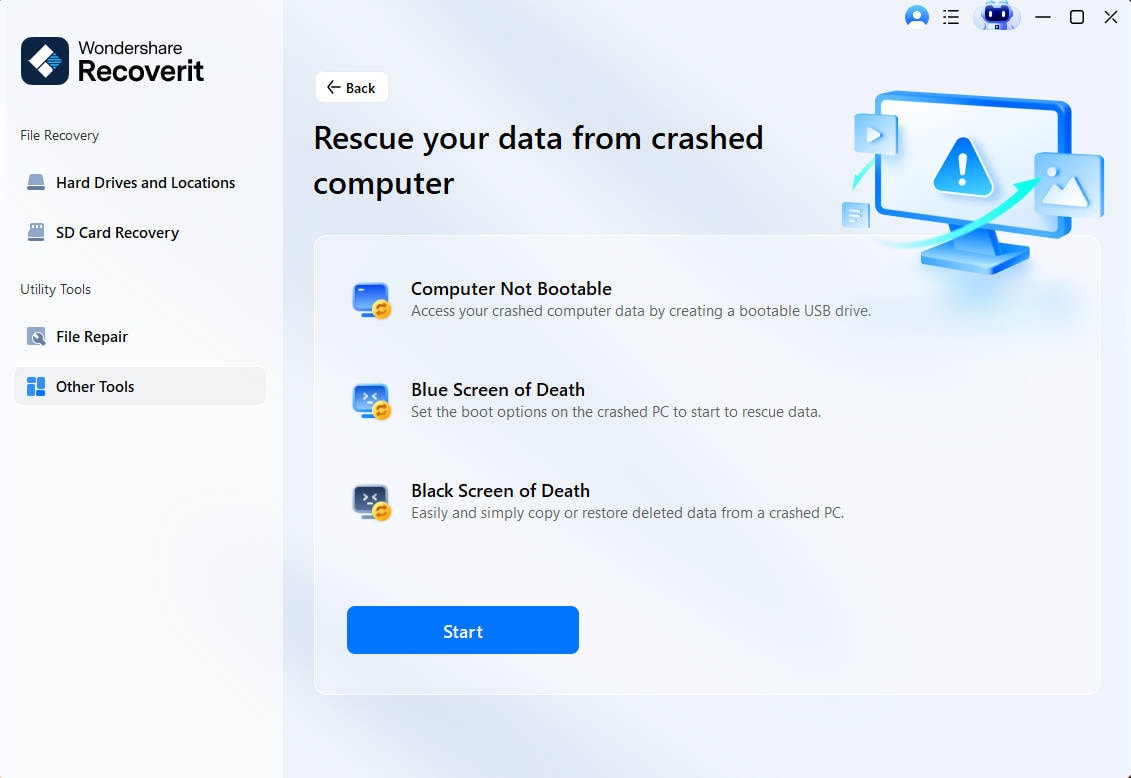
Step 1. Create a Recoverit Bootable Recovery Drive
Open Recoverit on a working computer, connect an empty USB drive, choose System Crashed Computer, and click Start.
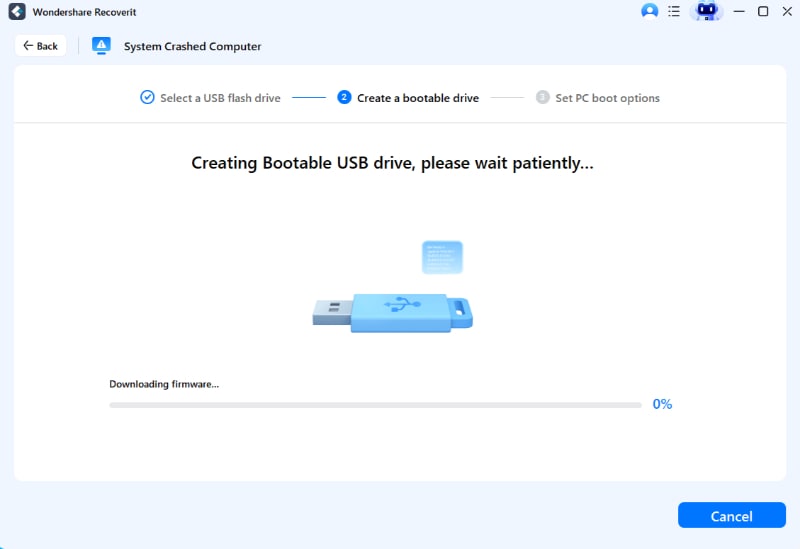
Step 2. Start Creating the Bootable USB
Select the connected USB drive, click Create, confirm formatting, and wait for completion.
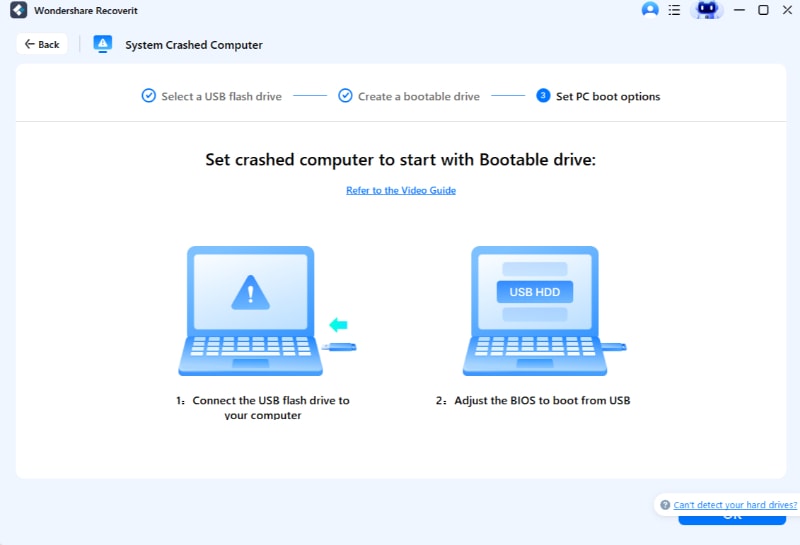
Step 3. Start the Lenovo Laptop Using the Recovery USB
Insert the recovery USB into the Lenovo laptop, open the boot menu, and boot from the USB drive.
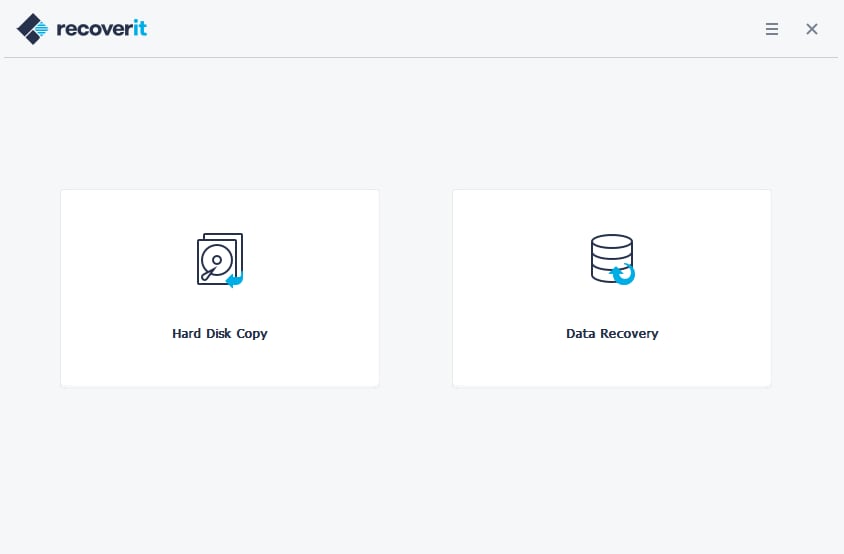
Step 4. Recover Files From the Lenovo Drive
After Recoverit loads, select the Lenovo internal drive, scan for recoverable files, preview what you need, and recover files to a separate external drive.
Part 7. What If Your Lenovo Laptop Still Shows a Black Screen?
If the black screen remains after the fixes above, check for hardware or storage failure:
- Check the storage drive: A failing HDD or SSD can prevent Windows from loading. Recover data before repeated repair attempts.
- Reseat or test RAM only if qualified: Faulty RAM can stop startup before the Lenovo logo or Windows boot.
- Test with an external monitor: If external display works, the built-in screen assembly likely needs service.
- Run Lenovo Diagnostics: Use Lenovo's diagnostic tools where available to check memory, storage, and display hardware.
- Contact Lenovo Support: Do this before opening a device under warranty or a school/work-managed laptop.
- Compare repair cost: If the laptop is old, unsupported, or has motherboard failure, replacement may be more practical.
Part 8. How to Prevent Lenovo Black Screen on Startup Problems
| Prevention Tip | Why It Helps |
| Shut down Windows properly | Reduces file-system and hibernation-state corruption |
| Keep Windows and Lenovo drivers updated | Fixes display, firmware, and hardware compatibility bugs |
| Use Lenovo Vantage or Lenovo Support | Installs Lenovo-tested BIOS, firmware, and driver updates |
| Create restore points before major updates | Makes it easier to undo problematic changes |
| Keep a Windows recovery USB ready | Provides recovery tools when Windows will not boot |
| Back up important files regularly | Protects data before reset, repair, or drive failure |
Conclusion
A Lenovo laptop not starting up with a black screen can be caused by power, brightness, display routing, graphics drivers, Windows updates, Fast Startup, system file damage, storage failure, or internal display hardware. Start with simple checks, then move to Safe Mode, driver rollback, update removal, DISM/SFC, Startup Repair, System Restore, and only then reset or reinstall Windows.
If important files are still on the laptop, recover them before reset, reinstall, hardware repair, or drive replacement. Recoverit Windows Data Recovery can help recover files from readable Lenovo storage, but it cannot fix hardware, bypass encryption, or guarantee recovery from a physically failing drive.
FAQ
-
Can overheating cause a recurring black screen on my Lenovo laptop?
Yes. Heat can trigger shutdowns, driver crashes, GPU instability, or startup failure. Keep vents clear, use the laptop on a hard surface, and service cooling hardware if overheating continues. -
How do I know if my Lenovo screen itself is physically damaged?
Connect an external monitor. If the external display works while the built-in screen stays black, the internal screen, backlight, display cable, or hinge connection may be faulty. -
Will Startup Repair delete my files on a Lenovo laptop?
Startup Repair is designed to fix startup problems without deleting personal files. However, recover or back up important files before deeper repairs, reset, reinstall, or drive replacement. -
Can Recoverit fix a Lenovo black screen on startup?
No. Recoverit does not repair screens, drivers, Windows, BIOS, RAM, GPUs, motherboards, chargers, or batteries. It can help recover local files from accessible Lenovo storage before repair.



