 TL;DR:
To troubleshoot a running Lenovo laptop with a black screen, immediately connect an external monitor to isolate hardware faults, or use a hard reset and the Windows + Ctrl + Shift + B shortcut to resolve stuck sleep states and crashed graphics drivers.
● If the external monitor displays an image, the internal LCD panel, backlight, or hinge cable requires physical repair, whereas a black screen on both displays indicates Windows, RAM, BIOS, or motherboard failures requiring Safe Mode or hardware diagnostics via the Novo button.
● Before attempting complex repairs, shine a flashlight at the screen to check for backlight failure, blindly press Windows + P to exit external-only projection modes, and drain residual power by disconnecting the charger and holding the power button for 30 to 60 seconds.
● Always recover critical data before a factory reset using a bootable USB with Recoverit Windows Data Recovery, which can extract files provided the internal drive remains readable, but the software cannot repair broken displays, damaged motherboards, or physically clicking drives.
Ask AI for a summary
 ChatGPT
 Perplexity
 Gemini
 Claude
 Grok
Grok
A Lenovo laptop screen not turning on can mean several different problems. Sometimes the laptop is running but Windows cannot wake the display. Sometimes the built-in panel, backlight, display cable, RAM, BIOS, or motherboard is the real cause. The same search can also mean an external Lenovo monitor not turning on.
The safest approach is to diagnose the symptom first, then choose the least risky fix. Do not rush into factory reset, Windows reinstall, or internal repair before protecting important files. If the Lenovo laptop still powers on but the screen is black, there may still be a way to recover your data before advanced troubleshooting.
This guide explains what to check when a Lenovo laptop turns on but the screen is black, how to troubleshoot ThinkPad, IdeaPad, Yoga, and Legion display problems, how to handle a Lenovo monitor that will not turn on, and how Recoverit Windows Data Recovery can help recover files before a reset, repair, or drive replacement. Recoverit cannot repair a broken display panel, motherboard, GPU, or power circuit.
In this article
-
- Fix 1. Drain Residual Power With a Hard Reset
- Fix 2. Check the Charger, Battery, and Power Indicator Lights
- Fix 3. Increase Brightness and Switch Display Output
- Fix 4. Restart the Graphics Driver With Windows + Ctrl + Shift + B
- Fix 5. Use an External Monitor to Separate Screen Failure From System Failure
- Fix 6. Boot Into Safe Mode and Repair Display Drivers
- Fix 7. Roll Back a Recent Windows Update or Driver Update
- Fix 8. Run Lenovo Diagnostics or UEFI Hardware Tests
- Fix 9. Check the Display Cable, Backlight, or Panel
- Fix 10. Contact Lenovo Support for Board, GPU, or Warranty Repair
Part 1. What Does "Lenovo Laptop Screen Not Turning On" Mean?
The phrase can describe different faults. Identifying the exact symptom helps avoid the wrong fix.
Lenovo Laptop Turns On but Screen Is Black
This is the most common search intent behind Lenovo laptop turns on but screen is black. The power light, keyboard backlight, fan, or charging light works, but the built-in screen stays black. The cause may be a frozen sleep state, display output setting, graphics driver crash, internal screen failure, RAM issue, or motherboard fault.
Lenovo Laptop Not Turning On With a Black Screen
If there are no lights, no fan noise, no charging indicator, and no keyboard response, this is not only a screen problem. It may involve the charger, battery, USB-C charging port, power button, power delivery board, or motherboard.
Dim, Flickering, or Barely Visible Lenovo Screen
A very dim image, flicker, or faint desktop visible under a flashlight often points to a backlight, LCD panel, hinge cable, or display connector problem. In this case, Windows may be working normally while the built-in display cannot show a usable image.
ThinkPad, IdeaPad, Yoga, and Legion: Does the Model Matter?
Yes. ThinkPad models may have model-specific emergency reset holes, diagnostics, and beep or LED codes. Legion laptops may involve hybrid graphics, external GPU modes, or high-refresh display settings. Yoga convertibles add hinge and touchscreen cable complexity. IdeaPad models often use a Novo button for BIOS, boot menu, or recovery options.
Part 2. Quick Diagnosis: Screen, Power, Windows, or External Monitor?
Use these quick checks before changing drivers, resetting Windows, or opening the laptop.
Check Power Lights, Fan Noise, and Keyboard Backlight
Press the power button once and watch for the charging light, power indicator, keyboard backlight, fan noise, and Caps Lock response. If none of these work, troubleshoot power first. If they work but the screen is black, continue with display checks.
Test With an External Monitor or TV
Connect the Lenovo laptop to an external monitor or TV using HDMI, USB-C, DisplayPort, or a compatible adapter. If the external display works, the built-in screen, backlight, display cable, or panel is more likely at fault. If no display works anywhere, suspect Windows, graphics, BIOS, RAM, or motherboard issues.
Use the Flashlight Test for Backlight Failure
Turn the laptop on and shine a flashlight at an angle across the screen. If you can barely see the Lenovo logo, login screen, or desktop, the LCD may still be producing an image but the backlight may have failed.
Match the Symptom to the Likely Cause
| Symptom | Likely Cause | Best First Step |
| Lights and fans work, built-in screen is black | Sleep state, driver crash, display output, or screen hardware | Hard reset, brightness keys, graphics reset, external monitor test |
| External monitor works, built-in screen stays black | LCD panel, backlight, or display cable fault | Back up files, then service the display assembly |
| No display on internal or external monitor | Windows, GPU, RAM, BIOS, or motherboard issue | Hard reset, Safe Mode, diagnostics, warranty repair |
| No lights, no fan, no charging indicator | Power adapter, battery, charging port, or board failure | Check charger, outlet, reset button, and power hardware |
| External Lenovo monitor will not turn on | Monitor power, input source, cable, or port issue | Check power, source, cable, and test with another computer |
Part 3. Common Causes of a Lenovo Screen Not Turning On
The root cause can be temporary software trouble or real hardware damage.
Stuck Sleep, Hibernate, or Modern Standby State
A Lenovo laptop can sometimes fail to wake correctly from Sleep, Hibernate, or Modern Standby. The fan and keyboard may turn on while the display remains black.
Brightness or Display Output Mode Problem
The screen may look off if brightness is set very low or Windows is projecting only to an external display. This is common after docking, using a projector, or changing display modes.
Graphics Driver Crash or Windows Update Failure
A corrupted GPU driver, failed Windows update, incompatible display driver, or startup crash can produce a black screen before or after sign-in.
Loose Display Cable, Failed Backlight, or LCD Panel Fault
Drops, pressure on the lid, hinge wear, or aging display components can loosen the internal display cable or damage the backlight or LCD panel. Yoga and convertible models can be more sensitive around hinge cables.
RAM, BIOS, Motherboard, or GPU Failure
If neither the internal nor external display works, the issue may be deeper than the screen. Faulty RAM, BIOS corruption, board failure, or GPU failure can stop the laptop from producing video output.
Part 4. What to Do Before Repairing a Lenovo Black Screen
Before advanced repair, protect the laptop and your data.
Disconnect External Devices
Remove USB drives, external monitors, docks, hubs, printers, SD cards, and external keyboards. A faulty peripheral or dock can interfere with startup or display output.
Avoid Factory Reset Until Your Files Are Safe
A factory reset, clean Windows install, or service repair can erase files. If the laptop contains important documents, photos, work files, or school data, recover or back them up before reset.
Do Not Keep Forcing Startup If the Laptop Overheats
If the laptop becomes unusually hot, smells burned, clicks repeatedly, or shuts off during startup, stop forcing power cycles. Continued attempts may worsen hardware or drive damage.
Prepare Another Computer, Charger, and External Drive
You may need another working Windows computer, a compatible Lenovo charger, an external monitor, an empty USB drive for bootable recovery media, and another external drive to store recovered files.
Part 5. How to Fix a Lenovo Laptop Screen That Will Not Turn On
Work through these fixes from least risky to most advanced. Stop if you suspect physical damage or if your data is not backed up.
Fix 1. Drain Residual Power With a Hard Reset
A hard reset can clear temporary power and firmware states.
Step 1. Shut down the laptop. If the screen is black, hold the power button until the laptop turns off.
Step 2. Disconnect the charger and all accessories. Remove the battery only if your Lenovo model has a user-removable battery.
Step 3. Hold the power button for 30 to 60 seconds. If your model has an emergency reset hole and the user manual instructs its use, press it with the charger disconnected.
Step 4. Reconnect the charger and power on the laptop.
Fix 2. Check the Charger, Battery, and Power Indicator Lights
Use a known-good wall outlet and a compatible Lenovo charger. Check whether the charging light turns on. If the laptop uses USB-C charging, try another compatible USB-C charger and cable with sufficient wattage.
If the power light flashes in a pattern or the laptop beeps, note the pattern and check your Lenovo model manual or Lenovo Support because the code may point to RAM, display, or board issues.
Fix 3. Increase Brightness and Switch Display Output
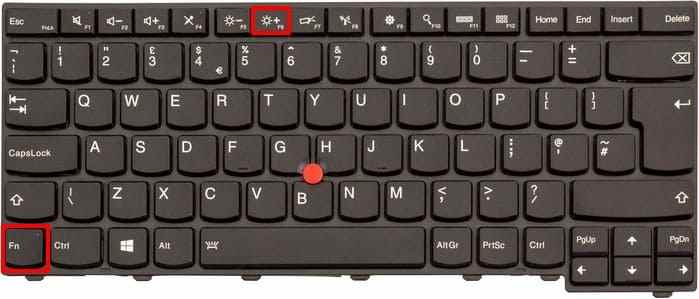
Press the Lenovo brightness-up key several times. On many Lenovo laptops, brightness keys are on the function row, but the exact key varies by model.
Then press Windows + P, wait a second, press the arrow key, and press Enter to cycle projection modes. This can bring the display back if Windows was set to external-screen-only mode.
Fix 4. Restart the Graphics Driver With Windows + Ctrl + Shift + B
If Windows is running but the display driver has crashed, press Windows + Ctrl + Shift + B. The screen may flicker, and you may hear a beep while Windows refreshes the graphics driver.
This shortcut does not delete files or change settings. If it works, update the graphics driver after the display returns.
Fix 5. Use an External Monitor to Separate Screen Failure From System Failure
Connect an external monitor or TV. Press Windows + P and choose Duplicate or Second screen only. Make sure the monitor is on the correct input.
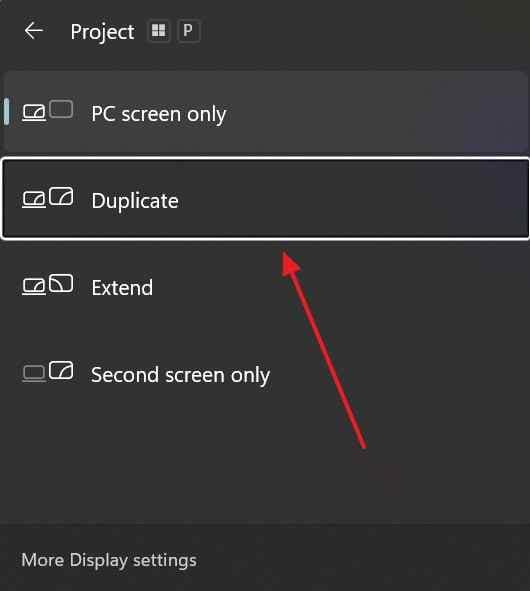
If the external monitor works, back up your files immediately. The built-in display cable, LCD panel, or backlight may need service. If the external monitor is also black, continue with Safe Mode and diagnostics.
Fix 6. Boot Into Safe Mode and Repair Display Drivers
Safe Mode loads Windows with basic drivers. It is useful when the Lenovo screen goes black because of a display driver or startup conflict.
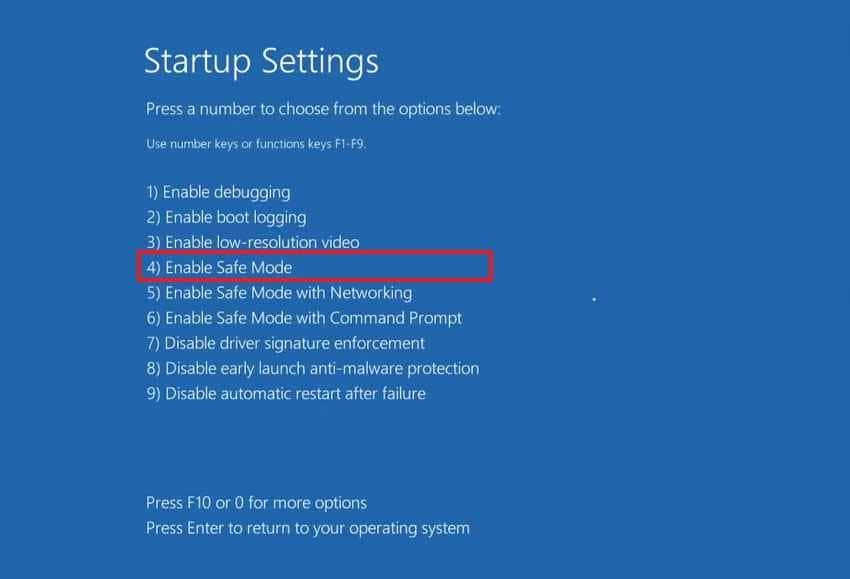
Step 1. Enter Windows Recovery Environment by interrupting startup three times, or use a Windows recovery drive. Go to Troubleshoot > Advanced options > Startup Settings > Restart, then press 4 or F4 for Safe Mode.
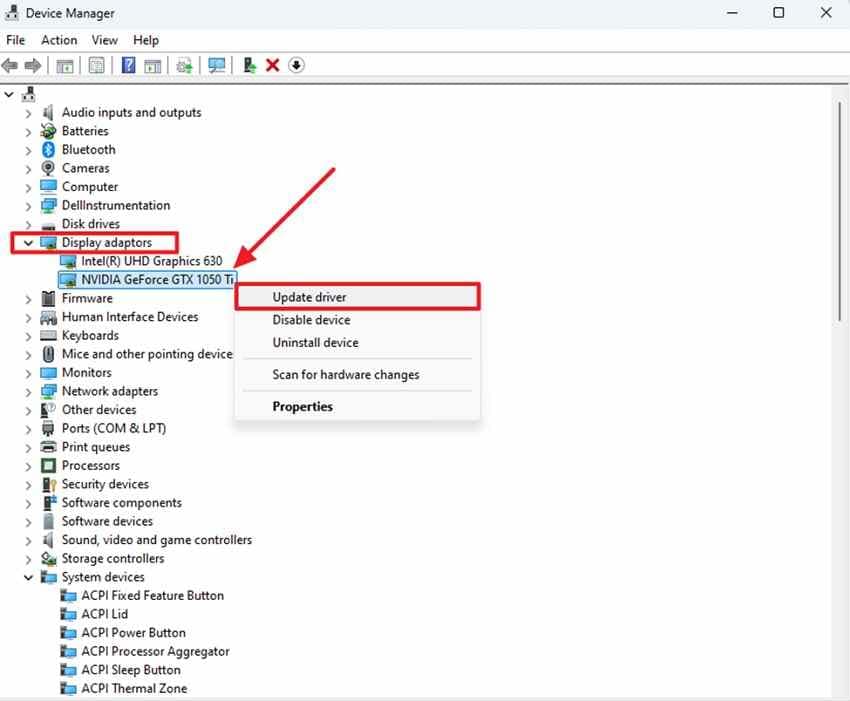
Step 2. Open Device Manager, expand Display adapters, right-click the graphics driver, and choose Update driver. If the problem started after a driver update, choose Properties > Driver > Roll Back Driver when available.
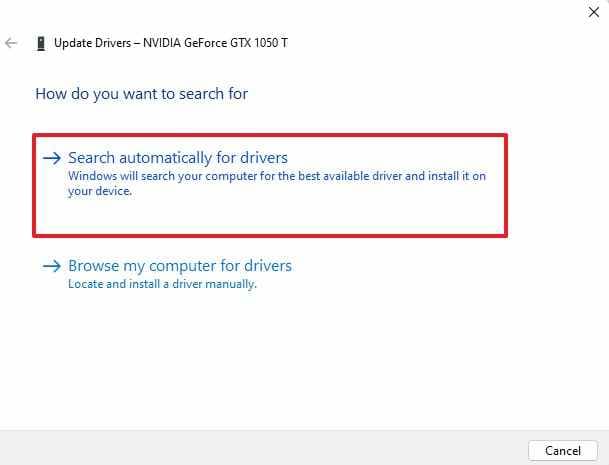
Step 3. Choose Search automatically for drivers, or install the correct driver from Lenovo Vantage, Lenovo Support, Intel, AMD, or NVIDIA according to your model.
Fix 7. Roll Back a Recent Windows Update or Driver Update
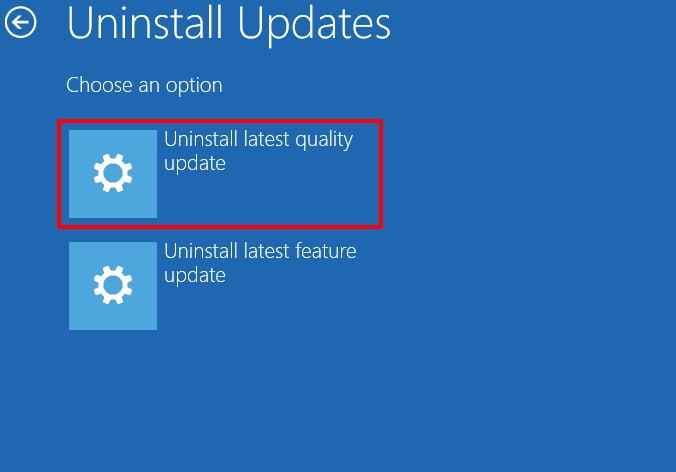
If the black screen began after a Windows update, enter Windows Recovery Environment and remove the latest quality update.
Go to Troubleshoot > Advanced options > Uninstall Updates > Uninstall latest quality update. If needed, repeat the process for a feature update. Back up files first if the laptop is accessible through an external display.
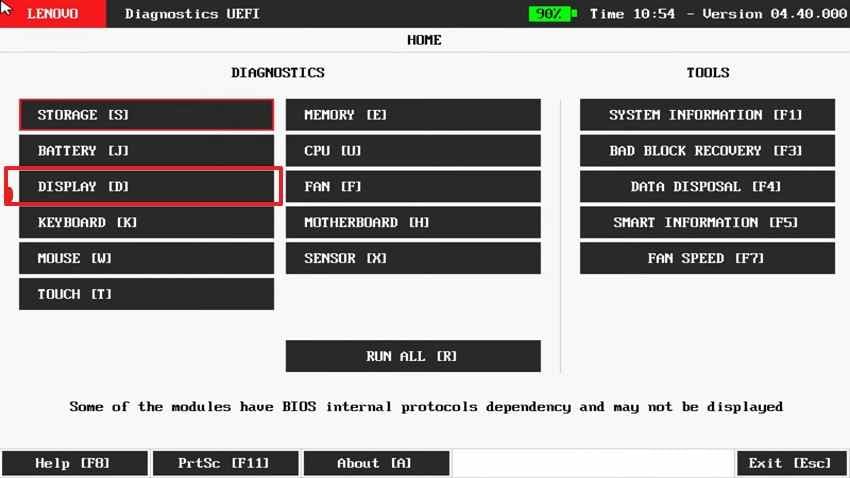
Fix 8. Run Lenovo Diagnostics or UEFI Hardware Tests
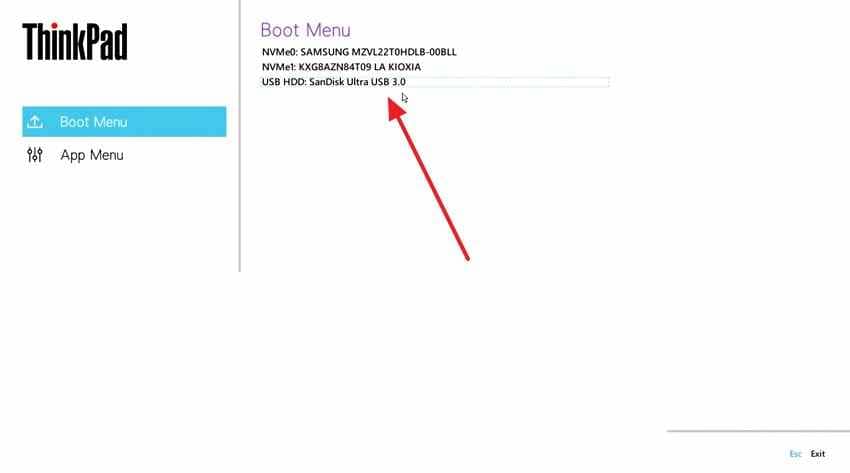
Lenovo hardware diagnostics can test display, memory, storage, and other components on supported models. The access key varies, but many Lenovo laptops use F10, F12, Enter, or the Novo button during startup.
Step 1. Start the laptop and press the correct key for your model to enter the boot menu or diagnostics menu.
Step 2. Run display, memory, and storage tests if available. Record any error code before contacting Lenovo Support.
Fix 9. Check the Display Cable, Backlight, or Panel
If the external monitor works but the built-in Lenovo screen remains black, the internal display assembly may need service. A loose display cable, damaged hinge cable, failed backlight, or cracked LCD panel can cause this symptom.
Only open the laptop if you are comfortable with hardware repair and the device is out of warranty. For most users, professional repair is safer.
Fix 10. Contact Lenovo Support for Board, GPU, or Warranty Repair
Contact Lenovo Support if the laptop shows no image on any display, fails hardware diagnostics, overheats, shows beep or LED error codes, or is still under warranty. Tell support what tests you already ran and whether an external monitor worked.
Part 6. How to Fix a Lenovo Monitor Not Turning On
If your problem is an external Lenovo monitor instead of a laptop panel, use these checks.
Check Power, Button, and Indicator Light
Confirm the power cable is firmly connected to the monitor and outlet. Press the monitor power button and check the indicator light. If possible, test another outlet or power cable.
Select the Correct Input Source
Use the monitor menu to choose the correct input, such as HDMI, DisplayPort, USB-C, or VGA. A monitor can stay black if it is listening to the wrong port.
Try Another Cable, Port, or Computer
Try a different HDMI, DisplayPort, or USB-C cable. Also test the monitor with another computer. This separates monitor failure from laptop video output failure.
Reset Monitor Settings if the Menu Works
If the monitor menu appears, reset the monitor settings to factory defaults. This can fix incorrect brightness, input, sleep, or display configuration settings.
Part 7. Recover Files Before Resetting or Sending the Lenovo Laptop for Repair
When a Lenovo screen will not turn on, data protection matters as much as display repair.
Why File Recovery Should Come Before Reset or Repair
| Risk | Why It Matters |
| Factory reset | Can remove apps and personal files depending on the reset option selected |
| Windows reinstall | Can overwrite user data if the wrong partition or option is selected |
| Hardware repair | Service centers may replace, reimage, or format storage during repair |
| Failing drive | Repeated startup attempts can worsen drive condition and reduce recovery chances |
When Recoverit Can Help
Recoverit Windows Data Recovery can help recover files from a Lenovo laptop when Windows will not boot normally, the screen is black, or the system needs repair. Its crashed computer recovery workflow can create a bootable USB on another working computer and use it to access recoverable files on the Lenovo internal drive.
Recoverit is useful for documents, photos, videos, project files, emails, archives, and other local files when the internal SSD or HDD is still readable.
When Recoverit Cannot Help
Recoverit cannot repair a broken Lenovo screen, GPU, motherboard, display cable, backlight, charger, battery, or power circuit. It also cannot guarantee recovery from a physically failing SSD or HDD. If the internal drive clicks, is not detected, or causes repeated freezes, stop and consider a professional data recovery service.
How to Recover Files From a Lenovo Laptop With a Black Screen
Use another working Windows computer and an empty USB drive. The USB drive will be formatted during bootable media creation, so do not use one that contains important data.
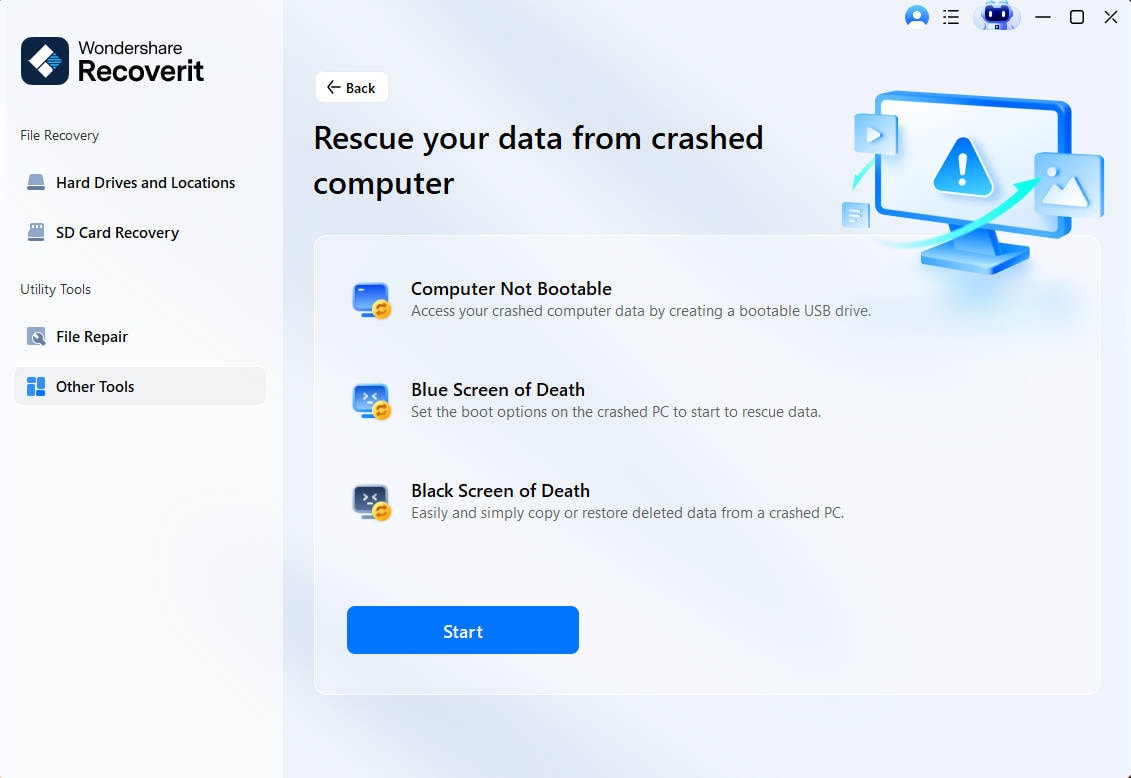
Step 1. Select System Crashed Computer Recovery
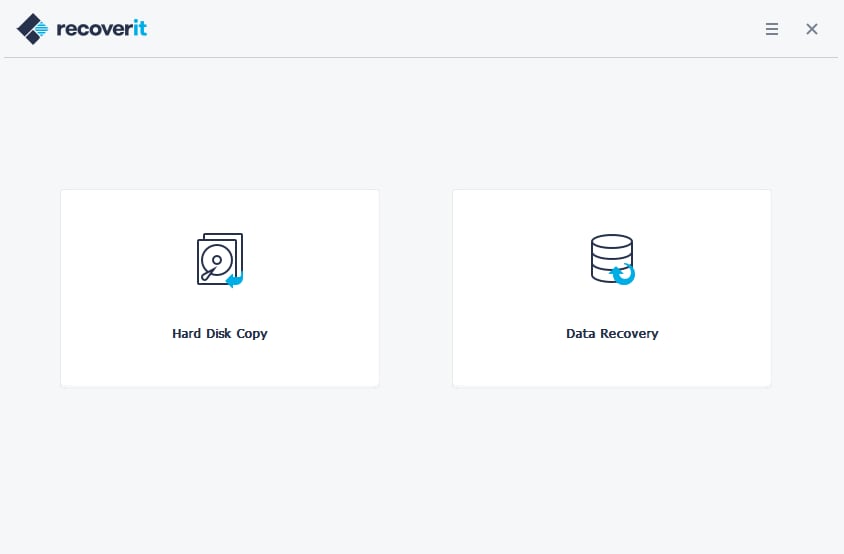
Install and open Recoverit on a working computer. Connect an empty USB drive, choose System Crashed Computer, and click Start.
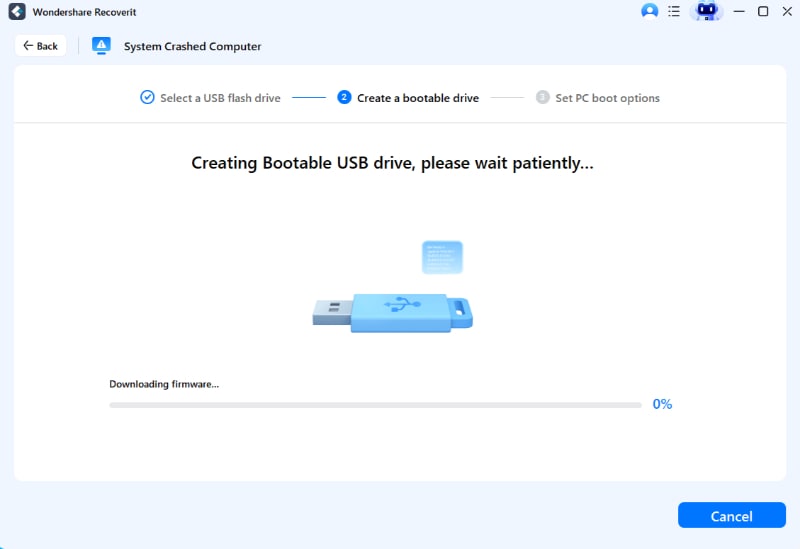
Step 2. Create the Bootable USB Drive
Select the inserted USB drive, click Create, confirm the formatting warning, and wait for Recoverit to prepare the bootable recovery media.
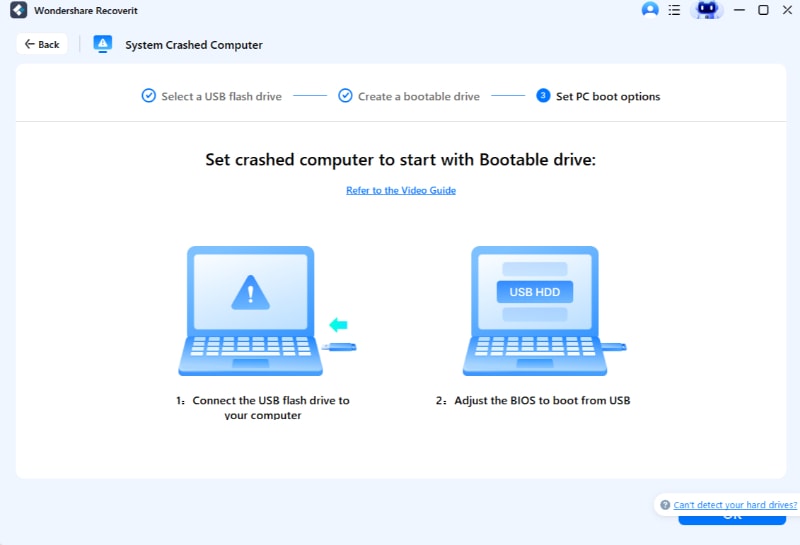
Step 3. Boot the Lenovo Laptop From the Recovery USB
Connect the bootable USB drive to the Lenovo laptop. Power it on and enter the boot menu using the correct key for your model, such as F12, F10, Enter, or the Novo button. Choose the USB drive as the startup device.
Step 4. Scan and Recover Important Files
After Recoverit loads, choose the internal drive, run a scan, preview recoverable files when possible, and recover them to a separate external drive.
What to Do If the Internal Drive Is Failing
If the Lenovo laptop makes clicking sounds, freezes repeatedly during scans, reports storage errors, or the internal drive is not detected, stop using software scans. For critical data, contact a professional recovery service before attempting more repairs.
Part 8. How to Prevent Lenovo Screen Blackout Problems
These habits reduce the chance of future Lenovo black screen problems and protect your data if they happen again.
Keep Lenovo, Windows, and Graphics Drivers Updated
Use Lenovo Vantage, Windows Update, and official GPU driver sources to keep BIOS, chipset, graphics, and display-related drivers current. Avoid installing random driver packages from unofficial websites.
Shut Down and Wake the Laptop Properly
Let Windows finish updates before closing the lid or forcing shutdown. If sleep problems repeat, adjust power settings or disable fast startup after confirming the system is stable.
Prevent Overheating and Physical Display Damage
Keep vents clear, use the laptop on a hard surface, avoid pressure on the lid, and handle hinges carefully. Drops and hinge stress can damage internal display cables.
Back Up Files Before Major Updates or Repairs
Before BIOS updates, Windows reinstall, factory reset, or service repair, back up important files to an external drive or cloud storage. Do not rely on a single laptop drive as your only copy.
Conclusion
A Lenovo laptop screen not turning on does not always mean the screen is dead. Start with power checks, a hard reset, brightness and projection keys, graphics driver refresh, and an external monitor test. If the external display works, the internal screen assembly may need repair. If no display works anywhere, continue with Safe Mode, update rollback, Lenovo diagnostics, or warranty support.
Before factory reset, reinstalling Windows, or sending the laptop for repair, protect your files. Recoverit Windows Data Recovery can help recover local files from a black-screen Lenovo laptop when the internal drive is still readable. It cannot fix hardware display faults, but it can help reduce the risk of losing important data during repair.
FAQ
-
Why does my Lenovo laptop turn on but the screen stays black?
Common causes include a stuck sleep state, low brightness, external-display-only mode, graphics driver crash, failed Windows update, loose display cable, bad backlight, RAM issue, or motherboard fault. -
How do I know if my Lenovo screen or motherboard is broken?
Connect an external monitor. If the external display works, the built-in screen, cable, or backlight is likely the problem. If no internal or external display works, the issue may involve Windows, RAM, BIOS, GPU, or motherboard hardware. -
Can Windows cause a Lenovo black screen?
Yes. A failed update, graphics driver conflict, startup crash, or corrupted system file can leave Windows running with a black screen. Safe Mode, driver rollback, or uninstalling the latest update may help. -
Should I reset Windows if my Lenovo screen is black?
Use reset as a later option, not the first step. Test power, display output, graphics refresh, external monitor, Safe Mode, and diagnostics first. Recover important files before any reset. -
Can Recoverit fix a Lenovo laptop screen that will not turn on?
No. Recoverit does not repair screens, backlights, display cables, GPUs, motherboards, chargers, or batteries. It can help recover local files from a black-screen or non-booting Lenovo laptop when the internal drive is still readable.



