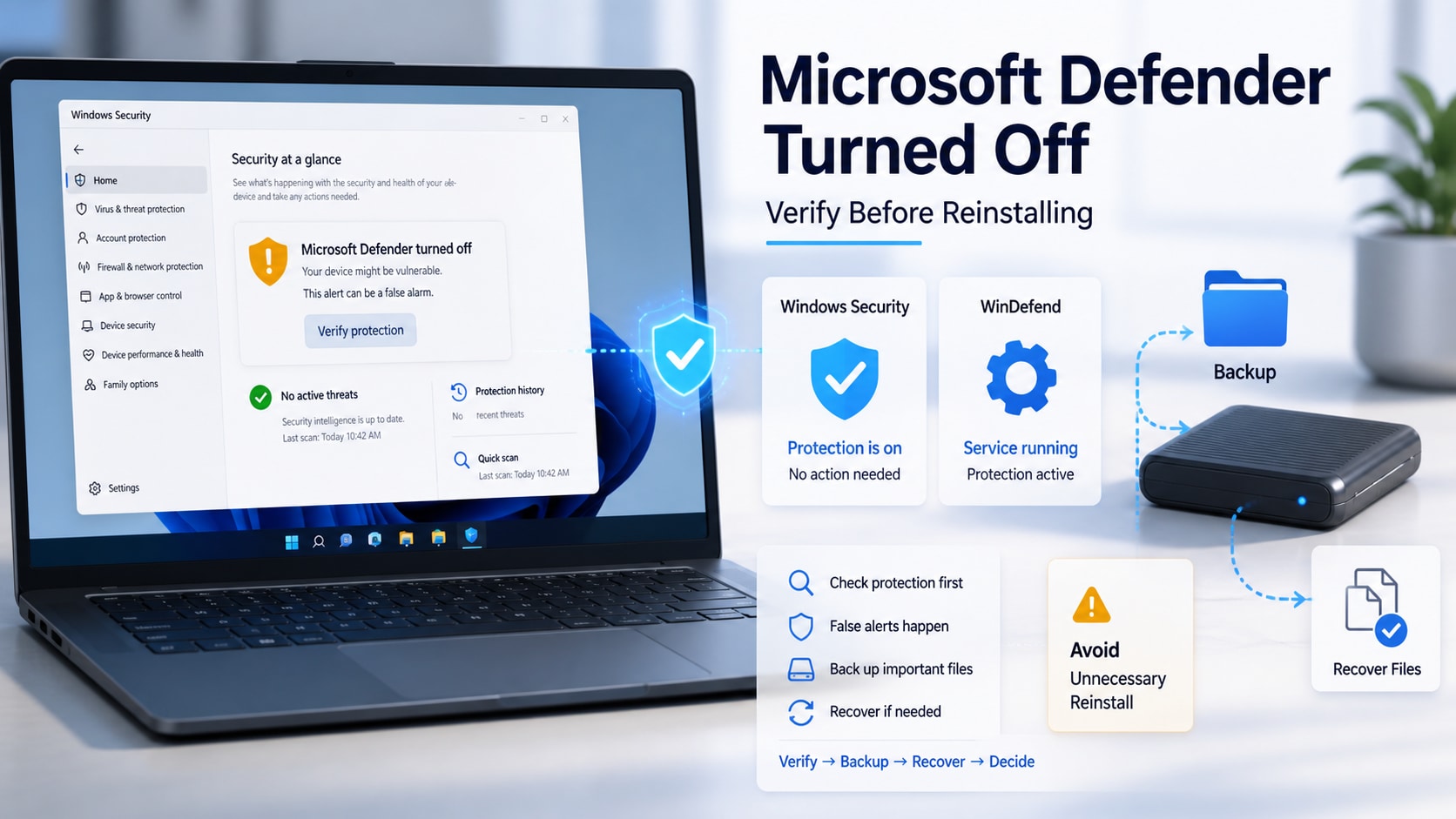
 TL;DR:
Do not reinstall Windows if Microsoft Defender incorrectly reports being turned off, as Microsoft has confirmed a recent update bug causes this false notification even while real-time protection remains fully active.
● Verify the actual security state before taking action by confirming the WinDefend service is running and checking that AMServiceEnabled, AntivirusEnabled, and RealTimeProtectionEnabled return True using the Get-MpComputerStatus PowerShell cmdlet.
● If the underlying protection checks are healthy, dismiss the alert and wait for a future Defender Antivirus update rather than resetting the PC, uninstalling a registered third-party antivirus, or altering registry policies.
● If the checks indicate a genuine failure where the service is stopped or scans fail, back up your personal files and secure the BitLocker recovery key before attempting DISM and SFC component repairs.
Ask AI for a summary
 ChatGPT
 Perplexity
 Gemini
 Claude
 Grok
Grok
Quick answer: If Microsoft Defender says it is turned off, do not assume Windows is unprotected and do not reinstall the operating system. Microsoft has confirmed a false notification caused by recent Defender updates. Open Windows Security, check the active antivirus provider, and verify AMServiceEnabled, AntivirusEnabled, and RealTimeProtectionEnabled with PowerShell. If the interface is healthy and those values are True, the alert is consistent with the known reporting bug. If the checks fail, follow Microsoft's supported troubleshooting path only after protecting your files.
The warning deserves verification, not panic. A false security alert can look identical to a genuine loss of protection, while a browser scam can imitate Windows notifications. The safe response is to identify which condition you have before changing security settings, removing software, resetting the PC, or reinstalling Windows.
Fact-checked on September 1, 2026: The incident status, affected platforms, Defender status commands, Windows Security paths, reset behavior, and Windows.old limits were checked against current Microsoft Release Health, Microsoft Learn, and Microsoft Support documentation.
In This Article
Part 1. What Microsoft Confirmed About The Defender Alert
Microsoft's current Windows Release Health notice lists an open issue titled Incorrect notifications that “Microsoft Defender Antivirus is turned off”. Microsoft opened and confirmed the issue on August 28, 2026. As of this article's September 1 fact check, the status remains Confirmed, and Microsoft says a resolution will arrive in a future Microsoft Defender Antivirus update.
The false notification can appear when Windows starts and may return intermittently afterward. Microsoft also states that it can persist even when notification settings are disabled. The important qualifier is that Defender Antivirus remains active and functions correctly when the device is experiencing this specific reporting issue.
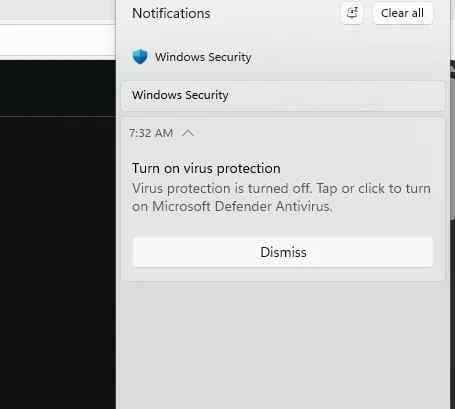
The example above shows the type of warning documented during the incident. The visible notification alone does not establish whether the engine is running, so continue with the status checks below.
| Official Detail | Current Status | Practical Meaning |
| Issue opened | August 28, 2026 | The behavior is a newly confirmed Defender notification problem, not an old generic Windows Security error. |
| Originating update | Listed as N/A | Microsoft attributes the behavior to the latest Defender updates but does not identify one Windows cumulative KB as the trigger. |
| Protection state in the known issue | Active and functioning | An incorrect toast can appear while Defender settings still show active protection. |
| Current resolution | Future Defender update | There is no reason to reinstall Windows merely to suppress this confirmed notification. |
| Notification behavior | Startup and intermittent alerts | Turning off notifications or enabling Do Not Disturb may not stop the false warning. |
Microsoft lists a broad platform range: Windows 11 versions 26H1, 25H2, 24H2, and 23H2; Windows 10 versions 22H2 and 21H2; Windows 10 Enterprise LTSC 2019 and 2016; and Windows Server 2025, 2022, 2019, 2016, 2012 R2, and 2012. The common condition is Microsoft Defender Antivirus running with the latest Defender updates, not one particular PC model or one Windows 11 feature update.
Part 2. Is The Defender Alert False Or Real?
Do not label every warning a false positive. Microsoft's notice describes a specific condition: the notification says Defender is off while the antivirus and its settings remain active. A genuinely stopped service, a third-party antivirus taking over, an organization policy, or a fake browser alert requires a different response.
| What You Observe | Most Likely Explanation | Best Next Step |
| A Windows Security toast appears, but the app is green, real-time protection is on, and PowerShell values are True | The confirmed false-notification issue | Dismiss the toast, keep updates enabled, and wait for Microsoft's Defender update. |
| Windows Security shows “Threat service has stopped,” scans fail, and Defender status values are False | A genuine service, configuration, update, or system-file problem | Back up files, then use Microsoft's supported Defender service troubleshooting. |
| Another antivirus is listed under Security providers and is healthy | Expected third-party antivirus registration | Confirm that product is active. Defender may not be the primary antivirus by design. |
| Settings say they are managed by your organization | Work, school, or endpoint-management policy | Contact the administrator rather than changing services, policies, or registry keys. |
| The warning appears inside a web page, includes a phone number, demands payment, or asks you to install a tool | A browser scam or malicious notification | Do not call, pay, download, or grant remote access. Close the page and check Windows Security directly. |
| The warning appears after you intentionally disabled real-time protection | A real configuration state | Turn protection back on unless a trusted administrator or compatible security product requires otherwise. |
A real Windows Security notification normally identifies Windows Security as its sender in the Windows notification panel. That still does not prove the underlying state, but it separates the operating-system alert from a web page imitating Microsoft. Never install a “Defender repair” utility from a pop-up.
Part 3. Check Whether Microsoft Defender Is Actually Running
Use more than one signal. The Windows Security interface shows the user-facing state, the provider page shows which antivirus owns protection, the service query checks one core service, and PowerShell reports several Defender components. Together they give a reliable decision without modifying the PC.
Method 1. Check Windows Security
- Open Start, type Windows Security, and open the trusted Windows app.
- Select Virus & threat protection.
- Check whether the page shows a green status, the current-threats section is available, and scan options open normally.
- Under Virus & threat protection settings, select Manage settings.
- Confirm that Real-time protection is on. Also review cloud-delivered protection and tamper protection without changing organization-managed settings.
Microsoft's current Virus & threat protection guide identifies this page as the place to run scans, review protection updates, and manage Defender Antivirus settings. If the app is healthy and a quick scan starts, the toast may be stale or incorrect. Continue to the provider and command checks before deciding.
Method 2. Check The Registered Antivirus Provider
- In Windows Security, select the Settings gear.
- Select Manage providers under Security providers.
- Expand Antivirus and read which product is registered.
- If Microsoft Defender Antivirus is shown as active, compare that result with PowerShell.
- If a third-party product is registered, open that product and confirm its protection, subscription, and update state.
The Windows Security App Settings page explains that Security providers summarizes the apps and services protecting the device. This matters because Defender can operate differently when a compatible third-party antivirus is installed. Removing a working antivirus just to make Defender appear as primary can briefly reduce protection and is unnecessary.
Method 3. Check The WinDefend Service
Open Windows Terminal or Command Prompt and run this read-only command:
sc query WinDefendLook for STATE : 4 RUNNING. That confirms the Microsoft Defender Antivirus service is running, but it does not by itself prove that every protection feature is enabled. Use it as one signal, then run the PowerShell check.
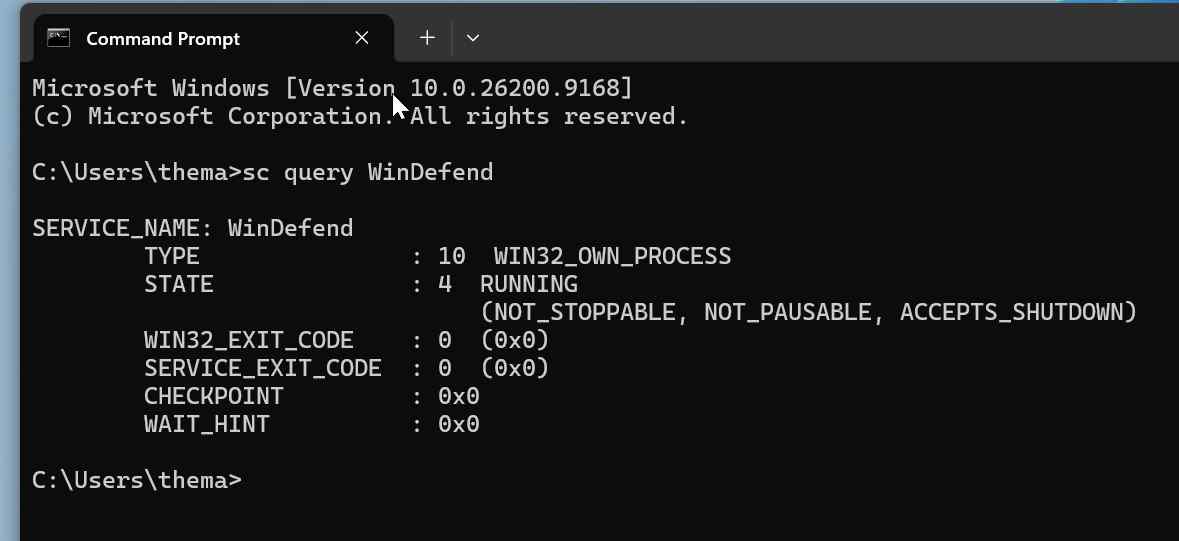
If the service query reports STOPPED or cannot find the service, do not jump directly to registry edits or a clean install. Check the registered provider, device-management status, and PowerShell result first.
Method 4. Verify Defender With PowerShell
Microsoft documents Get-MpComputerStatus as the cmdlet that retrieves the antimalware status of the computer. Open PowerShell and run:
Get-MpComputerStatus | Select-Object AMRunningMode, AMServiceEnabled, AntivirusEnabled, RealTimeProtectionEnabled, BehaviorMonitorEnabled, IoavProtectionEnabled, AntivirusSignatureLastUpdatedOn a normal Defender-primary PC, AMServiceEnabled, AntivirusEnabled, and RealTimeProtectionEnabled should generally be True, and AMRunningMode commonly reads Normal. The signature timestamp should also be recent.
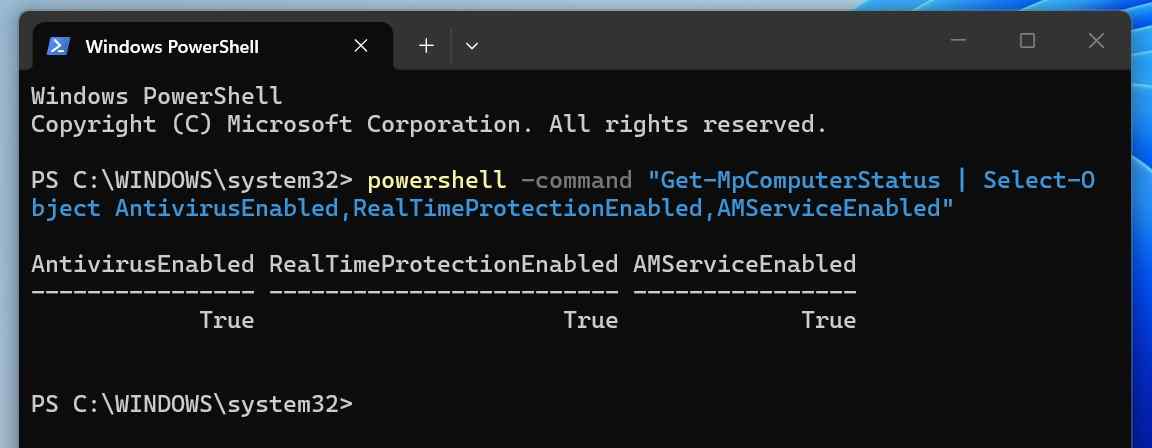
Do not interpret one field without context. AMRunningMode can reflect passive or other managed configurations, particularly on enterprise devices or systems with another antivirus. If your PC belongs to work or school, give the results to the administrator instead of forcing a service mode.
Method 5. Check Protection Updates And Run A Quick Scan
- In Windows Security, open Virus & threat protection.
- Under Virus & threat protection updates, select Protection updates.
- Select Check for updates and let Defender install available security intelligence.
- Return to Current threats, select Quick scan, and allow it to finish.
- Open Protection history and review recent detections or blocked changes.
A successful update and scan support the conclusion that Defender is functioning. A failed scan, stale definitions, repeated service errors, or protection that immediately switches off points to a real issue and should not be dismissed as the August 28 notification bug.
Part 4. How To Read The Results Correctly
| Windows Security | Provider Or Command Result | Assessment | Action |
| Healthy and green | WinDefend running; key PowerShell values True | Consistent with the confirmed false alert | Dismiss the notification and wait for Microsoft's Defender update. |
| Healthy | Third-party antivirus registered and active | Expected provider configuration | Use that product's status page; do not force Defender into primary mode. |
| Red warning or scans unavailable | WinDefend stopped and key values False | Likely genuine Defender failure | Protect files, update Windows and Defender, then use Microsoft's service troubleshooting. |
| Settings restricted | Managed provider or policy | Organization-controlled state | Contact IT and do not remove policies or security software. |
| App fails to open | Commands also fail or return missing components | Possible Windows component corruption | Back up data, then consider supported DISM/SFC repair or Microsoft support. |
The strongest evidence of the false alert is agreement among the underlying checks: the registered provider is expected, the service is running, real-time protection is enabled, signatures are current, and scans work. The strongest evidence of a real problem is failure across several of those checks—not the toast by itself.
Part 5. What To Do If It Is The Confirmed False Alert
- Dismiss The Notification: Dismissing the alert does not disable protection. It may return because Microsoft says the issue can persist despite notification settings.
- Keep Defender Updates Enabled: Microsoft plans to deliver the resolution through a future Defender Antivirus update. Do not freeze updates to avoid the toast.
- Leave Security Services And Policies Alone: Do not delete Defender registry keys, reset the Defender platform, or remove security products when the status checks are healthy.
- Keep A Record: Save the PowerShell output or note the time of the alert if you manage several PCs. That makes it easier to compare behavior after the fix arrives.
- Check The Official Status Before Escalating: The Release Health page is the authoritative place to see whether Microsoft changes the status from Confirmed to Resolved or publishes a mitigation.
Do not disable all Windows notifications as a workaround. Microsoft says this particular alert may persist anyway, and broad suppression could hide other security or system messages that do require attention.
Part 6. What To Do If Defender Is Genuinely Off
If several checks show that protection is inactive, treat the condition as real. The correct path depends on whether another antivirus is active, the device is managed, or Windows components are damaged.
- Check For Another Antivirus: If a trusted third-party product is registered and healthy, use its console. Do not run two real-time antivirus products as primary protection merely to remove a warning.
- Check Management: On a work or school PC, contact IT. Security policy, Defender for Endpoint configuration, or passive mode can intentionally change the visible state.
- Install Updates And Restart Once: Apply available Windows and Defender protection updates, then restart normally and repeat the status checks.
- Use Microsoft's Supported Service Guide: Microsoft's Defender Antivirus service startup troubleshooting begins with service and filter-driver checks. Some later steps modify policies and the Defender platform, so consumers should not run them casually or on a managed device.
- Repair Windows Components Only If Broader Corruption Exists: If Windows Security fails to open or other Windows features are broken, back up files first. Then follow Microsoft's official order: run DISM before SFC.
DISM.exe /Online /Cleanup-image /Restorehealth
sfc /scannow
The commands above are documented in Microsoft's System File Checker guidance. They are system-repair tools, not a remedy for the confirmed false notification. Run them only when the evidence points to damaged Windows components and the files that matter are already protected.
Part 7. What Not To Do Before You Reinstall Windows
| Risky Reaction | Why It Is Wrong For A False Alert | Safer Alternative |
| Reset this PC immediately | A reset reinstalls Windows, removes apps and settings, and can remove personal files when “Remove everything” is selected. | Verify Defender with the provider, service, and PowerShell checks first. |
| Perform a clean installation | A clean install can format or overwrite the system drive and is disproportionate to a notification bug. | Wait for the Defender update when protection is active. |
| Run registry scripts from a forum | Policy deletion and service changes can create the real protection problem you did not have before. | Use read-only checks and current Microsoft documentation. |
| Uninstall a working third-party antivirus | The product may be the registered primary provider, and removal can leave a temporary protection gap. | Confirm provider health or follow the vendor's supported removal process only when necessary. |
| Disable Windows Security notifications globally | The known alert may persist, while other important warnings become less visible. | Dismiss the individual toast and monitor the official issue. |
| Install a pop-up “repair” tool | Security-scare pop-ups can be scams designed to obtain payment, credentials, or remote access. | Open Windows Security from Start and use Microsoft support channels. |
Part 8. Protect Your Files Before Reset Or Reinstall
If Defender is truly broken and a repair, reset, or reinstall becomes necessary, protect data before the operation. Microsoft's current Reset your PC guide explicitly recommends backing up important files and securing the BitLocker recovery key first.
- Copy Desktop, Documents, Downloads, Pictures, Videos, project folders, email archives, and any data stored outside the default libraries.
- Open several files from the backup to verify that the copies work; a folder count alone is not proof of a valid backup.
- Confirm OneDrive or another sync service has finished uploading. Sync is not a substitute for an offline backup when deletion can synchronize too.
- Save the BitLocker recovery key for every encrypted volume before entering Windows Recovery Environment or changing boot settings.
- Record application licenses, browser profiles, local email data, virtual-machine files, encryption keys, and custom work folders.
- Disconnect the backup drive after verification so a reset, format, malware cleanup, or target-selection mistake cannot affect it.
| Windows Recovery Choice | What It Does | Data Risk |
| System Restore | Returns system files, registry, and installed programs to a restore point | Designed not to affect personal files, but still back up first when the PC is unstable. |
| Reset this PC — Keep my files | Reinstalls Windows, keeps personal files, and removes apps and settings | Lower than “Remove everything,” but not a backup guarantee. |
| Reset this PC — Remove everything | Reinstalls Windows and removes personal files, apps, and settings | High. Do not proceed until the backup is verified. |
| In-place repair installation | Reinstalls Windows components while offering keep options | Lower than a clean install when performed correctly, but power, disk, or selection failures remain possible. |
| Clean installation | Installs a fresh copy and may delete or format partitions | Highest. Recover or back up first and verify the exact target drive. |
A Defender toast with healthy status checks does not justify any of these operations. Use them only for a verified Windows problem that survives lower-risk support steps.
Part 9. Recover Files Lost During Defender Troubleshooting
Recoverit does not turn Microsoft Defender on and does not repair the notification bug. Its role begins only if a reset, reinstall, profile change, partition operation, cleanup, or failed system repair has made files disappear.
Method 6. Check Windows Locations And Backups First
- Search The Whole PC: In File Explorer, select This PC and search for a known file name or extension such as
*.docxor*.jpg. - Check The Current And Previous Profiles: Look under
C:\Usersfor the expected profile, a renamed profile, or signs that Windows signed you into a temporary profile. - Check Recycle Bin And Cloud Storage: Review Recycle Bin, OneDrive Recycle Bin, version history, and any external backup before scanning the disk.
- Check Windows.old Only When It Applies: After certain Windows upgrades, personal files may be under
C:\Windows.old\Users\<name>. Microsoft says this content is normally available for only 10 days. Reset this PC does not create Windows.old, and a fresh installation from media may format the drive. - Copy Found Files Elsewhere: If the system is unstable, copy important files to a separate external drive before further repairs.
Microsoft's Windows.old recovery guide warns that another install, upgrade, refresh, or reset can replace or delete the existing Windows.old folder. Do not reinstall again while that folder still contains the only copy of needed files.
Method 7. Recover Missing Files With Recoverit

If files are not in Windows.old, another profile, Recycle Bin, cloud storage, or a backup, minimize use of the affected drive. New downloads, updates, app installations, temporary files, and even recovery software installed to the source volume can overwrite recoverable data. SSD recovery may also be limited by TRIM and subsequent writes.
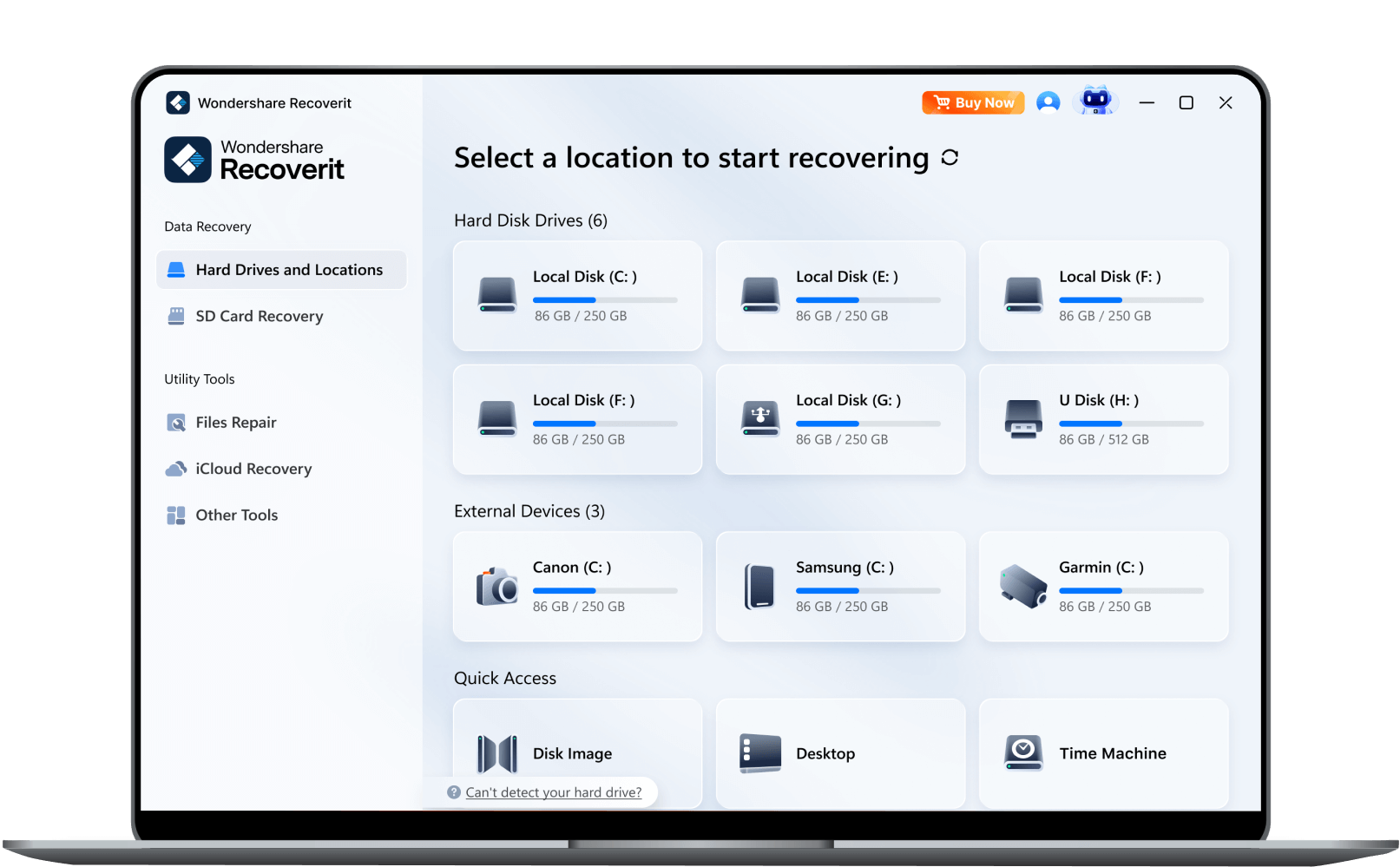
Use Recoverit Windows Data Recovery when the affected drive is still detectable. If the missing data is on the Windows system drive, the safer setup is to attach that drive to another computer when practical or use a bootable workflow rather than installing new software onto the same C: volume. If the PC no longer boots, use Recoverit Windows System Recovery to create recovery media on a healthy PC.
- Select The Correct Source: Open Recoverit and select the drive or location that held the lost files. Check the volume label, capacity, and drive letter before scanning.
- Scan And Narrow The Results: Let the scan run. Use file path, file type, search, date, and status filters to focus on the original user folder or required file types.
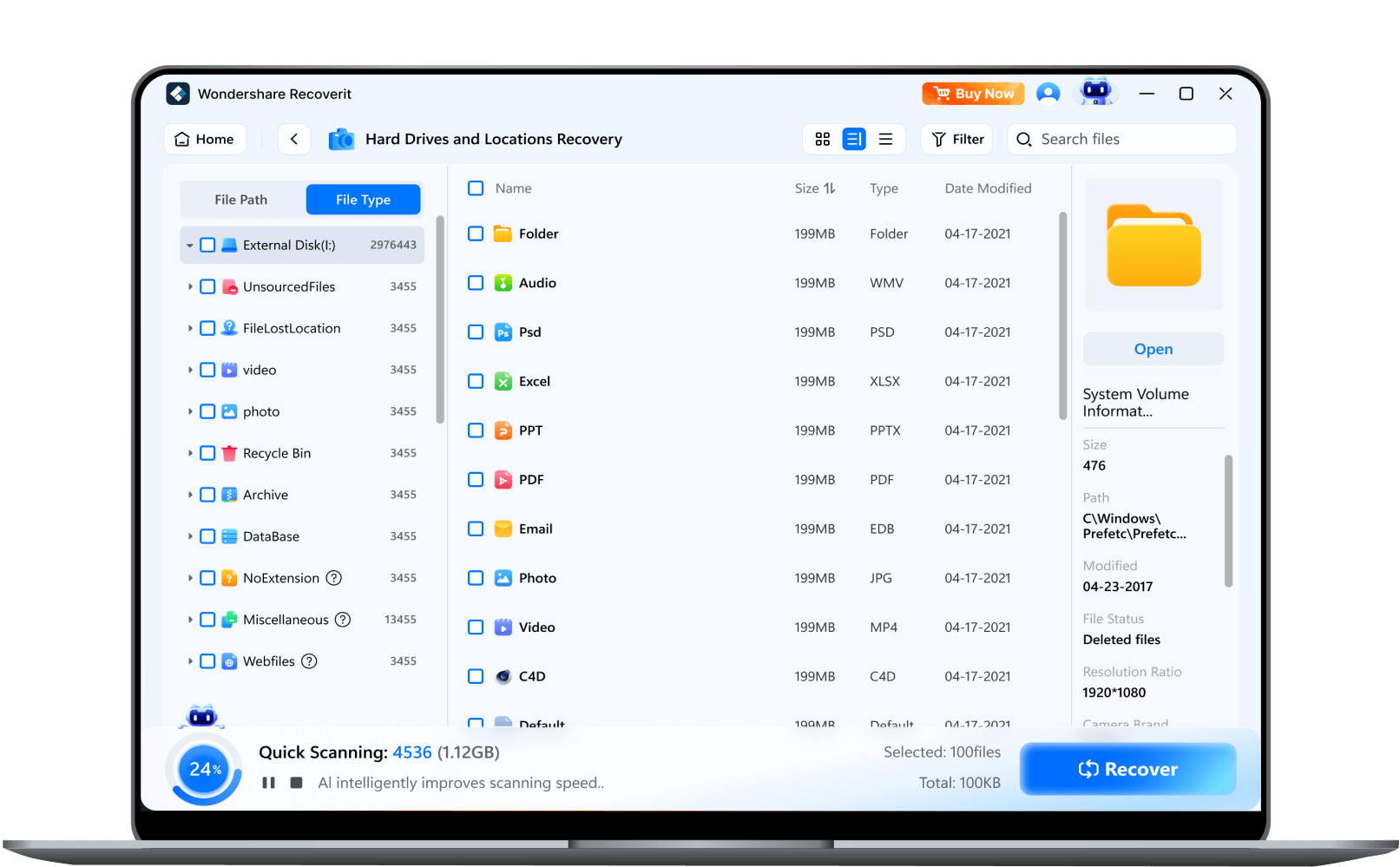
- Preview And Recover Elsewhere: Preview supported files, select the items you need, and save them to a different physical drive. Open several recovered files before continuing with Windows repair.

Recovery is not guaranteed. If the drive is clicking, disconnecting, not detected in firmware, or showing signs of physical failure, stop repeated scans and consult a professional recovery service. If BitLocker protects the volume, keep the correct key available; data recovery software cannot legitimately bypass encryption.
For a reset-specific workflow, see recovering data after a Windows factory reset. If a partition disappeared or became unallocated, do not create a new volume before using the unallocated disk recovery guide.
Recover Missing Files With Recoverit
 Security Verified. Over 7,302,189 people have downloaded it.
Part 10. When A Windows Reinstall Is Actually Reasonable
Reinstallation is a last-stage operating-system repair, not a notification-clearing technique. Consider it only after the issue is proven genuine, important data is safe, and supported lower-risk steps have failed.
- Windows Security and other built-in components remain corrupted after successful DISM and SFC attempts.
- Microsoft Support or an organization administrator recommends a repair install, reset, or clean deployment.
- A confirmed malware incident requires rebuilding the machine from trusted media under an appropriate response plan.
- The PC has broader instability beyond the toast, such as repeated system-file failures, boot corruption, or unsuccessful component repair.
- You have a verified backup, BitLocker key, installation media, required licenses, and a clear rollback or recovery plan.
Use Microsoft's current Windows recovery options to match the operation to the symptom. Read every “Choose what to keep” and target-drive screen; similar wording can lead to very different outcomes.
Part 11. Final Verdict
The August 28 Microsoft Defender warning is a reporting bug when the notification says protection is off but the underlying Defender service, registered provider, settings, signatures, and real-time protection remain healthy. In that case, reinstalling Windows is unnecessary and creates more risk than the alert itself. Dismiss the notification, keep updates enabled, and monitor Microsoft's official status.
If the checks show a genuine shutdown, protect your data before repair. Confirm third-party antivirus and management policy, update Windows and Defender, and follow Microsoft's supported service and system-file procedures. If troubleshooting has already removed files, stop writing to the affected drive and recover the data before another reset, format, or reinstall.
FAQ
-
Why does Microsoft Defender say it is turned off when it is on?
Microsoft confirmed on August 28, 2026 that recent Defender Antivirus updates can produce an incorrect turned-off notification even while the antivirus and its settings remain active. Verify the service and PowerShell status instead of relying on the toast alone.
-
How do I check if Microsoft Defender is actually running?
Check Windows Security, open Settings > Manage providers, run
sc query WinDefend, and useGet-MpComputerStatus. On a normal Defender-primary PC, the service should be running and the key antivirus, service, and real-time protection fields should be True. -
Should I reinstall Windows to fix the false Defender alert?
No. Microsoft says the known issue will be resolved through a future Defender Antivirus update. A reinstall is not appropriate when the underlying protection checks are healthy.
-
Will turning off Windows notifications stop the false alert?
Not necessarily. Microsoft says the notification can persist even when notification settings are disabled. Broadly disabling alerts may also hide other messages that require attention.
-
What if another antivirus is installed?
Open Windows Security > Settings > Manage providers and confirm which antivirus is registered. A compatible third-party product can change Defender's mode by design. Verify that product instead of forcing Defender to become primary.
-
What if Get-MpComputerStatus shows False?
Compare the result with the registered provider, WinDefend service, real-time protection setting, and management status. If no third-party antivirus or policy explains it, back up files and follow Microsoft's Defender service troubleshooting.
-
Can Recoverit turn Microsoft Defender back on?
No. Recoverit is a data recovery product, not a Defender repair utility. It becomes relevant only if a reset, reinstall, system repair, partition change, or other troubleshooting step caused files to disappear.
-
Can files be recovered after reinstalling Windows?
Sometimes, but the result depends on the reinstall method, storage type, encryption, TRIM, overwriting, and subsequent use. Check Windows.old, profiles, backups, and cloud storage first. If files are still missing, minimize writes and recover to a different drive.


