 TL;DR:
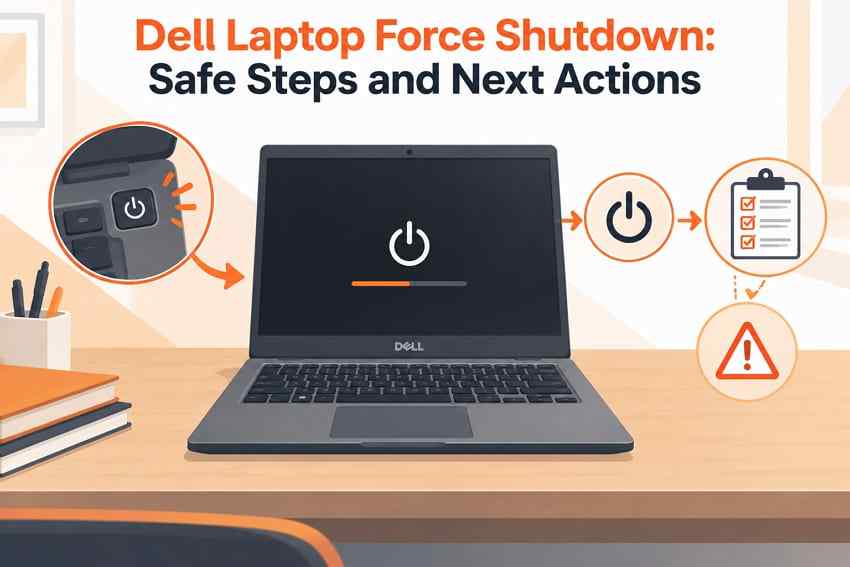
As an emergency last resort for a completely unresponsive Dell laptop, you can force a power-off by holding the power button for about 5 seconds on older models, or for approximately 10 seconds on Modern Standby systems to override the "Swipe to Shutdown" screen.
● Always attempt safer Windows controls like Ctrl + Alt + Delete first, and never deliberately interrupt an active BIOS, firmware, or Windows update to prevent severe system errors or incomplete file writes.
● A force shutdown differs from a Dell hard reset, which requires disconnecting all power sources from an already powered-off computer and holding the power button for 15-20 seconds to drain residual electrical charge.
● If the laptop repeatedly freezes or fails to boot after restarting, press F12 at the Dell logo to run the built-in Preboot Diagnostics instead of executing consecutive forced shutdowns.
Ask AI for a summary
 ChatGPT
 Perplexity
 Gemini
 Claude
 Grok
Grok
A Dell laptop force shutdown is an emergency power-off for a computer that no longer responds to normal Windows controls. It should be a last resort, not the usual way to turn off the laptop. On older Dell laptops and models without Modern Standby, Dell says holding the power button for about 5 seconds can force the computer off. On supported Modern Standby systems, a 5-second hold can show Swipe to Shutdown; continuing to hold the button for about 10 seconds overrides that behavior and performs a forced, or dirty, shutdown.
This power-button behavior has also caused real user confusion. For example, a Ditchmag post in r/Dell describes holding the power button and seeing SlideToShutdown instead of an immediate power-off, which is why the model-specific distinction matters.
Before you force shut down a Dell laptop, try the safer Windows options first. Never deliberately interrupt an active BIOS or firmware update. A forced power-off can also interrupt file writes, installations, encryption work, or Windows updates, so use it only when the whole system is genuinely unresponsive. This guide explains the correct model-specific behavior, how a Dell force shutdown differs from a hard reset or RTC reset, what to check after restart, and when missing files should be recovered before deeper repair.
In this article
Part 1. Dell Laptop Force Shutdown: When Is It Necessary?
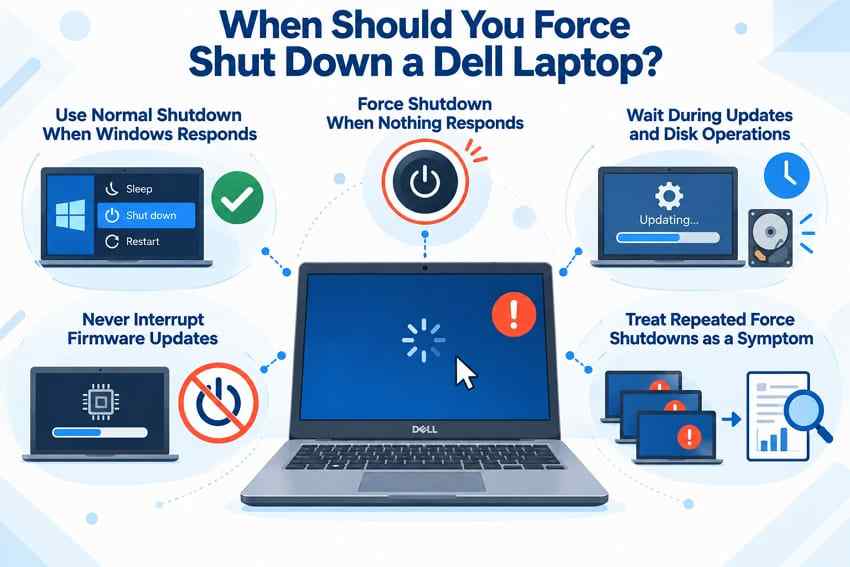
A forced shutdown is justified when normal shutdown is no longer possible because the entire Dell laptop has stopped responding. The key question is not whether one app is frozen, but whether Windows still accepts input and can perform a controlled shutdown.
| Situation | Force Shutdown? | Safer First Action |
| One app is frozen, but Windows still responds | No | Close the app with Task Manager or shut down Windows normally. |
| Desktop, keyboard, mouse, and shutdown controls do not respond | Yes, as a last resort | Try Ctrl + Alt + Delete first, then use the documented Dell power-button interval if nothing responds. |
| Windows Update, installation, or file transfer is still showing progress | Usually no | Give the operation time to finish while there is clear progress or storage activity. |
| BIOS, UEFI, or firmware update is actively running | No | Keep the laptop on AC power and allow the update to finish. Do not deliberately cut power. |
| The laptop repeatedly freezes and requires forced power-offs | Only for the immediate freeze | After one restart, diagnose the underlying driver, storage, memory, software, or hardware problem instead of repeating forced shutdowns. |
Microsoft also treats holding the power button as an emergency action for an unresponsive computer rather than a normal shutdown method. If Windows still responds to keyboard commands, use those controls first. If a freeze keeps returning, the repeated shutdowns are a symptom, not a repair.
One Dell-specific detail matters here: power-button behavior is not identical across all laptops. Dell documents that supported Modern Standby systems can show Swipe to Shutdown after a 5-second hold, while older or non-Modern-Standby systems can force off at about 5 seconds. The current Dell power-button guidance should take priority over a generic instruction that gives one timing for every model.
Part 2. How to Force Shut Down a Dell Laptop
If you need to hard shut down a Dell laptop, begin with the least disruptive option. The sequence below helps avoid cutting power when Windows can still close normally.
Try Ctrl + Alt + Delete or Task Manager First
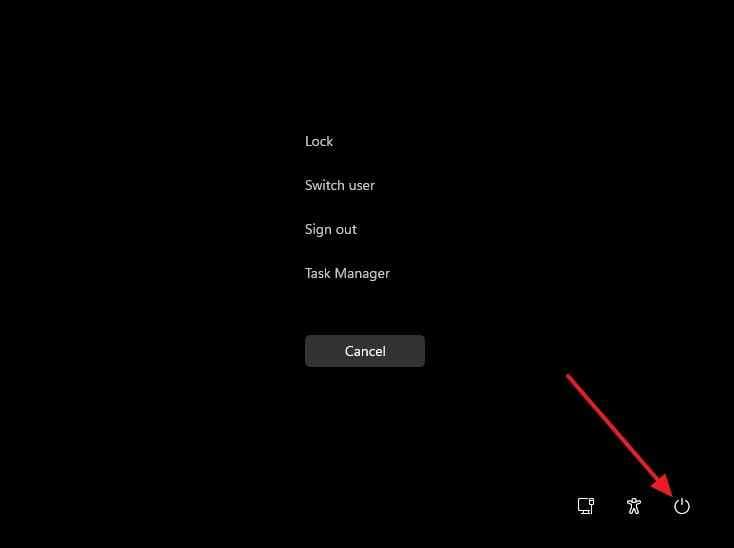
Option 1: Use Ctrl + Alt + Delete. Press Ctrl + Alt + Delete. If the Windows security screen appears, the operating system is still responding. Use the power icon on that screen and choose Shut down instead of holding the hardware power button.
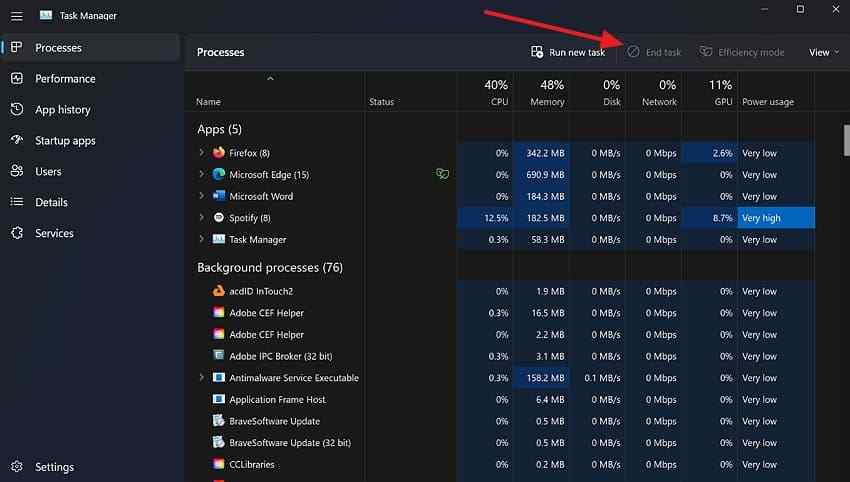
Option 2: Close only the frozen app. If the problem is limited to one application, press Ctrl + Shift + Esc to open Task Manager. Select the unresponsive application and end the task. There is no reason to remove power from the whole laptop when Windows itself is still usable.
If neither shortcut produces a response and the keyboard, mouse, and normal shutdown controls are all dead, move to the hardware power-button procedure.
Use the Dell Model-Specific Power-Button Procedure
Dell currently documents two common behaviors:
- Older Dell laptops and models without Modern Standby: holding the power button for about 5 seconds can force the computer to shut down.
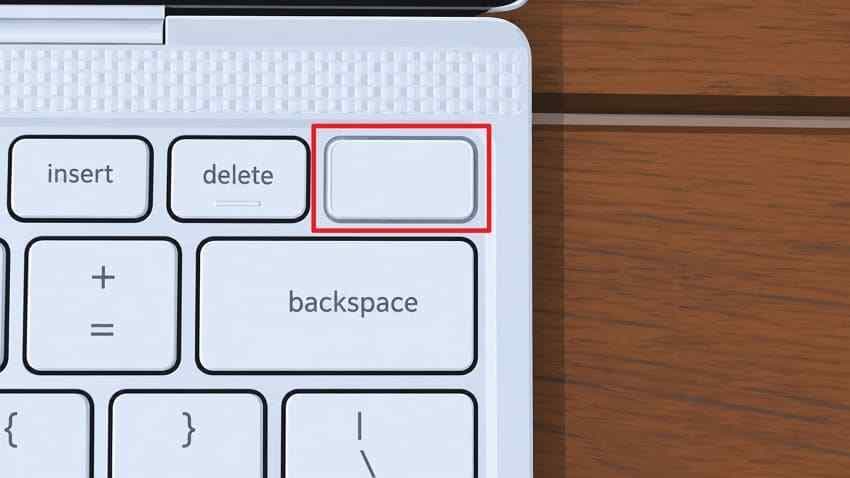
- Supported Dell laptops with Modern Standby: holding the power button for 5 seconds can display Swipe to Shutdown. If the laptop is truly unresponsive and an immediate forced power-off is necessary, Dell documents continuing the hold to about 10 seconds.
Press and hold the power button for the interval that applies to the model. Release it once the screen, fans, and normal activity indicators have turned off. Do not repeatedly tap or hold the button longer than needed.
Important: This is an emergency power cut. It is not the same as the Dell hard-reset procedure that drains residual electrical charge after the computer is turned off.
Understand Swipe to Shutdown
Swipe to Shutdown is a controlled Windows shutdown screen, not proof that the laptop has already been force-powered off. Dell explains that supported Modern Standby laptops can show this screen after a 5-second power-button hold as a final opportunity for the operating system to shut down normally.
If the screen appears and still accepts input, complete the normal shutdown rather than forcing power off. If the system is completely unresponsive, Dell states that a 10-second power-button hold on the affected Modern Standby systems overrides that behavior and performs a forced shutdown. Dell also notes that this power-button behavior is working as designed on the listed affected systems and is not configurable there.
Power Back On Cleanly
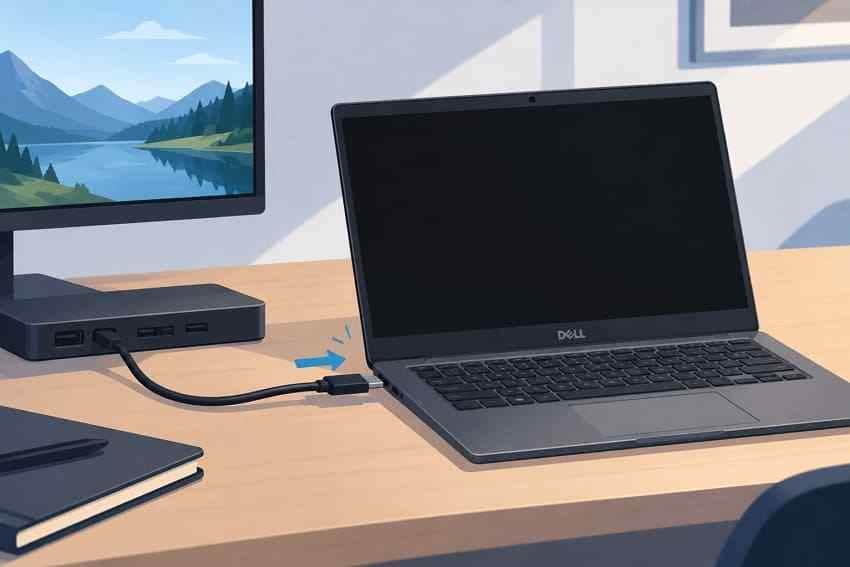
After the laptop is fully off, disconnect nonessential accessories such as USB devices, docks, external drives, and secondary displays if you suspect one of them contributed to the freeze. Then start the laptop once normally. If Windows boots, reconnect accessories one at a time rather than immediately reproducing the same setup.
Avoid cycling the power button over and over. If the laptop freezes at the Dell logo, fails to boot, or shows a blank screen again, use the diagnostic steps in Parts 4 and 6 instead of repeating force shutdowns.
Part 3. Dell Force Shutdown vs. Hard Reset vs. RTC Reset
The terms force shutdown, hard reset, and RTC reset are often mixed together, but Dell uses them for different procedures. Choosing the wrong one can lead to unnecessary troubleshooting or unwanted BIOS changes.
| Action | When It Is Used | Typical Dell Procedure | What It Changes |
| Normal Shutdown | Windows still responds | Use Start > Power > Shut down or another Windows shutdown control | Closes apps and Windows in a controlled way before power-off |
| Force Shutdown / Dirty Shutdown | The running laptop is completely unresponsive | About 5 seconds on older/non-Modern-Standby models; about 10 seconds to override Swipe to Shutdown on affected Modern Standby models | Cuts power without a normal Windows shutdown; active writes can be interrupted |
| Dell Hard Reset / Flea-Power Drain | No-power, no-boot, or stuck power-state troubleshooting | Computer off; disconnect power; on laptops with a removable battery, remove it; disconnect peripherals; hold the power button for 15-20 seconds; then reconnect power | Drains residual electrical charge. Dell states it does not affect personal files. |
| RTC Reset | Supported Dell laptops with certain no-power, no-POST, or no-video conditions | Computer off, AC adapter connected; on supported models hold the power button around 30-35 seconds until the power LED blinks three times | Resets BIOS settings to factory defaults, date/time, and can unprovision Intel vPro; BIOS settings may need to be restored afterward |
| Restart | Windows is responsive and a reboot is needed | Use Windows Restart | Closes Windows and starts it again without an emergency power cut |
| Sleep | Short pause in use | Use Windows Sleep or the configured power action | Keeps the session available with low-power behavior |
| Hibernate | Longer pause while preserving the session | Use Hibernate when available and enabled | Saves the session to storage before entering a low-power/off state |
Dell's hard-reset instructions specify a 15-20 second hold after power sources are disconnected on systems where that procedure applies. For laptops with a nonremovable battery, Dell directs users to the model-appropriate recovery guidance rather than telling them to remove the battery.
An RTC reset is even more model-specific. Dell says it is available only on supported systems. Current Dell guidance also notes that, effective June 2025, a BIOS ADMIN password can disable manual RTC reset on affected systems. After an RTC reset, a laptop may restart several times, and BIOS settings such as date, time, or storage mode may need to be restored before Windows boots normally.
Part 4. What to Do in Common Frozen Dell Laptop Situations
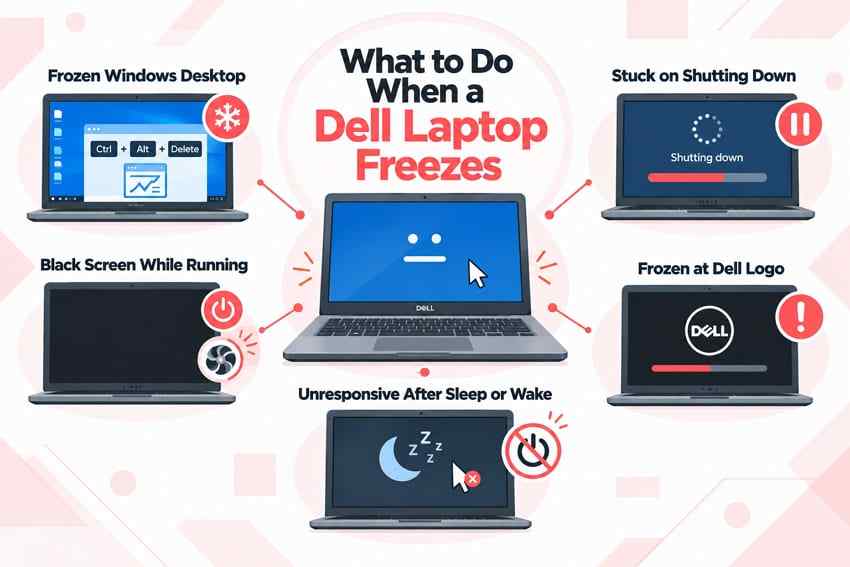
Not every freeze needs the same response. Match the symptom to the least disruptive action before using a Dell force shutdown.
| Frozen Dell Situation | What to Try First | When to Force Power Off |
| Frozen Windows Desktop | Press Ctrl + Alt + Delete. If that works, shut down normally. If one app is stuck, open Task Manager with Ctrl + Shift + Esc and close only that app. | Only when Windows, keyboard input, mouse input, and normal shutdown controls all stop responding. |
| Black Screen but Laptop Still Runs | Look for fan, keyboard-light, or status-LED activity. Press Windows + Ctrl + Shift + B to reset the graphics driver, then try Ctrl + Alt + Delete. | When the laptop remains completely unresponsive after the safer display and keyboard checks. |
| Stuck on Shutting Down | Give Windows time while update progress, disk activity, or installation activity is still changing. | Only when the display remains unchanged for an extended period and there is no sign the system is still processing work. |
| Frozen at the Dell Logo | Restart once. If the same stop recurs, use Dell preboot diagnostics instead of entering a loop of forced shutdowns. | Use one forced power-off only if the system cannot move forward or accept input. |
| Unresponsive After Sleep or Wake | Press a key or touchpad, then press the power button once and wait for wake. If the display is the only problem, try Windows + Ctrl + Shift + B. | Only if the entire laptop remains unresponsive. |
Microsoft's Windows blank-screen guidance specifically includes Windows + Ctrl + Shift + B to reset the graphics driver and recommends Ctrl + Alt + Delete when the security screen can still appear.
If the symptom is specifically a Dell display problem rather than a full system freeze, these verified Recoverit guides may be more targeted:
- Dell Laptop Turns On but Screen Is Black: 12 Fixes
- Dell Laptop Black Screen on Startup: Safe Fixes
- Dell Laptop Screen Flickering or Blinking: How to Fix It
- Dell Laptop Black Screen After Login: Safe Fixes
Part 5. When You Should Not Force Shut Down a Dell Laptop
Forced shutdown is most risky when the computer is actively changing firmware, the file system, encryption state, or installed software. If the laptop is still making progress, waiting is usually safer than cutting power.
- BIOS, UEFI, firmware, or embedded-controller updates: Do not deliberately interrupt an active firmware flash. Dell's current BIOS and UEFI update guidance emphasizes keeping the laptop on AC power throughout the update and taking the required security and encryption precautions before the flash begins. If a firmware update appears stuck, use model-specific Dell recovery or support guidance instead of improvising a forced shutdown.
- Windows Update with visible progress: Allow an update to continue while the percentage, messages, or system activity are still changing. An interrupted update can trigger rollback, repair, or startup errors on the next boot.
- File transfers, installations, or active disk writes: Removing power during a write can leave a file or installation incomplete. If an external drive is involved, avoid disconnecting it during active writes.
- Encryption or security changes: Do not cut power while BitLocker, drive encryption, decryption, or related security changes are actively running. If encryption later asks for a recovery key, use the legitimate key; data-recovery software cannot bypass encryption.
- The keyboard still works: If Ctrl + Alt + Delete opens the Windows security screen, use the controlled shutdown option there rather than forcing power off.
The exception is a true hard hang where no safe control responds and the system is not in a firmware-update state. In that case, the force shutdown exists precisely as an emergency exit.
Part 6. What to Check After a Dell Force Shutdown
Once the laptop starts again, the goal is to determine whether the shutdown was an isolated response to one freeze or a sign of a recurring Windows, drive, memory, driver, or hardware problem.
Check the First Windows Startup
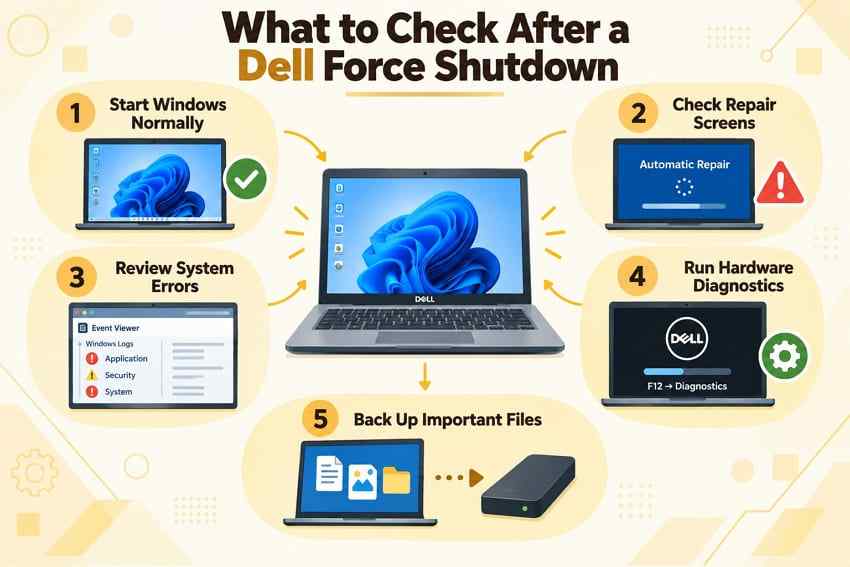
Let Windows complete one normal startup before forcing anything again. Watch for Automatic Repair, a blue-screen stop code, a Windows Update rollback, disk-check messages, or repeated restarts. Write down any stop code or exact message instead of immediately restarting several more times.
If Windows opens normally and expected files are present, avoid unnecessary recovery scans. First confirm that important files open correctly and make a current backup.
Review Event Viewer and Reliability Monitor
Open Event Viewer > Windows Logs > System and inspect events around the time of the freeze and restart. A Kernel-Power Event ID 41 can document that Windows restarted without a clean shutdown. It does not by itself reveal the root cause of the freeze, so correlate it with driver, disk, bug-check, or hardware events around the same time.
You can also press Windows + R, type perfmon /rel, and press Enter to open Reliability Monitor. Microsoft documents the /rel parameter as the command for starting Reliability Monitor. Review the same date for application failures, Windows failures, or hardware errors.
Run Dell Preboot Diagnostics if Freezes Repeat
If the Dell laptop freezes again, fails to boot normally, or shows signs of a drive or memory problem, run Dell's built-in preboot test:
- Turn on or restart the Dell laptop.
- At the Dell logo, press F12 several times until the One Time Boot Menu appears.
- Select Diagnostics.
- Let the quick test complete. If it reports a fault, record the error code and validation code before continuing.
You can also use Dell's SupportAssist Preboot Analysis page for the preboot test flow. These steps also match Dell's current preboot diagnostic instructions. A passed quick test does not prove that every software or intermittent hardware problem is absent, but it is a useful low-risk check before more invasive repair.
Back Up Important Files Before Deeper Repair
If Windows is accessible, back up important files before a reset, Windows reinstallation, drive replacement, advanced disk repair, or service visit. If files have already disappeared or the drive has become inaccessible, minimize new writes to that drive and consider file recovery before the next destructive step.
If the laptop uses BitLocker, keep the recovery key available before changing BIOS settings, replacing hardware, or doing advanced startup work. Recoverit can help with supported data-loss situations, but it cannot bypass a BitLocker password or recovery key.
Part 7. Can a Dell Force Shutdown Cause Data Loss?
Yes, a Dell laptop force shutdown can cause data loss, but data loss is not automatic every time the power button is held. The risk depends on what Windows, an application, or the storage device was doing at the moment power was removed.
- Unsaved application changes: Work that existed only in memory may disappear. An application's autosave or recovery feature may restore part of it, but that depends on when the last recovery copy was created.
- Interrupted file-system writes: A file that was being created, copied, renamed, or updated can become incomplete or inaccessible if the write is interrupted.
- Interrupted update or installation: System files, drivers, or applications can be left in an incomplete state, leading to rollback, repair, or startup problems after restart.
- No missing files: If Windows starts normally and all expected files are present and open correctly, there is usually no reason to run data-recovery software simply because one forced shutdown occurred.
- Missing or inaccessible files: If important files disappear after restart, stop creating new data on the affected drive as much as practical. New writes can overwrite space that may contain recoverable data.
A single forced shutdown does not normally mean the SSD or HDD has suffered physical damage. Physical warning signs are different: a drive that disappears from BIOS or Windows, repeatedly disconnects, fails Dell diagnostics, or makes unusual mechanical noises should not be subjected to repeated scans or repair attempts. In those cases, professional data recovery may be safer than software recovery.
Part 8. Recover Files After a Dell Force Shutdown With Recoverit
Use Recoverit only when the force shutdown is followed by an actual data-loss problem, such as deleted, missing, or inaccessible files on a storage device that the computer can still detect. Recoverit is a data-recovery product; it does not repair the Dell laptop's BIOS, Windows installation, memory, motherboard, battery, or other hardware.
When Recoverit Is and Is Not Appropriate
| Situation After Restart | Use Recoverit? | Recommended Action |
| Windows boots and all important files are present | No | Back up the files normally and diagnose the freeze only if it repeats. |
| Files are missing, deleted, or inaccessible and the drive is detectable | Yes, potentially | Minimize new writes, scan the affected drive, preview results, and recover to a different physical drive. |
| You are about to reset or reinstall Windows and still need local files | Yes, before the destructive step | Recover or back up important files first, then continue with reset or reinstall only after the data is safe. |
| Windows will not boot, but the internal drive is still readable | Potentially | Use Recoverit's documented crashed-computer workflow from another working PC and a blank USB drive. |
| The drive is not detected or shows physical-failure signs | No | Stop repeated software scans and consider professional recovery. |
| The files are locked by BitLocker and you do not have the legitimate recovery key | No bypass | Recoverit cannot defeat or bypass encryption. Obtain the authorized key first. |

Recover Missing Files From a Detectable Drive
Recoverit's current Windows guide uses a three-step flow: select a location, scan it, then preview and recover the files.
Step 1. Select the drive where the files were lost. Open Recoverit and go to Hard Drives and Locations. Choose the detected internal drive, partition, or relevant location that contained the missing files. Start the scan from that location instead of scanning unrelated drives.

Step 2. Scan and narrow the results. Let Recoverit scan the selected location. The current guide documents filters such as File Type, Time, File Size, and All Files, along with keyword search. Use those controls to narrow a large result set instead of restoring everything blindly.

Step 3. Preview and recover to a different drive. Preview the needed files where preview is supported, select the items to restore, and click Recover. Save recovered files to a different physical drive rather than back to the same location where they were lost. This reduces the chance of overwriting other recoverable data.
See the current Recoverit Windows user guide for the live interface and feature steps.
Recover Files if Windows No Longer Boots
If the Dell laptop no longer starts Windows but the internal storage is still readable, Recoverit also documents a System Crashed Computer workflow. On another working PC, install Recoverit, prepare a blank USB drive, and open Other Tools > System Crashed Computer. The software can create bootable media so the affected computer can start into the recovery environment.
Data-safety warning: creating the Recoverit bootable USB formats the selected USB drive. Do not choose a USB drive that contains files you still need. After booting the affected computer from the recovery media, recover or copy the needed files to a separate healthy external drive.
This workflow is for recovering files before repair. It does not fix the reason Windows stopped booting, and it should not be used as a substitute for Dell hardware diagnostics or Windows troubleshooting.
Stop Software Recovery if the Drive May Be Physically Failing
Do not keep rescanning a drive that is intermittently disappearing, making unusual clicking or grinding noises, failing Dell storage diagnostics, or not being detected reliably. Software recovery depends on the storage device being readable enough to scan. A physically failing drive can deteriorate with continued use, so professional recovery may be the safer next step for irreplaceable data.
Conclusion
A Dell laptop force shutdown is an emergency action for a system that no longer responds to normal Windows controls. Use Ctrl + Alt + Delete or Task Manager first when possible. For older or non-Modern-Standby Dell laptops, the documented forced-shutdown interval can be about 5 seconds; on affected Modern Standby models, 5 seconds can show Swipe to Shutdown and a 10-second hold overrides it. Never deliberately cut power during an active BIOS or firmware update.
After restarting, check Windows startup messages, Event Viewer, Reliability Monitor, and Dell F12 diagnostics if the freeze repeats. If important files are missing, protect the data before resetting, reinstalling, or replacing the drive. Recoverit may help recover files from readable storage, but it is not a repair tool and cannot solve physical hardware failure or bypass encryption.
FAQ
-
How Do I Force Shut Down a Dell Laptop?
Try Ctrl + Alt + Delete or Task Manager first. If the laptop is completely unresponsive, Dell documents about a 5-second hold on older or non-Modern-Standby systems. On affected Modern Standby models, 5 seconds can show Swipe to Shutdown; continuing to hold the power button for about 10 seconds performs the forced shutdown. -
Why Does My Dell Laptop Show Swipe to Shutdown?
Supported Dell laptops with Modern Standby can show Swipe to Shutdown after the power button is held for about 5 seconds. Dell describes it as a final opportunity for Windows to perform a controlled shutdown. On the affected models documented by Dell, a longer hold of about 10 seconds overrides the behavior and forces power off. -
Is a Dell Hard Reset the Same as a Force Shutdown?
No. A force shutdown cuts power to a running, unresponsive computer. A Dell hard reset is performed after the computer is off and power sources are disconnected so residual electrical charge can be drained. Dell states that the hard-reset procedure does not affect personal files. -
Can Force Shutting Down a Dell Laptop Damage Files?
It can. Unsaved work can be lost, and files being written at the moment of power loss can become incomplete or inaccessible. The risk is higher during active writes, installations, updates, or encryption changes. If Windows restarts normally and all files are present, recovery software is usually unnecessary. -
What Should I Do if the Dell Laptop Will Not Start After a Force Shutdown?
Try one normal restart, then press F12 at the Dell logo and select Diagnostics if the problem continues. Record any error and validation codes. Use RTC reset only if your exact Dell model supports it and the procedure matches Dell guidance. Protect accessible data before Windows reset, reinstallation, drive replacement, or other destructive troubleshooting.


