 TL;DR:
Wondershare Recoverit V14 is the best overall DIY software alternative to SalvageData for logical data loss, but storage devices exhibiting physical damage like clicking or grinding must bypass software entirely and go directly to a professional laboratory.
● For free recovery allowances, EaseUS 20.5.0 advertises up to 2GB, Stellar 12.6 provides up to 2GB but restricts individual recovered files to 100MB, Recoverit limits saving to 500MB, Disk Drill 6.3 offers just 100MB on Windows, and DMDE 4.4.4 allows 4,000 files from a single selected directory per operation.
● Technical users handling RAID, Storage Spaces, or BitLocker should use R-Studio 9.5, which limits free demo saves to files under 1024KB, whereas Disk Drill 6.3 is optimal for users who need a free byte-to-byte backup tool before scanning stable but logically damaged storage.
● No SalvageData alternative can reconstruct data permanently cleared by SSD TRIM or garbage collection, and running any of these scanners on a dropped, flooded, or repeatedly disconnecting drive will worsen the damage and necessitate a $300 to $1,900-plus professional cleanroom service.
Ask AI for a summary
 ChatGPT
 Perplexity
 Gemini
 Claude
 Grok
Grok
SalvageData now offers free DIY software and professional lab recovery, but its public software details leave important questions unanswered. Compare eight current alternatives by recovery limits, platforms, source protection, specialist features, and the point where DIY becomes unsafe.
Fact-checked on August 18, 2026: Product versions, free recovery rules, operating systems, prices, service turnaround times, and feature claims were checked against current vendor pages. Prices and promotions can change by region and checkout date.
Try Wondershare Recoverit to Perform Data Recovery
 Security Verified. Over 7,302,189 people have downloaded it.
In this article
Part 1. Quick Verdict: Which SalvageData Alternative Should You Choose?
The phrase "SalvageData alternative" can describe two different products: an alternative to its free DIY recovery software, or an alternative to its professional laboratory service. That distinction matters. Software can help when a storage device is stable, detected with the correct capacity, and affected by deletion, formatting, lost partitions, or logical file-system damage. A lab is the safer path when the device has physical damage, unstable electronics, failed heads, severe NAND or controller problems, or evidence-handling requirements.
Best Choice by Recovery Scenario
| Data-loss scenario | Best first choice | Why it fits | Main limitation |
| Recently deleted files from a healthy Windows or Mac drive | Recoverit, EaseUS, Stellar, or Recuva | Guided scan, filters, preview, and selective recovery | SSD TRIM or overwrite may already have removed the content |
| Formatted SD, CFexpress, camera card, or fragmented video | Recoverit or Disk Drill | Both provide media-oriented recovery beyond a generic undelete scan | No tool can rebuild recording blocks that were overwritten |
| Logically damaged but still stable disk | Disk Drill, DMDE, or R-Studio | Create an image or clone before repeated scanning | Imaging is unsafe if the drive is physically degrading |
| Complex RAID, Storage Spaces, LVM, mdadm, or network case | R-Studio or DMDE | Virtual array construction, advanced file systems, and image support | Incorrect RAID parameters can produce misleading results |
| Need the largest practical free recovery | Recuva, PhotoRec, or DMDE | No commercial byte cap for Recuva or PhotoRec; DMDE uses a per-operation file-count rule | Recuva is basic, PhotoRec loses metadata, and DMDE is technical |
| Windows files with an easy 1GB to 2GB allowance | Stellar or EaseUS | Beginner-friendly interfaces and visible free limits | Stellar applies a 100MB individual-file limit in its free allowance |
| Clicking, grinding, impact, liquid, fire, or unstable detection | Professional laboratory | Cleanroom, donor parts, controlled imaging hardware, and trained technicians | Higher cost and device shipping or drop-off |
| Legal, regulated, or chain-of-custody evidence | Qualified forensic or professional service | Documented intake, access controls, verification, and reporting | Consumer recovery software does not create a complete forensic workflow |
When Software Is the Wrong Choice
- The drive clicks, scrapes, spins down, or repeatedly reconnects: Each power cycle and scan can worsen mechanical or electrical damage.
- The device was dropped, crushed, flooded, burned, or opened: Do not dry, clean, disassemble, or power it on repeatedly.
- The reported capacity changes or is obviously wrong: This can indicate controller, firmware, translation-layer, or media failure.
- The data has legal, medical, financial, or business-critical value: Preserve the original and use a documented professional workflow.
- An SSD has controller or NAND failure: Consumer software cannot repair failed flash components or reconstruct proprietary controller metadata.
- Ransomware is still active: Isolate the system, preserve evidence, and involve incident-response expertise before ordinary file recovery.
Part 2. What SalvageData Offers in 2026
Older comparison pages describe SalvageData only as a service that requires shipping a device to a lab. That description is no longer complete. SalvageData currently promotes both free at-home recovery software and professional services. A useful comparison must evaluate these two paths separately.
SalvageData Free Recovery Software
The current SalvageData software page presents three functions: data recovery, data imaging and cloning, and secure data wiping. It says the software can address deletion, an emptied Recycle Bin, and formatted HDDs, USB drives, and SD cards. The visible download points to a Windows ZIP file hosted on Dropbox.
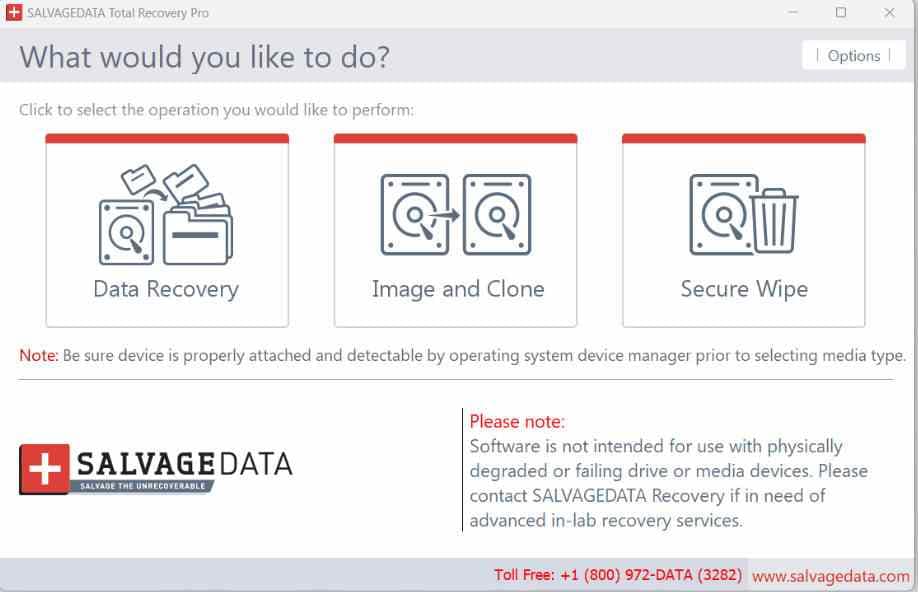
The public product information has several gaps that matter during an urgent recovery. The page calls recovery unlimited but does not display a current build number, release date, or version history. Its system-requirements block is Windows-centered, while the page introduction and FAQ say the software works with macOS, Linux, and Windows. The listed file systems include FAT, exFAT, NTFS, HFS, HFS+, XFS, ReiserFS, and UFS, but APFS and ReFS are not listed. It also states that ext2, ext3, ext4, ReiserFS, and Linux SWAP are supported only for disk or partition backup and recovery operations.
| SalvageData software detail | What the current page states | What users should verify |
| Price and saving rule | Promoted as free with unlimited deleted-data recovery | Confirm the platform-specific installer, build, and exact supported scenario before scanning |
| Main functions | Recovery, image and clone, secure wipe | Do not use secure wipe on a source that still contains needed data |
| Visible download | Windows ZIP hosted through Dropbox | Verify publisher, digital signature, architecture, and version before running it |
| Platforms | Windows requirements; FAQ also names macOS and Linux | Confirm that an official current binary exists for the required operating system |
| Published version | No build number or release date shown on the product page | Compare with alternatives that publish current releases and change histories |
SalvageData Professional Lab Service
SalvageData's current service page lists Eco, Standard, and Emergency options. Eco is queue-based with a minimum two-week turnaround. Standard is listed at 5 to 7 business days. Emergency is handled as fast 24/7 work. The same page gives a broad professional recovery range of $300 to more than $1,900, depending on the device, damage, and turnaround. It also advertises a free standard evaluation in many cases, a no-data-no-charge policy, more than 100 drop-off locations, free shipping, and an ISO-5 cleanroom.
This service can be the right choice for a physically failed drive. It is not automatically the right first step for a healthy disk with a recent logical deletion and a current backup or recoverable local copy. Conversely, choosing cheap DIY software for a clicking HDD can turn a recoverable mechanical case into a more difficult and expensive one.
Part 3. Why Look for a SalvageData Alternative?
- You want transparent version information: Recoverit, Disk Drill, EaseUS, Stellar, R-Studio, DMDE, and PhotoRec publish identifiable current versions or releases.
- You need a versioned product with a clearly documented allowance: SalvageData promotes unlimited free recovery, but does not show a build number. Recoverit states 500MB, Disk Drill states 100MB on Windows, EaseUS advertises up to 2GB, Stellar explains its 1GB plus optional 1GB rule, and DMDE documents its 4,000-file directory limit.
- You need an identifiable current Mac workflow: Recoverit, Disk Drill, EaseUS, R-Studio, DMDE, and PhotoRec provide current Mac product or download paths. SalvageData names macOS support, but its visible download resolves to a Windows ZIP and the page does not show a Mac build number.
- You recover camera media: Recoverit Enhanced Recovery and Disk Drill Advanced Camera Recovery are more directly aligned with fragmented video from cameras, drones, action cameras, and high-bitrate recording media.
- You need RAID or network control: R-Studio and DMDE expose virtual arrays, images, advanced file systems, and technical storage structures.
- You want an unlimited free option: Recuva offers unlimited basic Windows recovery, while PhotoRec is free and open source without a byte quota.
- You want to avoid a $300 to $1,900-plus lab bill for a simple logical case: SalvageData's own free software or another reputable DIY tool can establish whether logical recovery is plausible before committing to service, provided the source is physically healthy.
- You need a second opinion: Different scanners reconstruct metadata and file signatures differently. A failed scan does not prove that every alternative will fail, but repeated scans should be performed on an image when the source is vulnerable.
A Bigger Feature List Does Not Mean a Higher Recovery Chance
Deleted data can be recovered only while the required blocks remain readable and logically reconstructable. No software can reverse completed SSD TRIM, recreate overwritten sectors, bypass BitLocker without valid credentials, or repair failed heads and scratched platters. A tool that finds a filename or thumbnail has not necessarily recovered the file body. Always preview representative content and validate the saved copy.
Part 4. How We Evaluated the Alternatives
The comparison uses current official product information rather than recycled listicles. Each candidate was evaluated against the questions a real user faces before touching a vulnerable source.
- Recovery boundary: Logical deletion, formatting, lost partitions, RAW volumes, damaged metadata, or specialist camera recovery.
- Source protection: Read-only scanning, image creation, clone support, bad-sector handling, and separate-destination guidance.
- Free saving rule: Actual recoverable amount, per-file restrictions, directory restrictions, and whether preview alone is free.
- Platforms and file systems: Current Windows and Mac support plus relevant Linux, APFS, NTFS, ReFS, ext, HFS+, and removable-media coverage.
- Complex storage: RAID, NAS, BitLocker, Storage Spaces, disk images, virtual disks, and network recovery where officially documented.
- Media recovery: Treatment of fragmented MP4, MOV, ProRes, camera, drone, action-camera, and high-resolution recording workflows.
- Verification workflow: Preview quality, filters, saved scan sessions, recovery-chance indicators, and post-recovery validation.
- Usability and risk: Whether the interface suits a first-time user or assumes file-system and RAID knowledge.
- Commercial clarity: Current version, license model, price visibility, renewals, and the difference between personal and professional use.
Editorial disclosure: This article appears on the Recoverit website, and Recoverit is included in the comparison. The recommendations also identify cases where Disk Drill, EaseUS, Stellar, R-Studio, DMDE, Recuva, PhotoRec, SalvageData, or another qualified laboratory is the safer first choice.
Part 5. The 8 Best SalvageData Alternatives
1. Wondershare Recoverit: Best Overall DIY SalvageData Alternative
Wondershare Recoverit is the most balanced alternative for users who want a current Windows or Mac interface without giving up disk-image scanning, camera media, NAS, Linux storage, accessible BitLocker volumes, or an unbootable-system option. The current Recoverit V14 comparison lists up to 500MB of free saving, recovery from disk images, NAS and Linux support, and Enhanced Photo and Video Recovery.

The strongest distinction is its media workflow. A normal signature scan may find the start of a video but miss later fragments, producing an incomplete file. Enhanced Recovery is designed to locate related photo and video fragments from camera cards and other recording media. Recoverit Premium also adds bootable recovery for a computer that will not start and corrupt-video repair after files have been recovered.
Best for: Home users, creators, photographers, videographers, support teams, and cross-platform users handling logical loss from readable storage. Review the current Recoverit Free feature comparison before downloading.
Try Wondershare Recoverit to Perform Data Recovery
Security Verified. Over 7,302,189 people have downloaded it.
2. Disk Drill: Best Image-First Consumer Toolkit
Disk Drill 6.3.1398 for Windows was released on July 22, 2026. Its current Windows page lists Windows 10 and 11, including Windows 11 on ARM, and a 100MB free saving limit. The product combines Universal Scan and Advanced Camera Recovery with free byte-to-byte backup, S.M.A.R.T. monitoring, Recovery Vault, cleanup, and duplicate-finding utilities.
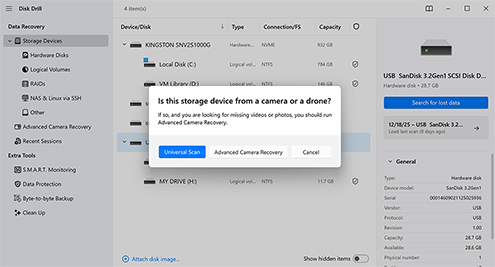
The byte-to-byte backup is the main reason to choose Disk Drill over a simple wizard. If a drive is logically damaged but reads consistently, imaging first lets you scan a copy and preserve the source. This does not make Disk Drill safe for a clicking or physically unstable disk. Its current free Windows allowance is also much smaller than the 500MB quoted by the outdated reference article.
Best for: Users who prioritize source imaging, storage-health tools, and camera recovery over a large free allowance. Confirm the current release and limits on the official Disk Drill page.
Try Wondershare Recoverit to Perform Data Recovery
Security Verified. Over 7,302,189 people have downloaded it.
3. EaseUS Data Recovery Wizard: Best Familiar Wizard With Up to 2GB
EaseUS Data Recovery Wizard 20.5.0 is a direct alternative for users who prefer a simple select-scan-preview-recover workflow. The current Windows page supports Windows 11, 10, 8, and 7 plus current and older Windows Server editions. Its comparison advertises up to 2GB for Free and lists BitLocker, NAS, corrupted-media repair, document repair, and crashed-PC WinPE recovery among Pro capabilities.
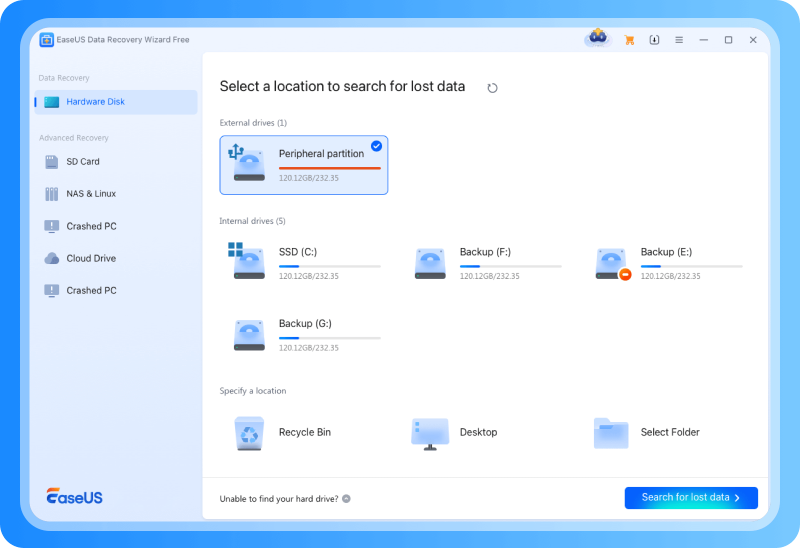
The current page displays a $69.95 promotional Pro offer at fact-check time. Users should confirm license duration, automatic renewal, platform, and the allowance shown inside the installed build. A larger free quota does not solve overwrite, SSD TRIM, encryption, or physical failure.
Best for: Users who want a familiar consumer wizard and a larger free allowance. See the official EaseUS Free comparison.
4. Stellar Data Recovery: Best Guided Windows Free Edition
Stellar Data Recovery Free 12.6.0.0 is a current 64-bit Windows alternative with a clean what-to-recover and recover-from workflow. The official page lists Windows 11, 10, 8.1, and 8 plus supported Windows Server editions. The free edition provides 1GB by default; sharing the product on social media unlocks another 1GB, but no individual recovered file can exceed 100MB under that allowance.
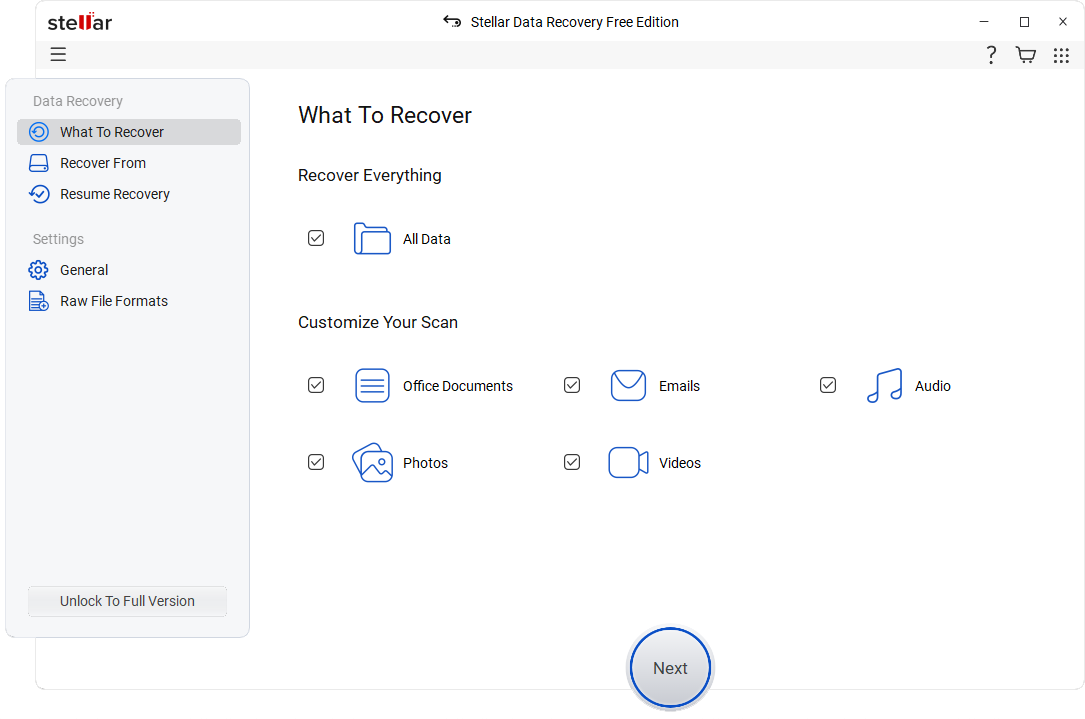
Stellar offers several paid tiers, and higher editions add features such as RAID 0, 5, and 6 recovery, virtual RAID creation, NAS recovery, cloning, drive monitoring, and media repair. This tiering makes edition selection important. The current product table displays $89.99 for the first paid Windows tier at fact-check time, with higher prices for advanced editions.
Best for: Windows users who want a guided interface, a documented current version, and up to 2GB for files smaller than 100MB each. Verify details on the official Stellar Free page.
5. R-Studio: Best for RAID, BitLocker, and Advanced Recovery
R-Studio 9.5 build 191810 for Windows was released on June 20, 2026. The $79.99 R-Studio license is permanent and covers advanced file systems, RAID, Windows dynamic volumes, Storage Spaces, Apple software RAID, Fusion Drive, LVM, mdadm, BitLocker, virtual disks, images, S.M.A.R.T., and hex tools. Network and Internet recovery are edition-dependent: the current Windows comparison lists R-Studio Corporate at $179.99, while Technician licensing serves professional work on third-party devices.
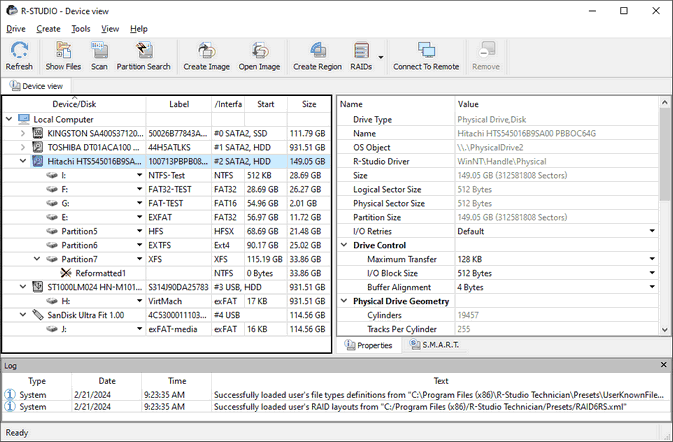
The current demo saves files no larger than 1024KB. Older articles that state 256KB are outdated. The demo can still scan and preview larger files, but practical photo, video, archive, and database recovery normally requires registration. R-Studio's power also raises the risk of user error, so beginners should work from an image and avoid write-capable functions on the original.
Best for: IT administrators, RAID users, BitLocker cases, and, with the appropriate Corporate or Technician edition, remote recovery or professional service work. Check the current R-Studio download page and official edition comparison.
6. DMDE: Best Technical Value and Advanced Free Rule
DMDE 4.4.4 is the strongest value option for users who understand partitions, file systems, images, and virtual arrays. The free edition recovers up to 4,000 files from one selected directory per operation with unlimited repetitions. It runs on Windows, macOS, Linux, and DOS and recognizes FAT, exFAT, NTFS, ReFS, ext2/3/4, HFS+/HFSX, APFS, and Btrfs independently of the host operating system.
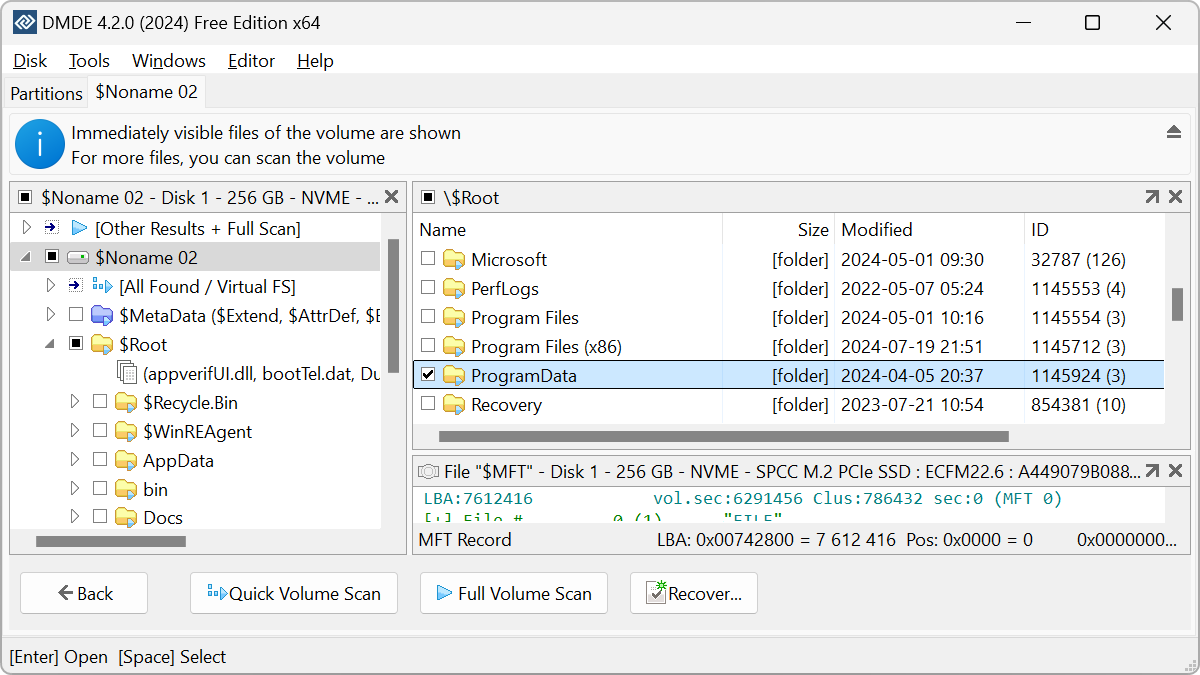
The free package also includes image and clone creation, a simple partition manager, RAID construction, image preview, and a disk editor. Current paid options start at $20 for a one-year personal Express license, while the $48 Standard license is perpetual for personal or internal organizational use. DMDE explicitly advises users to test whether required files open correctly before purchasing.
Best for: Technical users who need a generous free rule, imaging, partition reconstruction, or virtual RAID. Verify the current version and editions on the official DMDE page.
7. Recuva: Best Unlimited Free Windows GUI for Basic Undelete
Recuva is the simplest unlimited free alternative for recently deleted files on a healthy Windows computer, Recycle Bin, USB drive, memory card, external HDD, or other rewritable media. Its current official page continues to provide Advanced File Recovery in the free edition, while Professional adds virtual hard-drive support, automatic updates, and priority support.
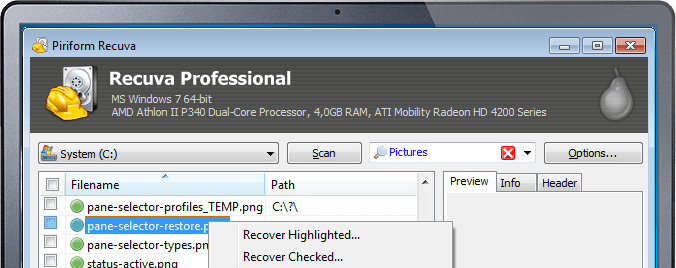
Recuva includes a Deep Scan and secure overwrite, but it is not positioned as a RAID, NAS, APFS, ReFS, imaging, or cross-platform workstation. It is a poor first tool for a physically unstable source because it does not offer the image-first controls found in Disk Drill, DMDE, and R-Studio.
Best for: A Windows user recovering recent documents, photos, or small videos from healthy NTFS, FAT, or exFAT storage. Use the official Recuva page.
8. PhotoRec and QPhotoRec: Best Unlimited Open-Source Raw Recovery
PhotoRec 7.2 is the current stable release, while CGSecurity also offers a 7.3-WIP beta as of August 2026. PhotoRec is a free, open-source file carver for Windows, macOS, Linux, and other systems. It uses read-only source access and ignores damaged file-system metadata, searching the underlying storage for known file signatures. QPhotoRec provides a graphical front end for the same recovery approach.
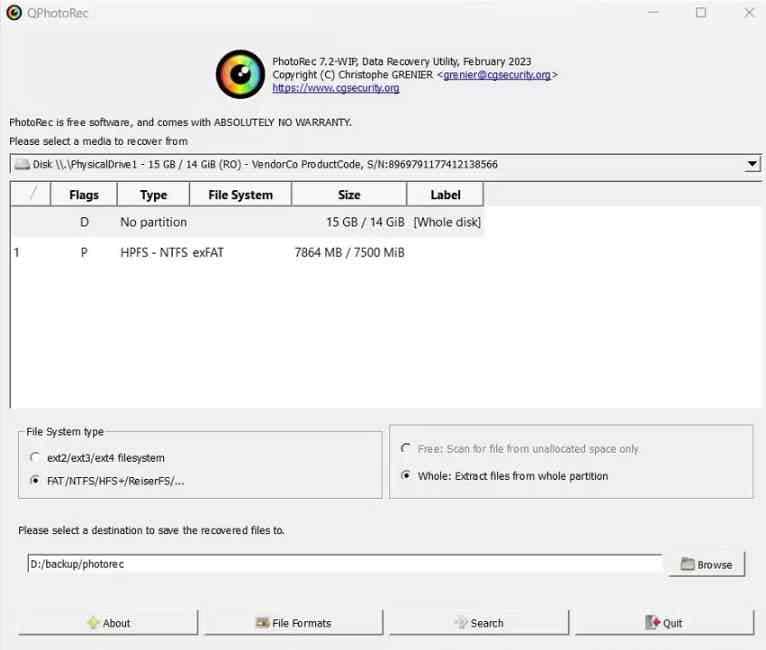
The official documentation lists more than 480 extensions across about 300 file families and support for hard drives, optical media, memory cards, USB drives, DD images, and EnCase E01 images. Its raw approach can work after severe file-system damage, but original names, folders, and timestamps are commonly lost. Fragmented video, archives, and databases may not reconstruct correctly.
Best for: Users who need unlimited raw recovery and can manually sort anonymous output. Download only from the official CGSecurity page.
Part 6. SalvageData vs. the Best Alternatives
| Product | Best for | Current platform path | Free saving rule | Imaging or RAID | Key limitation |
| SalvageData software | Free basic logical recovery plus clone and wipe tools | Visible Windows ZIP; page also names Mac and Linux | Promoted as free and unlimited | Image and clone listed; separate approved RAID software referenced | No visible build, release date, or platform-specific download matrix |
| Recoverit V14 | Guided recovery, camera media, images, NAS, Linux, crashed systems | Windows and macOS | 500MB | Disk-image recovery; NAS and Linux support | Bootable recovery and video repair require Premium |
| Disk Drill 6.3.1398 | Imaging, storage health, camera recovery | Windows and macOS | 100MB on Windows; Mac ordinary saving generally paid | Free byte-to-byte backup; RAID and NAS support listed | Very small Windows free allowance |
| EaseUS 20.5.0 | Beginner-friendly general recovery | Windows and macOS | Up to 2GB advertised on Windows | NAS and WinPE listed; not a specialist RAID workstation | Verify checkout and renewal terms |
| Stellar 12.6 | Guided Windows recovery with tiered advanced editions | Windows free page; separate Mac product | 1GB default, up to 2GB after sharing, 100MB per file | RAID and NAS in higher editions | Per-file cap and feature fragmentation |
| R-Studio 9.5 | RAID, BitLocker, images, and advanced storage work | Windows, macOS, and Linux | Demo saves files no larger than 1024KB | Advanced RAID and images; Corporate adds network recovery | Steep learning curve and edition-dependent features |
| DMDE 4.4.4 | Technical low-cost recovery and partition analysis | Windows, macOS, Linux, and DOS | 4,000 files from one selected directory per operation | Images, clones, RAID constructor, partition manager | Technical interface and directory restriction |
| Recuva | Recent basic Windows undelete | Windows | Unlimited basic recovery | No professional imaging or RAID workflow | Limited advanced and cross-platform capability |
| PhotoRec 7.2 | Unlimited raw carving | Windows, macOS, Linux, and more | Unlimited and open source | Reads DD and E01 images; no RAID constructor | Names and folders usually lost |
| SalvageData lab service | Physical failure, cleanroom work, and professional handling | Shipping, drop-off, remote, or onsite options | Evaluation may be free; recovery is paid | Professional hardware and cleanroom workflows | $300 to $1,900-plus range and service turnaround |
Do not compare software and laboratory service only by price. A $20 software license is poor value if the drive needs head replacement. A $1,000 lab case is unnecessary if the files are still in Recycle Bin or a valid backup. Triage the failure first, then compare products inside the correct category.
Part 7. How to Recover Lost Data With Recoverit
Check Recycle Bin, Trash, File History, Time Machine, cloud version history, and backups first. If software is necessary, stop writing to the source. Install Wondershare Recoverit on another physical drive when practical, connect a healthy destination, and never save recovered output back to the affected storage.
Step 1. Choose the Affected Location
Launch Recoverit and select the exact disk, partition, external drive, SD card, or location where the data disappeared. If a card came from a camera, stop recording and connect it through a reliable reader. If BitLocker is active, unlock the volume with valid credentials before expecting file-level results.

Step 2. Scan and Filter the Results
Start the scan and use path, file type, size, date, and status filters while results appear. Pause when you find the required data. Stop immediately if the drive clicks, repeatedly disconnects, reports changing capacity, overheats severely, or becomes dramatically slower.

Step 3. Preview and Recover Elsewhere
Preview representative files to confirm content, not just filenames. Inspect several pages of a document, open full-resolution photos, extract a test archive, and play videos at multiple points. Select the valid files, click Recover, and save them to a different healthy physical device.

If camera video is found but incomplete or unplayable, use Enhanced Recovery on the original card or a disk image. This workflow can help locate fragmented recording data, but it cannot recreate overwritten blocks or content already cleared by an SSD controller.
Part 8. When to Stop DIY Recovery and Use a Lab
| Symptom | DIY software? | Safer action | Why |
| Healthy drive, recent deletion, correct capacity | Usually reasonable after checking backups | Stop writes, scan once, recover elsewhere | Typical logical-loss case |
| Drive asks to format but reads stably | Image first if possible | Cancel formatting and scan the image | File-system metadata may be damaged while sectors remain readable |
| Occasional bad sector but stable access | Only with careful imaging knowledge | Use controlled multi-pass imaging or a professional | Repeated full scans can stress the source |
| Clicking, scraping, or repeated spin-down | No | Power off and contact a lab | Possible head, platter, motor, or firmware failure |
| Liquid, fire, impact, or enclosure damage | No | Do not power on; package safely for evaluation | Power can cause additional electrical or media damage |
| SSD not detected or wrong capacity | Usually no | Professional flash or controller assessment | Consumer tools need readable logical access |
| RAID member physically unstable | No ordinary rebuild | Image members separately with expert guidance | A rebuild can overwrite parity and surviving metadata |
| Ransomware or suspected intrusion | Not as the first response | Isolate, preserve evidence, and involve incident response | Ordinary recovery can alter evidence or reactivate malicious code |
Protect the Source Before Any Scan
- Stop normal use: Pause downloads, updates, synchronization, editing, recording, and installation on the affected device.
- Do not initialize or format: Cancel Windows or macOS prompts until valuable data is preserved.
- Do not run CHKDSK first: File-system repair changes metadata and can remove references that recovery tools need.
- Create an image when appropriate: Image a readable, logically damaged source before repeated scanning.
- Use valid encryption credentials: Recovery software cannot bypass BitLocker, FileVault, or other strong encryption.
- Save to separate storage: Never recover onto the source or another partition on the same physical device.
- Validate before wiping: Open recovered documents, compare image resolution, extract archives, and play videos before reformatting the source.
- Document important cases: Record symptoms, device identifiers, actions, dates, and custody when business or legal value is involved.
SSD Recovery Has a Hard TRIM Boundary
When Windows or macOS deletes data from a supported SSD, TRIM can tell the controller that the blocks are no longer needed. Garbage collection may then clear them. Once the relevant blocks return zeros or have been reused, no SalvageData alternative or professional service can reconstruct the missing content from those blocks. Disabling TRIM after deletion does not restore data already cleared.
For device-specific guidance, see Recoverit's resources for hard drive recovery, SSD partition recovery, camera recovery, NAS recovery, and Linux data recovery.
Part 9. Final Verdict
SalvageData is not obsolete. Its current page promotes unlimited free software for basic logical loss, and its lab remains relevant for physical damage. The limitation is product transparency: the public software page does not expose a build number, release date, or a clear platform-specific download matrix that users can verify during an urgent decision.
Choose Recoverit for a balanced Windows or Mac workflow, disk-image scanning, camera media, NAS, Linux sources, and an unbootable-system option. Choose Disk Drill when byte-to-byte backup and storage-health tools matter most. Choose EaseUS or Stellar for a familiar wizard and larger advertised free allowance. Choose R-Studio for RAID and BitLocker, or its Corporate edition for network recovery. Choose DMDE for technical value, Recuva for unlimited basic Windows undelete, or PhotoRec for unlimited raw carving.
If the device has physical symptoms, stop comparing consumer software. Power it down and use a qualified service such as SalvageData or another reputable laboratory. Recovery outcome depends more on source condition, overwrite state, SSD TRIM, encryption, fragmentation, and safe handling than on any vendor's headline success-rate claim.
FAQs
-
What is the best SalvageData alternative?
Recoverit is the best balanced DIY alternative for guided Windows and Mac recovery, disk images, camera media, NAS, Linux storage, and fragmented video. Disk Drill is stronger for free byte-to-byte imaging, while R-Studio is better for advanced RAID and its Corporate edition adds network recovery. A professional lab remains the better alternative for physical failure. -
Does SalvageData offer free recovery software?
Yes. SalvageData's current software page promotes unlimited free recovery for deletion, emptied Recycle Bin, and formatted storage, plus image and clone and secure-wipe functions. The public page does not show a build number, release date, or platform-specific download matrix, so verify the downloaded build before relying on it. -
How much does SalvageData professional recovery cost?
SalvageData's official service page states that professional recovery can range from $300 to more than $1,900. Device type, damage severity, and turnaround affect the quote. Eco takes at least two weeks, Standard is listed at 5 to 7 business days, and Emergency is a premium 24/7 option. -
What is the best free SalvageData alternative?
Recuva provides unlimited basic Windows recovery. PhotoRec is unlimited and open source but usually loses filenames and folders. DMDE recovers up to 4,000 files from one selected directory per operation. EaseUS advertises up to 2GB, while Stellar provides 1GB by default and another 1GB after sharing, with a 100MB per-file limit. -
Can SalvageData alternatives recover files from an SSD?
Sometimes, if the SSD remains readable and the required blocks have not been cleared or overwritten. TRIM and garbage collection can erase deleted blocks quickly. No software or laboratory can reconstruct content from blocks that now return zeros. -
Can data recovery software fix a clicking hard drive?
No. Clicking can indicate failed heads, media damage, motor problems, firmware trouble, or unstable mechanics. Continued scanning may worsen the damage. Power the drive down and seek professional evaluation. -
Can a SalvageData alternative unlock BitLocker without a key?
No. Recoverit, EaseUS, R-Studio, and other tools can work with supported encrypted storage after valid access is supplied, but they do not bypass BitLocker. Use the password or 48-digit recovery key associated with the volume. -
Should I install recovery software on the affected drive?
No. Installation writes can overwrite deleted content. Install on another physical drive when practical, scan the affected source, and save recovered files to separate healthy storage. -
Does finding a filename prove that the file is recoverable?
No. Directory metadata or a thumbnail can survive after the file body has been overwritten or cleared by TRIM. Preview the complete file and validate the recovered copy before erasing or repairing the source.



