 TL;DR:
Resolving Windows 11 gaming freezes requires isolating the failure pattern first: troubleshoot specific game files or anti-cheat engines for single-title crashes, but investigate GPU drivers, third-party overlays, thermals, and power delivery if multiple unrelated games lock up.
● Roll back the GPU driver instead of updating it if instability began immediately after a recent driver change, and strictly run DISM before SFC when attempting to repair underlying Windows component corruption.
● If the entire PC forcefully restarts or displays a stop code under heavy gaming load, temporarily revert all manual CPU, GPU, and RAM overclocking or undervolting back to supported defaults before investigating the power supply.
● Avoid altering motherboard BIOS configurations for TPM 2.0 and Secure Boot unless VALORANT explicitly displays a VAN compliance error code, as generic mid-match freezes typically indicate hardware or driver conflicts rather than firmware security issues.
Ask AI for a summary
 ChatGPT
 Perplexity
 Gemini
 Claude
 Grok
Grok
"Hello! As the title says. I did recently a clean install of Windows 11. I had it previously with no issues...." - SebMon-uwu
A computer that freezes when playing games on Windows 11 can fail in several different ways: one game may crash to the desktop, the picture may freeze while audio continues, the whole PC may lock up, Windows may restart without warning, or a stop-code screen may appear under load. Those symptoms are not interchangeable. A single-game crash usually deserves game-specific troubleshooting first, while freezes across several unrelated games make drivers, Windows, heat, memory, storage, or power more important suspects.
The safest approach is to identify the failure pattern, protect important files, and then test one variable at a time. Do not reset or reinstall Windows simply because one title is unstable. Steam games and VALORANT also have platform-specific checks that should come after the general Windows and hardware path, not replace it.
Use recovery software only after real data loss: if a crash or forced shutdown leaves previously saved files deleted, missing, or inaccessible, Wondershare Recoverit for Windows can scan a detectable drive for recoverable data. It does not fix game crashes, graphics drivers, Riot Vanguard, Windows, RAM, temperatures, or power problems.
In This Article
-
- Fix 6. Disable Overlays, Recorders, and Monitoring Hooks
- Fix 7. Test Fullscreen, Borderless, and Windowed Modes Separately
- Fix 8. Lower Ray Tracing, Texture, and Other VRAM-Heavy Settings
- Fix 9. Use a Clean Boot to Isolate Third-Party Software
- Fix 10. Reenable Services Gradually After the Freeze Stops
Part 1. Identify How the PC Freezes During Games
Before changing drivers or Windows settings, identify what actually fails. This keeps a title-specific problem from turning into unnecessary system-wide troubleshooting. Recoverit also has a related guide for broader computer freezes while playing games, but the workflow below is focused specifically on Windows 11.
Match the Symptom to the Likely Layer
| What Happens | What It Suggests | Best Next Step |
| One game crashes or freezes | Game files, graphics settings, launcher, anti-cheat, mods, or title-specific conflict | Parts 3, 4, and 6 |
| Several unrelated games freeze | GPU driver, Windows, background software, thermal, memory, storage, or power instability | Parts 3, 4, and 5 |
| Picture freezes but audio continues | Some parts of the system are still running; rendering, the game, the display driver, or an overlay may be involved | Parts 3 and 4 |
| Entire PC locks and needs a power-off | Low-level driver or hardware instability becomes more likely | Parts 3 and 5 |
| PC restarts or shows a stop code under load | Driver, power, heat, memory, firmware, or other hardware can be involved | Part 5, plus the recorded stop code |
| Game crashes to desktop without a message | Game files, settings, overlays, driver issues, or software conflicts | Parts 3 and 4 |
Important: audio continuing after the picture freezes shows that at least part of the system is still active, but it does not prove the GPU or driver is the root cause. A hung game process, overlay, rendering bug, or graphics-driver timeout can all produce a similar symptom.
Check When the Freezes Started
The first failure date is often more useful than the error message alone. If a Windows 11 game crash began immediately after a GPU driver, game patch, Windows update, new overlay, or hardware change, test the matching rollback or removal first. If the problem began after a Windows update, Microsoft provides a supported path for uninstalling an eligible Windows Update, but do not remove updates randomly when the timing does not match.
If only one title has always been unstable, keep the troubleshooting local to that game before changing Windows globally. If every game suddenly became unstable at the same time, move system-wide causes higher on the list.
Part 2. Protect Data and Capture Useful Evidence
When games keep crashing on Windows 11, repeated testing can trigger another freeze, restart, or forced shutdown. Protect important files and capture evidence before intentionally reproducing the problem.
Protect Work and Game Saves Before Retesting
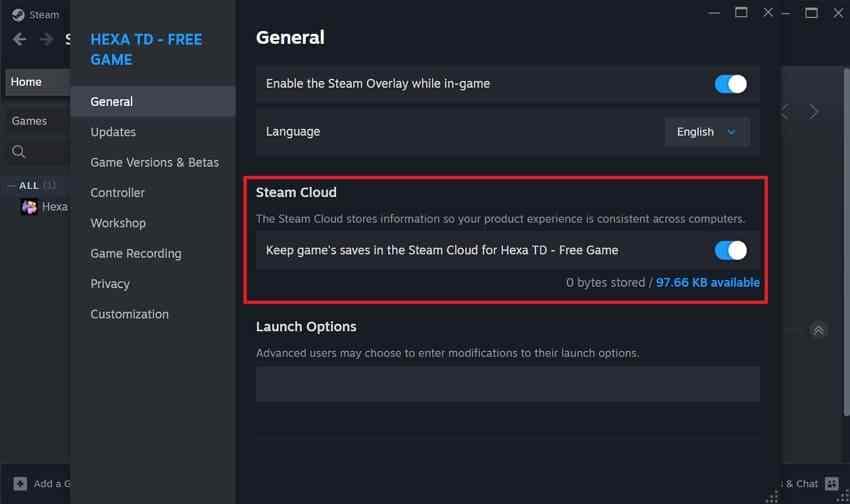
Step 1. For a Steam title that supports Steam Cloud, open "Steam > Library", right-click the game, choose "Properties > General", and confirm the cloud option for that title is enabled. Steam's Steam Cloud documentation explains that cloud behavior depends on how the game is configured, so treat it as game-save synchronization rather than a complete PC backup.
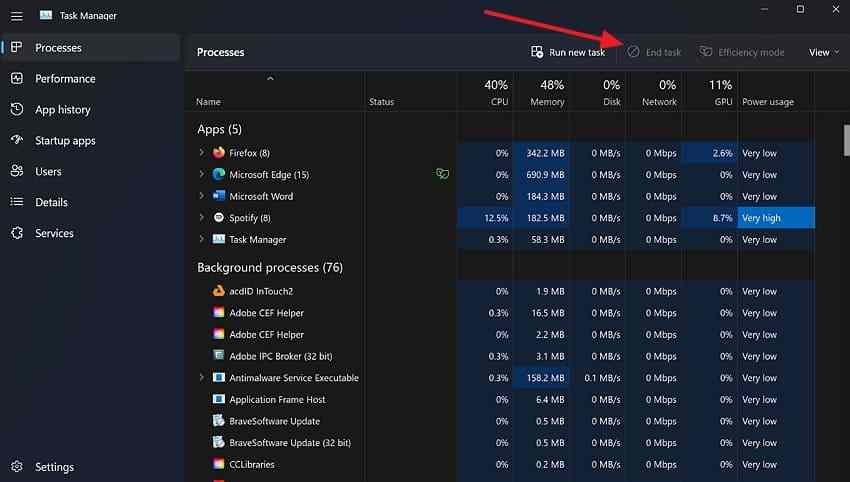
Step 2. Save work in other applications and close them normally. Copy irreplaceable personal files to another drive or trusted backup location before deliberately stress-testing the affected game again. Use Task Manager's End task only when a program will not close normally.
Record Temperatures, Errors, and Crash Timing
Write down what happens immediately before the freeze: the game scene, elapsed play time, whether a shader compile or loading screen was active, whether the fans suddenly ramped up, and whether Windows restarted or stayed frozen. This makes the next test measurable instead of random.
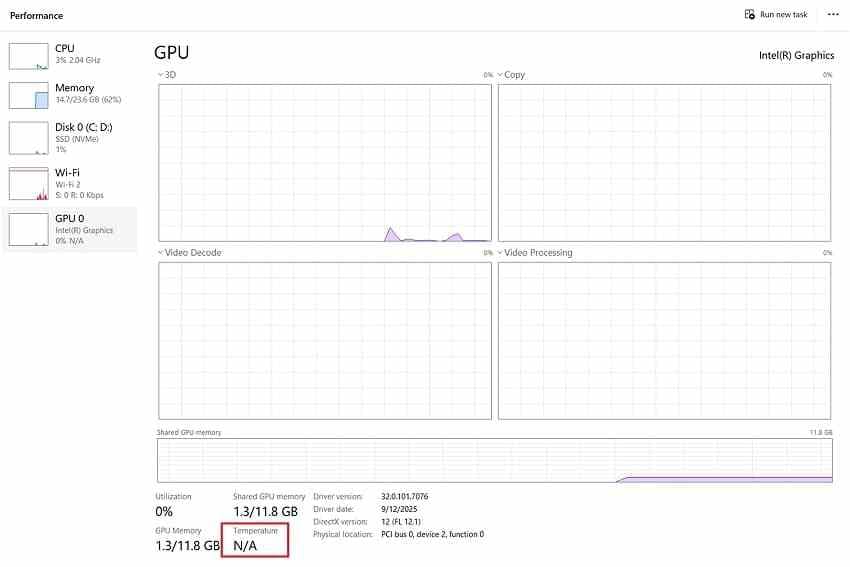
Check GPU Temperature. Open "Task Manager > Performance > GPU". On supported hardware, Windows may show GPU temperature. If it does not, use the GPU or PC manufacturer's supported monitoring utility instead.
Check Reliability Monitor. Search for Reliability Monitor or run perfmon /rel, select the date of the crash, and open the technical details for the game or Windows failure. Microsoft's Reliability Monitor troubleshooting guide explains how the timeline helps correlate failures with updates and application events.
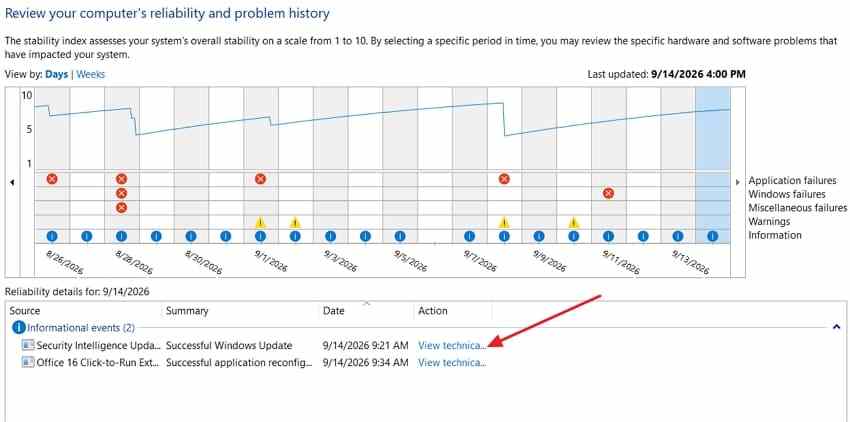
For a restart or stop-code crash, also review Event Viewer around the same timestamp. Microsoft notes that a stop code identifies the type of failure Windows detected, not necessarily the root cause, so record the code and any named driver before changing hardware or drivers.
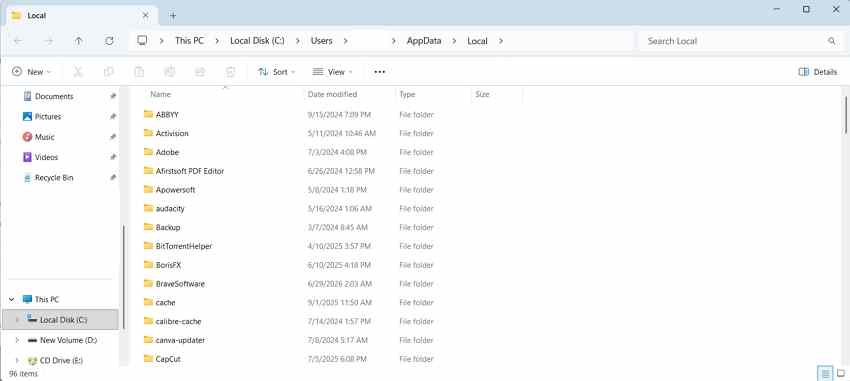
Check the game's own logs. Use the developer's documented crash-report or log location when available. Depending on the title, logs can be stored in the installation folder, AppData, Documents, or a launcher-specific directory. Do not delete arbitrary AppData folders simply because they contain the game name.
Avoid repeated forced shutdowns. A hard power-off can interrupt active file writes. Use it only when the system is completely unresponsive, then allow Windows to start normally before the next controlled test.
Part 3. Fix Drivers, Windows, and Game Files
Start here when the evidence points to game files, GPU drivers, Windows components, or a change that occurred shortly before the crash. The first five fixes are deliberately software-focused and reversible.
Fix 1. Update or Roll Back the GPU Driver Based on the Timeline
Do not automatically choose the newest driver. If the crashes began immediately after a graphics-driver update, rollback is the stronger diagnostic test. If the installed driver is old or the PC/GPU vendor has a newer compatible release that addresses game stability, update instead. Microsoft's current driver update and rollback guidance supports both paths.
To update: open "Device Manager > Display adapters", right-click the active GPU, and select Update driver.
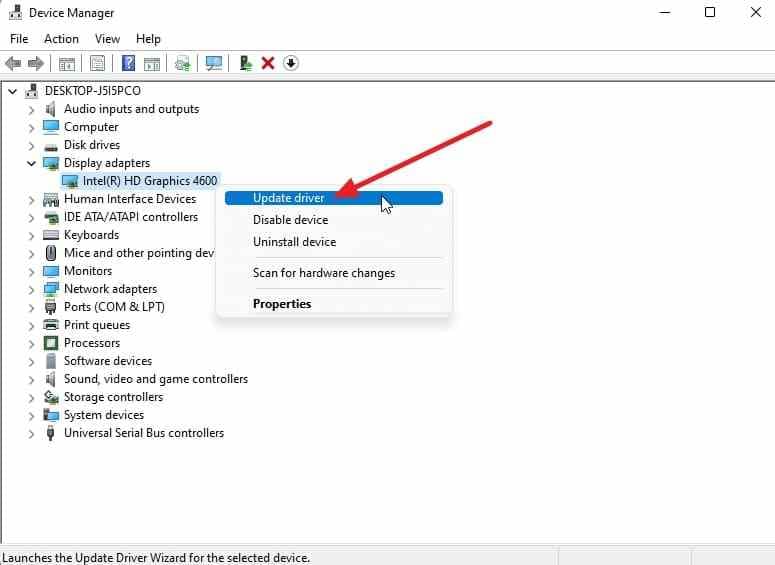
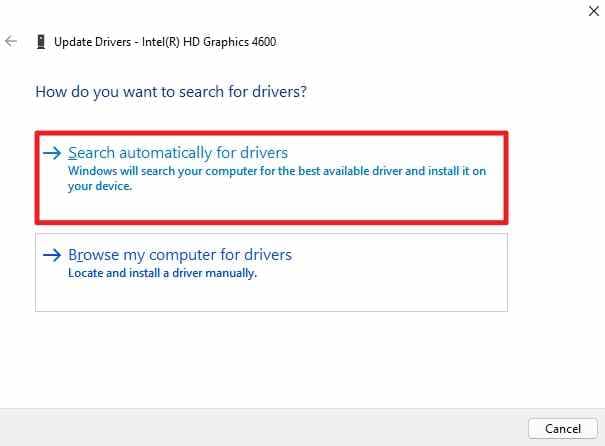
Select Search automatically for drivers. If Windows does not provide a suitable driver, use the official PC manufacturer or GPU vendor support site for the exact model. Laptop graphics packages can include OEM-specific customization, so the laptop manufacturer's package is a sensible first check.
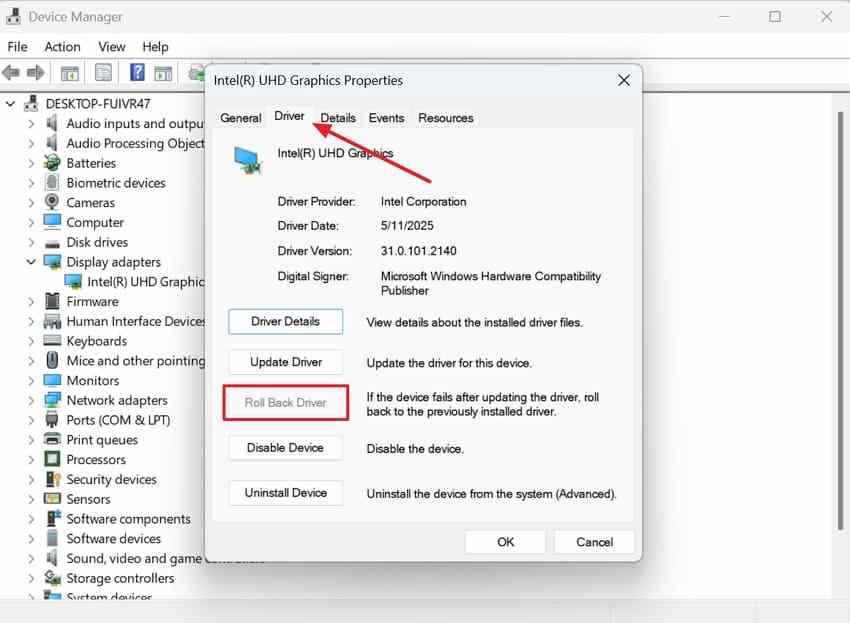
To roll back: open the GPU's "Properties > Driver" tab and select Roll Back Driver when the option is available and the failure began after a recent driver change.
Fix 2. Install Current Windows and Game Updates
Install current Windows updates before deeper repair when the problem is not clearly caused by the latest update. Microsoft continues to deliver security, compatibility, and reliability fixes through Windows Update.
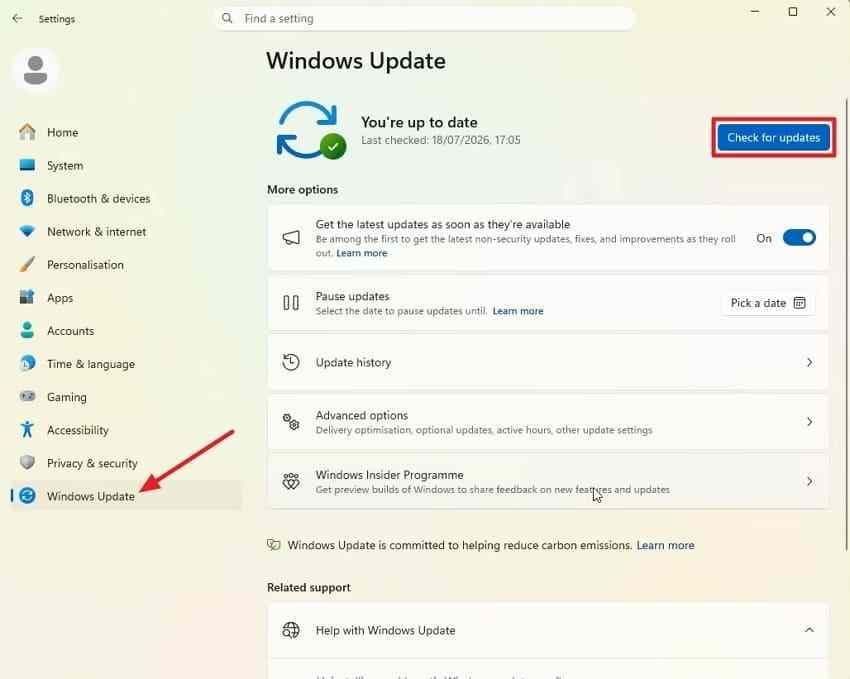
Open "Settings > Windows Update > Check for updates", install available updates, restart, and retest the same title.
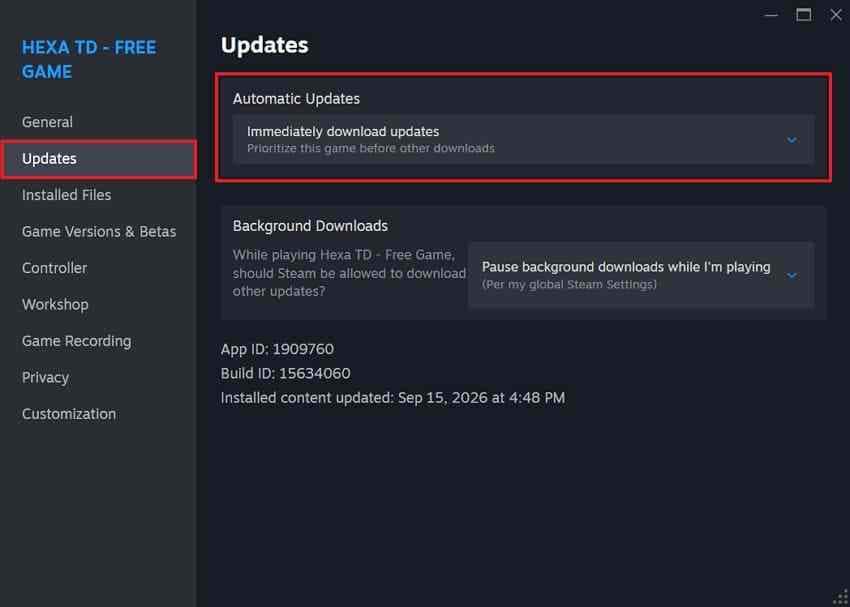
Then update the affected game through its launcher. In Steam, open the game's "Properties > Updates" and confirm normal automatic update behavior, then check "Steam > Downloads" for a pending patch.
Fix 3. Verify or Repair the Game Files
When one Steam title crashes repeatedly, file verification is a better first move than reinstalling Windows. Valve's current Verify Integrity of Game Files instructions say verification can replace missing or mismatched installed files; some local configuration files may be handled differently and can legitimately fail verification.
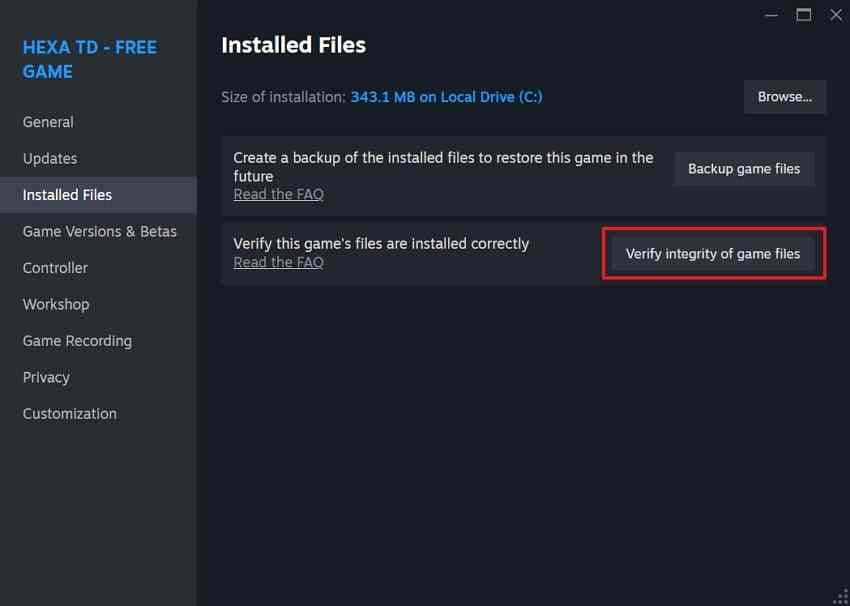
In Steam, right-click the game, open "Properties > Installed Files", and choose Verify integrity of game files. Let the process finish before launching the game again.
If several unrelated Steam games fail, stop treating it as a single game-file problem and continue with drivers, Windows, software conflicts, and hardware stability. Recoverit also has a separate guide for games crashing to desktop when the main symptom is a crash-to-desktop rather than a full system freeze.
Fix 4. Reset Game Graphics Settings and Rebuild Shader Cache When Appropriate
Resetting the affected title's graphics settings is useful when crashes begin after changing ray tracing, upscaling, resolution, or another rendering option. Start with the game's own default preset rather than deleting configuration folders manually.
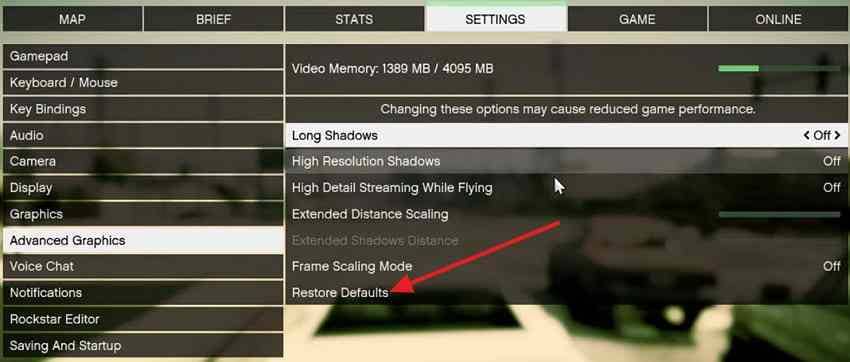
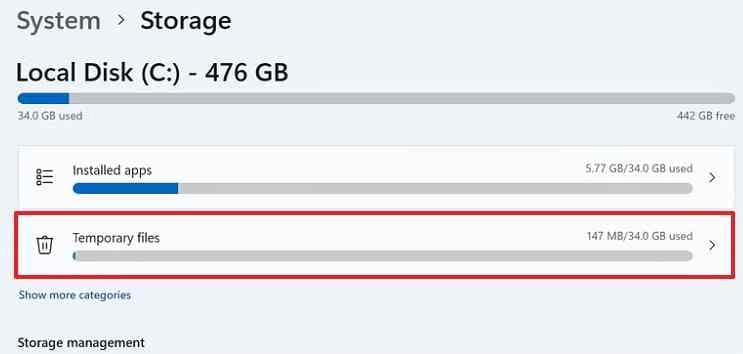
If the failure began after a graphics-driver or game update and seems tied to shader compilation, Windows can rebuild the DirectX Shader Cache. Open "Settings > System > Storage > Temporary files".
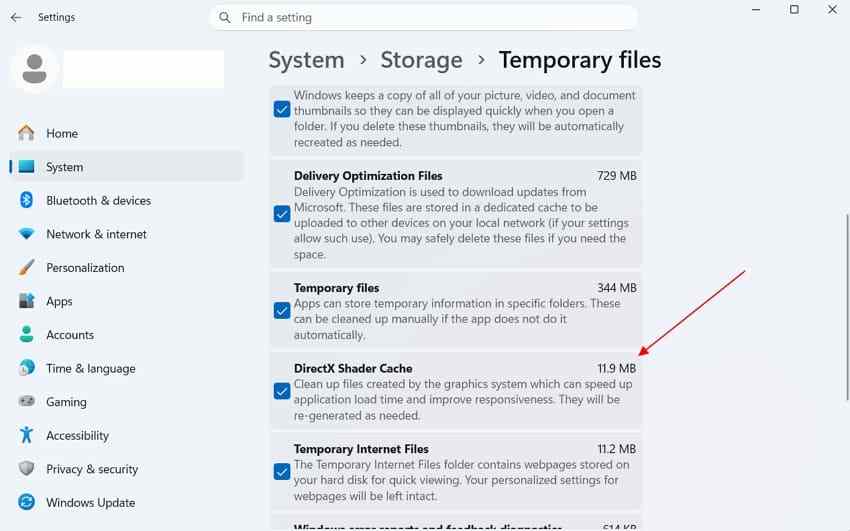
Select DirectX Shader Cache and remove it, then restart the game. Expect the title to rebuild shaders, which can temporarily increase loading time or stutter. Do not treat cache clearing as a universal fix for every game crash.
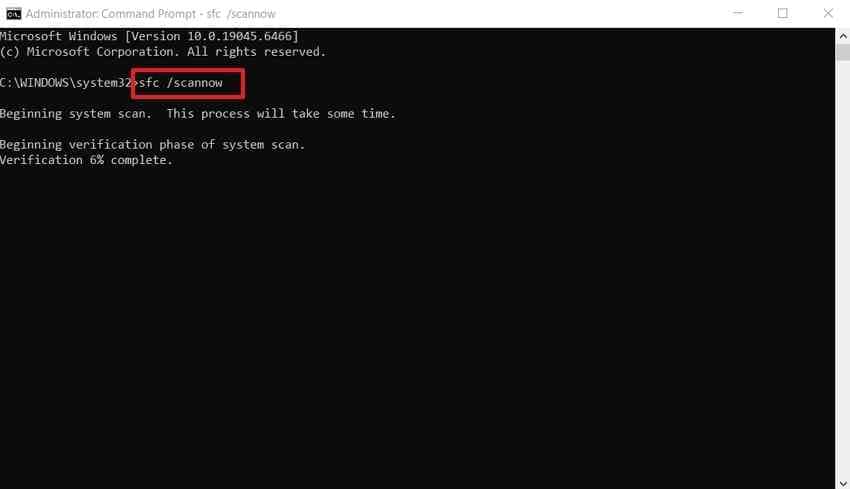
Fix 5. Run DISM Before SFC for Broader Windows Corruption
Use system-file repair when multiple games or unrelated Windows apps are unstable, or when other evidence points to Windows component corruption. Microsoft currently recommends running DISM before SFC because DISM repairs the component store used by System File Checker.
Open Command Prompt as administrator and run:
DISM /Online /Cleanup-Image /RestoreHealth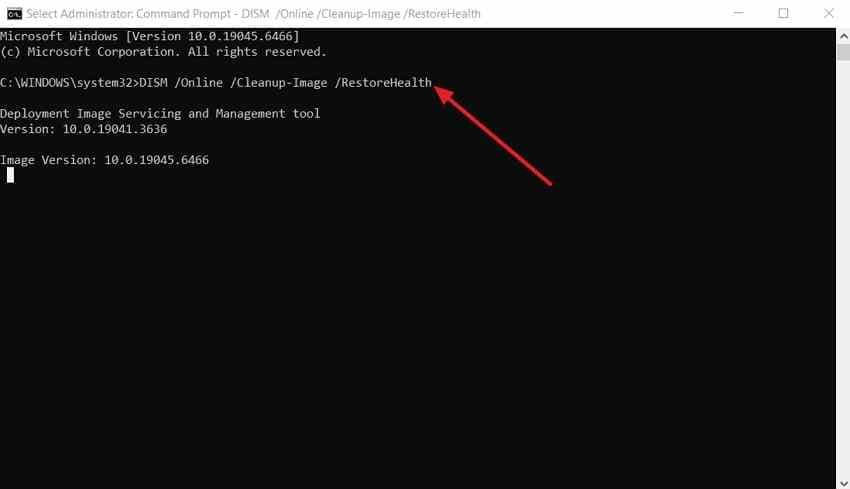
After DISM completes successfully, run:
sfc /scannowMicrosoft's SFC and DISM guidance explains this supported order. Restart after the checks finish and retest the same game.
Part 4. Remove Software and Graphics Conflicts
If game files and the driver path look healthy, isolate software that hooks into rendering, capture, input, RGB, monitoring, or startup. These are targeted tests, not permanent recommendations.
Fix 6. Disable Overlays, Recorders, and Monitoring Hooks
Temporarily disable the Steam Overlay for the affected title and close other overlays, screen recorders, FPS counters, RGB utilities, performance monitors, and desktop capture tools. If the crash stops, re-enable them one at a time.
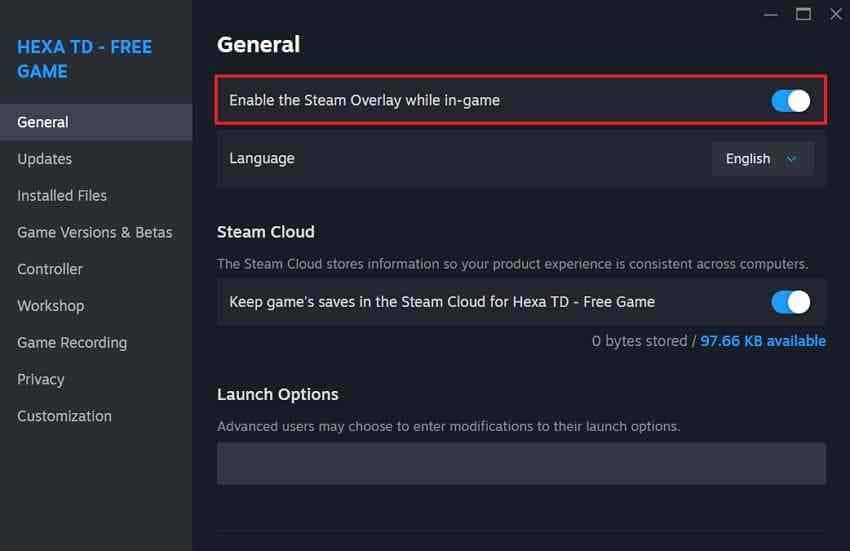
This test is especially relevant when Steam games keep crashing on Windows 11 only after an overlay or recording utility was installed or updated.
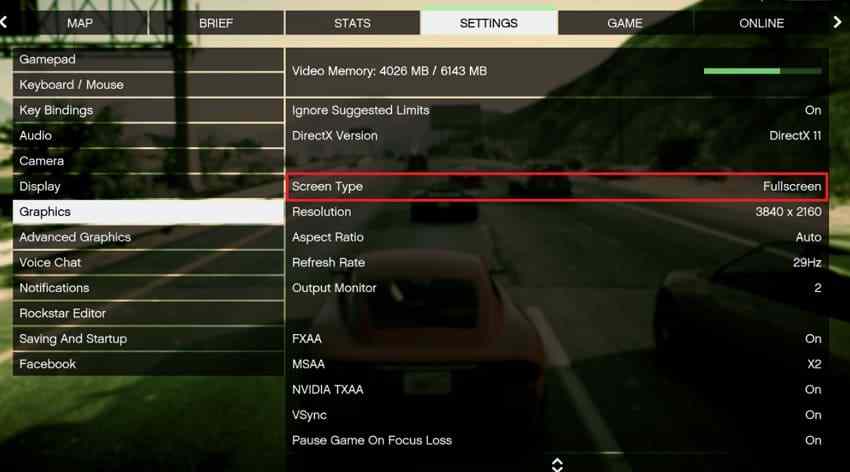
Fix 7. Test Fullscreen, Borderless, and Windowed Modes Separately
Some title, driver, and multi-monitor conflicts appear only in one presentation mode. Switch between Fullscreen, Borderless, and Windowed, changing only one setting at a time. If one mode is stable, use it temporarily while you continue investigating the underlying conflict.
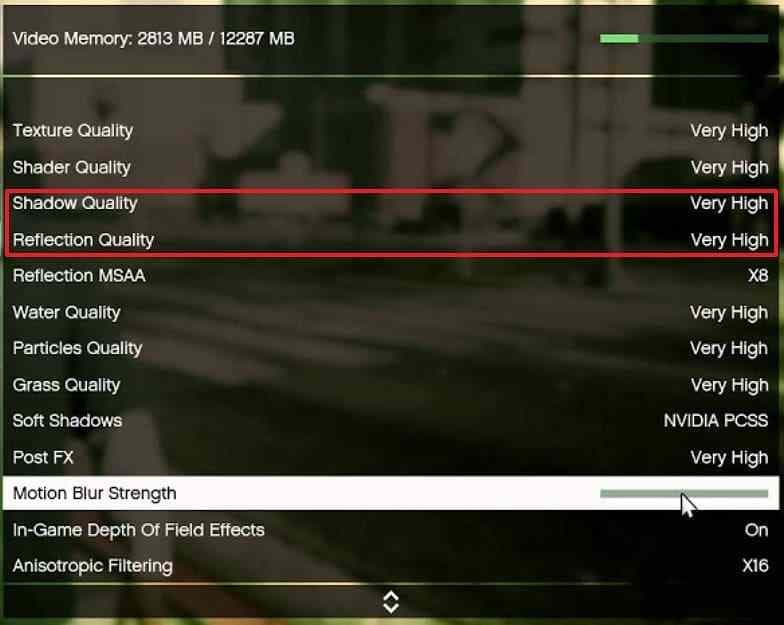
Fix 8. Lower Ray Tracing, Texture, and Other VRAM-Heavy Settings
High VRAM use can produce severe stutter, asset-loading problems, or game-level crashes in demanding scenes. It does not automatically mean the GPU is defective. As a diagnostic test, disable ray tracing and reduce texture quality one level.
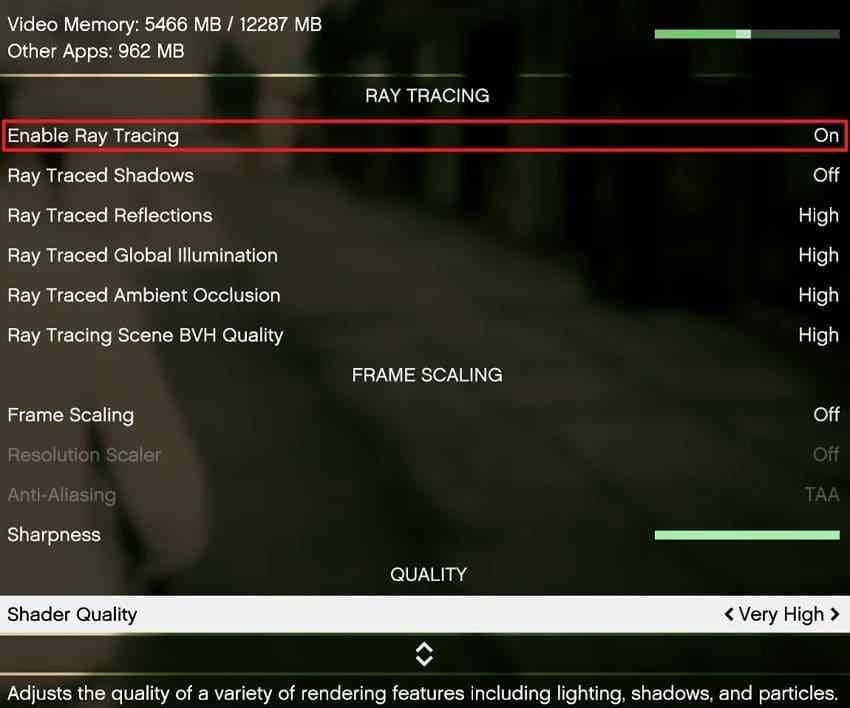
If memory pressure remains high, lower other expensive options such as shadow quality, reflection quality, resolution scale, or high-resolution texture packs. Retest the same scene after each change.
Fix 9. Use a Clean Boot to Isolate Third-Party Software
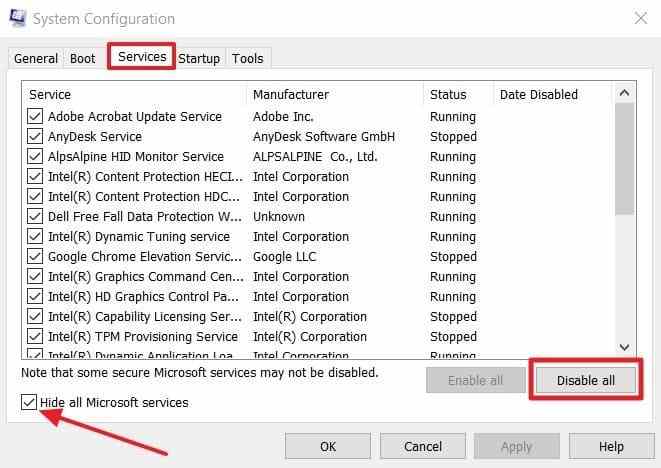
A clean boot starts Windows with Microsoft services protected while non-Microsoft services and startup apps are disabled for troubleshooting. Use it when several games crash or when disabling individual overlays did not identify the conflict.
Step 1. Open System Configuration, select Services, check Hide all Microsoft services, and choose Disable all.
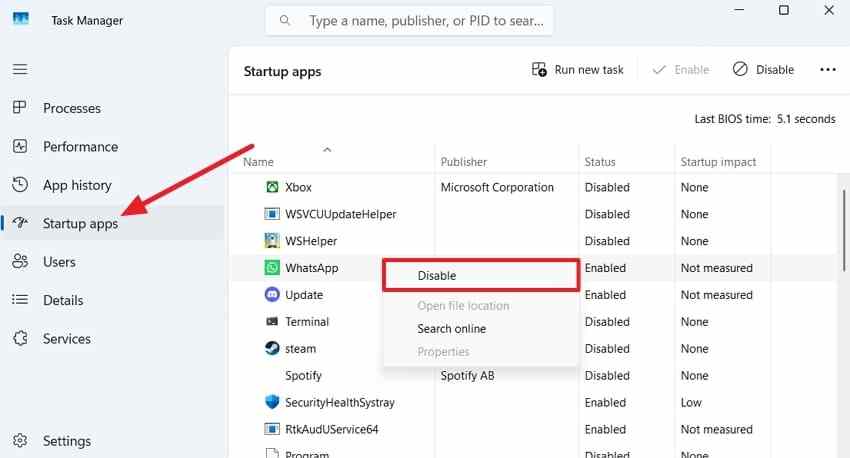
Step 2. Open "Startup > Open Task Manager", disable enabled startup apps, restart Windows, and test the affected game.
Fix 10. Reenable Services Gradually After the Freeze Stops
If the game becomes stable in a clean boot, do not leave everything disabled permanently. Re-enable non-Microsoft services and startup apps in small groups, restart, and reproduce the same test. When the freeze returns, narrow the last group until you identify the conflicting item. Then restore normal startup and leave only the confirmed problem component disabled, updated, or removed.
For VALORANT, a generic clean boot can also disable Riot Vanguard components required to launch the game. If VALORANT cannot start during the test, re-enable only the Vanguard service required for launch so the clean-boot result remains meaningful, then continue isolating other third-party services.
Part 5. Test Hardware Stability Under Gaming Load
Gaming stresses the CPU, GPU, memory, storage, and power system at the same time. If Windows 11 games crash across unrelated titles after software fixes, hardware stability becomes more important.
Check 1. Check CPU and GPU Temperatures
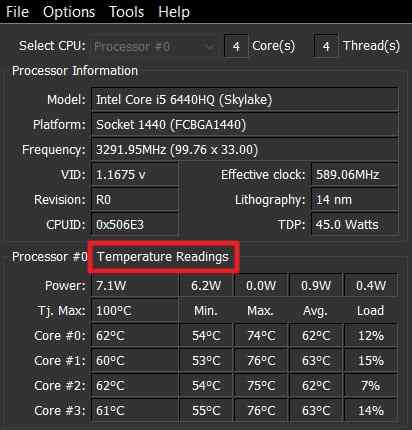
Use Task Manager for supported GPU temperature reporting and use the PC, CPU, motherboard, or cooling vendor's supported monitoring tool for CPU temperature. Compare observed values with the thermal specifications for your exact CPU and GPU rather than relying on one universal temperature threshold.
The source screenshot below illustrates a CPU monitoring utility. The key diagnostic is whether temperatures climb abnormally at the same time as the crash, fans stop behaving normally, or clock speeds sharply throttle under load.
Check 2. Return Overclocking and Undervolting to Supported Defaults
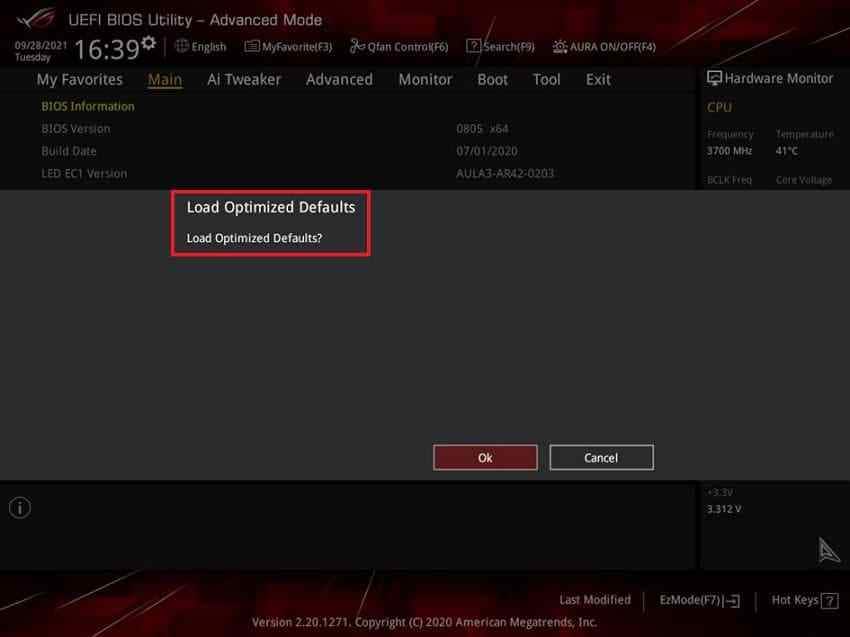
Reset manual CPU, GPU, and memory tuning while troubleshooting. Overclocking, undervolting, custom power limits, and aggressive memory profiles can be stable in light workloads yet fail during sustained gaming.
Restore the settings with the tool that originally changed them. If BIOS or UEFI settings were modified, use the motherboard or PC manufacturer's documented method to return the changed tuning to supported defaults.
Check 3. Test RAM and Disable Unstable Memory Profiles for Diagnosis
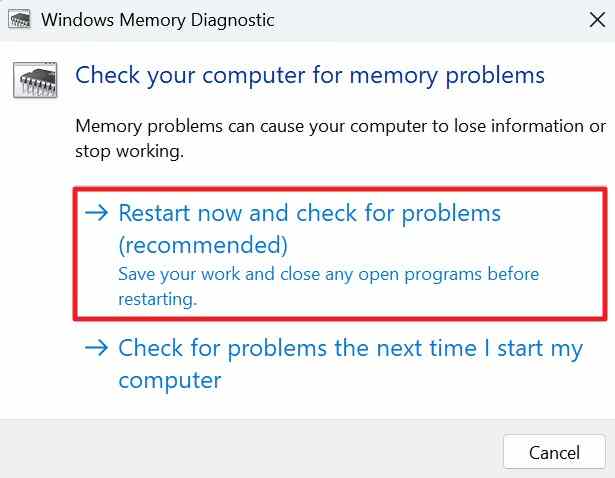
Changing stop codes, random freezes across unrelated games, and corruption-like errors can justify a memory test. Microsoft's current support guidance still documents Windows Memory Diagnostic.
Save work, open Windows Memory Diagnostic, and select Restart now and check for problems. A clean result lowers the likelihood of an obvious memory fault but does not completely exclude intermittent RAM or memory-controller instability under gaming load.
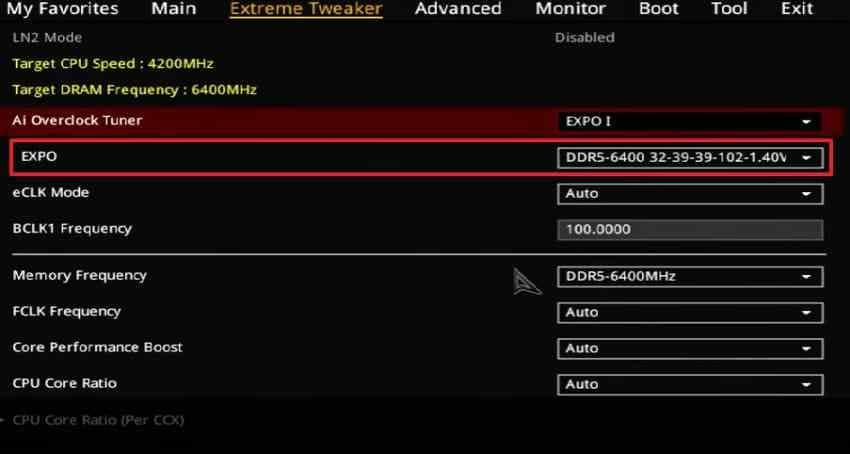
If XMP or EXPO is enabled, temporarily return memory to the platform's default settings and retest. Do not change voltage or memory timings manually unless you understand the motherboard and memory specifications.
Check 4. Check SSD Health and Available Space
Low free space can interfere with updates, shader caches, page files, and game patching. Use Windows Storage Sense or Storage settings to review available space on both the Windows drive and the drive that contains the game.
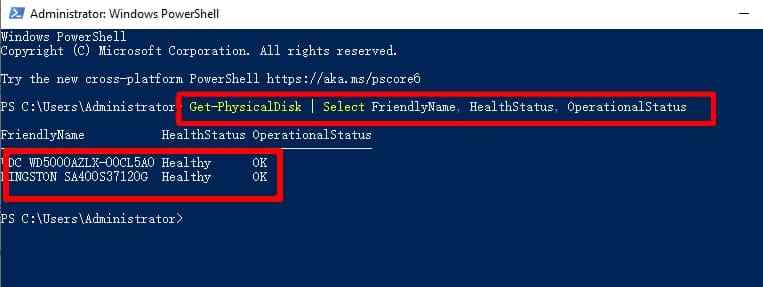
For a first-level storage status check, open PowerShell as administrator and run:
Get-PhysicalDisk | Select FriendlyName, HealthStatus, OperationalStatusMicrosoft documents the Get-PhysicalDisk cmdlet for retrieving physical disk objects and their reported status. Treat this as a Windows-reported status, not a complete SSD or HDD health diagnosis. If the drive reports an abnormal state, disappears, produces read errors, or has vendor-specific warnings, use the SSD/HDD manufacturer's diagnostic tool and protect important files before repair attempts.
Check 5. Investigate Power Delivery When the PC Restarts Under Load
A sudden restart under heavy GPU/CPU load is different from a normal crash to desktop. On a desktop PC, shut down Windows and disconnect AC power before checking only user-accessible GPU and motherboard power connections. Do not open a power supply. If restarts continue only under demanding games, test with the PC or GPU manufacturer's diagnostics or seek professional PSU/hardware evaluation.
Part 6. Fix Steam and VALORANT-Specific Freezes
Steam and VALORANT need platform-specific checks, but only after you know whether the failure is title-specific or system-wide. Do not use Vanguard or TPM troubleshooting for an unrelated Steam title, and do not assume a Steam file check can fix a PC-wide hardware freeze.
Steam: Verify the Affected Title Before Changing Windows
If one Steam game fails, repeat the official Steam file verification process from Part 3. If several Steam games fail in the same way, move beyond game files and investigate drivers, Windows, background software, memory, temperatures, storage, and power.
Clear a game's cache only when its developer or launcher documents the exact location and cleanup process. Avoid deleting arbitrary folders under AppData, Documents, or the installation directory because they may contain local saves, settings, mods, or screenshots.
VALORANT: Update Riot Client, VALORANT, and Vanguard
If VALORANT is crashing on Windows 11, update the Riot Client and VALORANT first. Open Riot Client, select VALORANT, and install the offered update before changing security settings or firmware.

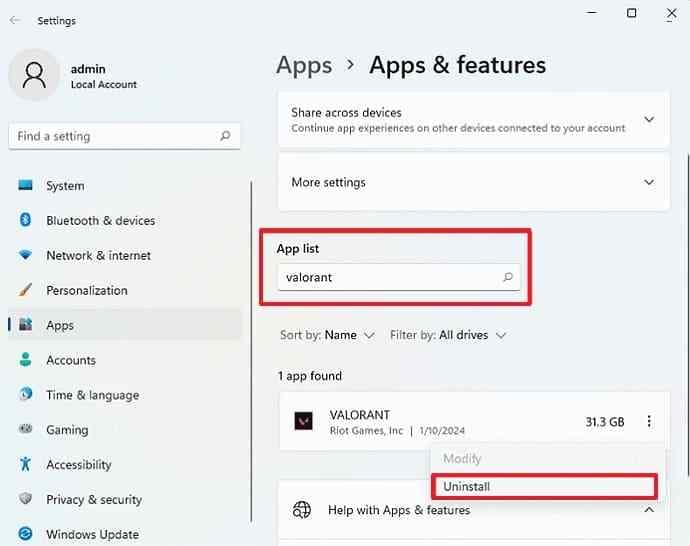
If symptoms point specifically to Vanguard installation or anti-cheat corruption, uninstall Riot Vanguard from Installed apps, restart, and launch VALORANT so Vanguard can be installed again. Use this only for Vanguard-related symptoms, not as a generic response to every in-match freeze.
Check TPM 2.0 and Secure Boot Only When Vanguard Reports a Compliance Error
Riot's original Windows 11 guidance for VAN 9001, VAN 9003, and VAN 9090 now redirects to Riot's current Vanguard error-code support. Use the current Vanguard Error Codes page to match the exact code shown on your PC.
| VALORANT Symptom | What to Check | What Not to Assume |
| VAN compliance or security code | Follow Riot's exact code guidance for TPM 2.0, Secure Boot, UEFI, or the named requirement | Do not change BIOS settings unless the error actually requires it |
| Vanguard installation/service error | Update Riot components, restart, then repair or reinstall Vanguard if needed | Do not blame TPM for a generic service-installation problem |
| Mid-match freeze with no VAN code | Drivers, overlays, temperatures, memory, storage, and power from Parts 3-5 | Do not treat Secure Boot as the default fix |
Firmware menus vary by PC and motherboard. If Riot's exact error requires TPM 2.0 or Secure Boot and you are not familiar with BIOS/UEFI settings, follow the PC or motherboard manufacturer's instructions rather than copying settings from a different system.
Part 7. Recover Files Only if the Freeze Caused Data Loss
A gaming freeze normally does not erase files that were already safely stored. First check Steam Cloud or the game's own cloud service, local backup folders, Recycle Bin, application auto-recovery, and any backup service you already use. Unsaved game progress or other data that was never written to storage cannot be recreated by file-recovery software.
If previously saved files are now genuinely deleted, missing, or inaccessible, use Recoverit Windows Data Recovery to scan the affected drive. Recoverit also has a dedicated Game Data Recovery page and a practical guide to gaming drive data recovery. These are recovery workflows, not fixes for the underlying crash.

How to Recover Missing Files After a Gaming Crash
Step 1. Select the Source Drive. Open Recoverit, choose Hard Drives and Locations, and select the drive where the missing files were stored before the freeze.

Step 2. Scan and Narrow the Results. Let Recoverit scan the selected drive. Use file filters, path, file type, name, date, and available search tools to narrow the results.

Step 3. Preview and Recover. Preview supported files, select the items you need, click Recover, and save them to a different drive so you do not overwrite remaining recoverable data.

If Windows itself stops booting after repeated crashes and your files are not backed up, protect the data before reset or reinstall. Recoverit's Windows System Recovery page explains the separate bootable-recovery scenario for an inaccessible Windows installation.
Recover Files Only if the Freeze Caused Data Loss
 Security Verified. Over 7,302,189 people have downloaded it.
Conclusion
When a computer freezes while playing games on Windows 11, start by deciding whether one game, every game, the display path, or the whole PC is failing. Then work from the least disruptive checks to deeper ones: driver timeline, Windows and game updates, file verification, graphics settings, overlays, clean boot, and finally temperatures, RAM, storage, and power. Steam and VALORANT need their own platform-specific checks, but they should not replace the broader diagnosis when the entire PC is unstable. Use Recoverit only if the crash is followed by actual loss of previously stored data.
FAQ
-
Why Does My Computer Freeze Only When Playing Games on Windows 11?
Gaming can expose instability that lighter workloads do not trigger because the CPU, GPU, memory, storage, and power system are stressed together. If only one game freezes, check that title's files, settings, launcher, and anti-cheat first. If several unrelated games freeze, investigate the GPU driver, Windows, background software, heat, RAM, storage, and power. -
Why Do Steam Games Keep Crashing on Windows 11?
If one Steam game crashes, verify its installed files, update it, reset its graphics settings, and test without overlays. If several Steam games crash in the same way, the common cause is more likely to be a driver, Windows component, third-party software conflict, memory issue, temperature problem, storage fault, or power instability. -
Why Does VALORANT Keep Crashing on Windows 11?
VALORANT can fail because of game or graphics issues, Riot Client or Vanguard problems, background conflicts, or system instability. Follow Riot's exact Vanguard code when a VAN compliance error is shown. For a mid-match freeze with no VAN code, prioritize drivers, overlays, temperatures, memory, storage, and power instead of changing TPM or Secure Boot settings by default. -
Why Do Games Crash to Desktop Without an Error on Windows 11?
A crash to desktop without a visible error can come from damaged game files, graphics drivers, overlays, rendering settings, VRAM pressure, or another software conflict. Reliability Monitor and the game's own crash logs are useful because they can reveal a recorded failure even when the game itself shows no message.


