 TL;DR:
Diagnose Chrome freezes on Windows 11 by first determining if the failure affects a single tab, the entire browser, or the whole operating system, keeping troubleshooting strictly within browser settings unless other applications also crash.
● Test an Incognito window to bypass potentially broken extensions, or create a fresh local Chrome profile without signing in to prevent corrupted Google Account sync data from transferring to the new session.
● Turn off the "Use graphics acceleration when available" setting if video-heavy pages freeze, and update your Intel, AMD, or NVIDIA display driver if this temporary toggle successfully stops the browser from crashing.
● Address immediate open-and-close failures by ending hidden chrome.exe processes in Task Manager and checking for Microsoft Family Safety web filtering blocks, reserving system-wide DISM and SFC repair commands solely for multi-app Windows 11 freezes.
Ask AI for a summary
 ChatGPT
 Perplexity
 Gemini
 Claude
 Grok
Grok
Chrome freezing on Windows 11 can mean very different things: one tab may stop responding, the whole browser may hang, Chrome may close without an error, or Google Chrome may open and close immediately. Those patterns should not be treated as the same failure. If only Chrome is affected, start with Chrome-specific checks before changing Windows. If File Explorer, games, Office apps, or Windows itself also freeze, move to the system-level checks in Part 6.
The most common paths involve extensions, website data, profile problems, graphics acceleration, memory pressure, damaged Chrome program files, or third-party software conflicts. This guide uses nine targeted Chrome fixes first, then escalates to Windows only when the evidence points beyond the browser. Recoverit is included only for actual local file loss, such as a completed download that was deleted or became inaccessible after a crash.
In This Article
Part 1. Identify What Is Freezing in Chrome
A useful first question is not simply “Why is Chrome crashing?” but “What exactly stops working?” Chrome separates tabs, extensions, GPU tasks, and other browser processes, so a single-page hang does not automatically mean the whole browser or Windows is unstable. Google's current Chrome crash troubleshooting also starts with lighter browser-level checks such as closing tabs, extensions, and apps before deeper changes.
Match the Symptom to the Likely Cause
Use the pattern below to decide where to start instead of trying every fix randomly.
| What You See | What It May Point To | Start With |
| One tab freezes, other tabs still work | Problematic webpage, script, extension interaction, or stored site data | Parts 2 and 3 |
| Chrome shows Not Responding | Extension conflict, profile issue, graphics problem, or memory pressure | Parts 3 and 4 |
| Chrome closes or will not stay open | Profile data, damaged browser files, security software, or a Windows-side block | Part 5 |
| Video or graphics-heavy pages freeze | Graphics acceleration, GPU driver, or high resource use | Part 4 |
| Chrome and unrelated Windows apps freeze | Broader Windows, memory, storage, malware, or third-party software problem | Part 6 |
Important: If File Explorer, Word, games, or other unrelated programs freeze at the same time, do not spend hours resetting Chrome. Skip to Part 6 and diagnose Windows first.
Recognize the Immediate-Close Pattern
If Google Chrome opens and closes immediately on Windows 11, Task Manager may show chrome.exe for only a few seconds before it disappears. That pattern is different from a tab-level freeze. End any leftover Chrome processes first, then test a fresh profile or clean installation. Also check whether the PC is managed by work, school, security software, or Microsoft Family Safety before assuming Chrome itself is damaged.
Part 2. Try the Fastest Chrome Fixes
These checks are reversible and match Google's current guidance for Chrome that freezes, crashes, or will not open. They should come before profile deletion, Windows repair commands, or reinstalling the browser.
Fix 1. Reload the Problem Tab and Reduce Chrome's Workload
If one tab is frozen but Chrome still responds, reload or close that tab first. Google notes that low available memory can contribute to page crashes and recommends closing unused tabs, extensions, apps, and active downloads when Chrome becomes unstable.
Step 1. Press “Ctrl + R” to reload the tab. If it remains frozen, close it with “Ctrl + W”.
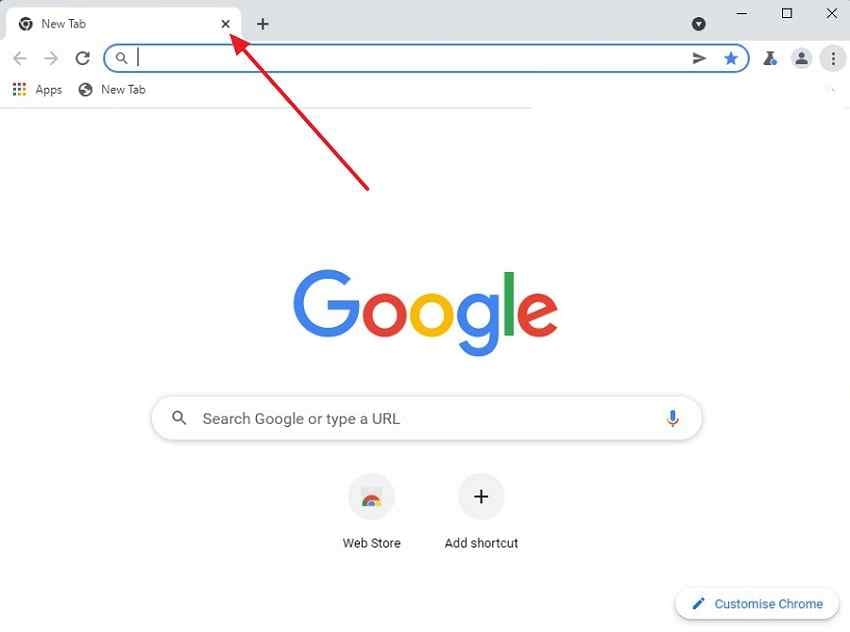
Step 2. Close unneeded tabs and other applications. Then open “More > Extensions > Manage extensions” and temporarily turn off nonessential extensions.
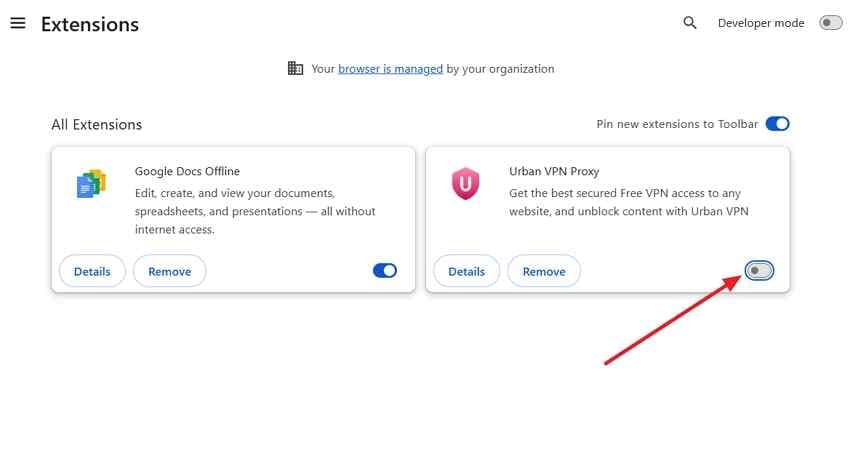
Note: Do not remove every extension yet. If Chrome becomes stable with extensions disabled, Part 3 shows how to re-enable them one at a time to identify the conflict.
Fix 2. End Leftover Chrome Processes and Restart
Chrome can continue running background processes after the visible window closes. Google's current crash guide recommends checking Task Manager when Chrome will not open.
Instructions. Close all visible Chrome windows. Open “Task Manager > Processes”, select remaining “Google Chrome” or chrome.exe processes, and choose “End task”. Reopen Chrome and test it again.
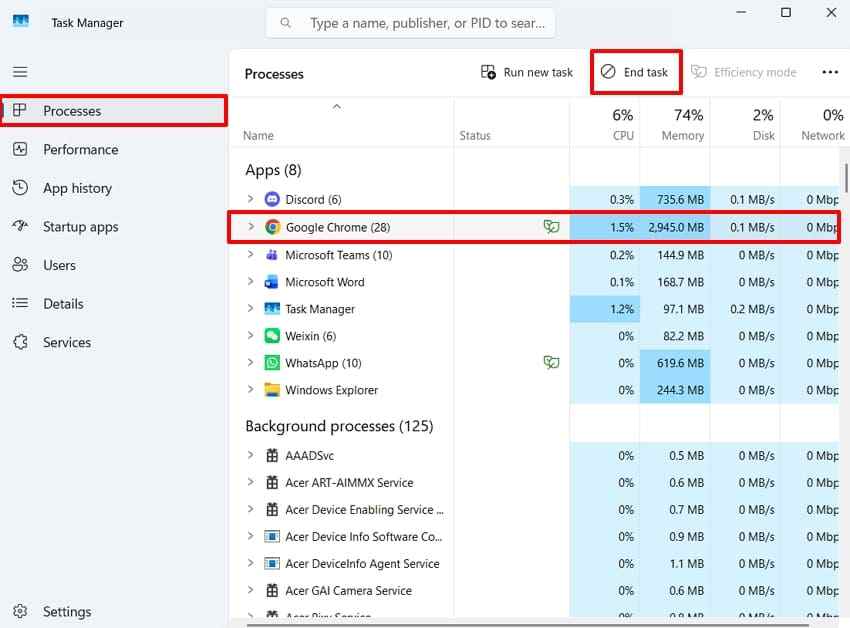
If Chrome still behaves strangely, restart Windows once before changing more settings. This clears temporary process and driver state without altering the browser profile.
Fix 3. Update Chrome
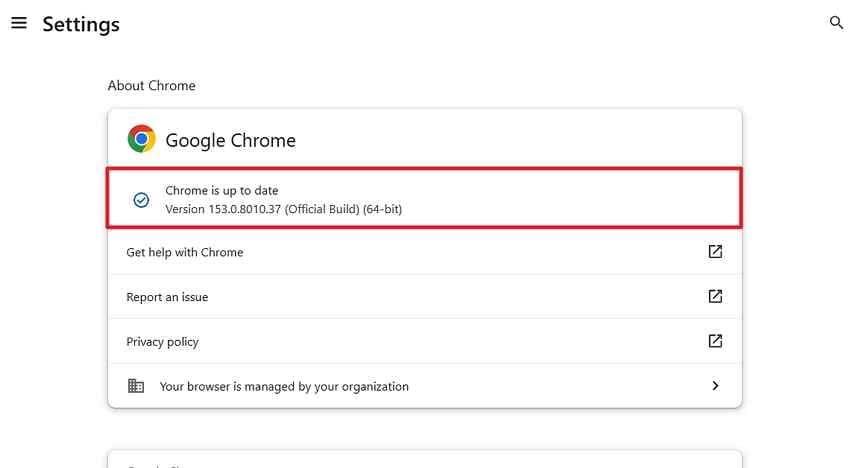
Chrome normally updates in the background, but an update may not finish until the browser relaunches. Google's current Chrome updates page states that opening About Chrome checks the installed version and applies an available update after relaunch.
Instructions. Open “More > Help > About Google Chrome”. Let Chrome check for updates. If “Relaunch” appears, select it and test the browser again.
Part 3. Isolate Extensions, Profiles, and Website Data
If quick fixes do not help, isolate browser data before resetting Chrome. This is especially useful when Chrome freezes on one website, after installing an extension, or only when a particular profile is active.
Fix 4. Test Incognito and Disable Extensions One at a Time
Most extensions are not enabled in Incognito unless you explicitly allow them there. That makes an Incognito test useful for separating a normal-profile problem from a page or network problem.
Instructions. Press “Ctrl + Shift + N” to open an Incognito window, load the same page, and reproduce the action that normally freezes Chrome.
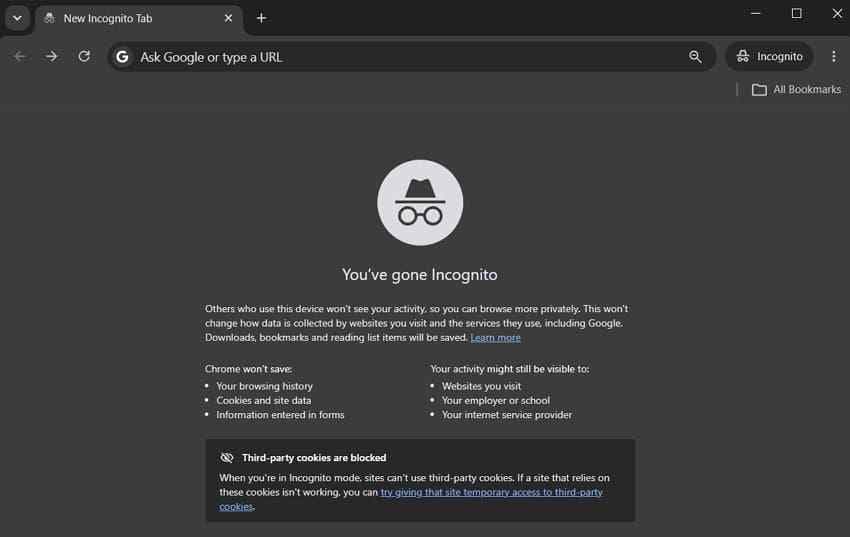
If Chrome works in Incognito, keep regular-window extensions disabled and re-enable them one at a time. Test long enough after each change to see whether the freeze returns. Google's extension controls are available under “More > Extensions > Manage extensions”.
Fix 5. Clear Site Data for the Affected Website
When one website freezes but other pages work normally, clear data for that site instead of wiping all browsing data. This reduces collateral impact such as signing out of unrelated services.
Step 1. Open the affected website and select “View site information > Site settings”. Google's current Site Settings documentation explains the available permissions and per-site controls.
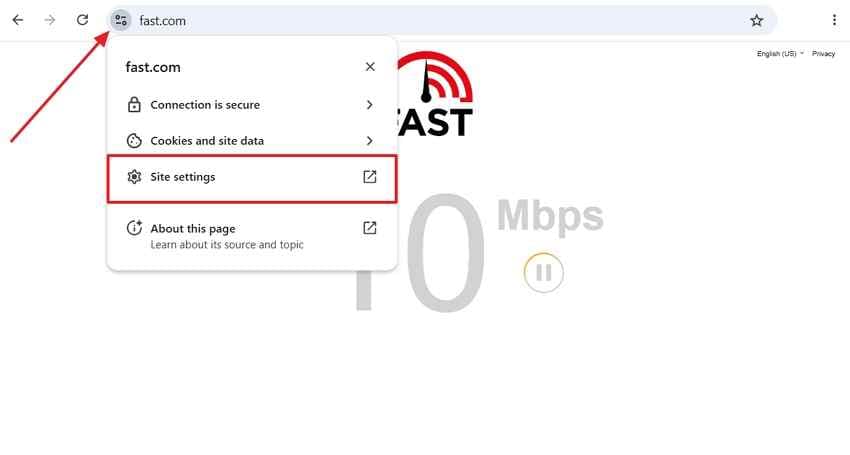
Step 2. Remove the stored data for that site, reload the page, and test again.
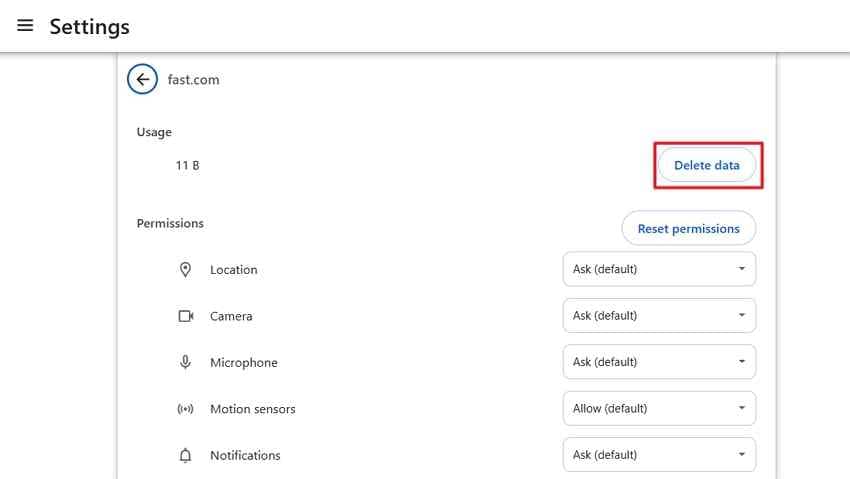
Note: Clearing site data can sign you out of that website and remove locally stored preferences.
Fix 6. Test a Fresh Chrome Profile Before Syncing
A fresh profile is one of the safest ways to test whether the existing profile is the problem because the old profile remains intact. Google's Chrome profiles documentation confirms that separate profiles keep browser information apart.
Step 1. Select the Chrome profile icon and choose “Add Chrome profile”.
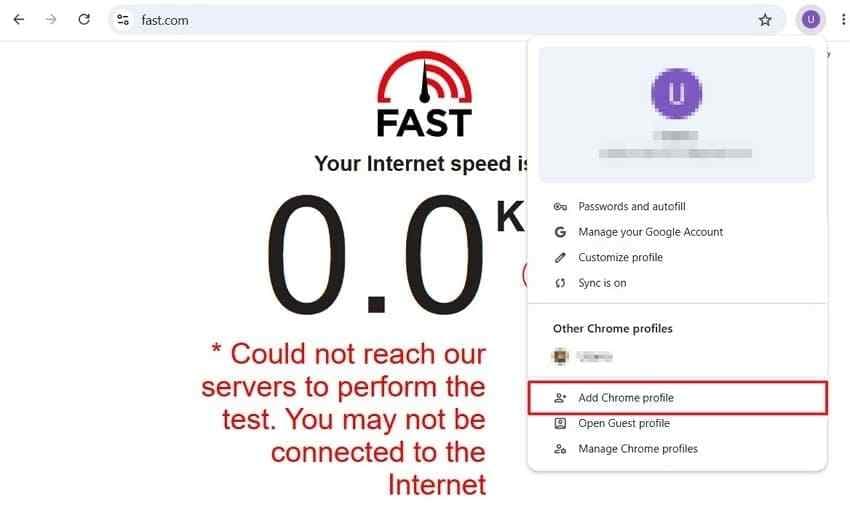
Step 2. Create the test profile without signing in first. Open the same websites and use Chrome normally for a while.
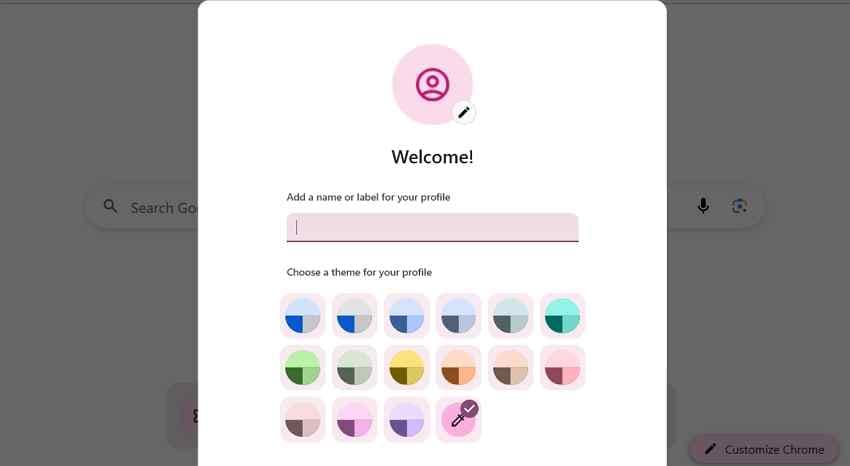
Note: If the fresh profile is stable, do not immediately restore every extension and setting. Chrome can save settings, themes, web apps, and extensions to a Google Account, so signing in may reintroduce the same configuration. Add items back gradually and retest.
Part 4. Fix Graphics and Memory-Pressure Freezes
Video playback, WebGL content, animations, multiple monitors, and heavy browser workloads can expose GPU or memory problems that simple tab reloads do not fix. Treat graphics acceleration as a diagnostic test rather than assuming it must stay disabled permanently.
Fix 7. Test Graphics Acceleration and the Display Driver
Google's current Chrome crash guide recommends disabling hardware acceleration as a troubleshooting step when Chrome crashes or freezes during rendering. In current Chrome builds, the setting may appear as “Use graphics acceleration when available”.
Instructions. Open “Settings > System”, turn off “Use graphics acceleration when available”, and select “Relaunch”. Revisit the pages that normally freeze.
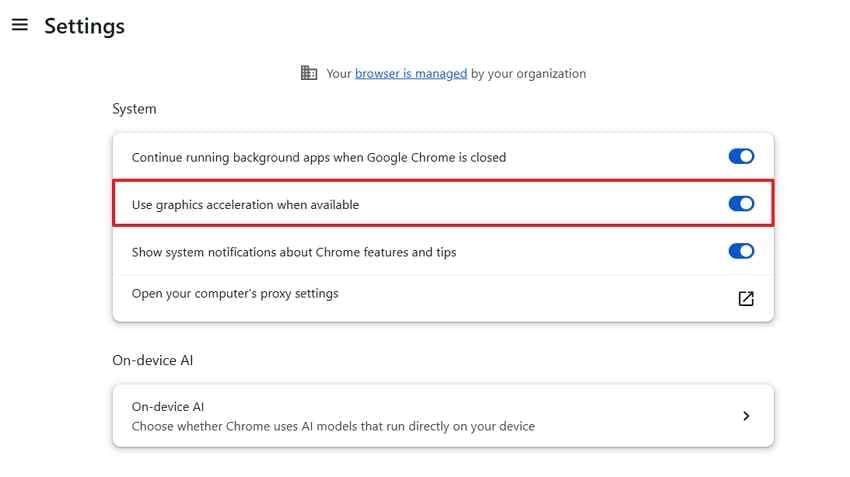
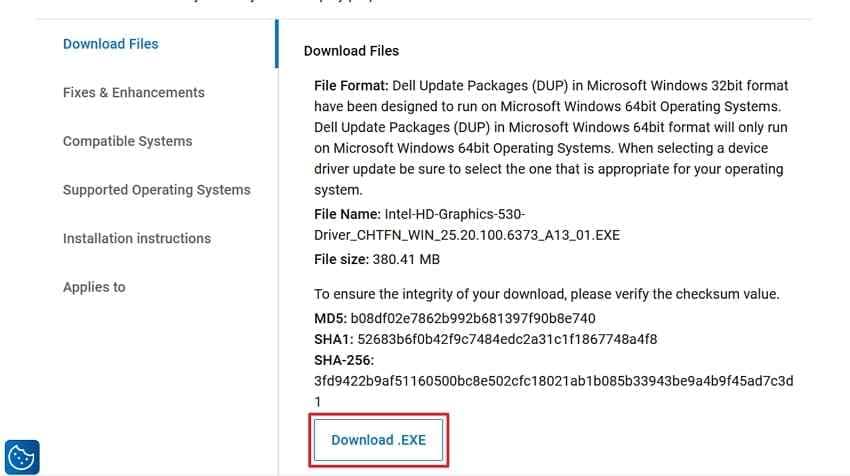
If the problem stops, update the graphics driver before deciding whether to leave acceleration disabled. On laptops and OEM desktops, check the PC manufacturer's Windows 11 driver first because it may include device-specific validation. If the manufacturer does not provide a suitable current driver, use the official Intel, AMD, or NVIDIA support site.
Step 1. Open “Device Manager > Display adapters” and note the exact GPU model.
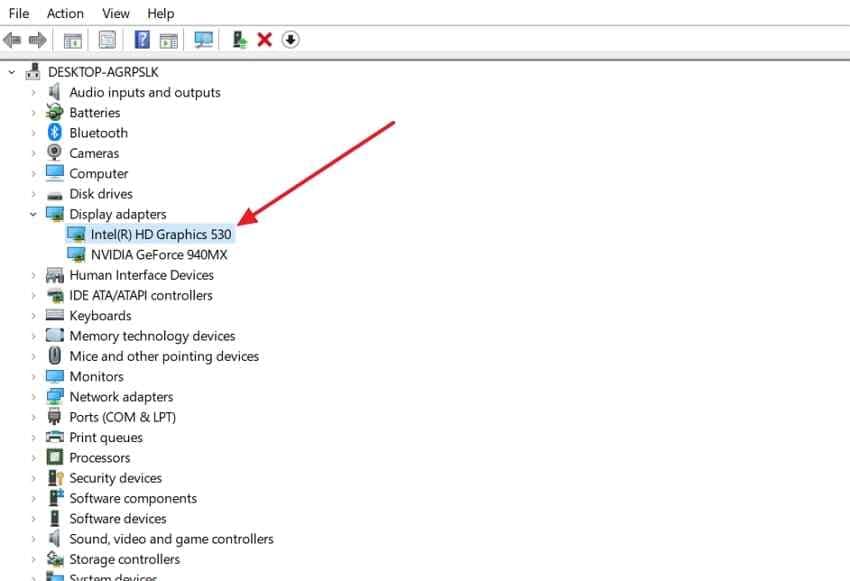
Step 2. Download the appropriate driver from the PC or GPU manufacturer's official support page. Avoid unofficial driver-download sites.
Fix 8. Find Heavy Tabs and Reduce Memory Pressure
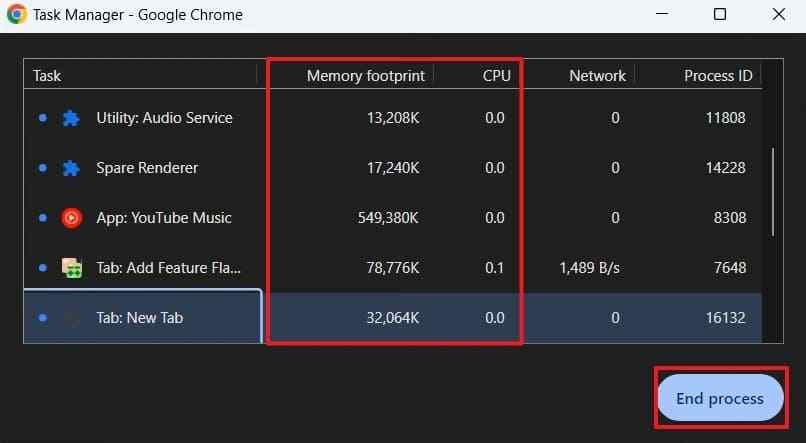
Chrome's own Task Manager can reveal whether a tab, extension, GPU process, or utility is consuming unusual resources. Google also recommends closing unwanted Chrome tasks when the browser is under memory pressure.
Instructions. Press “Shift + Esc” to open Chrome Task Manager. Review “Memory footprint” and “CPU”, then end only the tab or extension you can safely close.
Chrome's Memory Saver can deactivate inactive tabs to free memory for active work. Google's current guidance lists Balanced as the recommended level for most users.
Instructions. Open “Settings > Performance”, turn on “Memory Saver”, and choose a suitable deactivation level.
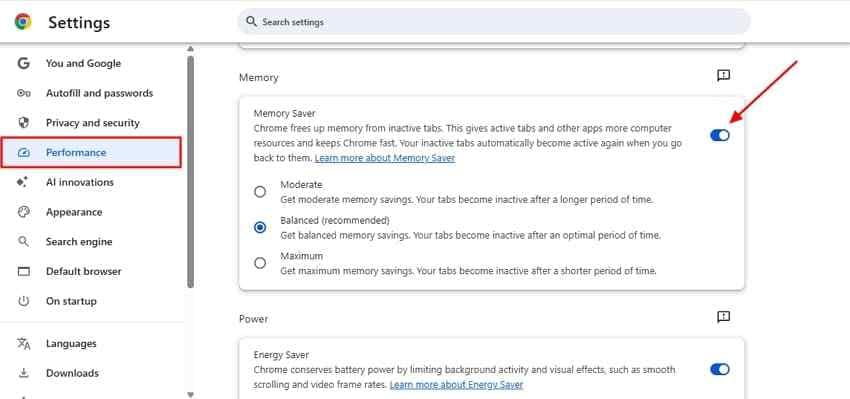
Note: Memory Saver can reduce memory pressure, but it is not a cure for a broken extension, corrupted profile, graphics-driver problem, or Windows instability.
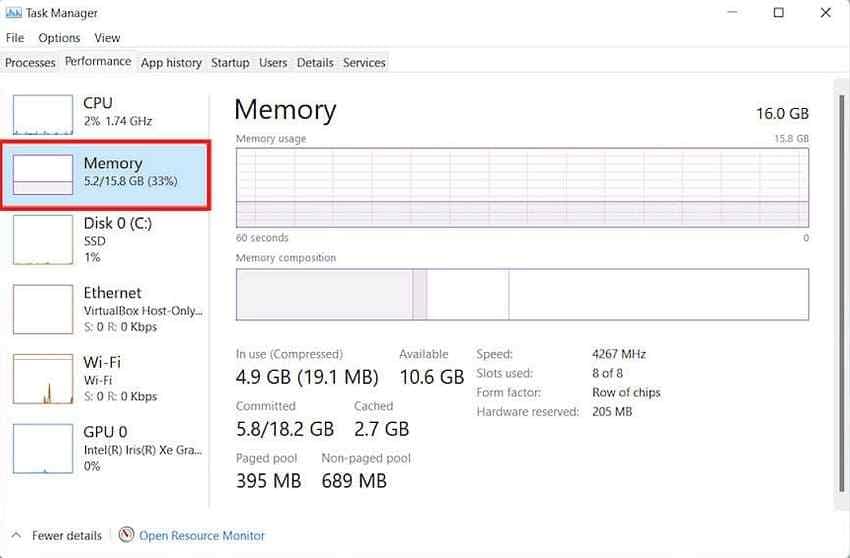
Also check whether other applications are consuming most of the system RAM. Microsoft recommends using Task Manager as part of its PC performance troubleshooting.
Instructions. Open “Task Manager > Processes”, review the “Memory” column, and close only applications you do not need.
Part 5. Reset or Reinstall Chrome Safely
If Chrome still crashes after extension, profile, graphics, and memory tests, browser settings or program files may be damaged. Reset Chrome before reinstalling so you can separate a settings problem from an installation problem.
Fix 9. Reset Chrome Before Reinstalling
Google's current Chrome reset documentation states that resetting returns several settings to their defaults while saved bookmarks and passwords are not deleted or changed. Extensions and themes are affected, and site-related settings/data may be reset.
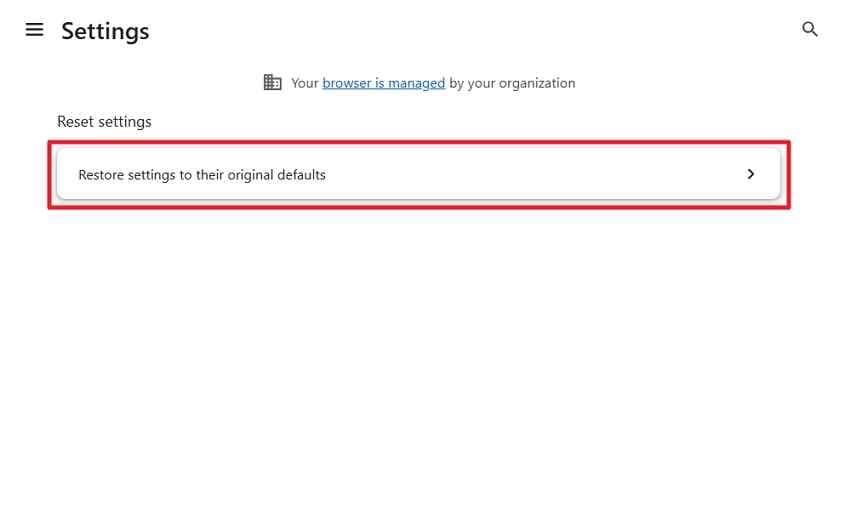
Step 1. Open “Settings > Reset settings > Restore settings to their original defaults”.
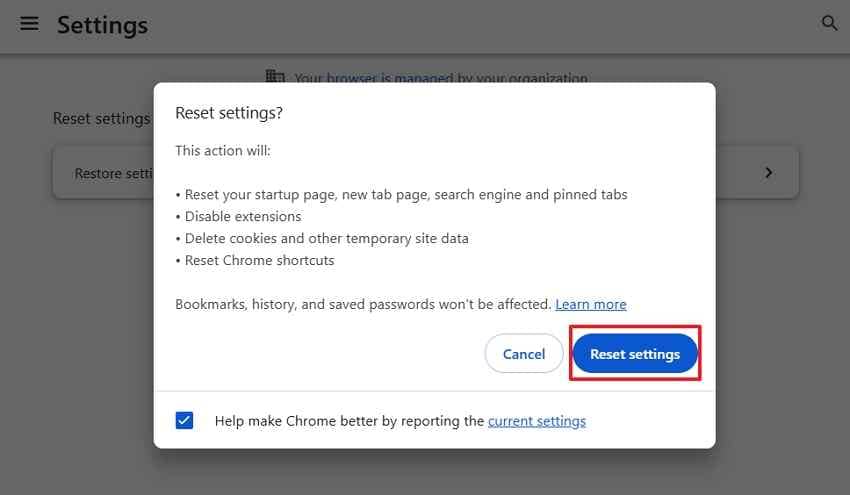
Step 2. Select “Reset settings”, relaunch Chrome, and test before restoring extensions.
If Chrome cannot stay open long enough to reach Settings, skip the reset and prepare for a clean reinstall.
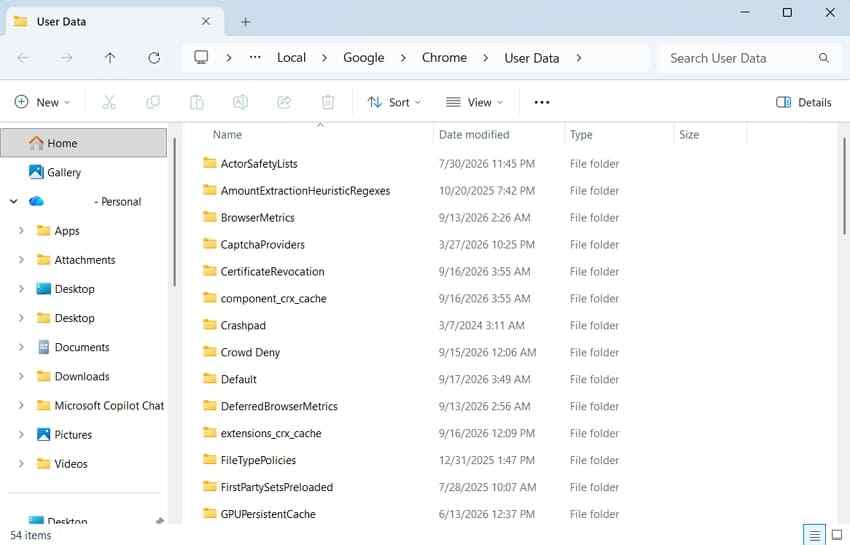
Before reinstalling: If you have local Chrome information that may not be synced, create a safety copy of the active profile folder at %localappdata%\Google\Chrome\User Data. Treat this as a local snapshot, not a guaranteed portable backup of every credential or browser database.
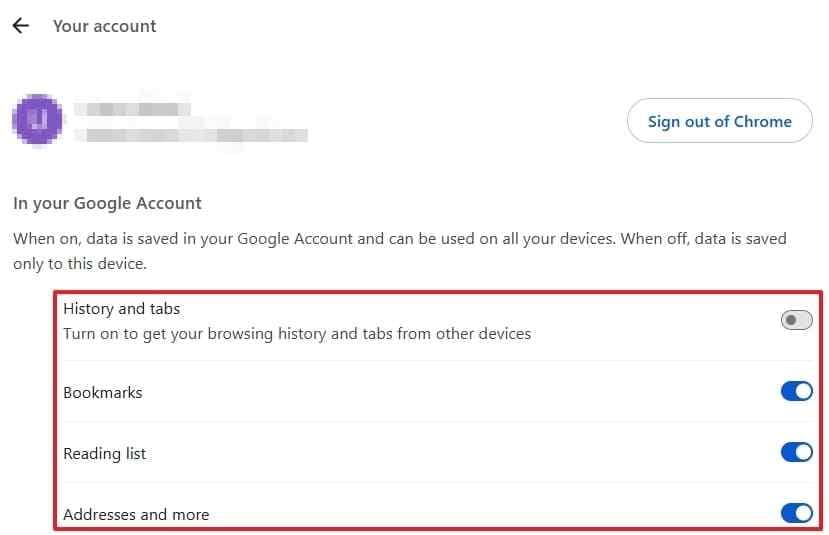
If Chrome remains usable, check that the bookmarks, passwords, and other data you actually need are available in your Google Account before uninstalling.
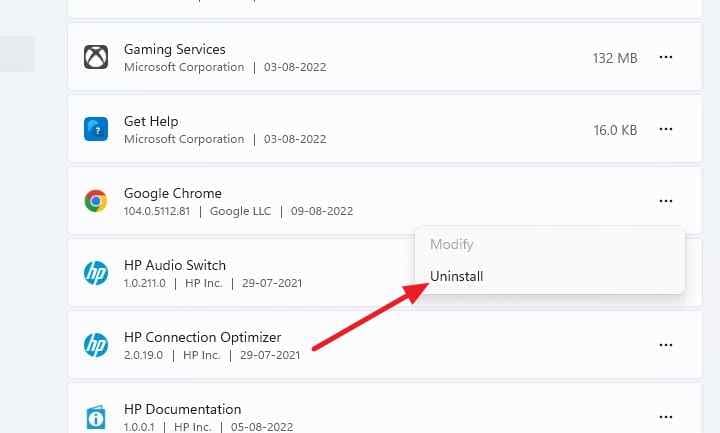
Step 1. Close all Chrome windows. Open “Settings > Apps > Installed apps > Google Chrome > Uninstall”. Google's current Chrome crashing guidance recommends reinstalling when the browser profile or installation remains problematic.
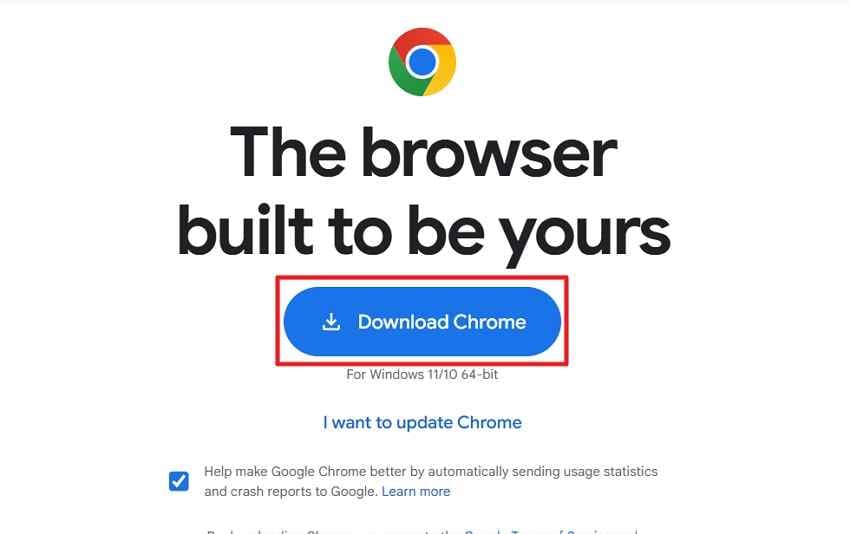
Step 2. Download Chrome again from Google's official Chrome site. Test the clean installation before signing in, restoring the old profile, or reinstalling extensions.
Special Case: Chrome Opens and Closes Immediately
When Chrome launches and disappears within seconds, use this order: end all chrome.exe processes, test a fresh local Chrome profile, check third-party security or web-filtering software, and reinstall Chrome from the official site if needed. Do not rename executables, disable Chrome sandboxing, or add undocumented command-line bypasses as a normal fix.
If the PC is part of a Microsoft Family Safety group, check whether web filtering or app approval applies. Microsoft states that Edge is the supported browser for Family Safety web filtering and other browsers may require approval. Microsoft also lists an older consent-display issue as resolved in February 2026, so this should be treated as an account-policy check, not a universal Windows 11 bug.
Part 6. Check Windows When Chrome Is Not the Only App Freezing
Only move to these checks when multiple unrelated applications freeze, Windows becomes unresponsive, or Chrome remains unstable after the browser-specific fixes. Running system repair commands for a one-tab problem wastes time and can distract from the real cause.
Install Windows Updates and Use a Clean Boot
Install current Windows updates first when other applications are affected. Then use a clean boot if you suspect a background service, startup app, security product, overlay, or utility is interfering with Chrome.
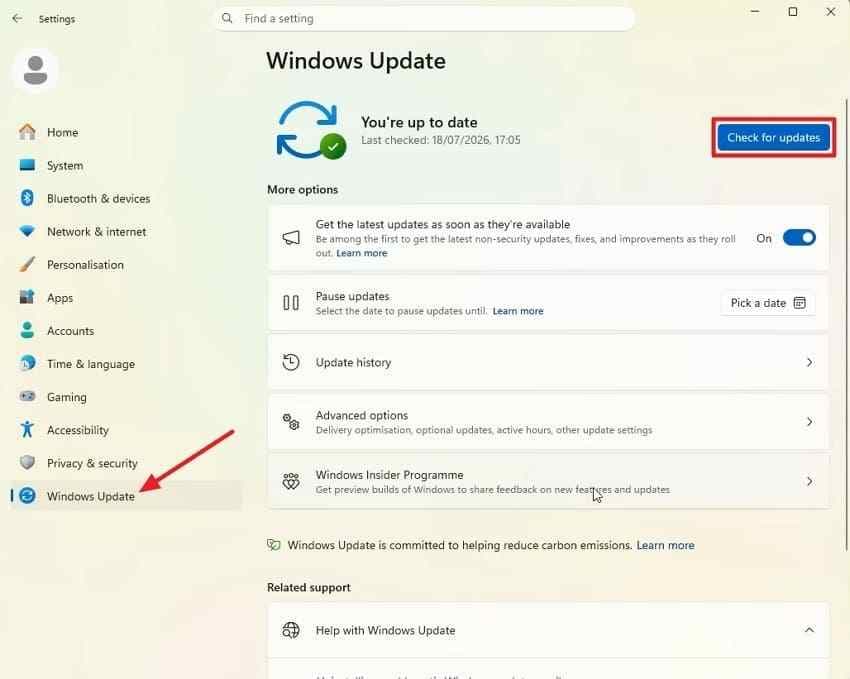
Instructions. Open “Settings > Windows Update”, select “Check for updates”, install applicable updates, and restart Windows.
Microsoft's current clean boot procedure isolates third-party services and startup apps while keeping essential Windows services available.
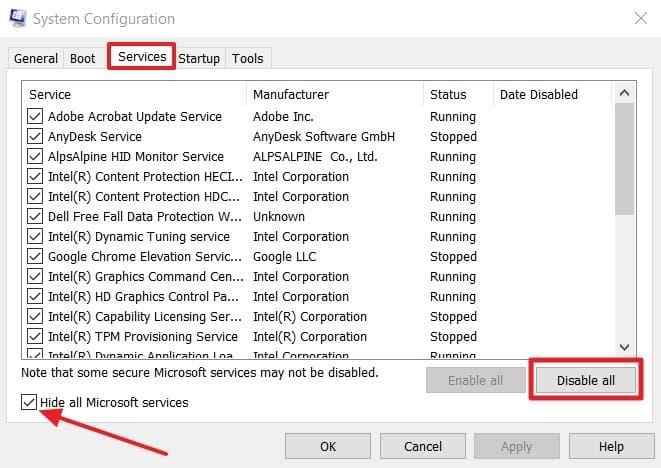
Step 1. Open “System Configuration > Services”, select “Hide all Microsoft services”, and choose “Disable all”.
Step 2. Open “Startup > Open Task Manager”, disable enabled startup apps, restart Windows, and test Chrome. If the problem stops, re-enable items in groups until you identify the conflict.
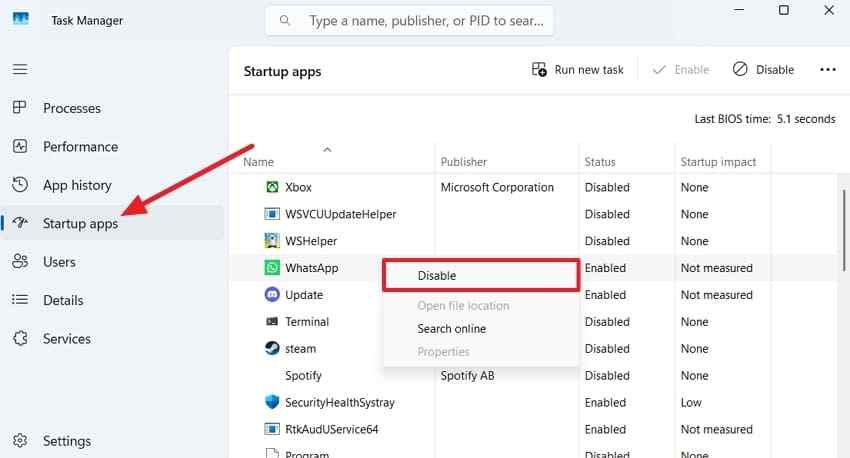
Note: A clean boot is a diagnostic state. Restore normal startup after testing.
Scan for Malware and Repair Windows Components
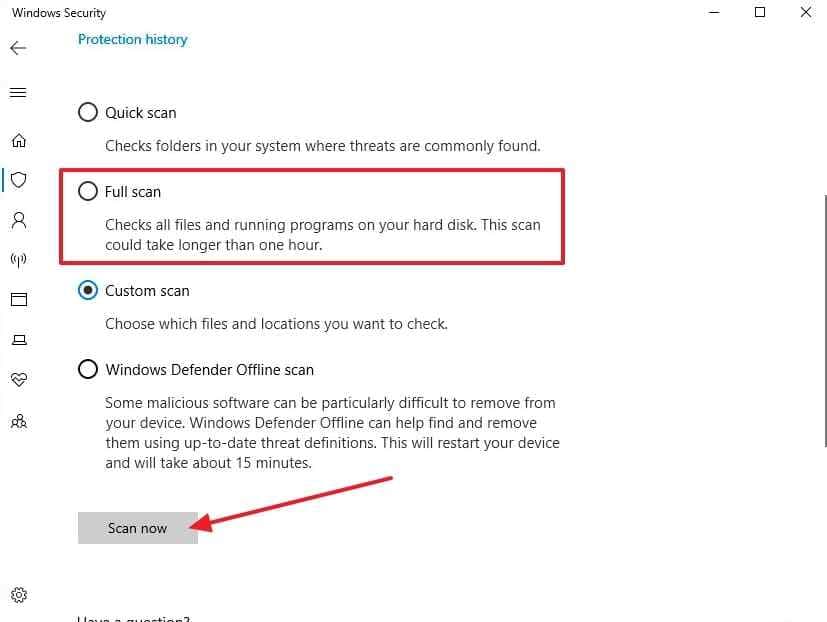
Malware or unwanted software can interfere with browsers and unrelated Windows apps. Microsoft documents a Full scan in Windows Security, plus Microsoft Defender Offline for cases where persistent malware is suspected.
Instructions. Open “Windows Security > Virus & threat protection > Scan options”, choose “Full scan”, and select “Scan now”.
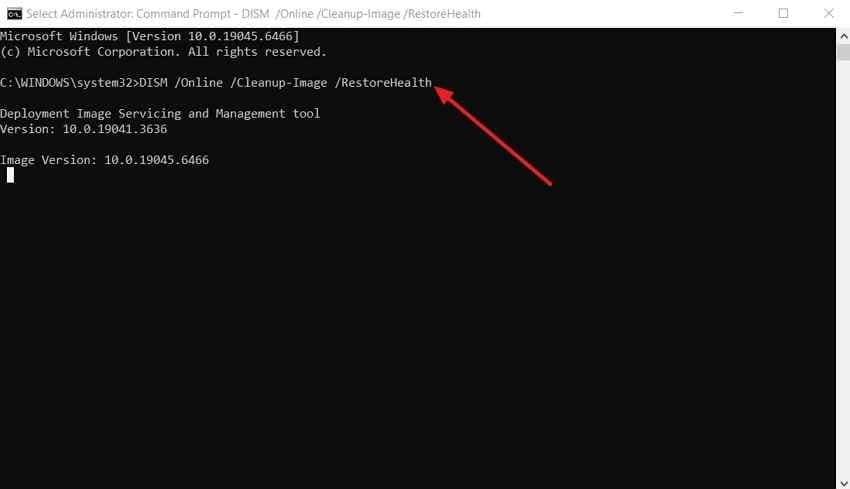
If several Windows components are failing or freezing, run DISM before SFC. Microsoft's current SFC guidance explicitly recommends DISM first.
For DISM. Open Command Prompt as administrator, enter DISM /Online /Cleanup-Image /RestoreHealth, press Enter, and wait for completion.
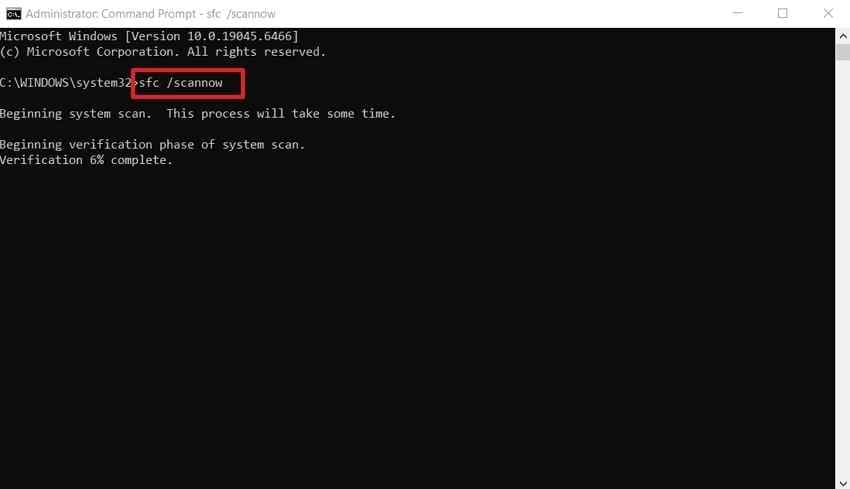
For SFC. In the same elevated Command Prompt, enter sfc /scannow, press Enter, and let verification reach 100% before restarting Windows.
Test RAM and the File System Only for System-Wide Crashes
If Chrome is the only unstable app, RAM and file-system testing is usually premature. Use these checks when unrelated programs also crash, stop codes appear, files become inaccessible, or the PC freezes outside Chrome.
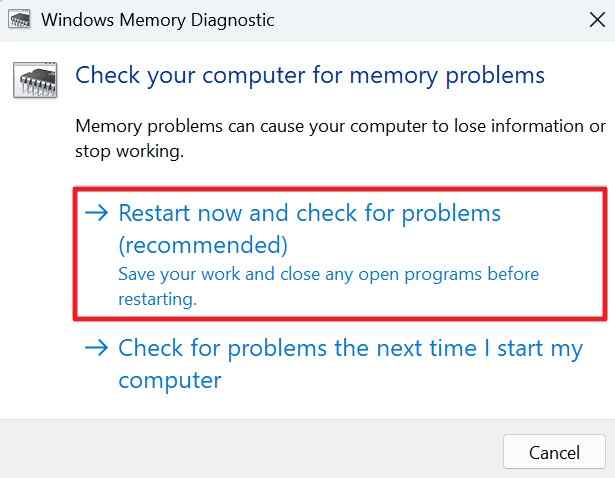
For RAM. Open “Windows Memory Diagnostic”, select “Restart now and check for problems”, and let Windows complete the test.
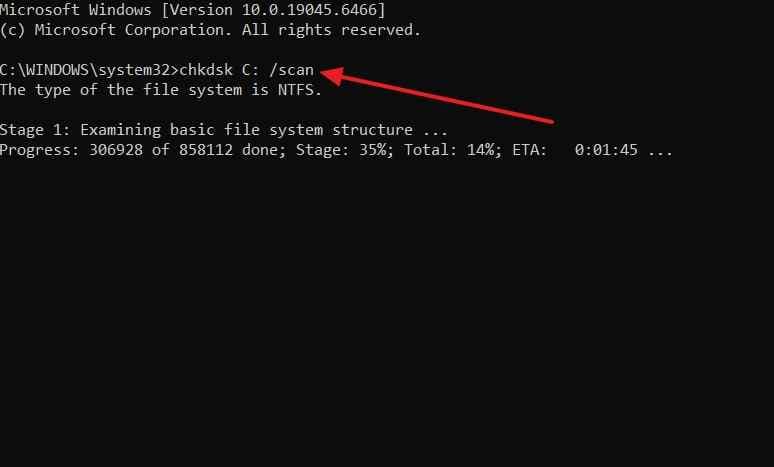
For the file system. Open Command Prompt as administrator, enter chkdsk C: /scan, and review the result. Microsoft's CHKDSK documentation describes this as a volume/file-system check. It is not a complete physical-health test for an SSD or hard drive.
Part 7. Recover Missing Chrome Downloads Only When Needed
A Chrome crash normally does not delete a download that was already completed and safely written to disk. Before using recovery software, confirm whether the file is actually missing rather than moved, renamed, still downloading, blocked by security software, or stored in another folder.
Check Normal Recovery Locations First
- Chrome download history: If Chrome opens, press Ctrl + J and check the recorded download path.
- Downloads folder: Search the normal Downloads folder and the location Chrome was configured to use.
- Recycle Bin: Restore the file directly if it was deleted normally and is still there.
- Cloud or backup copies: Check OneDrive, another synchronized folder, File History, or a separate backup if the download was saved there.
- Incomplete transfers: If a download never completed and the final file was never written to disk, data recovery software cannot promise to reconstruct it.
For a broader Windows 11 file-loss workflow, see Recover Files in Windows 11 before scanning the drive.
Recover Deleted or Missing Local Files With Recoverit
Use Recoverit only when a local file that had already been saved is genuinely deleted, missing, or inaccessible. Recoverit is not a Chrome repair tool and does not fix extensions, profiles, graphics drivers, Windows components, or browser crashes.
If normal checks fail, the current Recoverit file recovery workflow lets you select the affected location, scan for recoverable files, preview results, and save chosen files to another safe location.

Step 1. Select the Storage Drive
Open “Hard Drives and Locations” and choose the drive or location that previously stored the missing Chrome download.

Step 2. Scan for Missing Downloads
Let Recoverit scan the selected location. Use file filters or search details to narrow the results when many files are found.

Step 3. Preview and Recover Needed Files
Preview the files you need, select “Recover”, and save them to a different drive or safe location so you do not overwrite other recoverable data.

Conclusion
When Chrome keeps freezing or crashing on Windows 11, start by identifying whether the problem affects one tab, the whole browser, or Windows itself. For Chrome-only failures, the most useful path is to reduce workload, end leftover processes, update Chrome, isolate extensions and profile data, test graphics acceleration, inspect memory use, then reset or reinstall Chrome only if earlier checks fail. If unrelated Windows apps freeze too, move to clean boot, malware, system-file, memory, and file-system diagnostics. Use Recoverit only after actual local file loss has been confirmed.
Recover Missing Chrome Downloads Only When Needed
 Security Verified. Over 7,302,189 people have downloaded it.
FAQ
-
Why Does Chrome Keep Freezing on Windows 11?
Chrome can freeze because of a problematic webpage, an extension conflict, profile data, graphics acceleration, high memory use, or a broader Windows issue. First check whether one tab, the whole browser, or unrelated Windows apps are affected, then use the matching troubleshooting path. -
Why Does Google Chrome Keep Crashing on Windows 11?
Repeated Chrome crashes can come from extensions, damaged profile data, browser program files, graphics-driver conflicts, memory pressure, or third-party software. A fresh profile and an extensions-off test help determine whether the cause is inside Chrome before you repair Windows. -
Why Does Google Chrome Open and Close Immediately on Windows 11?
Immediate closing can be caused by leftover Chrome processes, profile problems, damaged installation files, third-party security software, or account-management controls such as Microsoft Family Safety on affected managed accounts. End all chrome.exe processes first, test a fresh profile, then reinstall from Google's official site if needed. -
Can Hardware Acceleration Cause Chrome to Crash on Windows 11?
Yes. GPU rendering or display-driver conflicts can make Chrome unstable on video or graphics-heavy pages. Turn graphics acceleration off temporarily and relaunch Chrome. If that stops the crash, update the graphics driver and retest before deciding whether to leave acceleration disabled.


