 TL;DR:
Diagnose and fix Windows 11 random freezes and crashes by first matching the specific failure pattern—such as temporary app hangs, complete system lockups, or continuous restart loops—to effectively target recent driver updates, resource limits, or hardware instability before attempting a destructive reset.
● Disable Automatically restart under Advanced system settings to capture the exact stop code or named driver before the PC reboots, noting that on Windows 11 version 24H2 and later, this fatal error screen may appear black instead of blue.
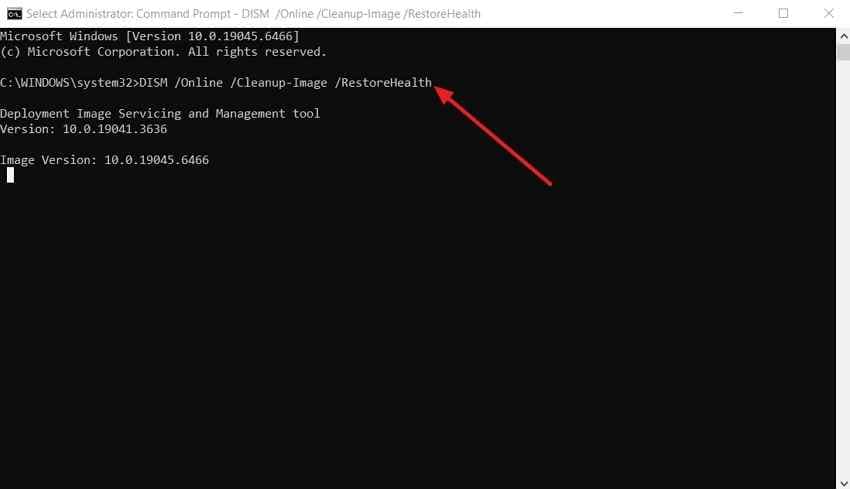
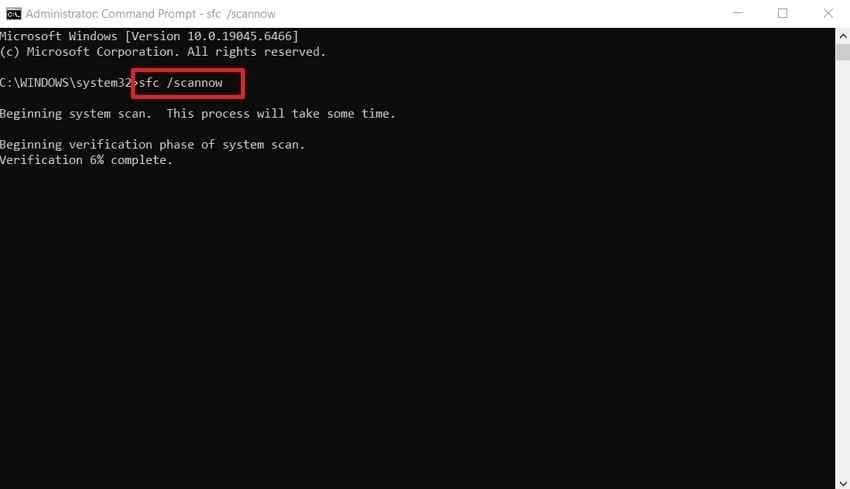
● Run the DISM /Online /Cleanup-Image /RestoreHealth command strictly before initiating sfc /scannow so the Windows component store is properly prepared to repair protected system files.
● Use Wondershare Recoverit exclusively to salvage missing or inaccessible files to a separate physical drive before performing a clean installation, as the software cannot repair a failing OS, unstable RAM, or physically damaged storage hardware.
Ask AI for a summary
 ChatGPT
 Perplexity
 Gemini
 Claude
 Grok
Grok
A Windows 11 random freeze can be a short hang that recovers, a desktop that stops responding, a complete PC lockup, or a crash followed by an automatic restart. A Windows 11 crash screen is different from an ordinary freeze: Windows has detected a serious error, stopped the system, and may show a stop code or a named driver or module.
The right fix depends on what actually fails. If one app freezes while Windows still responds, start with that app. If the whole PC locks, several unrelated programs crash, or the machine restarts under load, broaden the checks to drivers, Windows components, RAM, storage, temperatures, power, and firmware. Do not jump directly to Reset this PC or a clean installation while lower-risk diagnostics can still narrow the cause.
This guide keeps Windows 11 freezes, stop-code crashes, and restart loops technically separate. It also protects data before destructive repair. Wondershare Recoverit is introduced only if previously stored files become deleted, missing, formatted, or inaccessible; it is not a Windows, driver, RAM, storage-hardware, or power repair tool.
In This Article
Part 1. Identify the Windows 11 Freeze or Crash Pattern
Before applying fixes, classify what happens when the problem occurs. A computer keeps freezing on Windows 11 for many possible reasons, but the recovery behavior often tells you which layer to check first.
Quick Diagnosis: Match the Failure Pattern
| What the PC Does | What It May Indicate | Best Starting Point |
| One app freezes while Windows still responds | App-specific problem, extension, plug-in, or background conflict | Fix the affected app first; use Part 3 only if other apps are also unstable |
| Windows hangs for a few seconds, then recovers | Resource pressure, storage latency, an app stall, or a temporary driver delay | Parts 3 and 4 |
| The whole PC locks and needs a power-off | Driver instability, RAM, storage, thermal, power, or other low-level fault | Parts 3 and 6 |
| The PC restarts without warning | Power, heat, hardware instability, or a hidden stop-code crash | Parts 6 and 7 |
| A stop code appears before restart | Windows bug check involving software, a driver, or hardware | Part 7 |
| Freezes happen mainly during gaming or heavy workloads | GPU driver, RAM, heat, power, tuning, or workload-specific software | Parts 3 and 6; see the related Windows 11 gaming freeze guide |
Freeze vs Stop-Code Crash vs Restart Loop
- Freeze: The screen or desktop stops responding, but Windows may not display a fatal error. A freeze can recover on its own or require a forced shutdown.
- Stop-code crash: Windows detects a serious problem and halts. Microsoft calls this a stop code error, bug check, kernel error, blue screen error, or black screen error depending on the Windows version and presentation.
- Restart loop: Windows crashes or fails during startup and automatically restarts before you can read the error or reach a stable desktop.
On Windows 11 version 24H2 and later, Microsoft documents a black stop-error screen for some builds. A plain black screen without a stop message or code is a different symptom and should not automatically be treated as a system crash.
Startup Freeze vs Random In-Session Freeze
A startup freeze happens while firmware, boot components, drivers, services, or sign-in components are loading. A random in-session freeze happens after Windows has already reached a usable desktop. If your issue is concentrated at the Windows logo, sign-in screen, or immediately after login, use the dedicated Windows 11 freeze on startup guide instead of applying every in-session fix below.
Part 2. Take the Safest First Actions
Random crashes can destroy useful evidence if you change several drivers, services, or Windows settings at once. Start with reversible checks and record the failure before deeper repair.
Capture Evidence Before Changing Windows
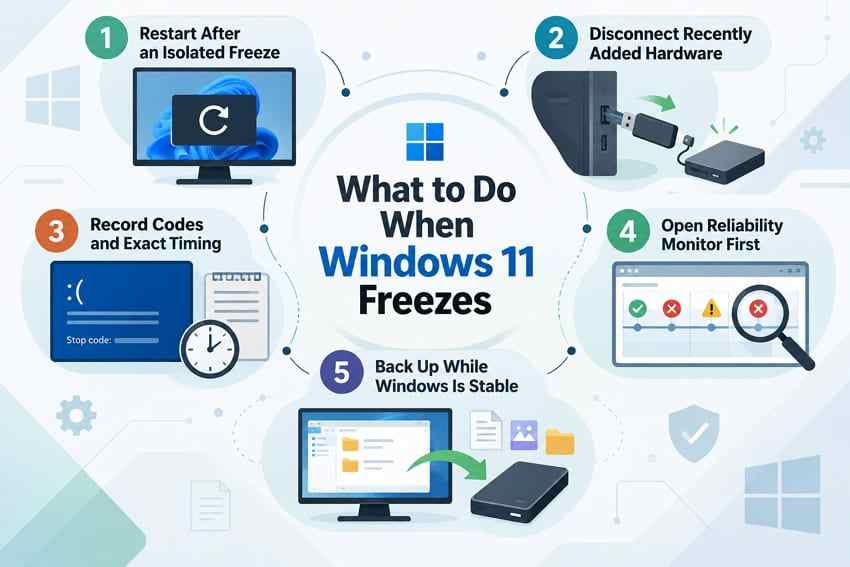
- Restart after an isolated freeze: If this was a one-time event, restart once and note the app, workload, and devices that were active.
- Disconnect recently added hardware: Temporarily remove nonessential USB devices, hubs, docks, capture devices, and external drives, then retest.
- Record the exact failure time: Write down any stop code, named driver, error message, and the minute the freeze or restart occurred.
- Check Reliability Monitor: Press "Windows + R", enter "perfmon /rel", and compare critical events with the failure time before changing several things at once.
Protect Important Files While Windows Is Stable
If Windows still works normally between crashes, copy important local files to another drive or backup location now. Repeated forced shutdowns, a deteriorating drive, or a later reset can make data protection harder. Recovery software is not a substitute for a normal backup when files are still accessible.
Part 3. Fix Recent Windows, Driver, and Software Changes
If the problem began after a clear change, investigate that change first. This is more efficient than updating every driver, uninstalling unrelated software, or resetting Windows.
Fix 1. Install Applicable Windows Updates and Check Release Health
Microsoft notes that Windows updates can include stability, security, and driver improvements. However, if the freezes began immediately after a recent update, first check Windows release health for a known issue or newer remediation rather than assuming the newest package should always be removed.
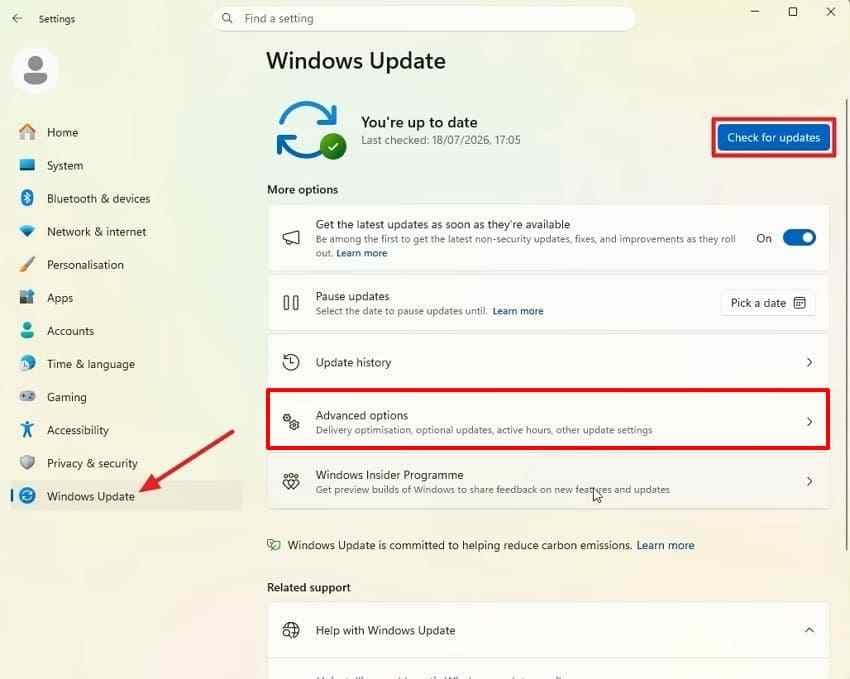
Instructions. Open "Settings > Windows Update" and choose "Check for updates". Install applicable Windows updates, restart, and retest. Review "Advanced options > Optional updates" only for drivers that match the hardware or failure pattern you are investigating.
Fix 2. Update or Roll Back the Driver That Matches the Timeline
A Windows 11 crash that begins immediately after a graphics, chipset, storage, or other device-driver change makes that specific driver a reasonable suspect. Do not update or roll back every device at once.
Step 1. Identify the Device and Current Driver
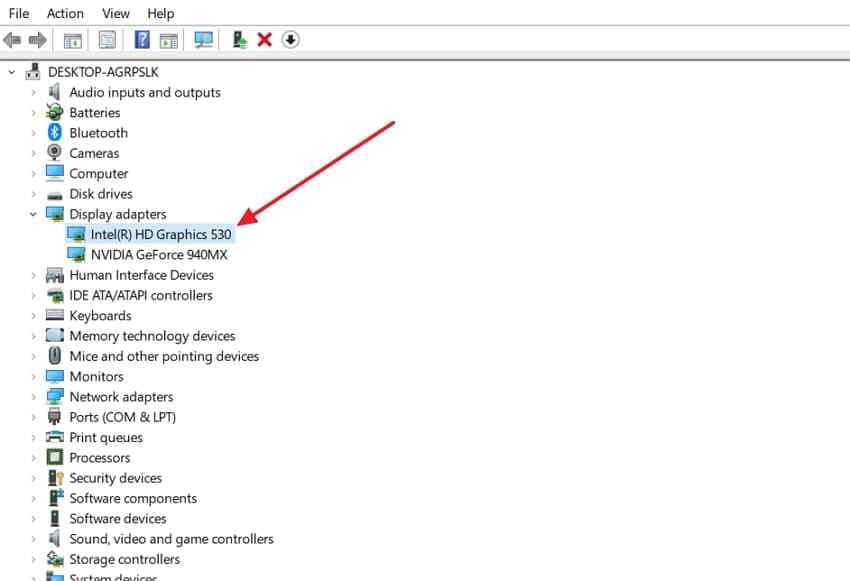
Open "Device Manager", locate the device related to the failure, and note its exact model, driver provider, version, and date.
Step 2. Update From the Appropriate Vendor
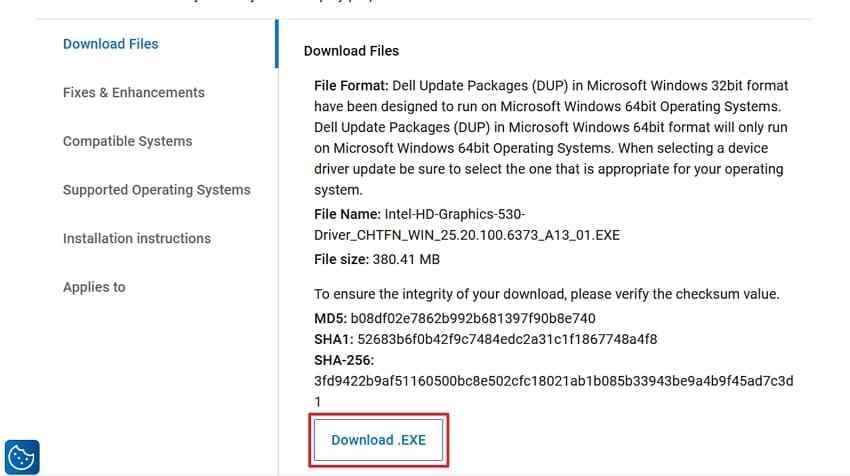
Check the PC manufacturer's support page first for validated laptop or prebuilt-system drivers. If the OEM does not provide a newer applicable package, use the hardware manufacturer's official support site.
Instructions. If the crash started after a recent driver update, open "Device Manager > relevant device > Properties > Driver" and select "Roll Back Driver" when the button is available. Restart and retest before changing anything else.
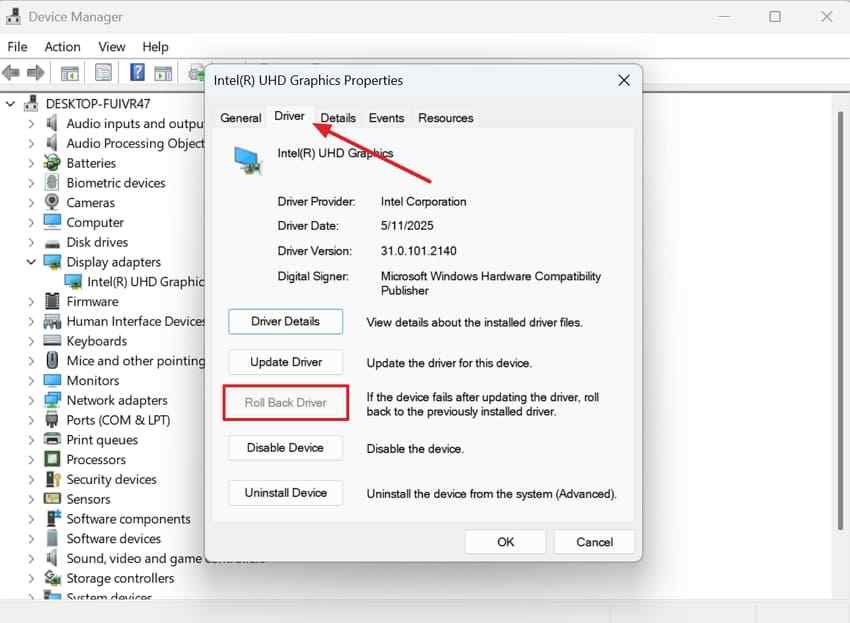
Note: If "Roll Back Driver" is unavailable, Windows does not currently have a previous driver package available through that interface.
Fix 3. Remove Software Conflicts With Safe Mode and Clean Boot
Recently installed security tools, overlays, monitoring utilities, RGB software, storage tools, and other background programs can destabilize Windows. Remove or disable the most recent suspect one at a time.
Step 1. Review Recently Installed Apps
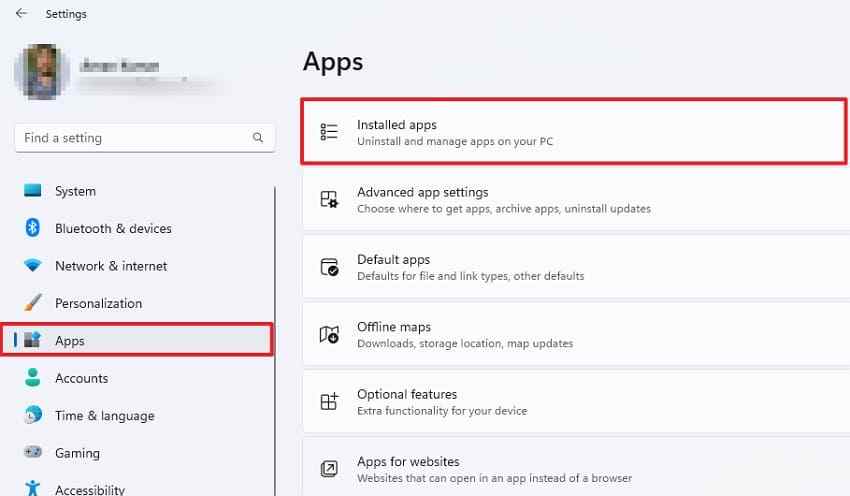
Open "Settings > Apps > Installed apps" and sort or review by installation date.
Step 2. Uninstall One Strong Suspect at a Time
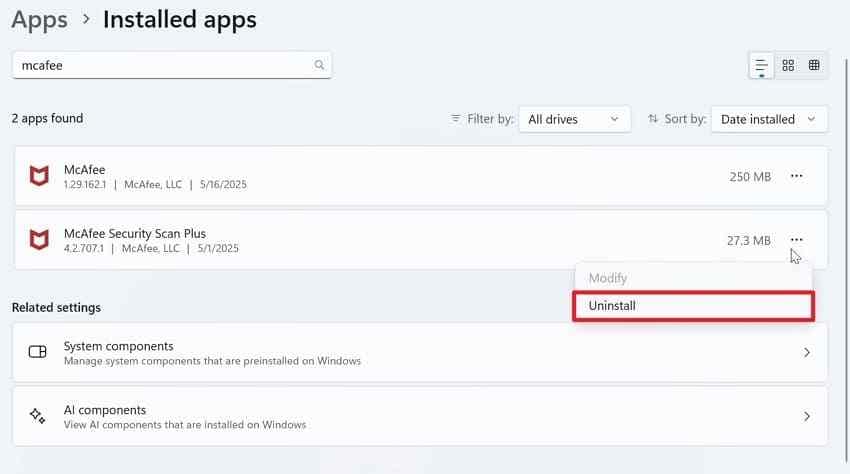
Select the recently added utility that matches the start of the problem, choose "Uninstall", restart Windows, and retest before removing another program.
For a cleaner comparison, start Safe Mode. If Windows is stable there, a nonessential driver, service, or startup program becomes a stronger suspect.
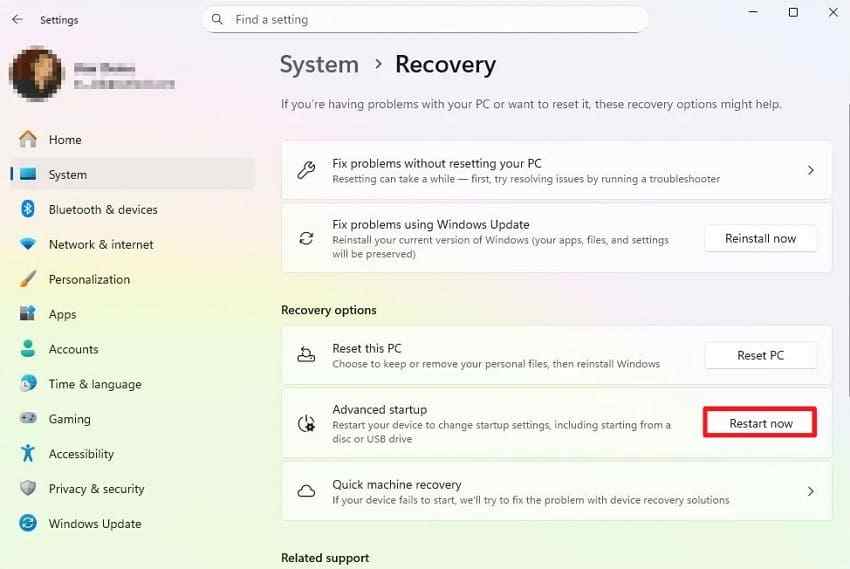
Step 1. Enter Advanced Startup
Open "Settings > System > Recovery" and select "Restart now" beside "Advanced startup".
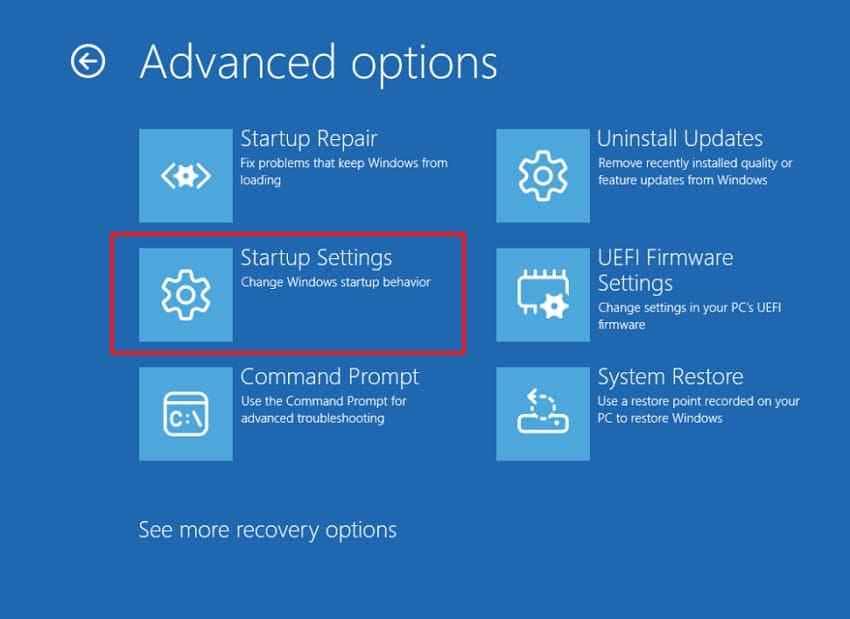
Step 2. Open Startup Settings
In WinRE, choose "Troubleshoot > Advanced options > Startup Settings > Restart".
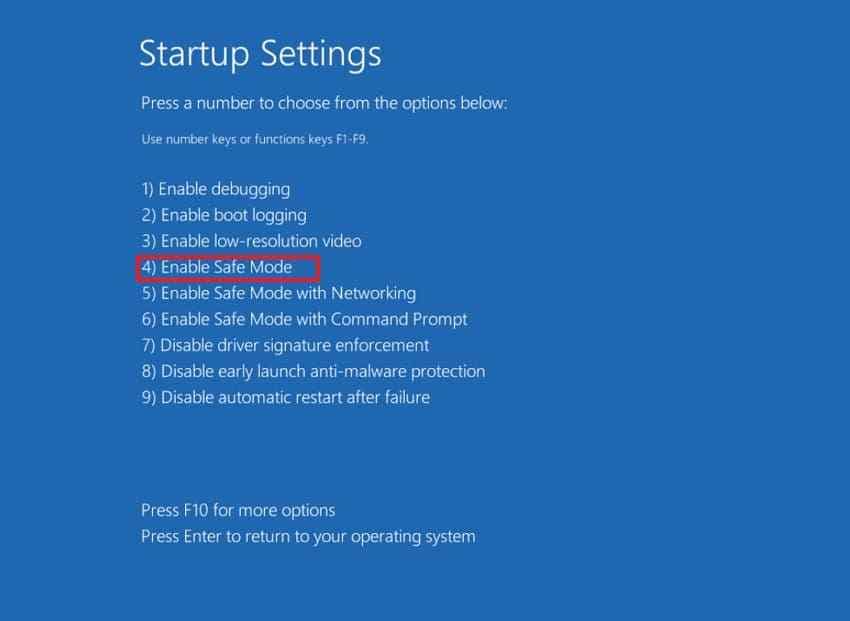
Step 3. Start Safe Mode
Press "4" or "F4" for Safe Mode, then reproduce the activity that normally causes the freeze.
If Safe Mode is stable but the conflict is still unclear, use Microsoft's clean boot procedure to isolate third-party services and startup apps. Re-enable disabled items gradually after testing so the PC does not remain in a diagnostic startup state.
Part 4. Reduce Resource and System-Drive Pressure
If Windows 11 hangs and later recovers, the PC may be stalling under CPU, memory, disk, GPU, or storage-space pressure rather than suffering a fatal crash.
Fix 4. Check CPU, Memory, Disk, and GPU Pressure
Step 1. Press "Ctrl + Shift + Esc" and open "Task Manager > Performance". Watch CPU, memory, disk, and GPU usage during the activity that precedes the slowdown.
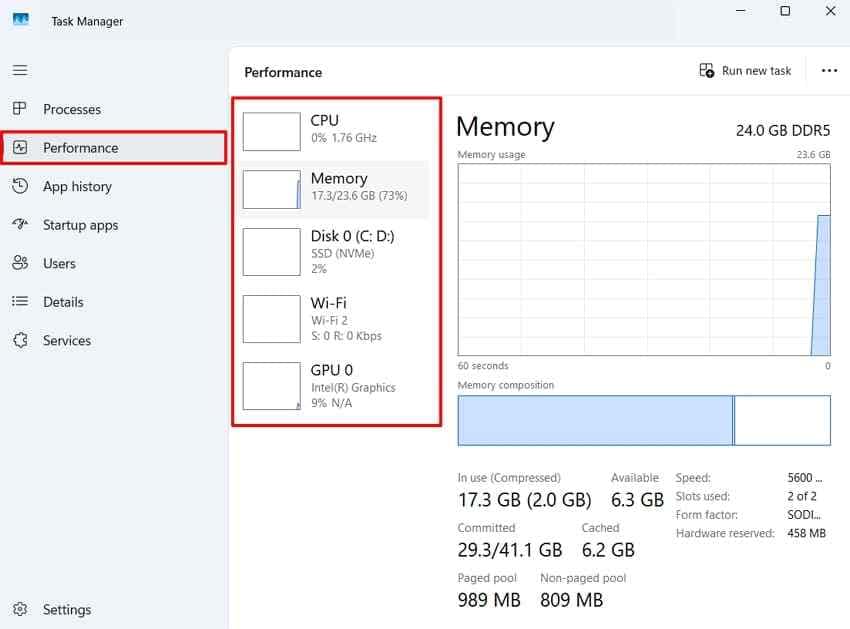
Step 2. Open "Processes" and sort by the resource that spikes. If one third-party app repeatedly exhausts that resource, close, update, repair, or troubleshoot that app first.
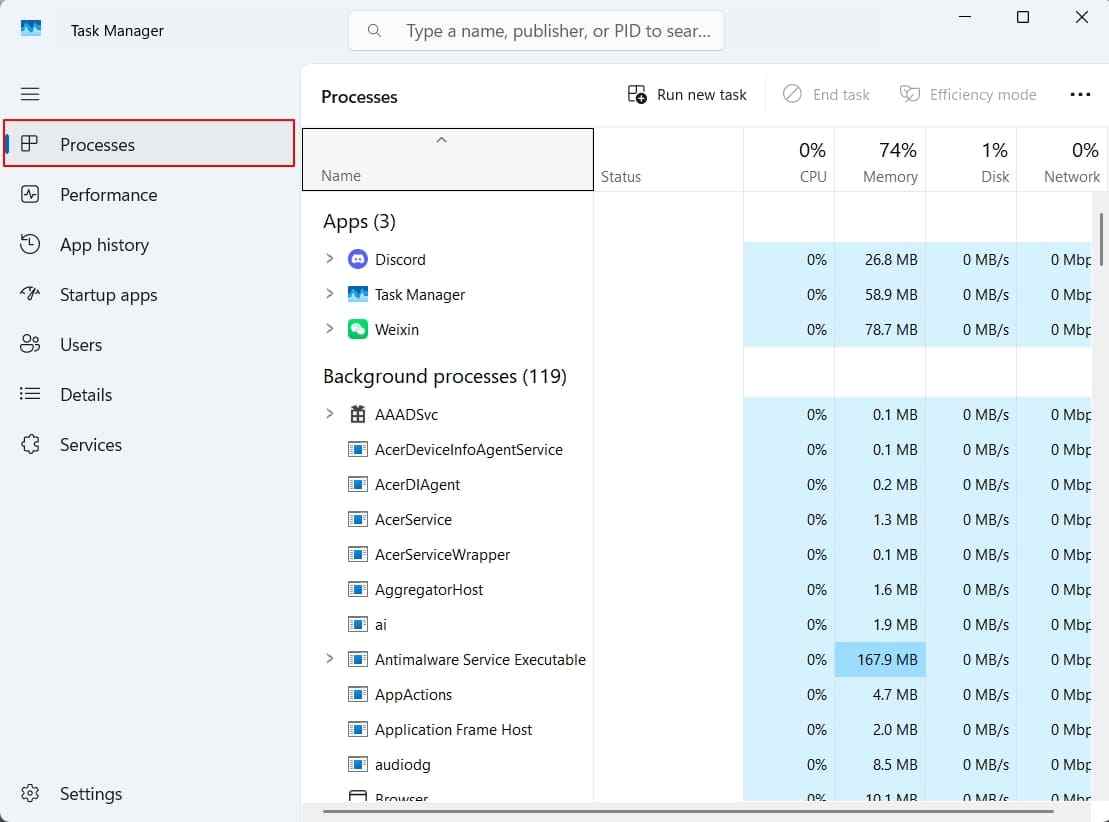
Note: Avoid ending unfamiliar Windows system processes simply because they show activity. Some Windows components will restart, and terminating the wrong process can make diagnosis harder.
Fix 5. Free System-Drive Space and Review Health Warnings
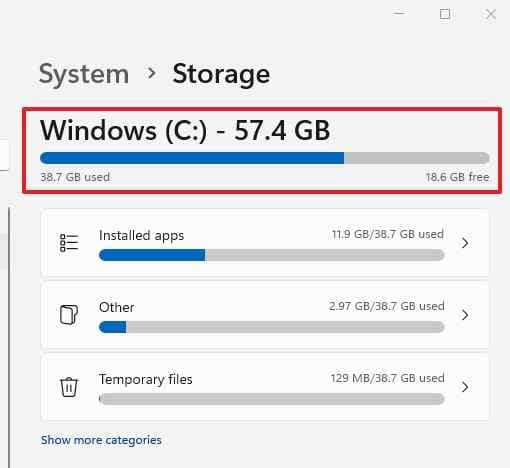
Low free space can interfere with temporary files, updates, paging, and normal Windows maintenance. Microsoft recommends keeping enough space available for Windows and applications to operate normally.
Step 1. Open "Settings > System > Storage" and review available space on the Windows system drive.
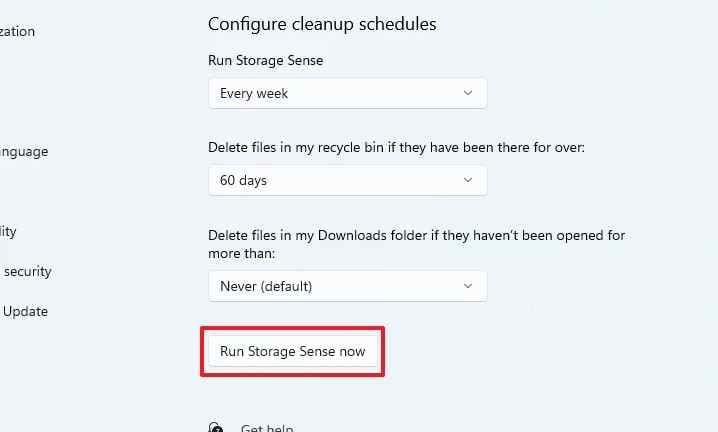
Step 2. Open Storage Sense, review what it is configured to remove, and run it only after checking Recycle Bin, Downloads, and cloud-content settings.
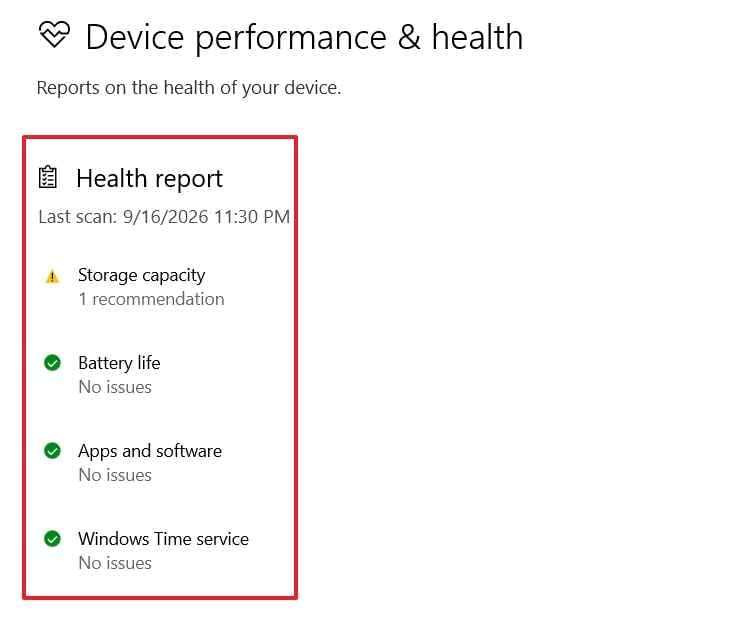
Also review Windows Security Device performance & health for storage capacity, battery, software, or system-health warnings.
Part 5. Repair Windows Components
Move to Windows component repair after app-specific, driver, and resource causes are less likely. This prevents a broad repair step from hiding a simpler trigger.
Fix 6. Run DISM Before SFC
Microsoft's current SFC guidance recommends repairing the Windows component store with DISM before scanning protected system files with SFC.
For DISM. Open "Command Prompt" as administrator and run "DISM /Online /Cleanup-Image /RestoreHealth". Wait for the command to finish.
For SFC. In the same elevated Command Prompt, run "sfc /scannow". Let verification complete, restart Windows, and retest.
Fix 7. Reverse Recent System Changes or Repair-Reinstall Windows
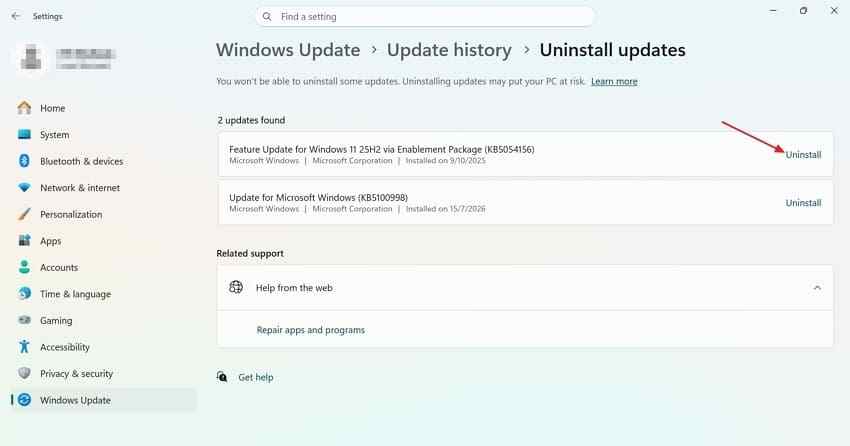
Use rollback tools only when the timing fits. If freezing began immediately after one quality update, check Microsoft release health and newer updates first. If rollback is still appropriate, remove only the eligible update that matches the timeline.
Instructions. Open "Settings > Windows Update > Update history > Uninstall updates" and remove the recent eligible quality update only when the evidence points to it.
System Restore can roll system files, drivers, registry settings, and installed programs back to a restore point without deleting personal files.
Step 1. Open "Create a restore point > System Restore".
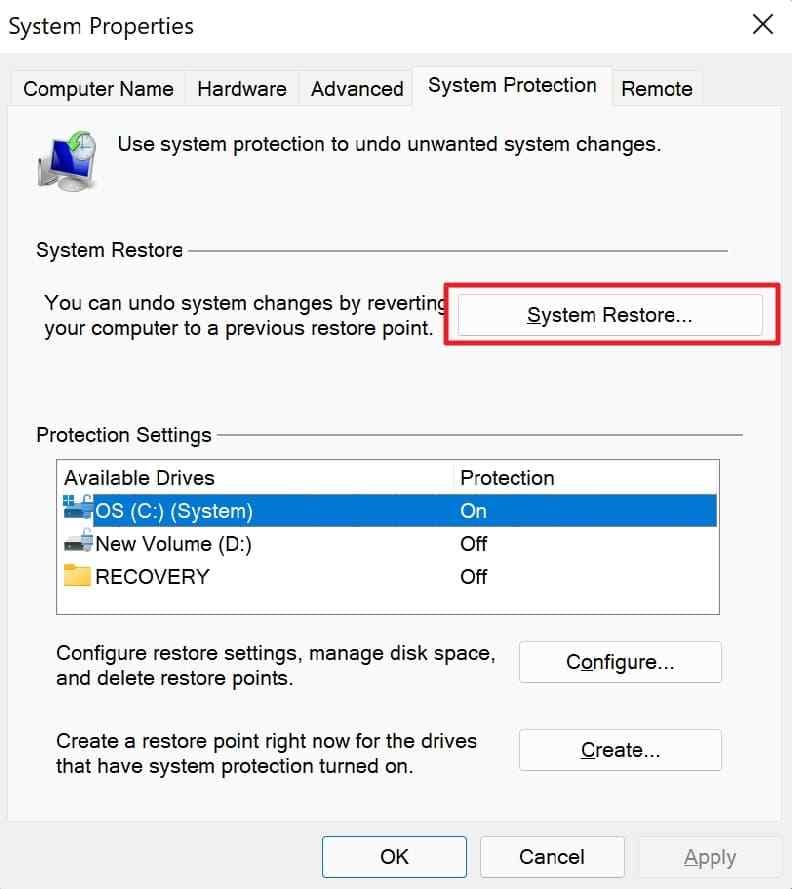
Step 2. Choose a restore point from before the freezes began, review affected programs, and complete the restore.
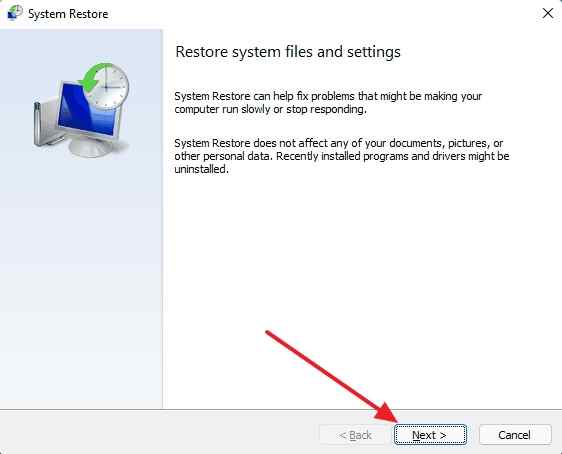
Do not confuse classic System Restore with newer Point-in-time restore options on some Windows 11 version 24H2 or later systems. Microsoft documents that Point-in-time restore can also roll personal files back to a recent automatic snapshot, so protect current files before using it.
If component corruption continues and Windows can still boot, Microsoft's Windows Update repair reinstall can reinstall the current Windows version while preserving apps, files, and settings on supported systems.
Step 1. Open "Settings > System > Recovery" and select "Reinstall now" under "Fix problems using Windows Update" when the option is available.
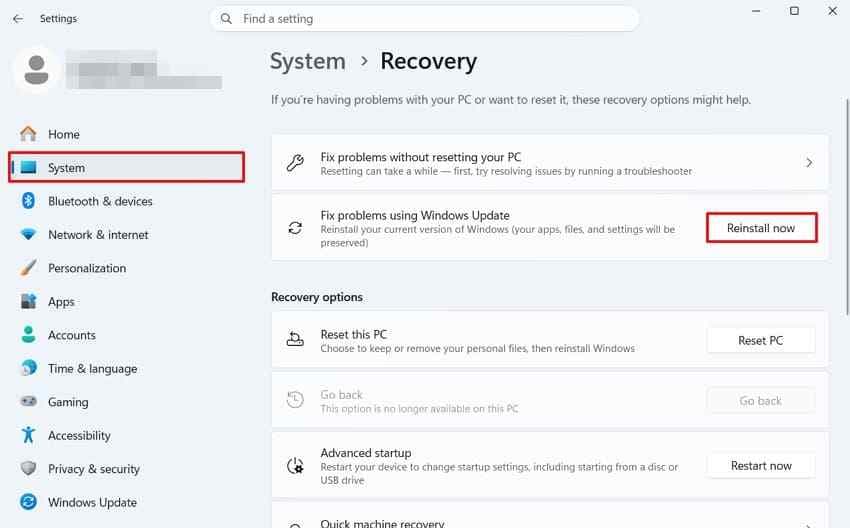
Step 2. Follow the prompts, keep the PC connected to power and the internet, and allow Windows to finish before retesting stability.
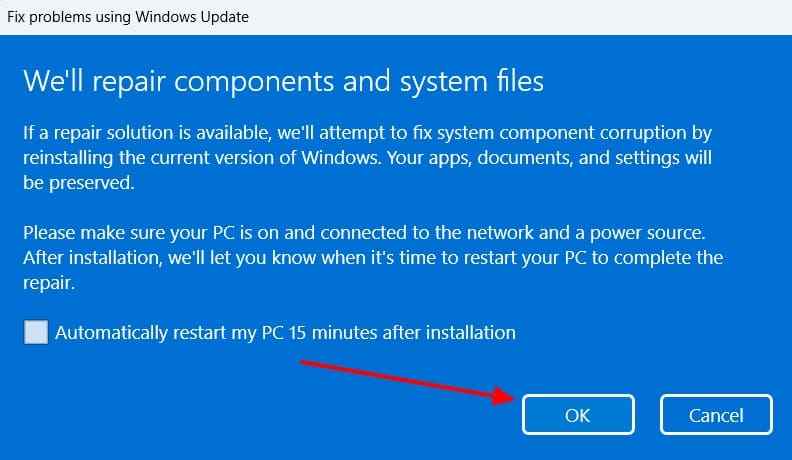
Note: If the option is unavailable, use compatible Windows 11 installation media for an in-place reinstall only after confirming the edition, language, and keep-files-and-apps option are appropriate.
Part 6. Test RAM, Storage, Temperatures, and Power
If a laptop keeps freezing on Windows 11 after software repairs, or unrelated applications fail in different ways, hardware stability becomes more important. Test one hardware layer at a time instead of assuming a single component has failed.
Fix 8. Test RAM When Failures Are Broad or Random
Random multi-app crashes, varying stop codes, and freezes that continue in Safe Mode can justify a memory test. Windows Memory Diagnostic can run a basic or extended memory check.
Instructions. Search for "Windows Memory Diagnostic" and choose "Restart now and check for problems". After Windows restarts, review the result. Microsoft also documents that results can be checked in Event Viewer if the notification is missed.
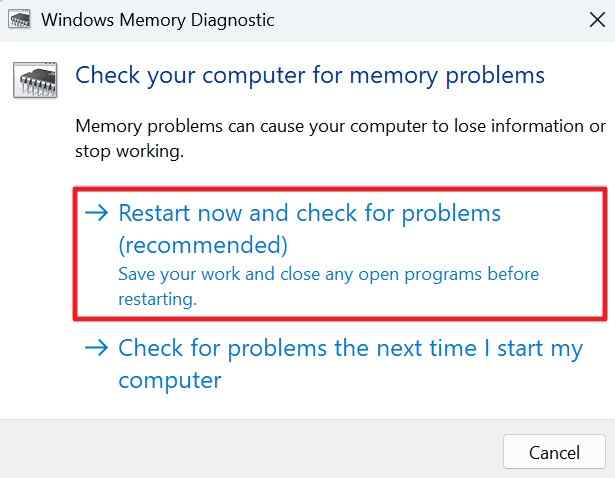
If symptoms still strongly suggest memory instability, use the PC or memory manufacturer's diagnostic guidance rather than assuming one passing quick test proves every DIMM and memory profile is stable.
Fix 9. Check Storage, Tuning, Temperatures, and Power Stability
Storage delays can produce freezes, while thermal, voltage, or power-delivery problems can trigger lockups and sudden restarts. Use evidence from the failure pattern to decide which check matters.
Step 1. Check Reported Storage Status
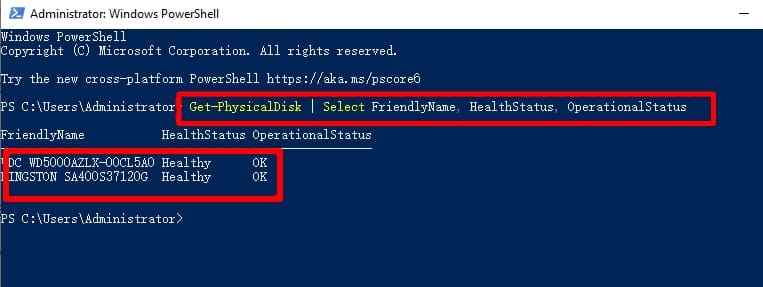
Open PowerShell as administrator and run Get-PhysicalDisk. Treat "HealthStatus" and "OperationalStatus" as a first-level Windows report, not a complete SSD or HDD hardware diagnosis.
Step 2. Scan the File System Before Repairing It
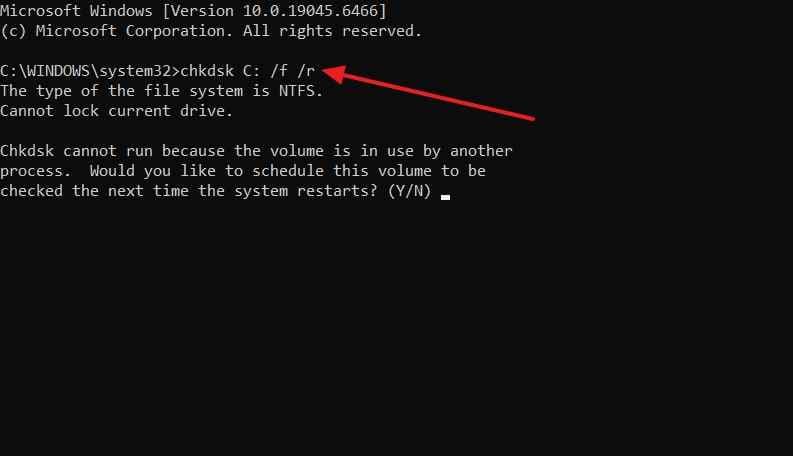
After important data is backed up, run "chkdsk C: /scan" for a non-disruptive NTFS scan. Microsoft's current CHKDSK documentation distinguishes the online "/scan" check from repair parameters such as "/f" and "/r". Do not repeatedly run write-heavy repair scans on a drive that disconnects, disappears, reports hardware failure, or makes abnormal mechanical noises.
Only after data is protected: If Windows reports file-system errors that require an offline repair, follow the repair recommendation once. The example below shows a scheduled CHKDSK repair workflow rather than a universal first step.
Step 3. Return Tuning to Supported Defaults
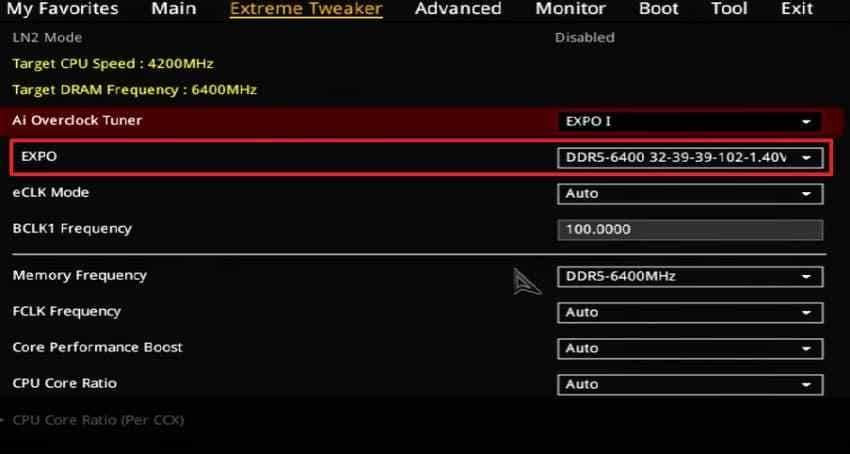
If the PC uses CPU/GPU overclocking, undervolting, XMP, or EXPO, restore supported defaults temporarily and retest. BIOS/UEFI menus vary by motherboard and PC model, so use the device or motherboard manual instead of assuming "Delete" or "F2" works on every system.
Step 4. Check Heat and Power Behavior
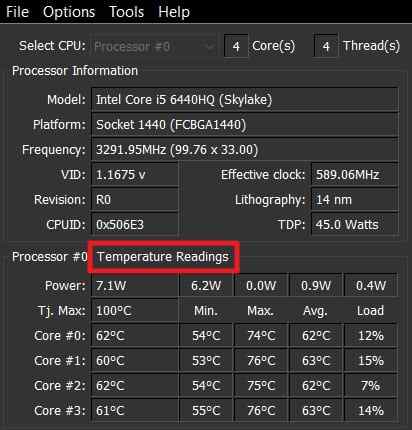
Use the PC manufacturer's diagnostics or a reputable hardware sensor utility to compare CPU and GPU temperatures with the component vendor's specifications. Avoid universal temperature cutoffs because limits vary by processor and GPU. If the PC restarts mainly under load, also inspect the power adapter, desktop PSU, cables, battery health, and any recent hardware change.
Part 7. Diagnose Stop Codes and Restart Loops
If Windows 11 keeps crashing and restarting, capture the error before applying more fixes. A stop code is a clue to the failure class; a named module or driver can narrow the investigation, but it does not automatically identify the root cause.
Fix 10. Capture and Compare Stop Codes Before the PC Restarts
Microsoft's current guidance for unexpected restarts and stop code errors distinguishes a stop-error screen from a plain black screen. On Windows 11 version 24H2 and later, the stop screen may appear black rather than blue.
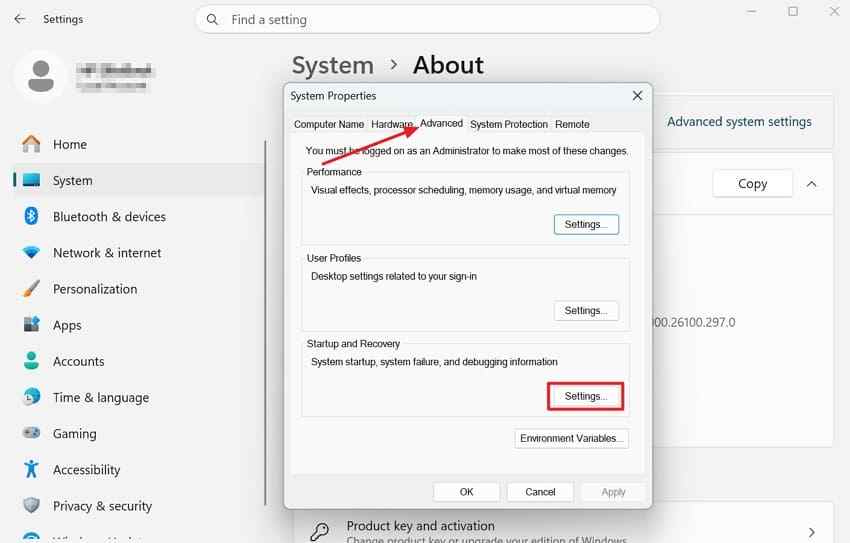
Step 1. Open "Settings > System > About > Advanced system settings". Under "Startup and Recovery", choose "Settings".
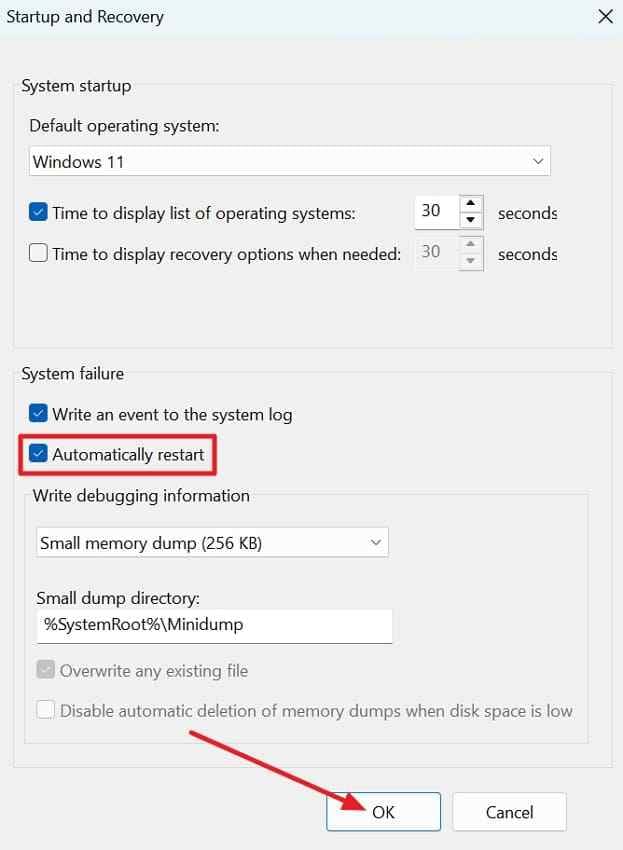
Step 2. Clear "Automatically restart" temporarily so the next stop screen remains visible long enough to record the code and any named driver. Re-enable automatic restart after diagnosis if you prefer the default behavior.
Compare repeated codes with Microsoft's bug check code reference. Repeated crashes showing the same driver can focus the investigation. Different codes across unrelated workloads make RAM, storage, power, firmware, or other hardware instability more plausible and justify the broader checks in Part 6.
Use WinRE and Quick Machine Recovery Only When Startup Is Failing
If Windows cannot stay running or enters a restart loop, use Windows Recovery Environment. Microsoft recommends choosing the least disruptive recovery option that matches the problem and backing up important files before options that can remove data.
Quick Machine Recovery is available on supported Windows 11 version 24H2 or later systems for repeated startup failures caused by a known, widespread issue. It is not a general fix for unstable RAM, a failing SSD, overheating, a bad PSU, or every restart loop.
Part 8. Recover Files Before Resetting or Reinstalling Windows
A freeze or crash does not automatically mean files are lost. First check the Recycle Bin, cloud sync history, application auto-recovery, File History, and other backups. Do not promise recovery of work that was never written to storage.
When Recoverit Is Appropriate
If previously stored files are genuinely deleted, missing, formatted, or inaccessible and the source storage is still detectable, Wondershare Recoverit for Windows can scan supported storage and let you preview detected files before recovery. Save recovered files to a different drive to reduce overwrite risk.
If Windows will not boot but the internal drive is still detectable, use the dedicated Windows System Recovery workflow or the guide to recover data when a PC will not boot before resetting or reinstalling Windows.
Important: Recoverit does not repair Windows, drivers, RAM, storage hardware, overheating, power delivery, or BitLocker encryption. If the drive is physically failing, repeatedly disconnects, or is not detected by the system, stop DIY write-heavy repair and consider professional data recovery.
How to Recover Stored Files Before a Destructive Repair
Use the normal desktop workflow only if Windows is stable enough to run recovery software and the source drive remains readable. If Windows cannot remain running, use the bootable workflow linked above instead.
Step 1. Choose the Drive That Lost Data
Open Recoverit, choose "Hard Drives and Locations", and select the drive that previously contained the missing files.

Step 2. Scan and Narrow the Results
Let Recoverit scan the selected drive. Use the available file filters and search controls to narrow the results instead of recovering everything blindly.

Step 3. Preview and Recover to Another Drive
Preview the files you need, select "Recover", and save recovered data to a different physical drive before proceeding with Reset this PC, formatting, or a clean installation.


Conclusion
When Windows 11 keeps freezing or crashing randomly, begin with the failure pattern rather than a generic list of fixes. A temporary hang, a full lockup, a stop-code crash, and a restart loop point to different troubleshooting priorities. Start with evidence and recent changes, then check resource pressure and Windows components before moving to RAM, storage, temperatures, and power.
Keep reset and clean installation near the end of the process. If important stored files become missing or inaccessible, protect or recover those files before destructive recovery steps instead of using data recovery software as a substitute for Windows troubleshooting.
FAQ
-
Why Does Windows 11 Keep Freezing Randomly?
Random freezes can come from resource pressure, a driver or background-software conflict, storage latency, unstable RAM, overheating, power problems, or broader hardware instability. Whether Windows recovers, locks completely, or restarts is an important clue to which layer to test first. -
Why Does My PC Keep Freezing on Windows 11 but Not Crashing?
A freeze without a visible stop code means Windows stalled without presenting a bug-check screen. Check the trigger, Reliability Monitor, Task Manager resource use, drivers, storage behavior, and whether the same freeze occurs in Safe Mode. -
What Does the Windows 11 Crash Screen Mean?
A Windows 11 crash screen means Windows detected a serious condition and stopped the system. The stop code and any named driver or module can narrow diagnosis, but they do not always identify the root cause. On Windows 11 version 24H2 and later, the stop screen may be black rather than blue. -
Why Does Windows 11 Keep Crashing and Restarting?
Repeated crash-and-restart cycles can involve drivers, Windows components, RAM, storage, firmware, overheating, power delivery, or another hardware fault. Temporarily disabling automatic restart can help capture the stop code, but it does not fix the underlying cause.


