 TL;DR:
To resolve a Windows 10 Safe Mode black screen without losing data, bypass the failed desktop shell by manually launching Explorer, executing specific repair commands via WinRE, or extracting files with bootable media before attempting a system reset.
● If a cursor is visible on the black screen, press Ctrl + Shift + Esc to open Task Manager and run explorer.exe to force the desktop to load, or open Command Prompt and execute bcdedit /deletevalue {current} safeboot to exit a forced Safe Boot loop.
● When standard Safe Mode completely fails to display, access the Windows Recovery Environment (WinRE) to select Enable low-resolution video, uninstall recent updates, or run System Restore to bypass graphics initialization failures.
● Before performing destructive actions like resetting the PC or running CHKDSK, use Recoverit Windows Data Recovery to create a bootable USB and extract files from the readable drive, though this tool cannot repair Windows system files, fix hardware, or bypass BitLocker without the recovery key.
Ask AI for a summary
 ChatGPT
 Perplexity
 Gemini
 Claude
 Grok
Grok
A Safe Mode Windows 10 black screen means Windows is trying to start with limited drivers and services, but the display, desktop shell, user profile, startup files, or hardware still prevents you from using the PC. Safe Mode is meant for diagnosis, so a black screen there usually needs more careful troubleshooting than a normal app conflict.
The symptom can appear in different ways. You may see a black screen before login, a black screen with cursor, a black desktop after login, or a Safe Mode loop that never returns to normal Windows. In some cases, Safe Mode with Command Prompt works even when the standard Safe Mode desktop stays black.
This guide explains how to diagnose and fix Windows 10 black screen in Safe Mode without rushing into reset or reinstall. If important files are still on the PC, recover or back them up before disk repair, Reset this PC, clean install, or hardware service. Recoverit Windows Data Recovery can help recover files from readable Windows drives when the PC cannot boot normally. Recoverit cannot repair Safe Mode, fix Windows startup, repair a monitor or GPU, bypass passwords, or decrypt BitLocker without the recovery key.
In this article
-
- Fix 1. Force Restart Once and Re-Enter Safe Mode Correctly
- Fix 2. Check Monitor, Cable, Input Source, and Display Output
- Fix 3. Try Enable Low-Resolution Video Instead of Safe Mode
- Fix 4. Try Safe Mode With Command Prompt
- Fix 5. Launch Windows Explorer Manually From Task Manager
- Fix 6. Exit a Safe Mode Boot Loop From Command Prompt
- Fix 7. Create or Test Another User Profile
- Fix 8. Roll Back, Uninstall, or Reinstall the Display Driver
- Fix 9. Uninstall Recent Windows Updates, Drivers, or Problematic Software
- Fix 10. Disable Fast Startup and Hibernation
- Fix 11. Run DISM and SFC to Repair Windows System Files
- Fix 12. Run a Malware Scan in Safe Mode With Networking
- Fix 13. Perform System Restore From Safe Mode or WinRE
- Fix 14. Run Startup Repair From Windows Recovery Environment
- Fix 15. Reset or Reinstall Windows 10 Only as a Last Resort
Part 1. What Does a Black Screen in Windows 10 Safe Mode Mean?
Safe Mode starts Windows with a limited set of files, drivers, and services. It disables many startup apps and nonessential components so you can troubleshoot problems. If Safe Mode still opens to a black screen, the cause may be deeper than a normal startup app.
The black screen timing matters:
- Before login: Display output, boot files, graphics initialization, drive errors, or hardware may be involved.
- After login: Explorer, user profile, system files, or permissions may be blocking the desktop.
- With cursor: Windows loaded partly, but the desktop shell may not have started.
- Task Manager works: Windows is responsive enough to run Explorer, Command Prompt, Device Manager, or recovery tools.
- Safe Mode and normal boot both fail: Windows, storage, display hardware, RAM, GPU, or system files may need deeper recovery.
This problem is different from a regular Windows black screen after startup. Safe Mode already removes many optional components, so focus on display output, Explorer, profile, driver rollback, update rollback, system repair, and file protection.
Part 2. Quick Diagnosis: Which Windows 10 Safe Mode Black Screen Do You Have?
Use this table before trying repairs.
| Quick Diagnosis | What It Usually Means | Best First Step |
| Safe Mode opens to a black screen | Windows starts, but display output or Explorer fails | Try Task Manager or low-resolution video |
| Black screen before login | Boot, graphics output, disk, or hardware issue | Check display path and use WinRE |
| Black screen after login | Explorer, user profile, permissions, or system file problem | Run explorer.exe or test another account |
| Cursor appears | Windows loaded partly but desktop did not start | Open Task Manager and restart Explorer |
| Task Manager opens | The system is still responsive | Run Explorer, Command Prompt, Device Manager, or backup tools |
| Safe Mode with Command Prompt works | Desktop shell may be broken, but core Windows can run commands | Repair files, exit Safe Boot loop, or copy data |
| Black screen began after update or driver | Recent update, driver, or system change is likely involved | Roll back driver or uninstall latest update |
| Safe Mode keeps loading every restart | Safe Boot may be forced through msconfig or BCD settings | Clear Safe Boot from Command Prompt |
| Files are needed first | Advanced repairs can affect local data | Recover files before reset, reinstall, CHKDSK, or repair |
Part 3. Why Windows 10 Shows a Black Screen in Safe Mode
Common causes include:
- Explorer not starting: Windows signs in, but the taskbar, icons, and desktop shell do not load.
- Damaged system files: Core files needed for Safe Mode may be corrupted after update failure, power loss, or disk errors.
- Broken user profile: One user account may load to a black screen while another account works.
- Display driver problem: Even Safe Mode can be affected by driver leftovers, bad display settings, or GPU initialization problems.
- Wrong display output: Windows may send video to another monitor, port, TV, projector, or dock.
- Forced Safe Boot loop: A Safe Boot setting in msconfig or BCD may keep sending the PC back into Safe Mode.
- Failed Windows update: A recent update can damage startup files or display components.
- Problematic security software or shell tweaks: Some tools can interfere with login, Explorer, or system services.
- Malware interference: Malware can modify startup entries, shell behavior, services, or system files.
- Drive corruption: A failing SSD or hard drive can prevent Windows from reading Safe Mode files reliably.
- Hardware failure: Faulty RAM, GPU, display cable, monitor, motherboard, or power issues can cause black screens in every boot mode.
Part 4. Important Steps Before Fixing a Safe Mode Black Screen
Take these precautions before deeper troubleshooting:
| Safety Step | Why It Matters |
| Avoid repeated force restarts | Repeated shutdowns can interrupt disk activity and worsen corruption. |
| Do not reset Windows first | Resetting can remove apps, settings, profiles, or files depending on the option and drive condition. |
| Check exactly when the black screen appears | Before login, after login, and black screen with cursor point to different causes. |
| Test Task Manager access | If Task Manager opens, you can run Explorer, Command Prompt, Device Manager, or backup tools. |
| Try Safe Mode with Command Prompt | It can work even when the graphical desktop stays black. |
| Test another display output | Another cable, port, monitor, or display mode can rule out a display path problem. |
| Recover files before risky repairs | Protect data before CHKDSK, reset, reinstall, boot repair, or hardware service. |
Part 5. How to Fix Windows 10 Safe Mode Black Screen
Try the fixes in order. Stop when you regain access, then back up important files before making deeper changes.
Fix 1. Force Restart Once and Re-Enter Safe Mode Correctly
If the Safe Mode black screen appears after a failed boot, restart once and enter Safe Mode through Startup Settings instead of using repeated forced restarts.
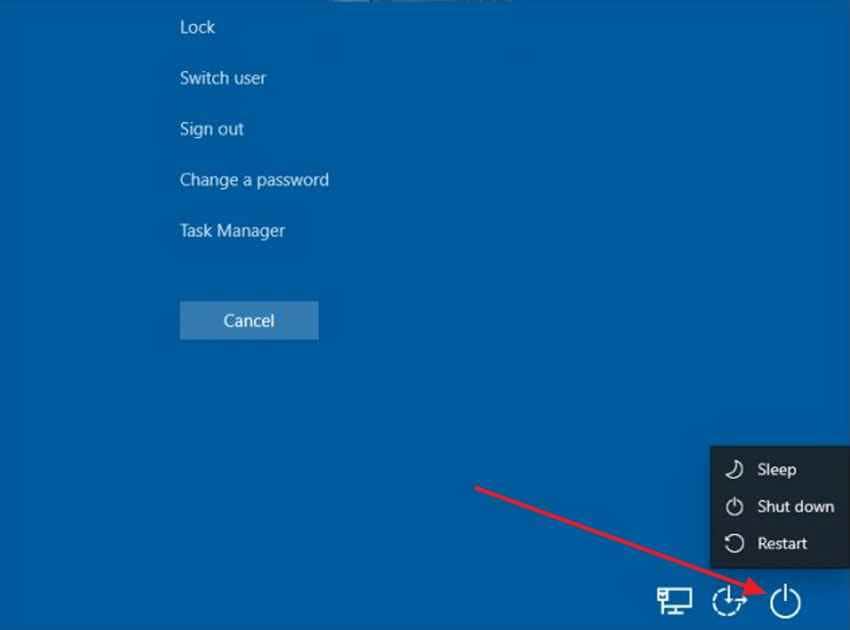
Instructions: If you can see the security screen, press Ctrl + Alt + Delete, select the Power icon, hold Shift, and click Restart. Then choose Troubleshoot > Advanced options > Startup Settings > Restart. Press 4 or F4 for Safe Mode.
Fix 2. Check Monitor, Cable, Input Source, and Display Output
Safe Mode may be working, but the video output may be going to the wrong display or through a faulty connection. Check the monitor power, input source, HDMI, DisplayPort, VGA, USB-C adapter, dock, and GPU output. For laptops, connect an external monitor. For desktops, test another cable or port.
If the monitor says No Signal, focus on cable, input, port, GPU, monitor, or dock before repairing Windows.
Fix 3. Try Enable Low-Resolution Video Instead of Safe Mode
If Safe Mode turns black because of display settings or graphics initialization, low-resolution video mode may show the desktop while normal resolution fails.
Instructions: Enter Startup Settings from WinRE, then choose Enable low-resolution video if available. Once Windows opens, set a supported resolution, roll back the display driver, or uninstall the problem driver.
Fix 4. Try Safe Mode With Command Prompt
Safe Mode with Command Prompt can work when the Safe Mode desktop does not. It lets you run system repair commands, clear Safe Boot settings, create another user, and copy files.
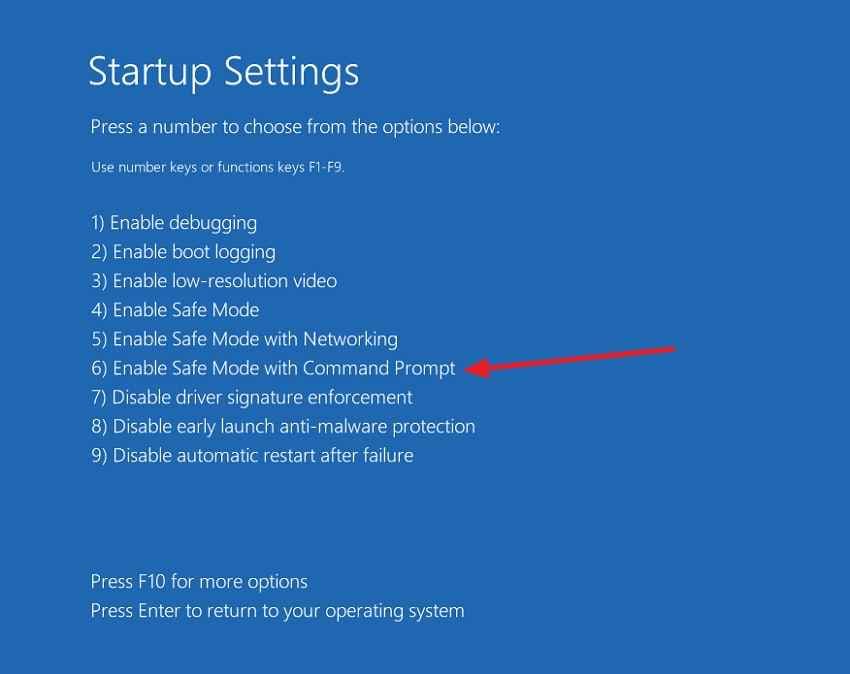
Instructions: Open WinRE, choose Troubleshoot > Advanced options > Startup Settings > Restart, then press 6 or F6 for Enable Safe Mode with Command Prompt.
Fix 5. Launch Windows Explorer Manually From Task Manager
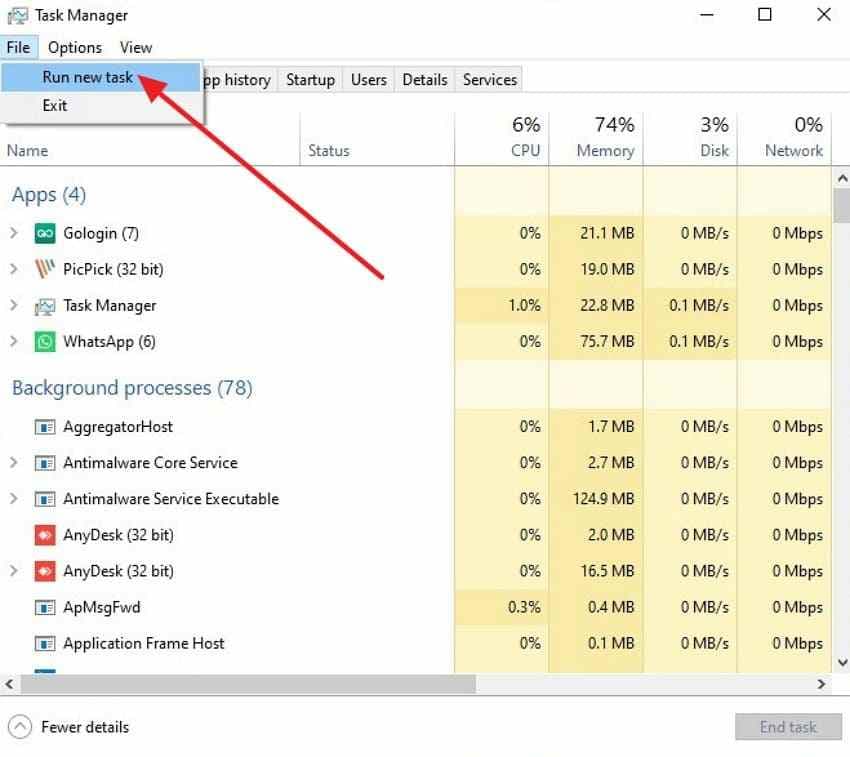
If the black screen shows a cursor and Task Manager opens, Explorer may not have started. Press Ctrl + Shift + Esc. Choose File > Run new task, type explorer.exe, and press Enter.
If the desktop appears, back up files, remove suspicious startup items, and check display drivers before restarting.
Fix 6. Exit a Safe Mode Boot Loop From Command Prompt
If the PC keeps trying to boot into Safe Mode and always shows a black screen, Safe Boot may be forced. Clear the Safe Boot setting from Command Prompt.
If you can open Command Prompt as administrator, run:
bcdedit /deletevalue {current} safebootThen restart the PC. If that does not work, enter WinRE Command Prompt and run the same command. If the system says the value does not exist, Safe Boot may not be the cause.
Fix 7. Create or Test Another User Profile
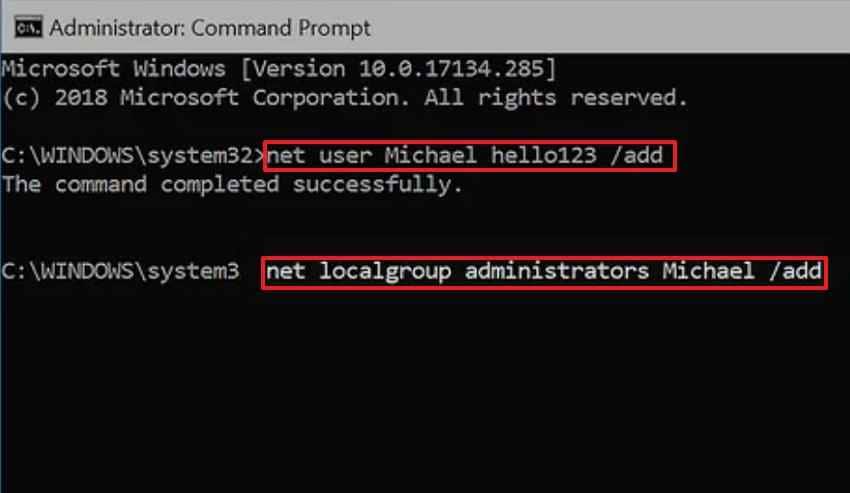
A damaged user profile can cause a black screen after login while core Windows still works. If Command Prompt opens, create a temporary admin account and test it.
net user NewUser /add
net localgroup administrators NewUser /add
Restart and sign in to the new account. If it works, move your files from the old profile carefully and repair or replace the damaged account.
Fix 8. Roll Back, Uninstall, or Reinstall the Display Driver
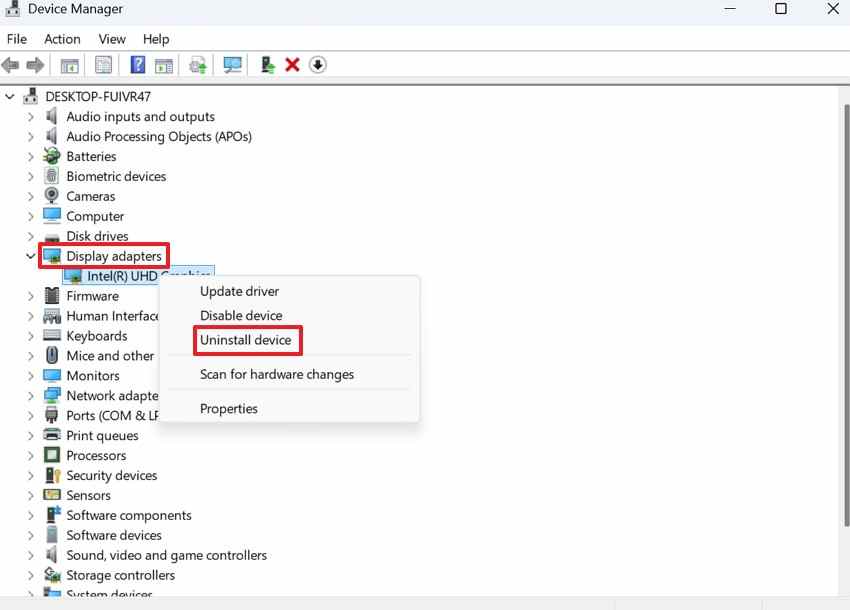
If the Safe Mode black screen began after a graphics driver change, remove the faulty driver from Safe Mode, low-resolution video mode, or Device Manager when available.
Instructions: Open Device Manager, expand Display adapters, right-click the graphics device, and choose Properties. Use Roll Back Driver if available. If not, choose Uninstall device, restart, then install the correct driver from Windows Update, your PC maker, Intel, NVIDIA, or AMD.
Fix 9. Uninstall Recent Windows Updates, Drivers, or Problematic Software
If the problem began after an update, driver, antivirus tool, display utility, remote desktop tool, or shell customization, remove the recent change.
Step 1. Boot into WinRE and choose Troubleshoot > Advanced options.
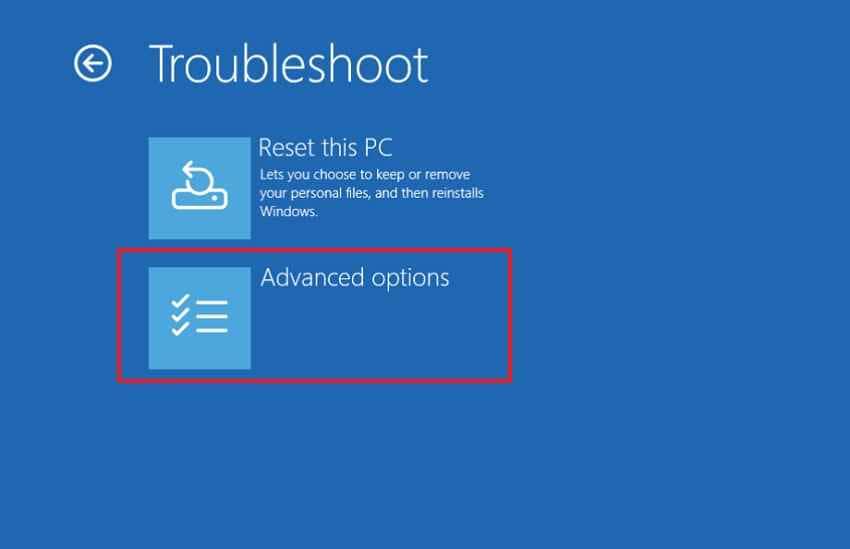
Step 2. Choose Uninstall Updates, then uninstall the latest quality update first. Use latest feature update removal only if the issue started after a major Windows version update.

Fix 10. Disable Fast Startup and Hibernation
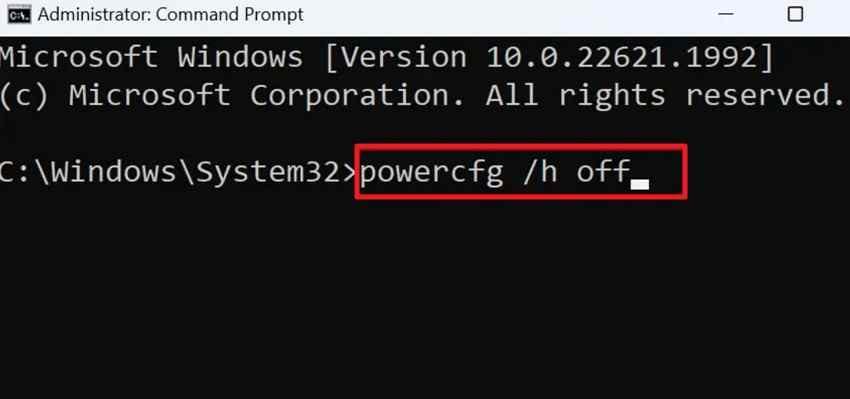
Fast Startup and hibernation can reload a faulty driver or startup state. Turn them off from Command Prompt when you can access Safe Mode, Task Manager, or WinRE.
powercfg /h offThis disables hibernation and Fast Startup. Restart and test whether Windows can boot normally.
Fix 11. Run DISM and SFC to Repair Windows System Files
Corrupted system files can break Safe Mode, Explorer, and startup services. Run DISM first when Windows can load enough to support online repair, then run SFC.
DISM /Online /Cleanup-Image /RestoreHealth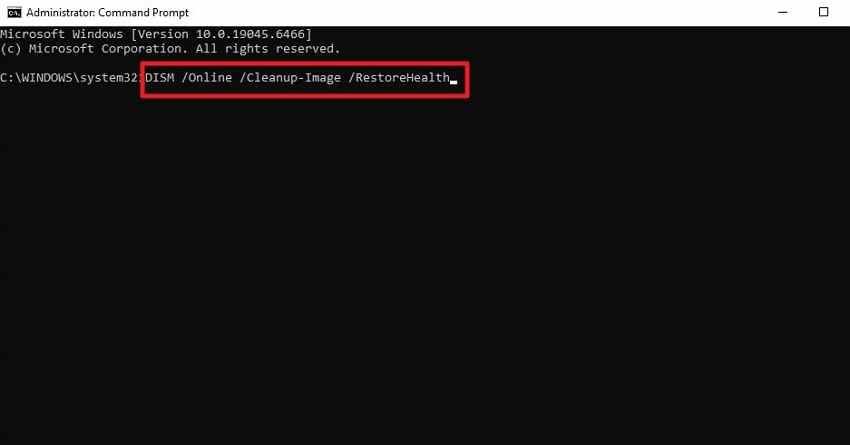
sfc /scannow
If the internal drive may be failing, recover important files before running disk repair commands such as CHKDSK.
Fix 12. Run a Malware Scan in Safe Mode With Networking
Malware can damage Explorer, startup entries, services, or system files. If Safe Mode with Networking works, update Windows Security or a trusted security tool and run a full scan.
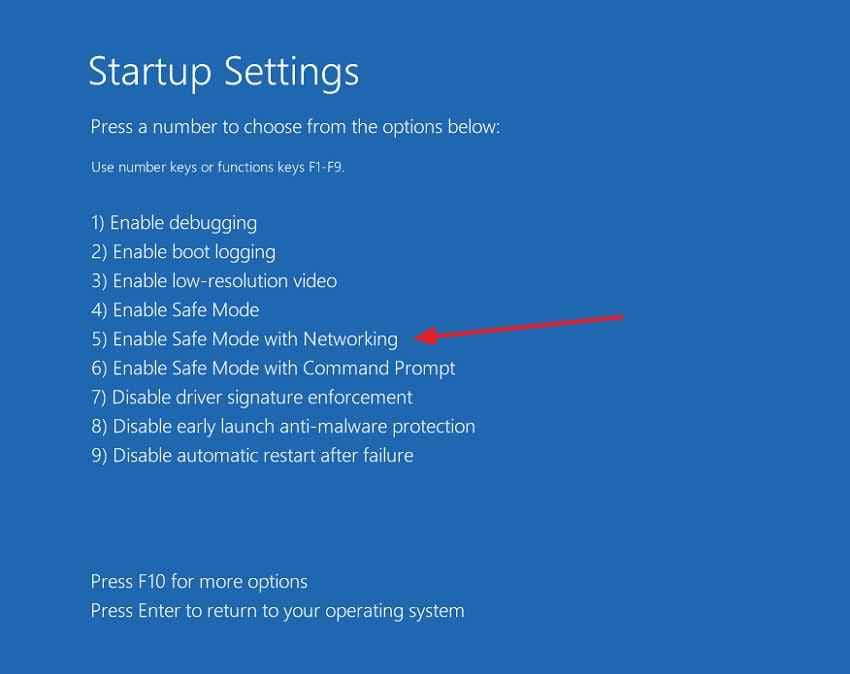
Instructions: From Startup Settings, press 5 or F5 for Safe Mode with Networking. Update the security definitions, run a full scan, and remove detected threats.
Fix 13. Perform System Restore From Safe Mode or WinRE
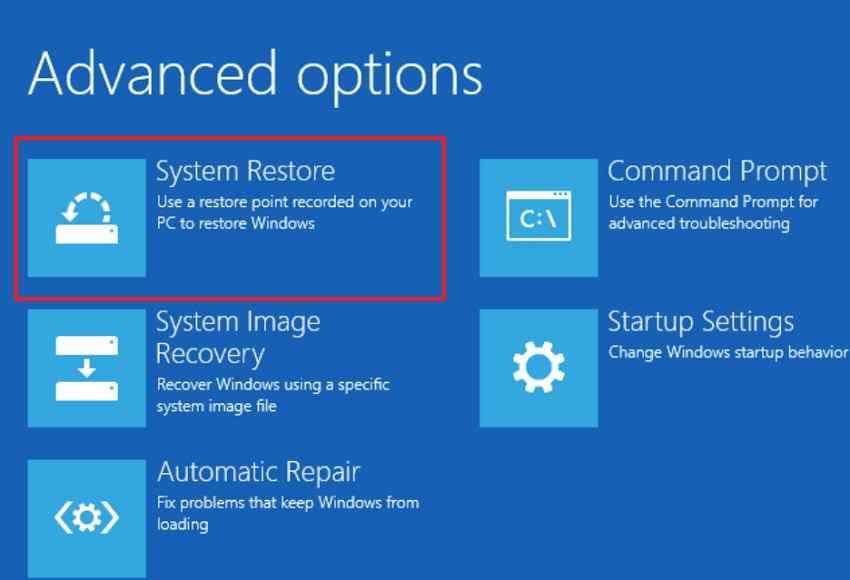
System Restore can return Windows system files, drivers, registry settings, and system configuration to an earlier point. It does not intentionally remove personal files, but back up or recover files first if the PC is unstable.
Instructions: Open WinRE, choose Troubleshoot > Advanced options > System Restore, then select a restore point from before the Safe Mode black screen began.
Fix 14. Run Startup Repair From Windows Recovery Environment
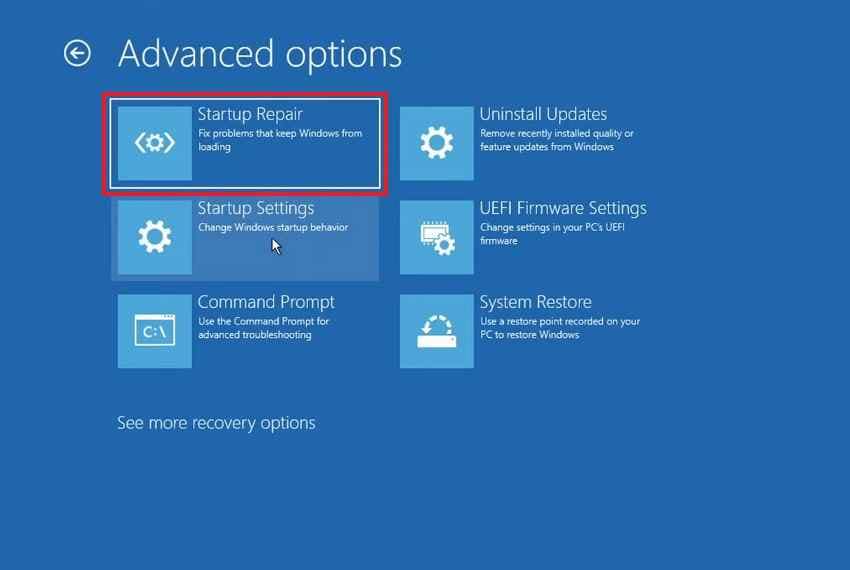
Use Startup Repair when Safe Mode and normal startup both fail before the desktop appears. It checks common startup problems automatically.
Instructions: In WinRE, choose Troubleshoot > Advanced options > Startup Repair. Select your Windows account, enter the password if asked, and let Windows repair startup.
Fix 15. Reset or Reinstall Windows 10 Only as a Last Resort
Resetting or reinstalling Windows can fix severe corruption, but it can remove apps, settings, user profiles, and sometimes files depending on the option and drive condition. Recover important files first.
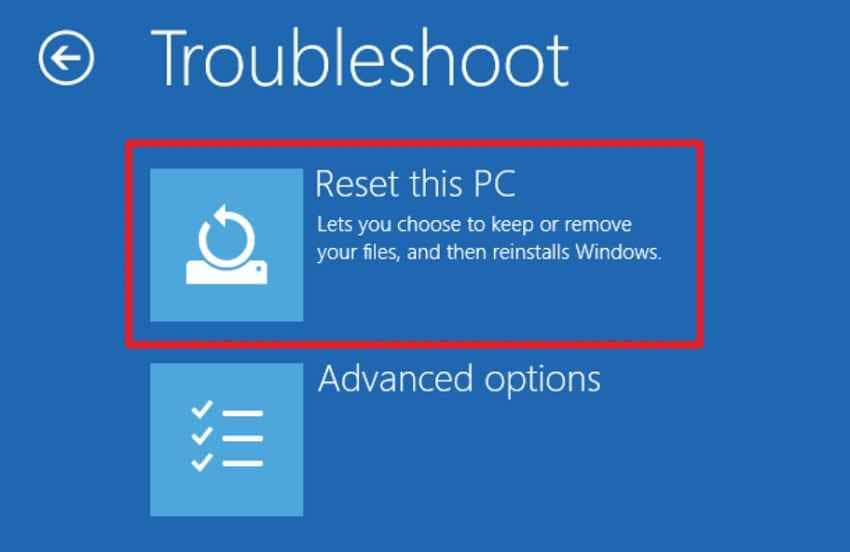
Step 1. In WinRE, choose Troubleshoot > Reset this PC.
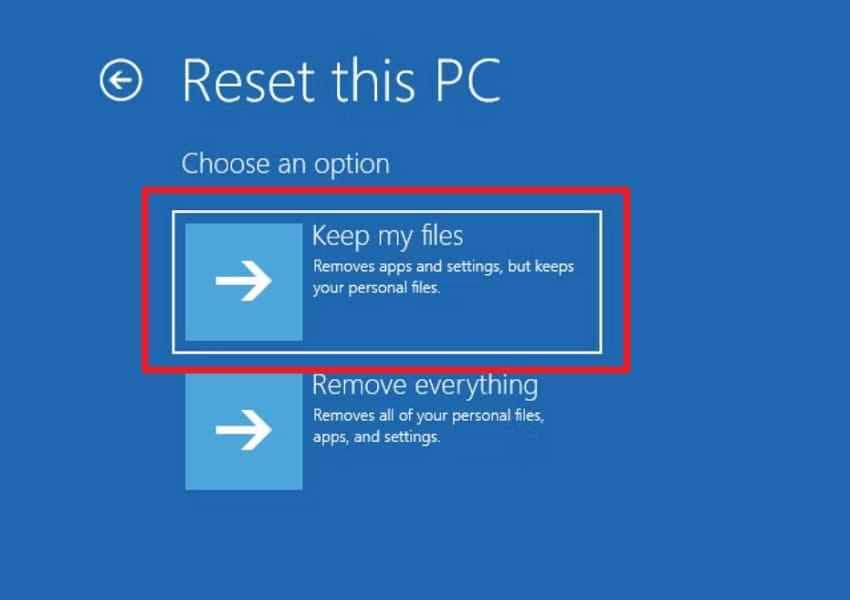
Step 2. Choose Keep my files if available, but do not rely on it as your only backup. If you must use Remove everything or clean install, recover files first.
Part 6. Recover Files Before Resetting, Reinstalling, or Repairing Windows 10
File recovery matters when Safe Mode stays black, normal startup also fails, or repair commands may modify the drive. Resetting Windows, reinstalling Windows, running disk repair, replacing hardware, or sending the PC for service can affect data access.
Recoverit Windows Data Recovery is useful when the affected Windows drive is still readable but Windows cannot boot normally. It can create bootable recovery media on another working PC so you can copy files before advanced repair.
When Recoverit Can Help
- Windows cannot reach the desktop: Safe Mode and normal mode are black, but the drive may still contain readable files.
- Files need protection before reset: Documents, photos, videos, archives, emails, and project files should be copied out first.
- External storage recovery: Files can be recovered from external drives, USB drives, SD cards, and other Windows-connected storage.
- Lost or deleted files: Recoverit can scan accessible drives for files lost through deletion, formatting, partition issues, or system crash scenarios.
When Recoverit Cannot Help
- It cannot fix Safe Mode, repair Windows startup, update drivers, repair Explorer, remove malware, or repair system files.
- It cannot repair a monitor, display cable, GPU, RAM, motherboard, SSD, HDD, battery, or power supply.
- It cannot bypass Windows passwords or decrypt BitLocker without the correct recovery key.
- It cannot guarantee recovery from overwritten files, physically failed drives, or storage devices that are no longer detected.
Guide to Recover Files Before Resetting, Reinstalling, or Repairing Windows 10
Use another working Windows PC and an empty USB drive.
Step 1. Install and open Recoverit on the working computer. Choose System Crashed Computer and click Start.
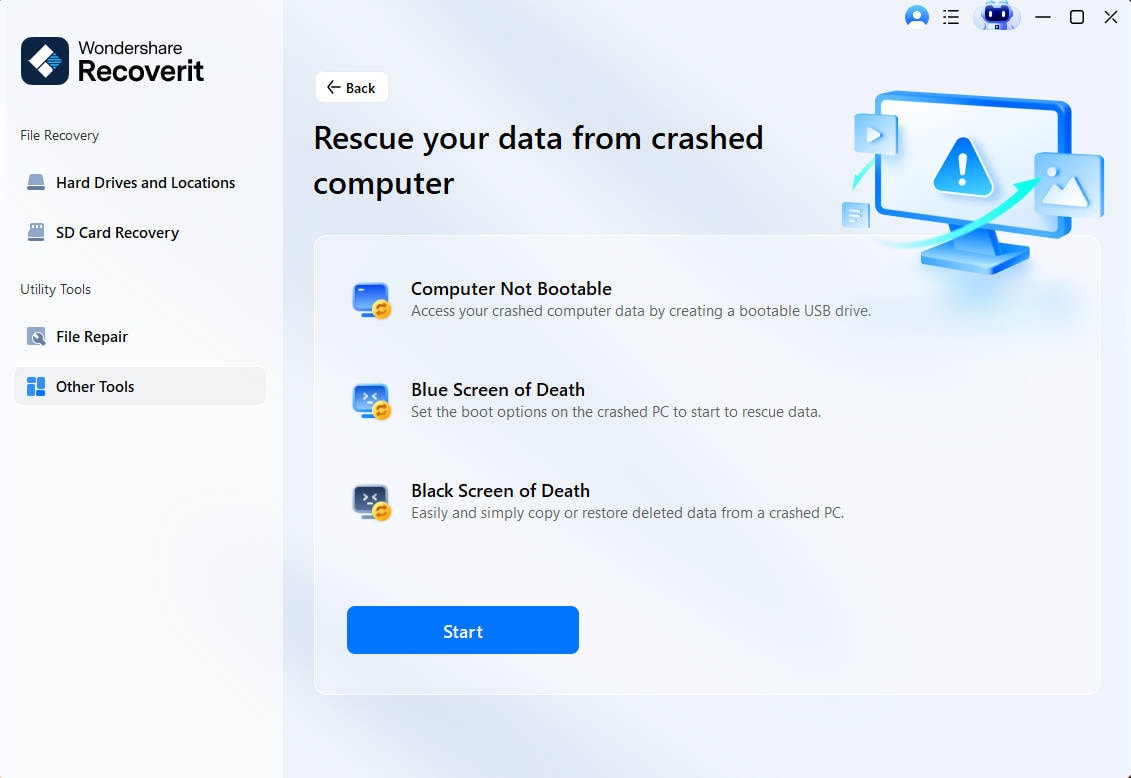
Step 2. Select the USB drive and create bootable recovery media. Back up the USB first because the creation process can erase it.

Step 3. When Recoverit loads, choose the affected drive, scan for files, preview recoverable items when available, and save the recovered data to a separate external drive.

Part 7. What If Windows 10 Safe Mode Still Shows a Black Screen?
If Safe Mode still shows a black screen after the fixes above, treat the PC as a deeper startup, storage, or hardware case.
| Next Check | What It Helps Decide |
| Windows Recovery Environment | Whether built-in repair tools such as Startup Repair, System Restore, and Uninstall Updates still work |
| Command Prompt in WinRE | Whether system commands, file copying, and Safe Boot cleanup are still possible |
| Drive health test | Whether SSD or HDD failure is blocking startup or putting files at risk |
| External monitor and cable test | Whether the issue is display hardware rather than Windows |
| RAM and GPU diagnostics | Whether hardware faults are causing black screens in every boot mode |
| Professional service | Recommended when Safe Mode, normal boot, WinRE, and display tests fail or data is critical |
If the PC contains important data and both Safe Mode and normal mode fail, recover files before reset, reinstall, CHKDSK, partition repair, or hardware replacement.
Part 8. How to Prevent Windows 10 Safe Mode Black Screen Problems
These habits reduce the chance of another Safe Mode black screen:
| Prevention Tip | Why It Helps |
| Shut down Windows properly | Prevents interrupted updates, file corruption, and incomplete startup changes. |
| Use stable display drivers | Reduces graphics conflicts that can affect normal mode and Safe Mode. |
| Create restore points before major changes | Gives Windows a rollback point after faulty drivers, updates, or tools. |
| Avoid unverified shell tweaks and driver tools | Prevents unsafe changes to Explorer, startup services, and display components. |
| Run regular malware scans | Helps prevent malware from damaging startup files or services. |
| Back up important files | Protects data before crashes, repairs, resets, or reinstallations. |
| Monitor drive health | Detects failing SSD or HDD issues before they break startup. |
| Keep a recovery USB ready | Provides access to WinRE and recovery tools when Windows cannot boot normally. |
Conclusion
A Safe Mode Windows 10 black screen usually means the problem is deeper than a normal startup app. Check display output, low-resolution video, Safe Mode with Command Prompt, Explorer, Safe Boot loop settings, user profile, drivers, recent updates, system files, malware, and WinRE repair tools. If both Safe Mode and normal mode fail, recover important files with Recoverit or another backup method before reset, reinstall, disk repair, or hardware service.
FAQ
-
Why does Safe Mode show a black screen in Windows 10?
It usually happens when display output, Explorer, user profile, graphics drivers, system files, updates, storage, or hardware fail even under Windows 10's limited Safe Mode startup. -
What should I try if Safe Mode shows a black screen with cursor?
Press Ctrl + Shift + Esc to open Task Manager. If it opens, run explorer.exe, check Device Manager, create another user profile, or open Command Prompt for repair commands. -
How do I stop Windows 10 from always booting into Safe Mode?
Open Command Prompt as administrator or from WinRE and run bcdedit /deletevalue {current} safeboot. Restart afterward. If the command says the value does not exist, Safe Boot may not be forced. -
Can Recoverit fix Windows 10 Safe Mode black screen?
No. Recoverit is a data recovery tool. It can help recover files from a readable drive before reset, reinstall, or repair, but it cannot fix Safe Mode, repair Windows startup, remove malware, or decrypt BitLocker without the key.



