If Windows shows "The specified module could not be found" when you open an app or sign in, a DLL, one of its dependencies, or the path used to load it may be missing. Windows error 126 refers to a module-loading failure. The similar message "The specified procedure could not be found" (error 127) instead points to a requested function that is unavailable.
Before changing any files, record the complete error message, the DLL filename and path, and what triggered it. If only one application fails, start with its official repair options. If a RunDLL popup appears at every sign-in, investigate the exact startup entry. Do not download individual DLL files from unknown sites or delete entire registry branches.
In This Article
-
- Before Editing Startup Entries: Create a Restore Point
- Fix 1. Repair or Reinstall the Application Showing the Error
- Fix 2. Repair or Install the Required Microsoft Visual C++ Redistributable
- Fix 3. Disable a Verified Broken RunDLL Startup Entry
- Fix 4. Verify an Invalid Application or Service Module Path
- Fix 5. Repair Protected Windows System Files with DISM and SFC
- Avoid DLL Download Sites and Untargeted Registry Changes
Part 1. Why Windows Reports a Missing Module or Procedure
The same-looking popup can originate from a desktop program, an abandoned startup command, a Windows service, or a plugin that was updated separately from its host application. A missing file is not always the DLL named in the message: a required dependency can also fail to load.
Identify the DLL Name, File Path, and Triggering Process
Step 1. Take a screenshot of the full message. Note the module name, full path, any error code, and whether the failure happens at sign-in, after an update, when one program opens, or when a service starts.
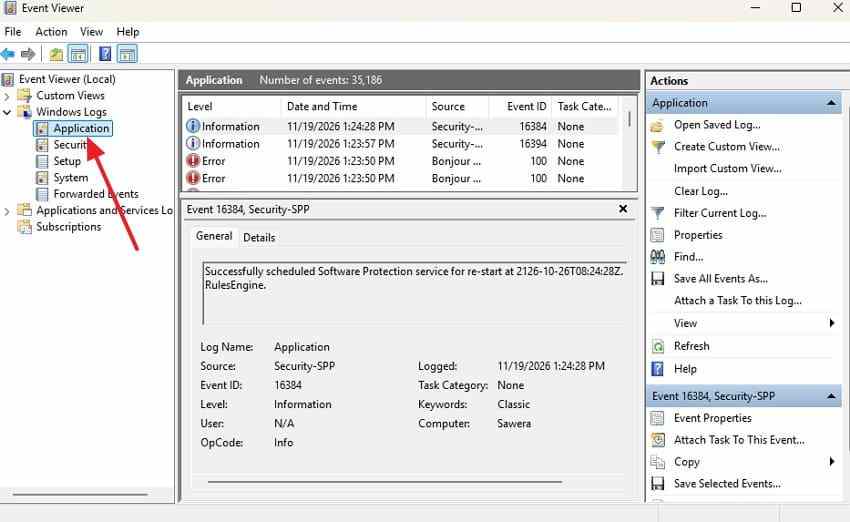
Step 2. Check the affected application or service name. For a service, open "Event Viewer > Windows Logs > System" and match the reported error time. For an app, check "Windows Logs > Application" for a matching entry. Avoid guessing the culprit from a generic message alone.
| When it happens | Likely investigation | Where to begin |
| RunDLL popup at sign-in | Stale logon, scheduled-task, or application startup command | Autoruns Logon and Scheduled Tasks tabs |
| One desktop application will not open | Its DLL files, runtime dependencies, or incomplete update | Installed apps, vendor installer, application logs |
| A Windows or third-party service fails | Service executable path, dependency, or service-specific error | Services properties and Windows Event Viewer |
| Error begins after a plugin or app update | DLL version or exported-function mismatch | Application and plugin versions |
Advanced check: Microsoft Process Monitor can show attempted DLL loads. Filter by the affected process and relevant "Load Image" or "CreateFile" events. A "NAME NOT FOUND" result during a normal search path does not, by itself, identify the defective DLL.
Compare Error 126, Error 127, and Missing Runtime Dependencies
Microsoft identifies error 126 as ERROR_MOD_NOT_FOUND and error 127 as ERROR_PROC_NOT_FOUND. A working DLL filename on disk does not prove that all of its dependencies load successfully. Conversely, error 127 can occur when an older DLL is present but lacks a function used by a newer application.
| Message or code | What it means | First useful action |
| 126: specified module could not be found | Windows cannot load a requested module or required dependency | Check app installer, startup path, and missing DLL dependencies |
| 127: specified procedure could not be found | Requested function is unavailable from the loaded module | Check app/plugin versions and loaded DLL compatibility |
| MSVCP or VCRUNTIME DLL named | Possible Microsoft Visual C++ runtime dependency | Check the vendor-required runtime version and app architecture |
The exact meanings are documented in Microsoft system error codes. The error text alone cannot tell whether the root cause is malware, file corruption, or an incomplete installation.
Check for Malware or an Orphaned Startup Entry
A broken startup command may remain after uninstalling legitimate software or after Windows Security quarantines a suspicious file. A random-looking filename is a reason to investigate, not proof of infection.
Step 1. Open "Windows Security > Virus & threat protection" and review "Protection history" for a related detection. Run a full scan when other suspicious behavior is present. Do not restore a quarantined file simply to silence the popup.
Step 2. If the warning appears only at startup, locate the matching command with Microsoft Autoruns. Disable a verified obsolete entry rather than deleting Windows DLL files. If malware appears active, use the supported Microsoft Defender Offline scan after saving your work; it restarts the computer.
Part 2. Fix "The Specified Module Could Not Be Found" on Windows 11/10
Try the fix that matches your recorded DLL path and trigger. Application repair comes first for one-app failures; startup-entry changes apply only to a confirmed RunDLL command. Windows component repairs are useful when protected system files, not third-party application files, are involved.
Before Editing Startup Entries: Create a Restore Point
You do not need to edit the registry to repair a normal application installation. If a startup command or service configuration really needs attention, create a restore point when System Protection is available, and back up the exact registry key you plan to inspect. Restore points are not substitutes for backups of personal files.
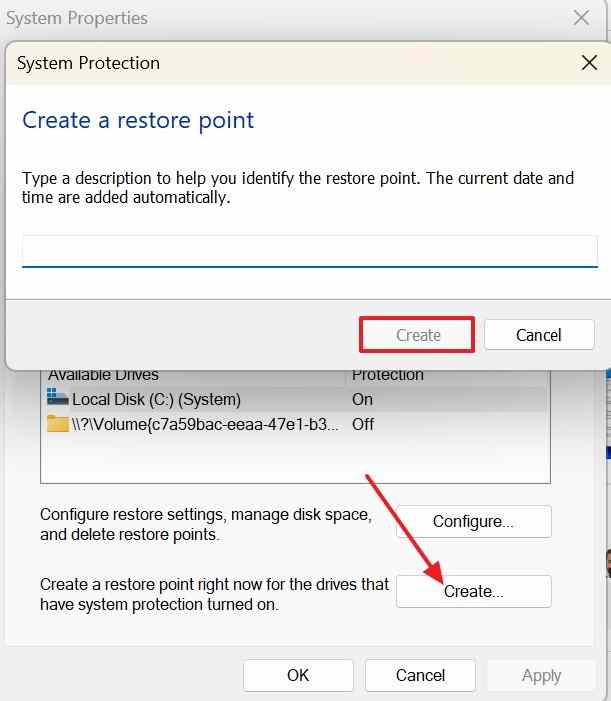
Step 1. Search for "Create a restore point" in Windows. In "System Protection", select the system drive, enable protection if appropriate, and choose "Create". Record the restore point name and date.
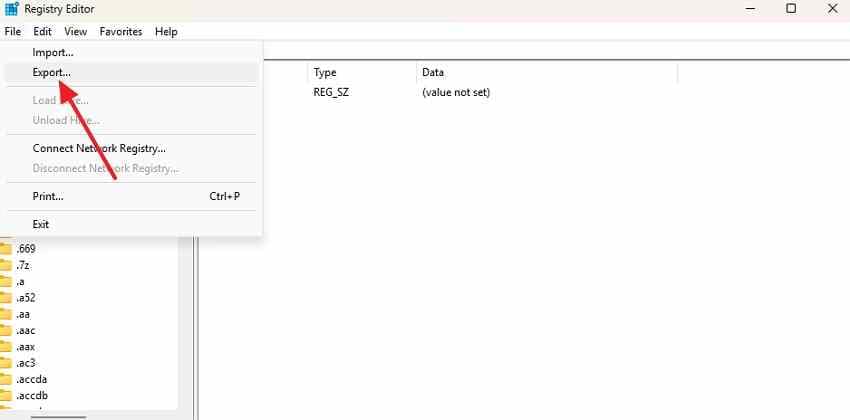
Step 2. If you must inspect a registry startup value, open Registry Editor, identify the exact affected key, choose "File > Export", and select "Selected branch". Store the exported .reg file safely. Do not export or delete unrelated branches.
Next: Start with the matching method below. Stop before any registry or service-level change if you cannot verify the entry belongs to the failing application.
Fix 1. Repair or Reinstall the Application Showing the Error
When to use: A specific app fails at launch or immediately after its own update, while Windows and other apps still operate normally. An interrupted installation can leave the program or a required dependency unavailable.
Step 1. On Windows 11, open "Settings > Apps > Installed apps". On Windows 10, use "Settings > Apps > Apps & features". Select the affected application and look for "Advanced options > Repair", where offered. Not every desktop program provides this option.
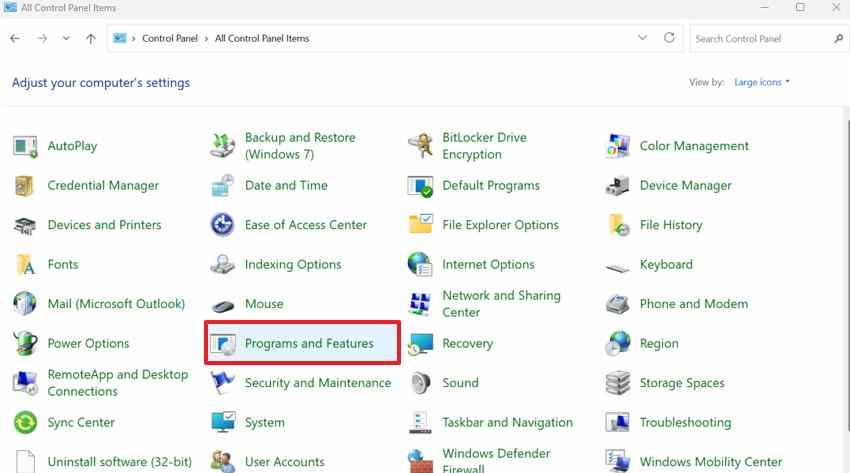
Step 2. For traditional desktop software, open "Control Panel > Programs > Programs and Features" and look for "Repair" or "Change" on the application's entry.
Step 3. Reopen the program and repeat the action that failed. If its repair option is missing or unsuccessful, back up any local settings and data that the uninstaller could remove, then reinstall the application from the publisher's official source.
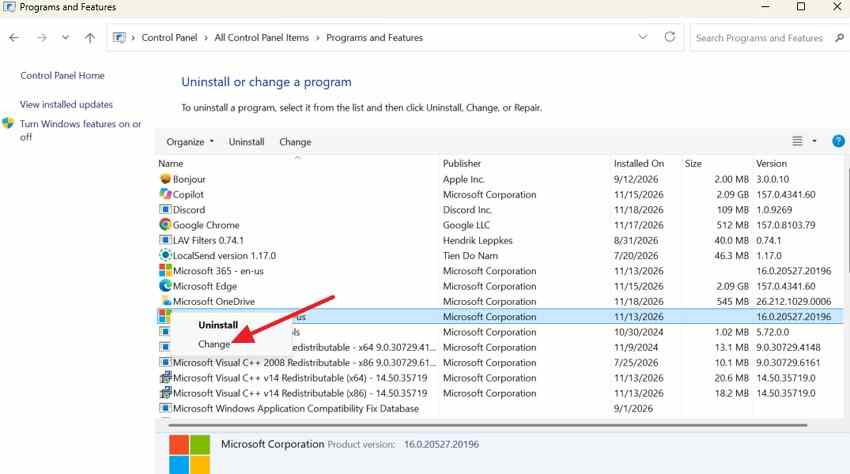
Result: The app opens and its previously failing feature works without the module error. If the message now names a Visual C++ runtime DLL, continue to Fix 2.
Fix 2. Repair or Install the Required Microsoft Visual C++ Redistributable
When to use: The error mentions files such as MSVCP140.dll or VCRUNTIME140.dll, or the affected application's publisher identifies a specific Microsoft C/C++ runtime requirement. Do not install random runtime packages based only on a generic error 126 dialog.
The runtime architecture must match the application, not simply the Windows operating system. A 32-bit app on 64-bit Windows may still require x86 libraries. Microsoft publishes current v14 packages for Visual Studio 2017 through 2026; older application builds can require a separate legacy redistributable.
| Application requirement | Potential installer to check |
| 64-bit x64 application | Microsoft vc_redist.x64.exe |
| 32-bit x86 application, including on x64 Windows | Microsoft vc_redist.x86.exe |
| Native ARM64 application | Microsoft vc_redist.arm64.exe or the ARM64 binaries in a supported x64 package |
| Application built against Visual Studio 2013 or earlier | Vendor-specified older redistributable and matching architecture |
Step 1. In "Programs and Features", find the relevant Microsoft Visual C++ Redistributable version. Select "Change > Repair" if it is installed and supports repair.
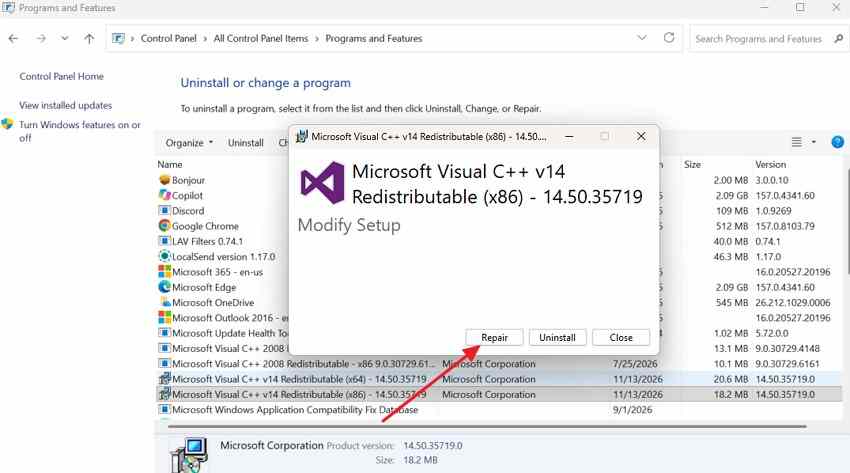
Step 2. If it is missing, use Microsoft's supported Visual C++ Redistributable downloads and the application vendor's version guidance. Run the official installer, restart if prompted, and test the application again.
Result: The application loads after the required runtime is repaired. If error 126 remains and its named DLL belongs to the program itself, return to its official repair installer rather than copying a loose DLL into System32.
Fix 3. Disable a Verified Broken RunDLL Startup Entry
When to use: The popup appears at sign-in and identifies a DLL that belonged to software already uninstalled or quarantined. A RunDLL dialog at startup does not mean you should delete RunDLL32.exe or every registry Run value.
Step 1. Download Microsoft Autoruns from Sysinternals and run it with suitable administrator access. Check "Logon" and, if needed, "Scheduled Tasks". Search for the DLL filename or the path from the error message.
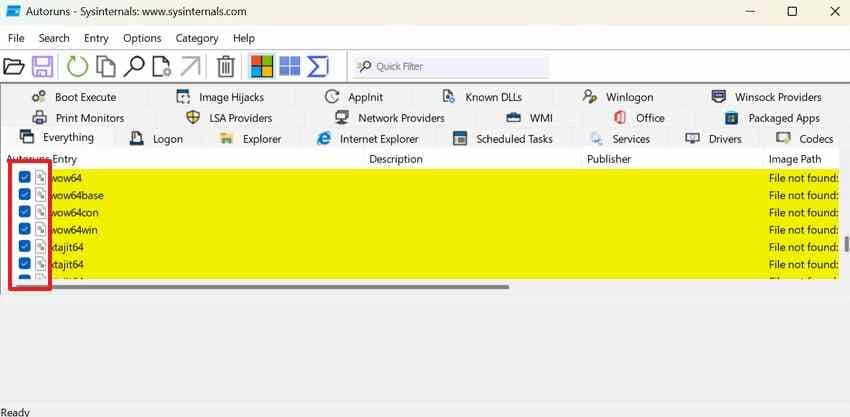
Step 2. Confirm the full command and publisher refer to the same failing component. Uncheck only that verified entry to disable it. Restart Windows and confirm the popup no longer appears. If an essential program stops working, re-enable the entry and repair that program instead.
Step 3. Only after a successful test and backup, consider removing the individual obsolete entry through the publisher's uninstaller or supported management tools. Never delete entire Run or RunOnce registry keys.
| Registry location | Who it applies to | Normal behavior |
| HKCU\Software\Microsoft\Windows\CurrentVersion\Run | Current signed-in user | Runs at sign-in |
| HKCU\Software\Microsoft\Windows\CurrentVersion\RunOnce | Current signed-in user | Normally runs once |
| HKLM\Software\Microsoft\Windows\CurrentVersion\Run | All users | Runs at sign-in |
| HKLM\Software\Microsoft\Windows\CurrentVersion\RunOnce | Machine-wide administrative sign-in conditions | Runs once under documented conditions |
The target of this fix is the verified orphaned command, not the Windows system DLL loader.
Fix 4. Verify an Invalid Application or Service Module Path
When to use: The popup names a service, or Event Viewer reports that a specific service cannot find an executable or required module. The Windows service manager may display a path to an executable, but a failure involving an internal DLL requires more than changing that path.
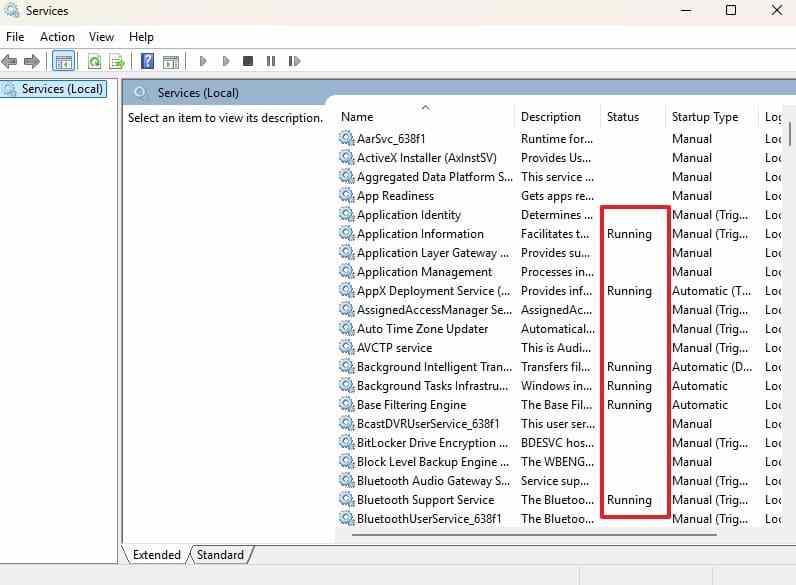
Step 1. Press "Windows + R", run "services.msc", and open the affected service's "Properties". Record the display name, service name, and "Path to executable". Do not change them yet.
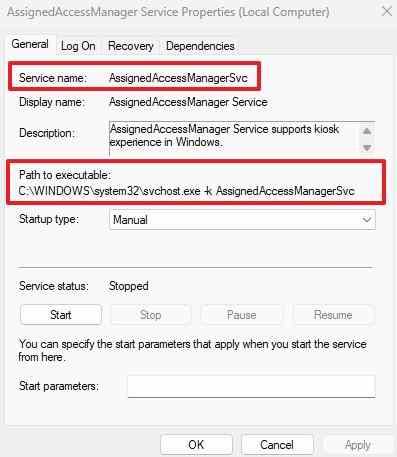
Step 2. In "Event Viewer > Windows Logs > System", locate the corresponding Service Control Manager error and confirm whether it names an invalid executable path or a DLL dependency. Check the vendor's installed file locations and the original service configuration.
Step 3. If the service belongs to a third-party application, use the official installer to repair its registration. For Windows-hosted services, especially those using svchost.exe, stop and seek Microsoft or administrator guidance rather than manually replacing system DLLs or rewriting ServiceDll values.
Result: The correct service starts on demand. If the app's files are present but Windows protected components remain damaged, use Fix 5.
Fix 5. Repair Protected Windows System Files with DISM and SFC
When to use: The missing module appears to be a protected Windows component, or other Windows functions also fail. DISM and SFC do not reinstall a third-party application's private DLLs.
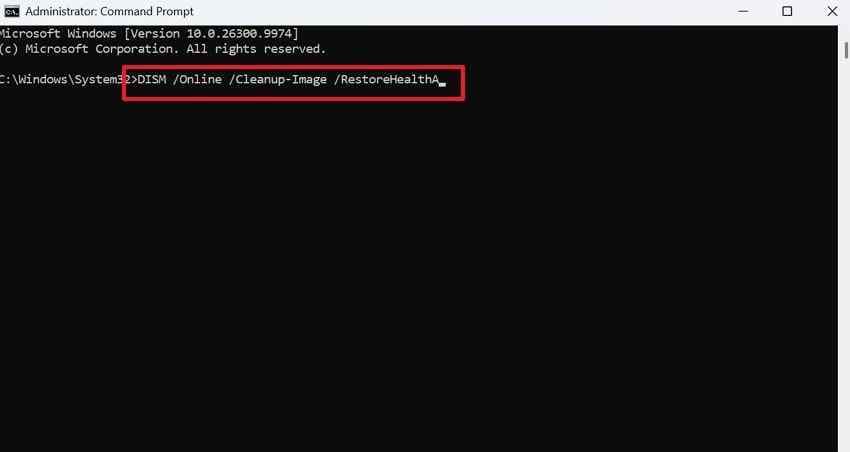
Step 1. Open "Command Prompt" or "Windows Terminal" as administrator. Run the following command and let it finish:
Command: DISM /Online /Cleanup-Image /RestoreHealth
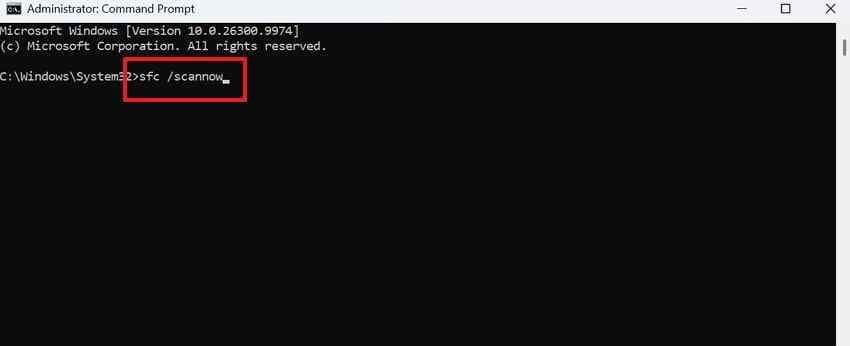
Step 2. After DISM completes, run System File Checker:
Command: sfc /scannow
Step 3. Note any unrepaired-file messages, restart if required, and reproduce the original failure. Follow Microsoft's DISM and SFC instructions if the tool reports it cannot complete a repair.
If Windows becomes unbootable: Protect accessible files before considering a reset or reinstall. For a crashed Windows computer with a detectable drive, Recoverit Windows System Recovery describes a separate bootable file-recovery option. Recoverit does not repair the missing module, application, or Windows installation.
Avoid DLL Download Sites and Untargeted Registry Changes
A standalone DLL copied from an unofficial source can be the wrong version, lack dependencies, or expose the machine to malware. Even a correctly named DLL may not export the function required by the application. Get files through an official software installer or Microsoft runtime package, and keep backups before changing startup configuration.
Likewise, do not use generic registry cleaners or instructions that delete the complete "Run" and "RunOnce" branches. Those locations may contain legitimate startup programs. If the popup appears after malware cleanup, confirm the threat was removed and disable only the verified orphaned entry.
Part 3. Fix "The Specified Procedure Could Not Be Found" (Error 127)
When the message specifically says "The specified procedure could not be found", Windows code 127 points toward a missing exported function. This can happen when an app loads an older DLL or a plugin expects an API that its current host application or Windows build does not provide. Replacing DLLs at random is especially unlikely to help.
Fix 1. Update the Application and Its Plugins
When to use: Error 127 began just after an app update, plugin installation, or extension update. The host program and its add-ons may need matching releases.
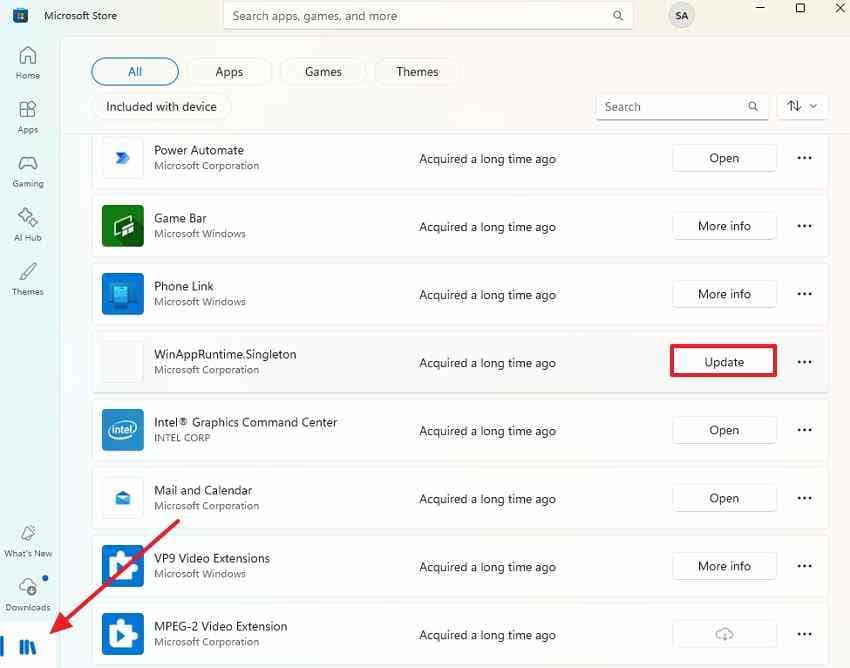
Step 1. Check the application publisher's updates and release notes. For Microsoft Store apps, open "Microsoft Store > Downloads" or the available library/update area and check for updates. Download standalone desktop updates only from the official publisher.
Step 2. Record your plugin list and temporarily disable optional add-ons from the application's supported settings. Restart the program and test the feature that failed.
Step 3. If it works, re-enable plugins one at a time to identify the mismatch. Install a compatible version from that plugin's publisher or leave it disabled. If the host application itself will not open, use its supported repair or reinstall process.
Result: The affected application and plugin work together without an entry-point or procedure error.
Fix 2. Resolve an Incompatible DLL Version
When to use: The error names a DLL inside a particular application's installation folder and began after installing or copying files. Windows may have found a DLL but not the version that exports the required function.
Step 1. Open the application's installation folder, locate the DLL named in the error, and use "Properties > Details" to record its file version when that property is available. Compare it with the official application or plugin release requirements; do not overwrite the file by hand.
Step 2. For an advanced diagnosis, use Microsoft Process Monitor to filter events by the affected process and the DLL path. Look for a different DLL version loading from an unexpected folder, but remember that normal failed path probes can occur before a successful load.
Step 3. If the application directory contains mixed versions, repair or reinstall the complete application and its compatible plugins from the official publisher. Retest before reinstalling optional add-ons.
Result: Error 127 disappears after the program loads its intended DLL version. If the same function is unavailable on the installed Windows build, continue with Fix 3.
Fix 3. Check Application and Windows Version Compatibility
When to use: A newly installed application requires Windows features or APIs that are not available on the installed version. Windows compatibility settings cannot create a missing API export, so the publisher's minimum version requirements matter.
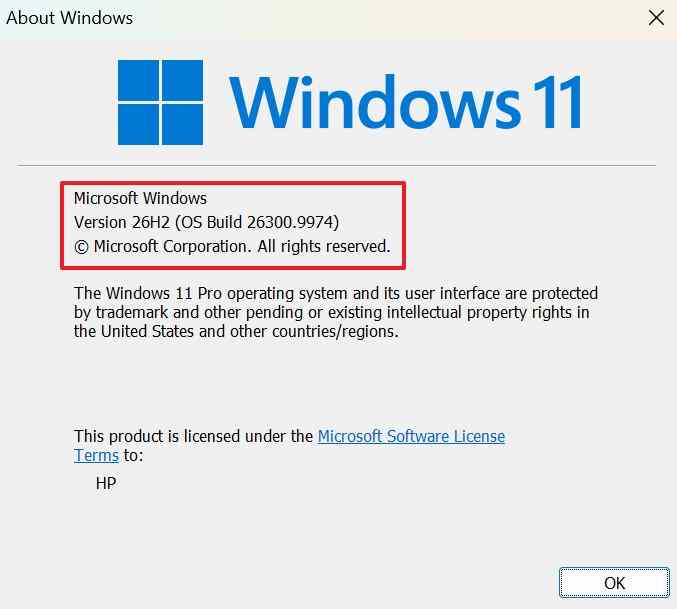
Step 1. Press "Windows + R", enter winver, and record the Windows edition, version, and OS build. Compare them with the app publisher's published compatibility requirements.
Step 2. Install supported Windows and application updates where appropriate. If you suspect an older app compatibility problem, open "Get Help" and search for the Program Compatibility Troubleshooter, following only the options currently offered for your version of Windows.
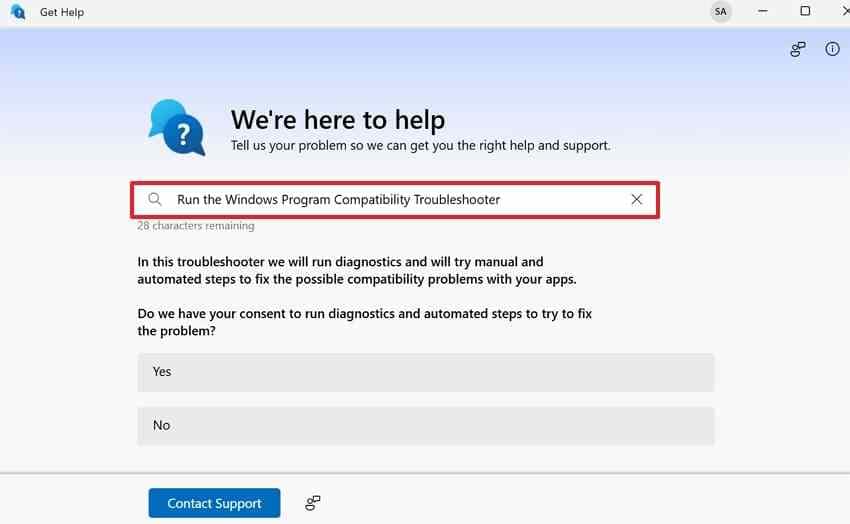
Step 3. Reopen the program and check the same operation. If it requires a Windows API missing from your installed release, use a publisher-supported application version or update Windows to a supported build. Do not attempt to work around an unavailable function by copying a DLL from another PC.
Verify the Application, Service, and Startup Error After Restart
After applying the appropriate fix, confirm the original problem is resolved rather than assuming that a completed installer or command was sufficient.
- Application: Open the program twice and test the function that previously failed. Check the matching Application event if it still crashes.
- Startup: Sign out and back in, then restart Windows to see whether the RunDLL popup returns. Remember that RunOnce entries may execute only once.
- Service: Start the affected service when required and confirm the status. A manual or trigger-start service does not always need to remain Running.
- Recurring error: Capture the new dialog and timestamps; an unchanged filename may hide a different dependency issue.
If the same verified DLL dependency still fails after an official reinstall and the compatible runtime is present, provide the publisher with the full error message, application version, Windows build, and relevant Event Viewer entries.
Conclusion
"The specified module could not be found" and "The specified procedure could not be found" are related but different Windows loading errors. Start by recording the full message and identifying the affected application or startup entry. For error 126, repair the responsible program, check its runtime dependencies, or disable a verified obsolete RunDLL entry. For error 127, compare application, plugin, and DLL versions and confirm Windows compatibility.
Verify the same operation works after a restart. Avoid unofficial DLL downloads, blanket registry deletions, and manual service-path changes without a confirmed cause. If the problem persists, send the exact details to the software vendor rather than trying unrelated system modifications.
FAQ
-
What is the difference between error 126 and error 127?
Error 126 means Windows could not load the requested module or a required dependency. Error 127 means a requested procedure, or function, was unavailable in the module that was loaded. Check the exact DLL and triggering application before selecting a fix. -
Why does a RunDLL module error appear every time Windows starts?
A startup command, scheduled task, or other autostart location may still reference a DLL removed during software uninstall or malware cleanup. Use Microsoft Autoruns to locate and temporarily disable only the verified obsolete entry, then restart to confirm the result. -
Can I download a missing DLL from a third-party website?
Avoid it. The file might be incompatible, incomplete, or malicious. Reinstall the affected application from its publisher or use the Microsoft Visual C++ Redistributable package required by the program. -
Can I fix the specified module error without reinstalling Windows?
Often, yes. Try the affected application repair, supported runtime installation, or targeted startup-entry correction first. DISM followed by SFC is appropriate for suspected Windows system-file corruption, not a missing third-party app DLL.


