SQL Server Agent does not run in SQL Server Express. If your SQL Server Agent service is disabled on Express, you cannot fix it by changing startup permissions. On a supported SQL Server edition, first identify the correct instance, then read SQLAGENT.OUT, SQL Server ERRORLOG and Windows events to find the actual reason the Agent will not start.
An Agent failure can stop scheduled backups, maintenance and other jobs. The safest path depends on whether the service is disabled, reports Error 1069 or 1053, fails to connect, or gets stuck at Starting. Before making service-account, policy or registry changes, preserve database backups and the existing configuration. These nine targeted fixes are for SQL Server on Windows, not Azure SQL Database.
In This Article
-
- Choose the Correct Error Branch Before Making Changes
- Fix 1. Start the Correct Agent Service on a Supported Edition
- Fix 2. Confirm the Database Engine and msdb Are Available
- Fix 3. Resolve Error 1069 and Service Account Logon Failures
- Fix 4. Audit SQL Server Agent Permissions Without Broad Elevation
- Fix 5. Repair an ODBC Driver Only When the Startup Log Identifies It
- Fix 6. Investigate Error 1053 and Windows Event Log Access
- Fix 7. Diagnose Errors 233 and 10054 Before Changing TLS Settings
- Fix 8. Repair Automatic Startup Failures After a Server Restart
- Fix 9. Diagnose Agent Stuck on Starting or Shutting Down Unexpectedly
- On SQL Server Express, Schedule Supported Backups Without Agent
- Verify Agent Service Stability and a Safe Test Job
Part 1. What to Check Before Troubleshooting SQL Server Agent Startup
If SQL Server Agent will not start, start with edition and instance identification rather than changing Windows permissions. The same Windows host can have multiple SQL Server instances, and a stopped Agent service is normal on SQL Server Express. Once you establish that the correct instance supports Agent, collect the exact failure message and protect database backups before deeper work.
Check Your SQL Server Edition: Agent Is Not Available in Express
SQL Server Express does not include a supported SQL Server Agent service, even in SQL Server 2025. SQL Server Configuration Manager may show an Agent entry marked Disabled; on Express, that does not mean the service can be enabled. Enterprise and Standard editions support Agent, while Developer editions provide it for nonproduction development and testing. Microsoft edition and feature matrix lists the current support boundaries.
Connect to the affected instance in SQL Server Management Studio (SSMS) and run the read-only query:
SELECT SERVERPROPERTY('Edition') AS Edition,
       SERVERPROPERTY('InstanceName') AS InstanceName,
       SERVERPROPERTY('ProductVersion') AS ProductVersion;
If the result says Express, skip the nine Agent fixes. Use the supported scheduling alternative under Part 2, or evaluate an appropriately licensed edition with SQL Server Agent. A blank InstanceName means the default instance; a named instance returns its name.
| Edition or deployment | Is SQL Server Agent available? | What to do |
| SQL Server Express / Express LocalDB | No | Use Task Scheduler with a verified SQL backup script, or choose a supported edition |
| SQL Server Standard or Enterprise | Yes | Check the matching Agent service and startup logs |
| Developer edition | Yes, for nonproduction use | Troubleshoot Agent; follow edition license limitations |
| Azure SQL Database | No traditional Windows Agent service | Use the scheduling features documented for that platform; these Windows steps do not apply |
Identify the Correct Default or Named Instance
A server can host several Database Engine and Agent services. Check the instance shown in SSMS before changing any service. Open SQL Server Configuration Manager, select "SQL Server Services", and locate the matching Agent entry. For SQL Server 2022, the Configuration Manager snap-in is commonly SQLServerManager16.msc; for SQL Server 2025, it is SQLServerManager17.msc.
| Instance | Database Engine service | Agent service (Windows name) | SSMS server name |
| Default | MSSQLSERVER | SQLSERVERAGENT | ServerName |
| Named instance: SALES | MSSQL$SALES | SQLAgent$SALES | ServerName\SALES |
A stopped SQLAgent$SALES is not the same service as SQLSERVERAGENT. Use the exact instance name displayed on your server, not the example name. SQL Server Configuration Manager provides the safest supported place to view and change the service settings. Microsoft service-control instructions explain the names and controls.
Read SQLAGENT.OUT, SQL ERRORLOG, and Windows Events
Write down when the startup attempt failed, the exact Windows service error, the Agent account, and any recent password, group-policy, driver, update or network changes. Read the end of SQLAGENT.OUT in the instance log directory; a configured location may differ from the default MSSQL\Log folder. The newest archived Agent log typically uses the .1 suffix. For SQL Server messages and msdb recovery, compare ERRORLOG.
| Evidence | Where to inspect it | Useful clues |
| SQLAGENT.OUT | Instance log folder; SQL Server Agent error logs in SSMS when accessible | Agent startup time, logon and connection failures, ODBC errors, job-cache delays |
| SQL Server ERRORLOG | Instance log folder or SSMS Management / SQL Server Logs | Database Engine or msdb problems, error 17156, login or protocol errors |
| Windows System log | Event Viewer / Windows Logs / System | Service Control Manager 7038, 7041, 1053 or 1069 |
| Windows Application log | Event Viewer / Windows Logs / Application | SQL Agent crashes, event-log access errors, connection events |
| Change history | Maintenance tickets, deployment and patch history | Password rotation, group-policy changes, restarts, updated drivers |
If no new line appears in SQLAGENT.OUT after a failed start, the process may be failing before its normal logging begins. This makes the System event log and Windows Event Log service particularly important. Do not assume the absence of an Agent log means the service account is healthy. See Microsoft SQL Server Agent error-log documentation.
Protect User Databases and msdb Before Configuration Changes
Changing an Agent account, Windows group policy or TLS configuration can interrupt scheduled work and may affect access to SQL Server. Before high-risk changes, ask the DBA to confirm recent, restorable backups of the relevant user databases and the master, model and msdb system databases. msdb holds SQL Server Agent jobs, schedules and job history. Keep the backups on separate reliable storage and document the current configuration, account, instance version and error logs.
- Back up with SQL Server tools: Use SSMS or supported
BACKUP DATABASEcommands under an authorized SQL login; copying live MDF/LDF files is not a replacement for a SQL-aware backup. - Verify backups:
RESTORE VERIFYONLYchecks that a backup is readable and complete enough for a restore attempt, but it does not replace a test restore or database-integrity checks. - Preserve the change path: Save a copy of the applicable service settings, group-policy configuration and change record; arrange a maintenance window for changes that require a service or server restart.
For details, review Microsoft system database backup guidance.
Part 2. Fix SQL Server Agent Not Starting by Error Code and Service State
Do not run every fix. Use the error messages that you just collected to choose a branch. Low-risk checks come first; service-account, group-policy and encryption changes belong to authorized administrators who can confirm the exact cause and arrange a rollback.
Choose the Correct Error Branch Before Making Changes
| What you see | Most useful first check | Go to |
| Express edition or Agent disabled on Express | Confirm edition; Agent is not supported | Express alternative below |
| Agent service disabled on a supported edition | Confirm correct instance and start mode | Fix 1 |
| Error 1068 or msdb unavailable | Check matching Database Engine and msdb | Fix 2 |
| Error 1069; Windows event 7038 or 7041 | Check service account, logon rights and domain status | Fix 3 |
| Access denied, missing service SID or log-folder permission | Compare effective privileges with Microsoft requirements | Fix 4 |
| Explicit SQL Server ODBC driver load errors | Inspect required driver for installed SQL Server version | Fix 5 |
| Error 1053 or error 17156 / EventLog access denied | Check Windows Event Log and policy evidence | Fix 6 |
| Error 233 or 10054 with SSL/TLS details | Check Database Engine connectivity and documented encryption configuration | Fix 7 |
| Starts manually but not after a reboot | Check delayed startup and domain authentication | Fix 8 |
| Stuck at Starting, stops unexpectedly, or heavy job-cache activity | Inspect Generic Refresher, job metadata and crash events | Fix 9 |
Fix 1. Start the Correct Agent Service on a Supported Edition
Use this when the instance is Standard, Enterprise or another Agent-supported edition, but its matching Agent service is stopped or its startup type was changed. If the edition is Express, stop here: changing the startup mode cannot add an unsupported feature.
Step 1. Open SQL Server Configuration Manager, select "SQL Server Services", and select "SQL Server Agent (MSSQLSERVER)" or the Agent for your named instance.
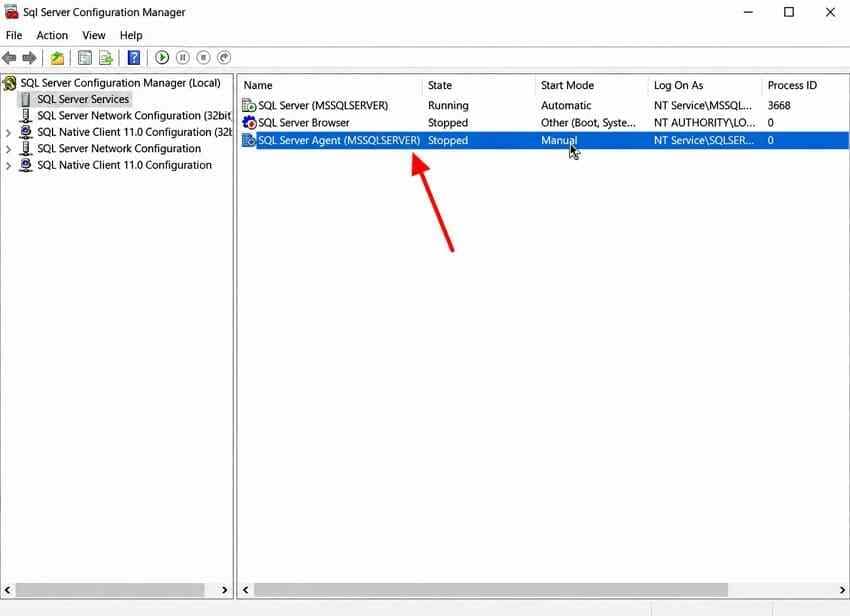
Step 2. Open "Properties > Service". Review "Start Mode". On a supported edition, set it to "Manual" or "Automatic" according to your organization's scheduling requirements, and apply the change.
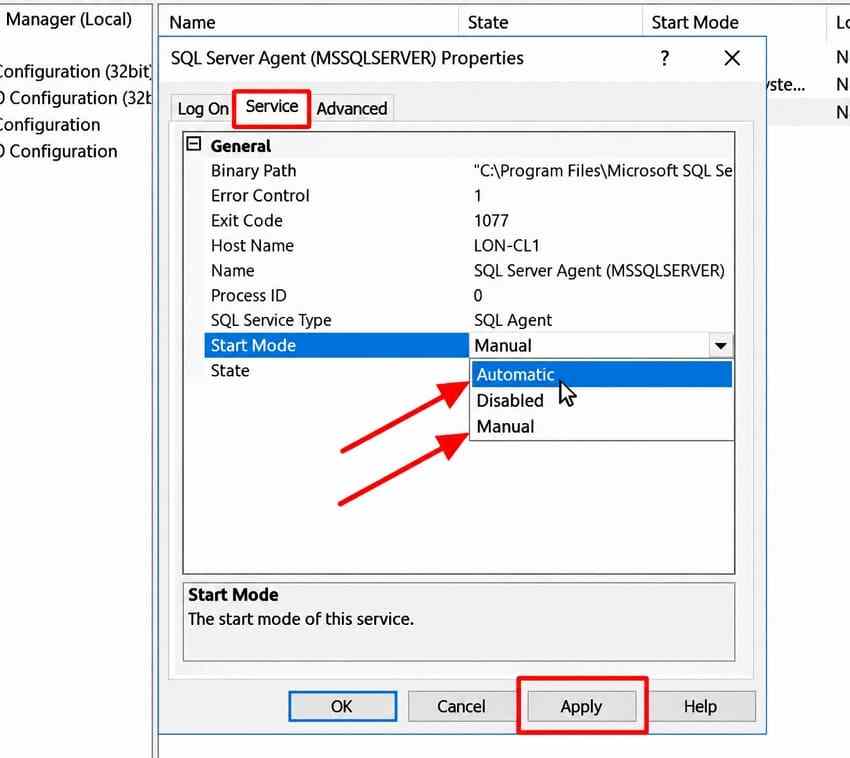
Step 3. Use "Start" on that same Agent service. If it remains Running, reopen SSMS and verify scheduled jobs. If it stops immediately, record the error and continue with the matching branch instead of repeatedly changing the start mode.
For a default instance, the administrative command net start SQLSERVERAGENT also targets the Agent service. For a named instance such as SALES, the service name is SQLAgent$SALES. Avoid issuing commands against another instance. The Agent XPs setting affects Agent functionality exposed through SQL Server and is not a substitute for starting a failed Windows service.
Fix 2. Confirm the Database Engine and msdb Are Available
Agent needs to connect to the matching SQL Server Database Engine and use msdb for its jobs and schedules. Error 1068 indicates a Windows service dependency failed; it does not, by itself, prove that msdb is damaged.
Step 1. In Configuration Manager, confirm that "SQL Server (MSSQLSERVER)" or "SQL Server (INSTANCE)" for the same instance is Running. If the Database Engine is stopped, review its ERRORLOG and the Windows System log before arranging an authorized restart.
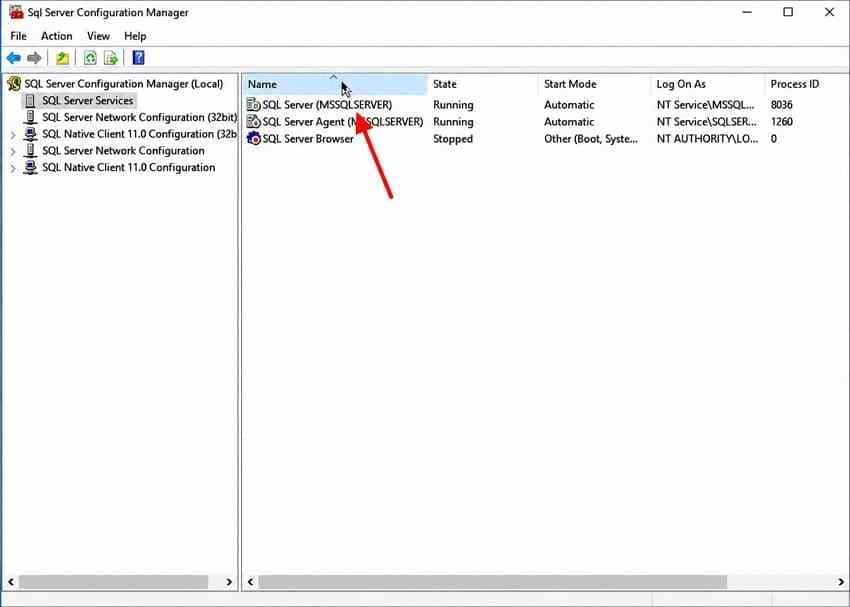
Step 2. If the engine is running, connect to that instance with SSMS and run the following read-only query:
SELECT name, state_desc, user_access_desc
FROM sys.databases
WHERE name = 'msdb';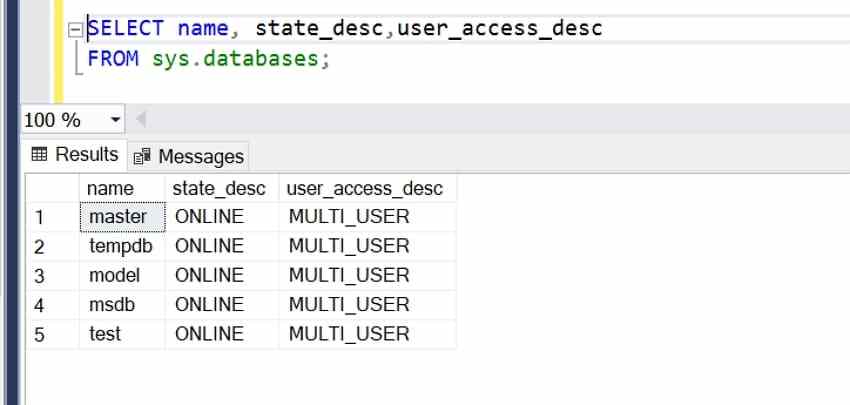
Step 3. Confirm state_desc is ONLINE. If it is not online or the connection fails, investigate database recovery and backup availability with your DBA. Do not detach, replace or restore msdb as a generic Agent fix.
Fix 3. Resolve Error 1069 and Service Account Logon Failures
Error 1069 means Windows could not log on with the configured service identity. Microsoft documents Event ID 7038 for account, password or domain-contact failures and Event ID 7041 when the requested service-logon right is missing. For group managed service accounts (gMSAs), an inability to retrieve the managed password can also matter. See Microsoft Error 1069 troubleshooting.
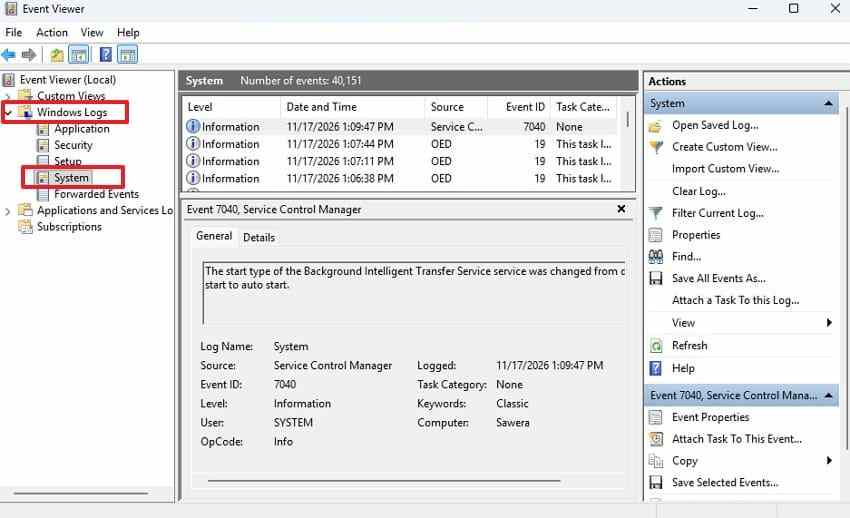
Step 1. Open "Event Viewer > Windows Logs > System". Find the event at the failed-start timestamp and read the exact reason: incorrect password, expired/locked account, inaccessible domain, or missing "Log on as a service".
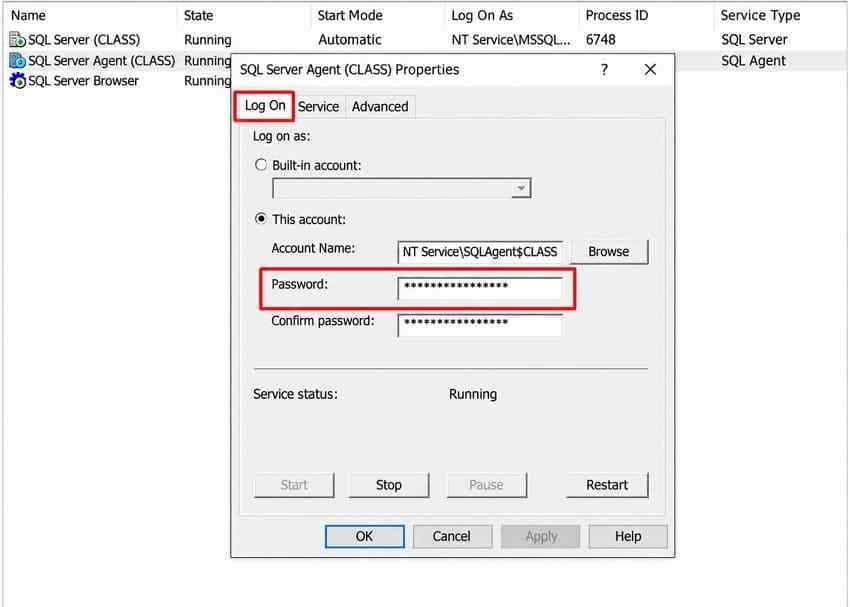
Step 2. If a normal domain or local account password actually changed, have the service owner update it through "SQL Server Configuration Manager > SQL Server Services > Agent Properties > Log On". Do not replace a gMSA managed password with a manually chosen password.
Step 3. For Event 7041, ask the Windows administrator to check effective user rights and any domain Group Policy overrides. For Event 7038, resolve the specific account or domain problem; retry Agent only after the corrected setting is applied.
Note: Running a command prompt as the account does not prove that the account has the separate Windows "Log on as a service" right. Never troubleshoot by switching Agent indiscriminately to Local System or granting broad Windows Administrator privileges.
Fix 4. Audit SQL Server Agent Permissions Without Broad Elevation
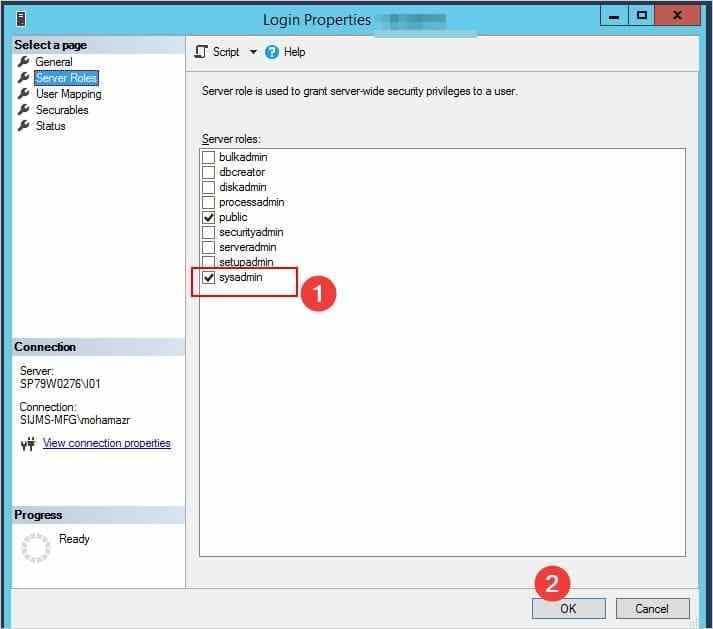
Use this branch only when the logs identify access denied, an unavailable service SID, missing login permissions or a blocked Agent log directory. SQL Server assigns a per-service SID to Agent; the service SID login is normally provisioned with the SQL Server sysadmin fixed server role. That is distinct from granting Windows local administrator rights to a domain user. Microsoft service-account and SID guidance describes this design.
Step 1. In "SQL Server Configuration Manager > SQL Server Services", check the affected Agent service's "Log On" identity and record the account type. Use Configuration Manager rather than Windows Services when changing SQL Server service accounts.
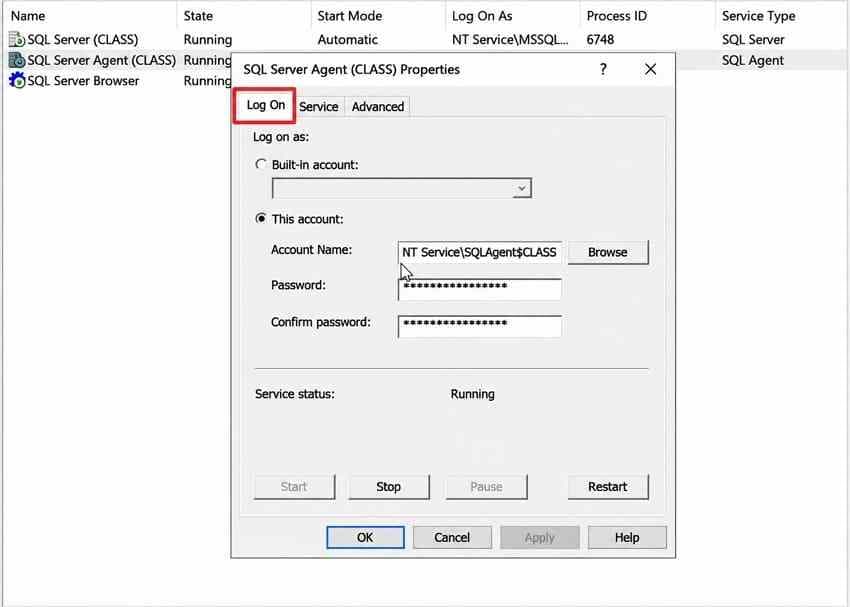
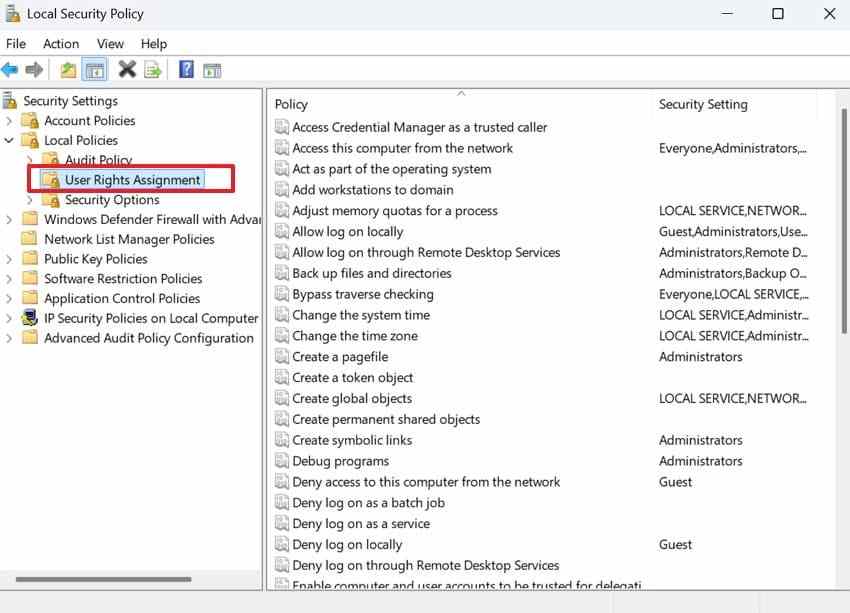
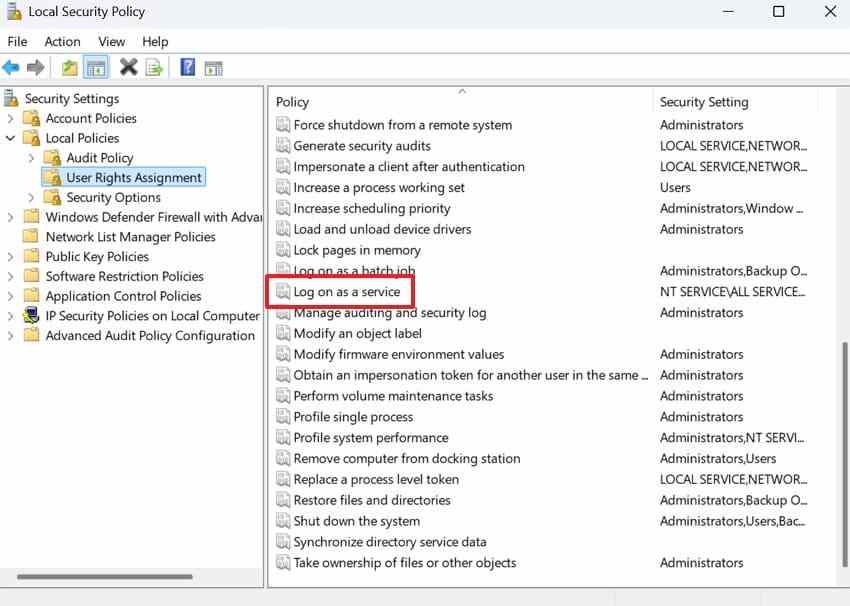
Step 2. Have the Windows administrator review "Local Security Policy > Local Policies > User Rights Assignment" and effective Group Policy for the specific service identity. Verify the documented rights instead of adding the account to the local Administrators group.
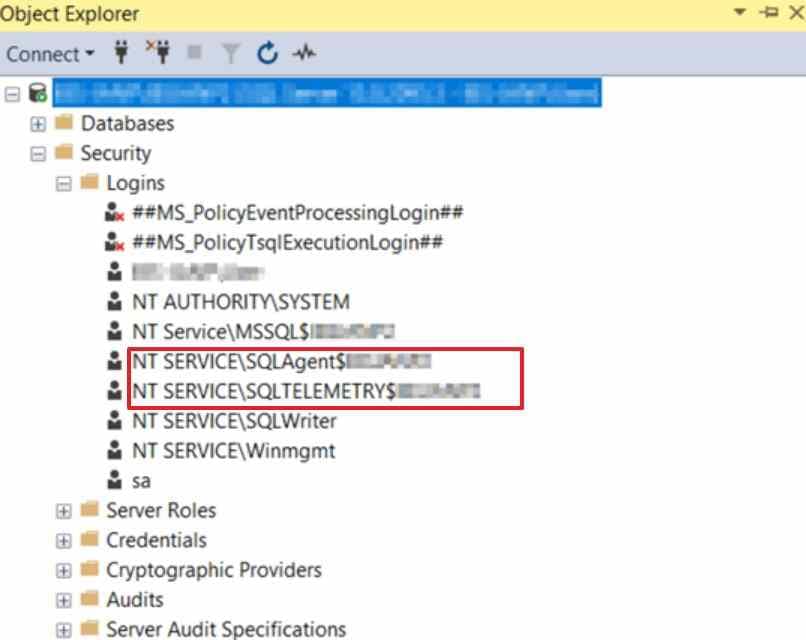
Step 3. If SQL logs indicate a missing Agent login or role, inspect "SSMS > Security > Logins" for the exact service SID: NT SERVICE\SQLSERVERAGENT for the default instance or NT SERVICE\SQLAGENT$InstanceName for a named instance.
Step 4. Check effective access to the configured directory containing SQLAGENT.OUT. Apply a narrowly scoped permission repair only if the log proves access is blocked and your DBA approves the change. Restart Agent and compare new log entries.
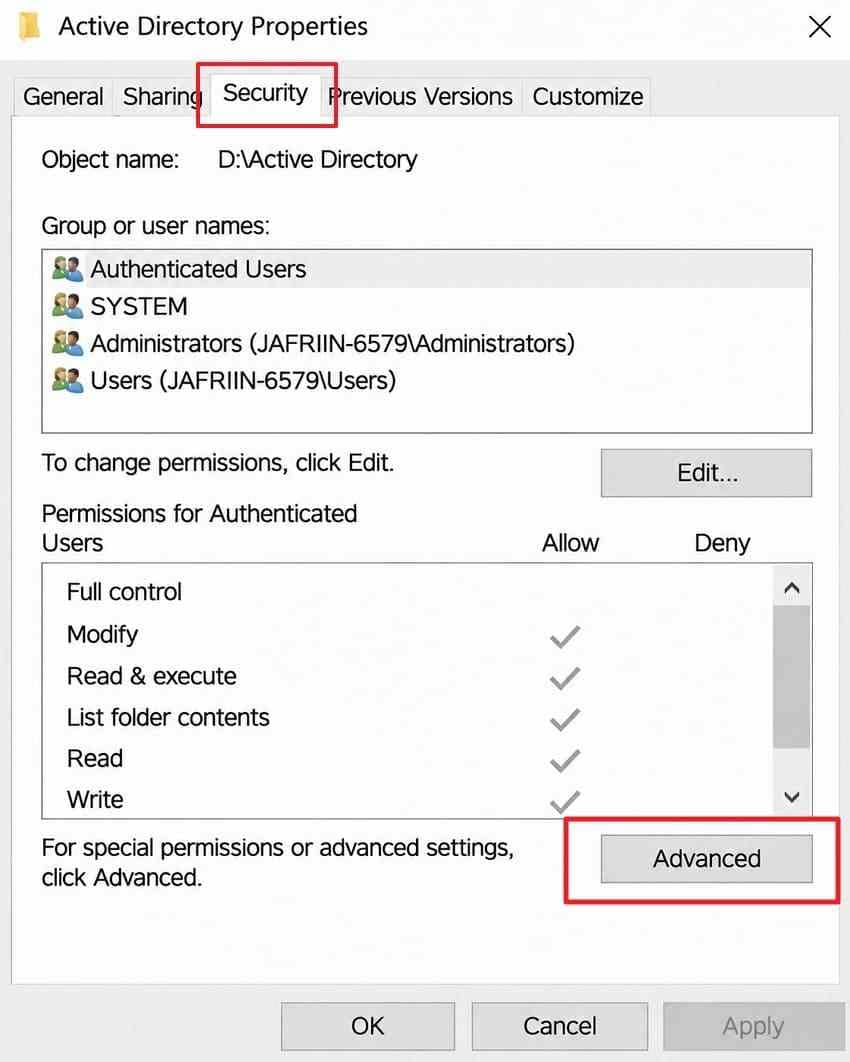
Stop point: Do not run generic GRANT sysadmin commands or assign Windows administrator rights to a custom service account. On a production system, preserve current permissions and have the DBA restore the documented service SID configuration after reviewing the affected instance.
Fix 5. Repair an ODBC Driver Only When the Startup Log Identifies It
A missing or broken SQL Server ODBC driver can prevent Agent from connecting to its Database Engine, but this is not the cause of every startup failure. Open SQLAGENT.OUT and look for an actual driver-load or connection-library error. SQL Server 2025 Agent uses Microsoft ODBC Driver 18; requirements for older engine releases differ. Refer to Microsoft Agent startup and ODBC troubleshooting and check the driver version for your exact installation.
Step 1. From an elevated PowerShell window, run Get-OdbcDriver to list installed drivers. Confirm the needed Microsoft ODBC Driver for SQL Server entry exists; similarly named drivers for other database products are not interchangeable.
Step 2. Only if the required Microsoft driver is missing or faulty, use the official Microsoft installer or its installed-app "Modify > Repair" action during approved maintenance.
Step 3. Start the matching Agent service again and verify that the original ODBC error no longer appears. If it persists, return to the log rather than installing unrelated drivers.
Fix 6. Investigate Error 1053 and Windows Event Log Access
Error 1053 is a service startup timeout, not a universal instruction to edit the registry. Microsoft documents a specific case in which the Windows Event Log service cannot start because event-log policy registry values have the wrong type. Another documented case involves error 17156 or OS error 5, where the Agent cannot write to the Application event log. These are separate conditions; see Microsoft Error 1053 guidance and Microsoft Error 17156 guidance.
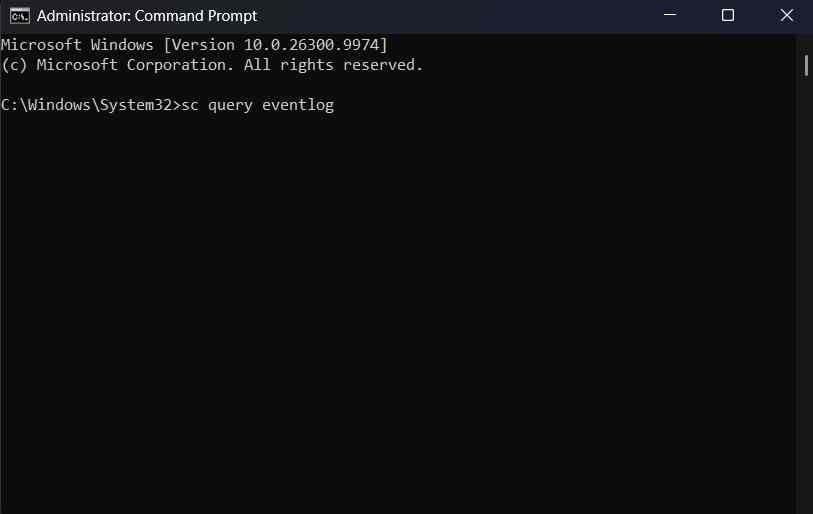
Step 1. Check whether a fresh SQLAGENT.OUT entry appears after a start attempt. In an elevated Command Prompt, run sc query eventlog to read the Windows Event Log service state. If EventLog itself is stopped or failing, give its exact error to the Windows administrator.
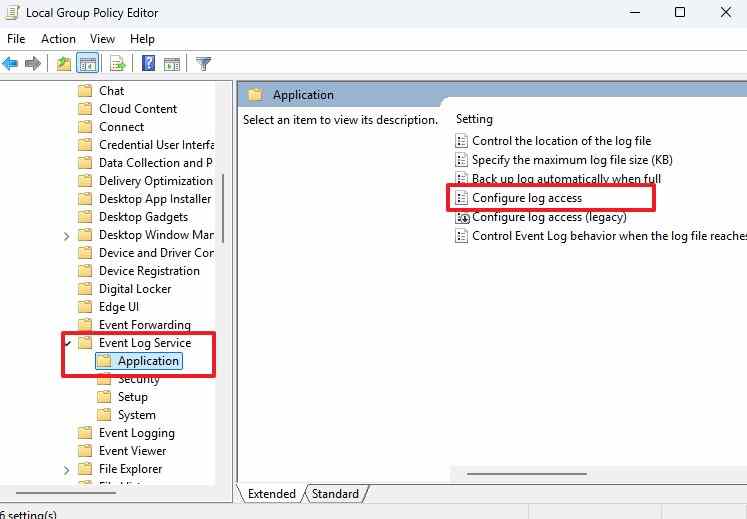
Step 2. If the SQL Server ERRORLOG specifically records 17156 with access denied, have the administrator inspect "Computer Configuration > Administrative Templates > Windows Components > Event Log Service > Application > Configure log access" and the applied policy.
Step 3. For a verified EventLog policy or registry-type problem, follow the applicable Microsoft article under change control. Record and back up the existing policy or registry configuration before an approved repair, and recheck Agent startup afterward.
Do not: Copy an example SDDL access-control entry, delete EventLog registry keys or disable organization-wide logging policy as a general Agent fix. Such changes can affect auditing and other services, and should be reviewed by the responsible Windows/security administrator.
Fix 7. Diagnose Errors 233 and 10054 Before Changing TLS Settings
SQL Server Agent can fail to connect to its engine with error 233 or 10054. Microsoft documents a particular TLS 1.2 configuration problem that combines these messages with an SSL Provider login failure and Event ID 17052. However, the same error numbers can also follow engine unavailability, authentication or other network and encryption problems. Microsoft Agent connection-error article explains the documented case.
Step 1. Confirm the correct Database Engine is Running, inspect its ERRORLOG and the Agent log, and capture the entire connection and SSL Provider message with its timestamp. Check the installed SQL Server version and any recent certificate or encryption-policy changes.
Step 2. If the recorded failure matches Microsoft's documented TLS scenario, have the DBA and security administrator compare the actual SCHANNEL configuration against the official guidance and plan an approved change with a rollback. SQL Server 2025 includes updated Agent encryption behavior, so do not blindly copy older TLS 1.2 registry values across versions.
Step 3. After the approved resolution and any required maintenance-window restart, verify SQL Server connectivity, Agent status, and the absence of the previous login error.
Stop point: Error 233 or 10054 alone does not justify changing the TLS registry, weakening encryption or installing a different ODBC driver.
Fix 8. Repair Automatic Startup Failures After a Server Restart
Choose this branch when Agent starts manually after sign-in but fails during server boot. First compare the Windows event timestamp with Database Engine startup, domain controller availability and service-account authentication. SQL Server 2022 and later use delayed-start behavior when Automatic is selected through SQL Server Configuration Manager, even if its UI shows "Automatic". See Microsoft SQL Server startup behavior.
Step 1. Open the correct Agent service in Configuration Manager. Set "Start Mode" to "Automatic" when the business requires Agent jobs after reboot, and document the change.
Step 2. If the service still fails only at boot, check Event 7038 for domain logon failures and verify that the Database Engine, networking and required domain services are ready. For a confirmed transient startup issue, the administrator may use an approved Windows service "Recovery" action or startup retry.
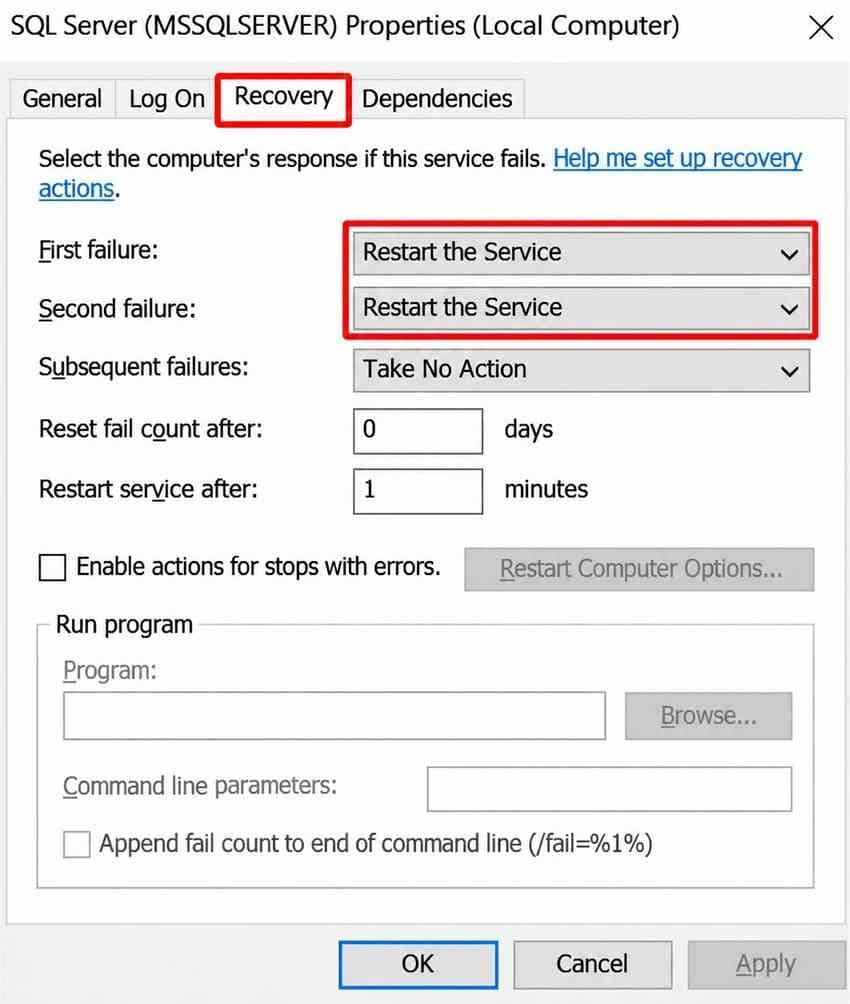
Step 3. Retest during an approved maintenance restart, and verify Agent stays Running without manual intervention. If it fails, follow the new event error instead of repeatedly rebooting.
Fix 9. Diagnose Agent Stuck on Starting or Shutting Down Unexpectedly
When Agent stays at "Starting" or stops after initially appearing, compare SQLAGENT.OUT timestamps with Event Viewer and any Agent dump files. Microsoft identifies excessive job schedules, a damaged ODBC component and delays in the SQLAgent - Generic Refresher worker as possible causes. Do not delete jobs simply because the startup is slow.
Step 1. If a DBA can connect to the Database Engine, run the following Microsoft diagnostic query to look for the Generic Refresher session and its waits:
SELECT s.session_id, r.status, r.wait_type, r.wait_time,
       s.program_name, t.text
FROM sys.dm_exec_requests AS r
RIGHT JOIN sys.dm_exec_sessions AS s ON r.session_id = s.session_id
OUTER APPLY sys.dm_exec_sql_text(r.sql_handle) AS t
WHERE s.program_name = 'SQLAgent - Generic Refresher';
Step 2. Review PREEMPTIVE_OS_LOOKUPACCOUNTSID, PREEMPTIVE_OS_AUTHORIZATIONOPS and ASYNC_NETWORK_IO in context. Check domain-controller response, job owners, proxy accounts and excessively nested AD groups if the wait evidence points to identity lookups.
Step 3. If job or subscription volume is proven to be the bottleneck, inventory and back up job definitions first. Remove only obsolete jobs or subscriptions after approval, then start Agent and monitor stability. If dump files recur, escalate the evidence to the DBA or Microsoft Support.
On SQL Server Express, Schedule Supported Backups Without Agent
SQL Server Express can perform SQL Server database backups, but it has no SQL Server Agent scheduler. If your actual goal is automated backups, Microsoft documents a Windows Task Scheduler and sqlcmd approach. This is an alternative scheduler, not a way to turn on Agent. Use the maintained Microsoft SQL Server Express backup procedure rather than an unreviewed third-party SQL script.
Step 1. As an authorized SQL administrator, obtain and review Microsoft's SQL_Express_Backups.sql script from that article. Execute it against the intended instance to create master.dbo.sp_BackupDatabases. Confirm the procedure exists before scheduling it.
Step 2. Create the destination folder on a suitable backup disk, ensure the SQL Server service account can write to it, and save a batch file such as Sqlbackup.bat with this example for an instance called SQLEXPRESS:
sqlcmd -S .\SQLEXPRESS -E -b -Q "EXEC sp_BackupDatabases @backupLocation='D:\SQLBackups\', @backupType='F'"The example assumes Windows authentication and that the documented stored procedure already exists. Change the instance name and path for your environment; do not paste the command without installing the procedure and verifying permissions. The -b option helps Task Scheduler detect SQL errors.
Step 3. Run the batch file manually under the same account that will run it unattended. Confirm it creates the expected backup file; then use "Task Scheduler > Create Basic Task > Start a Program" to schedule the batch file.
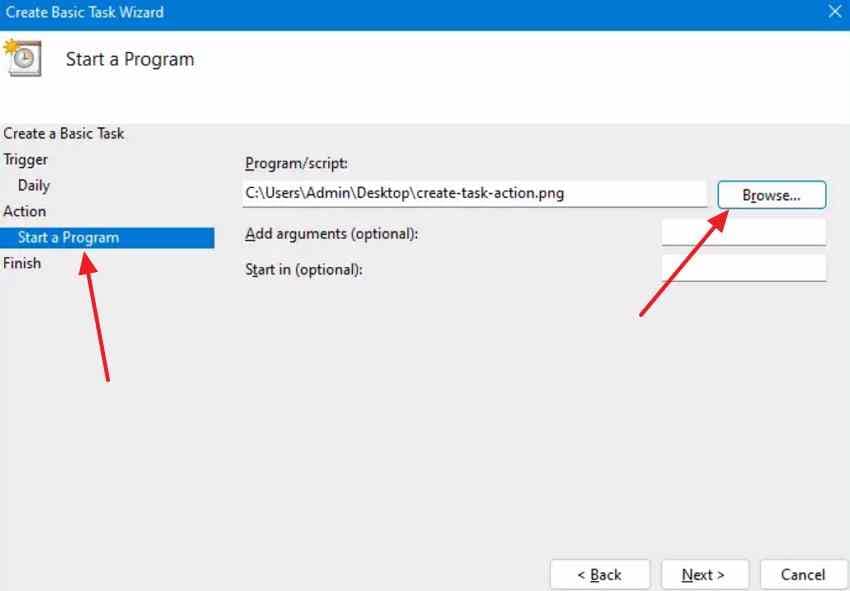
Step 4. Review Task Scheduler "Last Run Result" and SQL Server backup history, check backup timestamps and file sizes, and perform restore verification. Set a retention policy, because the sample script does not delete old backups. Unlike Agent, Task Scheduler does not automatically provide SQL Agent job history, SQL-specific retry logic or alerts.
Verify Agent Service Stability and a Safe Test Job
A Running service status is necessary but does not prove that jobs execute. On an Agent-supported instance, recheck the service after several minutes, then run a harmless one-off test job. For a production instance, have a DBA approve even a small test job.
Step 1. In SSMS, run this read-only service-status query on the correct instance:
SELECT servicename, status_desc, startup_type_desc
FROM sys.dm_server_services
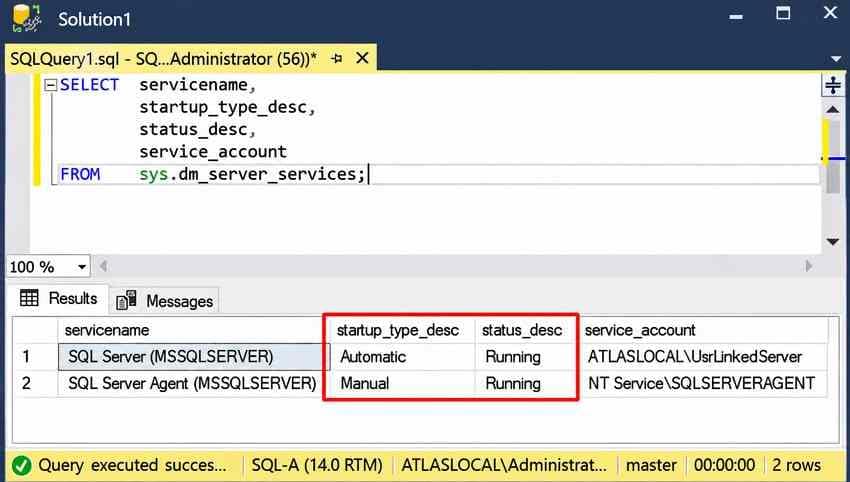
WHERE servicename LIKE 'SQL Server Agent%';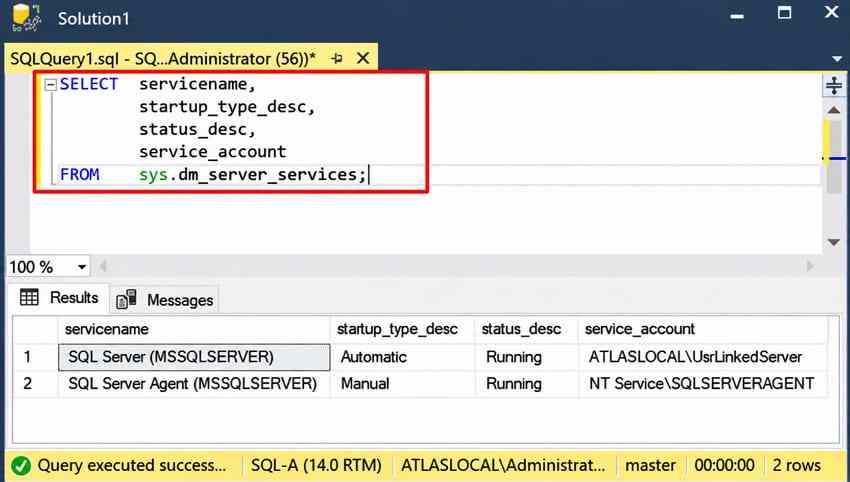
Step 2. Confirm the Agent row reports Running and the intended startup mode; repeat after several minutes. On SQL Server 2022 or later, the query requires VIEW SERVER SECURITY STATE or a higher permission. On SQL Server 2019 and earlier, VIEW SERVER STATE is required.
Step 3. Expand "SQL Server Agent > Jobs" and create an unscheduled test job using a harmless Transact-SQL step such as SELECT @@SERVERNAME;. Use an appropriately authorized owner, without granting new high privileges solely for this test.
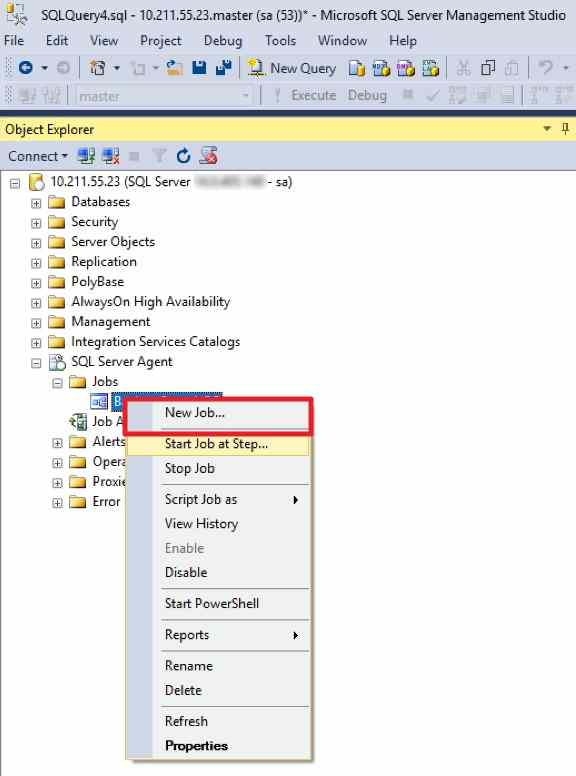
Step 4. Choose "Start Job at Step", then inspect "View History" to confirm a successful run. Remove the temporary job when its purpose is complete, under normal change control.
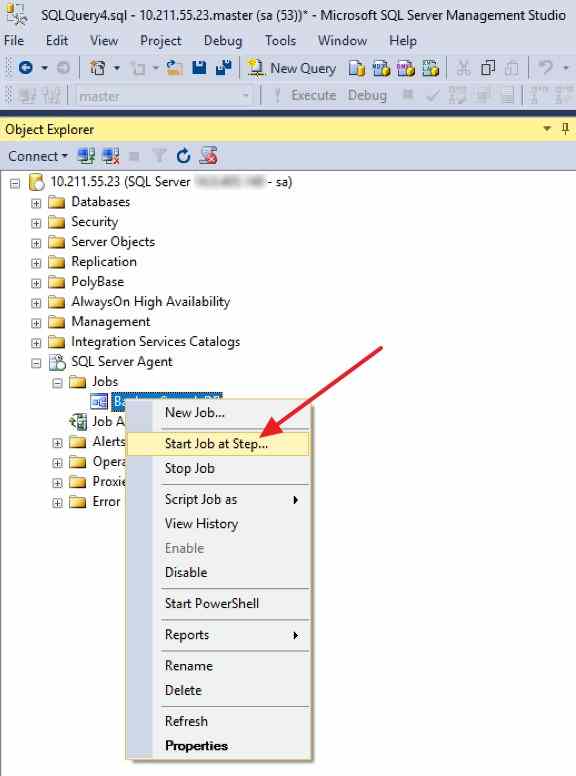
A successful manual run demonstrates that Agent can execute that job; it does not prove a production schedule, proxy or alert is configured correctly. Verify real scheduled jobs separately and watch for renewed errors after the next planned server reboot.
Conclusion
If SQL Server Agent is not starting, first confirm the SQL Server edition and instance. Express does not support Agent; Windows Task Scheduler with a verified SQL backup script is the appropriate option when automated backups are the goal. On supported editions, use SQLAGENT.OUT, SQL Server ERRORLOG and Windows events to select the relevant service, logon, driver, event-log or connection fix.
Do not change service privileges or TLS and Event Log settings without a specific error and an approved maintenance plan. Protect database and msdb backups, then confirm Agent stays Running and executes a safe test job. If the failure remains, provide the exact SQL Server build, service identity and timestamped log entries to your DBA or Microsoft Support.
FAQ
-
Why is SQL Server Agent missing or disabled in SQL Server Express?
SQL Server Express does not support SQL Server Agent. Its Windows service may appear disabled in Configuration Manager, but you cannot enable the Agent feature on Express. To schedule supported SQL backups, use a verified script with Windows Task Scheduler, or use a licensed SQL Server edition that includes Agent. -
How do I find SQL Server Agent startup errors?
Identify the correct instance and inspect its SQLAGENT.OUT file, usually under the instance log directory. Compare the failure time with SQL Server ERRORLOG and the Windows System and Application event logs. Windows event IDs 7038 and 7041 can indicate account and logon-right problems; an empty or unchanged SQLAGENT.OUT may mean Agent failed before normal logging. -
What causes SQL Server Agent Error 1069?
Error 1069 means Windows could not sign in with the Agent service account. The cause may be an incorrect or expired password, a disabled or locked account, a missing Log on as a service right, a domain that was unavailable at startup, or a gMSA problem. Read the related Event 7038 or 7041 message before changing the account. -
Why does Agent fail when the SQL Server Database Engine is running?
The engine and Agent are separate services. Agent also needs access to msdb, a working service identity, appropriate permissions, and its required connectivity and logging components. Check SQLAGENT.OUT for specific ODBC, authentication, event-log or TLS errors rather than assuming that a running Database Engine guarantees Agent startup.


