WhatsApp backups on Google Drive help preserve conversations, photos, and supported media. To restore one on Android, you reinstall or set up WhatsApp, verify the same phone number and Google Account, then select an existing eligible backup during setup. A restored chat history is not merged with newer local chats on the destination phone.
Before you uninstall or reset anything, check whether the destination phone has unsynced conversations, and confirm you have the backup password, 64-digit key, or supported passkey if the backup is end-to-end encrypted.
In This Article
-
- Step 1. Add the Google Account Containing Your WhatsApp Backup
- Step 2. Install or Reinstall WhatsApp on Your Android Phone
- Step 3. Verify the Phone Number Linked to Your Backup
- Step 4. Select the Google Drive Backup and Start Restoration
- Step 5. Unlock the Backup if End-to-End Encryption Is Enabled
- Step 6. Complete the Restore and Check Your WhatsApp Chats
-
- Fix 1. WhatsApp Cannot Find Your Google Drive Backup
- Fix 2. WhatsApp Backup Restore Is Stuck or Keeps Failing
- Fix 3. WhatsApp Cannot Unlock an Encrypted Google Drive Backup
- Fix 4. Some WhatsApp Chats, Photos, or Videos Are Missing After Restoration
- Fix 5. Restore Option Was Skipped During WhatsApp Setup
Part 1. What to Check Before Restoring WhatsApp Backup from Google Drive
WhatsApp requires the original phone number and the Google Account associated with the backup to identify an existing backup. The destination Android phone must also have enough storage, and an end-to-end encrypted backup requires the matching password, 64-digit key, or passkey.
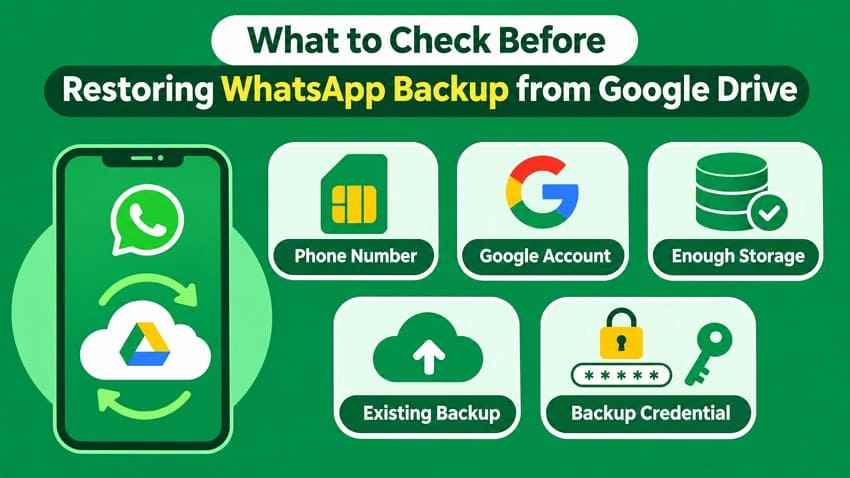
Review this checklist before you begin:
| Requirement | What to Confirm | Risk if Overlooked |
| Phone number | Access to the original number for SMS or call verification | Account verification or backup restoration fails |
| Google Account | The account tied to the backup is signed in on the destination phone | WhatsApp cannot locate the cloud backup |
| Enough storage | Available device storage exceeds the backup size | Chats or media remain partially restored |
| Existing backup | The last successful backup date and expected size | Recent conversations or media remain missing |
| Backup credential | The correct password, 64-digit key, or passkey for encrypted backups | Protected backup data remains inaccessible |
Chat Backup vs Google Photos Backup
WhatsApp’s chat backup and Google Photos serve different purposes. The chat backup preserves conversations and supported media for restoration inside WhatsApp, while Google Photos stores individual photos and videos when Back up device folders is enabled. A Google Photos backup cannot restore conversations.
When you recover a WhatsApp backup from Google Drive, individual conversations stay inaccessible through regular folders. Google One’s storage management guide explains how to manage backups through the WhatsApp backup management page. Recoverit cannot restore these chat backups directly, but its photo recovery and video recovery features can retrieve deleted WhatsApp media previously saved on a computer or compatible external drive.
Confirm the Backup on the Original Phone
Before attempting WhatsApp backup recovery, check when your conversations were last backed up: open WhatsApp and go to You > Chats > Chat Backup to review the backup timestamp and size.
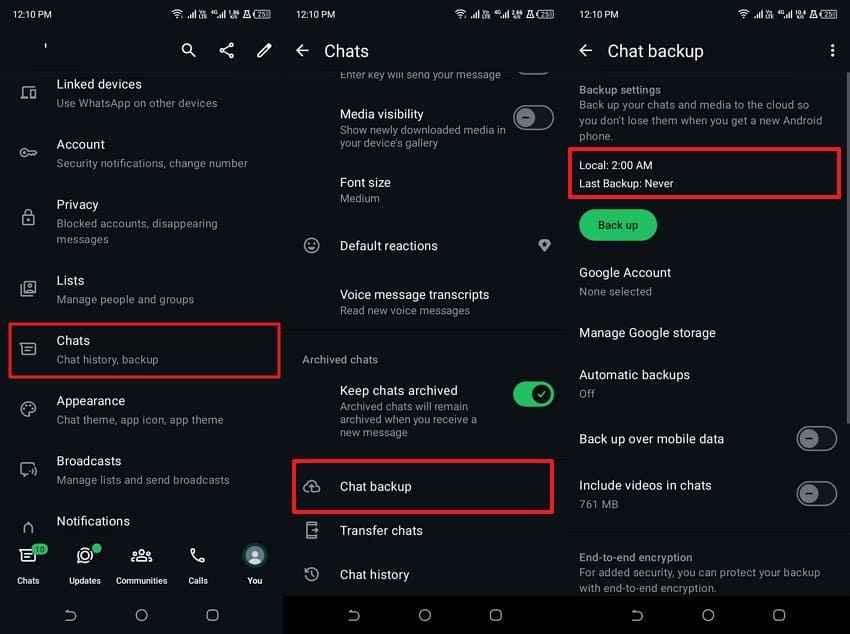
According to WhatsApp’s backup guidelines, each new backup replaces the previous one for the same account and number. If the original phone still has your complete history, tap Back Up. Before switching devices, also:
- Network and power: connect to stable Wi-Fi and keep the phone plugged in during restoration.
- Current software: install the latest WhatsApp from Google Play, and check Google Play Services updates as recommended in WhatsApp’s backup troubleshooting guide.
- Video backup settings: enable Include Videos under Chat Backup before creating a fresh backup, because enabling it later does not add videos to an existing backup.
Note: Avoid creating a backup from incomplete chat history, because it could overwrite the previous cloud backup.
Part 2. How to Restore WhatsApp Backup from Google Drive on Android
WhatsApp offers cloud backup restoration during initial setup, before you reach the main chat screen. Follow these steps to complete WhatsApp backup recovery from Google Drive.
Step 1. Add the Google Account Containing Your WhatsApp Backup
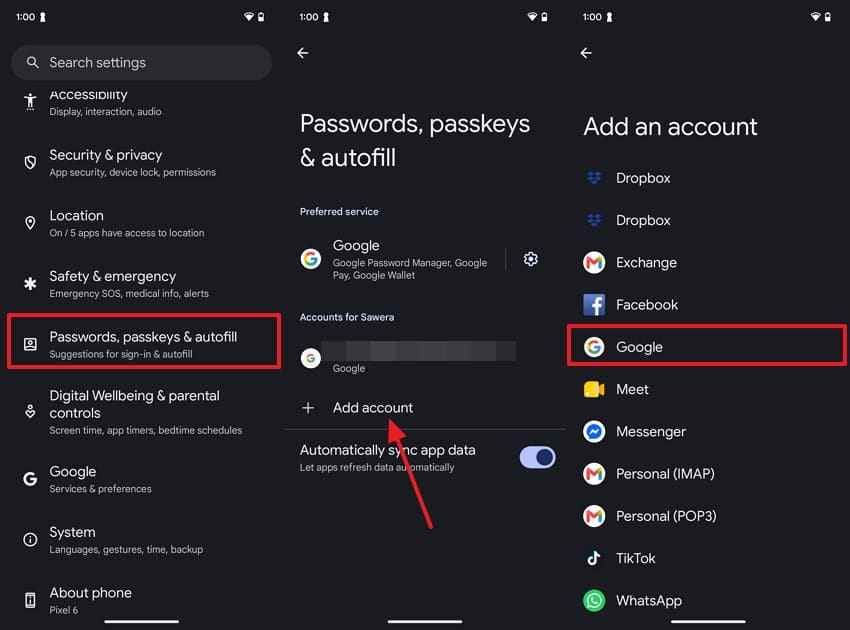
Open Settings > Passwords & Accounts > Add Account > Google and follow Google’s steps to sign in. Use the Google Account listed under Chat Backup on the original phone, and enter your device PIN, pattern, or password if prompted.
Step 2. Install or Reinstall WhatsApp on Your Android Phone
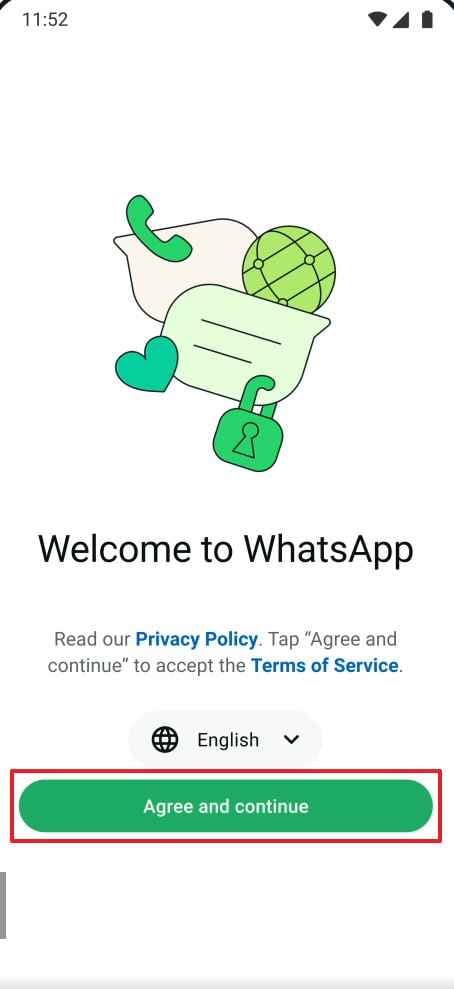
Install or reinstall WhatsApp Messenger from the Play Store. Launch the app, select your language, and tap Agree and Continue.
Note: Export important existing conversations before uninstalling WhatsApp or clearing its app data. Exported chats remain readable records but cannot be imported back into WhatsApp as chat history.
Step 3. Verify the Phone Number Linked to Your Backup
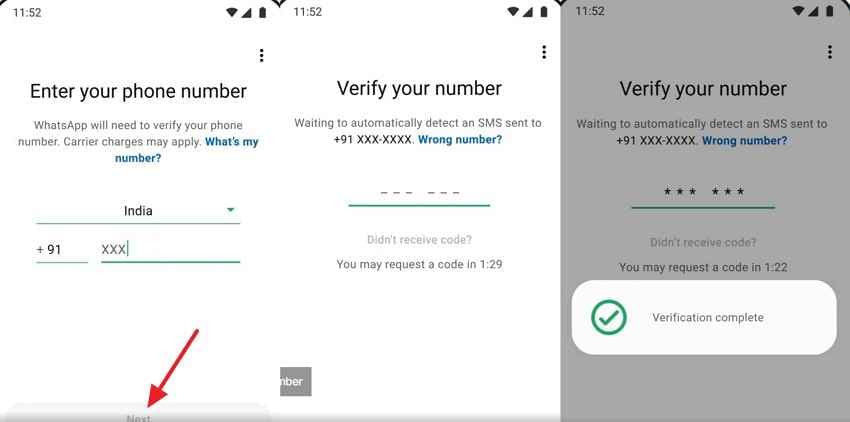
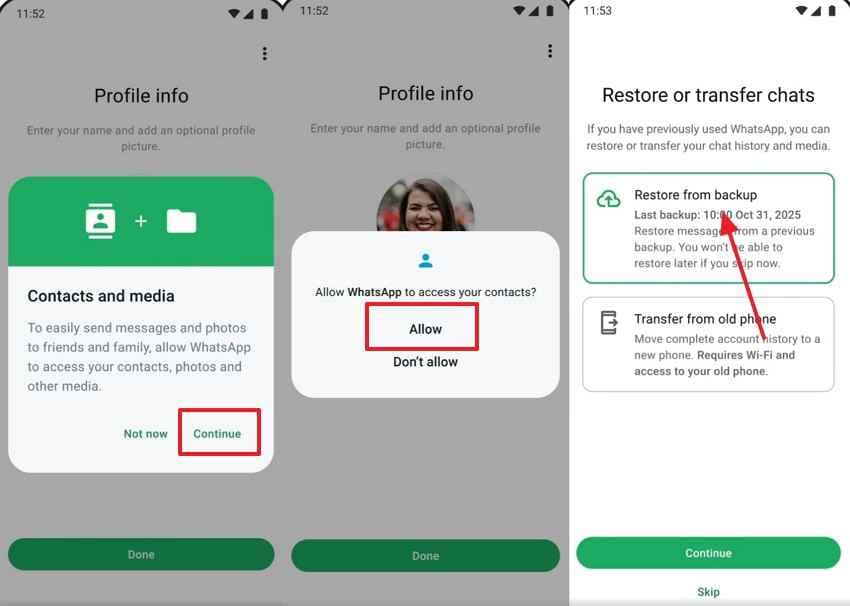
Tap Allow if prompted, then enter the original phone number associated with your backup. Choose Next > Yes and complete verification. According to Google’s guide, WhatsApp cannot directly transfer chat history to a different number; use the Change Number feature on the original phone first.
Step 4. Select the Google Drive Backup and Start Restoration
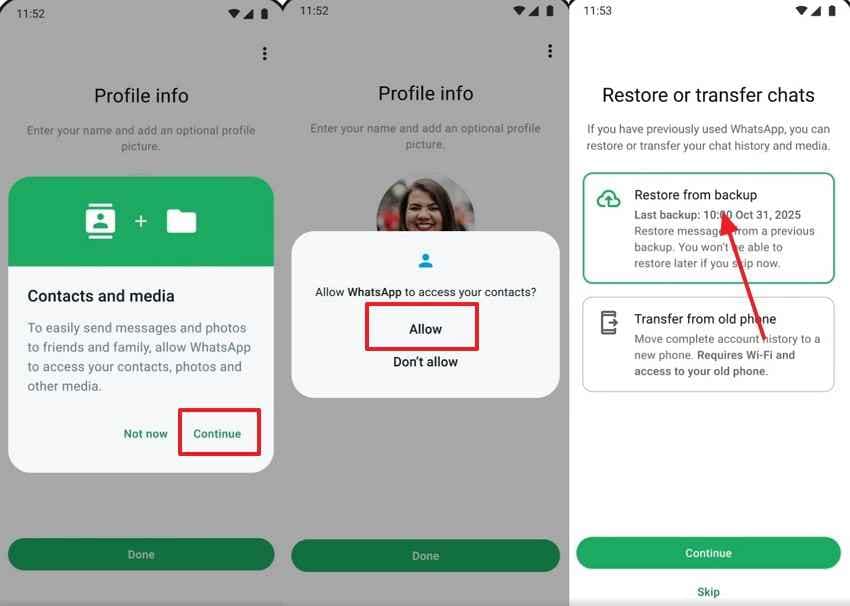
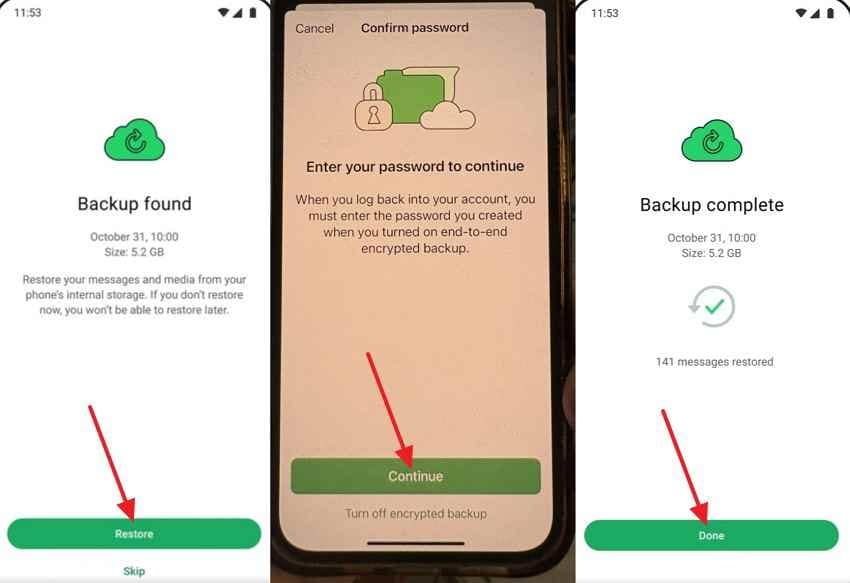
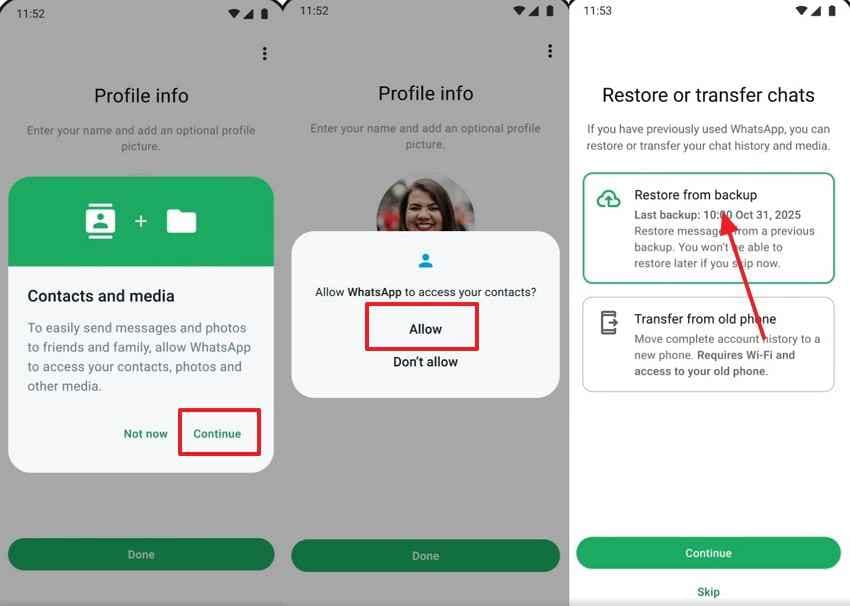
Choose Continue > Allow to grant permissions when prompted. Select Restore from Backup > Continue, as described in Google’s WhatsApp transfer guide. Review the detected backup details and tap Restore. Chats restore first, then supported media downloads in the background.
Step 5. Unlock the Backup if End-to-End Encryption Is Enabled
If your backup is end-to-end encrypted, enter the password or 64-digit key and tap Continue. Passkey-protected backups require fingerprint, facial recognition, or screen lock, per WhatsApp’s passkey announcement. Neither WhatsApp Support nor third-party applications can bypass backup encryption. Tap Done when restoration finishes.
Step 6. Complete the Restore and Check Your WhatsApp Chats
Open recent and older conversations to verify restored messages. Keep the phone on Wi-Fi until photos, videos, and documents finish downloading, then configure automatic backups.
Part 3. How to Fix WhatsApp Backup Recovery from Google Drive Not Working
Restoration errors can occur at different stages. This table outlines common symptoms, causes, and solutions.
| Problem | Probable Cause | Recommended Action |
| Backup not detected | Account mismatch or missing cloud backup | Confirm backup availability and verify account details |
| Restoration stuck or failed | Network interruptions, insufficient storage, or outdated software | Check connectivity, storage, and updates |
| Encrypted backup locked | Incorrect or unavailable encryption credentials | Authenticate with the correct credentials or reset the password on the original phone |
| Chats or media missing | Outdated backup, excluded videos, or incomplete downloads | Review the backup timestamp and let media restoration finish |
| Restore option skipped | Restoration prompt dismissed during setup | Export new chats and restart WhatsApp setup |
Fix 1. WhatsApp Cannot Find Your Google Drive Backup
WhatsApp may fail to detect a backup because of account mismatches or incomplete uploads. According to Google’s admin help, WhatsApp backups are deleted after 5 months of inactivity on Workspace accounts.
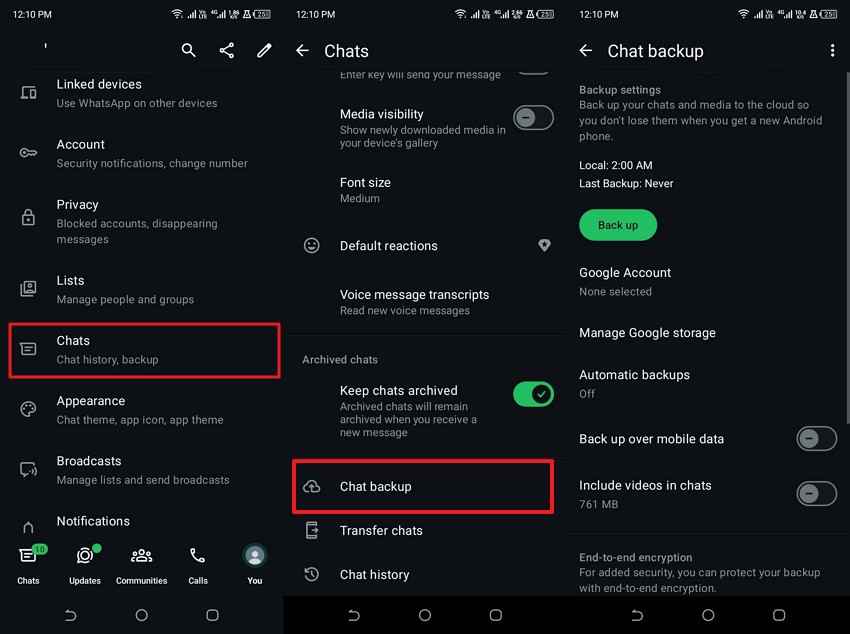
Step 1. Check the original phone. Go to You > Chats > Chat Backup and confirm the latest backup completed successfully.
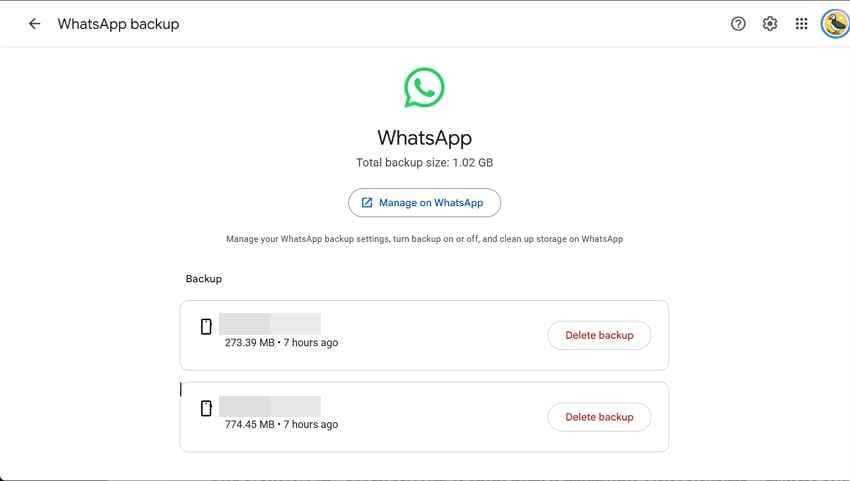
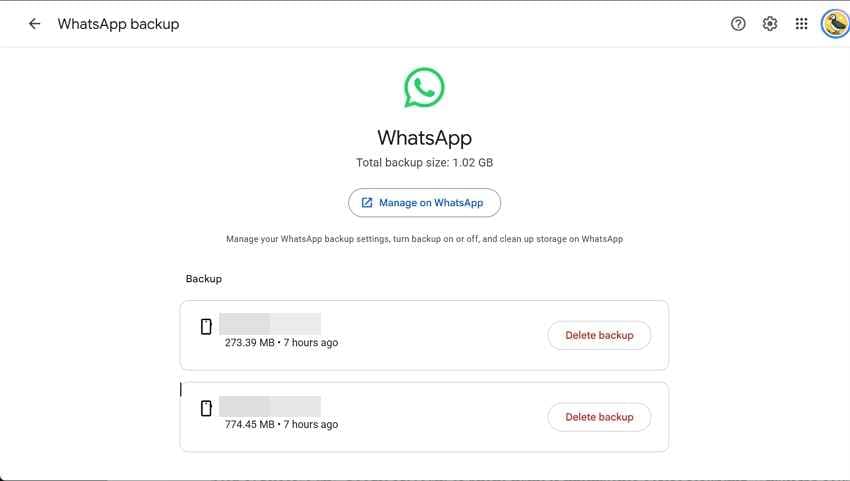
Step 2. Check the management page. Visit the Google One WhatsApp backup management page to confirm the backup still exists.
Step 3. Resolve mismatches. Fix any Google Account or phone number mismatch before restarting WhatsApp setup, following Part 2.
Step 4. Check the prompt. See whether Restore from Backup appears during setup. If the backup is gone, consider direct chat transfer from the original phone.
Note: Do not tap Delete Backup on the Google One management page, because that permanently removes the cloud backup.
Fix 2. WhatsApp Backup Restore Is Stuck or Keeps Failing
Large backups take time to restore, and slow media downloads after chats appear do not necessarily mean failure. Refer to WhatsApp’s troubleshooting guide if problems persist.
Step 1. Check connection and storage. Connect to stable Wi-Fi, plug in the charger, and ensure enough free storage.
Step 2. Update software. Check for Google Play Services updates and update WhatsApp through the Play Store.
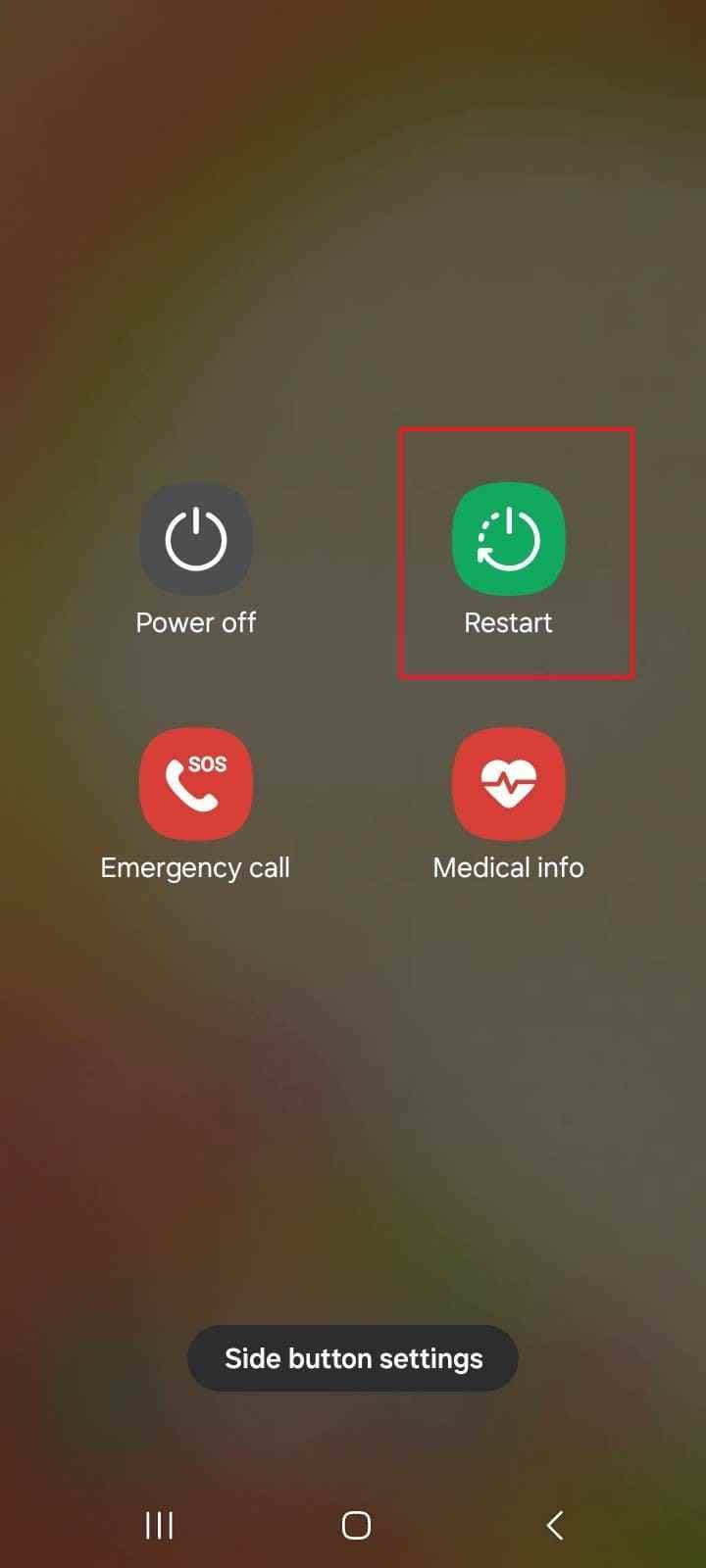
Step 3. Restart the phone. Restart from the Power menu and reopen WhatsApp. Try another connection if still stuck.
Step 4. Reinstall if needed. If restoration keeps failing, reinstall WhatsApp and select Restore from Backup again.
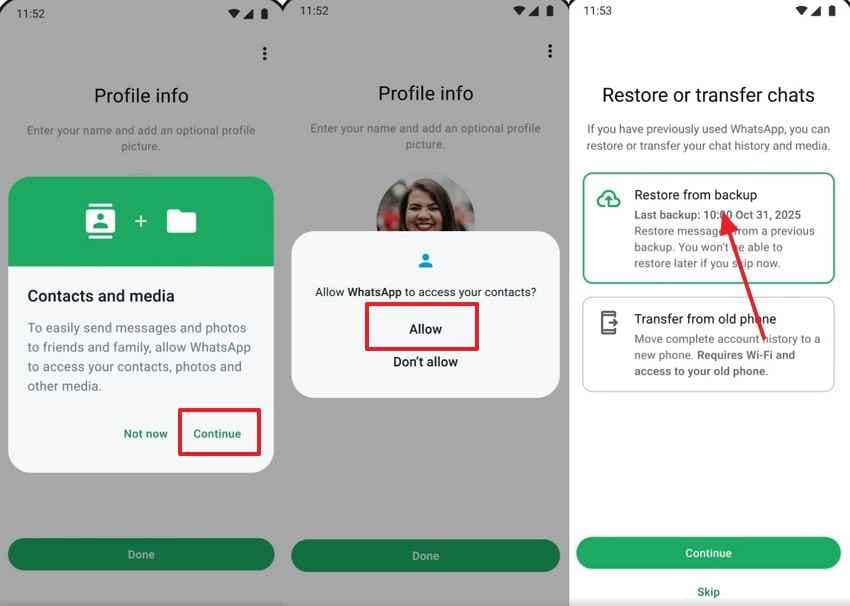
Step 5. Let media finish. Allow background media restoration to continue after chats appear. Per Google’s WhatsApp restoration guide, contact WhatsApp Support if missing images do not appear after 24 hours.
Note: Do not reinstall WhatsApp while background media restoration is still in progress.
Fix 3. WhatsApp Cannot Unlock an Encrypted Google Drive Backup
End-to-end encrypted backups need a password, 64-digit key, or passkey. If you have access to the original phone, you can change a forgotten backup password there.
Step 1. Enter the credential. Enter the correct password or 64-digit key, or authenticate with fingerprint, face, or screen lock for a passkey.
Step 2. Reset the password. On the original phone, go to You > Chats > Chat Backup > End-to-End Encrypted Backup > Change Password, select I Forgot My Password, and authenticate with device security.
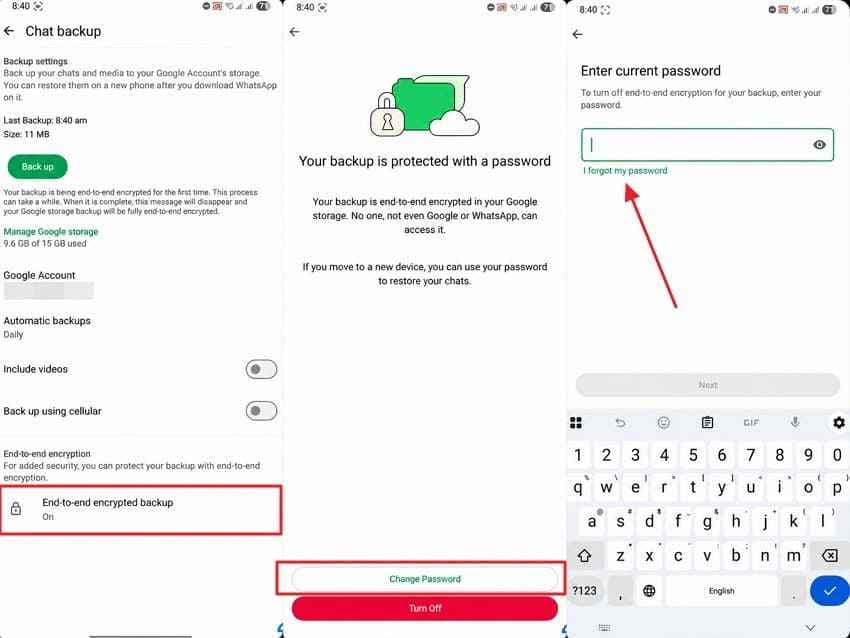
Step 3. Set a new password. Follow WhatsApp’s password recovery instructions, create a fresh backup if your full history is still available, then retry.
Step 4. Or transfer directly. Select Transfer from Old Phone during setup, then on the original phone go to You > Chats > Transfer Chats and scan the QR code on the new phone, per Google’s transfer guide.
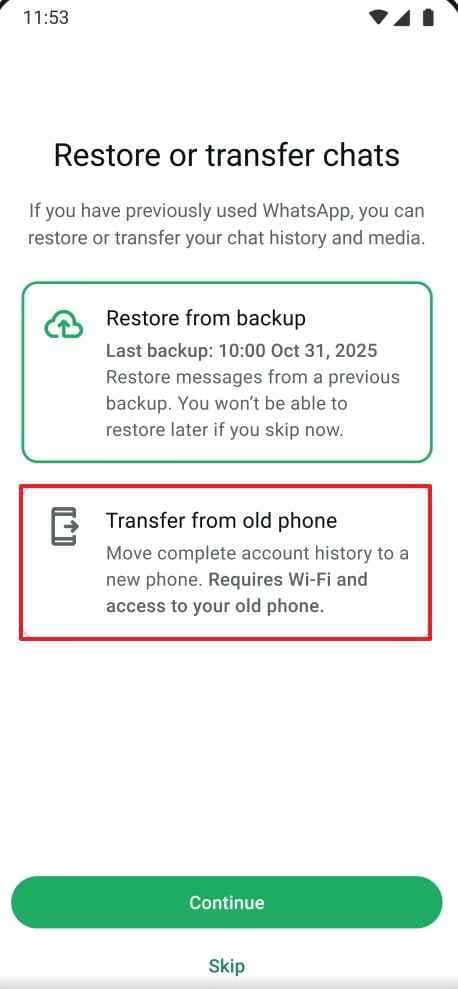
Note: Do not erase or reset the original phone until the transfer or restoration succeeds. As stated in WhatsApp’s encryption guidelines, neither WhatsApp nor the backup provider can unlock encrypted backups.
Fix 4. Some WhatsApp Chats, Photos, or Videos Are Missing After Restoration
Messages exchanged after the backup date cannot come from that backup. If content is still missing, consider these options:
- Use WhatsApp Chat Transfer: if missing conversations remain on the original phone, use the Chat Transfer feature.
- Check local backups: look in WhatsApp’s Databases folder on the original phone for a compatible local backup.
- Check alternative media copies: look in WhatsApp’s Media folder, external storage, or Google Photos if media folders were backed up.
- Recover deleted media: use dedicated recovery software for deleted attachments on supported storage. See the Pro Tip section.
Fix 5. Restore Option Was Skipped During WhatsApp Setup
Skipping the prompt does not delete the backup, but you must restart setup to see the option again. Per Google’s restoration guidelines, restoring replaces conversations created on the new device.
Step 1. Export new chats. Open any new conversation, tap More Options > More > Export Chat, and choose whether to include media. WhatsApp exports chats as readable records.
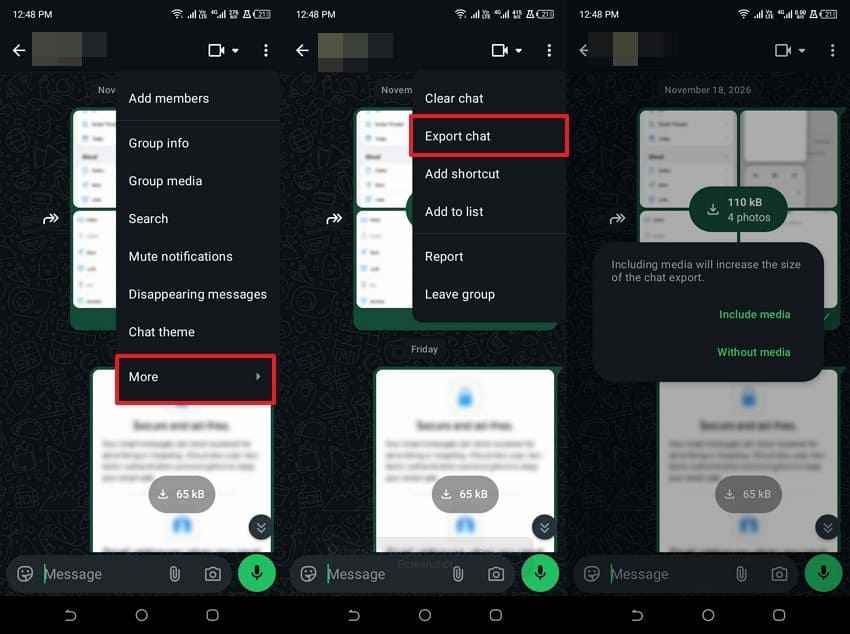
Step 2. Reinstall. Confirm the backup still exists on the Google One management page, then reinstall WhatsApp or clear its app data to restart setup.
Step 3. Restore. Launch WhatsApp, verify your number, and select Restore from Backup.
Note: Do not create a fresh cloud backup before restoring the original one. Exported chats cannot be re-imported into WhatsApp.
Pro Tip. Recover Missing WhatsApp Photos and Videos Using Recoverit
Some photos and videos can remain missing even after a successful WhatsApp restoration. Separate copies might exist in WhatsApp Web downloads, computer folders, USB drives, or microSD cards. If those files were deleted, dedicated recovery software can help retrieve them.
Recoverit Photo Recovery supports Windows and Mac drives, USB flash drives, and compatible memory cards, while Recoverit Video Recovery supports formats such as MP4 and MOV. You can filter results by file type and preview recoverable media before saving it. Recoverit cannot restore WhatsApp Google Drive chat backups or decrypt encrypted WhatsApp databases.
Key features:
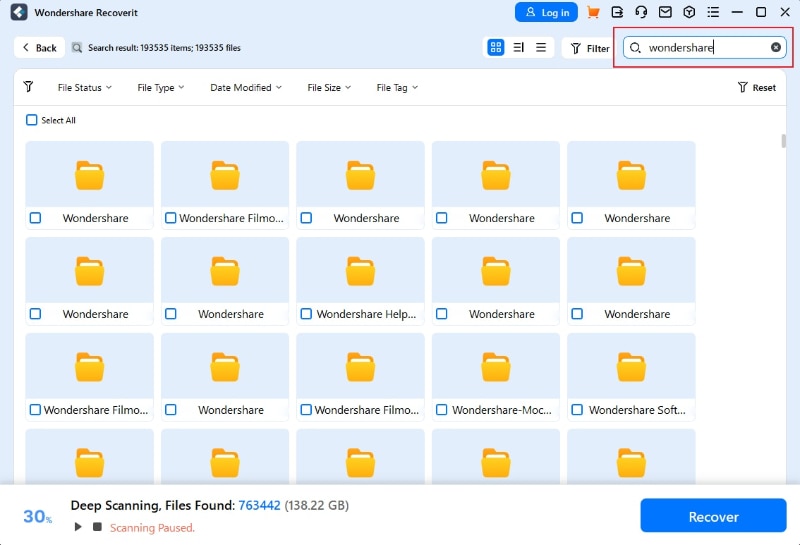
- AI-powered search: uses natural-language queries to locate specific photos and videos in large scan results.
- Video defragmentation: combines fragmented video data to improve recovery of playable files.
- Media repair: repairs supported corrupted photos and videos to fix visual distortion and playback errors.
- Safe scanning: scans without writing recovered data back to the source drive, reducing overwrite risk.
- Deep scan: examines underlying storage sectors to find media that conventional scans may miss.
How to Recover Missing WhatsApp Photos and Videos With Recoverit
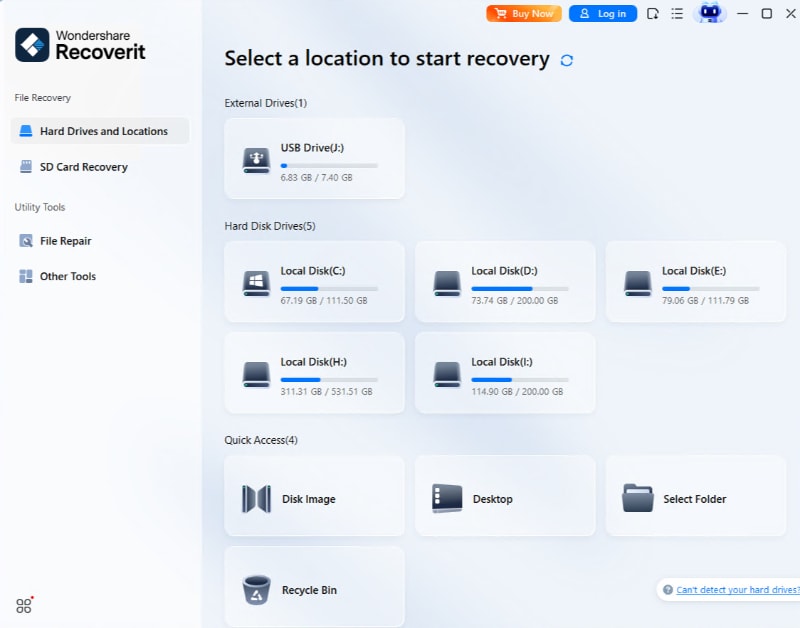
Step 1. Select the media location. Open Recoverit and go to Hard Drives and Locations or SD Card Recovery. Select the drive or folder where your missing WhatsApp media was stored.
Step 2. Find the media. Use the File Type filter to narrow results, or enter a description into AI Search.
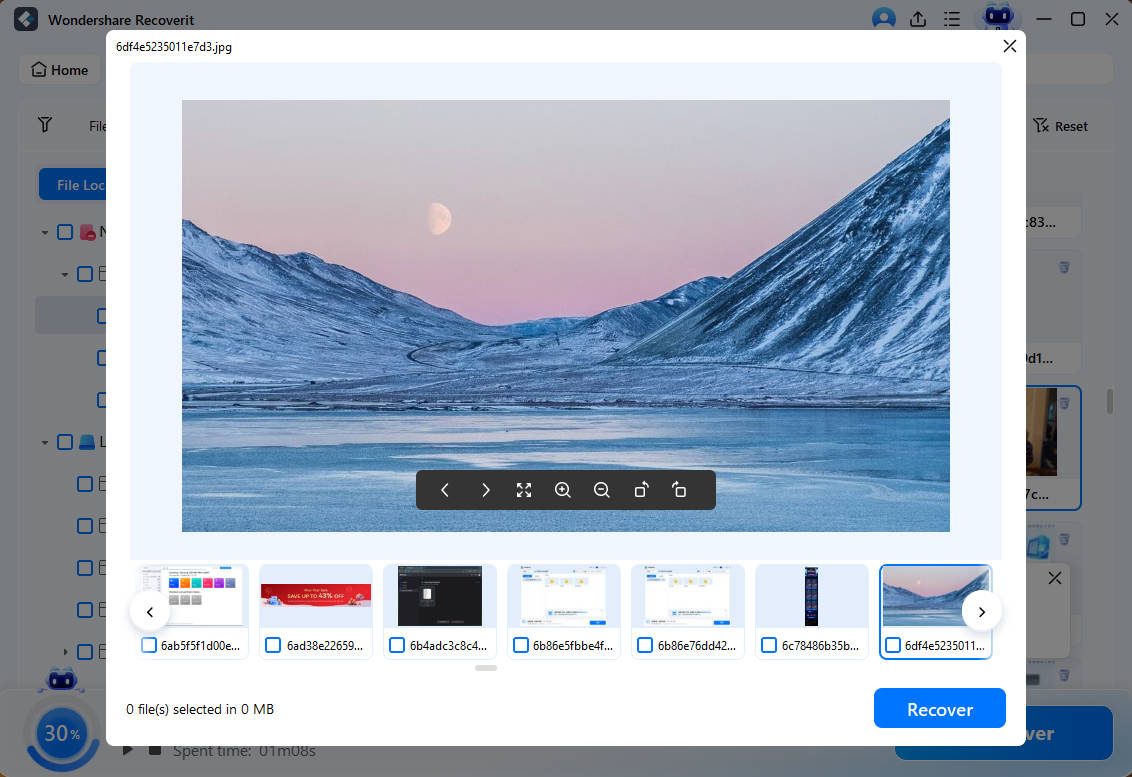
Step 3. Preview and save. Check photos and videos with the preview feature, mark the desired files, click Recover, and save to a different drive.
Note: Recoverit can also recover deleted WhatsApp documents, audio, and other attachments that were separately saved on supported storage.
Conclusion
A successful restore means your chat history is visible from the expected date, selected contacts are verified, and media sync has finished. If the backup is inaccessible, identify the missing prerequisite: the wrong account or number, no existing backup, or an unavailable encryption credential.
If photos or videos remain missing after restoration, check for separately saved copies. Recoverit Photo Recovery and Recoverit Video Recovery can help retrieve deleted WhatsApp media from readable computer or removable storage, but they cannot restore WhatsApp cloud backups or decrypt encrypted chat databases.
FAQ
-
Can I restore WhatsApp backup from Google Drive without uninstalling WhatsApp?
WhatsApp offers backup restoration during initial setup. Instead of uninstalling, you can clear the app’s data through Android settings to restart setup, but this removes locally stored conversations that are not backed up. Export important chats first. -
How do I restore an old WhatsApp backup from Google Drive?
WhatsApp retains only the latest Google Account backup for a phone number, and each new backup replaces the previous one. If an older backup remains available, restore it during initial setup with the associated Google Account and phone number. -
Can I restore a WhatsApp Google Drive backup directly to an iPhone?
No. WhatsApp supports Google Drive backup restoration only on Android; the iPhone version uses iCloud. Apple’s Move to iOS app can transfer WhatsApp chats to a new or factory-reset iPhone. -
Why is my WhatsApp Google Drive backup not showing during restoration?
Incorrect account details, mismatched phone numbers, or unsuccessful backups can prevent detection. Expired or deleted backups are also unavailable. Check the original phone’s Chat Backup settings and confirm availability through Google One before retrying.


