

 TL;DR:
You can safely transfer DJI drone videos to a Windows or Mac computer using a direct USB connection, an SD card reader, official DJI software, or mobile Wi-Fi sync depending on your file size and location.
● An SD card reader is the fastest and most reliable method for transferring large 4K files without draining the drone's battery, whereas DJI Assistant 2 is best suited for users who also need to manage firmware updates during the transfer.
● Wireless options like the DJI Fly App and QuickTransfer sync footage to your mobile phone first, providing a cable-free solution for outdoor previews, provided your phone has adequate storage space to handle the video sizes.
● To avoid data corruption and the need for recovery tools like Recoverit, never format an unreadable SD card on your PC; always format the card directly inside the drone only after verifying the files are successfully copied to your hard drive.
Ask AI for a summary
 ChatGPT
 Perplexity
 Gemini
 Claude
 Grok
Grok
Flying a DJI drone feels thrilling. Isn’t it? The world looks different from above, and every flight captures something new. But when it is time to save and edit the footage, you must move those files from your drone to your computer. Many new users wonder how to transfer DJI videos to computer safely and without losing quality.
It is not hard to do. There are several ways to move or copy your files. Some are faster, some more reliable. In this guide, you will learn each method step by step.
You will also learn how to transfer DJI drone data to PC without errors, how to recover lost videos during transfer, and how to store your footage neatly for future use.
Table of Contents
Part 1: Can You Transfer DJI Videos to Any Computer?
Yes. You can transfer DJI videos to computer easily, no matter if you use Windows or Mac. Every DJI drone saves footage on a memory card or built-in storage. Once connected, your computer can read it like a regular drive. You can open the folder, view your files, and copy them.
Still, a few things can cause trouble. Some computers may not detect the drone right away. Others may ask you to format the card. Never do that until you move the files safely. You could lose your footage forever. To transfer DJI drone data to PC successfully, check compatibility first. Make sure you have the right cable, card reader, and enough storage space on your computer.
Part 2: How to Transfer DJI Videos to Computer?
After each flight, your next step is to save your work. Learning how to transfer DJI videos to computer helps you protect your footage and make space for new flights. You can use different methods depending on what tools you have.
Method 1: Use a USB Cable to Connect the Drone Directly
Connecting your drone directly with a USB cable is the simplest approach. The drone acts like a removable drive. When you plug it in, the computer shows its folders. You can open them, see all your videos, and copy them.
This method is good when you do not want to remove the SD card every time. It reduces wear on the slot and keeps the card safe inside the drone. It also helps when you want to get DJI videos to computer quickly after landing.
When to use it:
- Your drone supports direct USB transfer.
- You want a plug-and-play option.
- You do not want to handle the SD card often.
How to Use a USB Cable to Connect the Drone Directly:
- Power off your drone. Plug the USB cable into the drone and then into your computer.
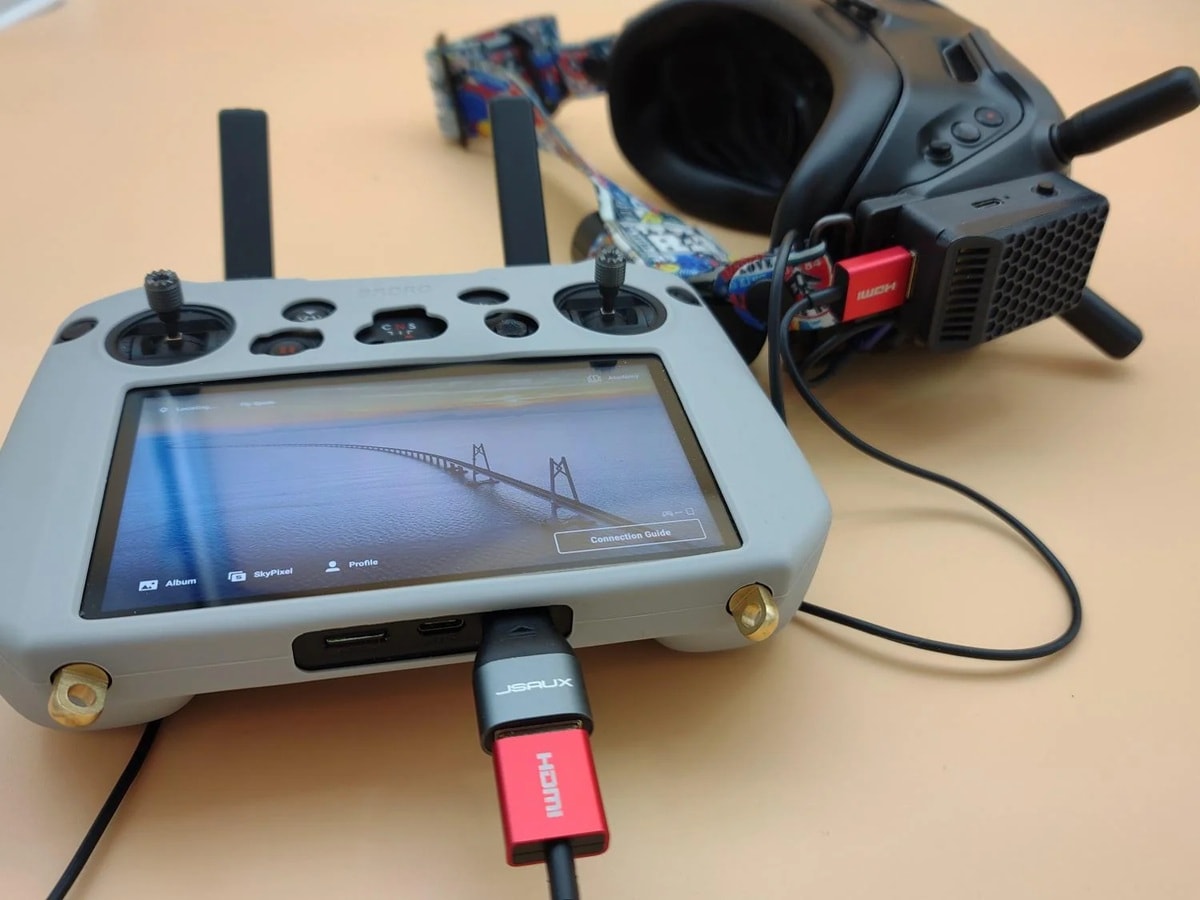
- Wait until the drone appears as a drive. Open it, find the “DCIM” or “VIDEO” folder, and copy all files to your computer.
If the computer does not recognise the device, try another cable or port. Some cables charge only but do not carry data. Always use the original DJI cable if possible.
Method 2: Remove SD Card and Use a Card Reader
This is one of the fastest ways to transfer DJI drone data to PC. Every drone uses an SD card for storage. You can remove it and use a card reader to copy your files. Computers usually have built-in readers, but you can buy external ones too.
Card readers give stable speed. They do not drain the drone’s battery, and they handle big files better. This method works well if you record 4K videos or large clips that need high transfer rates.
When to use it:
- You want faster transfer speeds.
- You record many videos at once.
- You want a stable and reliable method.
Steps:
- Take the SD card out of your drone carefully and insert it into the card reader.
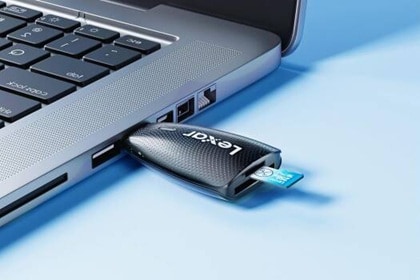
- Open the new drive on your computer. Find the video folder and copy the files to your storage folder.
Always eject the card safely before removing it. Pulling it out too soon can corrupt your files and cause data loss.
Method 3: Transfer via DJI Fly App and Wi-Fi Sync
You can also move files using Wi-Fi. The DJI Fly app lets your phone connect to the drone wirelessly. It is slower than cable but useful when traveling. You can sync the footage to your mobile device first, then move it to your PC later.
This method is convenient for quick sharing. You can preview, trim, or post short clips from your phone right away. When you reach home, you can still download DJI videos to computer for full editing.
When to use it:
- You want to send clips fast without cables.
- You plan to preview on your phone.
- You are outdoors and far from your PC.
Steps:
- Turn on the drone and phone Wi-Fi. Connect them through the DJI Fly app.
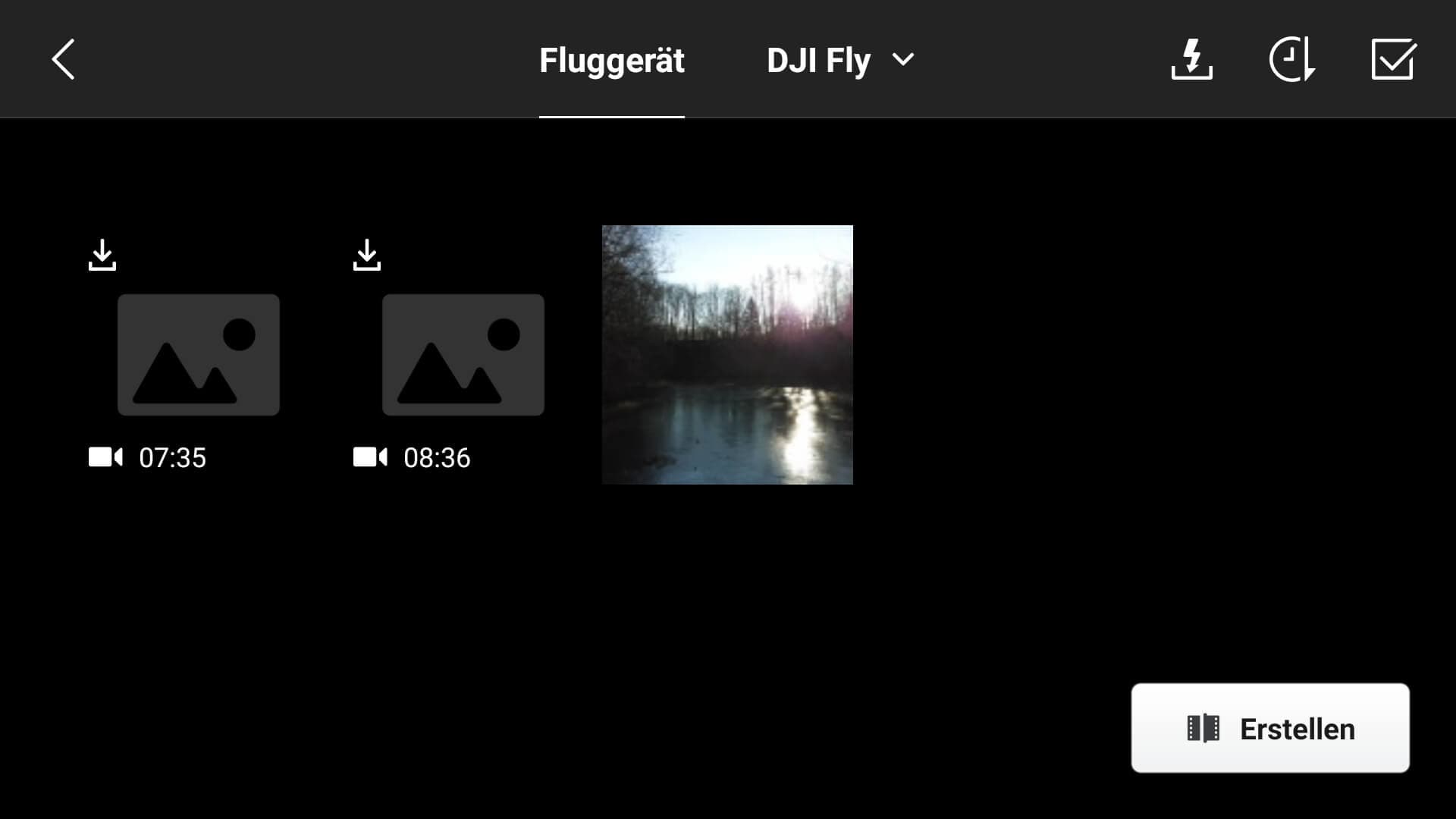
- Select the videos you want to save. Download them to your phone. Later, link the phone to your computer and copy the saved files.
Make sure the phone has enough free space before syncing. Large video files fill memory quickly.
Method 4: Use DJI Assistant 2 Software
DJI Assistant 2 is the official computer program made by DJI. It supports many drone models. Besides firmware updates, it also helps move files safely. Using it is a professional way to get DJI videos to computer without confusion.
The software automatically detects your drone once you connect it. It shows options to back up, export, and manage flight logs. You can also use it to check the firmware and clean cache files.
When to use it:
- You often connect your drone to a PC for updates.
- You want a safe, official tool.
- You need both media transfer and device maintenance.
Steps:
- Install DJI Assistant 2 on your computer. Connect the drone with a USB cable.
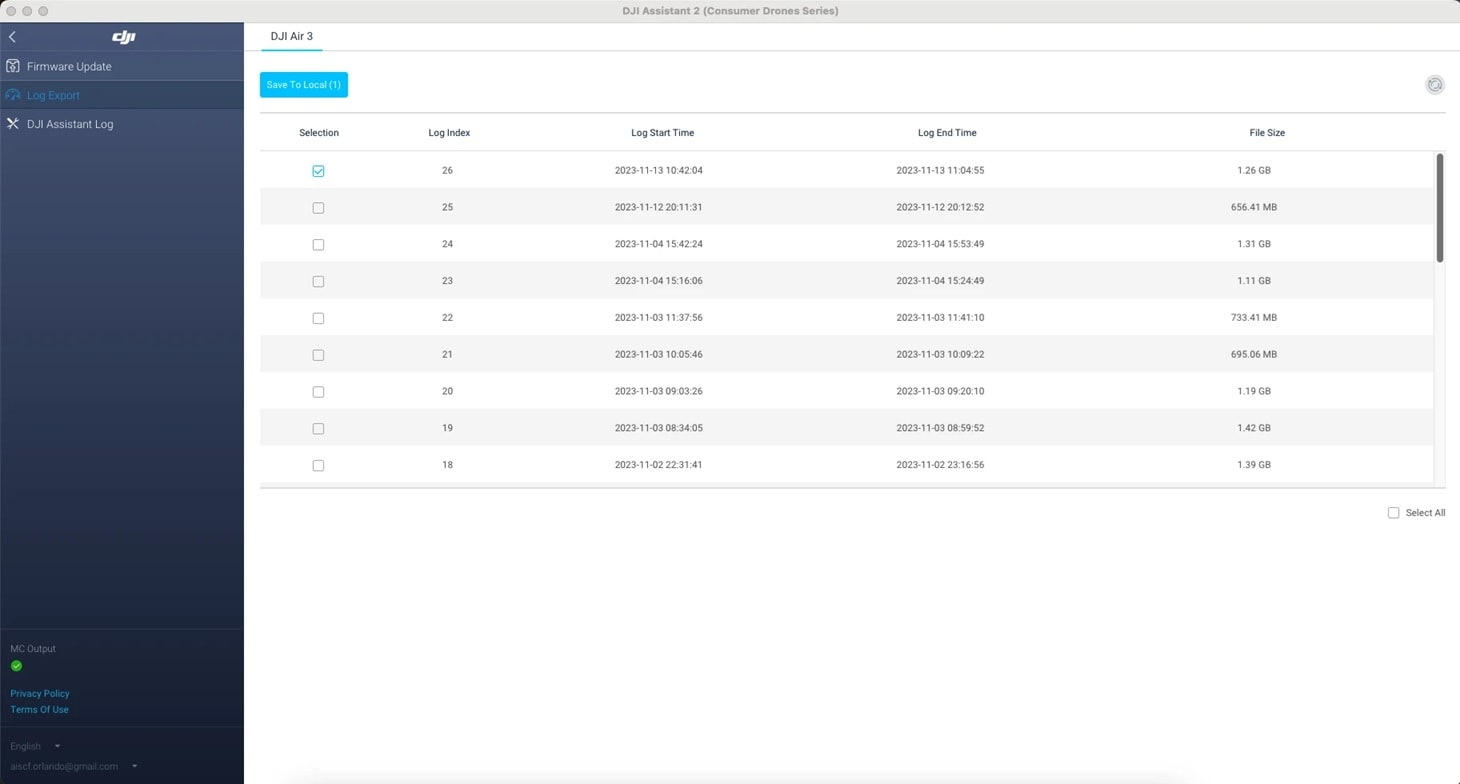
- Open the software, sign in if asked, select your drone, and click the export option to save videos on your computer.
The software ensures file integrity. It prevents accidental loss during transfer and helps keep your data organised.
Method 5: Use QuickTransfer Feature (Supported Models)
Some new DJI drones include a QuickTransfer feature. It builds a fast Wi-Fi link between the drone and your mobile phone. Transfer speed is much higher than standard Wi-Fi sync. This makes it easy to download DJI videos to PC later through your phone.
QuickTransfer works even when the remote controller is off. It is ideal for people who want to preview or edit on mobile before sending videos to a computer. The process is simple, and there are fewer cables involved.
When to use it:
- Your drone supports QuickTransfer.
- You prefer fast wireless download.
- You want to move files first to mobile, then to PC.
Steps:
- Turn on QuickTransfer mode on your drone. Connect your phone using the DJI Fly app.
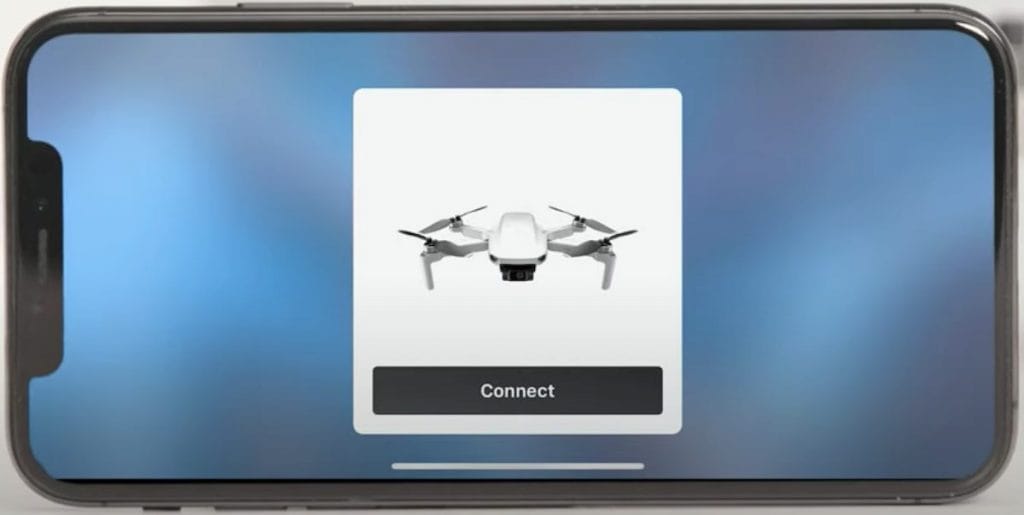
- Once the transfer completes, connect your phone to your PC and copy the videos.
This method saves time during short shoots. It also helps you carry light gear since no reader or cable is required outdoors.
Method 6: Transfer via Cloud Backup and Download
Cloud backup adds another layer of safety. You can upload your videos to a secure online drive. Then you can log in from any computer to download them later. It is slower but useful for storing important projects.
Uploading to the cloud helps you protect against device loss or SD card damage. It also allows your team to access the files remotely. Many professionals use this option to share raw footage with editors.
When to use it:
- You want extra safety and remote access.
- You work with a team and share large files.
- You travel often and need access from different computers.
How to Transfer via Cloud Backup and Download:
- Upload videos from your drone or mobile device to a cloud platform. DJI and third-party options both work.
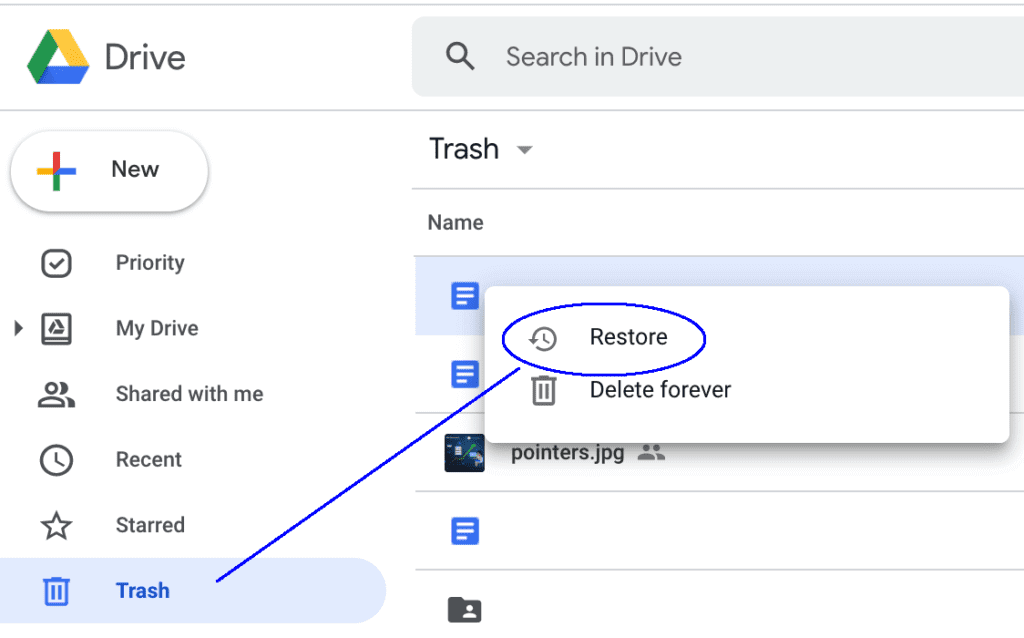
- Log in to your account on your computer and download the videos to your PC storage.
Always check upload progress before closing the app. Interrupted uploads can lead to incomplete files.
Part 3: Lost DJI Video Files? Here’s How Recoverit Can Help!
“My SD card shows empty folders after transfer.” “Half my footage disappeared when copying to the laptop.” “I pulled out the card too soon and now videos won’t open.”
These are common problems. When you transfer or download DJI videos to computer, file loss can happen. Power cuts, sudden disconnection, or card errors can damage video data. If this happens, you can still recover lost videos during transfer using a trusted recovery tool.
Recoverit by Wondershare is one of the best tools for this job. It scans SD cards, drones, and computers for deleted or lost videos. It supports high-resolution footage, including 4K and 8K. The process is simple and suitable for beginners.
Recoverit can get DJI videos to computer even after accidental deletion or corruption. It lets you preview the videos before restoring them, ensuring you recover the right ones. It also works for both Windows and Mac systems.
Why choose Recoverit:
- It supports recovery from DJI drones, SD cards, and PCs.
- It can restore large 4K files without quality loss.
- It works on both major operating systems.
- It provides video preview before saving.
- It has a simple and friendly interface.
- It is trusted by many video creators worldwide.
Simple steps to use Recoverit:
Step 1. Install Recoverit on your PC. Insert the SD card or connect your storage device.
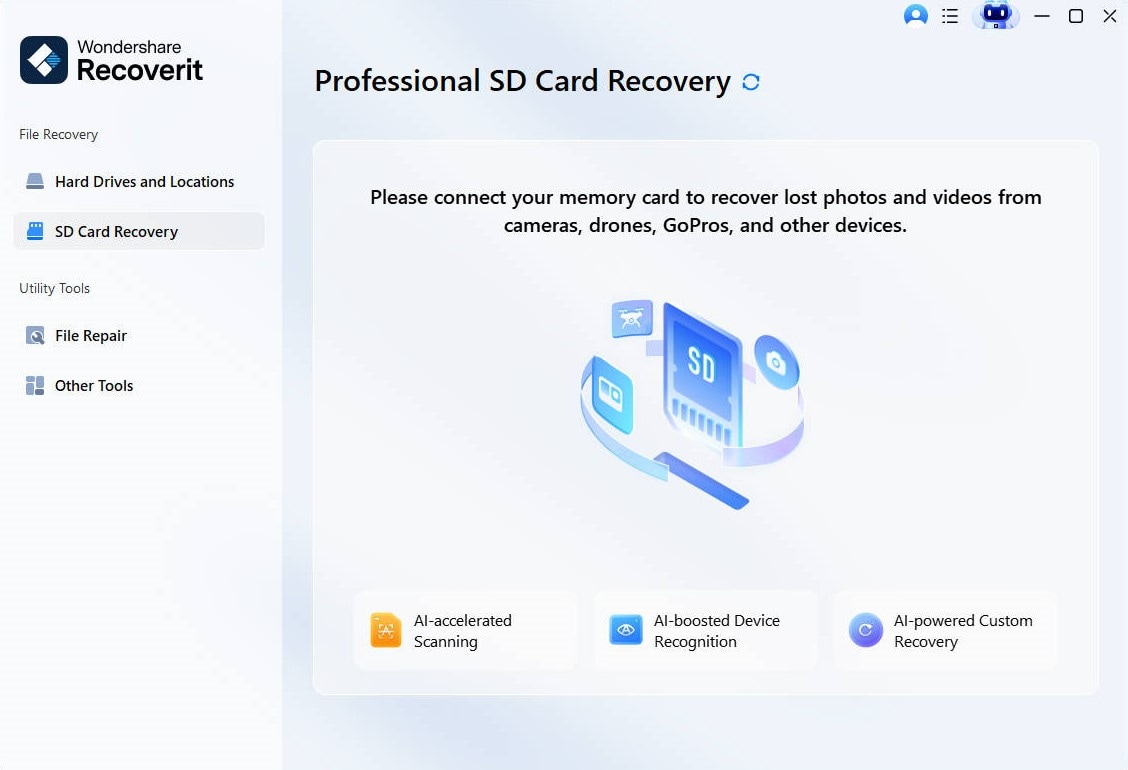
Step 2. Choose the drive, start a scan, preview found videos.
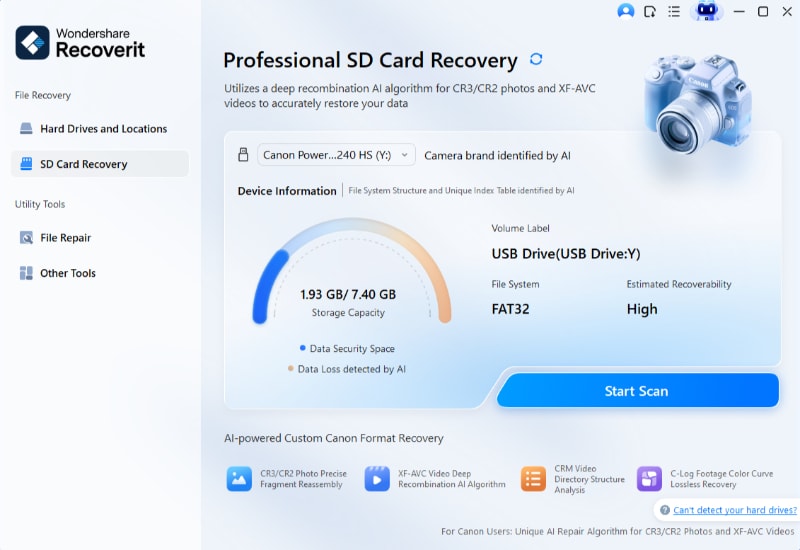
Step 3. Save them to a safe folder on your computer.

Do not save recovered files to the same SD card. Always store them in a new location to prevent overwriting data.
AI-Powered Data Recovery Software 2025 Tailored For Cameras & Drones

Part 4: Pro Tips for Managing DJI Video Files Efficiently
Once you know how to transfer DJI videos to computer, it is wise to manage them well. Poor organisation leads to confusion, missing clips, or wasted space. Follow these short tips for better control and safety.
- Copy first, move later. Always copy your files before deleting them from the drone.
- Keep folders neat. Use a clear system like “DJI-Date-Place” for each flight.
- Rename carefully. Add short names or tags, but keep original file names somewhere safe.
- Backup often. Use two locations—one on your PC and one external drive.
- Format properly. Always format SD cards in the drone after confirming a successful transfer.
- Check space. Make sure your computer has enough room for large 4K videos.
- Replace cards regularly. Old or damaged cards often cause data errors.
- Avoid sudden removal. Always eject devices safely before unplugging them.
These habits will help you avoid having to recover lost videos during transfer later. They also make editing smoother and faster.
Conclusion
Transferring DJI footage does not have to be complicated. You now know how to transfer DJI videos to a computer using several reliable methods. Whether you use a USB cable, SD card reader, app sync, DJI Assistant, QuickTransfer, or cloud backup, the goal is the same: move files safely and keep them secure.
Always handle your memory cards carefully and double-check copied files before deleting originals.
Try Recoverit to Recover Lost Data
 Security Verified. Over 7,302,189 people have downloaded it.
FAQs:
-
Q1: Can I transfer DJI videos to a computer without a cable?
Yes. You can use Wi-Fi, QuickTransfer, or cloud backup. These wireless options help when you do not have a cable nearby. They are slower but still effective. You can later transfer the DJI drone data to a PC from your phone or cloud account. -
Q2: Why can’t my computer read the SD card from my DJI drone?
The SD card may be formatted in a file system your PC does not recognise. Do not format it again. Instead, put it back in the drone and try connecting the drone directly by USB. Then copy your videos to the computer. -
Q3: How can I avoid losing videos next time?
Wait until all files finish copying before unplugging the drone or card. Keep backup copies in at least two locations. Always check the folder on your computer before formatting the card in the drone. This simple habit helps you get DJI videos to your computer safely every time.


