 TL;DR:
The official SD Memory Card Formatter is the recommended tool for preparing SD, SDHC, SDXC, and SDUC cards for cameras and drones because it automatically applies standard specifications, whereas macOS Disk Utility is better for manual partition control or when your current macOS release is not officially supported by the SD Association.
● SD and SDHC cards up to 32GB require MS-DOS (FAT) formats while SDXC and SDUC cards over 32GB require exFAT, meaning Apple's modern APFS format should be avoided unless the card is used exclusively for Mac storage.
● Data recovery must be completed before starting any formatting process, especially because an Overwrite Format intentionally destroys the user-data area and prevents future software recovery attempts.
● Perform a final format directly inside your camera or target device after the Mac formatting process if the device manufacturer requires it to ensure full operational compatibility.
Ask AI for a summary
 ChatGPT
 Perplexity
 Gemini
 Claude
 Grok
Grok
For most camera, drone, dash-cam, and other device SD cards, the official SD Memory Card Formatter is the better choice when your macOS version is on its supported list because it formats SD, SDHC, SDXC, and SDUC cards according to the SD specification. Disk Utility is the better built-in option when you need manual control over the file system or partition scheme, or when you are using a macOS release not listed by the SD Association.
The format still matters more than the app. SD and SDHC cards use FAT-family formats, while SDXC and SDUC use exFAT under the SD Association capacity standard. Before formatting, copy every file you can still read. If photos, videos, or other files are already missing, stop writing to the card and recover them before Erase, First Aid, Quick Format, or Overwrite Format changes the card further.
In This Article
Part 1. Choose the Right SD Card Formatter and Format on Mac
The fastest way to choose an SD card formatter for Mac is to answer two questions first: what class of card is it, and where will the card be used afterward? The SD card label normally tells you whether it is SD, SDHC, SDXC, or SDUC. That class determines the SD-standard file system, while the target camera, drone, console, recorder, or computer determines whether you should let the SD Association tool handle the card automatically or use Disk Utility for manual control.
Quick Decision Table: Card Type, Target Device, File System, and Best Tool
| Use Case | Recommended Format | Best Starting Tool | Why |
| SD or SDHC card for a camera or similar SD host | FAT12/16 for SD; FAT32 for SDHC | SD Memory Card Formatter | Follows the SD specification and avoids manual file-system choices |
| SDXC or SDUC card for a camera, drone, or dash cam | ExFAT | SD Memory Card Formatter | Uses the SD-standard format for higher-capacity cards |
| Card shared between Mac and Windows | MS-DOS (FAT) at 32GB or less; ExFAT above 32GB | Disk Utility | Apple documents these choices for cross-platform storage |
| Mac-only removable storage | Depends on the use case | Disk Utility | Provides manual file-system and partition-scheme control |
| Card for a device with strict manufacturer requirements | Use the device specification | SD Memory Card Formatter, then in-device format if required | The target device may need its own final formatting step |
SDSC, SDHC, SDXC, and SDUC Format Differences
The SD Association defines four capacity standards. The original SD standard, often called SDSC, reaches up to 2GB and uses FAT12 or FAT16. SDHC covers more than 2GB through 32GB and uses FAT32. SDXC covers more than 32GB through 2TB and uses exFAT. SDUC extends beyond 2TB through 128TB and also uses exFAT.
| Card Class | Capacity | SD-Specified File System | Disk Utility Choice |
| SD | Up to 2GB | FAT12 or FAT16 | MS-DOS (FAT) |
| SDHC | Over 2GB to 32GB | FAT32 | MS-DOS (FAT) |
| SDXC | Over 32GB to 2TB | ExFAT | ExFAT |
| SDUC | Over 2TB to 128TB | ExFAT | ExFAT when the Mac, reader, and target device support the card |
For normal SD-standard use, do not force FAT32 onto an SDXC or SDUC card just because an older device mentions FAT. That places the card outside its specified file system and may reduce compatibility. FAT32 also has a 4GB single-file limit, which matters for long video recordings.
Disk Utility vs SD Memory Card Formatter
Disk Utility and SD Memory Card Formatter can both prepare an SD card, but they solve different problems. Disk Utility is built into macOS and lets you select the file system and partition scheme yourself. The SD Association tool is limited to SD-family cards and automatically applies the SD file system rules. The SD Association currently recommends its formatter for SD, SDHC, SDXC, and SDUC cards because general operating-system formatters are not specifically optimized for SD media.
| Comparison | Disk Utility | SD Memory Card Formatter |
| Installation | Built into macOS | Free download from the SD Association |
| File-system choice | Manual | Handled according to the SD specification |
| Partition scheme | Manual | Handled by the formatter |
| Supported media | Many disk and storage types | SD, SDHC, SDXC, and SDUC cards |
| Best fit | Manual control, Mac-only use, or a macOS version not listed by SDA | Routine SD-card reuse in cameras and other SD-standard devices |
Why APFS Is Usually Wrong for Cameras, Drones, and Dash Cams
APFS is Apple's modern file system and can be used on external storage, but it is not one of the SD-standard file systems for SD, SDHC, SDXC, or SDUC cards. For that reason, APFS is usually a poor choice for a card that will return to a camera, drone, dash cam, console, recorder, or Windows PC. Use APFS only when the card is intentionally being used as Mac-only storage and the target workflow supports it.
Part 2. Protect Your Files Before Formatting the SD Card
Formatting is a write operation. Even a Quick Format changes file-system structures, and an Overwrite Format writes across the user-data area. If the card still contains anything important, protect the data before you start.
Back Up Every File That Is Still Accessible
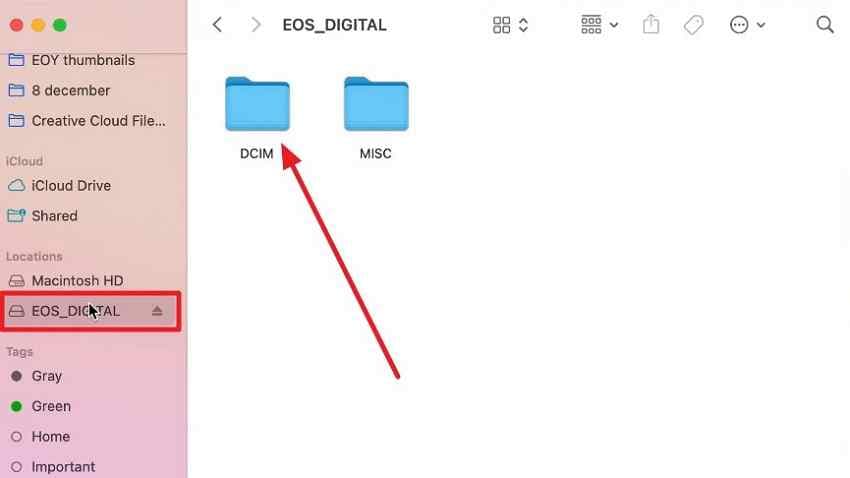
If the card opens normally in Finder, copy the files rather than trying recovery software first. Copy the DCIM folder, videos, RAW files, sidecars, and any other folders you need to your Mac or another healthy drive. Open several copied files before you consider the backup complete.
Instructions. Insert the card, open it in Finder, copy the required folders to another drive, verify several files, and eject the card properly before removing it.
Stop if macOS or the Camera Suddenly Requests Formatting
If a card that previously worked suddenly asks to be formatted, decline the prompt until important data is safe. The problem may be a damaged file system, partition issue, unsupported format, failing reader, or failing card. Apple explains that Disk Utility First Aid can repair certain formatting and directory-structure errors, but Apple also recommends having a current backup before repair.
If files are already missing or inaccessible, recover them before First Aid, Erase, or any new format. Repeated write-based repair attempts can change metadata that recovery tools rely on. If the card is readable only intermittently, minimize retries and prioritize copying or recovery.
Check the Write-Protect Switch, Reader, Capacity, and Target Device
Before blaming the Mac SD card formatter, rule out simple physical and compatibility problems.
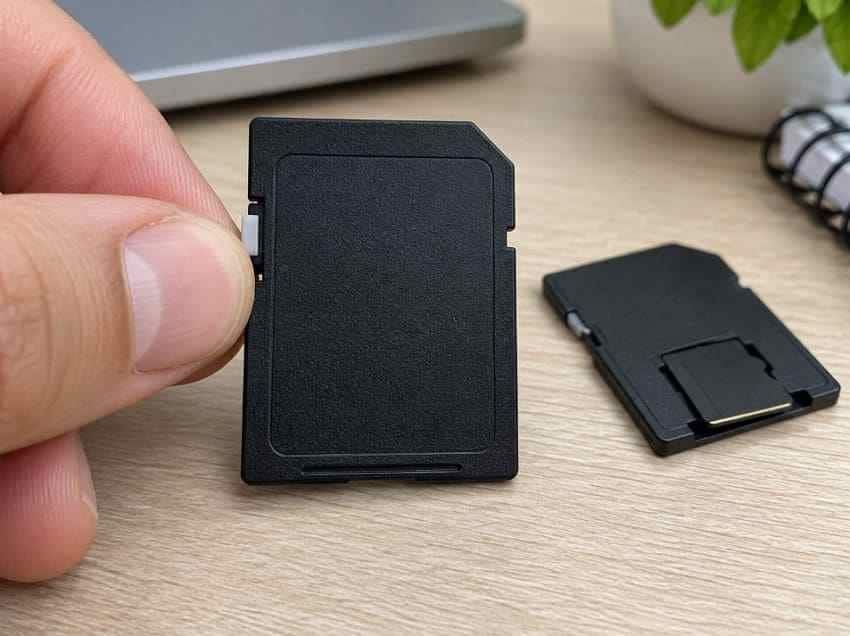
Step 1. On a full-size SD card, move the write-protect switch away from Lock. A microSD card has no equivalent lock switch by itself, so check the full-size adapter if you use one.
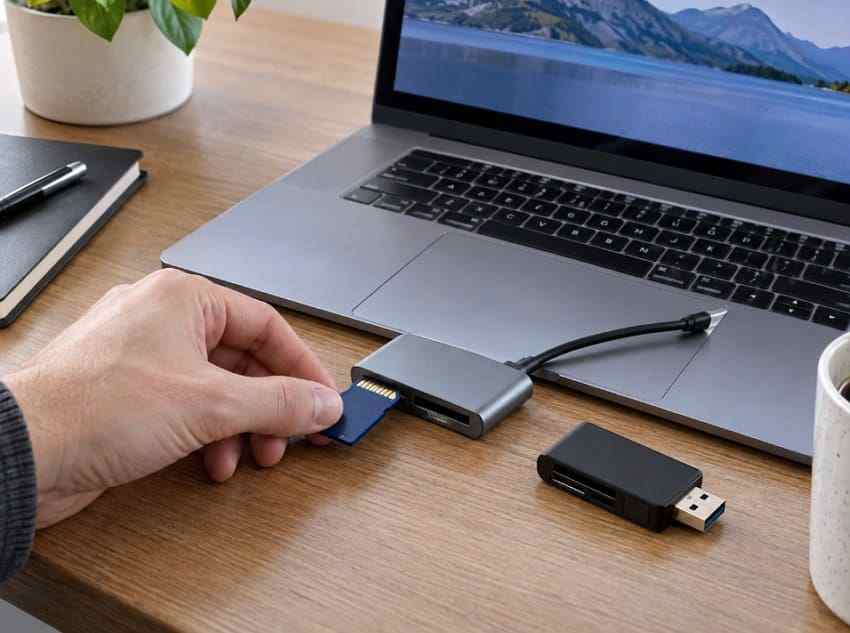
Step 2. Try another card reader or USB port. Confirm that the reader and target device support the card class, especially for SDXC and SDUC media.
Step 3. Compare the capacity reported by macOS with the card label. Small reporting differences are normal, but a large unexplained mismatch is a reason to stop and test the card or reader before storing new data.
Part 3. Format an SD Card With Disk Utility on Mac
Disk Utility is the most convenient mac OS SD card formatter because it is already included with macOS. It is also the better choice when you need to choose a partition scheme manually or when the SD Association has not listed your macOS release as supported by its formatter.
Show All Devices and Select the Physical SD Card
Selecting the physical card, not only the volume beneath it, exposes the full-device Erase options and prevents you from accidentally leaving an old partition layout in place.
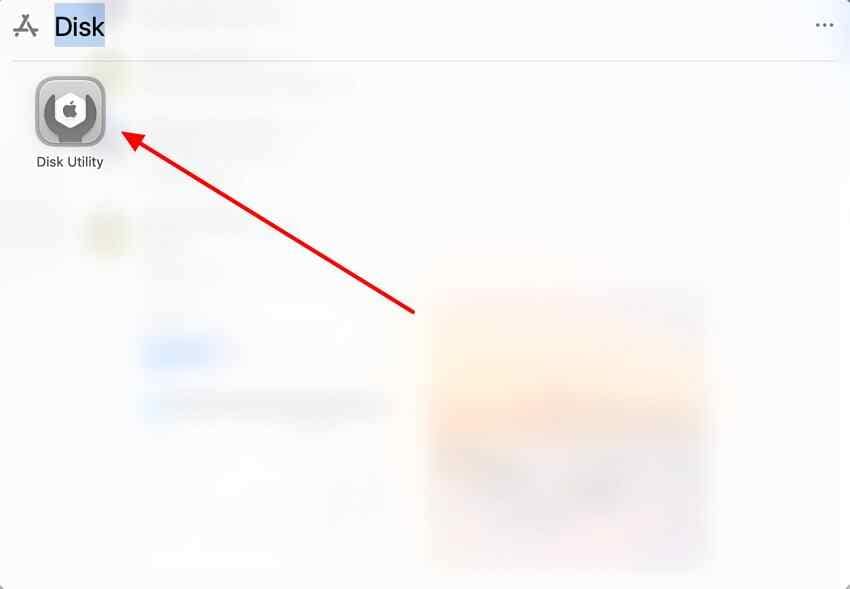
Step 1. Open Disk Utility with Spotlight or from the Utilities folder.
Step 2. Choose "View > Show All Devices". Select the top-level physical SD card in the sidebar and confirm that its capacity matches the card you intend to erase.
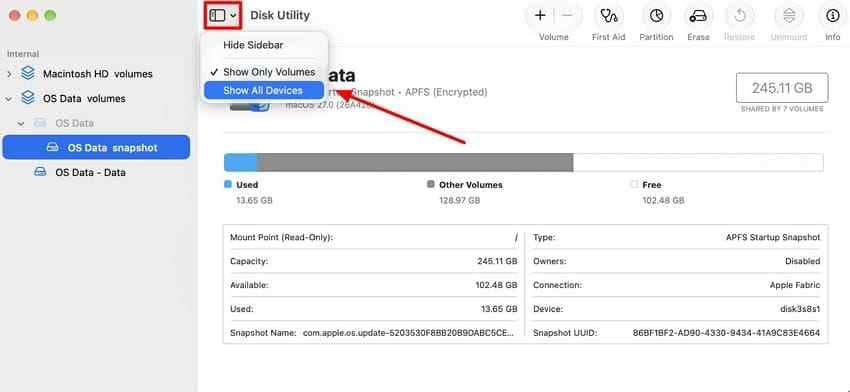
Apple's current Disk Utility guide also uses "View > Show All Devices" before erasing an external storage device. If the card does not appear even in this view, skip to Part 6 instead of trying to format a different disk.
Choose MS-DOS (FAT) or ExFAT and the Right Scheme
Apple's current Disk Utility guidance for Windows-compatible disks uses MS-DOS (FAT) at 32GB or less and ExFAT above 32GB. That aligns with SDHC and SDXC capacity boundaries for common cards.
Step 1. With the physical SD card selected, click "Erase".
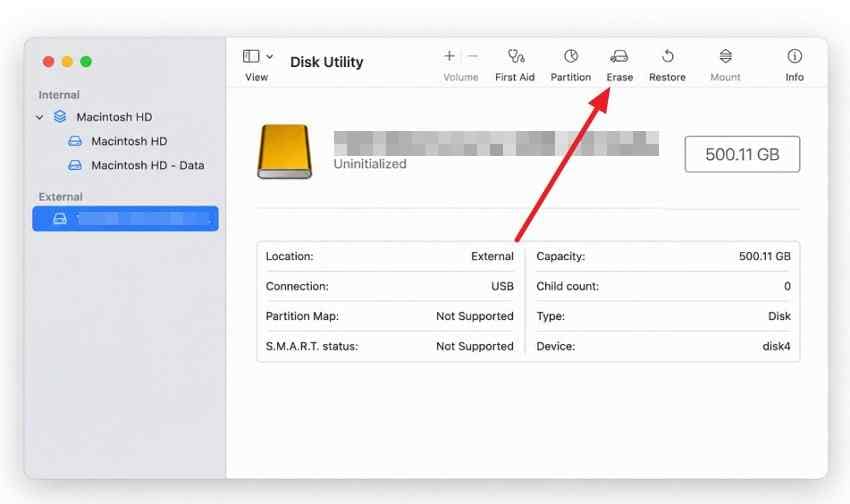
Step 2. Enter a short volume name. Select "MS-DOS (FAT)" for SD/SDHC cards or "ExFAT" for SDXC/SDUC cards unless the target device documents another requirement.
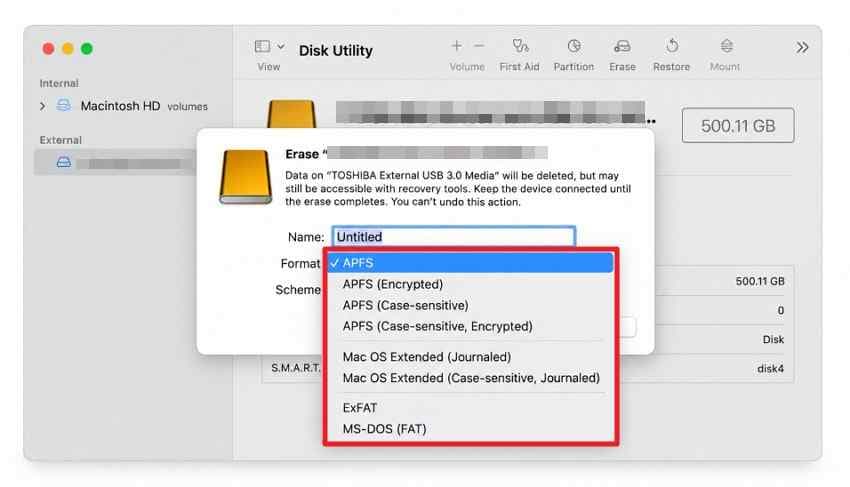
Step 3. Choose the partition scheme required by the target device. Apple documents Master Boot Record for broad Windows compatibility and GUID Partition Map for Intel and Apple silicon Macs. For cameras, drones, recorders, and other SD hosts, do not guess: check the device manual or use SD Memory Card Formatter, which handles the SD layout for you.
Note: A correct file system with an incompatible partition scheme can still leave a card unreadable in the target device.
Erase the Card, Verify It, and Reformat in the Camera When Required
Step 1. Click "Erase" and wait for Disk Utility to finish. Do not remove the card or disconnect the reader during the operation.
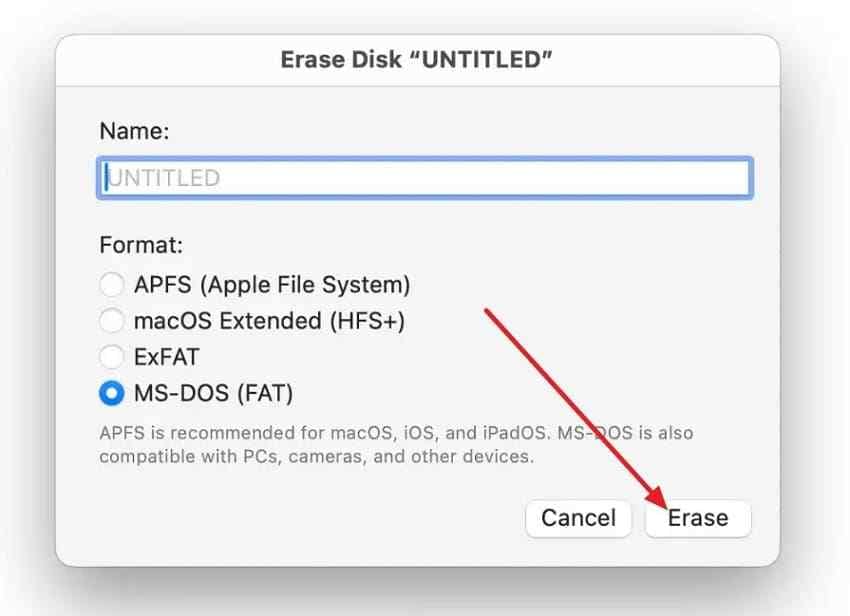
Step 2. After the erase completes, verify that Finder and Disk Utility show approximately the expected card capacity. Eject the card cleanly.
Step 3. If the card will be used in a camera, follow the camera maker's instructions. Sony states that cards should be formatted in the camera being used, and the Sony support article warns that a card formatted in another camera may not work correctly. Nikon likewise instructs users to format memory cards in-camera and back up files first in its Z50II memory-card guide.
In-camera formatting is not a substitute for data recovery. Do it only after everything important has already been backed up or recovered.
Part 4. Use SD Memory Card Formatter for Mac
The SD Memory Card Formatter is the standards-focused option for SD-family cards. The current SD Association page lists SD Memory Card Formatter 5.0.3 for Mac and supports SD, SDHC, SDXC, and SDUC cards. Download it only from the official SD Association site.
Check the Current Mac Version and Official Compatibility List
The current SD Memory Card Formatter download page lists macOS 11 Big Sur, 12 Monterey, 13 Ventura, 14 Sonoma, and 15 Sequoia for the Mac version. It also says an Apple silicon Mac may ask for Rosetta and that administrator rights are required.
Important compatibility note: Newer macOS releases are not currently listed on the SD Association system-requirements table. If your Mac runs a newer release, check the official page again before installing. Disk Utility remains the built-in formatting option when the third-party compatibility list does not cover your current macOS version.
Step 1. Review the current macOS compatibility list before downloading.
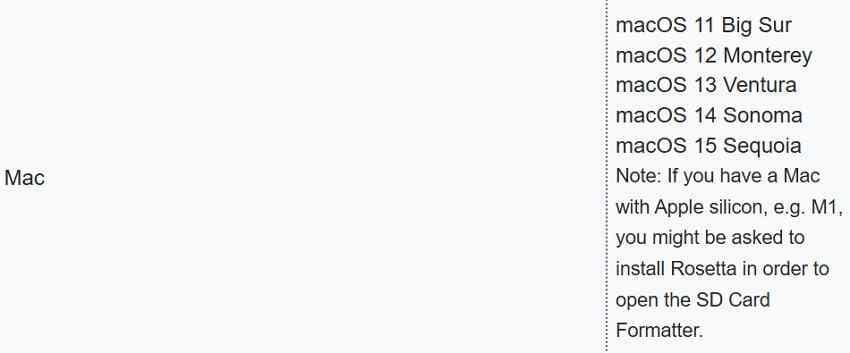
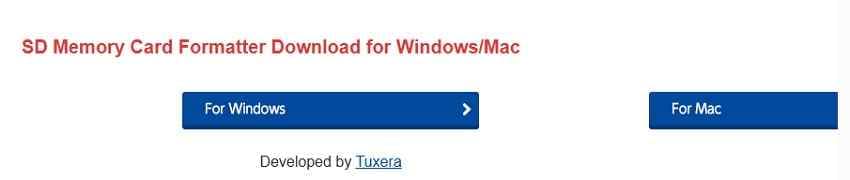
Step 2. Click the official "For Mac" download option, open the installer, and follow the prompts. Install Rosetta only if macOS itself requests it.
Select the Correct Card and Complete the Format
The formatter chooses the SD-standard file system according to the card class, so you do not manually pick FAT32 or exFAT.
Instructions. Insert the card, open SD Memory Card Formatter, choose the correct card under "Select Card", verify the type and capacity, choose "Quick Format" or "Overwrite Format", add a volume label if needed, then click "Format".
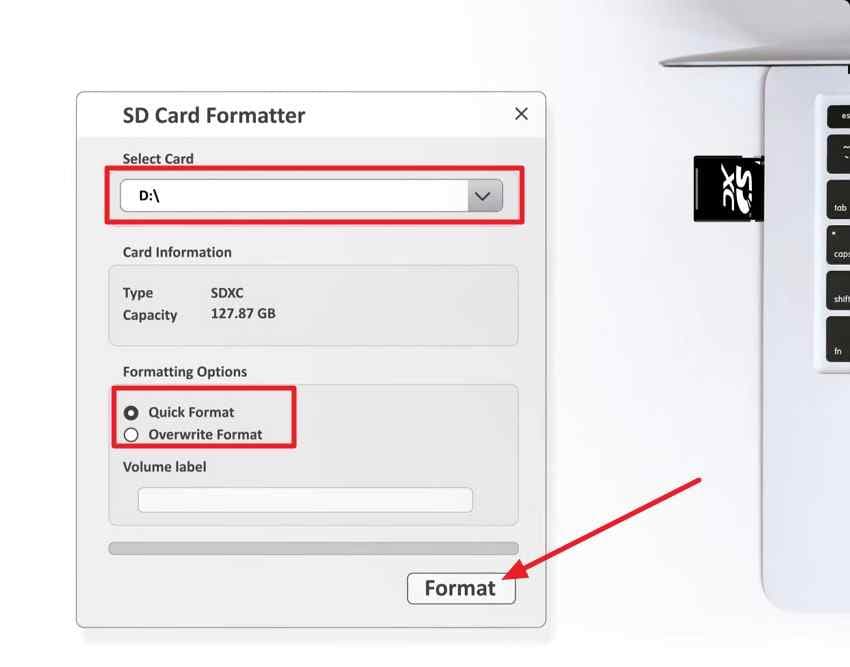
Note: The SD Association says the formatter does not format the Protected Area on SD, SDHC, or SDXC cards. SDUC has no Protected Area. That is a security-function detail, so do not describe Overwrite Format as a guarantee that every protected region on every SD card has been erased.
Part 5. Quick Format vs Overwrite Format
The two SD Memory Card Formatter modes differ mainly in what happens to the user-data area. This difference is critical if there is any chance you still need missing files.
What Quick Format and Overwrite Format Actually Change
The SD Association formatter FAQ says Quick Format initializes file-system parameters and removes file/directory entries without overwriting the data stored in files. Overwrite Format does the same file-system initialization and also overwrites the user-data area completely.
| Option | What It Changes | Typical Time | Recovery Impact |
| Quick Format | Reinitializes file-system structures without overwriting file data | Usually faster | Some old file data may remain until overwritten |
| Overwrite Format | Reinitializes the file system and overwrites the user-data area | Much slower on large cards | Ordinary software recovery should not be expected afterward |
Which Option to Use and When Recovery Must Come First
Use Quick Format for normal reuse when the card is healthy and no recovery is needed. Use Overwrite Format only when you intentionally want the user-data area overwritten and have already confirmed that no files need to be recovered.
If photos, video, documents, or project files are missing, do not run either format first. Quick Format still changes file-system structures, and Overwrite Format is deliberately destructive to the user-data area. The safest sequence is: stop writing to the card, copy or recover what matters, verify the recovered files, and only then format.
Note: The SD Association recommends connecting the Mac to power and disabling sleep during Overwrite Format because the operation can take much longer depending on card size and speed.
Part 6. Fix SD Card Formatting Problems on Mac
A failed format does not automatically mean the formatter is broken. The card, reader, file system, encryption state, app access, or target-device compatibility may be responsible. Work from the symptom instead of repeatedly erasing the card.
SD Card Does Not Appear in Disk Utility
First choose "View > Show All Devices" in Disk Utility. If the physical card still does not appear, try another reader, port, Mac, or compatible camera. If you want a broader detection checklist, see Recoverit's SD card not showing up on Mac guide.
Step 1. Confirm the card is absent from the full device view, not merely Finder.
Step 2. Test another reader or USB port, then another computer or device.
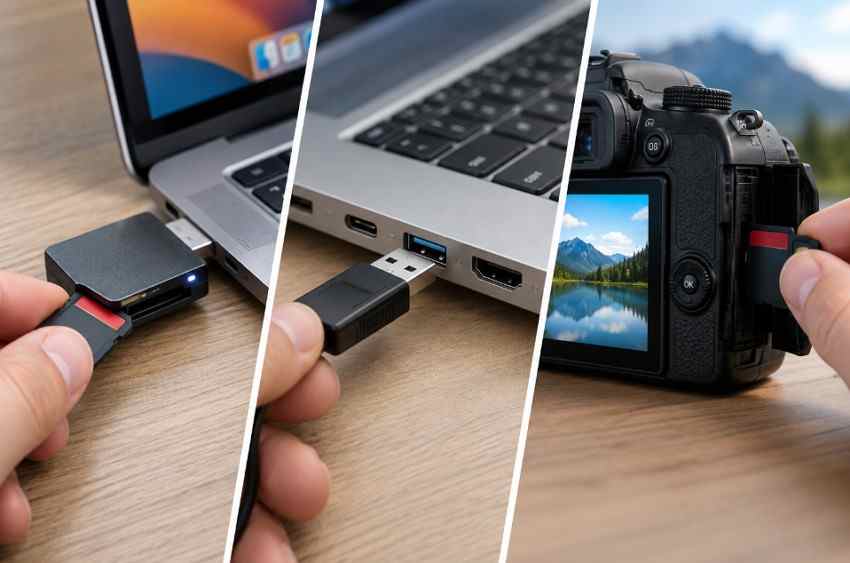
If the card is undetected everywhere, software formatting and software recovery are not the right next steps. Stop repeated connection attempts if the card is physically damaged, overheats, or behaves erratically.
SD Card Is Read-Only or Write-Protected
For a full-size SD card, check the lock switch. For microSD, inspect the full-size adapter and then try another reader. If the card remains read-only across multiple readers and devices, it may have entered a failure state to protect remaining data. Back up readable files and replace the card rather than forcing repeated writes.
Disk Utility Cannot Erase or Unmount the Card
Close apps that are using the card before retrying. This includes Photos, Preview, Image Capture, video editors, and any Finder window actively browsing the card. Restart the Mac if the volume remains busy.
Step 1. Close apps and Finder windows accessing the SD card.
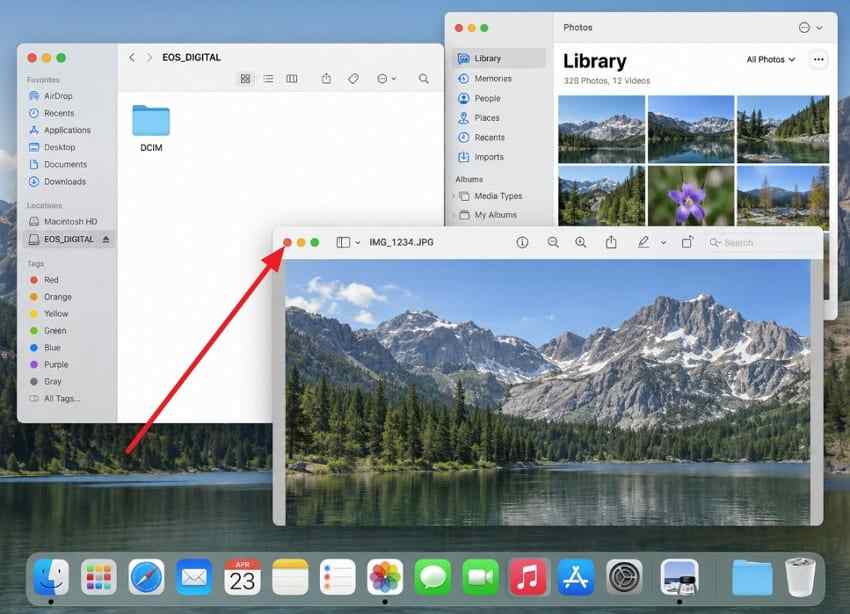
Step 2. Reopen Disk Utility and retry Erase only after important files are safe.
If the card contains inaccessible files you still need, do not use First Aid as a blind first step. Protect or recover the files first, then use First Aid or Erase after the data-loss risk is resolved.
SD Memory Card Formatter Does Not Detect the Card
Confirm that the media is actually an SD, SDHC, SDXC, or SDUC card and that the reader supports that card class. The SD Association also states that its formatter does not support cards encrypted with BitLocker To Go until they are unlocked. If the card was encrypted on Windows, do not treat formatting as a way to bypass encryption.
For SDUC cards, host support matters as well. Very high-capacity SDUC media can require updated host drivers and compatible readers, so detection failure may be a host limitation rather than a formatting problem.
The Formatted Card Does Not Work in the Camera or Device
Recheck three items: card class, file system, and target-device support. If the device manual requires in-device formatting, use that final step after the computer format.
Step 1. Confirm the card uses the SD-standard file system for its class.
Step 2. If the manufacturer recommends it, insert the card into the camera or device and use its own "Format Card" command.
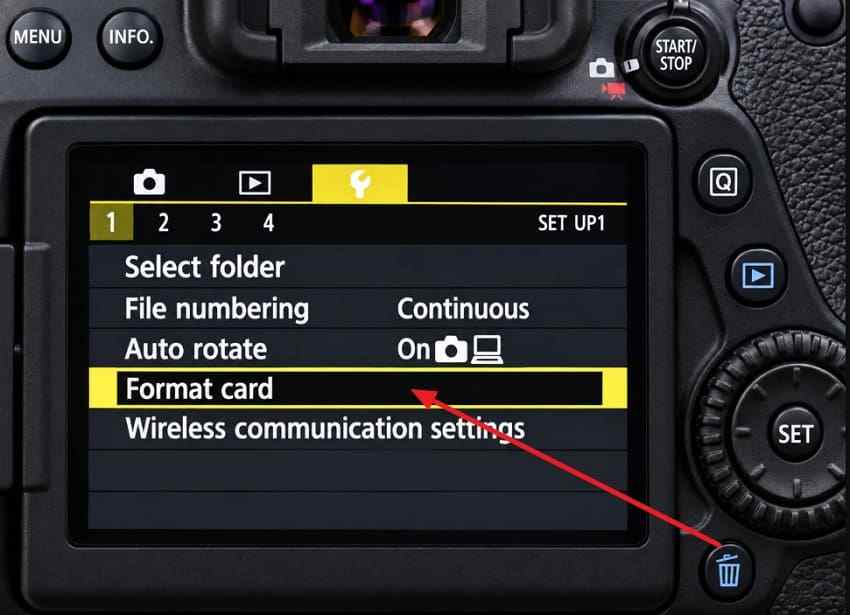
Repeated Formatting Failure Suggests Hardware Trouble
If formatting fails in Disk Utility and SD Memory Card Formatter, across more than one reader or port, stop repeating the same write operation. A failing card controller, worn flash memory, damaged contacts, or an incompatible reader can produce persistent failures.
Copy readable files immediately. If data is missing but the card remains consistently detectable with the correct capacity, recovery software may still be appropriate. If the card is physically damaged, unstable, extremely hot, or not detected anywhere, move to professional recovery rather than repeated DIY scans or formats.
Part 7. Recover SD Card Files on Mac Before Formatting
Data recovery belongs before formatting, not after it, whenever important files are already missing. If the card is still fully readable, normal copying is the better first option. If files were deleted, the card was accidentally quick-formatted, or macOS detects the card but cannot access the contents, a recovery scan may be appropriate.
Use Backups or Normal Copying When Files Remain Accessible
Check your Mac, external backups, cloud copies, and the original camera-import folder before scanning. If the files are still visible on the card, copy them directly. Recovery software is not needed for data that remains accessible.
When Recoverit Is Appropriate and When It Is Not
Recoverit Memory Card Recovery is designed for logical data-loss situations such as deletion, accidental formatting, RAW or inaccessible file systems, and missing files on cards that remain detectable. The Mac version can be used when the SD card appears as a physical storage device in macOS.
- Use it when: The card is detected, important stored files are deleted, missing, formatted, or inaccessible, and you can save recovered files elsewhere.
- Do not use it as a formatter: Recoverit does not repair SD card hardware or replace Disk Utility, SD Memory Card Formatter, or in-camera formatting.
- Do not keep scanning unstable hardware: If the card is physically broken, repeatedly disconnects, overheats, or is undetected everywhere, consider professional recovery.
- Do not save recovered files back to the source card: Writing to the same card can overwrite other recoverable data.
The source article's recommended Mac product page is Recoverit for Mac.
Recover Files From a Detectable SD Card With Recoverit for Mac
Recover before formatting when the card contains missing or inaccessible files. The current Recoverit for Mac guide uses a select, scan, preview, and recover workflow for SD cards.
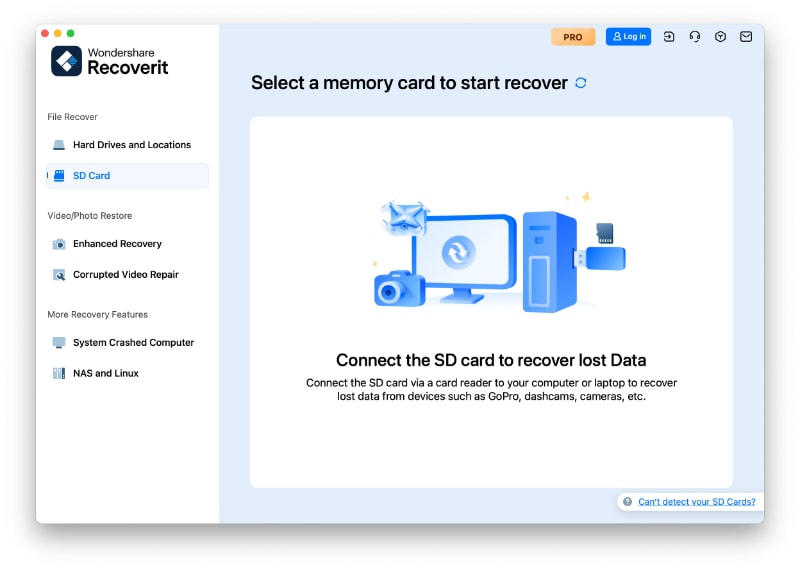
Step 1. Select the SD Card
Open Recoverit, choose the SD Card recovery area, select the correct card, and start the scan. Confirm the card's capacity before scanning.
Step 2. Scan and Filter the Results
Let Recoverit scan the card. Use file type, path, date, or other available filters to narrow the result set. Stop the scan if you have already found and previewed the files you need.
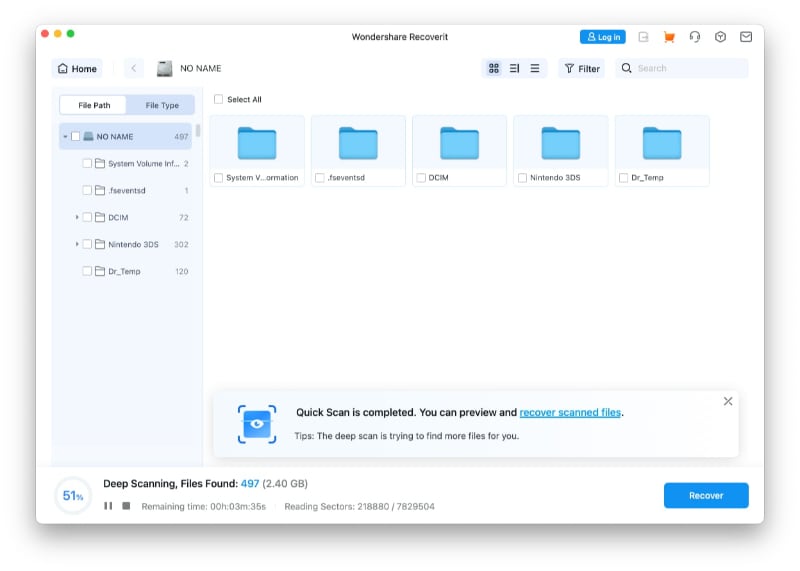
Step 3. Preview and Recover to Another Drive
Preview supported files, select the items you need, click "Recover", and save them to your Mac or another healthy drive. Do not save them back to the SD card you are trying to recover.
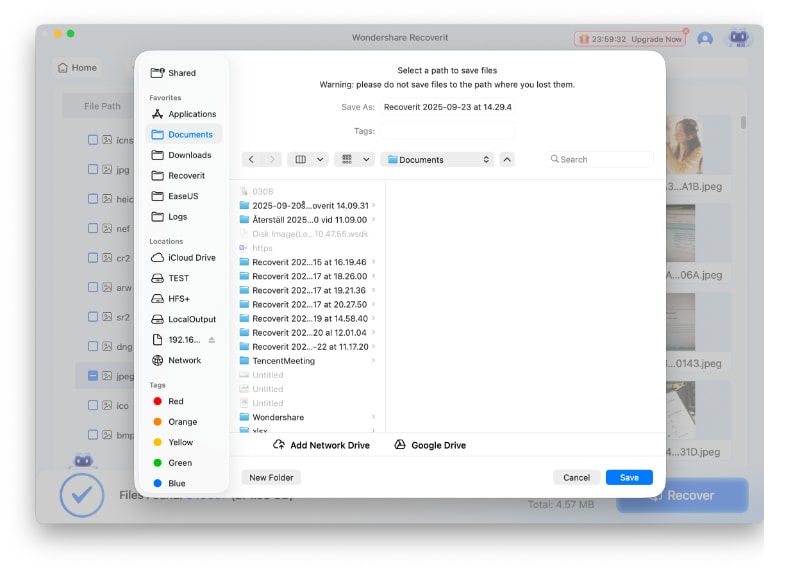
Conclusion
For a camera, drone, dash cam, recorder, or other SD-standard device, SD Memory Card Formatter is usually the cleanest choice when your macOS version is on the SD Association's current support list. Disk Utility is better when you need a built-in tool, manual file-system or partition-scheme control, or support on a newer macOS release that the formatter has not yet listed.
Match the card class first: SD/SDHC use FAT-family formats, while SDXC/SDUC use exFAT. Back up readable files before any format. If data is already missing, recover it before First Aid, Erase, Quick Format, or especially Overwrite Format. After the data is safe, format the card and, when the device maker recommends it, perform the final format in the camera or target device.

FAQ
-
What Is the Best SD Card Formatter for Mac?
For SD, SDHC, SDXC, and SDUC cards used in cameras and other SD-standard devices, the SD Association's SD Memory Card Formatter is the best standards-focused option when your macOS version is supported. Disk Utility is better when you need manual file-system or partition-scheme control or a built-in option. -
Should I Format an SD Card as FAT32 or ExFAT on Mac?
Use FAT32 for SDHC cards over 2GB through 32GB and exFAT for SDXC cards over 32GB through 2TB and SDUC cards over 2TB. The target device must also support the card class and format. -
Is SD Memory Card Formatter Better Than Disk Utility?
It is better for SD-standard formatting because it automatically follows the SD file-system specification. Disk Utility is more flexible because it lets you choose the format and partition scheme yourself. The better tool depends on the card's destination and your macOS version. -
Why Won't My Mac Format an SD Card?
Common causes include a locked card or adapter, a reader or port problem, an app holding the volume open, an unsupported card or file system, encryption, or card hardware failure. If important files are missing, recover or back them up before repeating repair or erase operations.


