

 TL;DR:
To resolve frequent connection drops on the DJI Mini 2 and similar Mavic models, manually lock the transmission frequency to 5.8GHz in crowded environments or 2.4GHz in open areas, update all firmware, and replace any loose USB cables connecting the controller to your smartphone.
● Calibrate the drone's Compass and IMU on a flat surface using the Safety menu in the DJI Fly app to prevent sensor alignment errors that cause signal failure.
● Maintain a distance of at least 50 to 100 meters from metal towers, power lines, and Wi-Fi routers, and verify your smartphone is on the official DJI supported list to avoid app crashes.
● If a mid-flight disconnection corrupts your active video recording, immediately stop using the SD card and run a data recovery tool like Recoverit to extract the hidden or damaged files without overwriting them.
Ask AI for a summary
 ChatGPT
 Perplexity
 Gemini
 Claude
 Grok
Grok
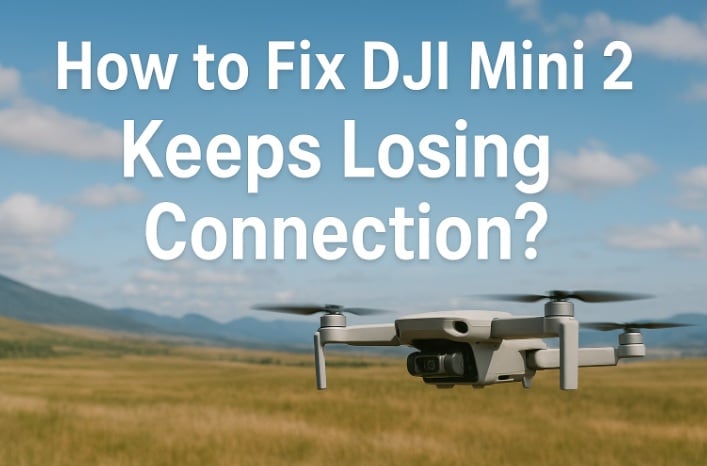
Flying a DJI Mini 2 is supposed to be smooth and easy. You expect steady footage and full control. But sometimes, the drone loses its signal. It stops responding or disconnects mid-flight. That can be scary.
If your drone often loses contact, don’t worry. There are simple ways to fix it. This guide explains what causes weak signals and how to solve the problem. We’ll also talk about related models, such as DJI Mavic Air 2 losing connection, DJI Mavic Mini keeps losing connection, and DJI Mavic Pro keeps losing connection. Each model has similar issues and similar fixes.
In the end, you’ll know how to keep your DJI stable, avoid connection drops, and even recover lost files if your video footage disappears.
Part 1: Why Does DJI Mini 2 Keep Losing Connection?
Before fixing the issue, it helps to know why it happens. The DJI Mini 2 keeps losing connection for several common reasons. Some are simple, like a weak cable. Others are about interference or software.
Here are the main causes:
- Outdated firmware on the drone or controller can break communication.
- The transmission frequency switches between 2.4GHz and 5.8GHz automatically, causing short signal loss.
- High interference from Wi-Fi, Bluetooth, or metal towers affects the range.
- Obstacles such as trees, buildings, or hills block the line of sight.
- A damaged USB cable or a bad port weakens the link between the controller and the phone.
- An unsupported device or an outdated DJI Fly app causes sudden app crashes.
- A bad calibration of the compass or IMU confuses the system.
- Hardware damage to antennas or circuits affects signal stability.
Each of these can cause your DJI Mini 2 to lose connections mid-air. The same can also happen with the DJI Mavic Air 2 losing connection, or the DJI Mavic Mini keeps losing connection.
Part 2: How to Fix the DJI Mini 2 Keeps Losing Connection?
Fixing connection problems is not hard. You only need to follow some simple checks and updates. Each method below targets one possible cause. Try them one by one until your drone flies smoothly.
Method 1: Update Firmware for Drone and Controller
The first thing to check is the firmware. DJI releases updates to fix bugs and improve signals.
A drone with old firmware may disconnect often. The same applies to the controller. When neither is updated, they fail to sync.
Why use it:
- Fixes transmission errors and lost signals
- Improves compatibility with new app versions
- Makes the system more stable during flight
Steps:
Step 1. Turn on the drone and the controller. Open the DJI Fly app. Connect both devices. The app will check for updates automatically.
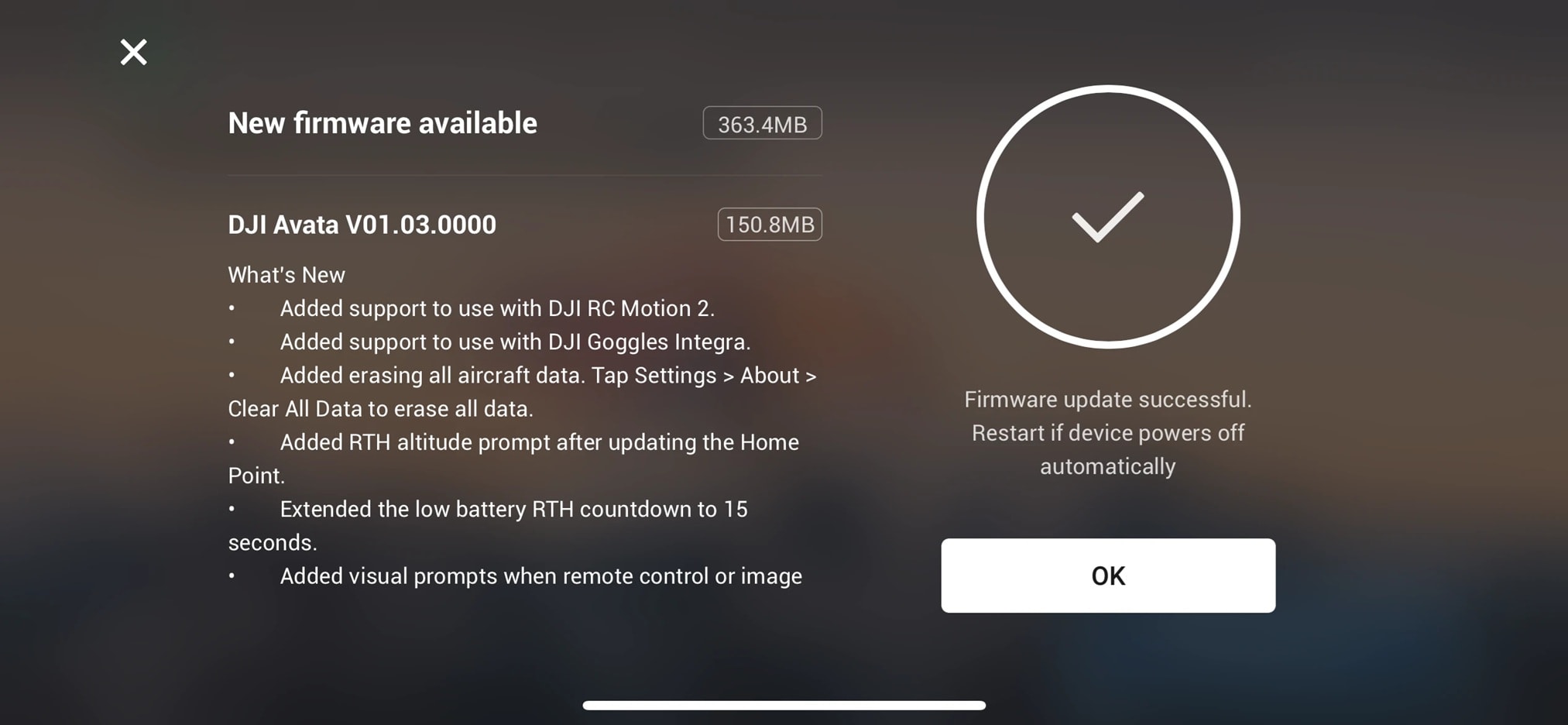
Step 2. If you see an update available, download and install it. Restart both devices after the update. Test the drone in an open area.
Firmware updates are one of the best fixes for the DJI Mini 2 keeps losing connection. They also help if your DJI Mavic Air 2 losing connection during flight.
Method 2: Switch to a Fixed Transmission Frequency (2.4GHz or 5.8GHz)
DJI drones use two bands for wireless signals: 2.4GHz and 5.8GHz. The drone automatically switches between them based on interference. But this switch can sometimes break the signal.
Setting a fixed frequency often stabilizes the connection.
Why use it:
- Reduces drops caused by band changes
- Keeps the link stable in one channel
- Prevents sudden disconnections in busy Wi-Fi areas
Steps:
Step 1. Open the DJI Fly app. Go to “Transmission.” Choose either 2.4GHz or 5.8GHz manually.
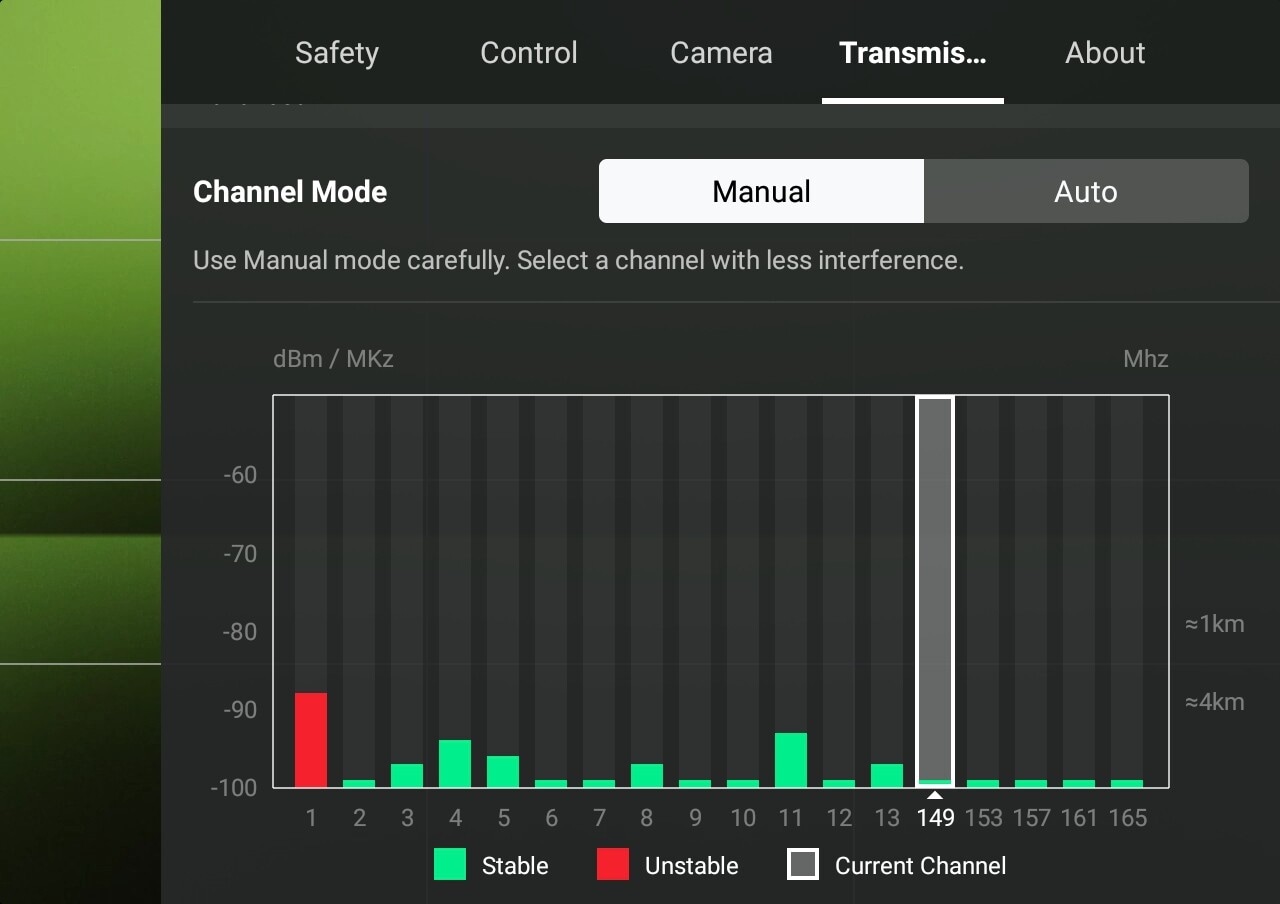
Step 2. Test both bands on different flights. Keep the one that gives fewer drops.
If your DJI Mini 2 loses connections in crowded places, use 5.8GHz. It has less range but more stability in cities. If you fly in open areas, 2.4GHz is better.
Method 3: Calibrate Compass and IMU
Calibration is important for drone stability. If sensors are not aligned, your drone may lose control or signal.
The compass tells the drone where it is facing. The IMU controls balance and movement. If they go off, the link may fail.
Why use it:
- Ensures accurate sensor data
- Prevents drifting and false errors
- Keeps flight control steady
Steps:
Step 1. Open the DJI Fly app. Tap “Safety” and then “Compass Calibration.” Follow the on-screen guide.
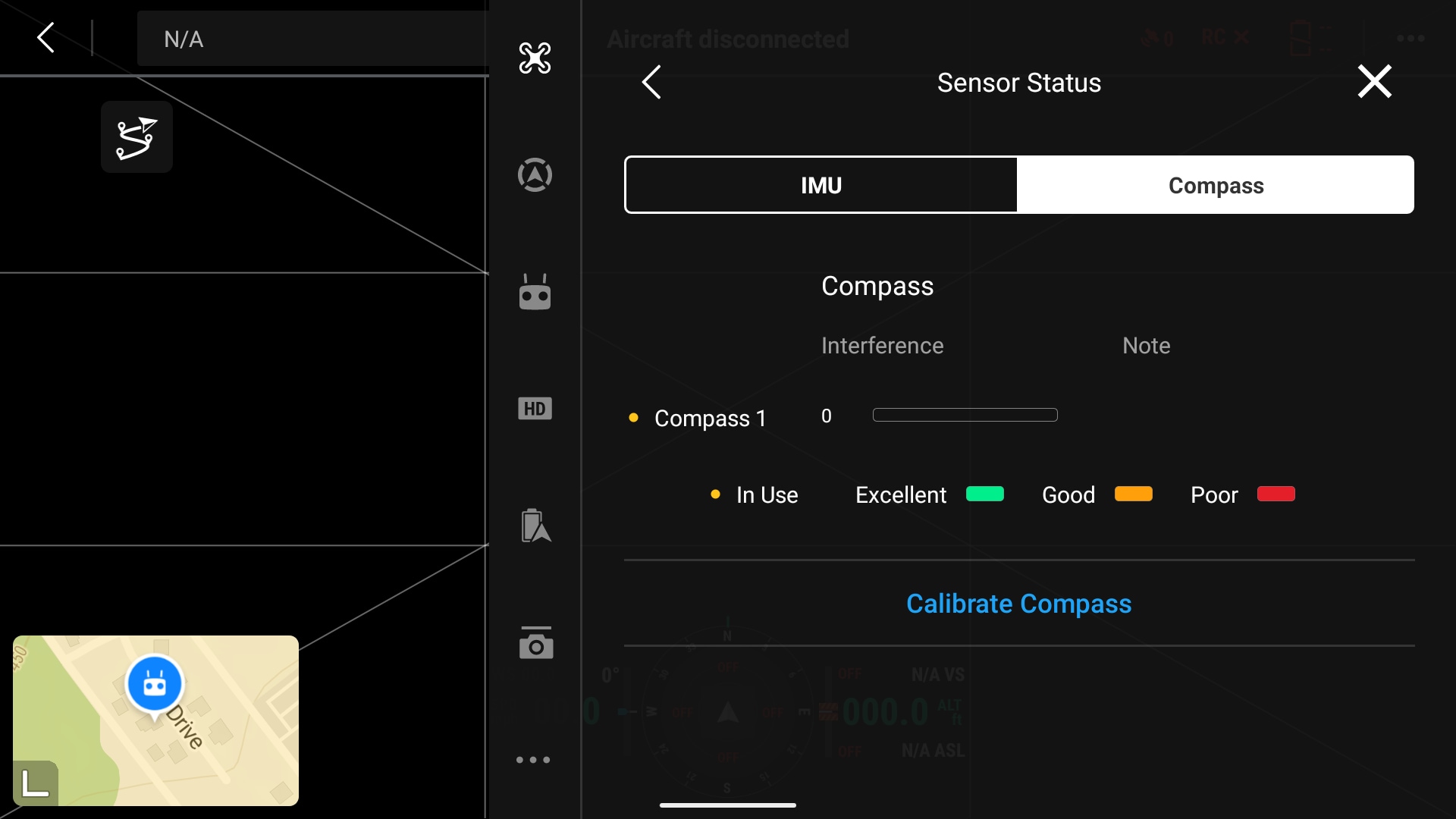
Step 2. After compass calibration, do IMU calibration in the same menu. Keep the drone on a flat surface during the process.
Once done, fly again and see if the DJI mini 2 losing connection problem stops. You can also use this method for DJI Mavic Pro keeps losing connection issues.
Method 4: Avoid Flying in High-Interference Areas
Sometimes the issue is not the drone. It’s the environment. Strong signals from nearby Wi-Fi routers, towers, or power lines can block your drone’s signal.
Avoid crowded areas when possible. Wide, open fields give the cleanest transmission.
Why use it:
- Removes interference from radio waves
- Keeps a clean link between the drone and the controller
- Reduces random dropouts
Steps:
Step 1. Check the area before flying. Look for towers, antennas, or metal objects.
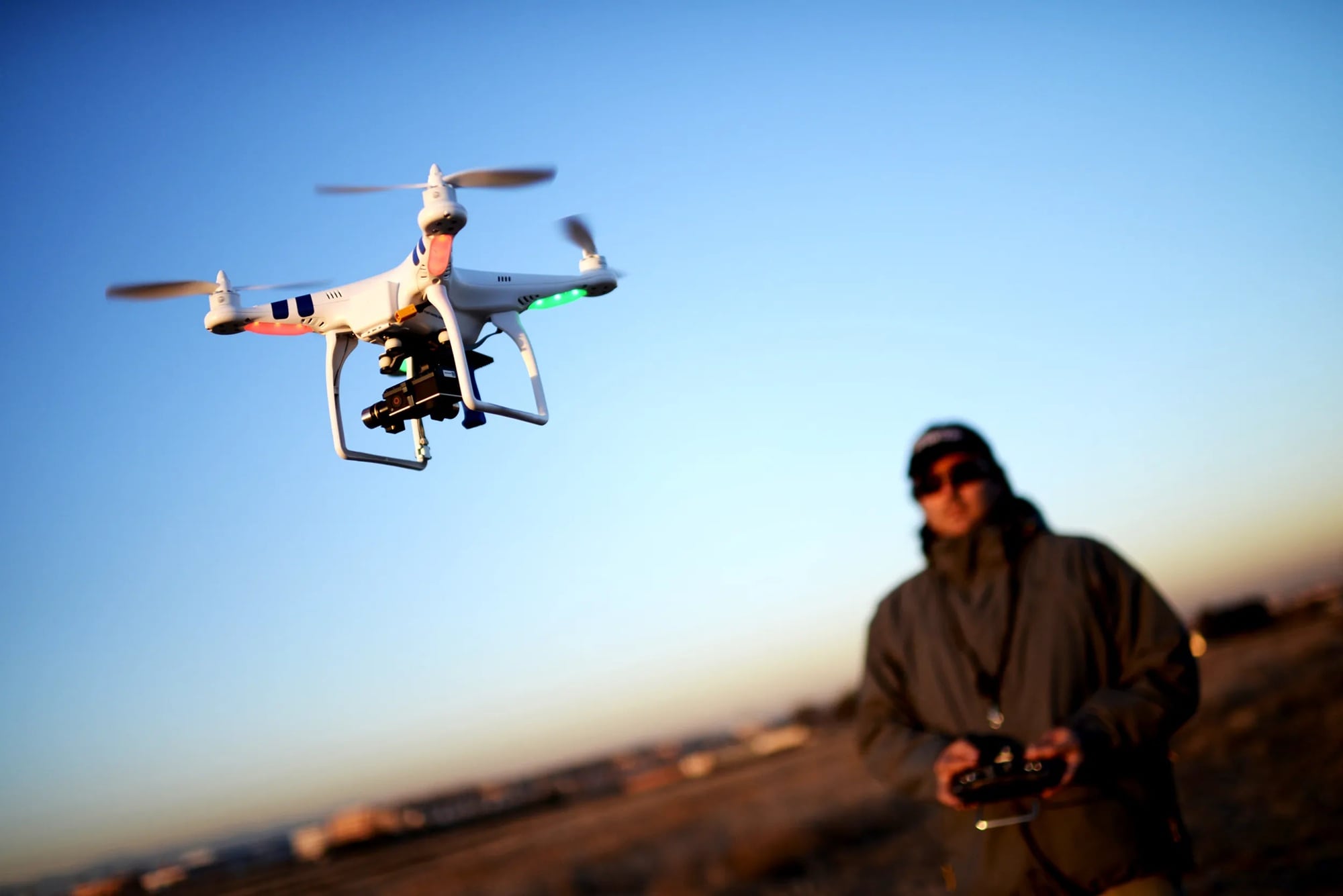
Step 2. Move at least 50–100 meters away from them. Fly again and note the signal strength in the app.
If your DJI Mini 2 keeps losing connection near your home or in the city, this method helps a lot. It also helps when the DJI Mavic Mini keeps losing connection near metal roofs or buildings.
Method 5: Check and Replace USB Cable or Port
A small problem in your cable can cause a huge connection loss. Many users ignore this simple reason. If your phone or controller link is weak, the app will show “disconnected.”
Why use it:
- Ensures a stable app-to-controller link
- Fixes signal cuts caused by loose cable
- Prevents the Fly app from freezing or closing
Steps:
Step 1. Unplug the cable between the controller and phone. Check both ends for bends, dust, or looseness.
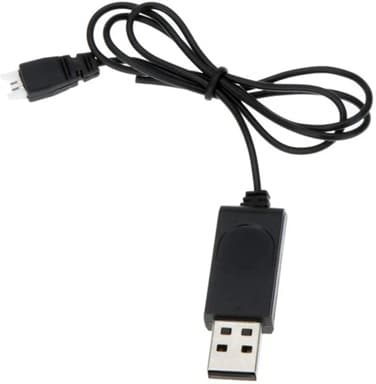
Step 2. Replace the cable if needed. Try a different port or another phone. Make sure the connection feels tight and stable.
After changing cables, the DJI Mini 2 loses connections much less often. Do the same check if your DJI Mavic Pro keeps losing connection suddenly.
Method 6: Use the DJI Fly App with Compatible Devices
The DJI Fly app is the link between your controller and drone. But not all phones work well with it. If your device is too old or not supported, you may face signal drops.
Why use it:
- Prevents app crashes or slow response
- Ensures smooth video feed and data flow
- Keeps firmware updates stable
Steps:
Step 1. Visit the DJI official list of supported devices. Check if your phone is listed. If not, use one that is compatible.
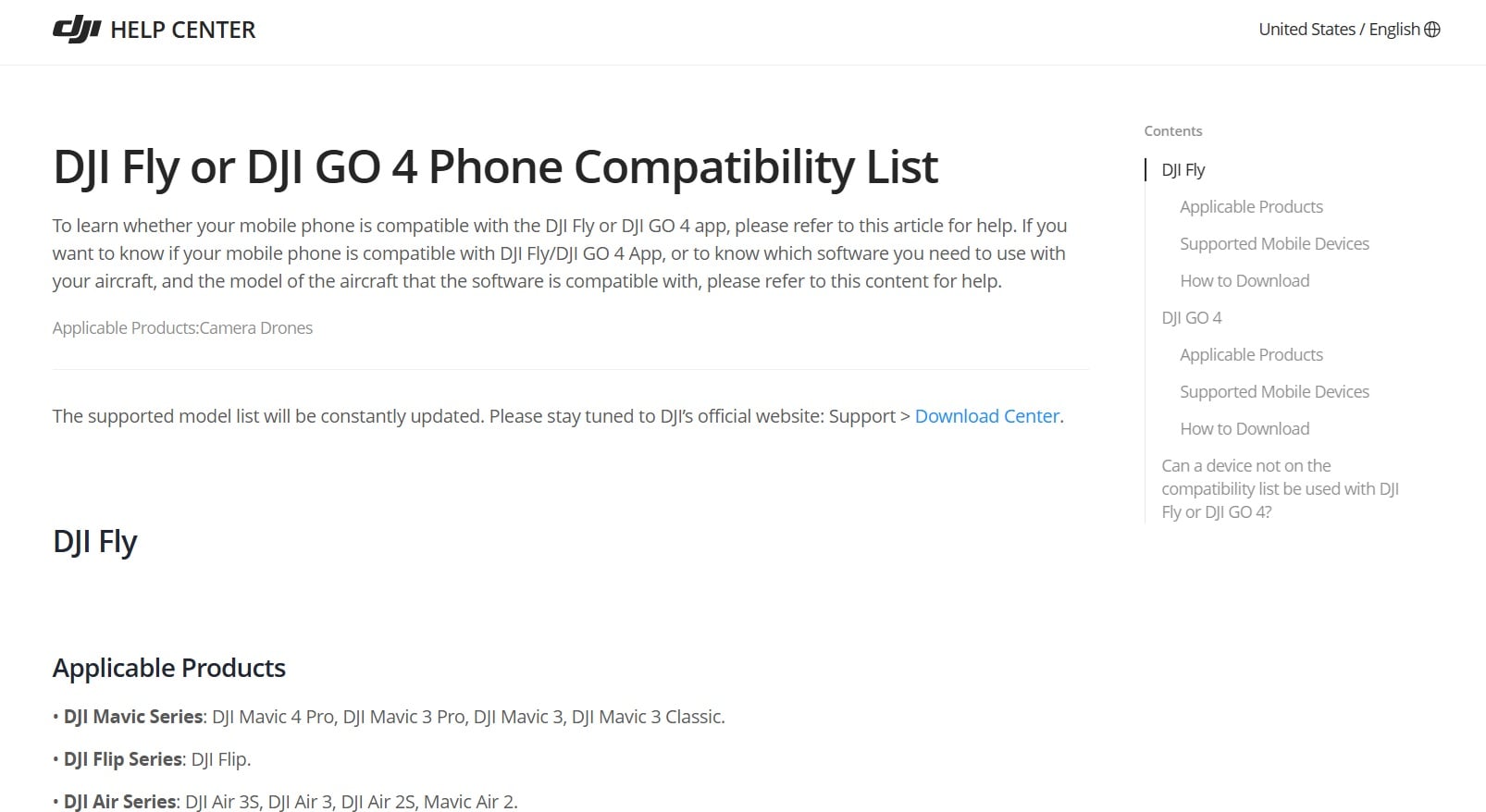
Step 2. Update the app from Google Play or App Store. Avoid beta versions or third-party downloads.
Once the app runs smoothly, the DJI mini 2 losing connection should stop. It also solves similar bugs in DJI Mavic Air 2 losing connection or DJI Mavic Mini keeps losing connection cases.
Part 3: Lost DJI Footage? Use Recoverit Drone Recovery Tool
Connection loss can sometimes lead to lost videos. Imagine you record an important event, but after a signal drop, the SD card shows nothing. The footage is gone. This is a common story among drone users. The DJI Mini 2 keeps losing connection mid-recording, and files get corrupted.
That’s where the Recoverit Drone Recovery Tool helps. It is a trusted software designed to bring back deleted or damaged drone footage.
The tool scans your SD card deeply and finds hidden or lost video files. You can preview them before recovery. It supports all major video formats used by DJI drones.
It works even when the DJI Mini 2 loses connections during recording. The same applies to the DJI Mavic Pro keeps losing connection and cases where videos vanish.
Key Features:
- Recovers deleted or corrupted drone videos and photos.
- Works with SD cards, internal storage, and external drives.
- Simple interface with fast scanning.
- Supports all DJI camera formats
Steps to use it:
Step 1. Insert the SD card from your DJI drone into your computer using a card reader. If your drone stores videos internally, connect the drone directly via USB cable. Launch Recoverit on your computer.
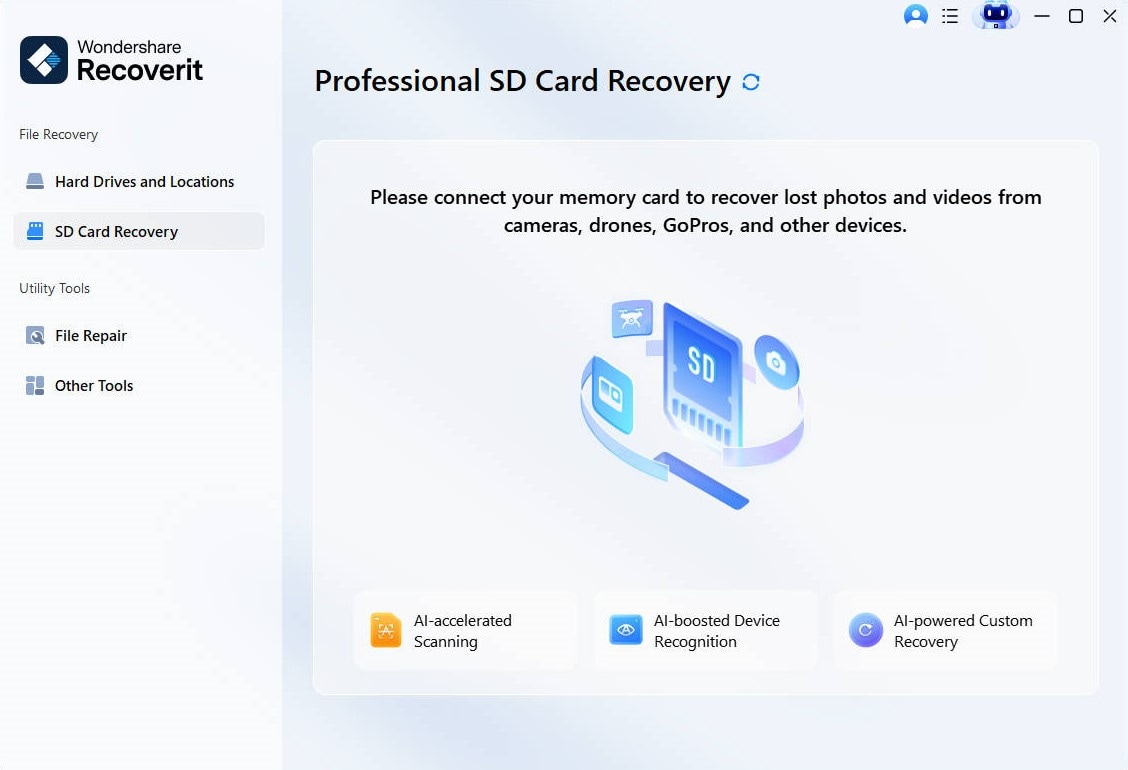
Step 2. In Recoverit, select the location where your drone videos were stored (e.g., SD card or internal storage). Click Start Scan to begin scanning.
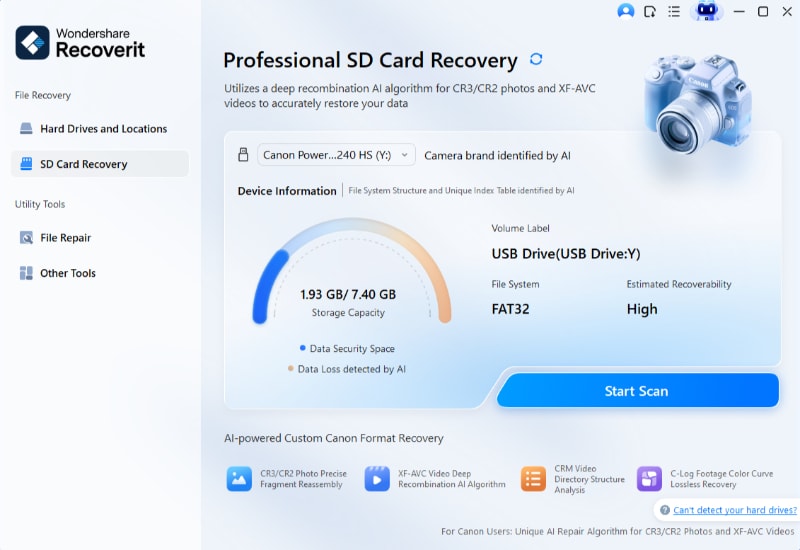
Step 3. Recoverit will perform a deep scan to locate deleted, lost, or corrupted video files. This process may take a few minutes, depending on the storage size and number of files.
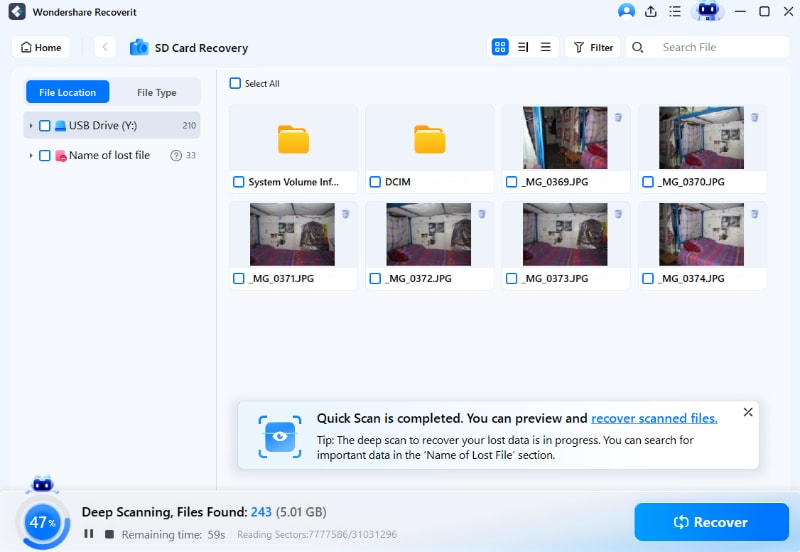
Step 4. Once the scan completes, you’ll see a list of recoverable files. Use the preview feature to check the video files before recovery. Select the videos you want to restore and click Recover. Save the recovered files to a different location (not the original SD card) to avoid overwriting data.

AI-Powered Data Recovery Software 2025 Tailored For Cameras & Drones

Your videos are often still there, just hidden or corrupted. With this tool, you can recover footage even after your DJI Mini 2 keeps losing connection or when your DJI Mavic Mini keeps losing connection mid-shoot.
Part 4: Pro Tips to Maintain a Stable DJI Mini 2 Connection
You can reduce future problems by following some simple habits. These small steps help you avoid interference and improve signal quality.
Tips:
- Keep the drone and controller within visual range. Avoid obstacles between them.
- Point the antennas toward the drone, not straight up or down.
- Fly in open areas, away from power lines, Wi-Fi routers, and towers.
- Check battery levels before flying. Weak power can affect transmission.
- Clean the controller ports and replace old cables often.
- Use only original DJI parts for the best signal quality.
- Store your drone in a dry, dust-free place.
- Update your DJI Fly app regularly.
Following these helps not only your Mini 2 but also if your DJI Mavic Air 2 losing connection or DJI Mavic Pro keeps losing connection.
Conclusion
The DJI Mini 2 keeps losing connection, issue can be frustrating, but it’s not hard to fix. Most of the time, the cause is simple. Updating firmware, using a fixed frequency, calibrating sensors, or replacing cables can make your flights stable again.
Remember to avoid interference, check your environment, and keep your drone updated. A steady signal keeps your drone safe and your footage clear. If you ever lose videos after a connection drop, tools like Recoverit can save your files. With patience and these methods, you can stop the DJI Mini 2 loses connections issue once and for all.
The same advice applies to other DJI models. Whether your DJI Mavic Air 2 losing connection, your DJI Mavic Mini keeps losing connection, or your DJI Mavic Pro keeps losing connection, the steps above will help. Now you can fly with confidence again.
Try Recoverit to Recover Lost Data
 Security Verified. Over 7,302,189 people have downloaded it.
FAQ:
-
1. Why does my DJI Mini 2 keeps losing connection when flying far away?
When you fly far, the signal weakens. Trees, buildings, and Wi-Fi networks can block it. Try flying in open areas and point the antennas correctly. Switching to 2.4GHz may also help. -
2. Can weak cables cause the DJI Mini 2 loses connections problem?
Yes. Many users overlook the cable. A loose or damaged USB cable can cause the app to disconnect. Always use a short, strong, original cable -
3. What if the DJI Fly app keeps crashing during flight?
If your app closes often, check compatibility. Update to the latest version. Close other background apps. Use a supported phone model to avoid lag or crashes.


