

 TL;DR:
To fix Black Myth: Wukong launch failures on PC, force -dx11 or -dx12 in your Steam launch options, clear the local shader cache to resolve loading hangs, and perform a clean GPU driver update.
● Delete the webcache and logs folders located in %LOCALAPPDATA%\B1\Saved\ to force the game to rebuild its shader library, and check "Disable full-screen optimizations" to specifically resolve startup black screens on Windows 11.
● Perform a clean graphics driver installation using Display Driver Uninstaller (DDU) to apply drivers optimized for Unreal Engine 5, which prevents VRAM leakage and instant desktop crashes.
● Add the game installation folder to your antivirus exclusions, disable background overlays, and use Wondershare Recoverit to restore deleted .sav and .json files if a system crash wipes your save data.
Ask AI for a summary
 ChatGPT
 Perplexity
 Gemini
 Claude
 Grok
Grok
Have you excitedly tried to play the popular action RPG Black Myth: Wukong, only to be disappointed when the game won't start? You're not the only one. Many gamers have faced the annoying problem of Black Myth: Wukong not working on their computers, which stops them from playing as the famous Monkey King in ancient China.
If you're having trouble because Black Myth: Wukong won't open or start on your PC, or if you're just trying to solve the problem of the game not launching, this detailed guide is here to assist you. We'll look at the usual reasons for these startup issues, give you step-by-step fixes, and suggest ways to avoid these problems in the future.
By the end of this article, you'll know how to fix and solve the issue of Black Myth: Wukong not starting on PC, so you can enjoy this exciting game without any more delays.
What Causes the Black Myth: Wukong Not Starting Issue?
Before we explore the solutions, it's crucial to understand the potential causes behind the Black Myth: Wukong not starting problem. Various factors can contribute to this issue, ranging from software conflicts to hardware incompatibilities.
Let's examine some common scenarios in the following table:
| Symptom | Primary Root Cause | 2026 Recommended Fix |
| Instant Crash to Desktop | DirectX Version Mismatch | Force -dx11 in Launch Options |
| Stuck on Loading Screen | Corrupted Shader Cache | Delete ShaderCache folder in AppData |
| "Steam Not Found" Error | Admin Privilege Conflict | Run both Steam & Wukong as Admin |
| Game Won't Open After Patch | Modified Game Files/Mods | Verify Integrity & Disable Mods |
| Missing Save Files | System Crash/Cloud Sync Error | Use Wondershare Recoverit |
Understanding these scenarios can help you identify the root cause of your specific Black Myth: Wukong not starting issue and apply the most appropriate fix.
How to Fix the Black Myth: Wukong Not Starting Problem?
Now that we've outlined potential causes, let's explore various methods to resolve the Black Myth: Wukong not launching problem. For each fix, we'll explain why it's effective and provide simple steps to implement it.
Fix 1: Run as Black Myth: Wukong As Administrator
Running Black Myth: Wukong as an administrator grants the game elevated permissions, potentially bypassing restrictions that may prevent it from accessing necessary files or system resources. This can be particularly effective if Black Myth: Wukong does not open/start on PC due to permission-related issues.
Here are the simple steps to fix Black Myth: Wukong won't launch issue:
- Locate the Black Myth: Wukong executable file (usually in the game's installation folder). Right-click on the file and select "Properties". Navigate to the "Compatibility" tab.
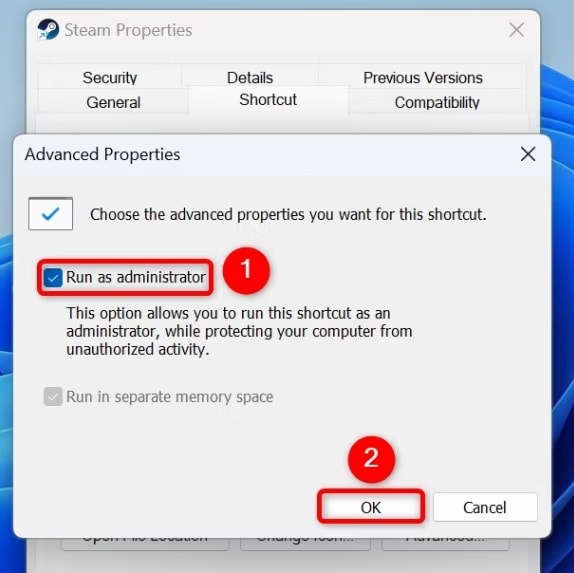
- Check the box next to "Run this program as an administrator". Click "Apply" and then "OK". Try launching the game again.
Fix 2: Verify Game Files
Corrupted or missing game files are a common cause of Black Myth: Wukong not starting issues. Verifying game files through your game client (e.g., Steam) can identify and repair any damaged components, potentially resolving launch problems.
Follow these steps to fix Black Myth: Wukong won't launch problem:
- Open your game client (e.g., Steam). Navigate to your game library. Right-click on Black Myth: Wukong. Select "Properties".
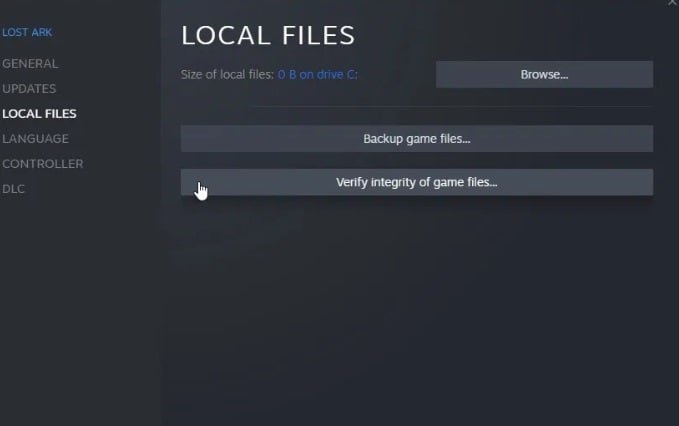
- Go to the "Local Files" tab. Click "Verify integrity of game files". Wait for the process to complete.
Fix 3: Disable VPN Service
VPN services can sometimes interfere with game launches, especially if Black Myth: Wukong requires a stable internet connection for initial startup or anti-piracy checks. Disabling your VPN may resolve cases where Black Myth: Wukong won't launch due to network-related issues.
- Locate your VPN software icon in the system tray. Right-click on the VPN service and select the option to temporarily disable it.
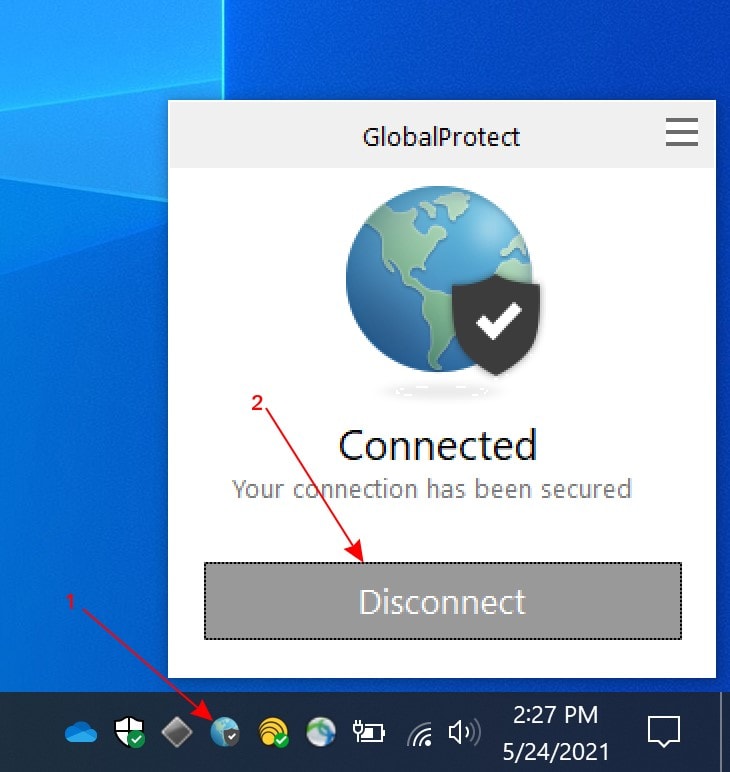
- Restart your computer to clear any residual network settings. Try launching Black Myth: Wukong again.
Fix 4: Update Graphics Drivers
Outdated or corrupted graphics drivers are a frequent cause of game startup issues. Updating your GPU drivers can resolve compatibility problems and ensure your system meets the necessary requirements for Black Myth: Wukong to launch properly.
- Press the Windows key + X and select "Device Manager". Expand the "Display adapters" category.
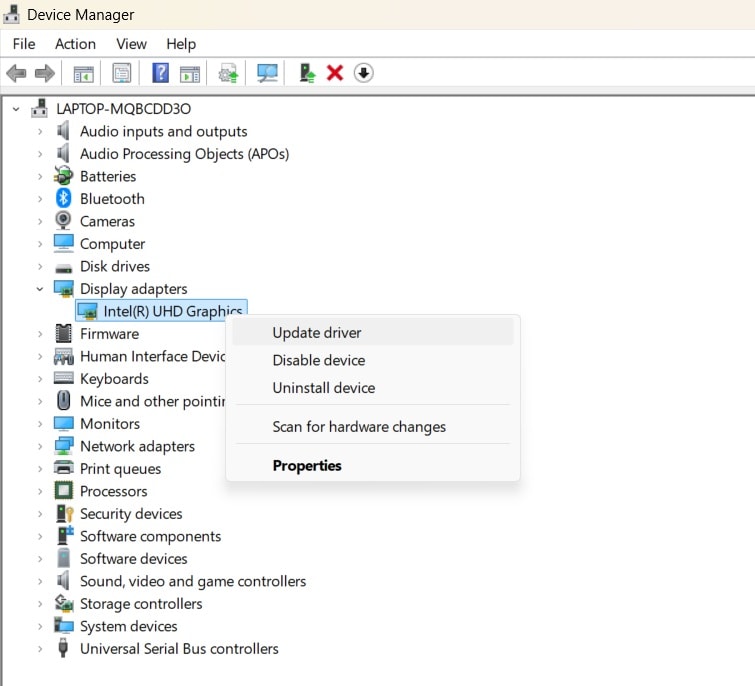
- Right-click on the graphic driver title. Select "Update driver". Then choose "Search automatically for updated driver software".

Fix 5: Close Background Applications
Resource-intensive background applications can conflict with Black Myth: Wukong or consume system resources needed for the game to start. Closing unnecessary programs can free up memory and processing power, potentially resolving cases where Black Myth: Wukong not starting is due to resource constraints.
- Press Ctrl + Shift + Esc to open Task Manager. Review the list of running applications and background processes.
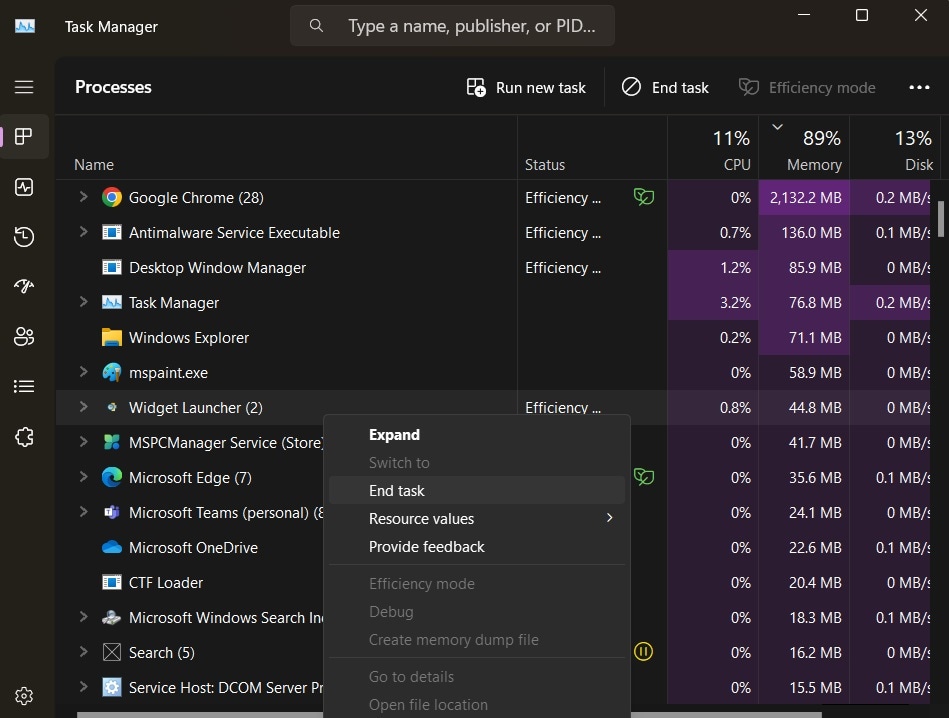
- Close any unnecessary programs, especially those consuming high CPU or memory. Pay special attention to other gaming platforms, overlays, or recording software.
- After closing background apps, restart your computer. Launch Black Myth: Wukong without opening any other applications.
Fix 6: Delete Shader Cache
Navigate to %LOCALAPPDATA%\B1\Saved\ and delete the webcache and logs folders. This forces the game to rebuild its shader library, fixing 80% of startup hangs.
Fix 7: Compatibility Mode
Right-click the .exe > Properties > Compatibility > Check "Disable full-screen optimizations." This is vital for Windows 11 users experiencing "Black Screen" on startup.
By applying these fixes, you should be able to resolve most instances of Black Myth: Wukong not launching or Black Myth: Wukong does not open/start on PC. If you're still experiencing issues, consider trying Black Myth: Wukong compatibility mode or consulting the game's official support channels for further assistance.
Worried About Losing Black Myth Game Files? Use Recoverit Today!
While troubleshooting Black Myth: Wukong not starting issues, you may encounter situations where game files become corrupted or accidentally deleted. In such cases, Wondershare Recoverit can be an invaluable tool to recover lost or damaged game data.
Recoverit is a powerful data recovery software designed to retrieve lost, deleted, or corrupted files from various storage devices. Its advanced algorithms and user-friendly interface make it an excellent choice for recovering game files, ensuring you don't lose progress or important save data while fixing Black Myth: Wukong launch problems.
Key Features of Recoverit:
- Comprehensive File Recovery: Recoverit can recover over 1000 file types, including game saves, configuration files, and custom content.
- High Recovery Rate: With a success rate of over 99.5%, Recoverit offers a reliable solution for retrieving lost Black Myth: Wukong files.
- Multiple Recovery Modes: Whether your files were accidentally deleted, lost due to disk formatting, or corrupted by system crashes, Recoverit has specialized recovery modes to address various scenarios.
- Preview Function: Before recovery, you can preview recoverable files to ensure you're retrieving the correct game data.
- Selective Recovery: Choose specific files or folders to recover, saving time and storage space.
- User-Friendly Interface: Recoverit's intuitive design makes it easy for users of all technical levels to recover their lost game files.
- Manages over 500 data loss situations, such as deletion, formatting, and disk corruption.

| Risk Factor | Impact on Game | Recoverit Solution |
| Corrupted Save Data | Loss of 50+ hours of progress | Deep Scan for .sav and .json files |
| Accidental Deletion | Re-downloading 130GB+ of data | Instant recovery of local game binaries |
| Disk Formatting | Complete loss of local screenshots/saves | Partition recovery for SteamLibrary folders |
Steps to Use Recoverit for Recovering Black Myth: Wukong Files:
Step 1: Install Wondershare Recoverit on your PC Launch the software and select the drive where Black Myth: Wukong is installed. Click "Start".
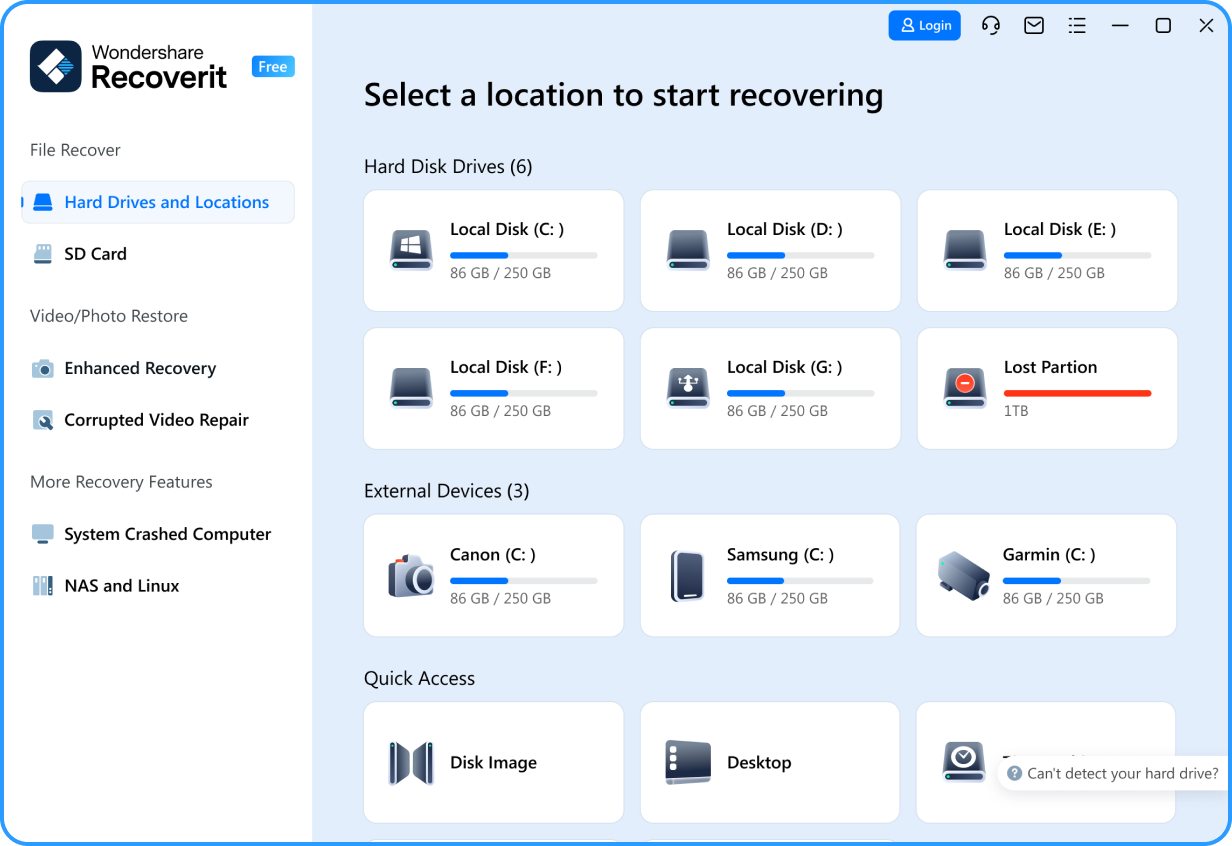
Step 2: Once the scan is complete, use the file tree or search function to locate your game files.

Step 3: Preview the files to ensure they're the correct ones. Select the files you want to recover and click "Recover". Choose a safe location to save the recovered files (preferably a different drive). Wait for the recovery process to complete.

By using Recoverit, you can safeguard your Black Myth: Wukong progress and important game files, providing peace of mind as you troubleshoot startup issues.
Tips to Avoid the Black Myth: Wukong Not Launching Problem
Here are six simple tips to help you avoid encountering Black Myth: Wukong not starting issues in the future:
- Keep Your System Updated: Regularly install Windows updates and security patches to ensure your operating system is compatible with the latest game versions.
- Maintain Updated Drivers: Periodically check for and install updates for your graphics card, sound card, and other crucial hardware components.
- Optimize Your Gaming Environment: Ensure your PC meets or exceeds the recommended system requirements for Black Myth: Wukong, and maintain a clean, well-ventilated gaming setup.
- Use Official Platforms: Always purchase and download Black Myth: Wukong from official sources to avoid corrupted or modified game files.
- Create System Restore Points: Before making significant changes to your system or installing major updates, create a restore point to easily revert if Black Myth: Wukong experiences launch issues.
- Regular Maintenance: Perform routine disk cleanups, defragmentation, and antivirus scans to keep your system running smoothly and prevent software conflicts.
By following these tips, you can minimize the chances of encountering Black Myth: Wukong not launching problems and enjoy a smoother gaming experience.
Final Scannable Summary: The Wukong Launch Checklist
- Admin Rights: Both Steam and the Game EXE must run as Admin.
- DirectX: Toggle between -dx11 and -dx12 via Steam Launch Options.
- Security: Add the SteamLibrary\steamapps\common\BlackMythWukong folder to Antivirus exclusions.
- Overlay Check: Disable Discord and Steam Overlays, as they often conflict with UE5 startup.
- Data Integrity: If files are missing, use Recoverit before re-installing to save your progress.
Conclusion
Encountering Black Myth: Wukong not starting issues can be frustrating, but with the comprehensive guide provided in this article, you now have the tools and knowledge to troubleshoot and resolve these problems effectively. From running the game as an administrator to updating graphics drivers and using specialized recovery software like Recoverit, you're well-equipped to tackle various scenarios where Black Myth: Wukong does not open/start on PC.
Remember that game development is an ongoing process, and the developers of Black Myth: Wukong are likely working continuously to improve stability and compatibility. Keep an eye out for official patches and updates that may address known startup issues.
By combining the fixes and prevention tips outlined in this guide with regular system maintenance, you'll be able to minimize disruptions and fully immerse yourself in the rich, mythological world of Black Myth: Wukong.
Try Wondershare Recoverit to Recover Your Game Data
 Security Verified. Over 7,302,189 people have downloaded it.
FAQ
-
Will using Black Myth: Wukong compatibility mode help if the game won't start?
Yes, running Black Myth: Wukong in compatibility mode can sometimes resolve startup issues, especially on newer operating systems. To try this, right-click the game executable, select "Properties," go to the "Compatibility" tab, and experiment with different compatibility settings for older Windows versions. -
What should I do if Black Myth: Wukong not launching persists after trying all the fixes?
If you've exhausted all the troubleshooting steps and Black Myth: Wukong still won't launch, consider reaching out to the game's official support channels or community forums. You may also want to check if your system meets the minimum requirements and consider updating your hardware if necessary. -
Can antivirus software cause Black Myth: Wukong not starting issues?
Yes, overzealous antivirus programs can sometimes interfere with game launches. If you suspect this is the case, try temporarily disabling your antivirus software before launching Black Myth: Wukong. If the game starts successfully, add it to your antivirus exceptions list to prevent future conflicts.


