If a SharePoint document disappears, start with the site Recycle Bin. Deleted items can move to a second-stage Recycle Bin, and the two stages normally share a total retention period of 93 days from the original deletion. If the file still exists but its contents changed, check Version History. For multiple unwanted changes, a site administrator may be able to restore a document library to an earlier point in the last 30 days.
This guide covers six practical recovery routes for SharePoint in Microsoft 365, including files synced through OneDrive. It explains who can use each method, what happens after permanent deletion, and when local data recovery software is relevant. Recoverit cannot scan a SharePoint cloud-only file or retrieve a permanently purged cloud item directly from Microsoft servers.
In this article
Part 1. Can You Recover Deleted Files From SharePoint?
Yes, SharePoint in Microsoft 365 has several ways to restore deleted or changed files, but the correct route depends on where the file was stored, how it disappeared, and the permissions you have. First, determine whether the item is truly deleted, has been overwritten, or only appears missing because of a library view, a sync problem, or the wrong SharePoint site.
Cloud Recovery Availability and the Combined 93-Day Limit
Deleted SharePoint items normally remain in the site Recycle Bin or the second-stage Recycle Bin for 93 days in total, counted from the date of original deletion. The second stage is not an extra 93 days. An item can disappear earlier if an authorized administrator purges it or the second-stage storage limit is exceeded. See Microsoft's site collection Recycle Bin documentation.
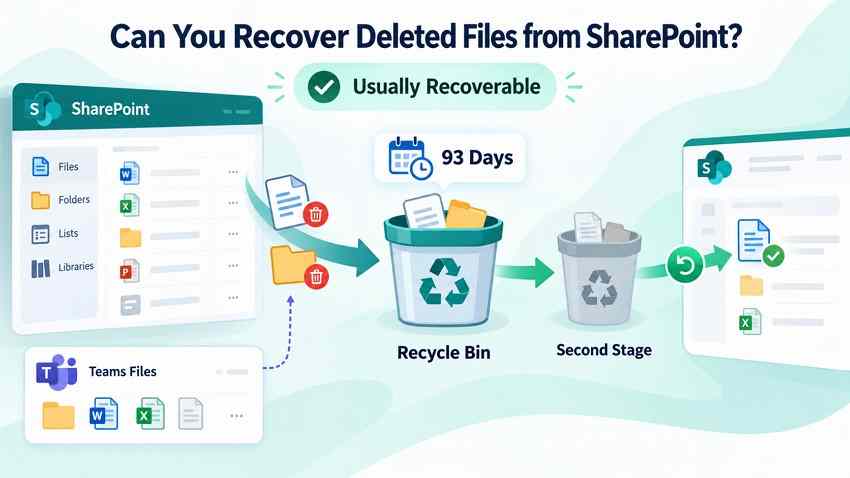
A site user with Edit access can usually restore items from the first-stage Recycle Bin. Site owners or administrators can also check the second-stage Recycle Bin. More restrictive organizational permissions or a different site layout may change which controls appear.
Choose the Correct Method for Your Deletion Scenario
Match the symptom to a recovery method before changing or resyncing anything. The methods below apply to SharePoint Online in Microsoft 365; SharePoint Server deployments may have different retention settings and menus. For platform basics, see our SharePoint overview.
| What happened | Best first method | What you need |
| A document or folder was deleted recently | Method 1: Site Recycle Bin | Access to the correct SharePoint site and suitable permissions |
| The item was removed from the site Recycle Bin | Method 2: Second-stage Recycle Bin | A site owner or administrator |
| The file still exists, but its contents changed | Method 3: Version History | A saved earlier version and permission to restore it |
| Many library files were deleted or overwritten | Method 4: Restore this library | A site administrator, modern library, and changes in the last 30 days |
| A downloaded or synced file was deleted on the computer | Method 5: Windows Recycle Bin | An actual local file and a PC where the deletion occurred |
| The local copy is no longer in the Windows Recycle Bin | Method 6: Recoverit local scan | A readable local storage device that still contains recoverable data |
Quick distinction: A SharePoint web Recycle Bin restores cloud content; Windows Recycle Bin and Recoverit work with local storage. They are not interchangeable.
Part 2. Recover Deleted Files From SharePoint Recycle Bins
For accidental deletion from a SharePoint site or a standard Microsoft Teams channel, check the SharePoint Recycle Bins before trying any third-party software. These are the authoritative locations for cloud-hosted files.
Method 1. Restore Files From the Site Recycle Bin
Use the first-stage Recycle Bin if a file, folder, or document library item was deleted and is still within the normal retention window. A user with Edit permission can often restore items deleted by another team member. Microsoft documents this in its SharePoint and Teams file-restore guide.
Step 1. Open the SharePoint site where the file originally lived. For a standard Teams channel, open the channel files and use the option to open the location in SharePoint.
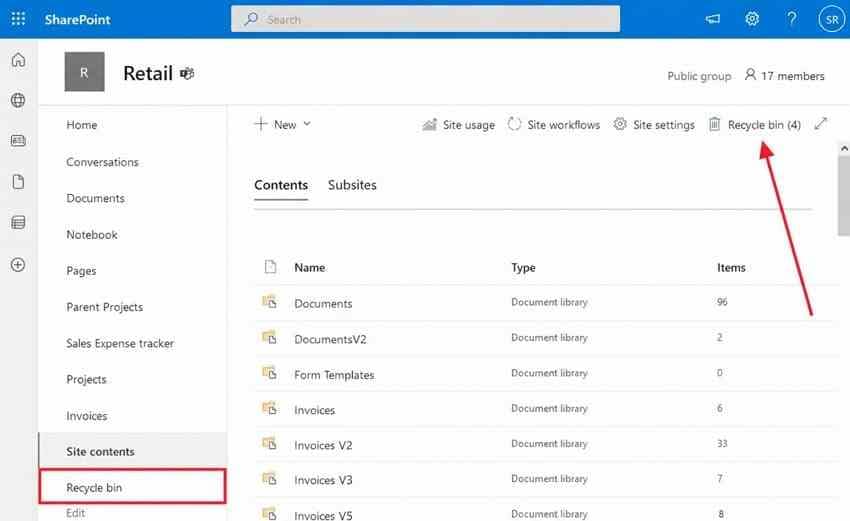
Step 2. Select Recycle Bin in the site navigation. If you cannot see it, try Settings > Site contents > Recycle Bin or ask the site owner.
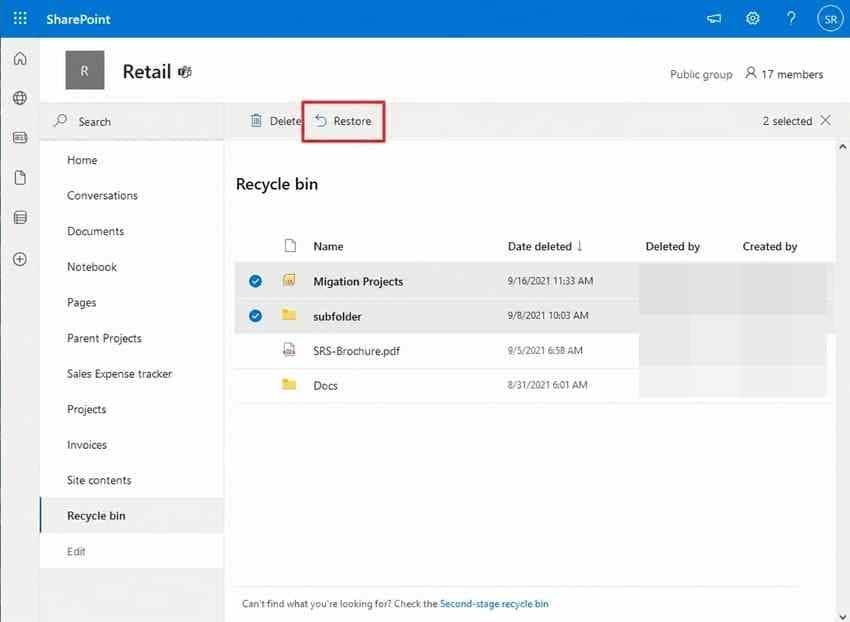
Step 3. Locate the file using its name, original path, or deletion date. Select its checkbox and choose Restore.
Step 4. Open the original library and confirm that the correct file appears. If the original folder was deleted, SharePoint may recreate that folder with only the selected recovered item.
If it is missing: Confirm the site and library are correct, then ask a site owner to check the second-stage Recycle Bin. Restoring a folder rather than individual items may be more suitable if the whole folder was deleted.
Method 2. Restore Files From the Second-Stage Recycle Bin
When an item has been deleted again from the first-stage Recycle Bin, it may still be in the second-stage Recycle Bin for the remainder of the same 93-day period. This second stage generally requires site owner or administrator access. Do not empty or purge either Recycle Bin while troubleshooting.
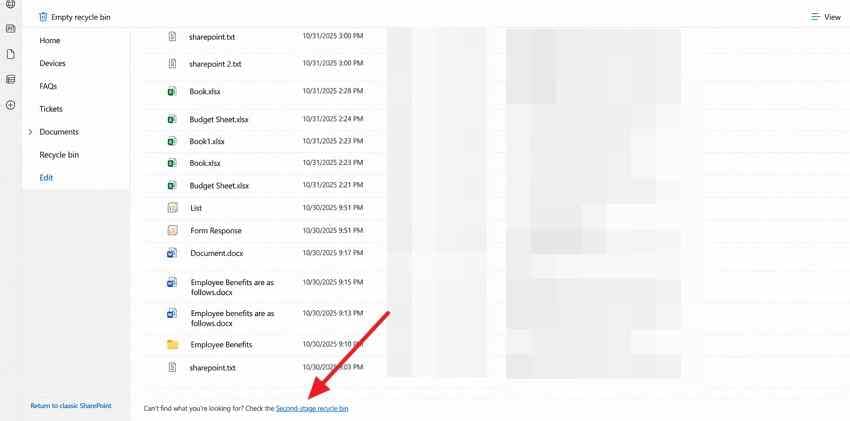
Step 1. Open the SharePoint site Recycle Bin and select Second-stage recycle bin near the bottom of the page. If the link is unavailable, ask a site collection administrator or authorized site owner.
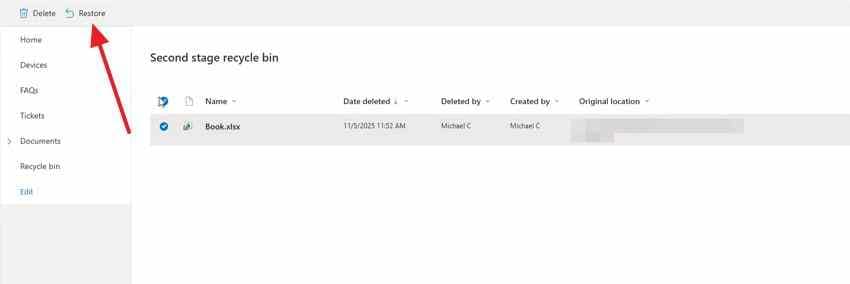
Step 2. Review deleted item names and original locations, select the relevant item, and choose Restore.
Step 3. Return to the original document library. Check that the file and its expected contents are available. If the parent library itself was deleted, it may need restoration first.
If neither bin contains the file: Move to Part 5 to check retention, administrator-controlled backups, and whether any independently downloaded local copies exist.
Video tutorial: The following third-party walkthrough demonstrates the site Recycle Bin, the second-stage Recycle Bin, and Version History. Its interface may differ from your tenant; follow your organization's current permissions and Microsoft documentation.
If the player is blocked in your CMS, watch the SharePoint recovery walkthrough on YouTube.
Part 3. Restore Earlier SharePoint File and Library Versions
A deleted file and an overwritten file require different actions. Version History is for a document that still exists; library restoration is for reversing many changes across an existing SharePoint library.
Method 3. Restore a Previous Version of a SharePoint File
Use Version History when a document was overwritten, edited incorrectly, or saved with unwanted content, but the file itself remains in its library. The library must have an earlier version retained and you must have suitable editing permissions. See Microsoft's instructions for restoring a previous SharePoint version.
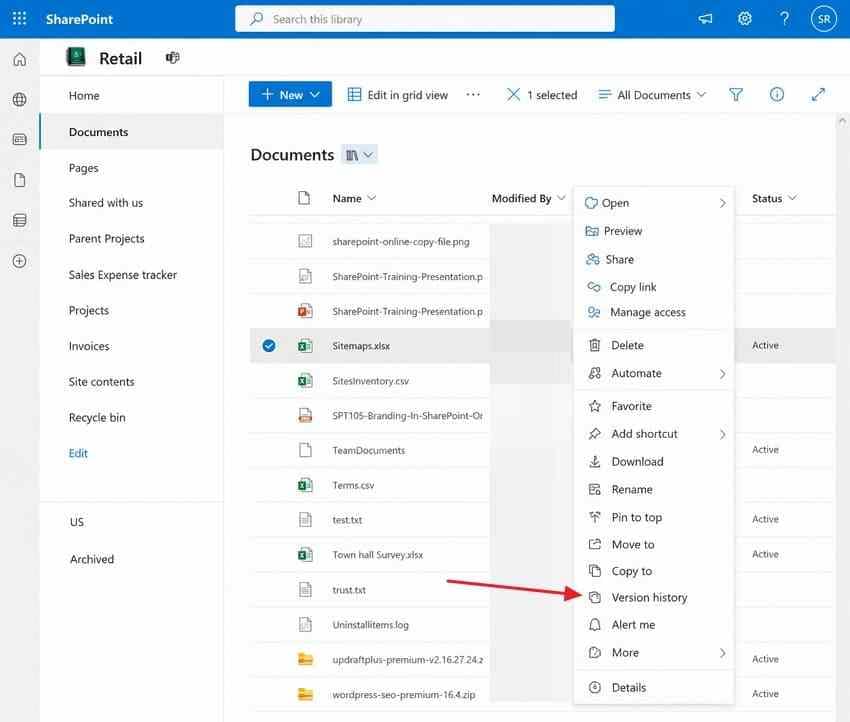
Step 1. Open the document library, locate the current file, then select its More options (...) > Version history command. Some interfaces show Version history directly.
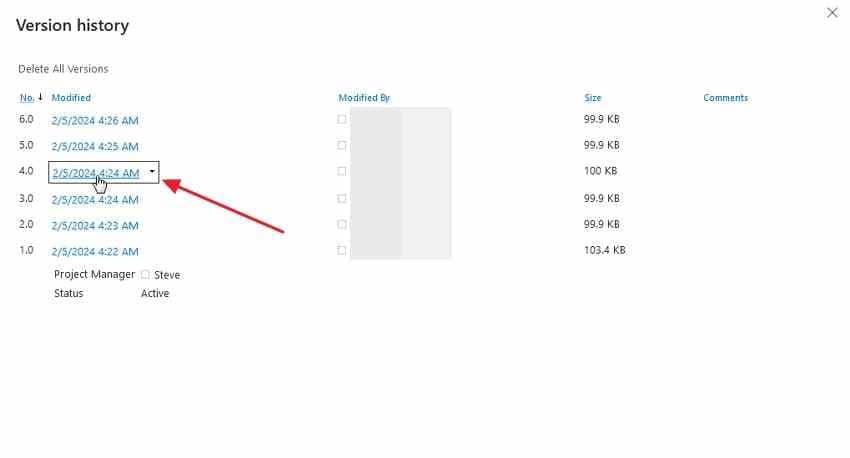
Step 2. Review the available dates and versions. Open or inspect the relevant version when possible, then select Restore for the version you want.
Step 3. Confirm the prompt and reopen the document. SharePoint promotes the selected content to a new current version without simply erasing all previous versions.
If the entire file was deleted: Do not expect Version History to display a file that no longer exists in the library. Restore the file itself from a Recycle Bin first, then inspect its version history.
Method 4. Restore an Entire SharePoint Document Library
Choose this method for accidental bulk deletions, ransomware changes, or widespread sync mistakes that affected a modern SharePoint document library within the previous 30 days. Only a site administrator can start the library restore. This is a broad rollback, so first coordinate with other editors and review legitimate changes made since the chosen restore point. Microsoft documents the limits in Restore a shared library.
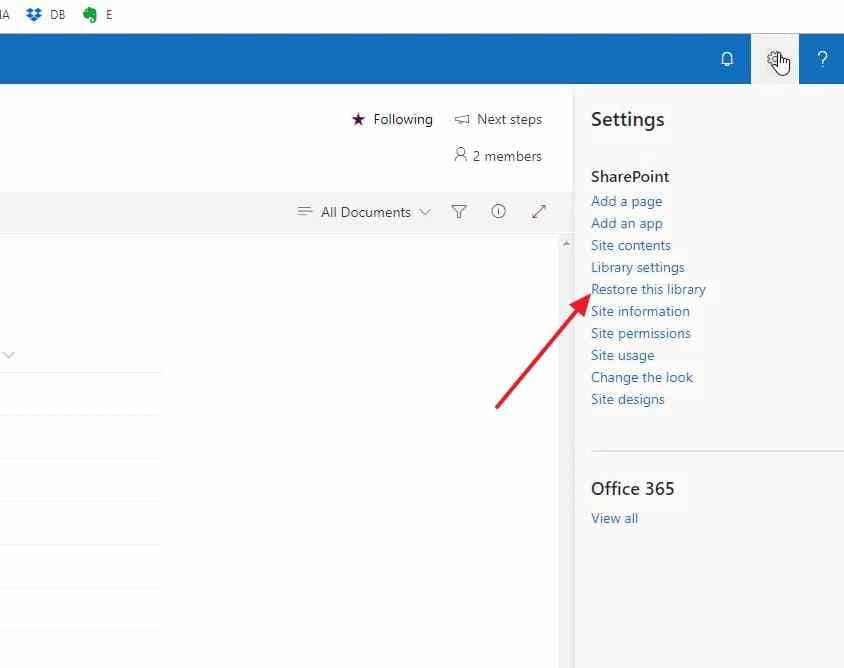
Step 1. Open the affected existing modern document library and select Settings > Restore this library. If the option is missing, check site administrator permissions and whether this is a classic library.
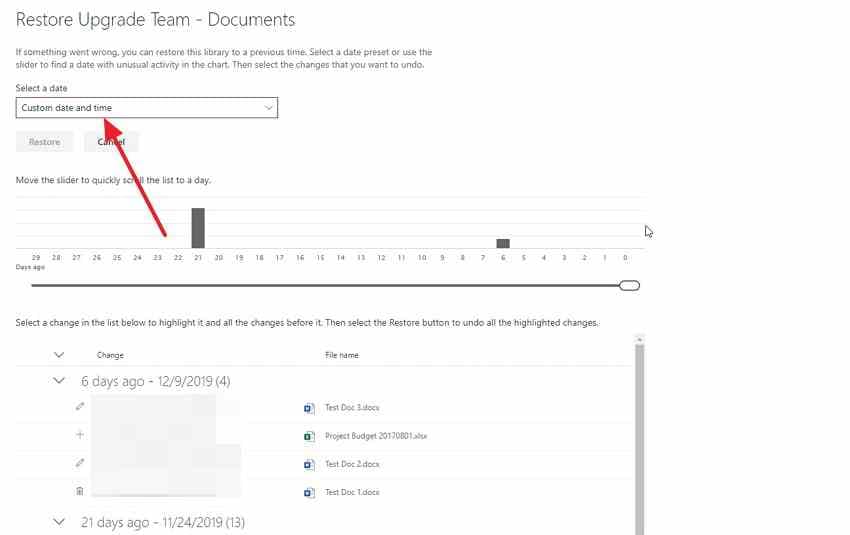
Step 2. Select a date, or Custom date and time, and examine the activity chart and list of changes. Identify the earliest unwanted change.
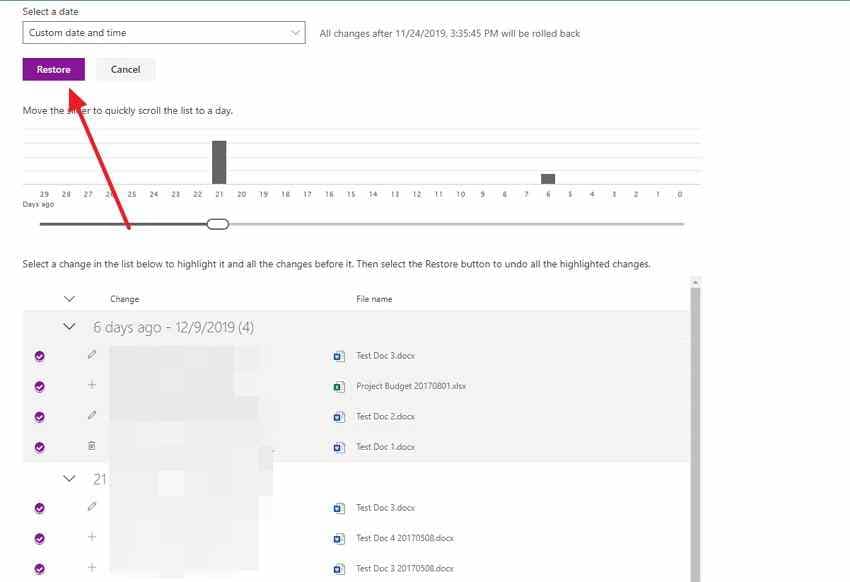
Step 3. Confirm the selected restore point, then choose Restore. The library will reverse actions after the point you selected. Ask collaborators to check important documents for unintended rollback of legitimate updates.
Limit: The feature is not a way to restore an entire library that was itself deleted, and it cannot bring back items already purged from the second-stage Recycle Bin. Use the appropriate Recycle Bin or administrator backup process for those cases.
Part 4. Recover SharePoint Files From a Synced Computer
A SharePoint library synced with OneDrive can also have copies on a computer. Check what actually existed on that device before treating local recovery as an option. A cloud-only placeholder has no complete file contents to recover from that PC. Our OneDrive deleted file recovery guide explains the separate work or school storage context.
Method 5. Restore a Local Copy From Windows Recycle Bin
This method is appropriate when someone deleted a locally available synced file in Windows File Explorer. It does not automatically work for a file deleted on the SharePoint website or another device.
Step 1. On the computer where the file was deleted, open Windows Recycle Bin. Search for the document by filename or original location.
Step 2. If the deleted file is listed, right-click it and choose Restore. Windows returns it to its previous local folder.
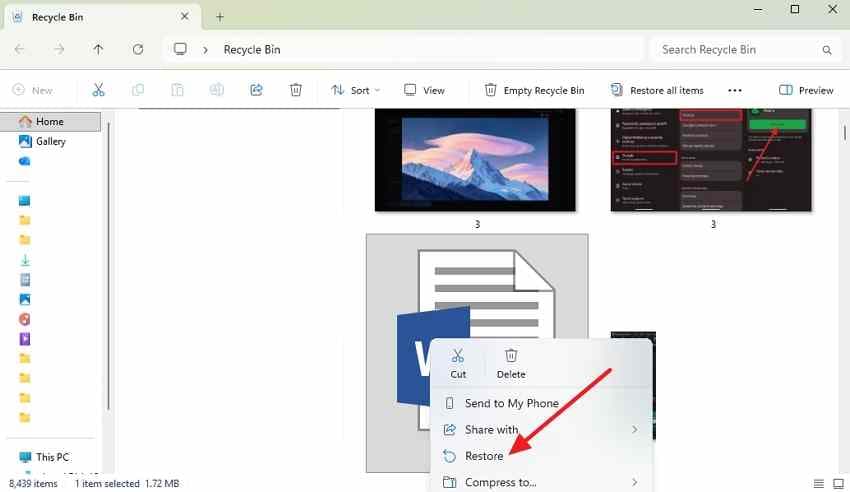
Step 3. Check that the file is readable and that OneDrive sync is healthy. If it was part of a synced SharePoint library, verify the cloud copy in the browser after synchronization finishes.
Important change since May 2026: Microsoft announced that a deletion initiated in the cloud removes locally available synced files without placing them in the Windows Recycle Bin. A file deleted locally can still enter the local bin. Check the Microsoft synchronized-file guidance; use the SharePoint web Recycle Bin for cloud-initiated deletions.
If Windows Recycle Bin is empty: Check the original SharePoint site, other devices, and organizational backups before considering a local scan. On SSDs, deleted data may already have been cleared by TRIM or overwritten.
Method 6. Recover a Deleted Local Copy With Wondershare Recoverit
Wondershare Recoverit is an optional last resort for an actual downloaded, exported, or locally synced copy that was deleted from readable Windows storage and is not available through a bin or backup. It cannot scan SharePoint tenant storage, recover an online-only placeholder, bypass permissions or retention policies, or restore a purged file that never existed locally.
To avoid overwriting potentially recoverable sectors, stop unnecessary use of the affected drive. If practical, install the software on another healthy drive and use a different destination for recovered files. The Recoverit Windows user guide documents local drive and Recycle Bin recovery; results depend on the storage device, encryption, overwriting, and SSD TRIM.
Step 1. Open Recoverit and select the local drive or folder where the SharePoint document was actually stored before deletion. If you know the file was deleted from the Windows Recycle Bin, select the appropriate local recovery entry instead.

Step 2. Run a scan and let it finish. Use supported file-type filters and path information to locate potentially recoverable Word, Excel, PowerPoint, or PDF copies.
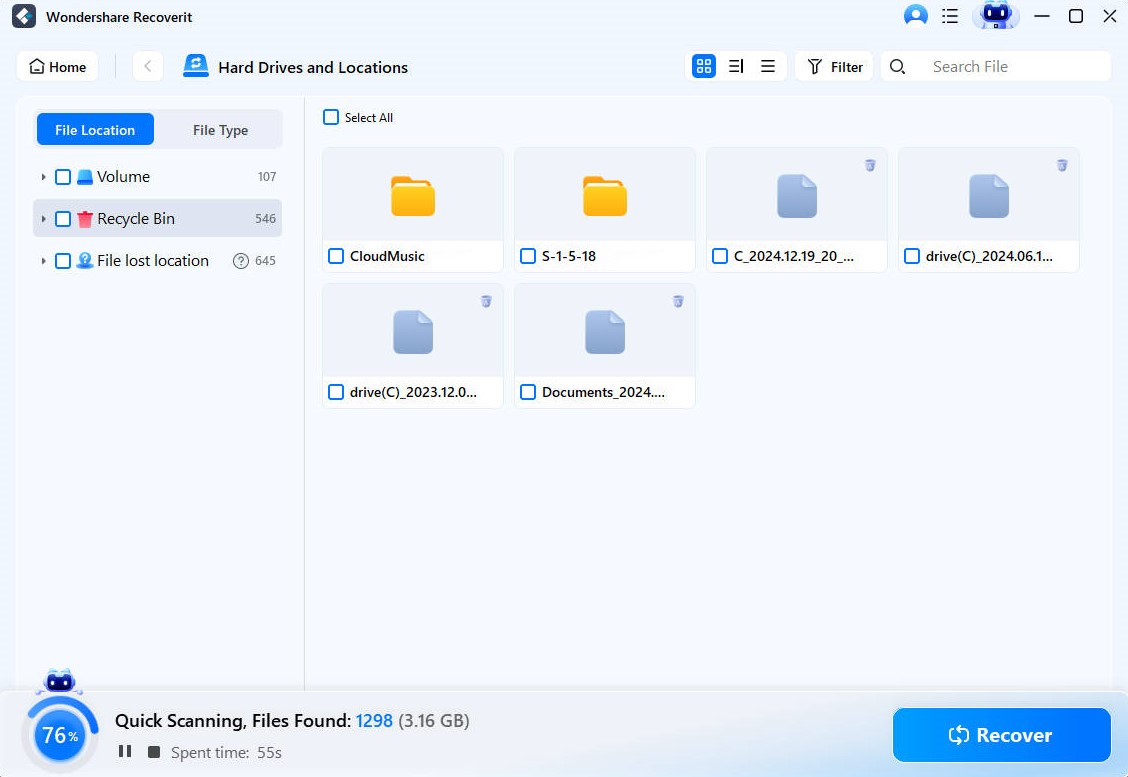
Step 3. Preview the results where supported. Select the relevant files, choose Recover, and save them to a different healthy drive, not the affected source or an actively syncing folder.
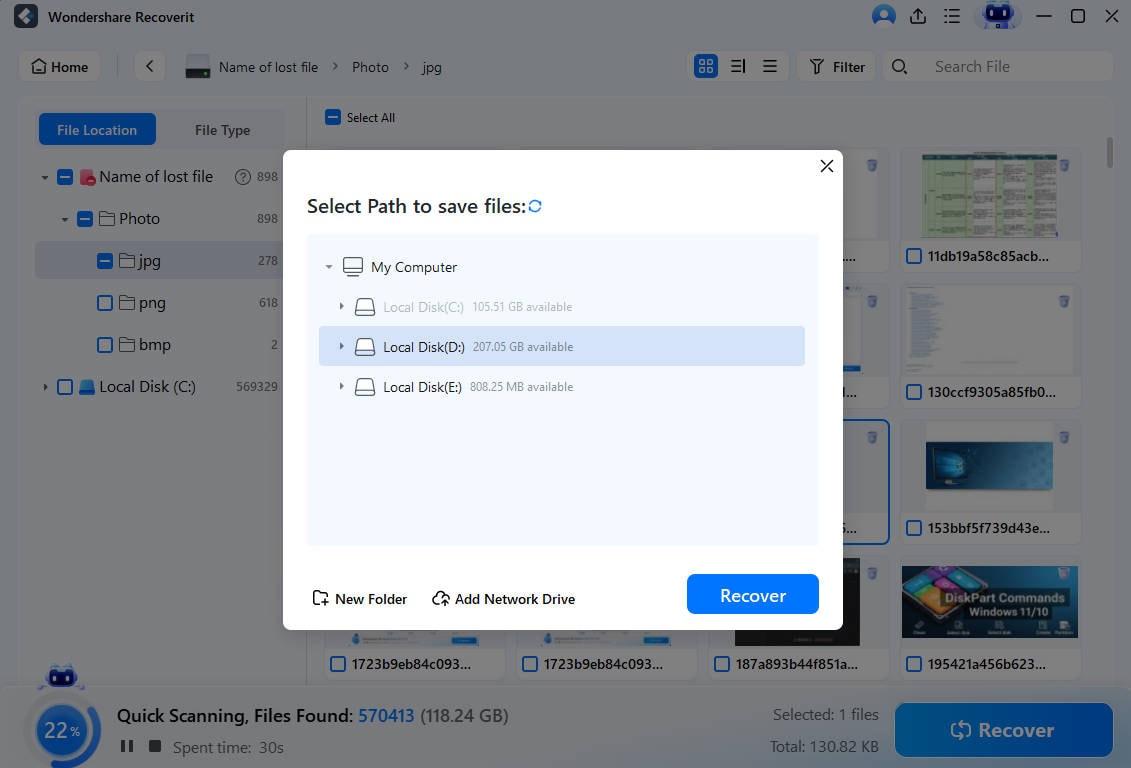
If the scan finds no usable file: Do not interpret a filename or thumbnail alone as proof of intact document contents. Check backup copies, team member exports, or your Microsoft 365 administrator. Continuing to write to the original SSD is unlikely to improve recoverability.
Learn about supported device and file recovery scenarios on the Wondershare Recoverit file recovery page.
Part 5. What if SharePoint Files Are Permanently Deleted?
If a file is gone from both SharePoint Recycle Bin stages, ordinary user-facing recovery options may be exhausted. There are still administrative checks worth making, but none should be described as a guaranteed way to recover permanently purged content.
Ask Your Administrator to Check Retention and Backups
Give your SharePoint administrator the site URL, document library, exact or approximate file name, original path, and last known date. Ask the administrator to determine whether the deletion was completed and which organizational protections apply:
- Microsoft Purview retention or eDiscovery: If an applicable policy or hold preserved the item, authorized compliance staff may be able to locate retained copies. The hidden Preservation Hold library is not a self-service Recycle Bin. See Microsoft retention documentation.
- Microsoft 365 Backup or another enterprise backup: A restore point is useful only if a backup policy covered the site before the loss. Access and restore scope depend on the service and tenant configuration.
- Microsoft Support site-level backup: Microsoft describes a limited backup window after actual deletion. An administrator may ask Microsoft Support about a site-level restore, but this is not an individual-file restore and availability is not guaranteed. See SharePoint data deletion documentation.
Do not wait unnecessarily: After a permanent purge or expired retention window, options can narrow quickly. Escalate promptly through your own IT administrator instead of uploading sensitive business documents to unknown third-party recovery websites.
Understand When a Local Copy Can Still Be Recovered
Local file recovery is a separate question from cloud retention. A previously downloaded file, a shared email attachment, a laptop export, or a saved backup may survive outside SharePoint. A sync icon that showed Always keep on this device indicates a full local copy was intended; an online-only cloud icon means the complete content was not stored on that computer. See Microsoft Files On-Demand guidance.
| Before deletion | What existed on the computer | What to check |
| Online-only | Cloud placeholder, not a full local document | SharePoint bins, retention, backups; do not scan a placeholder |
| Locally available | Downloaded file data may have been present | Windows Recycle Bin, local backups, then a cautious local scan |
| Always keep on this device | Full offline copy was intended to remain on disk | Local Recycle Bin or backups first; evaluate local recovery if data is gone |
Even with a downloaded copy, a successful local recovery is not assured. SSD TRIM, continuing synchronization, file-system behavior, encryption and overwriting can prevent usable recovery.
Part 6. How to Prevent SharePoint File Loss
The best response to critical SharePoint document loss is to make recovery paths clear before anyone needs them. File owners, site administrators, and Microsoft 365 compliance teams each control different parts of that protection.
Use Version History, Permissions, Backups, and Safe Sync Habits
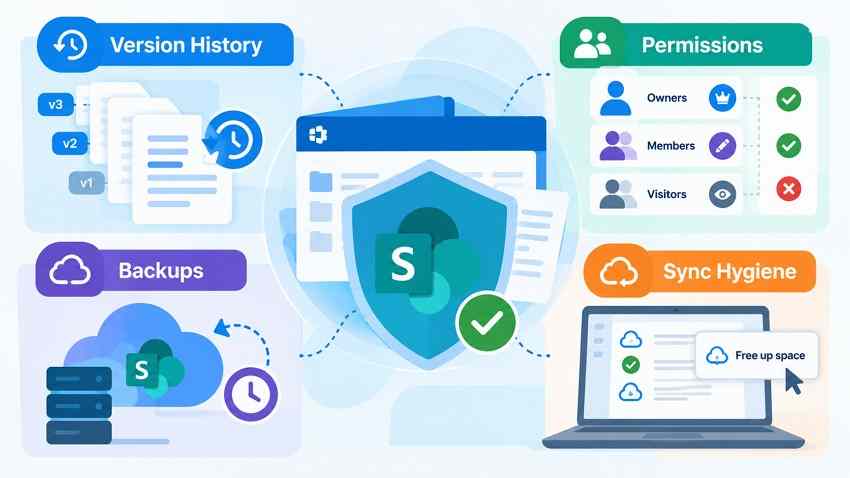
- Review version history: Keep meaningful versions for business-critical documents and verify the library's version limits with the site administrator.
- Use least-privilege access: Give Edit permissions only to people who need them. Review shared links and unexpected delete permissions.
- Plan backups and retention: Establish Microsoft 365 Backup or another approved backup arrangement where warranted, and test restoration procedures.
- Train users on Recycle Bin recovery: Document which site owns a Teams channel file and who can restore items from the second stage.
- Handle sync safely: Understand that deleting a file in a synced folder affects the cloud copy. Use Free up space rather than Delete when you only want to reclaim local disk space.
For sensitive files, maintain an independently governed backup in addition to standard SharePoint recycle and versioning features. Confirm your recovery and retention practices with organizational IT and compliance requirements.
Conclusion
To recover deleted SharePoint files, check the site Recycle Bin first, followed by the second-stage Recycle Bin within the combined 93-day window. Use Version History for unwanted edits or a document library restore for broader changes within 30 days. If the cloud copies are unavailable, ask an administrator about retention and backups. Recoverit is relevant only when a separate downloaded or synced local file still has recoverable data on a readable device. Protect original data and choose the method that matches how the file was lost.
FAQ
-
Can I recover SharePoint files deleted more than 93 days ago?
Not from the ordinary two-stage SharePoint Recycle Bin once the retention window has expired or the items were purged. An administrator should check applicable retention or eDiscovery holds, pre-existing backups, and any limited site-level Microsoft Support option. No individual file recovery is guaranteed. -
Can a SharePoint site owner recover files deleted by another user?
Usually yes. Users with Edit permissions may restore items from the site Recycle Bin, and authorized site owners or administrators can check the second-stage Recycle Bin. The file must still exist in the relevant recovery stage and your organization may use custom permissions. -
Does deleting a synced SharePoint file also remove it from OneDrive?
Deleting a document inside a synced SharePoint library normally syncs that deletion to the SharePoint cloud library and other synced devices. The item belongs in the SharePoint site Recycle Bin, not necessarily a personal OneDrive Recycle Bin. Whether it also appears in Windows Recycle Bin depends on whether the deletion was initiated locally or in the cloud. -
Can I recover deleted SharePoint files without administrator access?
Often, if the file is still in the first-stage site Recycle Bin and you have sufficient permissions. You may also restore a previous version of a file you can edit. Second-stage restoration, library-wide rollback, compliance searches, and enterprise backups generally require a site owner or administrator. A locally saved copy may be recoverable separately on your own computer.


