TL;DR:
To safely remove a known PDF password on a Mac, use the built-in Preview app for basic security changes, or switch to desktop editors like Wondershare PDFelement and Adobe Acrobat Pro to manage complex printing and editing restrictions.
● Use qpdf via Terminal if you prefer a free, open-source command-line decryption method, or utilize browser services like Smallpdf and HiPDF exclusively for non-sensitive files permitted for cloud processing.
● Standard software cannot bypass an unknown opening password; if you lack the exact credentials, request an unprotected copy because specialized tools cannot guarantee recovery and the Mac version of Dr.Fone DocPassRemover remains unreleased.
● Always duplicate the original PDF before modifying security properties, since rewriting the file will invalidate cryptographic digital signatures and attempting a Print-to-PDF workaround may permanently flatten form fields and drop hyperlinks.
Ask AI for a summary
 ChatGPT
 Perplexity
 Gemini
 Claude
 Grok
Grok
A PDF password remover for Mac can help you open, edit, print, or share a PDF that no longer needs access restrictions. But removing an opening password you already know is different from changing printing permissions or recovering a forgotten password. Choosing the wrong method can leave the PDF locked or alter a document you need to preserve.
Mac Preview offers built-in password controls, while Wondershare PDFelement, Adobe Acrobat, and qpdf provide additional desktop options. Smallpdf and HiPDF let you process eligible files online. This guide compares their requirements and walks through safe methods for authorized documents, including how to verify pages, forms, annotations, and digital signatures after unlocking.
In This Article
Part 1. Choose a Method for Your PDF Password Type
The best PDF password remover for Mac depends on how the PDF is protected, whether you have the required credentials, and whether the document may leave your computer. Identify these conditions before installing software or uploading a file.
Identify an Opening Password or Editing and Printing Restrictions
A document open password blocks the PDF before its pages appear. A permissions password controls changes such as printing, copying, and editing even when you can read the document. Some files use both. Adobe's explanation of PDF security clarifies these different protection types.
| What you see | Likely protection | What you need |
| A password dialog before any pages display | Opening password | The existing opening password, or an authorized replacement copy |
| Pages open, but editing or printing is restricted | Permissions / owner password | Permission to change security settings; the owner password may be needed |
| A PDF opens with damaged pages, errors, or missing text | Possible corruption, not necessarily a password issue | Inspect file integrity and obtain an intact copy |
Quick answer: If you know the necessary password, Preview is a convenient free starting point. If you need more security controls, use a desktop editor. No standard unlocker can promise to recover an unknown strong opening password.
Compare Built-In, Desktop, Command-Line, and Online Options
Choose by document sensitivity and the tools you are comfortable using. The word free can mean a built-in feature, open-source software, or a limited online allowance; it does not mean unlimited access to paid PDF editors.
| Tool | Where it works | Suitable when | Cost / key limit |
| Mac Preview | On-device | Known-password basic security changes | Included with macOS; needs appropriate permissions |
| PDFelement or Acrobat Pro | Desktop | Permission management and complex PDF workflows | Paid features; trials have conditions |
| qpdf | Mac Terminal | Technical users processing PDFs with valid credentials | Free and open source |
| Smallpdf or HiPDF | Browser upload | Non-sensitive documents you are permitted to upload | Usage and file-size limits may change |
Use the least invasive method that preserves the PDF's original content. A PDF with important forms, embedded files, annotations, or digital signatures merits extra verification after any security change.
Keep the Original and Decide Whether an Upload Is Appropriate
In Finder, make a duplicate and work on the copy. Store the password-protected original separately until you have verified that the output displays correctly. This matters if you are removing password restrictions only to print or share a document.
Before using a browser-based unlocker, check whether the document contains financial, legal, employment, academic, or personal information. A cloud processing service may be inappropriate even when it advertises encryption and automated file deletion. Follow your organization's rules and obtain the document owner's permission where applicable.
Note: Removing access protection makes a PDF easier to open and copy. Do not distribute an unrestricted copy if the original restrictions are required for compliance or confidentiality.
Part 2. Remove an Opening-Password Requirement With Preview
Preview is usually the first option to try when you know the opening password and have permission to change the document. Apple's current instructions distinguish editing PDF permissions from exporting an additional protected copy; the controls may differ from those in old screenshots.
Open the PDF and Preserve a Separate Copy
Step 1. Find the PDF in Finder. Select it, then choose File > Duplicate or press Command-D. The official Finder file-management guide confirms this duplication shortcut.
Step 2. Control-click the duplicate, choose Open With > Preview, and enter the existing opening password when prompted. Confirm that its pages, bookmarks, and annotations load before changing anything.
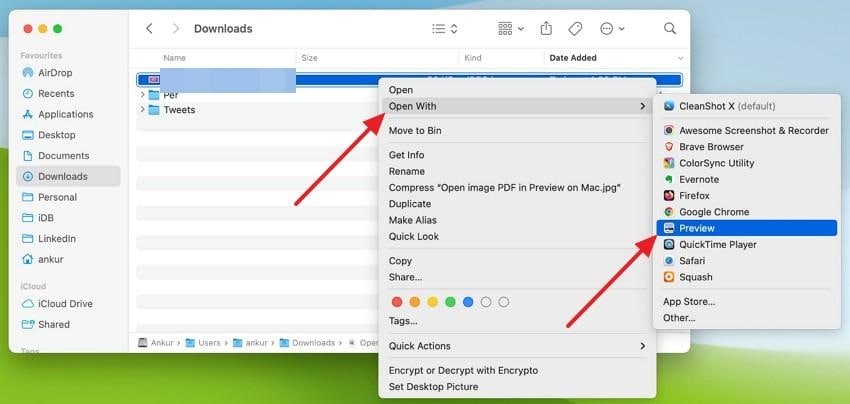
Do not delete or overwrite the original. If Preview cannot open the copy with the correct credential, first verify the password and check whether another copy of the PDF opens.
Change Password and Permission Settings
Step 1. In Preview, select File > Edit Permissions. Apple's current Preview security guide documents this menu for managing PDF passwords and permitted actions.
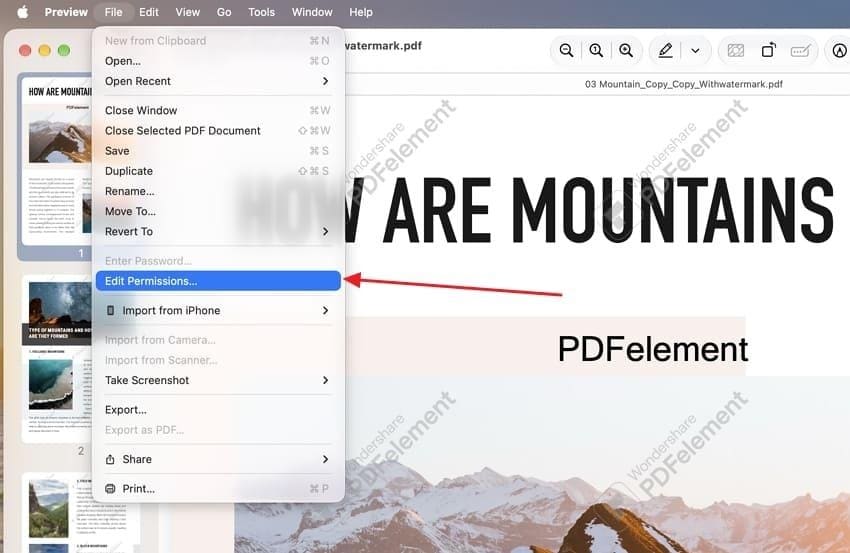
Step 2. Where you are authorized to change the protection, turn off Require Password To Open Document. Review printing, copying, and annotation settings separately; an owner password may still be required.
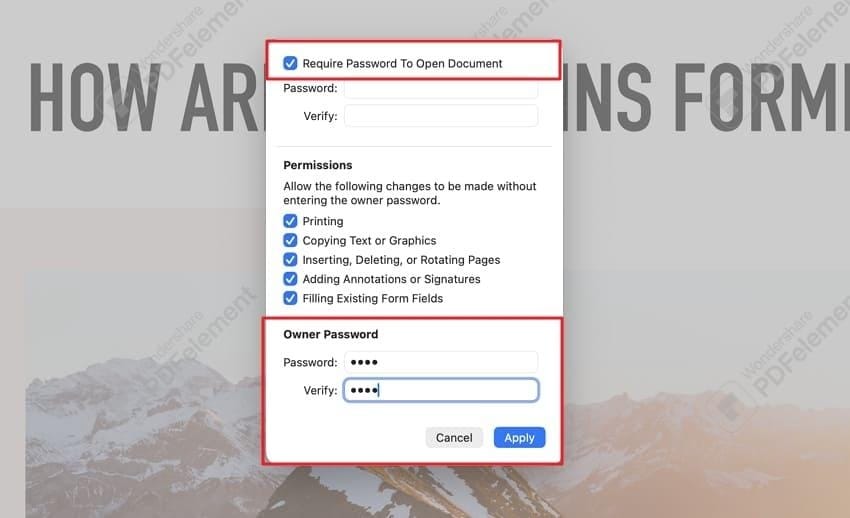
Step 3. Enter the owner password if prompted and click Apply. If the setting is unavailable or Preview rejects the permission password, do not assume the PDF is corrupted or repeatedly try unrelated passwords. Ask the document owner for the correct credentials.
Reopen and Verify the Unprotected Copy
Close the copy and open it again in Preview. A successful change removes the opening-password prompt for that copy, but you should also test the specific action you needed, such as printing or text selection.
Confirm the total page count and inspect several pages with complex formatting, links, annotations, and form fields. If your goal was to remove the opening requirement but retain restrictions on editing or printing, recheck those remaining permissions.
Important: File > Export is not a guaranteed shortcut for removing existing encryption. Check the resulting file rather than assuming every save or export produces an unlocked PDF.
Part 3. Use a Desktop PDF Editor for Supported Security Changes
Dedicated PDF editors are useful when you need to manage both opening passwords and detailed printing or editing permissions. They still require the necessary authorization and do not replace a forgotten encryption key.
Remove PDF Security With PDFelement for Mac
Wondershare PDFelement for Mac supports PDF security features, including opening passwords and permission settings. Its current Mac password-security guide places removal under File > Protect > Remove Security; older screenshots may show a different toolbar.
Step 1. Open a duplicate PDF in PDFelement and enter the existing document-opening password if one is required. Wait for the file to load.
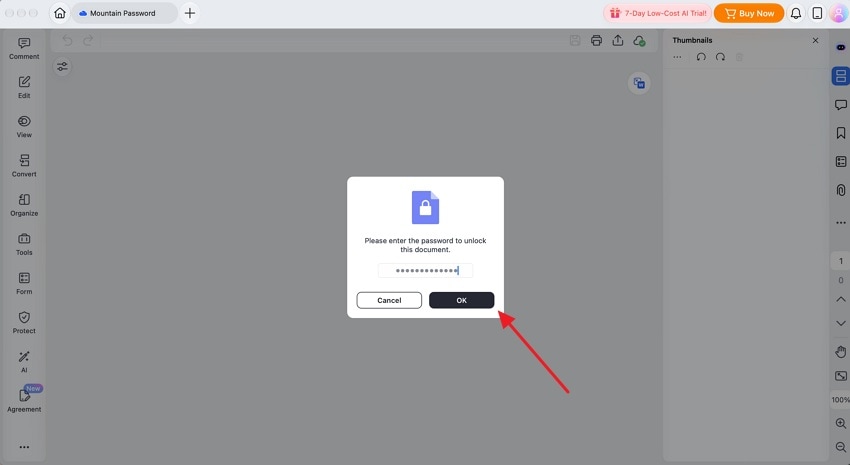
Step 2. Choose File > Protect > Remove Security. Enter the permission password if prompted, then save a separate unlocked copy. If you do not know the permission password, request it from the owner rather than assuming the editor can remove it automatically.
Step 3. Reopen the saved PDF and compare it with the original. PDFelement trial access can add watermarks to exported documents; review the current Mac licensing and trial limitations before relying on a free export.
Remove Password Protection in Adobe Acrobat Pro
Adobe provides a detailed Acrobat password-removal procedure. The current interface uses security properties rather than the older Tools > Encrypt workflow shown in some tutorials.
Step 1. Open the protected PDF in Acrobat Pro with the required credentials. Go to All tools > Protect a PDF.
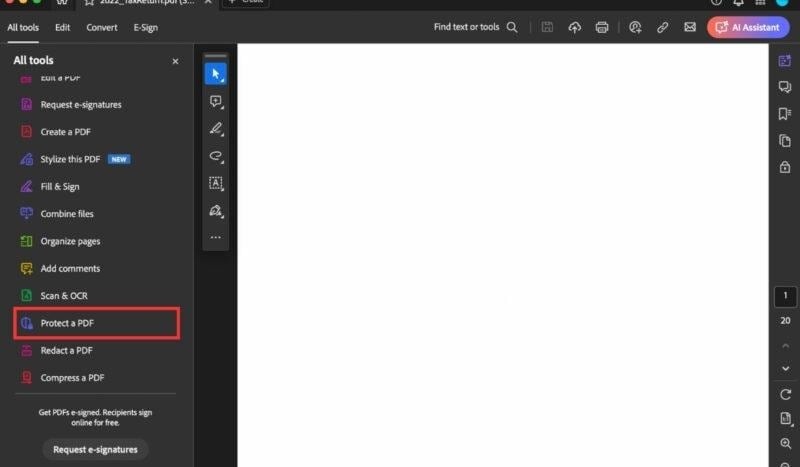
Step 2. Choose Set security properties under advanced properties, open Security, and select Change Settings. Deselect Require a password to open the document or Restrict editing and printing as appropriate.
Step 3. Enter the permissions password if requested, confirm the change, and save a new PDF. Preserve the protected original, especially if it contains signatures or enterprise security policies.
Compare Desktop Processing, Trials, and Licensing
Both editors offer features beyond password changes. PDFelement emphasizes editing, OCR, forms, and document controls; Acrobat Pro offers editing, forms, signatures, and security-policy tools. Their licenses and trials are not the same as a permanently free PDF password remover.
- PDFelement: Trial exports may add a watermark, while licensed versions allow unrestricted saving within the relevant plan.
- Adobe Acrobat Pro: Check Acrobat plans and the current seven-day trial terms. A trial can turn into a paid subscription unless canceled according to the terms.
For a confidential document, desktop processing is often easier to review than uploading to a third-party server. Verify whether optional cloud features are enabled before sharing sensitive material.
Part 4. Create an Unencrypted PDF Copy With qpdf
The open-source qpdf command-line utility can create an unencrypted copy of an accessible PDF. It is best suited to users comfortable with Terminal and correct password handling. The following steps apply when you own the document or have permission to modify its security.
Install qpdf and Check Whether a Password Is Required
Step 1. If you already use Homebrew, install the official qpdf formula from Terminal. Otherwise, use the qpdf project's supported installation instructions.
brew install qpdf

Step 2. Keep the protected PDF in a working folder and run the following documented test. Do not put the password in a normal Terminal command or an article example.
qpdf --requires-password input.pdf
echo $?
According to the official qpdf command reference, exit code 0 means an additional password is required; 2 means the input is not encrypted; and 3 means it is encrypted but an acceptable password has already been supplied, or none is required. This is not the same as qpdf's ordinary error-status mapping.
Decrypt With Authorized Credentials While Protecting the Password
The --decrypt option writes a new unencrypted PDF. qpdf can read a password from a file or standard input. To follow the simple password-file workflow, use a private, nonsynced working directory, enter your existing password into pw.txt, and restrict access to that file before processing.
chmod 600 pw.txt
qpdf --requires-password --password-file=pw.txt input.pdf; echo $?
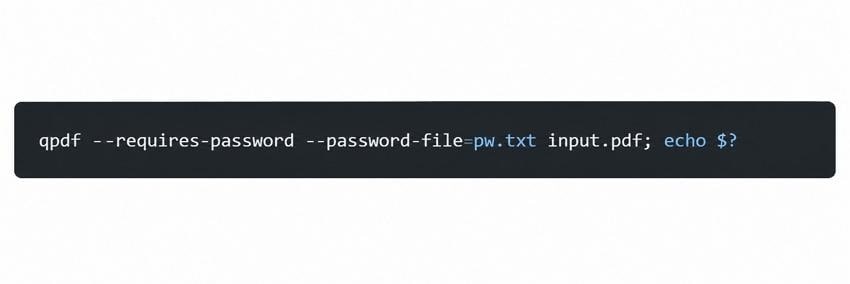
In this password check, exit status 3 means the supplied password is accepted. If the check reports that another password is required, stop and verify the credentials before proceeding.
qpdf --password-file=pw.txt --decrypt input.pdf unlocked.pdf
Do not paste your password into the command line as --password=your-secret; commands may be recorded in shell history or visible to system utilities. Delete the temporary password file promptly after verifying the output. Deletion does not guarantee forensic erasure, particularly on SSDs, so a carefully handled standard-input workflow is preferable for highly sensitive files.
Note: The PDF author may impose legal or organizational restrictions on changing a document even if you can open it. Use only properly authorized files.
Verify Encryption Status and Protect Digital Signatures
Step 1. Check the resulting PDF for structural problems and encryption status with two commands:
qpdf --check unlocked.pdf
qpdf --is-encrypted unlocked.pdf; echo $?
For --check, status 0 means no errors or warnings detected; 2 reports errors; and 3 reports warnings without errors. For --is-encrypted, status 2 indicates that the file is not encrypted. Those meanings differ, so do not interpret all status codes alike.
Step 2. Open the output in Preview, compare page count, text, hyperlinks, forms, and annotations, and inspect any signature validation. A PDF can be structurally readable while still containing damaged elements.
Step 3. Keep signed originals unchanged. Rewriting a signed PDF may invalidate signatures, and qpdf specifically documents that --remove-restrictions invalidates them. Never describe a decrypted copy as still cryptographically signed without checking its status.
Part 5. Use Smallpdf or HiPDF for PDFs You Can Upload
Web-based tools are convenient when you cannot install software, but they move the PDF and possibly a password through a third-party processing service. For private, confidential, or regulated documents, a local method is generally more appropriate.
Remove a Known Password With Smallpdf
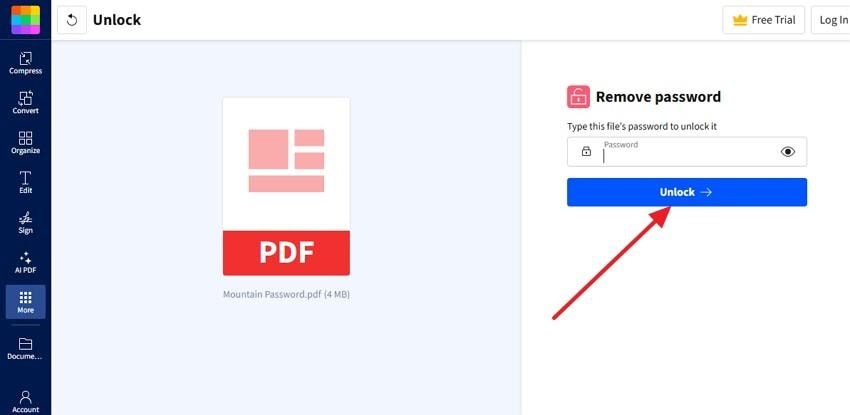
Smallpdf's Unlock PDF tool accepts a PDF in your browser and, for files it can process, asks for the existing opening password. Follow the prompts provided by the current interface, which may look different from older screenshots.
Step 1. Open Smallpdf in a Mac browser, choose a copy of the protected PDF, and enter its password if requested. Use the unlock action only when you are authorized to change the security.
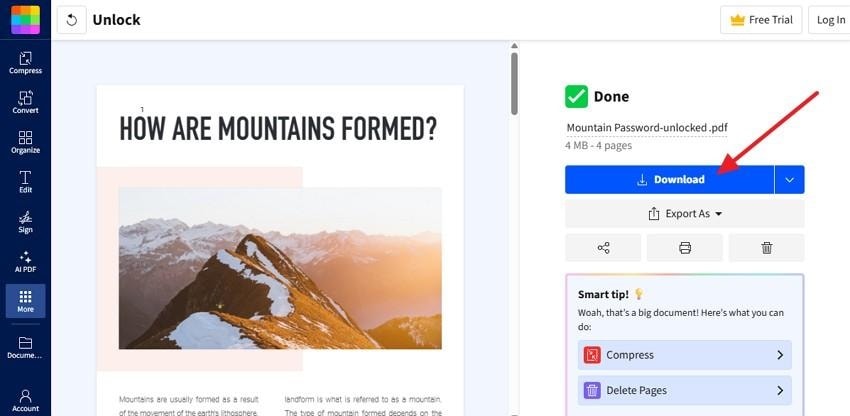
Step 2. Download the processed file and reopen it locally without a password prompt.
Do not upload highly sensitive tax, medical, or client records solely to avoid installing an app. Verify the service's actual privacy and file-retention terms first.
Use HiPDF for Eligible Files
HiPDF's PDF Unlocker also provides a browser workflow for protected documents. It describes support for permission restrictions and states that strongly encrypted files still require the correct password.
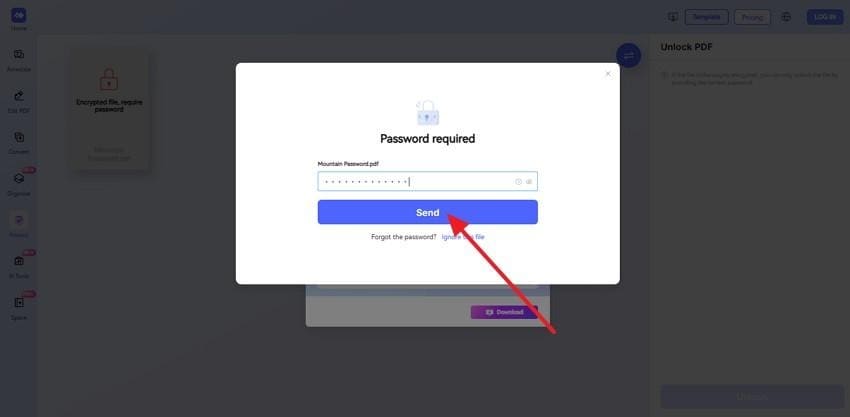
Step 1. Open HiPDF, upload an allowed copy of the PDF, and enter the required credential when prompted.
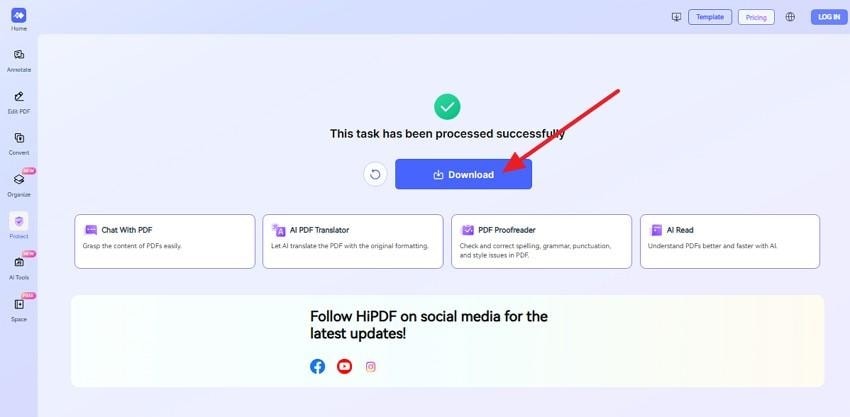
Step 2. When processing finishes, download the result. Test it in Preview and compare it against the protected original before deleting anything.
Online services are not a dependable route to an unknown, strong opening password. If there is no usable password, start with the document owner and copies you already have.
Check Current Free Limits and File-Handling Terms
Online usage allowances, file sizes, and automatic-deletion policies change. The Smallpdf pricing page and HiPDF's published plans are more appropriate references than a fixed limit copied from an old review.
| Check before uploading | Why it matters |
| Free access | The number of daily tasks, file-size caps, and trial rules can change |
| Processing and deletion | Understand whether the service retains temporary files or cloud account copies |
| Document sensitivity | Confirm that uploads comply with workplace and client confidentiality rules |
| Final download | Test the unlocked PDF and keep the protected original |
Smallpdf currently describes automatic deletion within about an hour for most tools; HiPDF advertises deletion within 60 minutes after processing. These are vendor statements, not an independent privacy audit. Do not assume the policy applies identically to every account feature or upload.
Part 6. What If You Do Not Know the PDF Password?
Unknown opening passwords are a different problem from removing a password you already know. Mac Preview, standard PDF editors, and a typical qpdf workflow cannot magically reveal a strong unknown opening password. Try the least risky ways to regain authorized access first.
Check Password Records and Ask the Document Owner
Review the email or portal where you received the PDF. Financial institutions, employers, and schools sometimes explain the password format in a separate message. Search your password manager and saved notes, but do not post candidate passwords on public forums.
If another person created the PDF, ask for its opening password or for the permission password needed to change security. For a company-managed document, contact the policy author or administrator rather than trying to remove organizational restrictions.
Request an Original or Previously Unprotected Copy
If the source was a Word document, scanned file, or exported report, ask for that source or an unrestricted PDF. Also check whether you saved an earlier version through Time Machine, your own Mac folders, or a separate authorized archive.
One Mac user's report of an unexpectedly locked Preview PDF describes losing access after annotations and saving a copy. This is an individual report, not proof that Preview always creates passwords automatically; protect remaining versions and verify the file's actual security state before changing anything.
An older unlocked copy may be more useful than continuing to test passwords against a document that was re-encrypted after editing.
Understand Password-Recovery Tools and Platform Limits
Specialized utilities can test probable password combinations, but success depends on the strength of encryption, password length, and useful clues. A long random password may be impractical to recover.
The Dr.Fone DocPassRemover product page describes dictionary, mask, and brute-force approaches; it currently labels the Mac download as coming soon, so it should not be presented as a ready-to-use Mac app. Confirm product compatibility and authorization before considering a different platform.
Never confuse an owner's permission restriction with an encrypted opening password. A tool that changes print or copy settings does not necessarily recover an unknown document-opening password, and no software should be presented as a guaranteed way to bypass encryption.
Part 7. Troubleshoot and Verify the Unlocked PDF
Before treating a password change as successful, check the output for intact content and permissions. Password errors, save-permission failures, and a genuinely corrupt PDF have different causes and solutions.
Distinguish Wrong Credentials From Corruption or Save Issues
| Symptom | Likely issue | Safer next step |
| PDF refuses the entered password | Wrong opening password or wrong credential type | Check case and source instructions; ask the owner |
| PDF opens but editing is locked | Owner permissions or administrator policy | Use the appropriate owner credential or request permission |
| PDF fails in several viewers or shows missing pages | Possible incomplete download or file corruption | Try a separate original; run a structural check if available |
| Save or export fails | Finder lock or folder permissions | Use Get Info and save to a writable folder, without changing PDF security |
A related MacRumors discussion about Preview retaining PDF protection describes users encountering password behavior after saving or exporting. Treat community reports as troubleshooting leads, not as a universal Preview defect.
If a PDF is genuinely damaged, do not try arbitrary password-removal commands as a repair method. Preserve the original bytes, obtain another copy, and address corruption separately.
Check Pages, Forms, Annotations, and Signatures
Compare the protected original and your unlocked copy side by side. Confirm the page count, searchable text, fonts, images, links, bookmarks, interactive fields, embedded files, and important annotations. Fillable forms that look normal can sometimes lose functionality after reprocessing.
Pay special attention to digitally signed documents. Some tools can retain the visual appearance of a signature while invalidating its cryptographic proof. When a valid signature is legally or operationally important, request a properly issued new document rather than distributing an altered copy.
Note: A successful structural check is useful but not proof that every annotation, attachment, or signature has survived unchanged.
Avoid Print-to-PDF as a Lossless Fix; Recover Lost PDFs Separately
Printing a protected PDF to another PDF file can recreate its visible pages, but it may flatten form fields, drop annotations or hyperlinks, and invalidate signatures. It is not an equivalent substitute for authorization-based removal of PDF security.
If the PDF file itself was deleted or lost before you could unlock it, check Mac Trash, Time Machine, and other existing copies first. For local files lost from a readable Mac drive or removable storage, the related Mac deleted-file recovery guide explains the recovery-first approach.
Recoverit may help recover eligible deleted PDF documents, but it does not remove PDF passwords, break encryption, or recover an unknown PDF opening key. Save any successfully recovered files to a separate healthy storage location.
Manages over 500 data loss situations, such as deletion, formatting, and disk corruption.The user-friendly interface allows you to recover data in just a few clicks.


Conclusion
The best PDF password remover for Mac depends on your credentials and the PDF's security settings. Preview handles straightforward permission changes; PDFelement, Acrobat, and qpdf offer other local options. Smallpdf and HiPDF are convenient for documents you are permitted to upload. Forgotten opening passwords need a separate approach: check saved credentials or request a new copy before considering specialized recovery tools. Keep the protected original, verify the output carefully, and remember that Recoverit restores eligible lost PDF files rather than removing PDF passwords.
FAQ
-
What is the best free PDF password remover for Mac?
Preview is the easiest built-in option when you have the necessary credentials and permission to change security. qpdf is free and open source for command-line users. Online services may offer limited free use but require document uploads. -
Why cannot I remove a PDF password in Mac Preview?
Preview may need the owner or permissions password even if you can open the file. Check File > Edit Permissions, confirm the protection type, and ask the document owner if you lack the required credentials. A locked or damaged file can cause separate problems. -
Can I remove a PDF opening password on Mac without knowing it?
Not reliably with standard Preview, Acrobat, or qpdf workflows. Ask the owner or find another authorized copy. Specialized tools may test candidate passwords, but they cannot guarantee recovery of strong encryption keys; verify actual Mac availability before using them. -
Will removing a PDF password change formatting or digital signatures?
Removing access encryption normally aims to preserve page content, but rewriting the document can affect forms, annotations, embedded elements, and especially cryptographic signatures. Preserve the original and check the output before sharing it.