

 TL;DR:
To transfer GoPro videos to a computer without losing quality, use a direct hardware connection via an SD card reader or USB cable with the GoPro Quik App for the fastest results, or utilize GoPro Cloud and Wi-Fi for wireless syncing.
● SD card readers and manual File Explorer transfers provide direct drag-and-drop control that works even if the camera battery is dead, whereas Wi-Fi mobile sync is practically limited to transferring smaller clips rather than large 4K files.
● Cloud-based transfers mandate an active GoPro Cloud subscription for automatic uploading, and Bluetooth connections lack the bandwidth for video transfers, strictly limiting them to pairing or syncing small data files.
● To prevent file system corruption, always format SD cards directly inside the GoPro rather than using the computer, and rely on Recoverit software to salvage lost or formatted MP4 and HEVC files.
Ask AI for a summary
 ChatGPT
 Perplexity
 Gemini
 Claude
 Grok
Grok
GoPro cameras are known for recording amazing moments in action. They capture life in high-quality detail, whether it’s surfing, hiking, or biking. But once your camera is full, you need space for new memories. That is when you must move your footage.
Many users wonder how to transfer GoPro videos to computer without losing quality. It is not difficult once you learn the proper methods.
This guide explains every step clearly. You will learn how do you transfer GoPro videos to computer, and how to download GoPro video to computer using several simple ways.
Table of Contents:
Part 1: Can You Transfer GoPro Videos to Any Computer?
Yes, you can. You can move GoPro footage to almost any computer that supports USB or Wi-Fi. It works for Windows, macOS, and even Linux systems. You only need a few basic tools, like a cable or SD card reader.
The process is simple once you know it. GoPro cameras record on microSD cards. When you connect the camera or the card to your computer, the videos appear as normal files. From there, you can copy, paste, or drag them into folders.
Some people think GoPro needs special software. That is not true. You can use the GoPro Quik App, but manual transfer works too. You only need to know how to download GoPro footage to computer or how to get GoPro footage on PC using the options that suit you best.
Part 2: How to Transfer GoPro Videos to Computer?
There are many ways to move GoPro videos safely. You can use a USB cable, a card reader, cloud storage, or even Wi-Fi. Each method has its own steps. Some are faster, and some give more control.
Here we explain all six methods. You will see exactly how to transfer GoPro videos to computer, how do you transfer GoPro videos to computer, and how to download videos from GoPro to PC without errors.
Method 1: Use a USB Cable and GoPro Quik App
This is the most common method. The GoPro Quik App connects your camera to your computer using a USB cable. It helps you import, organize, and edit videos quickly.
The app automatically detects your GoPro when you connect it. It shows your media and lets you pick what to import. You can also use the app to back up your videos safely.
How a USB Cable and GoPro Quik App
- Plug your GoPro into your computer using the USB cable.
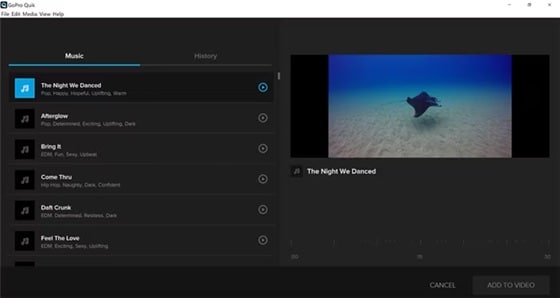
- Open the GoPro Quik App. Choose your clips and import them.
This method is perfect if you often ask how do you transfer GoPro videos to computer in the easiest way. It also helps beginners who want fast and automatic transfers.
Method 2: Transfer via SD Card Reader
If you prefer not to use the app, you can remove your SD card and connect it with a reader. This is one of the most direct ways to move footage. It works even if your GoPro battery is empty.
An SD card reader connects through a USB port. Once inserted, your computer will show the files from your GoPro. You can copy or drag them wherever you want.
How to Transfer via SD Card Reader:
- Take the SD card out of your GoPro and insert it into the reader.
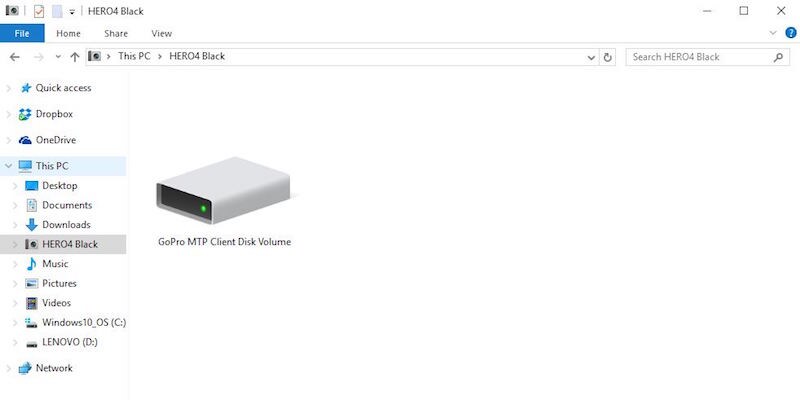
- Open File Explorer or Finder, and drag your videos to a folder.
If you are looking for a direct way how to transfer GoPro videos to PC, this is the best method. It gives full control over every file.
Method 3: Use GoPro Wi-Fi and Mobile App Sync
GoPro cameras have built-in Wi-Fi. You can connect them to your phone using the GoPro mobile app. Once connected, you can download clips to your phone, then move them to your computer.
This method is wireless and useful when you travel. You can preview your videos before downloading them. It’s best for small clips, not for long 4K files.
How to Use GoPro Wi-Fi and Mobile App Sync
- Turn on your GoPro’s Wi-Fi and pair it with the GoPro App on your phone.
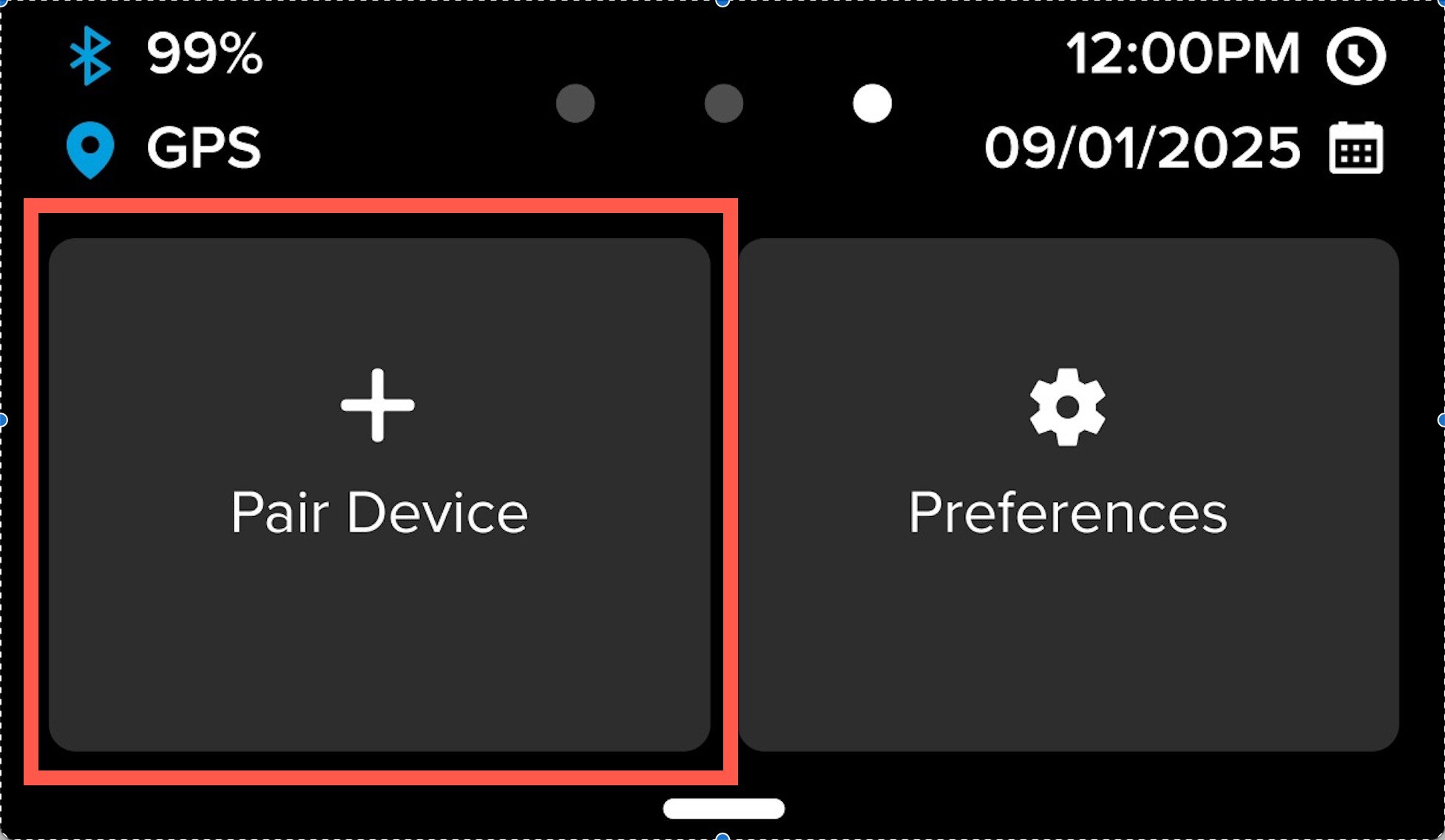
- Save the videos on your phone, then transfer them to your computer.
This is how many people learn how to download videos from GoPro to PC wirelessly. It’s flexible but slower for large files.
Method 4: Connect via Bluetooth (Limited Functionality)
Bluetooth connection is possible, but it has limits. It is good for pairing devices or syncing small files. It is not meant for transferring large videos.
Still, it can help when testing or connecting to other devices. You can rename files or check camera settings.
How to Connect via Bluetooth:
- Enable Bluetooth on your GoPro and computer.
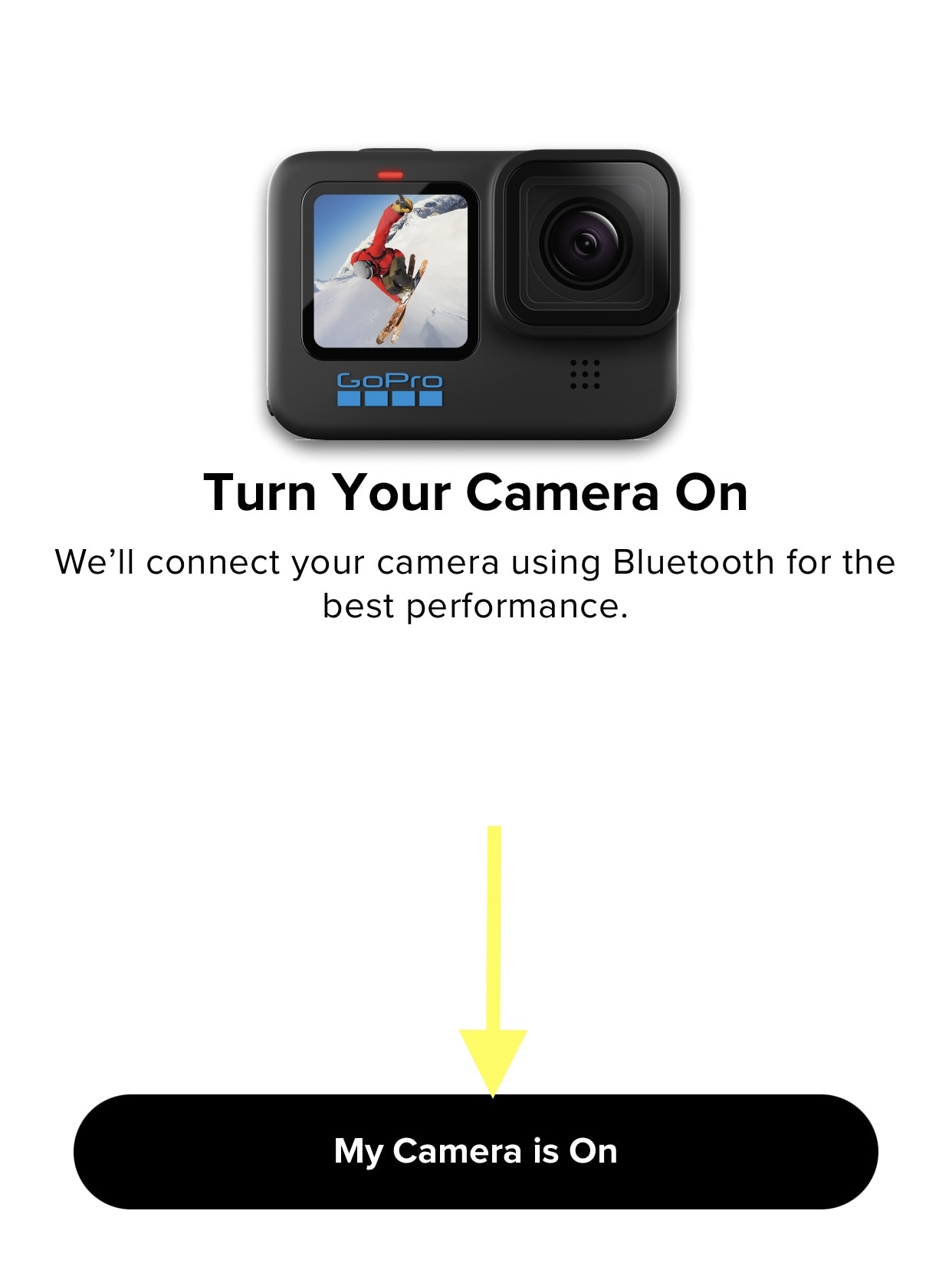
- Pair devices and check for available small files.
This option helps users test how to get GoPro footage onto PC when they only need a few thumbnails or data files.
Method 5: Use Cloud Backup and Download to PC
GoPro’s cloud service is another good option. If you have GoPro Plus or a similar plan, your videos upload automatically to the cloud. You can then log into your GoPro Cloud account from your computer and download your files.
It is safe and requires no cables. It also serves as a backup. Even if your camera or SD card fails, your videos stay protected online.
How to Use Cloud Backup and Download to PC:
- Open your browser and log in to your GoPro Cloud account.
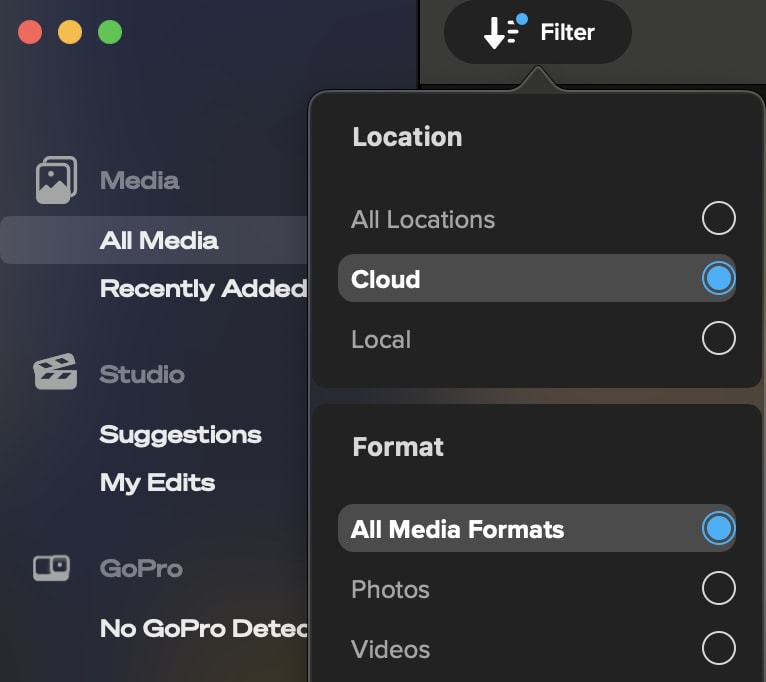
- Choose your files and download them to your PC.
This is one of the easiest answers for how to download GoPro video to computer when you prefer cloud-based storage.
Method 6: Transfer via File Explorer (Manual Drag-and-Drop)
You can also move files manually. Just connect your GoPro or SD card, open your folders, and drag files where you want them. This method gives you complete control.
It does not need any app or sign-in. You decide where to save, rename, or edit. It works on every computer and GoPro model.
How to Transfer via File Explorer:
- Connect your GoPro or SD card to your PC.
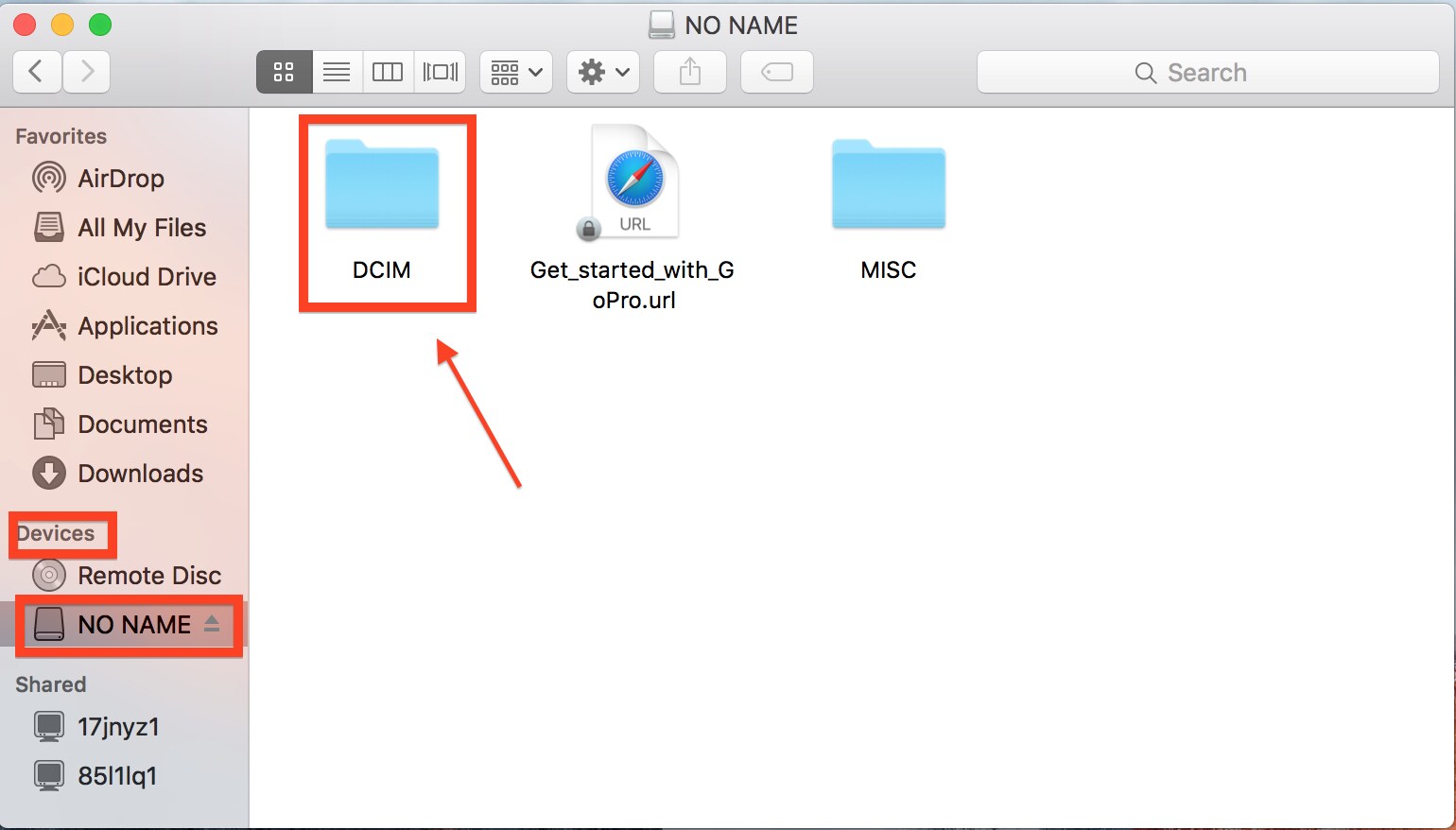
- Open “This PC” or “Finder,” then copy your videos to your desired folder.
This is how many users handle how to transfer GoPro videos to computer the old-fashioned way. It’s fast and reliable.
Part 3: Lost GoPro Video Files? Use Recoverit Today!
Imagine recording a once-in-a-lifetime trip, only to lose the files. Maybe you formatted the SD card by mistake. Maybe your GoPro froze and deleted everything. It can happen anytime.
When that happens, many users ask how to recover missing GoPro files. The good news is that there is a trusted solution called Recoverit. It can bring back deleted, lost, or damaged videos from your camera or card.
Recoverit is easy to use. It scans deeply into your storage device and finds lost footage. You can preview the recovered clips before saving them. It supports GoPro video formats, including MP4 and HEVC, which many recovery tools struggle to handle.
Whether you lost files while learning how to download GoPro footage to computer or while testing how to get GoPro footage on PC, Recoverit can help restore them safely.
Key Features:
- Recovers deleted or formatted GoPro videos
- Works on SD cards, USB drives, and internal disks
- Supports all GoPro models and file types
- Provides a preview before saving files
Steps to Recover GoPro Videos:
Step 1: Open Recoverit on your computer. From the main screen, choose the drive or SD card where your GoPro videos were stored. You can also connect your GoPro directly if it appears as a drive.
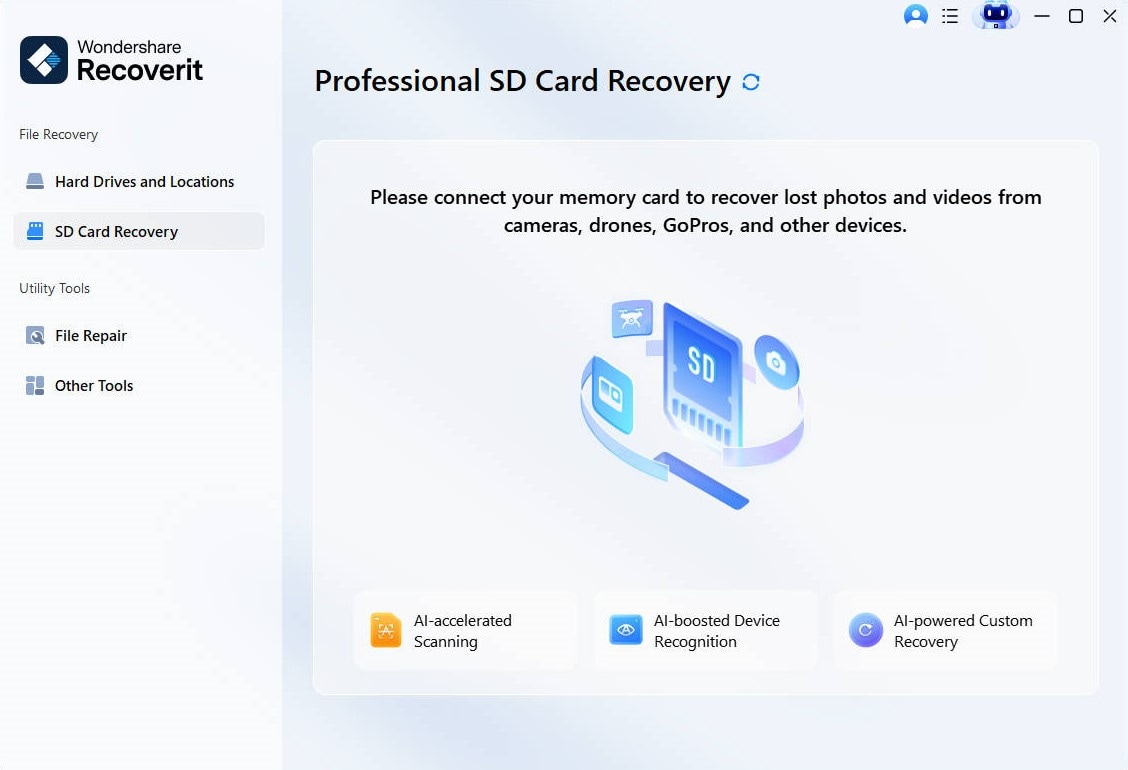
Step 2: Click Start Scan to begin scanning.
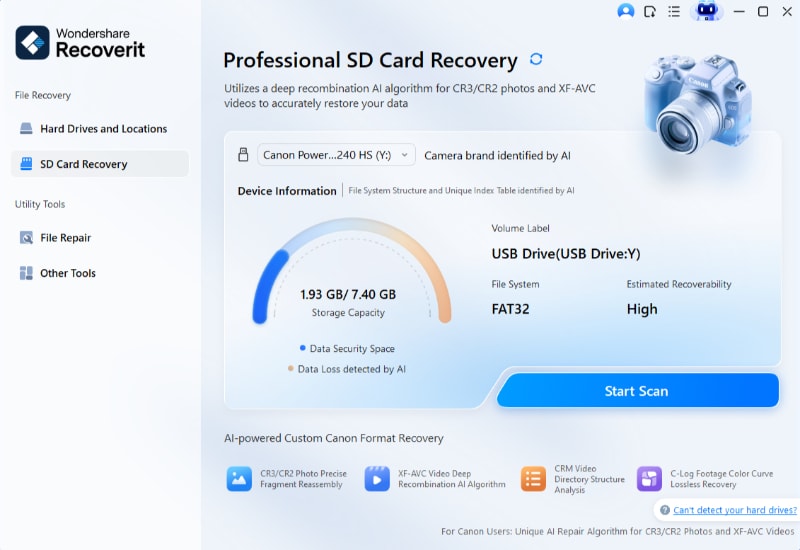
Step 3: The software will look through the selected device and list all recoverable files. This process may take a few minutes, depending on the card size.
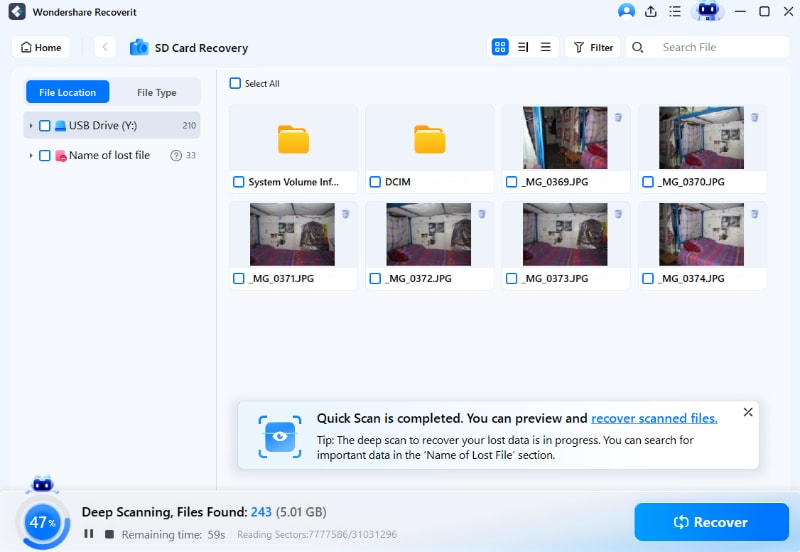
Step 4: When the scan is done, preview your GoPro videos. Choose the ones you want to restore, then click Recover. Save them to a safe folder on your computer, not on the same SD card.

Recoverit is trusted by creators worldwide. It gives peace of mind when footage disappears unexpectedly.
AI-Powered Data Recovery Software 2025 Tailored For Cameras & Drones

Part 4: Pro Tips for Managing GoPro Files Efficiently
After learning how to transfer GoPro videos to PC, you should also manage them well. Good organization saves time and prevents loss. It keeps your computer clean and your projects easy to find.
Here are some simple ways to handle your GoPro clips better:
- Rename your videos after each shoot. Use simple names with dates or events. For example, “BeachTrip_May2025” or “BikeRide_2025_06.” This makes searching easier later.
- Create a folder system. Keep a main folder for all GoPro files. Inside it, make subfolders for each trip or project. Use one folder for raw videos, another for edited clips, and one more for exports.
- Delete unwanted clips early. After transferring your videos, review them once. Delete duplicates, shaky shots, or empty files. This saves space and helps your editing software run faster.
- Use external hard drives. Large GoPro files can slow down your computer. Store older projects on an external drive. Label each drive clearly with the project name or year.
- Back up to cloud storage. Always keep one backup copy online. Use GoPro Cloud, Google Drive, or Dropbox. If your drive fails, you can still download everything again.
- Format SD cards inside the GoPro. Do not format them from your computer. Formatting inside the camera keeps the file system clean and prevents card errors.
- Avoid unplugging during transfer. Never disconnect your camera or card reader while copying files. It may damage files or corrupt the SD card. Wait until the process completes fully.
Following these habits keeps your footage safe and ready for editing. You will not have to repeat how to transfer GoPro videos to computer or how to download videos from GoPro to PC due to missing files.
Conclusion
Transferring GoPro videos to a computer is simple once you know the methods. You can use cables, SD cards, Wi-Fi, or cloud storage. Every method works for different needs.
Learning how to transfer GoPro videos to computer helps you back up, edit, and share memories faster. Choose the option that matches your tools and time. If files ever disappear, Recoverit can bring them back safely.
Keep your workflow clean and your footage protected. Enjoy every moment your GoPro captures, knowing you can always save it on your computer without stress.
Try Recoverit to Recover Lost Data
 Security Verified. Over 7,302,189 people have downloaded it.
FAQs:
-
1. What is the easiest way to move GoPro videos to a computer?
The easiest way is by using the GoPro Quik App with a USB cable. It detects your camera, imports videos automatically, and helps you manage clips in one place. -
2. Can I transfer videos without installing any app?
Yes. You can use an SD card reader or File Explorer. Remove the card, plug it in, and copy files manually. It is quick and works on all computers. -
3. What should I do if my GoPro won’t connect to my computer?
Check your USB cable or port. Try another one. Ensure your camera is powered on and in USB mode. Restart both devices. If the problem remains, use a card reader or cloud method instead.


