

 TL;DR:
You can accurately assess your SSD's health and remaining lifespan by checking its SMART status via Windows PowerShell or by using dedicated diagnostic software like CrystalDiskInfo.
● CrystalDiskInfo offers universal health percentages and temperature tracking for most SSDs, whereas Samsung Magician and the Intel Memory and Storage Tool provide specialized diagnostics and firmware updates exclusively for their respective proprietary drives.
● To prevent accelerated degradation and maximize write cycles, keep 10-20% of the drive's storage capacity empty, maintain operating temperatures below 70°C, enable the TRIM command, and strictly avoid defragmentation.
● If your diagnostic tool reports a health percentage below 50%, or you experience frequent crashes and bad blocks, you must immediately back up your data, as physical flash memory wear cannot be repaired.
Ask AI for a summary
 ChatGPT
 Perplexity
 Gemini
 Claude
 Grok
Grok
Your SSD stores all your important files. Photos, documents, and programs all live on this small drive. But SSDs don't last forever. They can fail without warning. Learning how to check SSD health helps you avoid data loss. Regular checks keep your files safe.
Many people ignore their SSD until it's too late. Sudden crashes can erase years of work. The good news is that checking your SSD is easy. You don't need technical skills.
Simple tools can scan SSD for errors in minutes. This guide shows you exactly how to check solid state drive health using proven methods.
Table of Contents
Part 1: Common Signs of SSD Failure
Your SSD will show warning signs before it fails completely. Catching these signs early saves your data. Watch for these symptoms to know when to check health of SSD immediately.
- Slow boot times: Your computer takes forever to start. Programs load much more slowly than before.
- Frequent system crashes: Blue screens appear randomly. Your system freezes without reason.
- Files won't save: Error messages pop up when saving documents. Files disappear after saving them.
- Bad blocks increase: Your system reports corrupted files. Some files become unreadable suddenly.
- Strange noises: SSDs should be silent. Any clicking or buzzing means trouble.
- Read/write errors: Applications crash when accessing files. Data transfer speeds drop dramatically.
- System won't boot: Your computer fails to start. Error messages mention drive problems.
- Disappearing files: Files vanish without deletion. Folders show incorrect file counts.
Part 2: Understanding SSD Lifespan
SSDs use flash memory cells to store data. Each cell can handle only a limited write cycles. Most consumer SSDs last 3 to 5 years with normal use. Heavy users might see shorter lifespans. The type of NAND flash affects durability. SLC lasts longest, while TLC is more affordable but wears faster.
Manufacturers measure SSD life in TBW (terabytes written). A 500GB SSD might have 300 TBW rating. This means you can write 300 terabytes before issues arise. Normal users write about 20-40GB daily. An SSD health check tool helps track how much life remains. Temperature also affects lifespan. Hot SSDs wear out faster than cool ones.
Part 3: How to Check SSD Health?
Regular monitoring prevents data disasters. Multiple tools exist to check SSD drive health effectively. Each method provides different details about your drive's condition. Choose the method that matches your SSD brand and comfort level. These tools are free and easy to use.
Method 1: Using SMART (Self-Monitoring, Analysis, and Reporting Technology)
SMART is built into every modern SSD. It tracks drive health metrics automatically. Your operating system can access this data easily. SMART provides detailed statistics about drive performance. This method works for all SSD brands and models.
SMART technology monitors your drive continuously. It records errors, temperature, and wear level. The system uses this data to predict failures. You can view SMART data through various tools. Windows Command Prompt offers quick access to this information.
How to Use SMART:
- Press Windows + X and select "Windows PowerShell (Admin)". Type "wmic diskdrive get status" and press Enter.
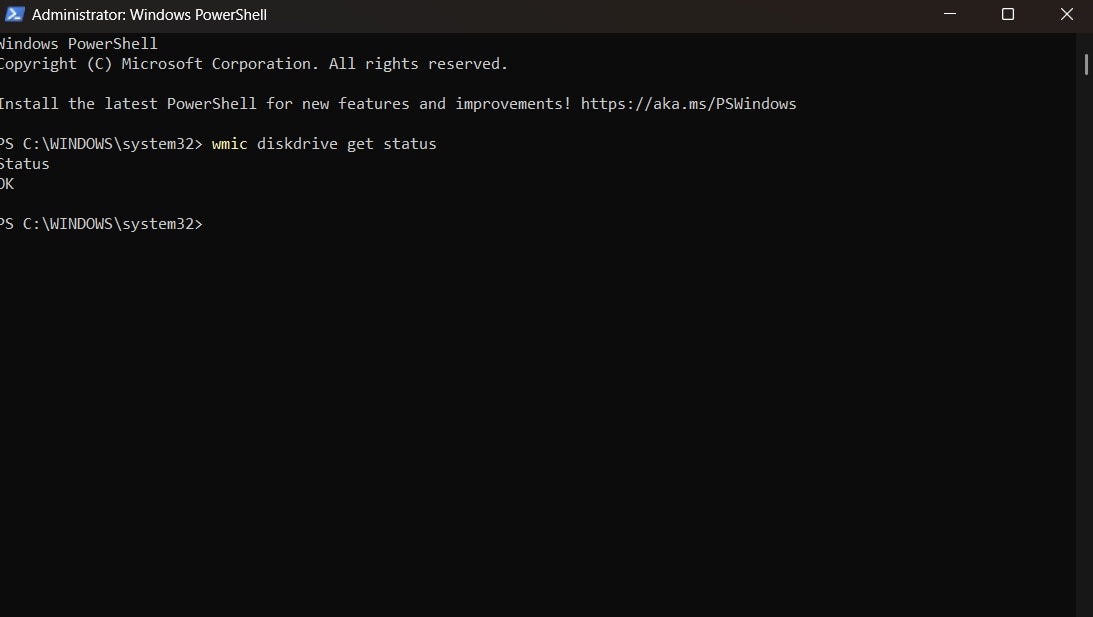
- Check the status result. "OK" means your SSD is healthy. Any other message requires immediate attention.
Method 2: Use CrystalDiskInfo
CrystalDiskInfo is the most popular SSD health check software available. This free tool displays the health percentage clearly. It shows temperature, power-on hours, and error counts. The interface uses color codes for easy understanding. Blue means good, yellow means caution, and red means danger.
This SSD diagnostics tool updates regularly with new features. It supports almost every SSD model available. The program runs in the background silently. You get notifications if problems develop. CrystalDiskInfo makes complex data simple to understand.
How to Use CrystalDiskInfo:
- Download CrystalDiskInfo from the official website. Install and launch the program on your computer.
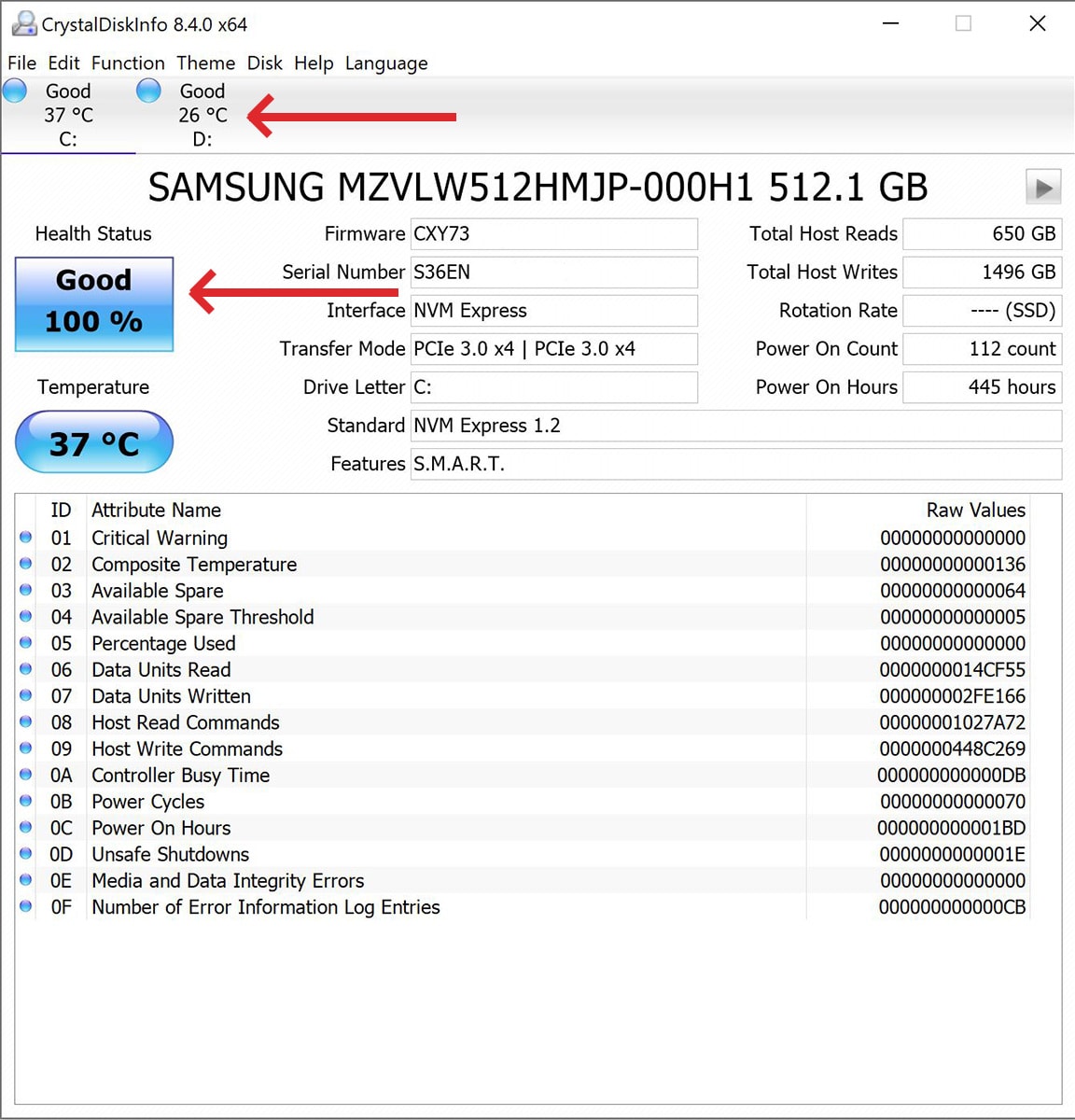
- View your SSD health percentage in the main window. Check the temperature and SMART values below.
Method 3: Samsung Magician (for Samsung SSDs)
Samsung Magician is designed specifically for Samsung drives. This SSD health check tool offers advanced features. You can optimize performance and update firmware. The dashboard shows health status prominently. Samsung users get the best experience with this software.
The program provides performance benchmarking tools. You can compare your speed to other users. Samsung Magician includes secure erase features. The interface looks modern and professional. Updates arrive automatically when available.
How to Use Samsung Magician:
- Download Samsung Magician from Samsung's official website. Install the software and restart your computer.
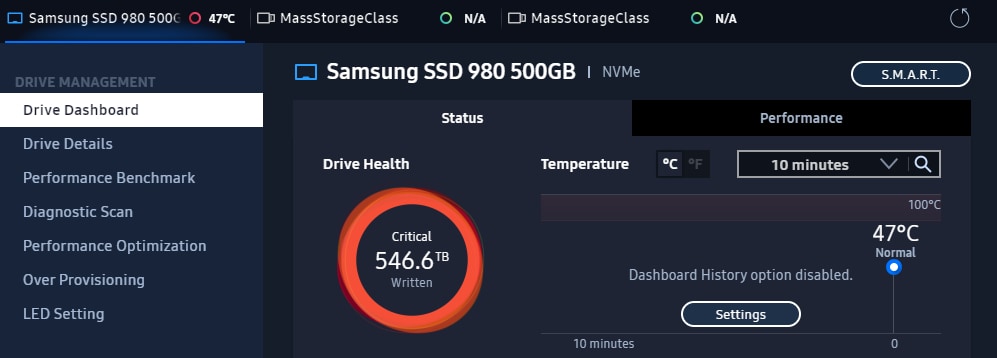
- Open Samsung Magician and select your SSD. Click "Drive Health" to check SSD status instantly.
Method 4: Intel Memory and Storage Tool
Intel Memory and Storage tool serves Intel drive owners exclusively. This tool provides comprehensive SSD disk health check capabilities. You can run full diagnostic scans quickly. The software estimates remaining drive life accurately. Intel tool includes optimization features too.
The program offers TRIM optimization scheduling. You can view detailed SMART attributes. Intel provides regular software updates. The interface remains simple despite advanced features. Tech support documentation helps troubleshooters.
How to Use Intel SSD Toolbox:
- Download Intel Memory and Storage Tool from Intel's support page. Install and open the application on your system.
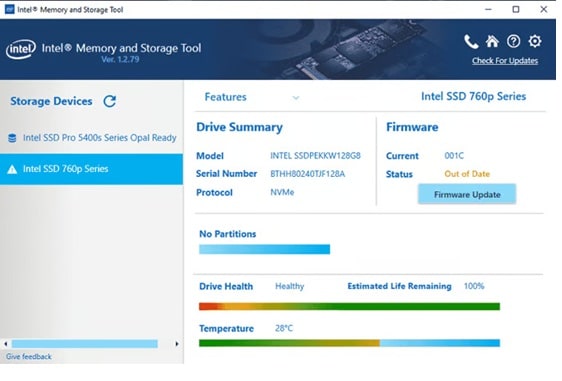
- Select your Intel SSD from the list. Click “Drive Details” or “SMART Details” to view health status, temperature, and diagnostics.
Part 4: What to Do If Your SSD Shows Signs of Failure?
Discovering SSD problems requires immediate action. Don't wait for complete failure. Follow these steps to protect your valuable data. Quick response prevents permanent data loss.
- Back up everything immediately: Copy all important files to another drive. Use external hard drives or cloud storage.
- Stop heavy usage: Avoid installing large programs. Minimize write operations to the failing drive.
- Run full diagnostics: Use multiple tools to scan SSD for errors. Confirm the problem before taking action.
- Check warranty status: Many SSDs have 3-5 year warranties. Contact the manufacturer for replacement options.
- Clone your drive: Copy everything to a new SSD. Use cloning software for exact duplicates.
- Update firmware: Outdated firmware causes problems sometimes. Check manufacturer websites for updates.
- Reduce drive temperature: Ensure proper cooling in your system. Heat accelerates SSD degradation.
- Plan for replacement: Order a new SSD quickly. Don't wait until complete failure occurs.
Part 5: Easily Recover Lost Data with Recoverit
Wondershare Recoverit specializes in SSD data recovery. This powerful software recovers deleted files easily. Even formatted SSDs can yield recoverable data. The program uses advanced scanning algorithms. Millions of users trust Recoverit worldwide.
SSD recovery differs from hard drive recovery. The TRIM command complicates SSD file recovery. Recoverit handles these challenges expertly. The software supports all SSD brands and types. Whether you use SATA, NVMe, or M.2 drives, Recoverit works. The interface guides you through recovery steps clearly.
Recoverit offers multiple scanning modes. Quick scan finds recently deleted files fast. Deep scan searches every sector thoroughly. This takes longer but finds more files. The software recognizes file signatures even when names are lost. You can pause and resume scans anytime. This flexibility helps during long recovery processes.
Try Recoverit to Recover Permanently Deleted/Lost Data
 Security Verified. Over 7,302,189 people have downloaded it.
The preview feature saves time and effort. You see files before recovering them. Photos, videos, and documents display clearly. This confirms files aren't corrupted before recovery. You select only what you need. This saves storage space on your backup drive.
How to Use Recoverit:
- Download and install Recoverit on your computer. Launch the program and select your SSD from the location list.

- Click "Start" to begin scanning. Wait while Recoverit searches for recoverable files on your SSD.

- Preview found files in the results window. Select the files you want and click "Recover" to save them.

Related Video >>: How to Recover Permanently Deleted Files?

Part 6: Pro SSD Maintenance Tips to Extend Lifespan
Proper maintenance extends your SSD's working life significantly. Small habits make big differences over time. These tips help you get maximum value from your drive. Regular care prevents early failure.
- Enable TRIM command: This helps your SSD manage deleted files. TRIM maintains optimal performance levels.
- Avoid full capacity: Keep 10-20% free space always. Full SSDs slow down and wear faster.
- Update firmware regularly: Manufacturers fix bugs through updates. Check for new firmware quarterly.
- Monitor temperature: Keep SSD below 70°C during operation. Add cooling if temperatures rise higher.
- Avoid defragmentation: SSDs don't need defragmentation ever. Defragging actually reduces SSD lifespan.
- Use a reliable power supply: Power surges damage SSDs permanently. Invest in quality surge protectors.
- Disable hibernation: Hibernation writes large files frequently. This uses unnecessary write cycles.
- Regular health checks: Check the solid state drive health monthly. Early detection prevents data loss.
Conclusion
Learning how to check SSD health protects your digital life. Simple tools reveal problems before disaster strikes. Regular monitoring takes just minutes monthly. These small efforts save hours of frustration later.
Don't ignore warning signs from your SSD. Use the methods described above regularly. Whether you choose SMART, CrystalDiskInfo, or brand-specific tools, stay proactive.
Back up important data always. When problems arise, act quickly to recover files. Your data deserves this protection. Start checking your SSD health today for peace of mind tomorrow.
FAQs:
-
Q1: How often should I check my SSD health?
Check your SSD health monthly for normal usage. Heavy users should check weekly. Use SSD health check software to automate monitoring. Quick checks take under five minutes. -
Q2: Can I fix a failing SSD?
You cannot repair physical SSD damage. Back up data immediately when problems appear. Replace failing SSDs before total failure. Some firmware updates fix software issues only. -
Q3: What is a good SSD health percentage?
Above 80% is considered healthy for SSDs. Between 50-80% means monitor closely. Below 50% requires immediate backup and replacement. Brand-new SSDs show 100% health.


