

 TL;DR:
You can safely delete the Healthy Recovery Partition to reclaim 500 MB to several gigabytes of storage space, but you must first create a bootable Windows installation USB to replace the built-in system repair and reset capabilities you will lose.
● Since Windows protects this partition from standard Disk Management actions, forced removal requires opening Command Prompt as an administrator and executing the `delete partition override` command within the `diskpart` utility.
● Essential prerequisites before deletion include disabling active BitLocker encryption, verifying your UEFI or Legacy boot mode, and strictly confirming the target disk and partition numbers to prevent erasing your primary drive.
● If accidentally deleted, the core Windows Recovery Environment can be rebuilt using a USB formatted with the Windows Media Creation Tool, but restoring manufacturer-specific drivers and settings requires dedicated OEM recovery media.
Ask AI for a summary
 ChatGPT
 Perplexity
 Gemini
 Claude
 Grok
Grok
The Healthy Recovery Partition is a hidden section of your computer’s hard drive created during Windows installation. It stores recovery tools and system files that help you repair or reset your PC if something goes wrong. For many users, this partition is a safety net that ensures they can restore their system without needing external media.
However, not everyone wants to keep this partition. It can take up valuable disk space, especially on smaller drives, and some users prefer to manage their storage more freely. Others may already have backup solutions in place and feel the recovery partition is unnecessary. In these cases, deleting it becomes an option worth considering.
Before removing the Healthy Recovery Partition, it’s important to understand the risks. Deleting it means you lose the built‑in recovery option, so you’ll need alternative backups or installation media to restore your system if problems occur. In this guide, we’ll explain what the partition does, why you might want to delete the Healthy Recovery Partition, and how to safely carry out the process without harming your computer.
Table of Contents
What is a Recovery Partition?
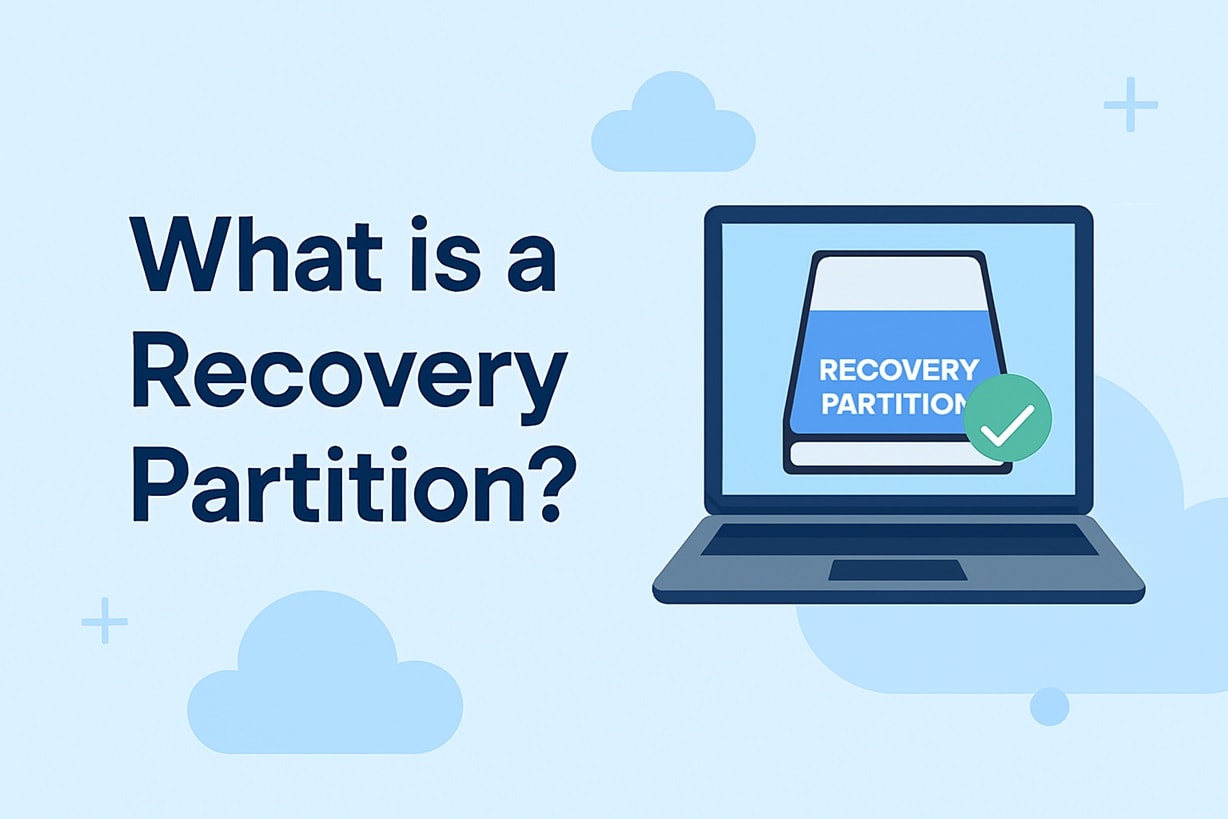
Many users wonder what is healthy reecovery partition when they first open Disk Management. A recovery partition is a special hidden area created by Windows or the computer manufacturer. It stores system files that help repair or reinstall Windows.
This partition allows you to access troubleshooting tools. You can use it to fix startup errors. You can also reset the system to factory settings. Because of this function, it is protected and hidden from normal file browsing.
When users search what is healthy reecovery partition, they often notice that it cannot be assigned a drive letter. It also cannot be opened like a normal storage drive. This is because it is reserved for system recovery only.
In many computers, the size ranges from 500 MB to several gigabytes. On older machines, the partition may contain a full factory image. On newer systems, it may only include advanced startup tools.
Understanding what is healthy reecovery partition helps you decide if you truly need it. Removing it without planning can remove essential recovery options.
Why Delete a Healthy Recovery Partition?
Some users consider removing this partition for different reasons. Although it serves an important role, certain situations make users search for how to remove healthy recovery partition. Below are common reasons.
- Need more storage space: Small SSD drives can fill up quickly. Users may remove healthy partition sections to gain extra space.
- Duplicate recovery partitions: Windows updates can sometimes create additional partitions. This leads users to delete healthy partition entries that seem unnecessary.
- Fresh system setup: During a clean install, some users prefer to delete healthy partition areas and build a new layout.
- Switching to custom backup software: Some people use third-party tools instead of built-in recovery.
- Upgrading to a larger drive: When cloning disks, old partitions may not be needed.
- Corporate environments: IT administrators may remove manufacturer partitions during deployment.
- Converting disk format: Changing from MBR to GPT may require partition cleanup.
- Creating a single large partition: Some users prefer one large storage space instead of multiple small ones.
Even though there are valid reasons, you should always create a backup before proceeding.
How to Delete Healthy Recovery Partition (Step-by-Step)
Before you begin, back up all important files. Deleting system partitions cannot be undone easily. Also, make sure you have a Windows installation USB ready.
Learning how to delete a healthy recovery partition requires caution. The partition is protected, so Disk Management may not allow deletion directly. You will need to use the Command Prompt.
Step 1: Open Command Prompt as Administrator
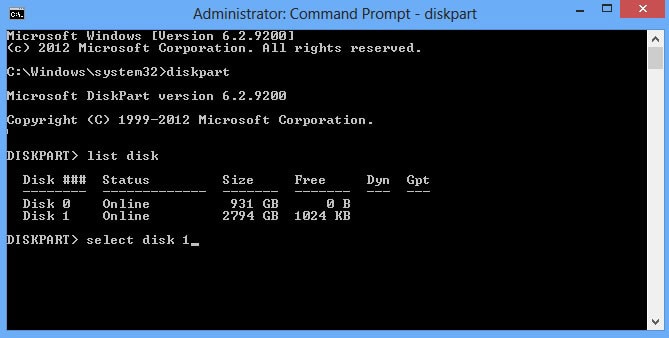
Press the Windows key and search for Command Prompt. Right-click and choose Run as administrator. Type diskpart and press Enter. Then type list disk. Select your disk by typing select disk 0 or the correct disk number.
Step 2: Identify the Recovery Partition
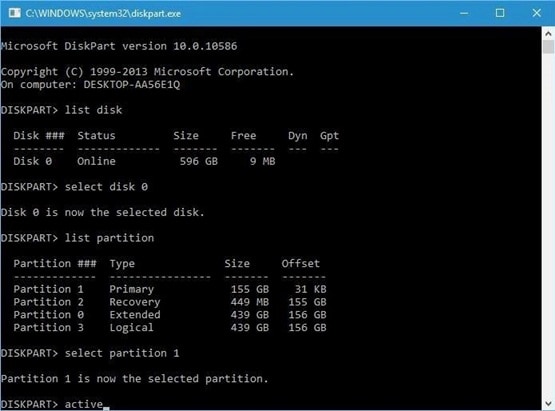
Type list partition. Find the partition labeled Recovery. Note the partition number. Then type select partition X, replacing X with the correct number.
Step 3: Delete the Partition
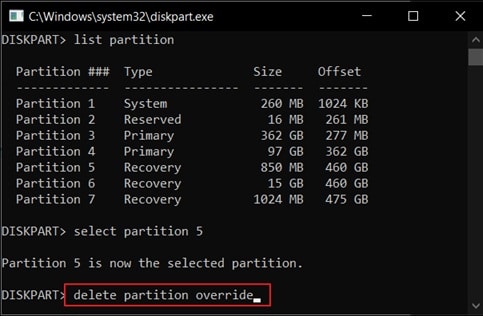
Type delete partition override and press Enter. This forces removal. After deletion, open Disk Management to extend the nearby storage space.
This process explains how to remove the healthy recovery partition using built-in tools. Always double-check disk numbers before execution to avoid mistakes.
How to Recover Lost Data After Deleting the Recovery Partition
If you removed the partition and regret it, do not panic. There are several ways to recover accidentally deleted recovery partitions, depending on your setup.
Method 1: Use Windows Installation Media to Reinstall Recovery Tools
This method works if you have a Windows USB installation media ready. The USB must be created using the official Windows Media Creation Tool or another reliable source. It allows you to boot your computer even if the internal recovery partition is missing.
Windows installation media includes built-in repair tools such as Startup Repair, System Restore, and Command Prompt options. These tools can help rebuild the Windows Recovery Environment. In many cases, it can recreate important recovery features so your system regains basic repair functions. However, this method does not always restore the exact original factory image provided by the computer manufacturer.
It is especially useful if you are wondering what happens if a healthy recovery partition is deleted accidentally deleted, and you still want recovery options available. While it may not bring back manufacturer-specific settings, it can restore core Windows repair capabilities and allow you to reset or reinstall the operating system safely.
Step 1: Insert the Windows USB and boot from it. Choose Repair your computer.
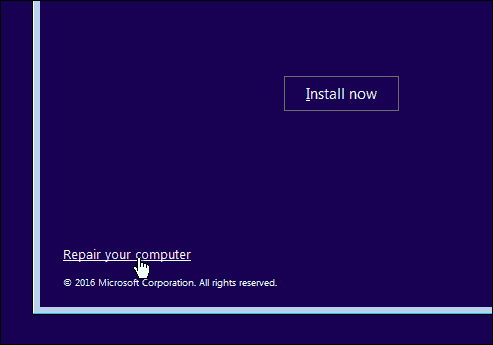
Step 2: Follow the Advanced options to recreate the recovery environment using system commands.
Method 2: Restore from OEM Recovery Media
Some computer manufacturers provide separate recovery DVDs or USB drives when you purchase the device. In some cases, users are asked to create this recovery media during the first system setup. This external media serves as a backup of the original factory configuration.
The recovery media can rebuild the factory recovery setup from scratch. It restores the original system image, including preinstalled drivers, utilities, and default settings provided by the manufacturer. This process usually reformats the system drive and returns the computer to its original state.
This option is helpful when considering how to recover deleted recovery partitions on branded laptops. Even if the internal recovery partition was removed, the external OEM media can recreate the recovery environment and restore factory settings safely.
Step 1: Insert OEM recovery media and boot from it.
Step 2: Follow the on-screen factory restore instructions.
Method 3: Use Recoverit Data Recovery Software
If the recovery area stored useful files or system images, a professional data recovery tool may help restore them. Even though recovery partitions are hidden, the data may still remain on the disk until it is overwritten. Acting quickly increases the chances of successful recovery.
Recoverit can perform a deep scan of the entire drive. It searches for lost partitions, deleted system files, and hidden data blocks. The software reads leftover disk sectors and attempts to rebuild missing partition information. This makes it suitable for complex data loss cases.
Many users look for how to recover accidentally deleted recovery partitions with the help of recovery software when no backup is available. In such situations, scanning the drive before installing new programs or saving new data is important to prevent permanent loss.

Step 1: Install Recoverit on another drive. Scan the affected disk.

Step 2: Preview found files. Wait for the scan.

Step 3: Save them to a different storage device.

Part 5: Dynamic Partition Management: How to Adjust Your Disk Layout
When your C Drive is clogged with system files and "Low Disk Space" warnings appear, UBackit allows you to intelligently borrow unused space from other partitions (like your D Drive) to balance your disk layout.
Step 1. Identify and Select Disk
Launch UBackit and navigate to the Partition Management tab. Select the physical disk you wish to modify. Double-click the disk or click the Adjust Disk Layout option from the right pane to continue.
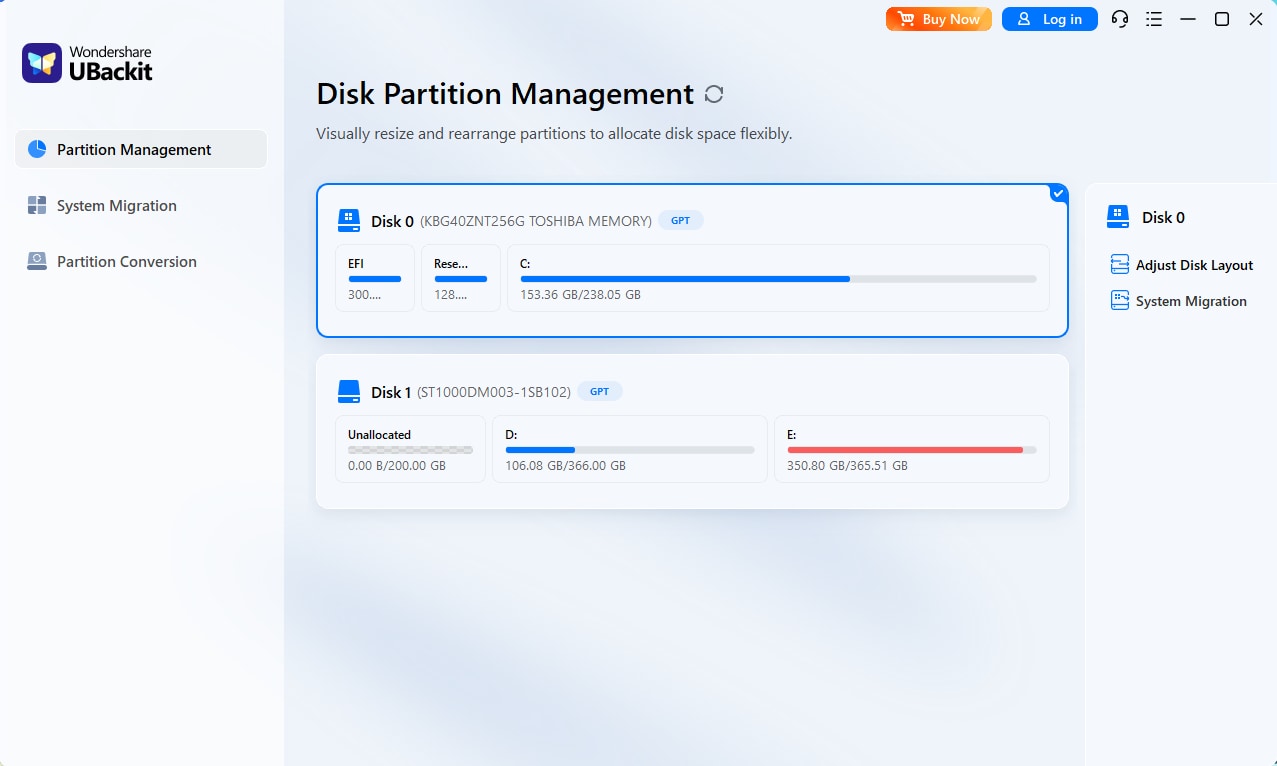
Step 2. Adjust the Disk Layout
Use the intuitive visual interface to drag the edges of your partitions. Alternatively, enter specific GB/MB values to precisely reallocate unallocated space from one volume to another.
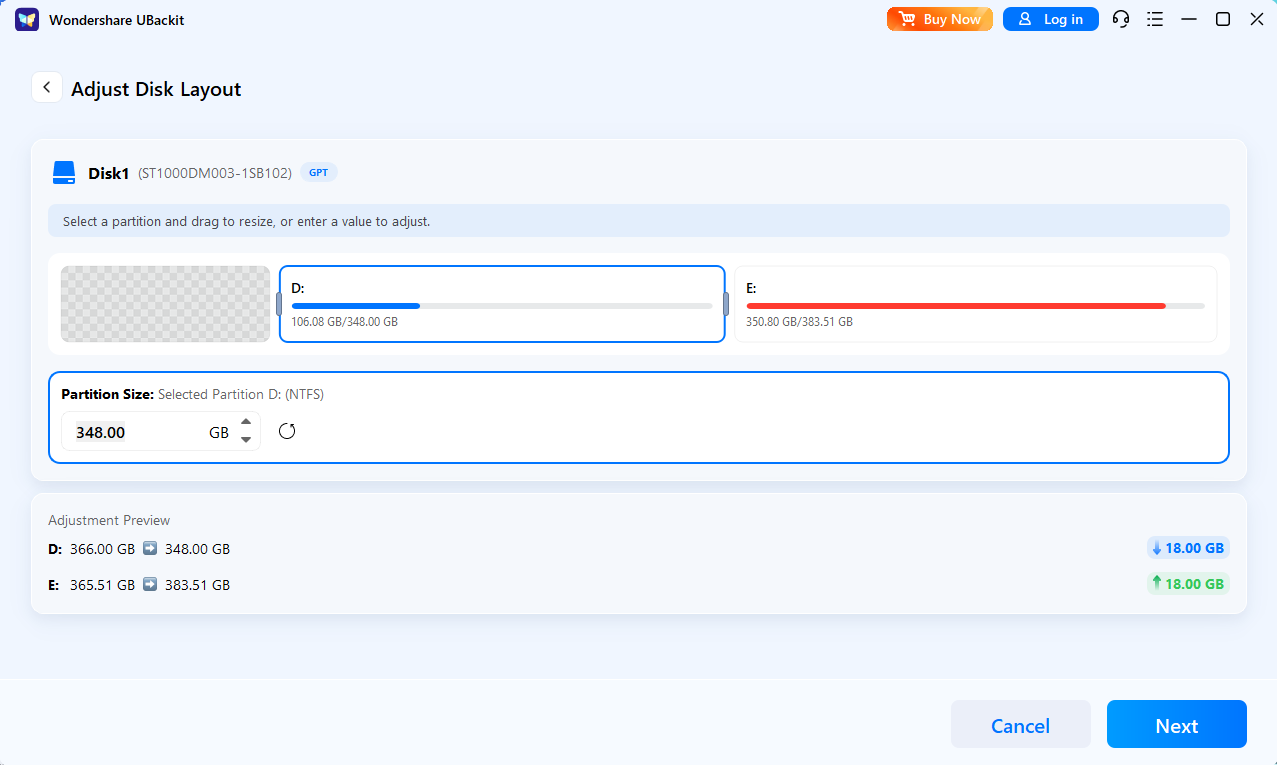
Step 3. Initiate the Process
Review and confirm the partition layout. Once confirmed, click Next to execute the operation.
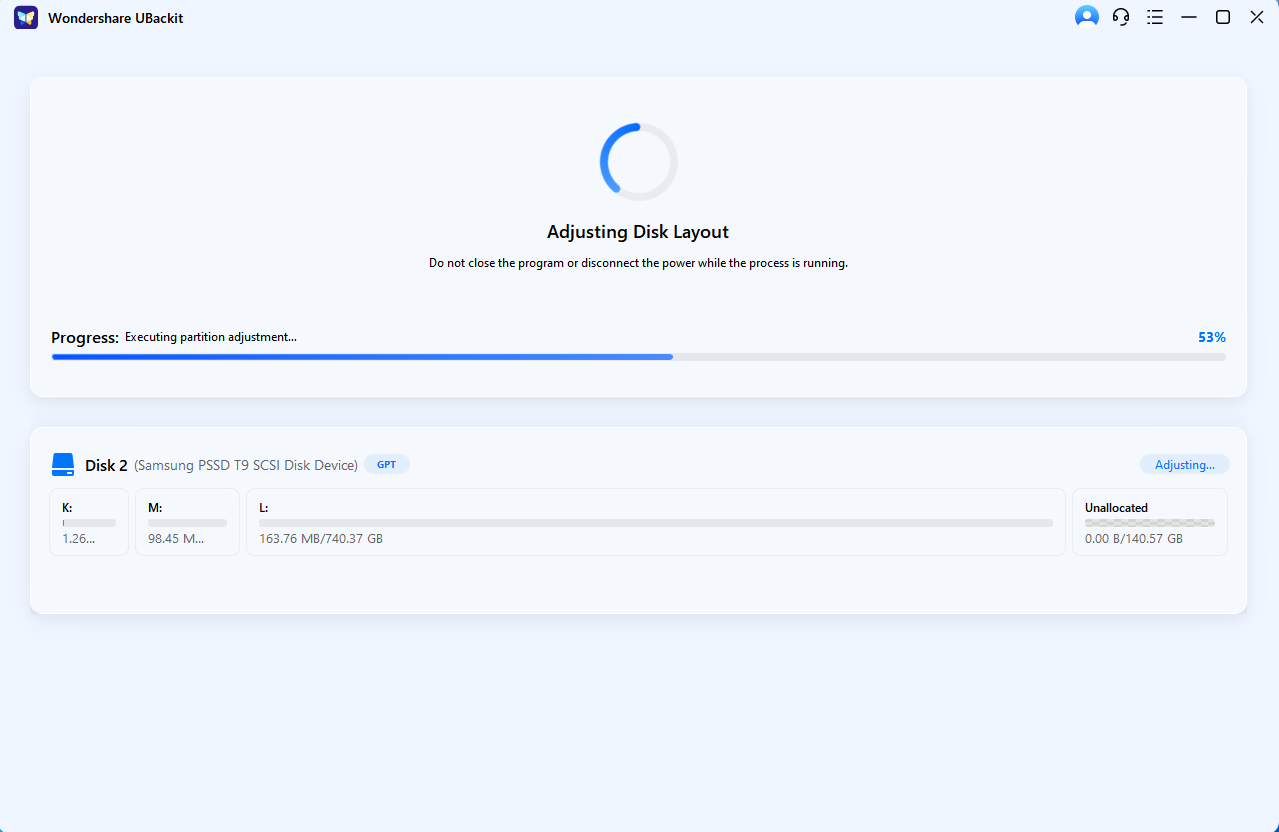
Step 4. Complete Management
Wait for the process to finish and view the updated disk layout. UBackit will safely move data blocks to accommodate the new boundaries. Once the progress bar reaches 100%, your disk will reflect the updated capacity instantly.
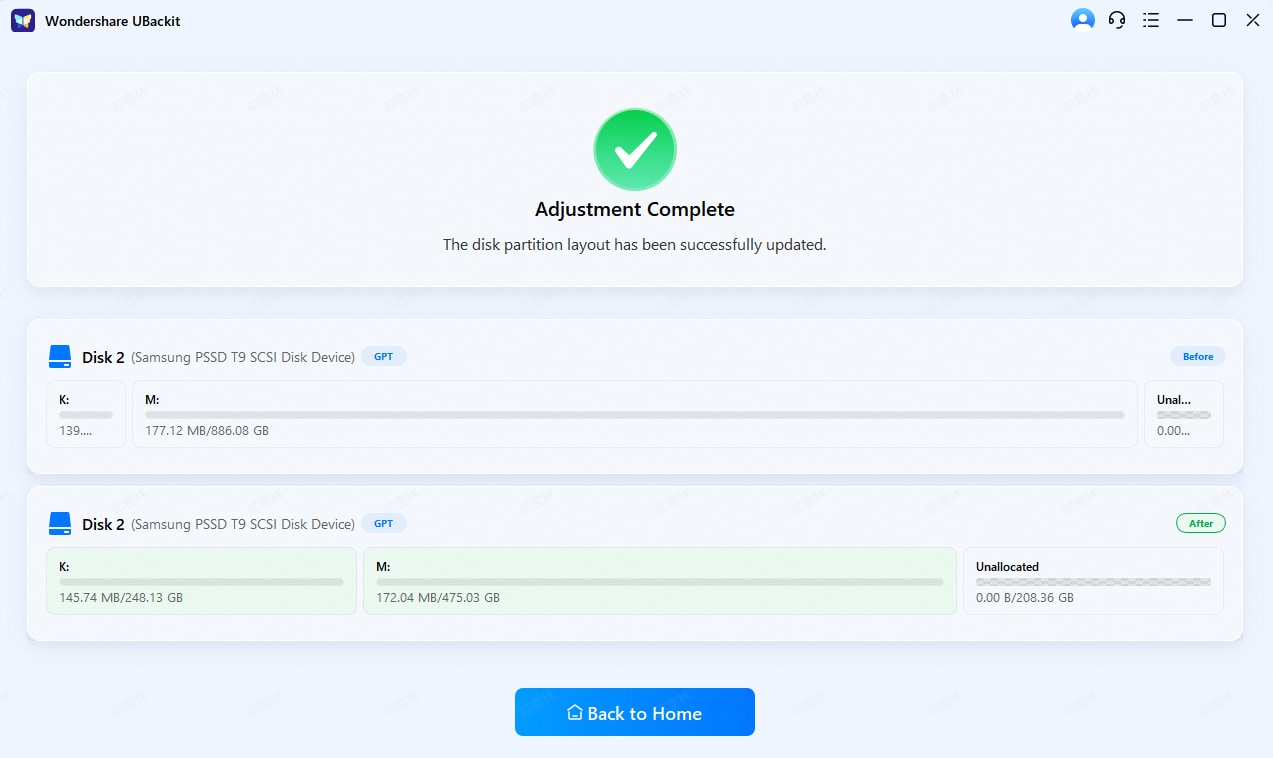
Pro Tips Before Removing the Recovery Partition
Before you delete healthy partition sections, take precautions.
- Create a full system backup: Make a complete backup before deleting anything. Use Windows backup tools or trusted third-party software. This protects your files and system in case something goes wrong.
- Make a Windows installation USB: Create a bootable Windows USB drive. It allows you to repair or reinstall Windows if recovery tools are no longer available.
- Check partition size: Look at the exact size of the recovery partition. Make sure the space you gain is worth removing it.
- Verify disk number: Double-check the selected disk and partition in diskpart. Choosing the wrong one can delete important data.
- Disable BitLocker if active: Turn off BitLocker encryption before making partition changes. Encryption may prevent modification.
- Keep OEM recovery media: Store any manufacturer recovery USB or DVD safely. It may be needed later.
- Confirm boot mode: Check whether your system uses UEFI or Legacy mode. This helps avoid boot issues.
- Restart after deletion: Restart the computer after removal. Confirm that Windows starts normally and everything works properly.
These steps reduce problems when you remove a healthy partition safely.
Conclusion
A recovery partition is designed to protect your system. It stores repair tools and reset options. Many users search for how to delete the healthy recovery partition to free space or reorganize their disk.
Before deleting, always prepare backup options. Understand what happens if a healthy recovery partition is deleted accidentally deleted, so you are not caught unprepared. If removal was a mistake, there are still solutions available.
Proper planning keeps your data safe and your system stable.
FAQs:
-
Is it safe to delete a healthy recovery partition?
Deleting a healthy recovery partition can be safe if you already created a full system backup and have Windows installation or OEM recovery media. Your computer will still run normally after removal. However, you will lose built-in repair and factory reset options. If the system fails later, recovery will require external tools. That is why preparation is very important before making this change. -
Can I recreate a deleted recovery partition later?
Yes, you can recreate recovery tools by using Windows installation media or manufacturer recovery media. These tools can rebuild the Windows Recovery Environment and restore repair options. However, the exact original factory image may not always be restored, especially if the manufacturer's image is not available. The recreated partition may only include standard Windows repair features. -
How much space does a recovery partition use?
The size of a recovery partition depends on the computer brand and Windows version. On many systems, it uses around 500 MB to 1 GB if it only stores repair tools. On factory systems that include a full system image, it may use several gigabytes. Newer systems often use smaller recovery partitions compared to older factory image setups.


