

 TL;DR:
Logical Block Addressing (LBA) is a modern storage system that assigns continuous logical numbers to data blocks, allowing the operating system to manage files while the drive's controller automatically translates these numbers into physical hardware locations.
● Logical blocks are managed by the operating system for software-level addressing, whereas physical blocks represent the actual hardware storage cells, meaning logical errors often require file system repairs while physical errors involve sector or memory cell damage.
● If an LBA failure causes incorrect drive capacity or missing files, you must immediately shut down the computer and connect the drive to another system using a read-only adapter to prevent background write operations from permanently overwriting recoverable data.
● Corrupted logical translation can sometimes be bypassed to retrieve files using deep-scan tools like Wondershare Recoverit, after which the drive's mapping might be repaired by running manufacturer utilities like SeaTools or reflashing the firmware.
Ask AI for a summary
 ChatGPT
 Perplexity
 Gemini
 Claude
 Grok
Grok
Many computer users search what is LBA when they see disk errors, wrong drive capacity, or missing files. Storage devices look simple from the outside, but inside, they follow strict rules. Every file saved on a drive must be written to a specific location. The system must remember that location. If the location is not tracked correctly, the file cannot be opened.
This is where people begin asking what is logical block addressing and why it matters. Logical Block Addressing is a method used by modern drives to organize data in a clean and structured way. It replaces the old physical layout system that depended on cylinders and heads. Today, almost all internal and external drives use this method.
To understand storage clearly, you must also know how does LBA works and what happens if it stops working properly.
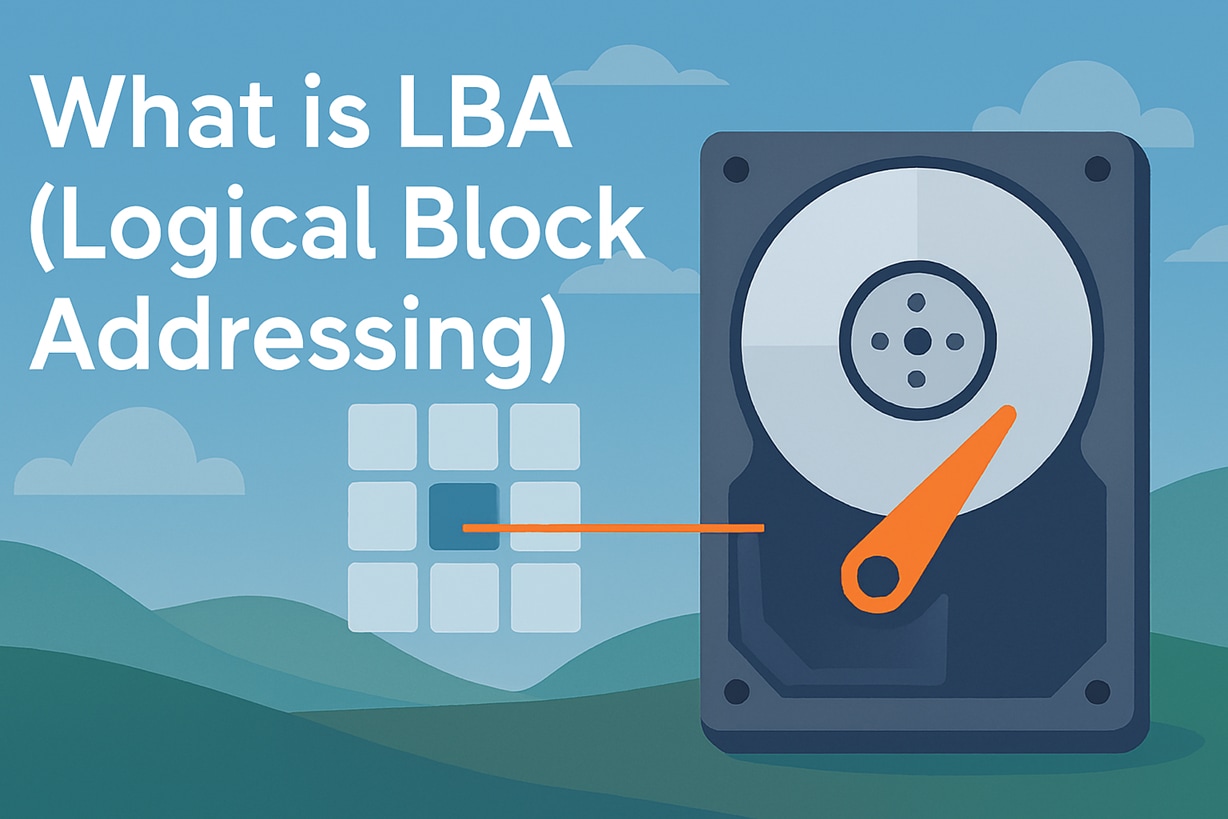
Table of Contents
Part 1: What is LBA?
To understand what is LBA, imagine a long row of storage boxes. Each box holds a small piece of data. Instead of giving each box a physical description, the system simply gives it a number. That number is called a logical block address. The numbering starts from zero and continues upward.
If someone asks what is logical block addressing, you can say it is a system that uses simple numbers to organize disk storage. The operating system reads and writes data using these logical numbers. The drive itself converts those numbers into physical locations on the disk surface or memory chip.
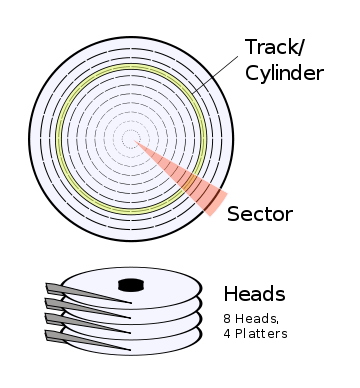
In older systems, storage used CHS addressing. That method relied on cylinders, heads, and sectors. It was harder to manage and had size limits. As storage capacities increased, CHS became outdated. Logical Block Addressing solved this problem by offering a straight and expandable numbering method.
Key Features of LBA
- Uses continuous numbering for storage blocks
- Replaces CHS addressing in modern drives
- Supports large storage devices
- Simplifies disk communication
- Works with HDDs and SSDs
- Hides physical layout details from software
Part 2: How Does LBA Work?
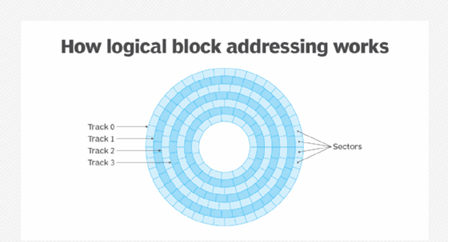
Many users want to understand how does LBA work in real life. When you save a file, the system divides it into smaller chunks. These chunks are written into logical blocks. Each block has a unique number stored in the file system table.
To explain clearly how does LBA work, consider this example. You open a document. The operating system checks the file system. It finds a list of logical block numbers linked to that document. These numbers are sent to the disk controller. The controller translates them into actual physical sectors on the disk.
The translation process is automatic. Users never see it. The operating system only deals with logical numbers. This makes storage faster and simpler.
In solid state drives, the idea remains the same. The difference is that physical locations are memory cells instead of spinning disk sectors. Still, the operating system works with logical addresses. This shows how does LBA work across different storage technologies.
The drive firmware also handles tasks such as bad sector management. If a sector fails, the drive may remap it to a healthy area. The logical block number stays the same. Only the physical location changes. That flexibility is a key advantage of LBA systems.
Part 3: Difference Between Logical Block and Physical Block
Before solving disk errors, it is helpful to understand the difference between logical blocks and physical blocks. A logical block exists at the software level. A physical block exists on the hardware surface.
| Feature | Logical Block | Physical Block |
| Managed by | Operating system | Drive hardware |
| Purpose | Software-level addressing | Actual data storage |
| Visibility | Seen by OS | Hidden from the user |
| Size | Standard logical size | Based on hardware design |
| Error type | File system corruption | Sector damage |
The difference between logical block and physical block becomes important during troubleshooting. Logical errors often affect the file system. Physical errors may involve scratched surfaces or damaged memory cells. Understanding the difference between logical block and physical block helps in choosing the right repair method.
Part 4: How to Retrieve Data from Hard Drive When LBA Fails
When Logical Block Addressing becomes corrupted, drives may show incorrect size. Files may disappear. The system may refuse to open partitions. Learning how to retrieve data from hard drive when LBA fails is critical in such cases.
Data recovery should always focus on safety first. Below are three methods.
Method 1: Stop Using the Drive Immediately
When LBA issues appear, you must act carefully. The drive may still respond, but its internal block mapping may already be unstable. If you continue saving files, installing software, or copying data, new information can be written over the same areas where lost data still exists. Once that happens, recovery becomes much harder.
Even simple actions such as restarting the system repeatedly can trigger background write operations. Operating systems often create temporary files without notice. These small changes may overwrite important sectors. Stopping all activity on the drive protects the remaining data and improves the chances of successful recovery.
Step 1: Shut down the computer properly and disconnect the affected drive.
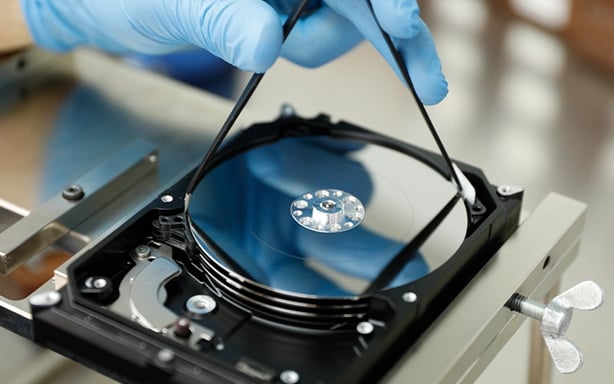
Step 2: Connect the drive to another system using a read-only adapter.
This protects existing data and prevents further corruption.
Method 2: Check Firmware Updates or Diagnostics
Firmware bugs can damage the way a drive translates logical block numbers into physical locations. When this translation fails, the system may show the wrong capacity or report unreadable sectors. In some cases, the drive may appear unallocated even though the data still exists. These issues often begin after sudden power loss or an incomplete update.
Most manufacturers provide official diagnostic tools to check drive health and firmware status. These tools can scan for translation errors, bad sectors, and internal faults. They may also suggest updates or minor repairs. Running the correct utility for your specific drive model can sometimes restore proper address mapping without causing data loss.
Step 1: Visit the official website of the drive brand and download its diagnostic utility.
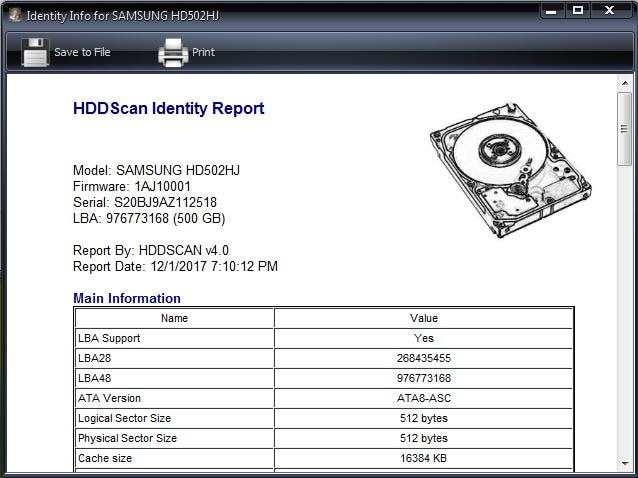
Step 2: Perform a full health scan and review error reports carefully.
In minor cases, this may restore mapping functions.
Method 3: Use a Professional Recovery Tool Like Recoverit

When logical translation is damaged, the operating system may not correctly read file locations. In such cases, normal access methods often fail. The drive may show errors, missing folders, or a request to format the partition. Specialized recovery software can bypass the damaged translation layer and scan the raw sectors directly. This allows the program to search for file signatures instead of relying only on the file system structure.
Recoverit is one example of a professional recovery tool designed for this purpose. It performs a deep scan that reads sector by sector to locate recoverable data. Even when logical block references are corrupted, the software can identify documents, images, and videos by analyzing their internal patterns. This approach increases the chance of restoring files safely to another healthy storage device.
Step 1: Install Recoverit on a working computer. Connect the damaged drive as a secondary disk.

Step 2: Run a deep scan. Preview the detected files.

Step 3: Save them to a different healthy drive.

This explains how to recover data from hard drive with error LBA using recovery software. Many users follow this method when learning how to retrieve data from a hard drive when LBA fails in serious situations.
Part 5: How to Fix Failed LBA
After data recovery, repairing the drive may restore normal function. Understanding how to fix failed LBA helps prevent repeated errors.
Fix 1: Run Disk Utilities
File system corruption can affect block references.
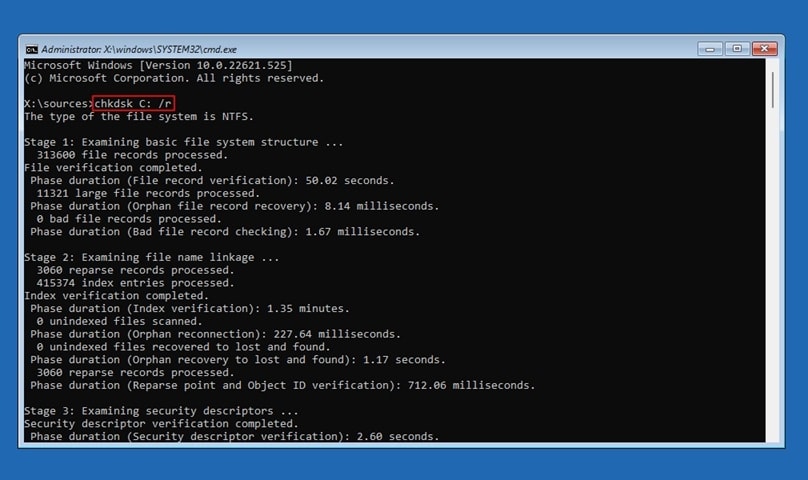
Step 2: Allow the scan to complete and repair detected issues.
This basic repair addresses logical corruption.
Fix 2: Use Manufacturer Tools
Bad sectors can break logical mapping.
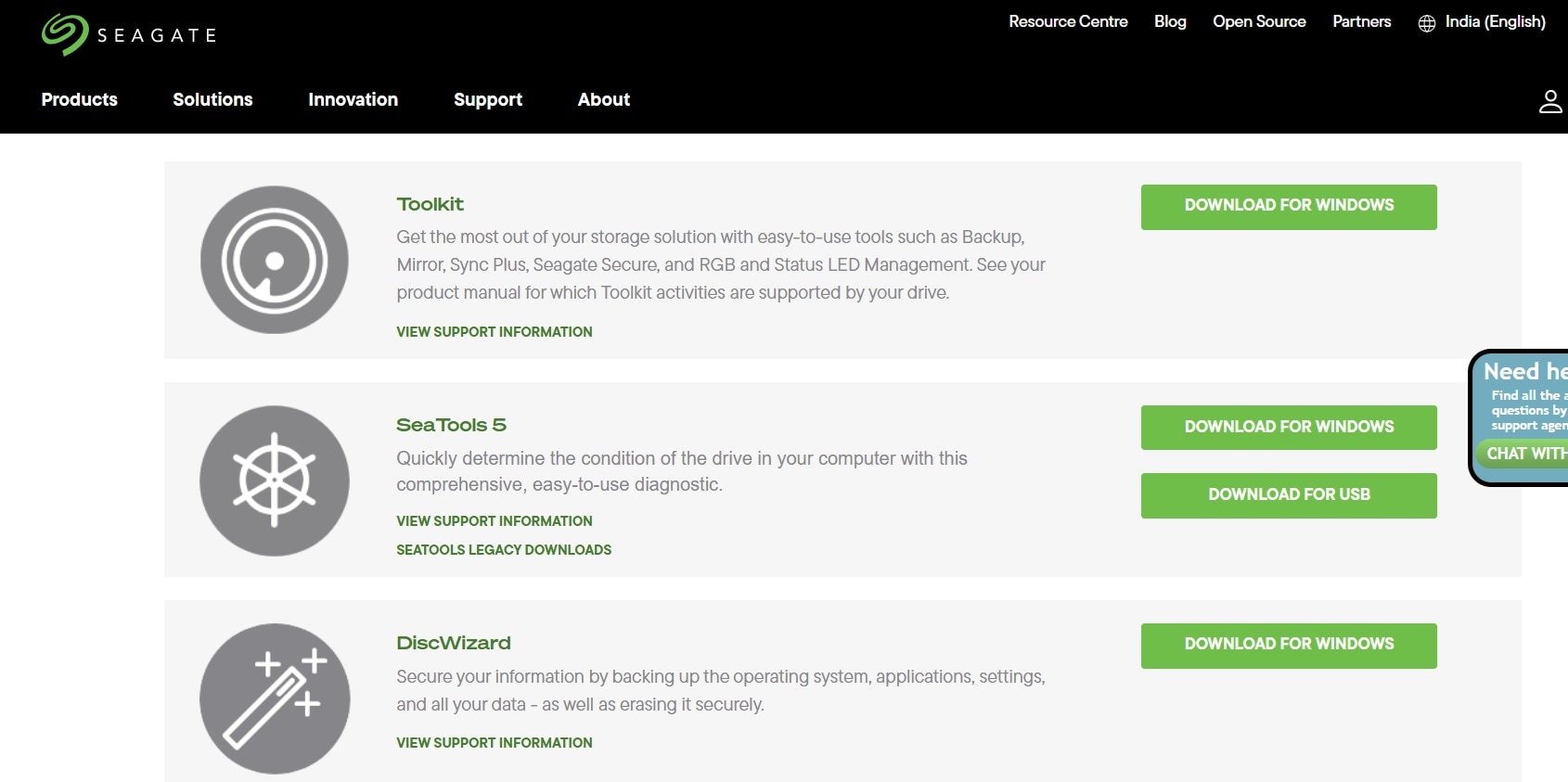
Step 1: Download official tools such as SeaTools.
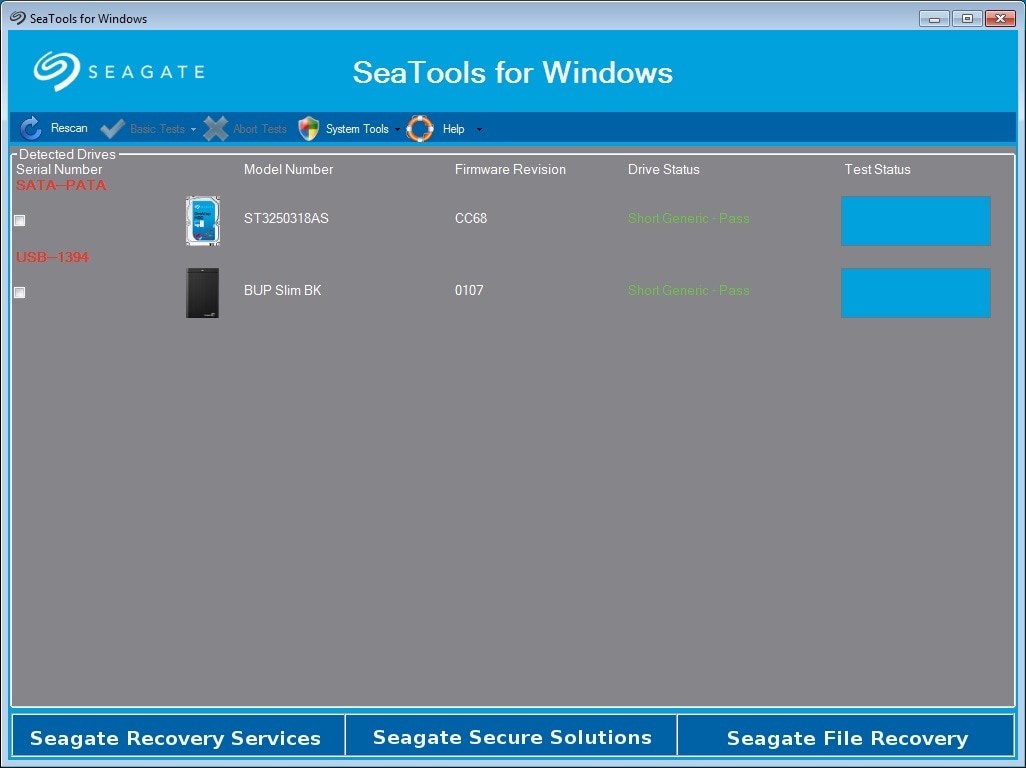
Step 2: Run an extended surface test to remap damaged areas.
This approach improves sector stability.
Fix 3: Update or Reflash Firmware
Firmware corruption can affect translation tables.
Step 1: Identify the exact model of your drive. Download the correct firmware file.
Step 2: Follow official instructions carefully and avoid power interruption.
This advanced step is used when other repairs fail. It is often part of the process when users research how to fix failed LBA in deeper cases.
Part 6: Practical Tips to Prevent LBA Problems
Storage protection reduces long-term risks. Preventive care is always easier than recovery.
Regular maintenance keeps block addressing stable. Simple habits can prevent costly failures.
- Back up important data regularly: Create copies of your important files on an external drive or cloud storage. Schedule automatic backups if possible. This ensures your data stays safe even if the main drive develops LBA errors or other failures.
- Use a UPS to prevent sudden shutdowns: A UPS provides temporary power during outages. Sudden power loss can interrupt write operations and damage logical mapping. A UPS gives you enough time to shut down the system safely.
- Avoid unsafe drive removal: Always use the “Safely Remove” option before disconnecting external drives. Removing a drive while data is being written can corrupt logical blocks and damage the file system.
- Monitor drive health using SMART tools: SMART monitoring tools track drive temperature, bad sectors, and overall health. Checking these reports regularly helps you detect early warning signs before serious LBA problems appear.
- Keep the operating system updated: System updates often include storage driver improvements and bug fixes. Installing updates ensures better compatibility between the operating system and storage hardware.
- Avoid overheating conditions: High temperatures can reduce drive lifespan and increase sector errors. Make sure your system has proper ventilation and clean internal fans to keep temperatures stable.
- Scan file systems occasionally: Run disk checking utilities from time to time. These tools can detect logical inconsistencies early and repair minor issues before they grow into serious address translation errors.
- Replace aging drives early: All drives have a limited lifespan. If your drive is several years old and showing signs of slow performance or repeated errors, consider replacing it before complete failure occurs.
Conclusion
Understanding what is LBA gives you better control over storage knowledge. Logical Block Addressing simplifies how systems manage large volumes of data. It hides complex hardware structures and allows smooth performance.
If errors appear, quick action is essential. Knowing how to recover data from a hard drive with an error LBA and applying the correct repair methods can protect valuable files. With careful use and regular maintenance, most address-related problems can be prevented.
FAQ
-
1. What causes LBA errors?
LBA errors are usually caused by file system corruption, unexpected power loss, firmware bugs, or the development of bad sectors. Sudden shutdowns during read or write operations can interrupt block mapping and damage logical structures. Over time, hardware wear or overheating may also affect address translation and lead to errors. -
2. Can LBA errors be repaired?
In many cases, LBA errors can be repaired. If the issue is logical, system utilities such as disk checking tools can fix corrupted file structures. When the problem is related to hardware or firmware, official manufacturer tools or firmware updates may be required. Severe physical damage, however, may need professional repair services. -
3. Is data always lost when LBA fails?
Data is not always permanently lost when LBA fails. If the drive is handled carefully and no new data overwrites the affected sectors, recovery software can often restore files. Acting quickly and avoiding further drive usage greatly improves the chances of successful recovery.


