
 TL;DR:
You can undelete Trash on a Mac instantly using the "Put Back" command if the files are still in the bin, but if the Trash was already emptied, immediately stop writing new data to the drive and restore from a Time Machine backup, iCloud, or a data recovery tool like Wondershare Recoverit.
● If files were deleted from an external drive, reconnect that specific device to your Mac first, as the deleted items may only appear in the Trash while the drive is actively connected.
● Wondershare Recoverit can scan readable internal and external storage for emptied files, but it cannot guarantee recovery, bypass FileVault encryption, or retrieve data from physically undetected drives.
● To prevent permanently overwriting the deleted data, never install recovery tools, download files, or save the successfully restored items back to the same disk where the original deletion occurred.
Ask AI for a summary
 ChatGPT
 Perplexity
 Gemini
 Claude
 Grok
Grok
On macOS, moving a file to Trash is not the same as permanently erasing it. You can usually open Trash and return the item to its original folder. Once you empty Trash, the file is no longer available through normal Finder access, so the next safe options are Time Machine, iCloud, another backup, or data recovery software.
This guide explains how to undelete Trash on Mac in the right order: restore files that are still in Trash, undo a recent deletion, check backups, and recover emptied Trash with Wondershare Recoverit for Mac when no backup is available.
Data safety note: If Trash was emptied or the file was deleted from an external drive, avoid downloading, installing, exporting, copying large files, or running cleanup tools on the same storage device. Recoverit can help recover deleted files from readable Mac storage, but it cannot recover overwritten data, bypass FileVault, decrypt locked files without the legitimate password or key, or recover from a physically failed drive that is not detected.
Try Recoverit to Perform Data Recovery
 Security Verified. 3,591,664 people have downloaded it.
In this article
Part 1. Can You Undelete Trash on Mac?
Yes, but the best method depends on whether the file is still in Trash, whether a backup exists, and whether the storage has been reused after deletion.
| Situation | Best First Method | What to Avoid |
|---|---|---|
| Files are still in Trash | Open Trash and use Put Back. | Do not empty Trash before checking the files. |
| You just moved a file to Trash | Press Command + Z in Finder. | Do not perform many more Finder actions before undoing. |
| Trash was emptied | Check Time Machine, iCloud, or another backup. | Do not write new data to the same drive. |
| No backup is available | Scan the original storage with Recoverit for Mac. | Do not save recovered files back to the same location. |
| Files were deleted from an external drive | Check Trash while the drive is connected, then scan the drive if needed. | Do not format or reinitialize the external drive. |
| The drive is encrypted, damaged, or not detected | Use the legitimate password or recovery key, or seek professional help. | Do not use bypass tools or keep forcing a failing drive to run. |
The fastest win is always Trash itself. If the file is visible there, recovery usually takes seconds. If the Trash is empty, act like the deleted file is fragile: the more the Mac writes to the same drive, the less likely full recovery becomes.
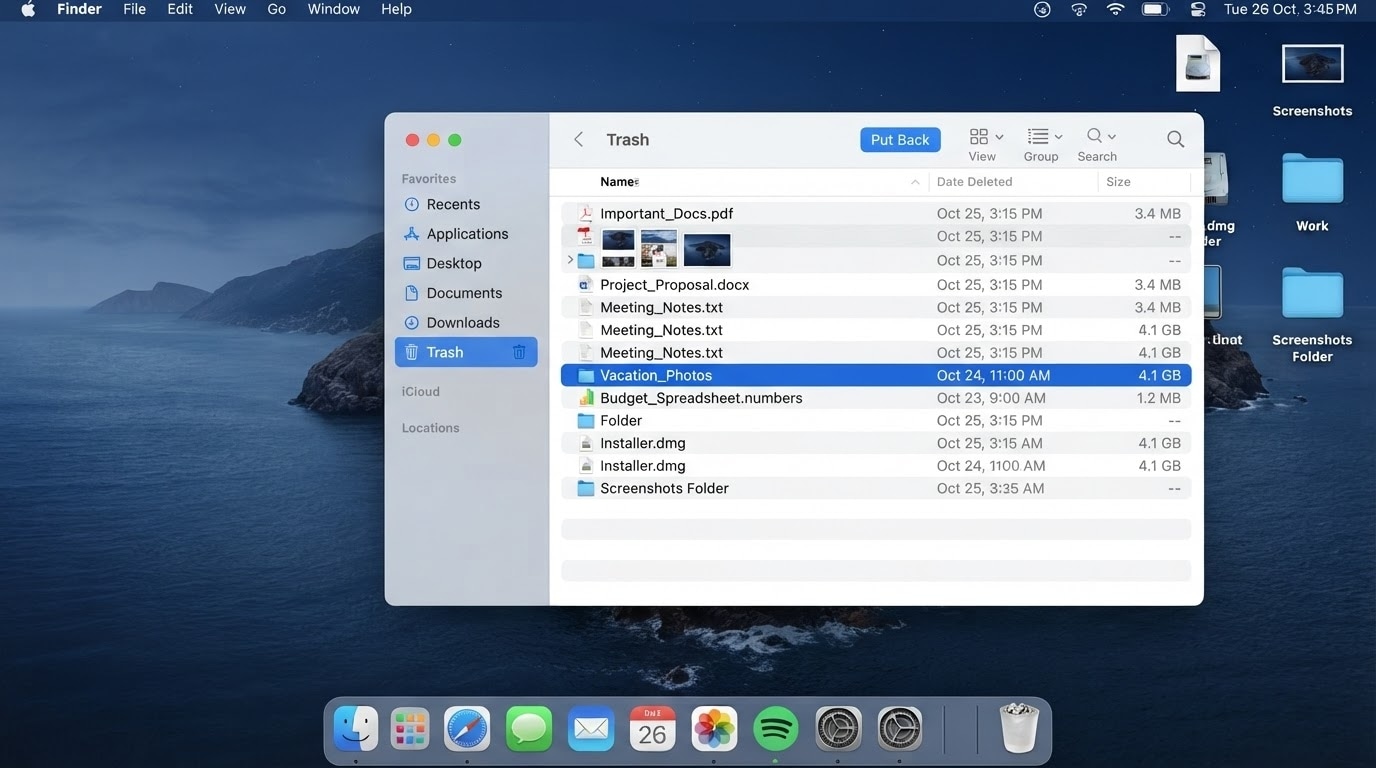
Part 2. Restore Files Still in Trash on Mac
If your deleted files are still visible in Trash, use these low-risk methods first. They do not require recovery software and do not change the file content.
Method 1. Use Put Back in Trash
Put Back restores a deleted item to the folder it came from. This is the cleanest way to undelete Trash on Mac when the original location still exists.
- Click the Trash icon in the Dock.
- Find the file or folder you want to restore.
- Control-click or right-click the item.
- Choose Put Back.
- Open the original folder and confirm the item returned.
If Put Back is not shown, the original location may no longer be available, the file may come from an external drive that is disconnected, or Finder may not know where to return it.
Method 2. Drag Files Out of Trash
If Put Back is unavailable, you can manually move the file from Trash to a safe folder.
- Open Trash.
- Open a second Finder window, such as Desktop or Documents.
- Drag the deleted item from Trash to the new folder.
- Open the restored file to confirm it works.
This method is useful when you do not need the item to return to its exact old path. It is also helpful when the original folder was deleted or renamed.
Method 3. Undo Move to Trash Immediately
If moving the item to Trash was your most recent Finder action, you may be able to reverse it instantly.
- Click Finder or the folder where the deletion happened.
- Press Command + Z.
- Check whether the file returns to its original location.
This works best immediately after deletion. If you copied, renamed, moved, or deleted other items afterward, Undo may apply to the newer action instead.
Part 3. Recover Emptied Trash on Mac from Backups
When Trash is empty, backups are safer than raw recovery scans because they restore known copies of your files. Check these options before making changes to the original drive.
Restore from Time Machine
If Time Machine was enabled before deletion, it may contain a backup copy of the file from before Trash was emptied.
- Connect the Time Machine backup disk if you use one.
- Open the folder where the deleted file used to be.
- Open Time Machine from the menu bar, Launchpad, or System Settings.
- Use the timeline to find a date before the file was deleted.
- Select the file or folder and click Restore.
Apple's Time Machine restore workflow returns selected items to their original location when possible. If the original folder no longer exists, restore to a safe folder and move the files manually afterward.
Check iCloud Drive and Recently Deleted
If the deleted files were stored in iCloud Drive, Desktop, or Documents with iCloud sync enabled, check iCloud before scanning the disk.
- Open Finder and check iCloud Drive.
- Check folders such as Desktop and Documents if they sync with iCloud.
- Go to iCloud.com and sign in with the Apple ID used on the Mac.
- Look for Recently Deleted or file recovery options for iCloud Drive.
- Restore the file if it is still available there.
Cloud recovery windows can expire, and deleted files may disappear from Recently Deleted after the retention period. Check as soon as possible.
Check Other Cloud Apps and Local Copies
Files deleted from a Mac may also exist in app-specific recovery areas or synced devices. Before scanning, check:
- Google Drive, Dropbox, OneDrive, Box, or Creative Cloud trash folders.
- Email attachments or chat downloads where the file was originally received.
- Another Mac, external drive, camera card, USB drive, or NAS folder.
- App autosave folders for editors, design tools, office apps, and coding tools.
- Export folders for photos, videos, audio projects, and documents.
If you find a clean copy, restore that copy first. If no backup or synced version exists, move to storage scanning.
Part 4. Recover Emptied Trash on Mac with Recoverit
When Trash has been emptied and no backup is available, Wondershare Recoverit for Mac can help scan readable storage for deleted files that Finder can no longer show.
When Recoverit Is a Good Fit
Recoverit is most relevant when the deleted data was stored on a readable disk or device and has not been overwritten.
| Recoverit Can Help With | Recoverit Cannot Do |
|---|---|
| Recover files after emptying Trash on Mac. | Guarantee recovery after the data has been overwritten. |
| Scan internal drives, external hard drives, SSDs, USB drives, SD cards, and other readable storage devices. | Repair physically failed drives that are not detected by macOS. |
| Recover deleted photos, videos, documents, audio files, archives, and many other file types. | Bypass FileVault, account passwords, or encrypted storage protections. |
| Preview recoverable files before saving them. | Replace a Time Machine or iCloud backup strategy. |
For the best chance of recovery, install and run Recoverit from a different drive when possible. If you must install it on the Mac's internal drive, do it quickly and avoid saving anything else to that drive before the scan.
How to Recover Files Deleted from Trash
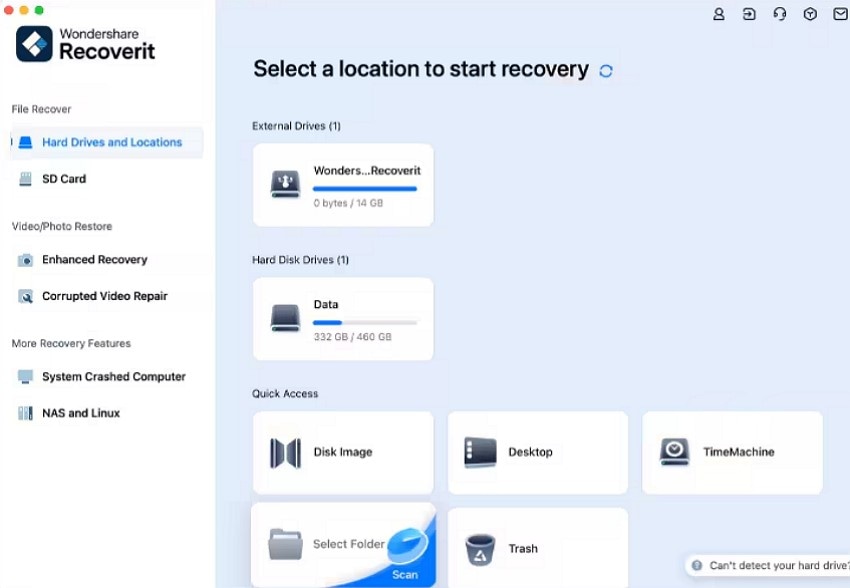
Step 1. Opt For Trash After Launching Tool
To begin the process, launch Recoverit on your device and locate the "Trash" option.
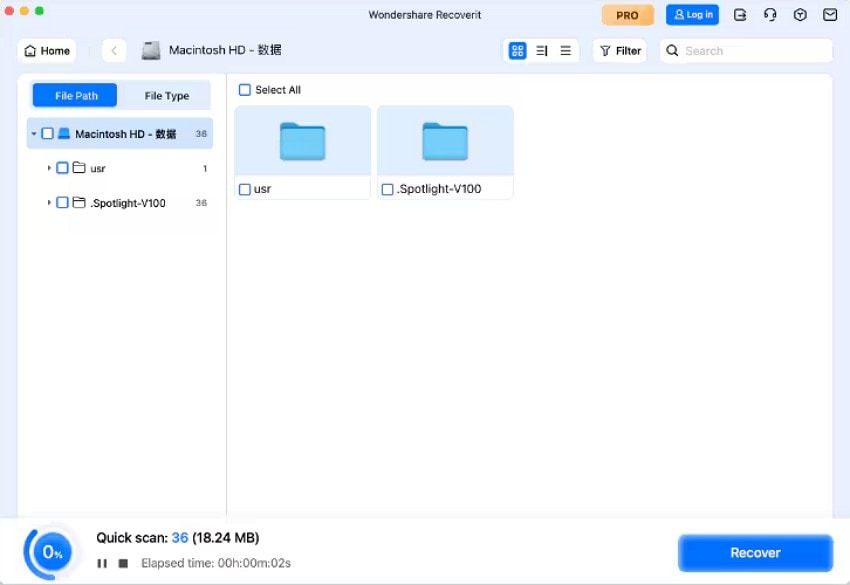
Step 2. Scan and Locate the Deleted Trash File
The tool will begin to scan the folder within the device as soon as you select the Trash folder.Click on the file you want and press the "Recover" button to start the recovery process.
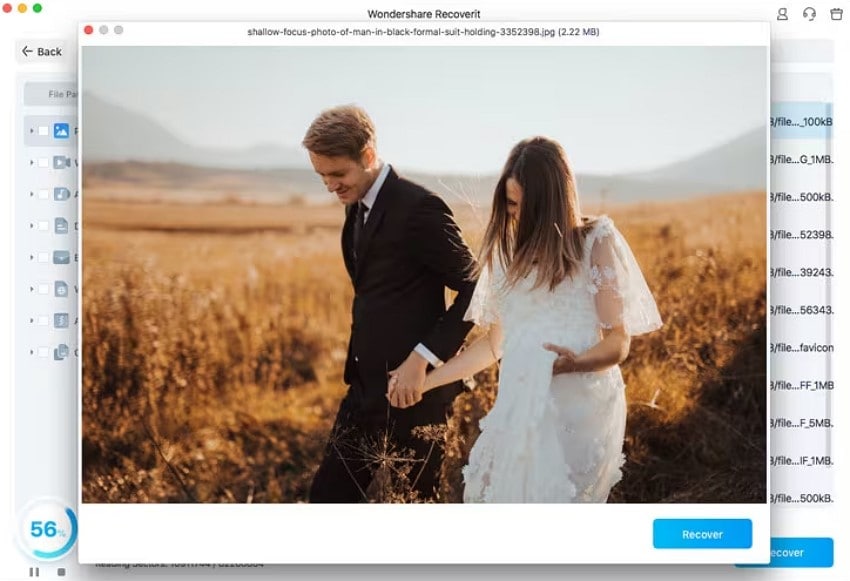
Step 3. Preview and Save the Deleted Trash File
Click on the "Recover"button to successfully recover and save the file to your system's storage.
Try Recoverit to Perform Data Recovery
Security Verified. 3,591,664 people have downloaded it.
What Can Affect Recovery Results?
Deleted file recovery is time-sensitive because macOS and apps continue writing caches, updates, downloads, thumbnails, and temporary files. Several factors can affect what Recoverit or any recovery tool can find:
- Overwriting: New data written to the same storage can replace deleted file data.
- Drive type: SSD behavior, including TRIM, may reduce recoverability compared with traditional hard drives.
- Encryption: FileVault or encrypted external drives require the legitimate password or recovery key.
- Physical damage: Clicking sounds, repeated disconnects, overheating, or non-detection may require professional service.
- Secure erase or wiping: If the storage was intentionally overwritten, recovery is usually much harder or impossible.
- Partial files: Some recovered files may be incomplete if only part of the original data remains.
These limits are normal for data recovery. The safest approach is to stop using the affected storage as soon as you realize Trash was emptied by mistake.
Part 5. Undelete Trash from an External Drive on Mac
Deleted files from external drives can behave differently from files deleted from the Mac's internal drive. In many cases, the file may still appear in Trash only while that external drive is connected.
- Reconnect the external drive to the Mac where the deletion happened.
- Open Trash and check whether the deleted files appear.
- If they are visible, use Put Back or drag them to a safe folder.
- If Trash is empty, stop using the external drive.
- Scan the external drive with Recoverit and recover files to a different storage device.
Do not click Erase, initialize the drive, repartition it, or run disk utilities repeatedly before recovery if the files matter. Formatting may make the file system usable again, but it can also reduce the chance of recovering the deleted files you came for.
Part 6. What Not to Do After Emptying Trash
After you empty Trash by mistake, the goal is to reduce new writes to the same storage. Avoid these actions until your files are recovered or backed up:
- Do not install large apps or games on the affected drive.
- Do not download videos, photos, installers, or archives to the same drive.
- Do not export new projects to the same folder or disk.
- Do not run Mac cleanup utilities that remove caches or rewrite large amounts of data.
- Do not erase, format, repartition, or reinitialize the drive.
- Do not save recovered files back to the same location.
- Do not keep reconnecting a physically failing external drive if it clicks, overheats, or disconnects repeatedly.
If the deleted files were on your startup disk, reduce Mac usage until you choose a recovery method. Even normal web browsing and app updates can write new files in the background.
Part 7. How to Prevent Trash Deletion Loss on Mac
After you recover the files, set up a recovery routine so the next deletion is less stressful.
- Turn on Time Machine and keep a backup disk connected regularly.
- Use iCloud Drive, OneDrive, Dropbox, or another cloud service for important folders.
- Keep at least one offline backup for project files, photos, and documents.
- Review Trash before emptying it, especially after large cleanup sessions.
- Do not enable automatic Trash removal unless you understand what it deletes.
- Store active work in a folder that is backed up, not only on removable media.
- Label external drives clearly so you do not delete from the wrong device.
A simple rule helps: keep one local copy, one backup copy, and one separate cloud or external copy for files you cannot afford to lose.
Part 8. Conclusion
To undelete Trash on Mac, start with the simplest path. If the file is still in Trash, use Put Back or drag it out. If you deleted it moments ago, try Command + Z. If Trash was emptied, check Time Machine, iCloud, and other cloud trash folders before scanning.
If no backup exists, Wondershare Recoverit for Mac can help scan the original readable storage and recover deleted files before they are overwritten. Save recovered files to another drive, verify them, and then create a backup so a future emptied Trash does not become a crisis.
Frequently Asked Questions
FAQ
-
How do I undelete Trash on Mac?
Open Trash from the Dock, right-click the deleted file, and choose Put Back. If the file is not in Trash because Trash was emptied, check Time Machine, iCloud, or scan the original storage with a Mac data recovery tool such as Recoverit. -
Can I recover files after emptying Trash on Mac?
Yes, it may be possible if the files were backed up or if the deleted data has not been overwritten. First check Time Machine, iCloud Drive, and other cloud trash folders. If no backup exists, stop using the drive and scan it with Recoverit for Mac. -
Where do files go after I empty Trash on Mac?
After Trash is emptied, the files are removed from normal Finder access. The actual recoverability depends on whether the old data remains on the storage, whether it has been overwritten, the drive type, encryption, and the condition of the disk. -
Can Time Machine recover emptied Trash?
Time Machine can restore files if it backed them up before they were deleted. Open the folder where the files used to be, enter Time Machine, select a backup from before deletion, and restore the needed items. -
Can Recoverit recover files deleted from Mac Trash?
Recoverit can help recover files deleted from Mac Trash when the original storage is readable and the data has not been overwritten. It cannot guarantee recovery, repair physically failed drives, bypass FileVault, or decrypt files without the legitimate password or recovery key. -
Can I recover deleted files from an external drive's Trash on Mac?
Reconnect the external drive and open Trash first. If the files appear, use Put Back or drag them out. If Trash is empty, stop using the external drive and scan it with recovery software, saving recovered files to a different drive. -
Should I install recovery software on the same Mac after emptying Trash?
If possible, avoid installing software on the same drive that held the deleted files because installation writes new data. For external drive recovery, install Recoverit on the Mac and scan the external device. For internal drive recovery, save recovered files to an external drive.



