Seeing "Storage system verify or repair failed (-69716)" in Disk Utility can make a Mac storage problem look worse than it is. The message may appear while you run First Aid, install macOS, or change a partition. It means a verification or repair operation did not finish successfully, often at the APFS storage layer. The code alone does not prove your SSD has failed.
If the affected drive holds files you have not backed up, avoid repeated repairs, partition changes, and erasing it. First identify the disk and copy any accessible files to separate storage. If you cannot read the files, consider a recovery path before trying writes. Once your data is safe, use the checks below in order.
In This Article
Part 1. What Causes Storage System Verify or Repair Failed (-69716) on Mac?
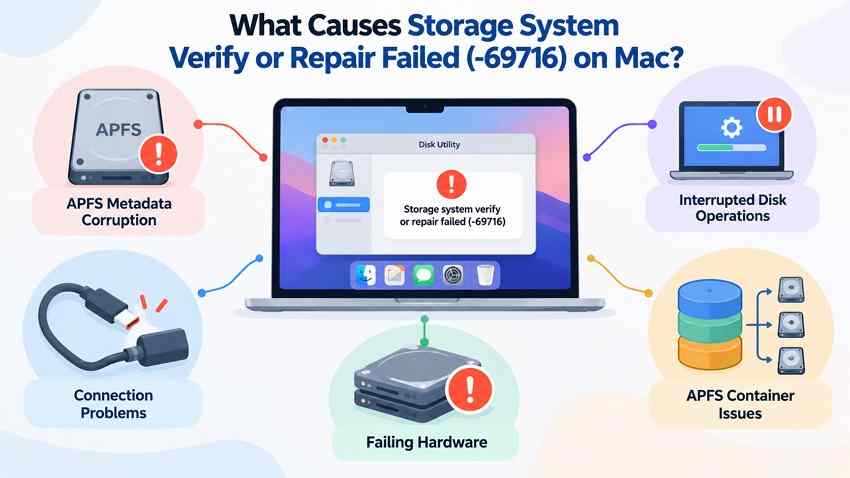
The -69716 message tells you that macOS did not finish a storage-system check or repair. It is a result, not a diagnosis: the underlying reason might be corrupted APFS metadata, a volume that could not be unmounted, an interrupted operation, an unstable external connection, or a device fault. Check the lines immediately above the error in First Aid rather than assuming one cause.
APFS Volume and Container Failures
APFS places one or more volumes inside a container that shares available space. A typical startup disk has system and data volumes, and there may also be recovery-related volumes and snapshots. Problems with container metadata, volume structures, or access to a mounted volume can interrupt verification. Sudden shutdowns and interrupted disk changes are plausible contributors, but the message by itself cannot identify what happened.
Disk Utility Error -69716 Versus Related Exit Codes
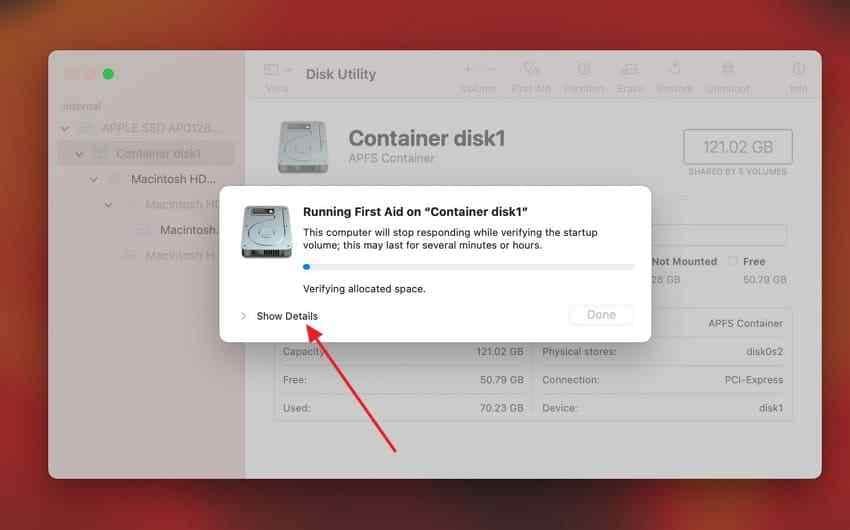
In Disk Utility, select the failed First Aid operation and choose Show Details . The line reporting -69716 is often accompanied by a more specific check result. Interpret that result in context:
| Message in the log | What it tells you | What to do next |
| Storage system verify or repair failed (-69716) | Storage-level verification or repair did not complete. | Read the preceding APFS checker messages; do not assume hardware failure. |
| File system verify or repair failed (-69845) | A file-system check or repair failed. | Review the specific volume and checker output. |
| Storage system check exit code is 8 | The check was unsuccessful; logs may show unresolved APFS inconsistencies. | Protect data and inspect the detailed errors before another repair. |
| Storage system check exit code is 65 | The check did not complete; a mounted container is one possible reason. | Look for "could not unmount" or other earlier messages rather than assigning a fixed cause. |
| Storage system check exit code is 0 | The checker reports successful completion for that operation. | Confirm the volume mounts and files open; this is not a hardware-health guarantee. |
If the log mentions an unmount failure, the disk may need to be checked from macOS Recovery or after you close apps using an external volume. If it reports unreadable metadata or repeated input/output errors, focus on copying or recovering data before making changes.
Part 2. What to Do Before Fixing Mac Error -69716
Before trying First Aid again, decide whether the files on the affected disk exist anywhere else. A file-system repair may rewrite metadata; a successful check is not a substitute for a backup. If the drive is unstable, repeated scans and repairs may make the situation worse.
Identify the Disk and Protect Existing Data First
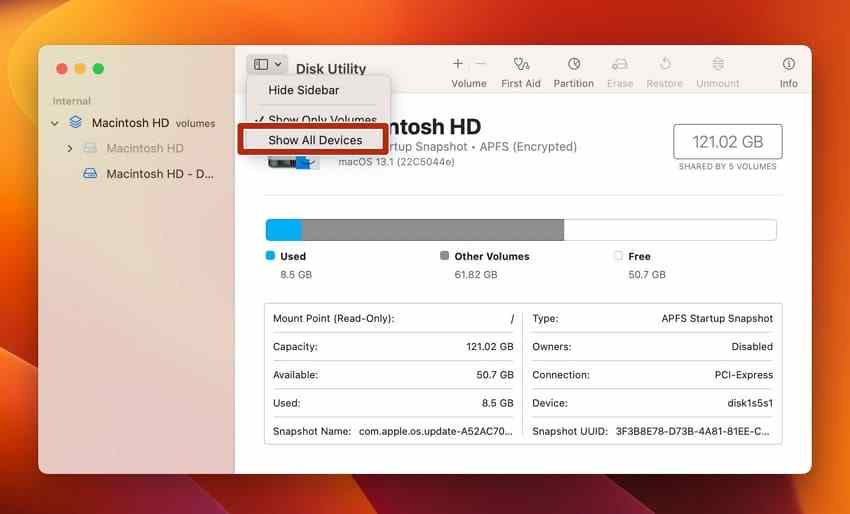
Open Disk Utility and choose View > Show All Devices . Note the device name, capacity, and which volume or APFS container shows the error. If you can use Terminal,
diskutil list
provides disk identifiers;
diskutil apfs list
shows how APFS containers and volumes relate. These listing commands do not repair anything. Never copy an example disk number into a repair command without checking your own Mac.
- If files are visible: copy the important ones to a healthy external drive or confirm a recent, readable backup. Open a few copied files to verify them.
- If the disk is visible but files are inaccessible: avoid Erase, repartitioning, repeated First Aid, or installation to that same disk until you have considered recovery.
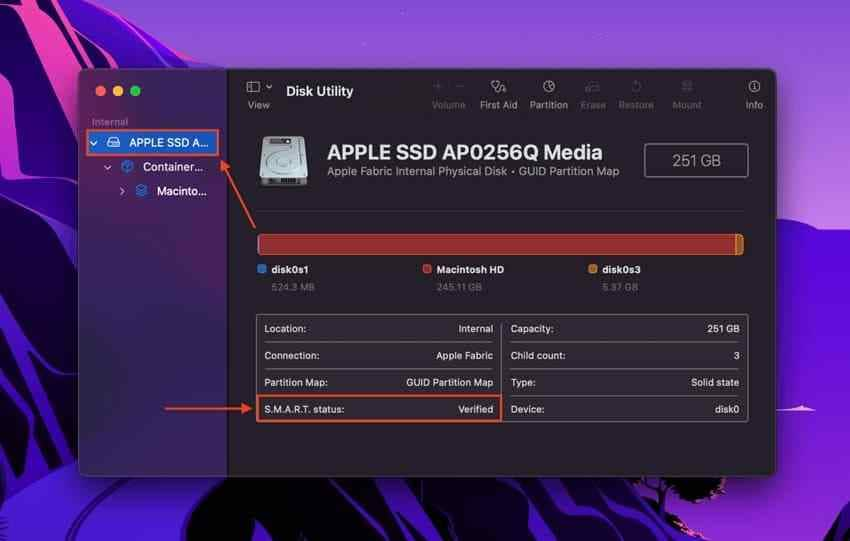
- If the device is repeatedly disappearing, making unusual noises, or reporting a failing S.M.A.R.T. status: stop software repair attempts and seek hardware or professional recovery help.
When to Attempt Recovery Before First Aid
Use the condition that matches your Mac. The important difference is whether the original files are safely available elsewhere:
| Your situation | Safest next move |
| Current backup is available and readable | Check the backup before proceeding to First Aid. |
| No backup; drive appears in Disk Utility and files can be copied | Copy essential files to another disk before attempting repairs. |
| No backup; the drive is detected but files are inaccessible | Consider a suitable recovery workflow or professional assessment before write-based repairs. |
| Mac will not start, but its files may still be accessible | Use Share Disk on Apple silicon or Target Disk Mode on supported Intel Macs with another Mac, if the volume can be unlocked and read. |
| Internal drive is not detected, or hardware appears to be failing | Do not keep restarting, erasing, or running file-system repair tools; get specialist advice. |
If you cannot make a copy and the disk contains irreplaceable files, the safest choice may be to stop here. See Part 4 for recovery eligibility before continuing to a repair that writes to the disk. Recovery software cannot replace a working storage device or an encryption password.
Part 3. How to Fix Storage System Verify or Repair Failed (-69716) on Mac
Work through these fixes only after your important files are protected or you have confirmed that the data is not needed. The first checks do not modify APFS structures; First Aid, Terminal repair, and erasing carry increasing risk. You do not need to try every fix if an earlier one resolves the issue.
Fix 1. Check Storage Connections and Drive Health
Use this fix first for an external HDD, SSD, or enclosure that disconnects or disappears. If the error is on the internal startup disk, skip the cable test and check for evidence of hardware trouble.
- For an external drive: stop any file transfers, safely disconnect it if possible, then try a known-good cable, a direct port, and adequate power. Avoid a suspect hub.
- In Disk Utility: choose View > Show All Devices , select the physical device, and look for S.M.A.R.T. status if the device exposes it. Many USB enclosures do not report this information.
- If you suspect Mac hardware: shut down and use Apple Diagnostics . On Apple silicon, hold the power button until startup options appear, release it, and then hold Command-D. On Intel, hold D at startup (or Option-D if needed).
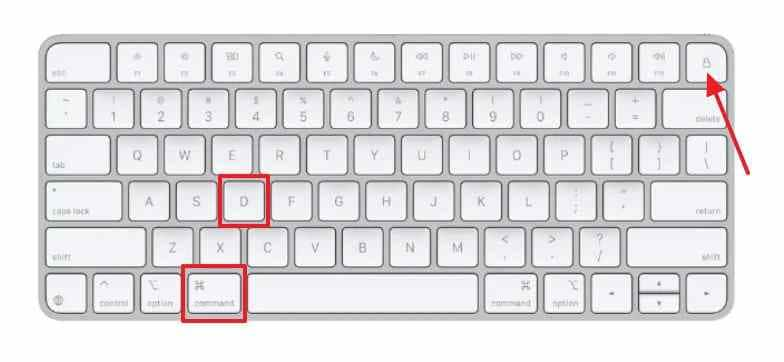
- Read the result: note any reference code. If the device fails hardware checks or repeatedly disconnects, stop here and arrange service or professional recovery assessment.
A drive appearing in Disk Utility is only evidence that macOS sees it at that moment. It does not establish that every block is readable or that a repair is safe.
Fix 2. Run Disk Utility First Aid in the Correct Order
If the disk is stable and your files are protected, follow Apple's First Aid instructions . Disk Utility can fix certain formatting and directory-structure errors, but it does not repair physical damage or recover deleted files.
- Open Disk Utility and choose View > Show All Devices . For the startup disk, use macOS Recovery as described in Fix 3.
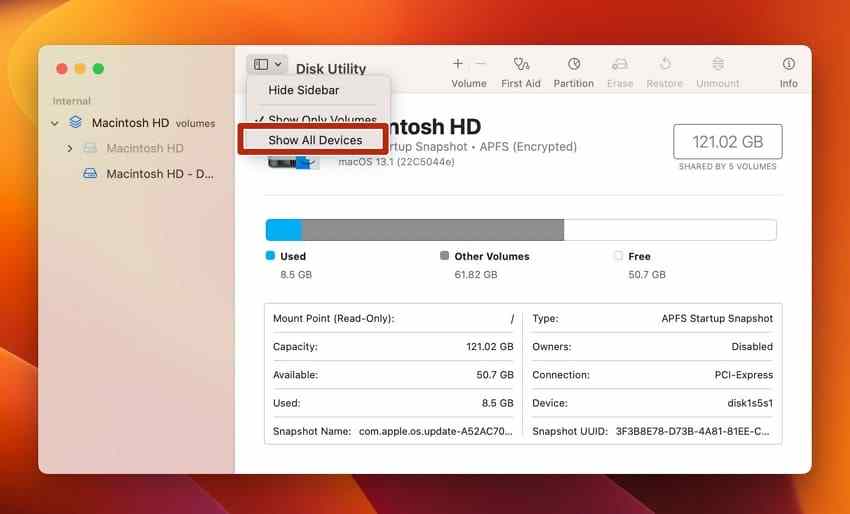
- Under the affected APFS container, select the last volume in the sidebar. Click First Aid > Run . Continue through the other volumes upward, including the data volume.
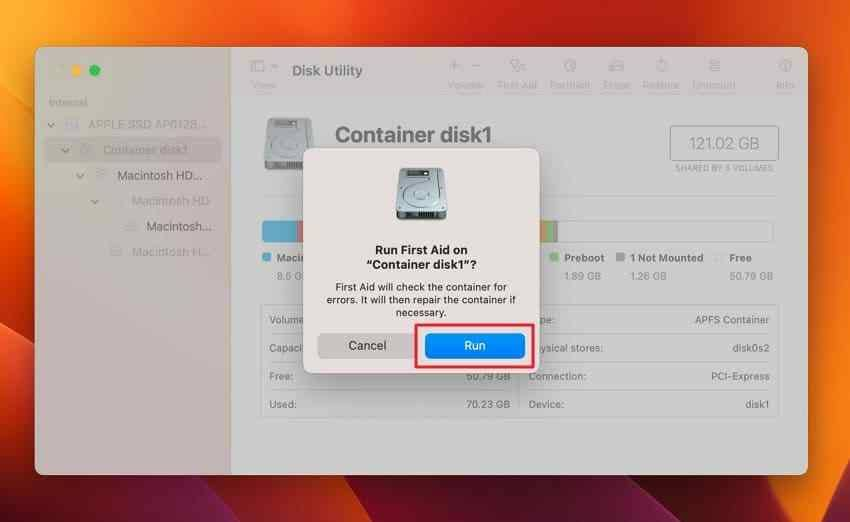
- Run First Aid on the APFS container , then on the physical device last.
- Choose Show Details . If Disk Utility says the disk appears OK or has been repaired, restart or remount it and open a few files to check. If -69716 returns, do not repeat repairs indefinitely.
Fix 3. Repair the Startup Disk Using macOS Recovery
Use this route when First Aid cannot check the active startup volume or your Mac does not start normally. Recovery runs separately from the installed macOS system, which may allow the affected volume to be checked without the usual processes using it.
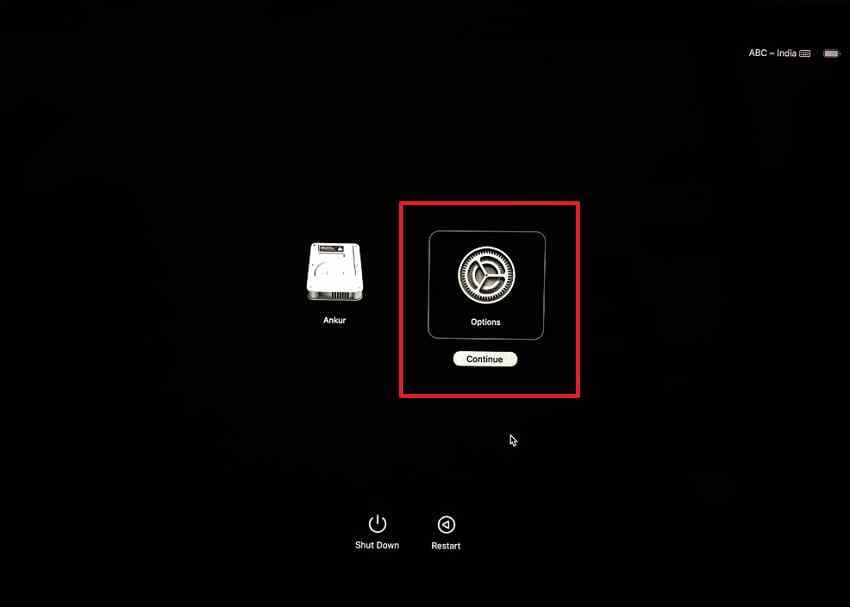
- Apple silicon: shut down, press and hold the power button until you see startup options, then choose Options > Continue . Enter an administrator password if asked.
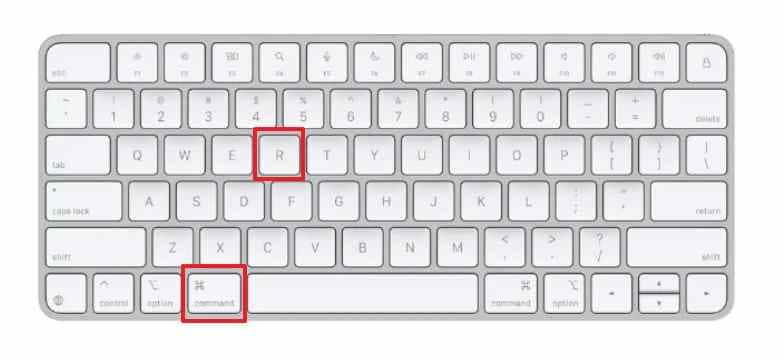
- Intel Mac: restart and immediately hold Command-R until macOS Recovery starts.
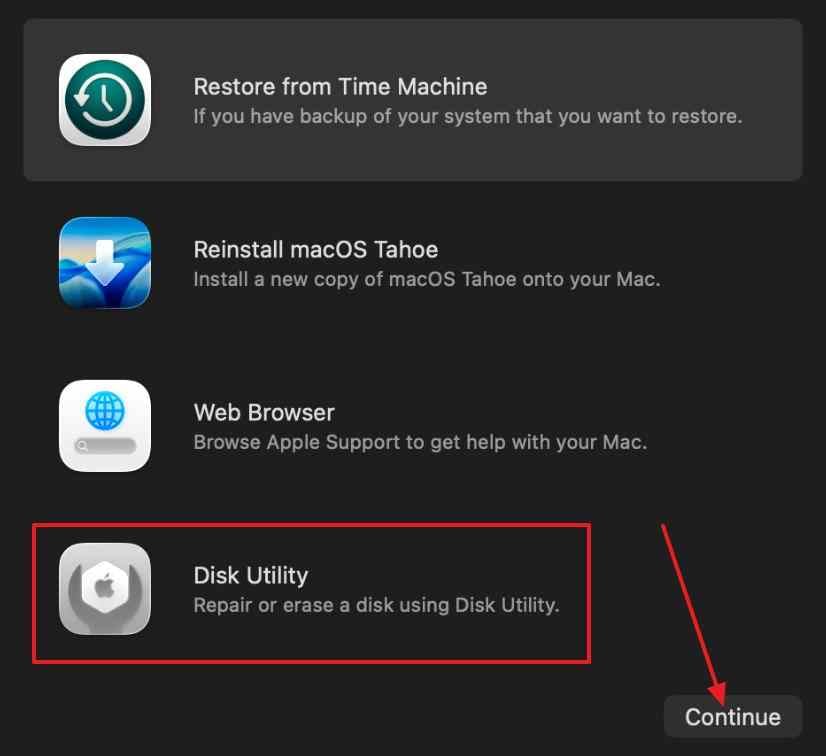
- Choose Disk Utility > Continue , then View > Show All Devices . Check the affected APFS volumes from the last upward, followed by the container and physical disk.
- Read the final message. If the check succeeds, restart and verify that your files open. If you still get -69716, preserve the log and consider the more advanced read-only check below only if the data is already protected.
If your Mac asks you to unlock an encrypted volume, use its authorized password or recovery key. Do not erase it just because it appears locked. See Apple's Apple silicon Recovery guide or Intel Recovery instructions for your Mac type.
Video tutorial: If you prefer a visual walkthrough, you can watch the video below. Follow the steps written here for your Mac model, and protect any unbacked-up files before attempting repairs.

Fix 4. Check the APFS Container Using Terminal Before Any Repair
Terminal exposes the APFS checker used by Disk Utility. It is useful for reading precise diagnostic output, not a guaranteed stronger repair. Only use this method if you are comfortable checking disk identifiers. Run it from macOS Recovery with another copy of your files safely stored elsewhere.
- Open Utilities > Terminal in macOS Recovery. Run
diskutil listanddiskutil apfs list. Identify the actual APFS container associated with the failed check. Do not confuse a physical disk, a synthesized APFS container, and an individual volume. - If the container can be safely unmounted, run
diskutil unmountDisk /dev/disk3, wheredisk3is only an example . If unmounting fails, do not force it; check the selected device and return to Disk Utility or get help. - For an unmounted APFS container, run a verification-only check such as
fsck_apfs -n /dev/rdisk3, replacing the example raw-device name with the correct container or volume from your own output. The-nflag requests no repairs. - If the log identifies repairable errors and you have a verified backup or recovery copy, an experienced user may attempt
fsck_apfs -y /dev/rdisk3on the correctly identified, unmounted APFS device. This flag writes repairs and may change metadata; stop if the drive is unstable, encrypted but locked, or the device identity is uncertain.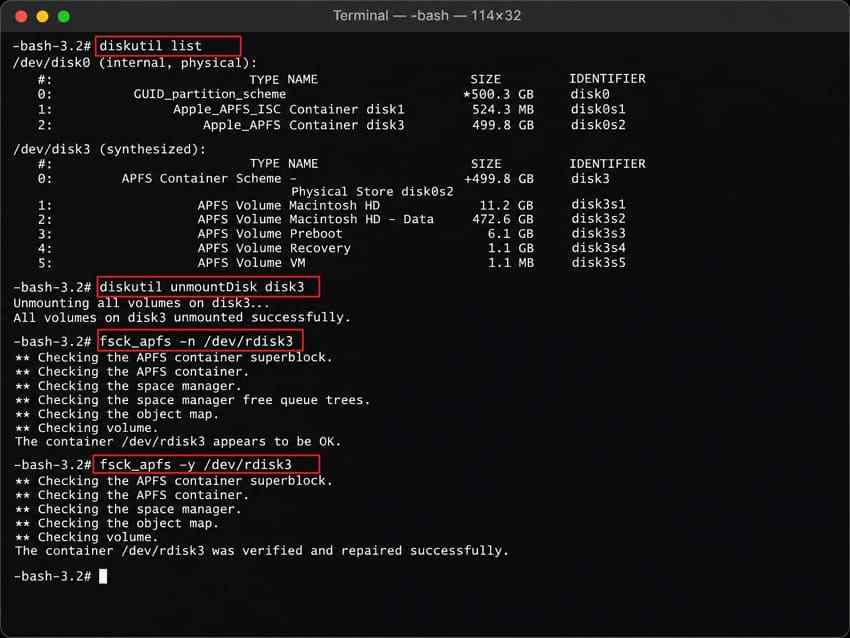
- After any repair, repeat the
-ncheck, then return to Disk Utility and test whether the files can be opened. Do not keep rerunning-yafter repeated failures.
Flags and device layout can vary by macOS version. Before running an advanced command, consult
man fsck_apfs
on the Mac you are repairing and verify the output. The APFS checker documents
-n
as no repair and
-y
as repair attempts; its live-check mode does not perform repairs.
Fix 5. Erase the Damaged Disk and Restore macOS
Use this only when the affected startup storage is stable enough to reuse, the earlier methods failed, and you have already verified a complete backup or recovered every needed file . Erasing permanently removes the contents of the selected volume or volume group. It cannot fix a failing SSD. If there is still inaccessible data you need, do not proceed.
- Start macOS Recovery and select Disk Utility . Carefully identify your startup volume ; do not select a Time Machine backup disk or unrelated external storage.
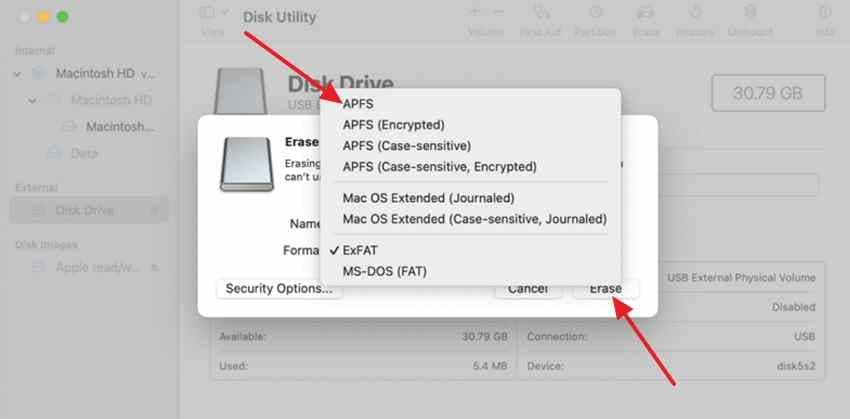
- For a typical APFS startup installation, select Macintosh HD and choose Erase . Use the format recommended by Apple for your Mac (normally APFS) and select Erase Volume Group if the option appears. The exact prompt varies by Mac and macOS version.
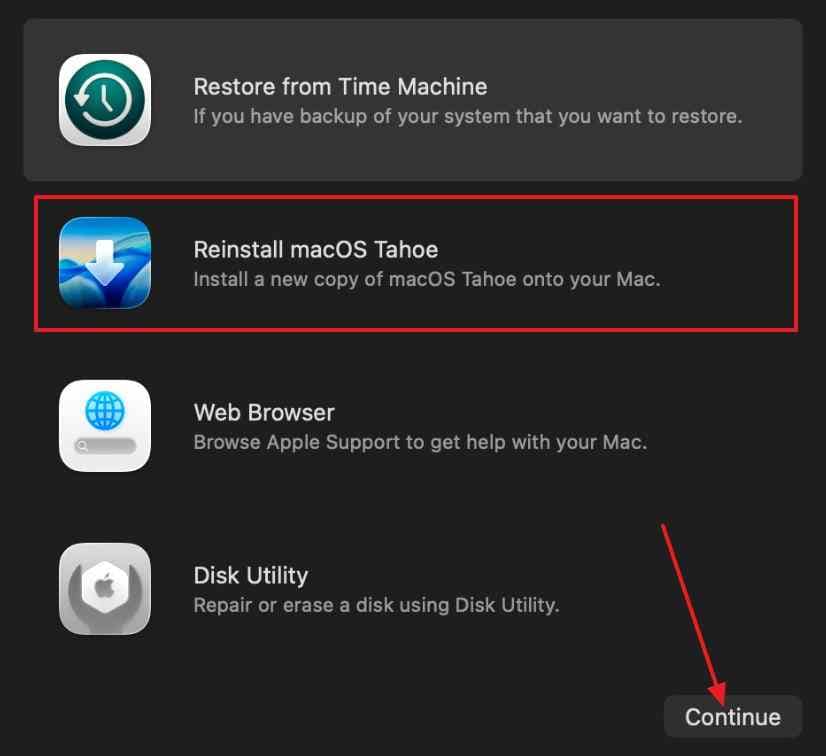
- Quit Disk Utility, choose Reinstall macOS , and follow the prompts. You may need a network connection and, on some models, activation.
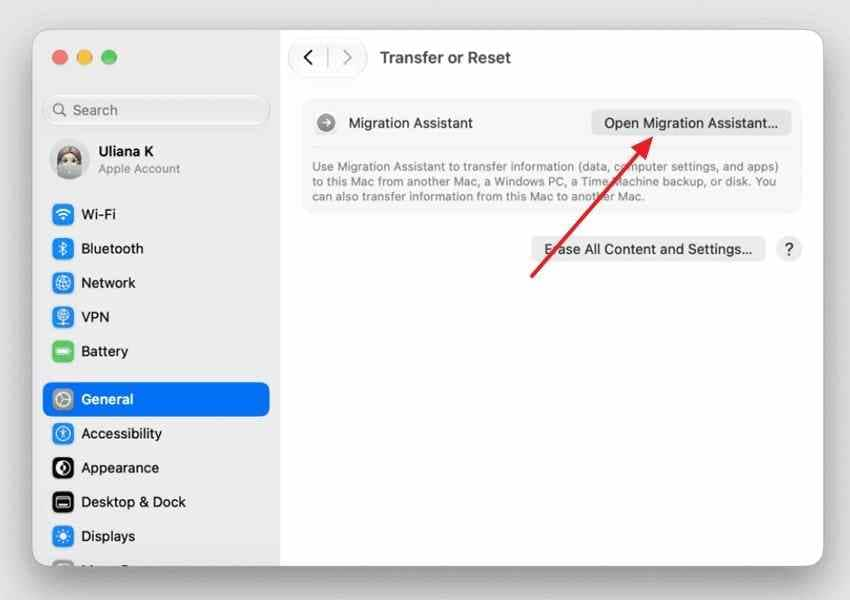
- Once macOS is installed, use Migration Assistant or the appropriate backup restore process to bring back accounts and files from the verified backup. Open important files to confirm that the restore worked.
A normal macOS reinstall without choosing Erase is a different operation and is intended to preserve user data. It may be preferable when file-system checks are clean and the problem is with the operating system, but it should not be mistaken for a fix for failing hardware or unresolved APFS damage. See Apple's reinstall instructions .
Part 4. How to Recover Files Before Repairing Error -69716 Using Wondershare Recoverit
If your files are missing or inaccessible and there is no usable backup, protect them before trying write-based APFS repair or Erase. Wondershare Recoverit for Mac is a file recovery tool, not a Disk Utility repair tool. It may help when the affected Mac storage is detectable and readable enough to scan; success depends on access, encryption, the underlying data, and device condition.
Recover Eligible Files From Detectable Mac Storage
First confirm that you have a working macOS environment in which to run recovery software, and that the source disk is visible. If the Mac cannot boot, use another Mac and an appropriate supported connection or imaging workflow when feasible. Do not install Recoverit onto the same damaged disk that holds the only copy of your files.
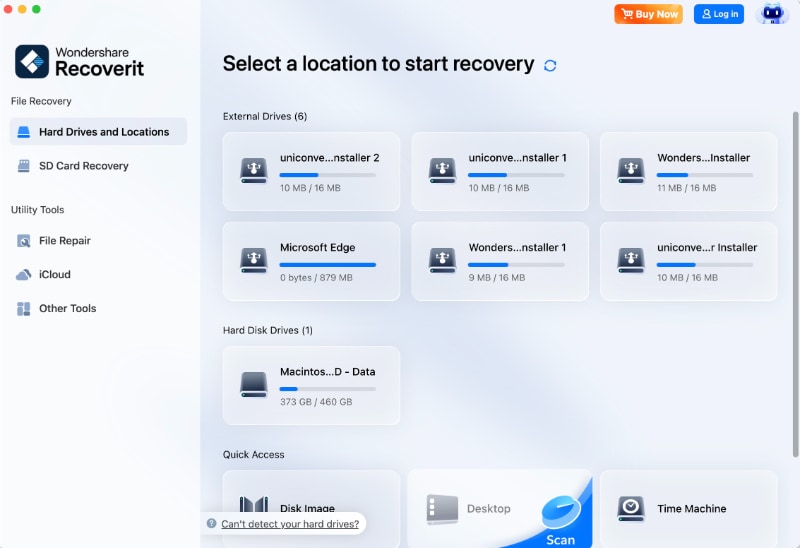
- Select the source: open Recoverit on a working Mac, find the detected drive or available location in the device list, and choose it. If the source does not appear or keeps disconnecting, stop rather than repeatedly scanning it.
- Scan and review: allow the scan to identify available files. Use file-type filters or search to narrow the results. A scan result is not a promise that every item can be restored intact.
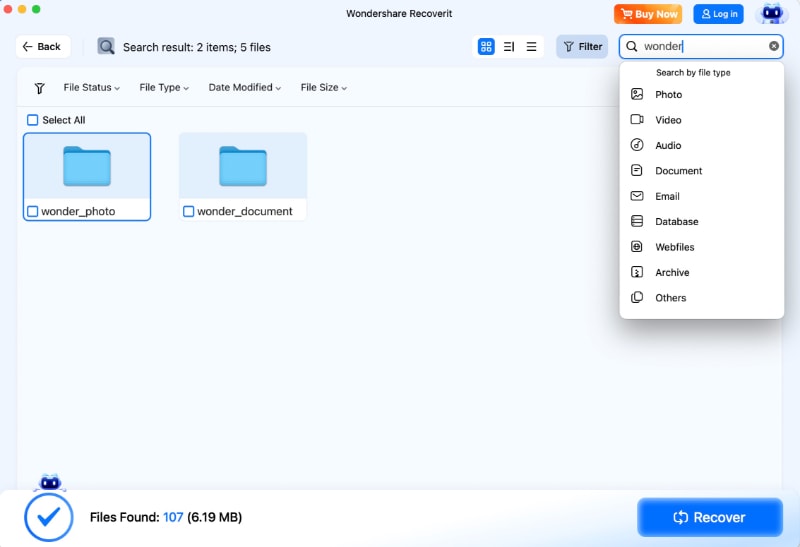
- Preview and save: preview supported files where possible, select the items you need, and choose Recover . Save to a different healthy drive, then open a few recovered files to verify them.

You can compare these steps with the official Recoverit for Mac guide . The free version may allow scanning and limited preview while saving recovered files can require a paid license; review the current license terms before proceeding.
FileVault and Physically Undetectable Drive Limitations
FileVault-protected storage must be unlocked with authorized credentials or a recovery key before ordinary software can read encrypted files. Full Disk Access is a permission setting, not a way around FileVault. Likewise, Recoverit cannot scan a physical device that macOS cannot detect at all or make a failing SSD reliable.
If a drive reports read errors, repeatedly disconnects, overheats, or is absent from both Disk Utility and hardware detection, stop software repair attempts. A professional may assess whether an image or hardware recovery is possible. If the data is already backed up and no files are missing, you do not need to run recovery software merely because Disk Utility shows -69716.
Part 5. What If Storage System Verification Still Fails on Mac?
Persistent -69716 after a carefully chosen repair means you still have an unresolved storage or access problem. The next action depends on the log, drive condition, and backup status; there is no value in repeating the same destructive repair without new evidence.
When APFS Repair Fails Repeatedly
If First Aid reports unrepairable metadata problems, save or photograph its detailed output and stop repeated write-based checks. If the log instead mentions a mounted container, recheck from macOS Recovery after closing access to the volume. If the drive becomes slow, disappears, or shows hardware warnings, prioritize service or recovery assessment.
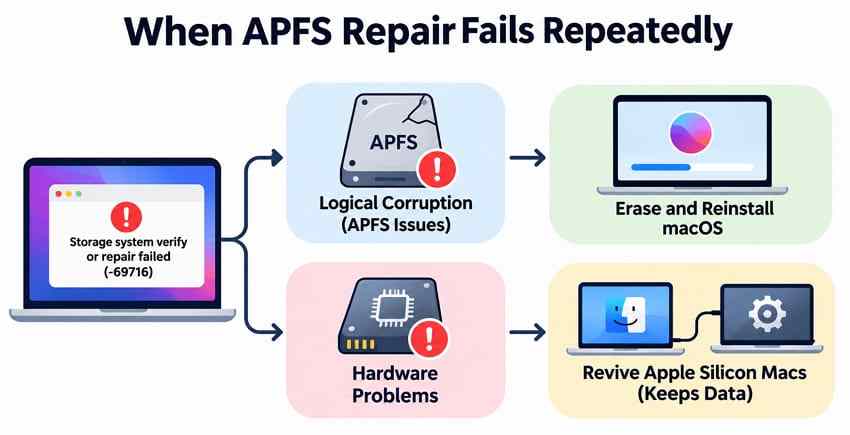
A volume that will not mount can reflect APFS corruption, encryption access problems, or physical failure. Do not treat a single exit code as proof of one cause. Erasing may recreate a usable file system on healthy hardware, but it will destroy data and cannot correct electronics or media failure.
When to Restore Backups or Seek a Professional
If you have a recent Time Machine or other verified backup, restore it after repair or reinstall as needed. Check the backup date first: files created or changed afterward may not be included. If no backup exists and the source is unstable, consult a qualified data recovery provider before another repair, erase, or partition operation.
Apple Diagnostics reference codes, exact Disk Utility log lines, the Mac model, and the drive type will help a service provider understand the failure. If the files have been safely recovered but the hardware still fails verification, replacing the affected device may be safer than attempting further repairs.
Conclusion
Mac error -69716 means a storage verification or repair did not finish, often while checking APFS structures. It does not, on its own, confirm SSD failure. Protect important files first, then check connections, drive health, and the First Aid results. For a startup disk, use macOS Recovery; treat Terminal APFS repairs as an advanced option only after data is safe. Recoverit may help retrieve eligible files from readable storage before destructive changes. Erase and reinstall macOS only when your backup or recovered copy is verified.
FAQ
-
What does error -69716 mean in Mac Disk Utility?
It means macOS could not complete a storage-system verification or repair. Read the detailed First Aid log to determine whether the issue involves APFS metadata, an unmount problem, or another storage condition. The error alone does not establish physical SSD failure. -
Can I fix storage system verify or repair failed without losing data?
Sometimes. First Aid or an APFS check may resolve a logical problem without erasing the drive, but repairs can still alter file-system metadata. Copy or recover important files to a separate device first. If the drive is unstable or the only copy of the data remains inaccessible, stop and seek suitable recovery help. -
Why does Disk Utility First Aid fail with storage system check exit code 8?
Exit code 8 means the storage check was unsuccessful. It can accompany unresolved APFS inconsistencies, but the exact cause is in the preceding log messages. Use Show Details, protect your files, and avoid assuming that every exit code 8 requires erasing the disk. -
Can error -69716 indicate a failing Mac SSD?
Yes, but it is not proof. Repeated read errors, a failing S.M.A.R.T. report, disappearing storage, or storage-related diagnostics make a hardware fault more concerning. A physically failed or undetectable SSD needs service or professional recovery assessment, not repeated file-system repair.


