
 TL;DR:
Resolving a MacBook Pro that won't boot up requires isolating basic power or accessory issues first, followed by accessing macOS Recovery for Disk Utility repairs or a non-destructive macOS reinstallation.
● Startup shortcuts depend on your hardware: press and hold the power button to load options on Apple silicon models, whereas Intel-based models require holding Command-R for macOS Recovery or Shift for Safe Mode.
● Prevent permanent data loss by selecting "Reinstall macOS" in Recovery rather than formatting the APFS volume or choosing "Erase Mac" as a first response.
● If the internal storage is readable but unbootable, Wondershare Recoverit can extract missing files when operated from a separate working Mac and saved to an external drive, though it cannot fix the physical hardware or macOS errors causing the boot failure.
Ask AI for a summary
 ChatGPT
 Perplexity
 Gemini
 Claude
 Grok
Grok
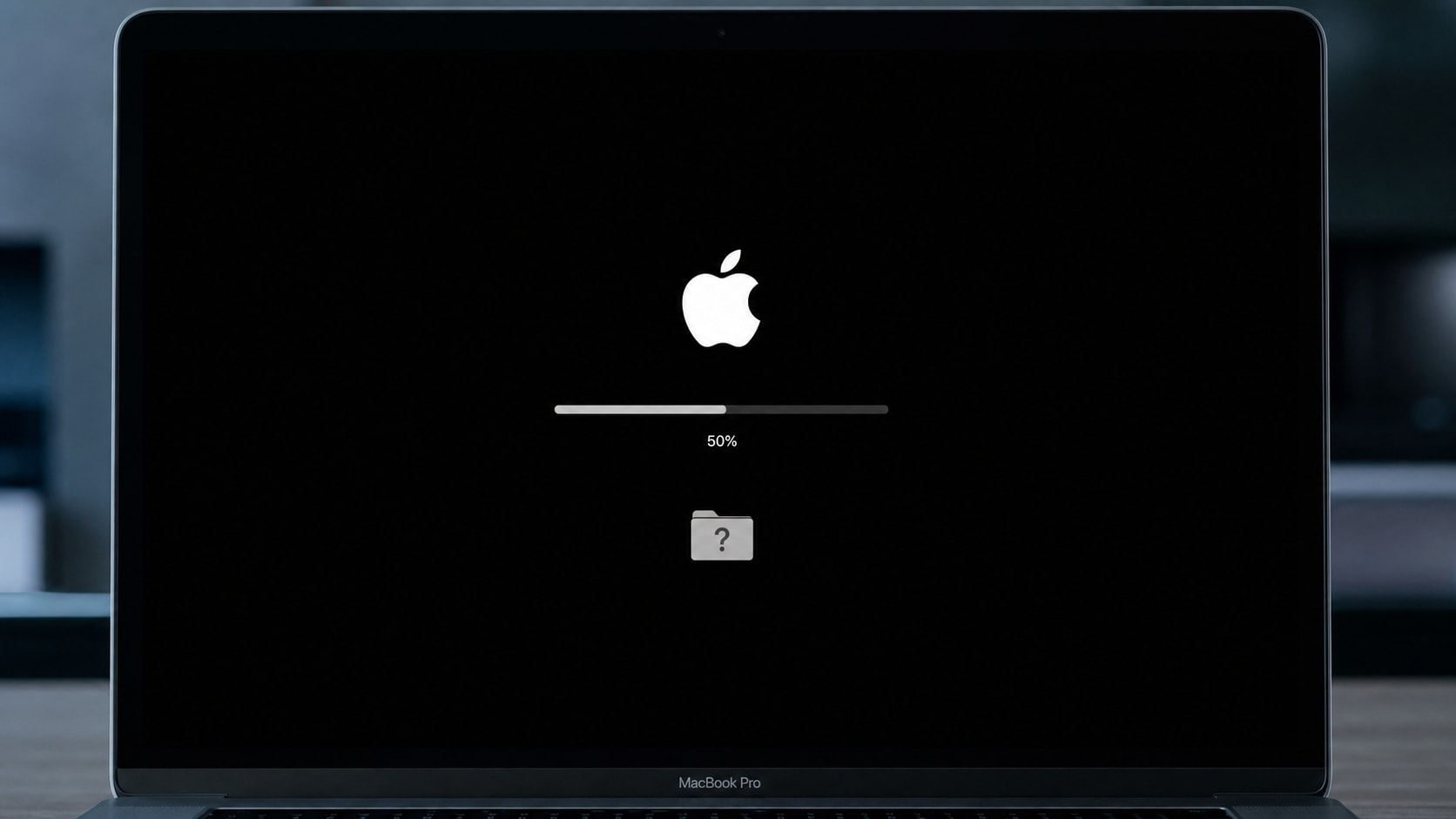
mac book pro wont boot up problems can mean different things: the Mac may have no power, show a blank screen, stop at the Apple logo, or display a question mark folder. The safest approach is to identify the symptom first, protect important files, and then try low-risk startup fixes before repairing, reinstalling, or erasing macOS.
When a MacBook Pro will not start normally, the cause may be a power connection, a connected accessory, a display problem, an interrupted macOS update, a startup-disk error, or a hardware issue. Apple silicon MacBook Pro models and Intel-based models also use different startup procedures.
This guide explains how to troubleshoot a MacBook Pro that will not turn on, remains on a black screen, freezes during startup, or cannot find its startup disk. If files become inaccessible after a forced shutdown, disk repair, macOS reinstall, or accidental erasure, Recoverit can help scan readable Mac storage for missing data.
Try Recoverit to Perform Data Recovery
 Security Verified. 3,591,664 people have downloaded it.
In this article
Part 1. What Does "mac book pro wont boot up" Mean?
The phrase mac book pro wont boot up can describe several different startup states. Identifying what appears on the screen, and whether the Mac produces sound or responds to the keyboard, helps you choose the next step.
| What you see | What it may indicate | Best first check |
|---|---|---|
| No screen, fan, sound, or charging response | Power adapter, outlet, battery, or hardware problem | Check power connections and press the power button for about 10 seconds |
| Apple logo or progress bar stops | macOS loading issue, startup-disk error, or interrupted update | Try Safe Mode or macOS Recovery |
| Flashing question mark folder | The Mac cannot find a valid startup disk | Open Recovery and check the startup disk |
| Black, gray, or blue blank screen while the Mac seems active | Display output, startup software, or macOS loading issue | Disconnect displays and accessories, then try Recovery |
| Recovery or Disk Utility cannot see the internal storage | Storage, firmware, connection, or hardware problem | Stop repeated repair attempts and consider data recovery or service |
Apple silicon and Intel MacBook Pro models do not use identical startup shortcuts. Apple silicon models use the power button to load startup options, while Intel models commonly use keys such as Command-R, Shift, D, or other model-specific combinations.
Part 2. Protect Your Data Before Trying Fixes
A Mac that fails to boot does not automatically mean that its files are deleted. However, reinstalling macOS, erasing a disk, repeated repair attempts, replacing storage, or sending the computer for service can create additional data-loss risks.
If the MacBook Pro cannot start at all, avoid installing new software or saving files to the affected storage. When possible, use another working Mac and a separate external drive for recovery. If the internal storage is not detected, repeated software scans may not be appropriate and professional service may be required.
Part 3. How to Fix a MacBook Pro That Will Not Boot
Follow these fixes in order. The first checks address power and accessories. More advanced operations, such as First Aid and macOS reinstall, should come later because they interact with the startup disk.
Fix 1. Check the Power Adapter and Outlet
If the MacBook Pro shows no sign of life, begin with the power connection. Apple recommends checking that the cable and adapter are undamaged and securely connected to the Mac and a working electrical outlet.
- Connect the MacBook Pro directly to a known-working outlet.
- Check the charging cable, adapter, and ports for visible damage or debris.
- Try another compatible power adapter or cable if one is available.
- Leave the Mac connected to power for several minutes, then try starting it again.
If there is still no charging response, the problem may involve the battery, charging hardware, logic board, or another component. Recoverit cannot diagnose or repair these hardware problems.
Fix 2. Press and Hold the Power Button
A stalled power state can prevent a normal startup. On a MacBook Pro with Touch ID, the Touch ID button also functions as the power button.
- Press and hold the power button or Touch ID for about 10 seconds.
- Release the button and wait a few seconds.
- Press and release the power button normally.
This action forces the Mac to turn off before a new startup attempt. Any unsaved work may be lost, so use it only when the Mac does not respond to normal shutdown or restart controls.
Fix 3. Disconnect External Accessories
A USB hub, external drive, dock, printer, phone, or incompatible cable can interfere with startup. Disconnect all nonessential accessories and try again.
- Unplug external drives, USB hubs, docks, printers, phones, and adapters.
- Leave only the power connection and the built-in keyboard and display connected.
- Press and hold the power button for about 10 seconds, then start the Mac normally.
- Reconnect accessories one at a time after the Mac starts successfully.
If the Mac starts after one accessory is removed, test that accessory separately. An external drive that is failing may also need data recovery before further use.
Fix 4. Check Whether the Screen Is Blank
Sometimes the Mac is running but the built-in display remains blank. Listen for startup sounds, check whether the keyboard responds, and disconnect any external display or dock. If the issue occurs only on an external monitor, test a different cable, adapter, port, or display.
If the Mac appears to be active but shows a black, gray, or blue screen, continue with Safe Mode or macOS Recovery. Apple notes that a blank screen during startup can be related to software and startup-disk problems, but a persistent issue may also require service.
Fix 5. Start the MacBook Pro in Safe Mode
Safe Mode can help determine whether startup software, login items, extensions, or caches are interfering with a normal boot.
For a MacBook Pro with Apple silicon:
- Shut down the Mac.
- Press and hold the power button until startup options appear.
- Select the startup disk.
- Hold the Shift key, then click Continue in Safe Mode.
For an Intel-based MacBook Pro:
- Shut down or restart the Mac.
- Immediately press and hold the Shift key.
- Release the key when the login window appears.
If the Mac starts in Safe Mode, restart it normally. Then review recently installed login items, system extensions, display utilities, and security software. Do not delete unfamiliar folders before backing up important files.
Fix 6. Start macOS Recovery
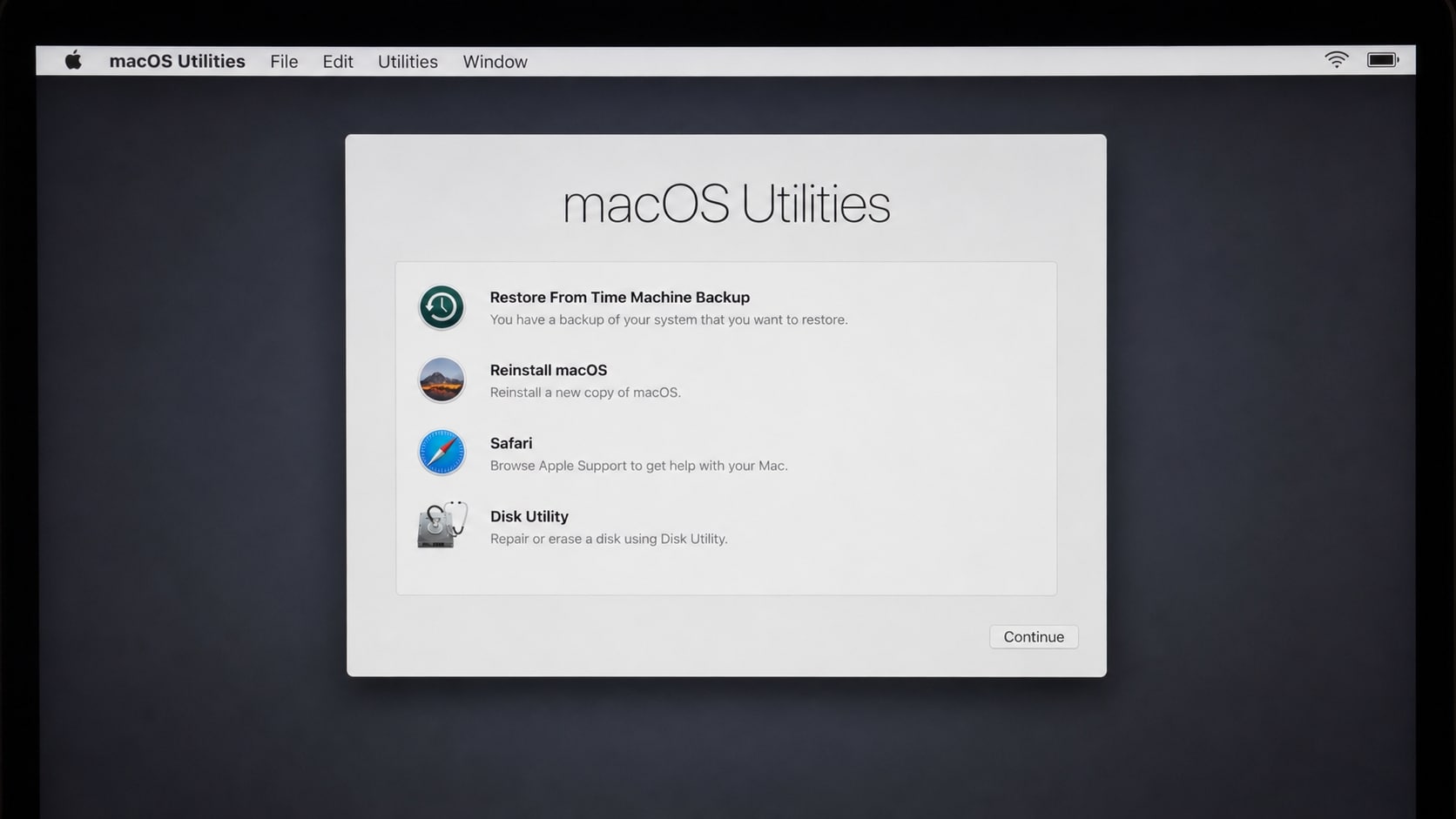
macOS Recovery provides access to Disk Utility, macOS reinstall tools, Terminal, and other startup utilities. Use the procedure that matches your Mac.
For Apple silicon: Shut down the Mac, then press and hold the power button until you see Loading startup options or the Options icon. Select Options and click Continue.
For Intel: Turn on the Mac and immediately press and hold Command & R until you see the Apple logo or a spinning globe. If prompted, select a network, startup volume, or user account.
For the complete startup process, see Apple's instructions for starting up from macOS Recovery. If Recovery will not load, the issue may involve the startup disk, firmware, network, or hardware.
Fix 7. Run Disk Utility First Aid
If macOS Recovery opens, use Disk Utility to check the formatting and directory structure of the startup disk. First Aid may help with disk-structure errors, but it is not a complete data recovery tool.
- Open Disk Utility from the macOS Recovery utilities window.
- Choose View > Show All Devices if the option is available.
- Select the last volume listed under the internal storage device.
- Click First Aid and choose Run.
- Continue upward through the volumes, container, and physical device as appropriate.
- Quit Disk Utility and restart the Mac.
Apple recommends having a current backup before using Disk Utility. If First Aid cannot repair the disk or the storage device is not visible, do not repeatedly run destructive operations. Recover important files first when possible.
Fix 8. Select the Correct Startup Disk
A flashing question mark usually means that the Mac cannot find a valid startup disk. If the internal disk appears in Recovery, check that the expected macOS volume, often named Macintosh HD, is selected as the startup disk.
- Start macOS Recovery.
- Open the startup-disk selection utility or Startup Disk settings.
- Select the internal macOS volume.
- Restart the Mac and check whether it loads normally.
If the startup volume is missing from the list, the problem may be more serious than an incorrect selection. Do not erase the disk simply because it is not booting.
Fix 9. Reinstall macOS Without Erasing the Disk
If the Mac can open Recovery but still will not boot, reinstalling macOS may replace damaged system files. This is different from erasing the Mac, but important files should still be backed up or recovered first.
- Start macOS Recovery.
- Choose Reinstall macOS.
- Select the existing startup disk when prompted.
- Keep the Mac connected to power and follow the onscreen instructions.
- Wait for the installation to finish before testing startup again.
Fix 10. Run Apple Diagnostics and Review Older Intel Options
Apple Diagnostics can help identify certain hardware components when the Mac does not boot normally. It does not repair the problem, but its reference code can help you decide whether service is needed.
For Apple silicon: Press and hold the power button until startup options appear, then hold Command & D until the diagnostic process begins.
For Intel: Turn on the Mac and immediately hold the D key. If that does not work, try Option & D.
Record any reference code shown at the end of the test. See Apple Diagnostics instructions or provide the code to an Apple Store or authorized service provider.
Older Intel note: Some Intel-based MacBook Pro models may benefit from an SMC or NVRAM reset. These procedures do not apply in the same way to Apple silicon Macs, and the exact SMC steps vary by model.
Use Apple's current model-specific instructions before attempting an SMC reset. If you are considering an NVRAM reset, make sure you understand which startup settings may be changed and confirm that important data is backed up. If the Mac still cannot open Recovery or Diagnostics, stop escalating software resets and consider professional service.
Pro Tip. Recover Inaccessible Mac Files with Recoverit
If your mac book pro wont boot up after a crash, failed update, disk error, or accidental erasure, the files may still exist on readable storage even though macOS cannot start normally. Recoverit can help scan supported internal or external storage for deleted, lost, or inaccessible documents, photos, videos, and other files.
Recoverit does not fix the MacBook Pro power problem, repair macOS, repair a display, or guarantee recovery from every unbootable Mac. Its role is to help recover files before you erase, reinstall, replace the drive, or send the computer for service. Recovery depends on whether the storage is detected, whether data has been overwritten, the condition of the drive, and whether encryption prevents access.
Key Features
- Recovery for Common Mac Data-Loss Situations: Recoverit can help scan for files lost through accidental deletion, formatting, system crashes, failed troubleshooting, or other supported data-loss scenarios.
- Support for Multiple Storage Devices: It can scan supported internal and external Mac storage, HDDs, SSDs, USB drives, SD cards, and other compatible devices.
- File Filtering and Preview: After scanning, you can filter results by file type, location, or filename and preview available files before saving them.
Guide to Recover Your MacBook Pro Files with Recoverit
Use a separate working computer and destination drive when the affected MacBook Pro cannot start normally.
Step 1. Select the Storage Location
Launch Recoverit on a working Mac and select the readable internal drive or connected external storage where the missing files were stored. If the Mac's internal storage is not detected, stop using it and consider professional recovery support.

Step 2. Scan for Missing Files
Start the scan and wait for Recoverit to search the selected location. Use file-type and location filters to narrow the results. A deep scan may take longer on a large or unstable drive.

Step 3. Preview and Save the Recovered Files
Preview files when the option is available, select the data you need, and click Recover. Save the recovered files to an external drive or another safe location, not back to the affected startup disk.

Conclusion
When a mac book pro wont boot up, first check the power connection, hold the power button, disconnect accessories, and determine whether the Mac is actually running behind a blank screen. Then try Safe Mode, macOS Recovery, Disk Utility First Aid, the correct startup disk, and a macOS reinstall without erasing the drive.
If the Mac cannot boot and important files are missing or inaccessible, protect the storage before making more changes. Recoverit can help scan readable Mac storage for lost files, but it cannot repair the underlying hardware or macOS startup problem. Save recovered files to another drive and seek service if the internal storage is not detected.
FAQ
-
What should I do when my mac book pro wont boot up?
Check the power adapter and outlet, press and hold the power button for about 10 seconds, disconnect accessories, and try Safe Mode or macOS Recovery. Avoid erasing the startup disk until important files are backed up or recovered. -
Why is my MacBook Pro stuck on the Apple logo or progress bar?
The cause may be a macOS loading problem, interrupted update, startup-disk error, or incompatible software. Start in Safe Mode or Recovery, then run Disk Utility First Aid before considering a reinstall. -
Will reinstalling macOS erase my MacBook Pro files?
Reinstalling macOS from Recovery is different from erasing the disk, but you should still back up or recover important files first. Do not choose Erase Mac or format the startup volume unless you have a usable backup. -
Can Recoverit fix a MacBook Pro that will not boot?
No. Recoverit is a data recovery tool, not a macOS, display, battery, or hardware repair utility. It can help recover missing files from supported readable storage before or after troubleshooting. -
What if Disk Utility cannot see my MacBook Pro startup disk?
Check the power and accessory connections, then try Recovery again. If the internal storage remains missing, avoid repeated repair or erase attempts and consider professional service or data recovery support. -
Where should I save files recovered from a MacBook Pro?
Save them to a separate external drive or another safe destination. Saving recovered files back to the affected startup disk may overwrite data that is still recoverable.



