
 TL;DR:
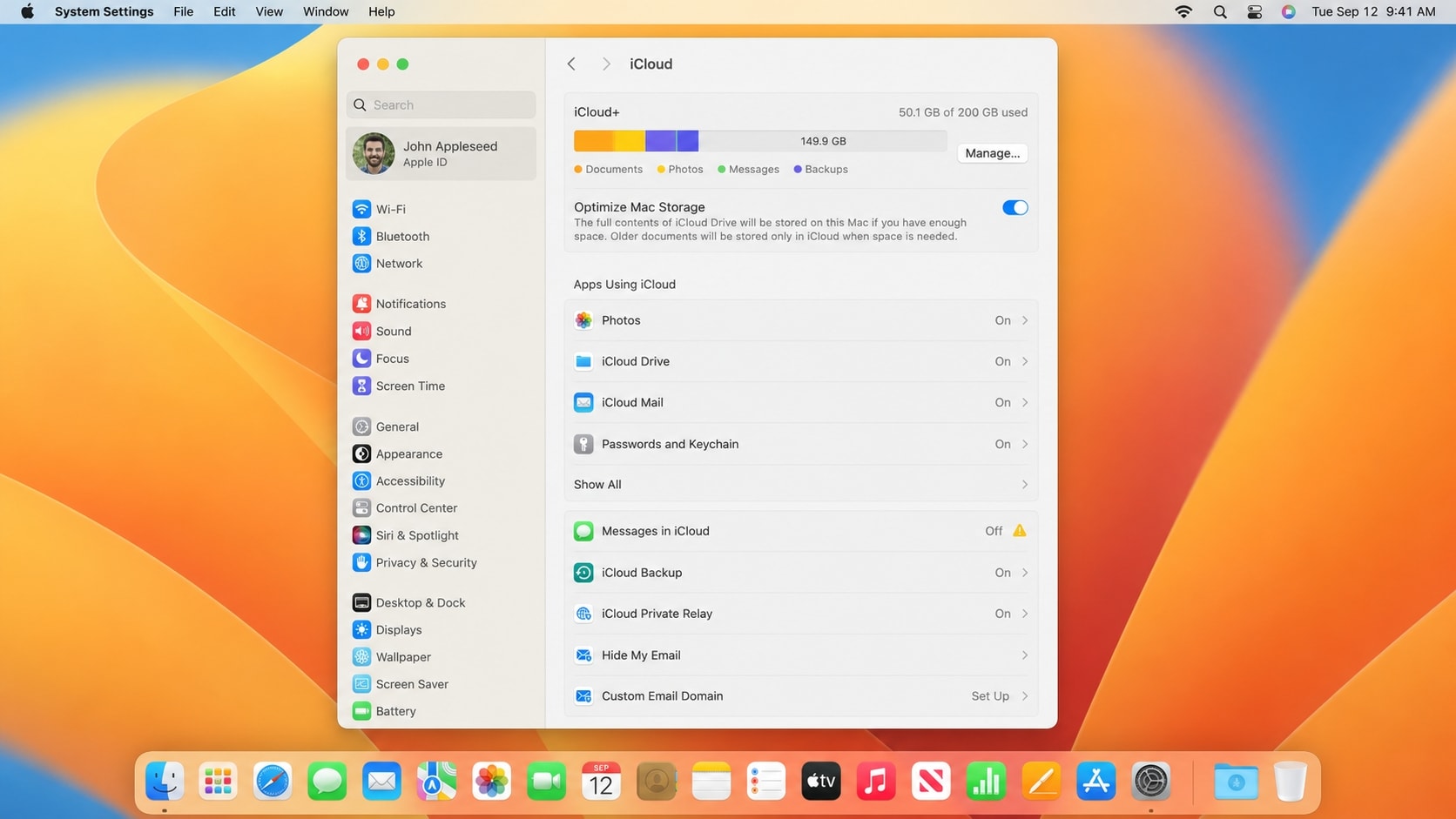
To fix messages not syncing between a Mac and an iPhone, enable "Messages in iCloud" using the identical Apple Account for blue iMessages, and turn on "Text Message Forwarding" on the iPhone for green SMS, MMS, or RCS texts.
● To prevent conversations from splitting into separate threads, ensure the exact same phone number and email address are selected under the "Send & Receive" and "Start new conversations from" settings on both devices.
● The initial message synchronization requires both devices to stay online and demands sufficient iCloud storage space; the process will stall if your iCloud storage is full.
● If local files are lost during troubleshooting, Recoverit can scan readable Mac storage for deleted attachments, but it strictly cannot restore iCloud conversation history, force synchronization, or bypass iMessage encryption.
Ask AI for a summary
 ChatGPT
 Perplexity
 Gemini
 Claude
 Grok
Grok
If the message on mac not syncing with iphone, first check whether the missing conversation is an iMessage or a green-bubble SMS, MMS, or RCS message. iMessages use Apple Account and Messages in iCloud, while SMS, MMS, and RCS messages need Text Message Forwarding from the iPhone.
The imessage on mac not syncing with iphone problem is usually caused by a different Apple Account, Messages in iCloud being disabled, mismatched Send & Receive addresses, iMessage activation trouble, an internet or Apple service issue, or a sync delay after setting up a device. If you see imessage not syncing on mac and iphone, use the fixes below in order. They also cover the broader imessage not syncing problem after an update or new-device setup.
This guide focuses on restoring synchronization without deleting conversations. If local files or downloaded attachments become missing after a reset, reinstall, accidental deletion, or storage problem, Recoverit may help recover them from readable Mac storage. It is not an iMessage or cloud-message recovery tool.
Try Recoverit to Perform Data Recovery
 Security Verified. 3,591,664 people have downloaded it.
In this article
Part 1. Why Is iMessage Not Syncing Between Mac and iPhone?
The fix depends on what is missing. A conversation that appears on the iPhone but not on the Mac may have a different cause from a green-bubble text.
| What you see | Likely cause | Best first check |
|---|---|---|
| New blue-bubble iMessages appear on iPhone but not Mac | Messages in iCloud is disabled, or the devices use different Apple Accounts | Compare the Apple Account and enable Messages in iCloud |
| Some conversations appear as separate threads | The phone number and email address are not selected consistently | Check Send & Receive on both devices |
| Mac receives iMessages but not green-bubble texts | Text Message Forwarding is disabled | Turn on forwarding for the Mac on the iPhone |
| Messages appear after a long delay | Initial iCloud sync, weak internet, low iCloud storage, or outdated software | Keep both devices online, update them, and check iCloud storage |
| Mac shows an activation or sign-in error | Network, date and time, VPN, security software, or Apple service issue | Check Apple System Status and iMessage settings |
| Messages are present but alerts are missing | Notifications are disabled or a Focus mode is active | Check Notifications and Focus settings separately |
Messages in iCloud requires the same Apple Account, two-factor authentication, and iCloud Keychain on each device. See Apple's iCloud Messages setup guide for the current requirements. The first sync can take time, and messages plus attachments count toward iCloud storage.
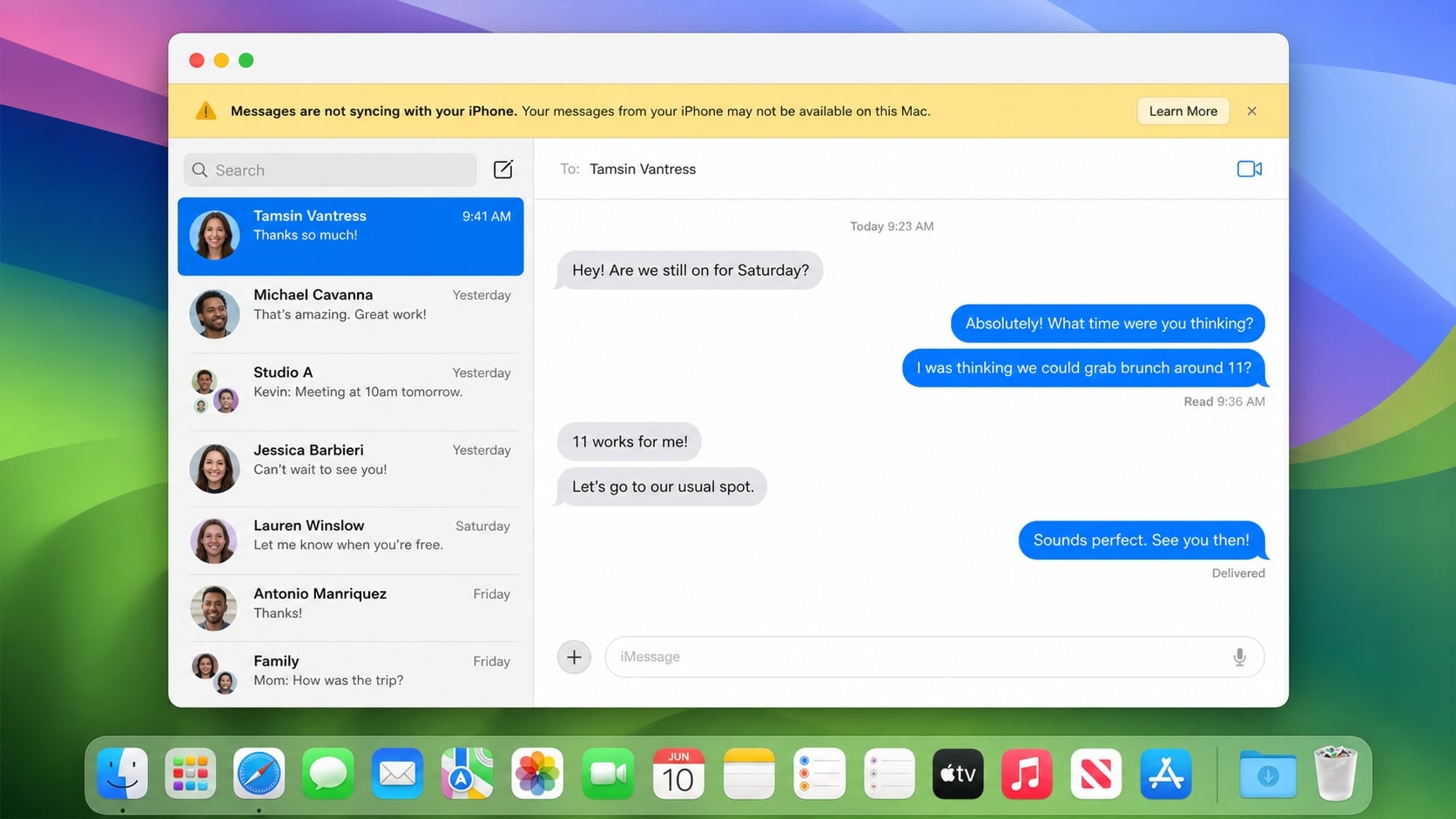
Part 2. How to Fix Message on Mac Not Syncing with iPhone
Try these fixes from the least disruptive to the more advanced. Avoid deleting local Messages folders or signing out of every Apple service before checking that important data is backed up or available in iCloud.
Fix 1. Check Apple System Status and Your Internet Connection
An iMessage or iCloud service interruption can look like a device-specific sync problem. Check Apple's System Status page for iMessage and iCloud Account & Sign In.
Then test a website on both devices. Connect the Mac and iPhone to a reliable network, turn off Airplane Mode on the iPhone, and temporarily disconnect a VPN or network filter if you manage one. If only one device is offline, fix that connection first.
Fix 2. Confirm the Same Apple Account Is Used on Both Devices
Messages in iCloud cannot keep conversations current when the Mac and iPhone use different Apple Accounts.
On the iPhone:
- Open Settings and tap your name at the top.
- Note the Apple Account email address.
On the Mac:
- Open the Apple menu and choose System Settings.
- Click your name in the sidebar.
- Compare the account shown with the one on the iPhone.
- Open Messages > Settings > iMessage and confirm that Messages is signed in to the same account.
Do not sign out of iCloud as a first step. If an account mismatch is found, confirm important content is available before changing accounts.
Fix 3. Turn On Messages in iCloud on the iPhone
On current iOS versions, use the following path:
- Open Settings and tap your name.
- Tap iCloud, then See All if necessary.
- Tap Messages in iCloud.
- Turn on Use on this iPhone or Sync this iPhone.
The wording can vary by iOS version. After enabling the option, keep the iPhone connected to the internet and power while iCloud updates the message history.
Fix 4. Enable Messages in iCloud on the Mac
The Mac must also be allowed to use Messages in iCloud.
- Open the Messages app on the Mac.
- Choose Messages > Settings from the menu bar.
- Click iMessage.
- Select Enable Messages in iCloud.
- Confirm that the email addresses and phone numbers under You can be reached for messages at are correct.
Open Messages again after a short wait. The first synchronization may take time, especially when the conversation history contains many photos, videos, or other attachments.
Fix 5. Check Send & Receive and Start New Conversations From
When the phone number is selected on one device but only an email address is selected on the other, messages can appear in separate conversation threads or seem to be missing.
On the iPhone:
- Open Settings > Apps > Messages.
- Tap Send & Receive.
- Confirm that the correct Apple Account is shown.
- Select the phone number and email addresses you want to use.
On the Mac:
- Open Messages > Settings > iMessage.
- Select the same reachable addresses.
- Check the Start new conversations from menu.
- Choose the same phone number or email address used on the iPhone.
This may not merge every old thread instantly, but it prevents new conversations from using inconsistent addresses.
Fix 6. Turn On Text Message Forwarding for Green Messages
If blue iMessages sync but green messages do not, the missing content may be SMS, MMS, or RCS rather than iMessage. These messages are forwarded from the iPhone to the Mac.
- On the iPhone, open Settings > Apps > Messages.
- Turn on iMessage if it is off.
- Tap Text Message Forwarding.
- Turn on the switch next to your Mac.
- If the Mac is not listed, confirm that both devices use the same Apple Account and that Messages is signed in on the Mac.
Text Message Forwarding availability can depend on the carrier or region, and green messages do not follow the same iCloud path as blue iMessages.
Fix 7. Restart Both Devices and Install Available Updates
Temporary activation or background-process issues can interrupt synchronization. Restart both devices and check for updates.
- Restart the iPhone and Mac normally.
- On the iPhone, open Settings > General > Software Update.
- On the Mac, open Apple menu > System Settings > General > Software Update.
- Install updates from Apple when available.
- Check that Date & Time is set automatically on both devices.
Keep both devices online during the first sync. Do not force a shutdown during an update.
Fix 8. Check iCloud Storage and Device Storage
Messages in iCloud stores message history and attachments in iCloud. Check iCloud storage on the iPhone under Settings > your name > iCloud, and check the Mac under Apple menu > System Settings > your name > iCloud.
If iCloud storage is full, manage unnecessary backups, photos, files, or other content before syncing a large message history. Also make sure the Mac has enough free space for attachments.
Do not delete conversations simply to create space. With Messages in iCloud active, deleting a message can update it across devices.
Fix 9. Sign Out of iMessage on the Mac and Sign In Again
If the Apple Account and iCloud settings are correct but the Mac still shows an activation or sync error, refresh the Mac's iMessage session.
- Open Messages on the Mac.
- Choose Messages > Settings > iMessage.
- Click Sign Out.
- Restart the Mac.
- Open Messages and sign in with the same Apple Account.
- Recheck Enable Messages in iCloud and the reachable addresses.
If the iPhone also cannot send or receive iMessages, turn iMessage off and on again in Settings > Apps > Messages, then check Send & Receive. Avoid signing out of every Apple service.
Fix 10. Review VPN, Security, Focus, and Notification Settings
Some imessage not syncing reports are notification or network-filter problems. A VPN, firewall, content filter, or security extension can affect activation, while Focus settings can hide messages.
- Temporarily disconnect a VPN or network filter that you recognize.
- Test Messages on another trusted network.
- On the iPhone, open Settings > Notifications > Messages and allow notifications.
- Check whether a Focus mode or scheduled summary is delaying alerts.
- On the Mac, open System Settings > Notifications > Messages and review alerts.
Turn security protection back on after testing. If the Mac receives the conversation when the filter is disabled, update or reconfigure the responsible software instead of leaving it off.
Part 3. Protect Local Files Before Resetting Messages or macOS
The steps above normally do not delete personal files. However, removing local Messages data, signing out of iCloud, resetting the Mac, reinstalling macOS, or erasing the startup disk can create a separate data-loss problem.
Before taking a destructive step:
- Back up important documents, photos, videos, and downloads to another drive.
- Check that important iCloud content is available on another device or through iCloud.
- Do not delete the
~/Library/Messagesfolder as a first-line fix. - Do not erase the Mac or reinstall macOS until local files are backed up or recovered.
- If a Mac is going to service, protect local files before handing it over.
Recoverit is not designed to recover iCloud message history, bypass iMessage encryption, or restore an Apple Account. Its use case is recovering local files or attachments that later became missing after troubleshooting.
Pro Tip. Recover Local Files After iMessage Troubleshooting with Recoverit
If message on mac not syncing with iphone leads to a reset, reinstall, accidental deletion, or external-drive problem, Recoverit can help scan supported readable storage for missing documents, photos, videos, downloads, and other local files.
Recoverit does not repair iMessage, force iCloud synchronization, recover cloud conversation history, or guarantee recovery. It can help protect data before erasing a Mac, replacing storage, or sending it for service. Recovery depends on storage detection, overwriting, drive condition, and encryption.
Key Features
- Recovery for Common Data-Loss Situations: Scan for files lost through accidental deletion, formatting, system crashes, failed troubleshooting, or other supported scenarios.
- Support for Mac Storage: Scan supported internal volumes, external drives, HDDs, SSDs, USB drives, SD cards, and other compatible storage devices.
- Filtering and Preview: Filter results by file type, location, or filename and preview available files before saving them.
How to Recover Missing Local Mac Files
Step 1. Select the Storage Location
Install Recoverit on a working Mac or another supported computer. Select the readable Mac volume or connected external drive where local files were stored.

Step 2. Scan for Missing Data
Start the scan and filter results by file type, folder, or filename. A large or unstable drive may take longer.

Step 3. Preview and Save the Files
Preview available results, select the files you need, and recover them to an external drive or another safe location.

Do not save recovered files back to the source disk. If the storage is not detected, shows physical failure signs, or is protected by encryption that you cannot unlock, stop using it and consider professional recovery support.
Conclusion
When a message on mac not syncing with iphone, start by checking whether the missing conversation is blue-bubble iMessage or green-bubble SMS, MMS, or RCS. Then confirm the same Apple Account, enable Messages in iCloud on both devices, match Send & Receive settings, and turn on Text Message Forwarding for green messages.
If imessage on mac not syncing with iphone continues, restart and update both devices, check iCloud storage, refresh the Mac iMessage session, and review VPN, Focus, and notification settings. These steps also address imessage not syncing on mac and iphone after a new-device setup or software update.
Before deleting local message data, resetting macOS, or erasing the Mac, back up important files. Recoverit can help recover missing local files from readable Mac storage, but it is not a tool for restoring iCloud message history or repairing iMessage synchronization.
FAQ
FAQ
-
Why is the message on mac not syncing with iphone?
Common causes are different Apple Accounts, disabled Messages in iCloud, mismatched Send & Receive addresses, activation errors, or a delayed first sync. Check both devices before deleting local data. -
Why is imessage on mac not syncing with iphone but new messages work on the iPhone?
The Mac may not use Messages in iCloud or may use a different Apple Account. Open Messages > Settings > iMessage, confirm the account, and enable Messages in iCloud. -
What should I do when imessage not syncing on mac and iphone after setting up a new device?
Update both devices, confirm the same Apple Account, turn on Messages in iCloud, and review Send & Receive. Keep them online while the history loads. -
Why are green messages missing from my Mac but blue iMessages appear?
Green messages are usually SMS, MMS, or RCS. On the iPhone, open Settings > Apps > Messages > Text Message Forwarding and turn on your Mac. Availability may depend on your carrier or region. -
Can Recoverit recover iMessage conversations that are not syncing?
No. Recoverit cannot bypass iMessage encryption or restore cloud conversation history. It may help recover separate local files or attachments deleted from readable Mac storage. -
Where should I save files recovered from my Mac?
Save them to an external drive or another safe destination, not the source Mac volume, to reduce overwriting risk.



