 TL;DR:
To fix volume issues on a Mac, immediately select the built-in Mac speakers in System Settings > Sound > Output and disconnect all external audio peripherals, as a greyed-out volume slider confirms a connected digital or external device is overriding native audio controls.
● If the built-in speakers are selected but the Mac remains silent, open Activity Monitor and force quit the coreaudiod process to instantly refresh the frozen macOS audio service.
● For persistent configuration failures, reset the NVRAM using the Option-Command-P-R startup combination exclusively on supported Intel-based Macs, or run Apple Diagnostics to check for hardware faults by holding the D key on Intel models or the power button on Apple silicon Macs.
● Do not use Recoverit to attempt sound hardware repairs or audio driver reinstalls; it functions strictly as a data recovery scanner for readable Mac storage if aggressive troubleshooting or a macOS reset results in missing files.
Ask AI for a summary
 ChatGPT
 Perplexity
 Gemini
 Claude
 Grok
Grok
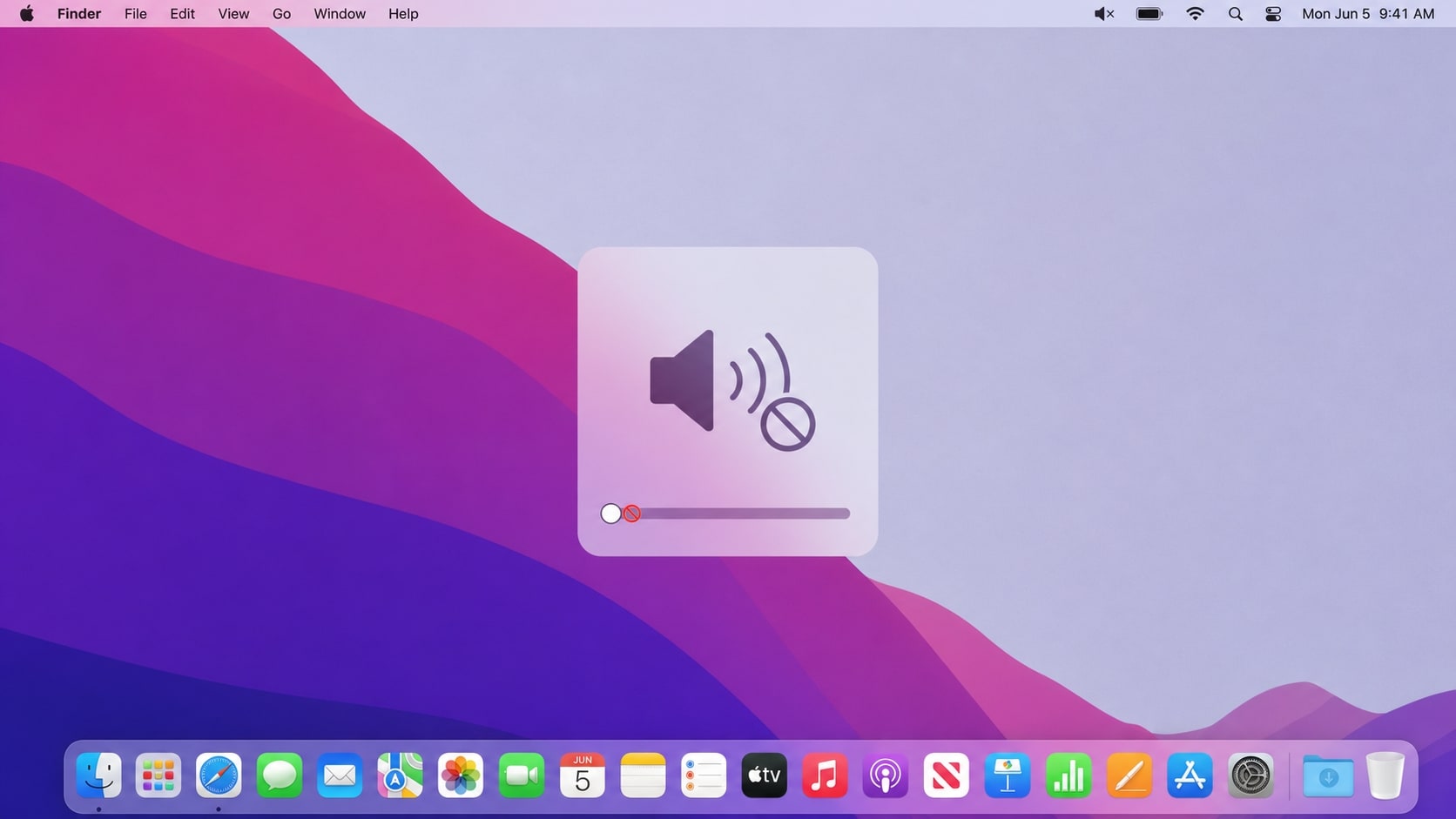
If the volume not working on mac, first check whether the problem is no sound, an unresponsive volume key, a greyed-out volume slider, or sound playing through the wrong device. These symptoms often come from a muted app, the wrong output device, connected headphones or HDMI equipment, a temporary macOS audio process, or an issue with the speakers.
This guide explains how to fix volume not working on mac problems safely. You will learn how to select the correct output, disconnect external audio devices, check Audio MIDI Setup, restart the audio service, use Safe Mode, and decide when Apple Diagnostics or service is more appropriate.
If troubleshooting causes local audio recordings, videos, music, or other files to go missing, Recoverit may help recover them from readable Mac storage. It does not repair sound hardware, macOS audio services, or volume settings.
Try Recoverit to Perform Data Recovery
 Security Verified. 3,591,664 people have downloaded it.
In this article
Part 1. What Does "volume not working on mac" Mean?
The symptom can help identify whether the problem is an app setting, an output selection, an audio service, or a hardware-related issue.
| Symptom | Likely cause | Best first check |
|---|---|---|
| No sound from any app | Muted output, wrong device, or audio service problem | Open System Settings > Sound > Output |
| Volume keys do nothing | Keyboard setting, function-key mode, or selected digital output | Test the slider in Sound settings |
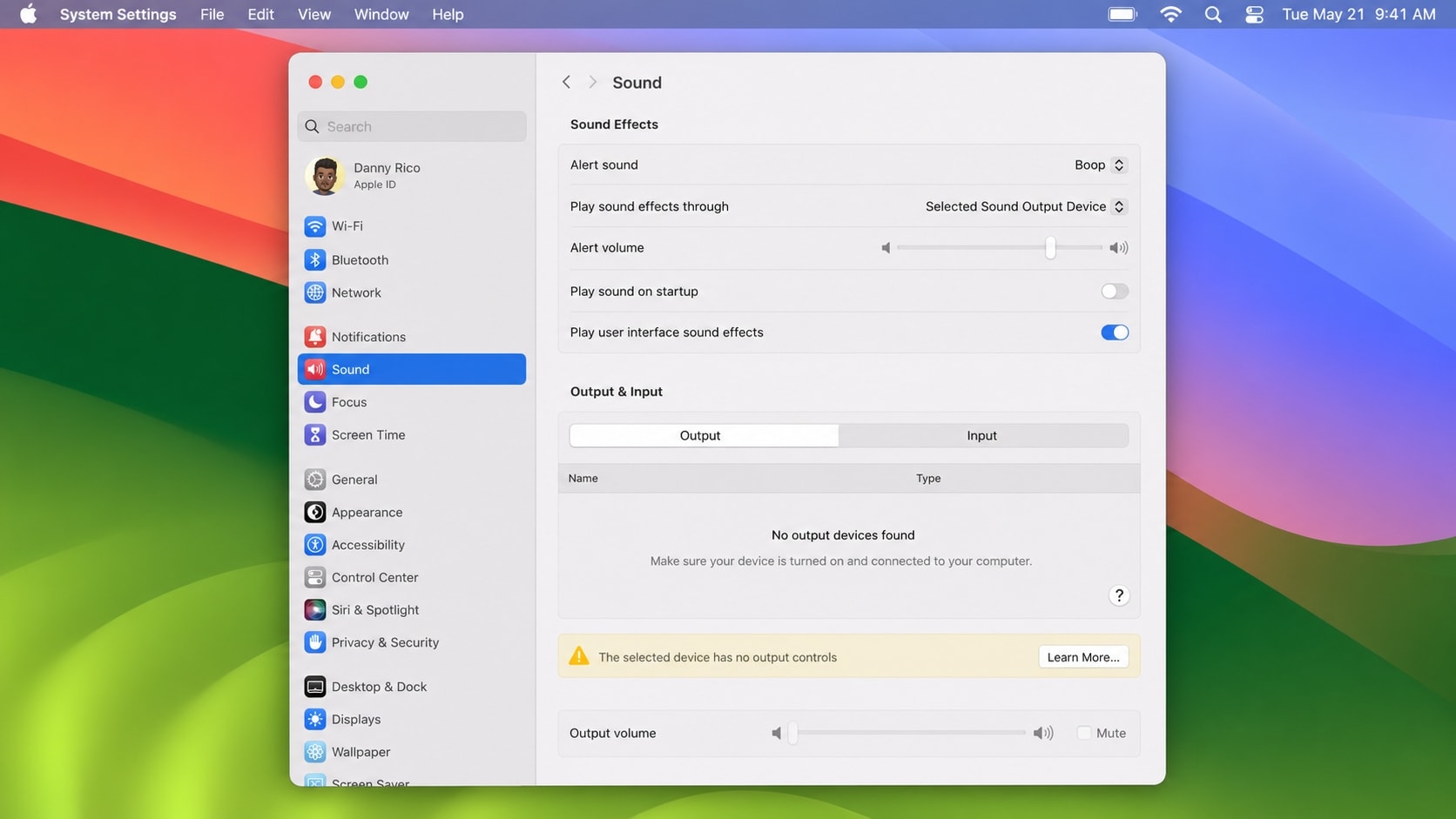
| Volume slider is grey or cannot be changed | HDMI, digital, AirPlay, or another device controls the volume | Select Mac speakers or adjust the external device |
| Sound works in headphones but not built-in speakers | Speaker selection, blocked port, or internal speaker issue | Disconnect headphones and select Mac speakers |
| Sound works in one app only | App, browser tab, or media-player volume is muted | Check the app's own volume control |
| Sound keeps switching to another device | Bluetooth, AirPlay, display, dock, or USB audio connection | Disconnect external audio devices |
| No output device appears | macOS audio service, hardware, or connection problem | Restart, check Audio MIDI Setup, and run diagnostics |
Apple recommends checking the app volume, disconnecting external audio devices, selecting the built-in speakers in Sound settings, and making sure the output slider is not muted. The steps below follow that low-risk order. See Apple's sound output guide for the related settings.
Part 2. How to Fix Volume Not Working on Mac
Try each method in order. Do not erase or reinstall macOS before protecting important files.
Fix 1. Check the App or Website Volume
If only one app has no sound, the Mac volume may be working normally. Music, Apple TV, browsers, games, video calls, and web players can have their own volume or mute controls.
- Play audio from a different app, such as Music or a system alert.
- Check the media player's volume slider and mute icon.
- In Safari or another browser, unmute the tab or video player.
- Check whether the app is sending audio to a different device.
If sound works in another app, repair the affected app's audio settings instead of changing system files.
Fix 2. Select the Correct Sound Output
The Mac can send audio to internal speakers, headphones, a display, USB speakers, Bluetooth devices, or AirPlay speakers. A wrong selection can make the Mac appear muted.
- Open Apple menu > System Settings.
- Click Sound in the sidebar.
- Open Output.
- Select the built-in Mac speakers.
- Move the Output volume slider to the right.
- Make sure Mute is not selected.
Apple's sound output guide confirms that available output devices appear in this list. If the selected device is an external display or digital receiver, its own volume controls may be required.
Fix 3. Disconnect Headphones, Displays, and External Audio Devices
macOS may continue routing audio to a device connected through a headphone jack, USB, Thunderbolt, HDMI, a dock, Bluetooth, or AirPlay.
- Unplug headphones and external speakers.
- Disconnect a USB audio interface, dock, or external display temporarily.
- Turn off or disconnect Bluetooth headphones and speakers.
- Stop AirPlay audio if it is active.
- Return to Sound > Output and select the built-in speakers.
If sound returns after disconnecting a display or dock, reconnect devices one at a time to find the device that changes the output.
Fix 4. Check the Volume Keys and Control Center
If the slider works but the keyboard keys do not, the problem may be limited to the keyboard or function-key mode.
- Open Control Center and choose Sound.
- Change the volume with the onscreen slider.
- Try the keyboard volume keys again.
- On an external keyboard, check whether the Fn or Globe key must be held.
- Test another keyboard if the keys still do nothing.
Not every keyboard has volume keys, and a digital output device may not support Mac-controlled volume. If the onscreen slider also fails, continue with the sound settings and audio-service checks.
Fix 5. Restart the Mac
A restart can reload the audio service and clear a temporary output-device state.
- Save your work.
- Open the Apple menu and choose Restart.
- After macOS loads, disconnect external audio devices before testing.
- Play a system sound or a known-good audio file.
If the Mac is frozen, press and hold the power button only when a normal restart is not possible. A forced shutdown can cause unsaved work to be lost.
Fix 6. Check Audio MIDI Setup
Audio MIDI Setup can show whether macOS recognizes an output device and whether its channels, format, or volume are configured correctly.
- Open Applications > Utilities > Audio MIDI Setup.
- Select the output device in the Audio Devices sidebar.
- Choose Configure Selected Device > Use This Device for Sound Output when available.
- Check the channel volume sliders and confirm that the format is appropriate for the device.
- Return to System Settings > Sound and test the output again.
Apple's Audio MIDI Setup guide explains that available options depend on the audio device. Avoid changing sample rates randomly; use the device manufacturer's recommended format when an external interface is involved.
Fix 7. Restart the macOS Audio Service
If the output device is listed but no application produces sound, the audio service may be stuck. You can refresh it through Activity Monitor.
- Open Applications > Utilities > Activity Monitor.
- Search for
coreaudiod. - Select the process and click the Stop button.
- Choose Quit. If it does not close, use Force Quit.
- Reopen the audio app and test the Mac speakers.
macOS normally starts the audio service again automatically. If the process repeatedly stops, or the output device disappears, continue with software updates and diagnostics rather than repeatedly force-quitting it.
Fix 8. Update macOS and Test Safe Mode
An outdated system, login item, audio driver, virtual audio tool, or security extension can interfere with sound.
- Open Apple menu > System Settings > General > Software Update.
- Install available macOS updates from Apple.
- Restart the Mac and test sound before opening third-party audio tools.
- If the problem remains, start the Mac in Safe Mode.
For Apple silicon, shut down, hold the power button until startup options appear, select the startup volume, hold Shift, and choose Continue in Safe Mode. For an Intel Mac, restart and immediately hold Shift until the login window appears. Apple's Safe Mode guide explains how to identify the Mac type and verify Safe Boot.
If sound works in Safe Mode, review login items, virtual audio drivers, sound enhancers, recently installed utilities, and Bluetooth software.
Fix 9. Reset NVRAM on a Supported Intel Mac
NVRAM stores some settings that can affect startup and hardware behavior. Apple silicon Macs do not use the same manual NVRAM reset procedure.
For a supported Intel-based Mac:
- Shut down the Mac.
- Turn it on and immediately press and hold Option-Command-P-R.
- Keep holding the keys according to Apple's startup guidance, then allow the Mac to start normally.
- Recheck the output device and volume settings.
See Apple's Mac startup key combinations before using this step. If you are unsure whether the Mac is Intel-based, open Apple menu > About This Mac and check whether it lists Chip or Processor.
Fix 10. Run Apple Diagnostics or Arrange Service
If the internal speakers do not appear in Sound settings, the Mac produces crackling or distorted sound, or no output works after software checks, hardware may be involved.
Apple Diagnostics can check certain internal hardware. On an Intel Mac, start the Mac while holding D, or Option-D for internet-based diagnostics. On Apple silicon, shut down, hold the power button until startup options appear, then use the available diagnostics process.
Record any reference code and provide it to Apple or an authorized service provider. Apple's diagnostics guidance notes that Diagnostics does not check every external device or software conflict. Do not open the Mac or replace internal components unless you are qualified.
Part 3. Protect Files Before Resetting or Reinstalling macOS
Most sound fixes do not delete personal files. However, persistent audio problems can lead users to reset macOS, remove system configuration files, erase the startup disk, replace storage, or send the Mac for service.
Before taking a destructive step:
- Back up documents, photos, videos, music, recordings, and Downloads to another drive.
- Do not erase the Mac simply because the volume slider is unavailable.
- Avoid deleting unknown folders from
~/Libraryas a first-line fix. - If an external drive contains audio or video projects, copy them before testing or formatting it.
- If the Mac is going to service, protect local files first.
If a reset, reinstall, accidental deletion, or storage failure causes local files to disappear, Recoverit may help scan supported readable Mac storage. It cannot restore an audio setting or repair a speaker.
Pro Tip. Recover Missing Mac Audio and Video Files with Recoverit
Recoverit is not a sound-repair tool. It cannot fix Mac volume controls, select an output device, repair speakers, or reinstall audio drivers. Its relevant use case is data recovery after troubleshooting causes local recordings, music, videos, documents, or other files to become missing.
Recoverit for Mac can help scan supported readable internal and external storage for deleted, lost, formatted, or inaccessible files before you erase the Mac, replace a drive, or send it for service.
Key Features
- Recovery for Supported Data-Loss Situations: Scan for files lost through deletion, formatting, system crashes, failed troubleshooting, or other supported scenarios.
- Mac Storage Support: Scan supported internal volumes, SSDs, HDDs, USB drives, SD cards, and external storage.
- Filtering and Preview: Filter results by file type, location, or filename and preview available files before saving them.
How to Recover Missing Mac Files
Step 1. Select the Storage Location
Install Recoverit on a working Mac or another supported computer. Select the readable Mac volume or connected external drive where the files were stored.

Step 2. Scan for Lost Data
Start the scan and filter results by file type, folder, or filename. A large or unstable drive may take longer.

Step 3. Preview and Recover the Files
Preview available results, select the files you need, and recover them to an external drive or another safe location, not the source disk.

Recovery depends on storage detection, overwriting, drive condition, and encryption. Recoverit cannot bypass FileVault or other encryption, repair failing hardware, or guarantee recovery from storage that is no longer readable.
Conclusion
When the volume not working on mac, first test another app, select the built-in speakers, check mute and output volume, and disconnect headphones, Bluetooth devices, docks, HDMI displays, and AirPlay equipment. Then restart the Mac, inspect Audio MIDI Setup, refresh the audio service, update macOS, and test Safe Mode.
If the volume slider is still unavailable, the internal speakers do not appear, or Apple Diagnostics reports a problem, arrange service. Before resetting macOS or sending the Mac away, back up local audio, video, and document files. Recoverit can help recover missing files from readable storage, but it does not repair the underlying audio problem.
FAQ
-
Why is the volume not working on mac?
The Mac may be muted, using the wrong output device, sending sound to HDMI, Bluetooth, AirPlay, or a dock, or experiencing an audio-service or hardware problem. Check System Settings > Sound > Output first. -
Why are the volume keys not working on my Mac?
Test the onscreen volume slider. If it works, check the keyboard's Fn or Globe key, try another keyboard, and confirm that the selected output device supports Mac-controlled volume. -
Why is the Mac volume slider greyed out?
The selected output may be a digital, HDMI, AirPlay, Bluetooth, or external receiver device whose volume is controlled on the device itself. Select the built-in Mac speakers or adjust the external equipment. -
Why does sound work in headphones but not through Mac speakers?
Headphones, a dock, or an external display may be selected as the output, or the internal speakers may have a hardware problem. Disconnect external devices and select the built-in speakers in Sound settings. -
Can Recoverit fix volume not working on Mac?
No. Recoverit is a data recovery tool, not an audio, speaker, driver, or macOS repair utility. It may help recover local audio, video, and document files that become missing after troubleshooting or service. -
Where should recovered Mac files be saved?
Save them to an external drive or another safe destination, not the source Mac volume, to reduce the risk of overwriting recoverable data.



