Missing iPad photos, messages, or documents? The first question is where a recoverable copy might still exist. Check Recently Deleted in Photos, Files, or Notes, then look for iCloud-synced files and an older iCloud or computer backup. If those sources are unavailable, recovery software can examine supported data sources, but it cannot reliably bring back files erased from modern encrypted iPad storage.
This guide compares five iPad data recovery software options by what they can access, what you can preview before paying, and the limits that matter after deletion or a reset. It also walks through Apple's free methods and explains when recovering files previously saved on a Mac is a separate, practical option.
In This Article
-
- 1. Wondershare Dr.Fone - Best for Multiple Backup and Cloud Sources
- 2. iMobie PhoneRescue - Best for Selective Local-Backup Extraction
- 3. iMyFone D-Back - Best for Filtering Results From Older Backups
- 4. Tenorshare UltData - Best for Checking a Small Preview Before Buying
- 5. Stellar Data Recovery for iPhone - Best for a Small Free Photo or Video Export
Part 1. Can You Recover Deleted Files From an iPad?
Sometimes. A photo in Recently Deleted is straightforward to restore; a file inside an accessible older backup may also be recoverable. A file permanently removed from the iPad and every backup is a different situation. Modern iPad storage is encrypted, so a software scan is not the same as unrestricted access to previously erased file blocks. Before purchasing a license, identify which recovery source you actually have.
| What happened? | Best first place to check | What to expect |
| A photo or video was just deleted | Photos > Recently Deleted | Items typically remain available for up to 30 days unless permanently removed. |
| A document disappeared from Files | Files > Recently Deleted or iCloud Drive | Restore a surviving item without resetting the iPad. |
| A note was deleted | Notes > Recently Deleted | Restore an eligible note from the account where it was saved. |
| A file is absent from the device but may still be in iCloud | iCloud.com and the relevant synced app | This checks surviving cloud data; it is not the same as restoring an iCloud device backup. |
| An older local or iCloud device backup exists | Check the backup date and coverage | Apple's full-device restore can replace current content; selective extraction is tool-dependent. |
| The iPad was factory-reset and no earlier copy exists | Other devices, shared files, computer exports, and cloud services | Direct recovery of pre-reset data from the erased internal storage is not a realistic software promise. |
Know the Difference Between iCloud Sync and iPad Backup
If iCloud Photos is enabled, your photos are synchronized with iCloud rather than duplicated inside the regular iCloud device backup. The same distinction applies to several other types of data already synced to iCloud. Deletion may sync across devices, so check Recently Deleted and independent copies first. An iCloud backup is a snapshot of eligible device data; it is not a complete historical archive of every file ever stored on the iPad. See Apple's explanation of what device backups include.
Before You Try Recovery Software
- Avoid erasing or resetting the iPad just to test a recovery tool.
- Check the backup date: a backup made after the deletion might not contain the missing item.
- Keep any existing computer backup intact; do not overwrite it with a newer backup until you know what it contains.
- If using a tool that asks for Apple Account access or a local backup password, review the vendor's privacy terms and use only an authorized account.
- Preview the actual item before purchasing; finding a filename or thumbnail does not prove that an intact file can be exported.
Part 2. 5 iPad Data Recovery Software Tools Compared
The five tools below are desktop applications that may read supported iPad data or work with existing backups. Their "best for" descriptions are practical use-case labels, not laboratory rankings or promises of recovery. Current support depends on the exact iPad model, iPadOS version, backup source, application data type, and software edition. The companies publish different trial limits and compatibility claims; confirm the relevant mode before paying.
1. Wondershare Dr.Fone - Best for Multiple Backup and Cloud Sources
Dr.Fone - Data Recovery (iOS) offers several sources, including compatible device data, local Finder/iTunes backups, and supported iCloud data. Its key advantage for an existing backup is being able to preview supported items and export selected content instead of automatically replacing everything on the iPad. The available file categories and recovery modes vary by device and software version.
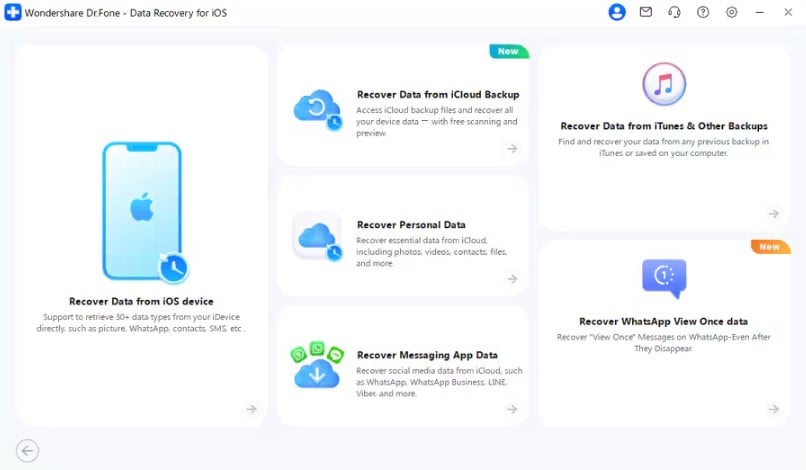
- Useful features: selective previews; recovery from supported local backups; separate workflows for iCloud Backup and iCloud-synced data.
- Strengths: several source choices and a free preview before export.
- Limits: paying does not create deleted data that no longer exists; advanced device scanning has model and software restrictions.
2. iMobie PhoneRescue - Best for Selective Local-Backup Extraction
PhoneRescue for iOS provides device, local-backup, and iCloud-related recovery workflows. It is worth checking when you have an older computer backup and want to inspect specific photos, messages, or other supported files before deciding whether to restore the entire iPad. The company also advertises support for certain damaged or encrypted backups, but individual results depend on whether the backup remains readable and any required password is available.
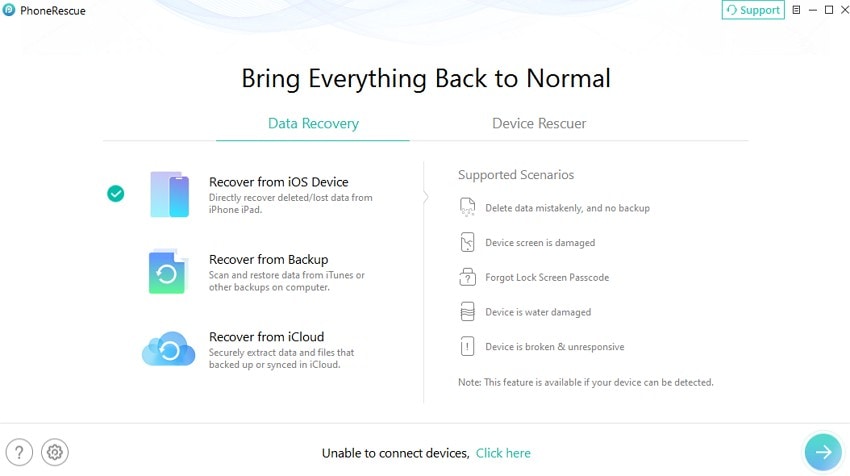
- Useful features: scan local backups; preview selected file categories; export supported results to a computer.
- Strengths: selective recovery and explicit backup-focused workflow.
- Limits: backup damage and encryption can still prevent access; confirm current iPadOS support and paid export terms.
3. iMyFone D-Back - Best for Filtering Results From Older Backups
D-Back offers workflows for supported device data, local computer backups, and iCloud. In its local-backup workflow, you can select an existing backup, choose file types, scan, and filter results before exporting supported items. The vendor advertises broad current iPadOS compatibility, but that marketing claim should not be read as a guarantee that every deleted category remains accessible.
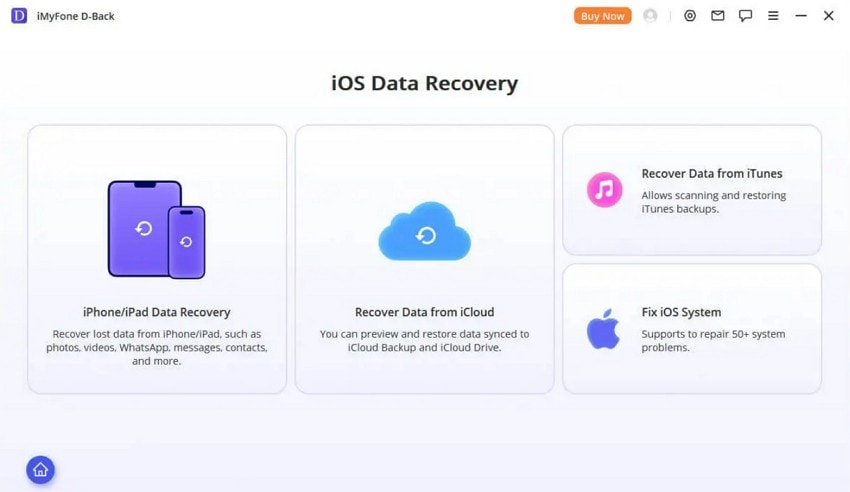
- Useful features: local-backup selection; preview and file-type filters; support for certain app-related data sources.
- Strengths: useful filters when a backup contains many categories.
- Limits: the vendor's support guidance says data erased by a factory reset cannot be recovered directly from the device without an available backup.
4. Tenorshare UltData - Best for Checking a Small Preview Before Buying
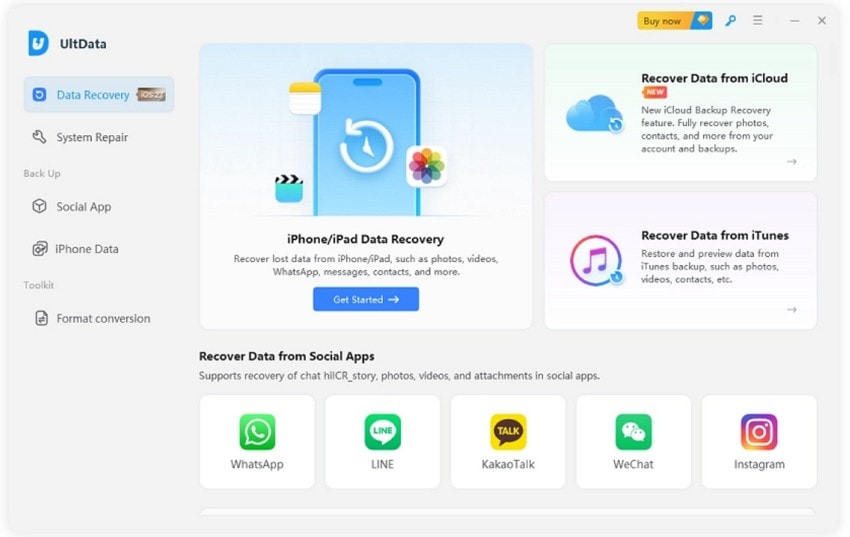
UltData supports workflows for eligible iPad data, local backups, and iCloud sources. The free trial can scan a supported device or iTunes backup, but Tenorshare says the trial previews only the first four deleted items. A paid license is required to export the full supported results. Its official FAQ also makes an important distinction: after a factory reset, recovery from the erased device itself is not available; an earlier backup is the relevant route.
- Useful features: device and backup source selection; category-based results; limited free preview.
- Strengths: clear preview restriction makes the trial easier to evaluate.
- Limits: first-four-item preview cap; paid export; device recovery still depends on accessible data.
5. Stellar Data Recovery for iPhone - Best for a Small Free Photo or Video Export
Despite the product name, Stellar lists iPad, iPad mini, iPad Air, and iPad Pro among its supported device families. Its desktop app can inspect supported device data and local iTunes/Finder backups, including encrypted backups when the password is available. Stellar's current product FAQ states that iCloud backup extraction is no longer supported. Its demo offers a concrete free allowance: up to 10 photos or videos, with each file no larger than 10 MB.
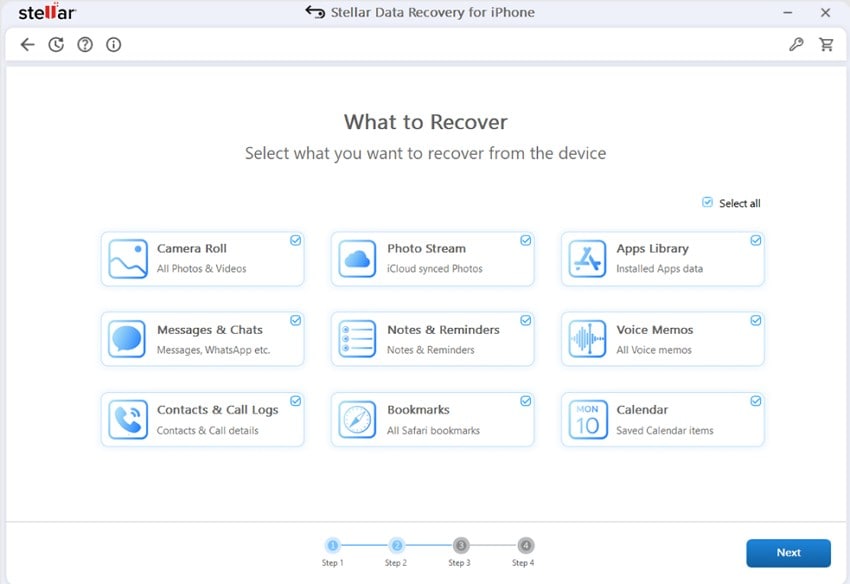
- Useful features: photo and video preview; local-backup extraction; encrypted-backup support with the original password.
- Strengths: a small amount of actual free media export, rather than preview only.
- Limits: iCloud Backup extraction is not available in the currently advertised product; check its latest iPadOS compatibility and file-size restriction.
Part 3. Which iPad Recovery Tool Fits Your Situation?
Choose by recovery source before comparing the size of each product's file-type list. A tool advertising dozens of categories cannot help if the missing information is absent from every accessible source. The table reflects functions described in current vendor documentation, not independently measured recovery rates or fixed purchase prices.
| Software | Documented recovery sources | Free use before purchase | Important qualification |
| Dr.Fone | Supported iPad data, computer backups, iCloud Backup and synced data | Scan or preview supported items | Available categories and modes depend on device and version. |
| PhoneRescue | Supported iPad data, computer backups, iCloud sources | Trial preview; paid export | Backup access and encrypted/damaged-backup results vary. |
| D-Back | Supported iPad data, computer backups, iCloud sources | Preview available; paid export | A factory reset without another copy is not a direct device-recovery case. |
| UltData | Supported iPad data, computer backups, iCloud sources | Preview first four deleted items in trial | Full export requires payment. |
| Stellar Data Recovery for iPhone | Supported iPad data and computer backups | Up to 10 media files free, each no larger than 10 MB | No current direct iCloud Backup extraction; vendor lists iOS 26 support. |
What about pricing? These tools use different monthly, annual, perpetual, or edition-based licenses. Checkout prices can change with platform, country, taxes, promotions, and the selected device. Compare the actual export entitlement and renewal terms on the official checkout page instead of relying on a dated price copied into a roundup.
What about encrypted backups? Being able to open a protected local backup is not the same as bypassing its password. Apple states that an existing encrypted backup cannot be restored without the correct password; resetting backup encryption creates a new password for future backups, not access to the old one. See Apple's encrypted-backup guidance.
Part 4. How to Inspect iPad Data or a Computer Backup With Dr.Fone
Use this route when you already have a Finder or iTunes backup created before the loss and want to inspect supported files without performing a full-device restore. This example does not scan the iPad's erased internal storage. Dr.Fone's current backup guide uses the Recover Data from iTunes workflow; screen labels can differ between its Mac and Windows editions.
- Open Dr.Fone on your Mac or PC. Go to Toolbox > Data Recovery, select iOS, and choose Recover Data from iTunes (the local computer-backup option).
- Choose the existing backup shown on the computer. Confirm its date is before the loss. If the backup is encrypted, follow the program's supported password workflow rather than assuming encryption can be bypassed.
- Select the file types you need and start scanning the backup. Wait for the preview. If the backup is missing, first confirm that Finder or the Apple Devices app can see it.
- Preview a representative photo, message, or document, and select only the items you need. Choose Recover to Computer when the option is offered and save them to a separate safe folder. Open exported files to verify that they are usable.
If the backup lacks the missing file, do not pay merely because the scan completed. Check other backups and iCloud-synced sources instead. For the current menu path and supported options, see Dr.Fone's official local-backup recovery guide.
Optional: Scan Supported Accessible Data on a Connected iPad
If you want to inspect data that the current Dr.Fone device mode can access, check that your iPad model, iPadOS version, and desired file category are supported. This is a separate device-scan workflow, not a substitute for an older backup. It cannot guarantee recovery of permanently erased files or data lost after a factory reset.
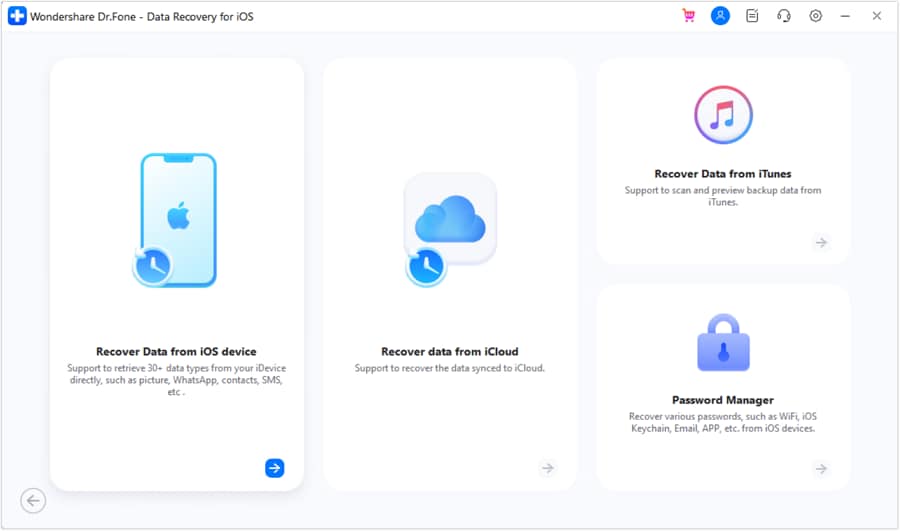
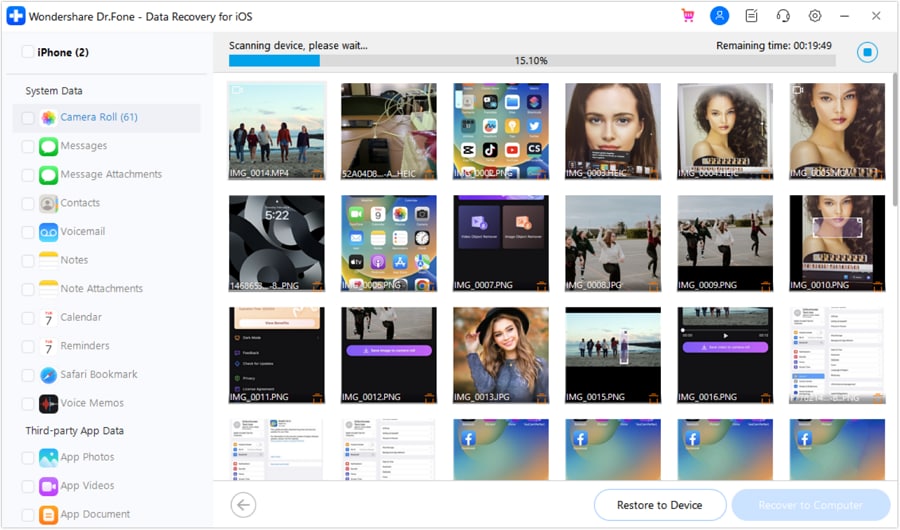
- Open Dr.Fone, go to Toolbox > Data Recovery, select iOS, and choose Recover Data from iOS Device if that mode is available for your iPad.
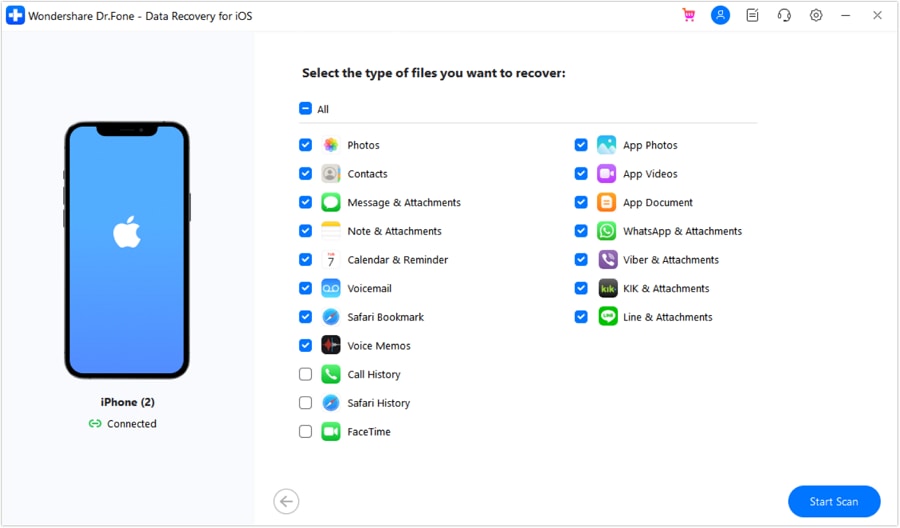
- Connect and unlock the iPad, approve the trust prompt if requested, select the available Standard Recovery workflow and relevant categories, and start the supported scan.
- Preview any accessible results. Export only files that the app actually shows as recoverable to your computer, then open those files to check they work.
Part 5. How to Restore iPad Files Without Third-Party Recovery Software
Apple's built-in recovery tools are the safest place to begin. Recently Deleted does not require a device reset. By contrast, recovering an older full-device backup can replace data created after that backup. Check whether the missing content was synchronized separately before deciding to restore the whole iPad.
Method 1. Restore Photos, Files, and Notes From Recently Deleted
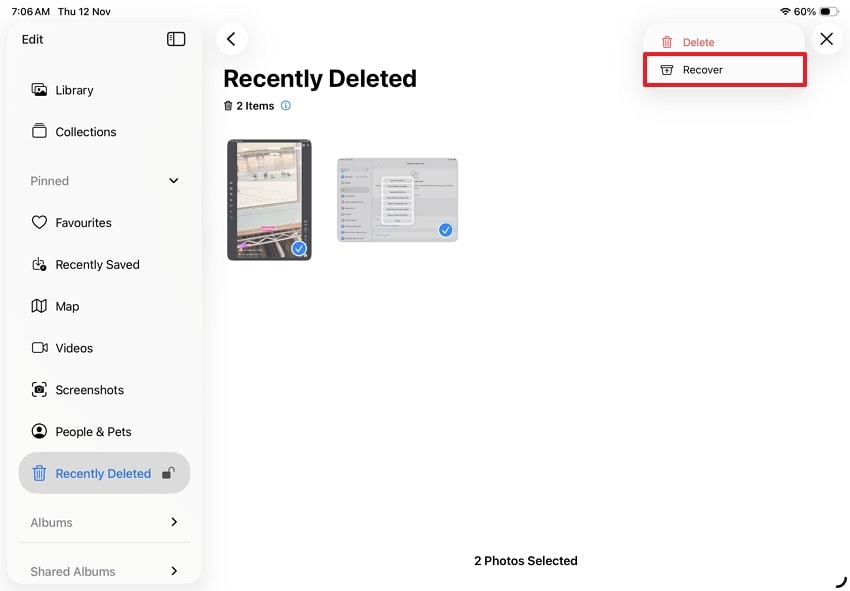
- Photos: Open Photos, find Collections > Utilities > Recently Deleted, unlock it, choose the photos or videos, then tap Recover. Items are generally available for 30 days if not permanently deleted.
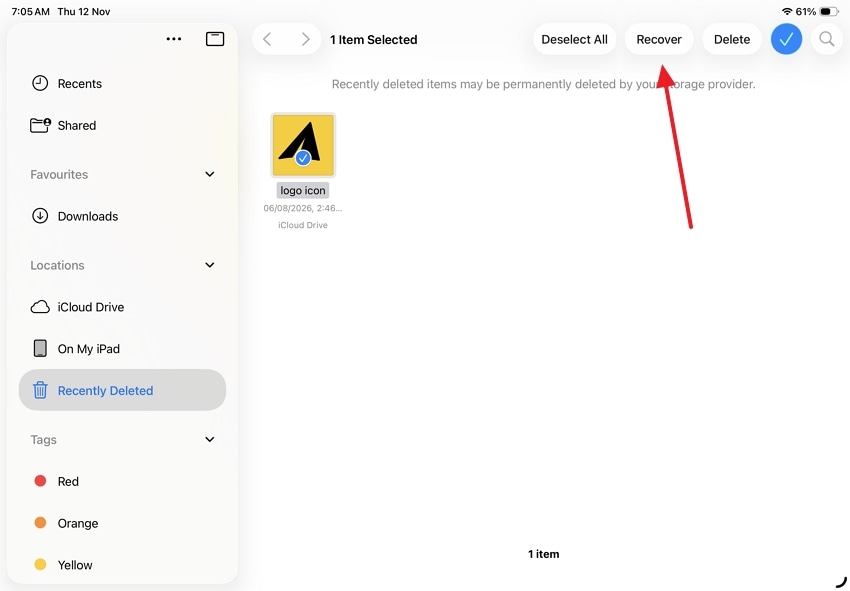
- Files: Open the Files app, show the sidebar, choose Recently Deleted, select the file, and tap Recover. Eligible files return to their previous location.
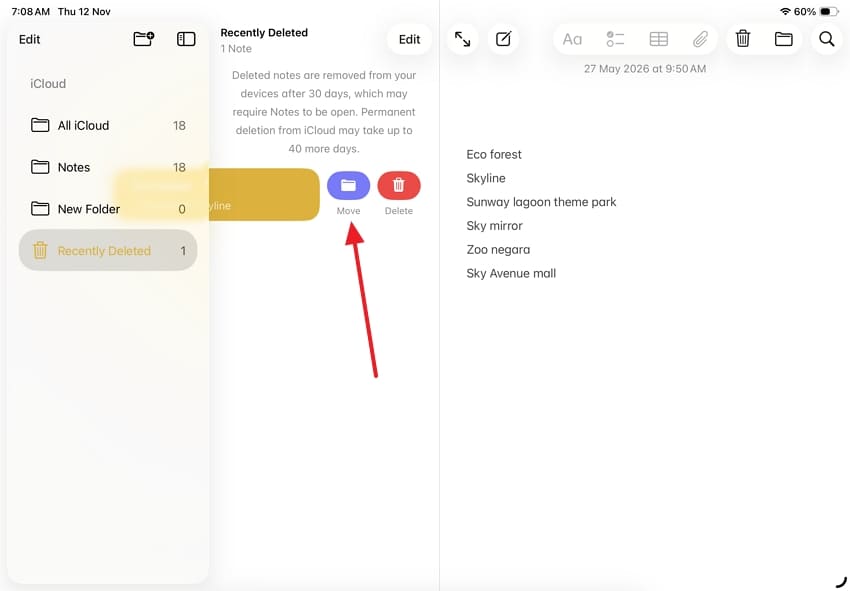
- Notes: Open the correct account and folder list in Notes, choose Recently Deleted, then move the eligible note to another folder. A note kept in a different account might have a separate folder list.
Also check iCloud.com if the content was synced to iCloud Drive or Photos. Apple provides a separate file-recovery area for some deleted iCloud Drive and iWork files; permanently deleted content is not recoverable through that service.
Method 2. Restore From an Existing iCloud Backup
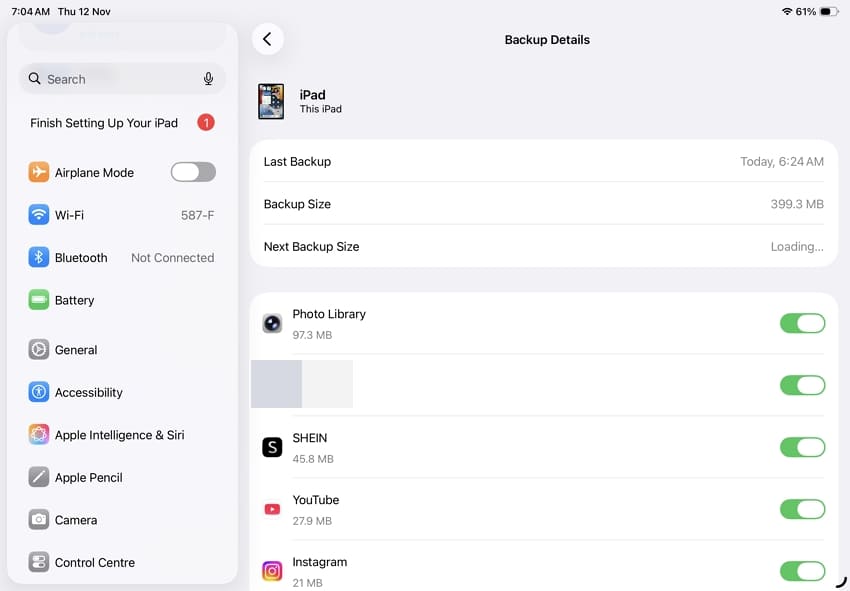
Before you erase anything: make a separate safe copy of new content on the iPad, confirm the older backup predates the loss, and check whether the wanted items are actually included. For example, items already synced with iCloud Photos are not duplicated in a regular device backup.
- On the iPad, open Settings > [your name] > iCloud > iCloud Backup to review the latest available backup information.
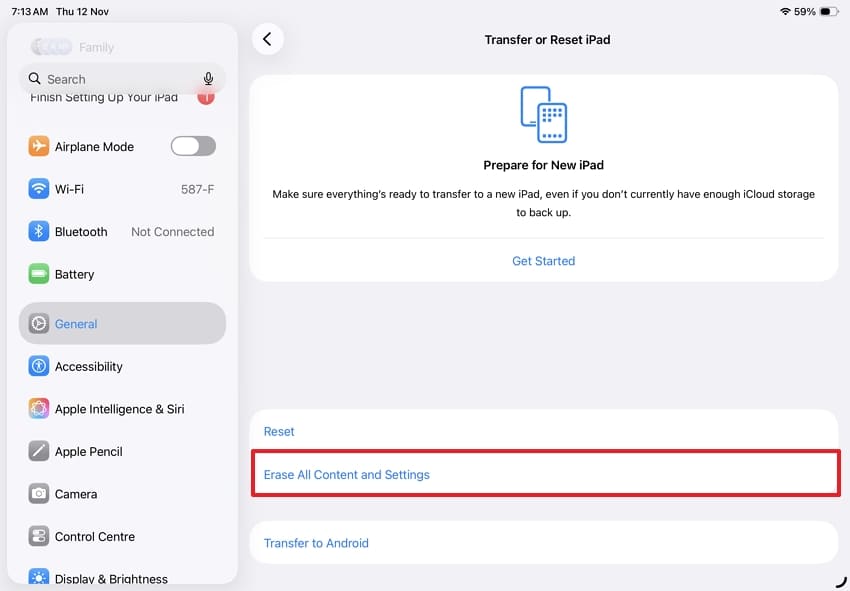
- Only if you decide a full restore is necessary, go to Settings > General > Transfer or Reset iPad > Erase All Content and Settings. This erases current device content.
- When the iPad displays the setup screen, continue to Transfer Your Apps & Data, choose From iCloud Backup, and sign in with the Apple Account that owns the backup.
- Choose the appropriate backup by date and size. Keep the iPad on Wi-Fi and power while the restore completes, then confirm the required files returned.
Apple documents the current process in Restore your iPhone or iPad from a backup. If the missing file is not included in the chosen backup, restoring the whole device will not create it.
Method 3. Restore an iPad From a Finder or Apple Devices Backup
This is appropriate when you have an existing computer backup and want a full-device restore. Unlike selective extraction, this operation restores the saved state and may replace current device data. Save recent files separately before proceeding.
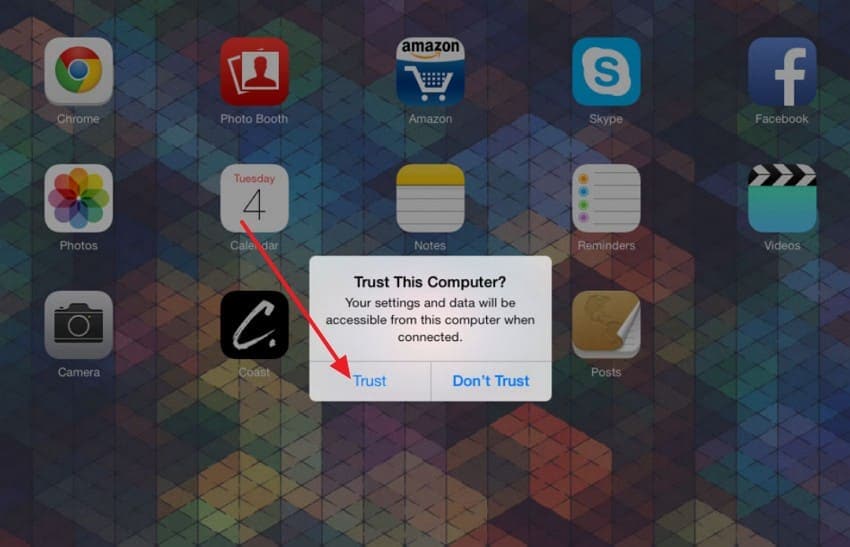
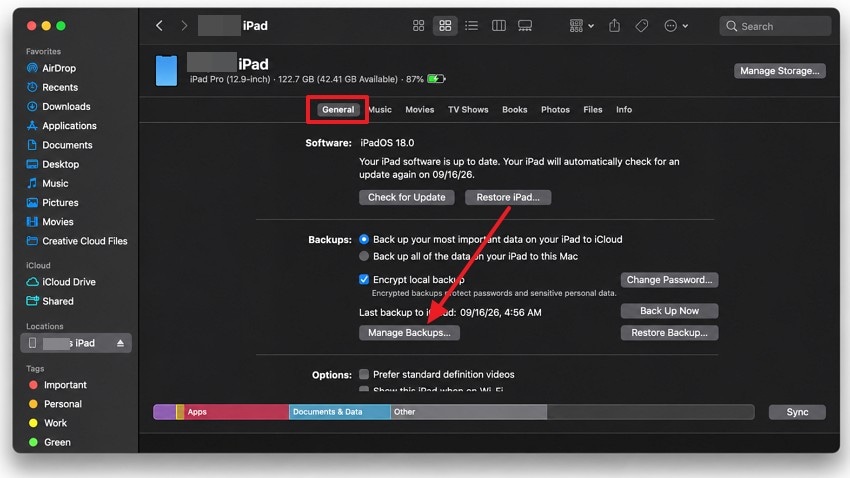
- Connect your iPad to the Mac or Windows computer that contains the backup. Unlock and approve the trust prompt if needed.
- On a Mac with macOS Catalina or later, open Finder. On supported Windows computers, open Apple Devices; older setups may use iTunes.
- Select the iPad and click Restore Backup. Compare the saved backup dates and choose the correct one.
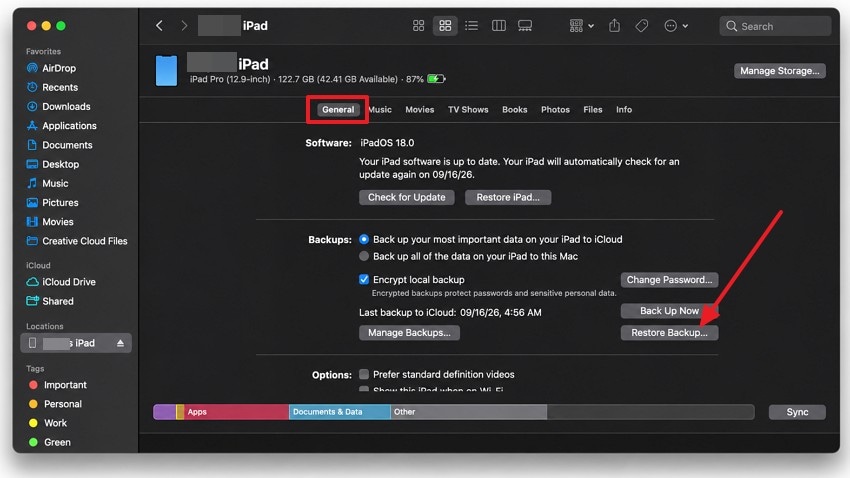
- Enter the encrypted backup password if prompted, select Restore, and keep the iPad connected until the process finishes. Verify the restored content afterward.
Do not delete the original backup after a failed attempt. If you want only selected files and do not want to replace current iPad data, compare backup-extraction applications instead of starting a full restore.
Part 6. Why Is iPad Data Recovery Failing?
A failed recovery attempt often means the chosen source is unavailable or the software cannot access that category of data. Work from the actual symptom instead of running repeated scans without checking the prerequisites.
Fix 1. Check Device, iPadOS, and Recovery-Mode Compatibility
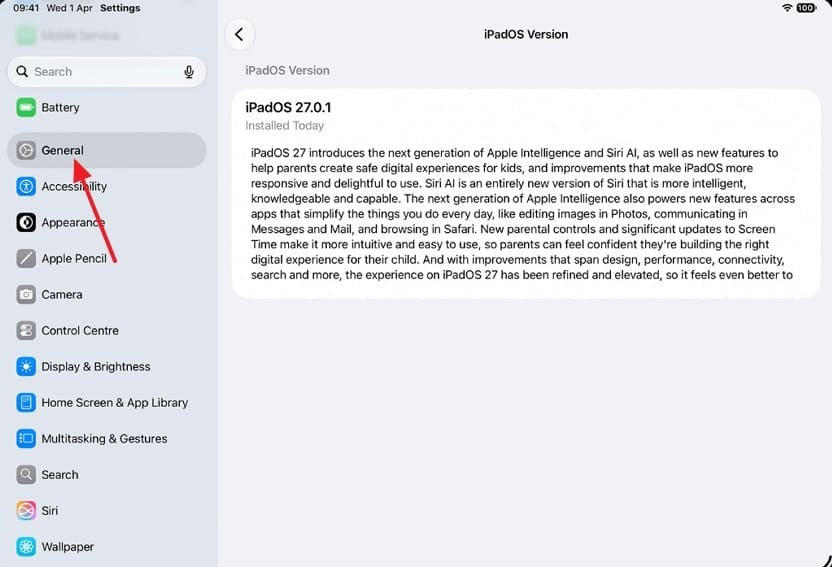
On the iPad, open Settings > General > About and note the exact model and iPadOS version. Check the vendor's supported-device list for the specific recovery mode, not just its homepage compatibility banner. For instance, some advanced modes are limited to certain device generations even when the standard app supports newer iPadOS releases.
Fix 2. Resolve USB and Trust This Computer Problems
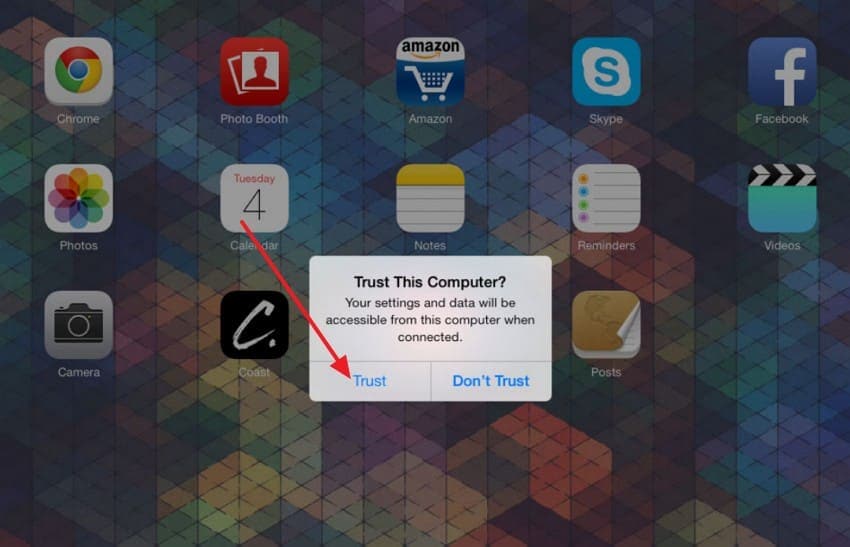
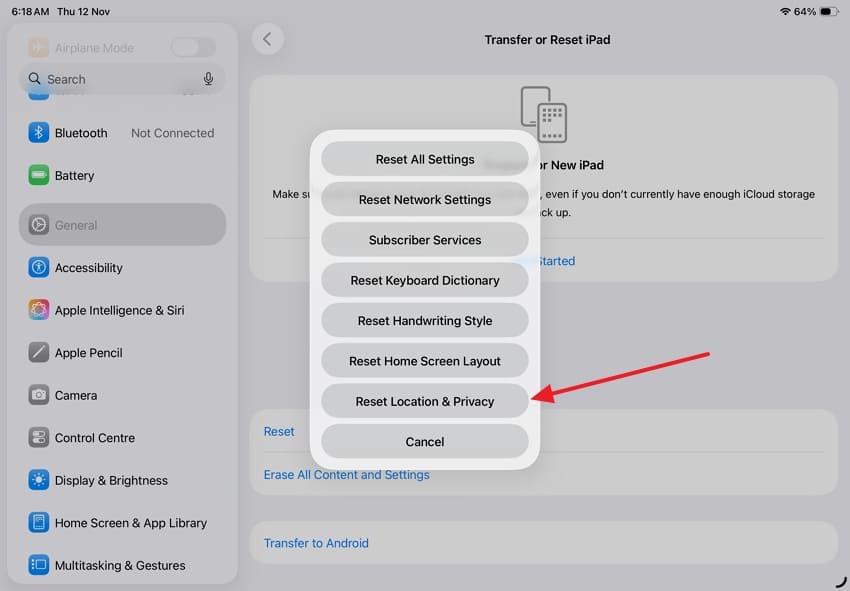
Use a data-capable cable, connect directly to the computer, unlock the iPad, and accept Trust This Computer when prompted. Check whether Finder or Apple Devices recognizes the iPad before restarting a device scan. If the trust prompt does not appear, Apple's location and privacy reset can re-prompt trust, but it also resets permissions; use it only after simpler cable and port checks.
Fix 3. Verify the Backup Actually Exists and Can Be Opened
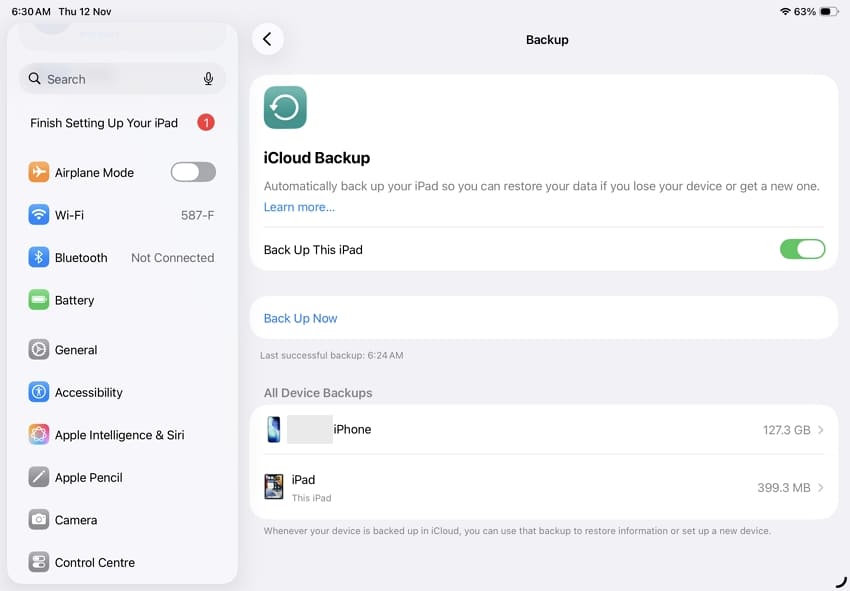
Confirm that the iCloud or local backup was created before the file disappeared. Check the correct Apple Account, the computer storing the backup, and any encryption password. A missing backup cannot be manufactured by recovery software, and resetting the encrypted-backup password does not unlock earlier encrypted backups.
Fix 4. Understand Empty, Filtered, or Incomplete Scan Results
Switch between all-file and deleted-only views where the tool supports them; check the correct file type and backup source. If a preview is blank, corrupted, or absent, try another legitimately accessible source rather than interpreting a scan completion message as proof that the file can be recovered. If the device was reset with no older backup, repeated internal scans are not a realistic workaround.
Pro Tip. Recover iPad Files Previously Saved on a Mac With Recoverit
Wondershare Recoverit serves a different recovery task from the five iPad-focused tools. If you previously exported photos, videos, or documents from an iPad to a Mac folder, external hard drive, or removable storage device and later deleted those computer copies, Recoverit for Mac may help locate recoverable files on compatible, readable storage. It cannot scan encrypted iPad internal storage, access iCloud-only files, or bypass a backup password.
This path is also useful when a copied file was deleted from a readable external drive. It does not guarantee success on a trimmed SSD, overwritten media, or physically failing hardware. If the lost files were never transferred to Mac storage, use the iPad or backup methods above instead.
Recover Previously Exported iPad Photos or Documents in Three Steps
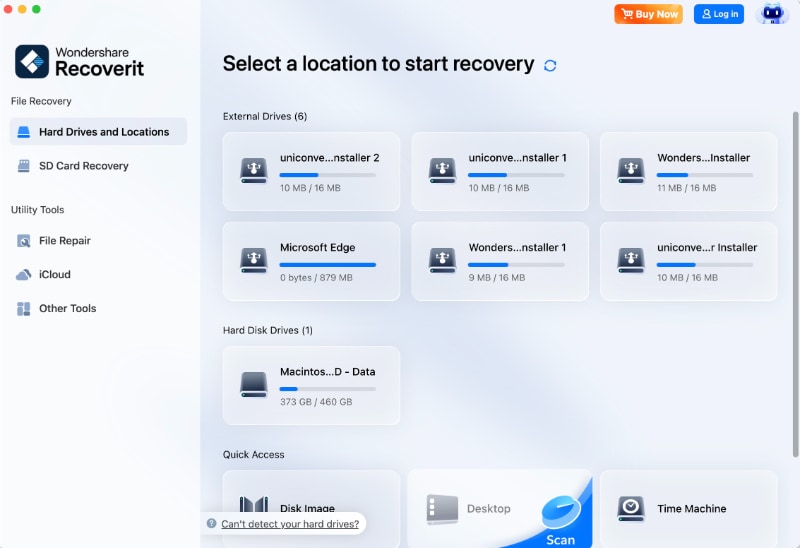
- Stop adding files to the affected Mac drive or external storage. Install or run Recoverit from a separate healthy location where practical, then select the readable volume that previously held the exported iPad files.
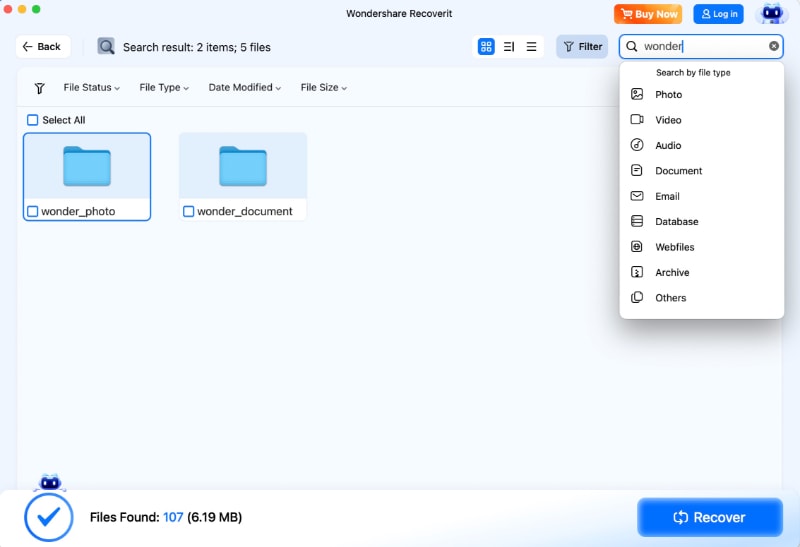
- Start the scan. Use file-type filters and available previews to check whether the missing photos, videos, or documents can be read. Do not assume a preview guarantees that every file will be intact.
- Select the recoverable items and click Recover. Save them to a different healthy storage volume, not the source, and open the restored files to verify them.

Conclusion
The best iPad recovery software is the one that can access a real copy of your missing data. Start with Recently Deleted and iCloud-synced files. If an older backup exists, decide whether you need a complete restore or a selective export from Dr.Fone, PhoneRescue, D-Back, UltData, or Stellar. Check each tool's trial limits, source compatibility, and data-access requirements before paying. After a factory reset with no surviving backup or copy, software cannot promise to reconstruct erased internal files. If the lost content was previously exported to a Mac, recovery of that separate local copy is a different option.
FAQ
-
Can iPad data recovery software retrieve permanently deleted files without a backup?
Not reliably when the only copy was permanently removed from modern encrypted iPad internal storage. First check Recently Deleted, iCloud-synced content, another Apple device, messages, app exports, and computer or cloud copies. Some tools can scan supported accessible data, but finding a deleted file with no surviving copy is not guaranteed. -
What is the best free iPad data recovery software?
Start with the free recovery options built into Photos, Files, Notes, and iCloud.com. If you have to try a desktop tool, check what its free edition actually exports: for example, Stellar currently advertises recovery of up to 10 photos or videos, each no larger than 10 MB, while some alternatives offer previews but require a paid license to save results. -
Can I recover iPad data after a factory reset?
You can restore data from an eligible backup made before the reset or from another independent copy. Without a surviving backup, synced copy, or export, recovering the erased internal data is generally not possible. Do not interpret a vendor's device-scanning claim as a guarantee of post-reset recovery. -
Why does iPad recovery software find fewer files than expected?
The selected source may not contain those files. Also check backup dates, whether iCloud Photos or Drive handled the content separately, encrypted-backup passwords, supported file categories, and scan filters. Try another existing source if one is available; do not repeatedly reset the iPad or purchase multiple tools without verifying an actual preview.


