
 TL;DR:
You can successfully recover files from a quick-formatted SD card using recovery software, provided you stop using the card immediately to prevent new data from overwriting the hidden files.
● Choose Recoverit for a guided process with file previews, or use the free PhotoRec tool if you accept a technical interface that recovers file content but loses original filenames and folder structures.
● Never run CHKDSK, accept system repair prompts, or save the recovered files back to the formatted SD card, as these actions alter the file system and permanently destroy recoverable data.
● Create a disk image before attempting deeper scans if the card frequently disconnects, and immediately stop DIY attempts in favor of a professional lab if the card gets hot, shows physical cracks, or displays an incorrect capacity.
Ask AI for a summary
 ChatGPT
 Perplexity
 Gemini
 Claude
 Grok
Grok
Formatting an SD card can make photos, videos, documents, and RAW files disappear suddenly. This often happens with camera cards, drone cards, dashcam cards, Android microSD cards, GoPro cards, and memory cards used for travel or client work.
The good news is that formatted SD card recovery is often possible if the old data has not been overwritten. Formatting usually removes file system records and makes files invisible to your device. In many cases, the actual file content may still remain on the card until new photos, videos, or files replace that space.
The most important step is to stop using the SD card immediately. Do not take new photos, record videos, copy files to the card, format it again, run repair commands, or save recovered files back to the same card. This guide explains how to recover data from a formatted SD card safely, which method to choose, and what to do when scanning does not find your files.
In this article
-
- Confirm the SD Card Is Detected with the Correct Capacity
- Try a Different Card Reader, USB Port, or Computer
- Run a Deep or Sector-by-Sector Scan
- Search by File Type Instead of Original Folder Name
- Do Not Repeat Formatting or Repair Attempts
- Stop DIY Recovery If the Card Shows Physical Damage
- Contact a Professional Data Recovery Lab for High-Value Files
Quick Answer: Can You Recover Files from a Formatted SD Card?
Yes, you can often recover files from a formatted SD card if the old data has not been overwritten. Recovery chances are higher after a quick format and lower after full or overwrite formatting, repeated formatting, or continued use after formatting.
Stop using the card first. Then check backups, connect the card to a computer with a reliable reader, and scan it with SD card recovery software such as Recoverit or a free technical tool such as PhotoRec. Save recovered files to your computer or another external drive, never back to the formatted SD card.
If the card disconnects, gets hot, shows the wrong capacity, has physical damage, or contains high-value files, stop repeated DIY scans and consider a professional data recovery lab.
Part 1. Quick Format vs Full or Overwrite Format
The type of formatting affects recovery chances. It also matters whether you used the card again after formatting.
| Format Type | What It Does | Recovery Chance | Why It Matters |
| Quick Format | Removes file and folder references and rebuilds file system information. Old data may remain until overwritten. | Higher | Recovery tools may still find photos, videos, and documents by scanning storage sectors. |
| Full or Overwrite Format | May erase or overwrite the user data area depending on the device or formatting tool. | Lower | File content may be cleared, damaged, or harder to reconstruct. |
| Device Format | A camera, phone, drone, dashcam, or other device creates a fresh file system structure. | Depends | Recovery depends on whether you recorded new data afterward. |
| Repeated Format and Continued Use | More file system writes and new files are added after the first format. | Much lower | New data can overwrite old photos, videos, and documents. |
A quick format is usually easier to recover from than a full or overwrite format. However, no method can recover data that has already been overwritten.
Part 2. Quick Diagnosis: Choose the Right Recovery Path
To safely retrieve data from a formatted SD card, first identify what happened after formatting. This quick diagnosis helps avoid overwriting, wrong tools, and unnecessary storage damage later.
| Situation | Best Recovery Path | Avoid |
| You just formatted the card by mistake. | Stop using it and scan with recovery software. | Taking test photos or recording new videos. |
| You used the card after formatting. | Try a deep scan and expect lower recovery chances. | More recording or copying files to the card. |
| The card was formatted in a camera, drone, phone, or dashcam. | Connect it to a computer with a reliable card reader and scan it. | Formatting it again inside the device. |
| The card is not detected. | Try another reader, USB port, or computer. | Running CHKDSK or accepting format prompts first. |
| The card disconnects or shows errors. | Create a disk image first if possible. | Repeated direct scans on an unstable card. |
| A backup exists. | Restore from backup first. | Unnecessary scans that keep stressing the card. |
| You need a free method. | Try PhotoRec if you can handle technical recovery. | Expecting original names and folders every time. |
| Files are high-value. | Consider professional recovery sooner. | Multiple DIY attempts on a damaged card. |
| You are unsure where to start. | Use a read-only scan and save results elsewhere. | Writing anything new to the card. |
Part 3. Important Steps Before You Try Formatted SD Card Recovery
A few careful actions can protect the remaining file traces and improve recovery chances.
- Stop Using the SD Card Immediately: Remove the card from the camera, phone, drone, dashcam, or computer once you realize it was formatted. Every new write can overwrite recoverable files.
- Do Not Take New Photos or Videos: Do not take test shots to check whether the card still works. A single large video can overwrite more space than many small photos.
- Do Not Add New Files to the Card: Avoid copying music, folders, documents, downloads, or test files onto the SD card. Even small files can occupy sectors where missing photos or videos still remain.
- Use a Reliable Card Reader: Use a stable, branded card reader and a working USB port. A loose reader or damaged adapter can interrupt scans and make recovery harder.
- Check Whether the Card Is Detected Correctly: Before scanning, check whether the card shows a believable capacity. If a 128GB card appears as only a few MB, or if the card appears and disappears repeatedly, the issue may involve connection or hardware damage.
- Avoid Format Prompts, Repair Prompts, and CHKDSK: Windows may ask you to format or repair the card if it appears RAW or unreadable. Do not accept these prompts before recovery. Repair commands can change file system structures that recovery tools still need to inspect.
- Save Recovered Files Elsewhere: Choose your computer drive or another external drive as the recovery destination. Do not save recovered files back to the formatted SD card.
Part 4. Best Ways to Recover Data From a Formatted SD Card
Once the card is protected, choose a recovery method based on your situation.
Method 1. Check Backups Before Scanning the SD Card
Before scanning the formatted SD card, check whether copies already exist elsewhere. Restoring from backup is safer and faster than scanning the card.
Check:
- Camera import folders
- Computer photo folders
- Phone gallery backups
- Cloud storage
- External hard drives
- NAS backups
- Memory card copies
- Editing software import folders
- Email or message attachments
- Previous device transfers
If a complete backup exists, restore from it first and avoid unnecessary scans.
Method 2. Use Recoverit SD Card Recovery Software
Recoverit is suitable when the formatted SD card is still detected by the computer and you need a guided scan, preview, and recovery workflow. It can help recover photos, videos, documents, RAW images, and other files from formatted SD cards.
Recovery still depends on whether the old data has been overwritten and whether the card is physically readable.
Key Features
- Wide File Support: Recover photos, videos, documents, RAW images, and other common file types from formatted SD cards.
- Device Card Support: Works with cards used in cameras, drones, dashcams, Android phones, GoPro cameras, and other recording devices.
- Preview Before Recovery: Lets users check recoverable files before restoring them.
- File Filters: Helps locate files by type, size, name, or date.
- Safe Export: Saves recovered files to another drive instead of the formatted SD card.
Guide to Recover Data from Formatted SD Card with Recoverit
Use the steps below when the formatted SD card still appears on your computer.
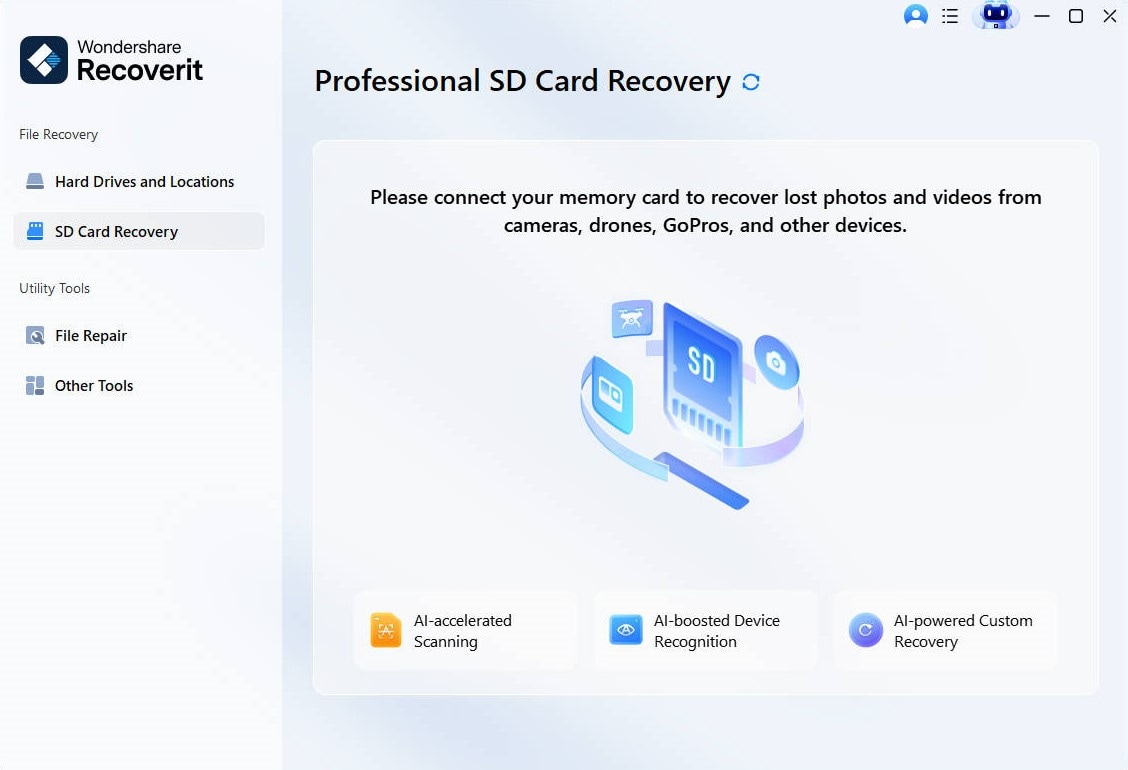
Step 1. Choose the Formatted SD Card
Start by selecting the “SD Card Recovery” from the left sidebar. Connect the formatted SD card to a reliable reader, then select the detected card to begin recovery.
Step 2. Scan and Check Recoverable Files
Start the scan and let Recoverit search for lost photos, videos, documents, and other files. After scanning, use preview and file filters to identify the items you need.
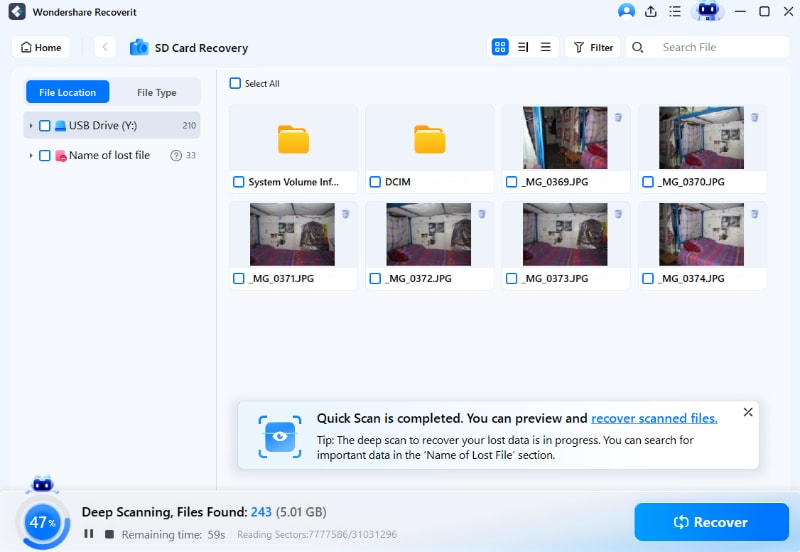
Step 3. Recover Files to a Safe Location
Select the files you want to restore, then click “Recover.” Choose a folder on your computer or another drive, not the same formatted SD card.

Method 3. Try PhotoRec for Free Technical Recovery
PhotoRec is a free recovery tool that uses signature-based scanning to find files from formatted storage. It can be useful when the file system information is gone and you need a technical recovery option.
PhotoRec can recover many file types, but it often cannot restore original filenames or folder structure. Recovered files may appear with generic names and need manual sorting.
Use PhotoRec when:
- You need a free tool.
- You are comfortable with a technical interface.
- Original folders are less important than file content.
- The SD card is stable and readable.
- You can save recovered files to another drive.
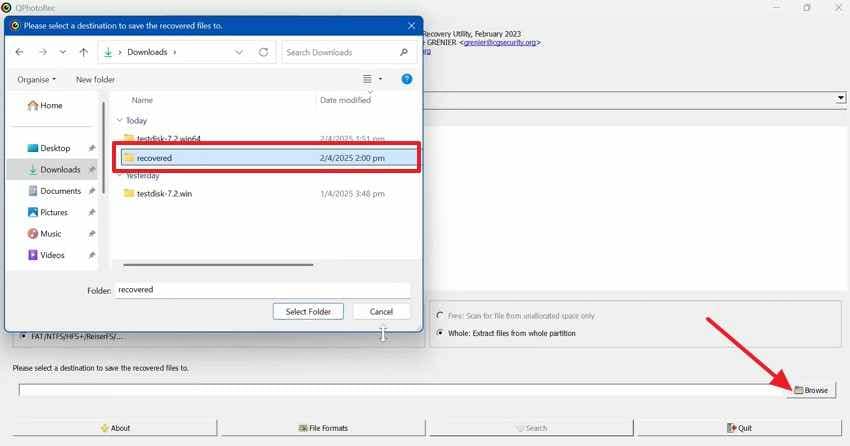
Step 1. In PhotoRec, select the formatted SD card and choose a recovery folder on another drive by clicking the “Browse” button.
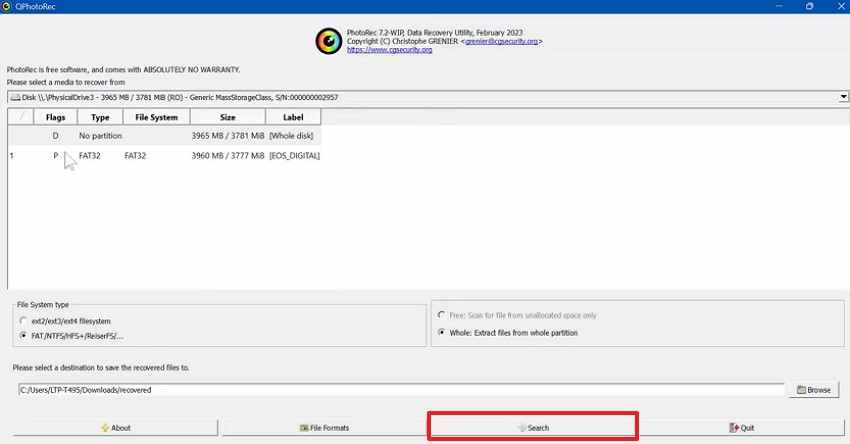
Step 2. After confirming the save location, choose “Search” to begin file signature scanning. PhotoRec will search the formatted SD card for recoverable files and save the found items inside the selected recovery folder.
Important: Do not choose the formatted SD card as the output folder.
Method 4. Create a Disk Image Before Advanced Recovery
Create a disk image before deeper recovery if the card disconnects, shows errors, or contains high-value files. A disk image creates a safer copy so recovery tools can scan the copy instead of stressing the original card.
Use a disk image when:
- The SD card disconnects during scans.
- The card shows read errors.
- The card is slow or unstable.
- Files are very important.
- You want to reduce repeated access to the original card.
Step 1. Launch Recoverit and stay on the “Hard Drives and Locations” screen. Under “Quick Access,” click “Disk Image” to begin the image recovery process.

Step 2. When the disk image window appears, avoid importing an existing image file. Press the “Create a New Disk Image File” to make a fresh card copy.

Step 3. Now, choose the formatted SD card from the available drives list. Select another storage location for the image, then select “Create.”
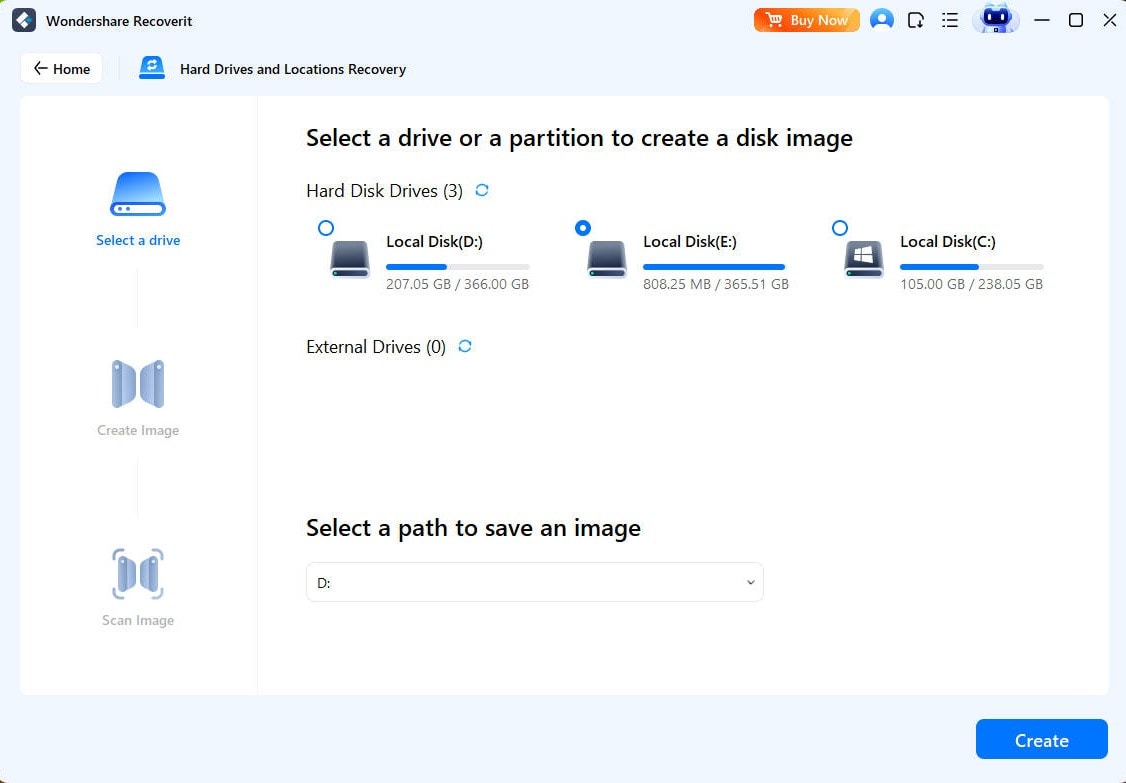
Save the image to your computer or an external drive. Do not save it to the formatted SD card.
Part 5. What If You Cannot Recover Files After Formatting?
If the first recovery attempt does not find your files, do not repeat risky actions. Use the checks below.
1. Confirm the SD Card Is Detected with the Correct Capacity
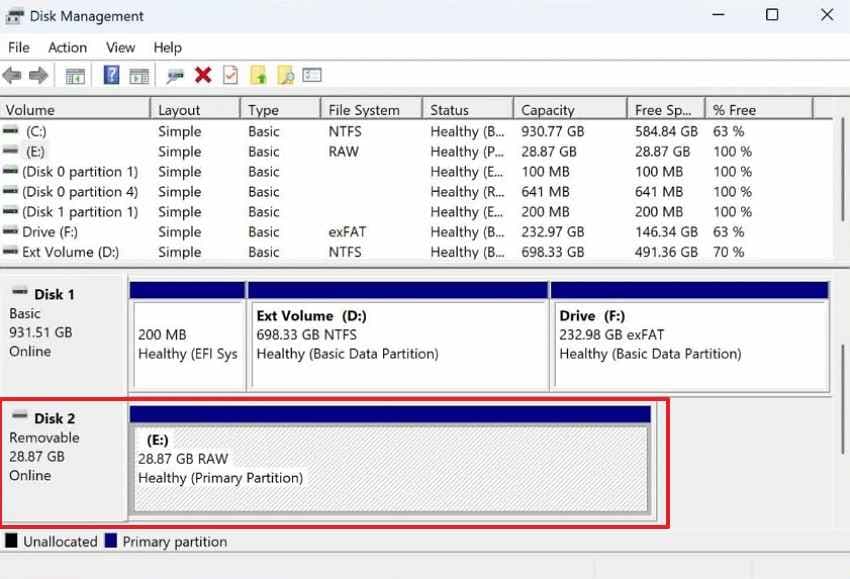
Open Disk Management and compare the displayed capacity with the card label. If the card shows the wrong size, a tiny capacity, or no capacity, the issue may involve the reader, controller, partition table, or physical damage.
2. Try a Different Card Reader, USB Port, or Computer
A failing adapter can make a good SD card look unreadable. Try:
- Another card reader
- Another USB port
- Another computer
- A direct SD slot if available
- A different adapter for microSD cards
This helps separate connection issues from card failure.
3. Run a Deep or Sector-by-Sector Scan
Quick scans may miss files when formatting removes folder records and original filenames. A deep scan reads more sectors and searches for file signatures.
Use deep scan only when the card is stable and readable. If the card disconnects, create a disk image first or stop DIY recovery.
4. Search by File Type Instead of Original Folder Name
Formatting can remove original folder paths, filenames, dates, or camera folders. Use file type filters such as:
- JPG
- PNG
- MP4
- MOV
- AVI
- DOCX
- CR2
- CR3
- NEF
- ARW
- DNG
- WAV
Preview results carefully because recovered files may not appear under their original folders.
5. Do Not Repeat Formatting or Repair Attempts
Repeated formatting, repair prompts, and CHKDSK may change structures that recovery tools inspect. If one scan fails, pause and reassess instead of formatting again.
6. Stop DIY Recovery If the Card Shows Physical Damage
Stop scanning if the card:
- Gets hot
- Has cracks
- Has bent contacts
- Disconnects repeatedly
- Shows the wrong capacity
- Is not detected in multiple readers
- Contains high-value photos or videos
Repeated scans can worsen unstable cards.
7. Contact a Professional Data Recovery Lab for High-Value Files
For weddings, client work, legal files, travel memories, or once-in-a-lifetime photos, a professional lab may be safer after software scans fail.
When to Contact a Professional Data Recovery Lab
Professional recovery is useful when the card has physical or electrical damage, severe corruption, or high-value data.
| Service Area | What Professionals Can Do | What They Cannot Do |
| RAW SD Card | Read cards with RAW or unreadable partitions. | Restore files after full overwriting. |
| Physical Damage | Handle cracked cards, bent contacts, or chip faults. | Make every damaged card reusable again. |
| Failed Scans | Try advanced recovery after software fails. | Guarantee complete recovery every time. |
| Lost Folders | Recover files without original folder paths. | Always restore old names or dates. |
| Chip-Level Work | Access memory chips when cards stop mounting. | Repair destroyed or unreadable memory chips. |
| Safe Handling | Create safer copies before deeper recovery work. | Reverse damage from repeated formatting attempts. |
| Case Diagnosis | Explain recovery chances after inspection. | Promise results before checking the card. |
Part 6. How to Avoid Losing Files After Formatting an SD Card Again
After you retrieve files from a formatted SD card, prevention matters most. These habits reduce repeat loss and protect future photos, videos, and documents:
- Backup Before Formatting: Copy the full SD card to your computer or external drive before formatting. Open several copies of the files afterward so corrupted transfers are caught early.
- Verify Right Card: Check the card name, capacity, and connected device before pressing format. This prevents erasing another card when several storage devices are attached.
- Import Before Reuse: Move photos and videos after each shoot, before the card returns to the camera. Regular importing keeps fresh work safe, even when formatting becomes routine.
- Format Inside Device: Use the camera, drone, dashcam, or phone format option for that card. Device formatting prepares folders and file systems that the hardware expects during recording.
- Keep Separate Copies: Store important files in two places, not only on the SD card. Cloud storage, an external drive, or a computer folder gives safer backup coverage.
- Replace Weak Cards: Retire cards that show slow saving, missing files, errors, or random disconnections. Use a new card before weddings, travel, client work, or long recordings.
Conclusion
Formatted SD card recovery is often possible when the card has not been overwritten. The safest move is to stop using the card immediately, avoid new photos or videos, skip repair prompts, and save recovered files to another drive.
Start with backups. If no backup exists and the card is readable, use a guided recovery tool such as Recoverit to scan, preview, and recover photos, videos, documents, RAW files, and other data. If you need a free technical option, PhotoRec can scan by file signatures, although filenames and folders may be lost. If the card is unstable, create a disk image first. If the card is physically damaged or the files are high-value, contact a professional recovery lab.
The key rule is simple: recover first, repair or reuse the card later.
FAQs
-
Can I recover files from a formatted SD card?
Yes, recovery is often possible if the old data has not been overwritten. Stop using the card immediately and scan it from a computer. -
Is quick format easier to recover than full format?
Usually yes. Quick format often removes file and folder entries but may leave data on the card. Full or overwrite formatting may erase more deeply and reduce recovery chances. -
What should I do immediately after formatting an SD card?
Stop using the card. Do not take new photos, record videos, format again, run CHKDSK, or save files to the same card. -
Can Recoverit recover files from a formatted SD card?
Recoverit can help scan a readable formatted SD card, preview recoverable files, and save selected photos, videos, documents, or RAW files to another drive. Recovery depends on whether the data was overwritten. -
Can PhotoRec recover files from a formatted SD card?
Yes, PhotoRec can recover files by scanning file signatures. However, original filenames and folder structure may be lost. -
Should I run CHKDSK before recovery?
No. Recover files first. CHKDSK repair options can change file system structures that recovery tools may need to inspect. -
Why are recovered files missing names or folders?
Formatting may remove file system records, including names, folders, and dates. Some tools recover file content by signatures, so names and folders may not survive. -
When should I stop DIY recovery?
Stop if the card is physically damaged, gets hot, disconnects repeatedly, shows the wrong capacity, or contains high-value files. In those cases, consider a professional recovery lab.



