

 TL;DR:
For recovering lost Windows files, your choice of software depends on the complexity of the data loss: use completely free tools like Recuva for basic needs, Recoverit for user-friendly comprehensive scans, and R-Studio for severely corrupted partitions.
● Completely free tools like Recuva handle simple deletions, while open-source PhotoRec ignores file systems to salvage damaged drives but requires command-line knowledge; freemium consumer options restrict unpaid usage, with Recoverit capping free recovery at 100MB and MiniTool allowing up to 1GB.
● For complex scenarios like unbootable computers or corrupted partition tables, Ontrack EasyRecovery creates bootable recovery media and R-Studio utilizes built-in hex editors, though both carry high prices and a steep learning curve.
● To prevent permanent file overwrite during any restoration attempt, you must save the successfully recovered files to a completely different storage drive than the one currently being scanned.
Ask AI for a summary
 ChatGPT
 Perplexity
 Gemini
 Claude
 Grok
Grok
Losing or accidentally deleting important files can feel terrible. Right? Well, yes! Your photos, work documents, or videos might disappear in seconds. A hard drive crash, accidental deletion, or virus attack can wipe out years of memories. That's where the 10 best data recovery software for Windows in 2025 comes to the rescue.
This guide covers the best data recovery software for Windows available right now. We'll help you pick the right tool for your needs.
Table of Contents:
Part 1: What Is Data Recovery Software and Why Do You Need It?
Here's why you need the best data recovery app for Windows:
- Accidental Deletion: We all delete files by mistake. Recovery software saves you from permanent loss.
- Hard Drive Failure: Drives crash without warning. Good recovery tools can extract data from damaged disks.
- Virus Attacks: Malware can delete or encrypt your files. Recovery programs help restore what's lost.
- System Crashes: Windows crashes can corrupt files. Recovery software retrieves them after reinstalling.
- Format Errors: Accidentally formatting a drive erases everything. Recovery tools bring it back.
- Partition Loss: Sometimes entire partitions disappear. Advanced recovery software finds them again.
- Power Failures: Sudden power cuts can corrupt files. Recovery programs fix these issues quickly.
Part 2: 10 Best Data Recovery Software for Windows in 2025
Finding the best file recovery program free for Windows takes research. Each tool has unique strengths. Some excel at photo recovery, while others handle complex drive issues. We tested these programs on real Windows systems.
Here's what we found.
#1 Recoverit
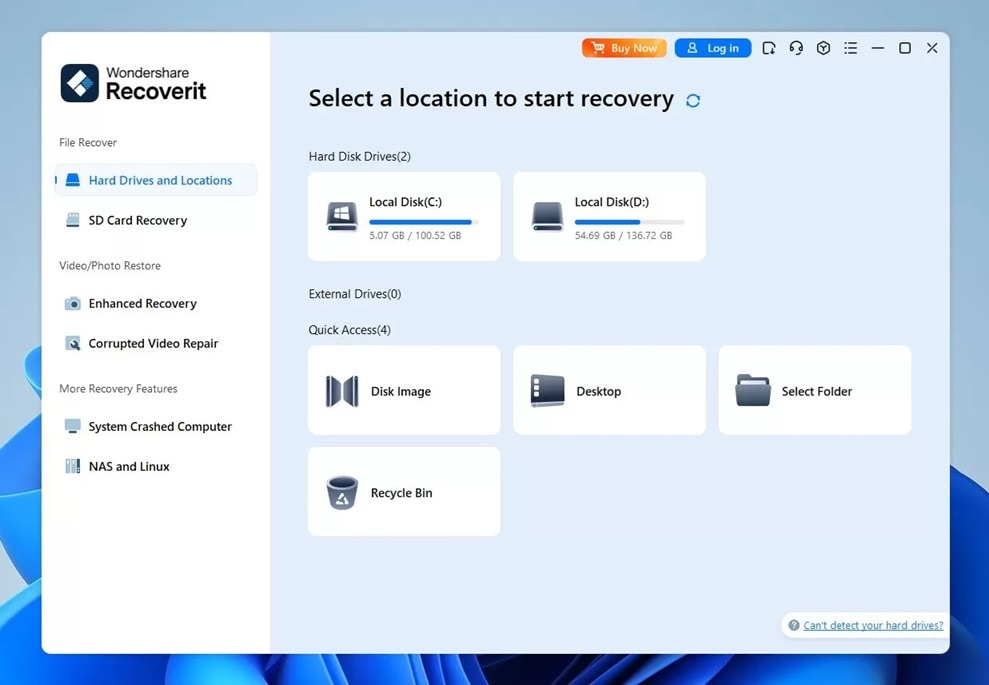
Recoverit is a powerful recovery tool from Wondershare. It handles almost any data loss situation. We tested it after accidentally formatting an external drive. The interface felt clean and easy to navigate.
Key Features:
- Supports over 1000+ file types
- Deep scan for thorough recovery
- Preview files before recovering
- Works with crashed computers
- Video repair functionality included
#2 EaseUS Data Recovery Wizard
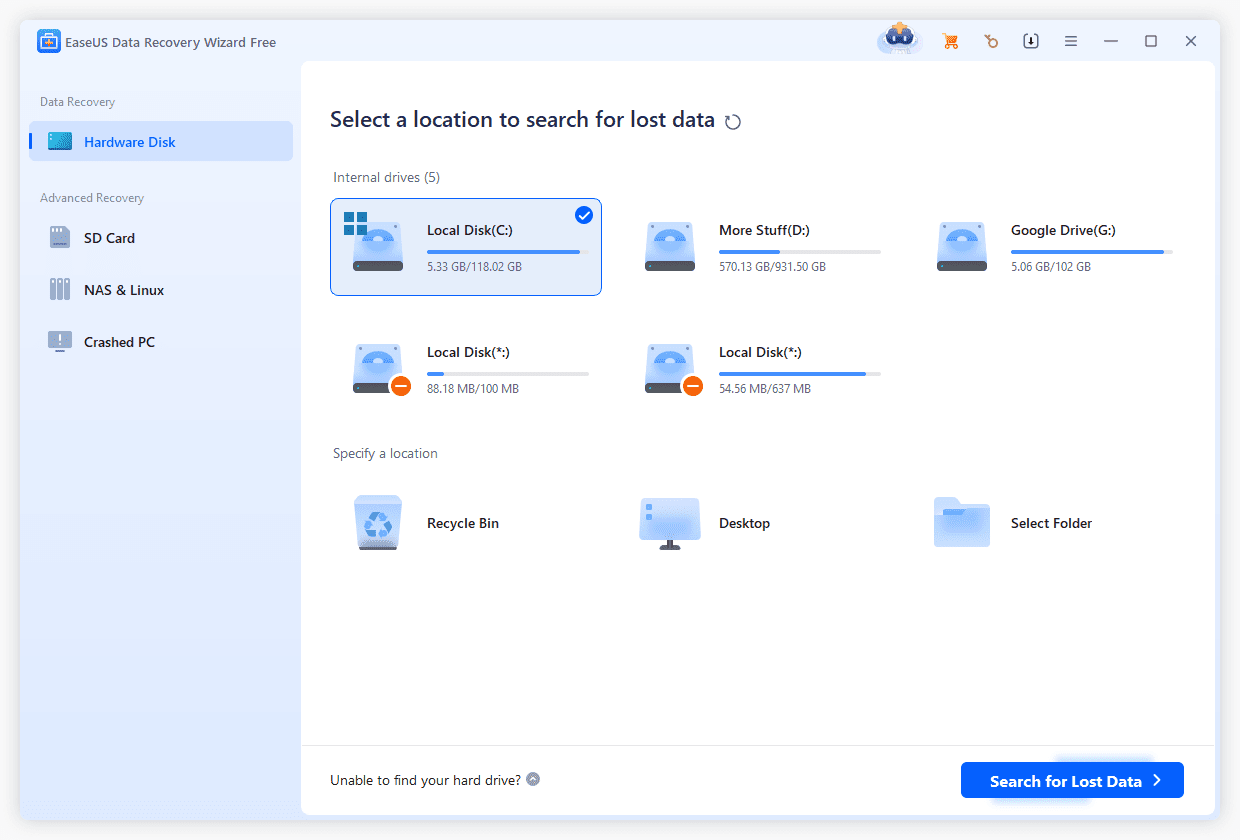
EaseUS has been around for years. This best recovery software for Windows earned its reputation. I used it when my SSD suddenly stopped showing files. The software detected the drive immediately. The quick scan found recent deletions in seconds.
Key Features:
- Quick and deep scan modes
- Partition recovery support
- RAW drive recovery
- Cloud storage recovery
- Bootable media creation
#3 Stellar Data Recovery
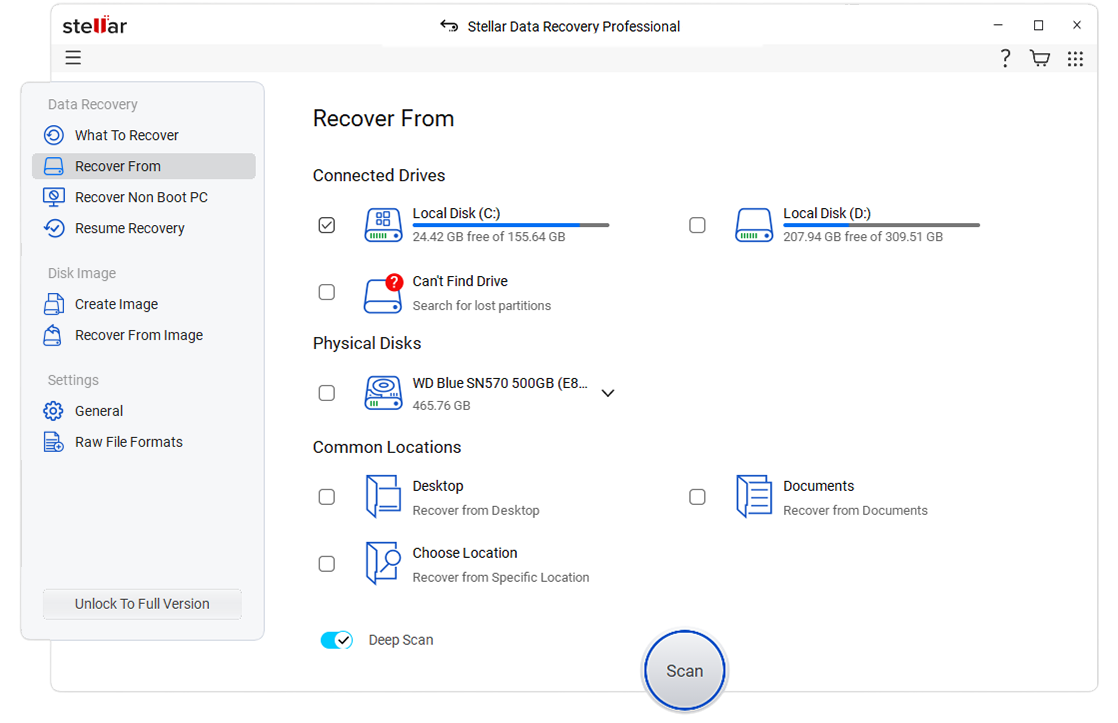
Stellar targets professionals but works for everyone. We tried it after losing photos from a corrupted memory card. The software offered different recovery modes. We picked the photo recovery option. The scan focused specifically on image files.
Key Features:
- Specialized modules for photos, videos, and emails
- Optical media recovery
- RAID recovery support
- Create disk images
- Monitor drive health
#4 Disk Drill
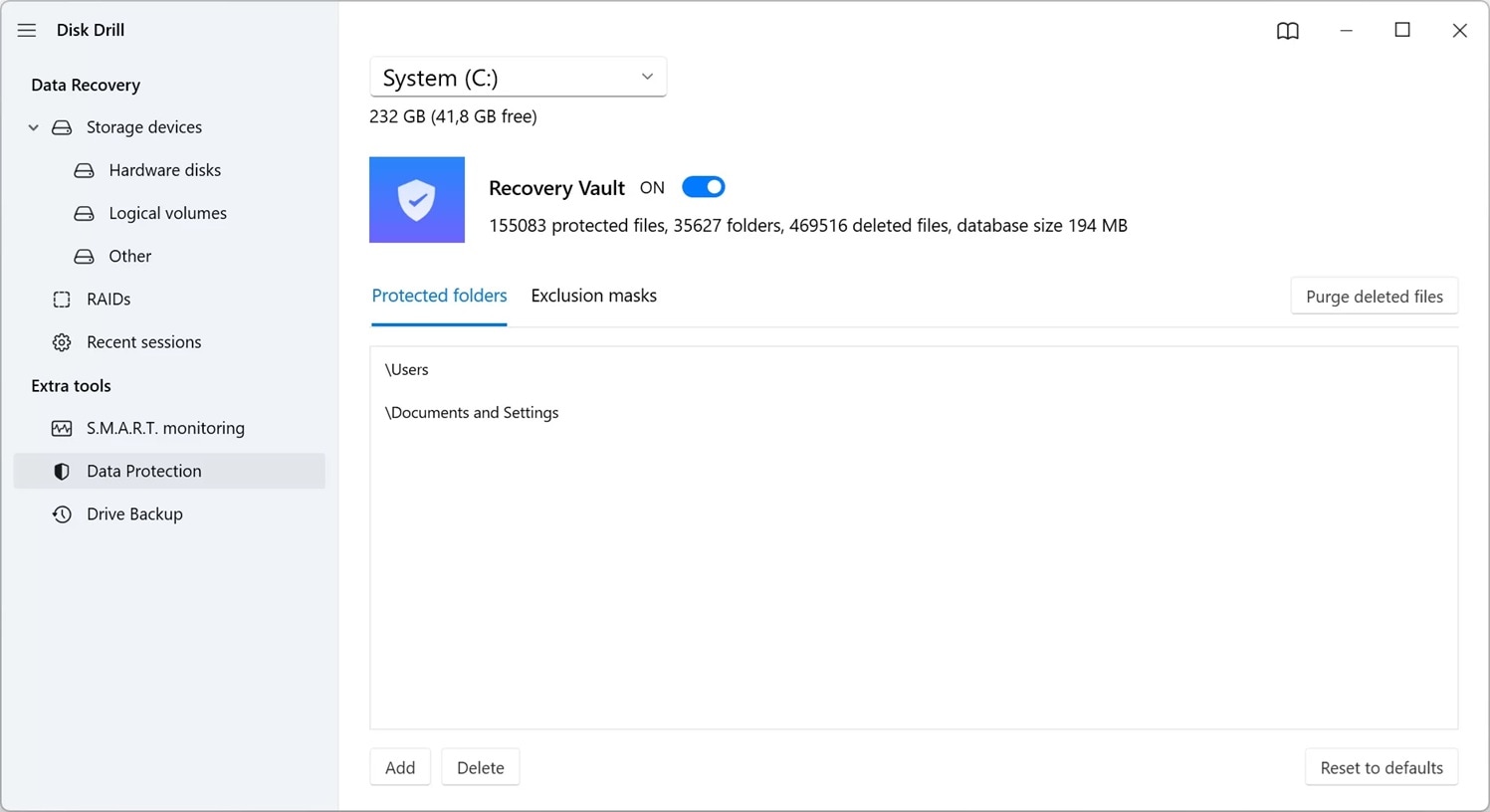
Disk Drill combines recovery with protection features. We installed it after hearing good things. The Recovery Vault feature caught our attention. It creates an extra safety layer for deleted files. We enabled it and accidentally deleted a folder the next day.
Key Features:
- Recovery Vault for protected deletion
- Over 400 file formats supported
- S.M.A.R.T. monitoring
- Duplicate file finder
- Data backup tools
#5 Recuva
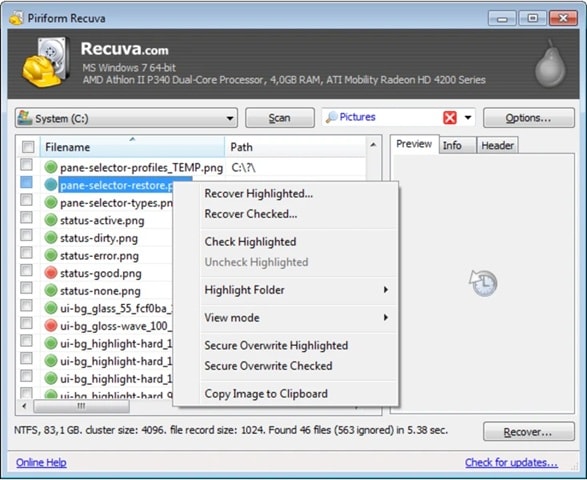
Recuva comes from Piriform, the CCleaner makers. This best file recovery program free for Windows is completely free. The interface is basic but functional. No fancy features, just straightforward recovery.
Key Features:
- Completely free for personal use
- Wizard and advanced modes
- Secure file deletion
- Portable version available
- Deep scan option
#6 R-Studio
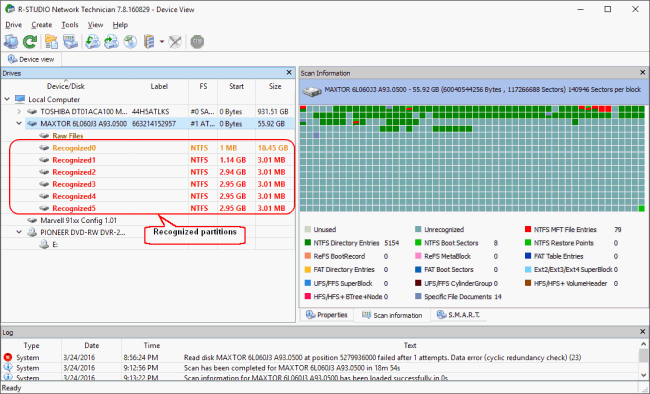
R-Studio is for serious recovery situations. This best data recovery tool for win handles complex cases. We used it when the partition table got corrupted. Other software couldn't even see the drive. R-Studio detected the partition structure immediately.
Key Features:
- Advanced RAID reconstruction
- Network recovery support
- Hex editor built-in
- Create byte-to-byte copies
- Extensive file system support
#7 MiniTool Power Data Recovery
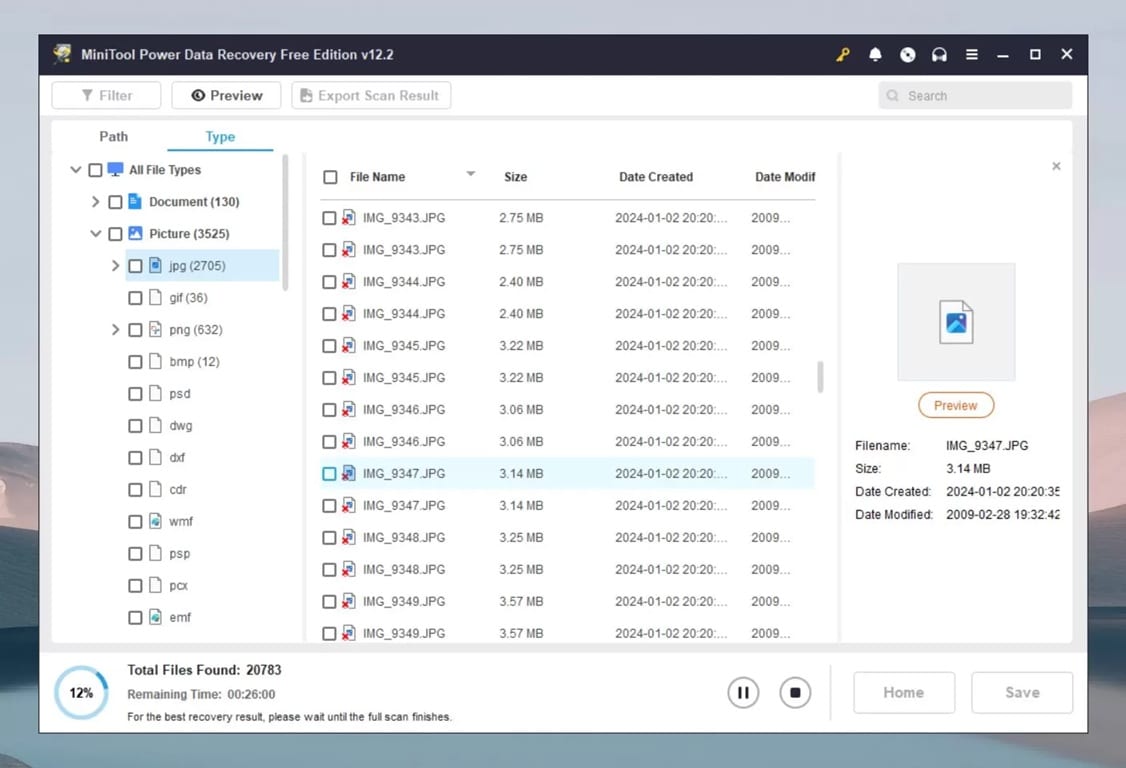
MiniTool offers a clean, straightforward approach. We tested it after my external hard drive developed bad sectors. The software presented different recovery scenarios upfront. We selected the damaged hard drive option.
Key Features:
- Five recovery modules
- Support for various devices
- Preview before recovery
- CD/DVD recovery
- Lost partition recovery
#8 Ontrack EasyRecovery
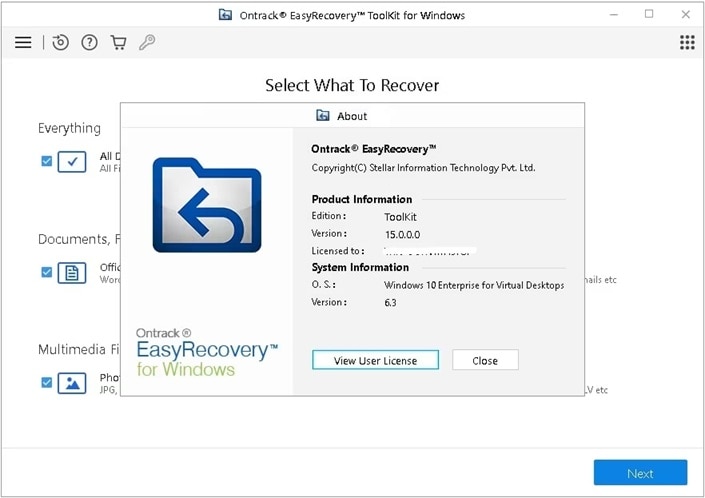
Ontrack comes from a data recovery service company. Their software reflects that professional background. We used it for a client's crashed laptop. The bootable recovery option proved valuable. We created a USB drive and booted the dead laptop.
Key Features:
- Bootable recovery media
- Email recovery for Outlook
- Virtual drive support
- RAID recovery included
- Professional-grade scanning
Pros:
- Bootable recovery media accesses dead computers. Works when Windows won't load.
- Email recovery for Outlook performs excellently. Retrieves years of messages.
- Folder structure preservation keeps organization intact. No confusing file dumps.
- Professional reliability shows in stable performance. No unexpected crashes or errors.
- Thorough technical documentation available. Helps understand advanced features.
#9 PhotoRec
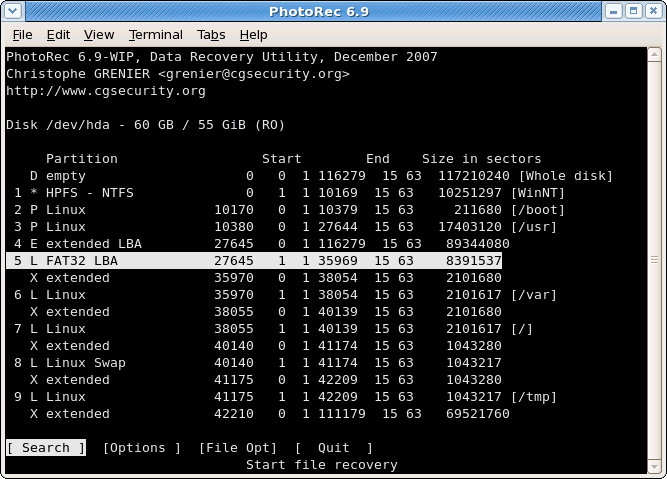
PhotoRec is open-source and completely free. It comes with TestDisk for partition recovery. The interface is command-line based. No fancy graphics here. We used it when a friend's SD card showed as RAW.
Key Features:
- Completely open-source
- Over 480 file extensions supported
- Works on many operating systems
- Ignores file system completely
- Regular updates from community
#10 Wise Data Recovery
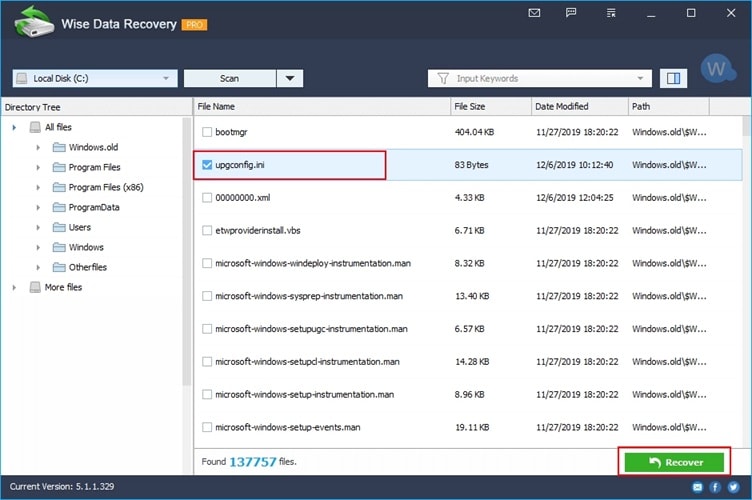
Wise Data Recovery keeps things simple. This lightweight tool focuses on basic recovery. We installed it when we needed a quick recovery from a USB drive. The file size is tiny at around 3MB. Installation took seconds.
Key Features:
- Extremely lightweight
- Portable version available
- Recovery probability indicator
- Fast scanning speed
- Completely free
Part 3: How to Recover Lost or Deleted Data Using Recoverit: Step-by-Step Guide
Recoverit stands out among the 10 best data recovery software for Windows in 2025. We chose it for this guide because it balances power and simplicity. The software handles everything from simple deletions to complex drive failures.
Why pick Recoverit over others? The answer lies in its versatility and success rate. During testing, it recovered more files than most competitors. The preview feature saves time by showing what's recoverable.
Step 1: Download and Select Location

Download Recoverit on PC. Open the program. Select the drive or folder where you lost your files. Click "Start" to begin scanning.
Step 2: Scan and Preview

Let the scan run. Files appear in real-time, organized by type. Click any file to preview it.
Step 3: Recover Your Files

Select the files you want back. Click "Recover" and choose where to save them. Never save to the same drive you're recovering from. Wait for the process to finish.
Part 4: Pro Tips for Choosing the Right Data Recovery Tool
Criteria for selecting the best data recovery software for Windows:
- Recovery success rate: Research user reviews and independent tests. Success rate matters most. Software that finds 90% of files beats one that finds 50%.
- File type support: Check if the software handles your specific file types. Video editors need tools that recover large media files. Photographers need excellent image recovery.
- Ease of use: Consider your technical skill level. Some programs require advanced knowledge. Others guide you through simple wizards. Pick what matches your comfort level.
- Scanning speed: Time matters when you need files quickly. Some tools scan faster but find less. Others are thorough but slow. Balance speed with thoroughness.
- Preview capability: This feature prevents wasted recovery time. See the files before recovering them. Verify they're intact and correct. Saves storage space, too.
- Price and value: Free tools work for simple recovery. Complex situations need paid software. Compare features against cost. Look for money-back guarantees.
Conclusion
Data loss doesn't mean permanent loss. The 10 best file recovery software for win covered here offer real solutions.
Choose recovery software based on your specific needs and technical comfort level. The best data recovery tool for win is the one that successfully recovers your files while fitting your skill level and budget. Consider trying free versions first before investing in paid software. Most importantly, set up regular backups to prevent future data loss emergencies.
FAQs
-
Q1: Can I recover files after emptying the Recycle Bin?
Yes, you can recover files after emptying the Recycle Bin. When you delete files normally or empty the Recycle Bin, Windows marks the space as available but doesn't immediately erase the data. Recovery software scans these marked spaces and restores the files. Success depends on how much time has passed and whether new data has overwritten the space. -
Q2: Is free data recovery software as good as paid versions?
Free data recovery software works well for simple cases. Programs like Recuva handle basic deletions effectively. However, free versions usually limit recovery amounts or lack advanced features. Paid software offers deeper scanning, better success rates, and handles complex situations like corrupted partitions or crashed systems. -
Q3: How long does data recovery usually take?
Recovery time varies significantly based on drive size and damage level. A quick scan of a small USB drive takes minutes. Deep scanning a large hard drive can take several hours. My 1TB drive took about three hours for a complete deep scan. Physical damage slows the process further.


