 TL;DR:
To recover a deleted Excel sheet, use built-in features like AutoRecover or Recover Unsaved Workbooks, restore a previous version via Windows File History or OneDrive/SharePoint, or use third-party data recovery software like Recoverit if the entire file was permanently deleted.
● AutoRecover and Recover Unsaved Workbooks: Use these built-in Excel features (accessible via File > Open) if the file was closed or crashed before changes were saved.
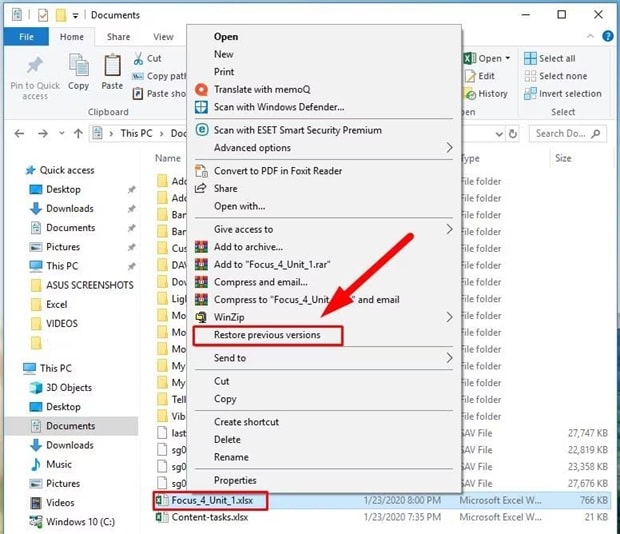
● Version History and Previous Versions: If the file was saved after deletion, right-click the file in Windows Explorer to select "Restore Previous Versions," or use the Version History option in OneDrive/SharePoint to revert to a state before the deletion.
● Third-Party Recovery Tools: Use software like Recoverit only when the entire workbook file has been permanently deleted from your drive (e.g., removed from the Recycle Bin) and cannot be restored through native system backups.
Ask AI for a summary
 ChatGPT
 Perplexity
 Gemini
 Claude
 Grok
Grok
Microsoft Excel is used in almost every field today. Students use it for projects. Accountants use it for reports. Business owners depend on it for records and analysis. A single workbook may contain many sheets. Each sheet may include months of calculations, lists, and charts. When one sheet disappears, it feels alarming. Many people think the data is lost forever. That fear is natural, especially when deadlines are close.
If you are searching for how to recover deleted sheet from Excel, you are already taking the right step. In most situations, the sheet is not permanently erased. It may still exist in an older version, a temporary file, or a backup copy. Excel and Windows both provide recovery features. Cloud storage services also keep version history. Even third-party tools can help in complex cases.
This guide explains every practical solution in a clear way. You will learn what to do, when to do it, and how to avoid making the problem worse.
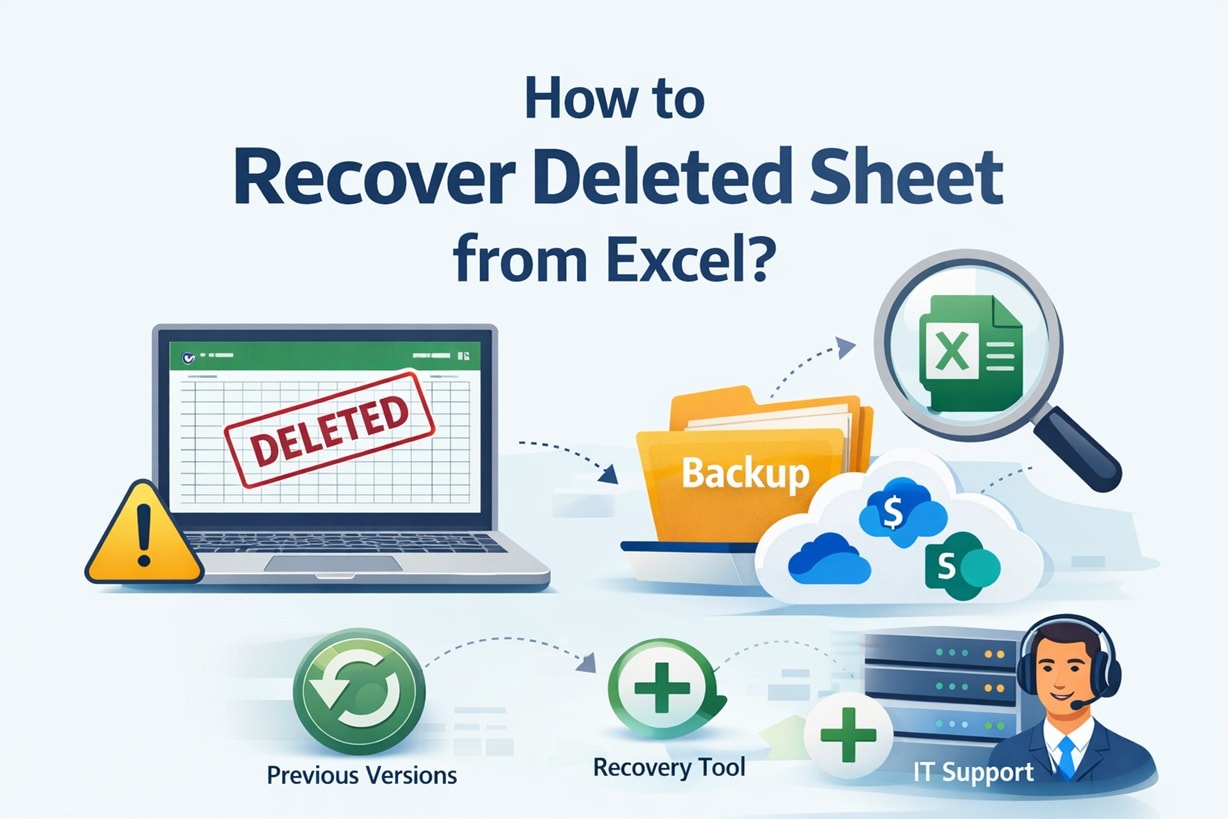
Table of Contents
-
- Method 1: Use the Recoverit Tool
- Method 2: Restore from the Excel AutoRecover feature
- Method 3: Check the Recover Unsaved Workbooks option
- Method 4: Retrieve from Previous Versions in Windows
- Method 5: Restore from OneDrive or SharePoint version history
- Method 6: Recover from Backup files
- Method 7: Seek IT support
How to Recover a Deleted Sheet from Excel
If you are wondering how to recover deleted Excel worksheet, stay calm. In many cases, recovery is possible. The method you choose depends on what happened. Did you delete only the sheet? Did you delete the entire file? Was the file saved after deletion?
Each situation has a suitable solution. Below are detailed methods explained in simple language.
Method 1: Use the Recoverit Tool
Recoverit is a professional data recovery program. It is used when the entire Excel file has been deleted. This often happens when the file is removed from the Recycle Bin or lost after formatting a drive.
The tool scans the storage device deeply. It searches for deleted file fragments. It can rebuild Excel files if the data is still present on the drive sectors. This method is useful when built-in Excel recovery features do not help.
If your problem involves permanent file deletion and you are exploring how to restore a deleted worksheet on sheet from a removed workbook, this software may provide a solution. It is especially helpful after accidental deletion or disk formatting.

Steps:
Step 1: Install Recoverit on a different drive from where the file was stored. Launch the program and select the original file location.

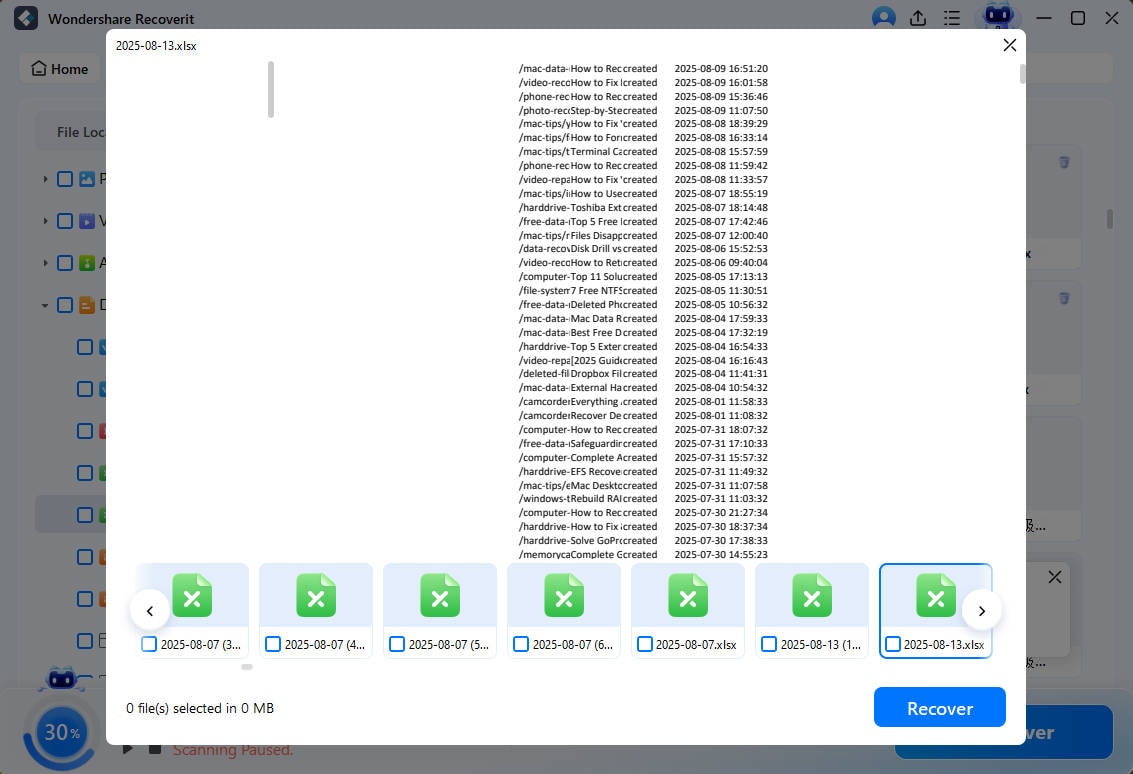
Step 2: Start the scan. After scanning, preview the Excel files found.

Step 3: Select the correct file and click Recover. Save it to a safe, new folder.
Method 2: Restore from the Excel AutoRecover Feature
Excel has a built-in AutoRecover feature. It saves temporary copies of your file at regular intervals. The default time is usually every ten minutes, but it can be changed in settings.
This feature works well when Excel crashes before you manually save changes. If the sheet was deleted but the file was not saved successfully, AutoRecover may still hold a copy.
Many users overlook this option. Yet it is often the easiest answer when searching for how to recover deleted sheet on Excel after a crash or freeze.
Steps:
- Open Excel and go to File. Click Open, then check the Recent section for AutoRecovered files.
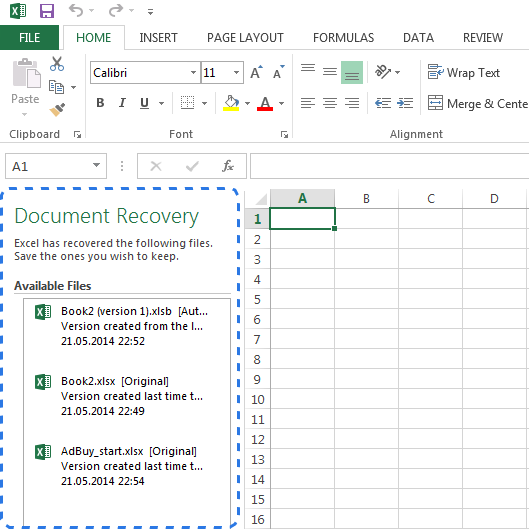
- Open the recovered version. Immediately save it with a new file name to prevent overwriting.
Method 3: Check the Recover Unsaved Workbooks Option
Excel also stores unsaved workbooks in a temporary folder. This is helpful when you closed Excel without saving changes. It may contain a version before the sheet was removed.
This option is separate from AutoRecover. It is designed to help retrieve work that was never saved manually. The folder is hidden, but Excel provides direct access through its menu.
If you are trying to learn how to recover a deleted worksheet in Excel without installing new software, this method should be checked early.
Steps:
- Open Excel. Click File, then Open. Scroll down and select Recover Unsaved Workbooks.
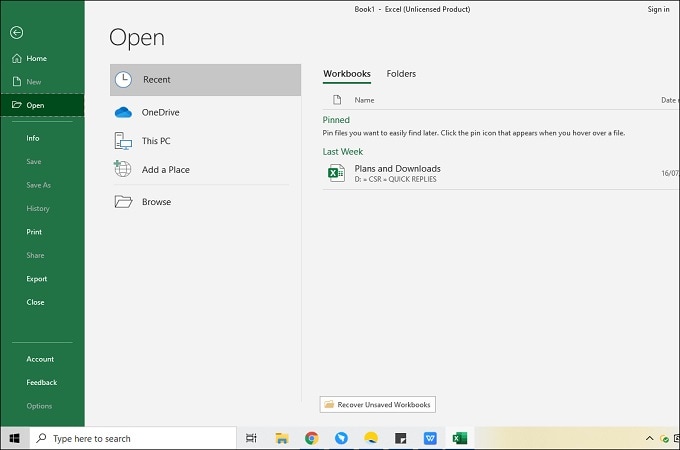
- Browse the list of files. Open the relevant one and save it immediately.
Method 4: Retrieve from Previous Versions in Windows
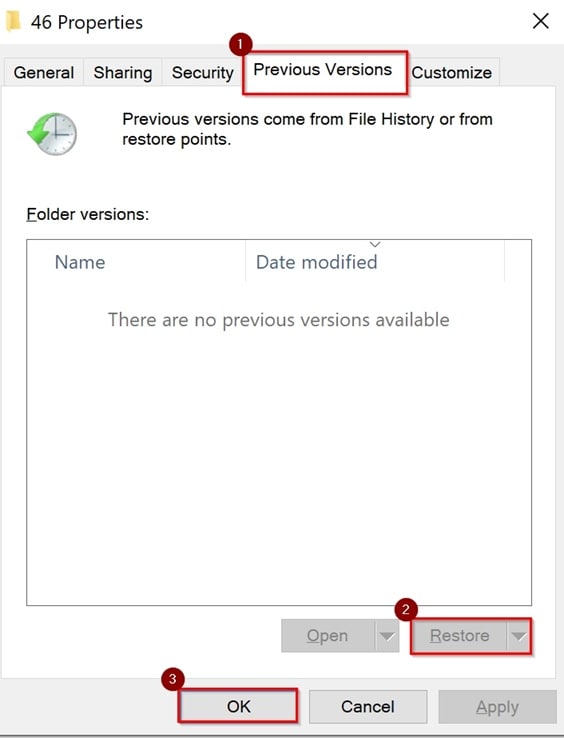
Windows offers a feature called File History. When enabled, it saves older versions of files automatically. System Restore may also create shadow copies.
If you deleted a sheet and then saved the file, older versions may still contain that sheet. This makes it useful when normal undo is no longer available.
This method often solves cases where users search for how to recover deleted worksheet in Excel after saving changes by mistake.
Steps:
- Locate your Excel file in File Explorer. Right-click it and select Restore Previous Versions.
- Open the Previous Versions tab. Choose an earlier version and click Restore or Copy.
Method 5: Restore from OneDrive or SharePoint Version History
If your workbook is saved in OneDrive or SharePoint, every saved change creates a new version. These platforms store version history automatically.
You can review earlier versions online. If a sheet was removed recently, restoring an older version may bring it back.
For cloud users searching how to recover deleted sheet from Excel in synced environments, this method is reliable and safe.
Steps:
- Open the file from OneDrive or SharePoint in your browser. Click Version History from the options menu.

- Select the version that contains the missing sheet. Restore it or download a copy.
Method 6: Recover from Backup Files
Backups are one of the safest recovery options. They may be created manually or through Windows Backup or third-party software.
If you maintain regular backups, you only need to locate the correct date version. The sheet will exist in the backup if it was present at that time.
This approach is simple and direct for anyone learning how to recover deleted Excel worksheet when backup practices are followed.
Steps:
- Open your backup storage location. Find the Excel file from a date before deletion.

- Copy the backup file to your system. Open it and verify the sheet is available.
Method 7: Seek IT Support for Corrupted Files
In rare cases, the Excel file may become severely corrupted. It may fail to open or display error messages.
When this happens, advanced repair methods are required. IT professionals use specialized repair utilities and technical procedures to extract data.
If none of the basic solutions work and you still need help with how to restore a deleted worksheet on sheet from a damaged file, professional support may be necessary.
Steps:
- Contact your internal IT team or a trusted data recovery service. Provide the affected file.
- Allow them to analyze and repair the file. Save the restored version carefully once returned.
Conclusion
Losing a worksheet can feel serious, especially if it contains important data. However, recovery is often possible. You have now learned how to recover deleted worksheet in Excel using built-in tools, Windows features, cloud history, backups, and professional help.
Act quickly and carefully. Do not overwrite the file without checking recovery options first. Most problems can be solved when proper steps are followed. In the future, enable automatic saving and maintain backups.
Good prevention habits reduce the need to search how to recover a deleted worksheet in Excel again.
FAQs
-
1. Can I recover a worksheet after saving the file?
Yes, it is still possible in many cases. If version history, Windows File History, or cloud backup was active before the deletion, you can restore an earlier copy of the workbook. That older version may still contain the missing sheet. You need to open the previous version and either restore it fully or save a separate copy to avoid losing current data. -
2. Is recovery possible without software?
Yes, recovery can often be done using built-in Excel features. Tools like AutoRecover, Recover Unsaved Workbooks, and Windows Previous Versions may help. These options do not require extra programs. Third-party recovery software is usually needed only when the entire file has been permanently deleted or removed from the system. -
3. How can I prevent sheet deletion in the future?
You can reduce risk by enabling AutoRecover and setting it to save frequently. Storing files in cloud services with version history also adds protection. Creating regular manual or automatic backups is another strong safety step. These habits ensure that even if a sheet is deleted, you can restore an earlier version easily.


